
Fig.5.6 “Group setting” Interface
Parameter “Number of groups”
This parameter defines the number of groups, with a maximum of 8 groups supported.
Options:
None
1
2
...
16
5.6.1 Parameter Window”Group X”(X=1~16)
Parameter setting interface“X: Group” (as shown in Figure5.6.1) is used to configure DALI group control.
Each channel of the KNX/DALI gateway supports up to 16 groups. You can use the DCA tool to assign multiple DALI devices to a group for unified control. Devices in the same group can be switched, dimmed, or adjusted for brightness simultaneously. However, if the devices within a group have different characteristics, their dimming responses may differ.

Fig.5.6.1 “Group X” Interface
Parameter “Group description(max 30 char.)”
This parameter is used to enter a description for the group, with a maximum length of 30 characters.
Parameter “Operation mode”
This parameter sets the operating mode of the group.
Options:
Normal mode: Common switch control of the light, such as switching, dimming and setting the brightness value of the DALI device in the group.
Permanent mode: The DALI device in the group outputs a fixed brightness value, which cannot be switched or changed.
NOTE:
In this mode, the light turns on immediately without dimming process.
Normal/Night mode: In normal mode, control is the same as Normal mode. In night mode, the light can either turn off automatically after a delay or output a fixed brightness value. Night mode is activated via Object 2.
NOTE:
This function is associated with Object 2 “Normal(day)/Night mode” and only executes the corresponding configuration in night mode.
Staircase mode: Turn on the staircase lighting and automatically turns it off after a delay.
Parameter “Group behaviour select”
This parameter defines the group’s operating behavior by recalling the settings from a specified template.
Options:
Template 1
...
Template 8
5.6.1.1 Operation Mode “Normal mode”
This section only describes the parameter settings in normal mode.
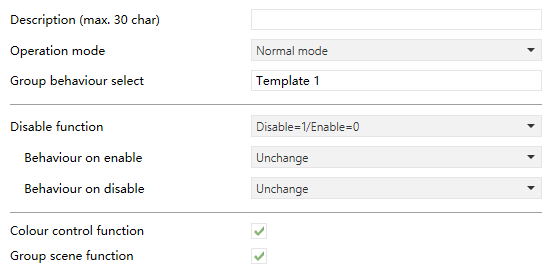
Fig.5.6.1.1 “Normal mode”
Parameter “Disable function”
This parameter sets the disable/enable control for the group. This function is not supported when "permanent mode" is selected.
Options:
Disable
Disable=1/Enable=0
Disable=0/Enable=1
When enabled, the following parameters are visible.
- Parameter “Behaviour on enable”
This parameter sets the group’s behavior when it is enabled.
Options:
Unchange: Group output remains unchanged.
Switch on: Group output executes the switch on operation.
Switch off: Group output executes the switch off operation.
- Parameter“Behaviour on disable”
This parameter sets the behavior when the group is disabled.
Options:
Unchange: Group output remains unchanged.
Switch on: Group output executes the switch on operation.
Switch off: Group output executes the switch off operation.
Parameter “colour control function”
Enable or disable colour control for the group. For detailed parameter settings when enabled, see Section 5.6.2.
Parameter “Group scene function”
Enable or disable the group scene function. For detailed parameter settings when enabled, see Section 5.6.3.
5.6.1.2 Operation Mode “Normal/Night mode”
This section only describes the parameter settings in normal/night mode.
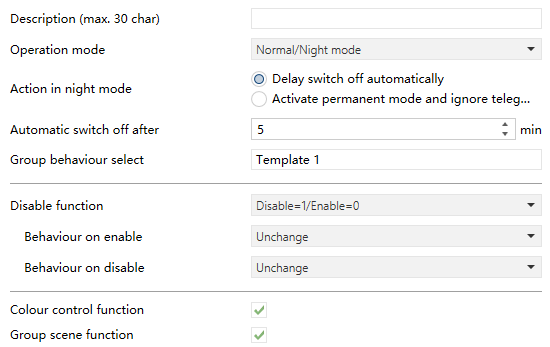
Fig.5.6.1.2 “Norma/Night mode”
Parameter “Action in night mode”
This parameter sets the action behavior in night mode.
Options:
Delay switch off automatically: The light will be automatically turned off after a delay time when it is turned on. If the light is on before switching to the night mode, after switching, the light will be automatically turned off when reach to the delay time.
NOTE:
When switching to normal mode, the current light status is maintained.
Activate permanent mode and ignore telegrams: Activates permanent mode and ignores the control telegram, i.e outputs with a fixed brightness value.
NOTE:
When switching to normal mode, the current light status is maintained.
Parameter “Automatic switch off after”
This parameter is visible when the previous parameter selects “Delay switch off automatically”. Set the delay time for the DALI device in the group to automatically turn off the light.
Options: 1..255 min
Parameter “Brightness value in permanent mode”
This parameter is visible when option "Activate permanent mode and ignore telegram" of the parameter "Action in night mode" is selected. Setting the output brightness value of the DALI device in the group when under the permanent mode.
Options:
0%
1%
...
100%
5.6.1.3 Operation Mode “Staircase mode”
This section only describes the parameter settings in staircase mode.
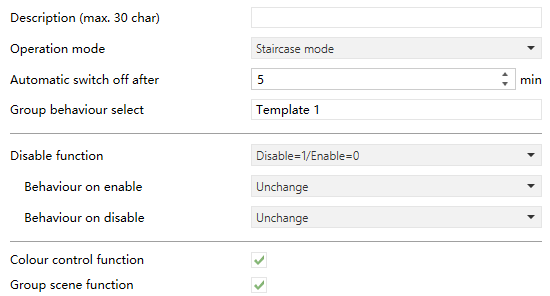
Fig.5.6.1.3 “Staircase mode”
Parameter “Automatic switch off after”
This parameter setting the delay time to automatically turn off the light after DALI device in the group is turned on.
Options: 1..255 min
5.6.1.4 Operation Mode “Permanent mode”
This section only describes the parameter settings in permanent mode.
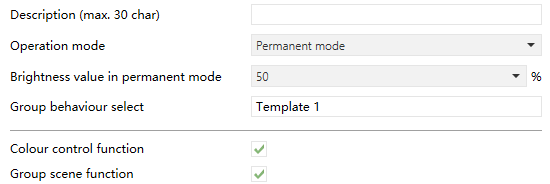
Fig.5.6.1.4 “Permanent mode”
Parameter “Brightness value in Permanent mode”
This parameter sets the brightness value of the DALI device output in the group under the permanent mode.
Options:
0%
1%
...
100%
5.6.2 Parameter Window ”Colour control”
This interface is visible when “Colour control function” is enabled.

Fig.5.6.2 “Colour control”
Parameter “Colour control type”
This parameter sets the colour control type for the group.
Options:
colour Temperature: Cool-warm colour control.
RGB colour: Three RGB colours control.
RGBW colour: Four RGBW colours control.
XY colour: Colour control via two specified coordinates in the colour space.
NOTE:
The group’s colour type must match the colour type set for the ECGs within the group; otherwise, control errors may occur.
5.6.2.1 Colour Control Type “Colour Temperature”
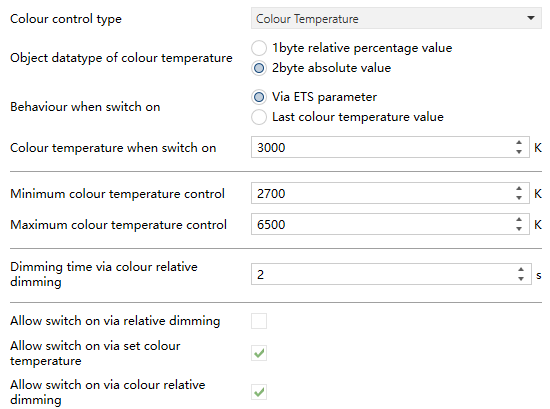
Fig.5.6.2.1 “Colour Temperature”
Parameter “Object datatype of colour temperature”
This parameter sets the object datatype of colour temperature.
Options:
1byte relative percentage value: 0% = minimum colour temperature, 100% = maximum colour temperature. The value range 0-100% will automatically convert based on the colour temperature range. For example, If the colour temperature range is 1000...10000K, then a value of 50% corresponds to a colour temperature of 4500K.
2byte absolute value: The colour temperature range is 1000....10000K.
Parameter “Behaviour when switch on”
This parameter sets the colour temperature value when the group switch is on.
Options:
Via ETS parameter: The colour temperature when the group object "Switch" on is set by the next parameter.
Last colour temperature value: The colour temperature when the group object "Switch" on follows the last saved colour temperature value. If the value is uncertain, the default colour temperature is 4000K and brightness is 50%.
- Parameter“colour temperature when switch on”
This parameter is visible when “Via ETS parameter” is selected, used to set the colour temperature when light is switch on.
Options: 1000...10000K
Parameter “Minimum colour temperature control”
Parameter “Maximum colour temperature control”
This parameter sets the minimum/maximum colour temperature control of the group output, which refers to the minimum/maximum colour temperature value controllable by the KNX-DALI-2 Gateway for lights.
Options: 1000...10000K
The minimum value of the output colour temperature must always be less than the maximum value; if this condition is not met, the parameters on the ETS will not be set.

Parameter “Dimming time via colour relative dimming”
Within the maximum colour temperature range, this parameter defines the dimming time via colour relative dimming.
Options: 1...255s
Parameter“Allow switch on via relative dimming”
This parameter defines whether the light can be switched on using relative dimming.
Parameter“Allow switch on via set colour temperature”
This parameter defines whether the light can be switched on by setting the colour temperature.
Parameter“Allow switch on via colour relative dimming”
This parameter defines whether the light can be switched on using relative dimming of the colour.
5.6.2.2 colour Control Type“RGB colour”
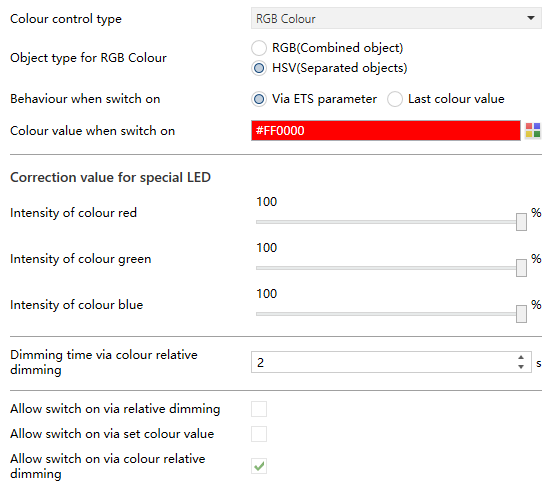
Fig.5.6.2.2 “RGB colour”
Parameter “Object type for RGB colour”
This parameter sets the object datatype of RGB colour.
Options:
RGB(Combined object)
HSV(Separated objects)
Parameter “Behaviour when switch on”
This parameter sets the colour value when the group switch is on.
Options:
Via ETS parameter: The colour value when the group object "Switch" on is set by the next parameter.
Last colour value: The colour value when the group object "Switch" on follows the last saved colour value. If the value is undefined, the default colour is white with 50% brightness.
- Parameter “colour value when switch on”
This parameter is visible when “Via ETS parameter” is selected, used to set the colour value when light is switch on.
Options: 000000...FFFFFF
Correction value for special LED
Parameter “Intensity of colour red”
Parameter “Intensity of colour green”
Parameter “Intensity of colour blue”
These parameters set the intensity of colour red/green/blue.
Options: 0...100%
NOTE:
If Intensity is set to 0%, the control for this colour is disabled and the colour output will be 0%.
Parameter “Dimming time via colour relative dimming”
This parameter is visible when “HSV (Separated objects)” is selected. Within the maximum intensity range of colour, it used to define the dimming time via colour relative dimming.
Options: 1...255s
Parameter “Allow switch on via relative dimming”
This parameter defines whether the light can be switched on via relative dimming.
Parameter “Allow switch on via set colour value”
This parameter is visible when “HSV(Separated objects)” is selected. It defines whether the light can be switched on via set colour value.
Parameter “Allow switch on via colour relative dimming”
This parameter is visible when “HSV(Separated objects)” is selected. It defines whether the light can be switched on via colour relative dimming.
5.6.2.3 Colour Control Type“RGBW colour”
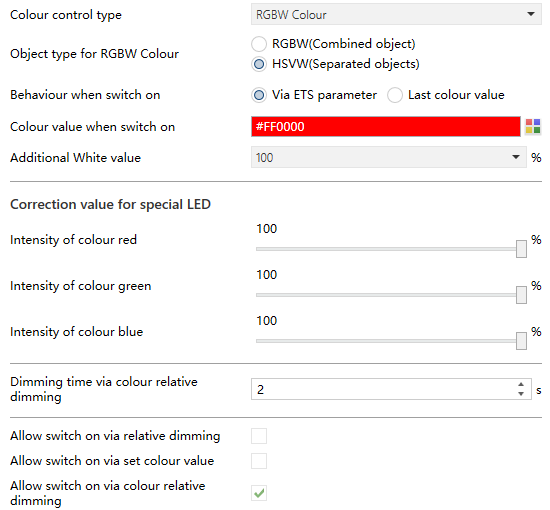
Fig.5.6.2.3 “RGBW colour”
Parameter “Object type for RGBW colour”
This parameter sets the object datatype of RGBW colour .
Options:
RGBW(Combined object)
HSVW(Separated objects)
Parameter “Behaviour when switch on”
This parameter sets the colour value when the group switch is on.
Options:
Via ETS parameter: The colour value when the group object "Switch" turns on is set by the next parameter.
Last colour value: The colour value when the group object "Switch" turns on follows the last saved colour value. If the value is undefined, the default colour is white and “W” value is 50%.
The following parameters are visible when “Via ETS parameter” is selected:
- Parameter “colour value when switch on”
This parameter sets the colour value when switch on.
Options: 000000...FFFFFF
- Parameter “Additional White value”
This parameter sets the additional white colour value when switch on.
Options: 0...100%
Correction value for special LED
Parameter “Intensity of colour red”
Parameter “Intensity of colour green”
Parameter “Intensity of colour blue”
These parameters set the intensity of colour red/green/blue.
Options: 0...100%
NOTE:
If Intensity is set to 0%, the control for this colour is disabled and the colour output will be 0%.
Parameter “Dimming time via colour relative dimming”
This parameter is visible when “HSVW(Separated objects)” is selected. Within the maximum colour temperature range, tsed to define the dimming time via colour relative dimming.
Options: 1...255s
Parameter “Allow switch on via relative dimming”
This parameter defines whether the light can be switched on via relative dimming.
Parameter “Allow switch on via set colour value”
This parameter is visible when “HSVW(Separated objects)” is selected. It defines whether the light can be switched on via set colour value.
Parameter “Allow switch on via colour relative dimming”
This parameter is visible when “HSVW(Separated objects)” is selected. Used to define whether the light can be switched on via colour relative dimming.
5.6.2.4 Colour Control Type “XY colour”
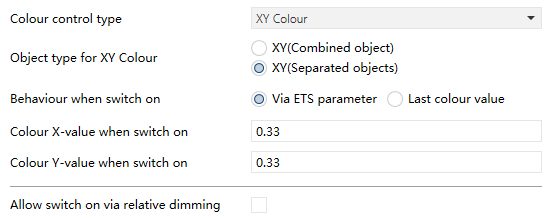
Fig.5.6.2.4 “XY colour”
Parameter “Object type for XY colour”
This parameter sets the object datatype of XY colour.
Options:
XY(Combined object)
XY(Separated objects)
Parameter “Behaviour when switch on”
This parameter sets the colour value when the group switch is on.
Options:
Via ETS parameter: The colour value when the group object "Switch" turns on is set by the next parameter.
Last colour value: The colour value when the group object "Switch" turns on follows the last saved colour value. If the value is undefined, the default colour is white with 50% brightness.
The following parameters are visible when “Via ETS parameter” is selected.
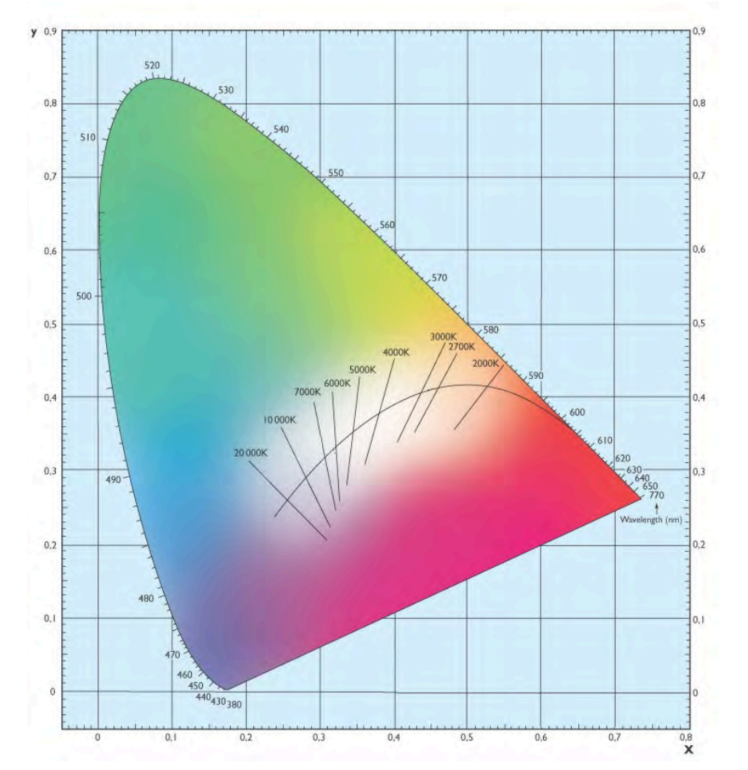
- Parameter“colour X-value when switch on”
This parameter sets the colour X-value when switch on.
Options: 0...1
- Parameter“Colour Y-value when switch on”
This parameter sets the colour Y-value when switch on.
Options: 0...1
NOTE:
Any control values with coordinates outside the valid colour range are invalid (e.g., x = 0.01, y = 0.01).
Parameter “Allow switch on via colour relative dimming”
This parameter defines whether the light can be switched on via relative dimming.
5.6.3 Parameter Window ”Scene”
This interface is visible when “Group scene function” is enabled.
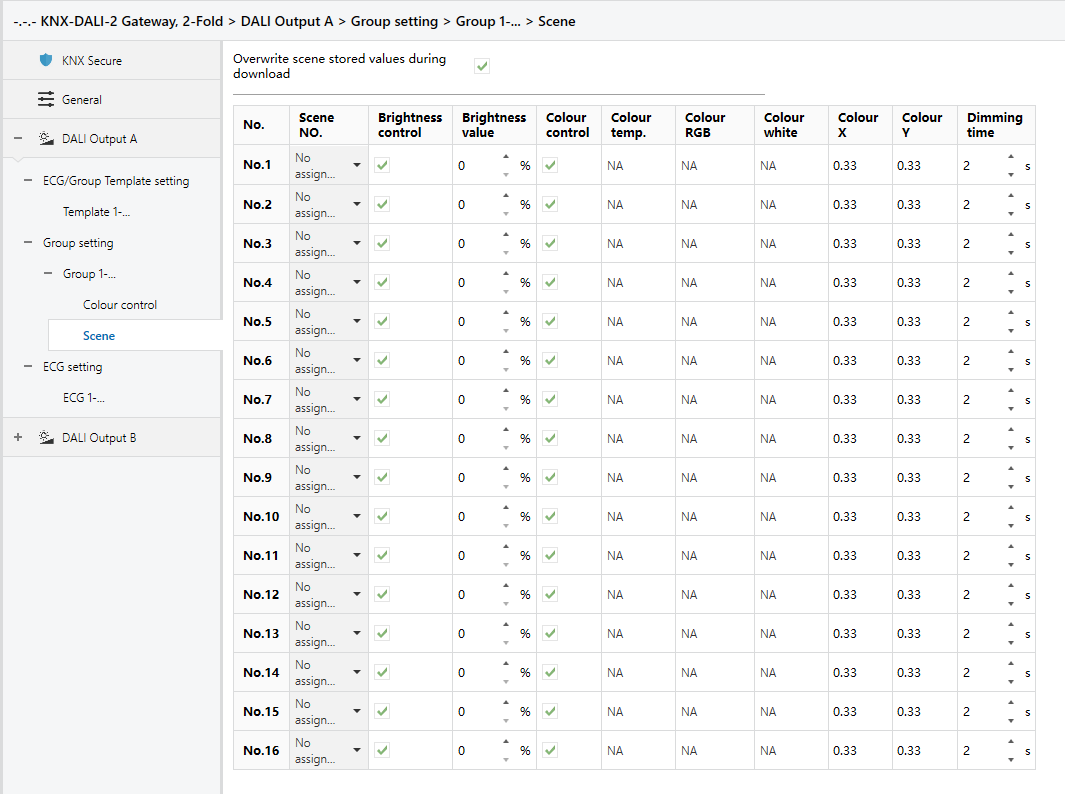
Fig.5.6.3 “Scene” Interface
Parameter “Overwrite scene stored values during download”
This parameter sets whether to overwrite scene stored values during download.
Overwrite: All scene parameters are updated according to the settings downloaded from ETS.
Not overwrite: Brightness and colour values for scenes that have already undergone learning remain saved after the download and are used when recalling those scenes. For new scenes, scenes with a changed colour control type, scenes not yet learned, or scenes whose learned positions have changed in the new configuration, the ETS settings will take priority.
Parameter “No.”
This parameter shows the configurable scenarios, up to 16 scenarios.
Parameter “Scene NO.”
This parameter sets the KNX scene number that triggers this group of scenes. Options:
No assignment
1
2
...
64
Parameter “Brightness control”
This parameter sets whether to enable brightness control, indicating the brightness control value that needs to be sent in this scene control.
Parameter “Brightness value”
This parameter sets the brightness value of the scene and the default is “NA”.
Options: 0...100%
The brightness value cannot be set when the group's operation mode is "Permanent" and object type is “HSV(Separated objects)/HSVW(Separated objects)”.
Parameter “Colour control”
This parameter sets the colour value of the scene, indicating the colour control value that needs to be sent in this scene control.
NOTE:
When controlling group scenes, at least one of the following must be sent: brightness value or colour control.
Parameter “Colour temp.”
This parameter sets the colour temperature value of the corresponding scene. The options are displayed according to the colour control type and can be set only if the group selection colour type is “colour Temperature” and the parameter “colour control” is enabled. The default is “NA”.
Options:
1000...10000K
Parameter“Colour RGB/RGBW”
This parameter sets the RGB/RGBW value of the corresponding scene. The options are displayed according to the colour control type and can be set only if the group selection colour type is “RGB /RGBW colour” and the parameter “colour control” is enabled. The default is “NA”.
Options: 000000...FFFFFF
Parameter “Colour White”
This parameter sets the colour white of the corresponding scene. The options are displayed according to the colour control type and can be set only if the group selection colour type is “RGBW colour” and the parameter “colour control” is enabled. ”, The default is “NA”.
Options: 0...100%
Parameter “Colour X”
This parameter sets the colour X of the corresponding scene. The options are displayed according to the colour control type and can be set only if the group selection colour type is “XY Temperature” and the parameter “colour control” is enabled. The default is “NA”.
Options: 0...1
Parameter “Colour Y”
This parameter sets the colour Y of the corresponding scene. The options are displayed according to the colour control type and can be set only if the group selection colour type is “XY Temperature” and the parameter “colour control” is enabled. The default is “NA”.
Options: 0...1
Parameter “Dimming time”
This parameter sets the dimming time of the corresponding scene. The options are displayed according to the the parameter “Brightness control” is enabled. The default is “NA”.
Options: 0...255s