Event Trigger Rule allows you to automate actions based on access control events.
When a configured event occurs, the Smart Access Cloud automatically performs predefined actions, such as:
Sending email notifications to administrators.
Sending push notifications to the SmartPlus App.
Calling third-party HTTP APIs through Webhooks.
Triggering relays.
Opening or locking down doors.
Example scenarios:
Scenario | Event | Action |
|---|---|---|
Notify PM when unauthorized access occurs. | Invalid Door Access | Send Email |
Turn on warning light when door is forced open. | Break-in Alarm Triggered | Trigger Relay |
Notify third-party security system. | Emergency Scenario Activate | Call Webhook |
Lock all doors during emergency. | Emergency Scenario Activate | Lockdown On |
Before You Start
Role Permission
Role | Permission |
|---|---|
Installer |
|
Project Manager | Configure the feature once it is enabled. |
Administrator | Configure the feature once it is enabled. |
Model Compatibility
Model | Minimum Version | Mode | Minimum Version |
|---|---|---|---|
X915V2 | 2915.30.10.811 | A095 | 95.30.11.104 |
R20V5 | 320.30.12.103 | A01/A02 | 101.30.11.204 |
A03 | 103.30.11.204 | A08 | 108.30.12.6 |
S535 | 535.30.11.32 | A05V2 | 205.30.11.127 |
E16V3 | 416.30.12.104 | X916 | 916.30.10.604 |
R28V2 | 228.30.11.108 | E18 | 18.30.11.202 |
X912 | 912.30.13.3 | R29 | 29.30.10.743 |
S532 | 532.30.10.404 | E16V2 | 216.30.12.103 |
X910 | 2910.30.11.111 | R25 | 25.30.11.3 |
S539 | 539.30.10.710 |
Prerequisite: For Installer — Enable Event Trigger Rule
Log in to the cloud portal with your installer account.
Navigate to Commercial(s).
Click New to create a new site; or, click
 to modify a current one.
Enable Event Trigger Rules.
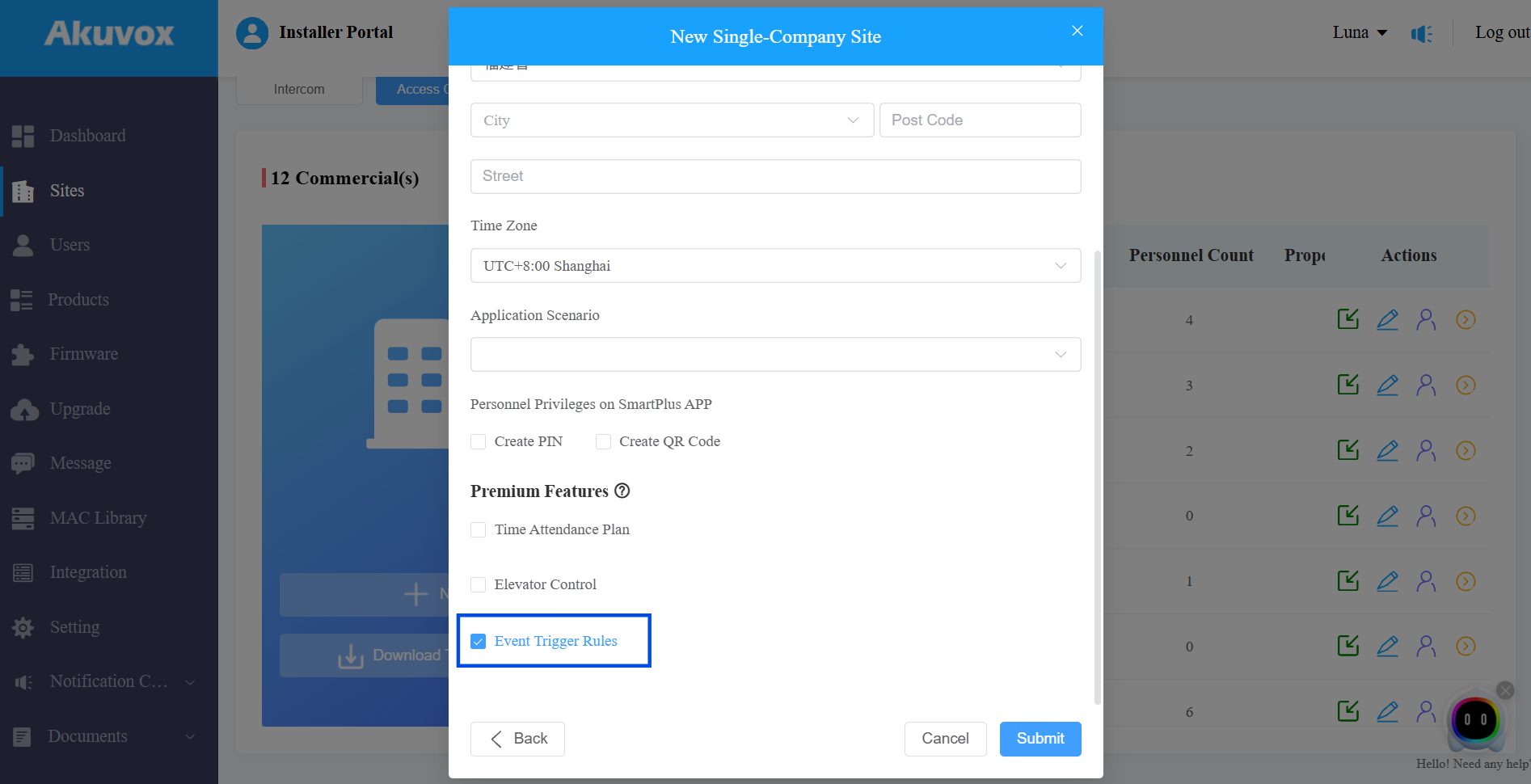
Click Submit.
Configuration
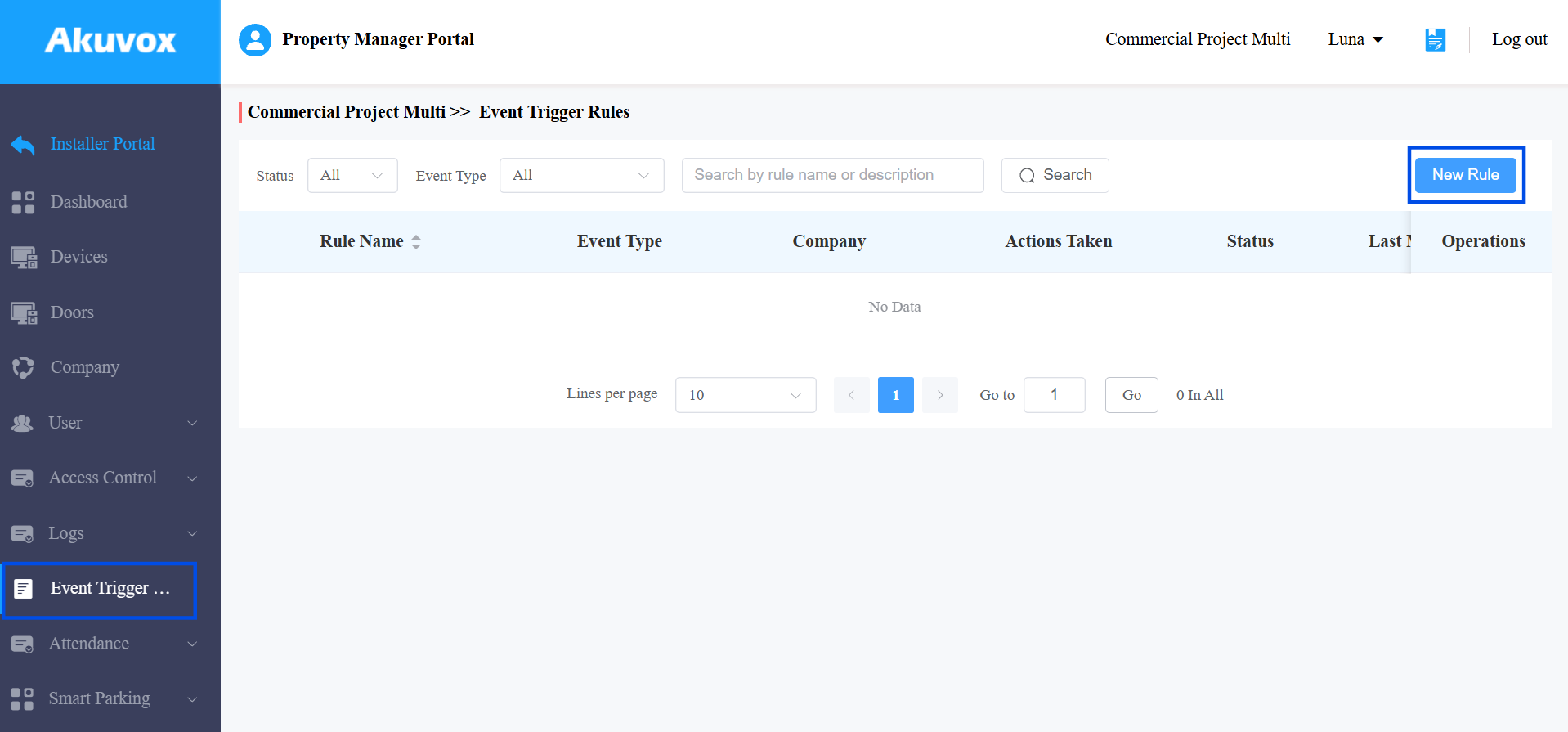
Log in to the cloud with your account(installer, PM, or admin).
Click Event Trigger Rules > New Rule.
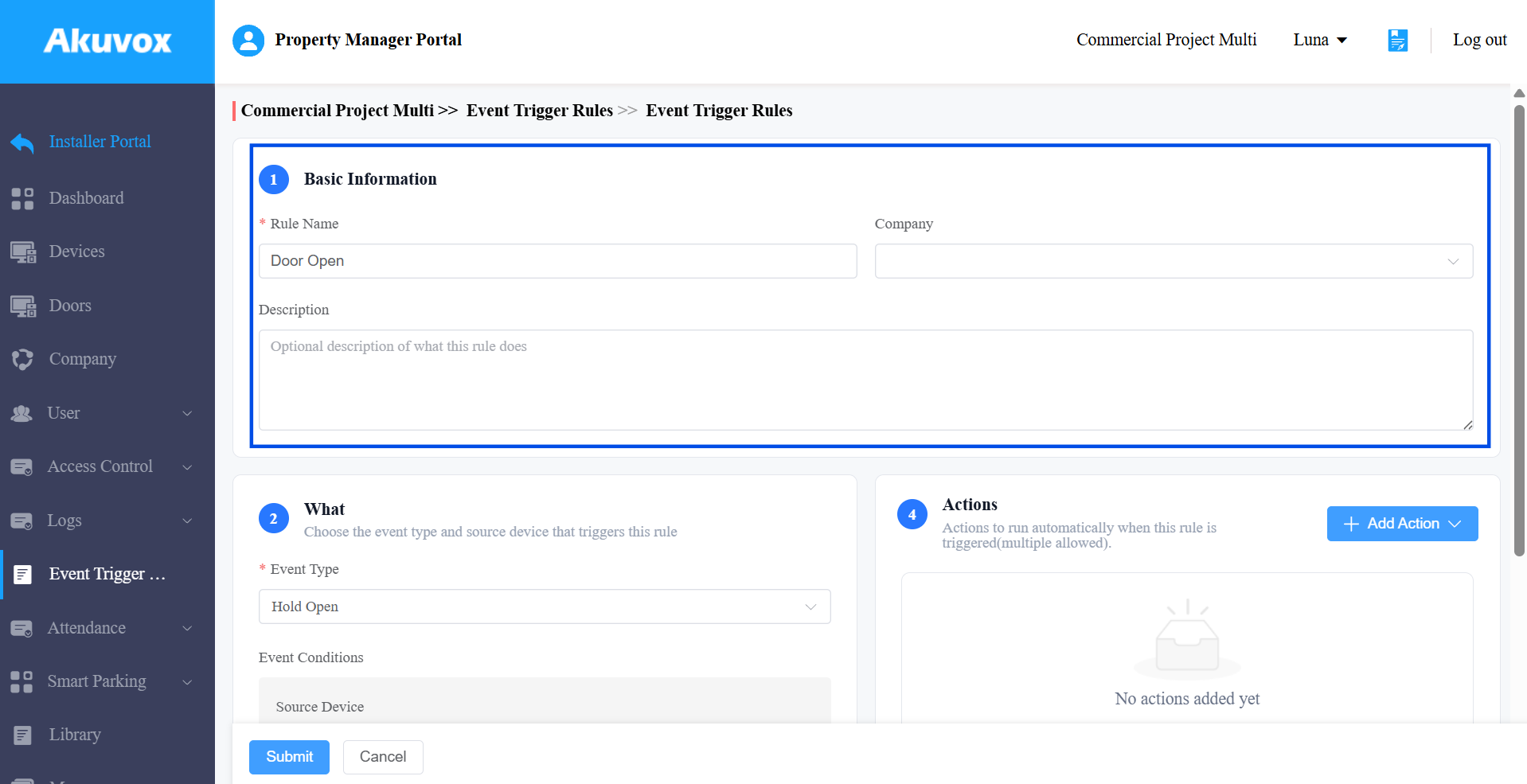
Enter the Basic Information.
Rule Name: Define the rule name.
Company: Optional. If no company is selected, the rule is not tied to any company. For admin accounts, the rule is automatically assigned to the admin-managed company.
Description: Enter the rule description.
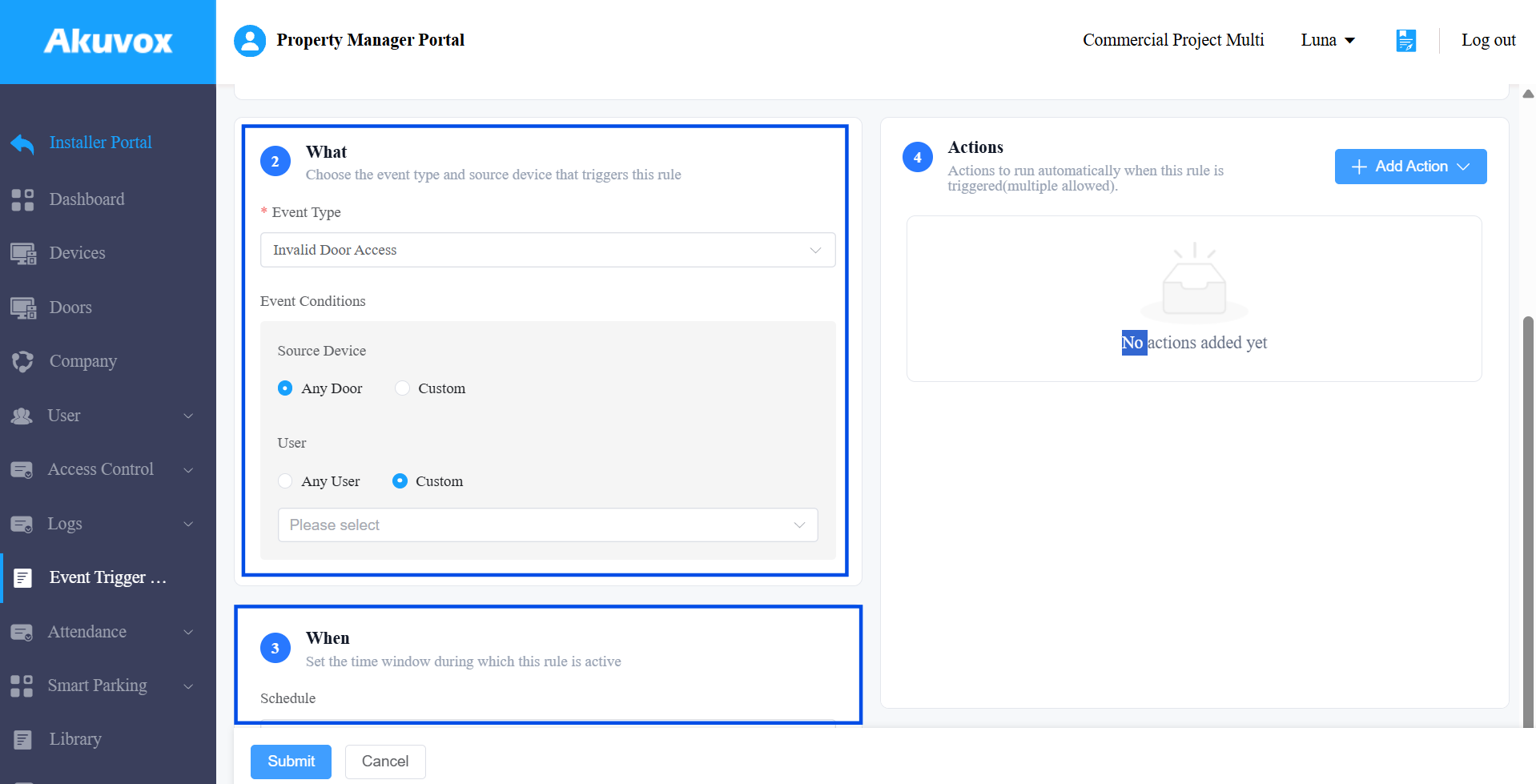
Under What, select the event type that triggers the rule, and configure its required parameters. For example, for Invalid Door Access, select the User (or Any User) and the Source Door. See Supported Events for details.
Under When, specify the time condition during which the rule is active.
Under Actions, select one or more actions to run when the event occurs. You can add up to 5 actions per rule.
See Supported Actions for which actions are available per event type.
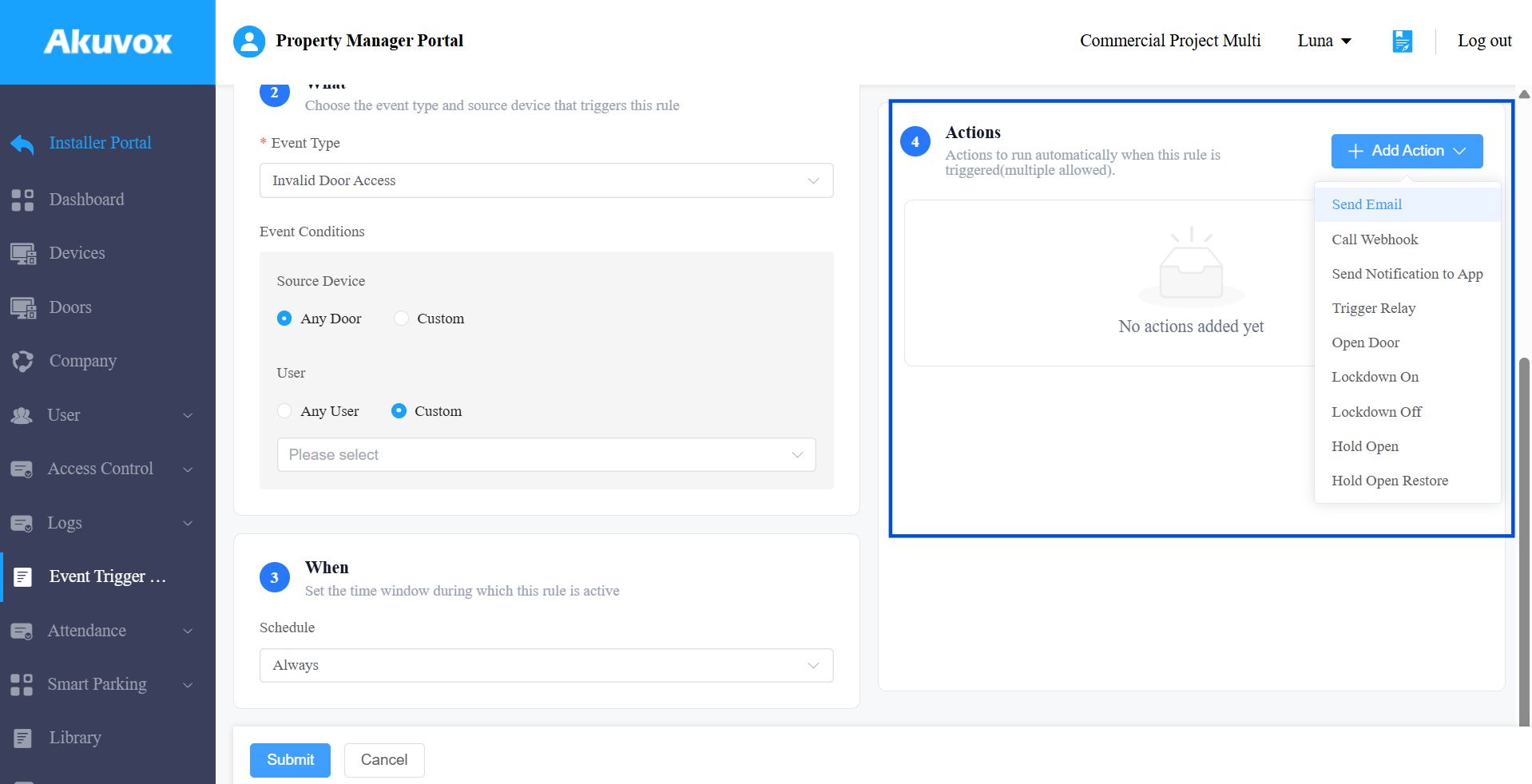
Click Submit.
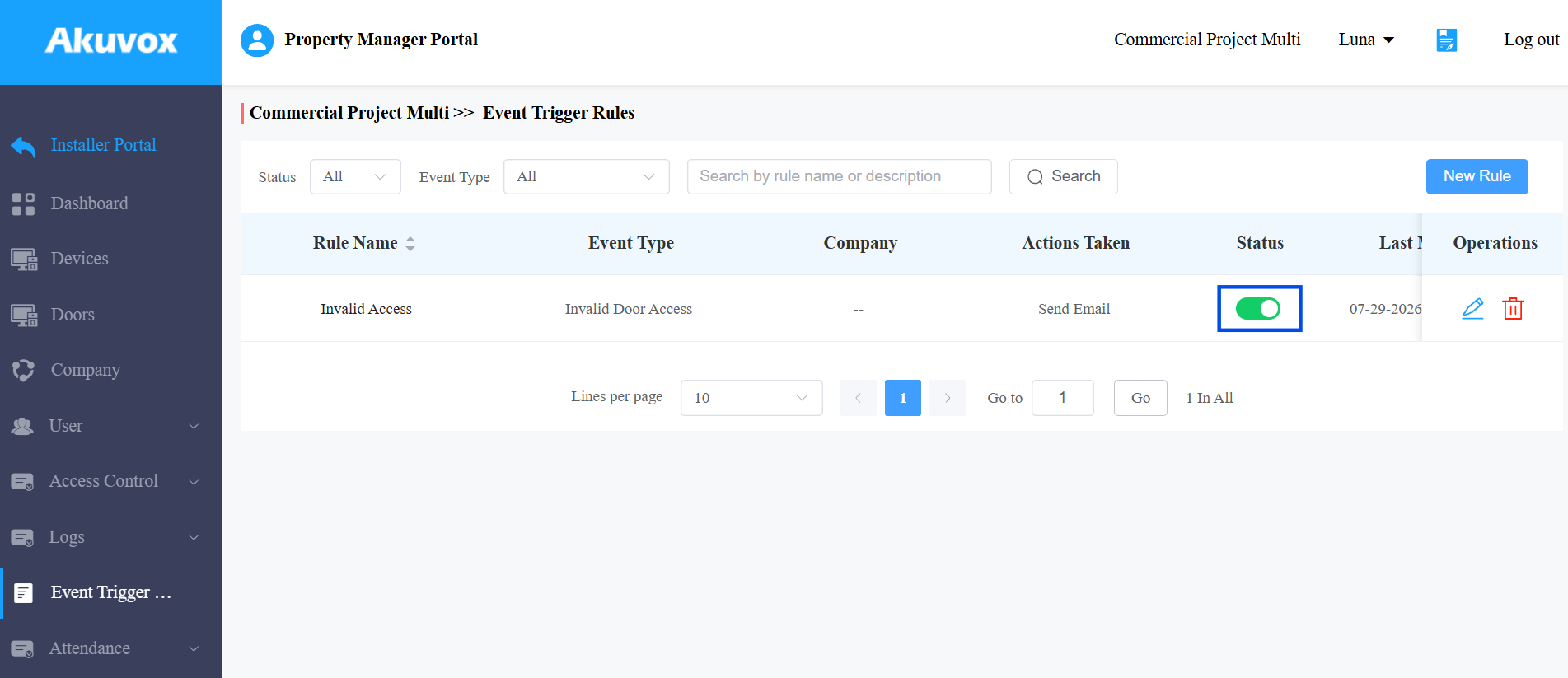
After creating the rule, you can toggle the Status switch to turn it on or off.
Verification
Trigger the configured event under test conditions and confirm the expected action occurs (e.g., email received, relay activated, door state changed).
Supported Events
Door Status Events
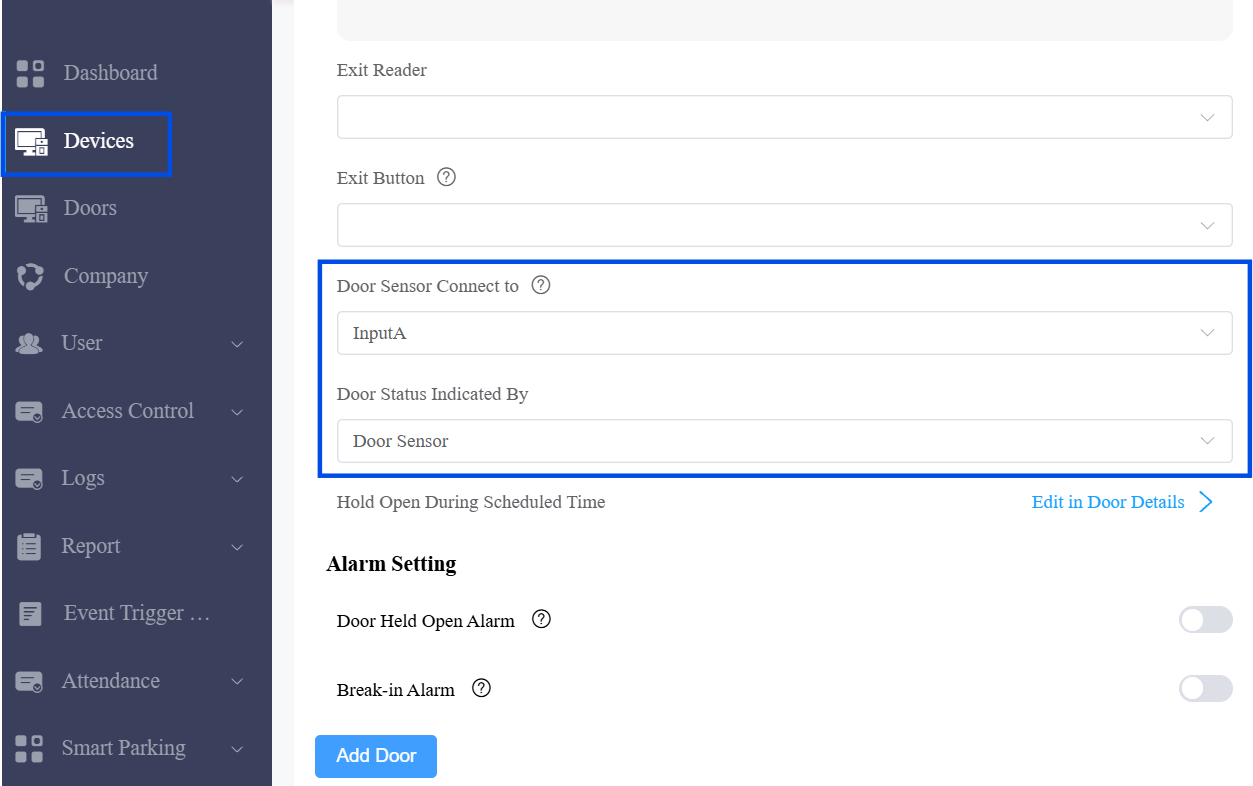
Door Open (Based on DPS) and Door Close (Based on DPS) require the door sensor to be configured first: open the device’s settings and set Door Sensor Connect to the input the sensor is wired to (e.g., InputA), and set Door Status Indicated By to Door Sensor.
Event | Description | Source |
|---|---|---|
Door Open (Based on DPS) | Door is opened, based on Door Position Switch (DPS) input. | Door |
Door Close (Based on DPS) | Door is closed, based on Door Position Switch (DPS) input. | Door |
Hold Open | Door enters Hold Open state. | Door |
Hold Open Restore | Door exits Hold Open state. | Door |
Lockdown On | Door enters lockdown state. | Door |
Lockdown Off | Door exits lockdown state. | Door |
Exit Button Open Door | Door is opened through exit button. | Door |
Access Events
Event | Description | Configuration |
|---|---|---|
Invalid Door Access | Failed access attempt. | User + Door |
Card Input | Specific card is used. | Card Number + Door |
PIN Input | Specific PIN is entered. | PIN + Door |
Example: Trigger a notification when card number 12345678 is used at Door A.
Alarm Events
Event | Description | Source |
|---|---|---|
Any Door-Triggered Alarm | Any door-related alarm occurs. | Door |
Door Held-open Alarm Triggered | Door remains open longer than allowed. | Door |
Break-in Alarm Triggered | Forced entry. | Door |
Tamper Alarm Triggered | Device tamper alarm occurs. | Device |
Emergency Scenario Activate | Emergency scenario is activated. | Scenario |
Device Status/Input Events
Event | Description | Configuration |
|---|---|---|
Device Offline | Device disconnects from cloud. | Device |
Input Triggered | Input signal is triggered. | Device + Input |
Input Restored | Input signal returns to normal state. | Device + Input |
Supported Actions
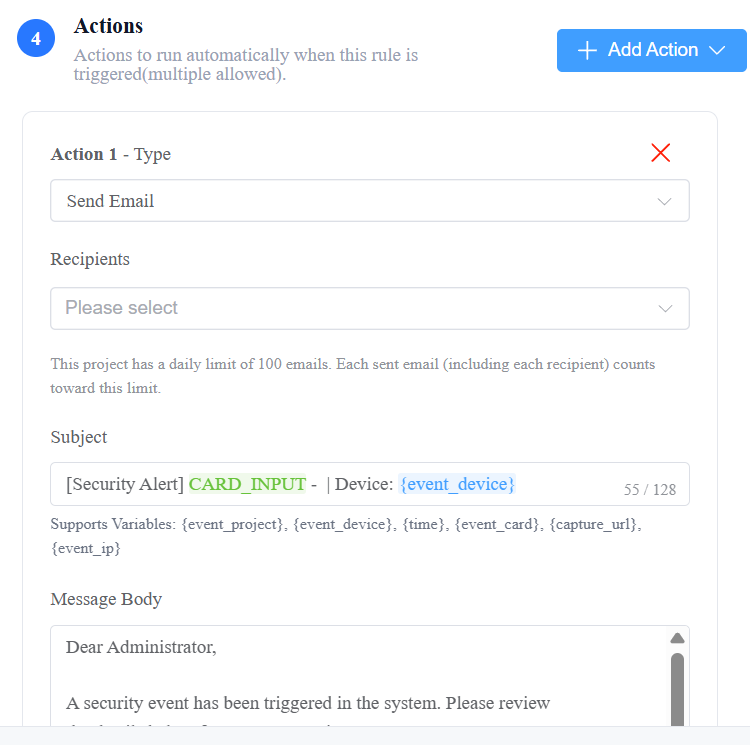
Send Email
Send email notifications to selected recipients(PM and/or admin). Each project has a daily limit of 100 emails sent through Event Trigger Rules.
Emails can include a screenshot link, valid for 15 days — except for Emergency Scenario Activate, which has no associated screenshot.
Supported Events
All other events (Door Status Events, Device Offline, Input Triggered, Input Restored) do not support Send Email.
Event | Screenshot |
|---|---|
Invalid Door Access | ✓ |
Card Input | ✓ |
PIN Input | ✓ |
Any Door-Triggered Alarm | ✓ |
Door Held-open Alarm Triggered | ✓ |
Break-in Alarm Triggered | ✓ |
Tamper Alarm Triggered | ✓ |
Emergency Scenario Activate | ✗ |
Email Variables
Which variables are available depends on the event selected under What — for example, {event_card}is only available when the rule's event is Card Input, and{event_PIN}only when it's PIN Input.
Variable | Description |
|---|---|
| Project name |
| User involved in event |
| Device/Door name |
| Event type |
| Card number |
| PIN |
| Screenshot URL |
| Event time |
| Device IP address |
Call Webhook
Send HTTP requests to external systems.
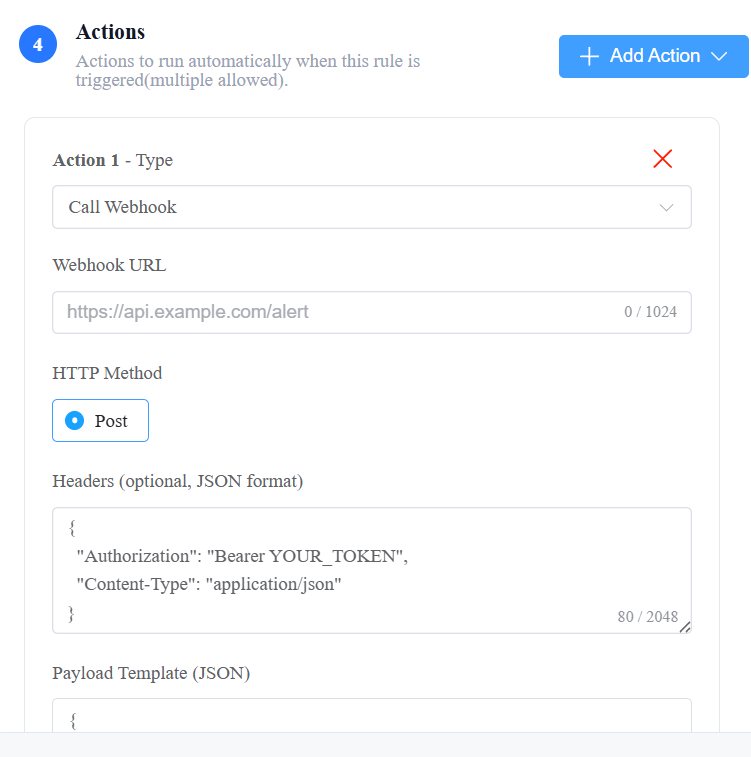
Configuration:
Field | Description |
|---|---|
Webhook URL | Target API address |
HTTP Method | Fixed as POST |
Headers | Custom HTTP headers |
Payload Template | JSON payload with variables |
Supported variables:
As with email, which variables are populated depends on the selected event (e.g., {event_card}for Card Input, {event_PIN}for PIN Input).
Variable | Description |
|---|---|
| Project name |
| Device name |
| Card number |
| PIN |
| Event time |
| Device IP address |
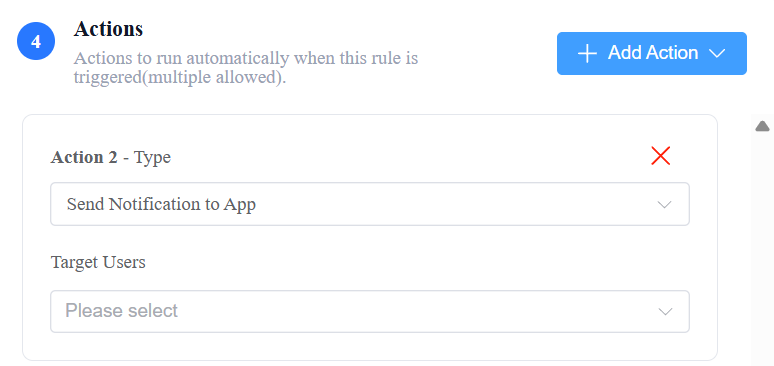
Send Notification to App
Send push notifications to the admin SmartPlus App.
This action is unavailable for Any Door-Triggered Alarm, Break-in Alarm Triggered, and Tamper Alarm Triggered, because these are already pushed to all Admin App users through the existing alarm notification mechanism.
It's available for all other events.
Trigger Relay
Control relay devices after an event occurs. Currently supported on Indoor Monitor relay only.
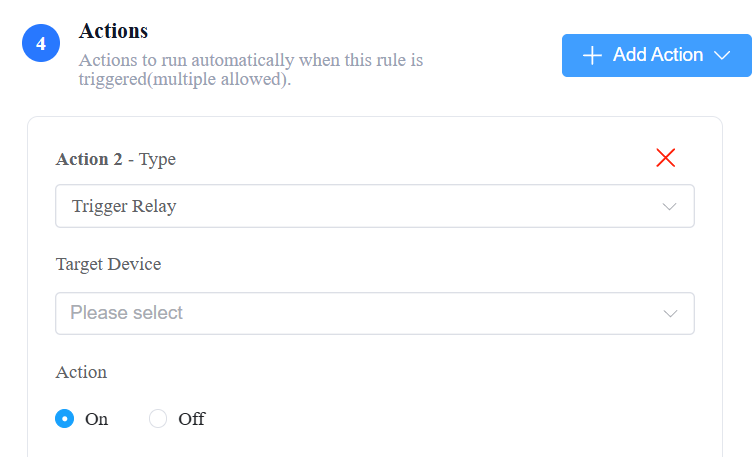
Configuration:
Field | Description |
|---|---|
Device | Select indoor monitor relay |
Action | Turn ON / Turn OFF |
Example: Break-in Alarm Triggered → Turn ON warning light
Door Control Actions
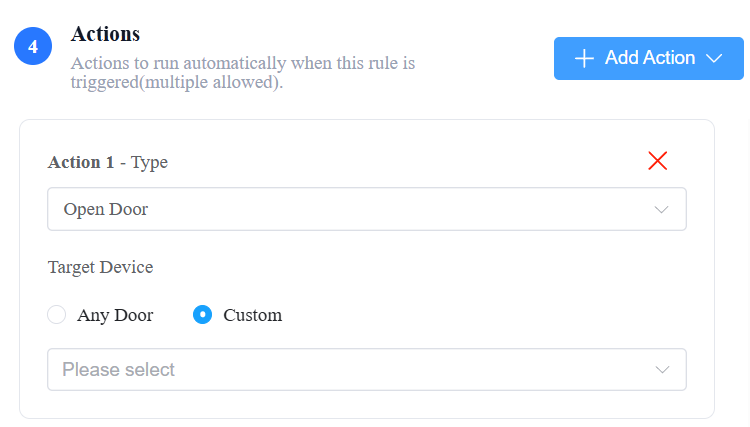
Action | Description | Configuration |
|---|---|---|
Open Door | Unlock selected doors when an event is triggered. | Doors: Select doors to unlock (All Doors or specific doors). |
Lockdown On | Lock selected doors immediately for emergency access control. | Doors: Select doors to lock down (All Doors or specific doors). |
Lockdown Off | Release selected doors from lockdown state. | Doors: Select doors to release (All Doors or specific doors). |
Hold Open | Keep selected doors open. | Doors: Select doors to hold open (All Doors or specific doors). |
Hold Open Restore | Restore selected doors from Hold Open state. | Doors: Select doors to restore (All Doors or specific doors). |
Offline Event Handling
When the trigger device is offline, event handling depends on event type and offline duration.
Emergency Events
Includes:
Door alarms
Door Held-open alarm
Break-in Alarm
Emergency Scenario Activate
Offline ≤ 5 minutes
Actions execute normally after the device reconnects.
Offline > 5 minutes
Email/App notification titles are prefixed with
[Delayed Sync].Other configured actions are blocked.
Event is only saved in logs.
Non-emergency Events
All other event types (Door Status Events, Access Events, Tamper Alarm Triggered, and Device/Input Events).
When the device reconnects:
Actions are not executed.
Event is only saved in logs.
Troubleshooting
Issue | Possible Cause | Solution |
|---|---|---|
Configured action did not run. | Target device was offline when the action executed. | Check the device's online status; the cloud skips offline devices during action execution. |
Email or app notification title includes "[Delayed Sync]". | The triggering device was offline for more than 5 minutes before reconnecting. | This is expected behavior for Emergency Events with delayed reporting. |
Non-emergency event did not trigger any action after the device reconnected. | Non-emergency events are not executed retroactively; they are only logged. | Check the event log to confirm the event was recorded. |
Send Notification to App option is missing for Any Door-Triggered Alarm, Break-in Alarm Triggered, or Tamper Alarm Triggered. | These alarm events are already pushed to all Admin App users through the separate alarm notification mechanism. | No action needed; this is expected behavior. |