A door access schedule lets you decide who can open the door and when. It applies to both individuals and groups, ensuring that users within the schedule can only open the door using the authorized method during designated time periods.
Create a Door Access Schedule
You can create door access schedules for daily, weekly, or custom time periods.
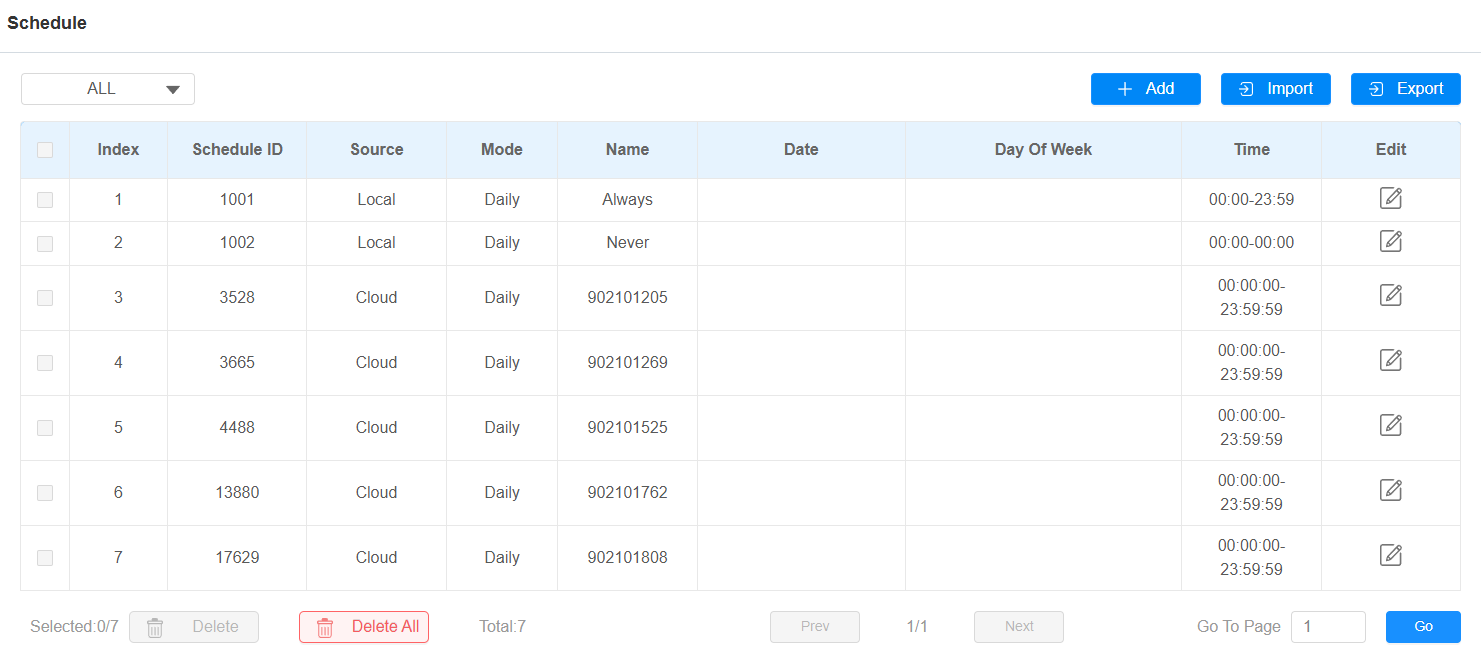
To set up the schedule, navigate to the Setting > Schedule interface. Click +Add. You can add 100 local schedules.
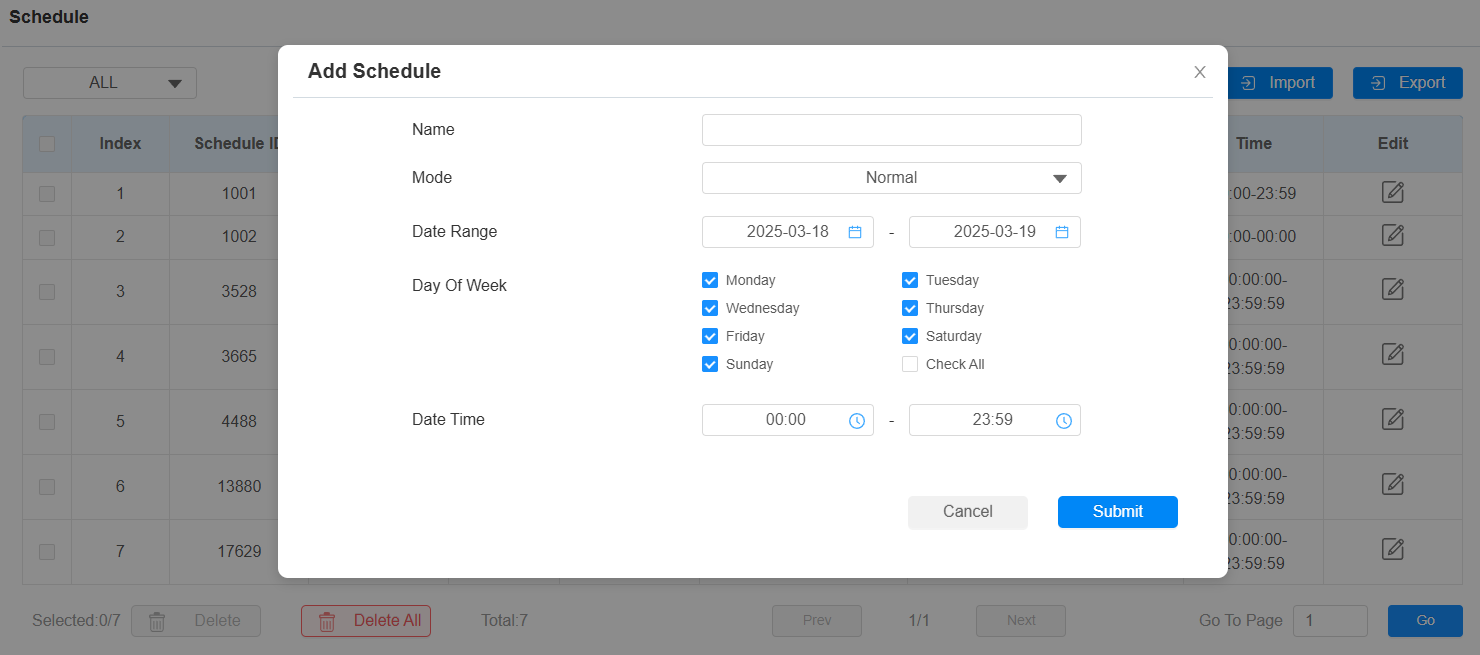
Name: Name the schedule.
Mode:
Normal: Set the schedule based on the month, week, and day. It is used for a long-term schedule.
Weekly: Set the schedule based on the week.
Daily: Set the schedule based on 24 hours a day.
Note
The access control schedule synchronized from the SmartPlus cannot be edited or deleted.
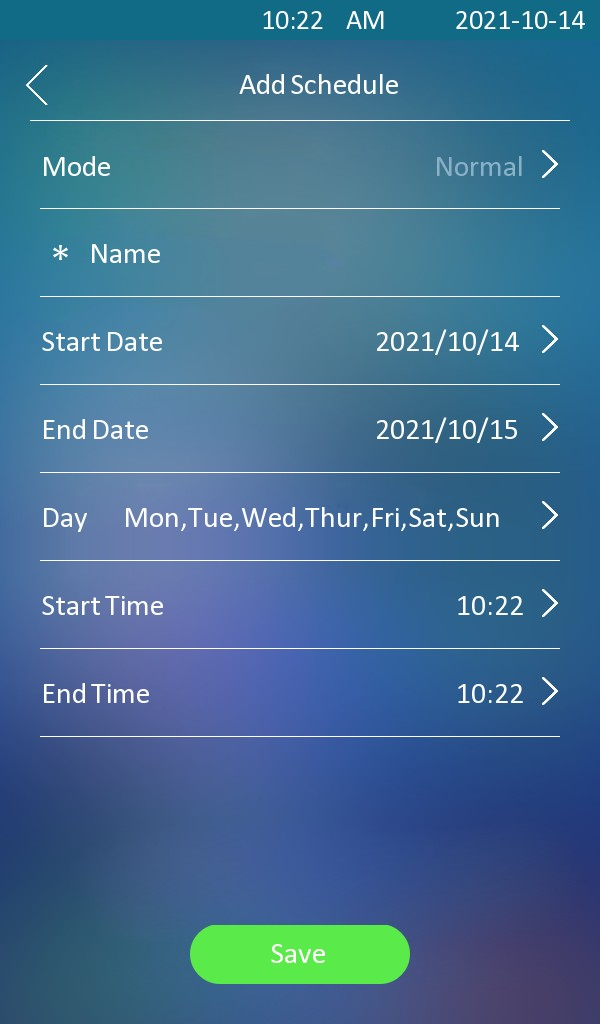
You can also set up schedules on the Setting > Schedule screen.
Import and Export Door Access Schedule
You can create door access schedules one by one or in bulk. You can export the current schedule file, edit it or add more schedules following the format, and import the new file to the desired devices. This helps you manage your door access schedules easily.
To set it up, go to the Setting > Schedule interface. The export/import file is in XML format.

Relay Schedule
The relay schedule allows you to set a specific relay to always open at a certain time. This is helpful for situations like keeping the gate open after school or keeping the door open during work hours.
Set it up on the Access Control > Relay > Relay Schedule interface.

Relay ID: Specify the relay you need to set up.
Schedule Enabled: Assign particular door access schedules to the chosen relay. Simply move them to the Enabled Schedules box.
For instructions on creating schedules, kindly consult the Create a Door Access Schedule section.
Holiday Schedule
You can define the holidays when users cannot open doors to enhance access control security. You can also set the Working Hours to allow authorized users to open doors.
Set it up on the Setting > Holiday interface. Click +Add to add a schedule.
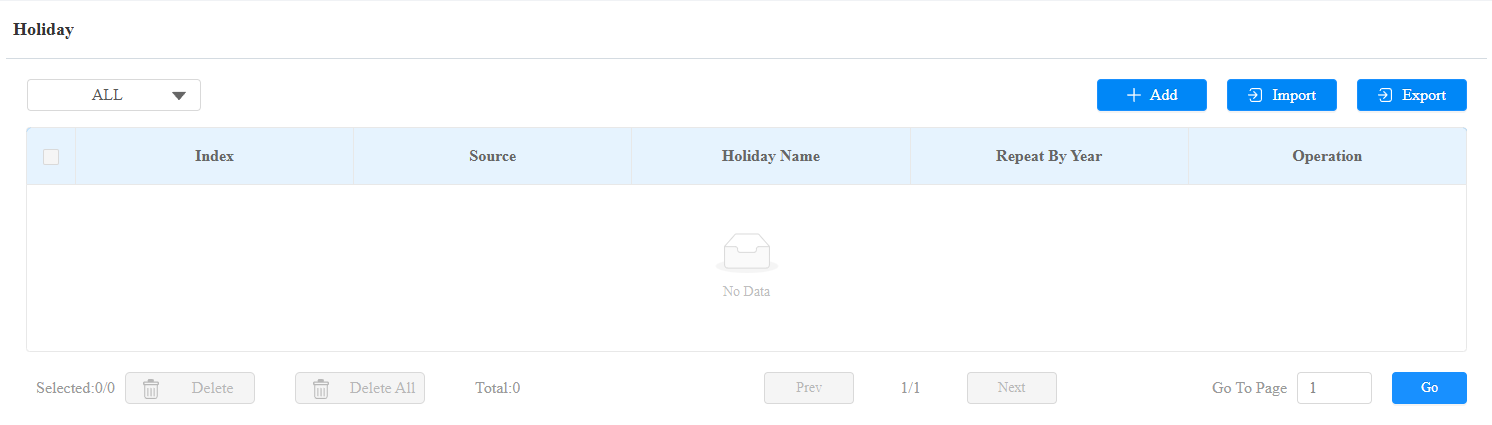
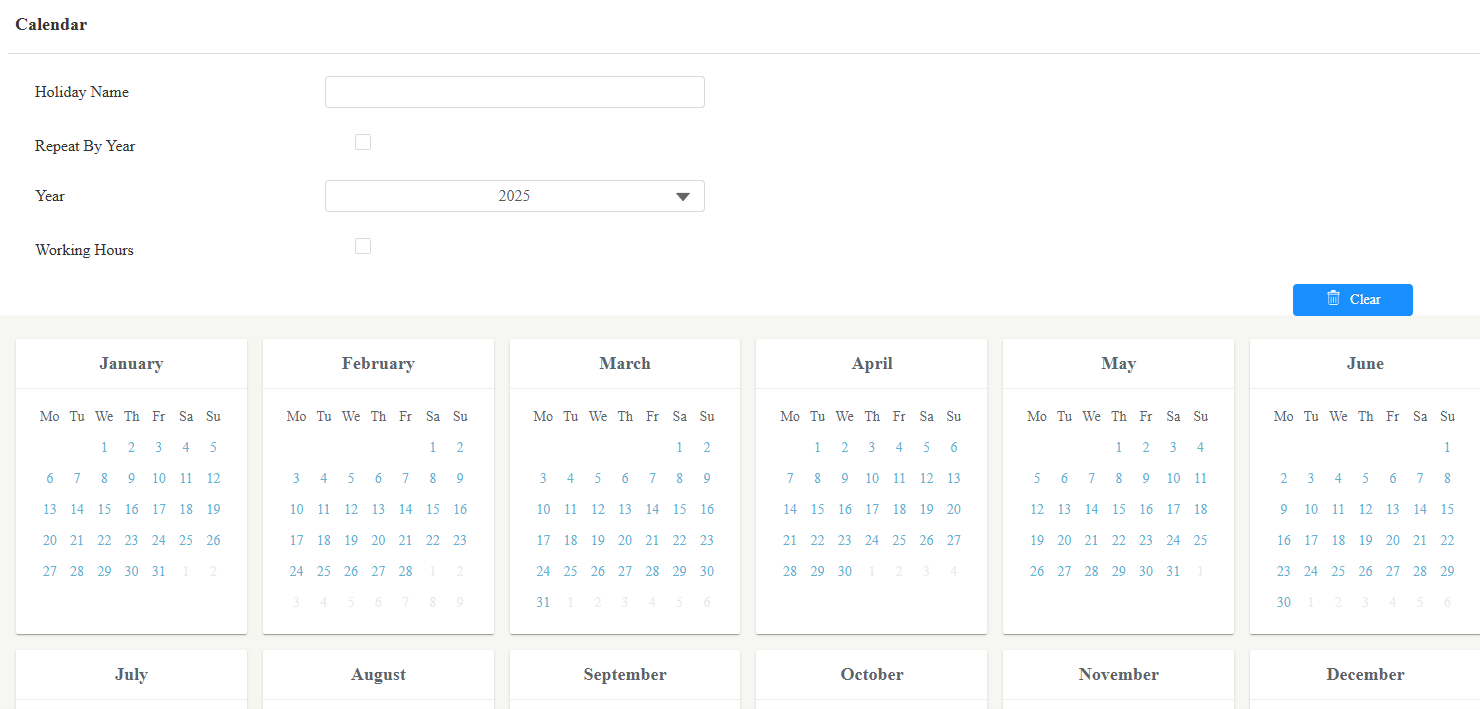
Holiday Name: Enter the holiday name.
Repeat By Year: Repeat the schedule every year.
Year: Set the year and date of the holiday.
Working Hours: When enabled, specify the time when authorized users can open doors.
Holiday Schedule Import/Export
You can import or export holiday schedules for quick setup on the Setting > Holiday interface.
The import/export file format is XML.
