Akuvox enhances the on-premise relay schedule types. Support changing doors to more preset states at specific times.
Compatible Model and Minimum Version
Model | Version | Model | Version |
|---|---|---|---|
A08 | 108.30.11.110 | A01/A02 | 101.30.11.12 |
A03 | 103.30.11.6 | A095 | 95.30.10.203 |
A094 | 92.30.11.8 | X912 | 912.30.12.22 |
X915 V2 | 2915.30.10.619 | X916 | 916.30.10.508 |
R29 | 29.30.10.507 | R28 V2 | 228.30.11.6 |
R20 | 320.30.11.206 | E16 V2 | 216.30.11.107 |
S539 | 539.30.10.507 | S535 | 535.30.11.8 |
S538 | 538.30.10.705 | R25 | 25.30.10.206 |
X910 | 2910.30.11.104 | A05V2 | 205.30.11.114 |
E16 V3 | 416.30.11.206 | E12V2 | 312.30.11.106 |
WR01 | 1401.30.11.221 | S532 | 532.30.10.336 |
E18 | 18.30.11.136 | A15 | 1115.30.10.407 |
What You Should Know
Akuvox devices support 2 repeat modes and 3 schedule modes:
Repeat Mode
Routine Schedule: The schedule repeats every week.
One-Time Runs: Set the daily or weekly schedule that repeats during a defined period.
Schedule Mode
Hold Open: The door remains open during the scheduled time.
First Credential In: The door remains open during the scheduled time after users use their credentials for the first time.
Lockdown: The door remains closed during the scheduled time.
Set the Door to Hold Open
Use the device IP to log in to its web interface. The initial username and password are admin.
Click Access Control > Relay.
Find the Relay Schedule section. Specify the relay to be configured.
Select Routine Schedule or One-Time Runs. If the latter is selected, specify the time.
Click Edit on the right.
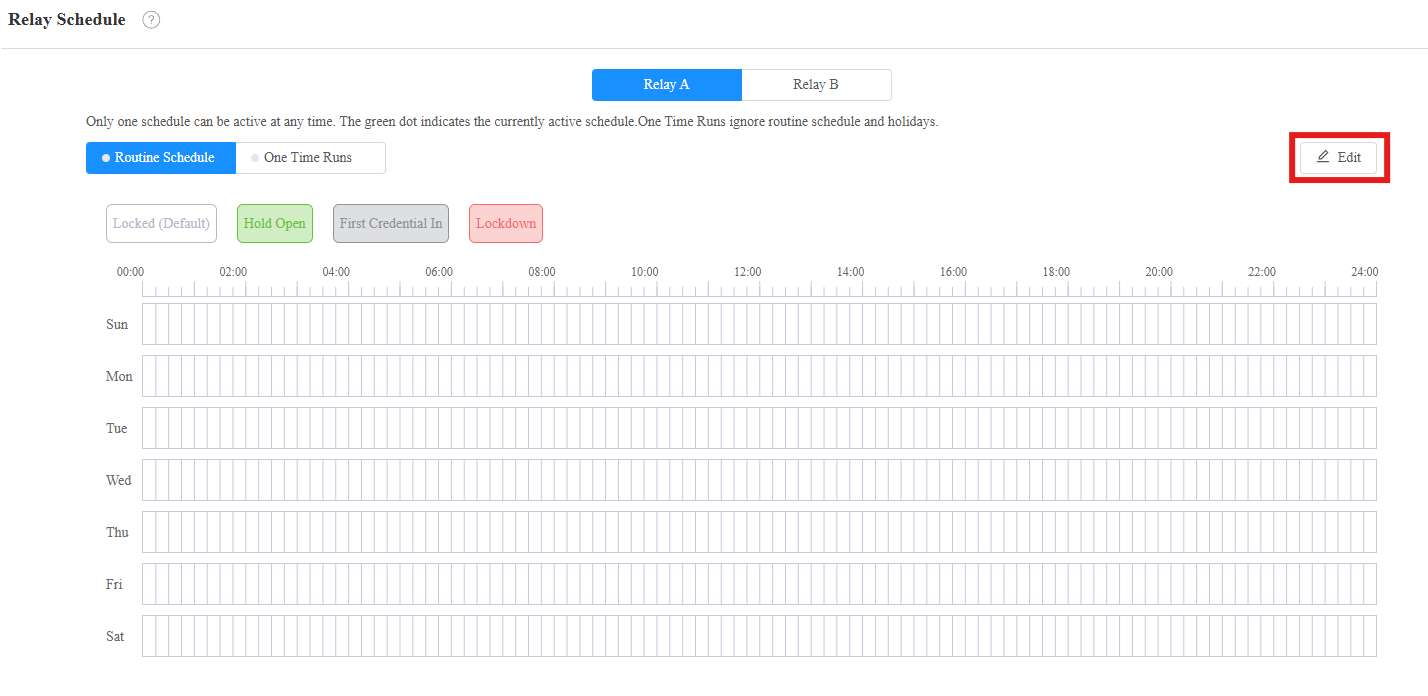
Select the Hold Open schedule mode that will be highlighted.
Hold and drag your mouse cursor to select a time block.
Set up the time block by clicking it.
You can:
Change the type.
Select the start time and end time.
Check All Day.
Check Allow Manual Termination. This allows users to use their credentials to close the door.
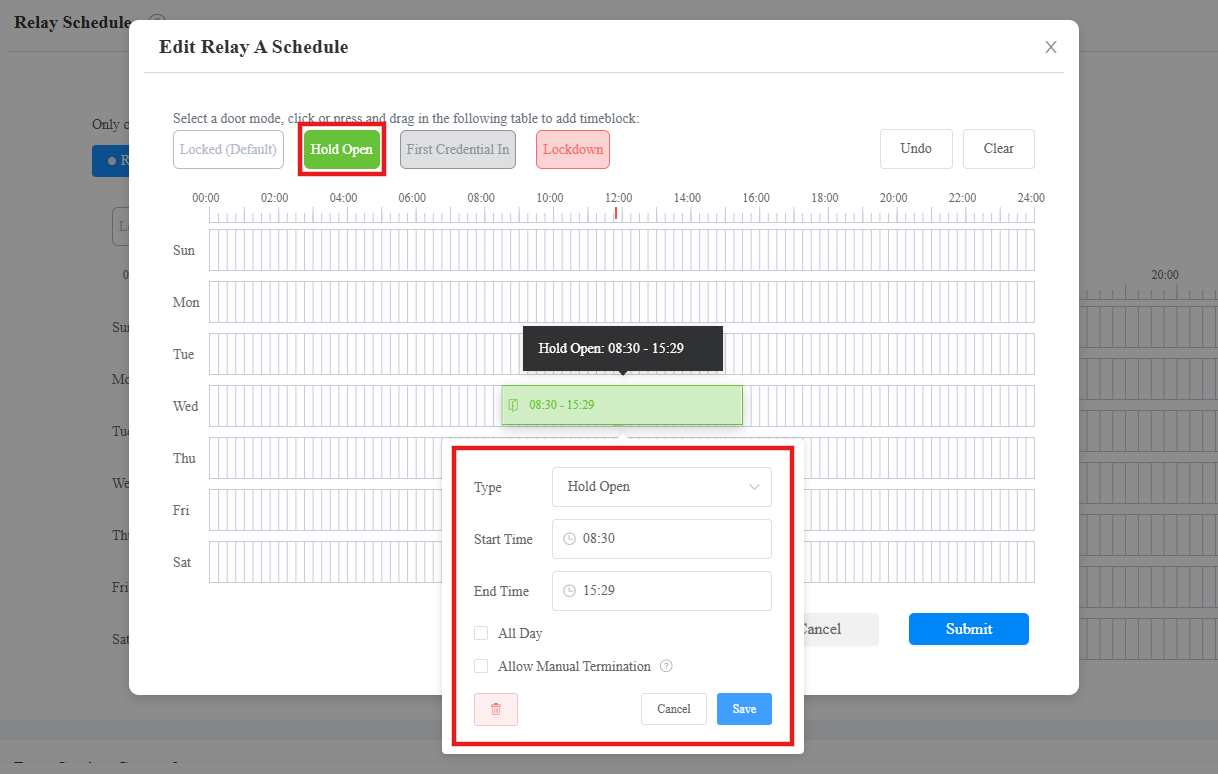
Save the setting and submit the schedule.
The door automatically opens and remains open during the scheduled time.
With Allow Manual Termination enabled, when users use their credentials, the door will be closed.
Set up First Credential In
Enable this feature for specific users and set up the schedule.
Set up a User
Click Directory > User.
Click Add to add a new user; click
 to modify a current one.
Scroll down to the Access Setting section.
Check the relay to open via the First Credential In method.
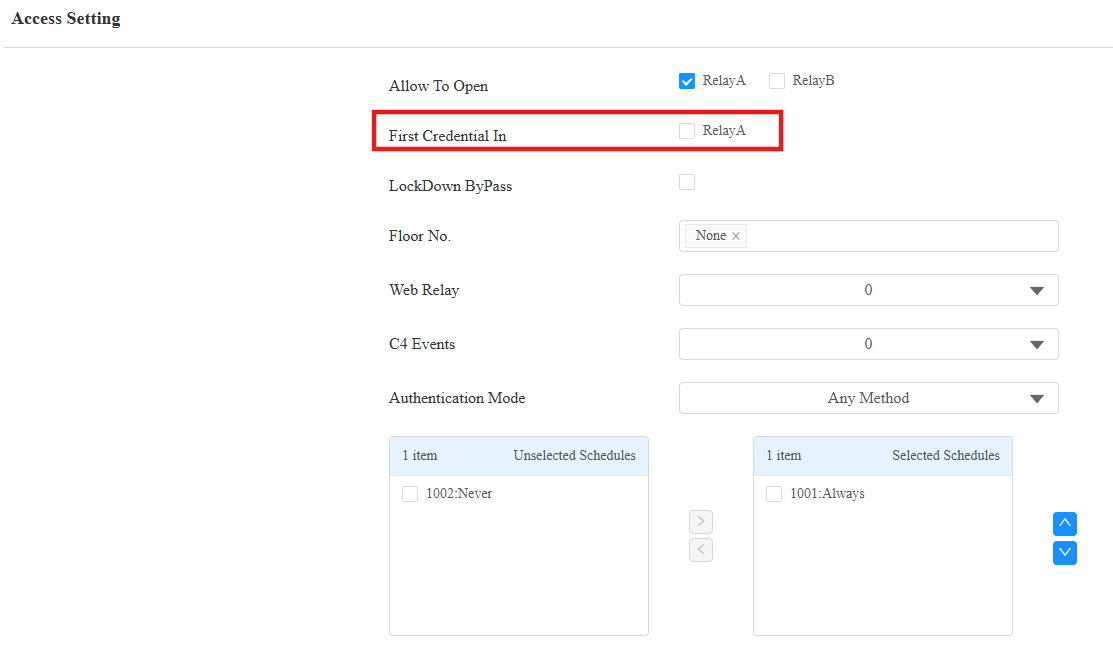
Submit the setting.
Set up the Schedule
Click Access Control > Relay.
Find the Relay Schedule section. Specify the relay to be configured.
Select Routine Schedule or One-Time Runs. If the latter is selected, specify the time.
Click Edit on the right.
Select the First Credential In schedule mode that will be highlighted.
Hold and drag your mouse cursor to select a time block.
Set up the time block by clicking it.
You can:
Change the type.
Select the start time and end time.
Check All Day.
Check Allow Manual Termination. This allows users to use their credentials again to close the door.
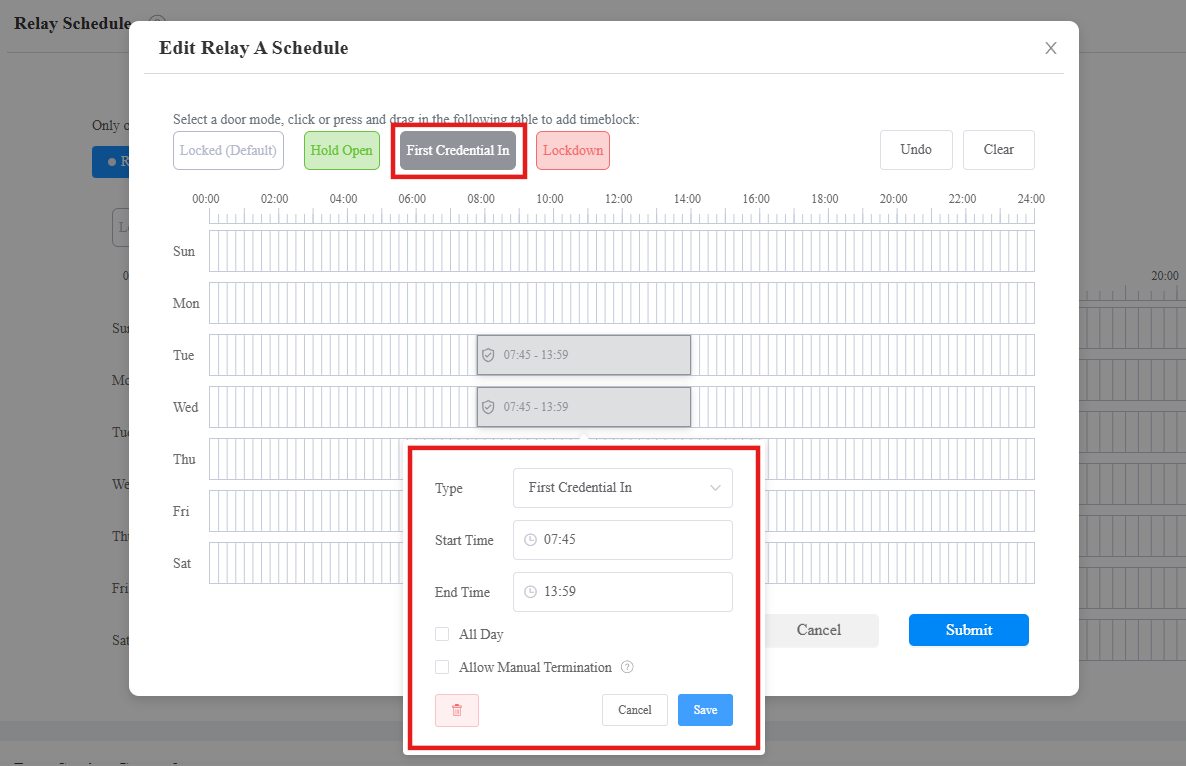
Save and submit the schedule.
When users use their credentials to open the door, the door remains open during the scheduled time.
With Allow Manual Termination enabled, when users use their credentials again, the door will be closed.
Set up Lockdown
During the lockdown period, users cannot open doors, except for those with lockdown bypass permission.
Set up the Schedule
Click Access Control > Relay.
Find the Relay Schedule section. Specify the relay to be configured.
Select Routine Schedule or One-Time Runs. If the latter is selected, specify the time.
Click Edit on the right.
Select the Lockdown schedule mode that will be highlighted.
Hold and drag your mouse cursor to select a time block.
Set up the time block by clicking it.
You can:
Change the type.
Select the start time and end time.
Check All Day.
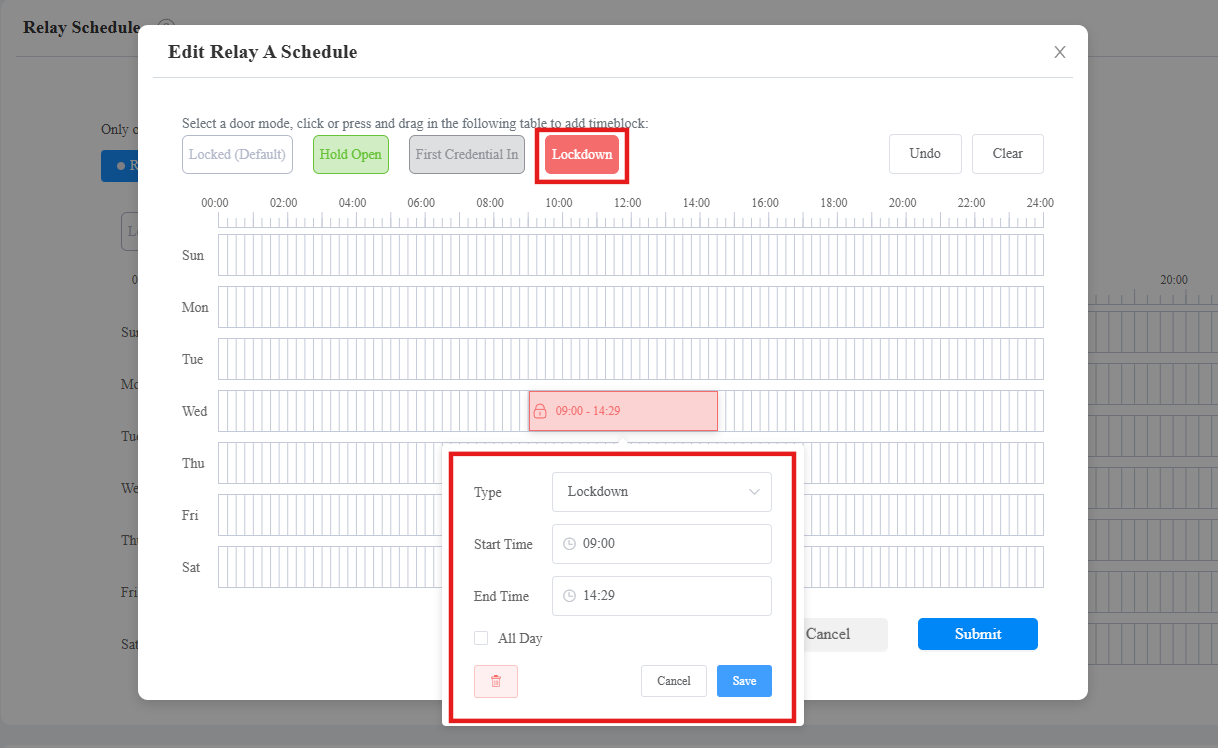
Save and submit the schedule.
Enable Lockdown Bypass
You can enable the lockdown bypass permission for specific users.
Click Directory > User.
Click Add to add a new user; click
to modify a current one.Scroll down to the Access Setting section.
Check Lockdown Bypass.
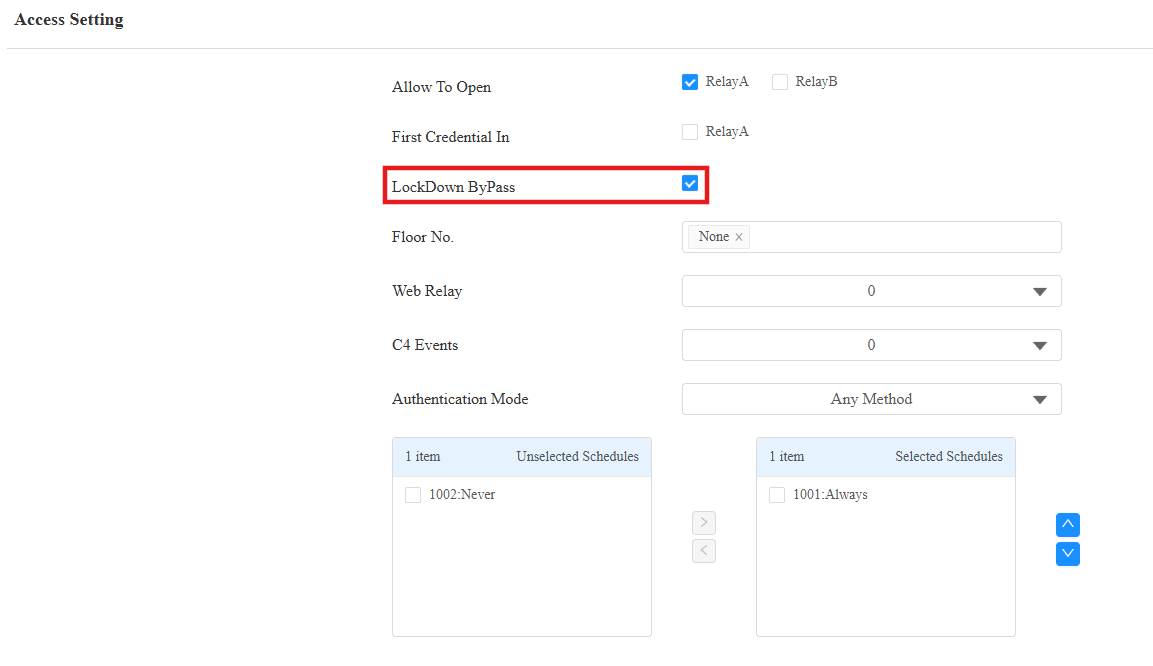
Submit the setting.
The door remains locked during the scheduled time, and users cannot open the door with their credentials.
With Lockdown Bypass enabled, users can open the door.