To transfer the configured parameters to the KNX devices, you need to configure a connection between PC and HyPanel-KNX, and then perform a download.
Before getting started
Have a KNX USB Interface prepared for the local USB connection.
Note
At this time, HyPanel-KNX does not support direct connection to KNX bus over IP and can not function as a KNX IP router.
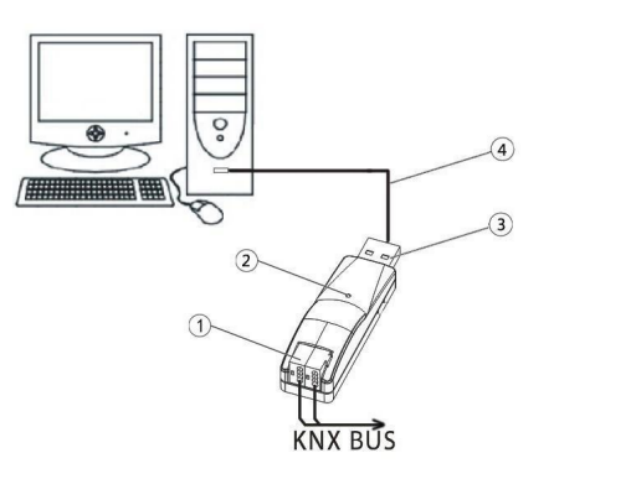
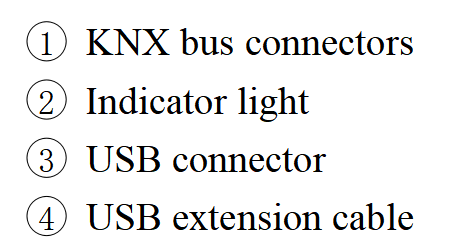
Connect the USB Interface to both your PC and KNX bus (as shown in the figure below).
Perform a download
Put the device in programming mode.
The KNX version of HyPanel:
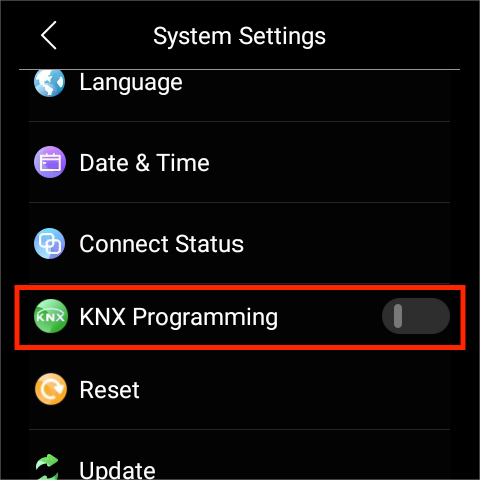
Swipe down from the top of any screen.
Select
 > System Settings > KNX Programming, and toggle it on.
The KNX devices such as blind actuators, curtain actuators, and more:
Press the programming button on the device.
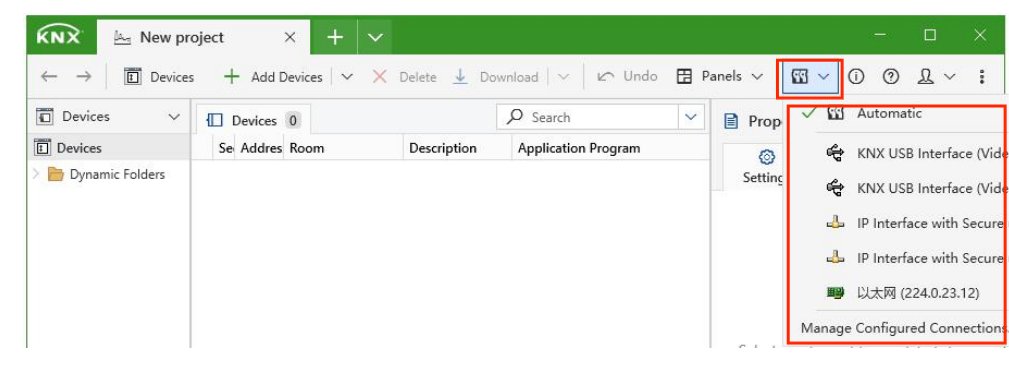
In ETS, click
 to set the bus interface settings.
Automatic: The default option. ETS will determine the most suitable bus interface to connect to the devices.
Currently discovered interfaces: USB, IP-routing, and IP-tunneling interfaces that are recognized and displayed automatically by ETS.
Right-click on the desired device on the left tree view, and select a suitable download option.
Download Options | Description | Programming Mode Required |
Download All | Download all project data in ETS to the corresponding device. | Yes |
Partial Download | Download only the parts that were changed in ETS and have not been downloaded before. | No |
Download Individual Address | Assign individual address to KNX device. | Yes |
Overwrite Individual Address | Assign individual address to KNX device by overwriting known address. | No |
Download Application | Download application program into the device. | No |
Wait for the download to be completed.
Tip
If there is a download error, please refer to this guide for the solution.