To protect user privacy and enhance security, users are required to change their password the first time they access or use specific device settings.
Property managers and installers can activate this mandatory password change feature by using the autop command.
Compatible models and versions(or higher):
C313V3: 313.30.15.716
C313-LP-2: 311.30.15.301
C316: 316.30.14.607
C319: 119.30.14.503
S562: 562.30.15.217
S563: 563.30.14.306
S565: 565.30.15.14
X937: 937.30.14.306
X933: 933.30.14.403
IT88: 88.30.14.603
Activate the Feature via AutoP
This feature is disabled by default. Activate it using the command Config.Settings.REDCERTIFICATION.Enable=1.
0: Disabled.
1: Enabled.
SmartPlus Cloud Configuration
When the device is deployed on the SmartPlus Cloud, you can issue the command on the cloud.
Both installers and property managers have permission to set this up.
Tip
If you are an installer, click here to view AutoP guidance.
Take a community project and a property manager account as examples.
Log in to the SmartPlus Cloud platform with your account.
Click Devices on the left menu.
Click
 of the target device, then click Settings.
Enter the command and click Submit.
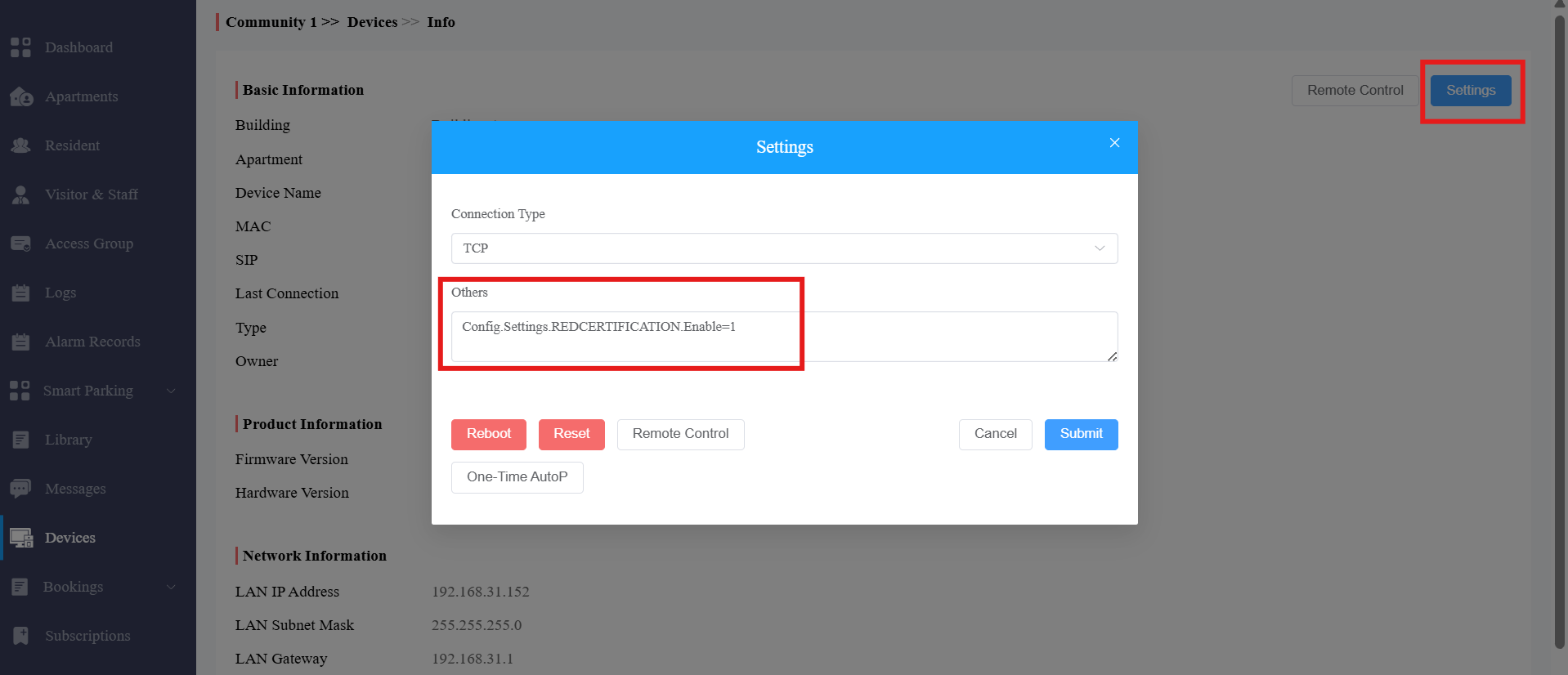
The device will reboot, and the AutoP takes effect.
On-Premise Configuration
You can use PC Manager to issue the AutoP command.
Log in to the software with the default username and password, admin.
Check the target device(s) and click Next.
Select Manual Input Mode and enter the command.
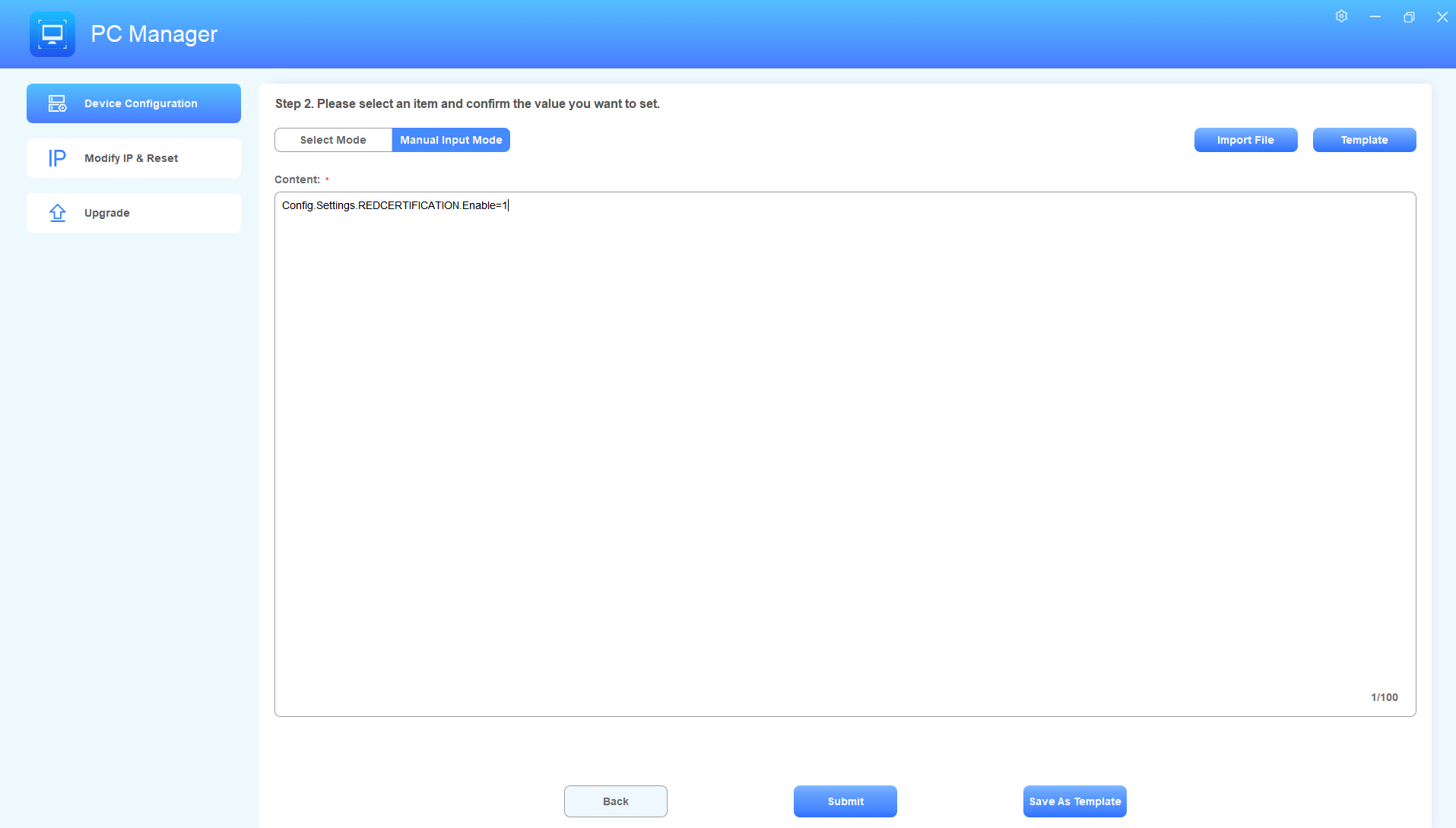
Click Submit.
The device will reboot, and the AutoP takes effect.
For End Users: Change the Password
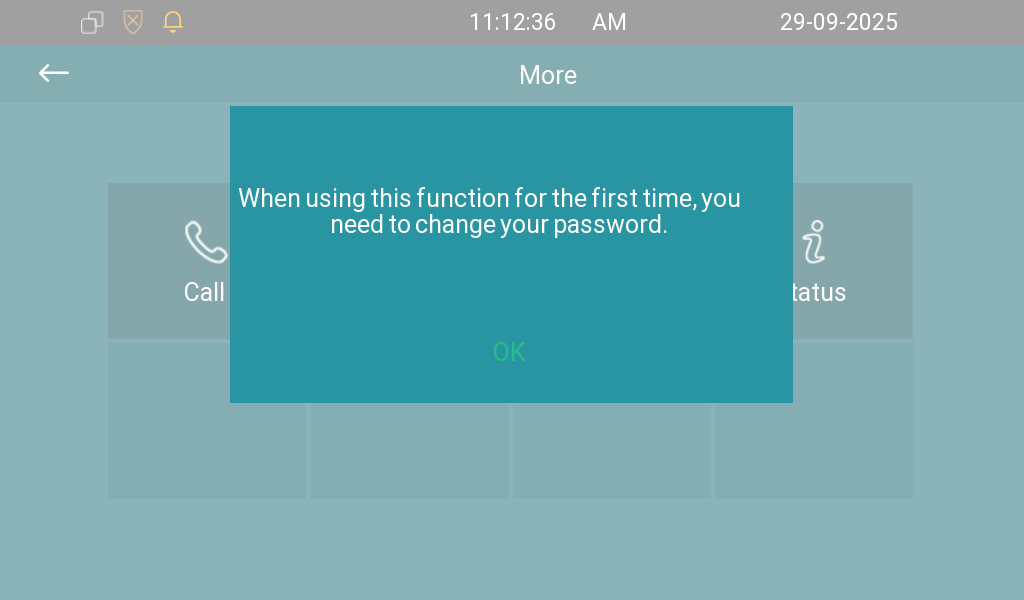
After the configuration, you need to change your passwords the first time you access:
Basic settings
Advanced settings
Unlocking the screen
Arming/disarming the device
Tap OK to redirect to the password change screen.
Enter the current password and the new password(at least 6 digits).
Default Passwords:
Basic settings(Settings Code): Leave blank
Advanced settings(System Code): 123456
Unlock screen: Leave blank
Arm/disarm device: 0000
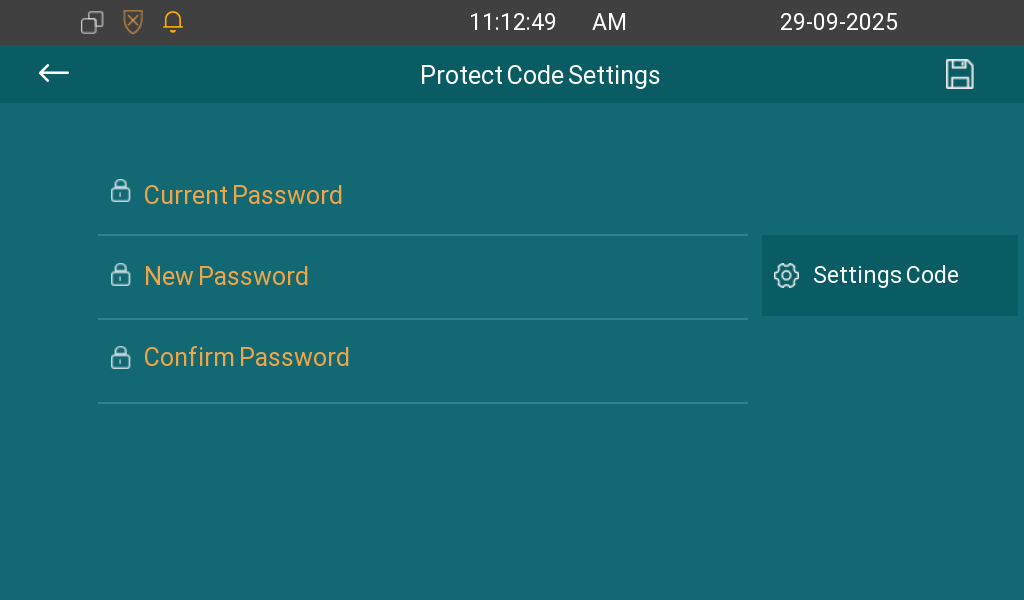
Tap
 to save the setting.