The Akuvox SmartPlus Ucloud platform supports integration with Rent Manager. With this integration, the newly added tenants in Rent Manager will be synchronized to SmartPlus Cloud. Property managers can easily maintain one database for tenant management.
Watch the Video Guide
Prefer a visual walkthrough?
Watch: [Video]Akuvox Integration with Rent Manager(Only supports Ucloud)
Integration Process
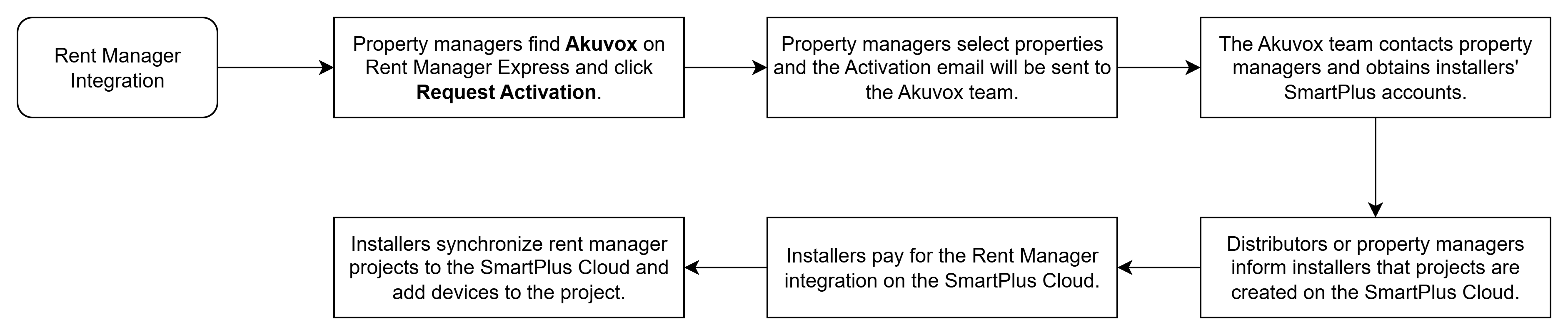
For Property Managers
Note
After you activate the integration, the Akuvox team will contact you within 24 hours.
Activate Integration
You need to activate the integration with Akuvox on the Rent Manager Express.
Log in to the Rent Manager Express with your account.
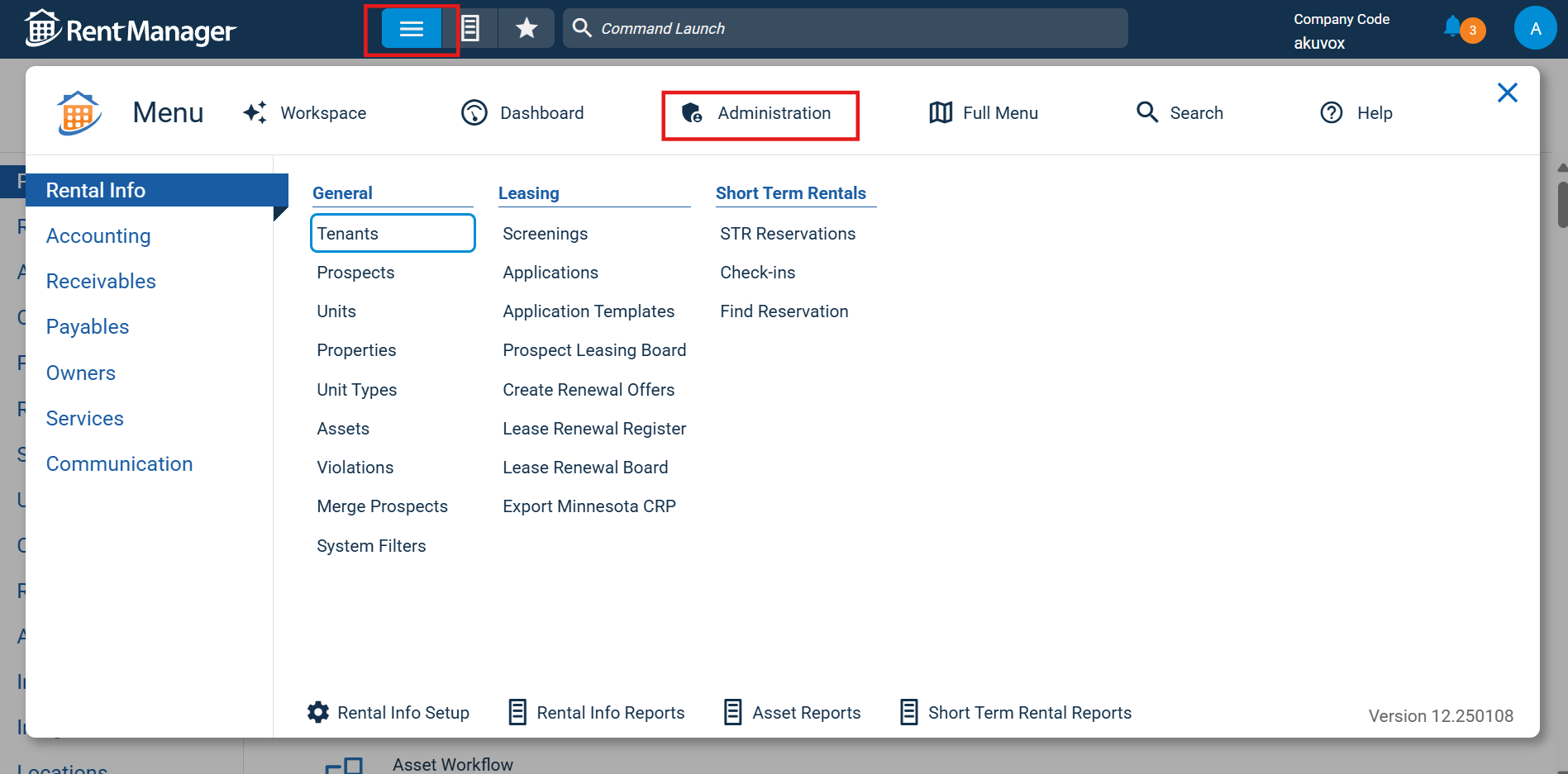
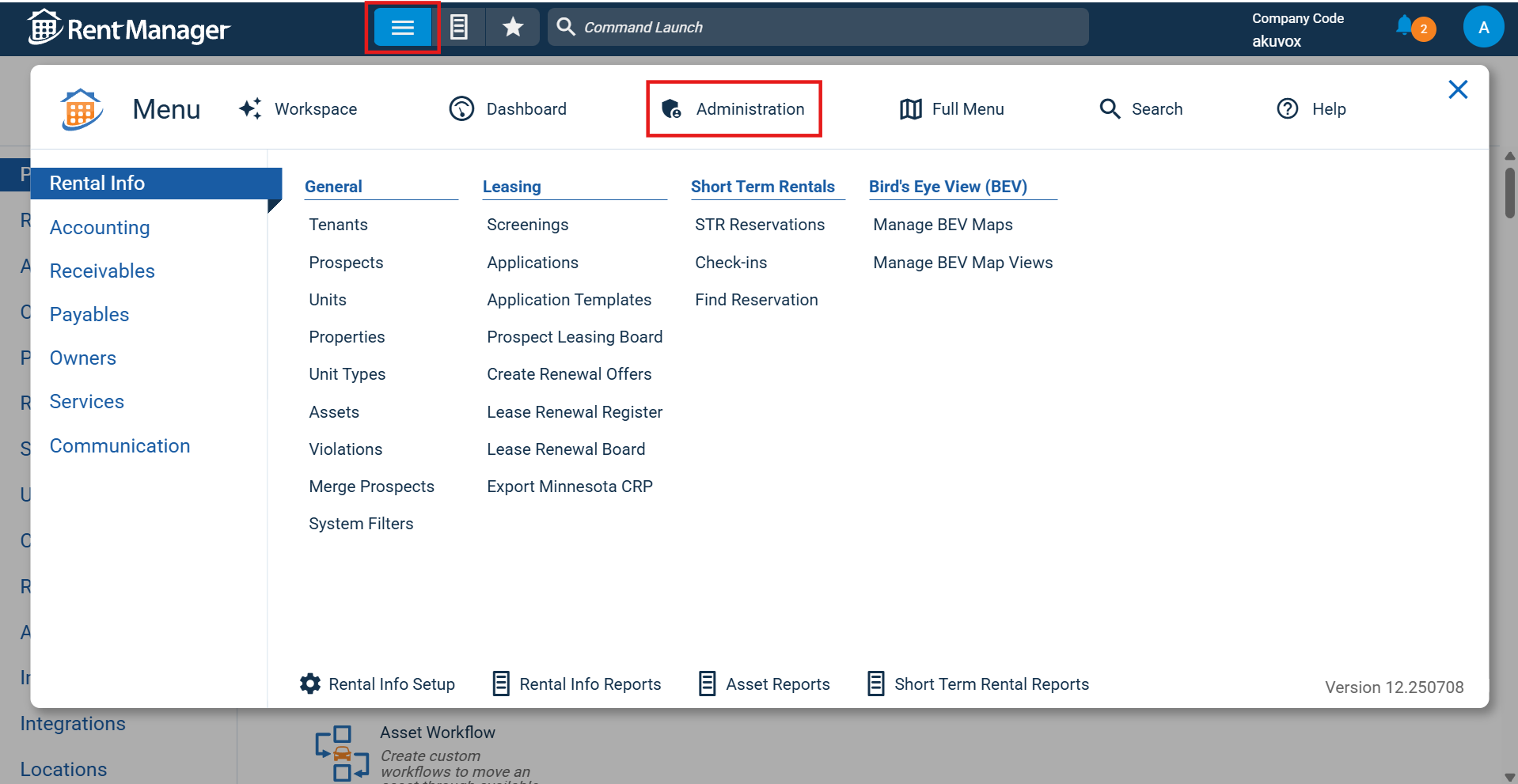
Click the Menu icon and select Administration.
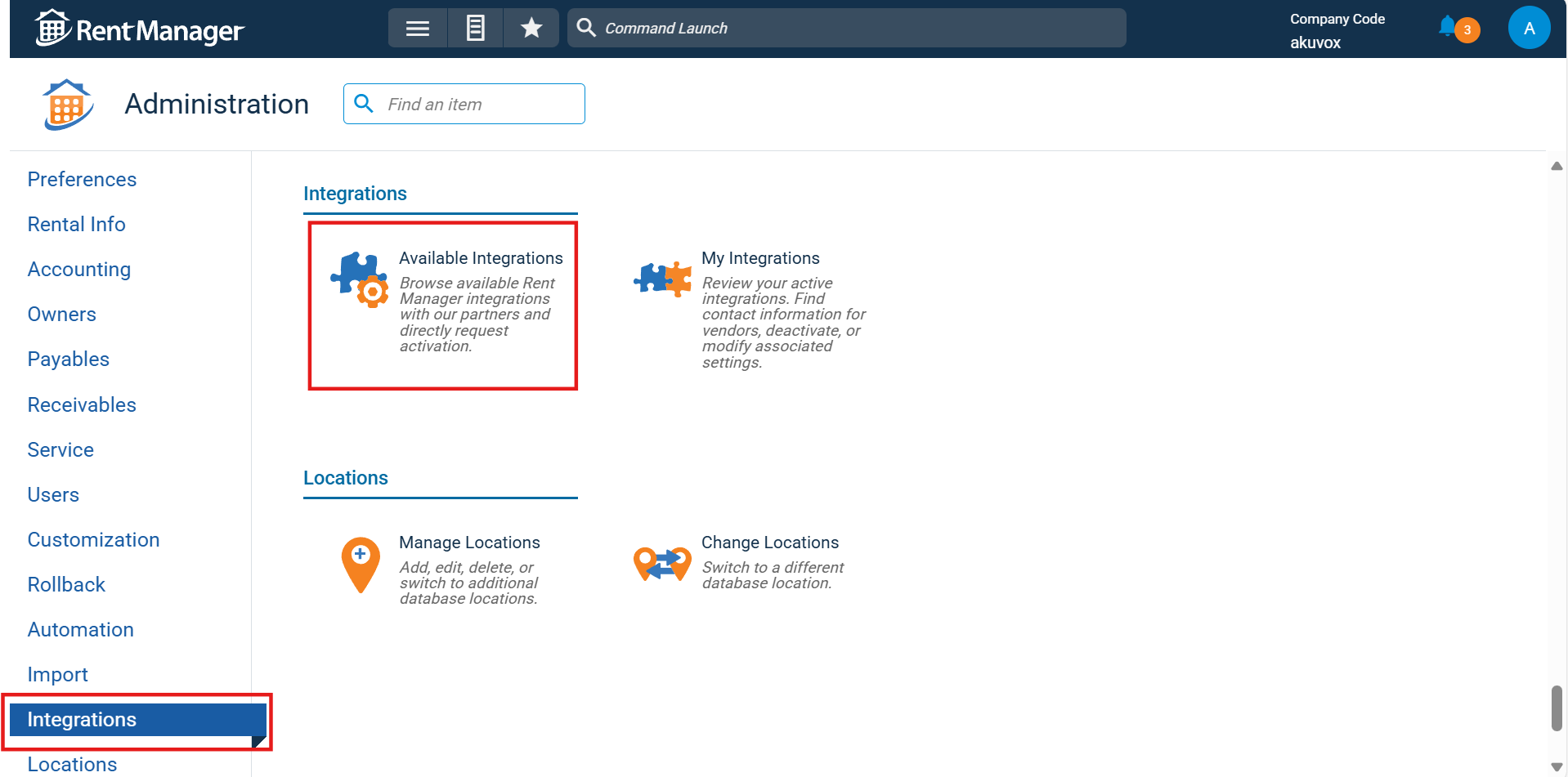
Click Integrations > Available Integrations.
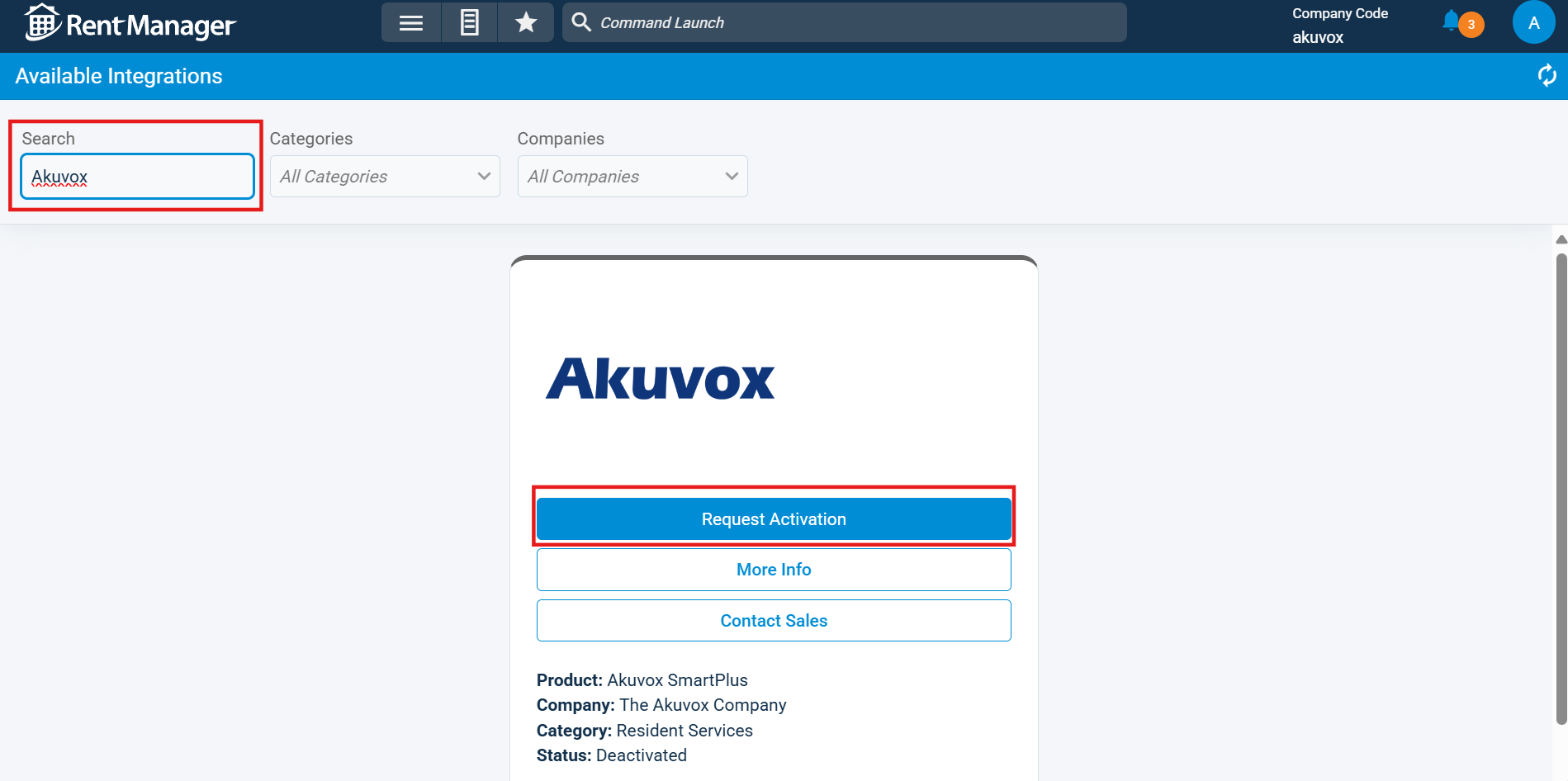
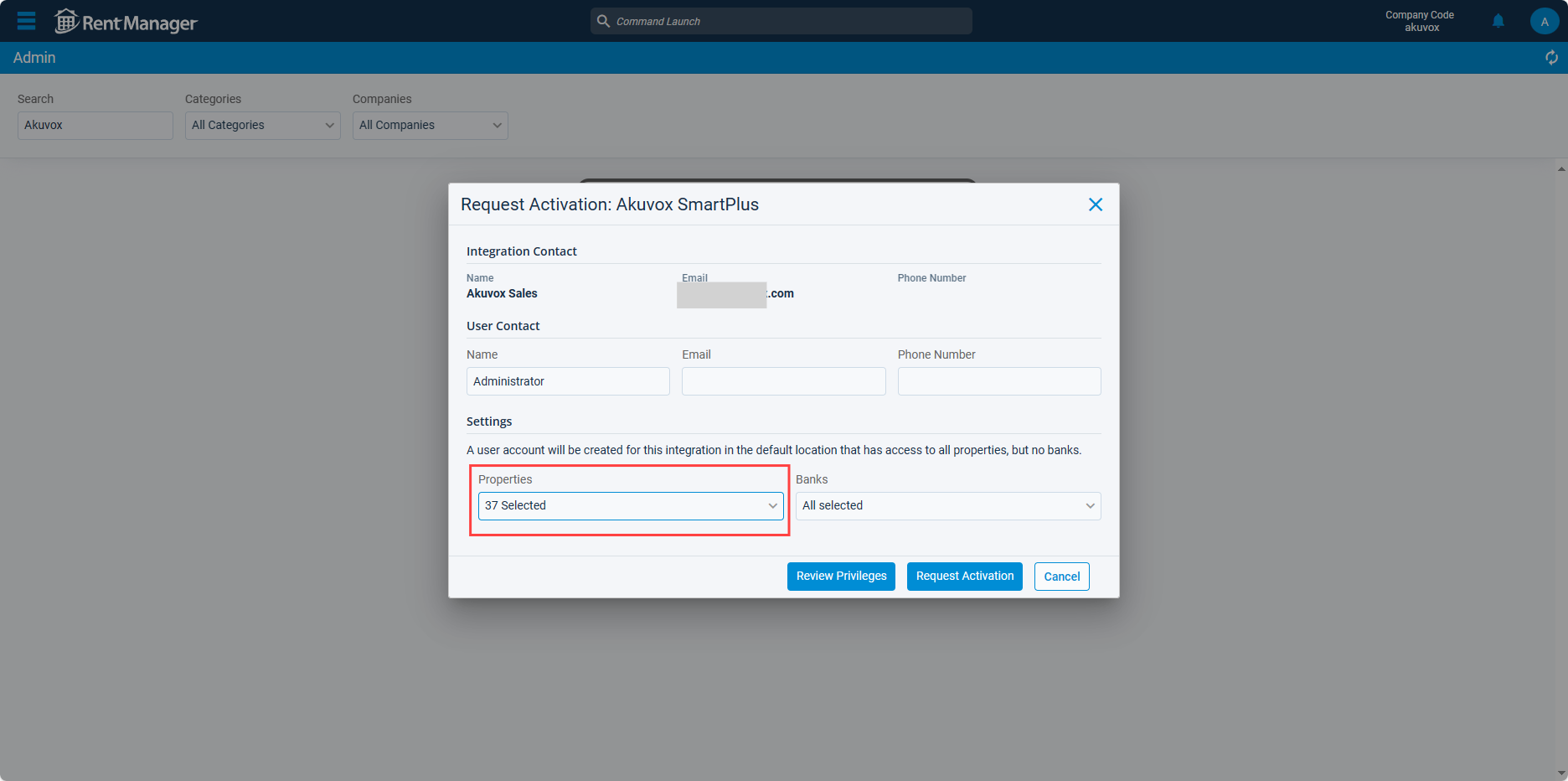
Search for Akuvox and click Request Activation.
Fill in relevant information and select properties to manage.
Click Request Activation.
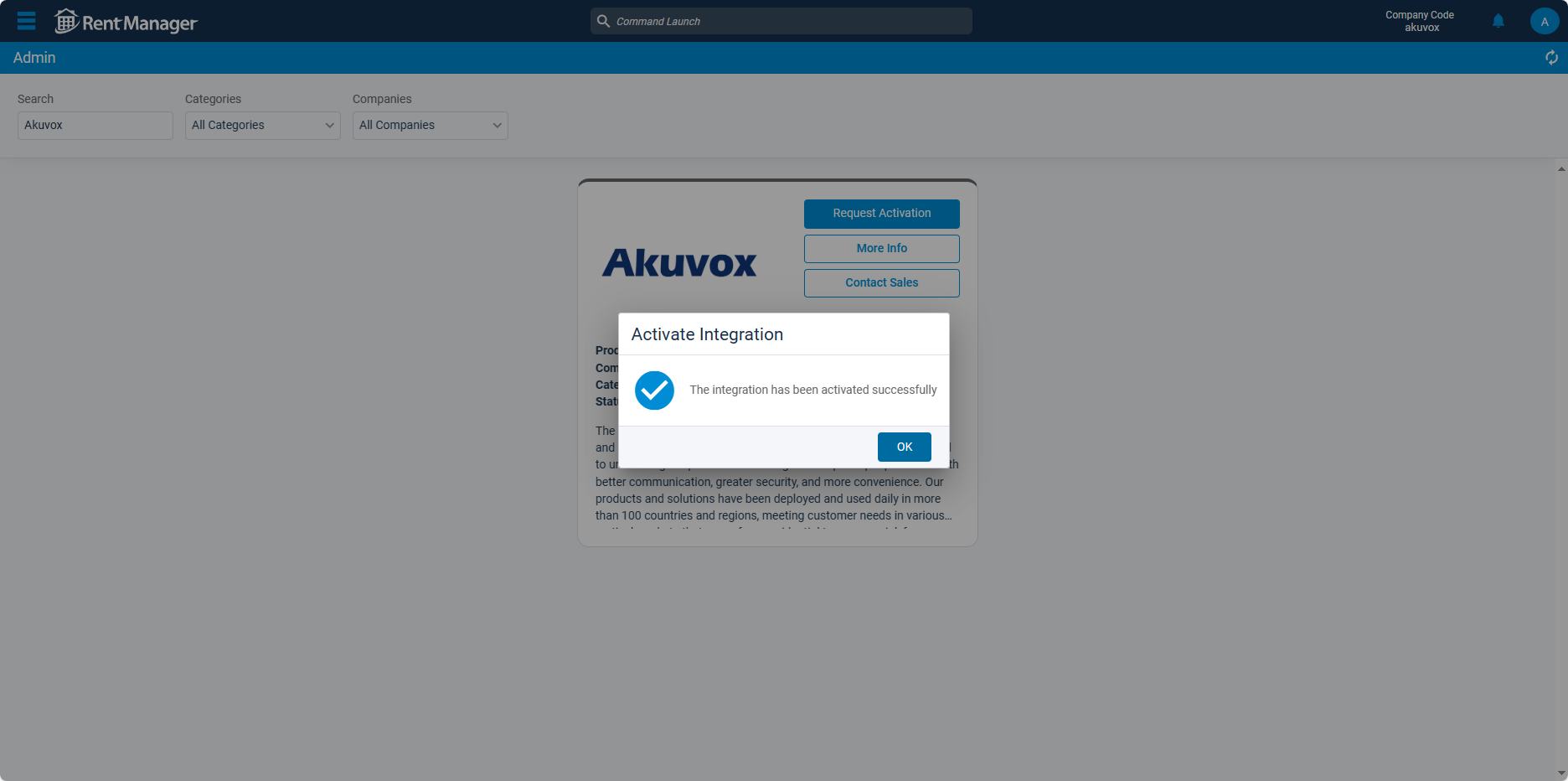
A pop-up will inform whether the integration is activated or not.
Sync New Properties
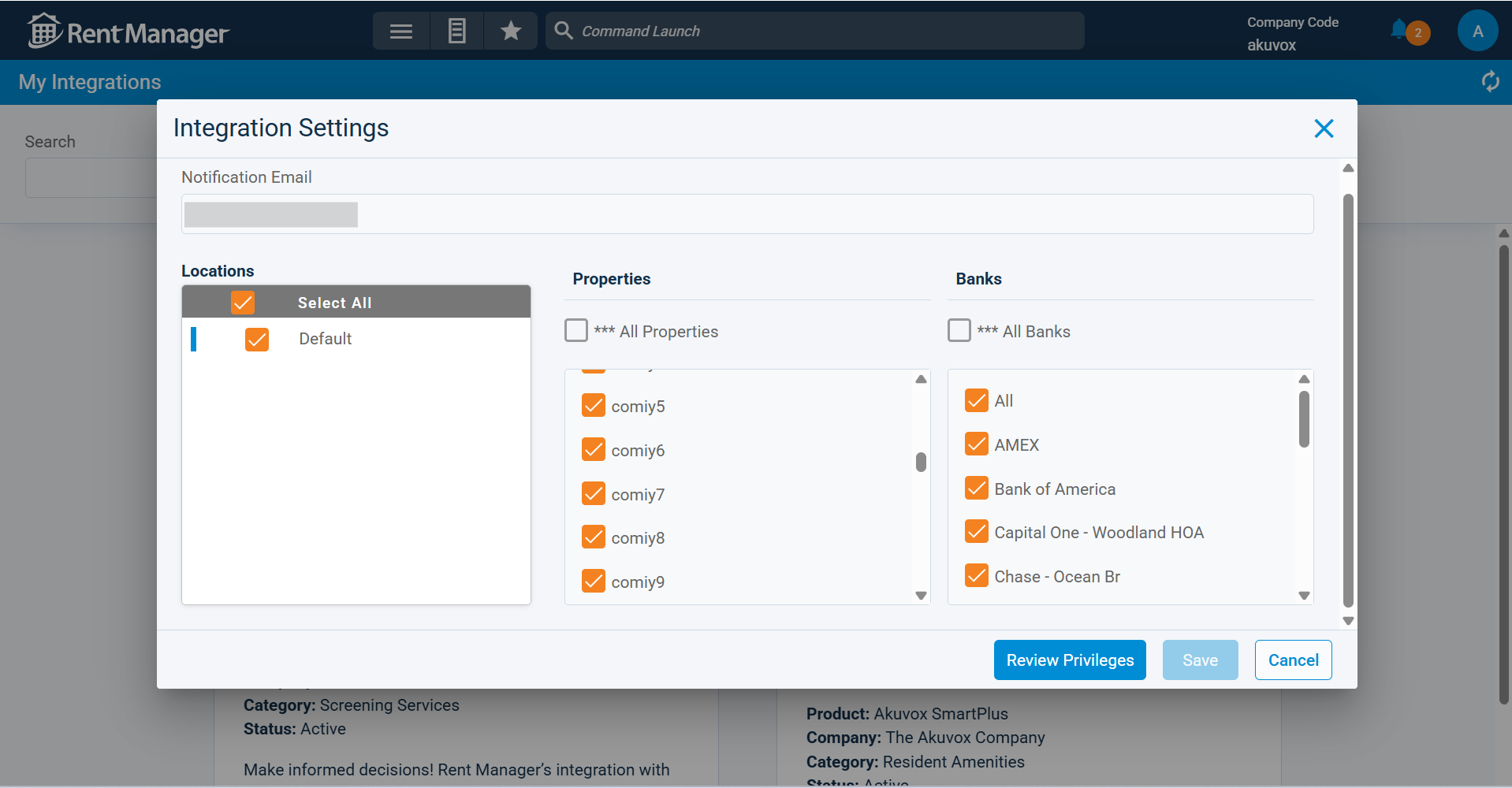
To sync new properties in Rent Manager, add them to the integration. After that, they will be available on the SmartPlus Cloud.
Click the Menu icon > Administration.
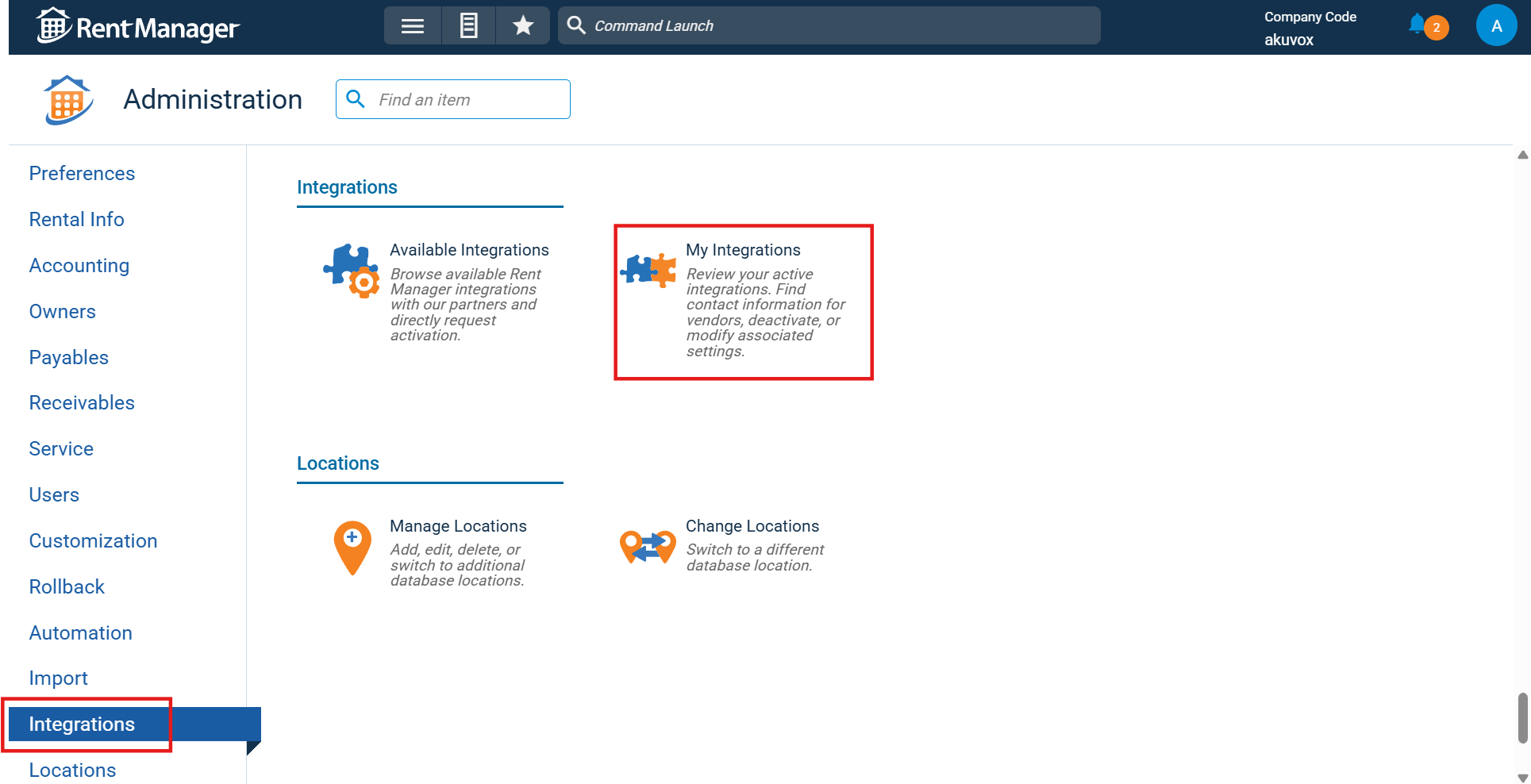
Click Integrations > My Integrations.
Click Settings on Akuvox.
Check the properties and click Save.
Sync Tenants’ Contacts
ONLY when the Applicant Type of the contacts is Primary or Occupant will they be synchronized.
The contacts display as family member accounts on SmartPlus Cloud.
Search for Tenant and click Add Tenant.

Fill in the user information and scroll down to the Contacts section.
Set the Applicant Type to Primary or Occupant.
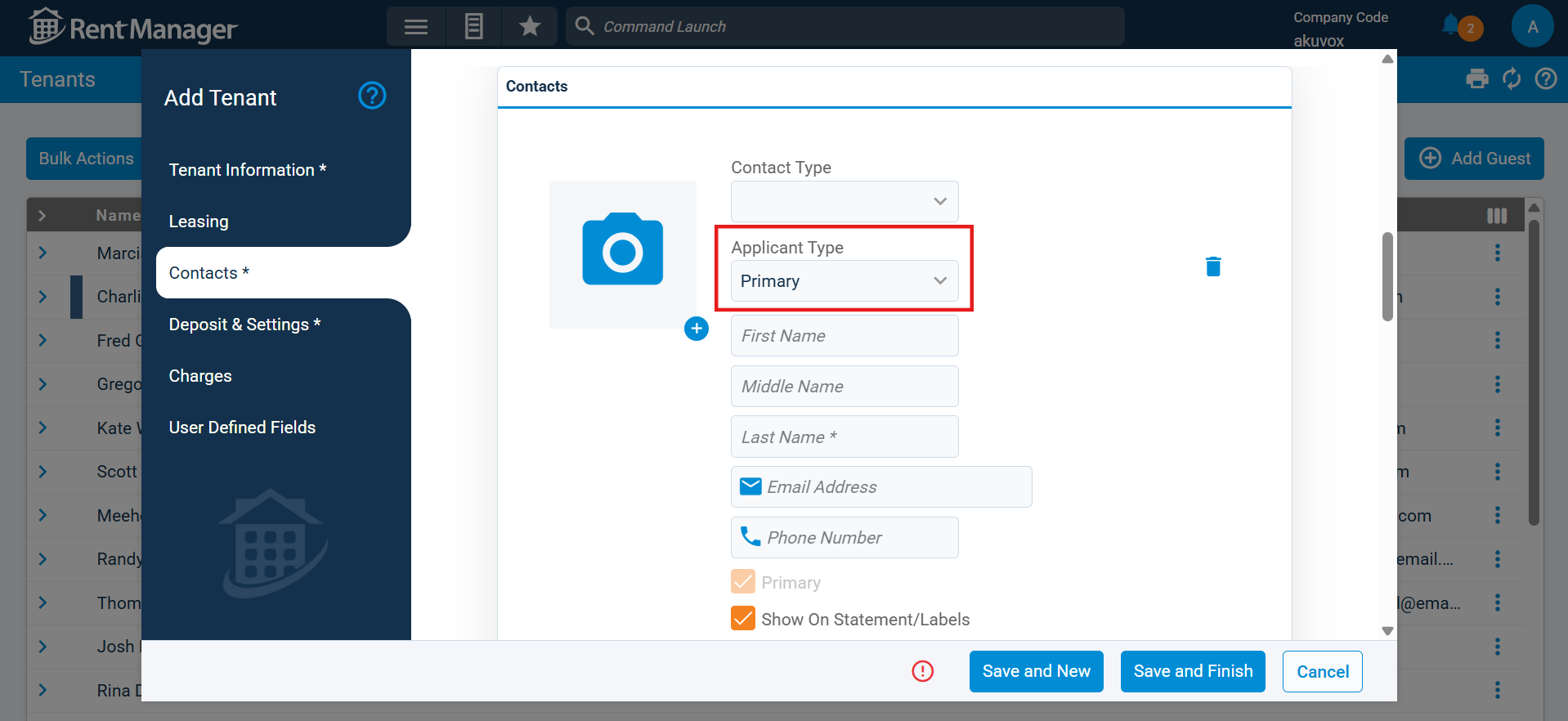
Click Save.
Sync PINs and RF Cards
You can add PINs and RF cards for tenants on Rent Manager. The data will be synchronized to the SmartPlus Cloud with the tenant information update.
Tenants can use the credentials to open doors.
Note
The tenant information is updated daily around Eastern Daylight Time 3:00 a.m./Eastern Standard Time 2:00 a.m.
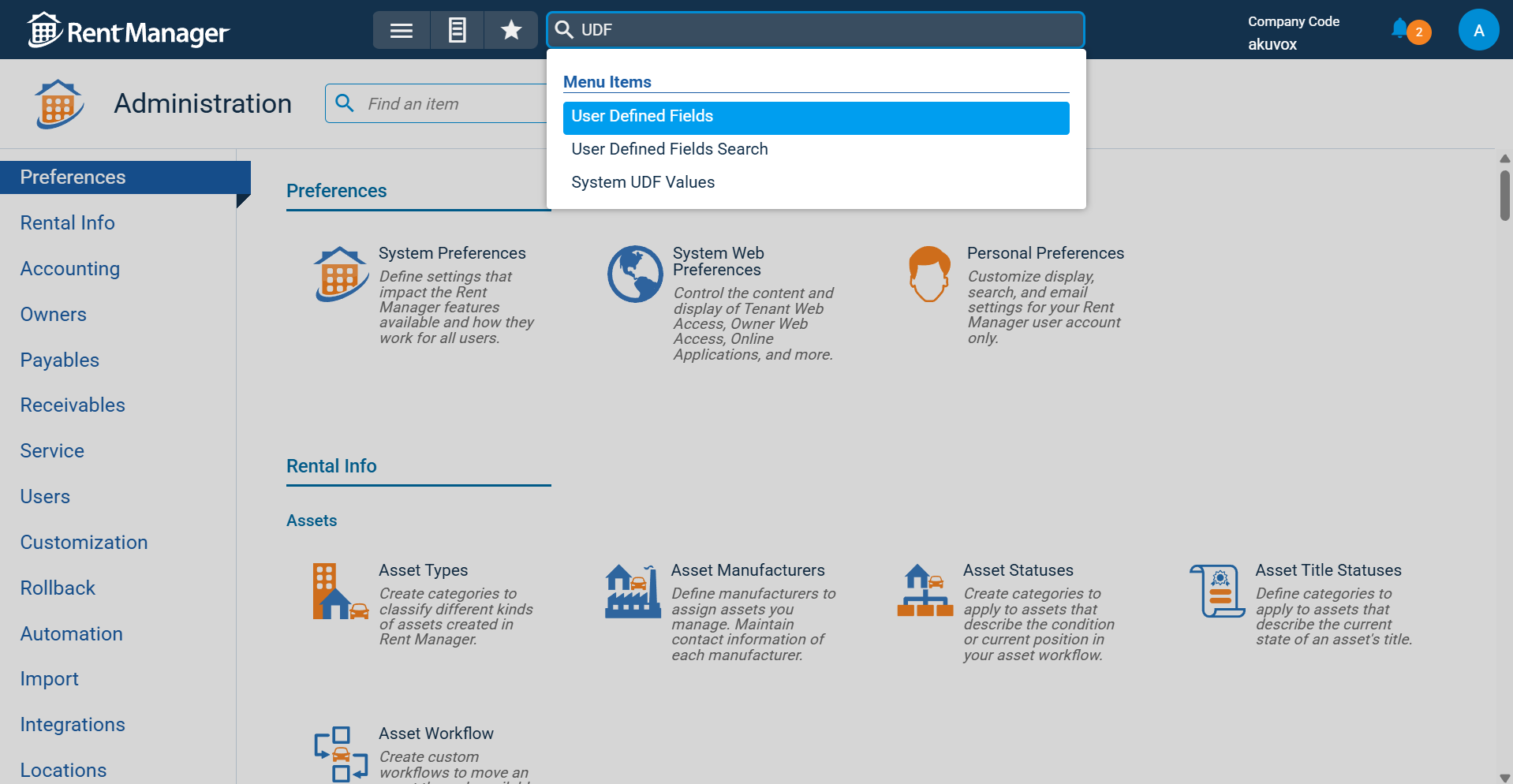
Search for User Defined Fields.
Click +Add UDF.
Set field type to Numeric for PIN rules.
Set field type to Text for RF card rules.
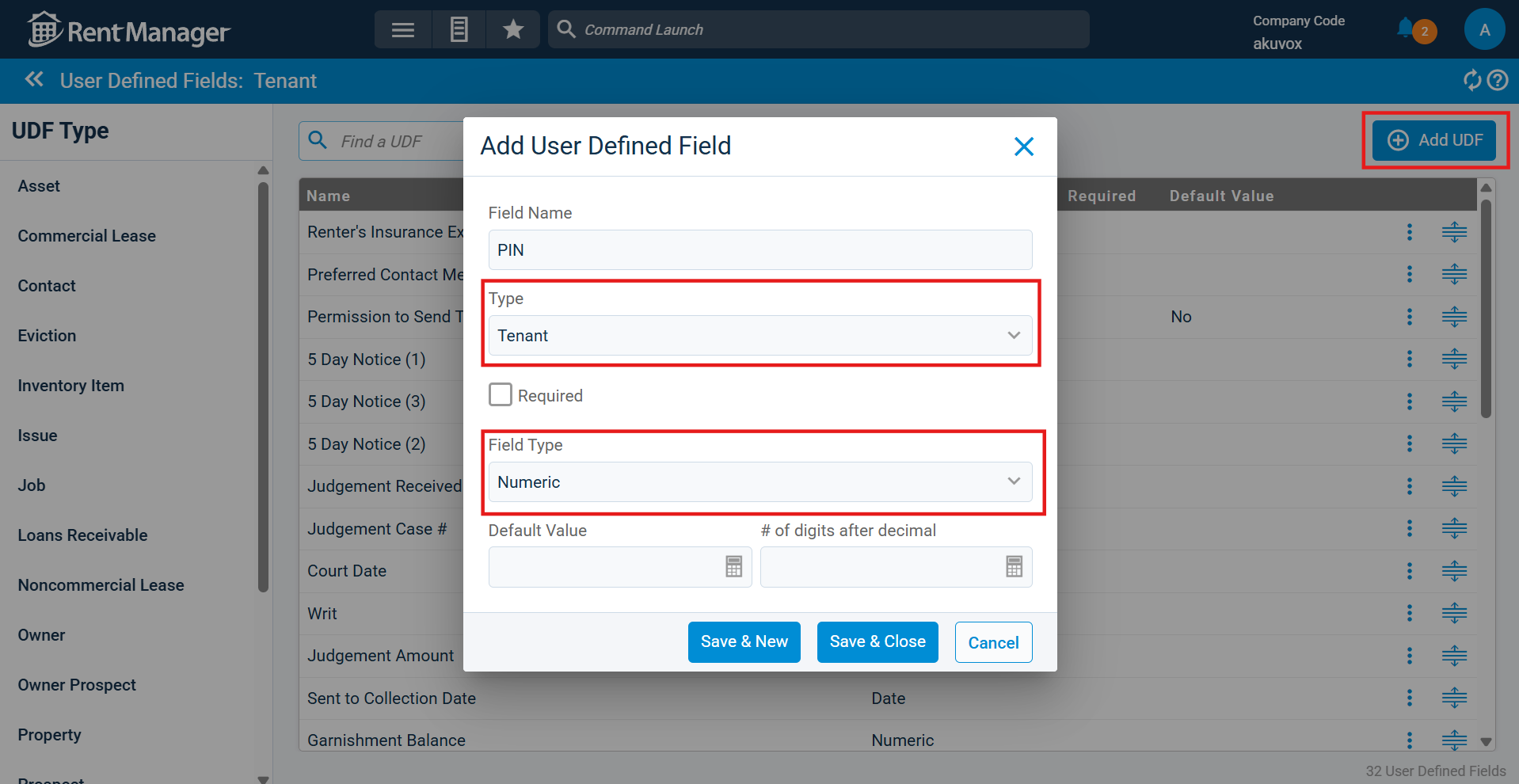
PIN
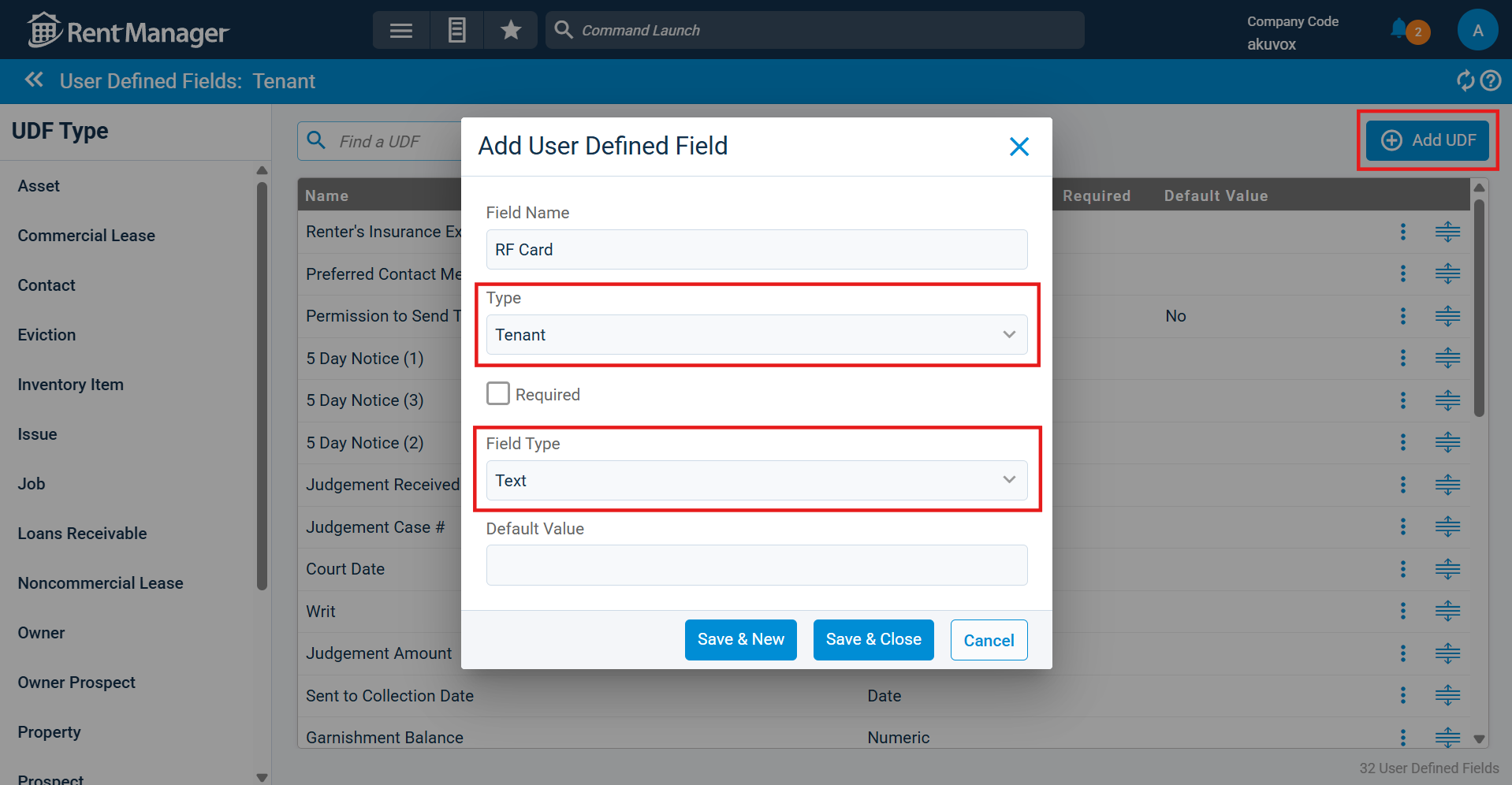
RF Card
Go to Add Tenants and fill in user information.
Scroll to User Defined Fields and click View All UDFs.
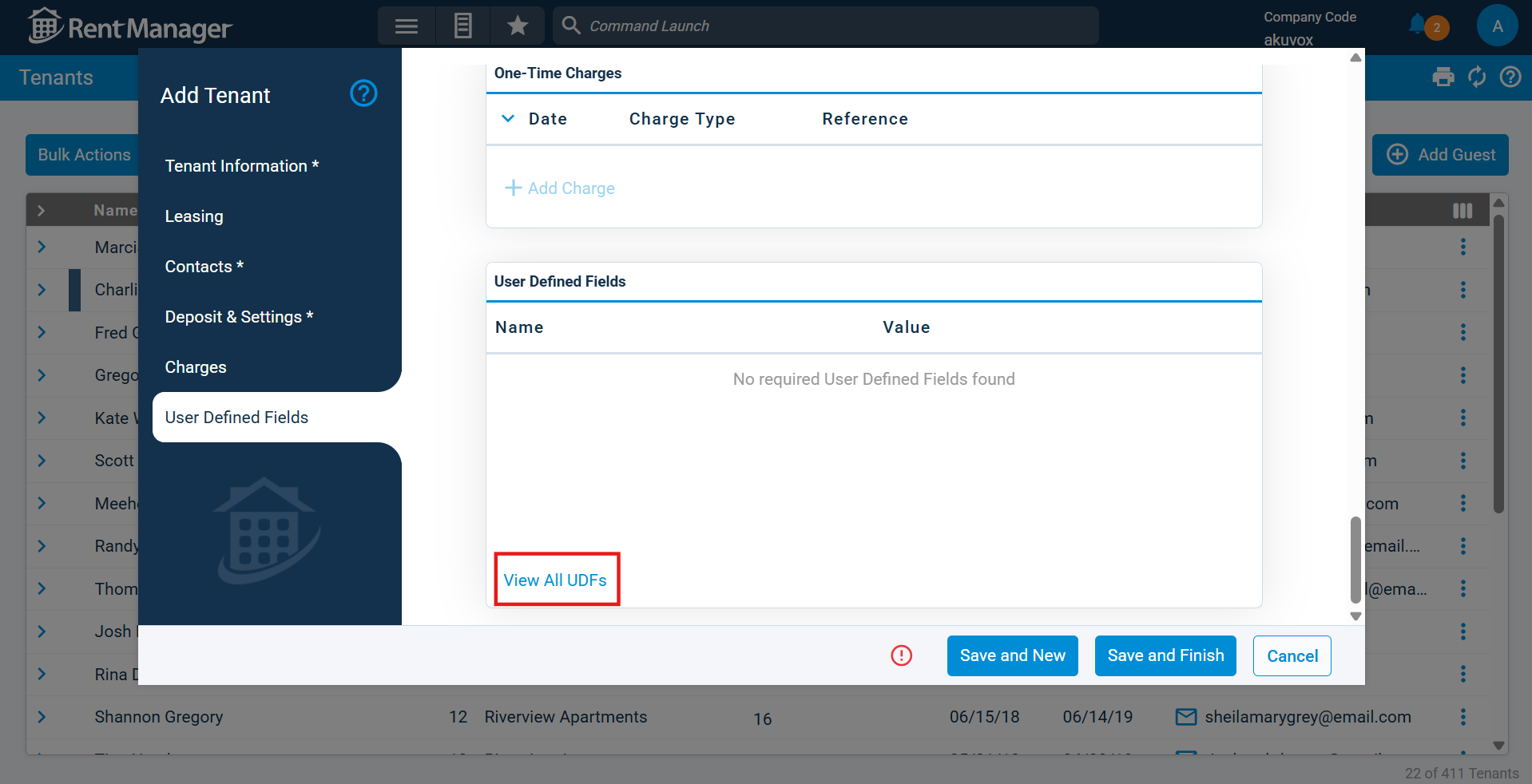
Find the PIN/RF card field and enter the value.
PIN: 2~8 digits, NOT starting with “9”.
RF Card: 1~16 characters including letters A-F and/or numbers 0-9.
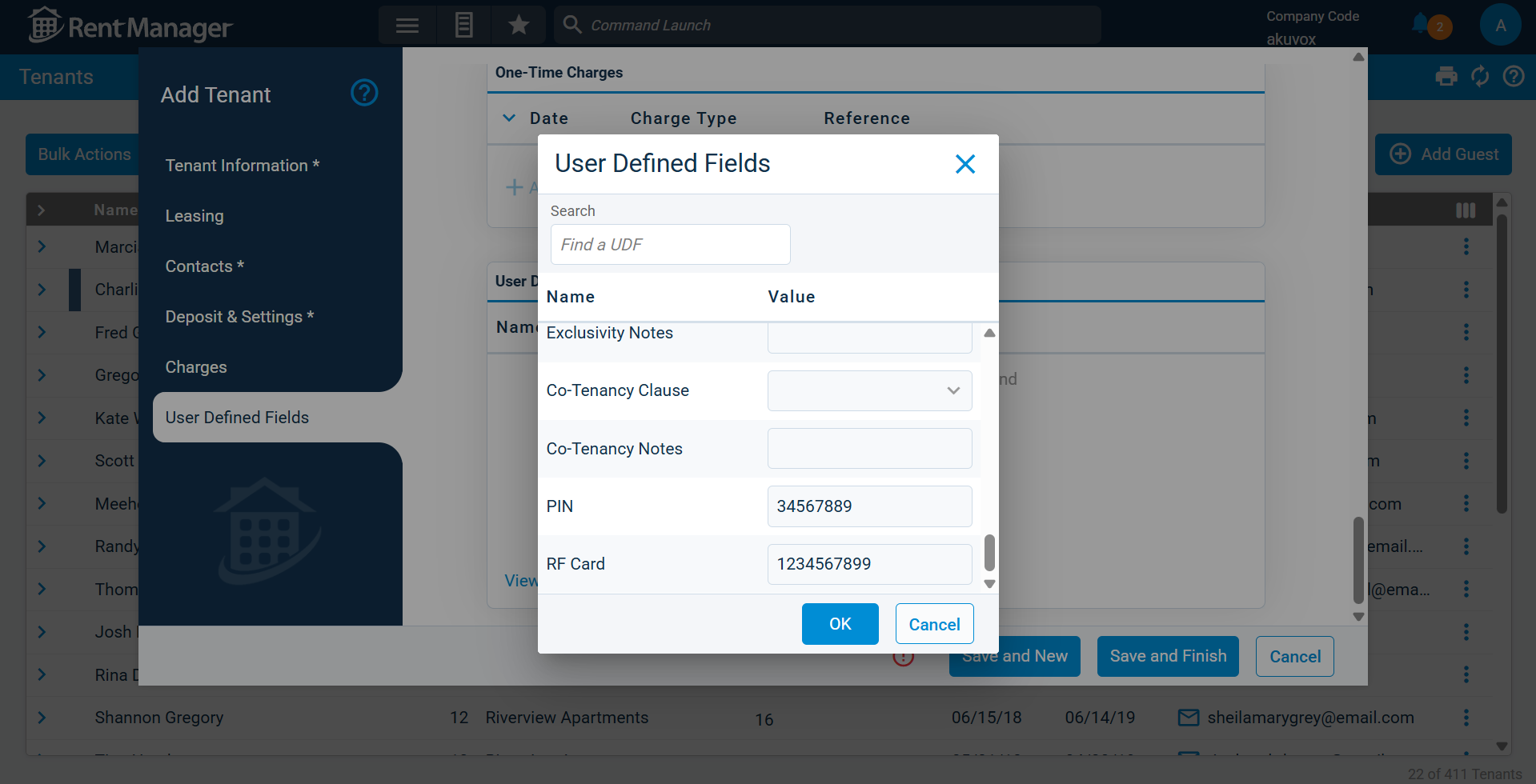
Click OK.
Set up Tenant Accounts on SmartPlus Cloud
After installers pay for the integration and projects, you can log in to SmartPlus Cloud to manage tenants and their access permissions.
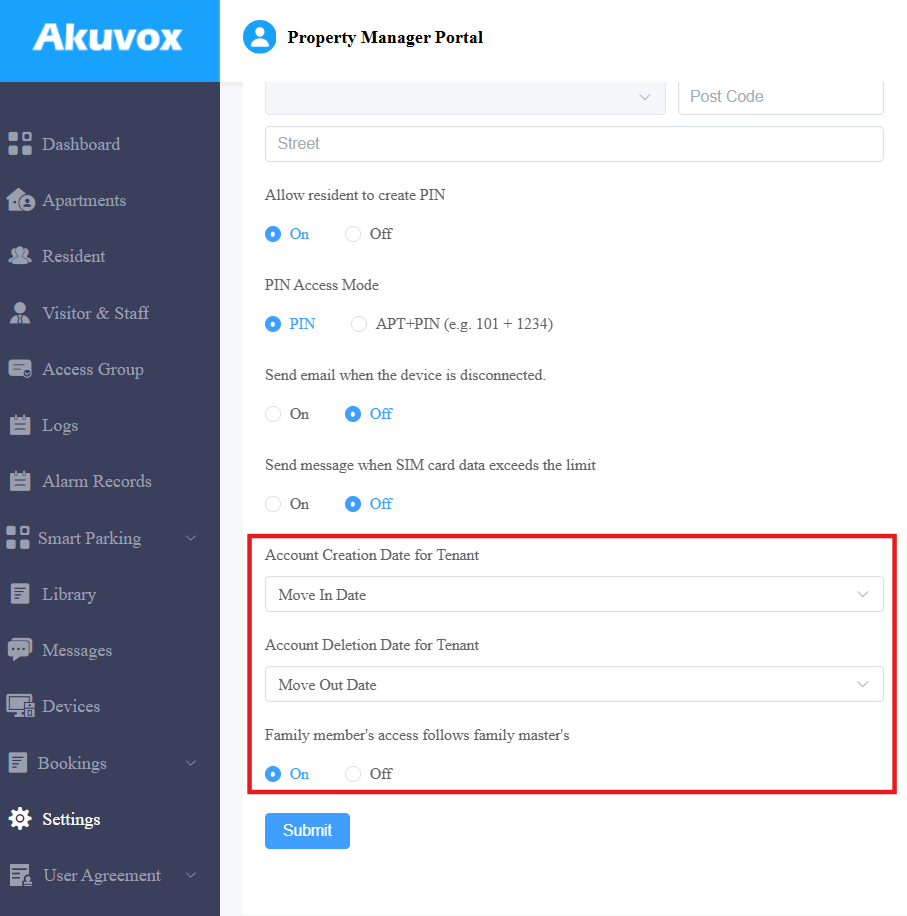
Click Settings on the left column.
Select the account creation date.
Move-In Date: The SmartPlus Account will be created when the tenant moves in.
Lease Start Date: The SmartPlus Account will be created when the lease starts.
Select the account deletion date.
Move-Out Date: The SmartPlus Account will be deleted when the tenant moves out.
Lease End Date: The SmartPlus Account will be deleted when the lease ends.
Set whether the access permission of the family member accounts(tenants) is the same as the master account’s.
The default access group allows users to open doors at any time within a day. Click here to view how to customize an access group.
Note
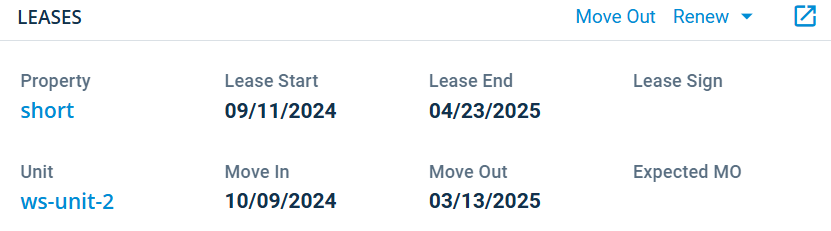
The Move In/Out and Lease Start/End Dates are defined on the Rent Manager Express when adding the tenants.
Tip
For more on using the Rent Manager portal, please visit Rent Manager University website.
For more on managing tenants on the SmartPlus Cloud, please refer to Akuvox SmartPlus Property Manager Guide - Community.
For Installers
Pay for the Project
You need to pay for the integration before synchronizing projects from Rent Manager.
Log in to the SmartPlus Cloud with your account.
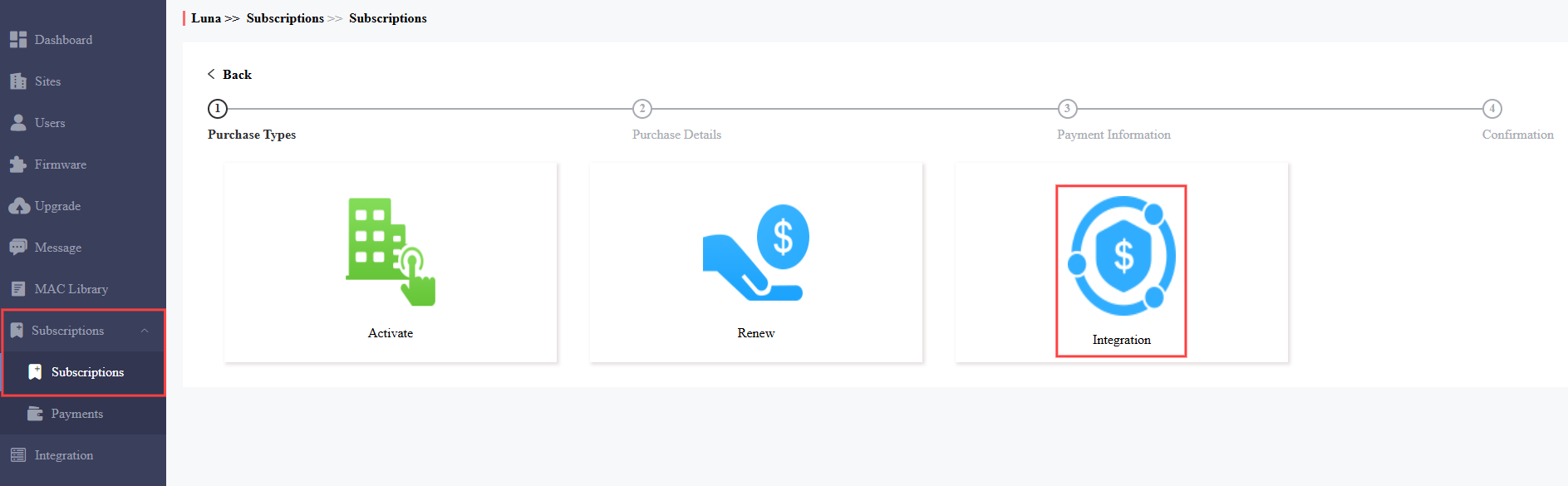
Click Subscription on the left column.
Select Community and click Next.
Click Integration.
Choose to renew manually or automatically. Set the renewal period and click Next.
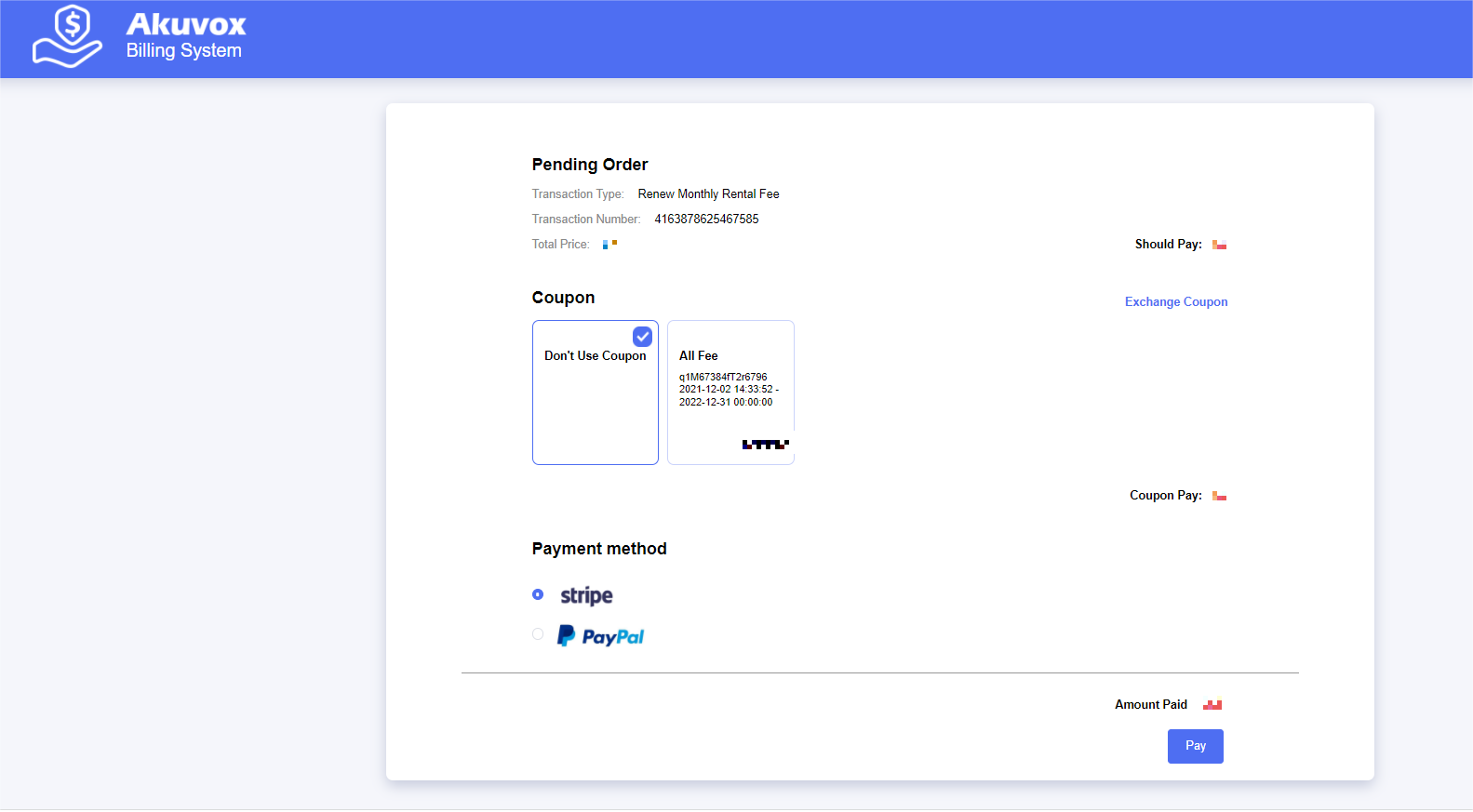
Check the billing information and services to be renewed.
Select the payment method, enter the card number, and pay the bill.
Sync Projects
Click Get Site from PMS on the Sites module.
Select the customer.
Select the properties.
Select the account creation date.
Move-In Date: The SmartPlus Account will be created when the tenant moves in.
Lease Start Date: The SmartPlus Account will be created when the lease starts.
Select the account deletion date.
Move-Out Date: The SmartPlus Account will be deleted when the tenant moves out.
Lease End Date: The SmartPlus Account will be deleted when the lease ends.
Note
The Move In/Out and Lease Start/End Dates are defined on the Rent Manager Express by property managers.
Set whether the access permission of the family member accounts(tenants) is the same as the master account’s.
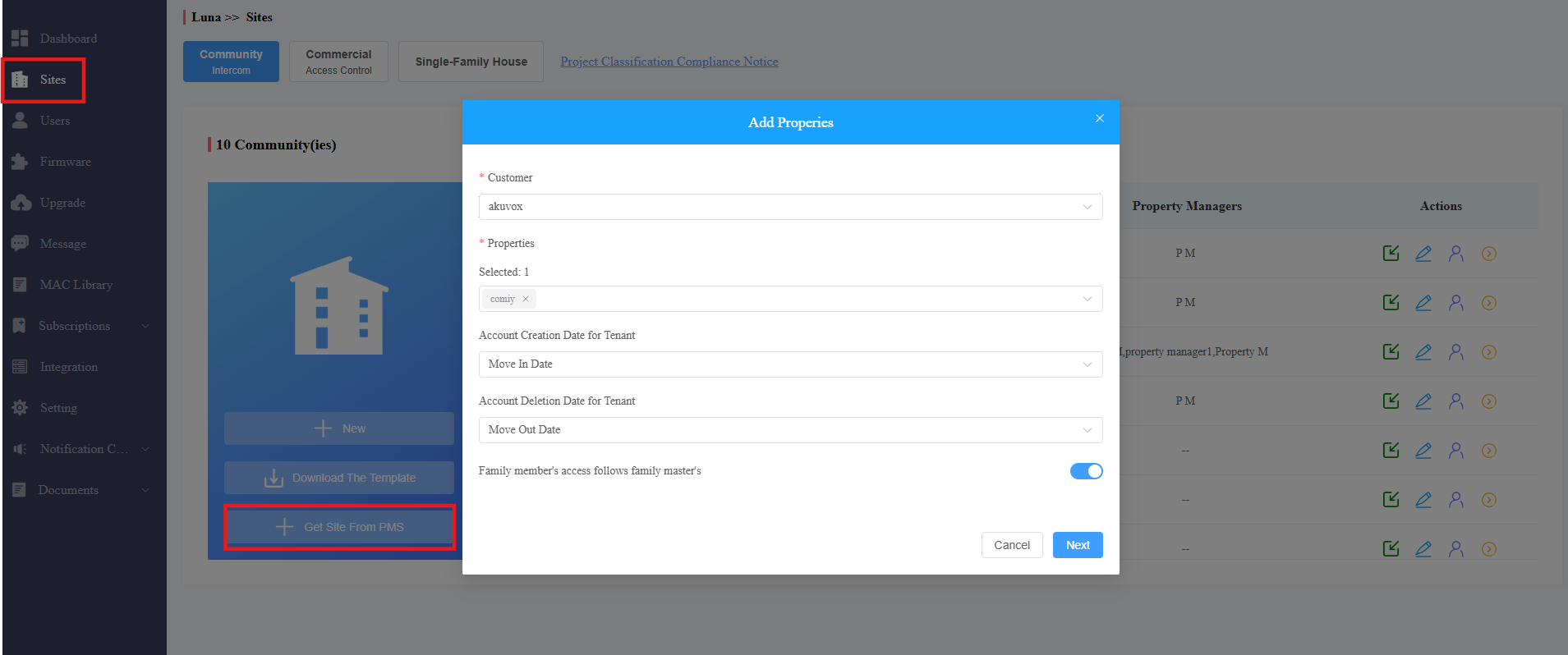
Click Next.
Select All or Custom to choose specific apartments.
All: The newly added units on Rent Manager will sync to the SmartPlus Cloud.
Custom: The newly added units will NOT sync.
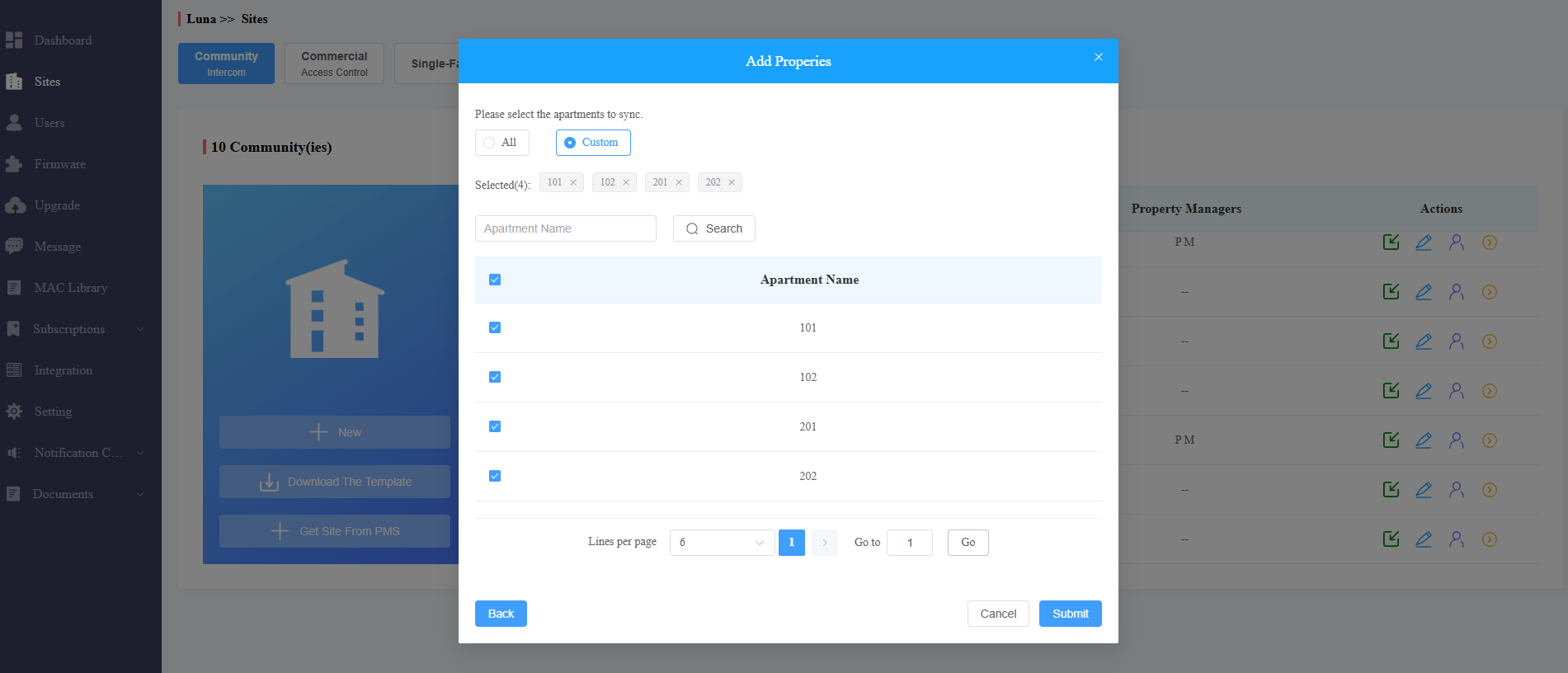
After synchronization, installers can add devices to the project and pay the monthly fee for specific apartments.
Check Synchronized Items
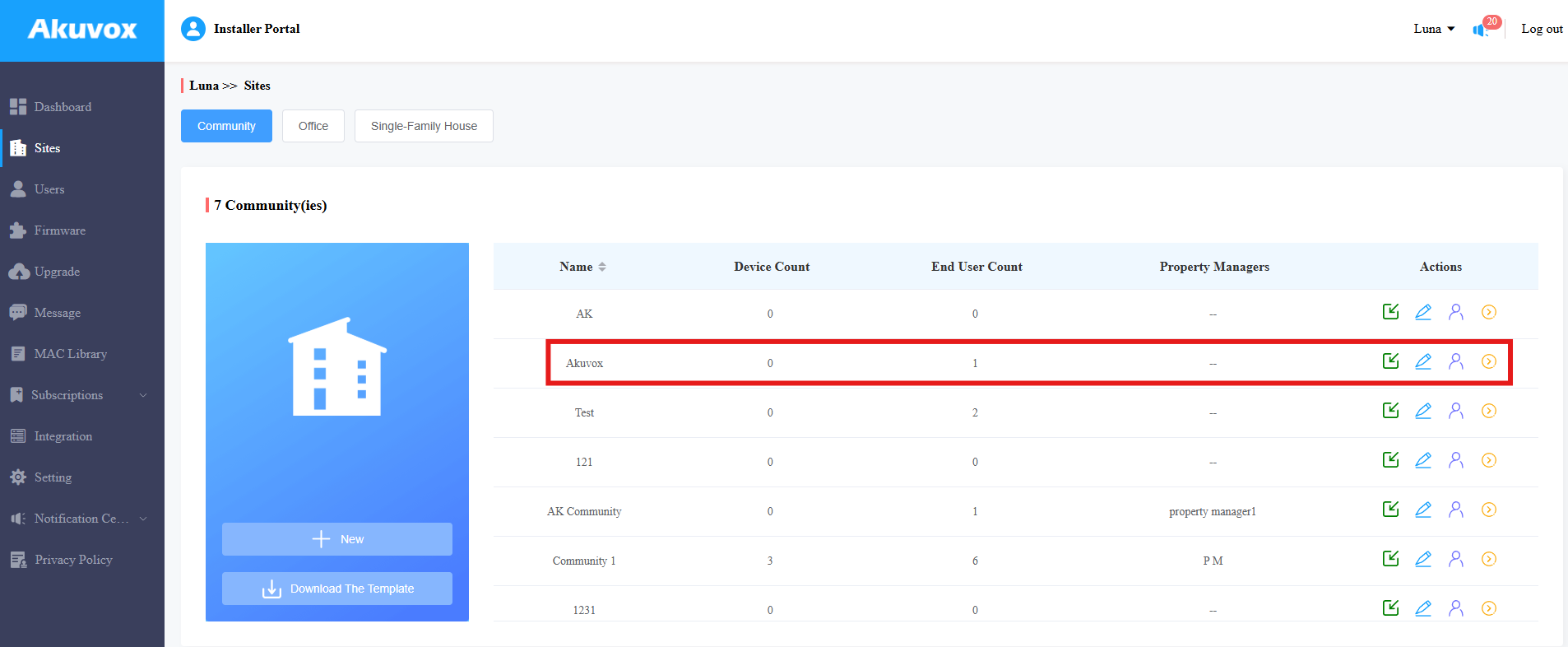
Properties
Each property in Rent Manager equals a community on SmartPlus Cloud.
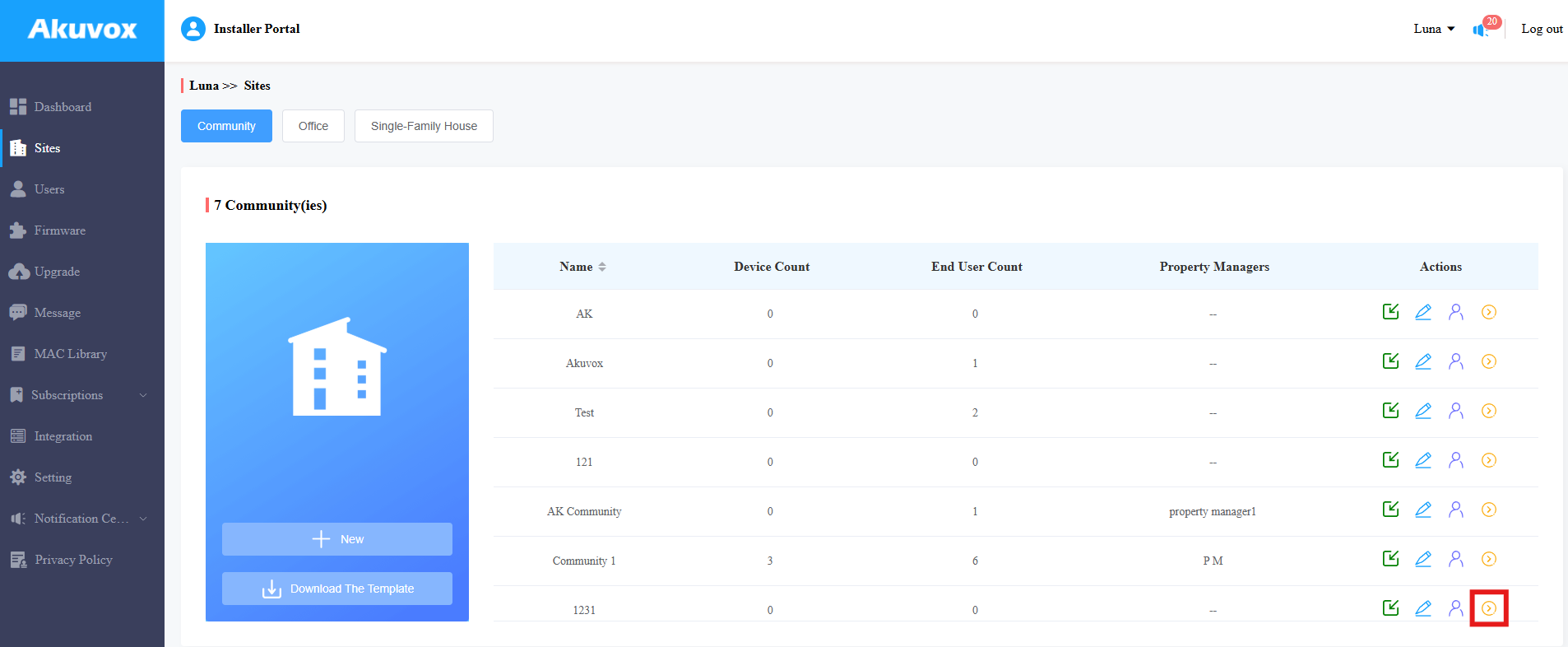
Units
Each unit in Rent Manager equals an apartment on SmartPlus Cloud.
1. Click of the desired property for management.
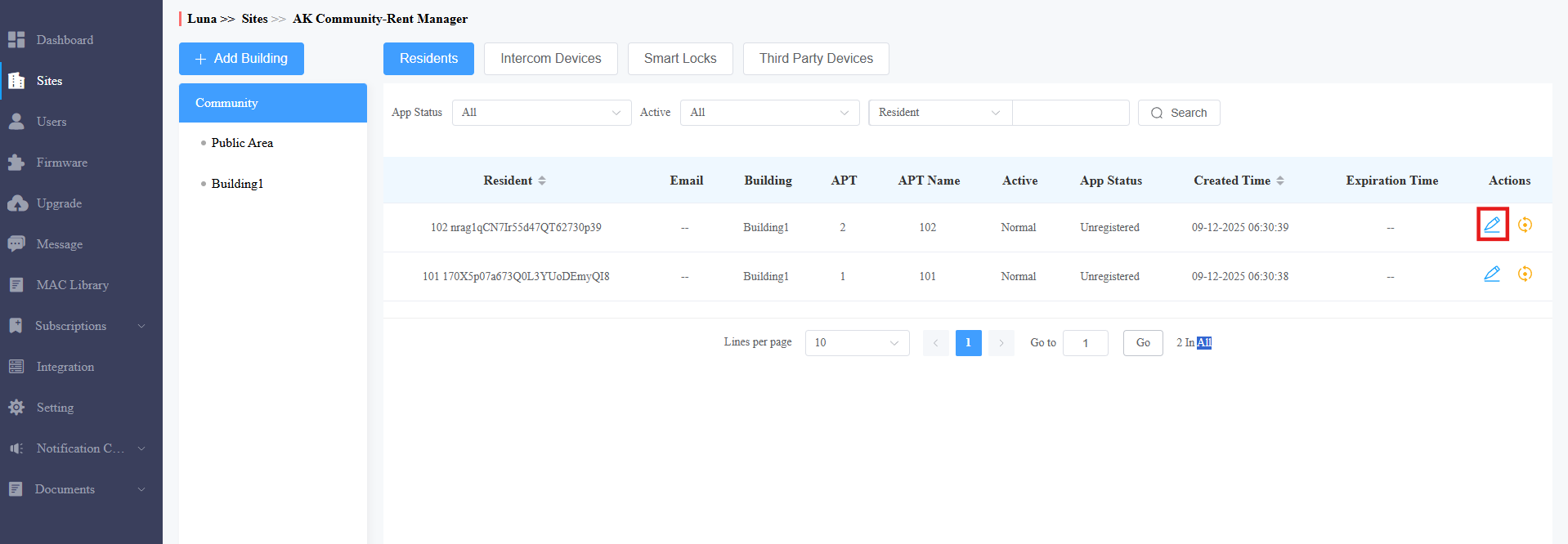
2. All units(apartments) synchronized from Rent Manager are displayed in Building 1, which is created automatically by the SmartPlus system.
Tenants
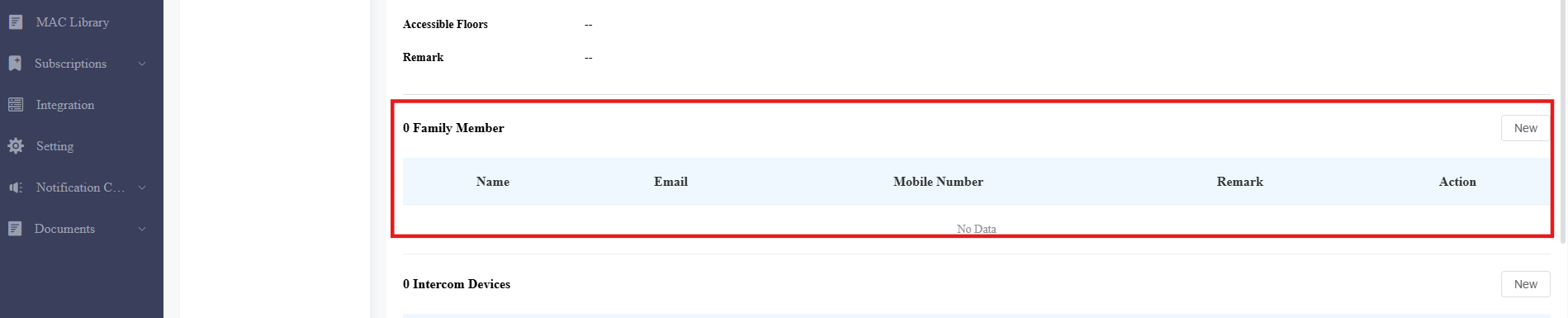
The tenants’ contacts on Rent Manager equal the family member accounts on the SmartPlus platform.
Click
.png) of the desired apartment.
of the desired apartment.Scroll down to Family Member, displaying the information of tenants synchronized from Rent Manager. The tenant information is updated daily around Eastern Daylight Time 3:00 a.m./Eastern Standard Time 2:00 a.m.
Tip
The main account of an apartment is created automatically after synchronization. It does not affect the management of tenants accounts.
For more on SmartPlus Cloud functions such as device management, please refer to Akuvox SmartPlus Installer Guide - Community.