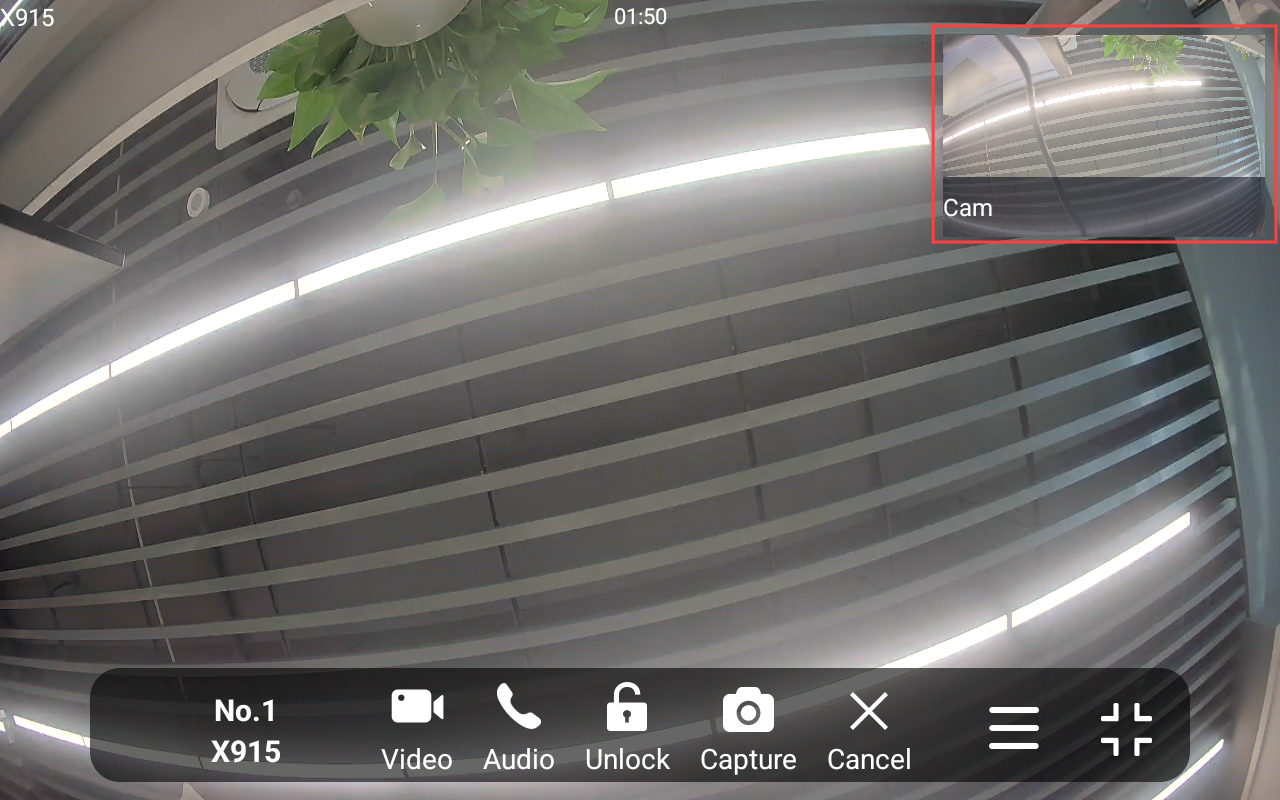
Akuvox SmartPlus Cloud supports integration with third-party cameras. After integration, users can monitor video streams from both Akuvox devices and external cameras, allowing expanded monitoring coverage.
Installers can also link third-party cameras to Akuvox devices so that users can easily switch between video streams.
Supported Third-Party Cameras
Brands | Tested Camera Models |
|---|---|
Uniview | IPC3614LE-ADF28K-G |
TPLINK | TL-IPC544TP-WB6 |
Hikvision | DS-2CD3346P1-L |
Dahua | DH-3H3200-ADW |
Milesight | MS-C2962-FIPB |
AXIS | Not specified |
Tiandy | TC-C321N SPEC:I3/E/Y/2.8mm |
Watch the Video Guide
Prefer a visual walkthrough?
Watch: [Video]Akuvox Integration with Third-Party Cameras
Before You Start
Before configuration, make sure:
Camera supports RTSP
Camera supports ONVIF
Camera network is reachable
RTSP credentials are available
For Installers
Log in to the SmartPlus Cloud platform with an installer account.
Single-Family House Projects
Go to the Single-Family House site.
Click
 of the desired user.
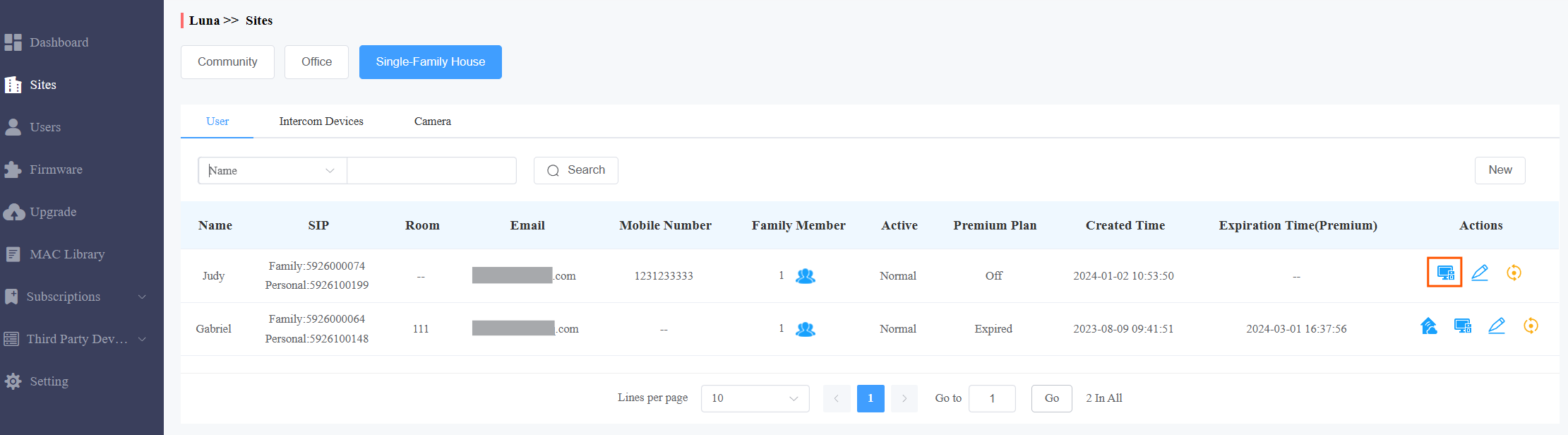
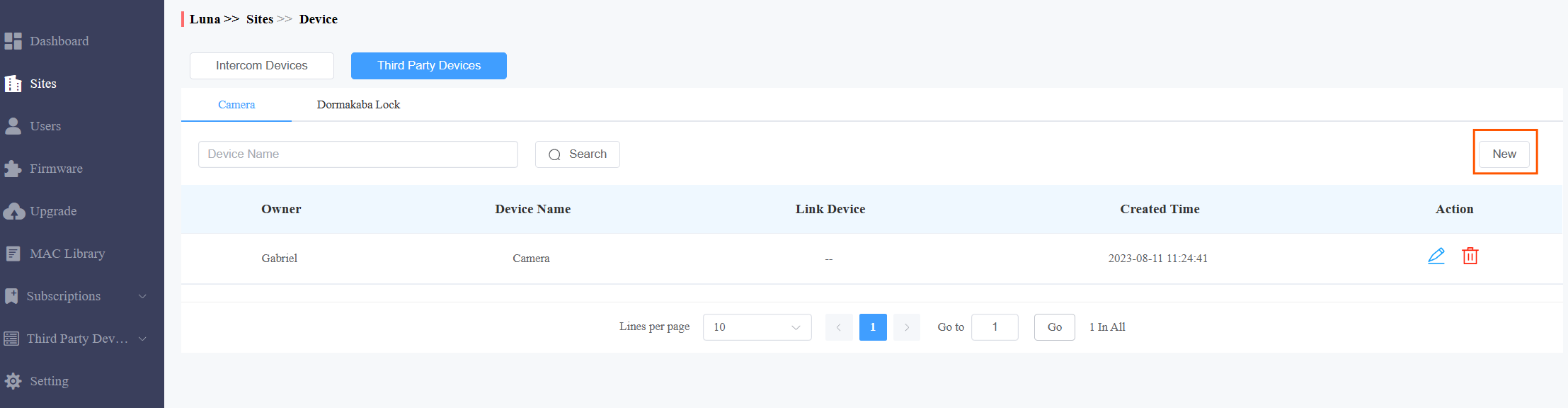
Click Third-Party Devices and Camera. Click New on the right.
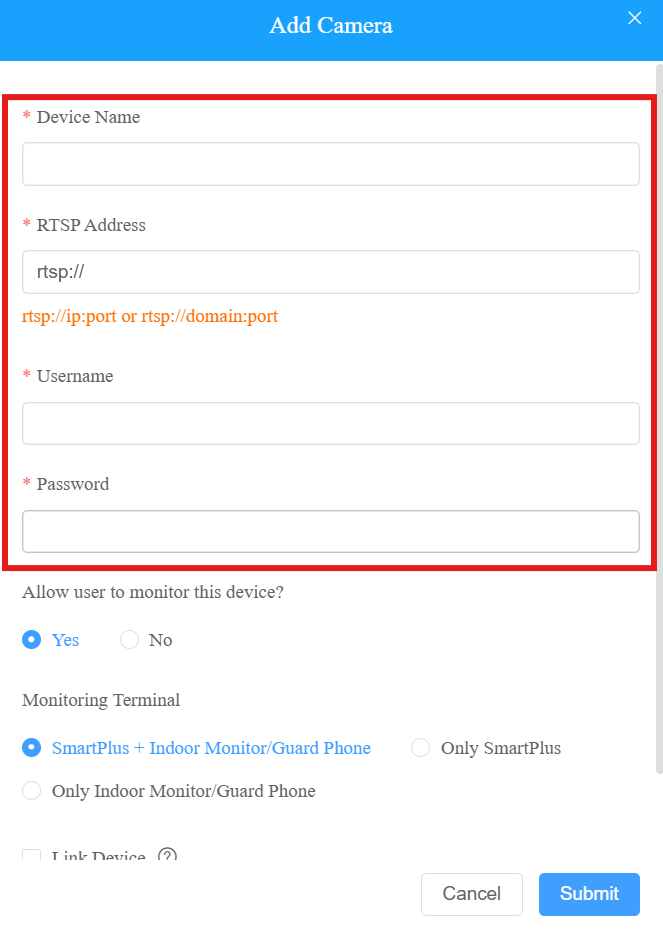
Name the device and enter its RTSP Address in formats such as rtsp://ip:port or rtsp://domain:port. Please confirm the URL format with the camera manufacturer.
Note
If the RTSP address uses a local network IP address (for example, 192.168.x.x), the mobile phone running the SmartPlus App must be connected to the same LAN as the camera to view the stream.
If the phone uses mobile data or another network, the video stream will not be accessible.
To allow remote viewing, configure the RTSP address using the public IP address of the camera.
Enter the Username and Password for authentication provided by the camera manufacturer.
Set whether users can view the monitoring stream through their indoor monitors and SmartPlus Apps.
If Yes, specify the channels.
You can link the camera to an Akuvox device by clicking Link Device. This affects how end users view the camera’s video stream.
Specify which method is used to obtain snapshots from third-party cameras. The snapshots will display in the door log of the linked device.
ONVIF (Use RTSP Credentials)
Supports ONVIF cameras where the ONVIF username and password match the RTSP credentials.
When this option is selected, no additional information is required; the RTSP username and password are used to capture snapshots.
This is the default option.
ONVIF (Custom Credentials)
Supports ONVIF cameras where the ONVIF username and password differ from the RTSP credentials.
When this option is selected, enter the Username and Password.
Snapshot via URL
Captures snapshots using a URL.
When this option is selected, enter the URL.
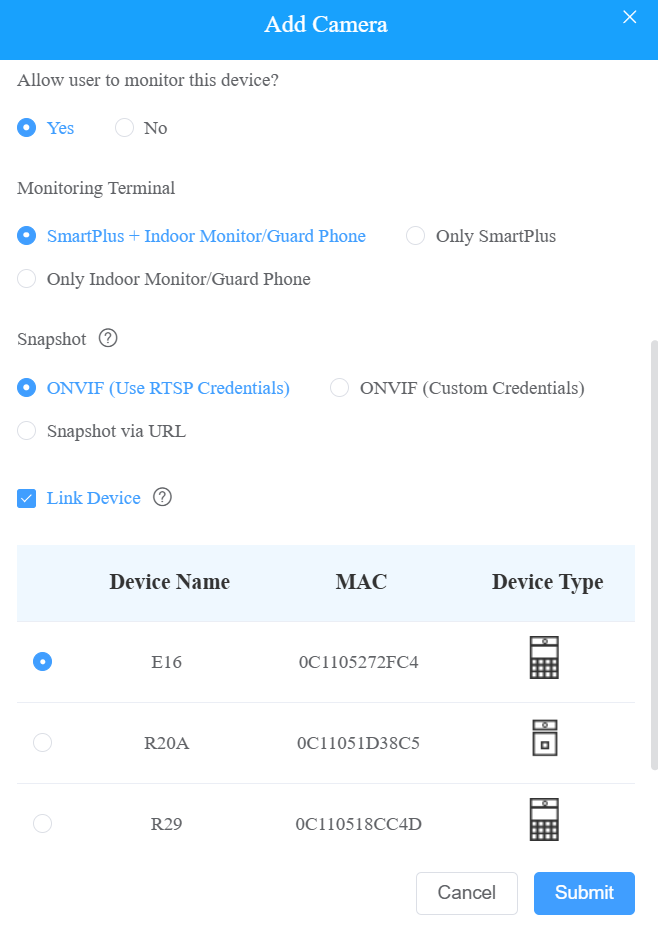
Click Submit to save the settings.
Community Projects
Go to the target community and navigate to the area where the camera is installed.
Click Third-Party Devices and click Camera.
Click New on the right.
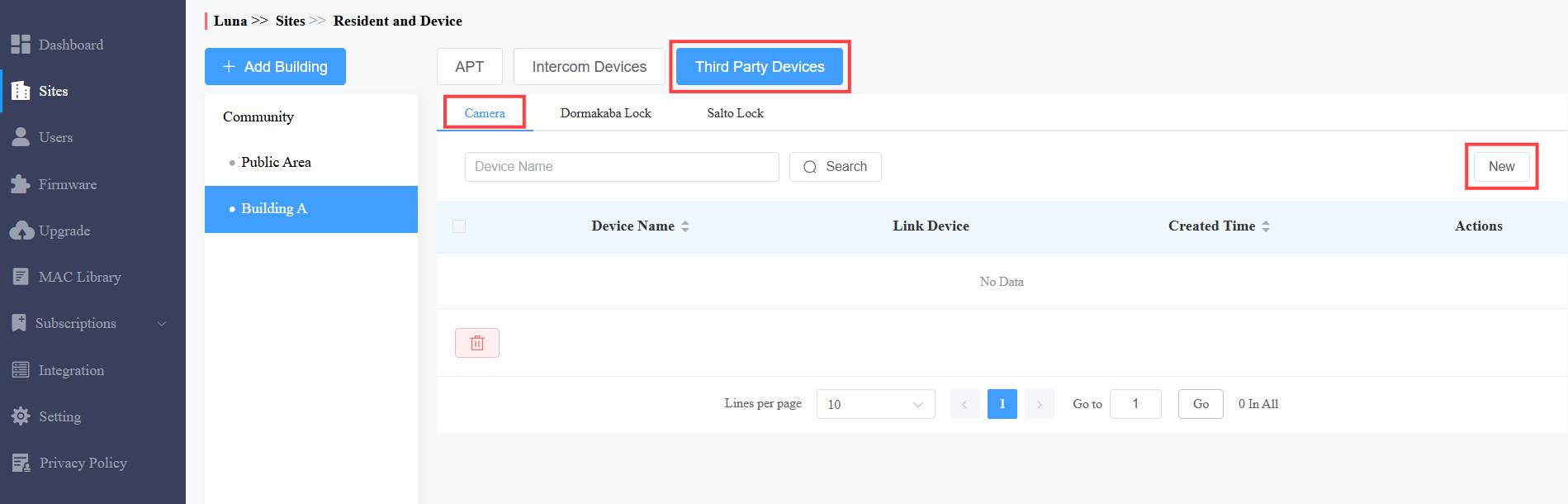
Name the device and enter its RTSP Address in formats such as rtsp://ip:port or rtsp://domain:port.
Please confirm the URL format with the camera manufacturer.
Note
If the RTSP address uses a local network IP address (for example, 192.168.x.x), the mobile phone running the SmartPlus App must be connected to the same LAN as the camera to view the stream.
If the phone uses mobile data or another network, the video stream will not be accessible.
To allow remote viewing, configure the RTSP address using the public IP address of the camera.
Enter the Username and Password for authentication provided by the camera manufacturer.
Set whether users can view the monitoring stream through their indoor monitors and SmartPlus Apps.
If Yes, specify the channels.
You can link the camera to an Akuvox device by clicking Link Device. This affects how end users view the camera’s video stream.
When the camera is linked with an Akuvox device, a snapshot from the camera is captured and displayed together with the device snapshot in the door log.
Specify which method is used to obtain snapshots:
ONVIF (Use RTSP Credentials)
Supports ONVIF cameras where the ONVIF username and password match the RTSP credentials.
When this option is selected, no additional information is required; the RTSP username and password are used to capture snapshots.
This is the default option.
ONVIF (Custom Credentials)
Supports ONVIF cameras where the ONVIF username and password differ from the RTSP credentials.
When this option is selected, enter the Username and Password.
Snapshot via URL
Captures snapshots using a snapshot URL.
When this option is selected, enter the URL provided by the service provider.
Device Compatibility
Devices supporting camera linking
Model | Firmware Version | Model | Firmware Version |
|---|---|---|---|
X915V2 | 2915.30.10.106 | X910 | 2910.30.11.28 |
X912 | 912.30.11.29 | R29 | 29.30.3.217 |
X916 | 916.30.10.204 | R28V2 | 228.30.10.135 |
R25K | 25.30.10.117 | R25A | 25.30.10.22 |
S539 | 539.30.10.114 | R20V5 | 320.30.4.10 |
S532 | 532.30.1.19 | S535 | 535.30.10.233 |
E18 | 18.30.10.236 | A08 | 108.30.11.16 |
E12V2 | 312.30.10.237 | E16V2 | 216.30.11.3 |
S538 | 538.30.10.705 | E16V3 | 416.30.11.206 |
A01/A02 | 101.30.11.109 | X912 | 912.30.12.207 |
A05V2 | 205.30.11.114 | A03 | 103.30.11.105 |
A094 | 92.30.11.106 | A095 | 95.30.11.6 |
A15 | 1115.30.10.407 | WR01 | 1401.30.11.221 |
Devices supporting obtaining snapshots of third-party cameras
Model | Firmware Version | Model | Firmware Version |
|---|---|---|---|
A08 | 108.30.11.210 | R29 | 29.30.10.712 |
R20V5 | 320.30.12.16 | X915V2 | 2915.30.10.707 |
A095 | 95.30.11.6 | A094 | 92.30.11.106 |
E18 | 18.30.11.108 | R28V2 | 228.30.11.17 |
X916 | 916.30.10.508 | S539 | 539.30.10.605 |
A01/A02 | 101.30.11.109 | S535 | 535.30.11.8 |
S538 | 538.30.10.705 | R25 | 25.30.10.206 |
E16V2 | 216.30.12.7 | E16V3 | 416.30.12.5 |
A03 | 103.30.11.105 | X910 | 2910.30.11.104 |
A05V2 | 205.30.11.114 | E12V2 | 312.30.11.106 |
S532 | 532.30.10.336 | E18 | 18.30.11.136 |
A15 | 1115.30.10.407 | WR01 | 1401.30.11.221 |
For End Users
You can view the monitoring streams with SmartPlus Apps and/or indoor monitors.
On the SmartPlus App
When the camera is NOT linked to a door phone, tap Monitor directly on the home page.
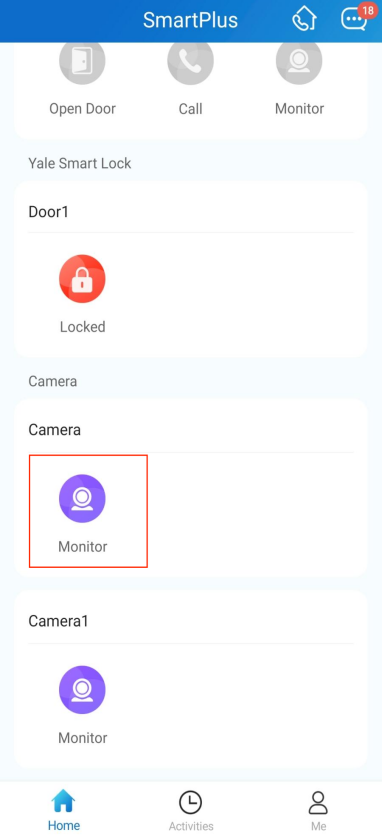
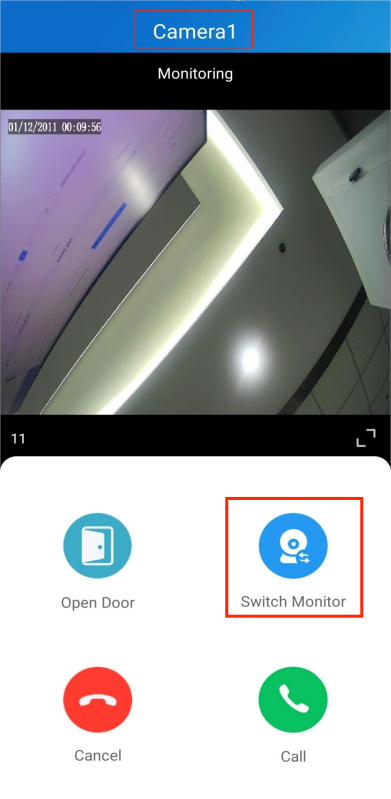
When the camera is linked to a door phone, it will not be displayed on the home page. Tap Monitor of the linked door phone and switch to the camera’s video stream.
On the Indoor Monitor
When the camera is NOT linked to a door phone or an access control terminal, tap Monitor on the home screen and tap the Add icon.
You can see the camera name in the list. Tap it to display the live stream.
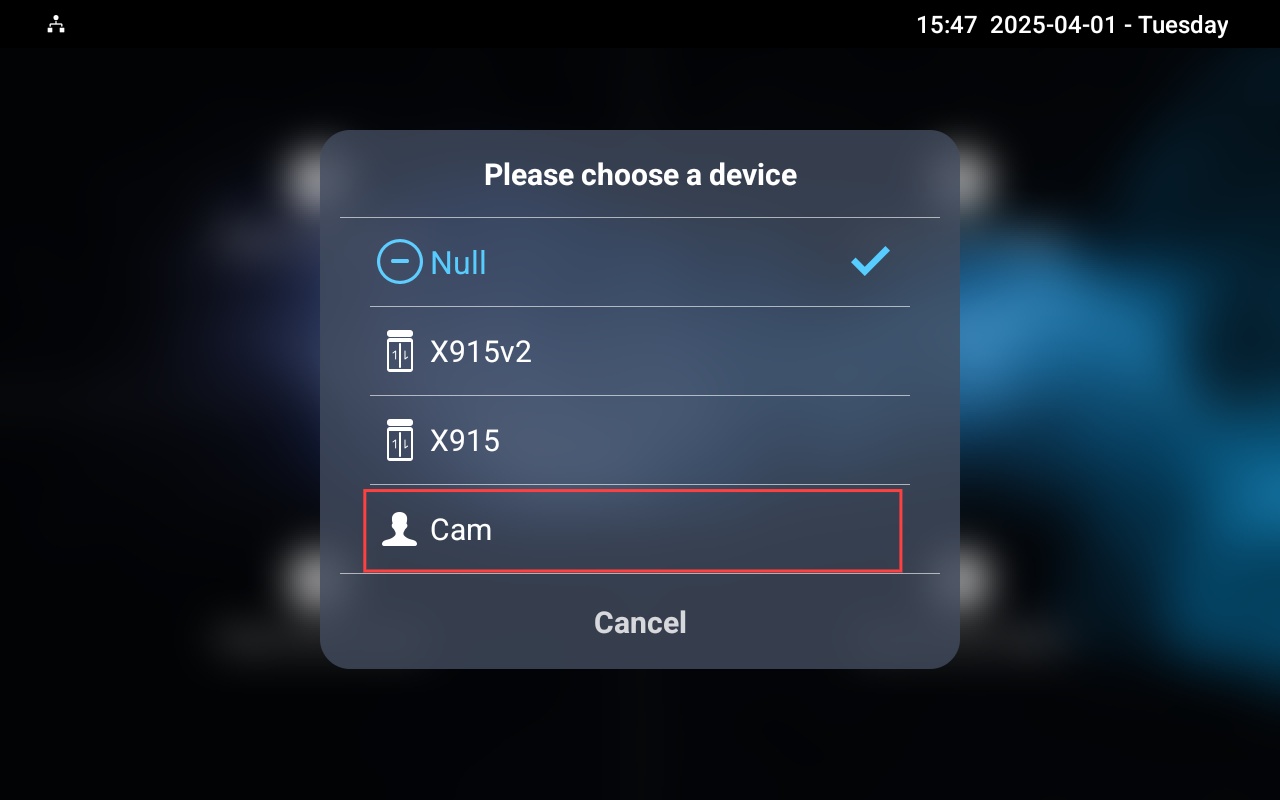
When the camera is linked to a door phone or an access control terminal, it will not display on the monitoring device list.
The camera’s live stream can be viewed in a small window while monitoring the device’s feed, as well as during a call or call preview.
To enlarge the camera’s stream, simply tap the small screen in the upper right corner.
Note
If the camera is linked to an access control terminal without a built-in camera, the terminal’s name will still be displayed on the monitor list, but the video stream shown will be from the third-party camera.