Integration via Wiegand
A05 access control terminal can be integrated with the third-party devices via Wiegand.
To set it up, go to Device > Wiegand interface.
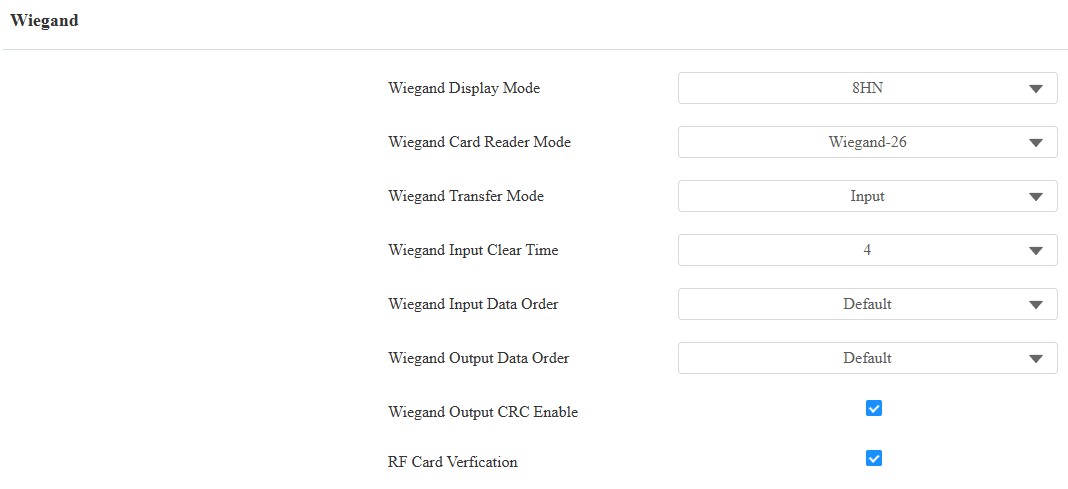
Wiegand Display Mode: Select the Wiegand card code format from the provided options.
Wiegand Card Reader Mode: The transmission format should be identical between the access control terminal and the third-party device. It is automatically configured.
Wiegand Transfer Mode:
Input: The device serves as a receiver.
Output: The device serves as a sender and users can only open the door by entering a PIN code or swiping an RF card.
Convert To Card No. Output: The device serves as a sender and users are assigned by multiple door-opening methods such as facial recognition and Bluetooth.
Wiegand Input Clear Time: When the interval of entering passwords exceeds the time. All entered passwords will be cleared.
Wiegand Input Data Order: Set the Wiegand input data sequence between Normal and Reversed. If you select Reversed, then the input card number will be reversed.
Wiegand Output Data Order: Determine the sequence of the card number.
Normal: The card number is displayed as received.
Reversed: The order of the card number is reversed.
Wiegand Output CRC Enable: It is enabled by default for Wiegand data inspection. Disabling it may lead to integration failure with third-party devices.
RF Card Verification: When enabled, the device will verify whether the card is assigned to a user. If the card is not assigned, a prompt "Opening Door Failed" will pop up on the door phone screen.
Note
Click here to see detailed configuration steps.
Integration via HTTP API
HTTP API is designed to achieve a network-based integration between the third-party device and the Akuvox device.
To set it up, go to Setting > HTTP API interface.
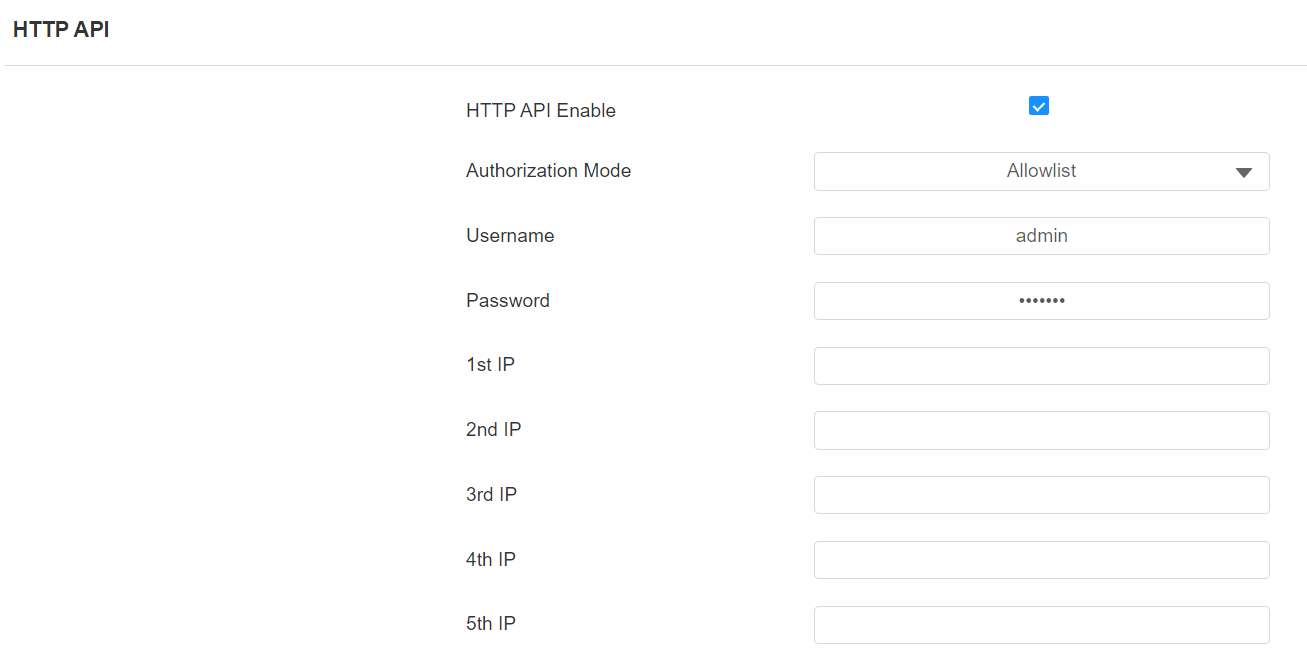
HTTP API Enable: Enable or disable the HTTP API function for third-party integration. If the function is disabled, any request to initiate the integration will be denied and return HTTP 403 forbidden status.
Authorization Mode: Select among the following options: None, Allowlist, Basic, Digest, and Token for authorization type, which will be explained in detail in the following chart.
Username: Enter the user name when Basic or Digest authorization mode is selected. The default username is admin.
Password: Enter the password when Basic or Digest authorization mode is selected. The default password is admin.
1st IP-5th IP: Enter the IP address of the third-party devices when the Allowlist authorization is selected for the integration.
Please refer to the following description for the Authentication mode:
NO. | Authorization Mode | Description |
|---|---|---|
1 | None | No authentication is required for HTTP API as it is only used for demo testing. |
2 | Allowlist | If this mode is selected, you are only required to fill in the IP address of the third-party device for the authentication. The allowlist is suitable for operation in the LAN. |
3 | Basic | If this mode is selected, you are required to fill in the username and password for the authentication. In the Authorization field of the HTTP request header, use the Base64 encode method to encode of the username and password. |
4 | Digest | The password encryption method only supports MD5. MD5( Message-Digest Algorithm) In the Authorization field of HTTP request header: WWW-Authenticate: Digest realm="HTTPAPI",qop="auth,auth-int",nonce="xx", opaque="xx". |
5 | Token | This mode is used by Akuvox developers only. |
Integration with Third-party Access Control Server
The device can transmit QR code, card data, and face data to a third-party server without doing any verification. The generation and verification of the data are conducted on the third-party server.
To set it up, go to Access Control > Relay > Third Party Integration interface.
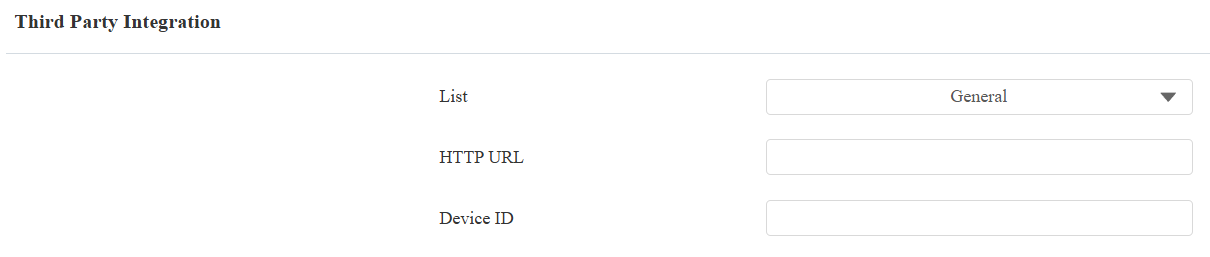
List:
None: Disable the function.
General: Transmit the QR code-linked HTTP URL in Akuvox’s method.
HTTP URL: Enter the HTTP command format provided by the third-party service provider. After scanning the QR code, the HTTP command will carry the dynamic QR code information automatically before it is sent to the QR code server for verification. See the example: http://{Server IP}:8090/api/visitor/scan?codeKey={QRCode}&deviceId={DeviceID}.
Device ID: The device ID is provided by the third-party server. It will be added to the HTTP command automatically when using a QR code for door access.
Customize: Transmit QR code, RF card, and/or face data in a customized method.
Prompt on LCD: Select Default to adopt the Akuvox door phone’s door-opening prompt; Select Return Value to use the return value from the third-party server as the prompt.
Remote Verification: Check the access method to be verified by the third-party server. When Face is checked, use the variable {UserID} and/or {Pin} in the HTTP URL. When users scan their faces to open the door, the variables will be replaced with the actual values and sent to the third-party server.
HTTP URL: Enter the HTTP command format provided by the third-party service provider. After scanning the QR code, swiping the card, or going through the facial recognition, the HTTP command will carry the dynamic information automatically before it is sent to the server for verification. See the example: http://{Server IP}:8090/api/visitor/scan?codeKey={QRCode}/{Card}/{Face}&deviceId={DeviceID}&UserID={UserID}&Pin={Pin}. For example, if a user swipes a card, the URL will be http://192.168.35.123:8090/api/visitor/scan?codeKey={QRCode}/123456/{Face}&deviceId=1.
Device ID: The device ID is provided by the third-party server. It will be added to the HTTP command automatically when using QR code/RF card/facial recognition for door access.
RS485 Setting
You can connect the device to an external device such as SR01 or an OSDP-based card reader via RS485. To make the connection effective, you need to select the right RS485 mode.
Click here to view the detailed configuration of the OSDP feature.
To set it up, go to the Device > RS485 interface.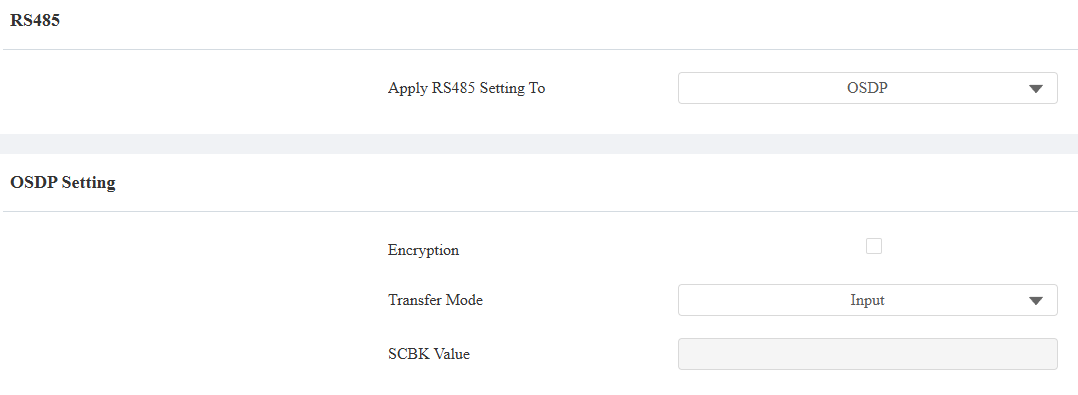
Disabled: The RS485 function is disabled.
OSDP: The device is connected to an OSDP-based external device such as a card reader.
Encryption: Check this option when the protocol is encrypted.
Transfer Mode:
Input: Select this option when the device serves as the relay controller.
Output: Select this option when the device verifies the user credentials.
SCBK Value: Secure Communication Key Value.
When it is filled, OSDP will use this value for encryption, employing a customized protocol for communication.
When it is left empty, OSDP will use the default encrypted protocol for communication.
Security Relay: Select this option when the device works with the SR01.