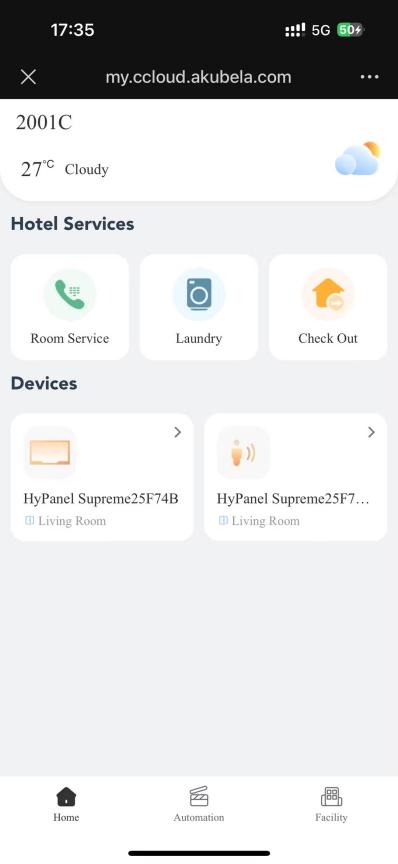
You can check device status in individual rooms or throughout the hotel, including smart home and intercom devices, and remotely control them as needed.
Check Device Status
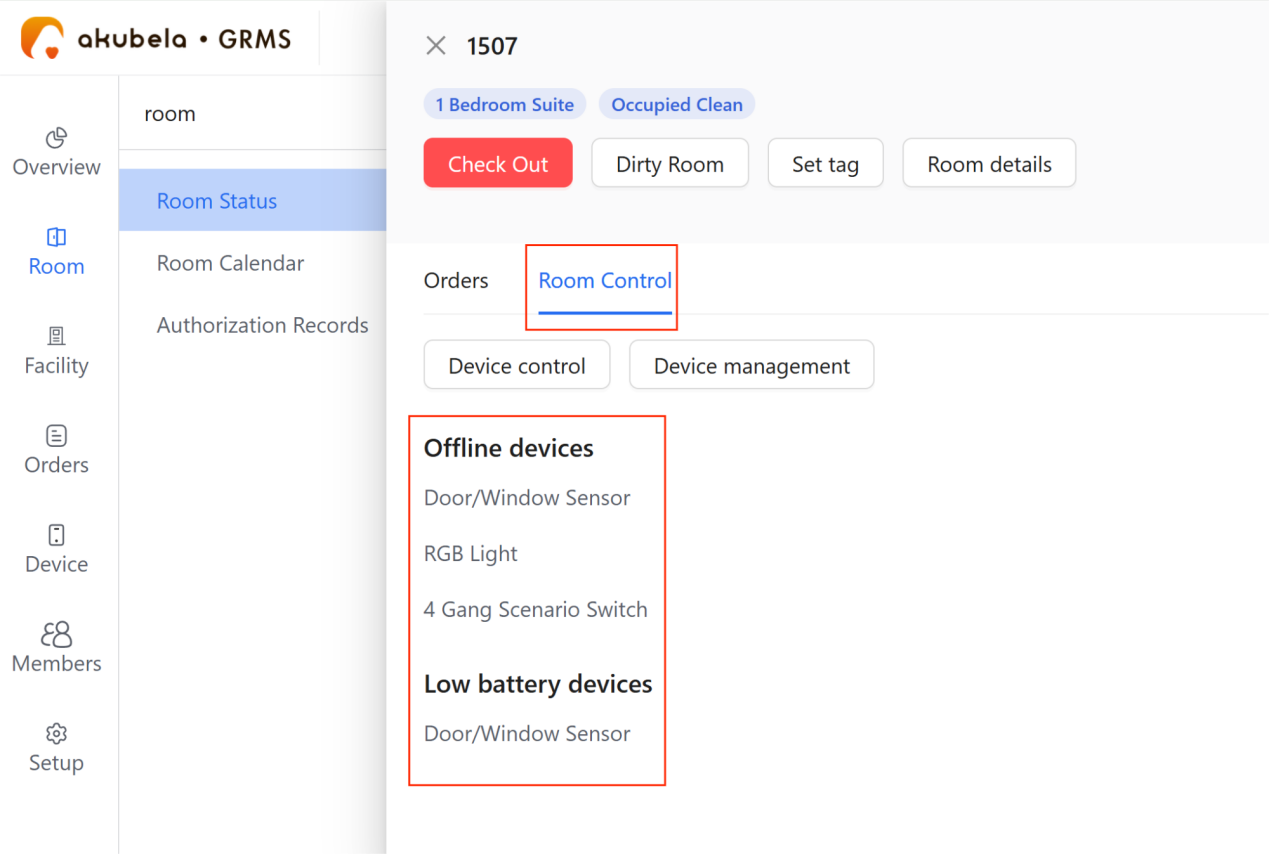
Go to Room > Room Status, click the room card, then select Room Control. Offline and low-battery devices are listed here.
TIP:
To view all devices in the room, click Room Control > Device management.
Remote Control Devices
NOTE:
To display and control KNX and IR devices (IR21/IR22 remote controllers, B15/B29 indoor/outdoor central AC controllers), the panel firmware must be xxx.x.39.xxx or higher.
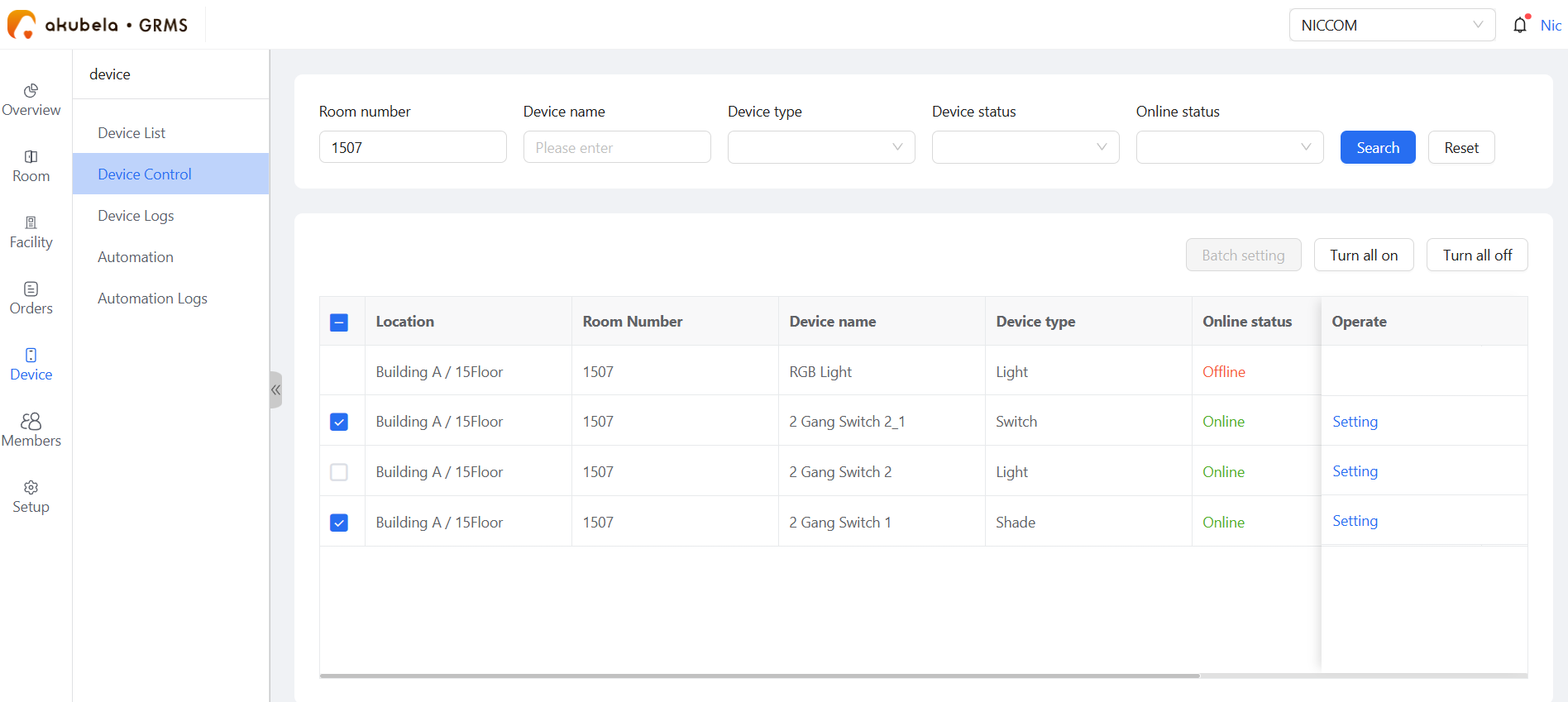
Use the room number filter to quickly locate devices in a specific room.
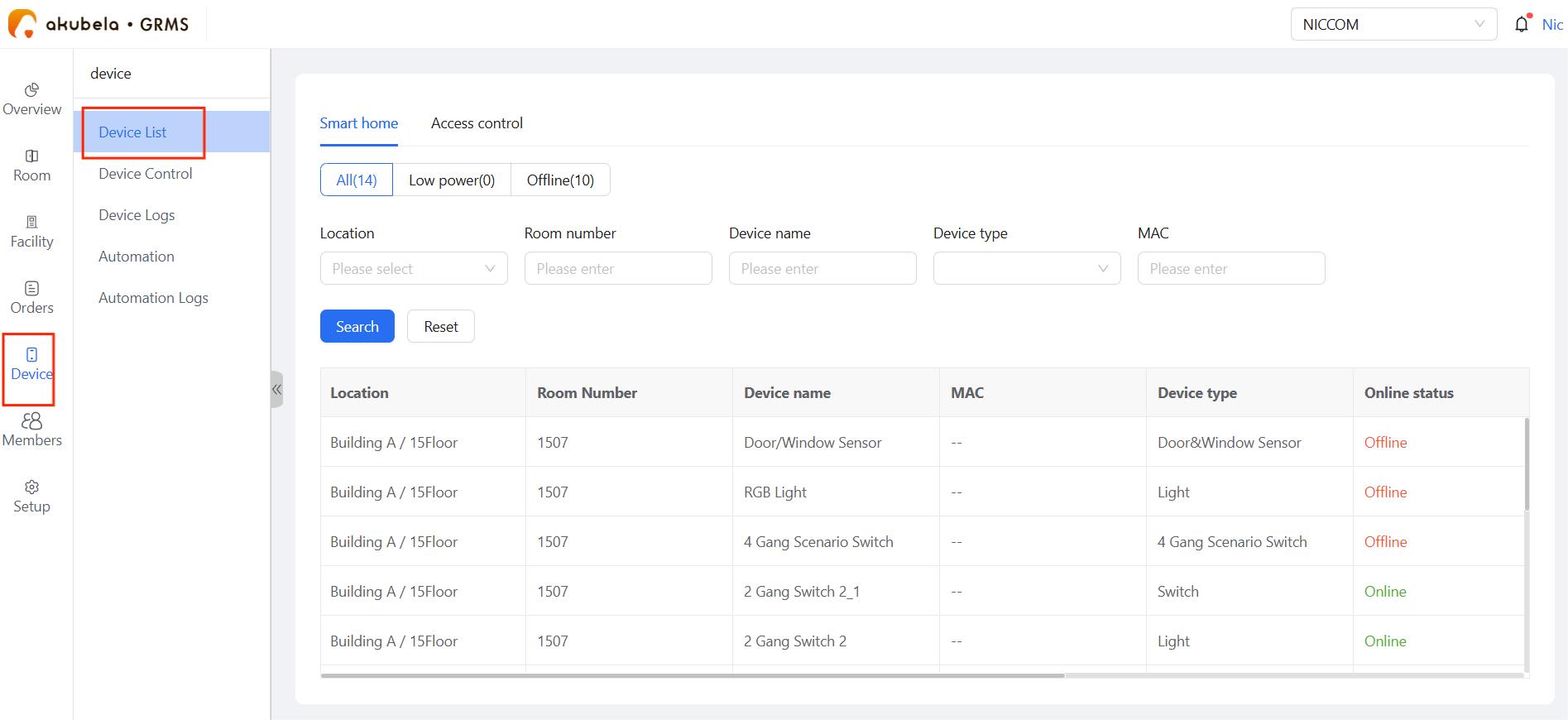
Go to Device > Device Control.
Do any of the following:
To control a single device, click Setting, and toggle the Power on/off.
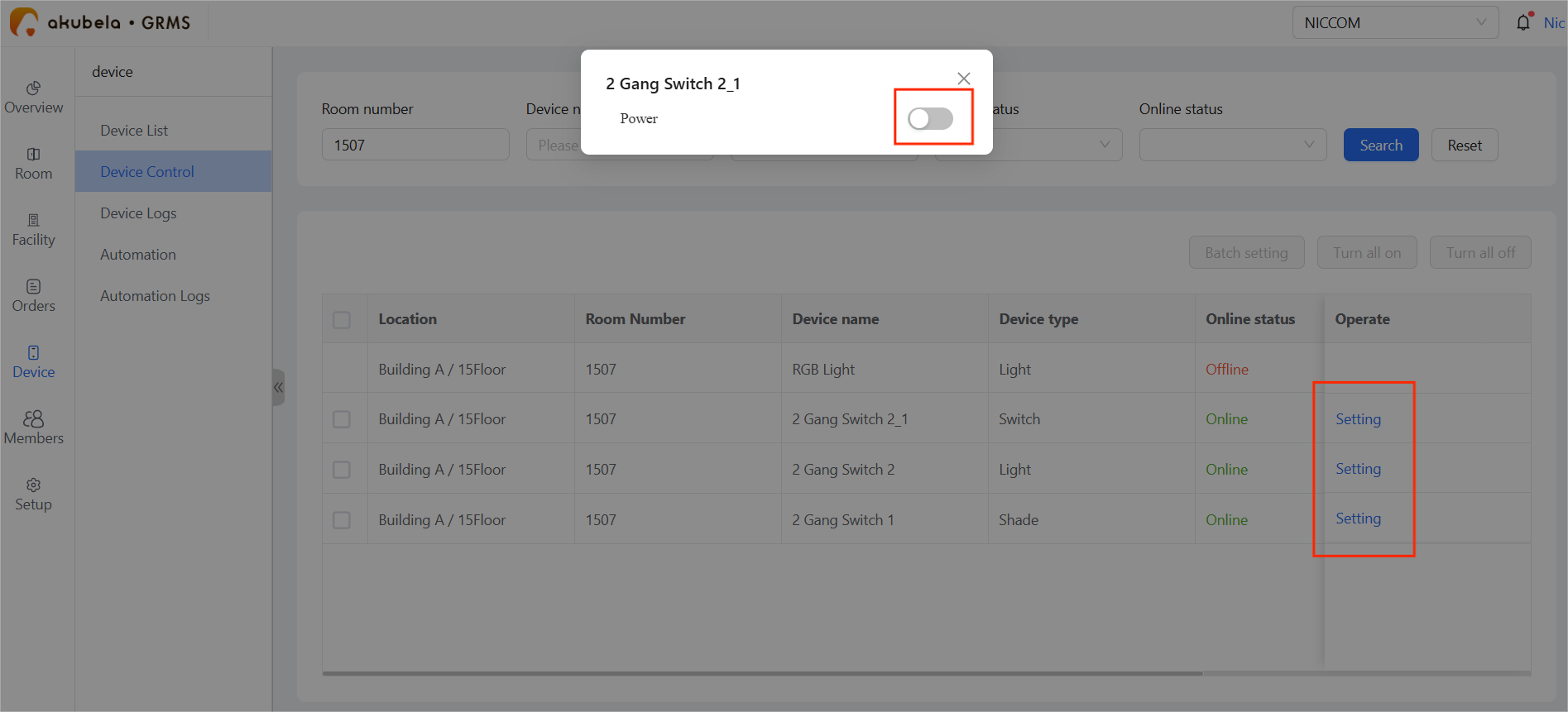
To control multiple devices, select their checkboxes, and click Turn all on/off.
NOTE:
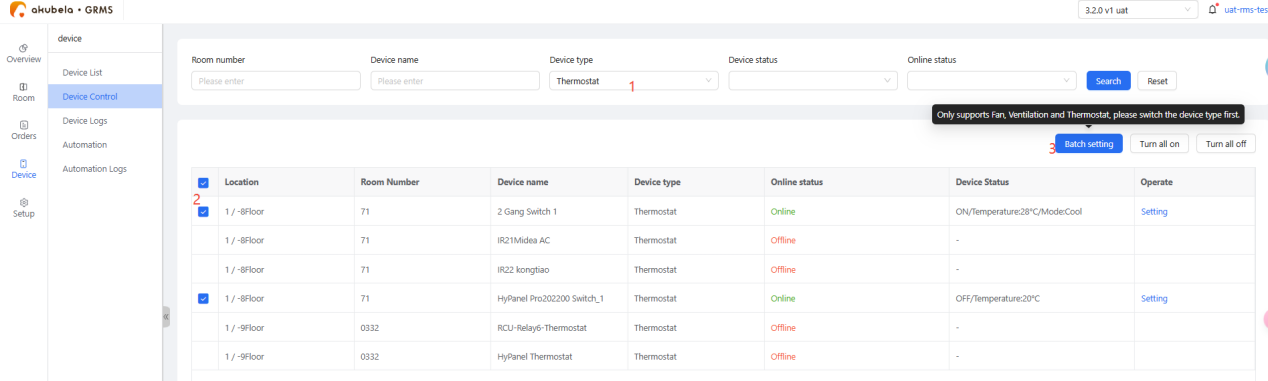
The Batch Setting button works only for fan, ventilation, and thermostat devices. To batch control these, filter by device type, select the devices, then click Batch Setting.
Automate Devices with Scenes
Create automation scenes on the GRMS to control devices automatically when preset conditions are met.
Create Automation Scenes
Currently, the GRMS supports scenes that trigger devices when room status changes or room tags are modified.
NOTE:
Up to 200 scenes can be created per project.
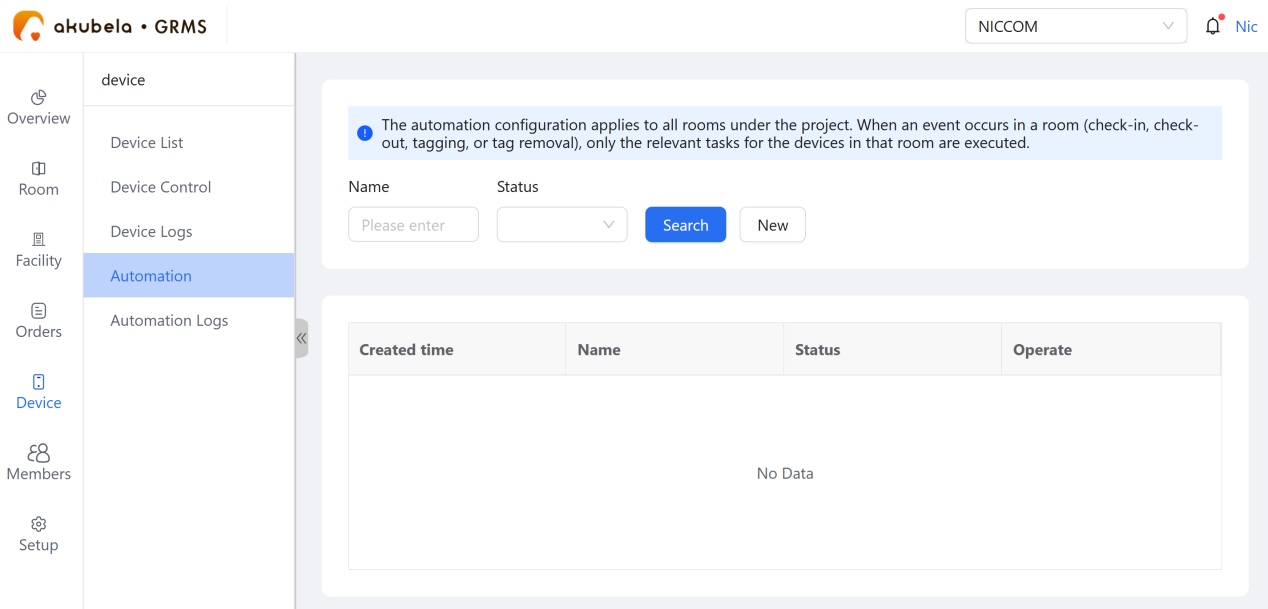
Scenes apply to all guest rooms, but when an event (check-in, check-out, tagging, or tag removal) occurs in a room, only tasks related to that room’s devices are executed.
Go to Device > Automation > New.
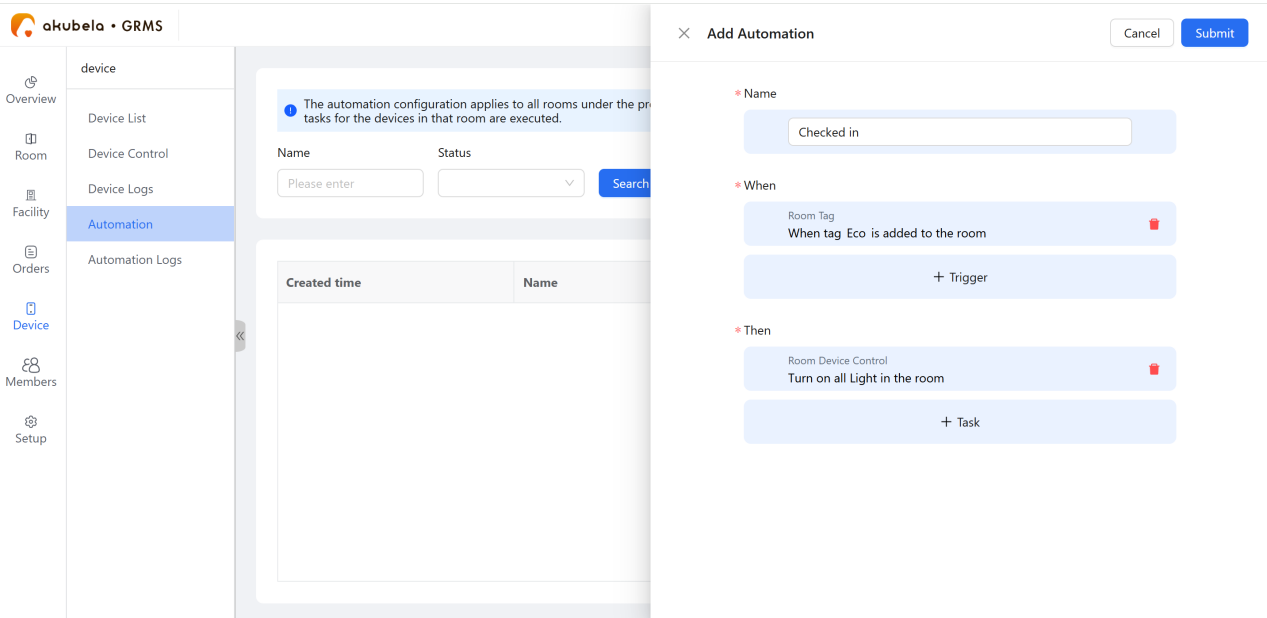
Name the scene. Note that names can not be duplicated.
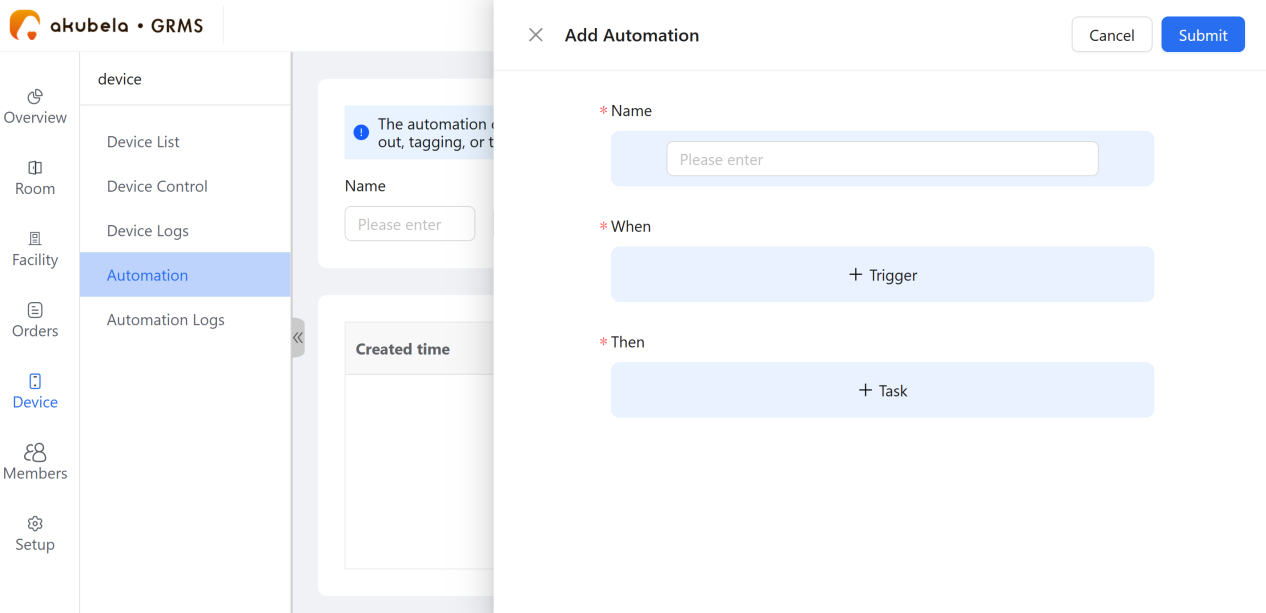
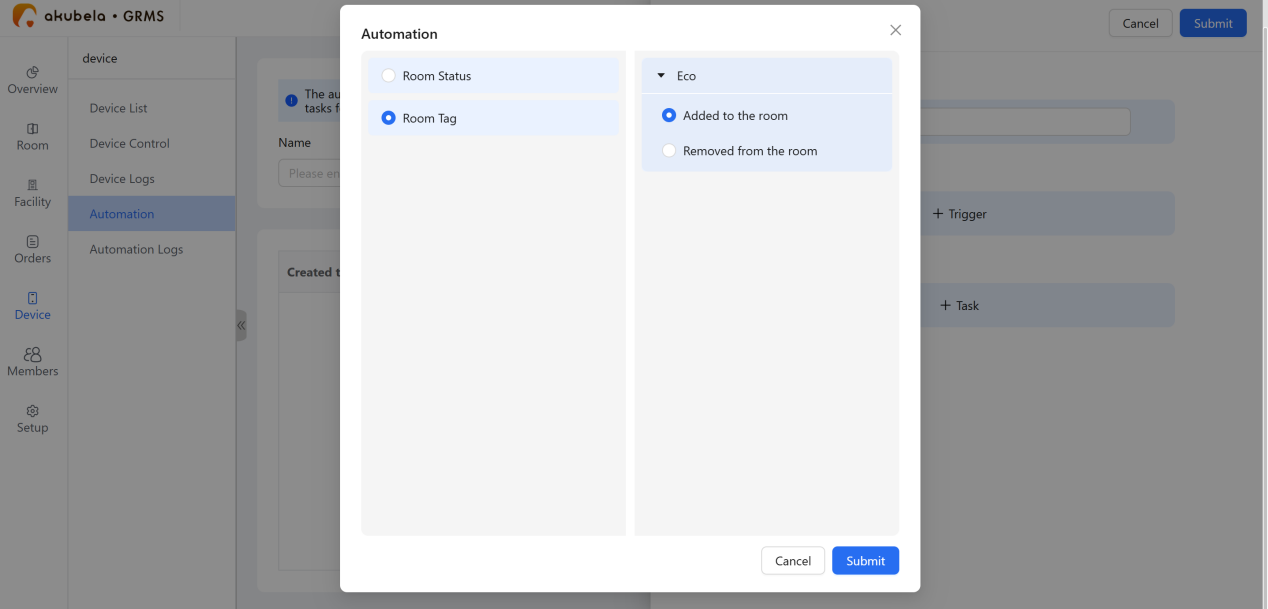
Click Trigger to add up to 20 conditions, then click Submit. Conditions can include:
Room Status: Trigger when the room status changes (checked in/out).
Room Tag: Trigger when a specified tag is assigned or removed.
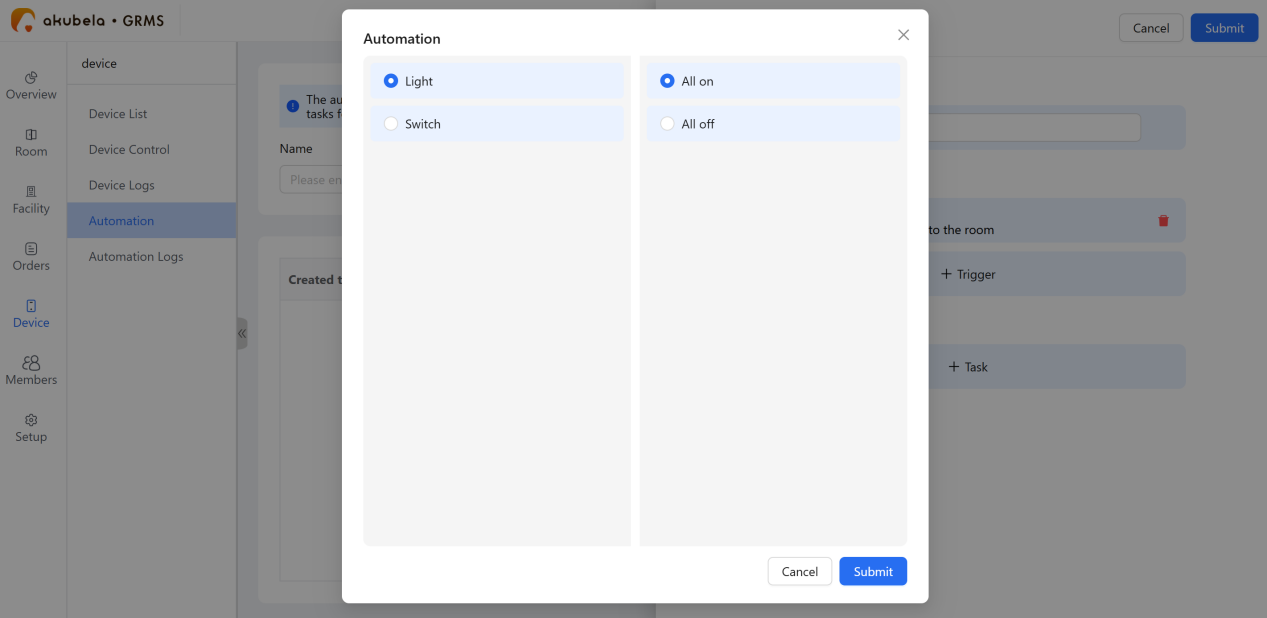
Click Task to add up to 20 actions, then click Submit. Actions are categorized by device type; set desired actions for all devices of that type.
Click Submit in the upper right corner.
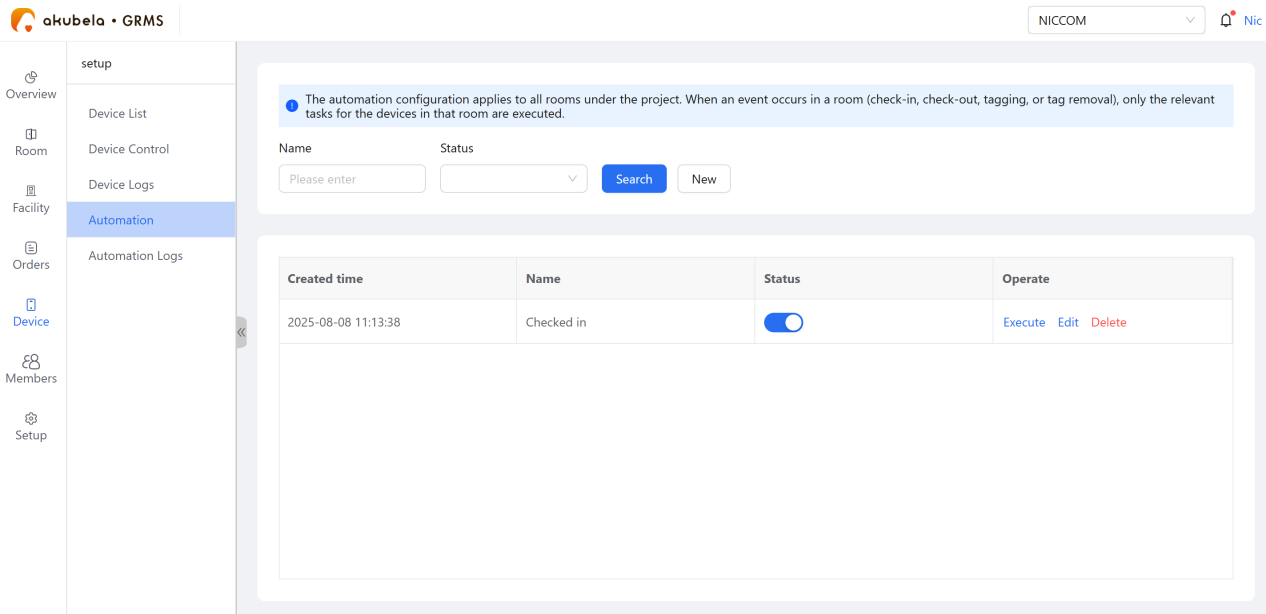
Scenes will appear on the Automation page.
TIP:
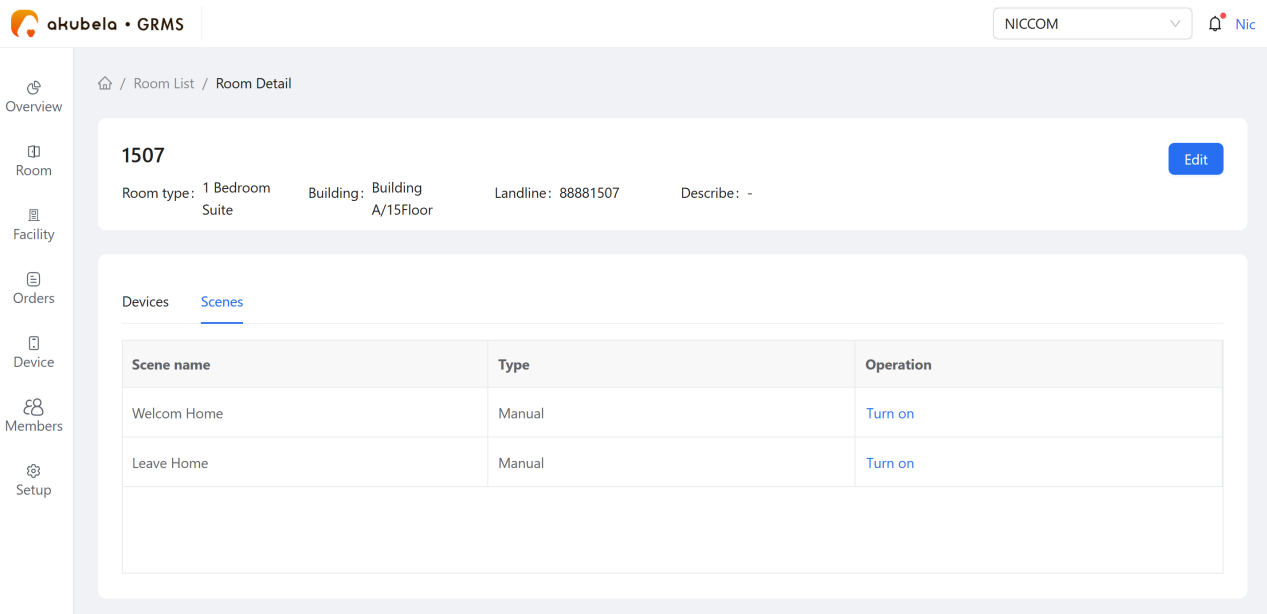
You can also create room-specific scenes via the BelaHome app or user web portal using an administrator account added in the akubela Cloud. If a scene includes a manual trigger, staff can activate it remotely via Room > Room Status > [Room Card] > Room Details > Scenes.
Manage Automation Scenes
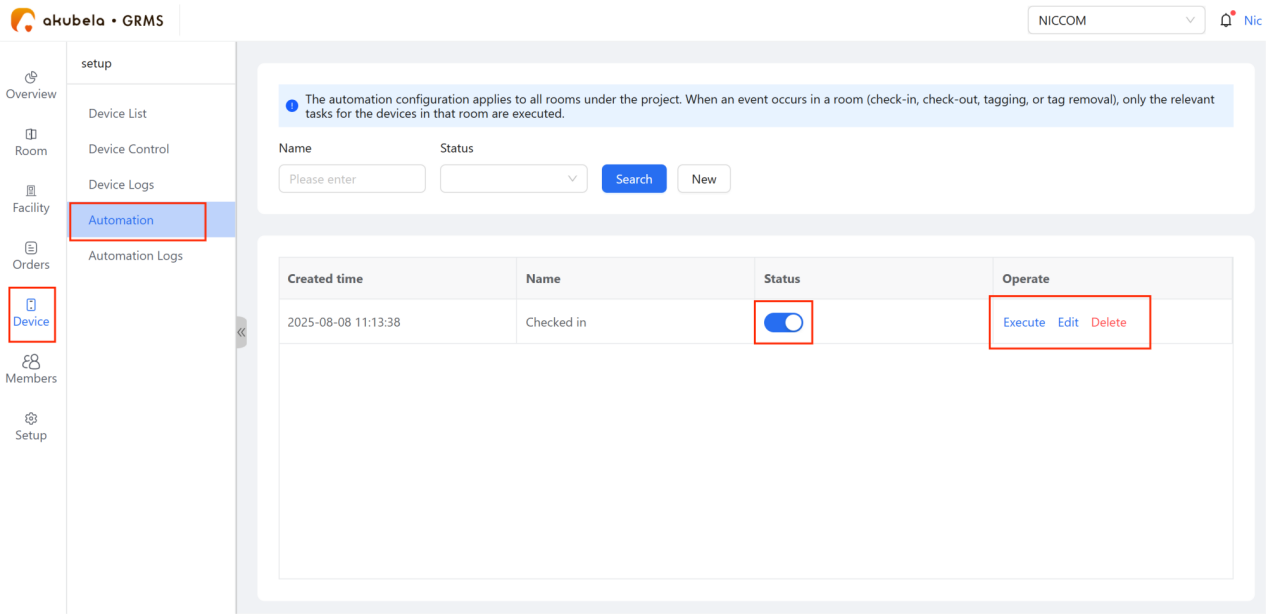
On the Device > Automation page, you can activate, disable, edit, or delete the scenes created on the GRMS.
To disable a scene, toggle the Status off.
To manually activate a scene, click Execute in the Operate field and then select the room(s).
To modify or remove a scene, click Edit or Delete.
View Logs
Device Logs
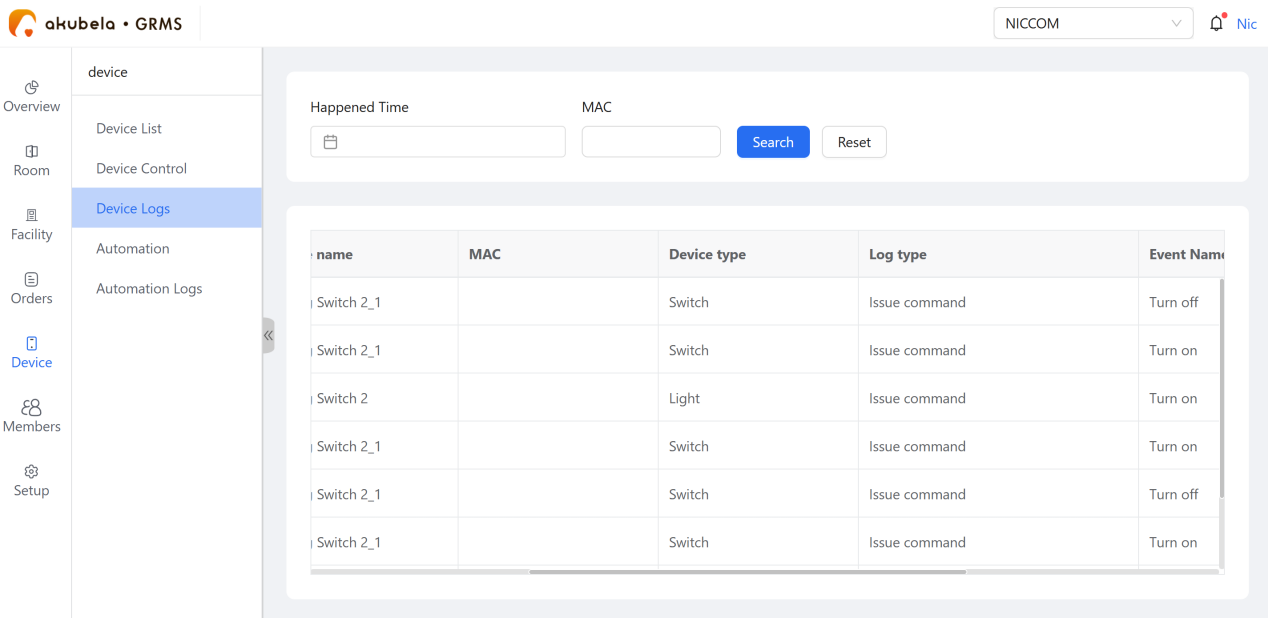
All device on/off and parameter setting made via the cloud are recorded under Device > Device Logs. The specific action is shown in the Event Name field.
Scene Logs
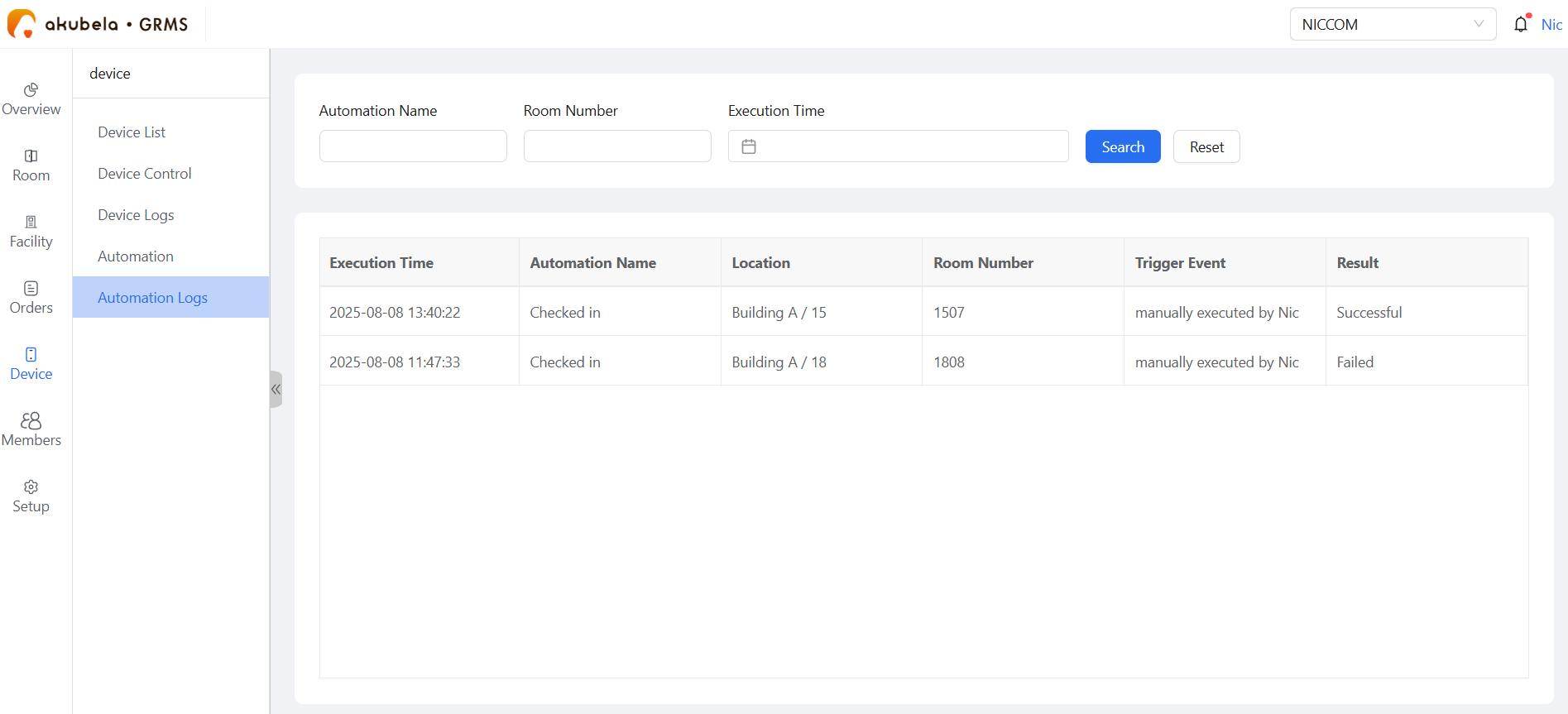
Activation of automation scenes created on the GRMS is logged under Device > Automation Logs page.
Guest Mobile H5 Control
The GRMS allows guests to control their environment and request services via their own smartphones using a web-based (H5) interface. This requires no app installation.
QR Code Availability
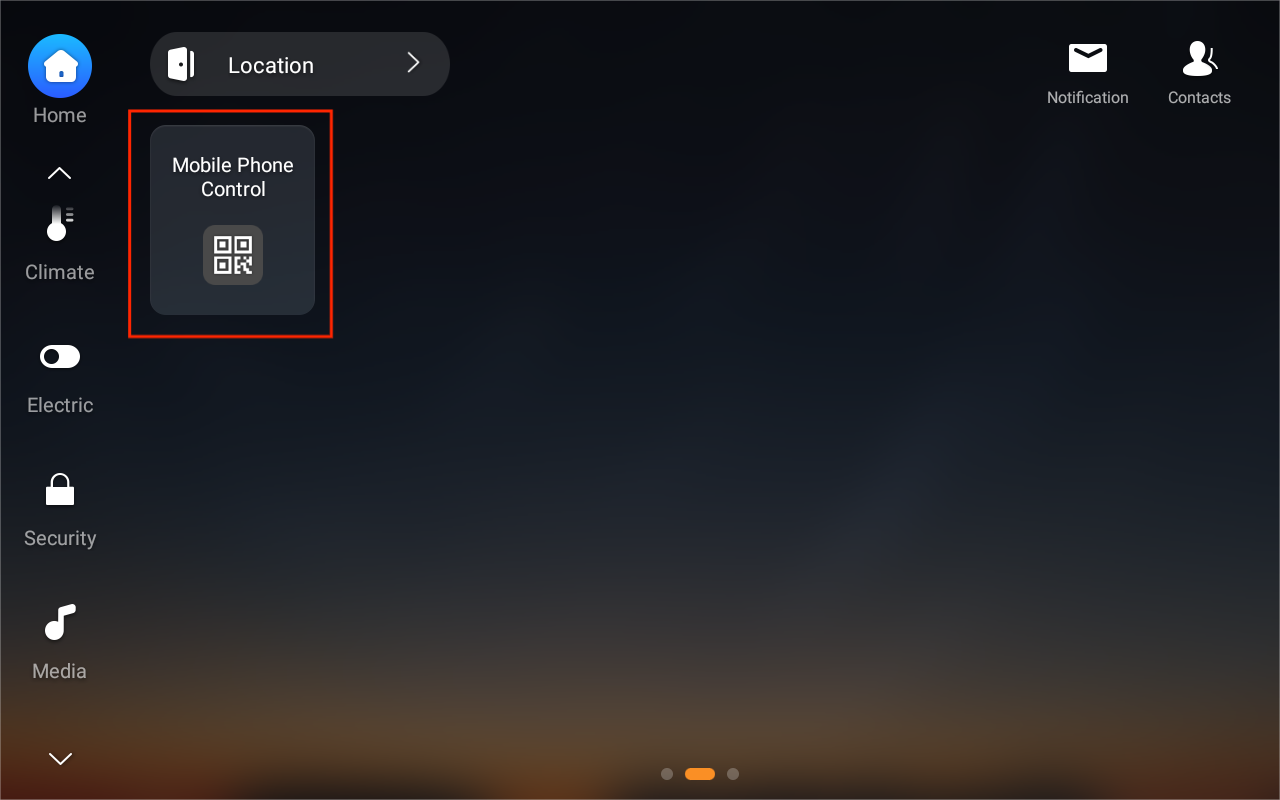
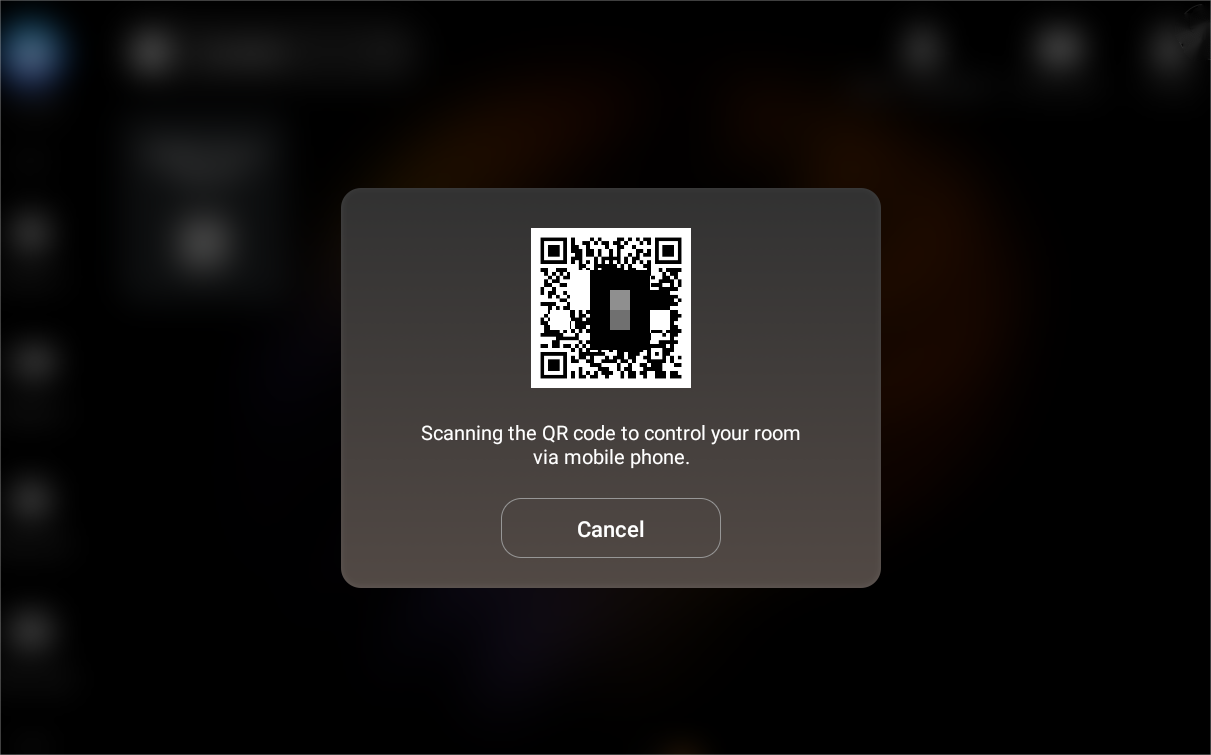
After the installer links the RMS manager to the project in the akubela Cloud, compatible in-room panels automatically display an H5 control QR code.
Hardware Requirements: Ensure panels are updated to the required firmware. Refer to the Before Getting Started section for details.
Visibility Control: Hotel managers can choose to disable the QR code card on large-screen panels for specific rooms via Setup > Hotel Information > Basic Information > Rooms with QR Code Control.
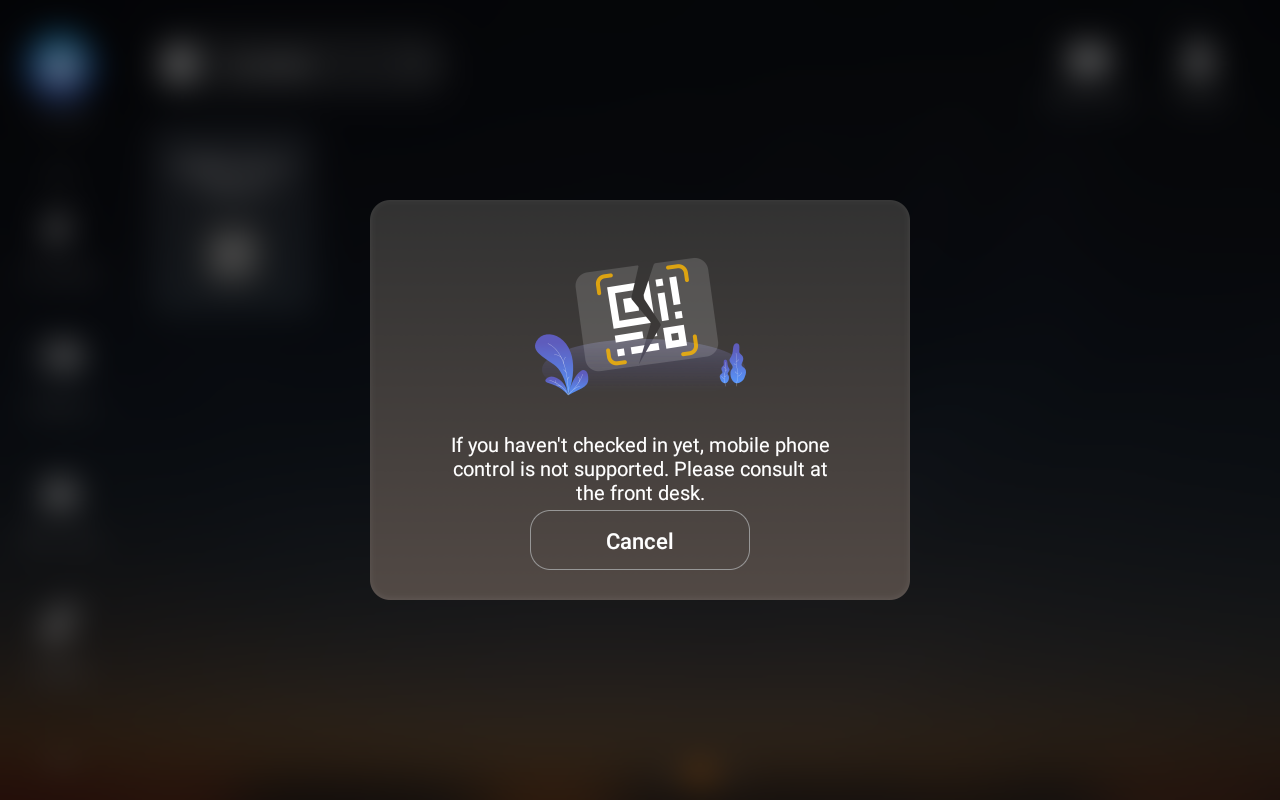
Availability: The QR code becomes active at the moment of check-in and remains usable throughout the guest’s stay. It is automatically deactivated upon check-out.
Guest Features
By scanning the QR code with a standard smartphone camera, guests can access:
Control room devices and scenes
Request hotel services
Book hotel facilities (if facility booking permissions are enabled at check-in).