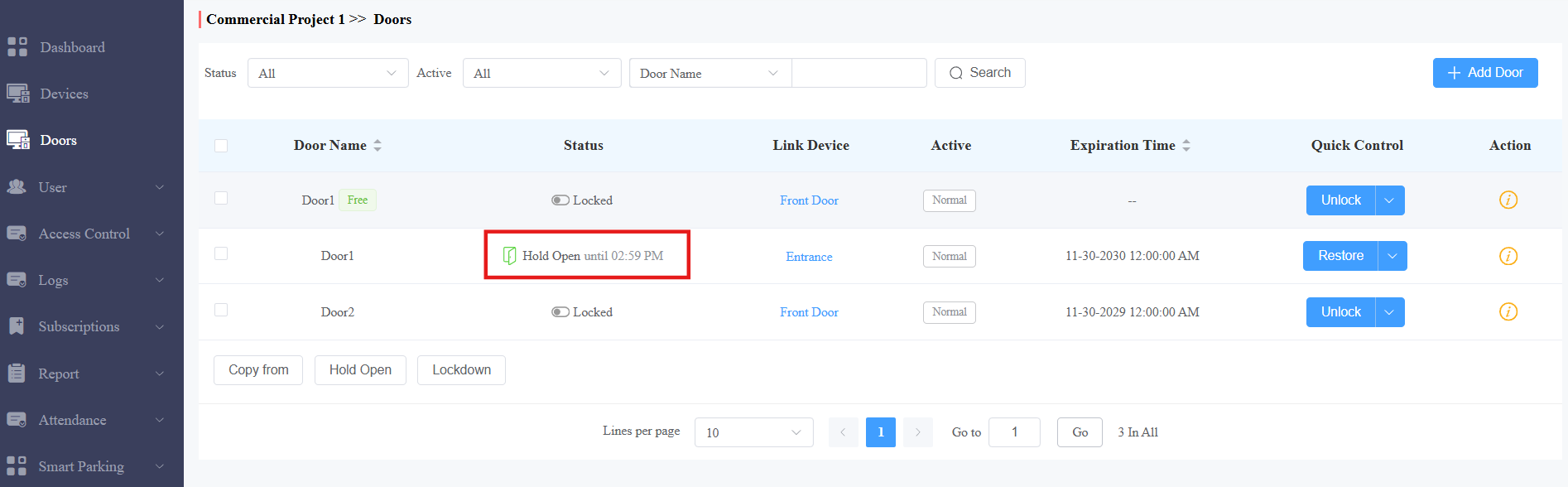
You can set up a door schedule that opens a door automatically during a scheduled time.
This feature works for commercial projects created after Oct.15, 2024. It supports two repeat modes:
Routine Schedules: The schedule repeats every week.
One-Time Runs: Set the daily or weekly schedule that repeats during a defined period.
One-Time Runs have higher priority over routine schedules.
Installers, project managers, and administrators have permission to set it up.
Compatible models and versions(or higher):
Model
Version
Model
Version
X910
2910.30.11.104
X912
912.30.12.22
X915V2
2915.30.10.619
X916
916.30.10.508
R29
29.30.10.507
R28V2
228.30.11.6
R25
25.30.10.206
R20
320.30.11.206
E16V2
216.30.11.107
S539
539.30.10.507
E16V3
416.30.11.206
S535
535.30.11.8
S538
538.30.10.705
A01/A02
101.30.11.12
A08
108.30.11.110
A05V2
205.30.11.114
A03
103.30.11.6
A094
92.30.11.8
A095
95.30.10.203
E12V2
312.30.11.106
S532
532.30.10.336
E18
18.30.11.136
A15
1115.30.10.407
WR01
1401.30.11.221
Watch the Video Guide
Prefer a visual walkthrough?
Watch: [Installer][PM]Set up Door Schedule to Keep Doors Open
Log in to the cloud system with your account.
Routine Schedules
Take a project manager account as an example.
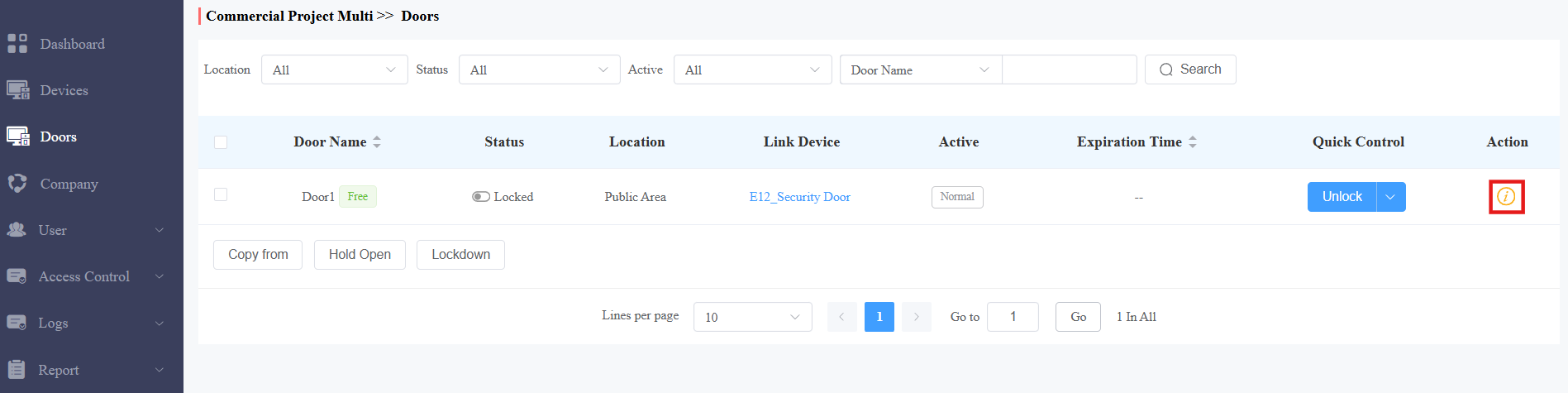
1. On the Doors module, click  of the desired door.
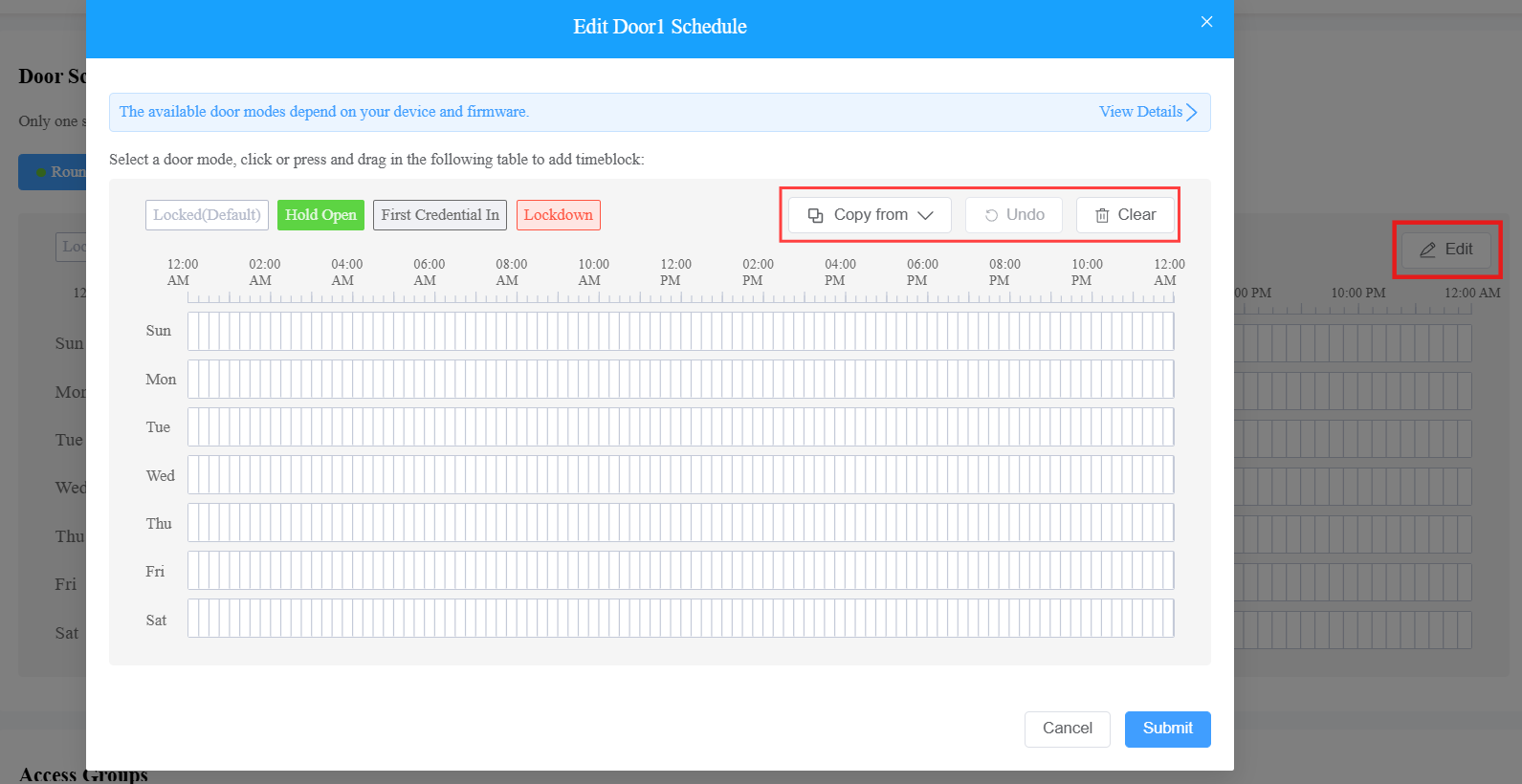
2. To set up a routine schedule, click Edit on the Door Schedule section.
3. Select Hold Open door mode, which will be highlighted.
4. Hold and drag your mouse cursor to select a time block.
While setting up the schedule, you can:
Click Copy from to copy a schedule from a configured door.
Click Undo to withdraw the configuration.
Click Clear to remove the configuration.
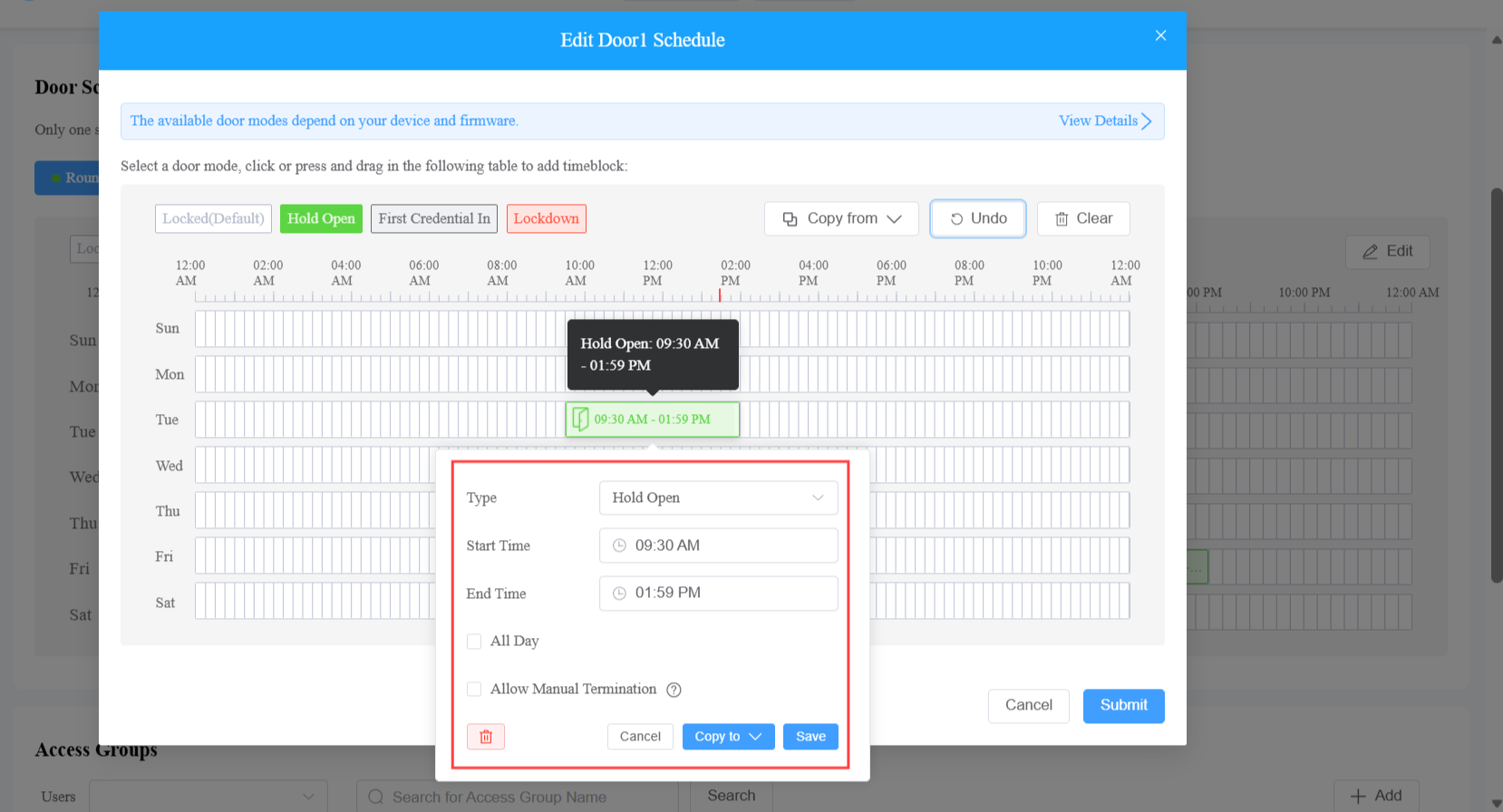
5. Click the block to adjust the time and enable Allow Manual Termination. This allows users to use their credentials to close the door.
6. [Optional]Apply the schedule to the whole week, weekdays, or weekends by clicking Copy to.
7. Save the setting and submit the schedule.
One-Time Schedules
1. On the Doors module, click of the desired door.
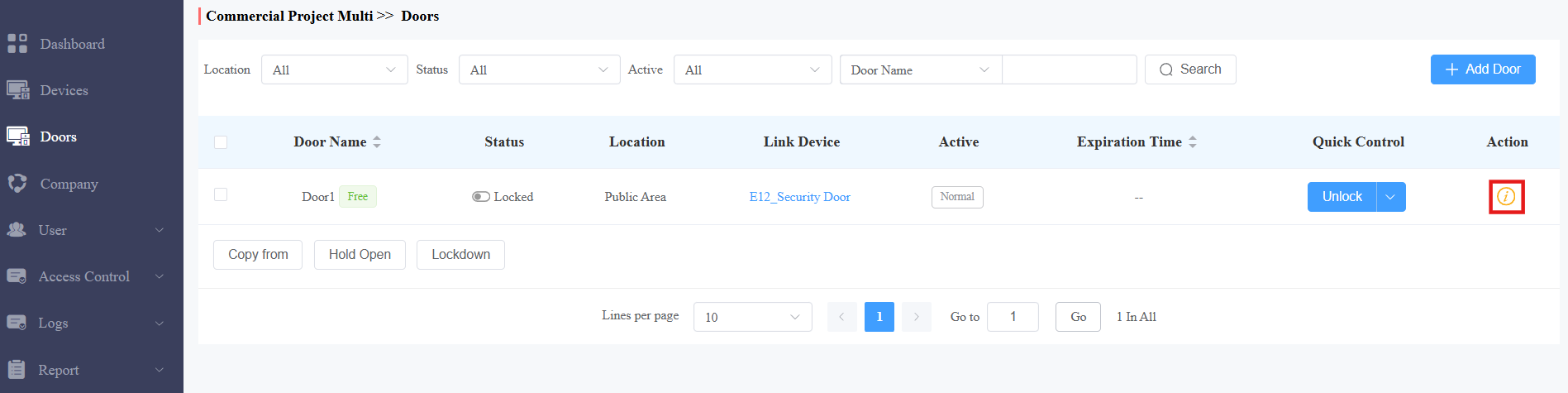
2. Select One-Time Runs on the Door Schedules section.
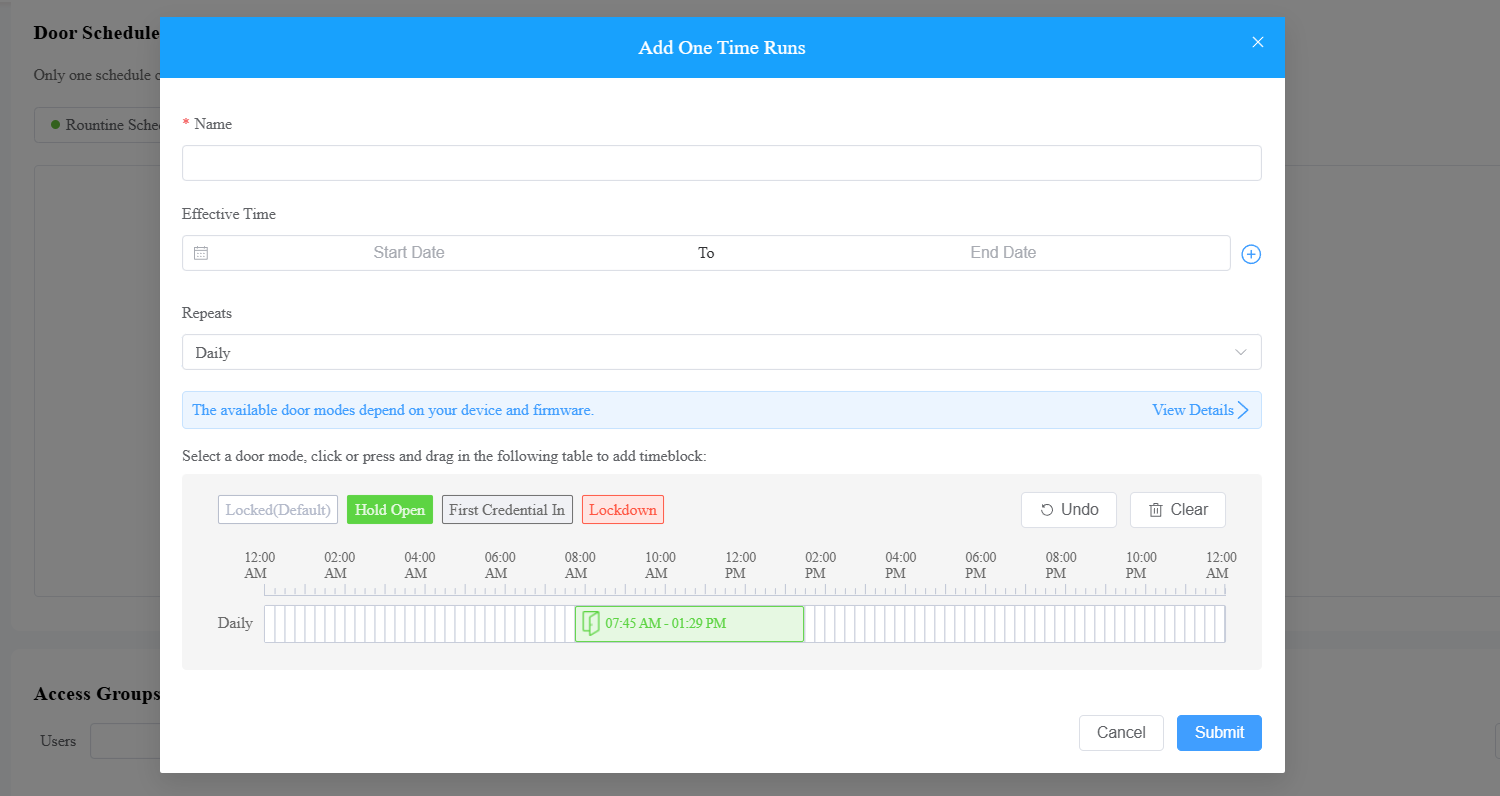
3. Click +Add One-Time Runs.
4. Name the schedule.
5. Specify the schedule's effective time.
6. Select the Repeats mode: Daily or Weekly.
7. Select the Hold Open door mode, which will be highlighted.
8. Hold and drag your mouse cursor to select a time block.
9. Click the block to adjust the time and enable Allow Manual Termination. This allows users to use their credentials to close the door.
10. [Optional]Apply the schedule to the whole week, weekdays, or weekends by clicking Copy to.
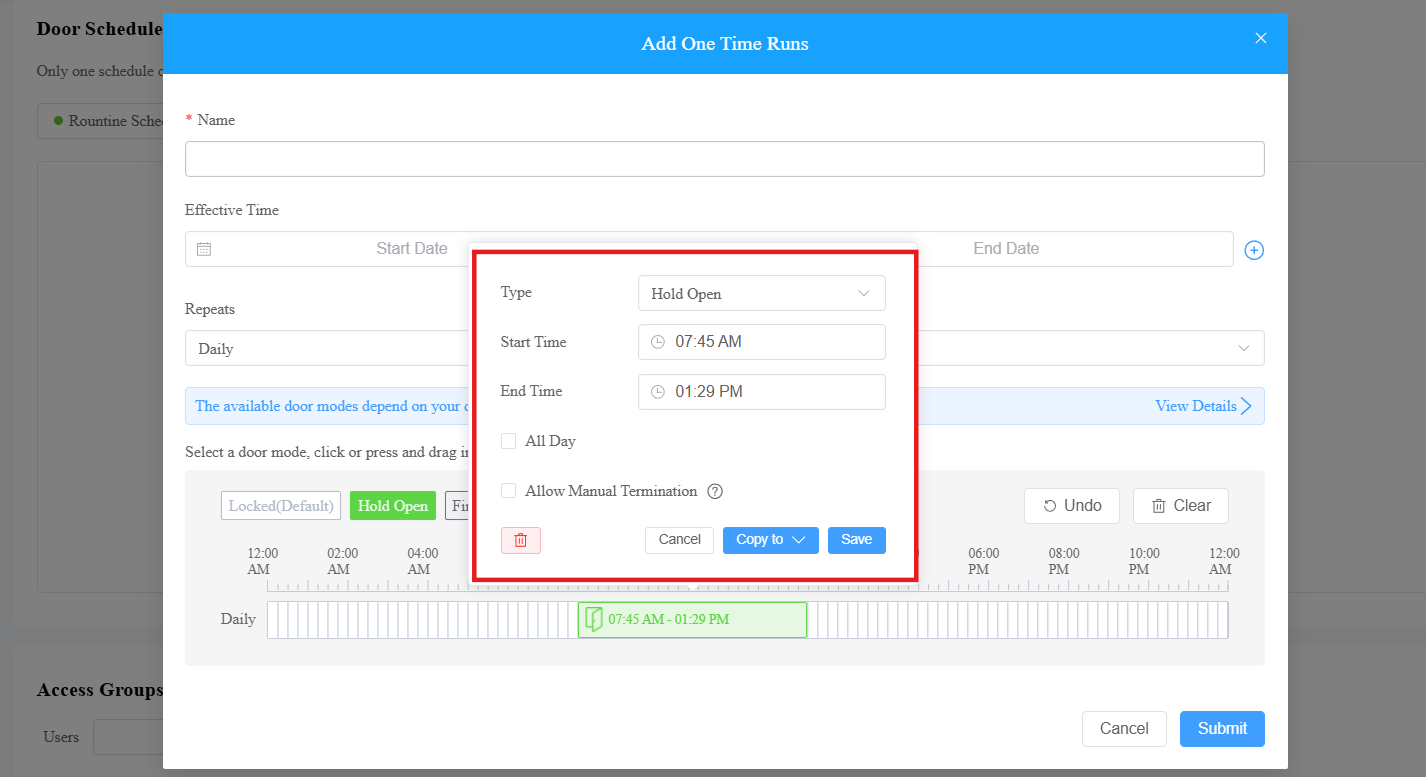
11. Save the setting and submit the schedule.
The door automatically opens and remains open during the scheduled time.
When Allow Manual Termination is enabled and the user has the first credential in permission, they can use their credentials to close the door in advance.