Update Time: September 2026
About This Manual
This manual is intended for distributors who need to properly manage the installers, residents, devices, and remote maintenance on the SmartPlus platform version 7.5.1.
For more information, please visit http://www.akuvox.com/ or consult our technical support.
What’s new in version 7.5.1:
System Overview
Akuvox SmartPlus is a cloud-based platform on which distributors can conduct the integrated management of installers, users, devices, remote maintenance, SmartPlus service subscriptions, etc.
Distributors using this platform will be able to:
Add, delete, search, and check the installer account.
Manage the community, commercial project, and personal devices by searching for and checking the devices’ information.
Check and delete third-party devices.
Add the device MAC to the device MAC library separately, or use a template and remove the device MAC from the MAC library.
Subscribe to the Akuvox SmartPlus Service for the residents.
Check SmartPlus service transactions.
Leave your contact to the customers.
Login
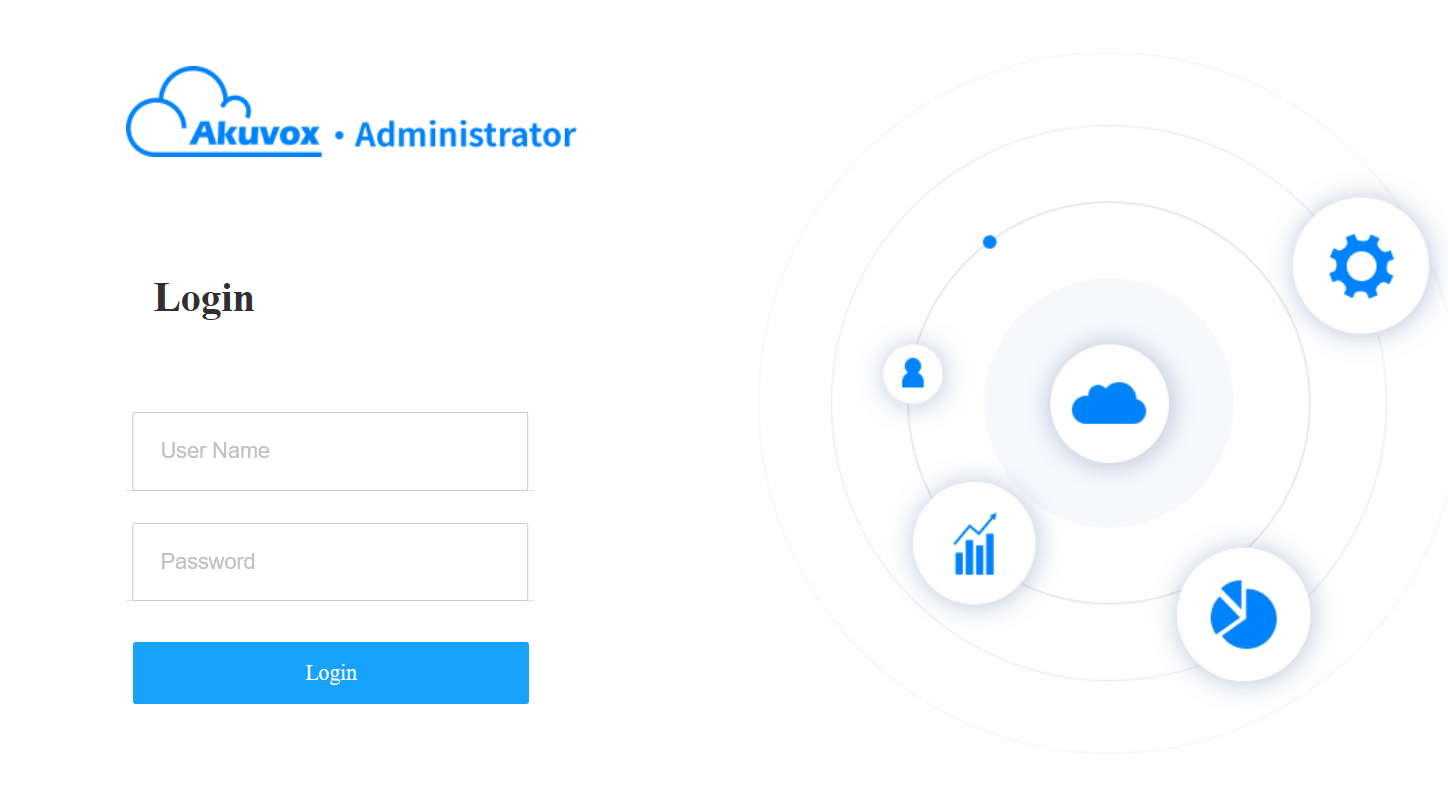
Log in to the SmartPlus platform using the user account information obtained from the Akuvox technical team.
1. Open the web browser to enter the address (URL) of the SmartPlus server located in your area and press Enter.
2. Enter your username and password.
3. Click Login.
Note
Google Chrome Browser is recommended.
You can click Log out to exit the system.
Email Confirmation
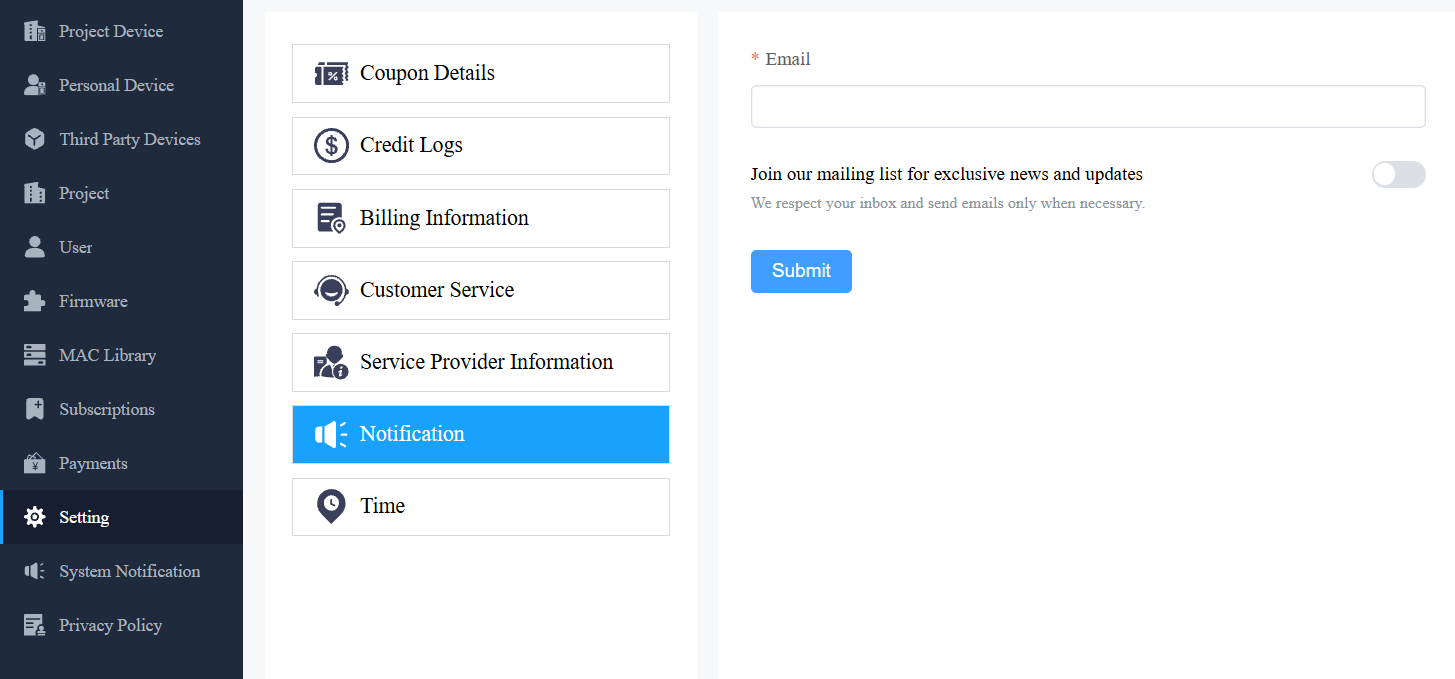
You are required to enter an email address when you log in to the SmartPlus platform for the first time.
The email address is used to reset your SmartPlus Cloud login password when you forget it and to receive notifications from Akuvox.
You can change the email address and turn off push notifications on the Setting > Notification interface.
Note
Click here to view how to reset the SmartPlus login password via the email address.
SmartPlus Main Interface
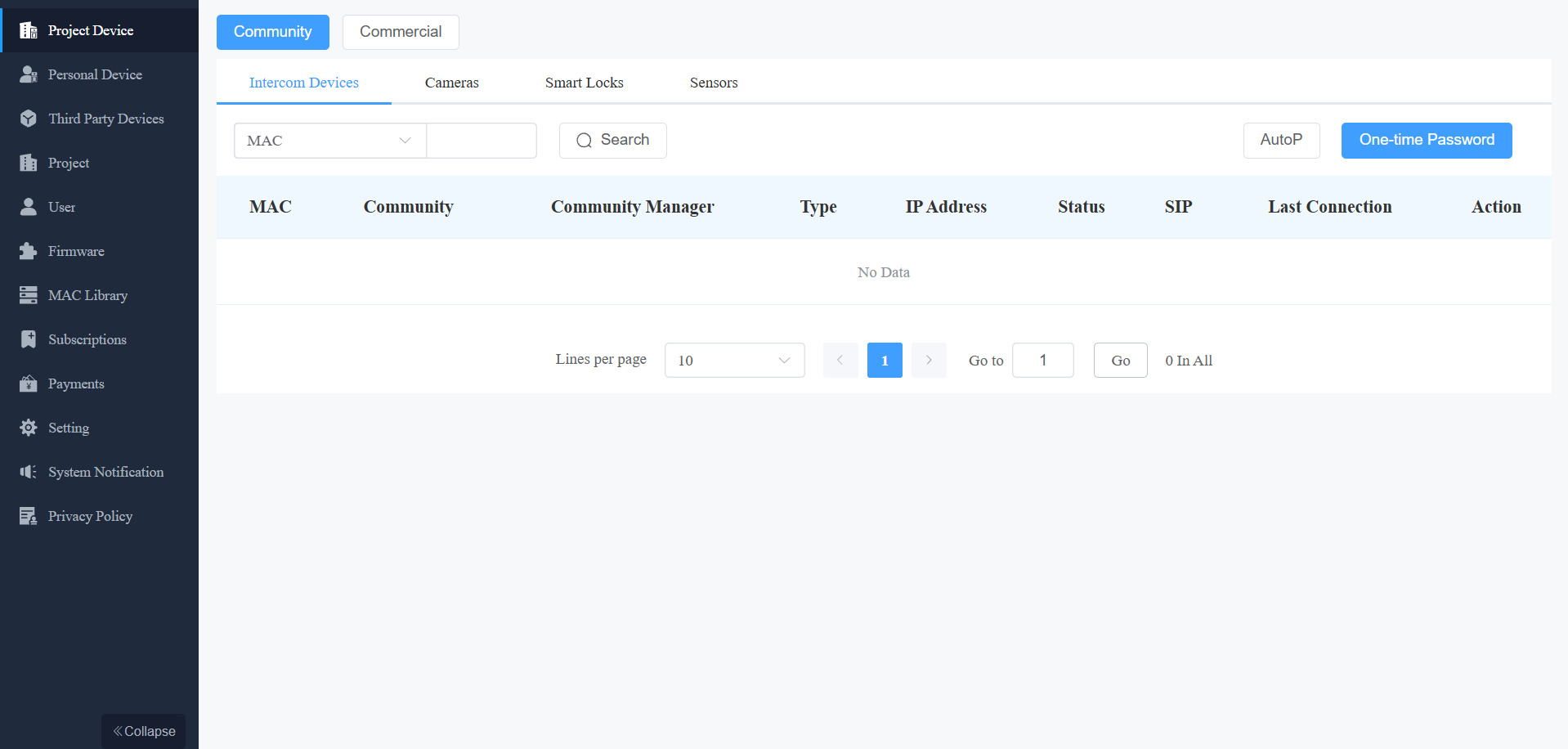
Akuvox SmartPlus's main interface has nine modules, which allow you to manage tenants, commercial project staff and personnel, devices, device MAC, and so on. Moreover, you can make subscriptions for the end users of the Akuvox SmartPlus service and check the service transactions.
Module Description
Module Name | Description |
Project Device | Allows you to manage the devices in community scenarios and commercial project scenarios. Moreover, it allows you to conduct remote maintenance on the devices. |
Personal Device | Allows you to check and delete the single tenant devices; moreover, it allows you to conduct remote maintenance on the devices. |
Third-Party Device | Allow you to check and delete the third-party devices added by installers. |
User | Allows you to manage the installers and check end-user information. |
Firmware | Allow you to check the device firmware available for updates. |
MAC Library | Allows you to register, check, and delete the MAC. |
Subscription | Allows you to pay for the SmartPlus service activation and renewal, and pay for the extra family member account. |
Payments | Allows you to check for information related to transactions made and ongoing transactions. |
Setting | Allows you to check coupon details, credit logs, billing information, notifications, and set up your time zone and customer service contacts. |
System Notification
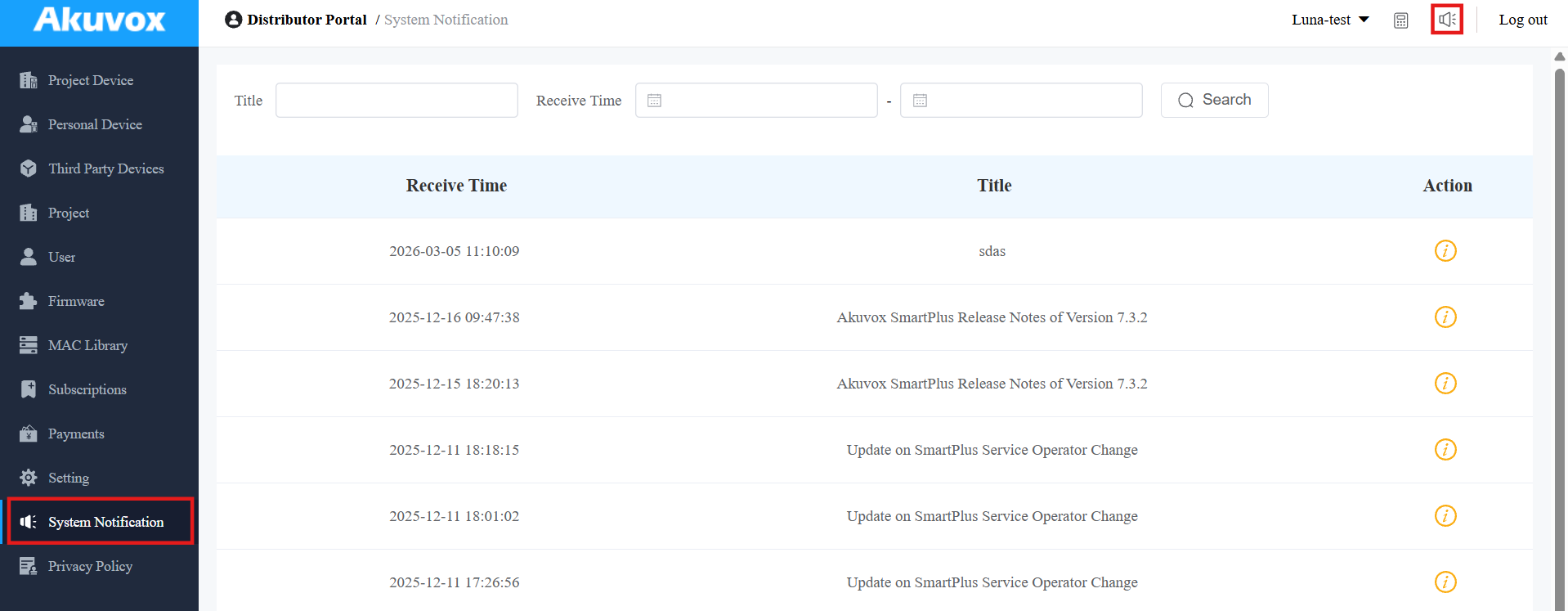
Akuvox will send you notifications of the SmartPlus Cloud update. You can click the notification icon in the upper-right corner to check the messages.
Or, click System Notification on the left column.
Device Management
You can manage the devices for single tenants, multi-tenants, as well as devices deployed in the commercial project scenario by adding device MAC, checking device information, and deleting the device(s).
Add Device MAC to MAC Library
You can add device(s) to the MAC library separately or using a template. The device MAC needs to be added to the distributor’s MAC library before the installer can add the device to their project.
Add MAC Separately
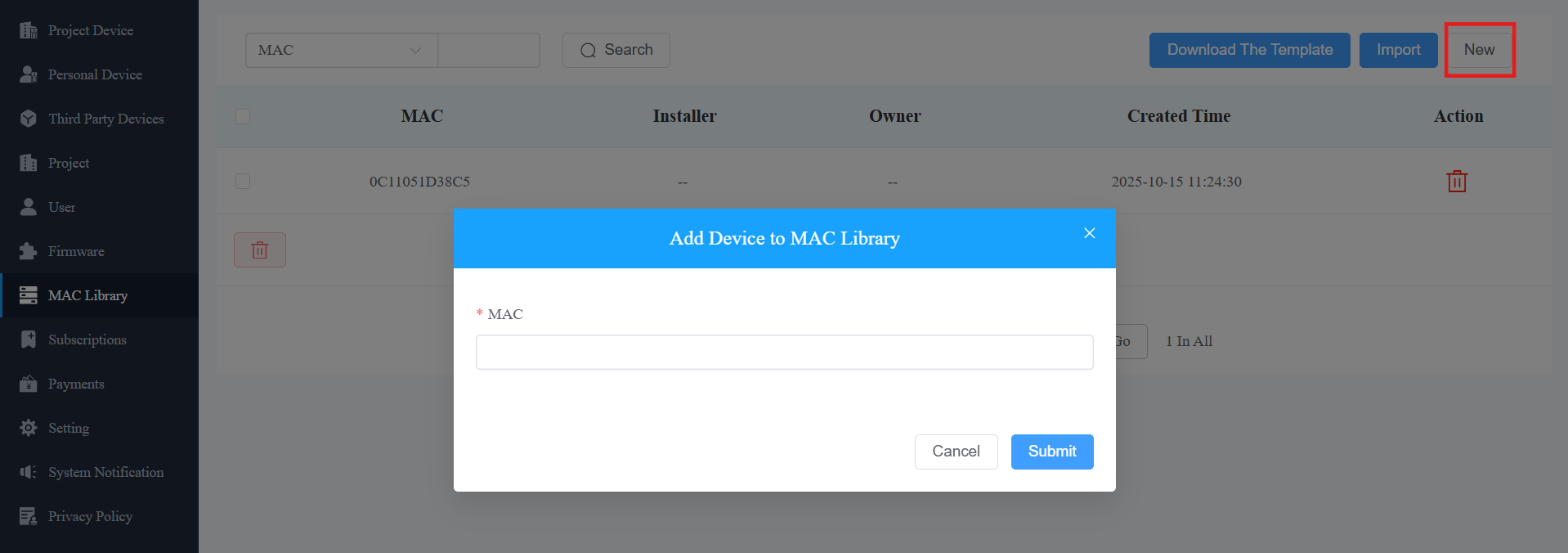
Go to MAC Library Module.
Click New and fill in the device MAC.
Note
If the device is bound to the user, it must be unbound before you can remove the device MAC from the MAC library.
Add MAC Using a Template
Download the template and fill in MACs.
Click Import to upload the device MAC.
Select the MAC template from your personal computer and upload it.
Template Sample

Project Device Management
Project device management involves device management and provides remote maintenance for the community and commercial project devices.
Check/Delete Project Device
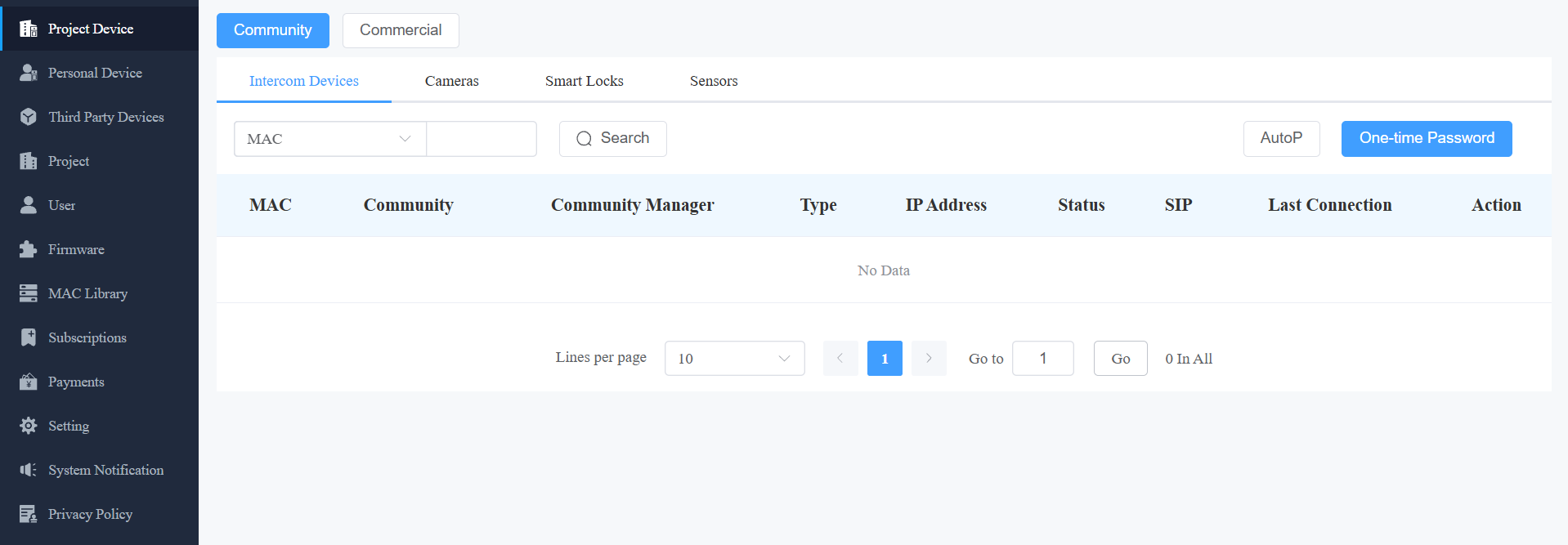
Go to the Project Device module.
Select the project type.
Check and delete the device(s).
Note
The akubela Hypanel Ultra(PH81-POE-ST) can be added to the cloud by installers to achieve smart home devices control on the SmartPlus App. If it is the device, you can click
to view the Zigbee devices connected to it.
Remote Maintenance for Project Device
You can provide end users with remote maintenance in terms of device data transmission type configuration, device reboot, device web interface remote control, device provisioning, etc.
1. Click on Project Device module.
2. Select Community or Commercial.
3. Click of the device for which you want to provide remote maintenance.
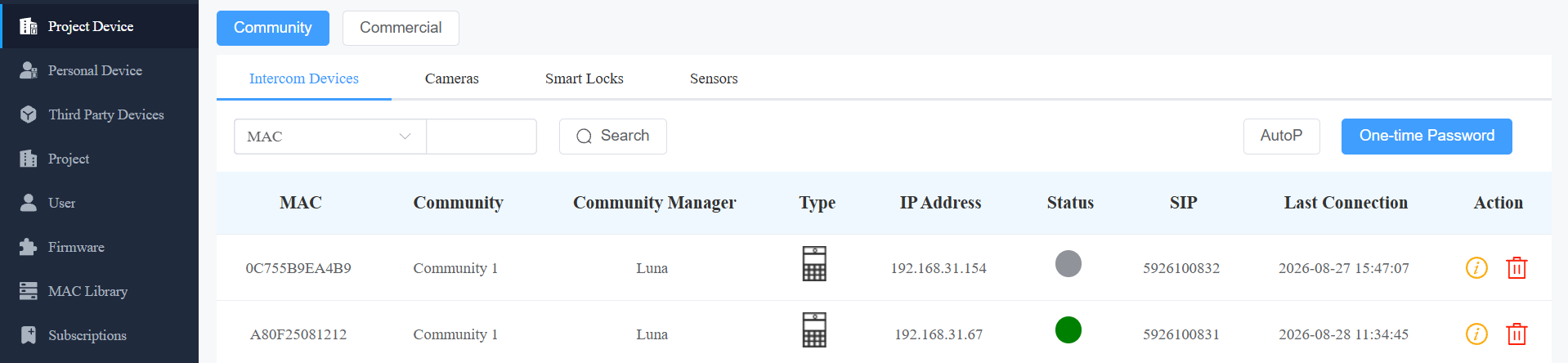
4. Reboot, reset, or log into the device web interface remotely via Remote Control.
5. Enter the commands for the Auto-provisioning, then click on Submit.
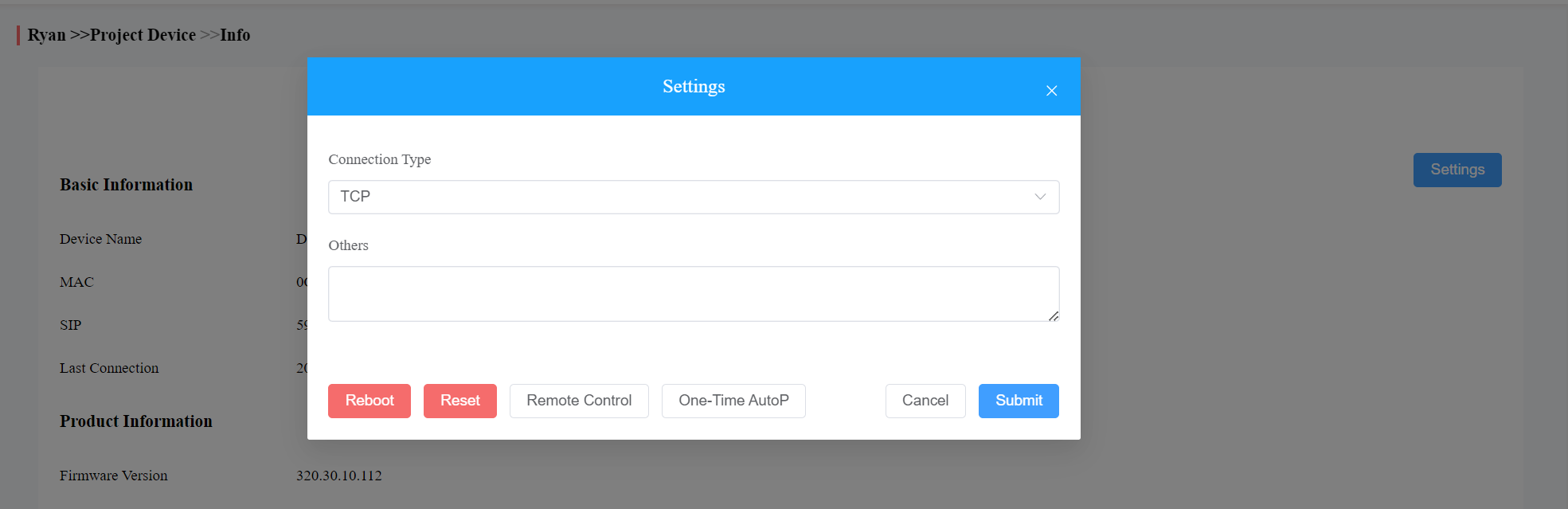
6. Click on One-Time Autop if you only want the Autop command(s) to be implemented one time.
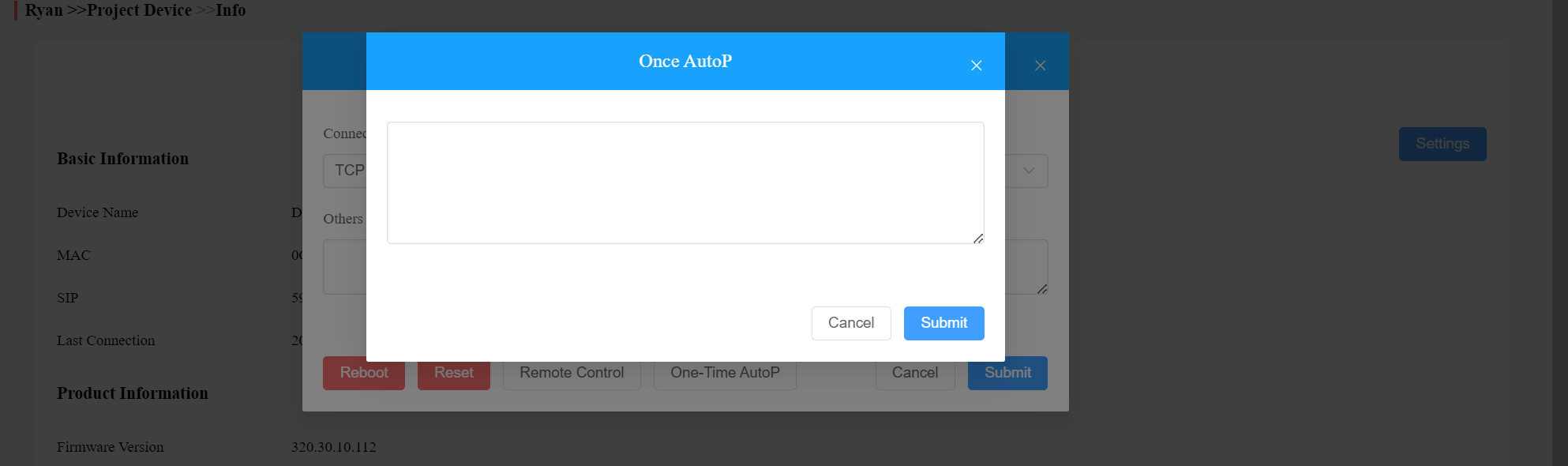
Note
Duplicate commands will not be retained.
Batch AutoP for Project Devices
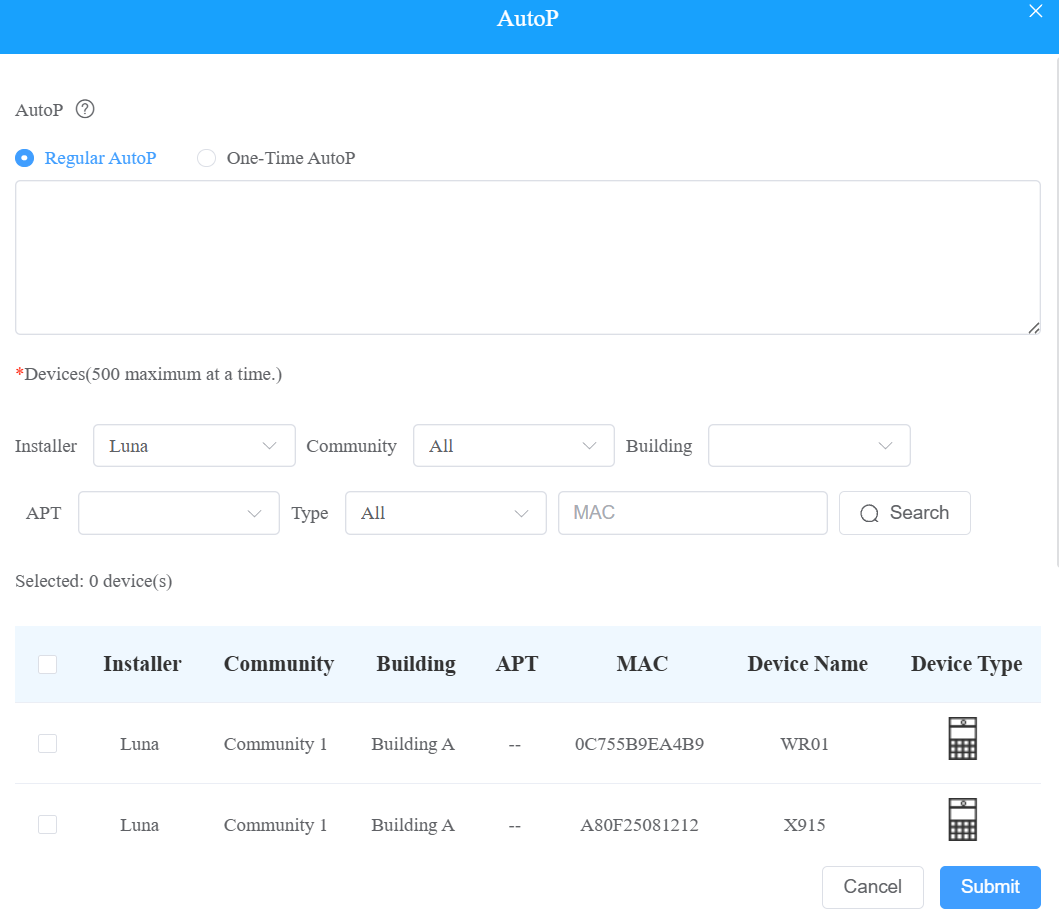
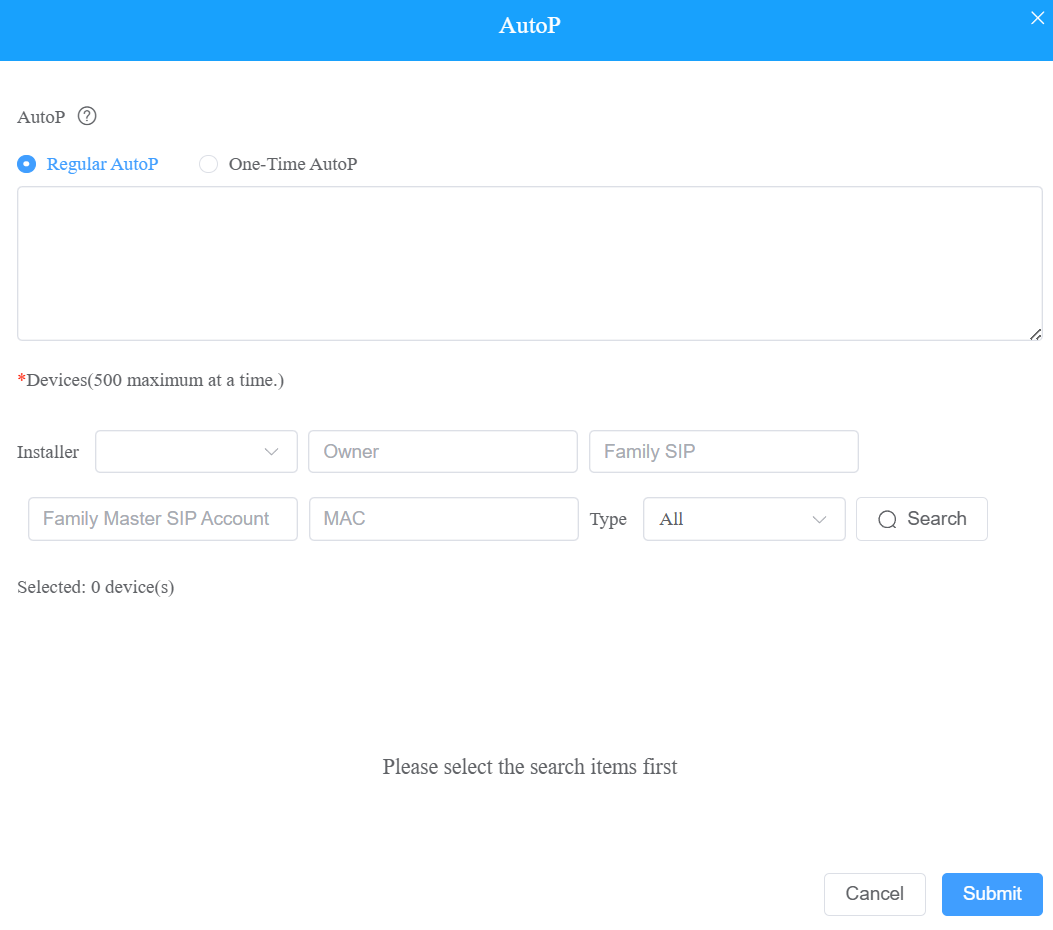
AutoP allows you to configure the devices remotely. You can synchronize the selected configuration command to the targeted devices in your projects via auto-provisioning. You have two AutoP options: Regular AutoP or One-Time AutoP.
To conduct AutoP for the devices:
1. On the navigation column, click  .
.
2. Select Community or Commercial project.
3. In the upper-right corner of the interface, click AutoP.
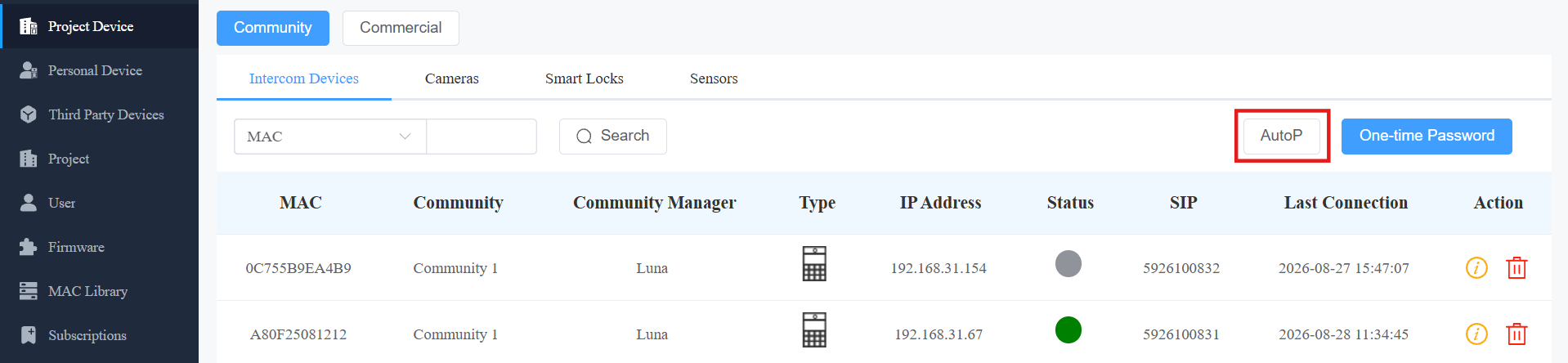
4. Select your AutoP type.
If you want the configuration to be always valid, select Regular AutoP.
If you want the configuration to be valid for one time only, select One-Time AutoP.
5. Enter the AutoP commands you need.
6. Search for and select the devices to be provisioned, then click Submit. You can synchronize the commands to 500 devices at a time.
Note
Duplicate commands will not be retained.
One-time AutoP commands will not be valid once you reset the device(s), either for factory reset or configuration reset.
Personal Device Management
Personal device management involves device management and provides remote maintenance for personal devices.
Check/Delete Personal Device
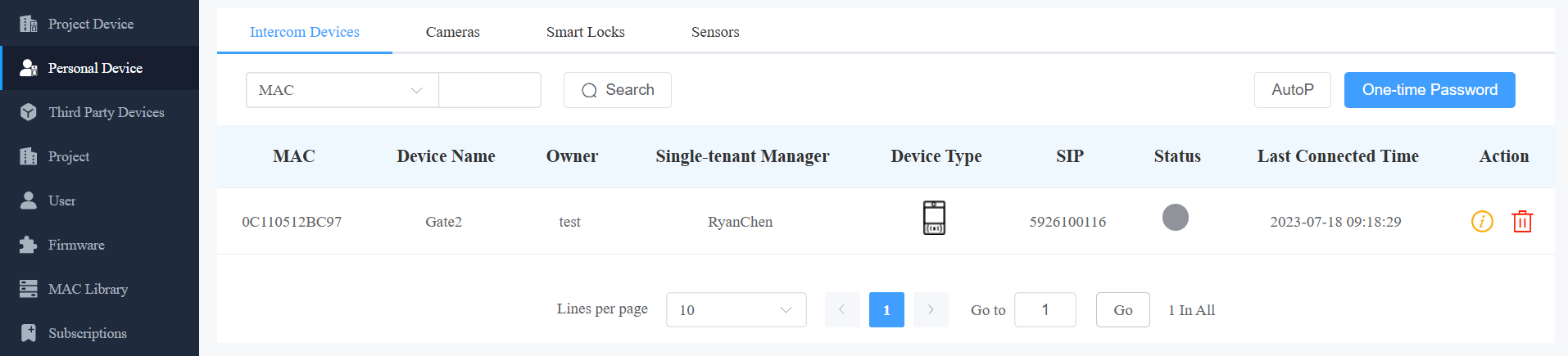
1. Go to the Personal Device module.
2. Search for and check the device by MAC, Device Name, Single-tenant Manager, and SIP.
3. Check and delete the device(s).
Note
The akubela Hypanel Ultra(PH81-POE-ST) can be added to the cloud by installers to achieve smart home devices control on the SmartPlus App. If it is the device, you can click
Remote Maintenance for Personal Devices
You can provide residents with remote maintenance in terms of device data transmission type configuration, device reboot, device web interface remote control, device provisioning, etc.
1. Click Personal Device Module.
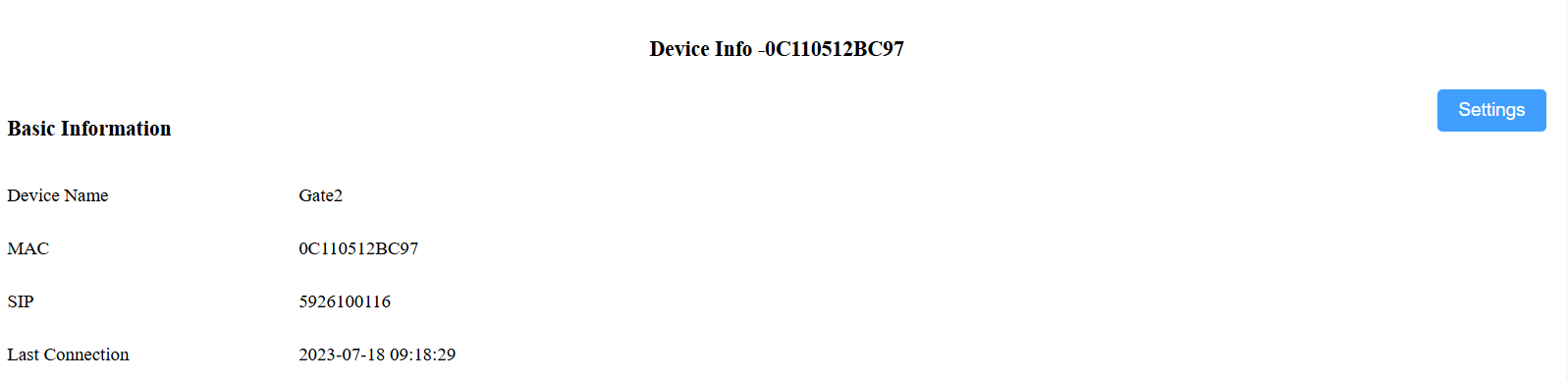
2. Click the specific device for which you want to provide remote maintenance.
3. Click  , then click Settings.
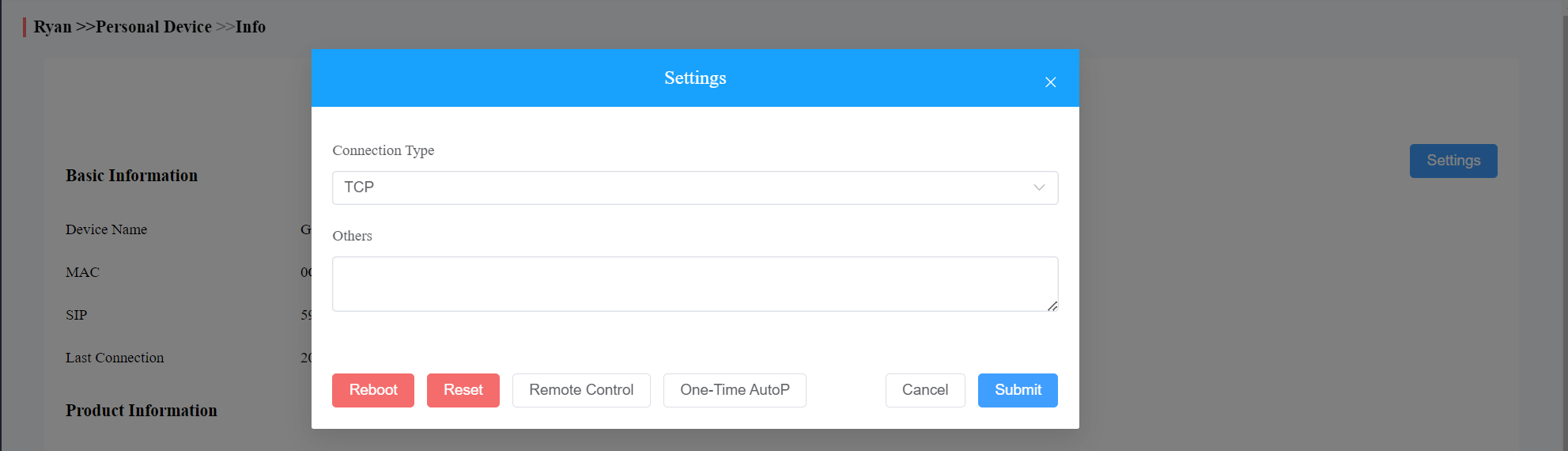
4. Reboot, reset, or log into the device web interface remotely via remote control.
5. Enter the commands for the Auto-provisioning, then click on Submit.
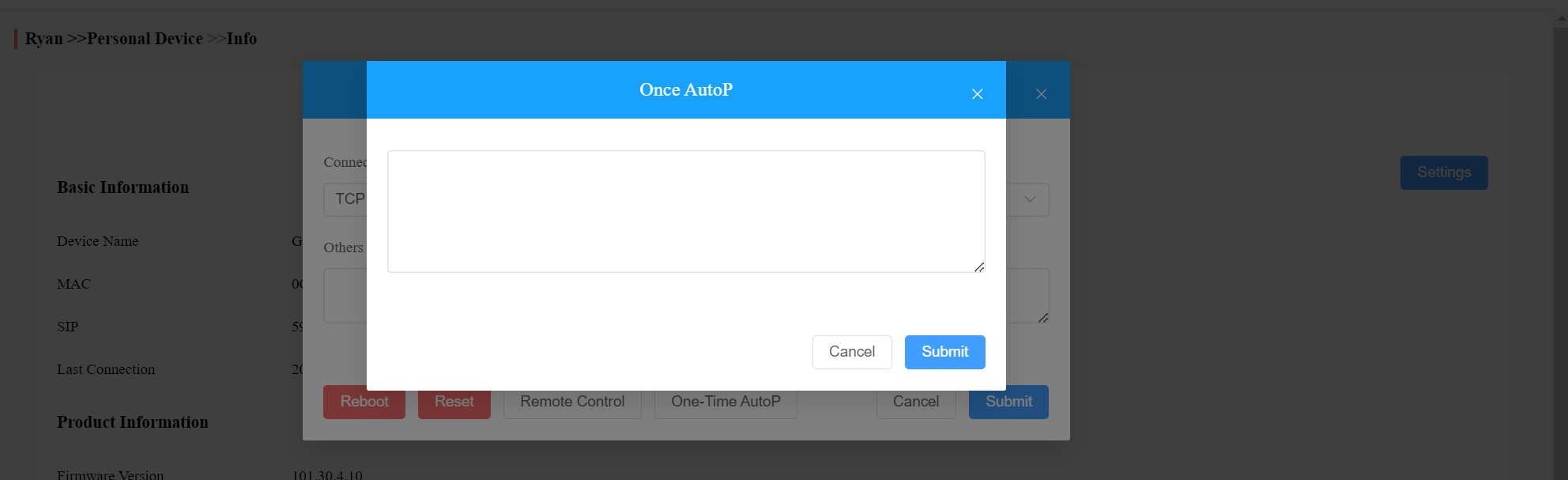
6. Click on One-Time Autop if you only want the Autop command(s) to be implemented one time.
Batch AutoP for Personal Devices
AutoP allows you to configure the devices remotely. You can synchronize the selected configuration commands to the targeted personal devices via AutoP. You have two AutoP options: Regular AutoP or One-Time AutoP.
To conduct AutoP to the device:
1. On the navigation column, click  .
.
2. On the upper right corner of the interface, click  .
.
3. Select your AutoP type.
If you want the configuration to be always valid, select Regular AutoP.
If you want the configuration to be valid for one time only, select One Time AutoP.
4. Enter the AutoP commands.
5. Search and select the devices to be provisioned, then click Submit. You can synchronize the commands to 500 devices at a time.
Note:
Duplicate AutoP commands will not be retained.
One-Time AutoP commands will not be valid once you reset the device(s) either for factory reset or configuration reset.
Generate One-Time Password for Intercom Devices
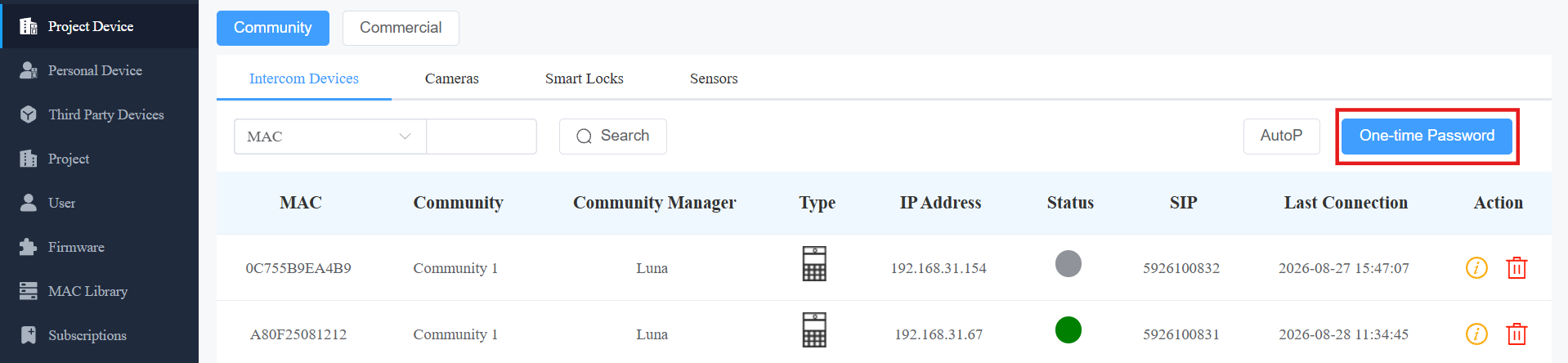
The one-time password is used to reset the intercom devices' web password.
Note
Click here to view the detailed guide on setting devices' web passwords via one-time password.
1. Click One-time Password on the Project Device or Personal Device module.
2. Paste the verification code generated on the device's login interface.
3. Click Generate, and the One-time Password will display. Then, you can use the password or send it to an installer to log in to the device's web interface and set a new web password.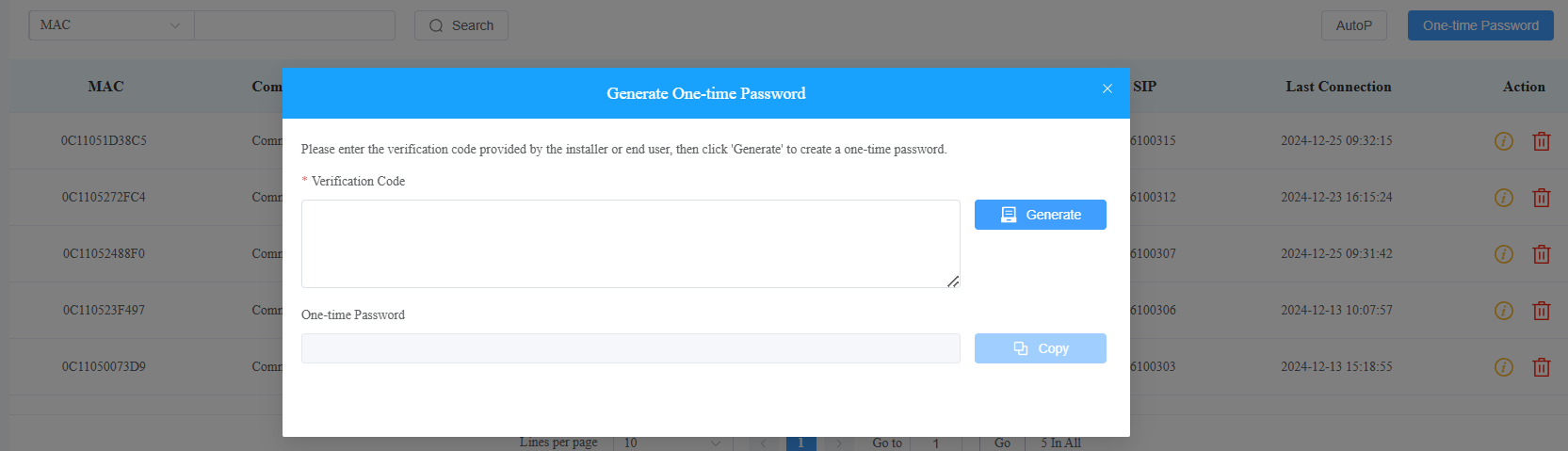
Check Akuvox IP Cameras
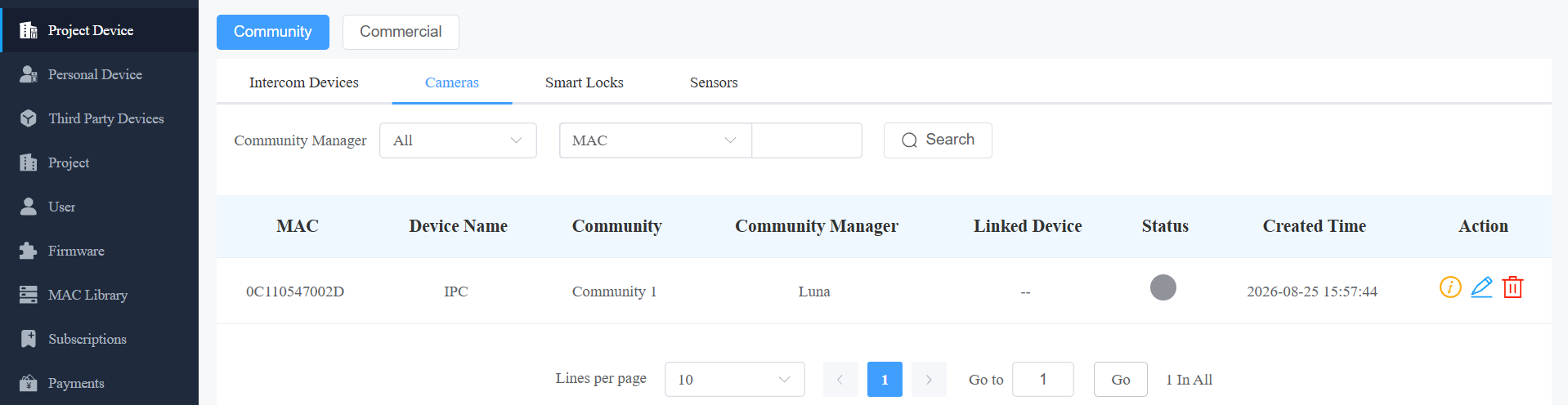
You can check and delete Akuvox IP cameras added by installers.
Click Project Device or Personal Device in the left column.
Click Cameras.
Click
 to view the device information and click
 .png)
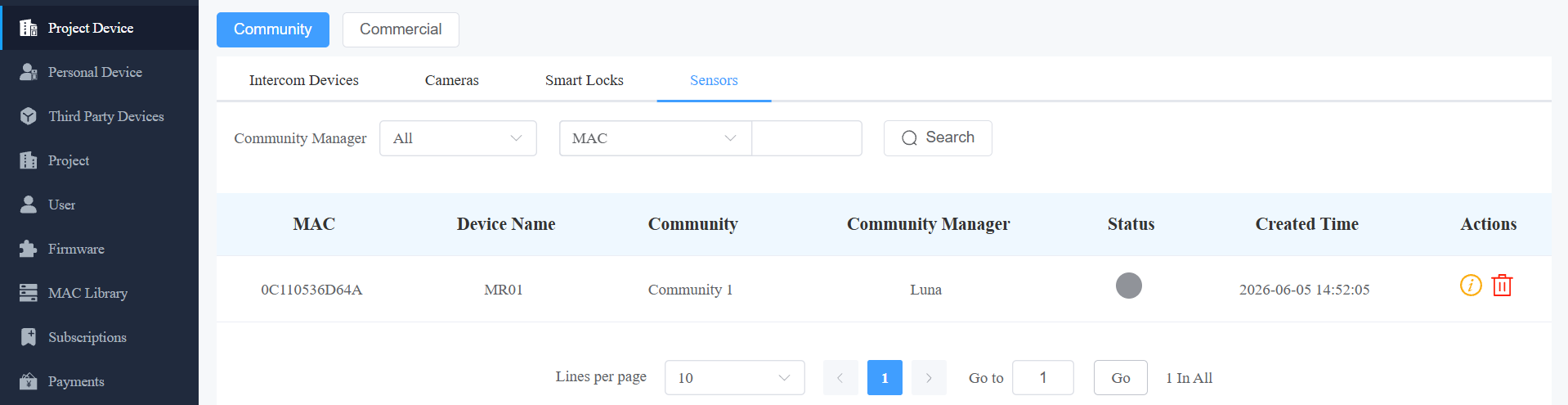
Check MR01 Radar Sensors
You can check and delete MR01s added by installers.
Click Project Device or Personal Device in the left column.
Click Sensors.
Click
to view the device information and click
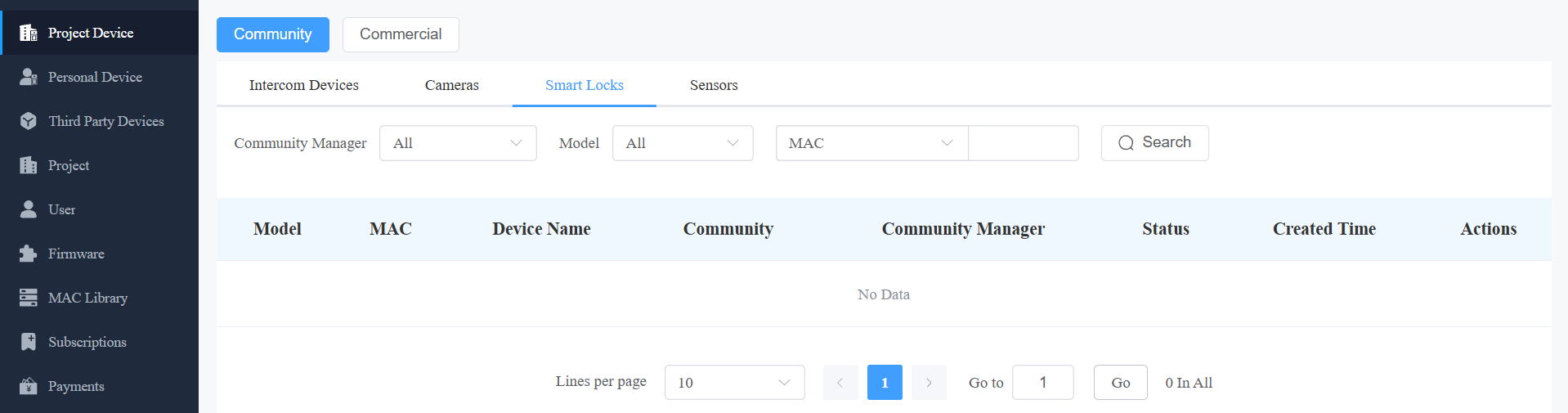
Check akubela Smart Locks
You can check and delete the akubela smart locks(SL20, SL21, and SL50) added by end users.
Click Project Device or Personal Device in the left column.
Click Smart Locks.
Click
to view the lock information and click
Third-party Device Management
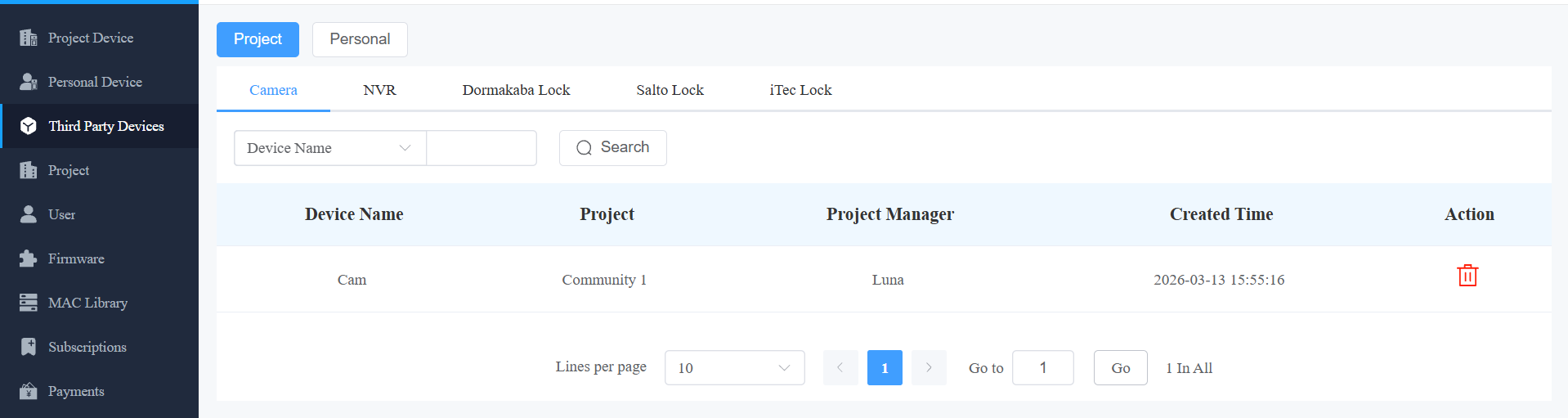
Through the Third-Party Devices module, you can check and delete the third-party cameras, NVRs, and locks added by installers or end users.
Note
Currently, ONLY SmartPlus Ucloud(American Cloud) supports Dormakaba lock integration.
1. Click Third-Party Devices in the left column.
2. Click Project when the device is installed in a community/a commercial project or Personal when it is in a single-tenant project.
3. Click Camera, NVR, or select the lock brand to check the added device's information.
4. Click to delete the device.
User Management
The user module is where you can manage the installer account and check the end user information.
Sub-Account Management
The Distributor Sub Account feature allows multiple users under the same Distributor to log in simultaneously using separate credentials. This resolves the issue of users being forced out when multiple people share a single Distributor account.
After setup, each Sub Account can access and manage the same Distributor data independently.
Click here to view how to create a sub account.
Sub-Distributor Account Management
In some cases, there are secondary agents under certain distributors, and installers are under them. These sub-distributors have the authority to manage installers, but they are also under the control of their distributor. The distributor creates an account for the sub-distributor, who can then log in to their web portal to create an account for the installer.
Click here to view how to create a sub-distributor account.
Installer Account Management
Add Installer Account
1. Click User > Installer > New.
2. Set up an installer account.
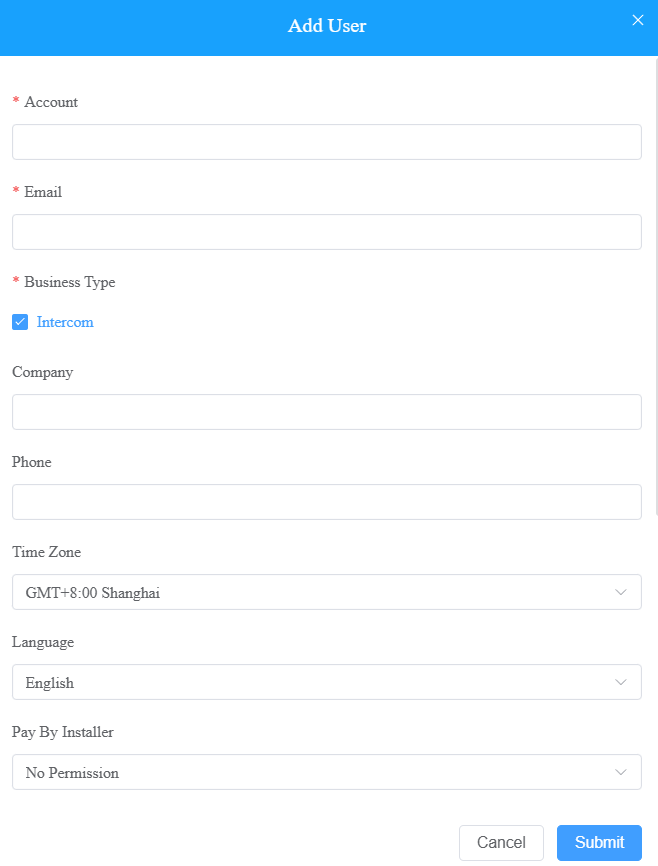
No. | Field | Description |
1 | Account | Fill in the installer’s account name. |
2 | Fill in the installer’s email address. | |
3 | Business Type | Select the Intercom type or Smart Home service type based on your application.
|
4 | Company | Fill in the installer’s company name. |
5 | Phone | Fill in the installer’s phone number. |
6 | Time Zone | Select the specific time zone, which will become the default time zone for the devices of the project created under the installer account. |
7 | Language | Select the language of the Email that will be sent to the installer when the installer account is created |
8 | Pay by Installer |
|
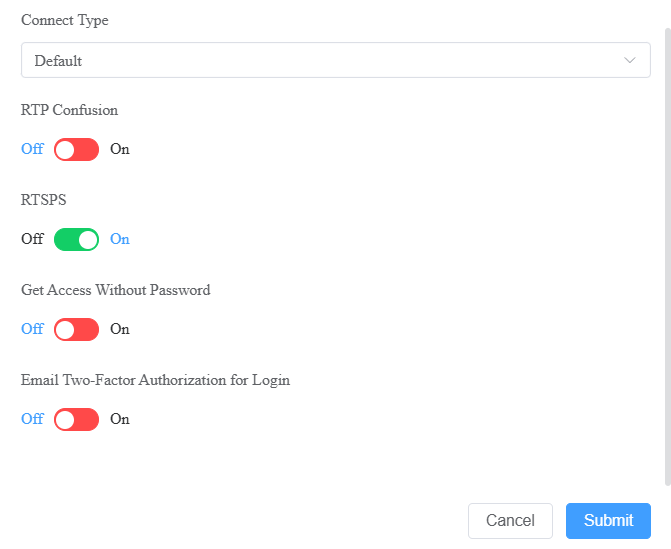
9 | Connect Type | Select the device data transmission type. Leave it default if no specific requirement or use a specific type according to the suggestions from the Akuvox technical team. |
10 | RTP Confusion | Switch on the RTP confusion to avoid RTP transmission from being blocked in certain countries or regions where RTP transmission is banned, eg, Egypt. Note: RTP Confusion is switched off by default. |
11 | RTSPS | Set whether to use RTSP to control the media stream between servers and clients. |
12 | Get Access Without Password | This feature enables you to access the installer's web portal without a password when your installer needs your support or assistance. By default, this feature is turned off. Your installer must enable this function before you can log in to their account. Once the function is enabled, you will see a lock icon |
13 | Email Two-Factor Authorization for Login | If enabled, when installers log into the SmartPlus Cloud platform, they need to fill in a verification code. |
 in the Action column, which you can click to be redirected to their accounts.
Check/Edit/Delete Installer Account
After the Installer accounts are created, you can check, edit, and delete the installer accounts if needed.
1. Go to User > Installer. If the installer can be managed by a sub-distributor, then the agent name will display in the Sub-Distributor field.
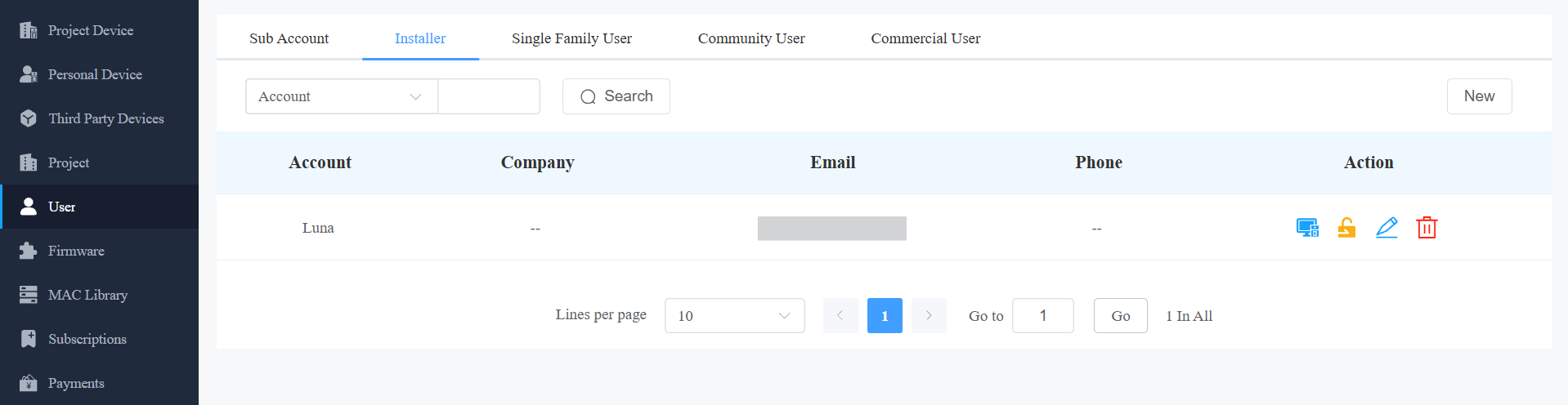
2. Search for the installer by account, email, or sub-distributor (if any).
3. Click  to add MAC addresses for the installer’s single-family house projects.
Note
Before a kit’s MAC addresses can be removed, the addresses must be unbound from the user account they are currently associated with.
4. Click  to edit the installer information and password.
5. Click  to delete the installer.
Access Installer Account
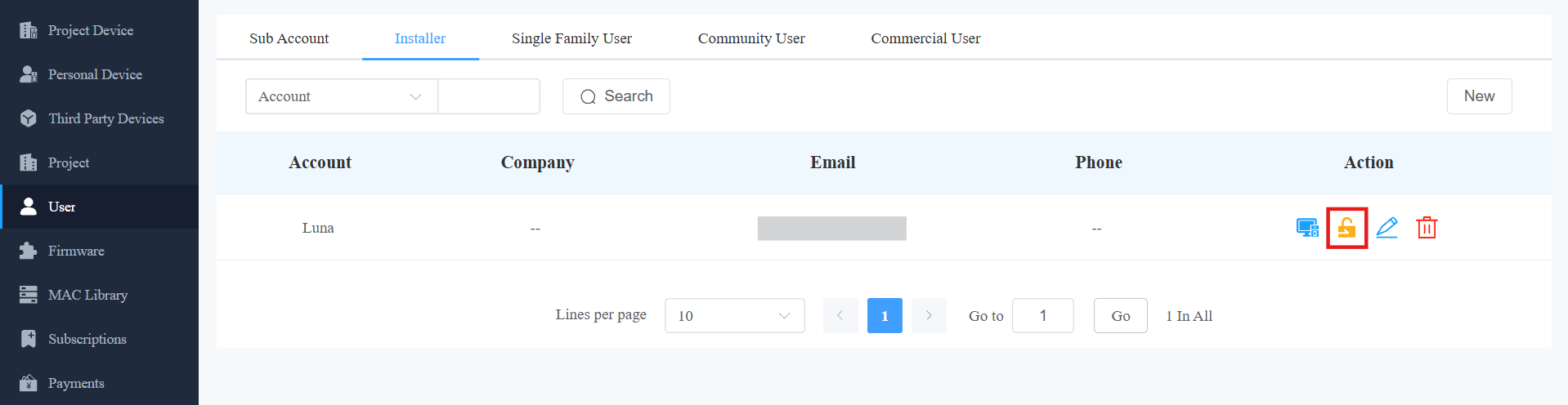
You can access the installer account without a password for management and deployment assistance, but you must first be authorized by the installers to log in from your web portal. Installers can grant or revoke this permission at any time.
1. Click User > Installer.
2. Select the installer account, then click  to access the installer account.
Note
The installer account access feature must be enabled when adding an installer to allow password-free access from your web portal. Refer to the chapter "Add Installer Account" for details on "Getting Access Without Password."
Sub-Installer Account Management
You can search for and check the sub-installer account information. The sub-account format is [Installer Account: Sub-account]
1. Go to User > Installer.
2. Search the sub-account by entering the installer account name.
3. You can check the account information, but not edit or delete it.
End User Account Management
End-user account management involves searching and checking the end users’ accounts. However, it will be good for you to have a general idea about how the end users can be added, edited, and deleted using the SmartPlus installer account.
Check End User Account
You can also search for and check the end user’s information.
1. Click User Module, and select Single Family User, Community User, or Commercial User.
Search for the residential user information by account type and search type in the Search field.
Search for the commercial project user information by account type and search type in the Search field.
Parameter Description (Single-Family User and Community User)
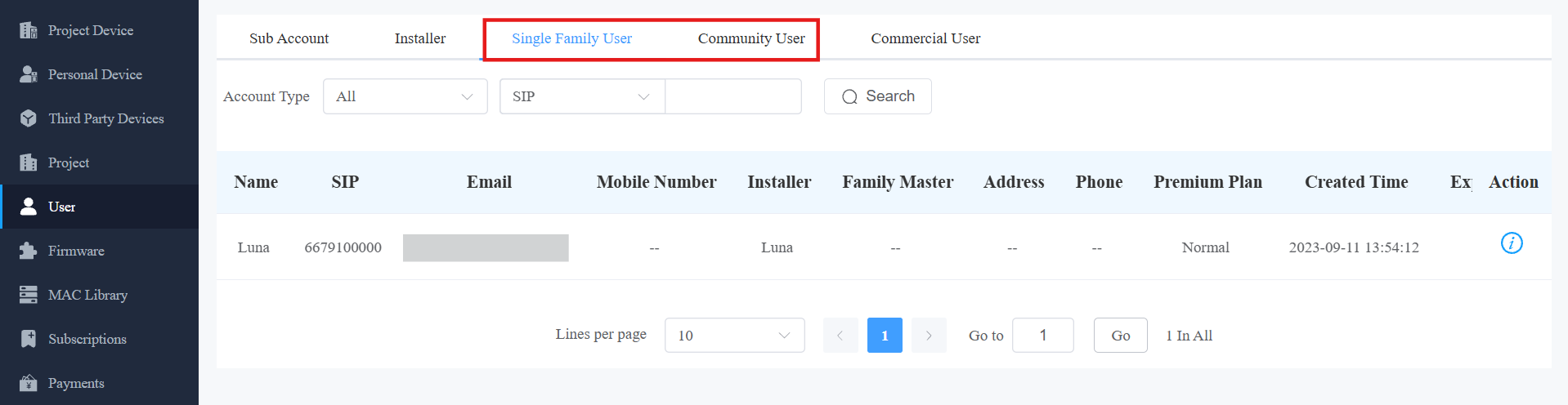
No. | Column Name | Description |
1 | Account Type | Search for end-user information by All, Family Master, or Family member. |
2 | Search Type | Select end-user information by SIP number, Email, Mobile phone number, installer, and family master. |
3 | SIP | Displays the end user’s SIP number. |
4 | Mobile Phone | Displays the end user’s mobile phone number. |
5 | Name | Display the end user’s name (both family master and family member). |
6 | Installer | Displays the name of the installer(s). |
7 | Family Master | Displays the name of the family master(s). |
8 | Community | Display the resident’s community information |
9 | Address | Displays the address of the end user(s). |
10 | Phone | Displays the landline number of the end user(s). |
11 | Active | Display if the community user account is activated. |
12 | Premium Plan | Display if the premium plan for villa users is on or off. |
13 | Created Time | Displays when the account is created. |
14 | Expiration Time(App) | Displays when the community user account will expire. |
15 | Expiration Time(Premium) | Displays when the premium plan of the villa user will expire. |
16 | Action | For checking the account details. |
Parameter Description (Commercial Project User)
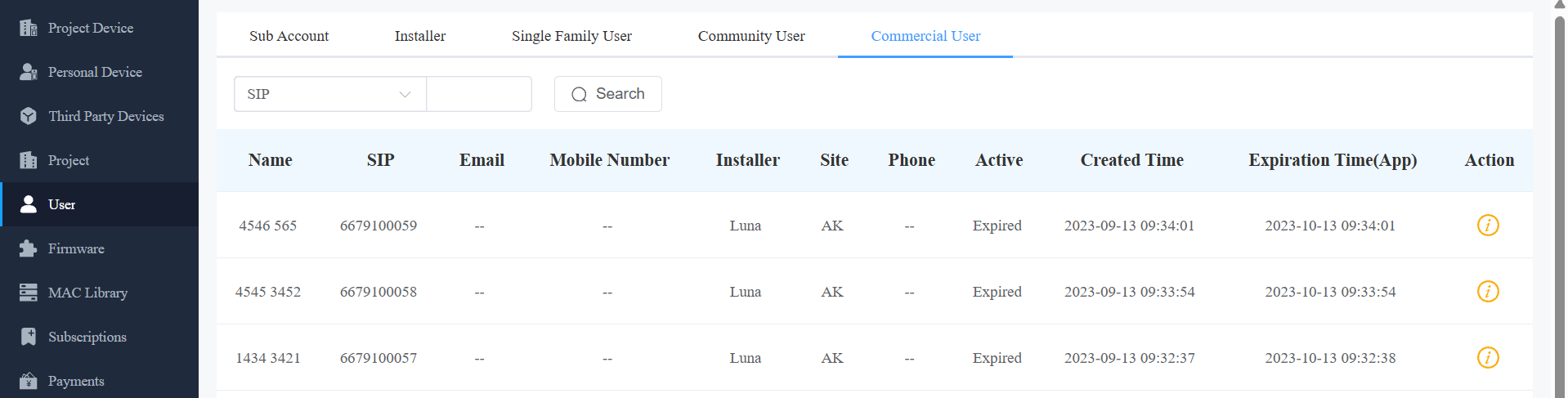
No. | Column Name | Description |
1 | Search Type | Select end user information by SIP number, User’s name, Email, Mobile phone number, installer, and commercial project name. |
2 | SIP | Displays the user’s SIP number. |
3 | Mobile Phone | Displays the user’s mobile phone number. |
4 | Name | Displays the username. |
5 | Displays the user’s Email address. | |
6 | Installer | Displays the name of the installer(s). |
7 | Site | Displays the user’s commercial project name. |
8 | Phone | Displays the landline number of the end user(s). |
9 | Active | Display if the commercial project user account is activated. |
10 | Created Time | Displays when the account is created. |
11 | Expiration Time(App) | Displays when the commercial project user account will expire. |
12 | Action | For checking the account details. |
Check Firmware List
Firmware module is where you can check the latest firmware that is available for your installers.
1. Click Firmware.
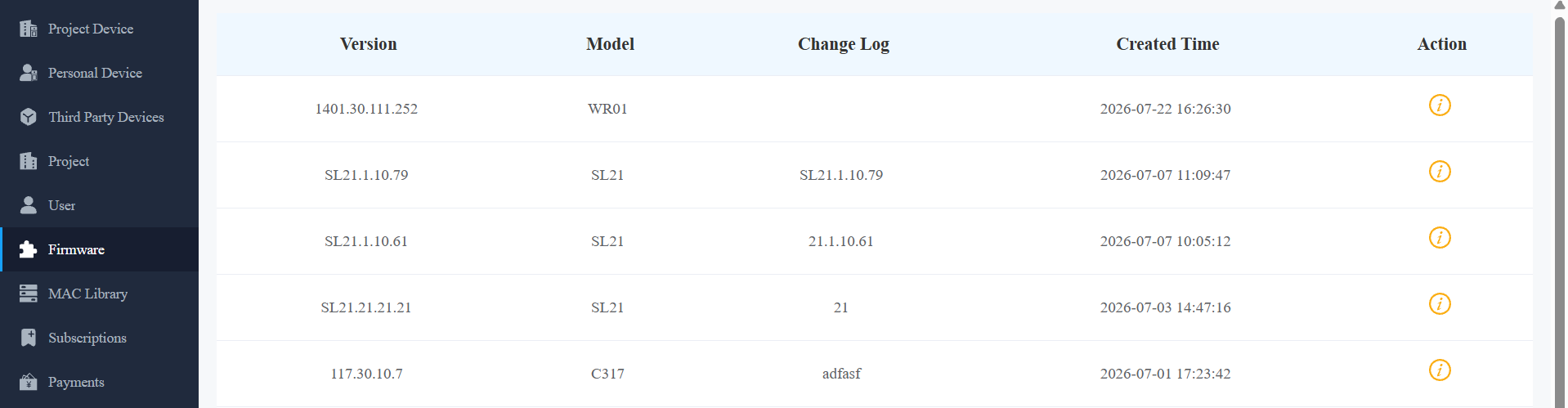
Firmware List Description
Heading | Description |
Version | Displays the firmware version number. |
Model | Displays the device model. |
Version Log | Generally displays remarks on the version. |
Created Time | Displays when the firmware was uploaded. |
Action | Click to check the detailed firmware information. |
Subscription
You can pay for the service activation and renewal for the single-tenant users, multi-tenant users, and commercial project users under a specific installer. Moreover, you can pay for adding an extra family member account, the property manager SmartPlus app, a third-party lock, and video storage services.
Quotation Generator
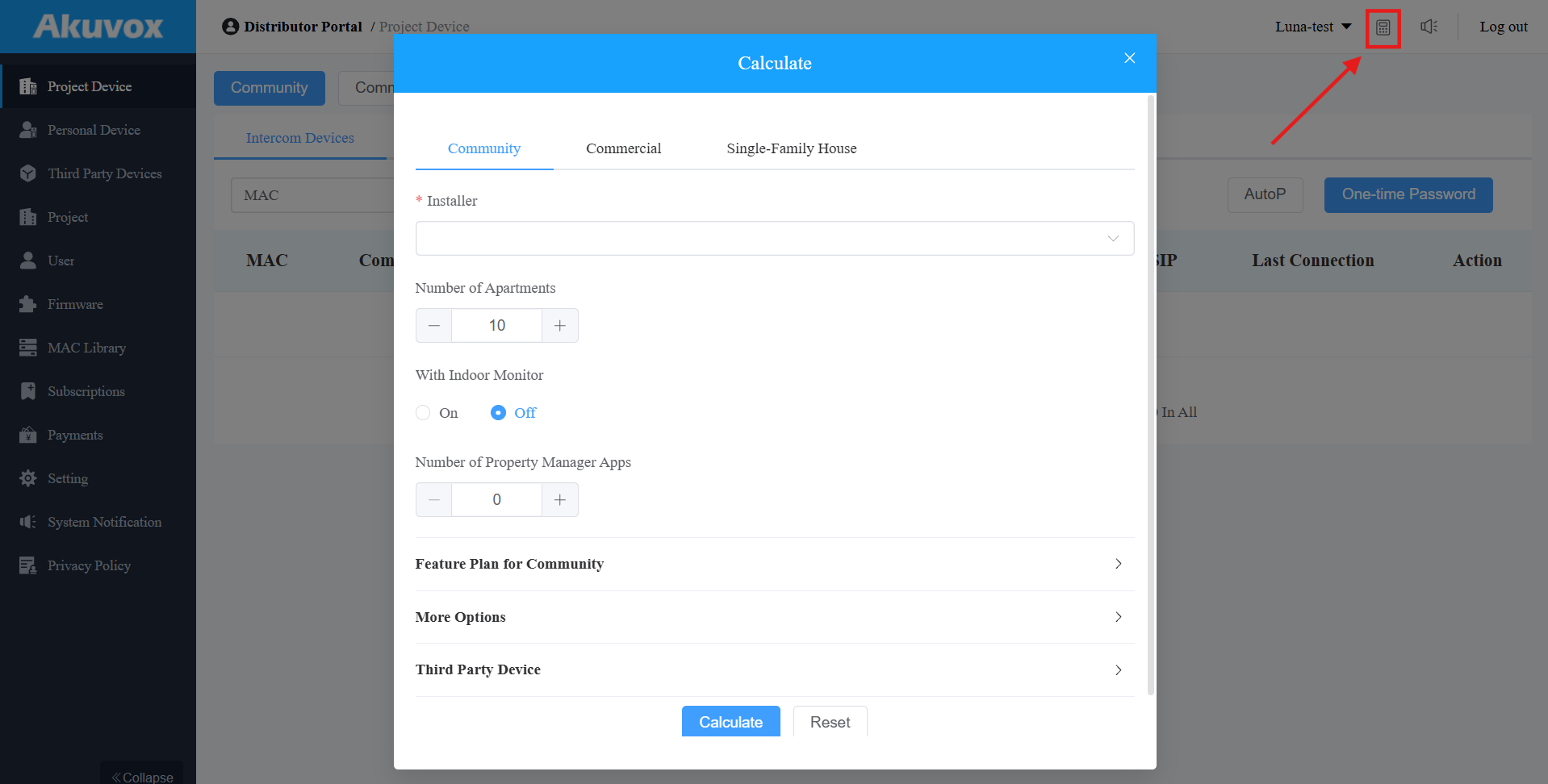
The quotation generator helps you calculate the one-time and monthly fees of specific projects.
Click the Calculator icon in the upper right corner.
Select the project type and installer.
Select item numbers. Click here to view the item details.
Click Calculate to generate the fee.
Activate and Renew Services
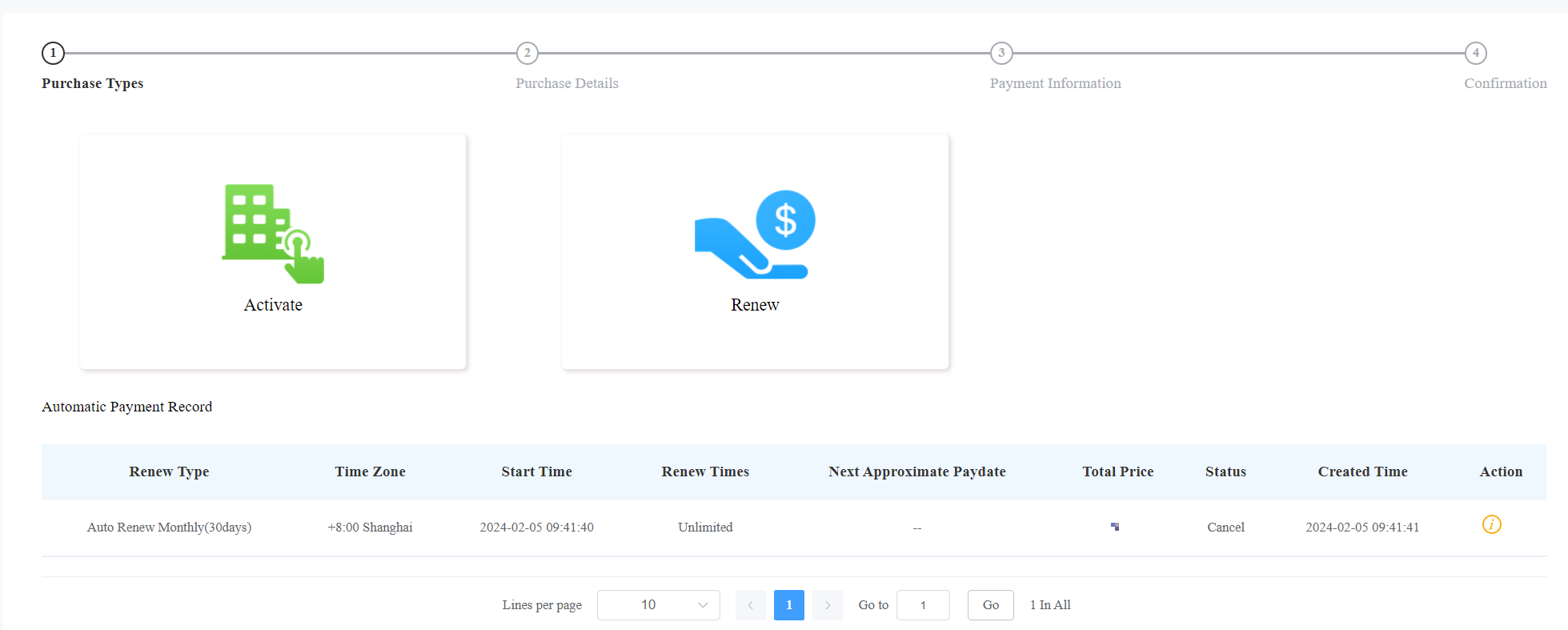
You can pay for the SmartPlus service for end users at the request of installers.
Click here to view the detailed steps.
Automatic Payment Records
On the Subscription module, you can check the automatic payment records, including Auto Renew settings, total prices, etc.
Check Coupon Details
You can purchase coupons from Akuvox sales. Check the coupon information by clicking Setting > Coupon Details.
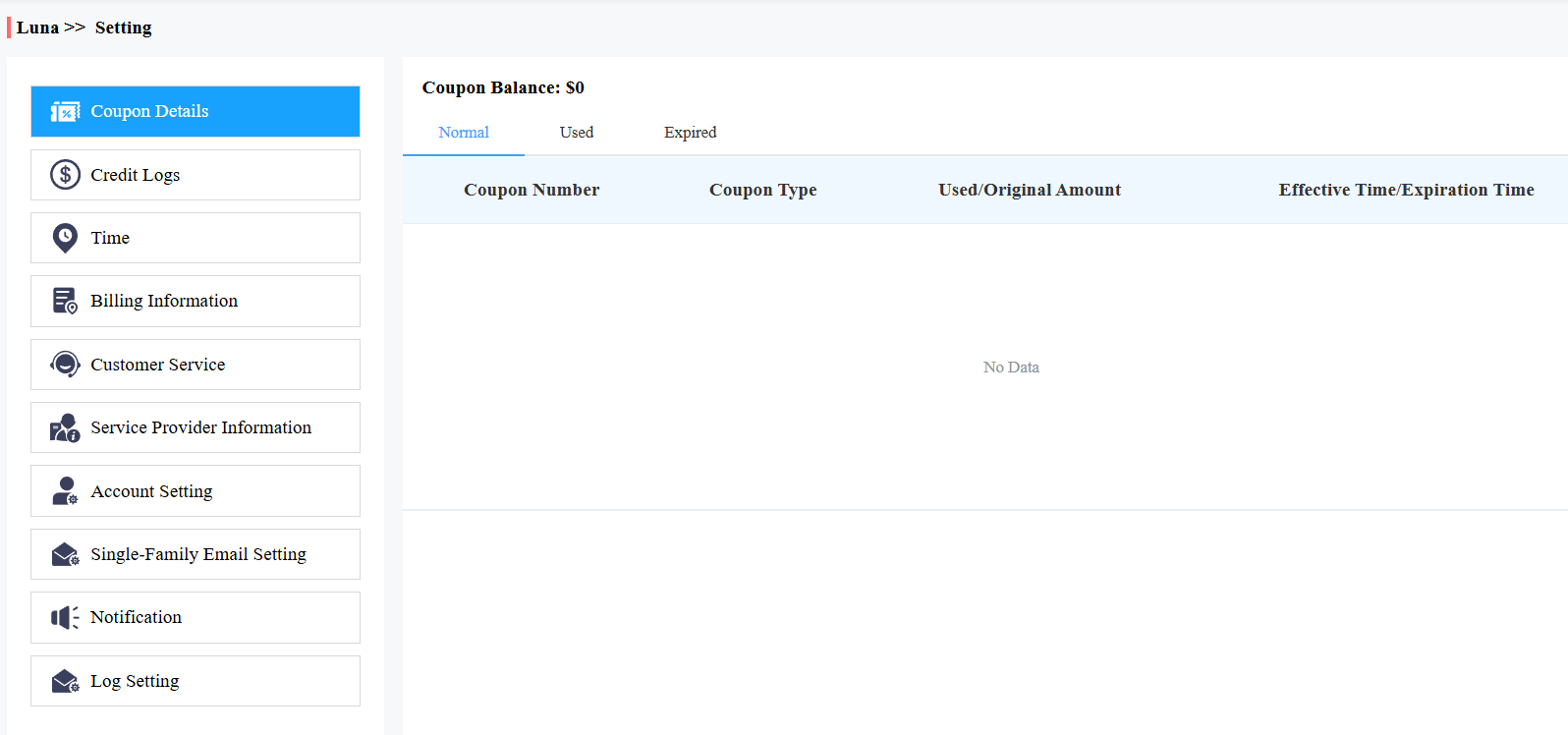
Coupon Type | Description |
|---|---|
Normal | Displays the valid coupons. |
Used | Displays coupons that are used out. |
Expired | Displays the expired coupons that still have value. |
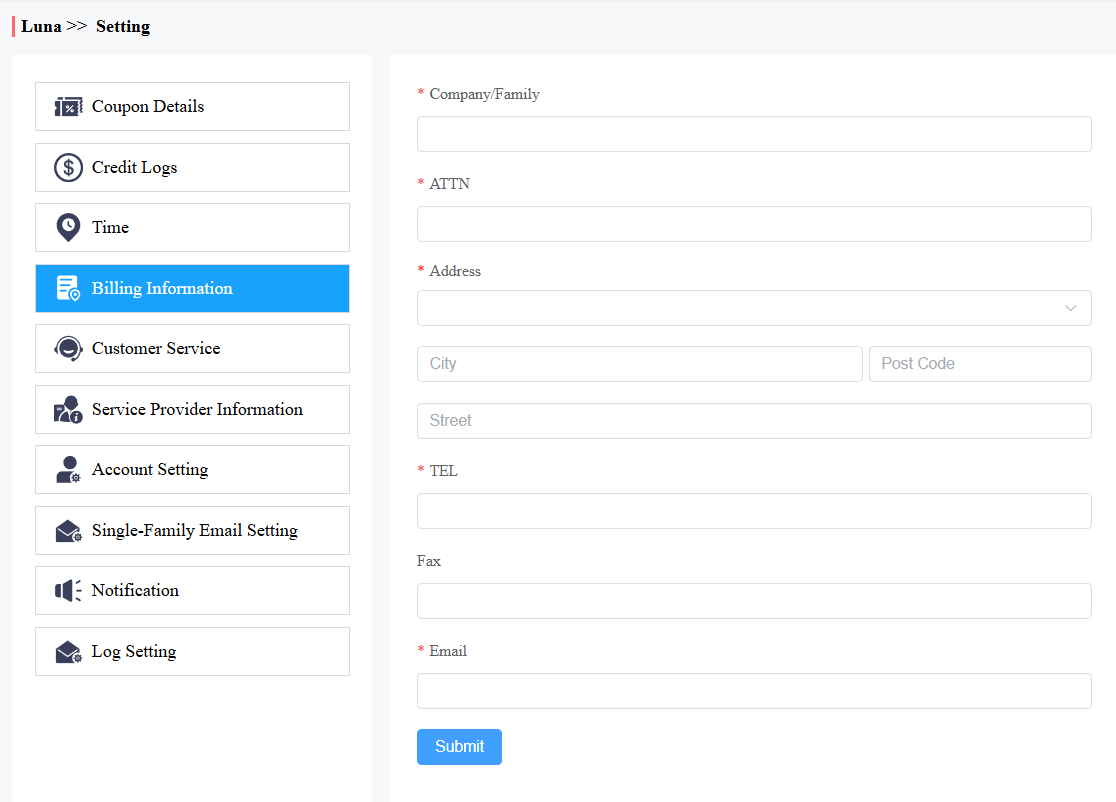
Change Billing Information
You can change the billing information by clicking Setting > Billing Information.
On this interface, you can provide your email for receipts and contact.
Credit Management
Akuvox supports using credit to activate and renew SmartPlus services. You can purchase credits and assign them to sub-distributors, installers, or property managers.
YNote
ONLY commercial project projects created after June 1, 2025, support credit payment.
Purchase Credit
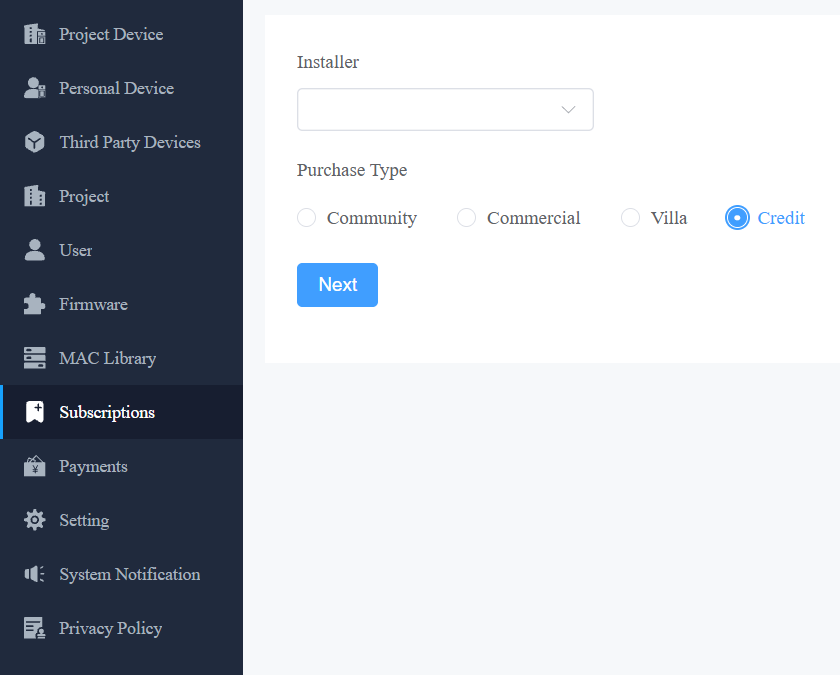
1. Select Credit on the Subscriptions module.
2. Click Next.
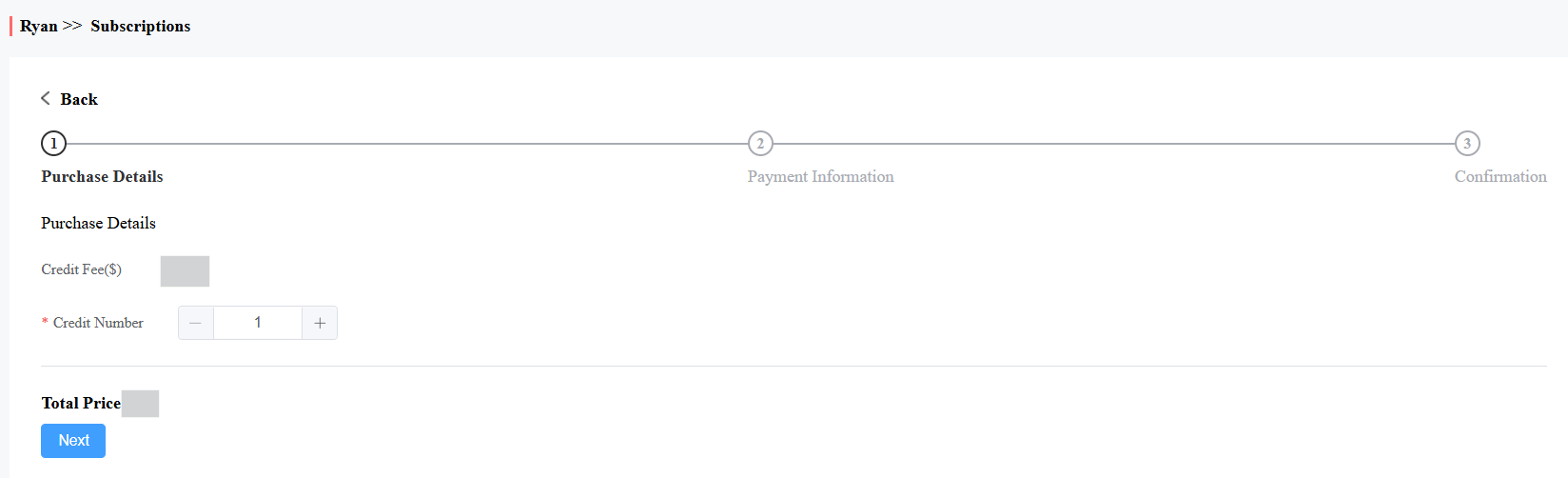
3. Select the credit number and click Next.
4. Confirm the purchase details and check the Terms and Conditions before paying.
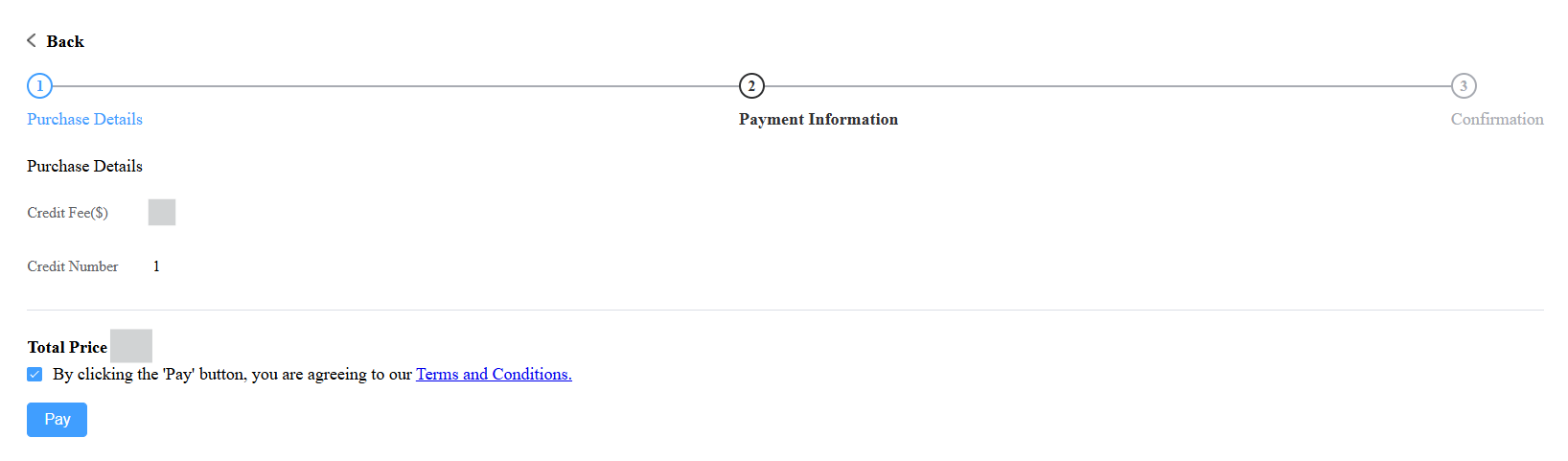
5. Pay for the order with a coupon if you have one, or with Stripe or PayPal.
6. Follow the on-screen instructions to finish the payment.
Assign Credit
1. Click Setting > Credit Logs. You can check the available credits to be assigned.
2. Click Assign.
3. Enter the number of assigned credits and select the user.
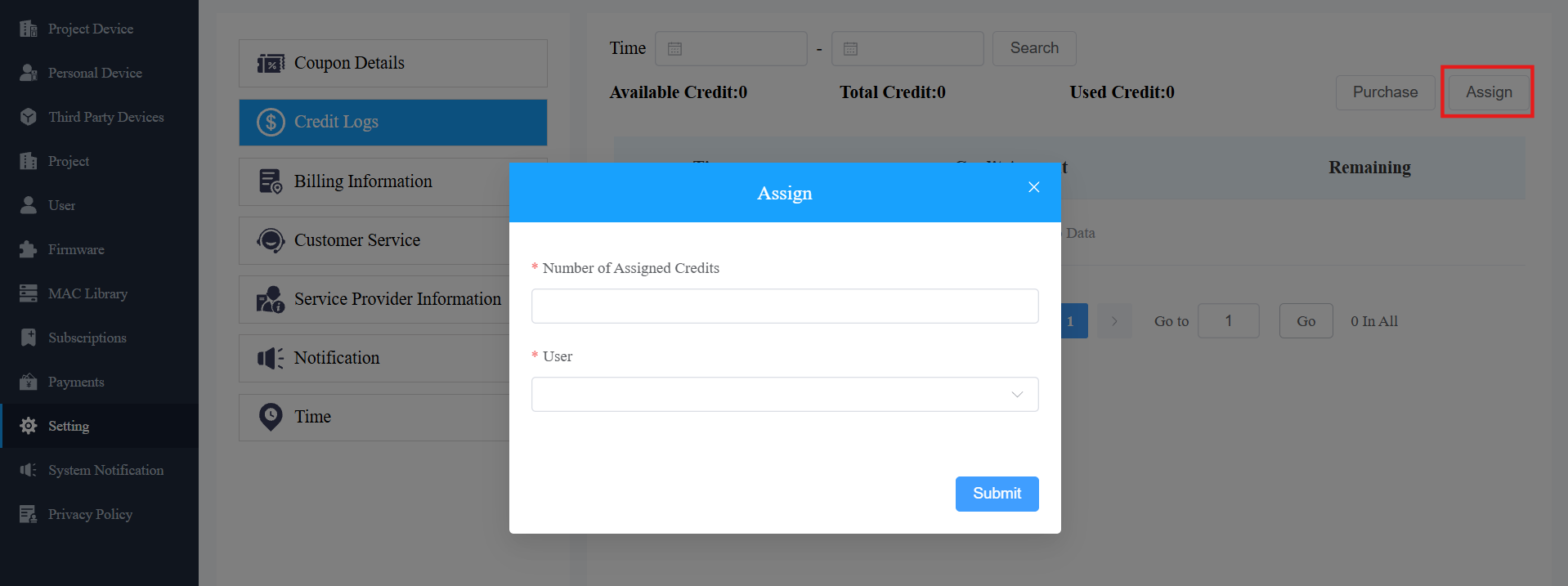
4. Click Submit.
Transaction History
Payments module allows you to search, check, and delete the transaction history following the user account activation and renewal. You can also download the invoice if needed.
Check Transaction History
After the payment is made, you can check the details of the transaction if needed.
1. Check the transactions by the Created Time, Type, Installer, Status, and Order number.
2. Delete or cancel the order if needed.
3. Click  to pay for the order if the order has not been paid.
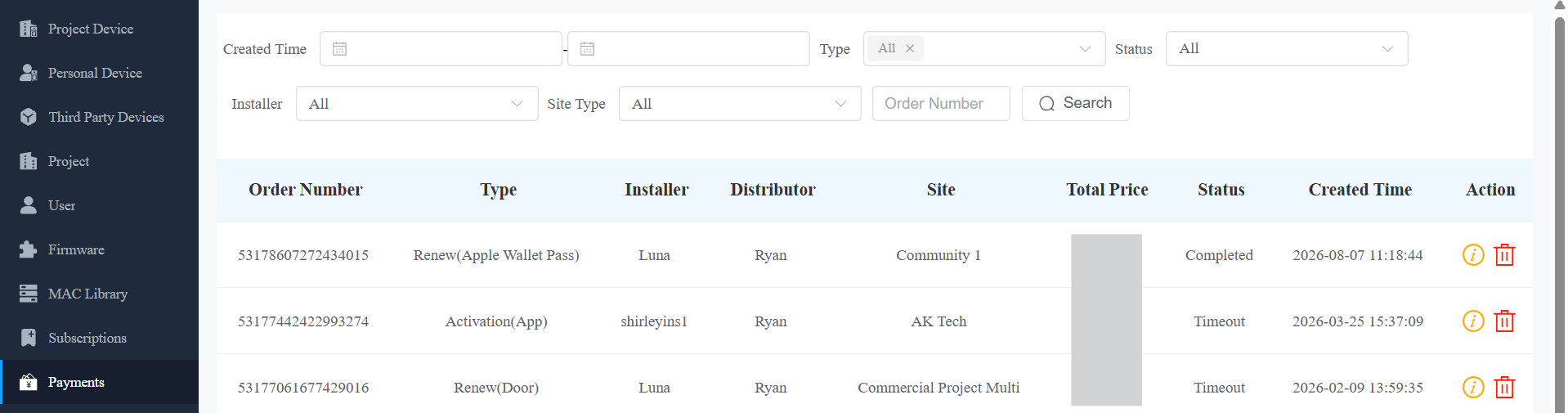
Description
No. | Column Name | Description |
1 | Order Number | Displays the order numbers. |
2 | Type | Four types:
|
3 | Installer | Displays the installer name. |
4 | Project | Displays the community name and commercial project name, while the single tenant project is displayed as “-”. |
5 | Count | Displays the number of transactions. |
6 | Total Price | Display the total price of the transaction. |
7 | Status | Seven types of status: All, Succeed, Processing, Failed, Time out, Cancel, System Processing.
|
8 | Created Time | Display when the order is created. |
9 | Action | Click |
 to check the order details, or click
4. Click on of the transactions you want to check and download the invoice if needed.
Note
Only orders that are renewed daily will display the Next Expiration Date.
5. Click on to delete the specific transaction order if needed.
Customer Service
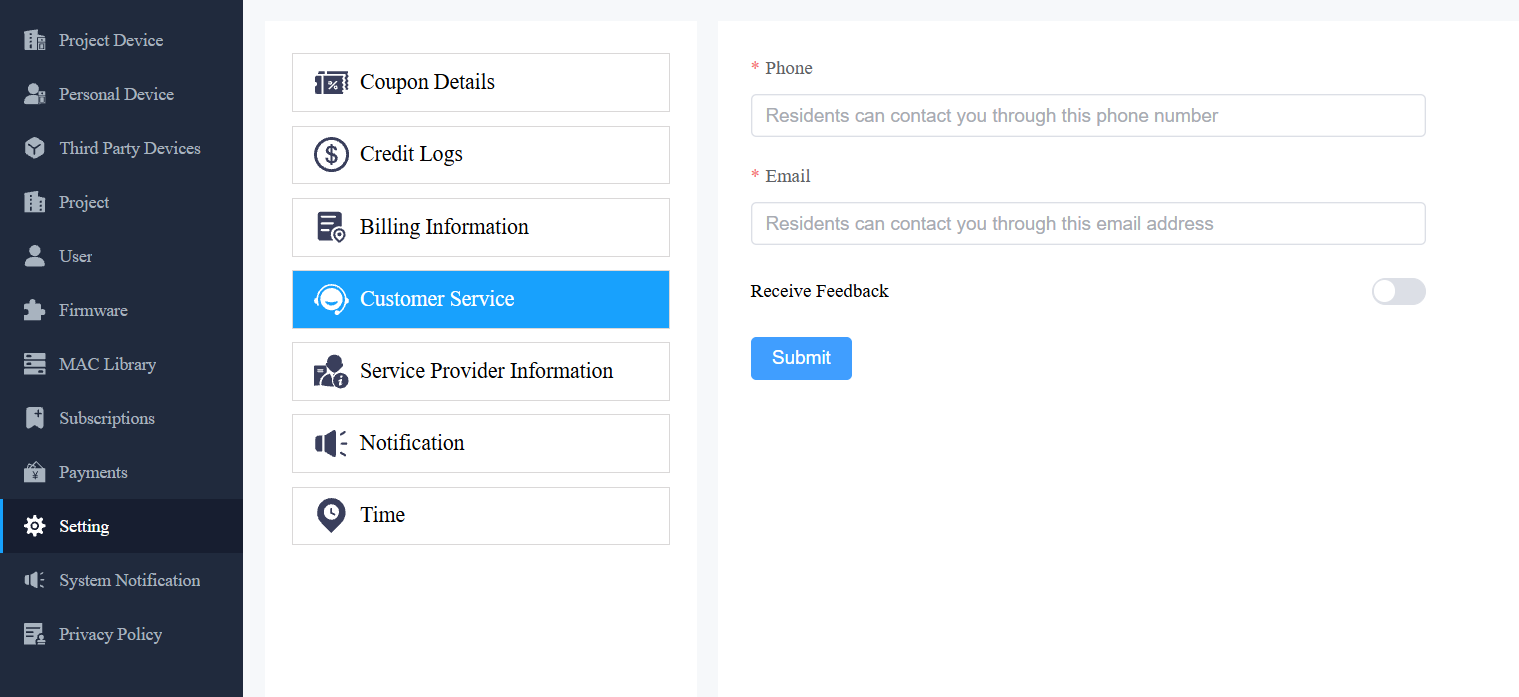
You can leave your contact for the installers and end users in the Setting module so that they can contact you using the contact information.
Enable Receive Feedback if needed, and then installers' and end users' feedback will be sent to the email address that you fill in.
Privacy Policy
You will see the Privacy Policy window when you log into the platform for the first time.
The Privacy Policy tells you how the user data is collected, used, and protected.
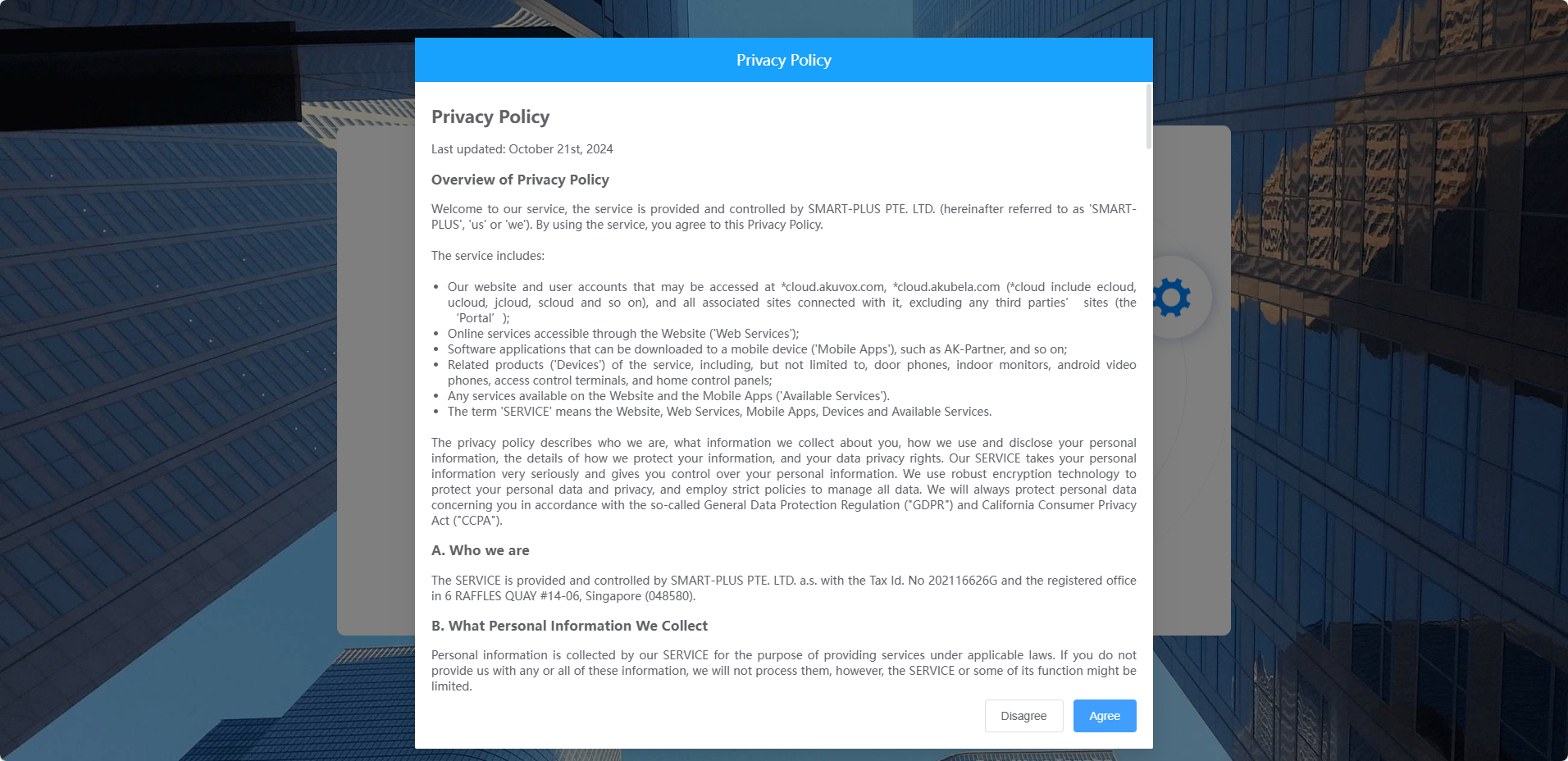
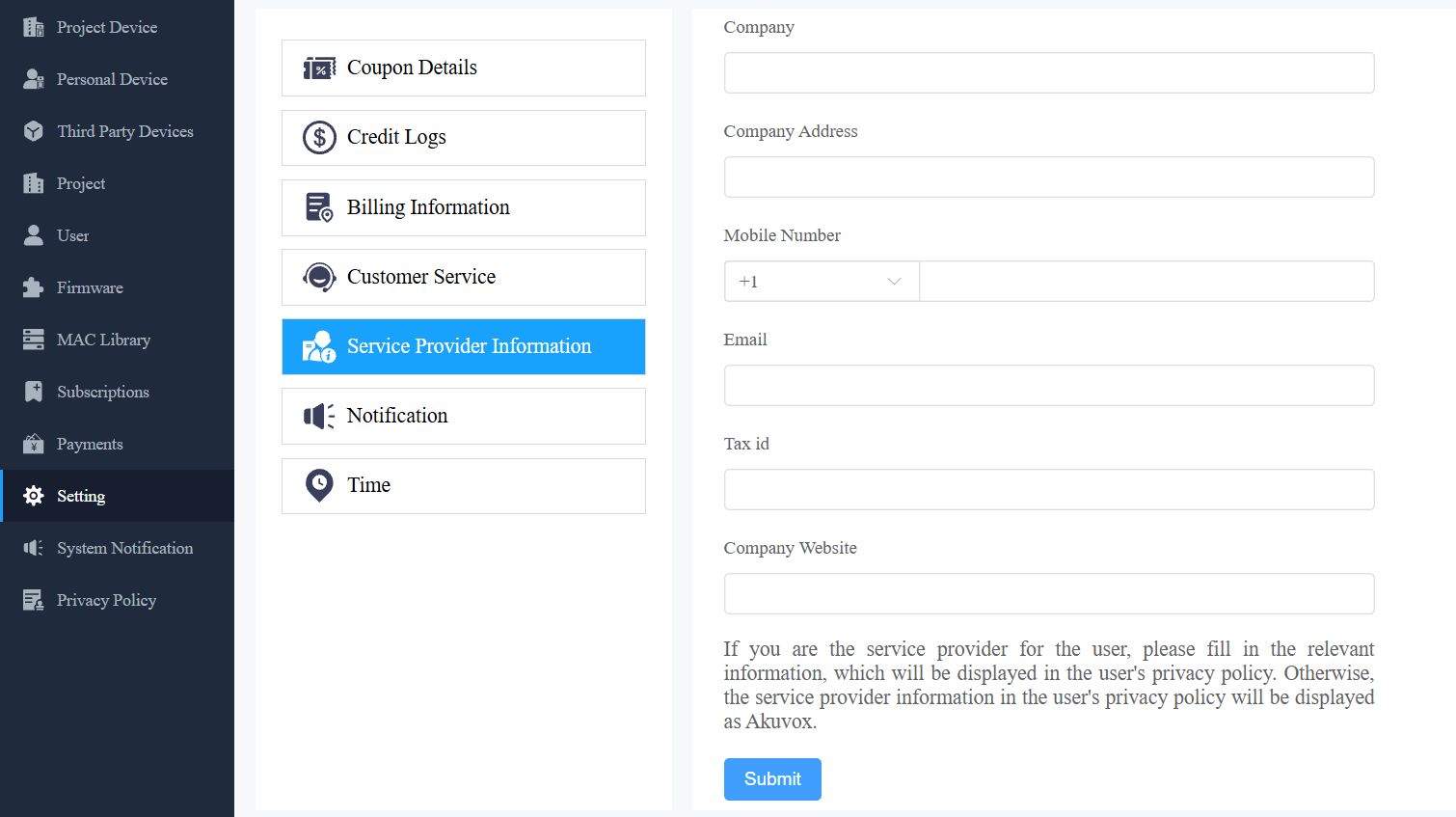
When you click Agree, you will be guided to the Service Provider Information interface to fill in your information. The information will be displayed in the privacy policy for end users. It is not mandatory to fill it out. Not filling it in will not affect your use of SmartPlus cloud services.
When you click Disagree, you cannot log in to the SmartPlus platform.
Contact Us
For more information about the product, please visit us at www.akuvox.com, or feel free to contact us by
Sales email: sales@akuvox.com
Technical support email: support@akuvox.com
Telephone: +86-592-2133061 ext.7694/8162
We highly appreciate your feedback about our products.