The integration of Qrio lock with SmartPlus enhances home security and access control. You can securely unlock the lock remotely using the SmartPlus App and various access methods.
Note
The SmartPlus App version should be 4.0.6.2(Android)/4.4.6(iOS) or higher.
Support Qrio Lock SL2.
Add the Qrio Smart Lock
Tap Me > Device Management > Third-party Devices.
Tap
 in the upper right corner.
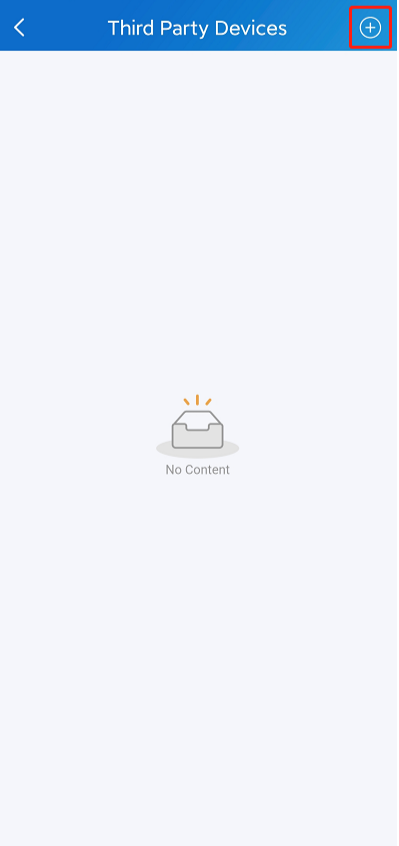
Select Qrio and tap Add.
Enter the Email Address and Password of your Qrio Lock account.
Tap Sign In. A prompt will inform you whether the adding is successful or not.
Set up the Lock
After adding the lock, the lock will be displayed on the homepage of the SmartPlus App and Third Party Devices list.
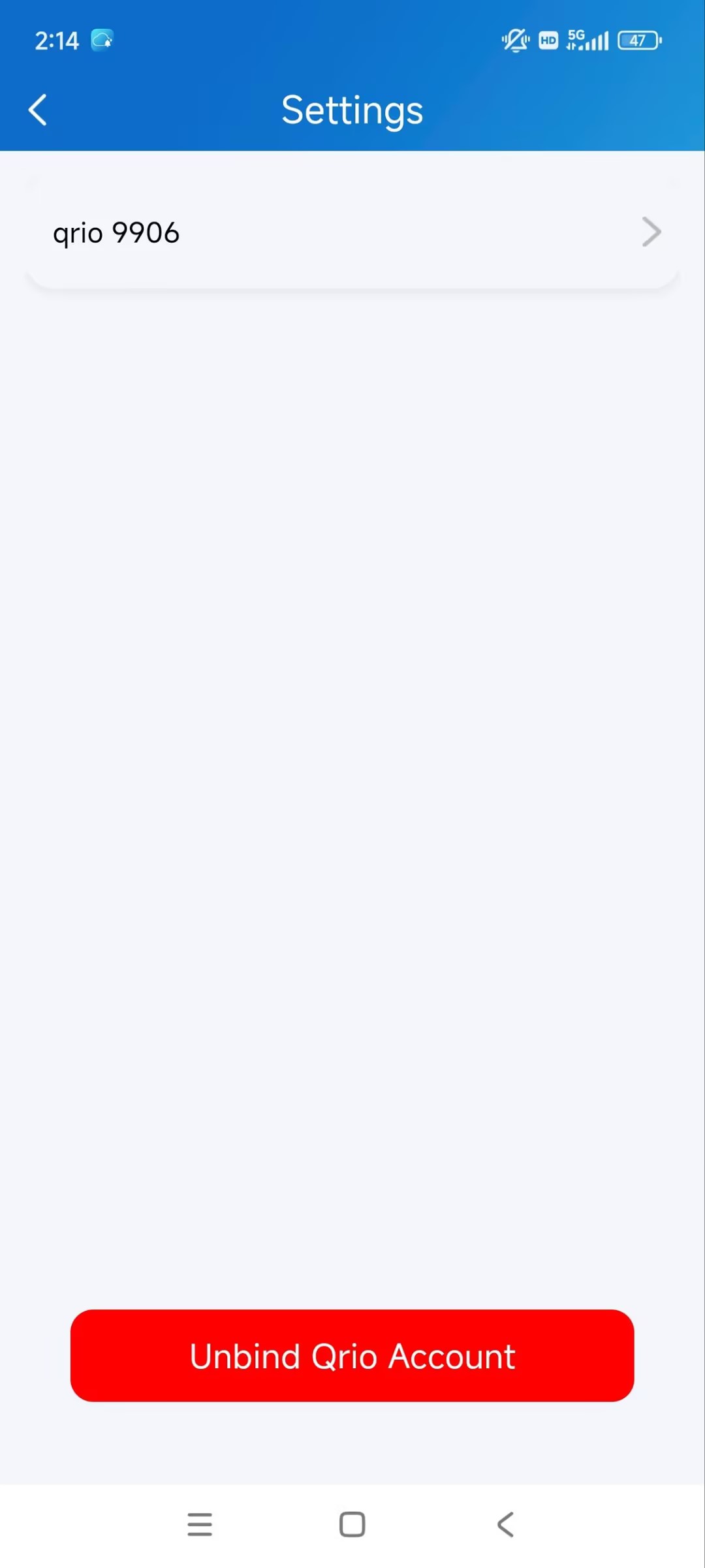
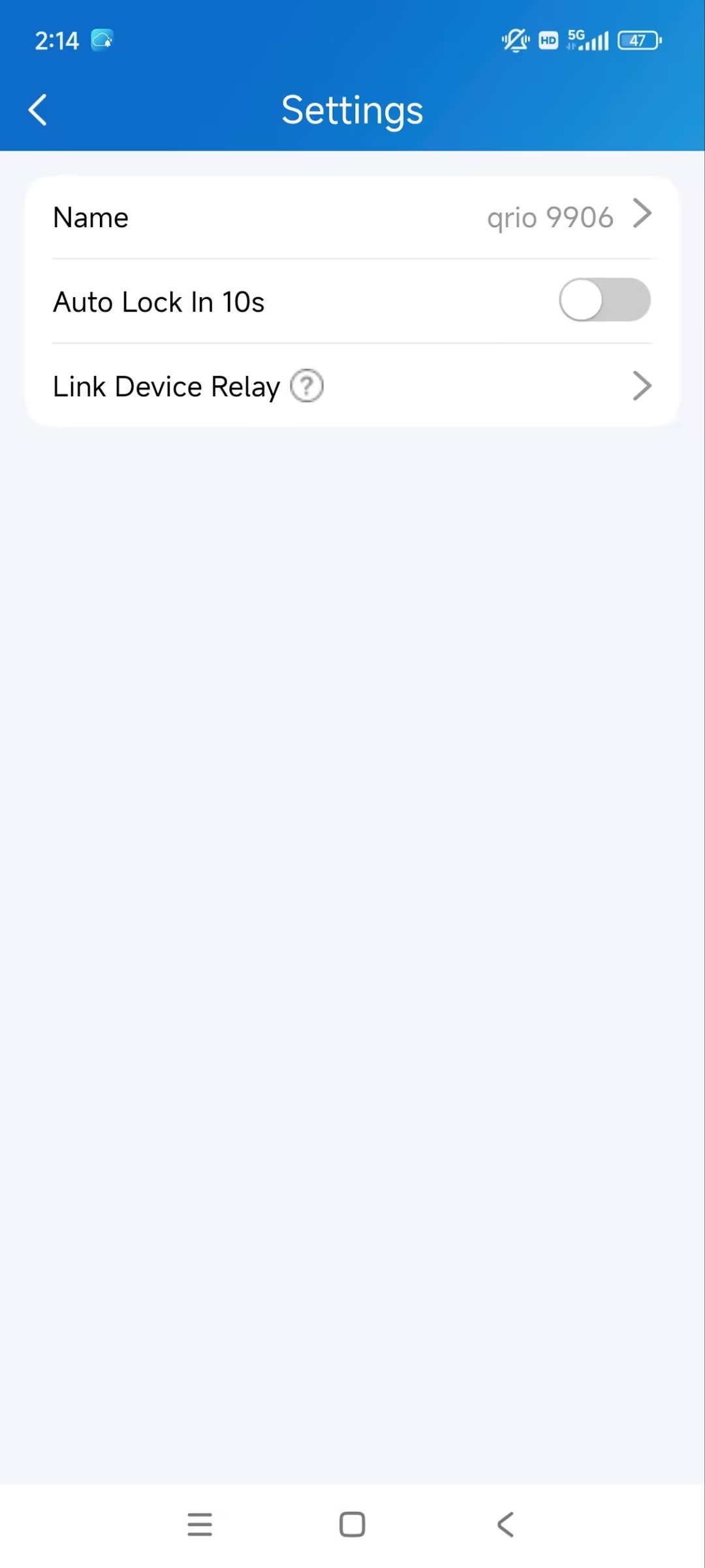
Tap Me > Device Management > Third Party Devices > Qrio > [The Lock Name].
You can:
change the lock name;
enable/disable Auto Lock in 10s which locks the lock automatically 10 seconds after it opens;
link it to a relay of a door phone;
remove the lock by tapping Unbind Qrio Account.
Note
Whether the lock is linked to relays determines how the lock is unlocked.
See the Unlock the Lock section for details.
Unlock the Lock
The Lock Is not Linked
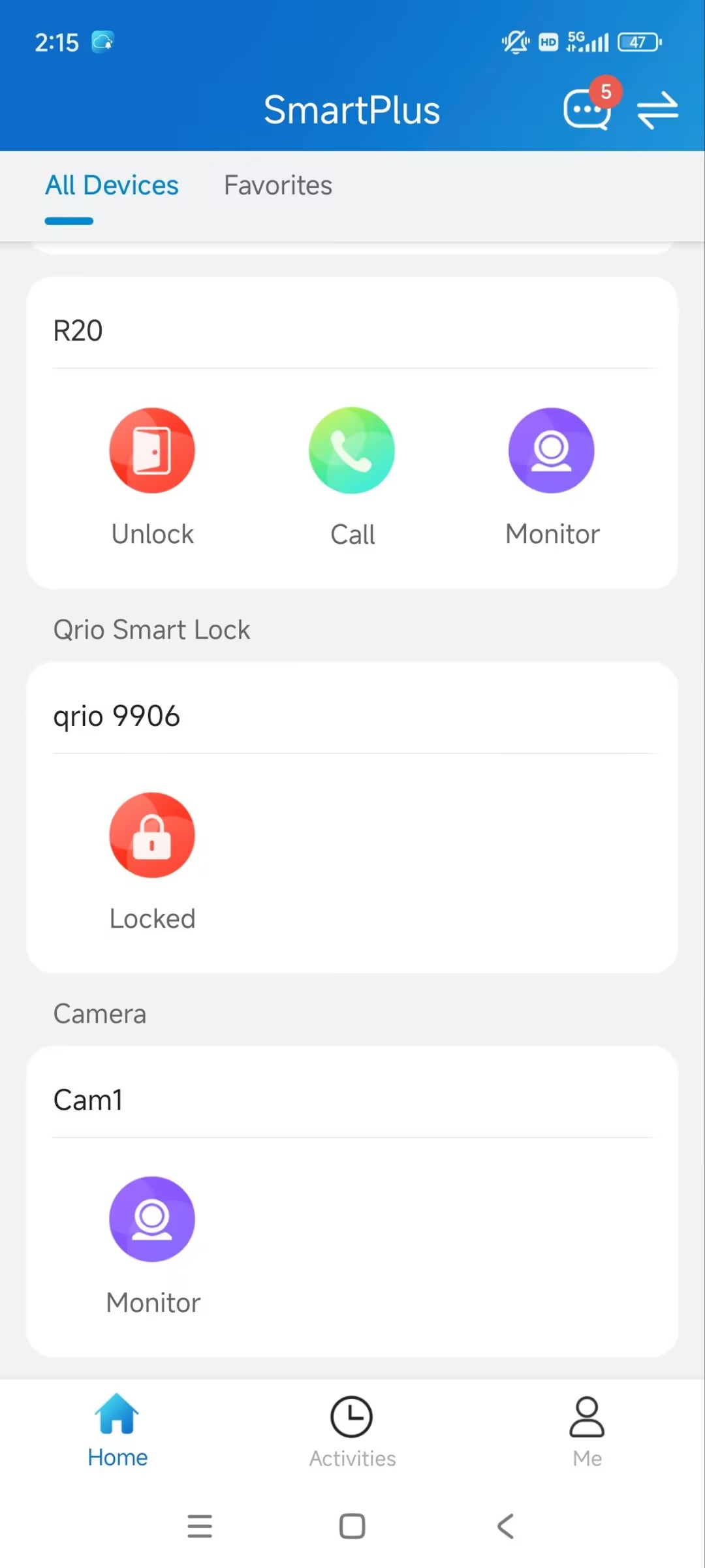
When the lock is not linked to a relay, it will display on the homepage.
You can directly tap  to lock or unlock it.
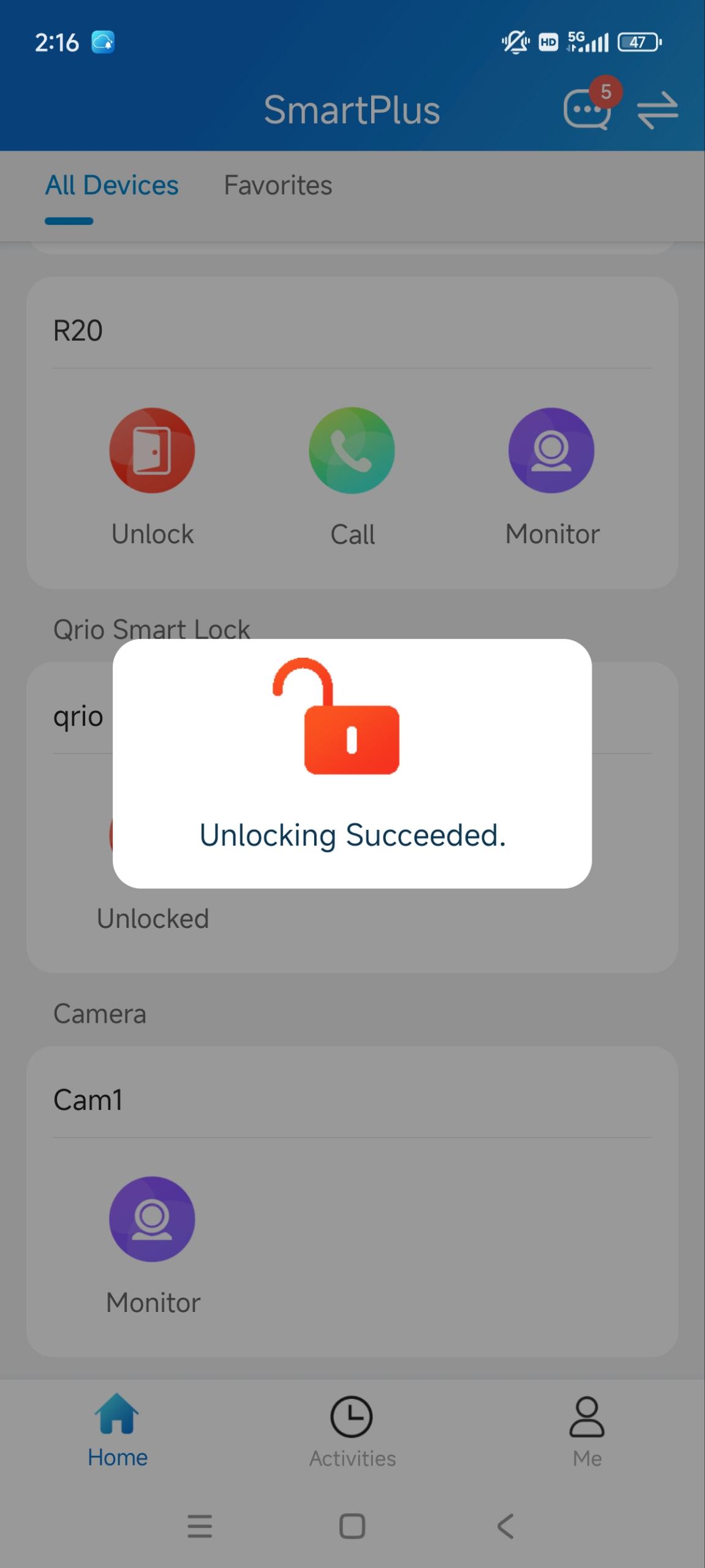
The Lock is Linked
After the smart lock is linked to a door phone relay, it is no longer operated independently within SmartPlus.
Instead, the door phone becomes the access control device. Any successful unlock action on the door phone triggers the configured relay, which simultaneously unlocks the linked smart lock.
Note
You can ONLY link the lock to relays of the door phone that is installed at your apartment door if you are a community resident.
Unlock on the SmartPlus Homepage
You can tap to open the door phone’s relay. At the same time, the Qrio lock is unlocked.
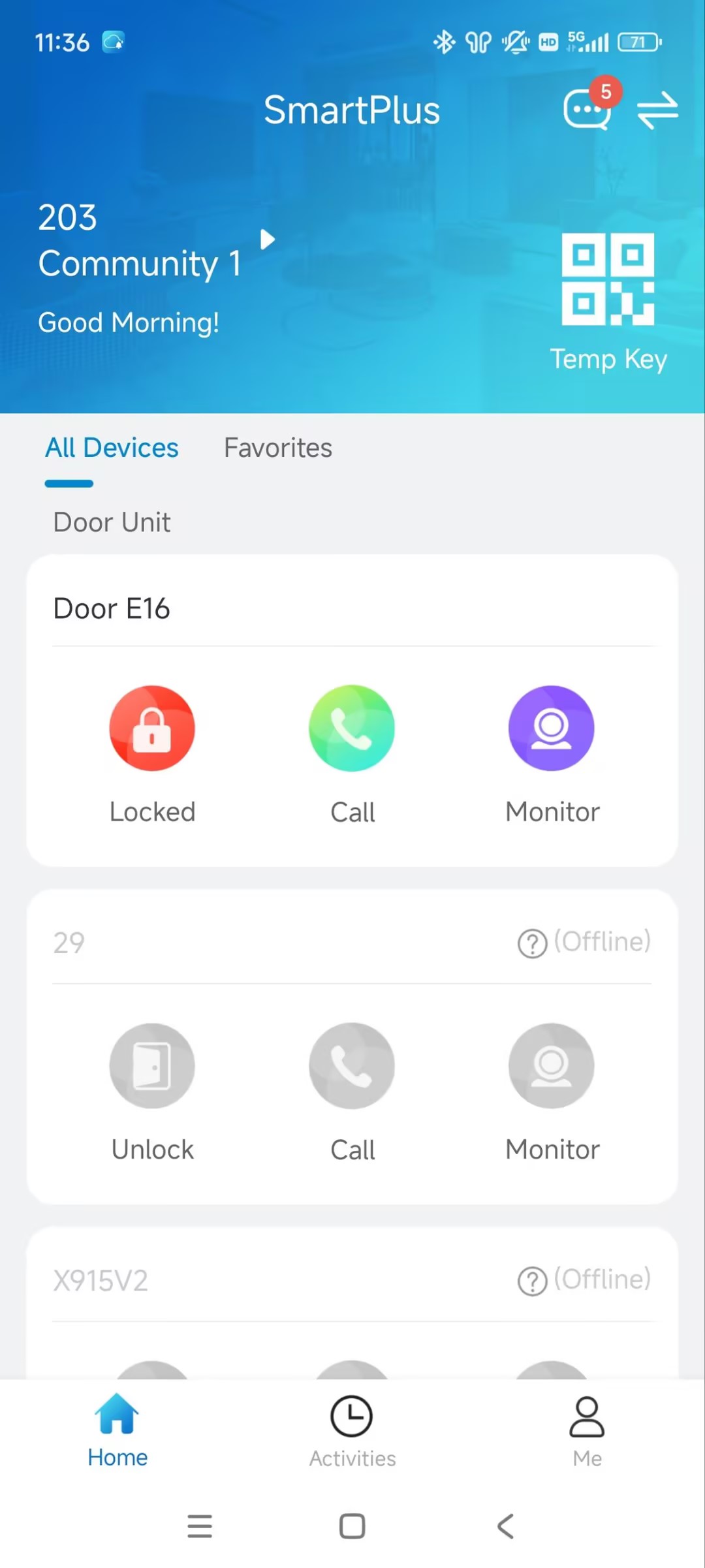
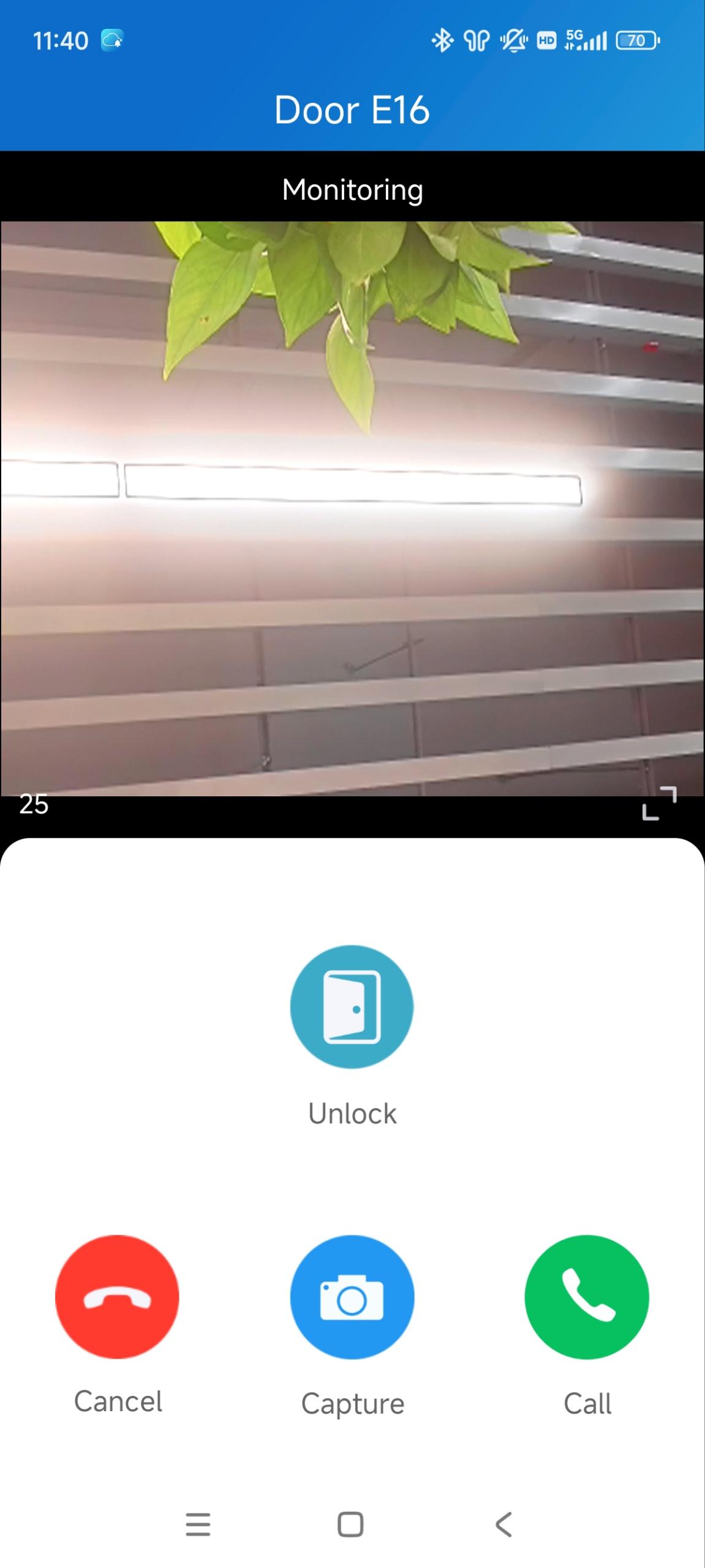
Unlock on the Calling and Monitoring Page
Tap Unlock on the Calling and Monitoring page to unlock the Qrio lock.
Unlock the Linked Lock via the Door Phone
Once the lock is linked to a door phone relay, it can be unlocked through the door phone. The door phone authenticates the user using its supported access methods and then unlocks the linked smart lock.
Please click the following links to view how to set up specific access methods:
Note
Facial recognition, PIN, NFC, Bluetooth, or card authentication are performed by the door phone, not by the smart lock.
The access methods supported by the device vary by model. For example, some models do not support opening doors via Bluetooth.
If you want to learn what access methods are supported by your device, please contact your service provider.