This document describes the procedure for upgrading device firmware.
It explains how to check the device hardware and software versions, obtain the correct firmware file, and perform the upgrade via cloud platform or web interface.
Check Device Hardware Version
Before upgrading, confirm the device hardware version. Different versions require different firmware files.
Devices that have two hardware versions include:
E12
R28
X915
C313
Devices that have three hardware versions include:
R20 Series
E16
E21
Take R20K as an example in this part.
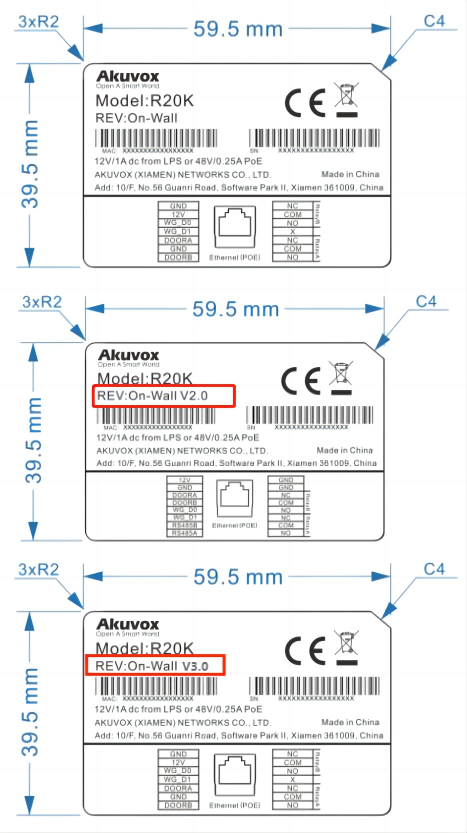
Label
Check the hardware version on the device's back label.
"V2.0" on the back label represents hardware version 2, and "V3.0" represents hardware version 3.
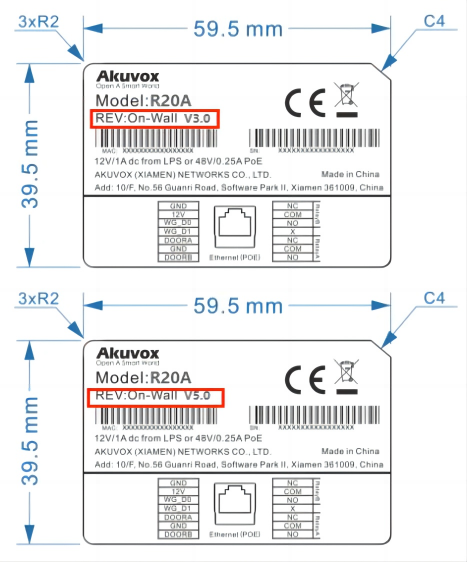
Exception
R20A V3.0 represents hardware version 2.
R20A V5.0 represents hardware version 3.
Product Information
Check the device hardware on the device web interface.
Log in to the device web interface. The default username and password are admin.
Navigate to Status > Basic > Product Information interface.
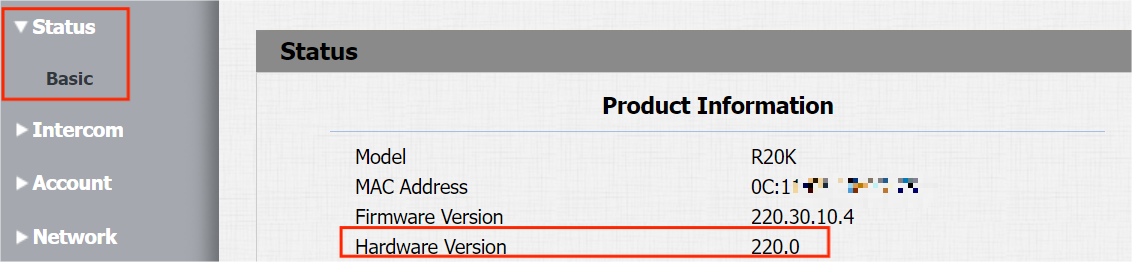
Hardware Version:
20.X is hardware version 1.
220.X is hardware version 2.
320.X is hardware version 3.
Identify Device Firmware Version
When upgrading devices, confirm that the firmware version complies with the device model.
Take the R29 version, for example:
We can divide the firmware version number into four parts: A, B, C, and D.

A
A represents different models.
Door Phone:
Model | R29 | X915 | R20 | R20V3 | R20V5 | R25 Series | X912 | S539 | E12 | E13 | E16V3 | E16V2 | E16 |
|---|---|---|---|---|---|---|---|---|---|---|---|---|---|
Version Number | 29 | 915 | 20 | 220 | 320 | 25 | 912 | 539 | 12 | 13 | 416 | 216 | 116 |
Model | R27 | R28 | E18 | E21V2 | E20 | X916 | X910 | E11 | S532 | S535 | S538 |
|---|---|---|---|---|---|---|---|---|---|---|---|
Version Number | 27 | 28 | 18 | 221 | 120 | 916 | 2910 | 111 | 532 | 535 | 538 |
Indoor Monitor:
Model | C310 | C313 | C313V2 | C313V3 | C316 | C319 | S567 | S565 | S563 | S562 | IT88 | X933 | X937 | IT83 | C315 |
|---|---|---|---|---|---|---|---|---|---|---|---|---|---|---|---|
Version Number | 310 | 113 | 213 | 313 | 316 | 119 | 567 | 565 | 563 | 562 | 88 | 933 | 937 | 83 | 115 |
Access Control:
Model | A01/A02 | A03 | A05 | A05V2 | A08 | A092/A094 | A095 | WR01 |
|---|---|---|---|---|---|---|---|---|
Version number | 101 | 103 | 105 | 205 | 108 | 92 | 95 | 1401 |
Sensor:
Model | MR01 |
|---|---|
Version number | 301 |
Camera:
Model | VC50T/VC50B |
|---|---|
Version number | 650 |
B
B represents different OEMs.
30 means that the version with the Akuvox logo supports cloud, SDMC, and discovery mode at the same time.
31 means that the version without any logo supports cloud, SDMC, and discovery mode at the same time.
The other value is to distinguish custom-made devices.
C
C represents different branches. If the number is 10 or larger, the device is in the firmware version with high security mode. It is designed to enhance security. It employs encryption across various facets, including the communication process, door-opening commands, password storage methods, and more.
D
The higher the value is, the newer the version is when devices have the same model, OEM, and branch.
Acquire the Latest Firmware
You can get the latest firmware through the following channels.
Akuvox Knowledge Base
Technical support email
Technical support website
Akuvox Community
Obtain via Knowledge Base
Visit the website: https://knowledge.akuvox.com/v1/en
Click Firmware & Tool to go to the specific category of firmware.
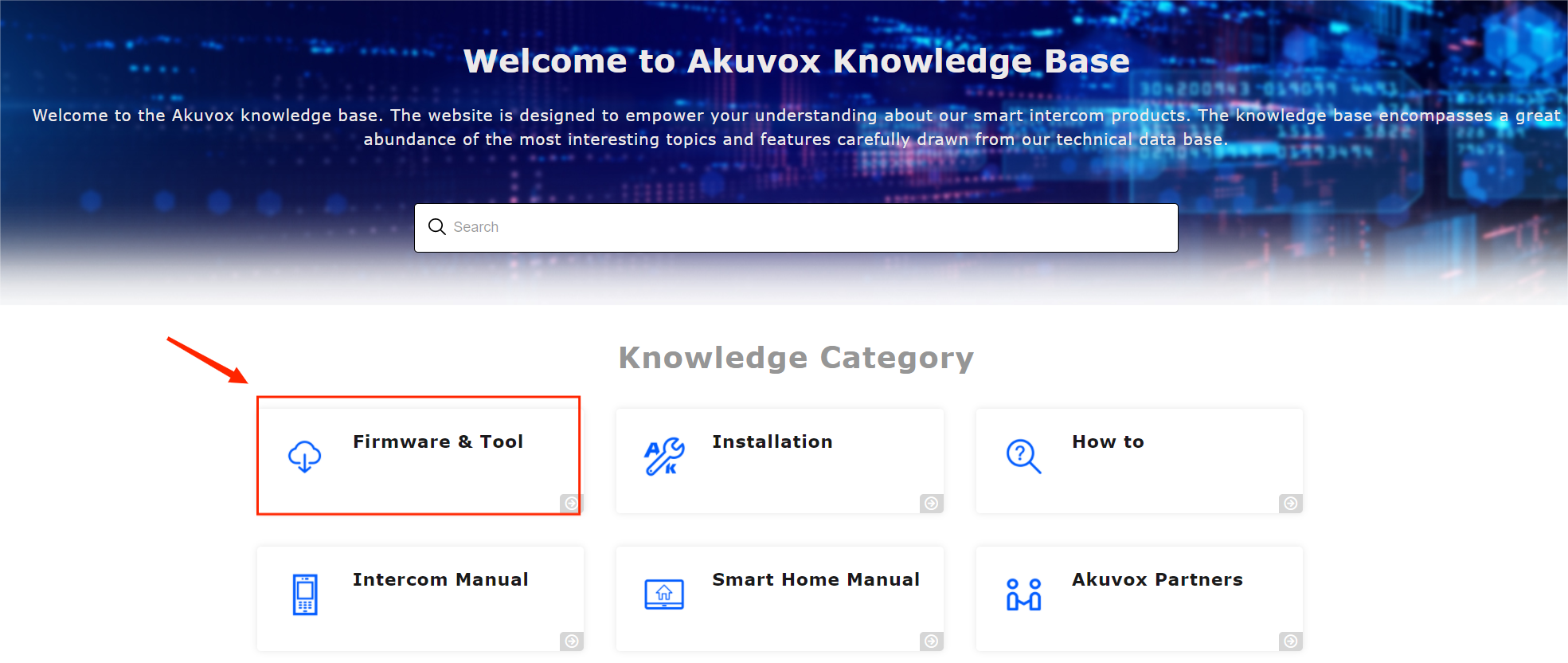
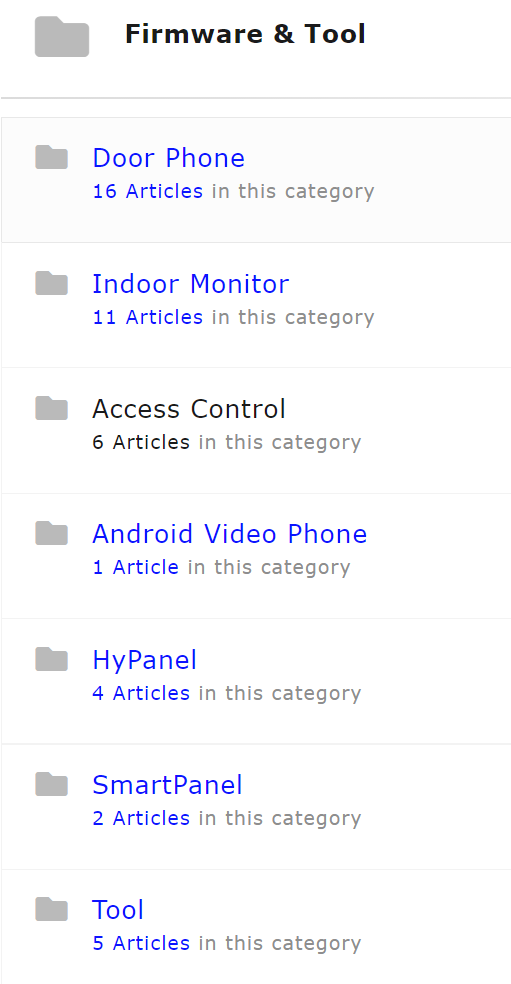
Click the desired category to display all the latest firmware. Here, we take the Door Phone, for instance.
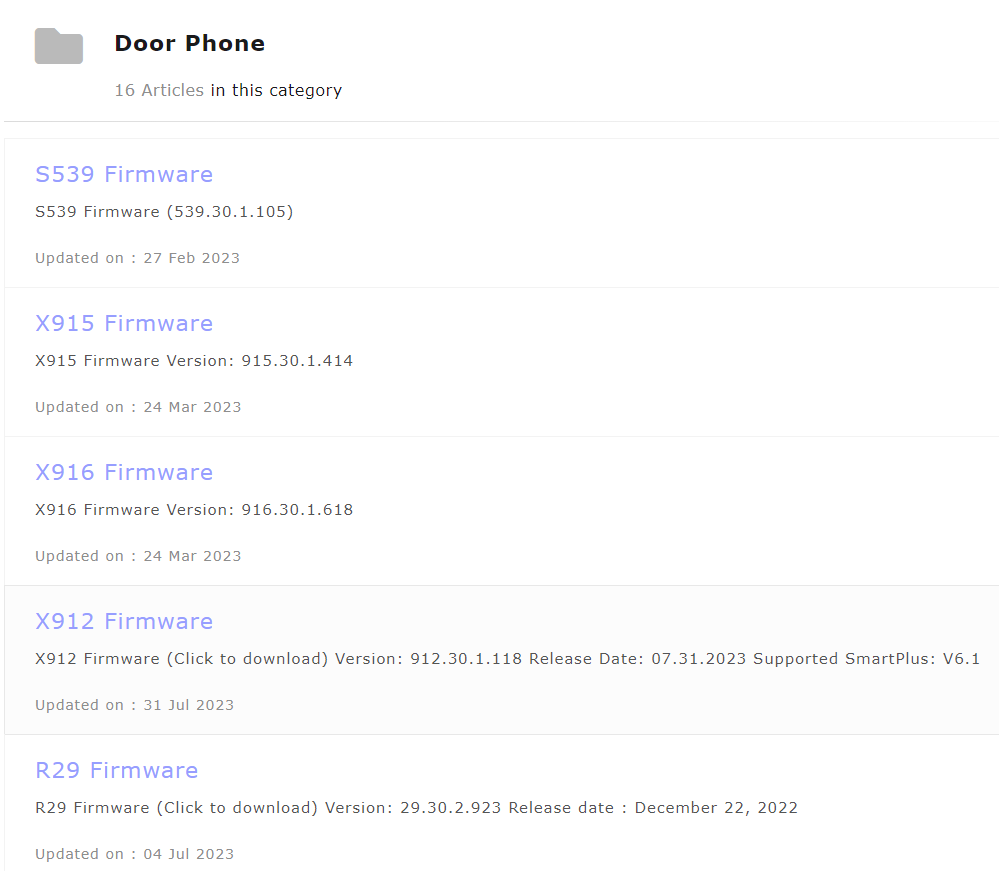
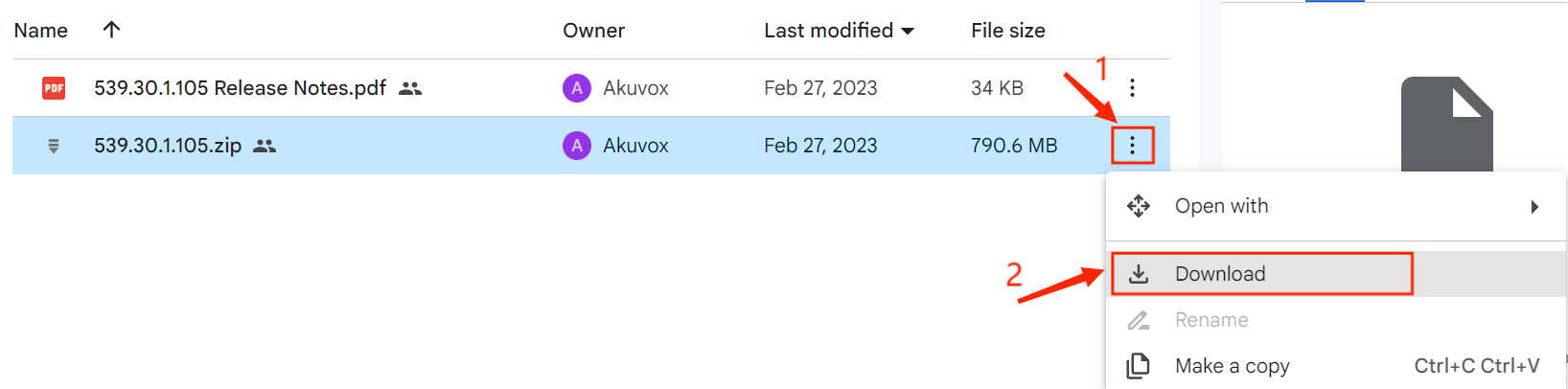
Click the desired device firmware and go to the Google Drive interface.
Click to open the menu bar and download the firmware .zip or .rom file.
Note
.zip is for the Android system, and .rom is for the Linux system.
Other Channels
If you need a customized or third-party compatible firmware version, you can contact the Akuvox Tech Team through the following channels.
Technical support email: support@akuvox.com
Technical support website: https://ticket.akuvox.com/support/home
Akuvox community: http://community.akuvox.com/
Upgrade Devices
Akuvox devices can be updated on the Akuvox Cloud platform or the device web interface. The updated firmware fixed some bugs and provides new features. Follow the steps to update devices.
Upgrade on Akuvox Cloud Platform
For cloud-based upgrade instructions, please refer to the following video tutorial:
👉 [Installer]Upgrade Device Firmware on Akuvox SmartPlus Cloud
Make sure:
The device is online.
The device is successfully bound to the cloud.
The network connection is stable.
Upgrade on Device Web Interface
Take door phone R29, for example.
Log in to the device web interface. The default username and password are admin.
Navigate to System > Basic. Click Select File to import the firmware from the local driver and then Upgrade.
.png)
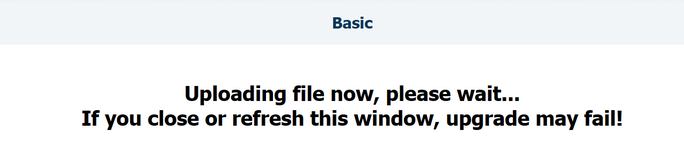
When upgrading, do not close or refresh the upgrading window.
After the upgrade, check whether the device version is updated on the System > Upgrade interface.
(1)(1).png)