DND Configuration
The Do Not Disturb(DND) feature prevents unwanted incoming SIP calls, ensuring uninterrupted focus. It also allows you to set a code to be sent to the SIP server when rejecting a call.
To configure DND, navigate to the web Intercom > Call Feature interface.
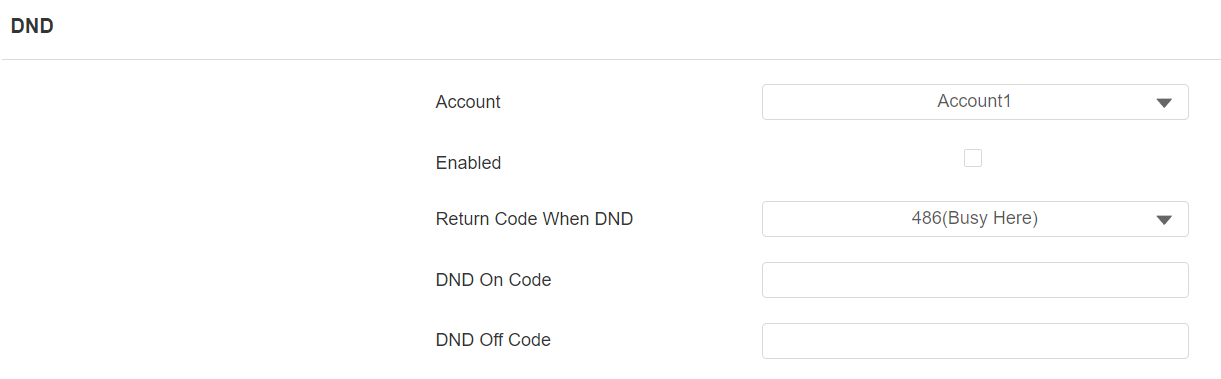
Account: The account to apply the DND feature.
Return Code When DND: Specify the code sent to the caller via the SIP server when rejecting an incoming call in DND mode.
DND On Code: The code used to turn on DND in the SIP server.
DND Off Code: The code used to turn off DND in the SIP server.
Maximum Call Duration
The door phone allows you to set up the call time duration in receiving the call from the calling device as the caller side might forget to hang up the intercom device. When the call time duration is reached, the door phone will terminate the call automatically.
To configure call time duration, navigate to the web Intercom > Call Feature interface.

Max SIP/IP Call Time: Specify the maximum duration of all calls. The door phone will end the call automatically when the time limit is reached.
Maximum Dial Duration
Maximum Dial Duration is the time limit for incoming- and/or outgoing calls on the door phone. If configured, the door phone will automatically terminate the call if no one answers the call within the preset time, whether it is incoming or outgoing.
To configure maximum dial duration, navigate to the web Intercom > Call Feature interface.

Max SIP/IP Dial In Time: Specify the maximum duration of an incoming call. The door phone will automatically end the incoming call if it is not answered within the preset time.
Max SIP/IP Dial Out Time: Specify the maximum duration of an outgoing call. The door phone will automatically end the call it dialed out if there is no answer from the recipient within the preset time.
Auto-answer Configuration
Auto-answer feature allows the device to automatically pick up incoming calls without any manual intervention. You can also customize this feature by setting the time duration for auto-answering and choosing the communication mode between audio and video.
To configure auto-answer, navigate to the web Intercom > Call Feature interface.
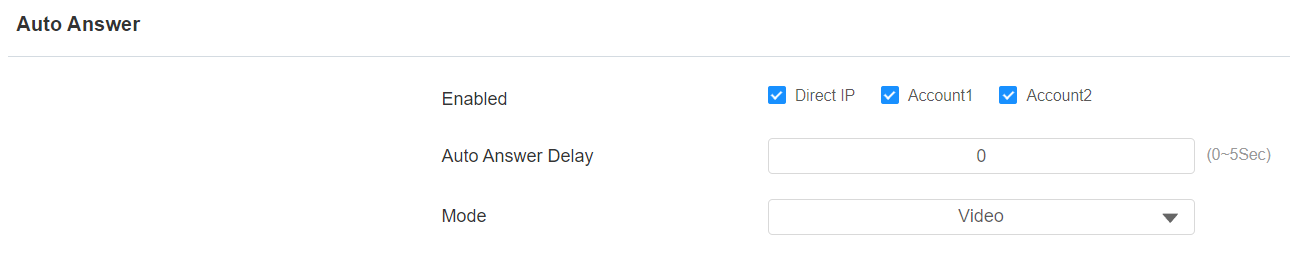
Enabled: Apply auto-answer to IP calls and/or SIP calls.
Auto Answer Delay: Set the time interval for the call to be automatically picked up after ringing. For example, if you set the delay time to 5 seconds, the door phone will answer the call automatically after 5 seconds.
Mode: Determine whether to auto-answer the call as a video or audio call.
Hang Up After Opening the Door
This feature automatically ends the call once the door is released, allowing for the seamless reception of subsequent calls.
To configure it, navigate to the web Intercom > Call Feature interface.

Type: Specify the door unlock method. If this specific method is used to release the door during a call, the door phone will end the call when the preset hang-up time is reached.
Time Out(Sec): Specify the hang-up time limit. The door phone will automatically terminate the call when the specific time is reached after the door is opened.
Prevent SIP Hacking
Internet phone eavesdropping is a network attack that allows unauthorized parties to intercept and access the content of the communication sessions between intercom users. This can expose sensitive and confidential information to the attackers. SIP hacking protection is a technique that secures SIP calls from being compromised on the Internet.
To configure SIP hacking, navigate to the web Account > Advanced interface.

Prevent SIP Hacking: Activate this feature to only receive calls from contacts in the whitelist. This protects users’ private and secret information from potential hackers during SIP calls.
Speed Dial
Group Call
This feature allows users to call a group of contacts by a single press. The device supports local and SmartPlus-featured group calls. To learn about the detailed configuration, please click here.
You can create up to 16 group call numbers.
To configure the group call, navigate to the web Intercom > Basic interface.
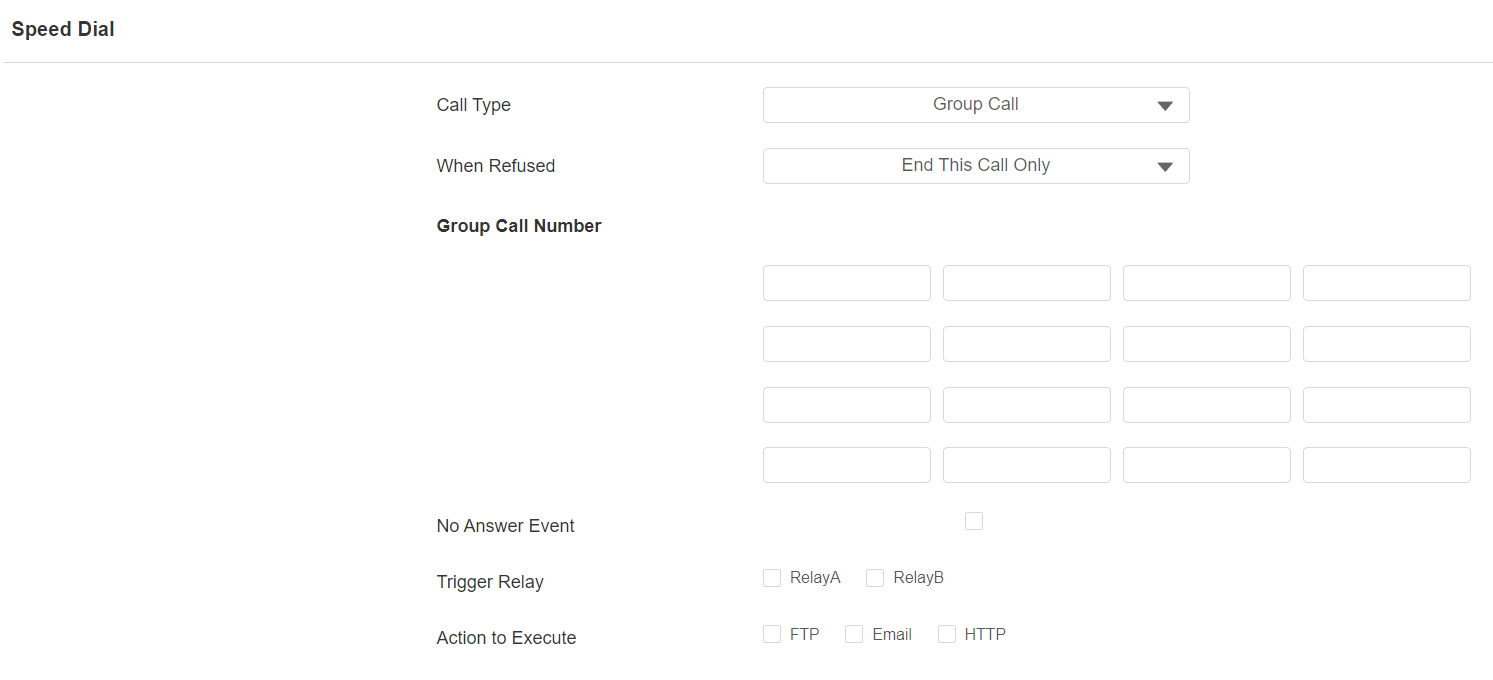
Call Type: Group Call or Sequence Call.
When Refused:
End This Call Only: The device will continue to call other numbers.
End All Calls: The device will stop calling.
Group Call Number: If you fill in the local group call number, the local group number will be called instead of the SmartPlus group call number.
No Answer Event: When the call is not answered, actions will be triggered.
Trigger Relay: Relay to be triggered when the call is not answered.
Action to Execute: Action(s) to be triggered when the call is not answered.
FTP: Send a screenshot to the designated FTP address.
Email: Send a screenshot to the designated email address.
HTTP: Send the HTTP message to the HTTP server.
HTTP URL: The format is http://HTTP server’s IP/Message content.
Sequence Call
Sequence Call is a feature that allows you to dial a group of numbers in a predefined order until one of them answers. This feature is supported by Akuvox SmartPlus, which provides a set of sequence call numbers for the application. Please click here for the detailed configuration.
To configure the sequence call, navigate to the web Intercom > Basic interface.
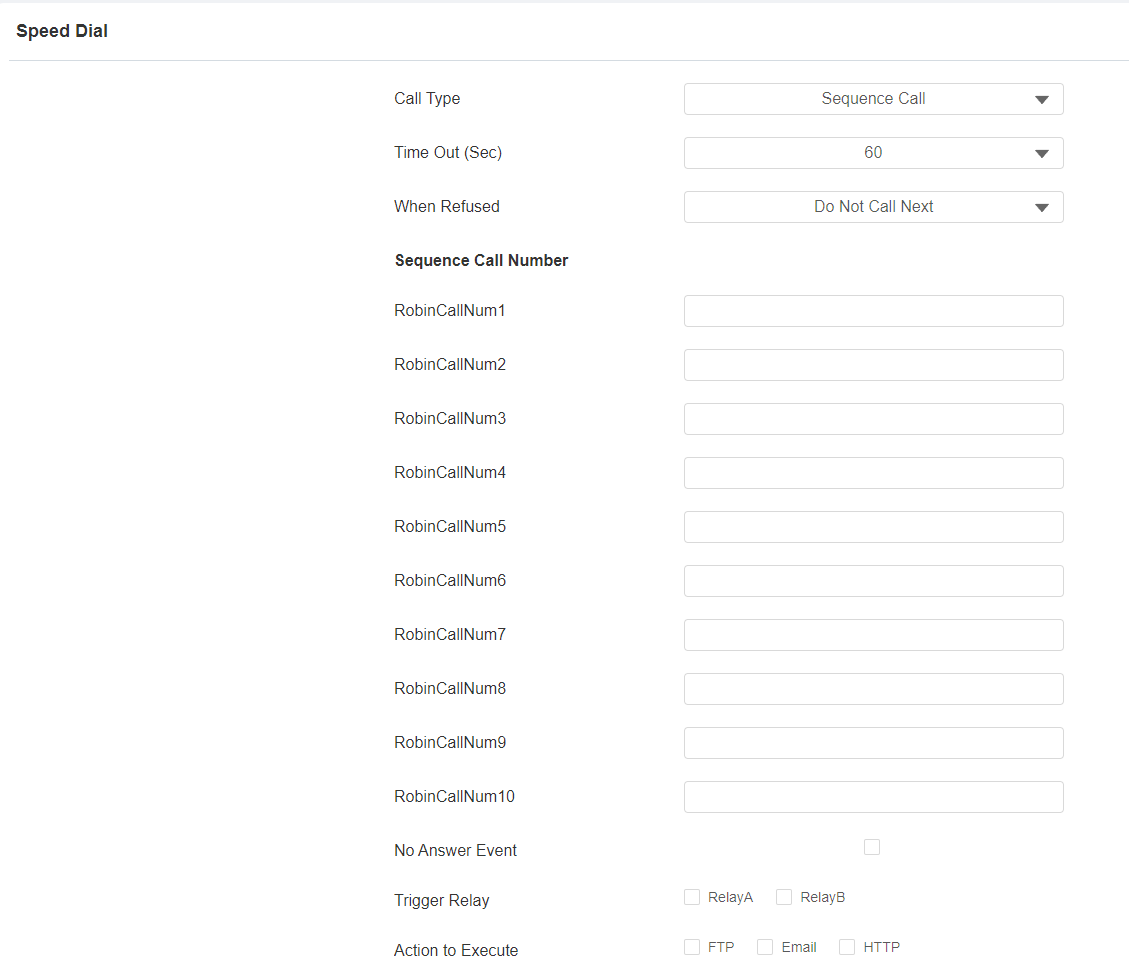
Call Type: Group Call or Sequence Call.
Time Out(Sec): Set the call timeout before calling the next called party when the first called party does not receive the call within the timeout.
When Refused:
Do Not Call Next: The device will stop calling.
Call Next: The device will continue to call other numbers.
No Answer Event: when the call is not answered, actions will be triggered.
Trigger Relay: relay(s) to be triggered when the call is not answered.
Action to Execute: Action(s) to be triggered when the call is not answered.
FTP: Send a screenshot to the designated FTP address.
Email: Send a screenshot to the designated email address.
HTTP: Send the HTTP message to the HTTP server.
HTTP URL: The format is http://HTTP server’s IP/Message content.
Dial Plan
The dial number replacement feature simplifies long and complex dial numbers of the device, providing shorter and more user-friendly alternatives for making calls. It allows the substitution of multiple dial numbers, such as IP addresses or SIP numbers, with a single, simplified number.
To configure the dial plan, navigate to the web Intercom > Dial Plan interface. Click Add. You can add up to 500 rules.
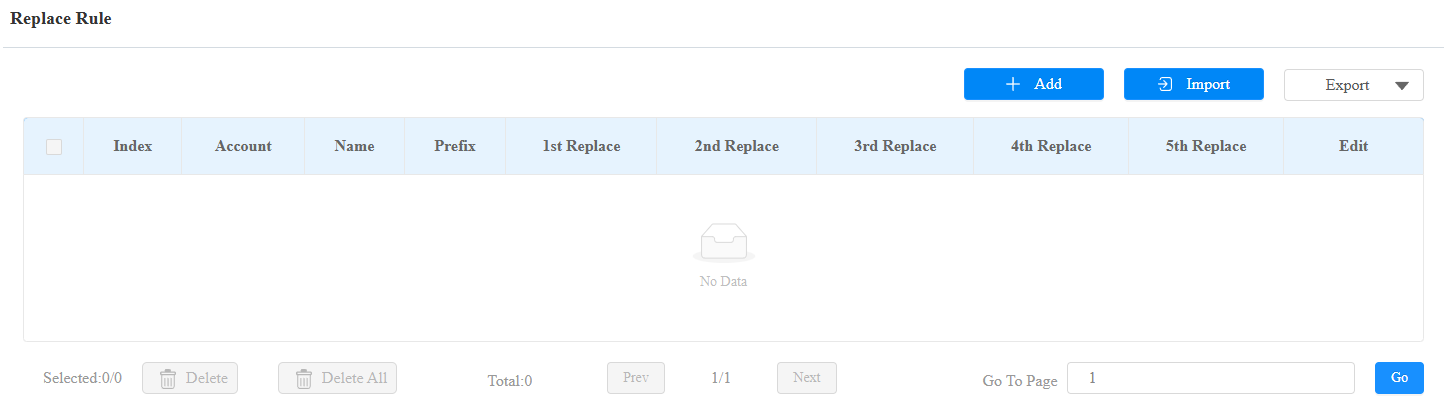
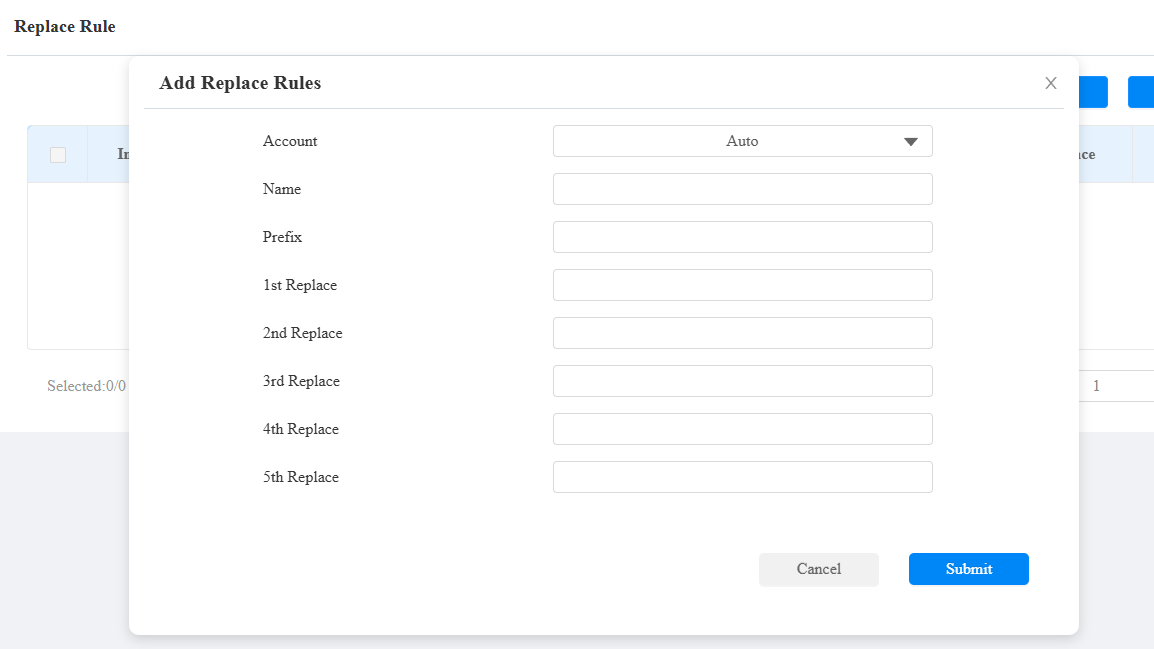
Account: Select the dial-out account.
- Auto: Dial-out using the registered account. When there are 2 registered accounts, Account 1 is the default.
- Account 1/2: Dial-out using the chosen account.
Name: Name this rule.
Prefix: Specify a short number to replace the specified dialed numbers.
Replace 1/2/3/4/5: Specify up to 5 numbers, which can be SIP numbers or IP addresses, to be replaced by the prefix. All these numbers will be called simultaneously when the caller dials the prefix.
Multicast
Multicast is a one-to-many communication within a range. The door phone can act as a listener and receive audio from the broadcasting source.
To configure multicast, navigate to Intercom > Multicast interface.
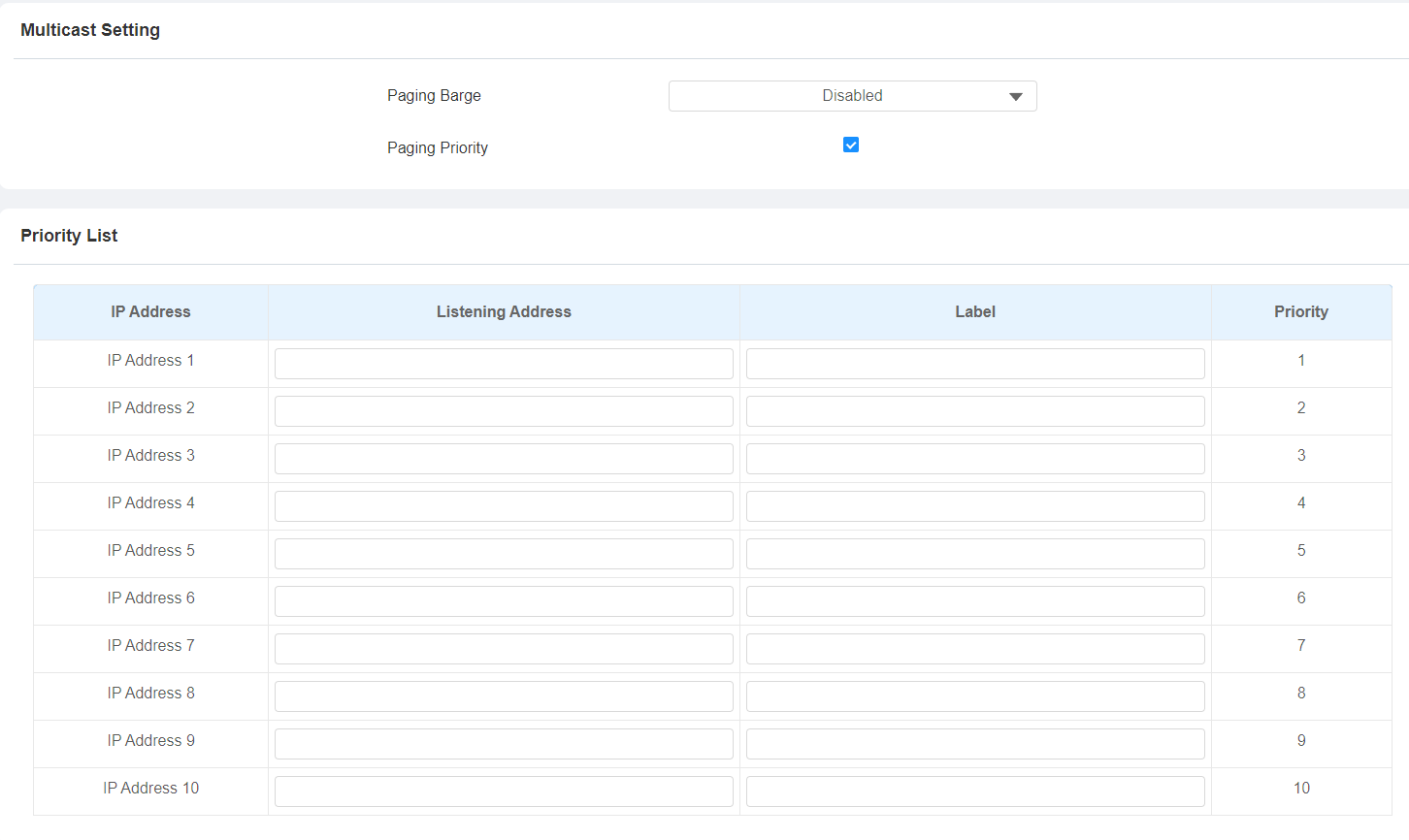
Paging Barge: Multicast or how many multicast calls have higher priority than SIP calls. If you disable Paging Priority, SIP calls will have higher priority.
Paging Priority: Multicast calls are called in order of priority or not.
Listening Address: The multicast IP address to be listened to. The multicast IP address needs to be the same as the listened part, and the multicast port cannot be the same for each IP address. Multicast IP addresses are from 224.0.0.0 to 239.255.255.255.