Tamper Alarm
The tamper alarm function prevents anyone from removing the device without permission. Akuvox devices support two types of tamper proof: gravity detection and button status detection.
Click here to view which type is supported by the device and learn the function details.
To set it up, go to the web System > Security > Tamper Alarm interface. When the alarm is triggered, you can click Disarm to clear the alarm.

Disarm Setting
You can set the disarm code on the web System > Security > Disarm Setting interface. The default is 0000.

Virtual PIN
The virtual PIN allows you to protect your PIN code from being leaked to someone.
To set it up, go to the web Access Control > PIN Setting > Virtual PIN interface.

Enabled: If enabled, you are allowed to put fake numbers on both sides of the PIN code for PIN code protection. For example, if your password is 1234567 you can put 99 and 88 on both sides (99123456788). The virtual password is matched to the users by the number of matched digits. For example, if user A has a greater number of digits that are matched with the virtual password entered than user B, then it will be regarded as user A’s password. However, when the double authentication is applied, then the virtual password will be matched with the users who pass the first level of authentication, for example, Face + PIN.
Note
This feature is not used for Public PIN and Apartment+PIN.
Client Certificate Setting
Certificates ensure communication integrity and privacy. To use the SSL protocol, you need to upload the right certificates for verification.
Web Server Certificate
It is a certificate sent to the client for authentication when the client requests an SSL connection with the Akuvox door phone. Please upload the certificates in accepted formats.
Upload the certificate on the web System > Certificate interface.

Client Certificate
This certificate verifies the server to the Akuvox door phone when they want to connect using SSL. The door phone verifies the server's certificate against its client certificate list.
Upload the certificate on the web System > Certificate interface.
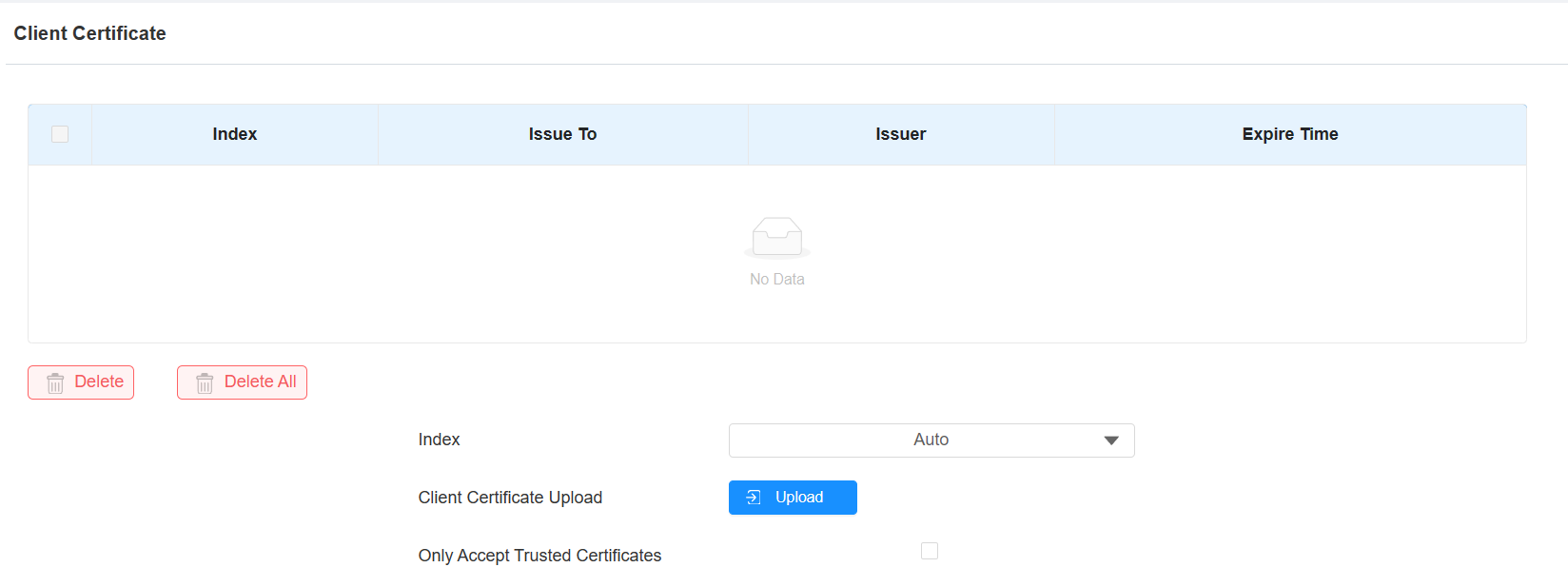
Index: Select the desired value from the drop-down list of Index. If you select Auto, the uploaded certificate will be displayed in numeric order. If you select the value from 1 to 10, the uploaded certificate will be displayed according to the number.
Client Certificate Upload: Locate and upload the desired certificate (*.pem only).
Only Accept Trusted Certificates: When enabled, as long as the authentication is successful, the phone will verify the server certificate based on the client certificate list. When disabled, the phone will not verify the server certificate no matter whether the certificate is valid or not.
Motion Detection
Motion Detection is a feature that allows unattended video surveillance and automatic alarms. It detects any changes in the image captured by the camera, such as someone walking by or the lens being moved, and activates the system to perform the appropriate action.
To set it up, go to the web Surveillance > Motion interface.
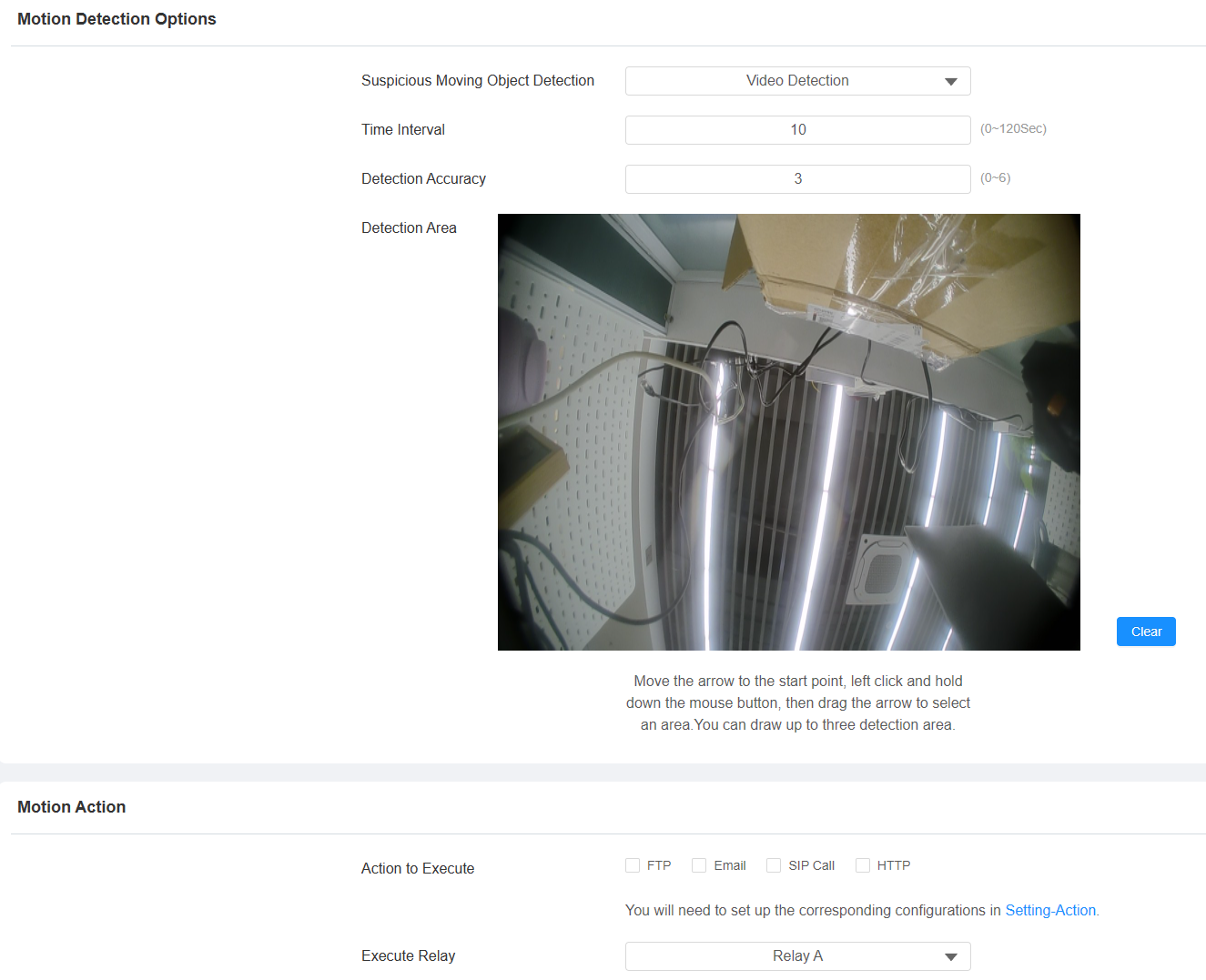
Suspicious Moving Object Detection:
Disabled: Turn off the motion detection function.
Video Detection: When the video camera detects moving objects, preset actions will be triggered. Focus on analyzing visual information captured through cameras.
Radar Detection When the radar detects moving objects, preset actions will be triggered. It offers longer-range and better detection in poor visibility conditions.
Video + Radar: Detect motion with the combination of video camera and radar.
Detection Range: After enabling radar detection, you can select the detection range among 1, 2, and 3 meters.
Time Interval: Determine how to delay and trigger motion detection.
Timing Interval between 1–3 seconds: Only need 1 detection during this interval to trigger actions.
Timing Interval > 3 seconds (e.g., 10 seconds): To perform actions, require a second detection within the final 3 seconds of the interval (e.g., between 7–10 seconds for a 10-second interval) after the first detection.
The default interval is 10 seconds.
Detection Accuracy: The detection sensitivity. Specify this option when selecting Video Detection. The greater the value is, the more accurate the detection is. The default value is 3.
Detection Area: Click and hold down the mouse button to select up to three detection areas.
Action to Execute: The notification type includes FTP, Email, SIP Call, and HTTP.
FTP: The notification will be sent to the designated FTP server.
Email: The email will be sent to the pre-configured email address.
SIP Call: A call will be made to the pre-configured number.
HTTP: The notification will be sent to the designated server.
HTTP URL: Enter the HTTP message if selecting HTTP as the action to execute. The format is http://HTTP server’s IP/Message content.
Execute Relay: The relay to be triggered.
Motion Detection Schedule
When motion detection is enabled, you can set a specific time for the feature to be effective.
Set it up on the Surveillance > Motion > Motion Detect Time Setting interface.

Security Notification
A security notification informs users or security personnel of any breach or threat that the device detects. For example, if the device detects something unusual, the system sends a notification to users or security through email, phone calls, or other methods.
To set up security notifications, go to Setting > Action interface.
Email Notification
Set up email notifications to receive screenshots of unusual motion from the device.
Click here to view how to set this feature up.
Set it up in the Email Notification section.
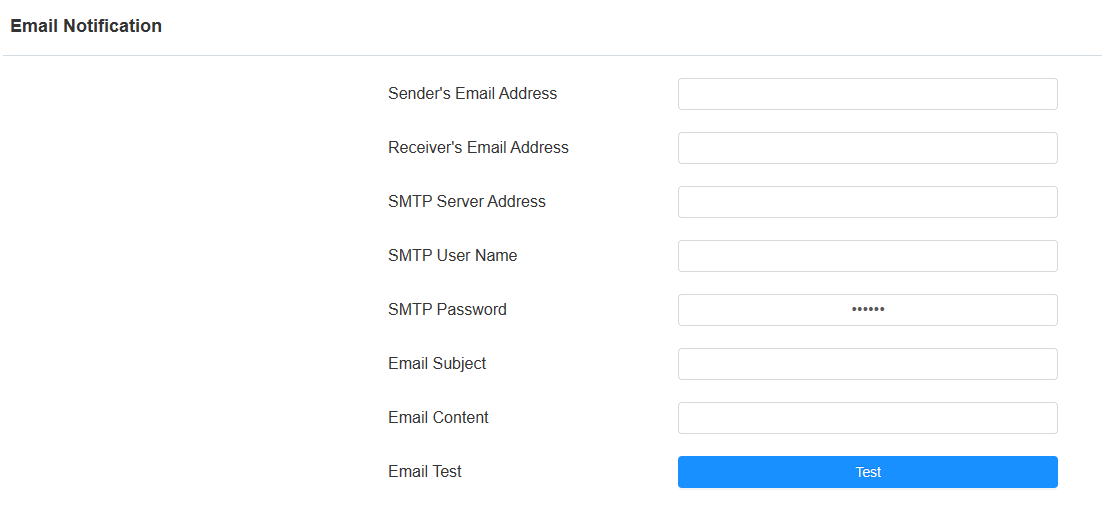
SMTP Server Address: The SMTP server address of the sender.
SMTP User Name: The SMTP username is usually the same as the sender's email address.
SMTP Password: The password of the SMTP service is the same as the sender's email address.
FTP Notification
To get notifications through FTP server, you need to set up the FTP settings. The door phone will upload a screenshot to the specified FTP folder if it senses any unusual motion.
Click here to view the configuration steps.
Set it up in the FTP Notification section.
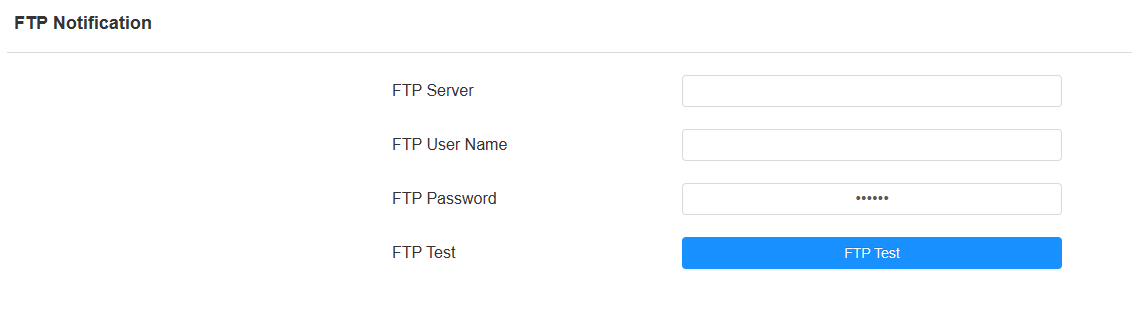
FTP Server: Set the address (URL) of the FTP server.
FTP User Name: Enter the user name to access the FTP server.
FTP Password: Enter the password to access the FTP server.
SIP Call Notification
In addition to FTP and Email notification, the door phone can also make a SIP call when some feature action is triggered.
Set it up in the SIP Call Notification section.

Action URL
You can use the device to send specific HTTP URL commands to the HTTP server for certain actions. These actions will be triggered when the relay status, input status, PIN code, or RF card access changes.
Akuvox Action URL:
No | Event | Parameter format | Example |
1 | Make Call | $remote | Http://server ip/Callnumber=$remote |
2 | Hang Up | $remote | Http://server ip/Callnumber=$remote |
3 | Relay Triggered | $relay1status | Http://server ip/relaytrigger=$relay1status |
4 | Relay Closed | $relay1status | Http://server ip/relayclose=$relay1status |
5 | Input Triggered | $input1status | Http://server ip/inputtrigger=$input1status |
6 | Input Closed | $input1status | Http://server ip/inputclose=$input1status |
7 | Valid Code Entered | $code | Http://server ip/validcode=$code |
8 | Invalid Code Entered | $code | Http://server ip/invalidcode=$code |
9 | Valid Card Entered | $card_sn | Http://server ip/validcard=$card_sn |
10 | Invalid Card Entered | $card_sn | Http://server ip/invalidcard=$card_sn |
For example: http://192.168.16.118/help.xml? mac=$mac:ip=$ip:model=$model:firmware=$firmware:card_sn=$card_sn
Set up the action URL on the Setting > Action URL interface.
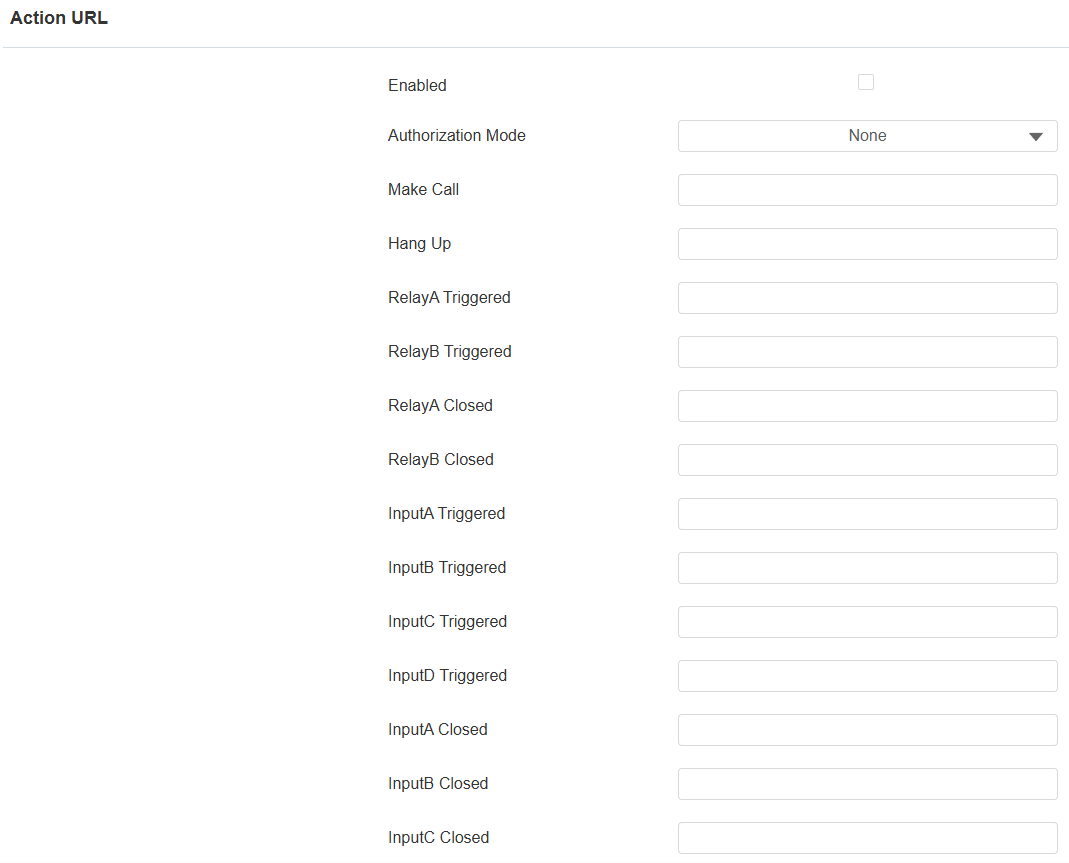

Authorization Mode: Select the authorization mode. If Digest is selected, you can set up the username and password for authentication.
Voice Encryption
The encryption function provides three encryption methods to protect voice signals from eavesdropping during a call.
Set it up on the Account > Basic > Encryption interface.

Voice Encryption(SRTP): Choose Disabled, Optional, or Compulsory for SRTP. If Optional or Compulsory is selected, the voice during the call is encrypted, and you can grab the RTP packet to view it.
User Agent
User agent is used for identification purpose when you are analyzing the SIP data packet.
To set it up, go to the Account > Advanced > User Agent interface.

Web Interface Automatic Log-out
You can set up the web interface's automatic log-out timing, requiring re-login by entering the user name and the passwords for security purposes or for the convenience of operation.
To set it up, go to the System > Security > Session Time Out interface.

High Security Mode
High security mode is designed to enhance the security. It employs encryption across various facets, including the communication process, door opening commands, password storage methods, and more.
Enable or disable High Security Mode on the System > Security> High Security Mode interface.

Important Notes
1. The High Security mode is off by default when you upgrade the device from a version without the mode to one with it. But if you reset the device to its factory settings, the mode is on by default.
2. This mode makes the old version tools incompatible. You need to upgrade them to the following versions or higher to use them.
PC Manager: 1.2.0.0
IP Scanner: 2.2.0.0
Upgrade Tool: 4.1.0.0
SDMC: 6.0.0.34
3. The supported HTTP format for relay triggering varies depending on whether high secure mode is enabled or disabled.
If the mode is on, the device only accepts the new HTTP formats below for door opening.
http://username:password@deviceIP/fcgi/OpenDoor?action=OpenDoor&DoorNum=1
http://deviceIP/fcgi/OpenDoor?action=OpenDoor&DoorNum=1
If the mode is off, the device can use both the new formats above and the old format below:
http://deviceIP/fcgi/do?action=OpenDoor&UserName=username&Password=password&DoorNum=1
4. It is not allowed to import/export configuration files in tgz. format between a device with the high security mode and another one without it. For assistance with file transfer, please contact Akuvox technical support.
Low Power Mode
It displays the device's power mode. When the device is powered by POE, it displays POE+Mode. When it is powered by the 12-volt power supply, it displays Low Power Mode.
See the power mode on the System > Security > Low Power Mode Warning interface.

Emergency Action
This feature works with Akuvox SmartPlus Cloud. It keeps the door open when an emergency happens. You need to specify the Input that applies the feature.
Click here to view the detailed configuration of this feature.
Set it up on the System > Security > Emergency Action interface.

Real-time Monitoring
This feature displays the door status when the device is connected to the SmartPlus Cloud. Property managers and end users can check the door status, respectively, on the SmartPlus Property Manager platform and SmartPlus App. You need to specify the relay(s) or input(s) that apply this feature.
Click here to see the detailed configuration.
Set it up on the System > Security > Real-time Monitoring interface.

Apply Setting To:
None: Not display door status.
Input: The door is opened by triggering input.
Relay: The door is opened by triggering the relay.