Akuvox indoor monitor system settings can be either accessed on the device or its web interface.
Device Initial Setup
After the device boots, select the language, time zone, set up location, and network.
Press + and — to select up and down.
Press  to enter the configuration.
Press  to proceed, and press
  to return to the previous step.
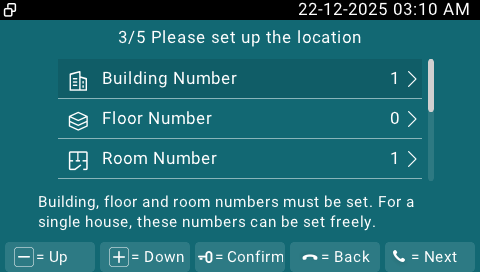
Location
To change the building, floor, and room numbers, press to select the option.
Then, press + and — to increase and decrease the number by 1.
Press to switch between the units and tens digit.
Press to confirm the setting and press to cancel the setting.
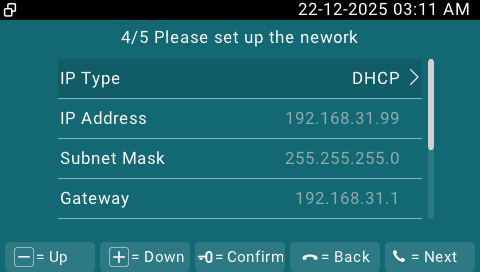
Network
To select the network configuration, press .
Related Devices
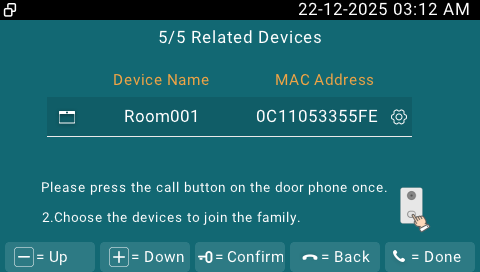
This step is designed for the Self-Organizing Network Solution.
The indoor monitor scans devices on the same local area network(LAN). When the apartment door phone is detected, it plays a ding sound. Press the push button on the door phone within 5 minutes to pair the door phone and the indoor monitor.
Press to configure the selected device.
After editing the device, directly press to save and exit the settings.
Home Screen Overview
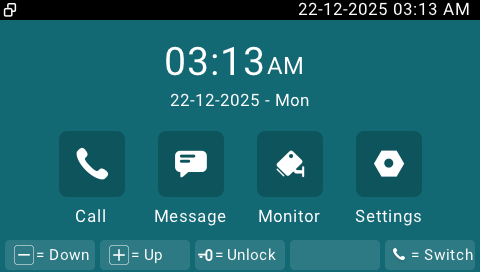
Press to switch between areas and press to confirm the selection.
Without selecting an area, pressing to open the door via the HTTP command.
Press + and — to adjust volumes of incoming call ringtone and message notifications.
Access the Device Settings
Select the Settings area and press .
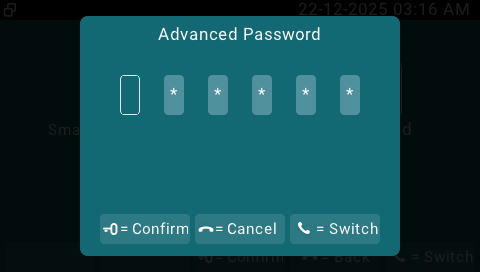
Select Advanced and press . Enter the password by pressing + and —(Increase and decrease numbers) and pressing to switch between digits. The default is 123456.
Access the Device Web Settings
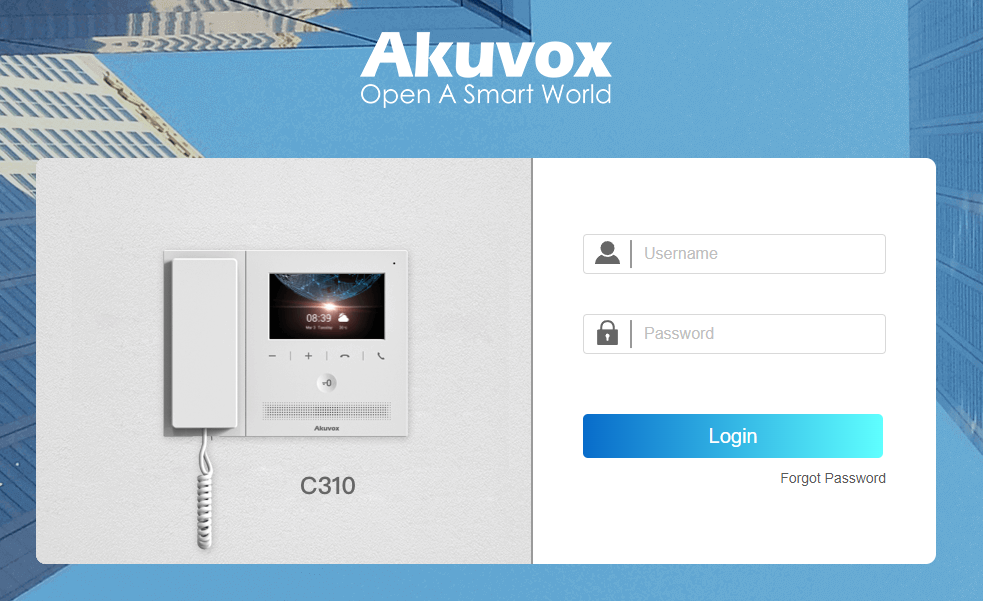
You can enter the device IP address in a browser and log into the device web interface where you can configure and adjust parameters.
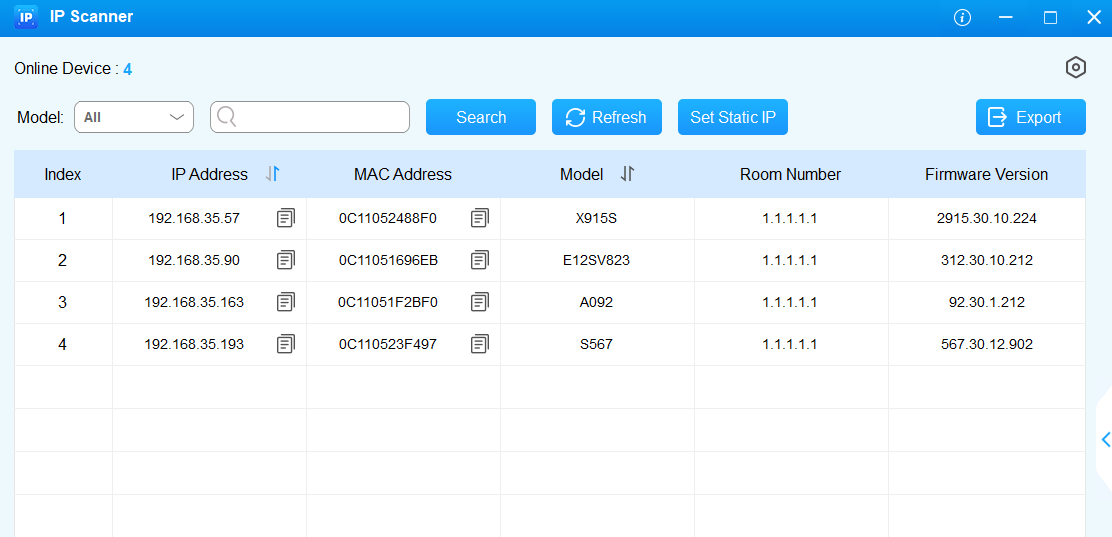
To check the IP address, go to the device Settings > Status > Network screen. You can also search for the device by IP scanner, which can search all the devices on the same LAN.
Note
Download IP scanner:
https://knowledge.akuvox.com/docs/akuvox-ip-scanner?highlight=IP
See detailed guide:
Google Chrome browser is strongly recommended.
The initial username and password are admin and please be case-sensitive to the user names and passwords entered.
Your computer should be on the same LAN as the device.