Device Reboot Failure or Crash
Fault Phenomenon
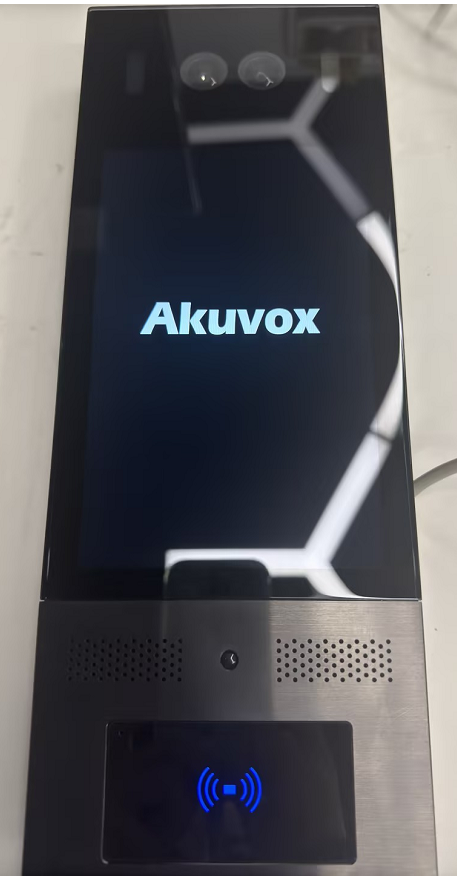
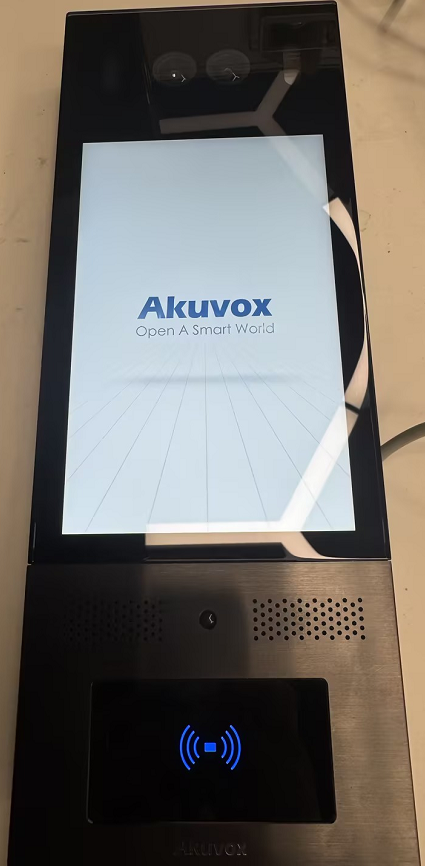
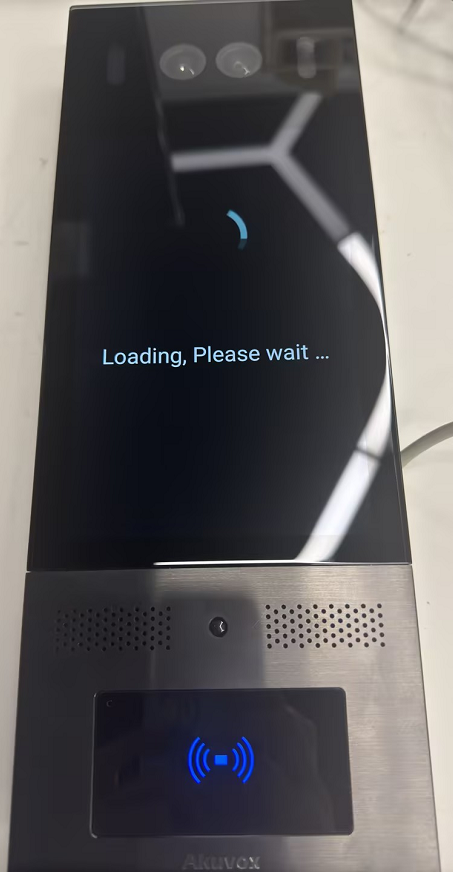
Device Reboot Failure: The screen displays the Akuvox logo and then enters the "Loading, please wait" page.
Application Crash: The screen only shows the "Loading, please wait..." prompt without proceeding to the next page.
Reboot Failure
1 | 2 | 3 |
|---|---|---|
|
|
|
Device Application Crash
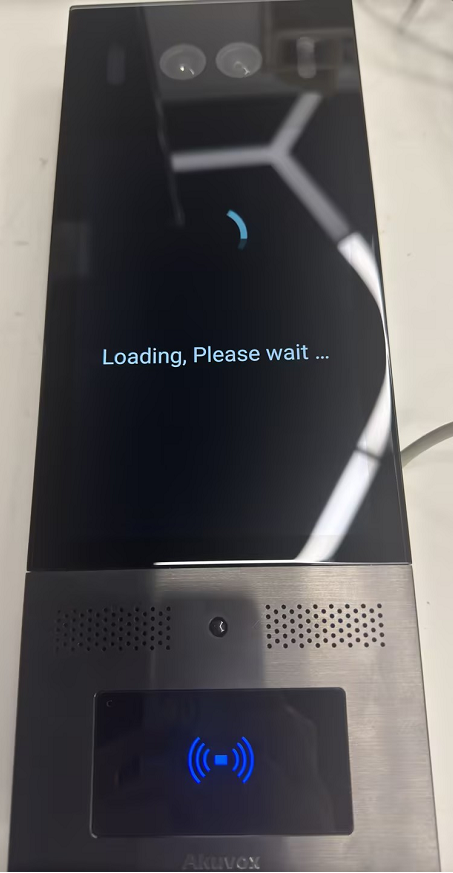
Distinguish between these Two Issues
Check the fault phenomenon described above.
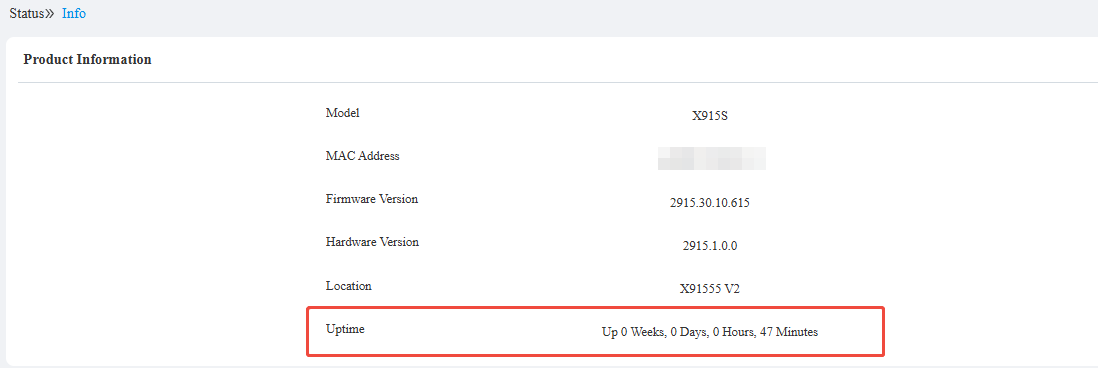
Try whether IP Scanner can scan the device’s IP. If it can, use its IP to log in to its web interface. Check the device uptime on the Status > Info > Product Information interface. Uptime indicates the duration the system has been running since startup.
If the value is only a few seconds or minutes, the device has just rebooted.
If the value is large but the UI restarts, the application crashed.
Possible Causes
Insufficient power supply, especially when a reboot occurs during facial recognition.
Unstable power transmission (e.g., inferior cables, excessive distance).
Unknown software exceptions (for application crashes).
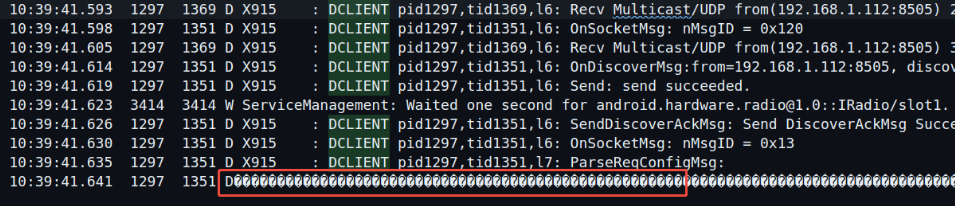
You can export the system log if the logs stop suddenly or display garbled text, which shows that the device experiences insufficient power and restarts.
Tip
Please refer to the article for exporting the system log: Export system logs.
Solutions
Power Supply Check:
Confirm the device's power standard (PoE or PoE+).
Use high-quality pure copper cables and limit the transmission distance to within 80 meters.
For long distances (over 100 meters) or high-power devices, use an extender, fiber optic cable, external power adapter, or upgrade the PoE switch (simple cable extension is not recommended).
Log Analysis:
Export system logs on the device’s System > Maintenance > Export Log interface.
If logs stop suddenly or display garbled text, confirm an insufficient power supply and optimize the power configuration.
Crash Handling:
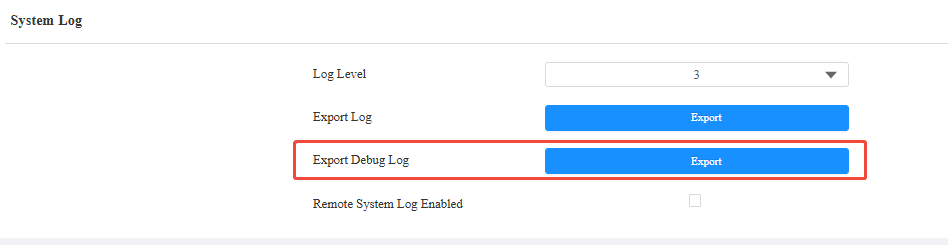
If the application crashes or reboot persists after power optimization, export the debug log and configuration file on the System > Maintenance interface. Click Export Debug Log and Export Config File.
After exporting logs and configuration files, submit them to the technical support team for further analysis through the ticket system.

Abnormal Web Display
Fault Phenomenon
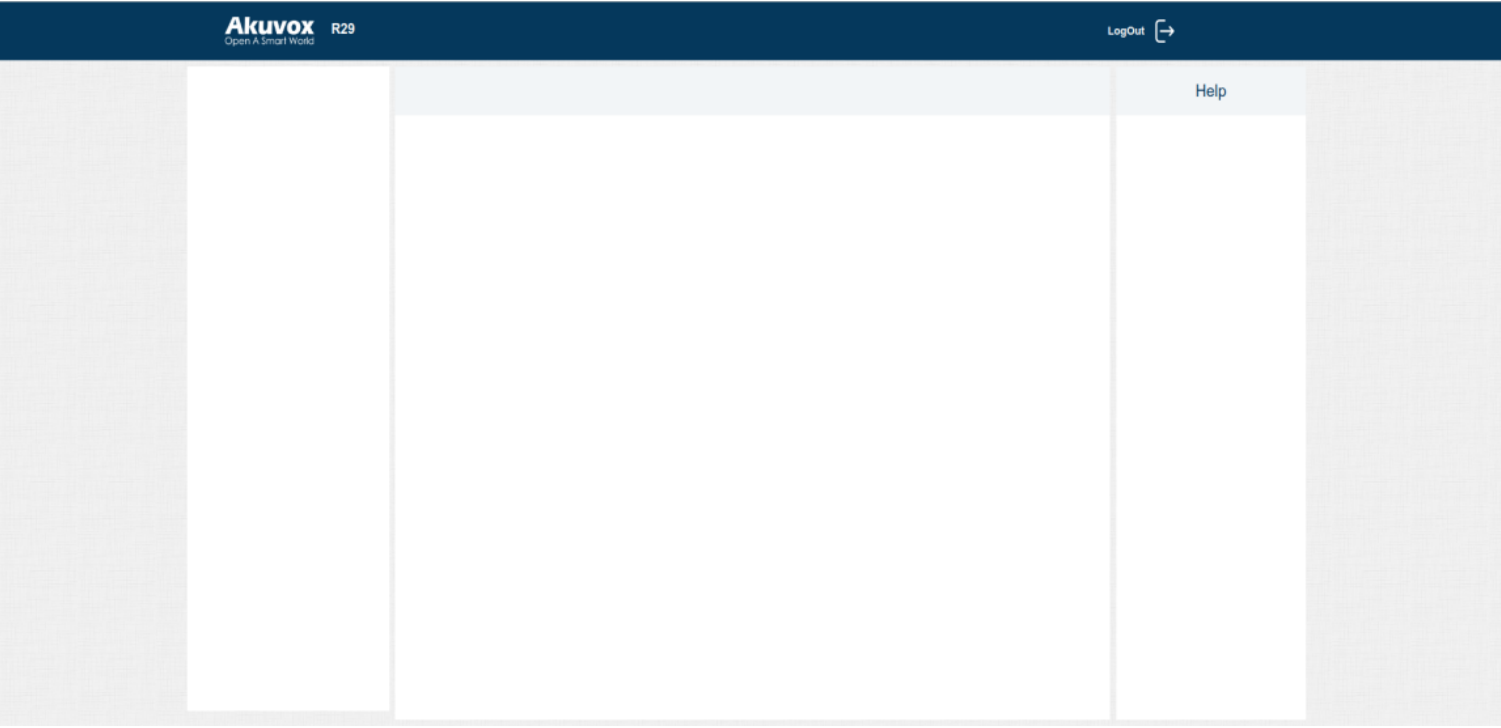
After updating the device firmware, the device web interface is blank or displays incorrectly.
Possible Causes
Unsupported browser.
Browser cache interference (first-time upgrade).
Missing language entries leading to parsing errors.
IP address conflict.
Solutions
Browser Compatibility: Use Google Chrome or Firefox (other browsers may cause display errors).
Cache Clearing: Clear the browser cache and refresh the page (for first-time upgrades).
Language Switch: Switch the web interface language to English (skip if the page is unresponsive and cannot switch languages).
IP Configuration: Check for IP conflicts in the network.
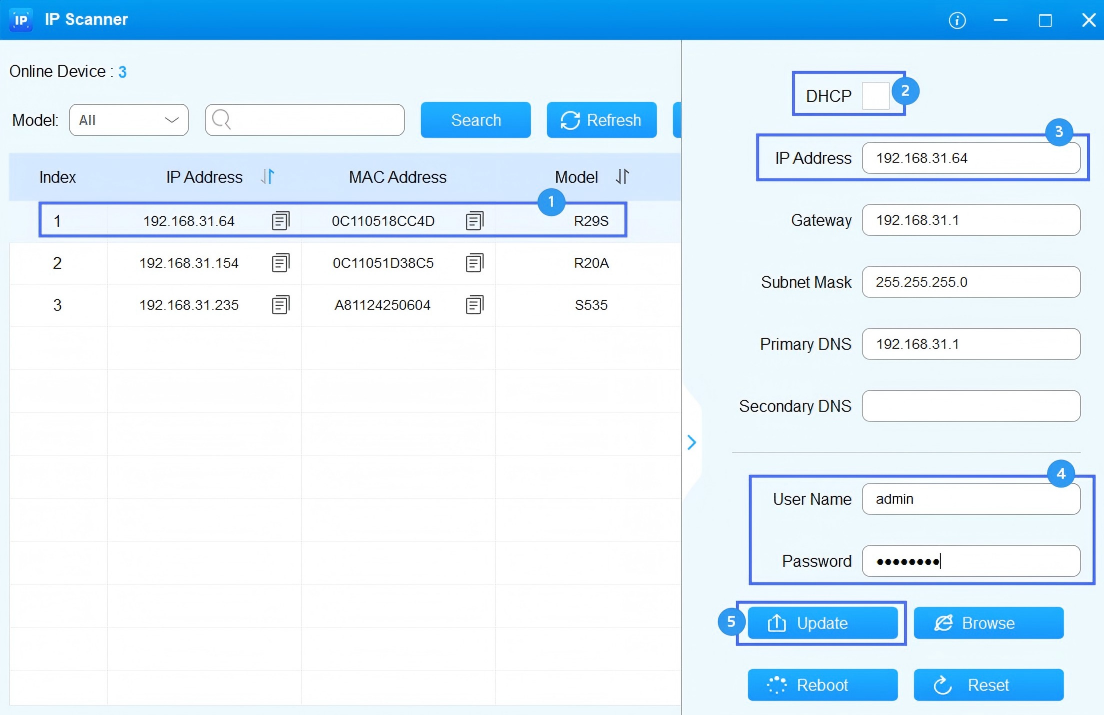
Assign a static, unused IP address to the device using the IP Scanner Tool.
Select the target device and uncheck DHCP.
Set the IP Address.
Enter the device’s web login username and password.
Click Update to make the change effective.
Restart the device and access it using the static IP.
Fail to Upload Snapshot to SmartPlus Cloud
Fault Phenomenon
Snapshots captured by the door phone fail to upload to the SmartPlus cloud platform.

Possible Causes
Device does not support snapshot upload:
Camera-less models are not supported.
RTSP is disabled.
Poor network environment:
Firewall settings block uploads.
Network connectivity issues.
Individual device offline: The problematic device is disconnected from the network or offline on the cloud platform.
Solutions
Verify if the device model supports snapshot upload and ensure RTSP is enabled for devices.
Network Troubleshooting: Check if other devices in the same network have upload failures and confirm the device's network connection is normal.
If yes: Inspect firewall configurations and test network connectivity:
Click here to check the necessary ports and domains for using the SmartPlus cloud service.
Go to System > Maintenance interface to ping the cloud server and provide feedback on the result to the Akuvox tech support team.

Face Recognition Door Opening Failure
Possible Cause 1: User Face Not Registered or Snapshot Invalid
Check the access log on the device’s Status > Access Log interface.: If the name shows "Visitor", the user has not registered a face, or the snapshot is invalid.
Solution
Upload the user’s face photo or register the user's face from the device’s side.
To upload the face photo, go to the device’s Directory > User interface.

If the face snapshot is abnormal (overexposure, incorrect angle, or occlusion by hats/masks). Refer to the Face Enrollment Standards.
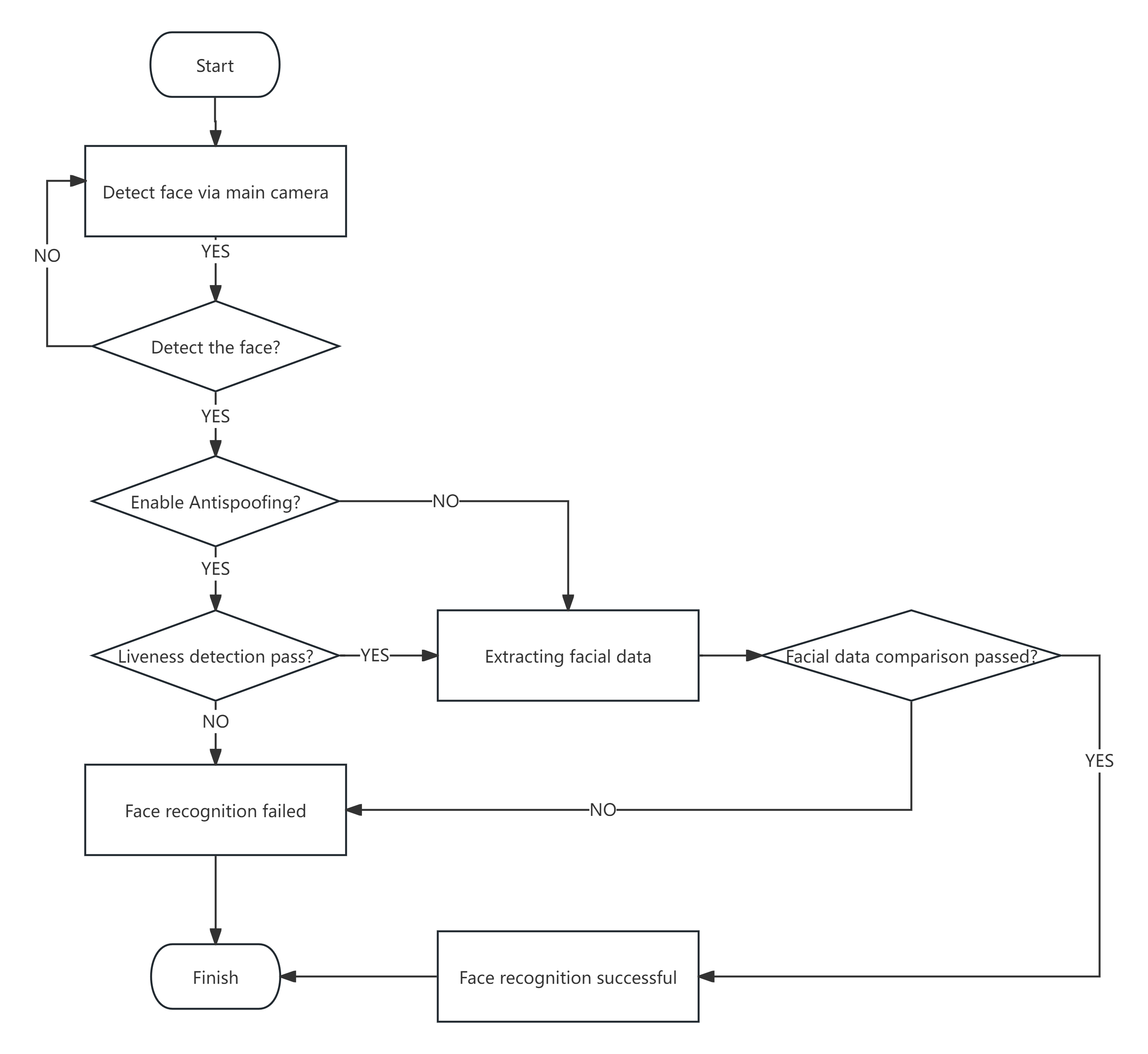
If the user has registered the face and the snapshot has no problem, then turn off the Antispoofing Option on the Access Control > Face Settings interface.
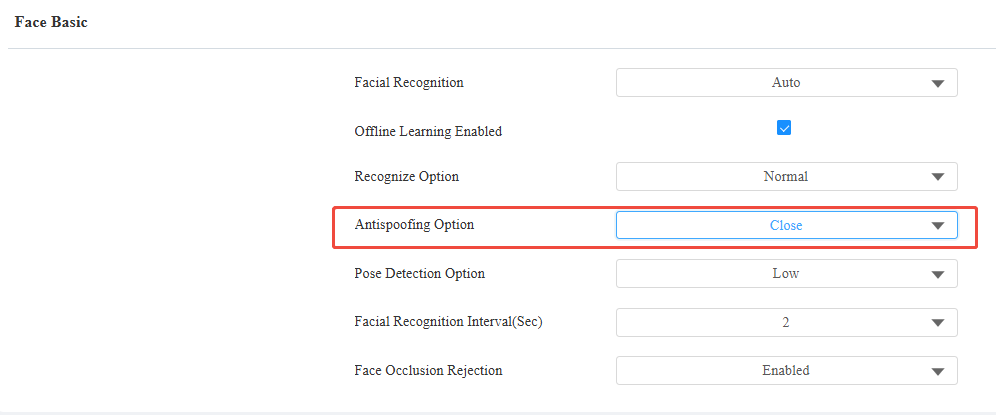
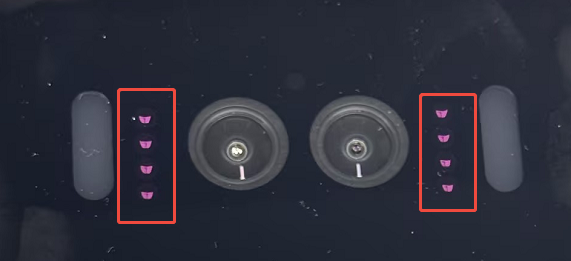
If the face recognition succeeds after turning off the Antispoofing, then further check whether the IR light turns on. Use the smartphone camera to see the IR LED status. By default, when the door phone detects the face, the IR light will turn on automatically.
Confirm that the infrared camera is working properly. If the protective film on the camera is not removed, it will block the infrared camera, preventing living objects from passing through.
Possible Cause 2: User Not in the Scheduled Time
If the access logs show the username, but the unlock result is Failed. Please check the schedule the user used.

When you export the debug log and search OPENDOOR_LOG, the reason will indicate Not in schedule.

Solution
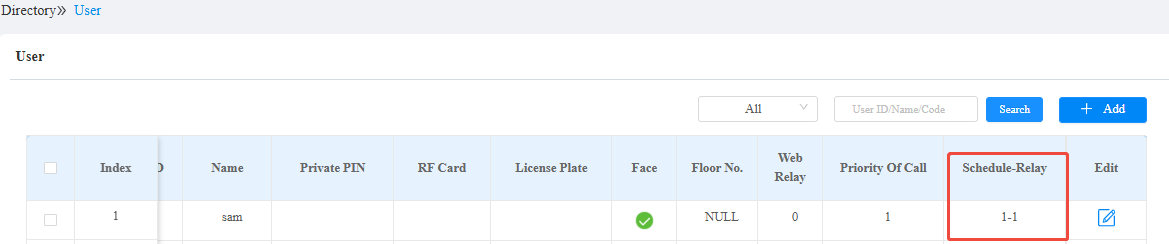
Go to Directory > User interface and check the schedule assigned to this user.
On the user editing interface, find the access setting interface. Re-assign a schedule to the user.