Firmware Upgrade Failed
Error 1: For security reasons, version downgrade is not allowed.
Solution:
To downgrade the firmware, please downgrade to the transition firmware first.
Click here to download the transition firmware for different models.
Error 2: Signature verification failed.
Solution:
The firmware file may be incomplete or corrupted. Please download the firmware again from the official source: Firmware. Choose the model category and select the desired model.
Failed to Receive the Call
Possible Cause: Do Not Disturb (DND) mode is enabled.
Solution:
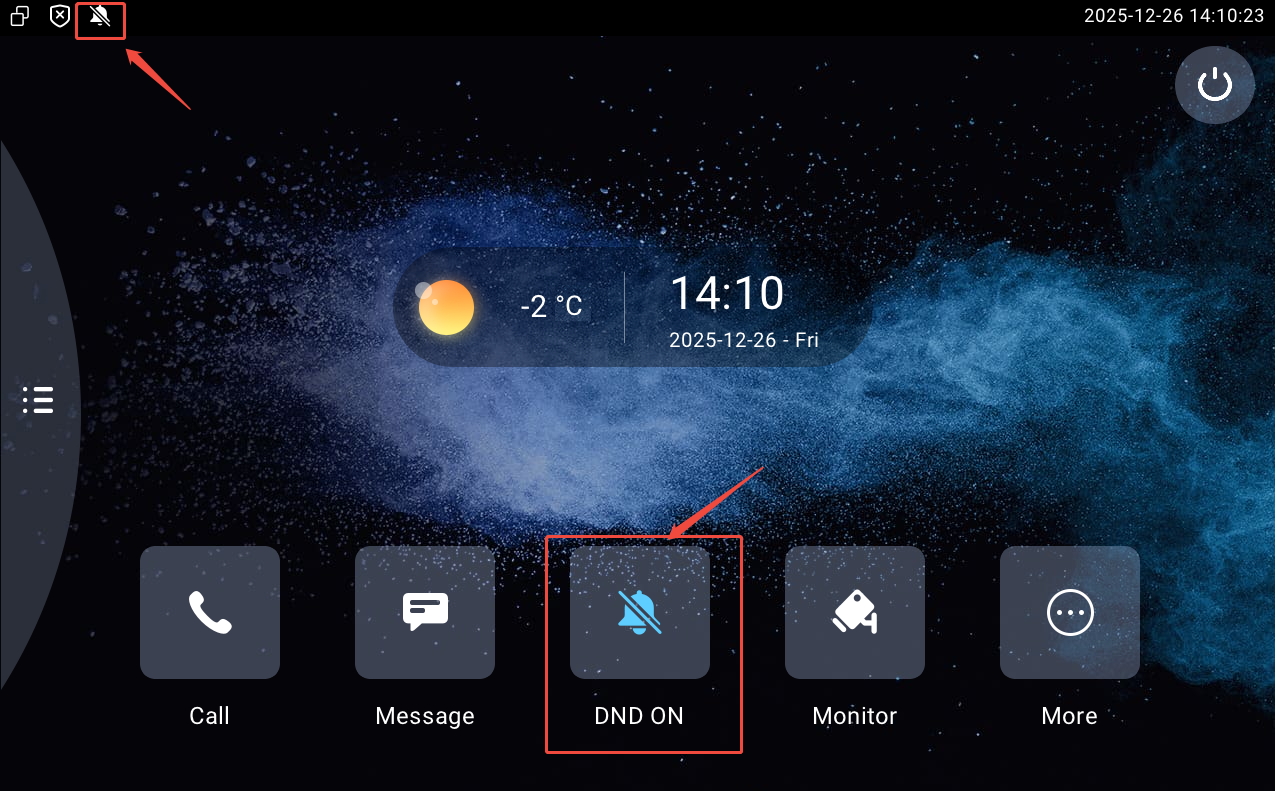
Check whether the DND mode is turned on in the device. If it is on, you can see the DND icon displayed like the screenshot below. Tap to turn it off.
You can also check through the packet capture(PCAP) and system log files when the device is not around you.
In PCAP files, filter for SIP messages. If you see a "486 Busy" response, this is likely the cause.

In the system log, look for log entries similar to the example below:

Tip
Please refer to the following articles for exporting PCAP and system log files.
The Monitor or Video Preview is Black
Error 1: Auth failed.
Possible Cause:
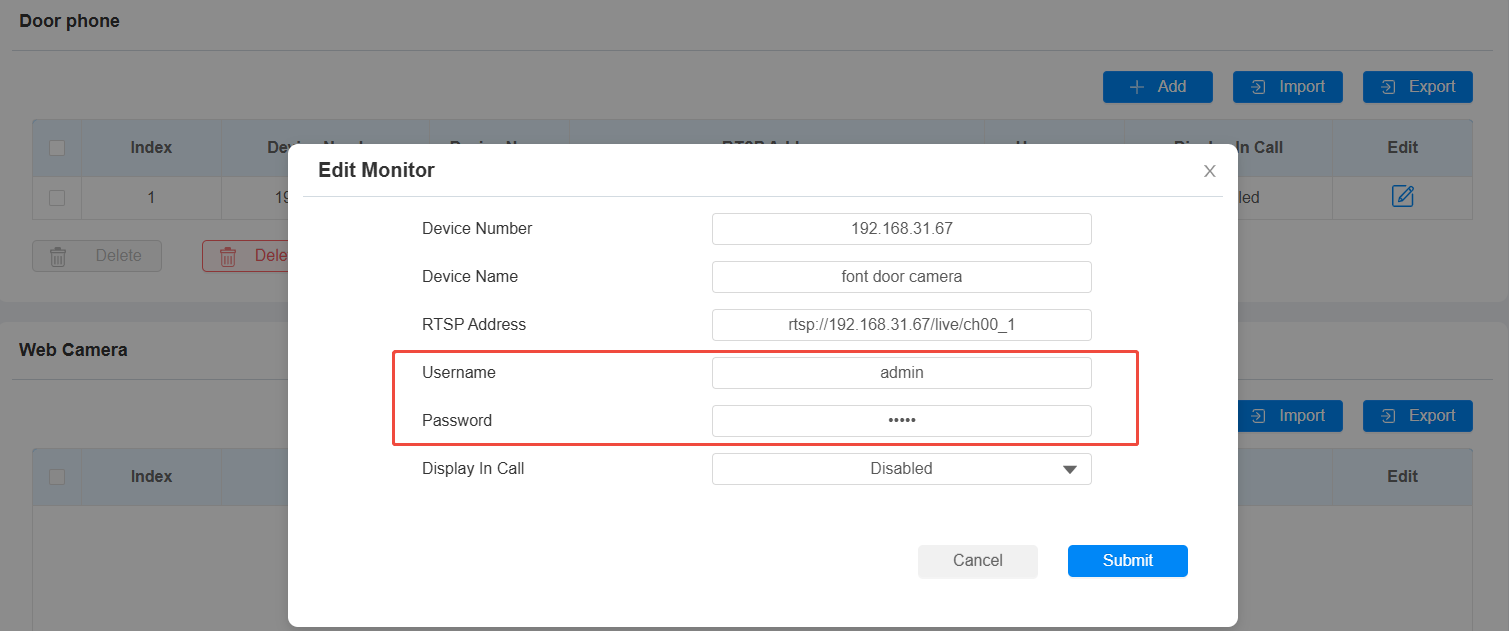
Incorrect username or password for the third-party camera configured in the indoor monitor. In PCAP files, filter for RTSP traffic. You will likely find a "401 Unauthorized" error.

Solution:
Double-check the credentials in the RTSP URL settings.
Go to the indoor monitor’s Device > Monitor web interface and compare the username and password with those in the camera settings.
Tip
Please refer to the article for exporting PCAP files: How to capture network traces on Akuvox intercoms.
Error 2: Connect failed.
Solution:
Verify if the RTSP stream URL can be played in other media software (e.g., VLC media player).
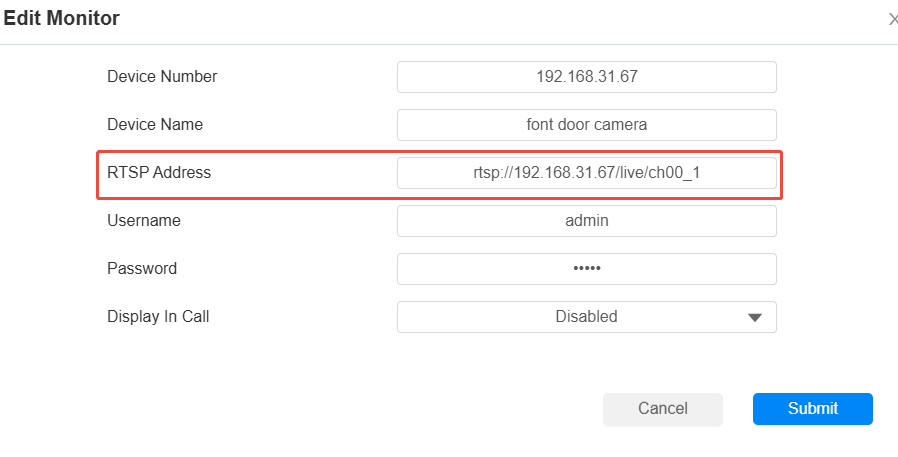
If the RTSP stream cannot be played, please check for errors in the RTSP URL format. Confirm the camera's standard URL format and verify that the URL entered on the indoor monitor is correct.
Go to the indoor monitor's Device > Monitor web interface to correct the RTSP address.
Failed to Obtain an IP Address
Possible Cause 1: Faulty network connection.
Solution:
Try using a different network cable or connecting to another network.
Possible Cause 2: Router overloaded.
Typical home routers support a maximum of 15-20 simultaneous devices. If too many devices are connected, the router may fail to assign IP addresses.
Solution:
Use a professional/enterprise-grade router.
Possible Cause 3: IPv4-Only device in IPv6 environment
Indoor monitors only support IPv4. If your network environment is IPv6-only, the device will fail to get a valid IP address.
Solution:
Switch to an IPv4 network environment for testing.
Failed to Connect to the Cloud(Status LED is Gray)
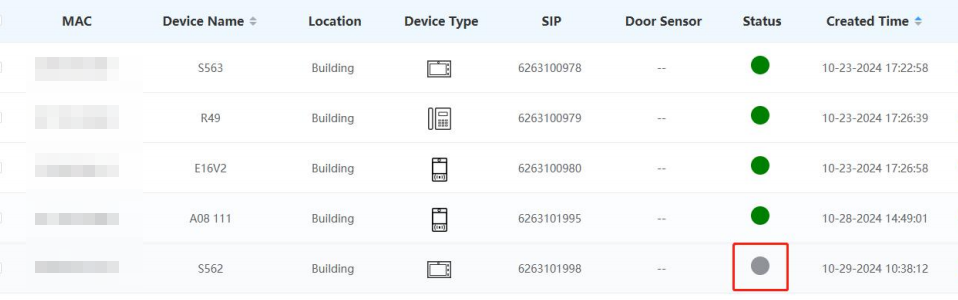
Possible Cause 1: Incorrect MAC address.
Solution:
Verify that the MAC address registered on the cloud platform matches exactly the MAC address printed on the device label.
Possible Cause 2: Firewall blocking.
Solution:
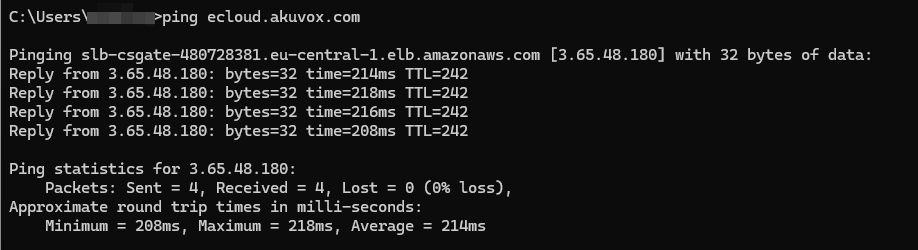
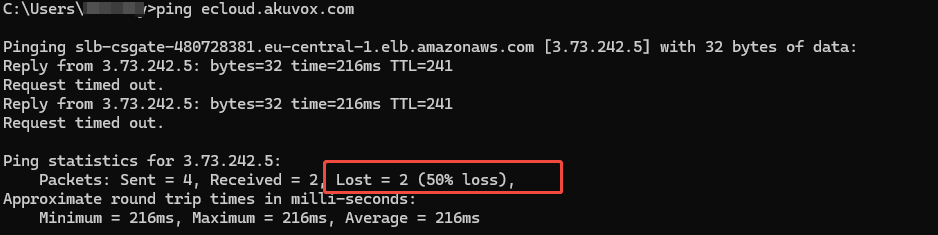
Test connectivity to the Akuvox cloud server by running a ping command from your network (e.g., ping ecloud.akuvox.com, depending on the cloud server you use). If the ping fails, configure your site's firewall to allow traffic to and from the Akuvox cloud server's IP address or domain.
Click here to check the necessary ports and domains for using the SmartPlus cloud service.
Normal connection:
Failed connection:
Possible Cause 3: DNS server resolution failure.
Export the device system logs (Log Level 7). If you find an error such as "Couldn't resolve host name", the current DNS server is failing to resolve the cloud server address.

Solution:
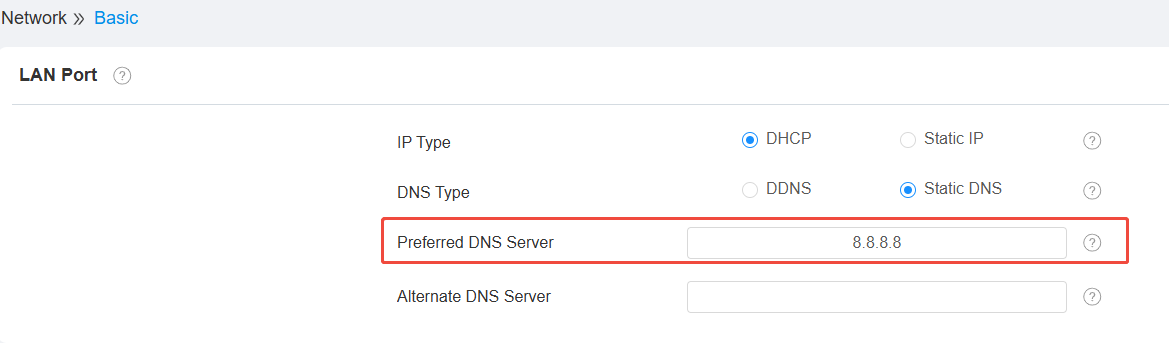
Change the indoor monitor's DNS server to a public DNS (e.g., 8.8.8.8) on the Network > Basic interface.
Tip
Please refer to the article for exporting the system log: Export system logs.
Possible Cause 4: Device is connected to the SDMC or ACMS
The device cannot connect simultaneously to the SmartPlus Cloud and SDMC/ACMS services.
Solution:
Go to the indoor monitor’s Network > Advanced > Connect Setting interface.
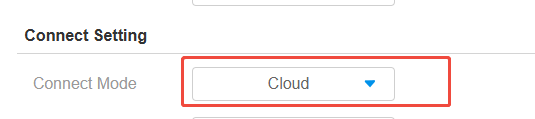
If the Connect Mode is set to "SDMC", the device is bound to that local server.
Remove the device from the SDMC/ACMS system and close the management software.
Reboot the indoor monitor and check if it can connect to the cloud.