Unlock by HTTP Command
The device supports remote door unlocking via an HTTP command. Simply enable this feature and input the HTTP command (URL) for the device. This will trigger the relay and open the door, even if the users are away from the device.
Set it up on the web Device > Relay > Open Relay Via HTTP interface.
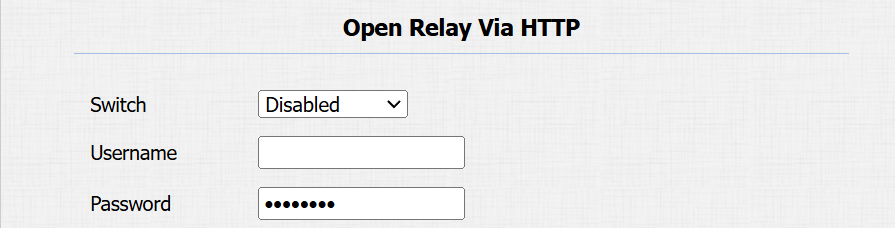
Username: Set a username for authentication in HTTP command URLs.
Password: Set a password for authentication in HTTP command URLs.
Tip
Here is an HTTP command URL example for relay triggering.

Note
The HTTP format for relay triggering varies depending on whether the door phone's high secure mode is enabled. Please refer to this how-to guide Opening the Door via HTTP Command for more information.
Unlock by DTMF Code
Dual-tone multi-frequency signaling(DTMF) is a way of sending signals over phone lines by using different voice-frequency bands. Users can use the DTMF function to unlock the door for visitors during a call by either typing the DTMF code on the soft keypad, or tapping the unlock tab with the DTMF code on the screen.
To configure DTMF codes, go to Intercom > Relay interface.
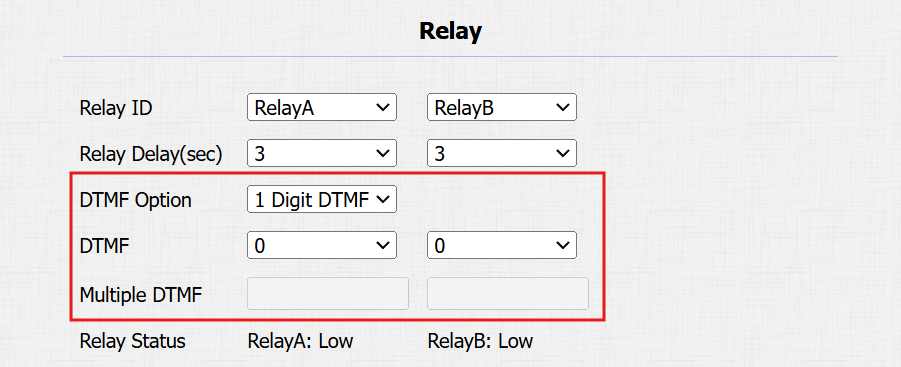
DTMF Option: Set the number of digits for the DTMF code.
DTMF: Define the 1-digit DTMF code within the range(0-9 and *,#) when the DTMF Mode is set to 1-digit.
Multiple DTMF: Set the DTMF code based on the number of digits selected in the DTMF Mode.
Note
To open the door with DTMF, the intercom devices that send and receive the unlock command must use the same mode and code. Otherwise, the DTMF unlock may fail. See here for the detailed DTMF configuration steps.
DTMF White List
To secure door access via DTMF codes, you can set up the DTMF whitelist on the device web Intercom > Relay > Open Relay via DTMF interface so that only the caller numbers you designated in the door phone can use the DTMF code to gain door access.

Access Phone Numbers: Specify the contacts authorized to open doors via DTMF:
Disabled: No numbers can unlock doors using DTMF.
Whitelist Number: Doors can be opened by pressing the push button and SmartPlus Cloud numbers.
All Numbers: Any numbers can unlock using DTMF.
DTMF Data Transmission
In order to achieve door access via DTMF code or some other applications, you are required to properly configure DTMF in order to establish a DTMF-based data transmission between the device and other intercom devices.
DTMF Type Differences:
Inband | DTMF signals are transmitted within the same audio channel as voice data. Simple implementation but signal distortion may occur with highly compressed codecs (e.g., G.729). |
RFC2833 | Transmits DTMF as special event packets over RTP (Real-Time Transport Protocol), known as out-of-band transmission. Reliable and unaffected by codecs. |
Info | Sends DTMF signals via SIP (Session Initiation Protocol) signaling channel. Separate from voice transmission, ensuring audio quality. |
Info+Inband | Combines Info and Inband methods. |
Info+RFC2833 | Combines both Info and RFC2833 methods. |
Info+Inband+RFC2833 | All three methods are used simultaneously. |
To set it up, navigate to the Account > Advanced > DTMF interface.
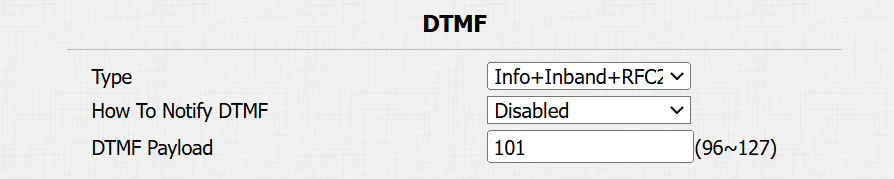
Type: Select from the available options based on the specific DTMF transmission type of the third-party device to be matched with as the party for receiving signal data.
How to Notify DTMF: Select Disabled, DTMF, DTMF-Relay, or Telephone-Event according to the specific type adopted by the third-party device. You are required to set it up only when the third-party device to be matched with adopts Info mode.
Payload: Set the payload according to the specific data transmission payload agreed on between the sender and receiver during the data transmission.
Unlock by Exit Button
When users need to open the door from inside by pressing the Exit button, you need to set up the Input terminal that matches the Exit button to activate the relay for the door access.
Click here to watch the instruction video.
To set it up, go to the Intercom > Input interface.
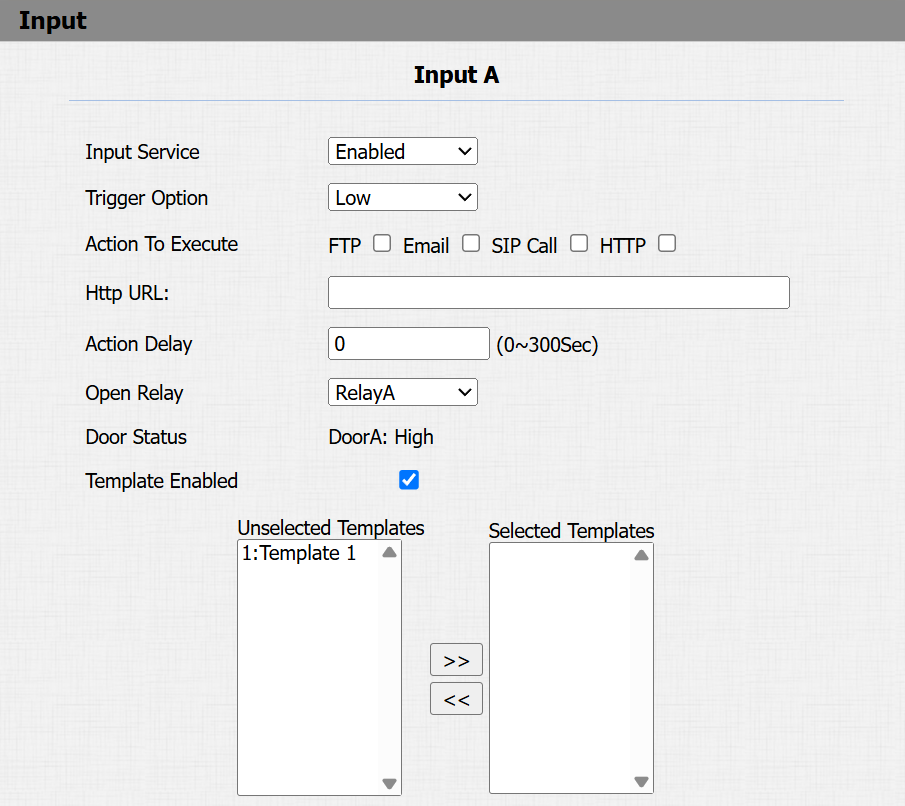
Enabled: To use a specific input interface.
Trigger Electrical Level: Set the input interface to trigger at a low or high electrical level.
Action To Execute: Set the desired actions that occur when the specific Input interface is triggered.
FTP: Send a screenshot to the preconfigured FTP server.
Email: Send a screenshot to the preconfigured Email address.
SIP Call: Call the preset number upon the trigger.
HTTP: When triggered, the HTTP message can be captured and displayed in the corresponding packets. To utilize this feature, enable the HTTP server and enter the message content in the designated box below.
HTTP URL: Enter the HTTP message if selecting HTTP as the action to execute. The format is http://HTTP server’s IP/Message content.
Action Delay: Specify how many seconds to delay executing the preconfigured actions, or to delay making calls by pressing the external button.
Open Relay: Specify the relay to be triggered along with the input triggering.
Door Status: Display the status of the input signal.
Template Enabled: This option is used to make calls to target numbers set in the template. Make a template effective by moving it from the left to the right box.
This function is incompatible with the SIP Call action when the input is triggered.
This function is incompatible with group call and sequence call.
You cannot choose templates that have overlapping times.