Google Play Store requires several core components of Google Mobile Services (GMS). This guide walks you through using the Google Installer to install these essential services and enable your akubela panels to run apps that depend on Google infrastructure, including the Play Store.
Before Getting Started
Contact your service provider to get the required Google Installer APK file.
Update your panel to the required firmware versions that support Google Installer. For upgrade instructions, see this guide.
Product Model | Required Firmware Version |
HyPanel | 51.1.36.240 and later |
HyPanel Plus | 52.1.36.220 and later |
HyPanel Pro | 71.1.38.246 and later |
HyPanel Ultra | 281.1.38.226 and later |
HyPanel Supreme | 1001.1.38.224 and later |
SmartPanel | 933.1.38.313 and later |
SmartPanel Elite 10 | 319.1.38.311 and later |
Connect your computer to the same local network as the device you want to install Google Installer.
Steps
1. Upload APK File via Device Web Portal
(1) Log into the panel’s device web portal.
TIP:
For detailed instructions on accessing the device web portal, see this guide.
(2) Go to Third Party APK in the left side menu.
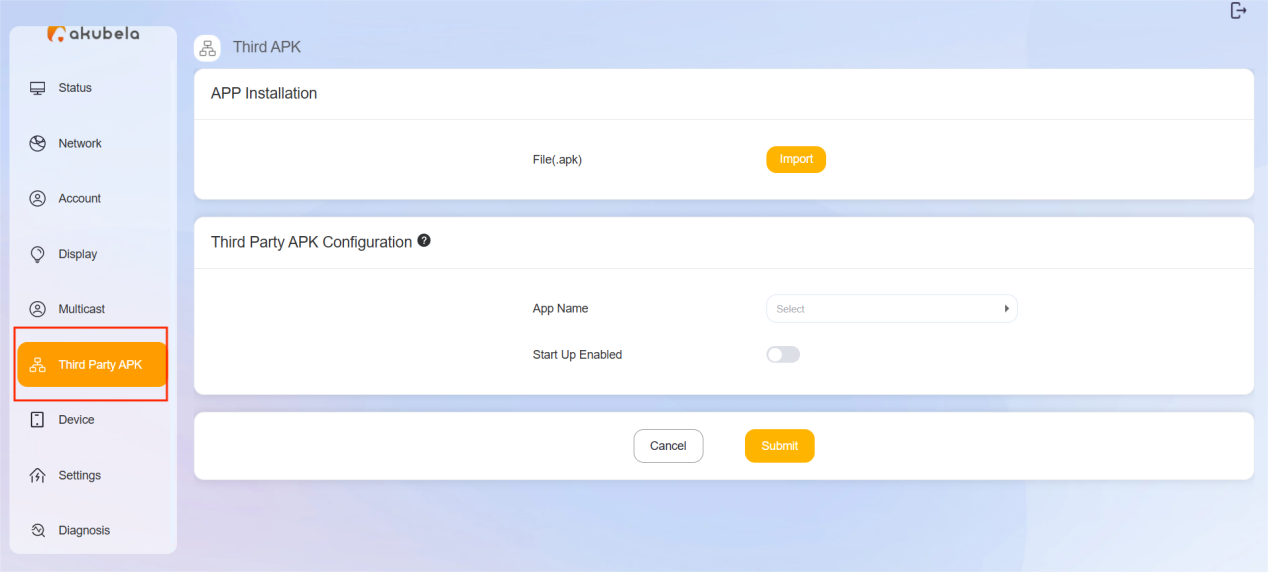
(3) Click Import in the APP Installation field, select the Google Installer apk, and click Install.
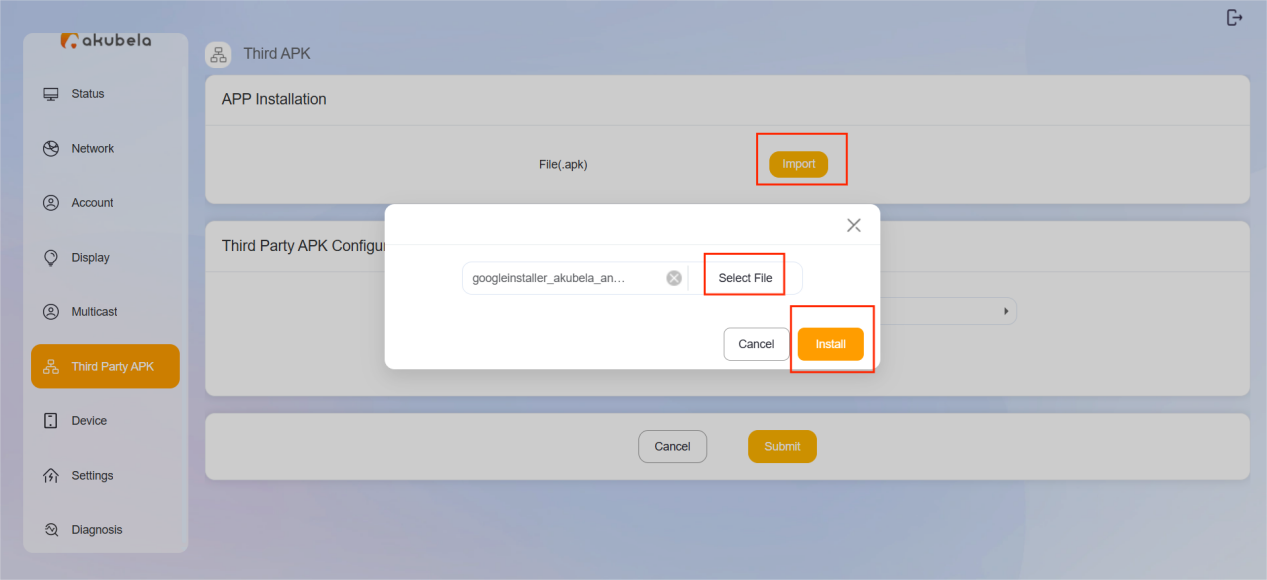
(4) Wait for the installation to complete.
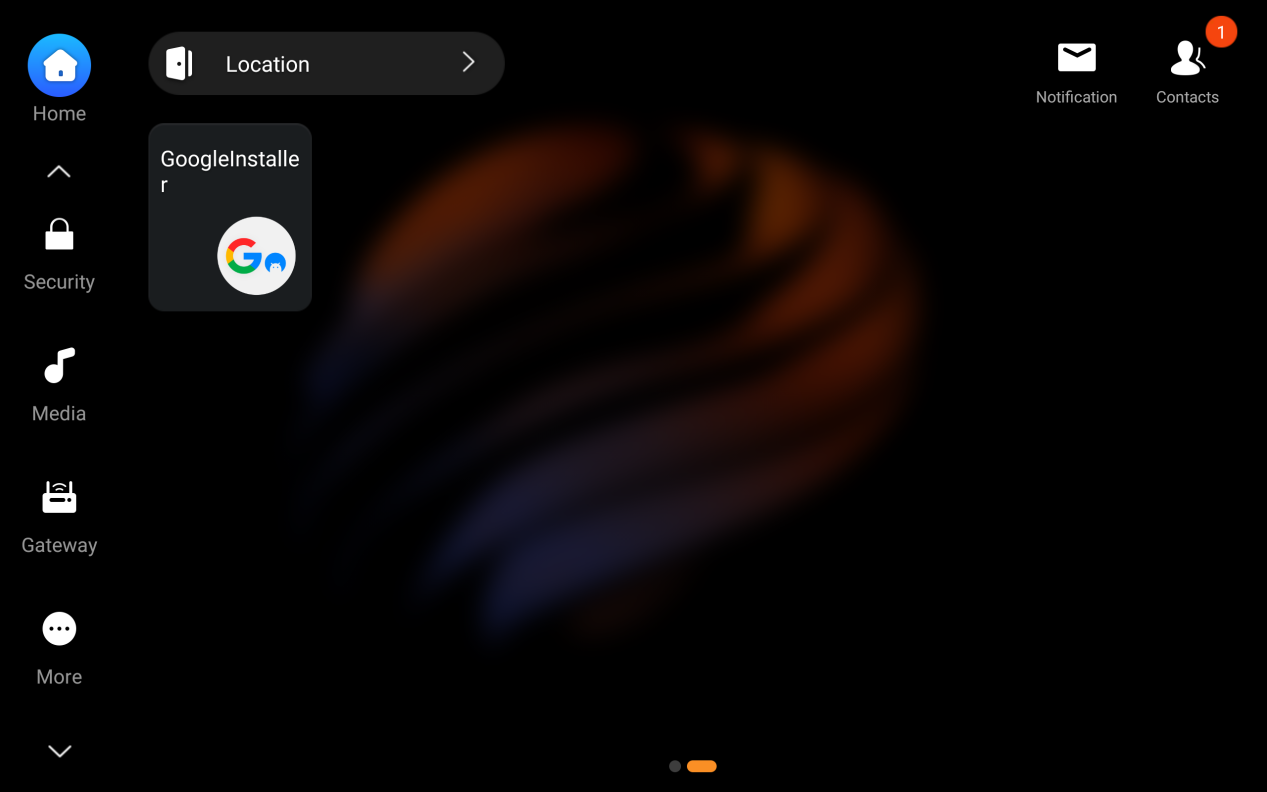
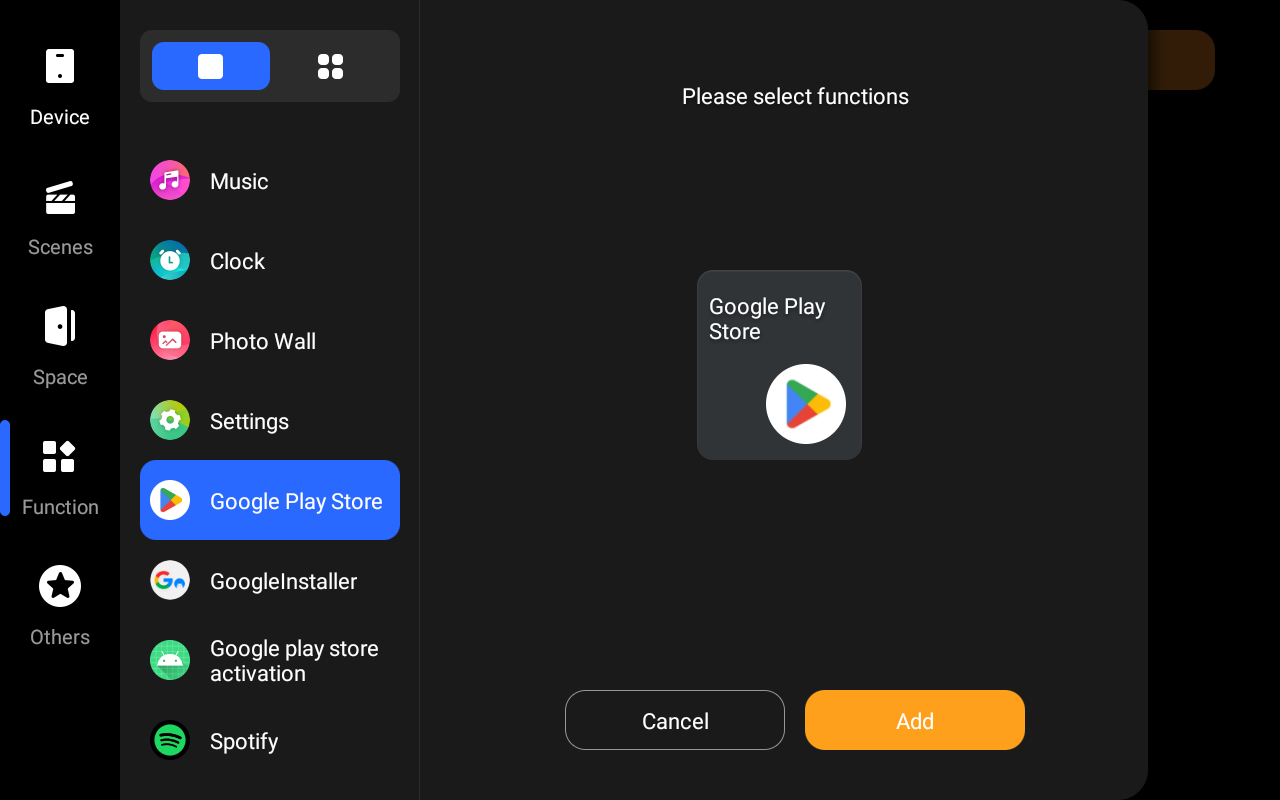
(5) Add the app card to the panel’s Home screen for quick access: Long press a blank area on the Home screen, then tap +Card > Function > GoogleInstaller > Add > Finish.
2. Install Google Play Store via Google Installer
(1) Launch Google Installer from the Home screen. Click Install and wait.
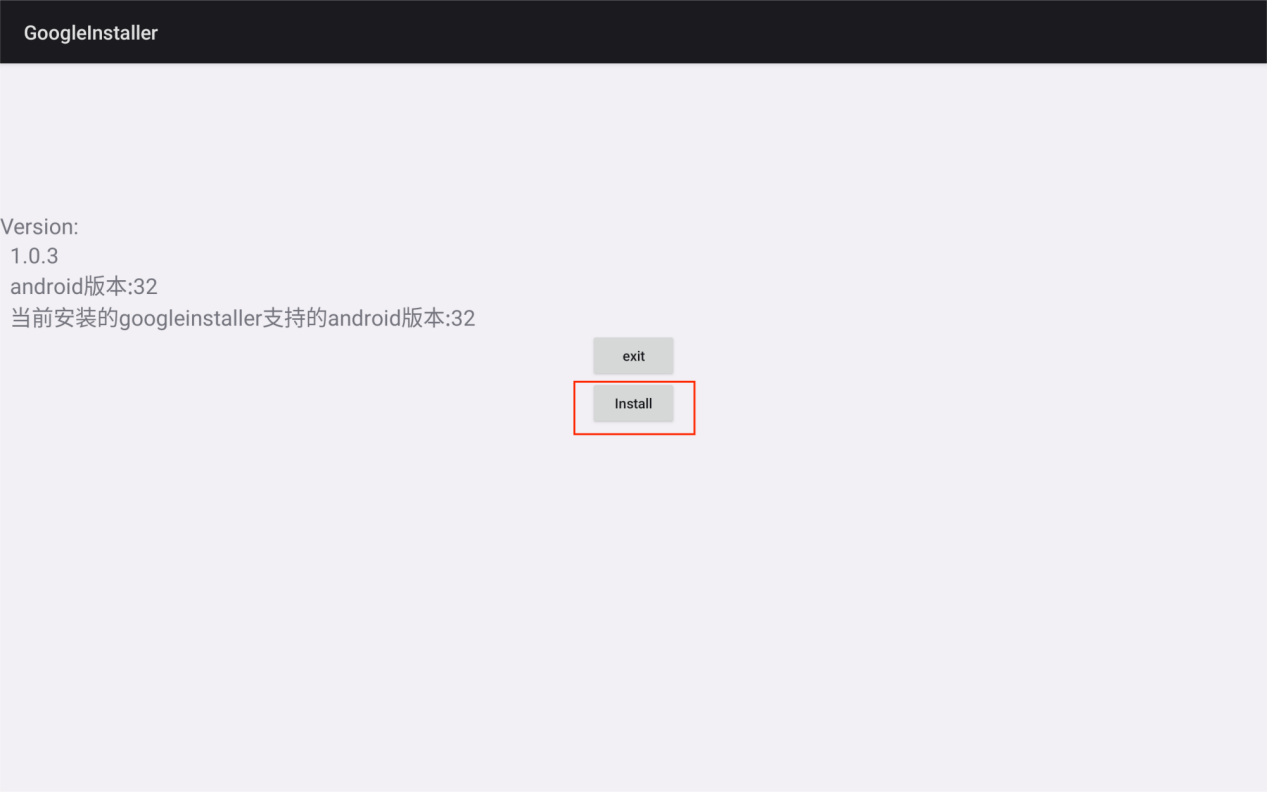
(2) Tap YES when prompted to reboot the panel.
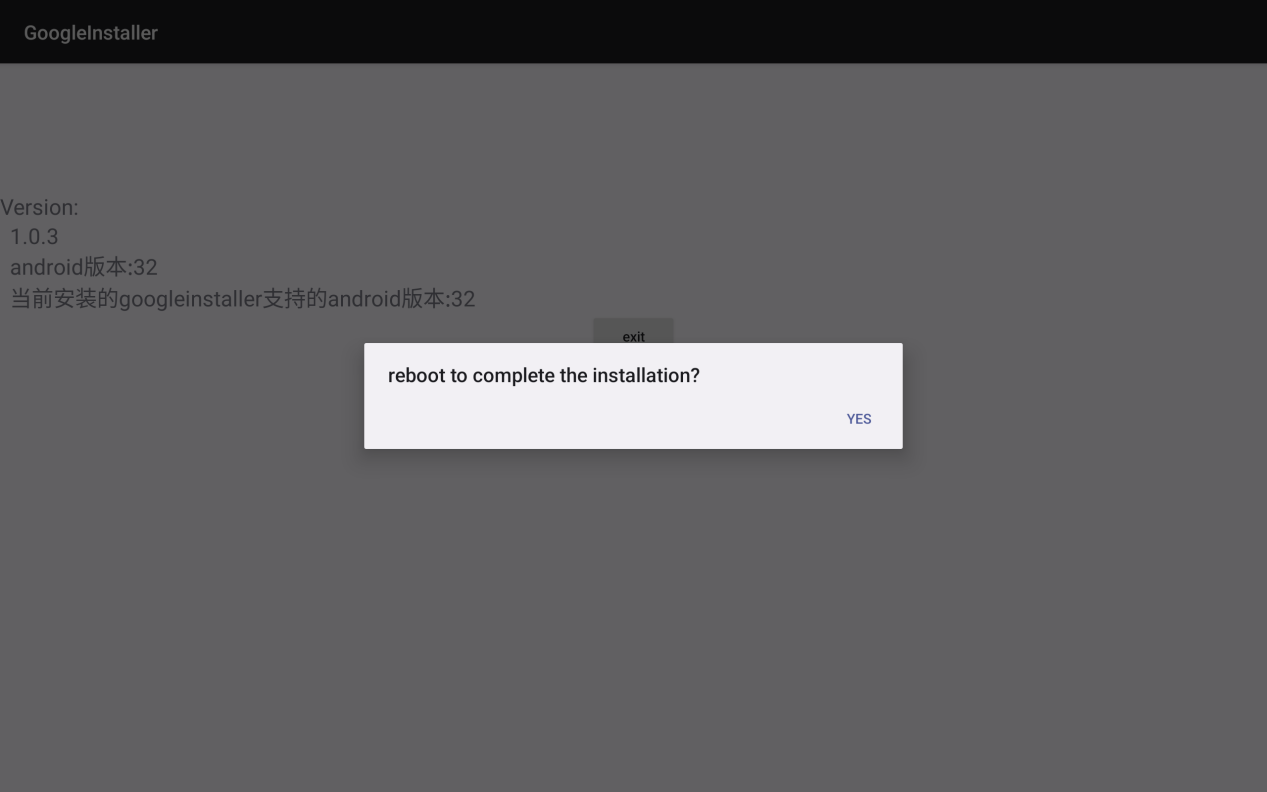
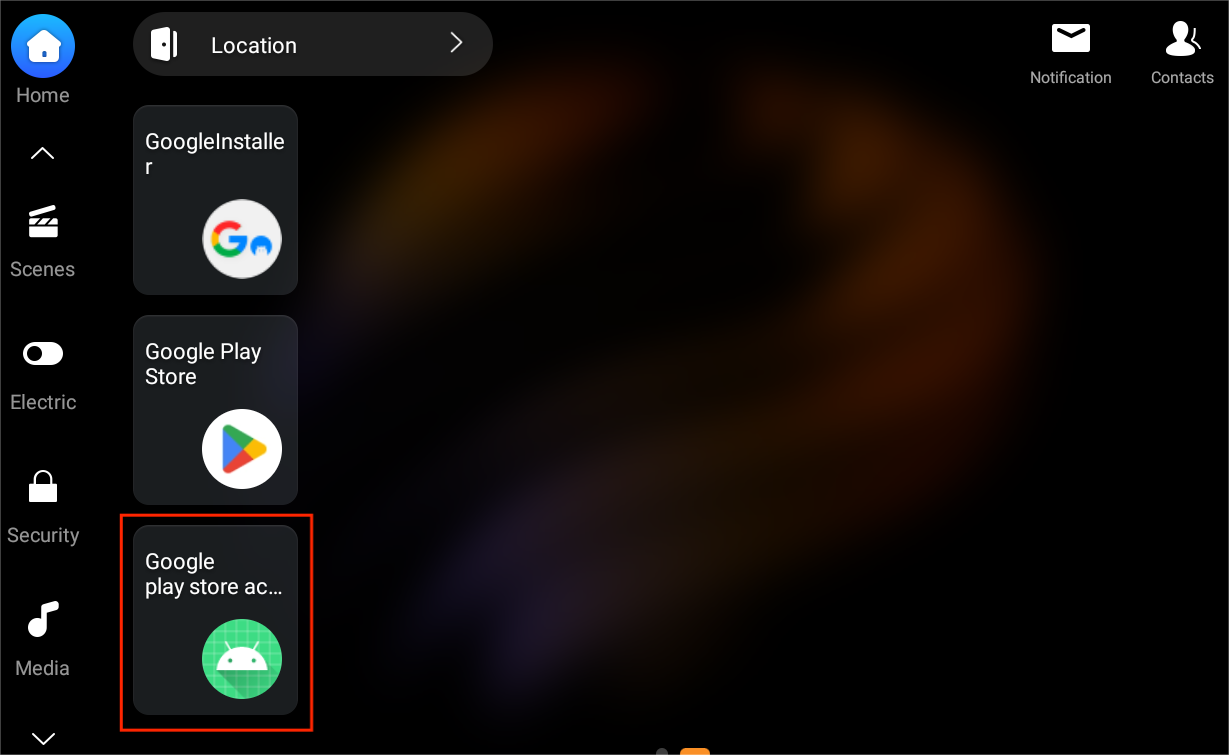
(3) After reboot, new apps (e.g., Google Play Store) will appear. To make them accessible, long-press on a blank area of the Home screen, then tap +Card > Function > Google Play Store/Google play store activation > Add > Finish.
NOTE:
On HyPanel Plus, Ultra, and Supreme, only the Google Play Store will appear after installation.
3. Sign in to Google Play Store
For HyPanel/HyPanel Pro/SmartPanel/SmartPanel Elite 10
(1) Tap Google play store activation and follow the onscreen instructions.
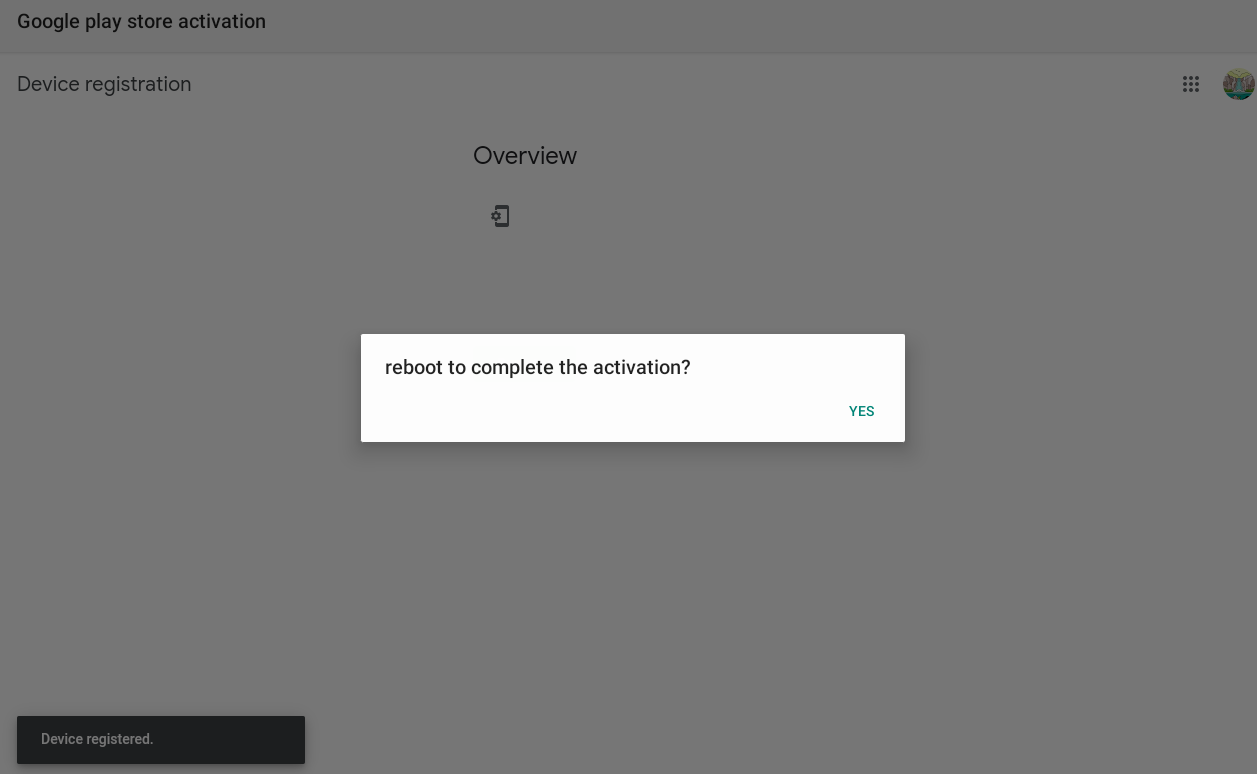
(2) Click YES to reboot when prompted.
(3) After rebooting, tap Google Play Store and sign in.
For HyPanel Plus/Ultra/Supreme
Open Google Play Store and follow the on-screen instructions to sign in twice.
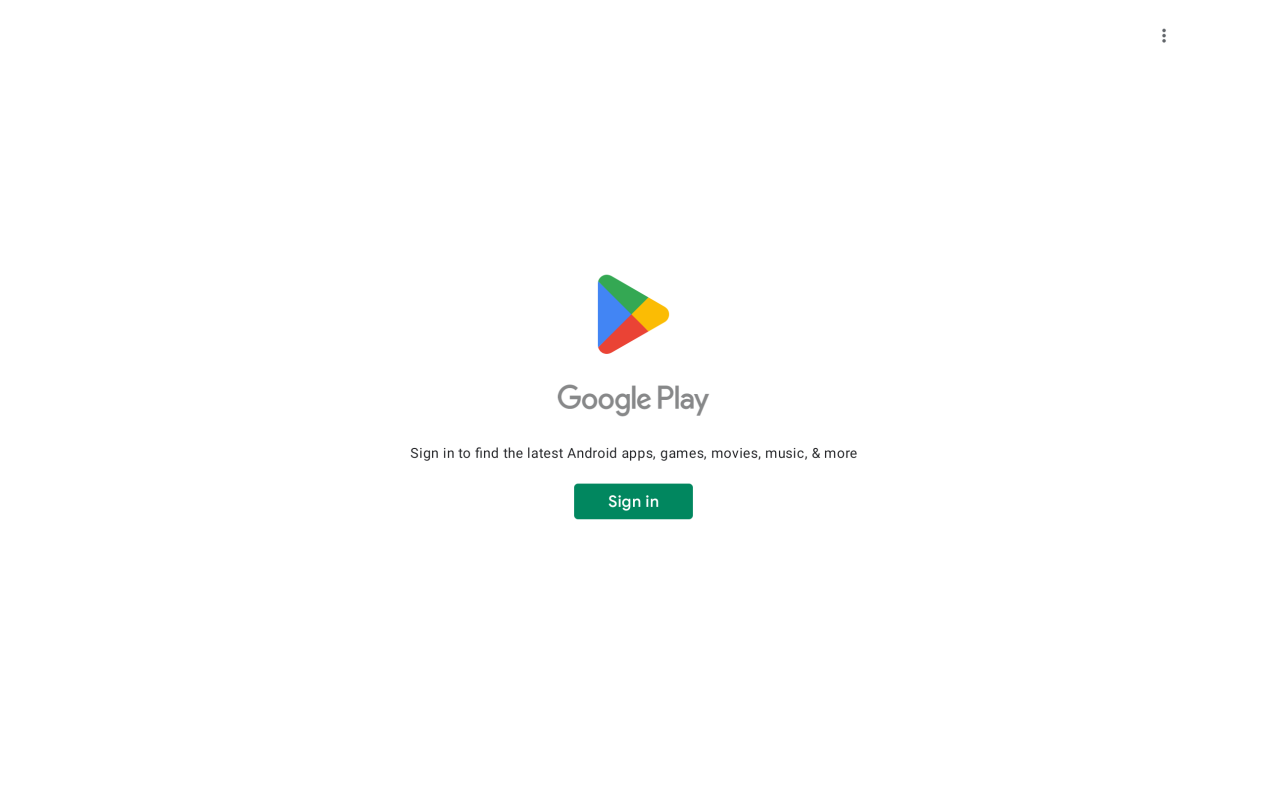
Once signed in, you can download apps such as YouTube, Google Maps, and more from the Play Store directly on your akubela panel.
Uninstall
Uninstall Google Play Store
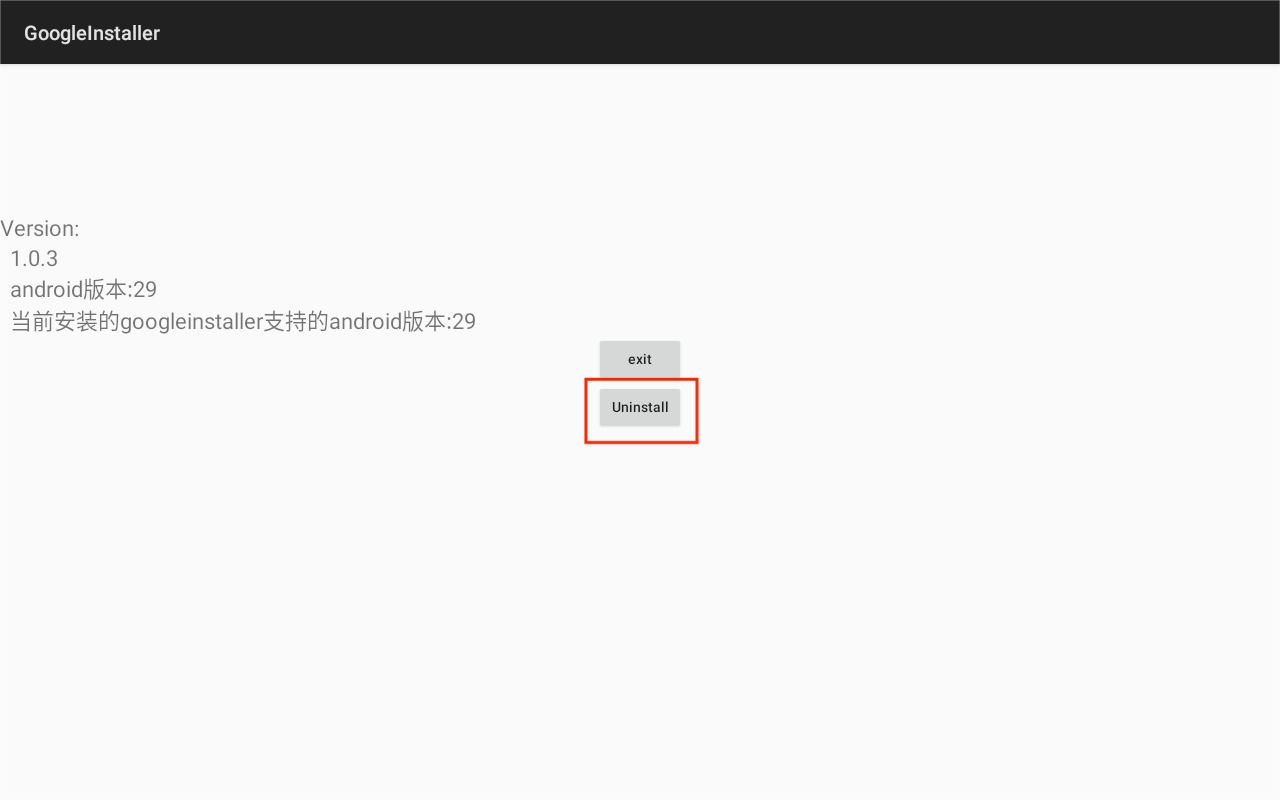
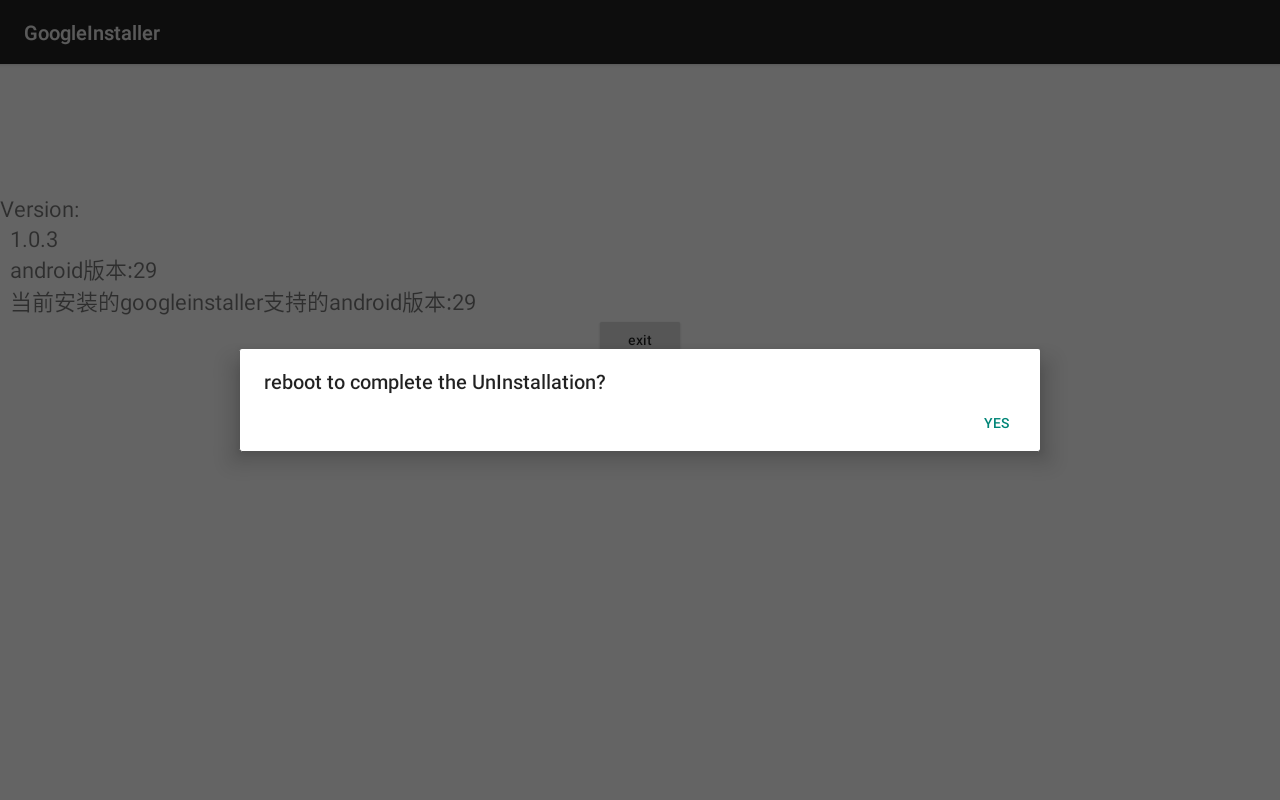
Open GoogleInstaller, tap Uninstall, then confirm by tapping YES when prompted to reboot the panel.
2. Uninstall Google Installer
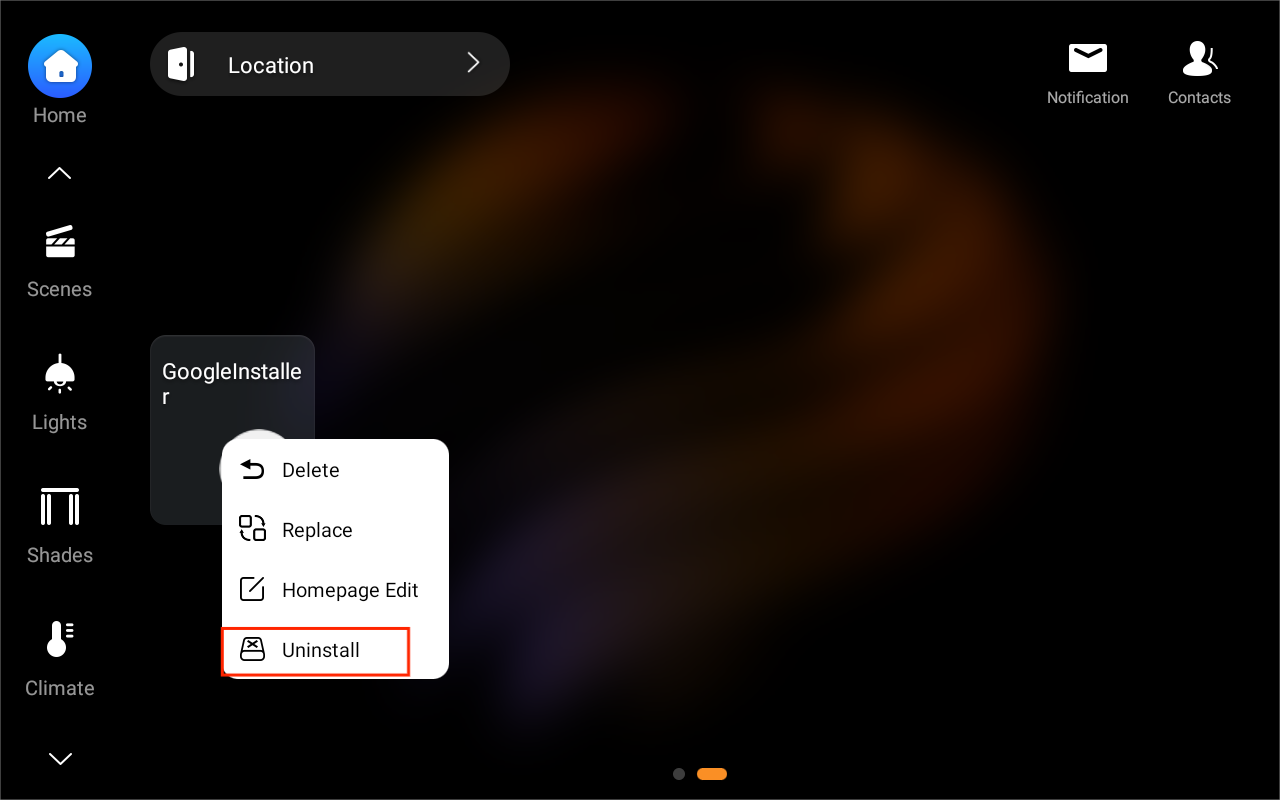
Press and hold the Google Installer card, then tap Uninstall.
TIP:
If you uninstall Google Installer but later want to remove Google Play Store, you’ll need to reinstall Google Installer first, then follow the steps to uninstall Google Play Store.