Akuvox indoor monitors can be integrated with the AJAX security system via API, without additional wiring. This integration lets users arm and disarm AJAX devices directly from the indoor monitor.
Overview
Setting up this integration involves three stages:
Enable AJAX mode on the indoor monitor.
Set up two-factor authentication in the AJAX App.
Log in to AJAX from the indoor monitor using a verification code.
Once logged in, you can switch arming modes, receive AJAX notifications, check connected devices, change the arming/disarming code, and log out — all from the indoor monitor.
Prerequisites
Supported model and firmware: The following models with specific versions or later support the updated AJAX API authentication. Other previously supported models will require a firmware update, which will be listed when available.
S562: 562.30.16.174
S565: 565.30.15.536
S562(Kit version): 562.87.10.303
S562-2: 5622.30.15.231
S562-2(Kit version): 5622.87.15.207
Policy Update: Verification Code Required
Starting September 1, 2026, logging in to AJAX via the API requires a six-digit verification code in addition to the AJAX account email and password.
If your indoor monitor was already logged in to AJAX before this update, it may be logged out automatically. If this happens, update the indoor monitor to a firmware version that supports the new authentication, then log in again using a verification code.
Cloud connection: The indoor monitor must be connected to the SmartPlus Cloud before integration.
Watch the Video Guide
Prefer a visual walkthrough?
Watch: [Video]Akuvox Integration with AJAX Security System via API
Note
The video was recorded before the Ajax API authentication update and does not include the verification step.
For the current login procedure, including how to obtain and enter the verification code, see Step 2 and Step 3 below.
Step 1: Enable AJAX Mode (On the Indoor Monitor)
Use the device IP to log in to its web interface. The initial username and password are admin.
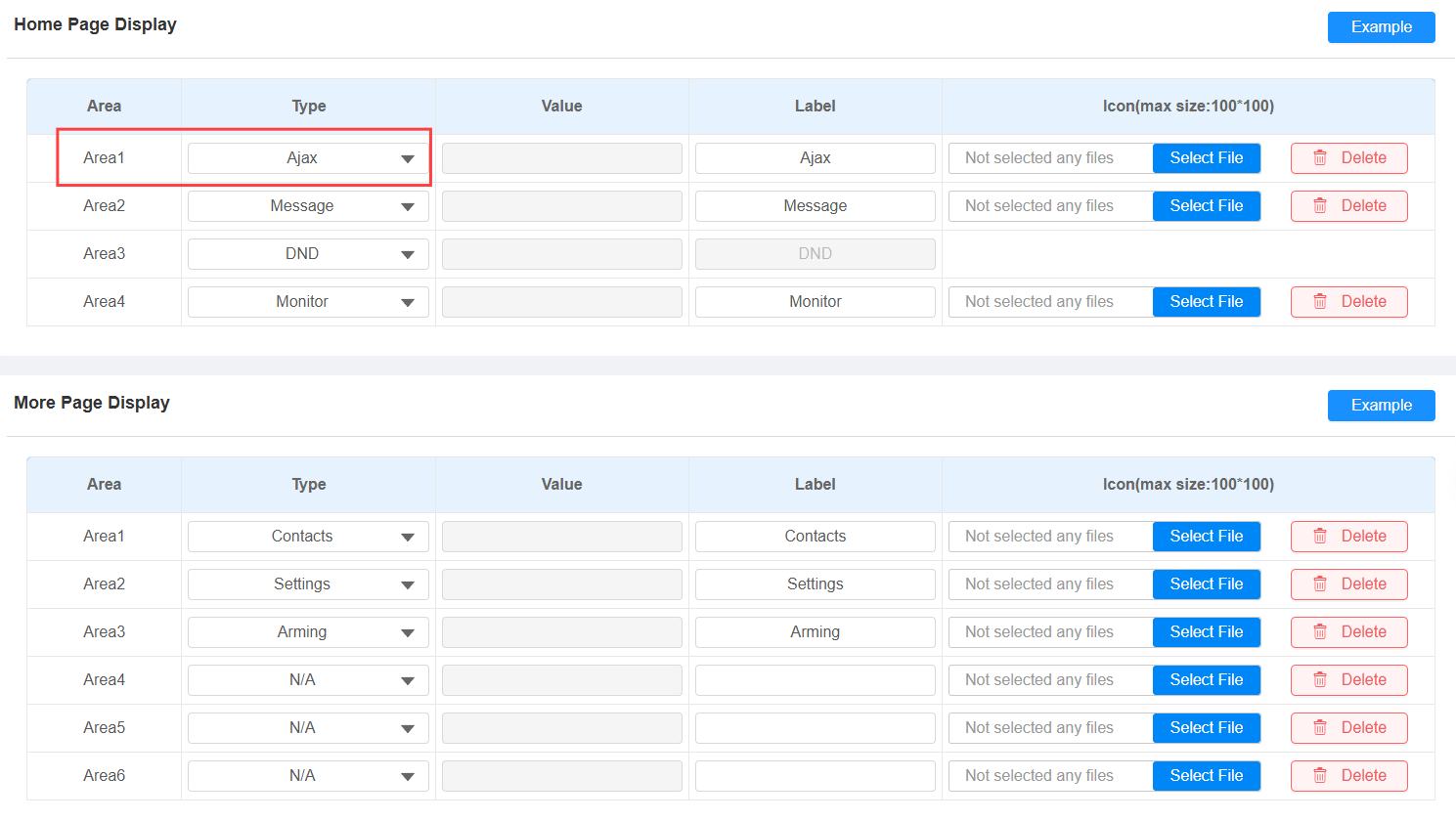
Go to Device > Display Setting interface. Set Type to AJAX in the desired area.
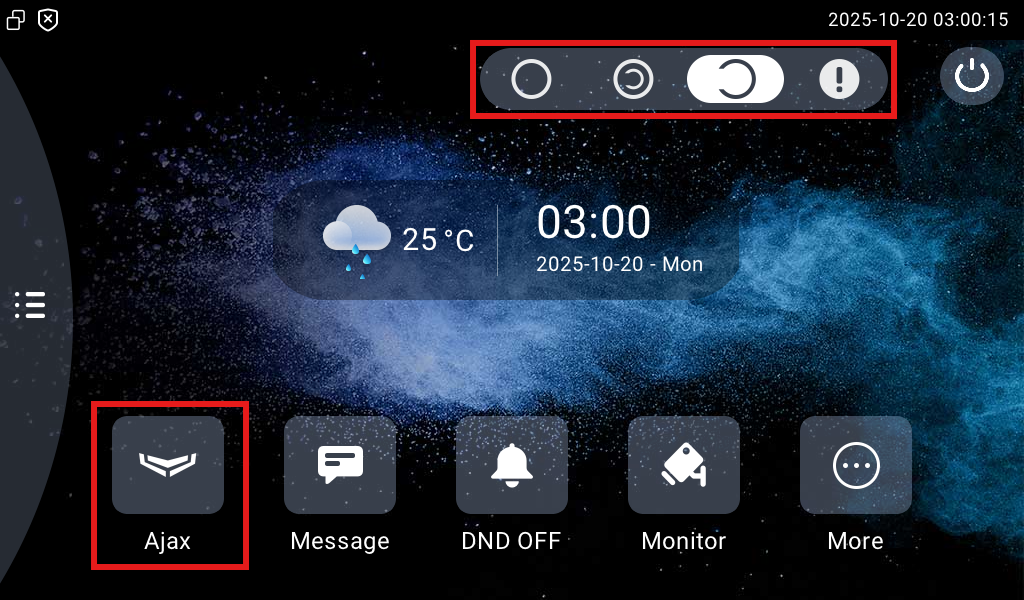
Tap AJAX on the home screen.
Step 2: Set Up Two-Factor Authentication (In the AJAX App)
Before logging in to AJAX from the indoor monitor, two-factor authentication must be enabled in the AJAX App if it isn't already.
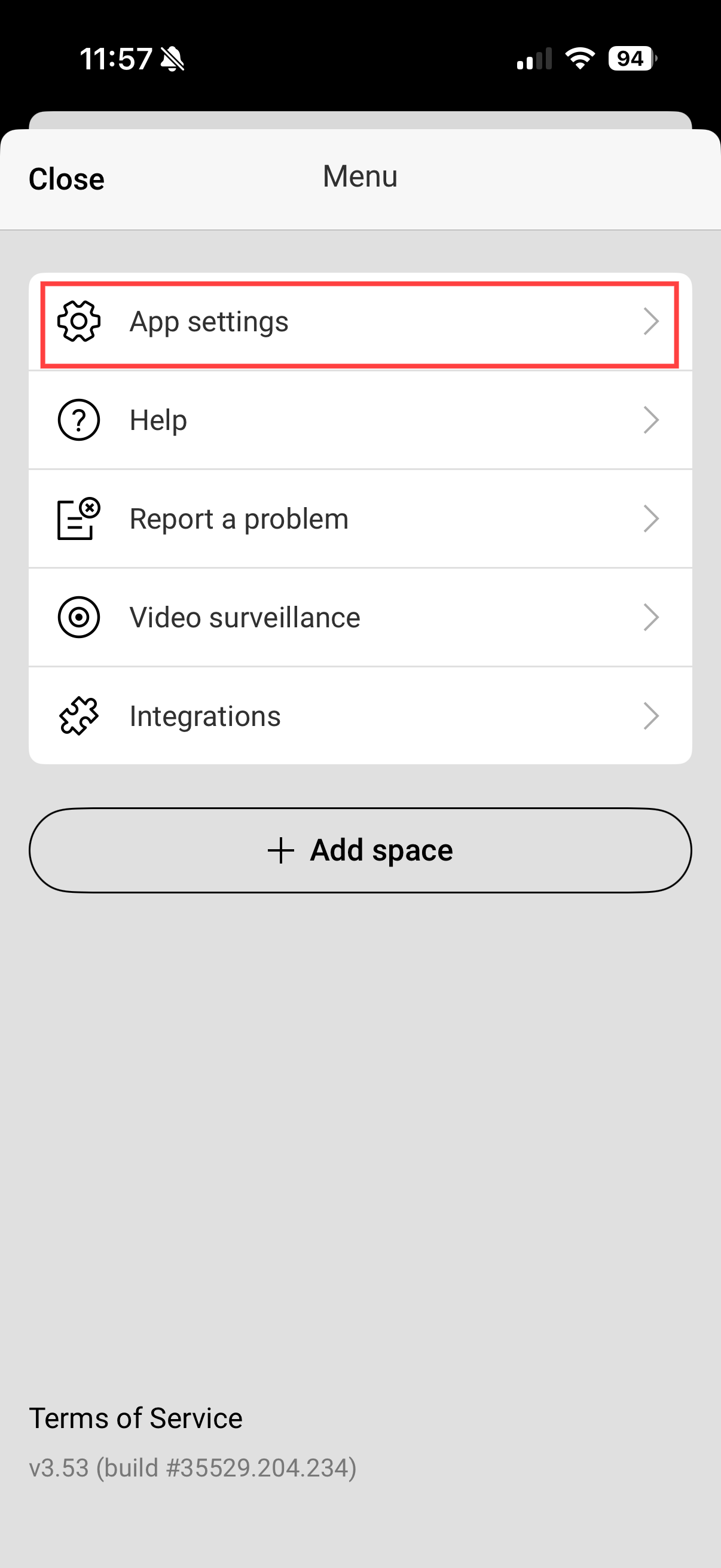
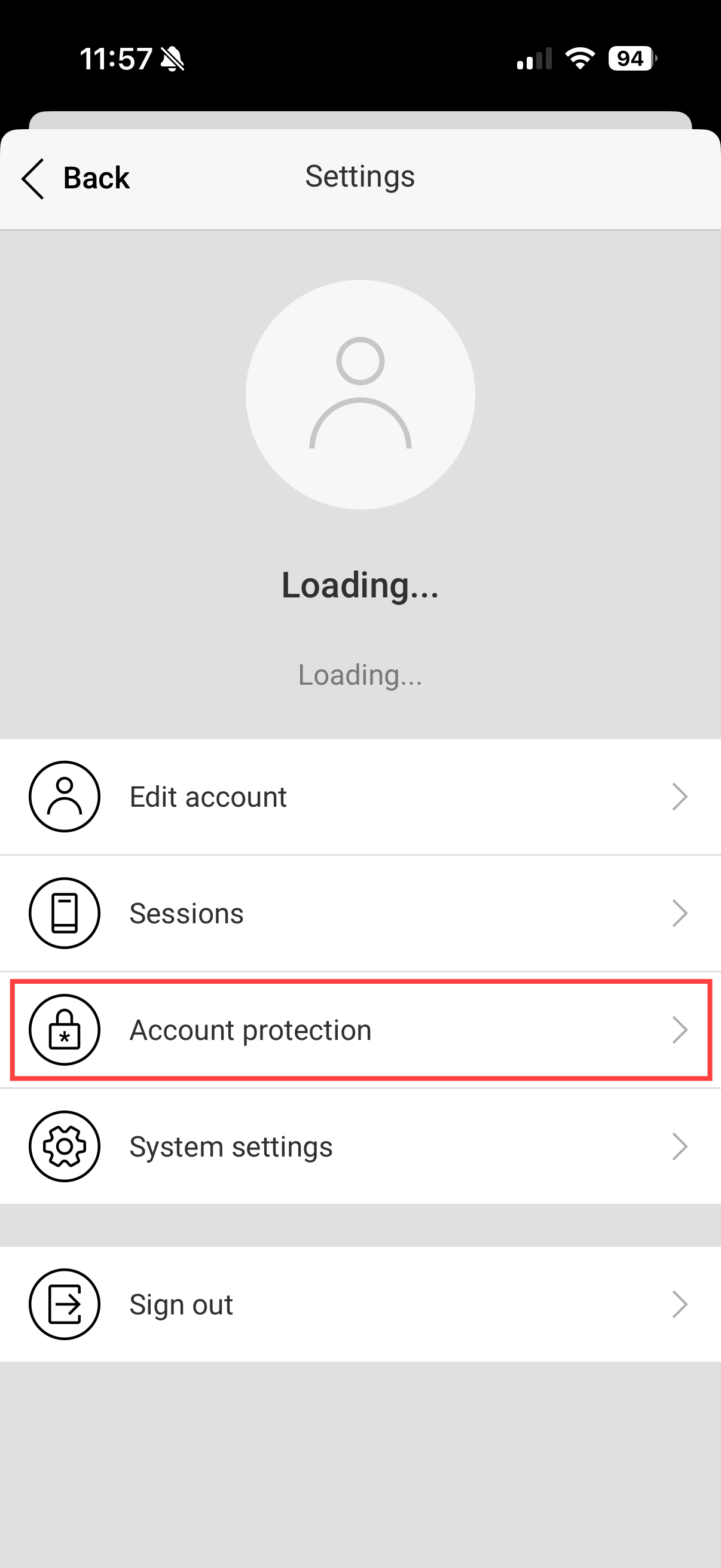
Open the AJAX App and go to App Settings.
Select Account protection.
Turn on Two-factor authentication.
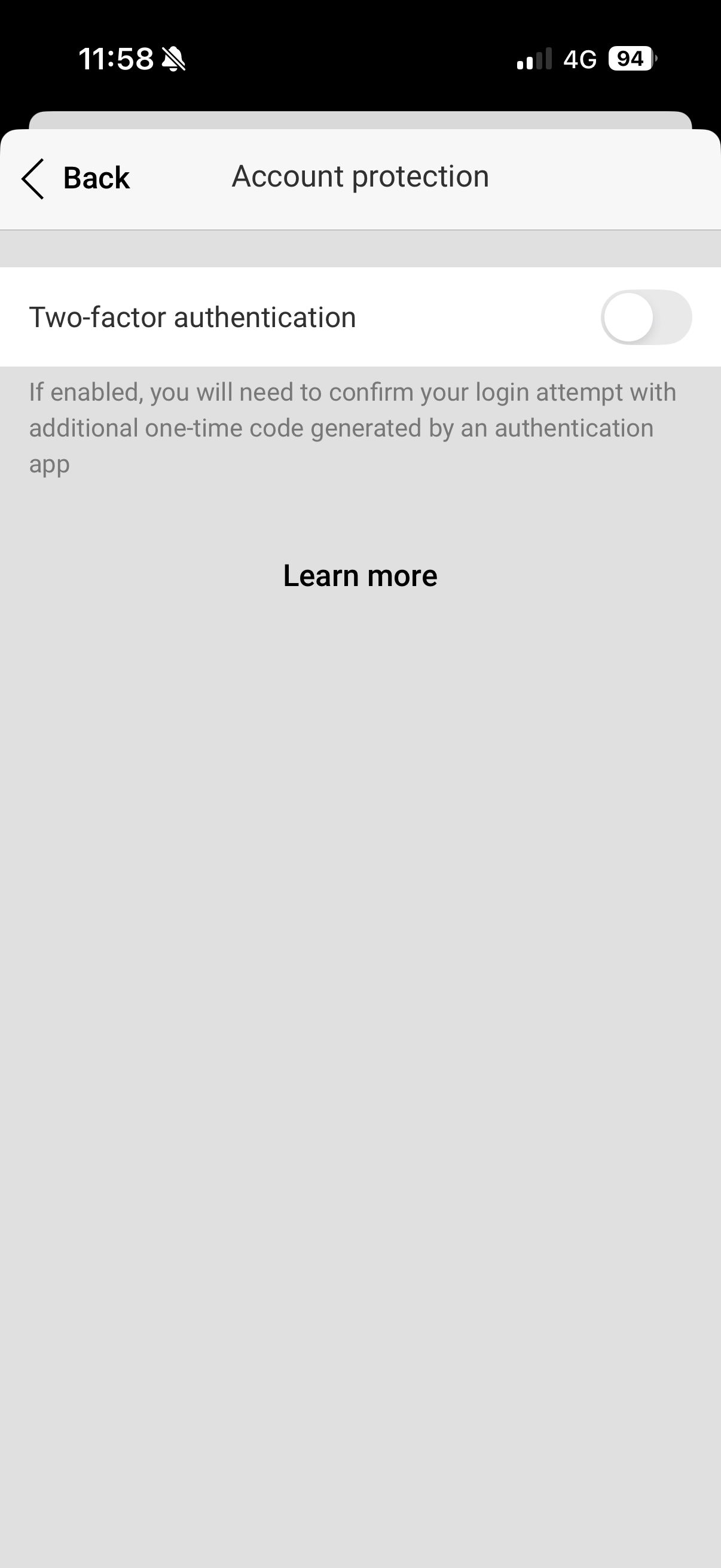
Confirm that you want to enable two-factor authentication.
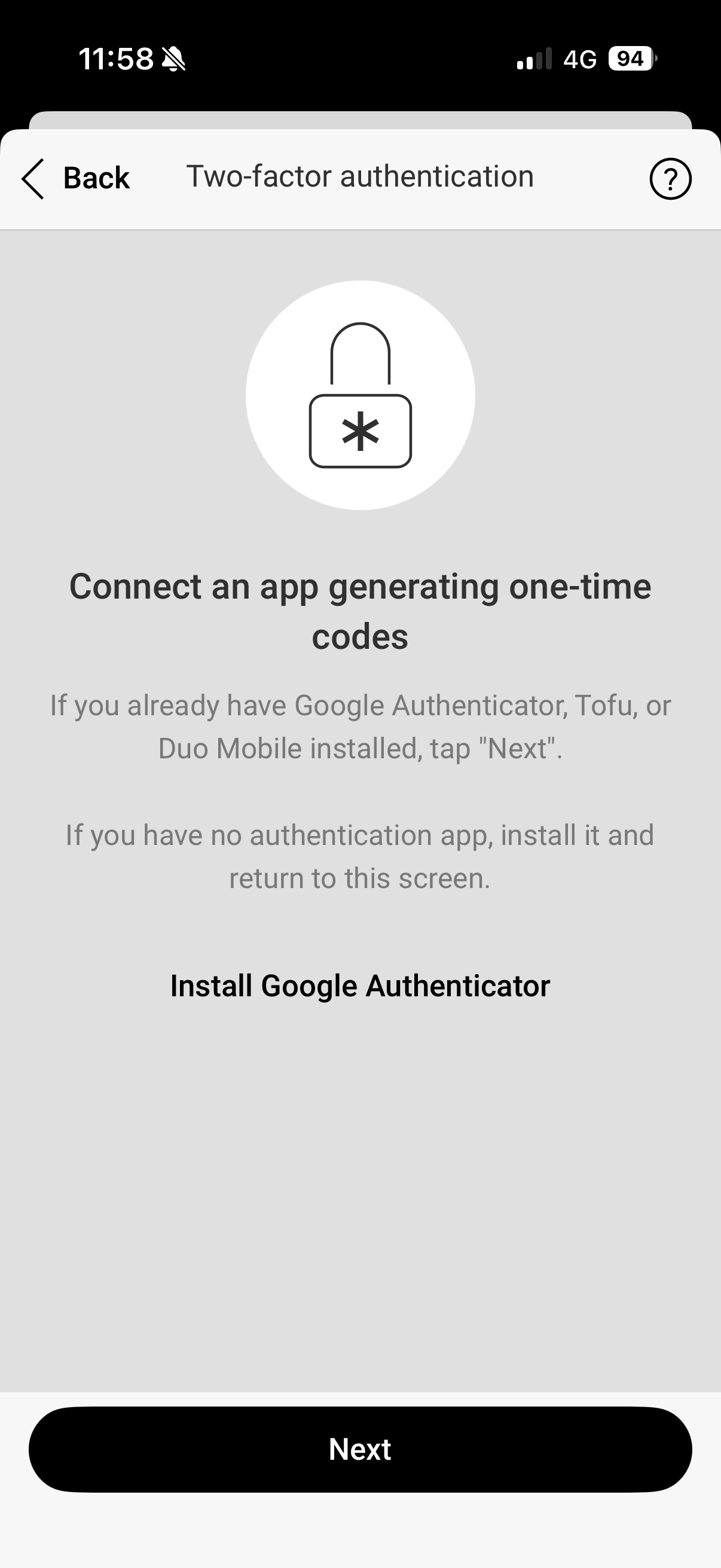
When prompted to set up two-factor authentication, use a third-party authentication app.
Copy the provided secret key to the authentication app, or scan the QR code with the authentication app.
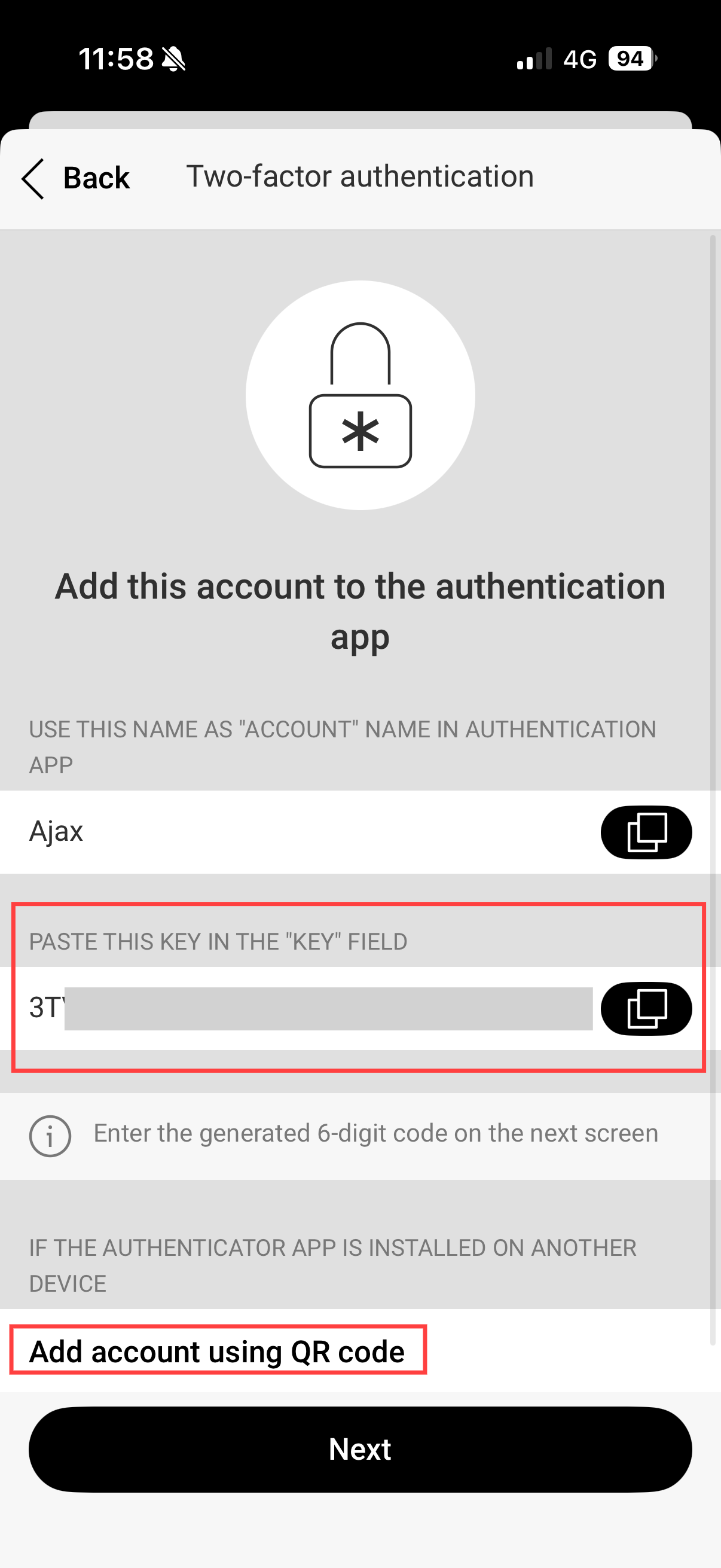
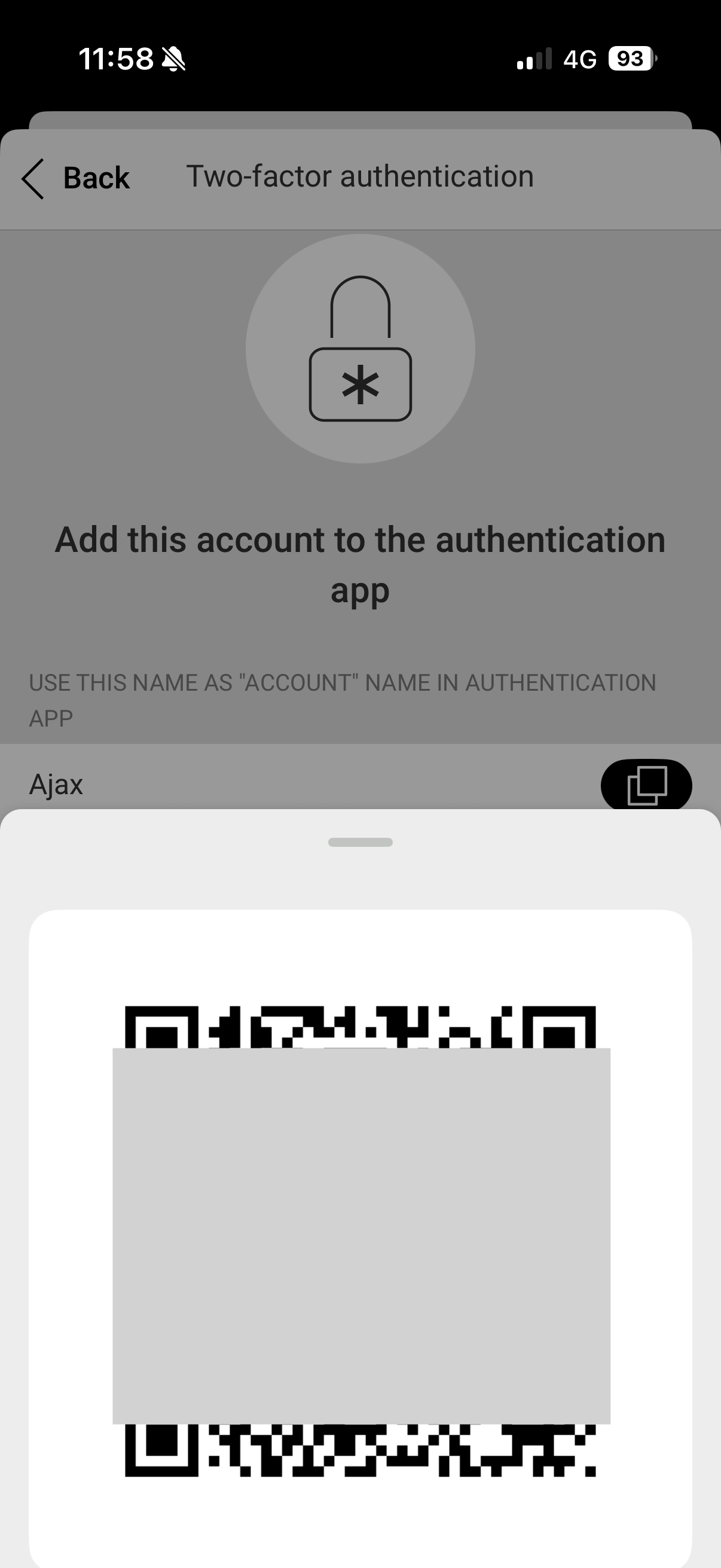
The authentication app generates a six-digit verification code.
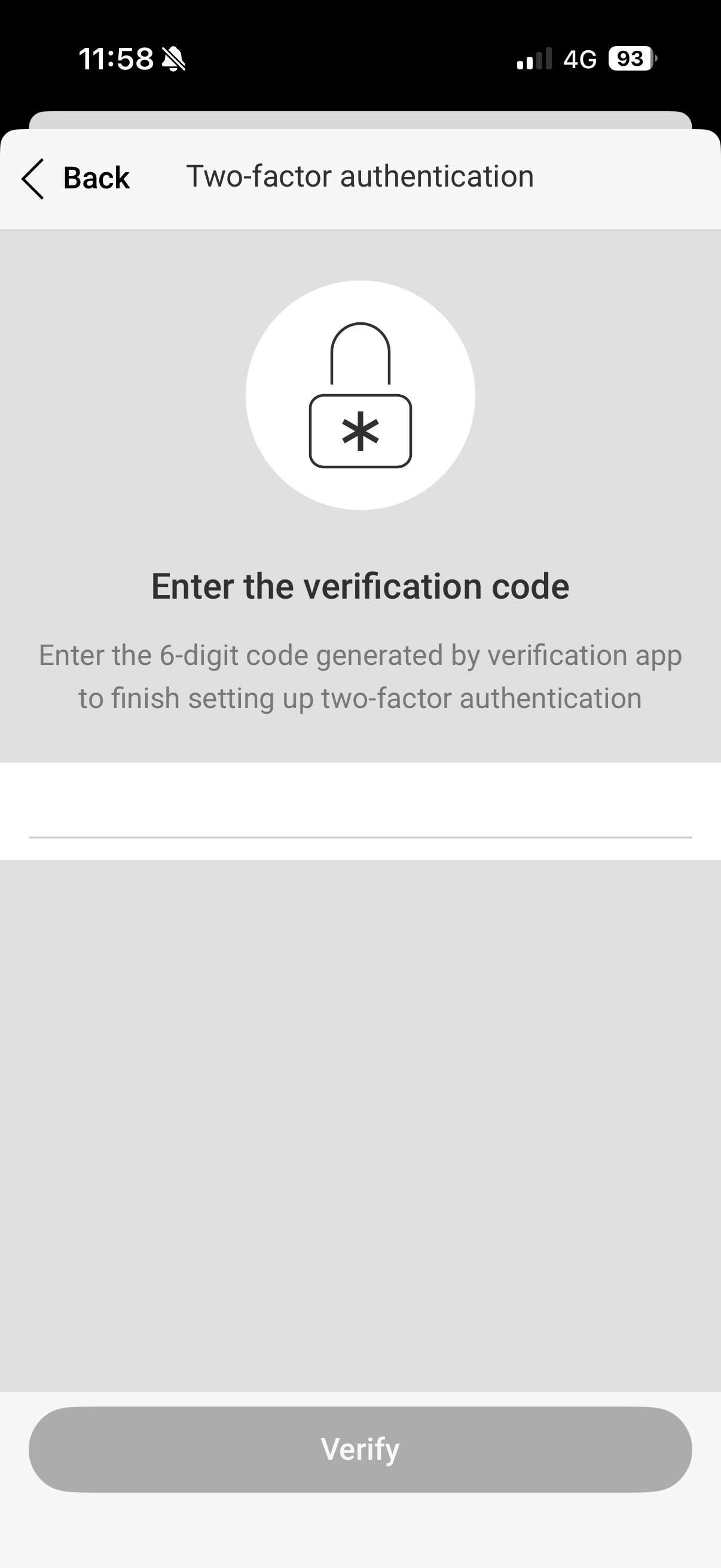
Enter that six-digit code in the AJAX App to complete setup.
Note
The authentication app is a third-party tool, not provided by Akuvox or AJAX. Follow the on-screen instructions in the AJAX App when setting it up, and enter the current code before it expires — codes refresh periodically.
Step 3: Log in to AJAX (On the Indoor Monitor)
After two-factor authentication has been set up, use the third-party authentication app to obtain the verification code when logging in to AJAX on the indoor monitor.
Open your third-party authentication app and check the current six-digit verification code.
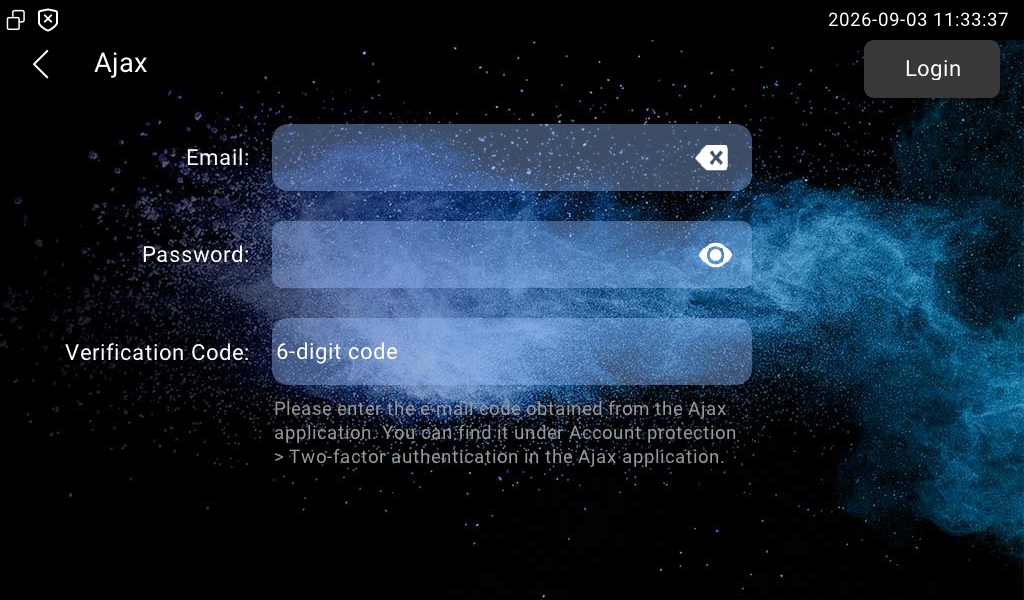
On the indoor monitor, enter your AJAX account email and password.
Enter the six-digit verification code obtained from the authentication app.
Tap Login.
After logging in, you can:
Switch arming mode.
Receive notifications from AJAX.
Check devices.
Change arming/disarm code.
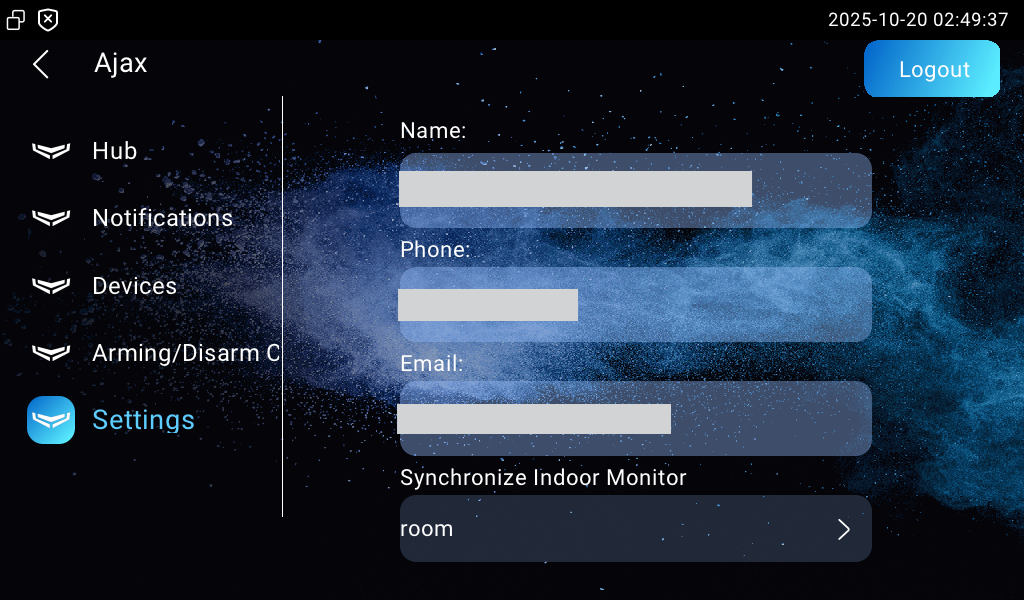
Check account information and log out.
Features
Switch Arming Mode
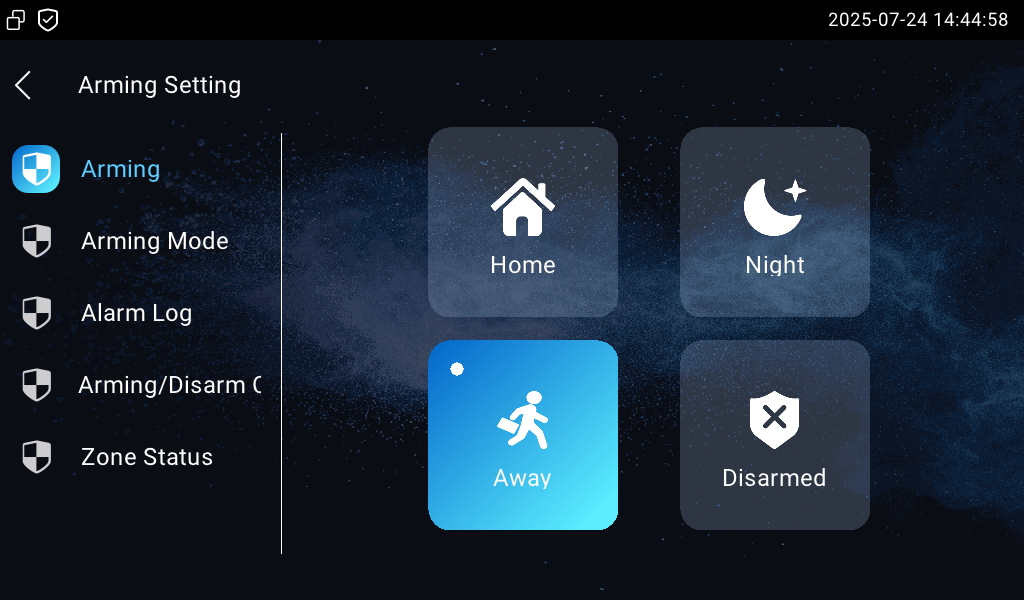
Tap to switch arming mode, which will be synchronized to the AJAX system and the indoor monitor’s built-in arming feature.
Arm corresponds to Away/Home. Tap Arm, and the indoor monitor will switch to Away, vice versa.
Tapping Panic sends a panic alarm to both the AJAX App and the indoor monitor. Without dealing with it, the alarm on the indoor monitor will last for 8 seconds.
The arming status will be synchronized among multiple indoor monitors in the same room that have the same account logged in.
Switching arming mode requires entering a code, except when switching from Disarmed to Armed or triggering Panic. The default is 0000.
.bmp)
AJAX Arming
Indoor Monitor Arming
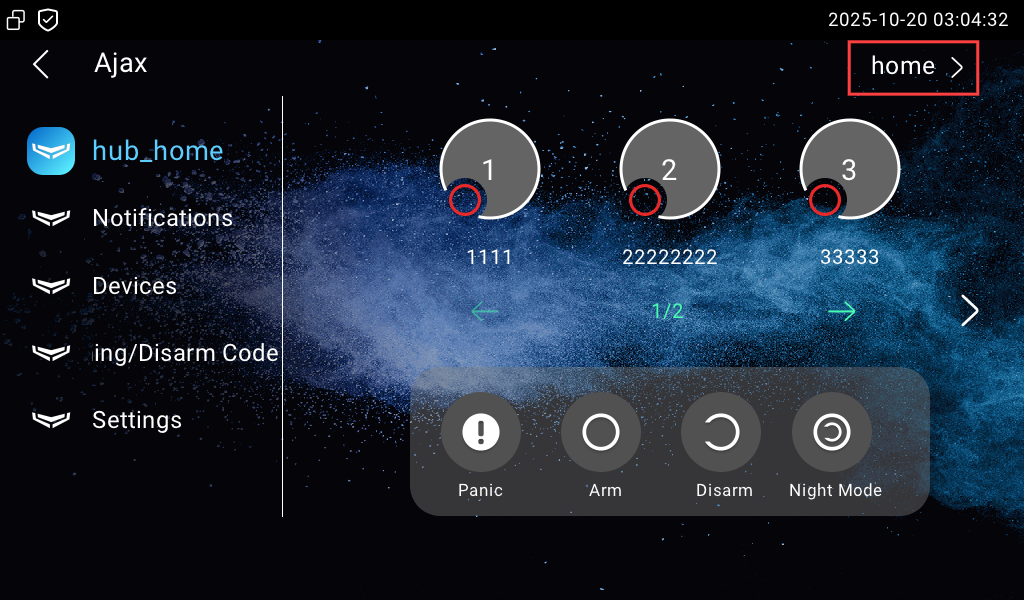
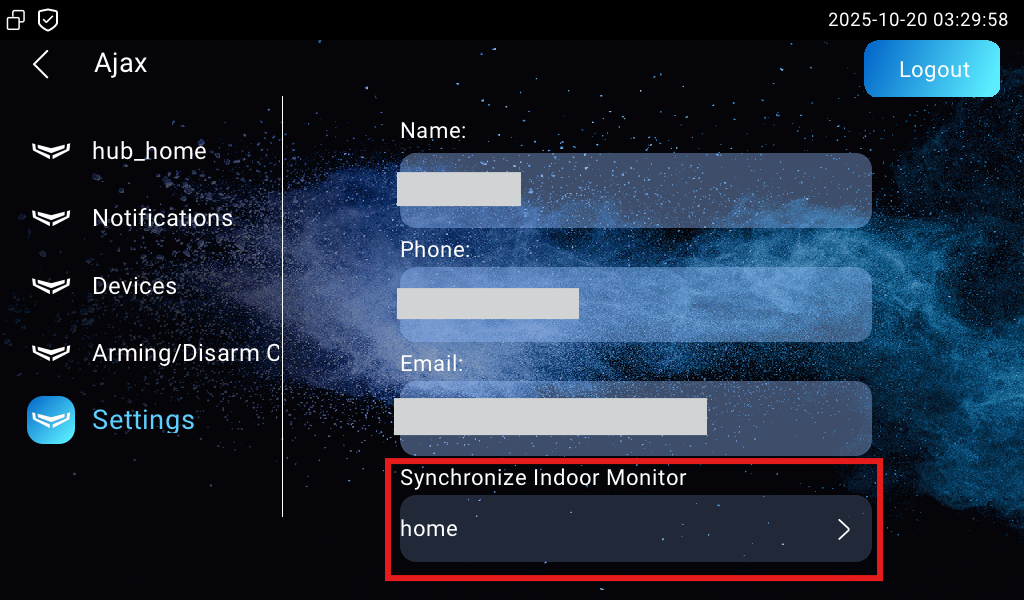
Switch Space
If multiple spaces are added in the AJAX App, select which space to control.
Select the desired space name in the upper-right corner.
Tap Settings to select the space to synchronize arming/disarming with the indoor monitor.
In the Synchronize Indoor Monitor dropdown, choose the desired space name.
Control Multiple Groups and Relays
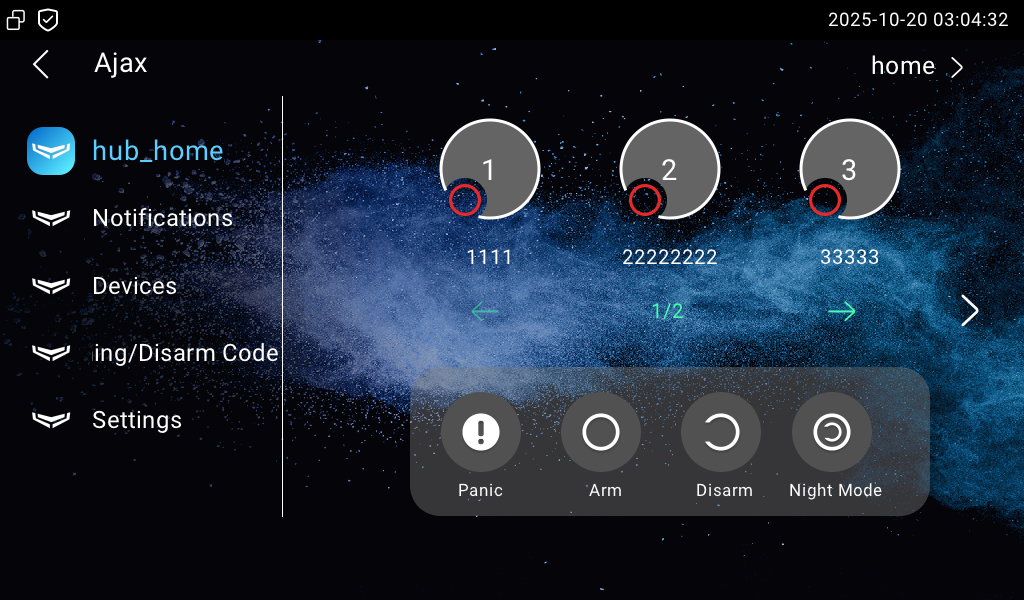
When multiple groups are added to a hub, you can arm/disarm a single group or all of them.
When disarming a group, enter the disarm code.
When activating Night Mode for all groups, the groups’ arming/disarm status will not change.
One screen displays up to 3 groups. Tap
 to turn the page.
Groups
See how indoor monitor’s arming status is synchronized when night mode is turned on/off:
Partial Group Arming/Disarming - Night Mode Off, Away Mode Synced.
When some groups are armed and some are disarmed, and the Night Mode is turned off, the indoor monitor is in Away mode.
Partial Group Arming/Disarming - Night Mode On, Night Mode Synced.
When some groups are armed and some are disarmed, and the Night Mode is turned on, the indoor monitor is in Night mode.
Full System Arm + Night Mode, then Night Mode Off - Away Mode Synced.
When all groups are armed in Night mode, and then the Night Mode is turned off, the indoor monitor is in Away mode.
Full System Night Mode - Night Mode Synced
When the Night Mode is turned on for all groups, the indoor monitor is in Night mode.
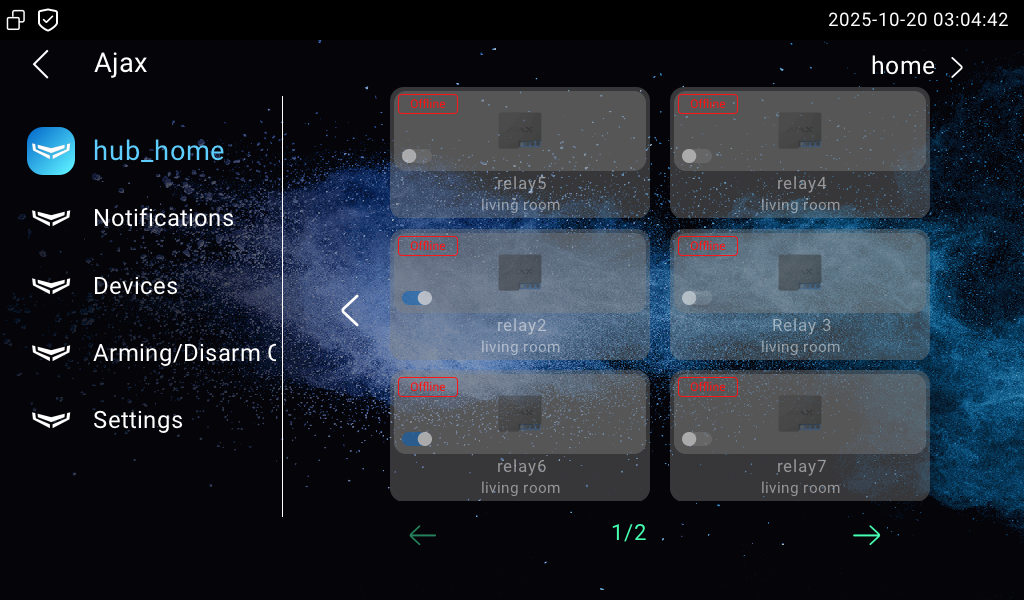
You can control multiple relays added to the hub.
Tap to turn the page.
Relays
Check Notifications
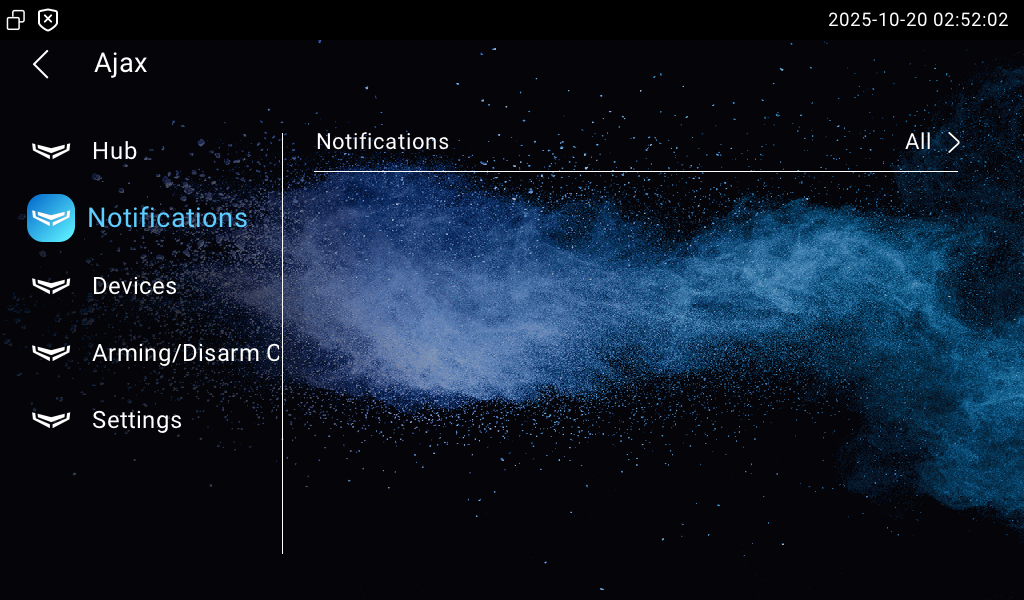
You can receive notifications from AJAX, including alarms, device online/offline, arming mode change, relay switch, and system events(upgrade, time change, etc).
Check Devices
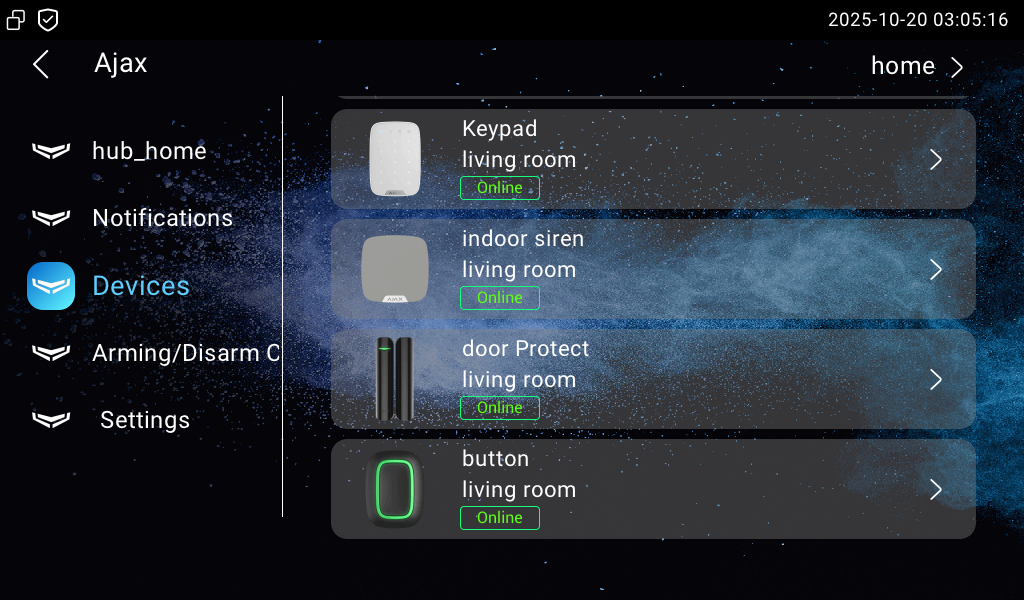
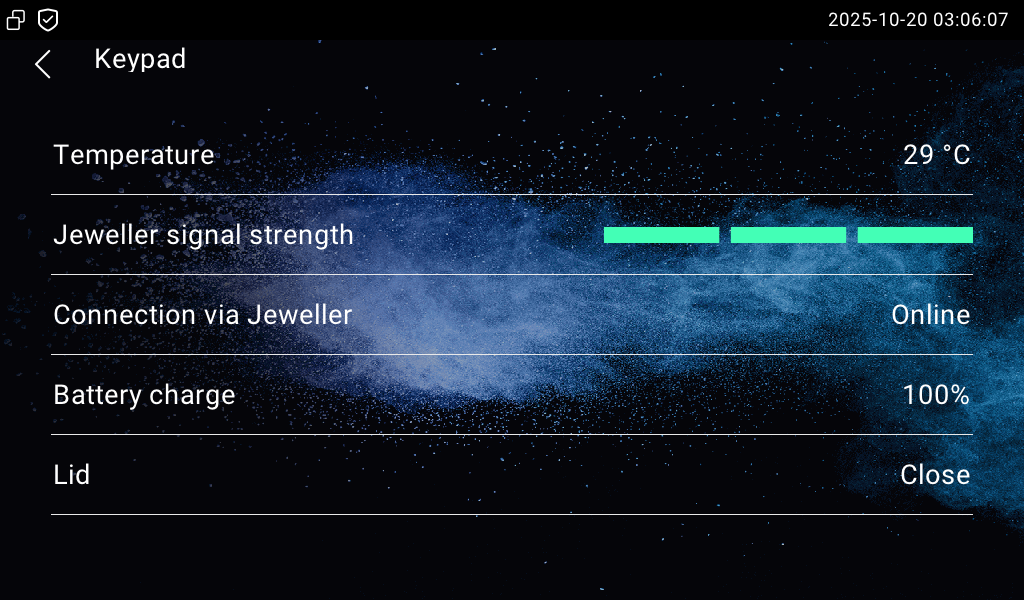
Tap a device to view its information.
Change Arming/Disarm Code
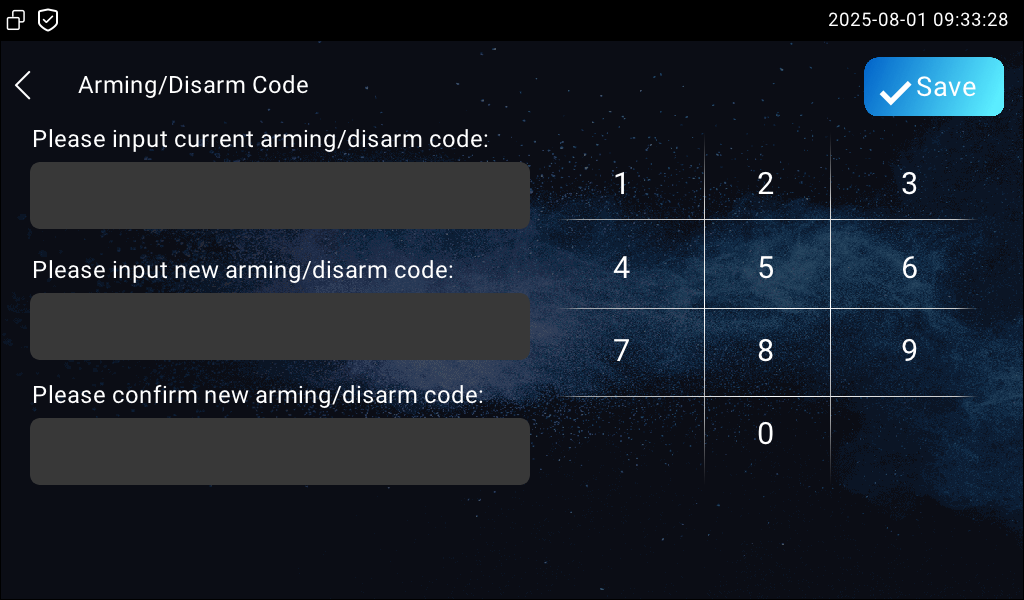
Switching arming mode requires entering the code. The default is 0000.
You can set a desired code. It will be synchronized to the indoor monitor’s built-in arming feature.
Log Out
Tap Settings to check the account information and log out.