Symptom
KNX devices are not responding when performing a download in ETS.
Possible Causes
This issue may be caused by:
Disconnected or loose wires.
Incorrect wiring.
Panel failing to detect its flush mounted module.
Other potential issues.
Solution
Check KNX bus wire connections.
Gently tug on the red and black KNX bus cables to ensure they are securely connected.
Cross-check with other devices: If other KNX devices are available, disconnect the red and black terminals from the unresponsive device and connect them to another device. Try downloading. If the download works, the wiring on the KNX bus is fine.
Ensure the device is correctly wired to the KNX bus.
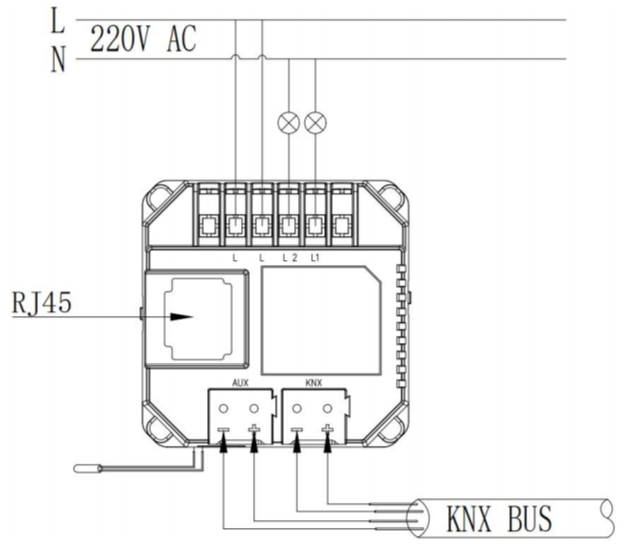
Ensure KNX bus cables are properly connected: The red KNX cable should be connected to the red terminal and the black KNX cable to the black terminal. Reversed connections will cause malfunctions.
Ensure the auxiliary power and the KNX bus cables are connected to the corresponding terminals. Incorrect wiring will prevent the panel from responding.
Additional checks for HyPanel devices. If the problematic device is a HyPanel device, do as the following:
Verify the device’s firmware version supports the KNX function.
Device Model | Required Firmware Version |
HyPanel Lite | 41.1.31.13 and later |
HyPanel | 51.1.30.61 and later |
HyPanel Lux | 61.1.30.27 and later |
HyPanel Pro | 71.1.30.63 and later |
HyPanel Ultra | 281.1.35.8 and later |
HyPanel Supreme | 1001.1.35.8 and later |
b. Check if the device’s is in the programming mode.
Go to
 > System Settings > KNX Programming, and check if it is toggled on.
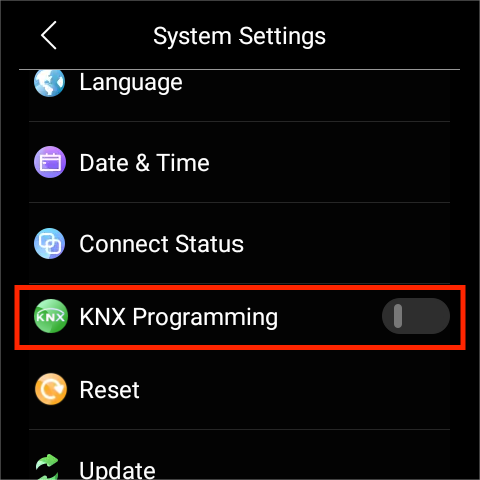
c. Check if the communication between the panel and its flush mounted module is normal.
Go to Settings > System Settings > About > Flush Mounted Module.
Confirm the module information is displayed. If not, the communication may be faulty. Please refer to this guide for troubleshooting steps.
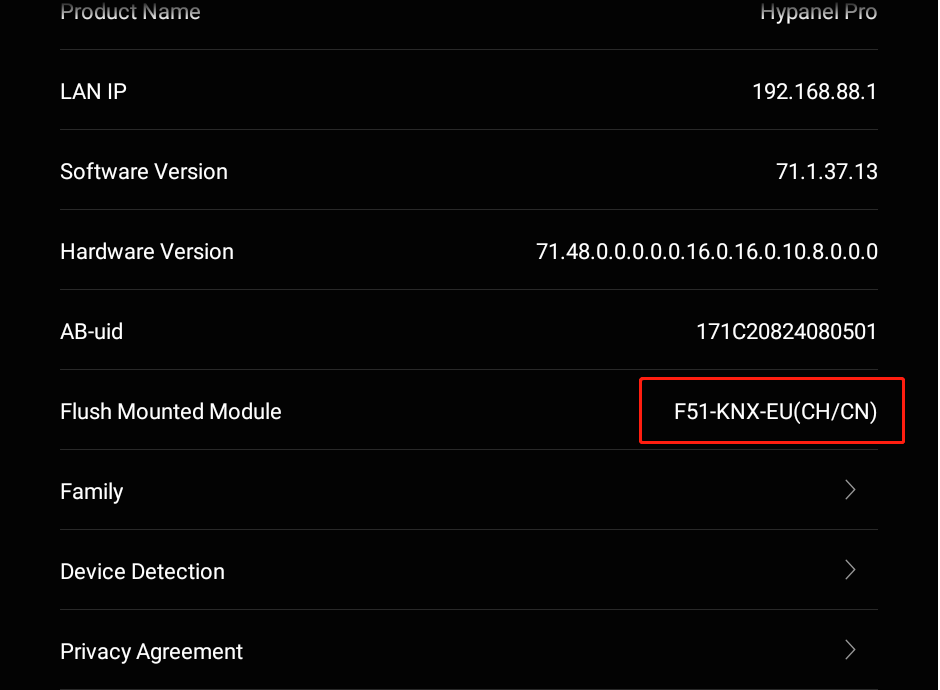
d. Test the physical programming button:
Remove the panel from its flush mounted module.
Press the physical programming button on the module and check if the download starts.
If none of the above steps resolve the issue, contact our technical support and provide the device logs.
For detailed instructions on how to export device logs, please refer to this guide.