Add Zigbee devices
HyPanel Plus can connect to many Zigbee devices, such as sensors, emergency button, IR controller, thermostat, smart switch, and more. For example, you can add and fit a CO sensor in your kitchen to identify carbon monoxide leaks.
NOTE:
The transmission distances of Zigbee signal may vary by environmental characteristics and more. For optimal performance, add Zigbee devices to the HyPanel Plus within the same room.
Put devices in pairing mode
Before pairing the Zigbee devices with the HyPanel Plus, you should know how to activate their pairing mode. Here are a few examples to guide you.
TIP:
For more additional devices, check our guide on Put Zigbee Devices into Paring Mode, or refer to their manuals.
Zigbee device | How to put it to the pairing mode | |
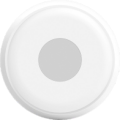
Smart Emergency Button
| Insert a pin into the reset hole at its back cover for 5 - 10s until the green light flashes quickly. |
|
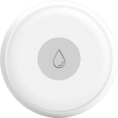
Smart Flood Sensor
| Press and hold the reset button on the front for 5 - 10s until the green light flashes quickly. |
|
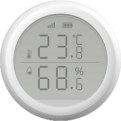
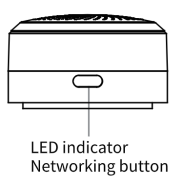
Smart Temperature and Humidity sensor
| Press and hold the reset button on the side for 5 - 10s until the signal icon flashes quickly. |
|
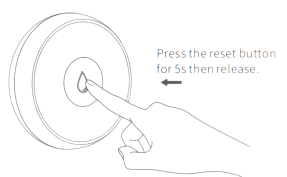
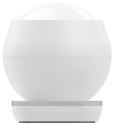
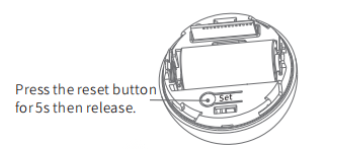
Smart Motion Sensor
| 1. Rotate the battery cover anticlockwise to open. 2. Press and hold the reset button for at least 5s until the green light flashes quickly. |
|
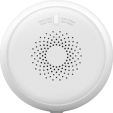
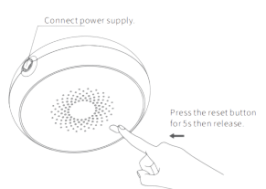
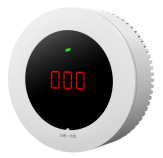
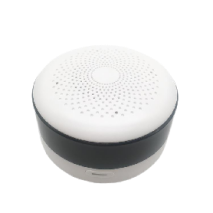
Smart Gas Sensor
| Press and hold the reset button on the front for at least 5s until the green light flashes quickly. |
|
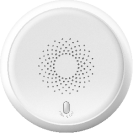
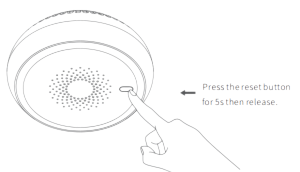
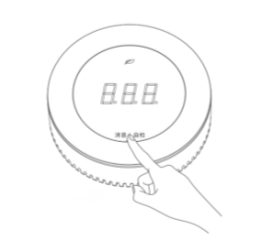
Smart Smoke Sensor
| Press and hold the reset button on the front for at least 5s until the green light flashes quickly. |
|
|
|
|
IR Controller
|
|
|

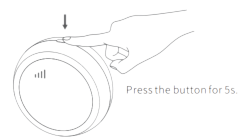
Pair devices with HyPanel Plus
You can add Zigbee devices through scanning. If an existing Zigbee device goes offline and is later re-added, it will automatically reconnect to its original scenes and restore saved settings.
Swipe down from the top edge of any screen, and tap
 > Device Management >
  . HyPanel Plus will then search for the nearby Zigbee devices.
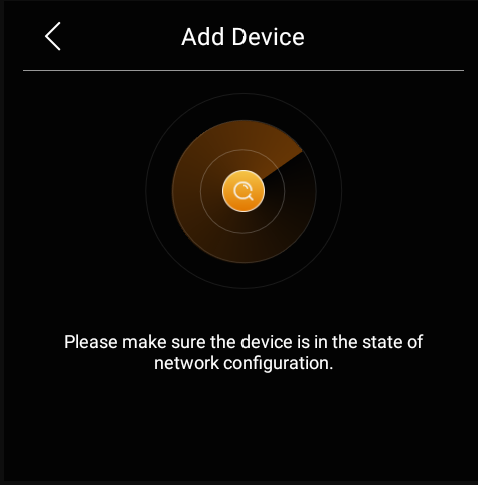
Put the Zigbee device you want to add in pairing mode.
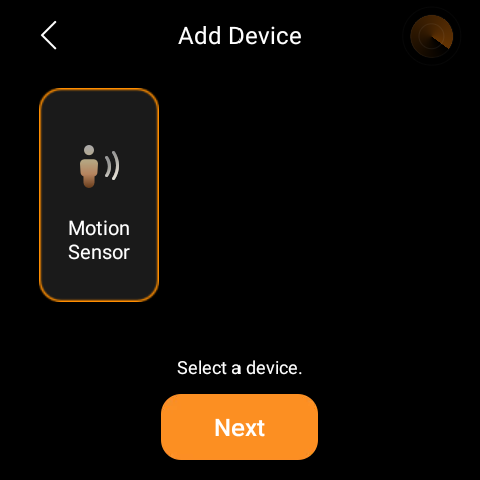
The screen displays the searched device. Select it, and tap Next.
NOTE:
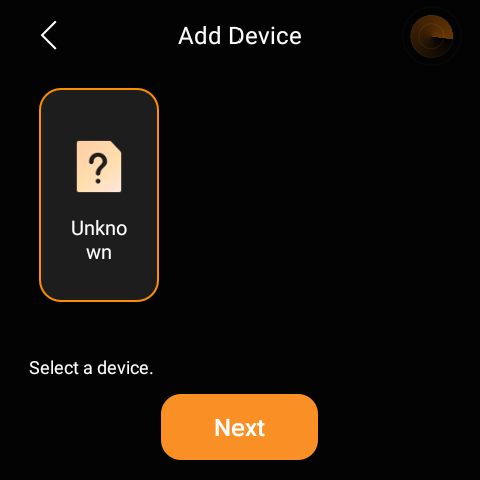
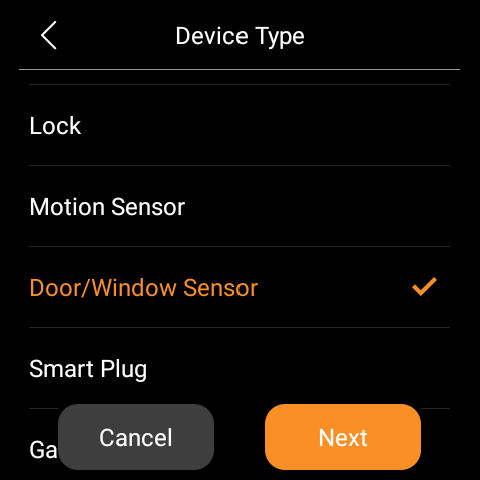
If the device appears as Unknown, you can set its type before proceeding to the next step.
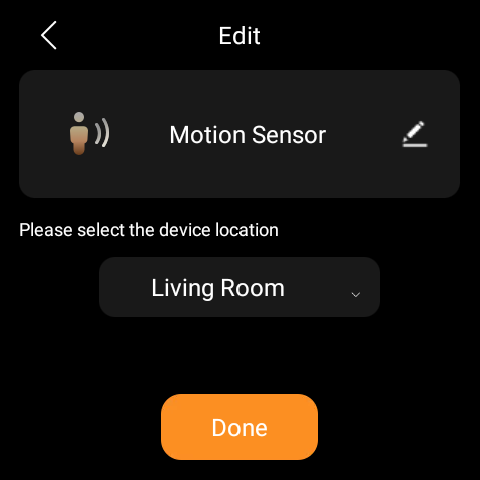
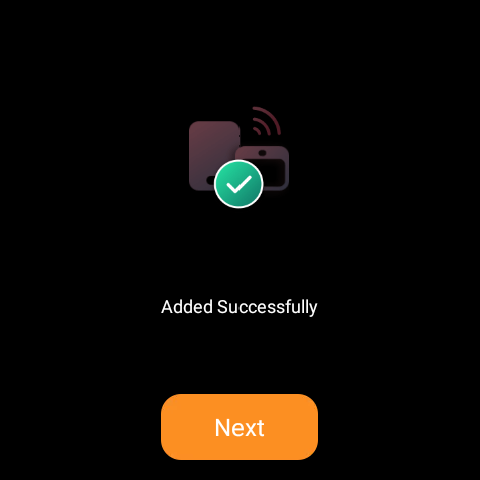
Name the device and choose its location, tap Done > Next.
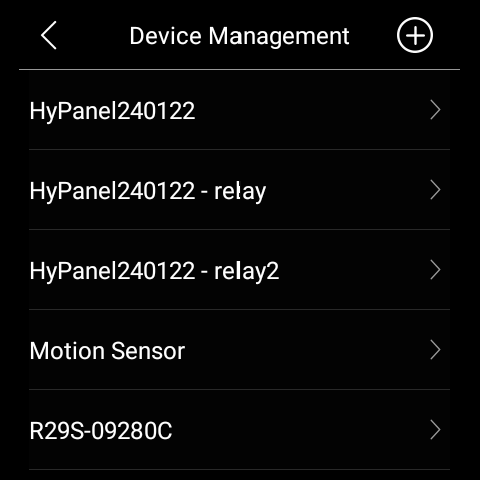
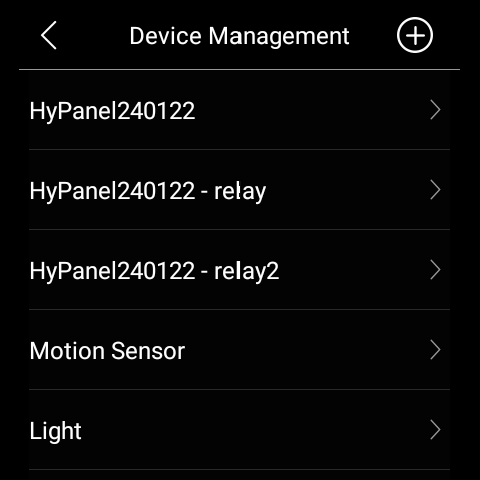
The newly added device will be shown on the Device Management screen.
You can also see here to learn more about how to delete added Zigbee devices from the user web portal or BelaHome app.
Add third-party smart home devices
Third-party smart home devices, such as Philips Hue, Ring Video Doorbell, Ecobee thermostat, Lutron Caseta, TP-Link kasa, Sonos, and more, can be added or removed on user web portal, or via BelaHome App.
To add a device, refer to any of the instructions:
Using BelaHome app;
Add door phones
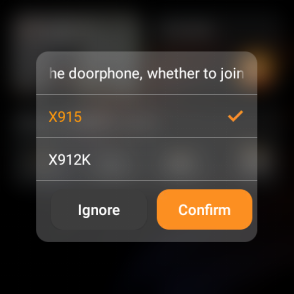
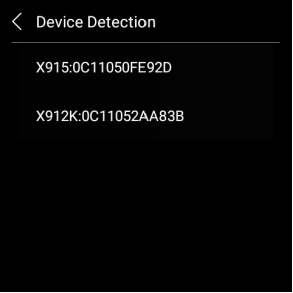
The panel supports an auto-discovery function for door phones, which is enabled by default. After a reboot, initialization, or network change, the panel will automatically scan for door phones on the same LAN. Simply tap a detected device and confirm to add it.
Manual search
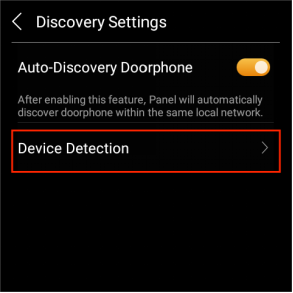
If you skipped the auto-search, go to Settings > Installer Settings > Discovery Settings > Device Detection to scan manually. Then tap detected devices to add them.
Disable auto-discovery
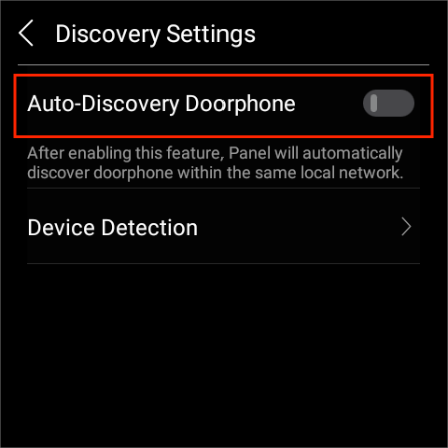
To turn off this feature, go to Settings > Installer Settings > Discovery Settings, and toggle off Auto-Discovery Doorphone.
See sensor logs
To see trigger histories of sensors, swipe down from the top edge of any screen, tap  and then swipe right to the Alerts screen.
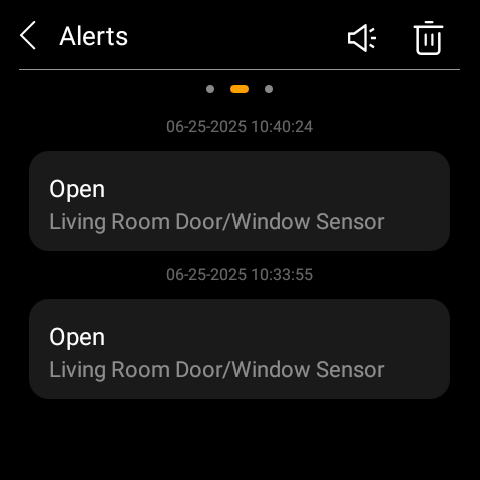
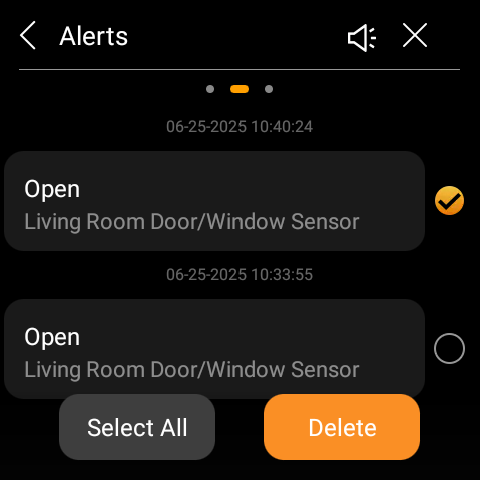
To delete records, simply tap the icon  in the upper right corner, select the logs, and tap Delete.
Modify and delete devices
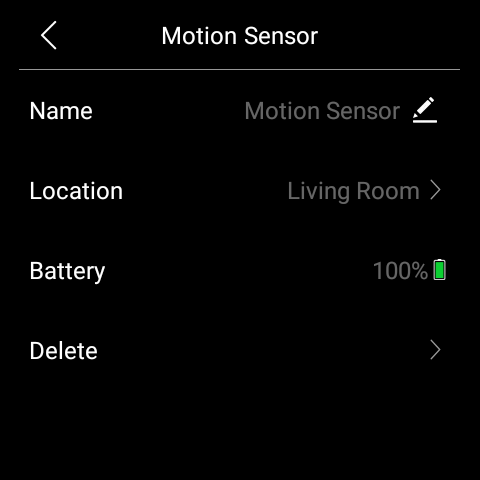
You can delete sensors and third-party devices like lights directly on the panel. For door phones and other panels, use the app or user web portal.
NOTE:
Deleting any relay on a device will result in the entire device being removed.
To view the details, relocate, or delete a device, do any of the following.
Go to
 > Device Management, select the desired device.
Using BelaHome app: Tap the desired device card on the Home screen, and then tap
 > Delete.
 Go to the user web portal: Go to the Devices interface, click on the desired device card, then click
 > Delete > Confirm.