NOTE:
To control newly added devices, make sure to add their cards to the homepage first.
Control a single device
Relay
Some versions of HyPanel Plus allow direct connection to one or two relays. You can change the relay type by going to  > Device Management > [Relay] > Device Type.
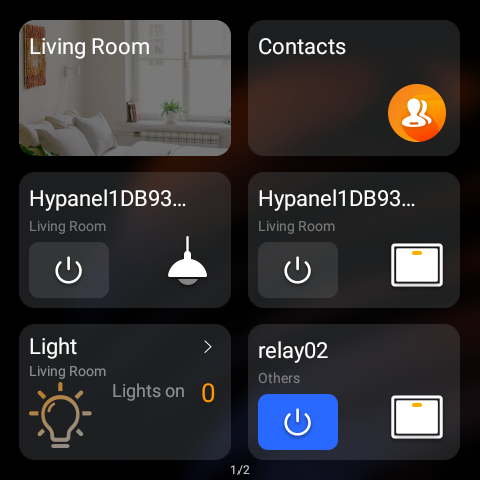
To operate a relay, tap its On/Off button. Blue means the relay is open, and gray means the relay is closed.
Switch, plug, and socket
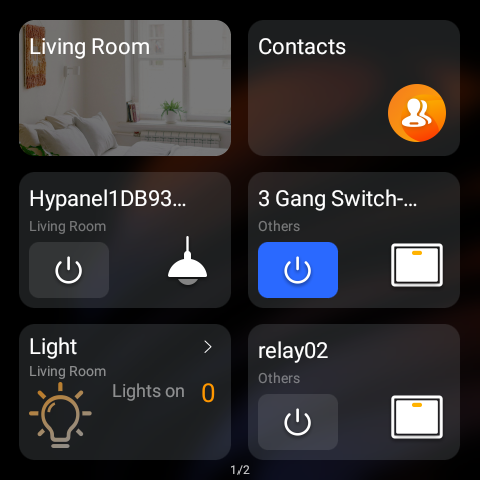
To turn on your switch, socket, siren or a light, simply tap the ON/OFF button.
Lighting devices
Some lights can only be turned on or off with a single tap, while others like RGB lights, offer more features such as color adjustment, brightness control, and so on.
To control a RGB light, add the light card to the Homepage, then you can do the following:
To turn the light on or off, tap
 .
.To adjust its brightness, tap
 , then drag the slider.
To change the color temperature, tap
 , then drag the slider.
To set the light color, tap
 , then pick the desired color from the palette.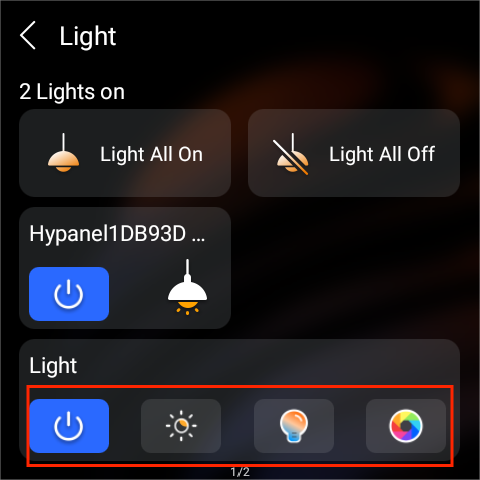
TIP:
You can change the color temperature unit under
Heating, cooling, and thermostat
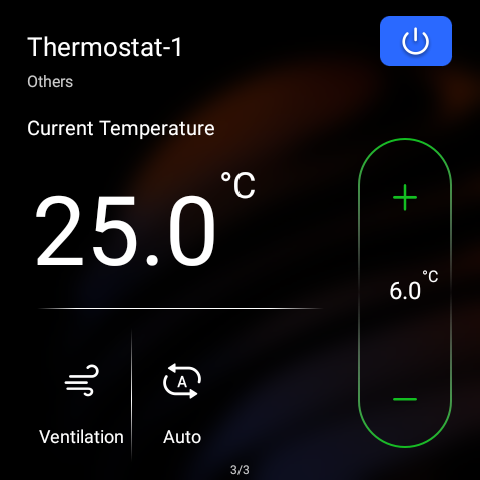
You can turn on/off the climate device or adjust the target temperature after adding the desired device card to the Homepage.
Tap
 to turn the device on or off.
Tap
 at the bottom left to switch modes.
Tap
 or
or  to adjust the desired temperature which ranges from 5-35℃.
Tap
 to set fan speed.
TIP:
You can change the temperature unit under
Shade
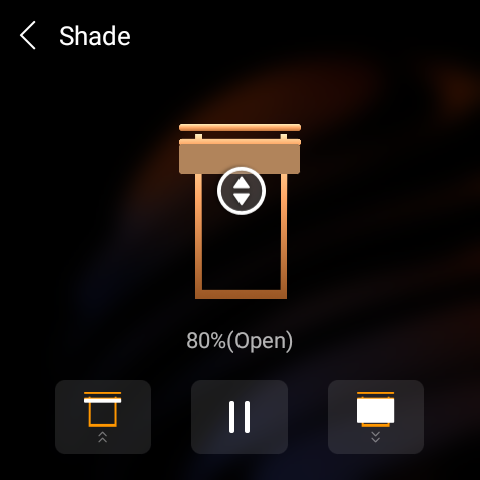
Add the shade device card to the Homepage.
Do any of the following:
Tap
 to open the shade.
Tap
 to close the shade.
 Tap
 to stop the shade when it reaches the desired position.
For advanced settings, go to
 > Device Management. Note that not all shades support the following options:
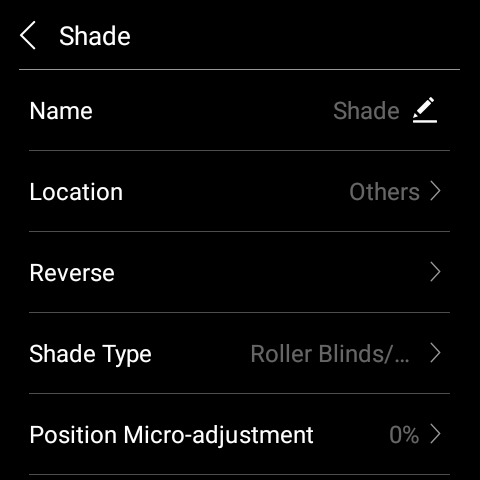
Reverse: Reverse the curtain’s movement direction when the close and open buttons operate contrary to the current direction.
Shade Type: Change the types of curtains.
Position/Angle Micro-adjustment: When the curtain is fully closed (angle/travel at 0), tapping the Pause icon will trigger a micro-adjustment based on the configured fine-tuning range.
Shade Calibration: Adjust the time it takes for the curtain to fully open and close. To do so, select this option and follow onscreen instructions.
NOTE:
If a curtain supports both travel and angle micro-adjustment, angle fine-tuning takes priority.
Behavior when tapping Pause:
If angle = 0 and travel = 0 → triggers angle fine-tuning.
If angle = 0 and travel ≠ 0 → still triggers angle fine-tuning.
If angle ≠ 0 and travel = 0 → triggers travel fine-tuning.
Speaker
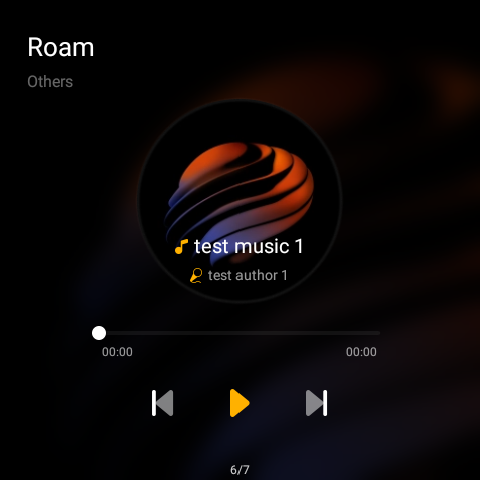
When speakers such as SONOS are added, you can add their cards to the Homepage for quick control of the speakers.
IR-based devices
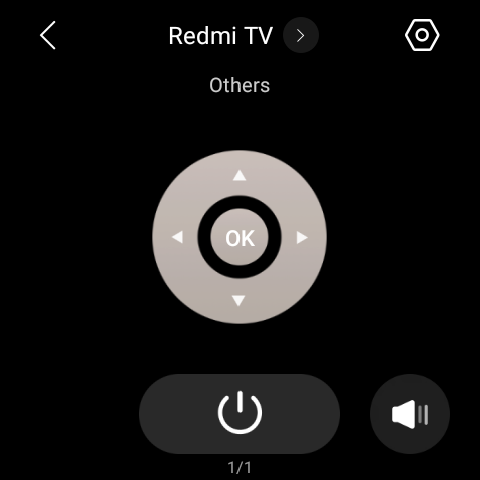
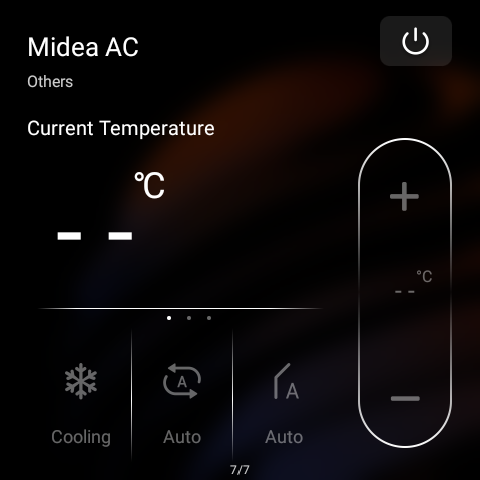
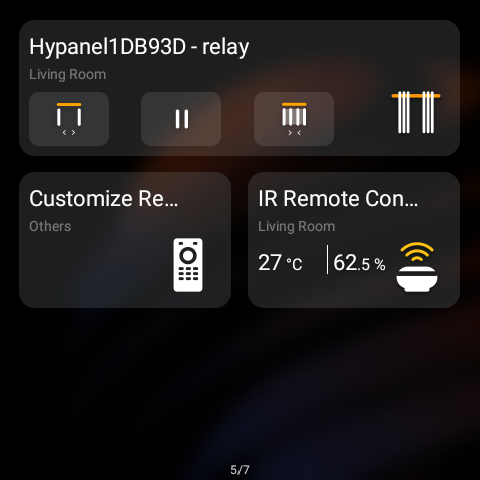
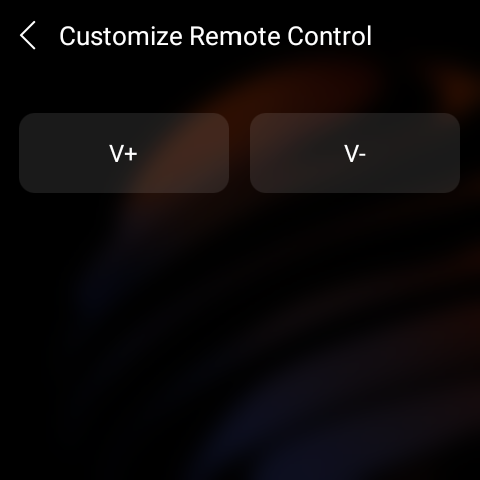
With the IR controller, the panel can seamlessly integrate with up to 30 IR-based devices such as TVs and air conditioners, enabling it to function as a remote control.
NOTE:
The IR-based devices should be added via BelaHome app before you can see them on panels.
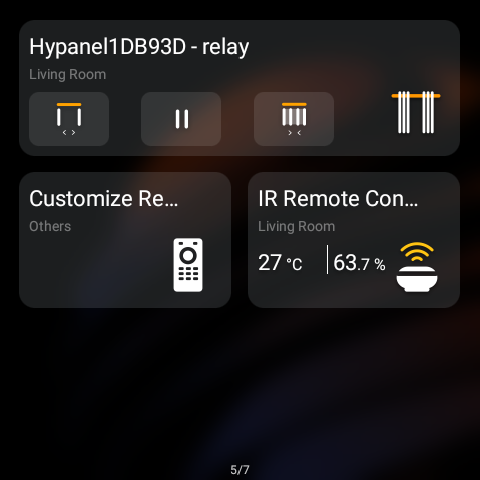
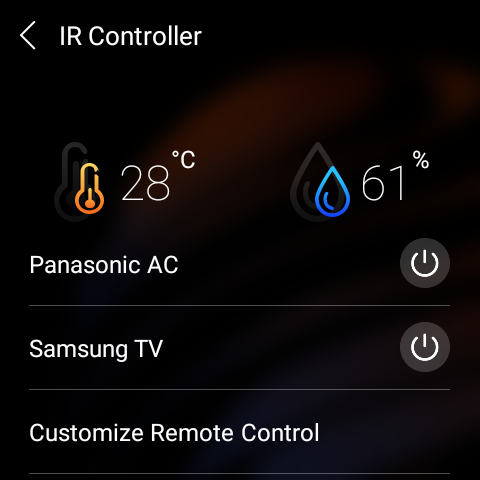
To control the devices and remotes added by the specific IR controller, you should add their cards to the Homepage:
Smart lock
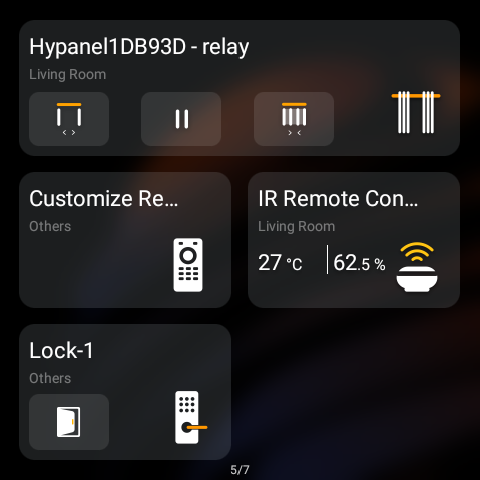
Open door with one tap
Go to the Security screen, and tap  .
.
Receive doorbell notification
When someone rings the doorbell on the smart lock, HyPanel Plus will display a push notification and play a sound to notify you. You can tap Confirm to mute the sound.
Unlock with temporary key
You can provide visitors with a temporary PIN for self-door unlocking. To issue such keys, refer to the instructions with BelaHome app.
Upgrade lock’s software
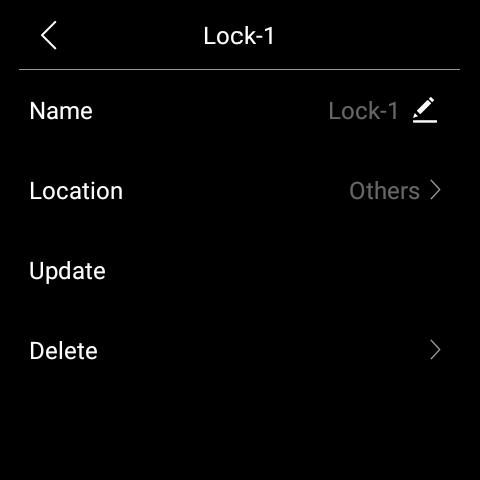
Some locks can be upgraded from the panel. To do so, go to  > Device Management, tap the desired smart lock, and select Update. This update option appears only when a new version is available.
Group control devices
HyPanel Plus enables convenient one-touch control for specific type of devices in a individual space and supports grouped lighting management.
One-touch device control
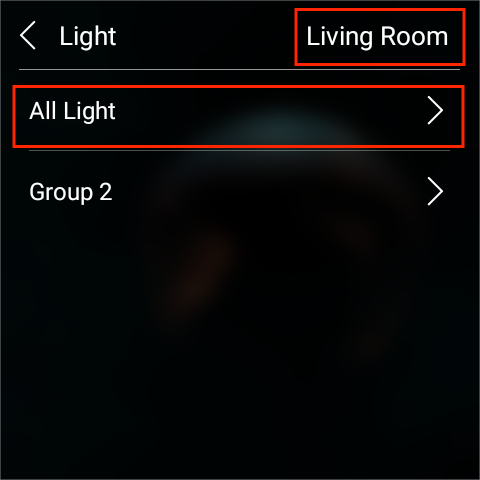
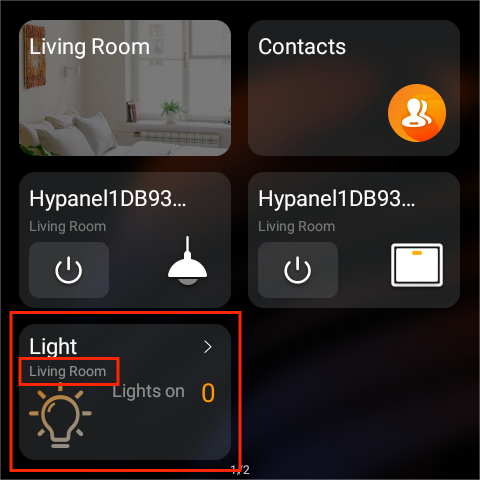
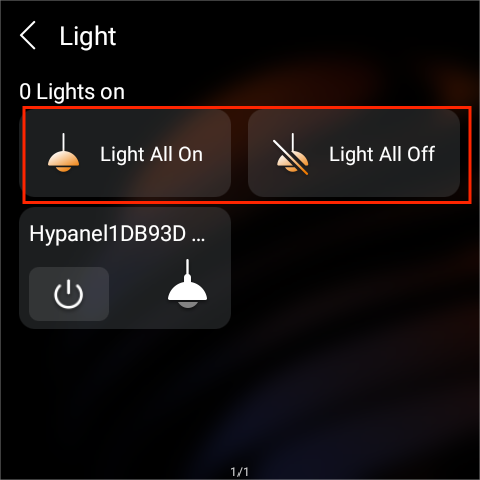
When adding a device card, choose an “All [Device Type]” card to control all devices of that type in a selected space.
For example, if you select Living Room and then choose All Light, the card will let you access and control all lights in the living room from one place.
Lighting group control
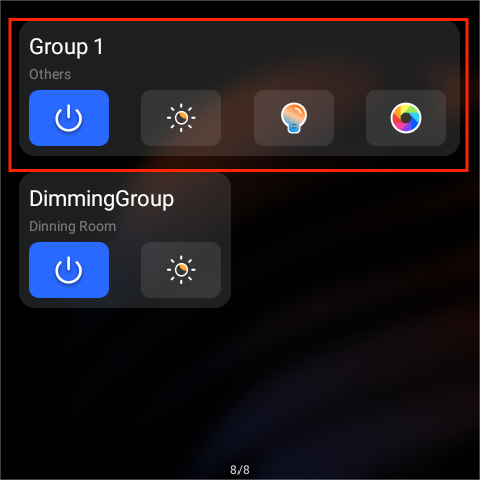
You can group multiple lights for simultaneous control, making it easy to adjust brightness, color, and power status across different locations within the same room.
NOTE:
The device group should be created using the BelaHome app (Go to the home page, tap any desired device
> Device Group, and add devices into the group).
Group Control Capabilities
Devices with the same capabilities (e.g., RGB lights) will display those capabilities for the entire group.
Devices with different capabilities will only display the common capabilities in the group. For example, if a switch light and a dimmable light are grouped, only the switch capability will be shown.
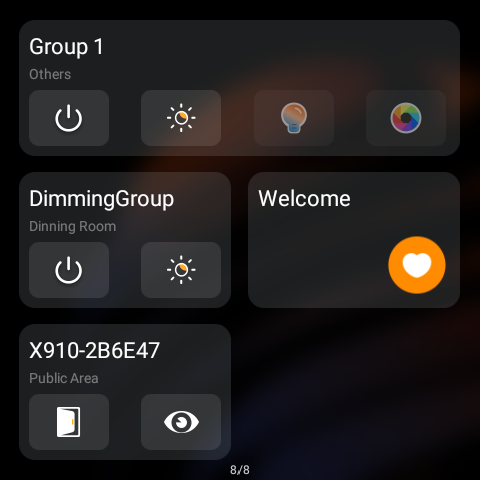
To control the configured lighting group, long press the blank area on the homepage, go to  > Device > Light, select the group, and tap Add.
Multi-control association
This feature links switches and lights to keep their on/off states synchronized. When one device changes state, all associated devices update accordingly. For example, if multiple switches control the same light, associating them ensures they reflect the same on/off status.
TIP:
The association can be configured on the large-screen panels or BelaHome app.
Virtual three-level dimming group
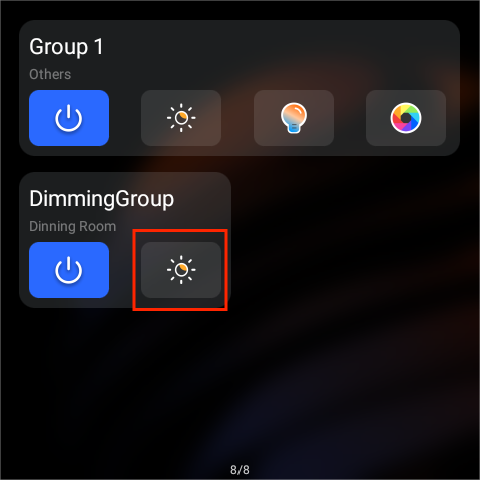
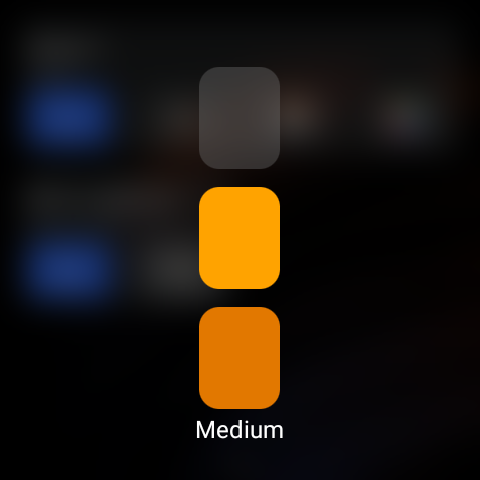
For unified control of non-dimmable lights (on/off only), you can create a virtual three-level dimming group. This allows you to assign a set number of lights to each brightness level for group control.
NOTE:
This feature must be configured in the user web portal (Go to Dimming Group > Add).
To control the configured dimming group, long press the blank area on the homepage, go to  > Device > Light, select the group, and tap Add.
Use the intercom
Unlock door remotely
When you know who is at your door, you can open the door directly without communicating with the door phone:
Add the door phone card to the homepage.
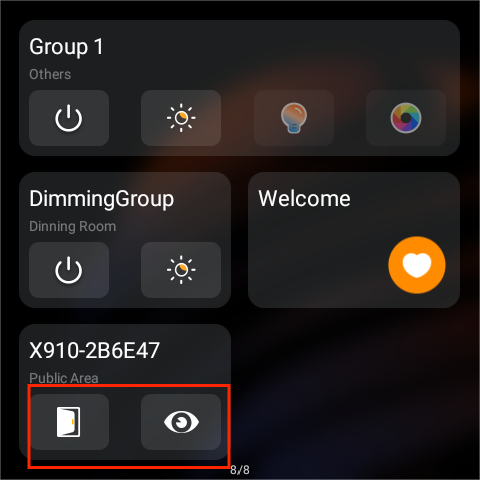
Do any of the following:
Tap
 to open the door directly. If there are multiple doors connected to the door phone, select the desired one from the pop-up list.
Tap
 to view the live video feed.
Unlock door before answering a call
When you receive a call from the door phone with a camera, you can preview its monitoring streaming and open the door without answering the call.
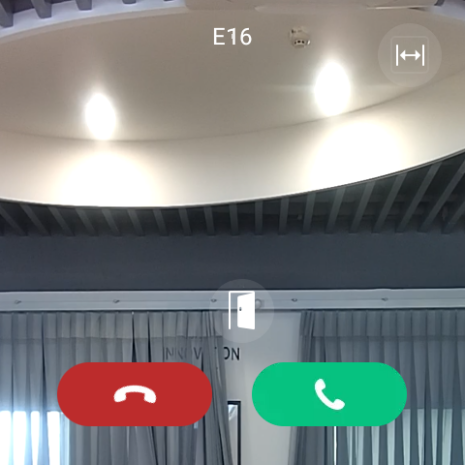
Unlock door during a call
You can answer the door phone call and unlock the door during the call.
On the calling screen, tap  to release the door.
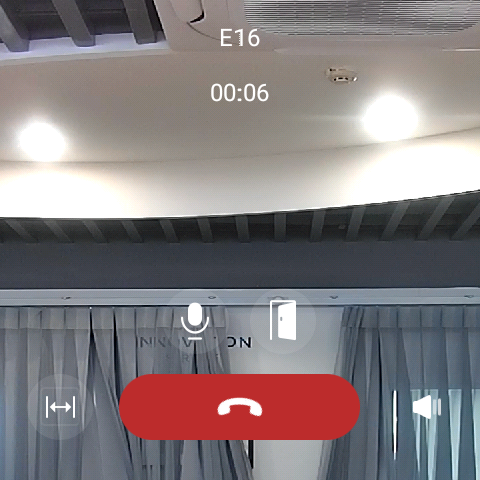
You are also able to call the door phone to see and hear who the visitor is. To do so, see the section Make calls in this guide.
See monitoring stream
If the connected door phone has a camera, you can see its monitoring stream on the HyPanel Plus.
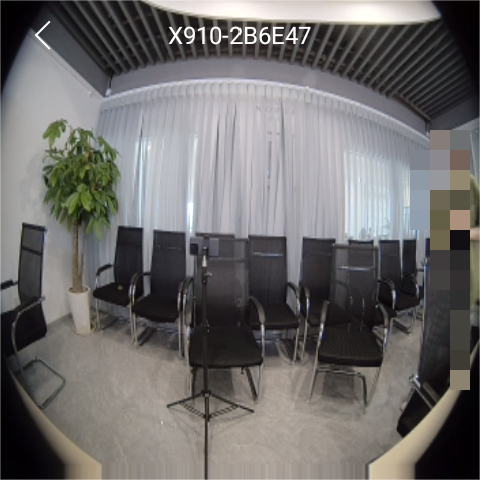
To see the monitor stream, find the desired door phone card, and tap on the monitor icon  .
.