You can configure a variety of features of the screen display in terms of brightness, screen saver and font size, etc.
Sleep Mode
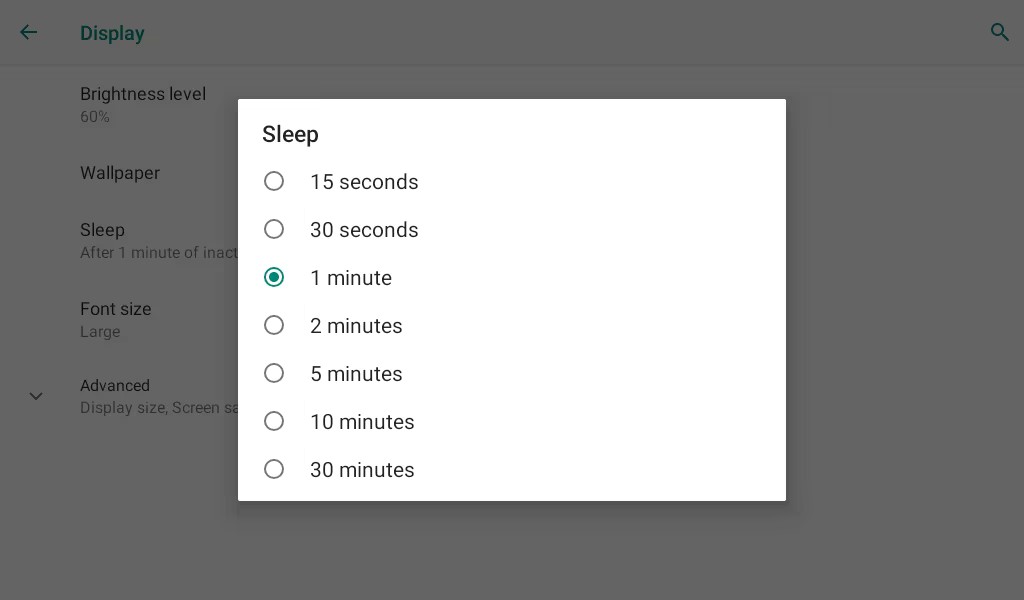
You can set the timing for the device to go into sleep mode. For example, if you set it to 1 minute, then the device will go into sleep mode when there is no operation for 1 minute.
Tap  > Settings > Display > Sleep on the device screen.
Screensaver
The screensaver will be displayed after the device goes into sleep mode.
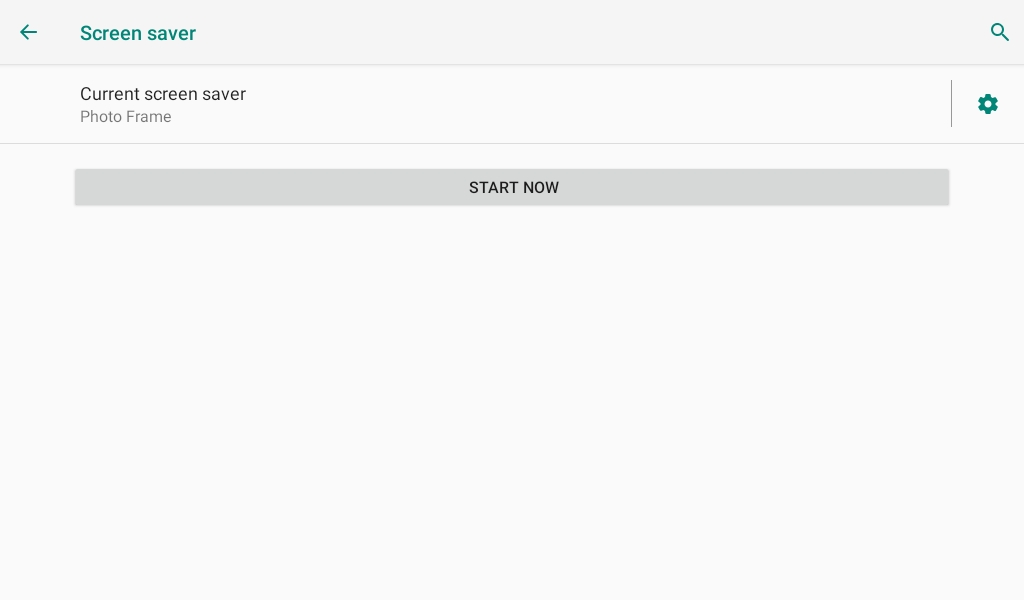
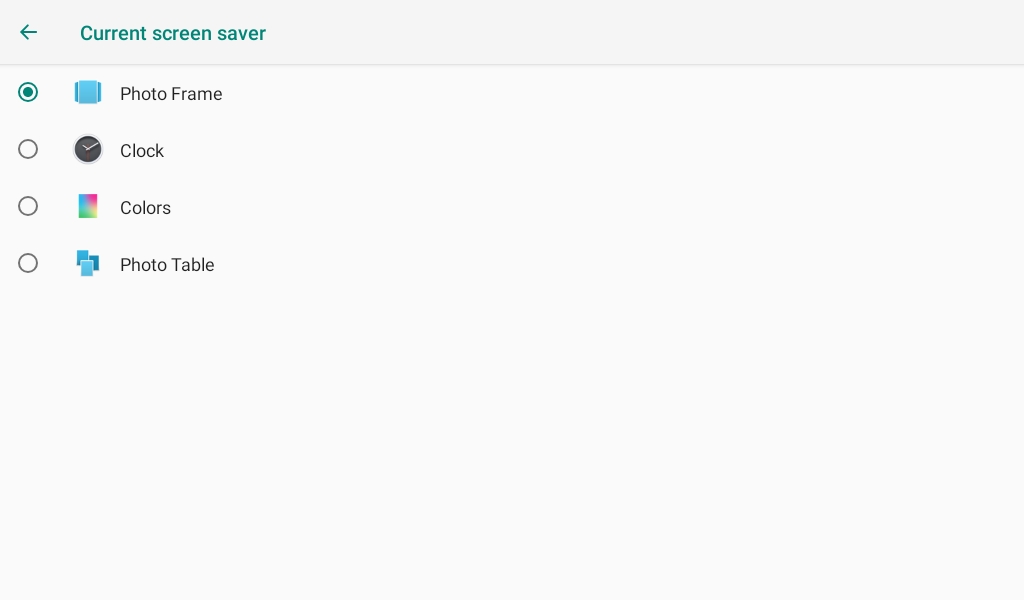
Tap > Settings > Display > Screen saver. Select the desired screensaver type.
Tap START NOW to display the screensaver right away.
Tap
 to select pictures as the screensaver.
Upload Screensaver
You can upload screensavers on the Phone > Preference > Screen Saver Settings interface.
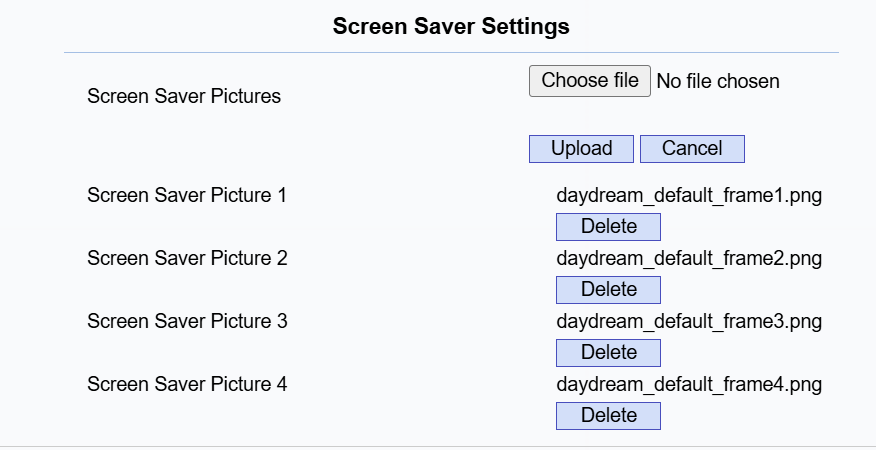
Upload: Support uploading a maximum of 10 screensaver pictures. File size: no more than 2MB; File format: JPG, PNG, and JPEG; Resolution: 1024×600.
Text Size
Users can amplify everything shown on the screen to see everything on the screen with greater ease.
Tap > Settings > Display > Display size.
(1).png "image(762)(1).png")
LCD Screen Brightness
Tap > Settings > Display to enter the settings screen. Tap Brightness Level to adjust the brightness.
(1).png "image(745)(1).png")
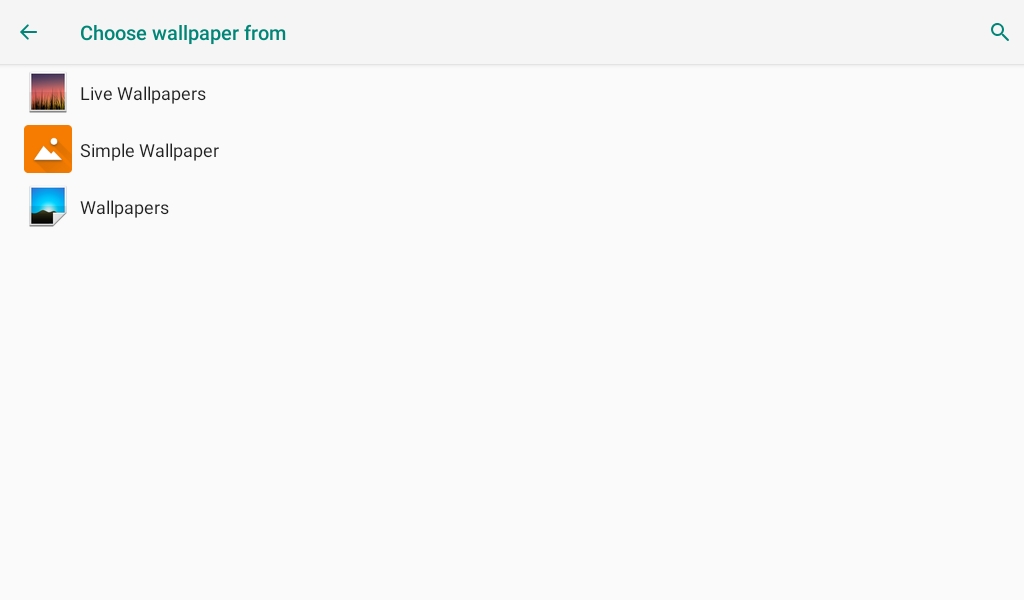
Wallpaper
The wallpaper will appear when the device goes into sleep mode or the lock screen status.
Tap > Settings > Display > Wallpaper on the device screen.
Font Size
Tap > Settings > Display > Font Size on the device screen.
(1).png "image(751)(1).png")
Home Screen Display
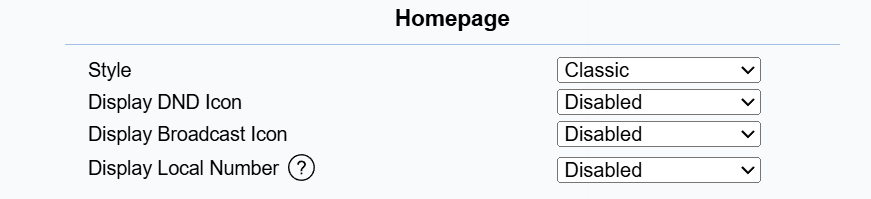
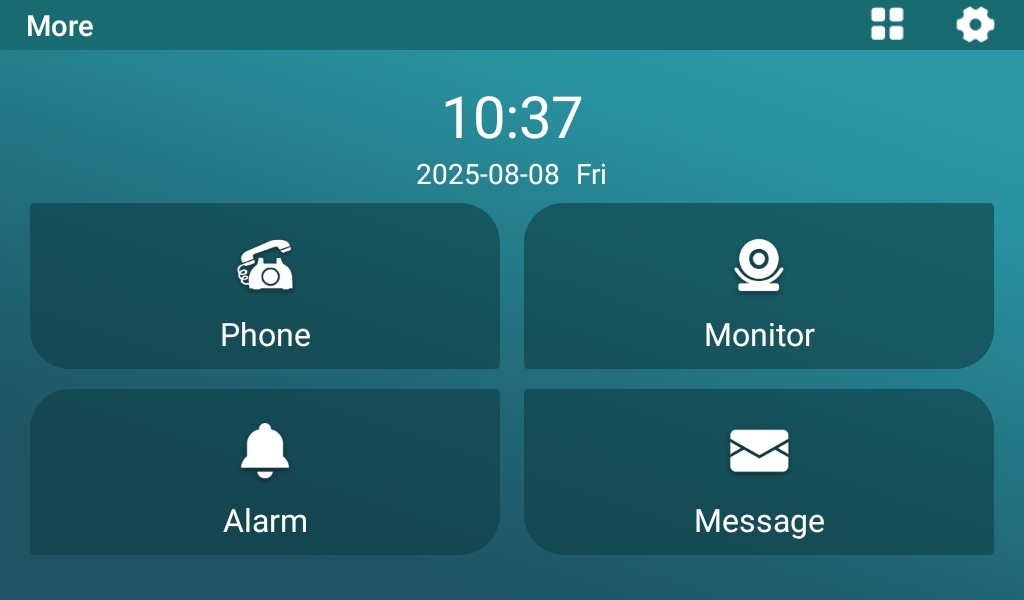
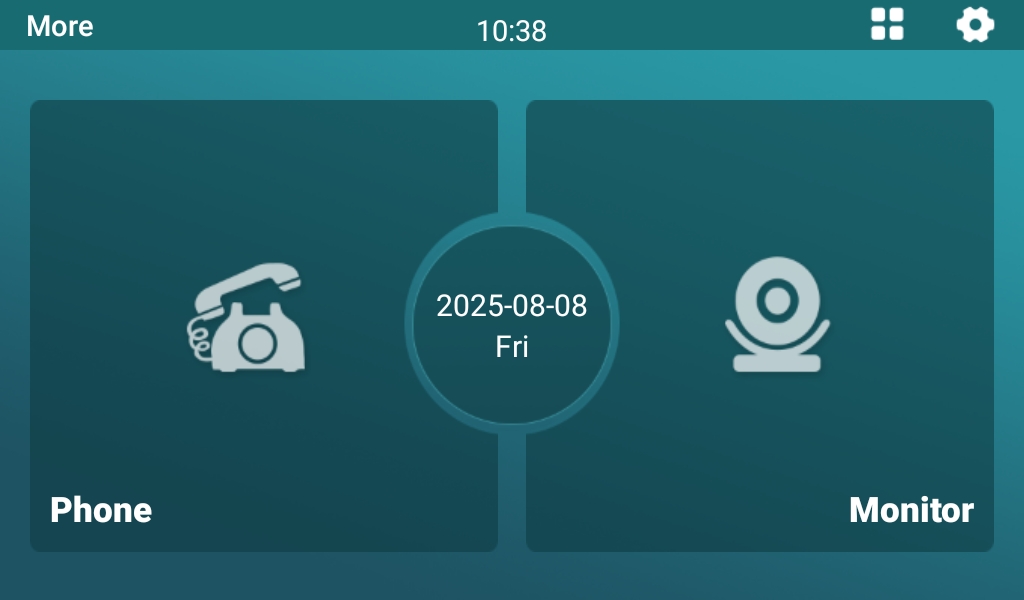
You can choose the home screen display among three options: Classic, Only Phone And Monitor, and Home Care.
Set it up on the web Phone > Preference > HomePage interface.
Classic | Only Phone & Monitor | Home Care |
|---|---|---|
|
| |
.jpg)
Display DND Icon: Enable it to display the DND icon
 on the home screen.
Display Broadcast Icon: Enable it to display the broadcast icon
 on the home screen.
Display Local Number: Enable it to display the registered SIP account label in the upper-left corner on the home screen.
.png "icons(1).png")
Classic Style
In Classic style, you can choose the tabs to be displayed.
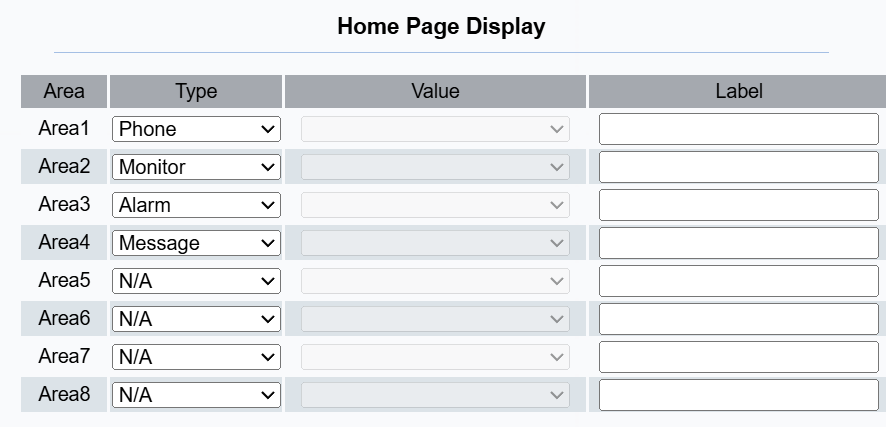
Type: Select the functional icon to be displayed on the home screen.
Value: Choose the unlock command when the Unlock type is selected.
Label: Name the icon.
Note
See Door Access Control Configuration chapter for setting up HTTP command.
Contact Display on the Call Screen
You can choose how to display contacts on the Call screen.
Set it up on the Phone > Preference > Call Display interface.

Display Type:
Name+Number: The contact name and number will be displayed.
Name: Only the contact name will be displayed.
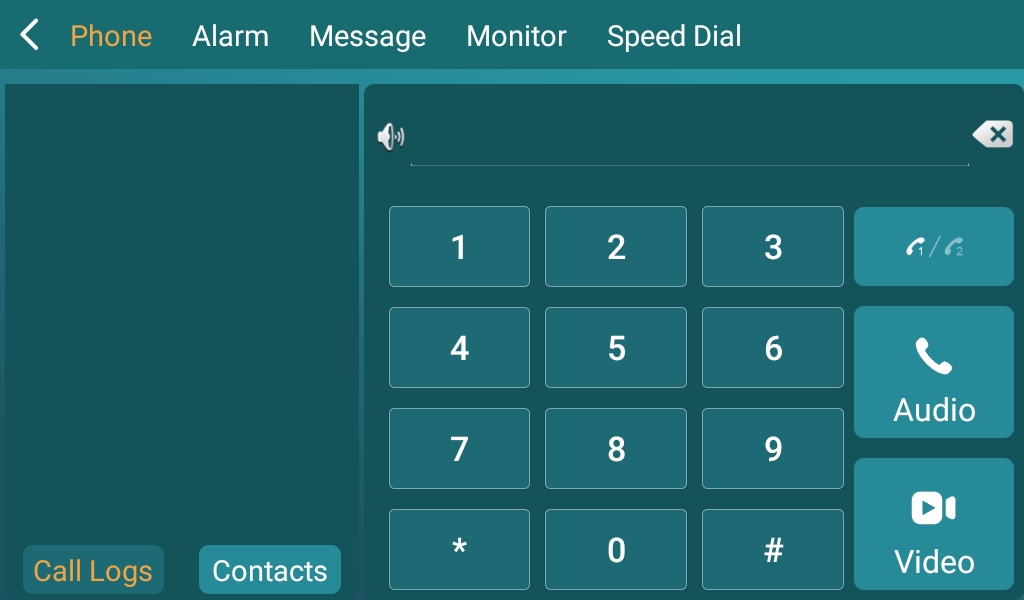
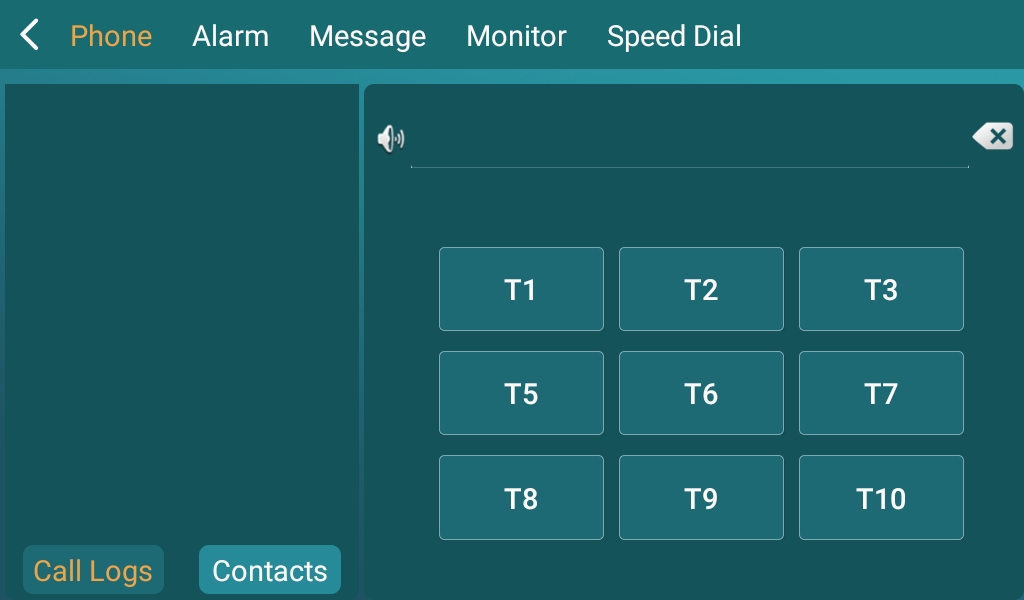
Keypad Display
The device has two keypad display modes catering to different needs.
Set it up on the Phone > Preference interface. When Alphanumeric is selected, you can name each key.

Default | Alphanumeric |
|---|---|
|
|
Screen Lock Setting
You can set up a screen lock on the guard phone for security.
Tap > Settings > Security > Screen Lock on the device screen.
(1).png "image(754)(1).png")
None: Disable the screen lock function.
Swipe: Swipe upward on the screen to unlock the screen.
Patten: Set up the pattern for the screen unlock.
PIN: Set up the screen unlock PIN code.
Password: Set up the password for the screen unlock.
Screen Lock Message and Notification
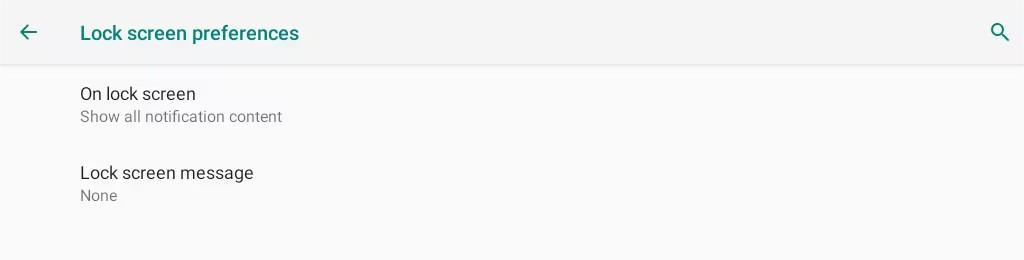
On lock screen:
Show all notification content: All notifications will be displayed on the lock screen.
Don’t show notifications at all: All notifications will NOT be displayed on the lock screen.
Lock screen message: Customize the message shown on the lock screen.
Screenshot
You can set up a delay time for the device screen capturing, for example, if you set it as 30 seconds later, then the device will start capturing the current device screen automatically after 30 seconds for one time.
Tap > Settings > Screenshot on the device screen.
-1.png "image(758)-1.png")
HDMI Settings
The device can project via the HDMI interface, and you can configure the relevant parameters.
Tap > Settings > Display > HDMI on the device screen.
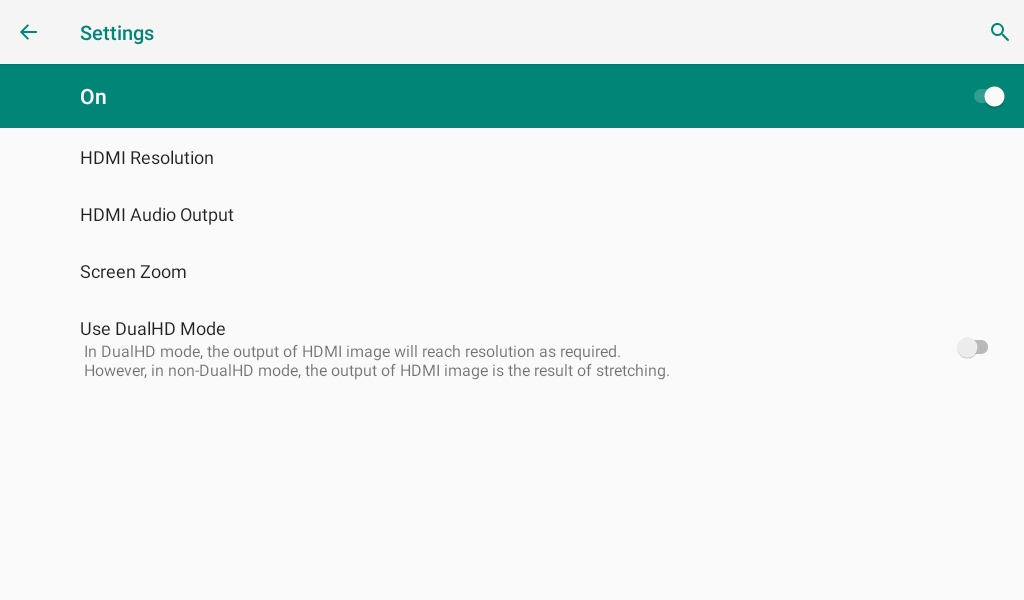
HDMI Resolution: Choose the desired resolution from 1080P, 720P, 576P, and 480P.
HDMI Audio Output: Choose the audio output in HDMI, the phone, or both.
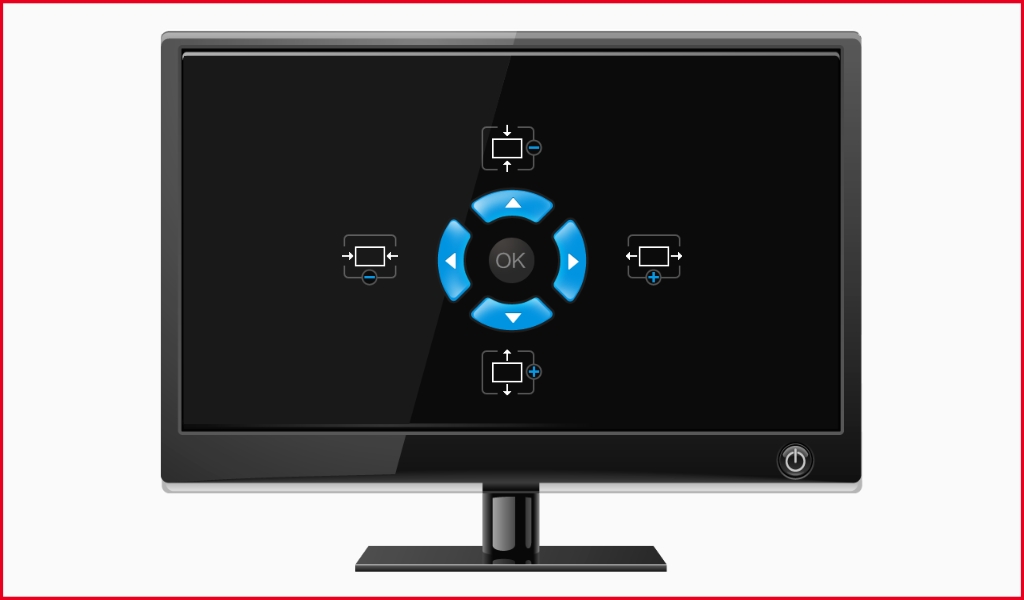
Screen Zoom: Tap to adjust the projection display.
Use DualHD Mode: This feature allows the HDMI output to display images at the required resolution. In contrast, Non-DualHD Mode stretches the image, which may lead to lower image quality.