This parameter interface contains eleven configuration pages (see Figure 5.2.1). It allows setting all button and indicator-linked functions, including switch, dimming, scene activation and storage, and value sending. The LED indicator can be configured independently to display the status of the button it is bound to, or to indicate the status of other linked sensors.
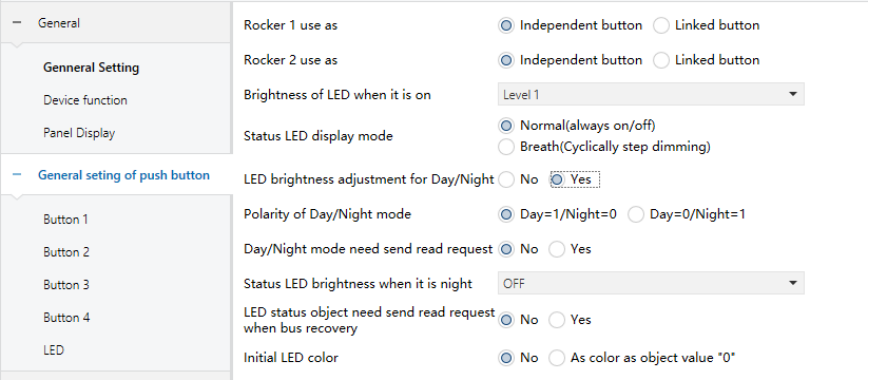
Figure 5.2.1 "General Setting of Push Button" Interface
Rocker X use as (x=1,2,3)
Options:
Independent button: Left and right buttons work independently. See Section 5.2.1.
Linked button: Left and right buttons are functionally linked.
Brightness of LED when it is on
Sets the LED brightness level when active.
Options:
Level 1
Level 2
Level 3
Level 4
Level 5
NOTE:
If Day/Night mode is enabled, this parameter defines the LED brightness used in Day mode.
Status LED display mode
Defines how the status LED is displayed.
Options:
Normal (always on/off)
Breath (cyclic step dimming)
LED brightness adjustment for Day/Night
Determines whether LED brightness changes according to day/night mode.
Options:
No: Same brightness in both modes.
Yes: Separate Day/Night brightness levels.
NOTE:
After a bus reset or programming is completed, the brightness of LED indicator defaults to the brightness in the daytime mode.
When “Yes” is selected, the following three parameters become visible.
❖ Polarity of Day/Night mode
Defines the object value used to switch between Day and Night modes.
Options:
Day = 1 / Night = 0: When the object “Day/Night mode” receives telegram value 1, it switches to Day mode; when it receives 0, it switches to Night mode.
Day = 0 / Night = 1: When the object “Day/Night mode” receives telegram value 0, it switches to Day mode; when it receives 1, it switches to Night mode.
❖ Day/Night mode need send read request
Sets whether the “Day/Night mode” object sends a read request after bus reset or programming.
Options:
No: No read request is sent.
Yes: A read request is sent. The LED brightness is automatically adjusted based on the returned Day/Night mode. If no response is received, the LED defaults to Day mode brightness.
❖ Status LED brightness when it is night
Sets the brightness level of the status LED in Night mode. When the status LED is off, it remains unlit.
Options:
OFF: Status LED remains off.
Level 1: Lowest brightness level.
Level 2
Level 3
Level 4
Level 5: Highest brightness level.
LED status object need send read request when bus recovery
Determines whether the LED object sends a read request after bus recovery or programming.
Options:
Yes: A read request is sent. The LED indicates according to the received response. If no response is received, no indication is shown.
No: No read request is sent.
When “No” is selected, the following parameter becomes visible .
❖ Parameter "Initial LED color"
Sets the initial LED indicator color.
Options:
No: No status indication.
As color as object value “0": The LED indicates using the color defined for object value “0”. If the LED function is set to “Control by external object (1 byte)” or “Indicate button press”, no status indication is shown.
5.2.1 Independent Button Mode
In Independent Button mode, the left and right buttons of a rocker are configured separately, each with its own parameters and communication objects.
5.2.1.1 “Switch” Function
The “Switching” parameter page (see Figure 5.2.2) allows the button to send switching telegrams based on different button actions, such as short press, long press, press, or release.
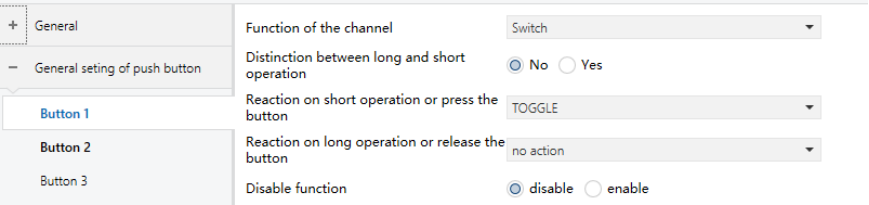
Figure 5.2.2 "Button X – Switch" Interface
Distinction between long and short operation
Determines whether the button distinguishes between short and long operations.
Options:
No
Yes: The panel determines whether an operation is short or long only after the configured time has elapsed, and then executes the corresponding action.
When “Yes” is selected to distinguish between short and long operations, the following parameter is visible.
❖ Long operation after (0.1s)
Defines the minimum duration required to recognize a long operation.
Options: 3...25
Reaction on short operation or press the button
Reaction on long operation or release the button
Define the action executed when a short/long operation or press/release is detected. The object value is updated immediately when the action is triggered.
Options:
No action: No telegram is sent.
ON: Sends an ON telegram.
OFF: Sends an OFF telegram.
TOGGLE: Alternates between ON and OFF with each operation. The button remembers its previous state and switches to the opposite value on the next operation.
Disable function
Enables or disables the button disable function.
Options:
Disable
Enable: When enabled, the button can be disabled or enabled via a communication object.
NOTE:
The usage of this parameter is the same in other sections and is not repeated.
Trigger value of disable object
Defines the telegram value used to disable or enable the button.
Options:
disable = 1 / enable = 0
disable = 0 / enable = 1
NOTE:
The usage of this parameter is the same in other sections and is not repeated.
5.2.1.2 “Switch/Dimming” Function
The “Switch/Dimming" parameter interface (Figure 5.2.3) allows the configuration of a button to send switching or dimming.
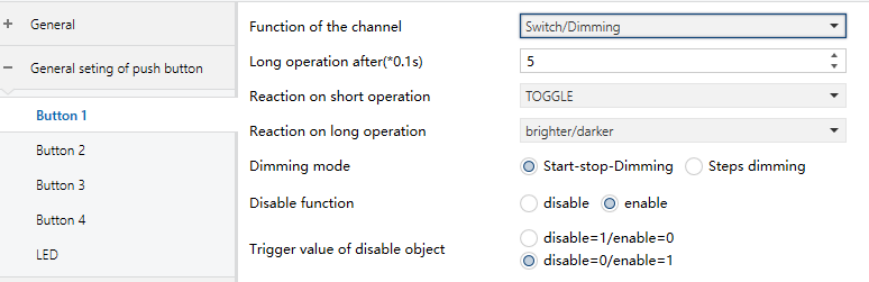
Figure 5.2.3 “Button X – Switch/Dimming" Interface
Long operation after (0.1s)
This parameter is visible when distinguishing between short and long operations.
It sets the threshold for long operation detection. Presses longer than this value are treated as long operations; otherwise, they are short operations.
Options: 3...25
Reaction on short operation
Defines the action executed on a short press. The object value is updated immediately.
Options:
No action: No telegram is sent.
ON: Sends an ON telegram.
OFF: Sends an OFF telegram.
TOGGLE: Alternates between ON and OFF with each operation.
Reaction on long operation
Defines the relative dimming action during a long press. Dimming stops when the button is released.
Options:
No action
Brighter: Sends a brighten telegram.
Darker: Sends a darken telegram.
brighter/darker: Alternates between brighten and darken on each operation.
Dimming mode
Defines the relative dimming method.
Options:
Start-stop dimming: Sends a brighten or darken telegram at the start of dimming and a stop telegram at the end; cyclic sending is not required.
Steps dimming: Sends dimming telegrams cyclically; a stop telegram is sent immediately when dimming ends.
When “Steps dimming” is selected, the following parameter are visible.
❖ Brightness change on every sent
Defines the brightness change percentage per dimming telegram.
Options:
100%
0%
…
1.56%
❖ Interval of Tele. Cyclic send (*0.1s, 0=send once)
Defines the interval for cyclic dimming telegrams.
Options: 0...25 (0 = Send once only)
5.2.1.3 “Value/Forced output” Function
The parameter interface is shown in Figure 5.2.4. By configuring this page, the user can operate the button to send control telegrams with custom types and values.
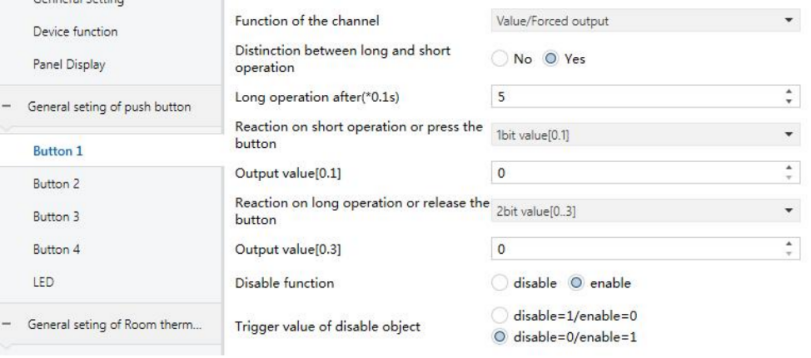
Figure 5.2.4 "Button X – Value/Forced output" Interface
Distinction between long and short operation
Defines whether long and short operations are distinguished. When enabled, the operation type is determined only after the set time is reached.
Options:
Yes
No
The following parameter is visible when distinguishing long/short operations.
❖ Long operation after (0.1s)
Defines the long-operation threshold. Presses longer than this value are treated as long operations; otherwise, they are short operations.
Options: 3…25
Reaction on short operation or press the button
Reaction on long operation or release the button
Defines the data type sent on press/release or on short/long operation.
Options:
No reaction
1bit value [0…1]
…
2byte value [0…65535]
Output value […]
Defines the value sent during the operation. The valid range depends on the selected data type.
5.2.1.4 “Scene control” Function
The Scene control parameter interface (Figure 5.2.5) allows the button to recall or store scenes.
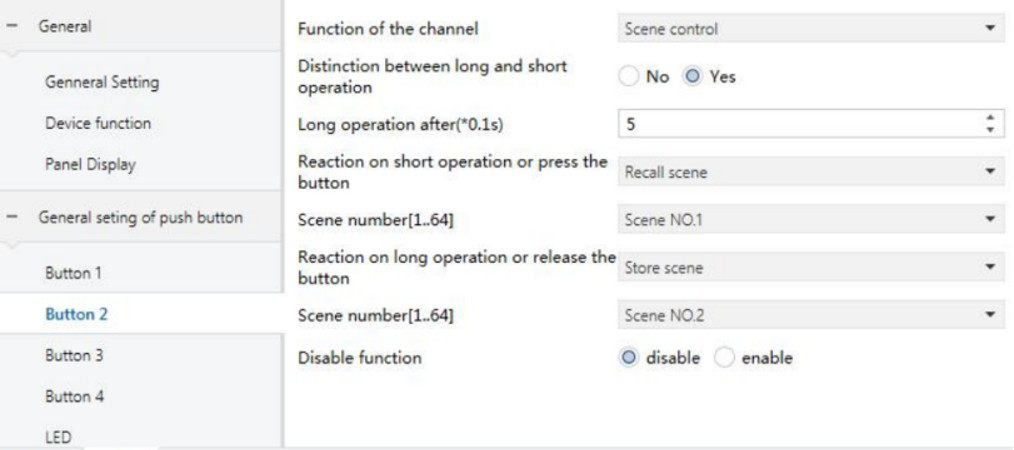
Figure 5.2.5 "Button X – Scene control" Interface
Distinction between long and short operation
Defines whether long and short operations are distinguished. When enabled, the operation type is determined only after the set time is reached.
Options:
Yes
No
The following parameter is visible when distinguishing long/short operations.
❖ Long operation after (0.1s)
Defines the long-operation threshold. Presses longer than this value are treated as long operations; otherwise, they are short operations.
Options: 3…25
Reaction on short operation or press the button
Reaction on long operation or release the button
Defines the scene action executed when the button is pressed/released or when a short/long operation occurs.
Options:
No reaction
Recall scene
Store scene
Scene number (1..64)
Defines the scene action executed.
Scene numbers range: Scene No.1 - 64, corresponding to telegram values 0–63.
5.2.1.5 "Shutter control" Function
The parameter interface “Scene control" as shown in Figure 5.2.5, this page allows the user to configure the panel buttons to send telegrams for calling or storing a specific scene.
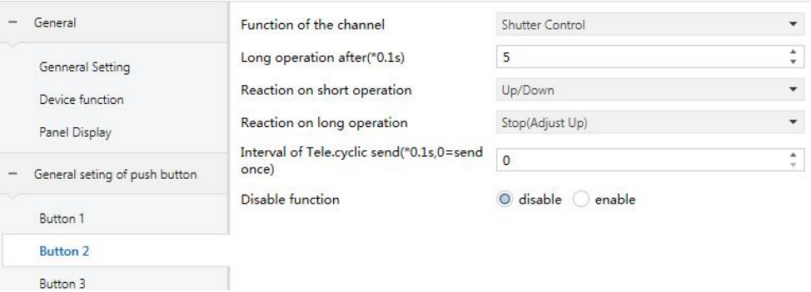
Figure 5.2.5 "Button X – Shutter control" Interface
Long operation after (0.1s)
Visible only when long/short distinction is enabled.
It defines the long-operation threshold. Presses longer than this value are treated as long operations; otherwise, they are short operations.
Options: 3…25
Reaction on short/long operation
Defines the action executed on short or long operation.
Options:
No action
Up: Move shutter up / open curtain
Down: Move shutter down / close curtain
Up/Down: Toggle between up and down
Stop (Adjust Up): Stop movement or tilt slats upward
Stop (Adjust Down): Stop movement or tilt slats downward
Stop (Adjust Up/Down): Stop movement or alternate slat adjustment
The following parameter is visible when selecting any “Stop..." option.
❖ Interval of Tele. Cyclic send (0.1s, 0 = send once)
Defines the interval for cyclic slat-adjustment telegrams.
Options: 0…25 (0 = send once only)
5.2.1.6 “Shift register” Function
The Shift register parameter interface (Figure 5.2.6) allows sending values in a shift register sequence.
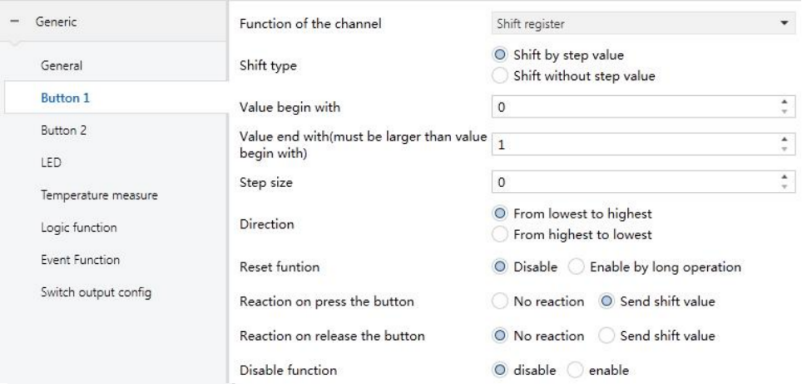
Figure 5.2.6 "Button X – Shift register" Interface
Shift type
Sets the type of shift: with step or without step.
Options:
Shift by step value: Defines start, end, and step increment (from low to high) or decrement (from high to low) for each shift.
Shift without step value: Defines up to 10 specific values, sent sequentially.
The following parameters are visible when Shift by step value is selected,
❖ Value begin with
Sets the starting value of the shift.
Options: 0…240
❖ Value end with (must be greater than the begin value)
Sets the ending value of the shift.
Options: 1…250
NOTE:
The end value must be greater than the starting value.
❖ Step size
Sets the increment (low to high) or decrement (high to low) for each shift.
Options: 0…240
The following parameter is visible when Shift without step value is selected,
❖ Shift number
Defines the number of shift values.
Options:
1
2
…
10
Value 1…10
Sets the specific value sent per shift operation..
Options: 0…255
Direction
Sets the shift direction.
Options:
From lowest to highest: Sequence from start to end value or value1 to value10, then repeats.
From highest to lowest: Sequence from end to start value or value10 to value1, then repeats.
Reset function
Enables shift reset via long press.
Options:
Disable
Enable by long operation: Long press resets the shift sequence and sends start flag.
The following parameter is visible when Reset function is disabled.
❖ Reaction on press/release the button
Sets whether the button press/release triggers a shift operation.
Options:
No reaction
Send shift value
The following parameter is visible when distinguishing long/short operation.
❖ Long operation after (*0.1s)
Defines the long-operation threshold. If the button press exceeds this time, it is considered a long operation.
Options: 3…25
5.2.1.7 “RGB Dimming” Function
The RGB / RGBW dimming parameter interface (Figures 5.2.7-1 & 5.2.7-2) allows controlling color LEDs.
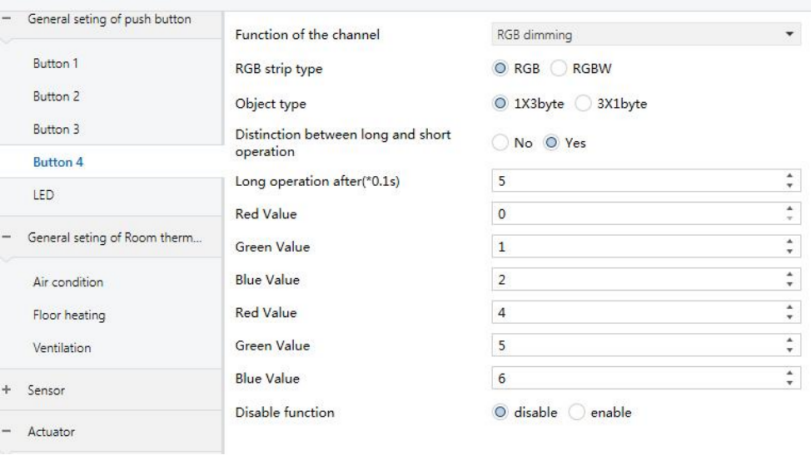
Figure 5.2.7 "Button X – RGB/RGBW dimming"-1 Interface
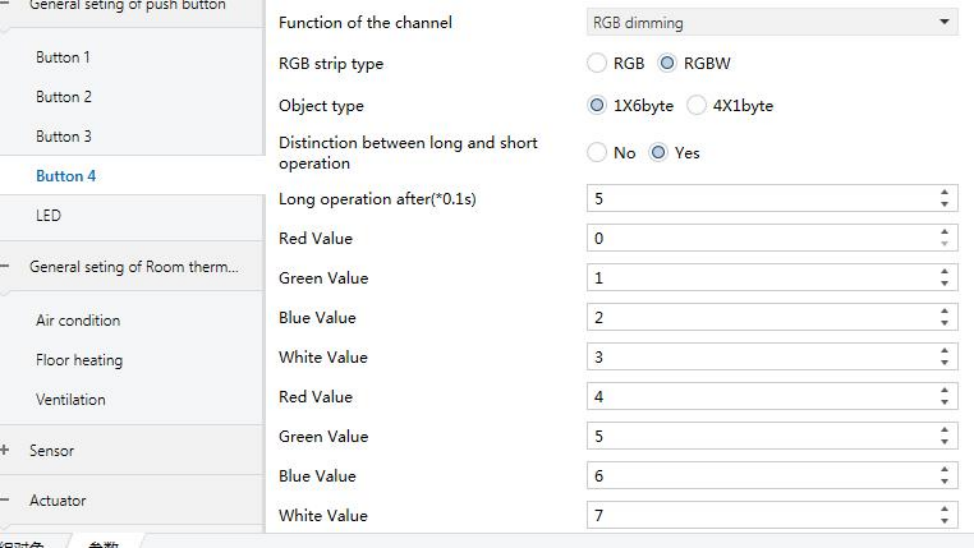
Figure 5.2.7 "Button X – RGB/RGBW dimming"-2 Interface
RGB strip type
Sets the type of RGB LED strip.
Options:
RGB: Suitable for controlling three-color RGB strips or drivers.
RGBW: Suitable for controlling four-color RGBW strips.
Object type
Sets the object type.
Options:
For RGB type:
1x3byte: Controls RGB dimming via a single 3-byte object.
3x1byte: Controls RGB dimming via three 1-byte objects.
For RGBW type:
1x6byte: Controls RGBW dimming via a single 6-byte object.
4x1byte: Controls RGBW dimming via four 1-byte objects.
Distinction between long and short operation
Sets whether long/short operation is distinguished. Selecting “Yes" requires the button to be pressed for a certain time to determine a long operation before executing the configured action.
Options:
Yes
No
The following parameter is visible when long/short operation distinction is enabled.
❖ Long operation after (*0.1s)
Sets the threshold for long operation detection. Presses longer than this value are treated as long operations; otherwise, they are short operations.
Options: 3..25
Operation when short/long press the button – Red/Green/Blue/White Value (0..255)
Defines color values sent on short or long press.
Options: 0...255
5.2.1.8 "Multiple operation" Function
The Multiple operation interface (Figure 5.2.8) allows sending multiple values/functions with a single button press. Up to 4 object types per button.
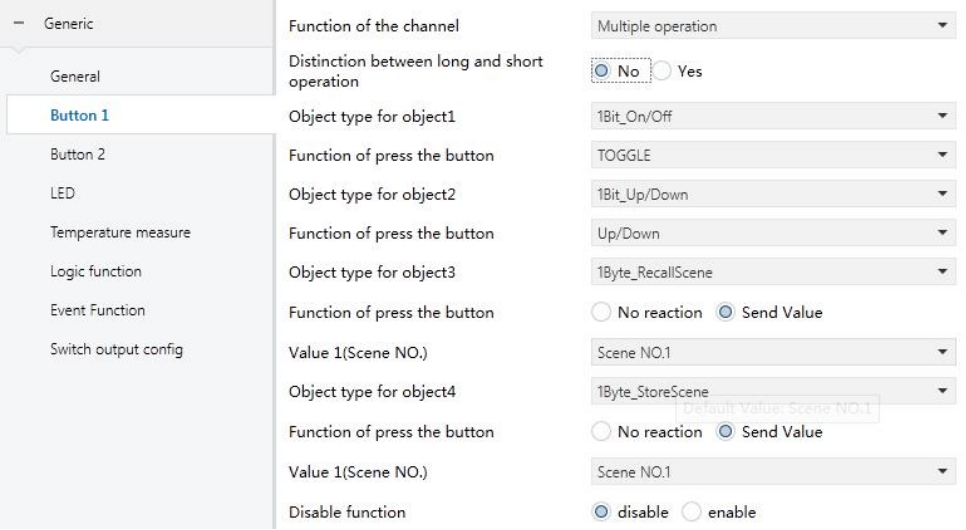
Figure 5.2.8 "Button X – Multiple operation" Interface
Distinction between long and short operation
Sets whether the button operation distinguishes between long and short presses. Selecting “Yes" requires the button to be pressed for a certain time to determine a long operation before executing the configured action.
Options:
Yes
No
The following parameter is visible when long/short operation distinction is enabled.
❖ Long operation after (*0.1s)
Sets the threshold for long operation detection. Presses longer than this value are treated as long operations; otherwise, they are short operations.
Options: 3..25
Object type for object x (x=1,2,3,4)
Sets data type sent on short/long press.
Options:
Disable
1Bit_On/Off
...
1Byte_Unsigned value
Function of press the button / Function of short operation / Function of long operation
Sets the specific value to be sent when performing the operation. Depending on the selection in the previous parameter, this may include switch control, curtain action, no action, or sending a value (configured in the next parameter).
The following parameter is visible when the object type is set to “1byte_RecallScene”, “1byte_StoreScene”, “1byte_Percentage”, or “1byte_Unsigned value”.
❖ Value 1/2 (…)
Used to configure the data value sent when performing the corresponding operation. The value range depends on the object type selected in the previous parameter.
5.2.1.9 “Delay mode” function
The parameter interface “Delay mode" (Figure 5.2.9) allows configuring the panel’s delayed operation. When a button is pressed, a value is be sent immediately or not sent, and after a delay, another value is sent.
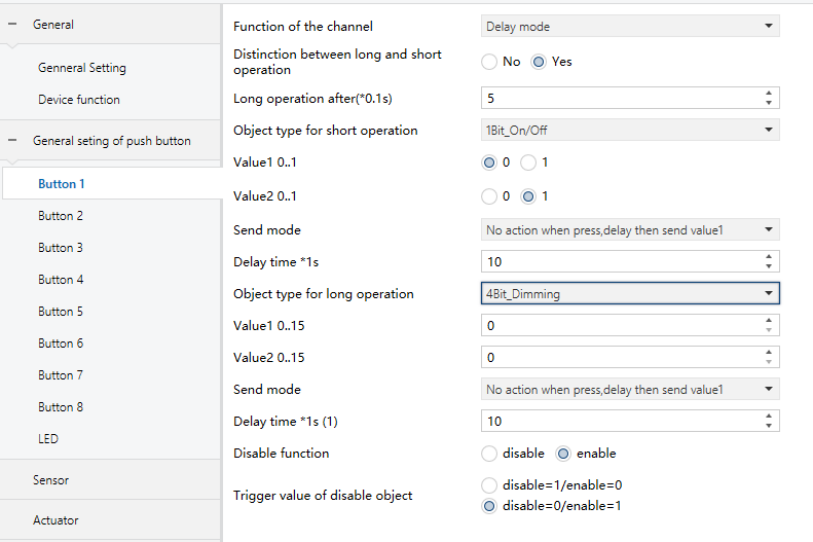
Figure 5.2.9 “Button X – Delay mode" Interface
Distinction between long and short operation
Sets whether the button operation distinguishes between long and short presses. Selecting “Yes" requires the button to be pressed for a certain time to determine a long operation before the panel executes the configured action.
Options:
Yes
No
The following parameter is visible when long/short operation distinction is enabled.
❖ Long operation after (*0.1s)
Sets the threshold for long operation detection. Presses longer than this value are treated as long operations; otherwise, they are short operations.
Options: 3..25
Object type of press the button / Object type of short operation / Object type of long operation
Sets telegram type for delayed sending when the button is pressed or during a long/short operation.
Options:
Disable
1Bit_On/Off
4Bit_Dimming
1Byte_Unsigned value**
Send mode
Defines delayed sending method.
Options:
No action when press, delay then send value 1
No action when press, delay then send value 2
Send value 1 when press, delay then send value 2
Send value 2 when press, delay then send value
Delay time (*1s)
Sets the delay before sending the value.
Options: 0…6500 s
Value 1/2 […]
Sets the value(0 or 1) sent according to the selected object type.