This document describes how to access the web configuration interface of Akuvox devices, including network setup, IP address retrieval, and web login procedures.
Power On and Network Connection
Before accessing the web interface, ensure the device is properly powered on and connected to the network.
Please refer to the following video tutorial for detailed instructions:
👉 [Video]Power up Devices and Connect Network
Obtain Device IP Address
To access the web interface, you need to obtain the device IP address first. The method may vary depending on the device type.
Door Phone
For door phone devices:
Check the IP address directly on the device screen (if supported), or
Retrieve it from the router's DHCP client list.
Devices with Numerical Keys or Touch Screens
Check the IP address on the system information screen.
Model | Process |
|---|---|
S539/S538/S535/X915/X916/R29 | 1. On the dial interface, enter 9999 and press the Dial icon. 2. Enter 3888 and press OK to enter the system settings screen. 3. Press System Info. 4. For S539 and X915, press Network on the system info page. |
R27/R28/S532 | 1. Press ✳2396# on the keypad to enter the administrator page. 2. Press 1 on the keypad. |
E16/E18 | 1. Keep pressing a random place on the device's initial screen for about five seconds. 2. Enter the default system PIN code. Note: The default PIN depends on your firmware version: For E16:
For E18:
|
X912 | 1. Press the Key icon on the screen or the keypad. 2. Enter 2396, the default system PIN code. 3. Press the Dial icon on the keypad. |
Devices without Numerical Keys or Touch Screens
Check the IP address through automatic IP announcement.
Model | Process |
|---|---|
R20A/R25A/E11/E12/E13/X910 | Hold the Call button for about five seconds. |
E21/DB01 | Hold the push button for about five seconds. |
R20K/R25K | Press ✳3258✳. |
R20B | Hold the first push button for about five seconds. |
E20S | Power on and connect the device to the network. |
Indoor Monitors
For indoor monitors:
Navigate to the Network screen.
Check the IP address displayed on the screen.
In this part, C313 is taken as an example.
Model | Routes |
|---|---|
C313 | More > Status > Network |
C310 | Settings > Status > Network |
C315 | More > System Info > Network |
C316/C319/S567/S563/S562/IT88/IT83/X933/X937 | Settings > System Info > Network |
S565 | More > Settings > System Info > Network |
Exception
To check the IP address of S560, press the # key for about 5 seconds, and the device will automatically broadcast its IP address.
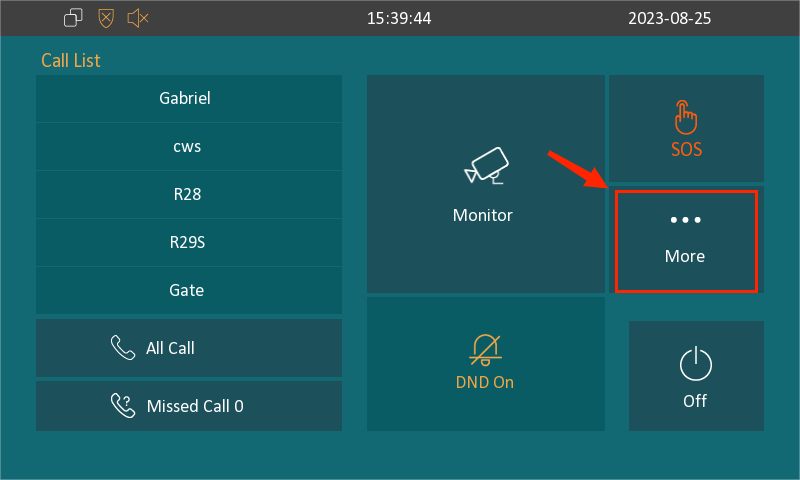
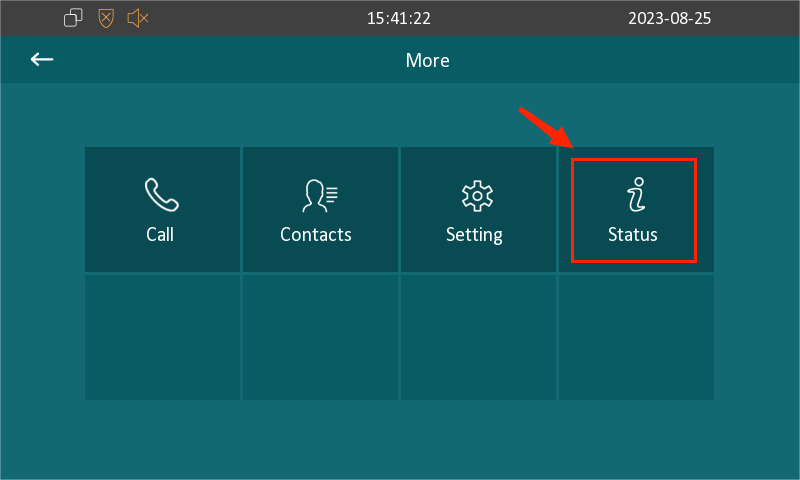
To enter the system information screen, press More and then Status.
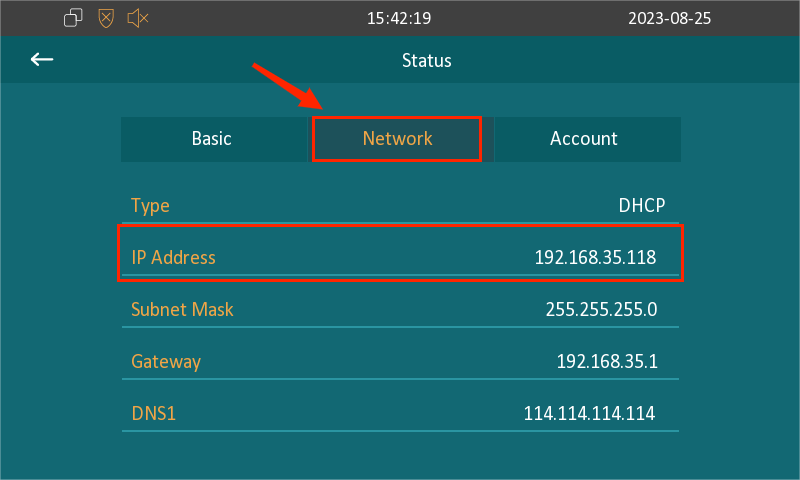
To check the IP address, press Network.
Access Control Terminals
Model | Process |
|---|---|
A01/A02/A03/A08/A095 | Press the Reset button on the device. The device will announce the IP address automatically. |
A05/A094 | By IP scanner. |
Obtain IP via IP Scanner Tool
The IP Scanner allows you to search for device IP addresses and to perform targeted device reboot, reset, network settings, etc.
Please click here to view how to use the IP scanner.
Note
Installation Requirements:
Windows 7 operating system (64-bit) or above.
Turn off the firewall on your personal computer.
Log in to the Web Interface
After obtaining the device IP address:
Open a web browser (e.g., Chrome).
Enter the device IP address in the address bar.
Press Enter.
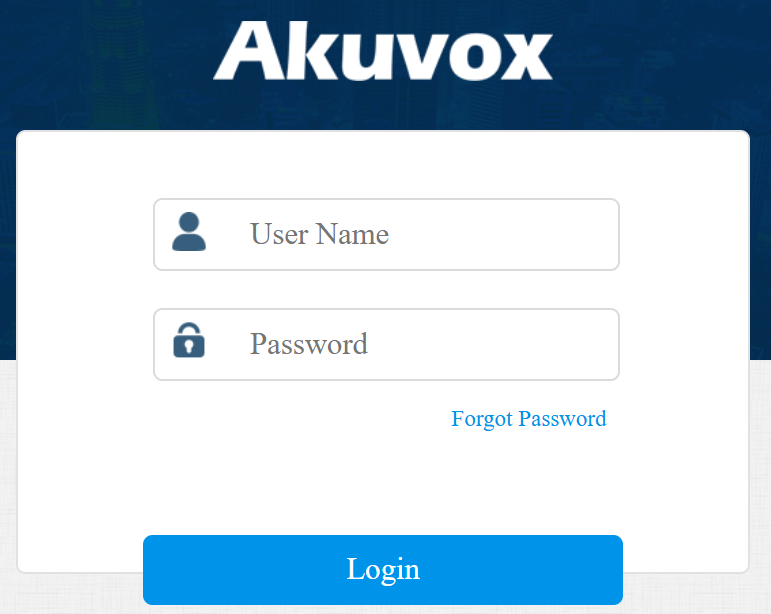
Enter the username and password. The defaults are both admin.
Click Login.