1. Issue Description
In some ACMS Pro deployments, door phones and access control devices are located in different network segments from the ACMS Pro server. These devices may fail to automatically discover the ACMS Pro server and connect to it.
Typical symptoms:
The device is powered, network-linked, and reachable by ping, but never appears as Online in ACMS Pro.
The device worked in a lab or single-segment environment but fails after being moved to a different VLAN or subnet.
This issue typically occurs when network equipment between the two segments — routers, Layer 3 switches, or firewalls — blocks multicast traffic.
Applicable Devices: Akuvox door phones and access control devices that support ACMS Pro connection.
2. Possible Cause
ACMS Pro uses multicast communication for automatic server discovery. The server sends multicast packets to the multicast address 238.8.8.1.
When devices and the ACMS Pro server are deployed in different network segments, routers or other network devices may block multicast traffic between them.
As a result, devices cannot receive the server's multicast packets and may fail to automatically discover the ACMS Pro server.
3. How to Identify the Issue
There is one test to run. It tells you which of the two cases above you are dealing with.
3.1 Test port 8501
Run the test from a PC connected to the same switch as the device. Testing from another segment will give a misleading result.
On Windows, open PowerShell (Win → type powershell → Enter) and run:
Test-NetConnection <ACMS_Pro_Server_Address> -Port 8501
Example:
Test-NetConnection 192.168.31.123 -Port 8501
Look at the last line of the output:
TcpTestSucceeded: True
True → the network path to port 8501 is open.
False → the path is blocked.
3.2 Read the Result
Result | What it means | What to do |
|---|---|---|
Device still offline | The device can reach the server, but cannot find it. Multicast discovery is blocked. | Go to Section 4. |
| The network path to the server is blocked. | Ask the network administrator to open TCP 8501 between the device segment and the server, then test again. |
4. Solution
Step 1. Prepare the Commands
Config.DoorSetting.CLOUDSERVER.Server=<ACMS_Pro_Server_Address>
Config.DoorSetting.CLOUDSERVER.Port=8501
Config.DoorSetting.CONNECT.ServerMode=1
Parameter | Meaning | Value |
|---|---|---|
Config.DoorSetting.CLOUDSERVER.Server | ACMS Pro server address | Site-specific IP or hostname |
Config.DoorSetting.CLOUDSERVER.Port | ACMS Pro service port | 8501 |
Config.DoorSetting.CONNECT.ServerMode | Connection mode | 1 = connect to ACMS Pro server |
Example: for a server at 192.168.31.123:
Config.DoorSetting.CLOUDSERVER.Server=192.168.31.123
Config.DoorSetting.CLOUDSERVER.Port=8501
Config.DoorSetting.CONNECT.ServerMode=1
Step 2. Apply the commands
If the device list is empty
PC Manager finds devices by broadcast, which is also blocked between segments. Check that:
The PC and the devices are connected to the same network segment.
The Windows firewall on the PC is not blocking PC Manager.
The devices are powered, and the switch port shows a link light.
Launch Akuvox PC Manager.
Log in to the tool using the default username and password; both are admin.
Check the target devices and click Next.
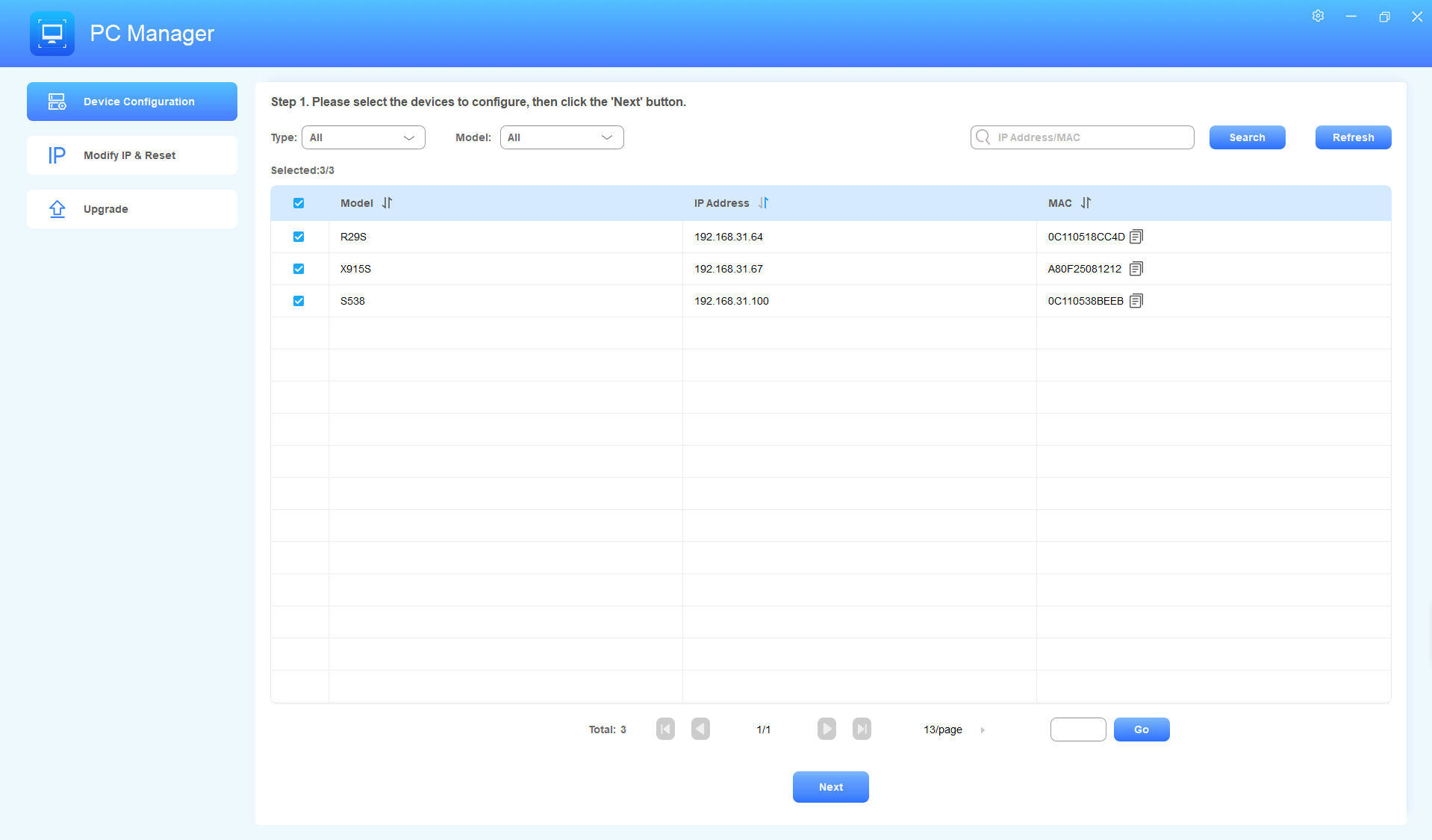
Select Manual Input Mode.
Enter the AutoP commands.
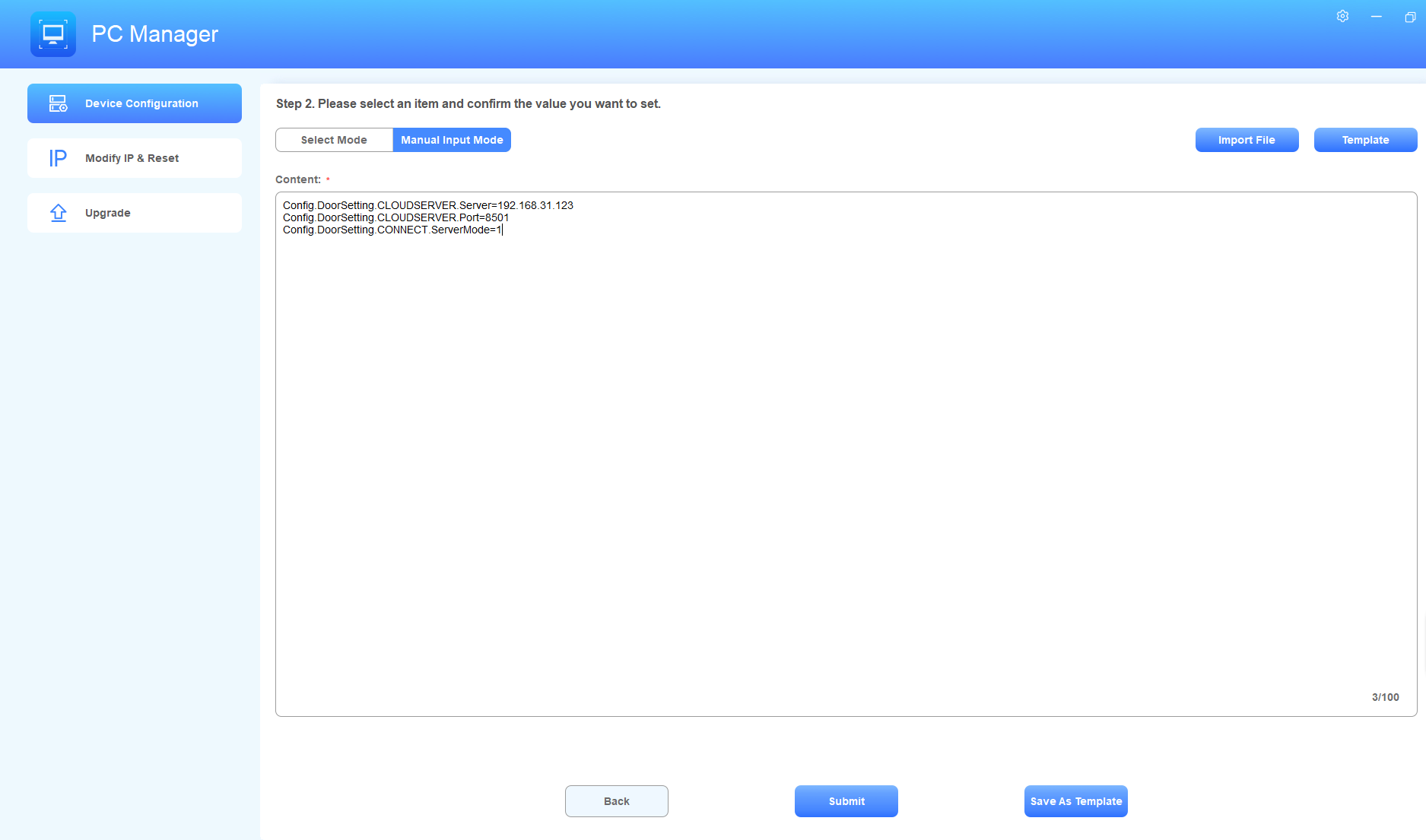
Click Submit.
Step 3. Wait for the Device to Restart
The device restarts automatically after you submit. Do not power off the device during the restart.
5. Verify the Connection
Wait about two minutes after the device restarts for it to establish communication with ACMS Pro.
Log in to ACMS Pro.
Check whether the device has successfully connected to the server and its status is Online.
If the device remains offline:
Verify that the imported AutoP commands contain the correct server information for the device model.
Check whether the device can communicate with the ACMS Pro server on the configured port.
Contact Akuvox Technical Support if the issue persists.