You can set up the device's screen display features such as screensaver to give users a better visual and operational experience.
Home Screen Display
You can configure the home screen background and the foreground colors for the Villa, Building, and Office modes.
Set it up on the web Device > LCD > UI interface.

Foreground Color: Select from Default, Black, White, or Custom. When Custom is selected, click Submit before setting the color manually.
Background Color: Select from Default, Black, White, or Custom. When Custom is selected, click Submit before setting the color manually.
Home Screen Display Theme
The device supports four themes: Villa, Building, Office, and Alphanumeric. You can apply the desired theme to different scenarios.
Select the theme on the Setting > Key/Display > Theme interface.

Building | Villa/Office | Alphanumeric |
|---|---|---|
|
|
|
(1).png)
.png)
(1).png)
Villa/Office Theme
You can set up the key display, including the PIN, Call, and Contact tabs, in the Villa/Office theme.
Go to the Setting > Key/Display > Key In Homepage Of The Office Theme And Villa Theme interface.
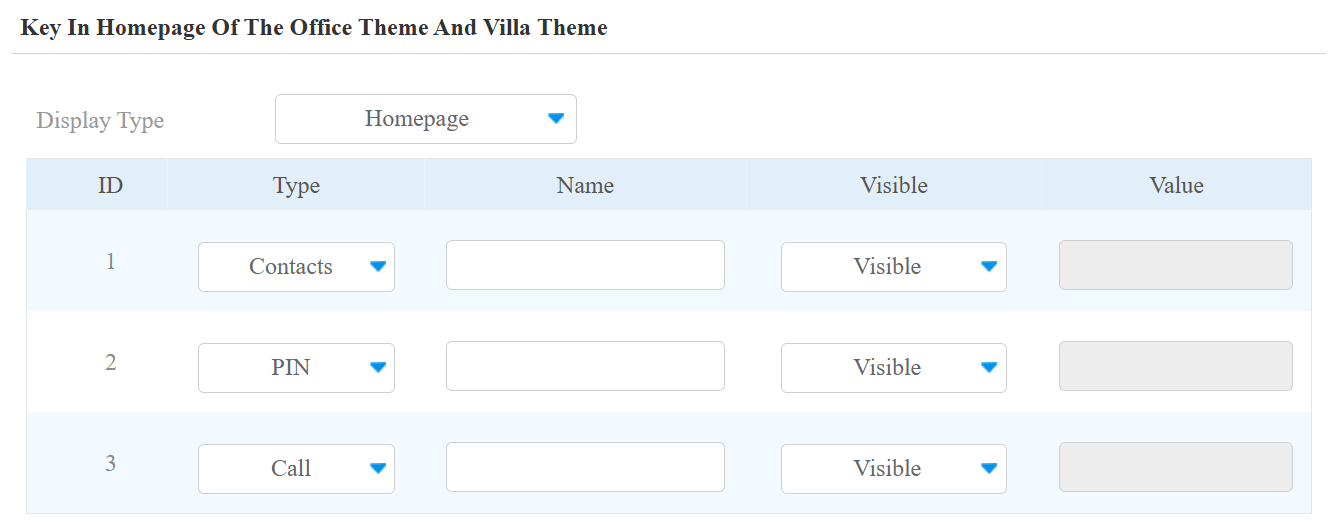
Display Type: Select the homepage display type.
Homepage: The default display with three vertical round icons, Contact, PIN, and Call.
Dial: Display the Dial screen as the homepage.
Contacts: Display the Contacts screen as the homepage.
Password: Display the PIN screen as the homepage.
Note
If you switch from Building mode to Villa mode and your previous home screen was set to Homepage, the three round icons for Contact, PIN, and Call will be displayed. However, if your previous display type was Dial, Contact, or Password, only the corresponding highlighted icons will appear at the top of the home screen instead of the three round icons for the Homepage.
Type: Select the key to be displayed from Contact, PIN, Call, and Speed Dial.
Name: Name the key. The name will not change the attribute of the key.
Visible: Display the key or not.
Value: Enter the target number when Speed Dial is selected.
Building Theme
You can set up the key display in Building Theme on the Setting > Key/Display > Key In Homepage Of The Building Theme interface.
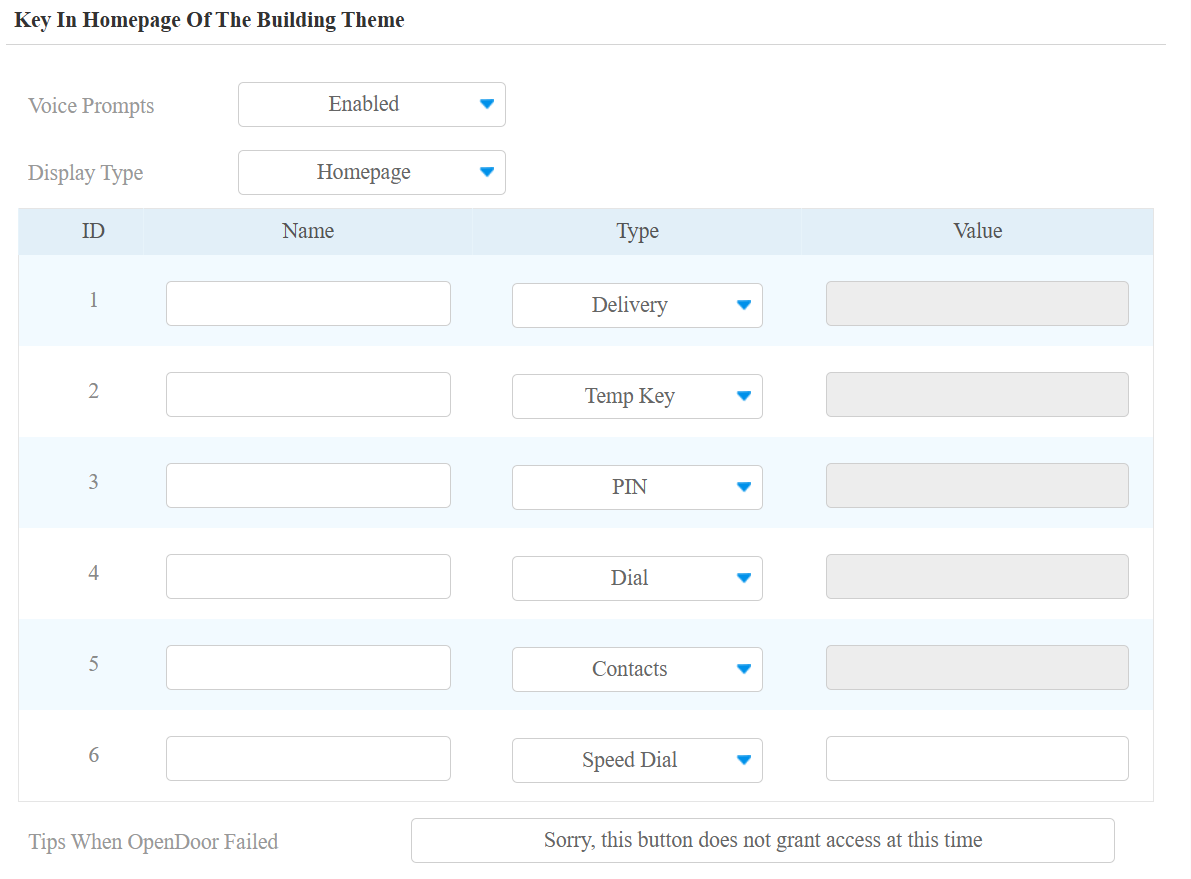
Voice Prompts: The voice instruction is played when users press a key on the home screen.
Display Type: Select the homepage display type.
Home Page: The default displays Delivery, Temp Key, PIN, Dial, Contact, and Speed Dial tabs and the facial recognition box.
Delivery: Display the delivery screen.
Temp Key: Display the temp key screen.
PIN: Display the PIN screen.
Dial: Display the Dial screen.
Contacts: Display the Contacts screen.
Slide to Dial: Display the slide to dial icon with three function icons on the home screen. When this type is selected, the fourth icon type defaults to Speed Dial.
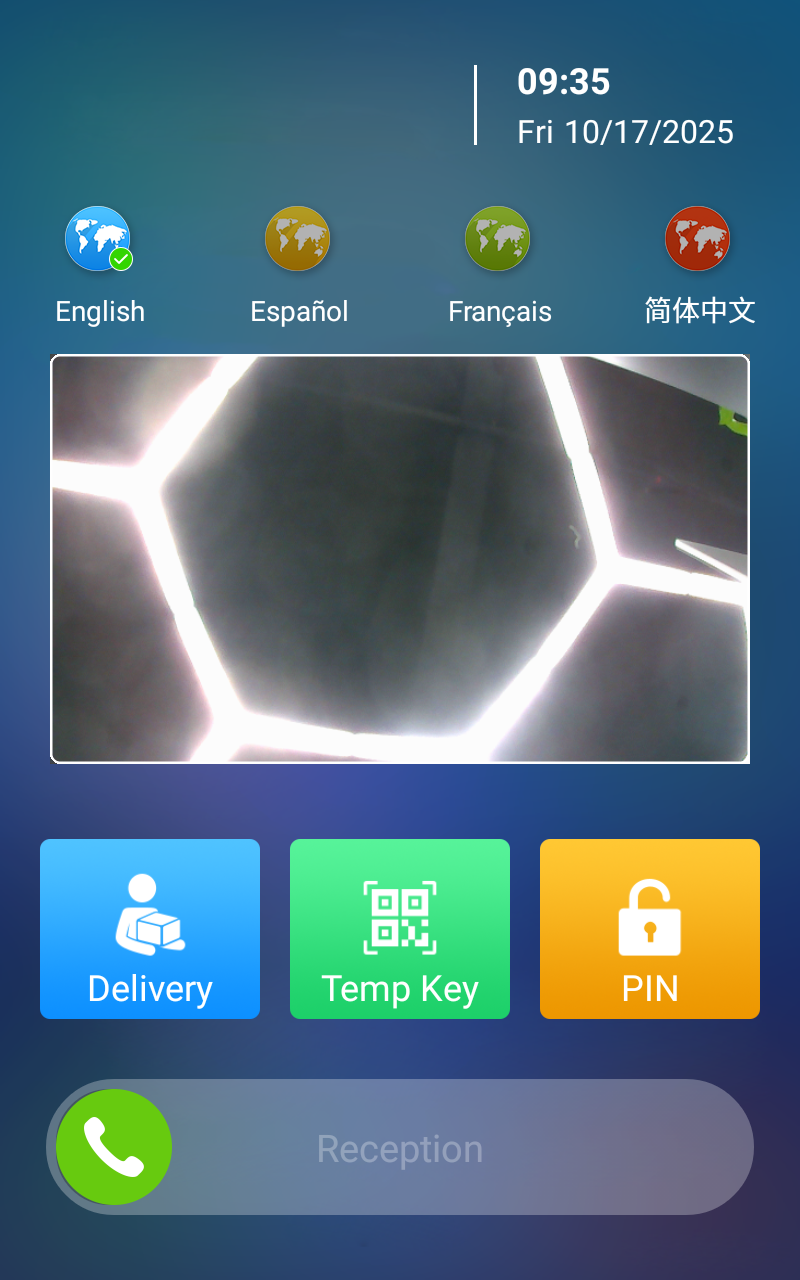
Name: Name the key. The name will not change the attribute of the key.
Type: Select the key type.
Relay: When Relay is selected, you can specify which relay to trigger and set up the relay schedule.
Value: It is available for those features that need to be set up with numbers, such as Speed Dial.
Tips When OpenDoor Failed: Customize the prompt when the door opening fails.
Besides, you can customize the icon picture for each key. Scroll to the Select Icons part.
Click Select File to choose the picture from your driver and click Import to upload it.
Click Reset to remove the picture.
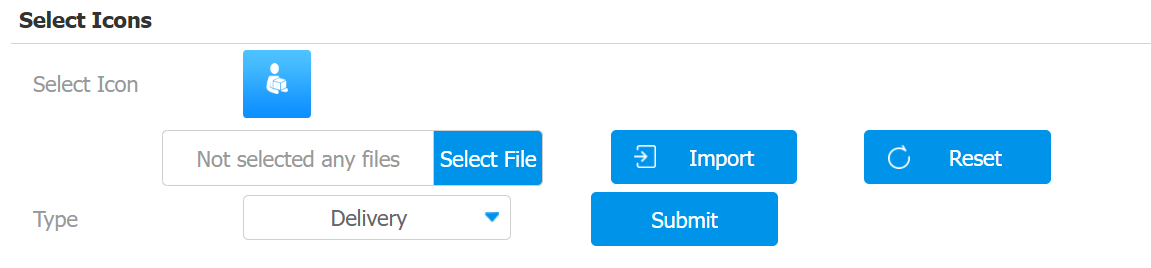
Type: Select the key type.
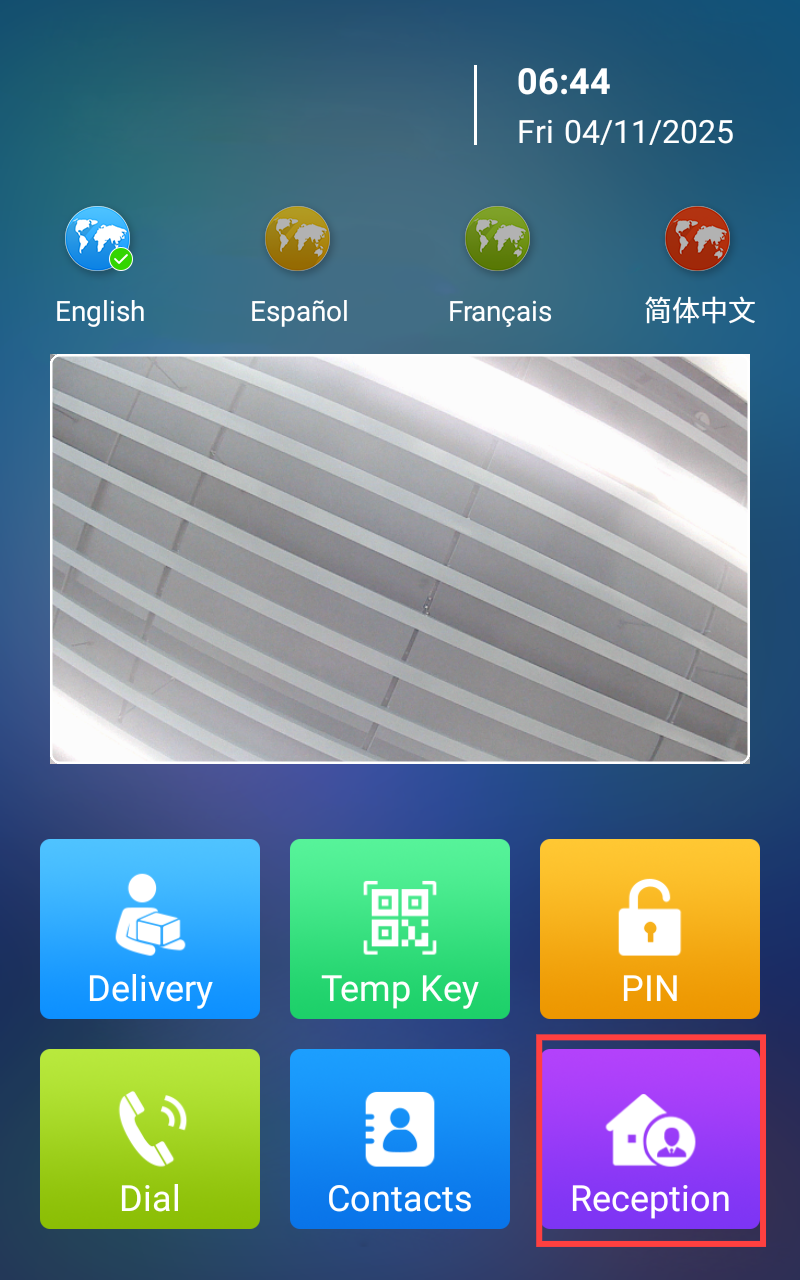
Reception Tab Setup
You can set up the reception tab in the Building theme, with which users can make a call and open the door.
Set it up on the Setting > Key/Display > Reception Action In Building interface.
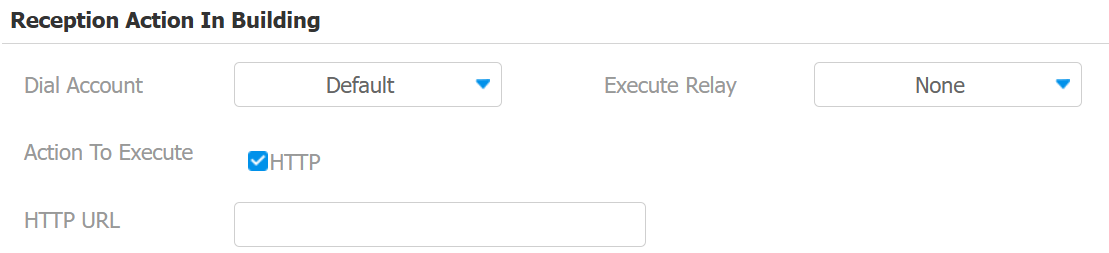
Dial Account: Select the account to make the call. It applies to the registered account. If both accounts are registered, Account1 is used when Default is selected.
Execute Relay: Select the relay to be triggered along with the call.
Action to Execute: Set the action to be triggered with the call. When triggered, the HTTP message can be captured and displayed in the corresponding packets. To utilize this feature, enable the HTTP server and enter the message content in the designated box below.
HTTP URL: Enter the HTTP URL to perform certain actions. The format of sending the message is http://HTTP server’s IP/Message content.
Language Setting Of The Building Theme
You can set up the language display in the Building theme on the Setting > Key/Display > Language Setting of The Building Theme interface.
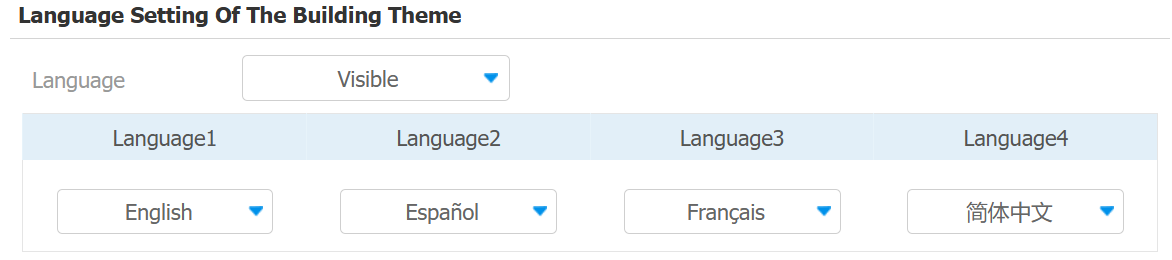
Language: When Invisible is selected, the language options will be hidden on the home screen.
Language 1-4: You can select four languages to be displayed on the home screen.
Delivery Setting Of Building Theme
The package room feature requires the device’s connection to the SmartPlus Cloud.
Enable the feature on the Setting > Key/Display > Delivery Setting of Building Theme interface.

Note
You can click here to view the configuration steps of the package room feature.
Speed Dial Setting in Villa/Office/Building Theme
The Speed Dial feature allows users to make speedy calls by pressing a specific tab without entering any numbers.
To set it up, go to the Setting > Key/Display > Speed Dial Setting interface.
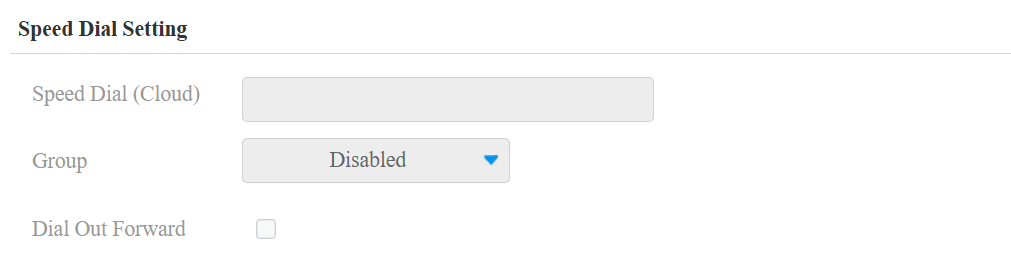
Speed Dial(Cloud): Display the number(s) configured on the SmartPlus Cloud when the device is connected to the Cloud.
Group:
Disabled:
When the device is connected to the Cloud, Disabled means the call will be made to other devices and the SmartPlus App, based on where it is installed.
When the device is deployed locally, the call will be made to the number you fill in the value field of the Speed Dial(Reception) key.
[Cloud Group Name]: The call will be made to all contacts in the group. The Cloud group name is the APT name.
Dial Out Forward: When enabled, all calls will be made to the same target number when pressing the Reception button.
Mode: When Dial Out Forward is enabled, configure the schedule when the feature is working. You can also select Auto Disable and decide after how many hours the feature will be turned off.
PIN Keypad Display in Villa/Office/Building Theme
The device provides normal and scrambled keypad display options. Opting for the scrambled setting means that the arrangement of keys is randomized each time, enhancing security by preventing password spying.
Set it up on the Setting > Key/Display > Keypad Display Mode Of PIN Interface.

Alphanumeric Theme
The Alphanumeric Theme is used in the apartment with a room number that carries both English alphabetic and numbers.
Set it up on the Setting > Key/Display > Display Setting interface.
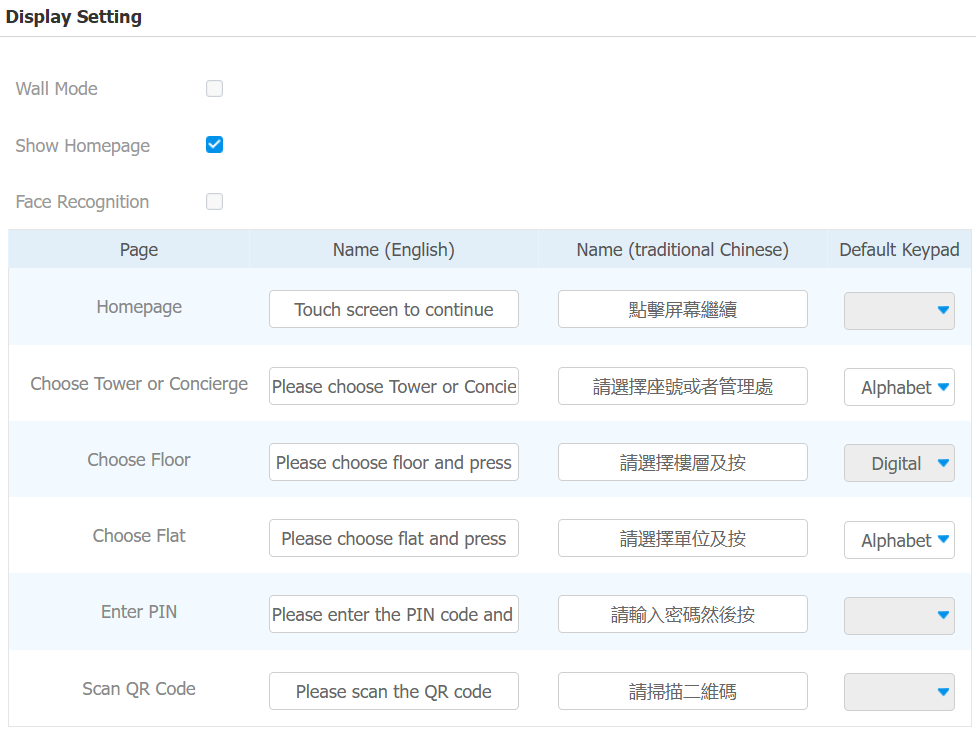
Wall Mode: Enable this to set the device as a peripheral. In this mode, visitors can only tap the Speed Dial tab (Concierge), Temp Key tab (QR code), and PIN tab on the home screen (with dial pad). They cannot make calls by entering tower, floor, or flat information.
Homepage Visible: Enable this to display a poster. This allows visitors to see a poster (screen) before accessing the home screen.
Face Recognition: Enable or disable facial recognition.
Name: Create prompts for the following screens: Home page, Choose Tower or Concierge, Choose Floor, Enter PIN, and Scan QR Code.
Default Keypad: Choose between a numerical keypad or an alphabetical keypad for the Tower and Flat input.
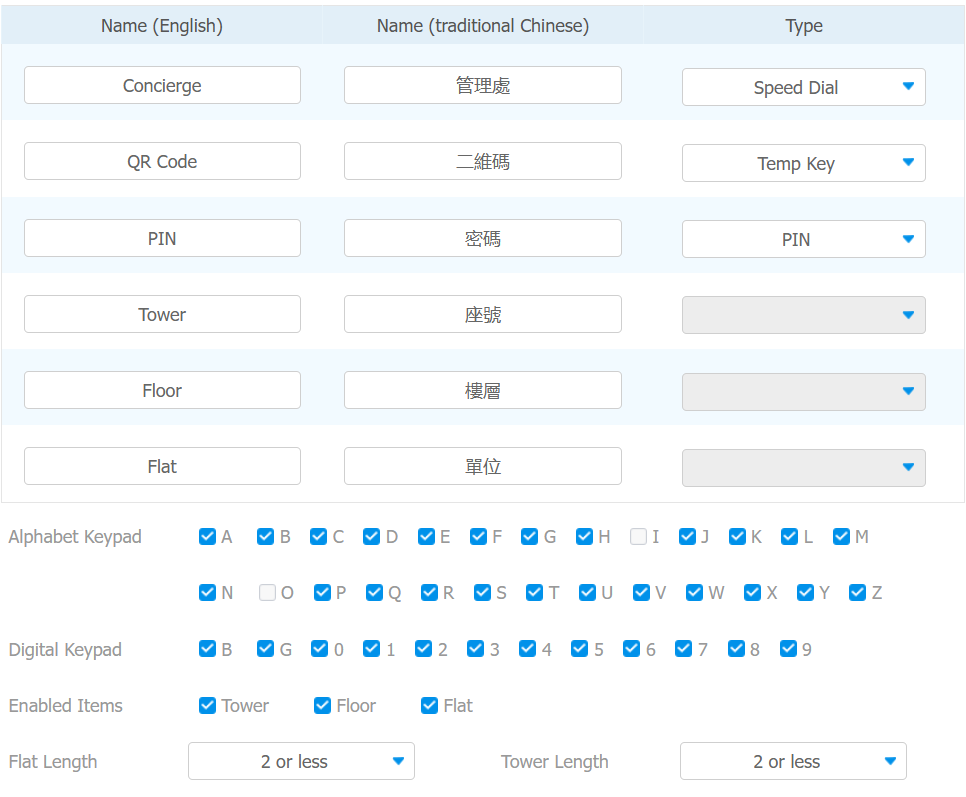
Name: Change the names for the Concierge, QR Code, and PIN icons if needed.
Alphabet Keypad: Select the alphabetical letters you want displayed on the keypad.
Digital Keypad: Choose the numbers and alphabets to be displayed on the digital keypad.
Enable Items: Choose to show or hide the following tabs on the screen: Tower, Floor, and Flat.
Flat Length: Select a maximum length for flats: 1 or less, 2 or less, 3 or less, and 4 or less.
Tower Length: Select a maximum length for towers: 1 or less, 2 or less, 3 or less, and 4 or less.
Screensaver Settings
You can set the screen saver duration as well as the timing for the screen to be turned off for both screen protection and power reduction.
On the Web
Set up screensaver on the Device > LCD > Standby Interface Display interface.
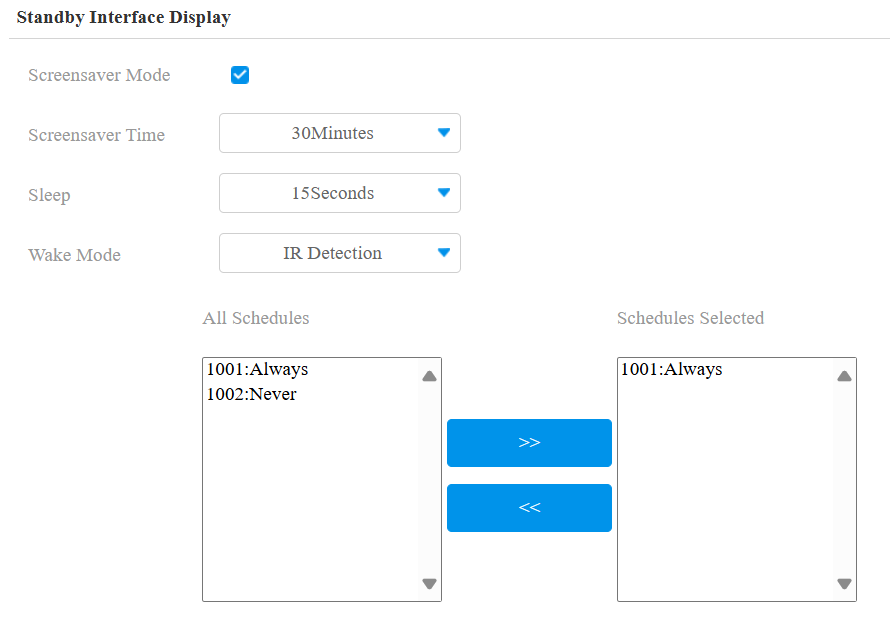
Screensaver Time: The screensaver display duration ranges from 5 seconds to 2 hours. The screensaver display will start when the device goes into sleep mode.
Sleep: Set the time for the device to start displaying screensavers or directly turn off. For example, if you set it to 10 seconds, the device will display a screensaver 10 seconds after no one approaches or performs no operation on the device. If the screensaver mode is disabled, the device screen will turn off directly.
Wake Mode:
IR Detection: Wake up the screen by IR detection. It offers longer-range and better detection in poor visibility conditions.
Manual: Wake up the screen by touching it.
Video Detection: Wake up the screen by video-based motion detection. Focus on analyzing visual information captured through cameras.
Face & Video Detection: Wake up the screen by video-based motion detection and facial detection. Simply detecting motion without detecting faces will not wake the screen.
Schedule: Select the schedule when the screensaver settings will be effective.
On the Device
Set up the screensaver on the Setting > Await screen.
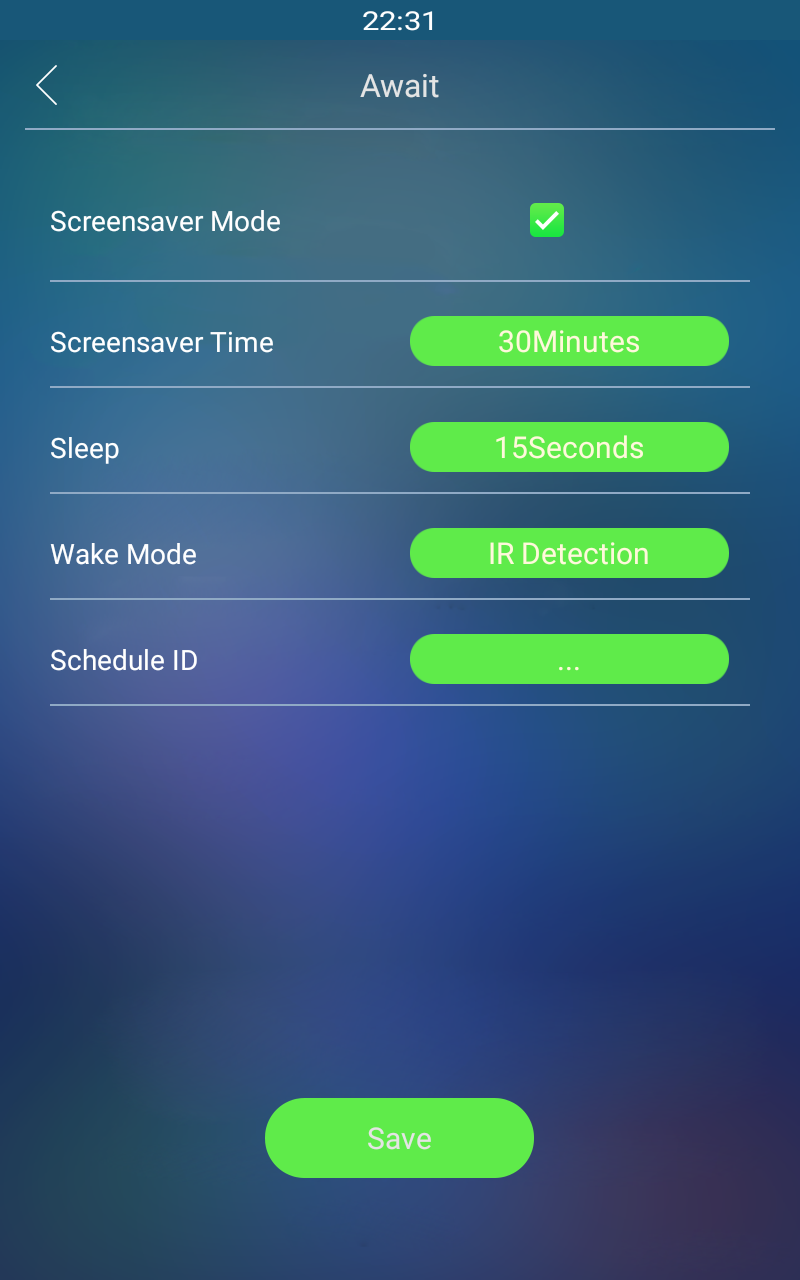
Screensaver Time: The screensaver display duration, ranging from 5 seconds to 2 hours. The screensaver display will start when the device goes into sleep mode.
Sleep: Set the time for the device to start displaying screensavers or directly turn off. For example, if you set it to 10 seconds, the device will display screensavers 10 seconds after no one approaches or no operation on the device. If the screensaver mode is disabled, the device screen will directly turn off.
Wake Mode:
IR Detection: Wake up the screen by IR detection.
Manual: Wake up the screen by touching it.
Video Detection: Wake up the screen by video-based detection.
Schedule ID: Select the schedule when the screensaver settings will be effective.
Upload Screensaver
You can upload screen-saver images individually or in batches to the device via the web interface, enhancing visual experience or serving publicity purposes.
Set it up on the Device > Import/Export > Upload Screensaver Picture interface. You can upload a maximum of 5 pictures, and each picture will be displayed in rotation according to the ID order with the specific time duration (Play Time) you set.
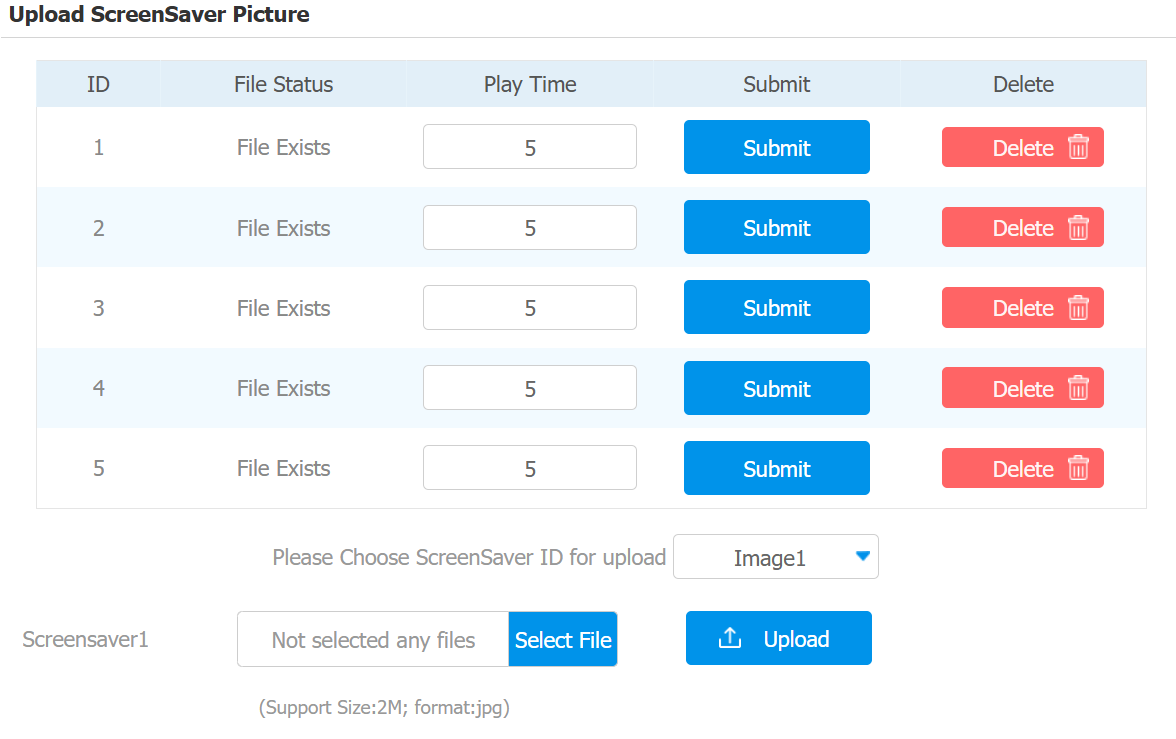
Play Time: The time for playing the screensaver picture. The time ranges from 0 to 120 seconds. The picture will not be shown if the time is 0.
Note
The pictures uploaded should be in JPG format with 2M pixels maximum.
The recommended screensaver resolution is 800×1280.
The previous picture with a specific ID order will be overwritten when picture with the same ID is uploaded.
Upload Pictures for Alphanumeric Mode Screen Display
Set it up on the Device > Import/Export > Import Alphanumeric Theme Background(.png) interface.
Main Page: The poster display. Visitors need to tap the poster (screen) to access the home screen.
Other Pages: The background images for screens other than the poster display.
Note
The pictures uploaded should be in .png format; the max picture size is 1MB.
This function can be applied to both the home screen background and the contact screen background.
The recommended picture resolution is 800*1280.
Upload Background Picture in the Time-displaying Area
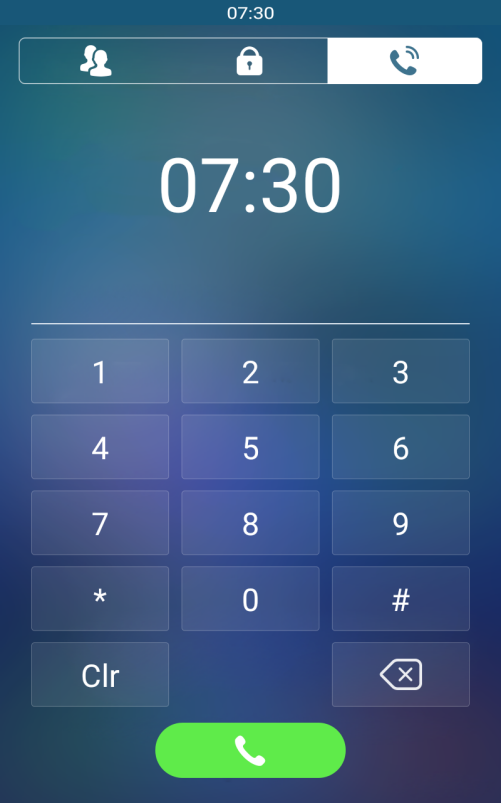
You can upload pictures on the web Device > Import/Export > Import Villa/Office Call Page Time View interface as the background for the time-displaying area on the dial screen in Villa/Office mode.
Note
This function can only be applied in the Villa/Office mode.
Pictures uploaded should be in .png format with 1 MB maximum.
The ideal picture size is 800*314 in order to achieve the best effect.
Upload Device Booting Image
You can upload the booting image to be displayed during the device’s booting process.
Set it up on the Device > Import/Export > Boot Animation (.png /.zip) interface.

Note
File format: .png or .zip; Max Size: 20MB for ZIP file, 1MB for PNG picture.
The recommended resolution is 800×1280.
Upload Device Logo
Upload the logo in Alphanumeric mode on the Device > Import/Export > Import Alphanumeric Theme Logo (.png) interface.
Note
File Format: .png; Max Size: 1MB.
The recommended resolution is 500×150.
Unlock Options Display
Users can select relay(s) to be triggered when the device is connected to more than one door lock.
To display the unlock options, go to Access Control > Relay > Unlock Options interface.

Note
Click here to view the detailed configuration.
Open Door Text Prompt
You can enable the open door text prompt for both door-opening success and failure. And you can also make the door phone display the user information when users use credentials such as RF cards for access.
To set it up, go to the Access Control > Relay > Open Door Text Prompt interface.
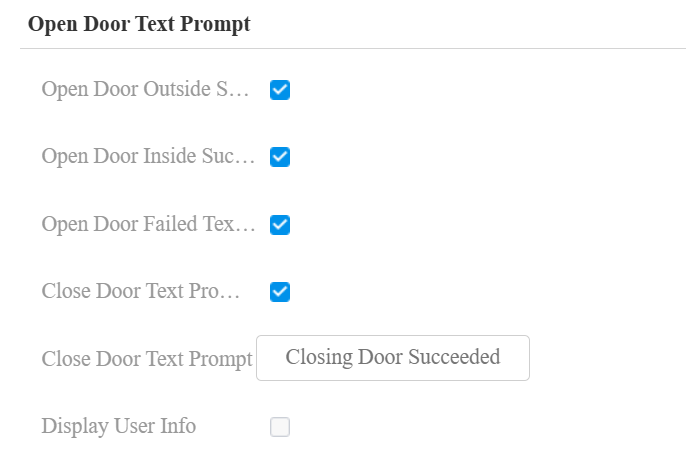
Open Door Outside Succeeded Text Prompt: Display a text prompt after the door is opened by the device-supported access methods except for the exit button.
Open Door Inside Succeeded Text Prompt: Display a text prompt after the door is opened by pressing an exit button(the input is triggered).
Open Door Failed Text Prompt: Display a text prompt after opening the door fails.
Close Door Text Prompt Enable: The door-closing text prompt works for the relay(s) set to the Bistable mode. When users close the door with their credentials, the prompt will be displayed on the device’s screen.
Close Door Failed Text Prompt: The default is Closing Door Succeeded. You can customize it with up to 63 characters.
Display User Info: Display the user information after users use their credentials. If opening doors succeeds, the user name will pop up on the device screen.
Keyboard Interface Text Prompt
You can customize the text prompts displayed on the device PIN entering, Delivery, and Dial screen. Users can be better instructed to enter codes or numbers.
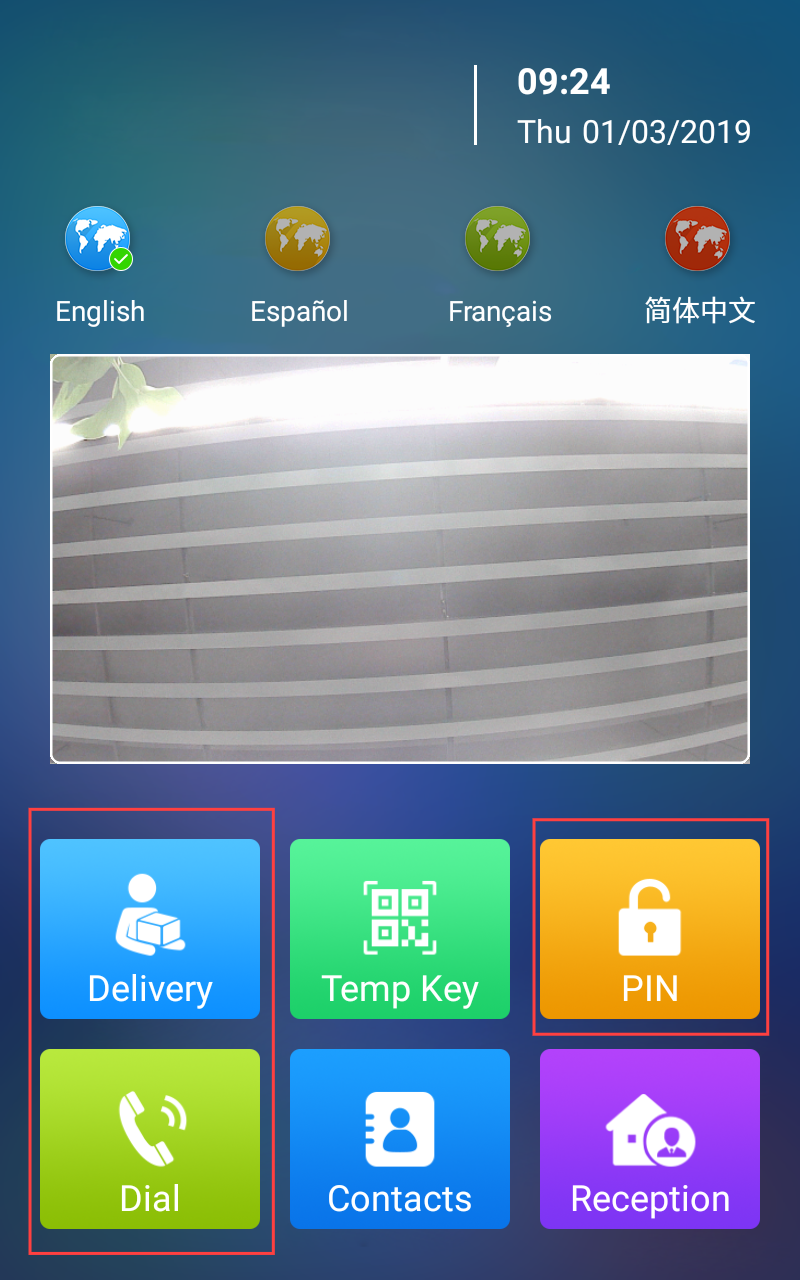
To set it up, go to the Setting > Key/Display > Keyboad Interface Text Prompt interface.
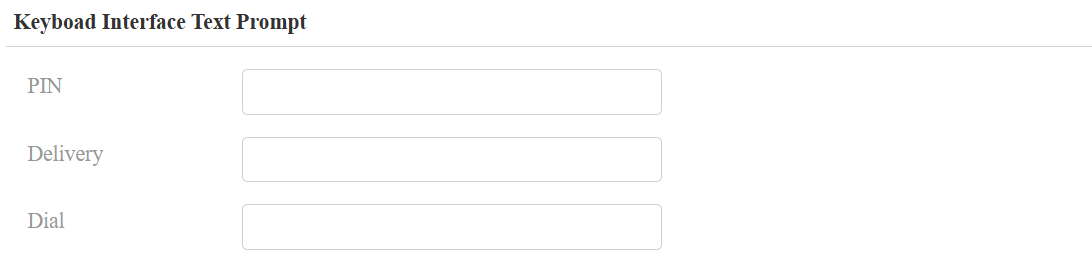
PIN: The default is “Please input your PIN”.
Delivery: The default is “Please enter your delivery PIN”.
Dial: The default is “Please enter the number to call”.
Appearance
In the Building theme, the device offers various appearance options, catering to different aesthetic needs and festival atmospheres.
Change the appearance on the Setting > Key/Display > Appearance interface.
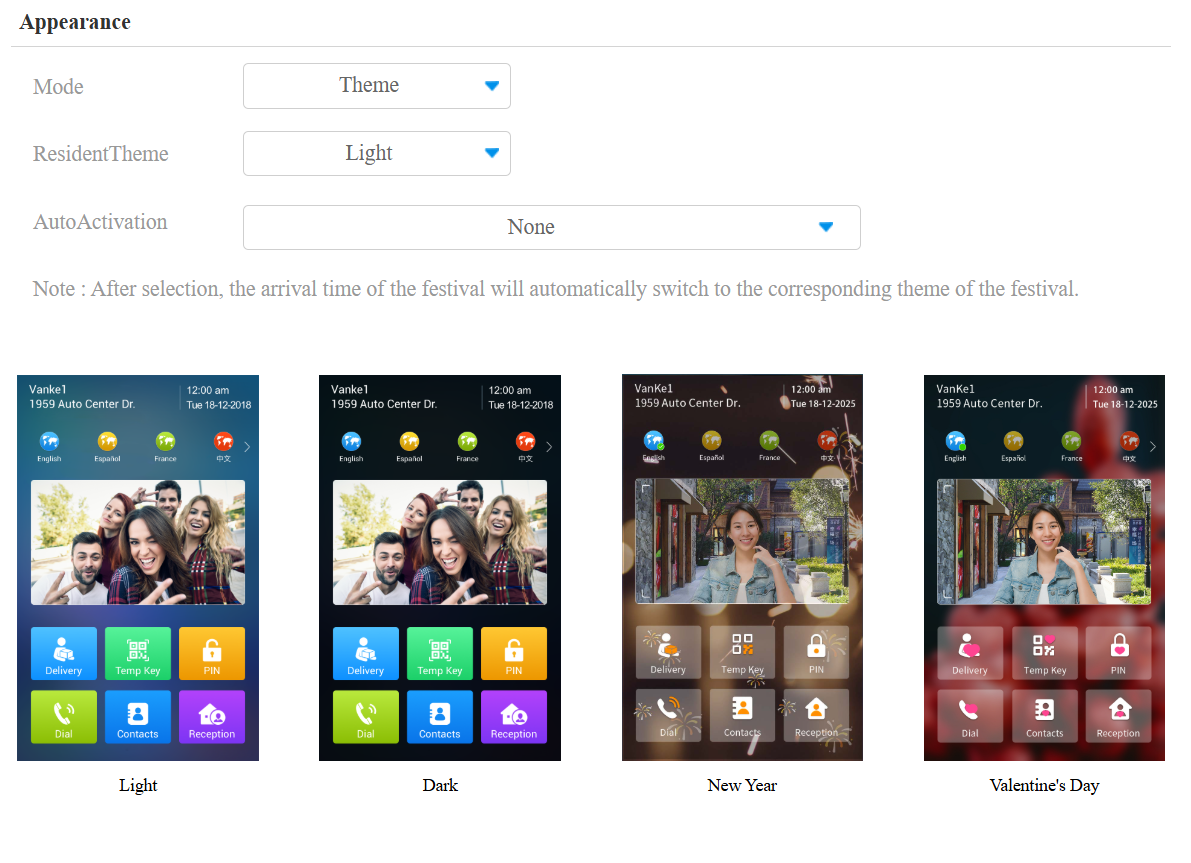
Mode:
Theme: The default option. When selected, you can check the desired appearance option.
Customization: When selected, you can upload icon pictures for desired tabs, such as PIN, Call, and Tenants.
Resident Theme: Select the desired appearance.
Auto Activation: None by default. Select the desired festival appearance(s). The device will automatically switch to the appearance during the festival. The following festivals are supported:
New Year - 1.1
Valentine's Day - 2.14
Earth Day - 4.22
Worker‘s Day - 5.1
Halloween - 10.31
Christmas - 12.25