Tamper Alarm
The tamper alarm function prevents anyone from removing the device without permission. Akuvox devices support two types of tamper proof: gravity detection and button status detection.
Click here to view which type is supported by the device and learn the function details.
To set it up, go to System > Security > Tamper Alarm interface.

Enabled: Check to enable the tamper alarm function. You can click Disarm to clear the alarm.
Key Status: The tamper alarm will not be triggered unless the key status is shifted from Low to High status.
Security Notification
Email Notification
Set up email notifications to receive screenshots of unusual motion from the device.
Go to Setting > Action > Email Notification interface.
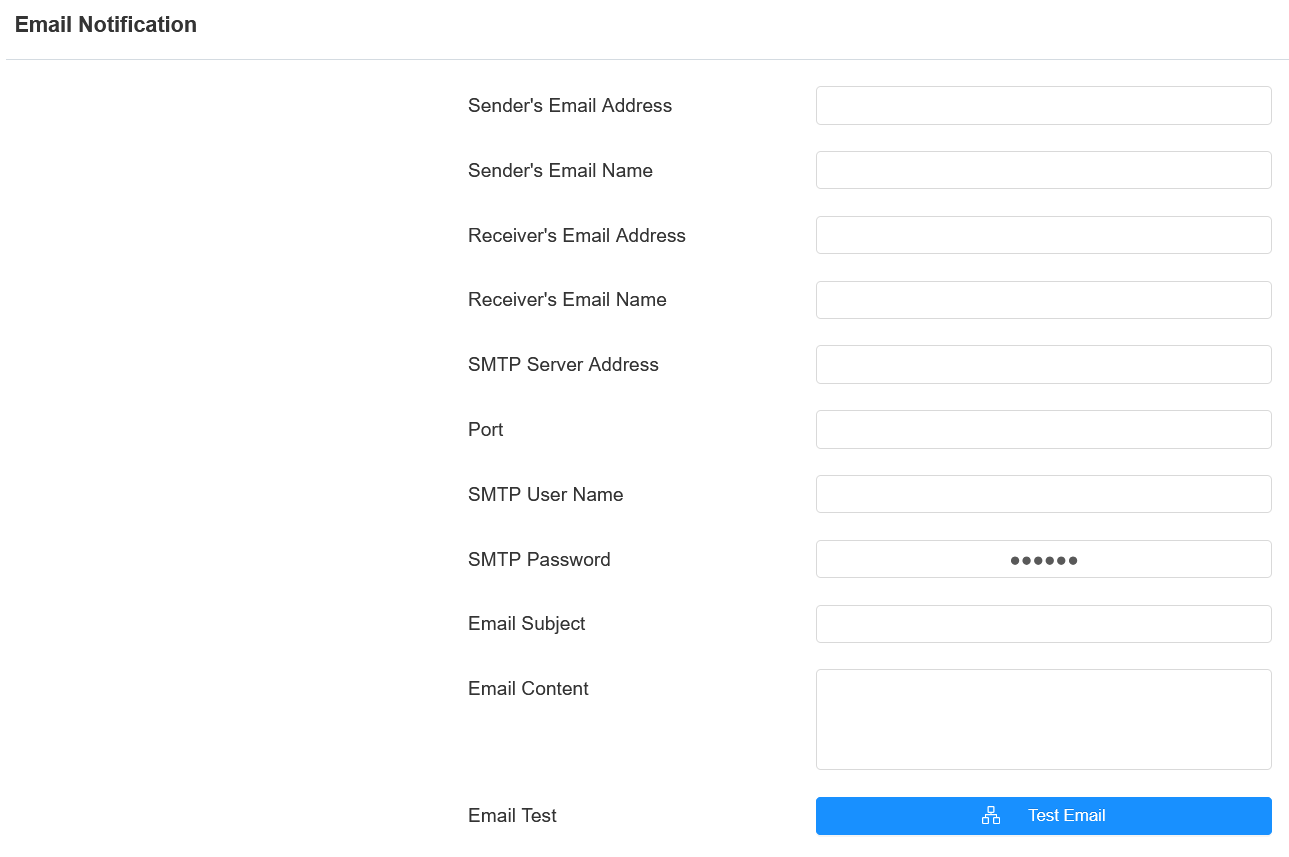
SMTP User Name: The SMTP username is usually the same as the sender’s email address.
SMTP Password: The password of the SMTP server, which is the same as the sender’s email address.
FTP Notification Setting
To get notifications through the FTP server, you need to set up the FTP settings. The device will upload a screenshot to the specified FTP folder if it senses any unusual motion.
To set it up, navigate to the web Setting > Action > FTP Notification interface.
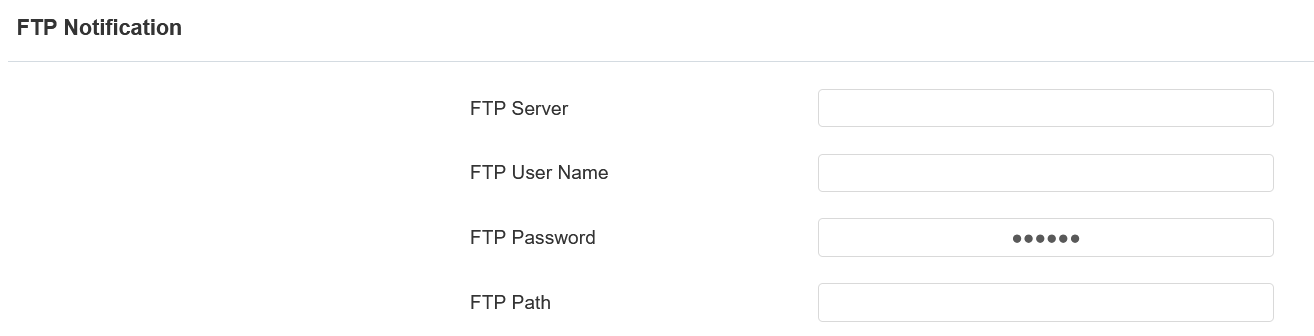
FTP Path: The folder name you created in the FTP server.
TFTP Notification
To receive security notifications via the TFTP server, you need to enter the TFTP server address.
Click here to view the configuration steps.
To set it up, go to Setting > Action > TFTP Notification interface.

Action URL
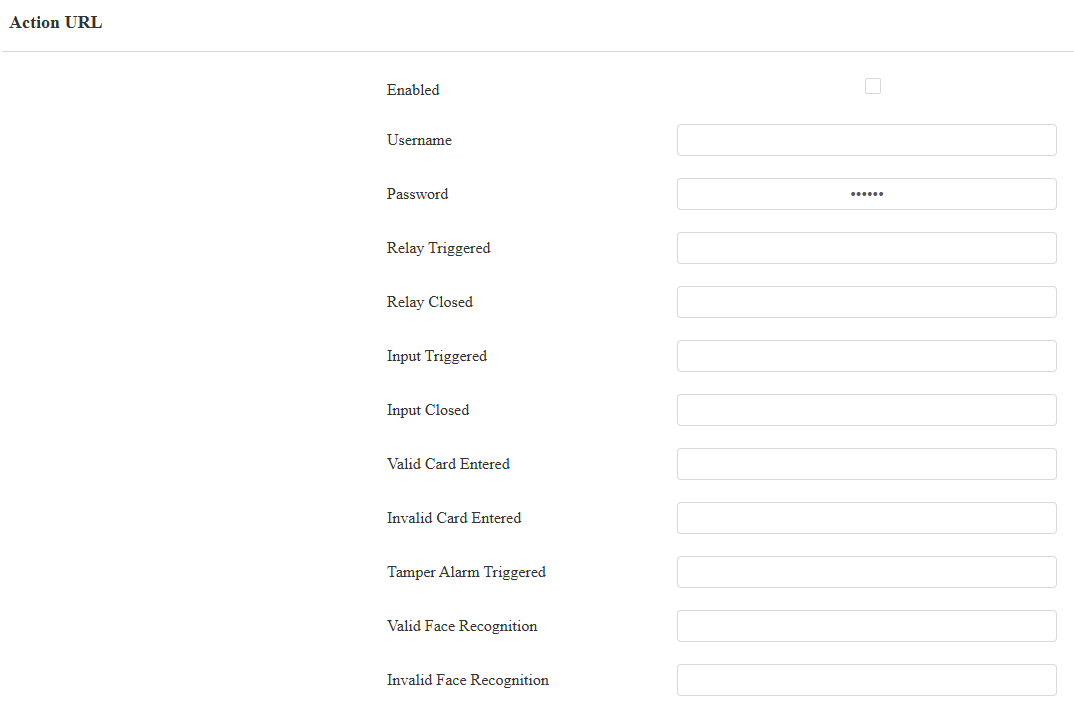
You can use the device to send specific HTTP URL commands to the HTTP server for certain actions. These actions will be triggered when the relay status, input status, PIN code, or RF card access changes.
Akuvox Action URL:
No. | Event | Parameter format | Example |
1 | Relay Triggered | $relay1status | Http://server ip/relaytrigger=$relay1status |
2 | Relay Closed | $relay1status | Http://server ip/relayclose=$relay1status |
3 | Input Triggered | $input1status | Http://server ip/inputtrigger=$input1status |
4 | Input Closed | $input1status | Http://server ip/inputclose=$input1status |
5 | Valid Card Entered | $card_sn | Http://server ip/validcard=$card_sn |
6 | Invalid Card Entered | $card_sn | Http://server ip/invalidcard=$card_sn |
7 | Tamper Alarm Triggered | $alarm status | Http://server ip/tampertrigger=$alarm status |
8 | Valid Face Recognition | $unlocktype | Http://server ip/unlocktype=$unlocktype |
For example: http://192.168.16.118/help.xml? mac=$mac:ip=$ip:model=$model:firmware=$firmware:card_sn=$card_sn
To set it up, go to Setting > Action URL interface.
Web Interface Automatic Log-out
You can set up the web interface's automatic log-out timing, requiring re-login by entering the user name and the passwords for security purposes or for the convenience of operation.
Navigate to the web System > Security interface.

High Security Mode
High security mode is designed to enhance the security. It employs encryption across various facets, including the communication process, door opening commands, password storage methods, and more.
To enable the mode, go to System > Security > High Security Mode interface.

Important Notes
1. The High Security mode is off by default when you upgrade the device from a version without the mode to one with it. But if you reset the device to its factory settings, the mode is on by default.
2. This mode makes the old version tools incompatible. You need to upgrade them to the following versions or higher to use them.
PC Manager: 1.2.0.0
IP Scanner: 2.2.0.0
Upgrade Tool: 4.1.0.0
SDMC: 6.0.0.34
3. The supported HTTP format for relay triggering varies depending on whether high secure mode is enabled or disabled.
If the mode is on, the device only accepts the new HTTP formats below for door opening.
http://username:password@deviceIP/fcgi/OpenDoor?action=OpenDoor&DoorNum=1
http://deviceIP/fcgi/OpenDoor?action=OpenDoor&DoorNum=1
If the mode is off, the device can use both the new formats above and the old format below:
http://deviceIP/fcgi/do?action=OpenDoor&UserName=username&Password=password&DoorNum=1
4. It is not allowed to import/export configuration files in tgz. format between a device with the high security mode and another one without it. For assistance with file transfer, please contact Akuvox technical support.
Real-time Monitoring
This feature displays the door status when the device is connected to the SmartPlus Cloud. Property managers and end users can check the door status, respectively, on the SmartPlus Property Manager platform and SmartPlus App. You need to specify the relay(s) or input(s) that apply this feature.
Click here to see the detailed configuration.
To set it up, go to the System > Security > Real-time Monitor interface.

Apply Setting To:
None: Not display door status.
Input: the door is opened by triggering input.
Relay: the door is opened by triggering the relay.
Emergency Action
This feature works with Akuvox SmartPlus Cloud. It keeps the door open when an emergency happens. You need to specify the Input that applies the feature.
Click here to view the detailed configuration of this feature.
To set it up, go to the System > Security > Emergency Action interface.
