The SmartPlus Cloud adopts a service-based charging model for community projects.
Each service can be independently enabled or disabled based on project requirements and customer needs. This allows you to configure communities with greater flexibility and precision.
Instead of selecting predefined plans, you can now:
Enable only the services required by the project.
Control specific services at both the community and apartment levels.
Align billing directly with activated services.
Support different project positioning (standard, premium, mixed-use).
Available Configurable Services
Services are categorized into two types:
Infrastructure-Related Services.
Experience & Value-Added Services.
Infrastructure-Related Services
These services are closely related to hardware installation and communication setup.
With Indoor Monitor
Requires at least one indoor monitor or one MR01 sensor to be installed in the apartment.
When enabled:
At least one indoor monitor/MR01 sensor must be added in each apartment.
This service affects the SmartPlus App service charge.
Recommended when:
The project requires physical indoor intercom devices or fall/out-of-bed detection.
Residents prefer answering calls via the indoor monitor.
Elderly care or assisted living scenarios require occupant monitoring.
Landline Service
Enables communication between telephones/mobile phones and intercom devices.
When enabled:
Residents can receive intercom calls via landline or mobile phone.
This is a premium feature.
Billing is adjusted based on activation status.
Recommended when:
Remote call answering is required.
Mobile forwarding functionality is needed.
Experience & Value-Added Services
These services enhance user experience and community management capabilities.
PM App
Allows property managers(PM) to use the SmartPlus mobile application.
When enabled:
PM can manage community operations via mobile apps.
Operational efficiency is improved through digital workflows.
Recommended when:
The project requires on-site mobile management.
Property management teams need remote access capabilities.
Landline Service for PM
Allows PM App users to receive intercom calls on their mobile phones.
When enabled:
PM can answer intercom calls remotely via the SmartPlus App.
Calls can be handled without being physically present in the control room.
Recommended when:
On-site management requires mobility.
PM needs to handle visitor access remotely.
Third-Party Camera Integration
Allows integration of external CCTV systems into the SmartPlus platform.
When enabled:
Third-party cameras can be connected for centralized monitoring.
Residents or administrators can access integrated video streams (depending on permissions).
Recommended when:
The project includes external surveillance systems.
Centralized security monitoring is required.
Related Documentation
Click here to view how to add third-party cameras.
Booking Service
Enables residents to reserve shared facilities through the SmartPlus App.
When enabled:
Shared amenities (e.g., gym, function room, BBQ area) can be managed digitally.
Reservation records are maintained within the system.
Recommended when:
The community includes shared facilities.
Digital facility management is required.
The project aims to enhance resident convenience.
Related Documentation
Click here to view how to set up the booking feature.
Video Storage
Provides cloud-based storage for intercom call recordings and related video data.
When enabled:
Video recordings are stored for later review.
Storage duration depends on the configured plan.
Recommended when:
Security compliance requires video retention.
Evidence recording is necessary.
The project offers enhanced security services.
Related Documentation
The feature toggle is available on the project editing page, not the adding page.
Click here to view how to set up the video storage feature.
Package Room
Allows end users to receive package arrival notifications via the SmartPlus App.
When enabled:
Residents receive real-time notifications when parcels are delivered.
Recommended when:
The project includes a smart parcel locker or package room.
The community has a high parcel delivery volume.
The developer wants to enhance delivery management efficiency.
Related Documentation
Click here to view how to set up the package room feature.
Dynamic QR Code
Allows residents to use dynamic QR codes to access their property.
When enabled:
Residents can generate time-sensitive QR codes via the SmartPlus App.
QR codes can be used for secure access control.
Recommended when:
The project promotes contactless access.
Temporary visitor access is required.
Enhanced security and anti-copy protection are priorities.
Related Documentation
Click here to view how to generate the dynamic QR code.
Smart Parking
Allows property managers to manage vehicle access and parking permissions within the community.
When enabled:
Property managers can configure parking lots.
Long-term vehicles and temporary vehicles can be managed via the cloud.
Visitors can enter the parking lot using license plate recognition.
Parking events and access records can be monitored for daily management.
Recommended when:
The project includes vehicle access control or parking lot management.
The community needs to manage resident and visitor vehicles.
Smart parking rules (such as visitor access or blocklist management) are required.
The property wants centralized parking management via the cloud.
Related Documentation
Click here to view how to configure the Smart Parking feature.
Elevator Control
Allows installers to control elevator access permissions and improve building security.
When enabled:
Residents can access authorized floors using supported authentication methods (such as cards, QR codes, or mobile credentials).
Property managers can configure floor permissions based on user identity.
Recommended when:
The project requires restricted floor access control.
The building needs to improve security by limiting elevator access.
Integrated access control and elevator management are required.
Related Documentation
Click here to view how to configure the Elevator Control feature.
Configure Services During Community Creation
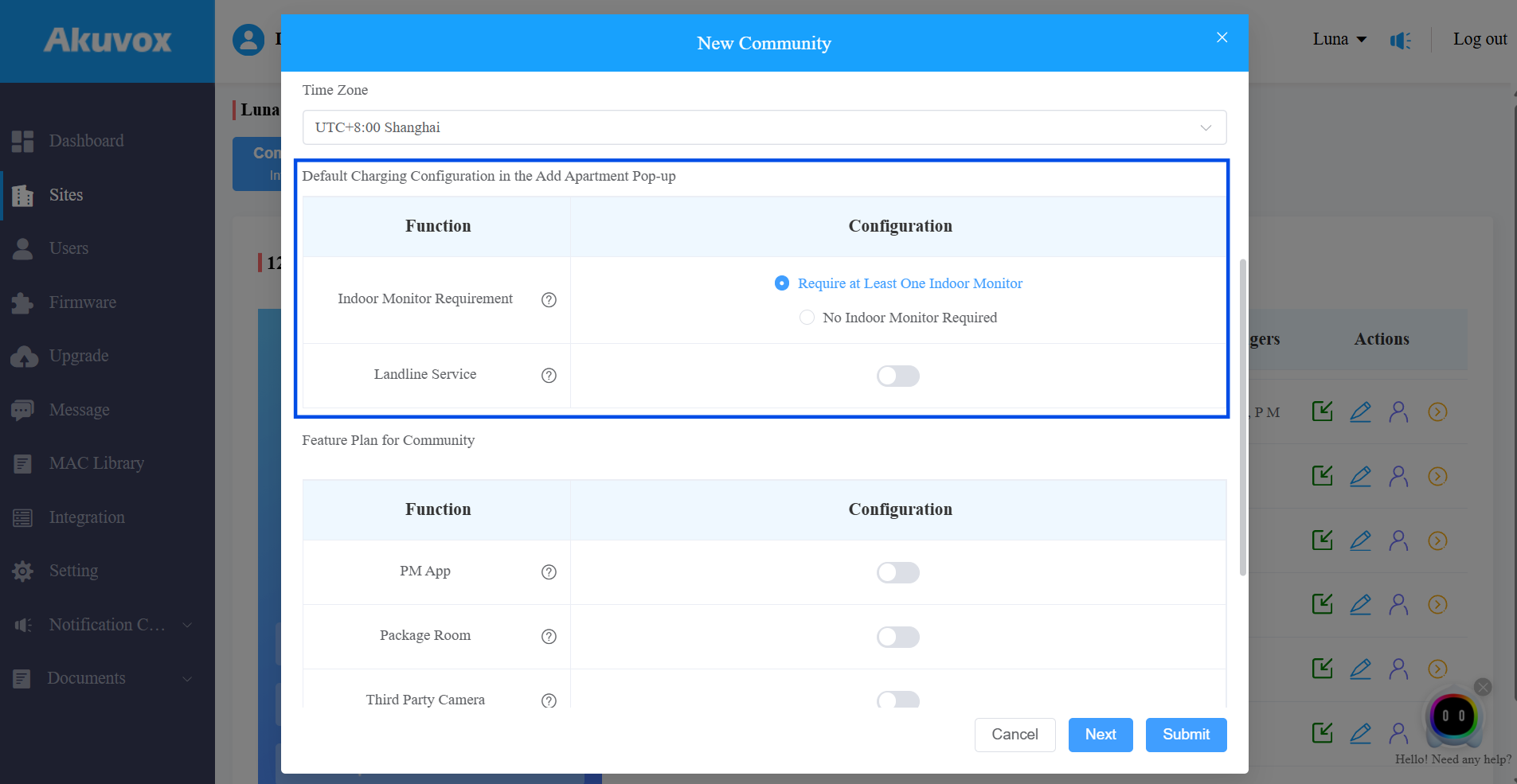
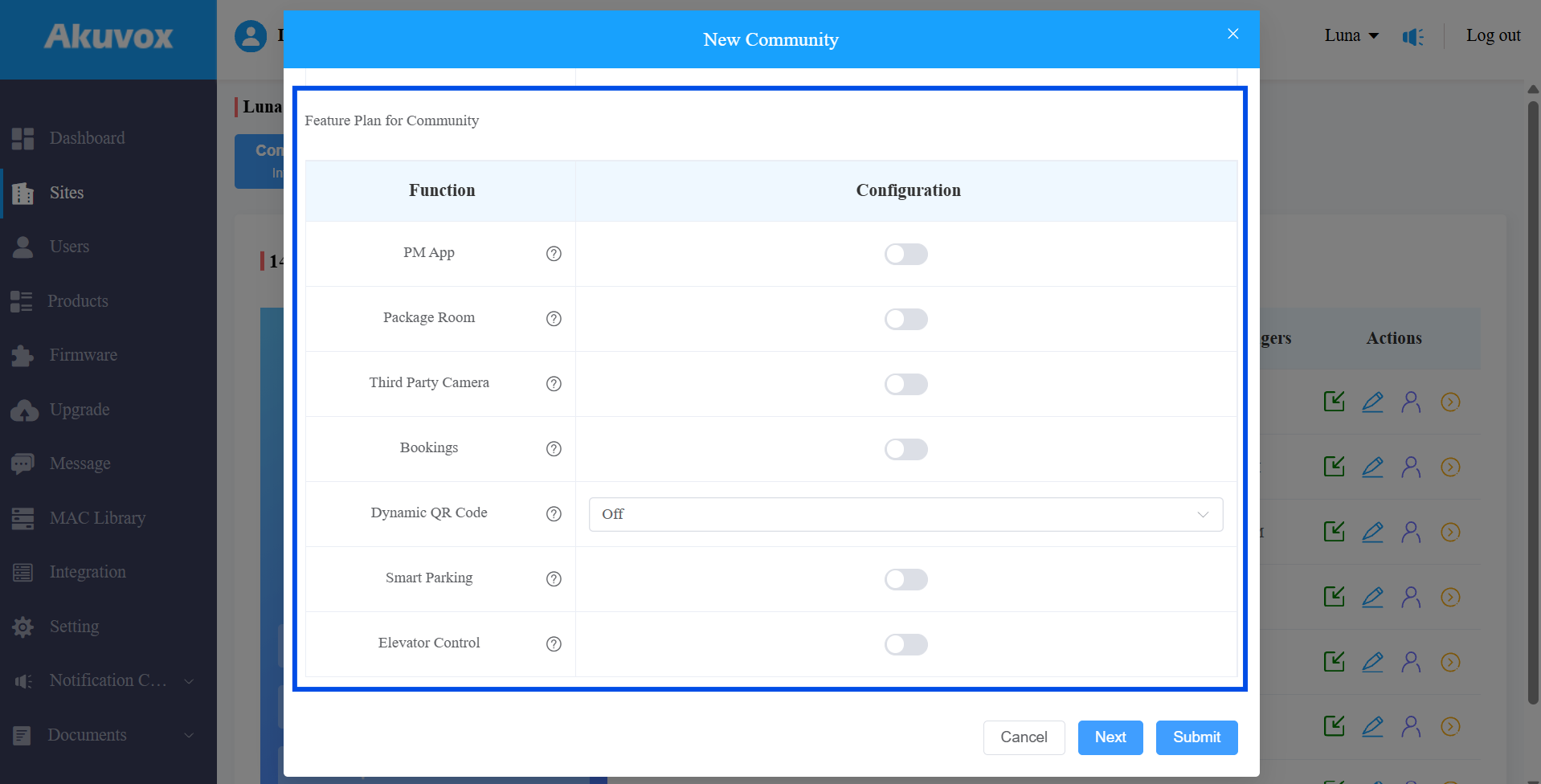
You can configure all services listed above when creating a community.
Log in to the SmartPlus Cloud platform with your installer account.
Click Add Community Site to create a community.
Enter the community information and find the feature section.
Enable or disable required services.
Require at Least One Indoor Monitor is the default option.
Other services are disabled by default.
The PM App option is automatically set to "On" and locked when one or more PM Apps are active in the project. When no PM Apps are active, you can change this setting.
Submit the setting.
Bulk Update Services for All Apartments
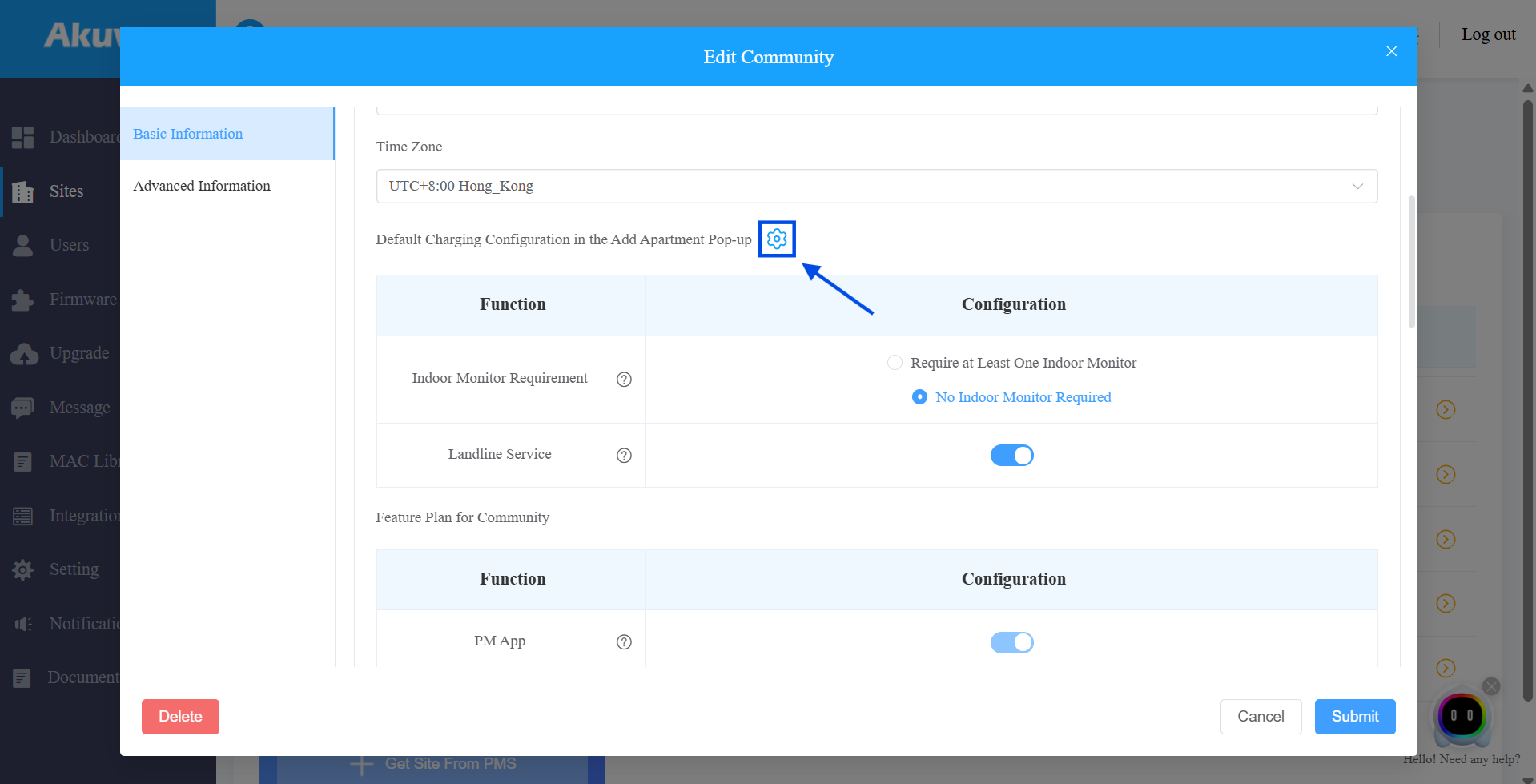
When editing a community, you can enable or disable the following services for all apartments simultaneously:
With Indoor Monitor
Landline Service (For Residents)
Note
The bulk editing feature should be enabled by Akuvox for your distributor. Otherwise, the settings icon will be hidden.
This allows you to quickly align service configuration across the entire project.
Click
 of the target community.
Click
 .
.
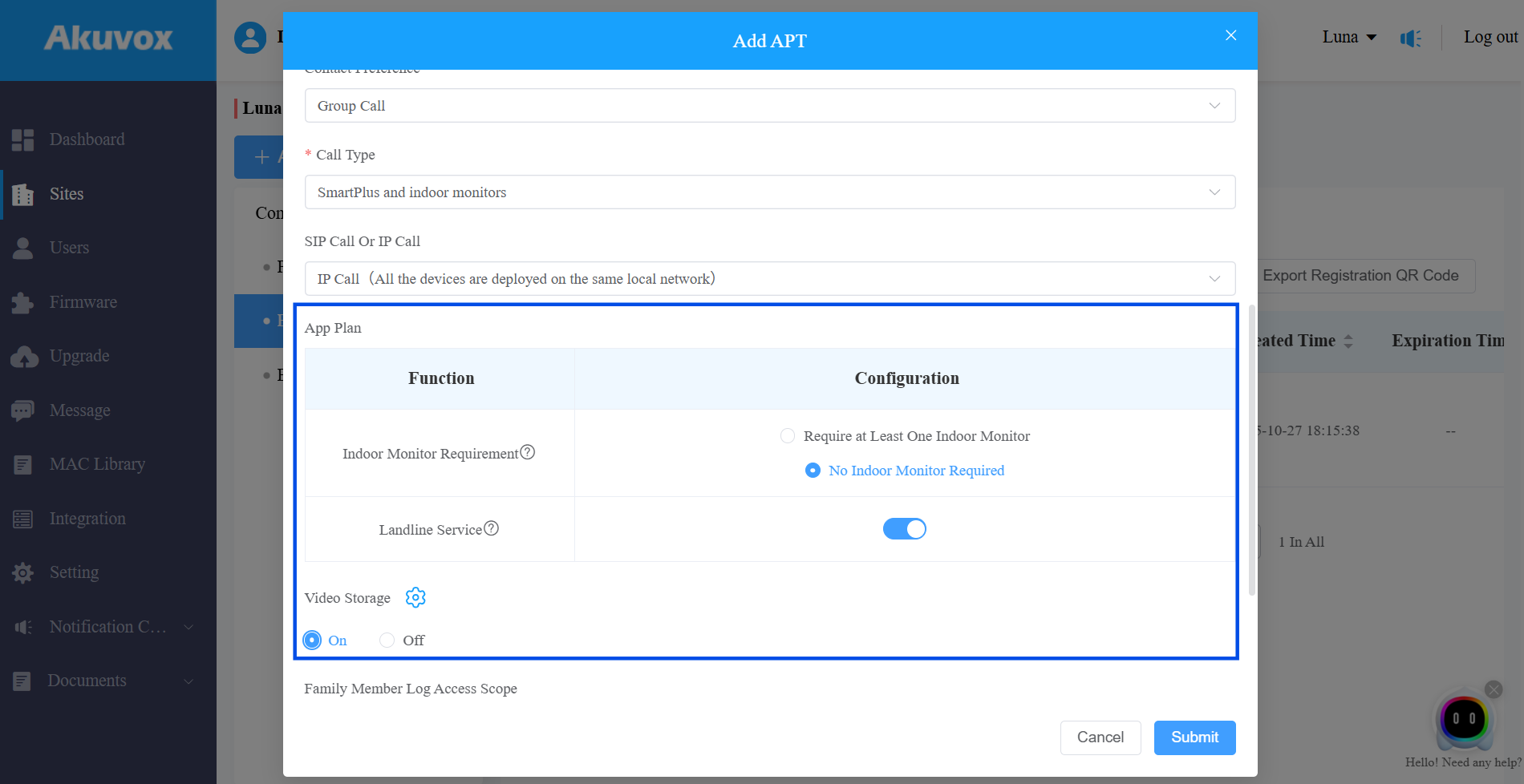
Configure these services for specific apartments.
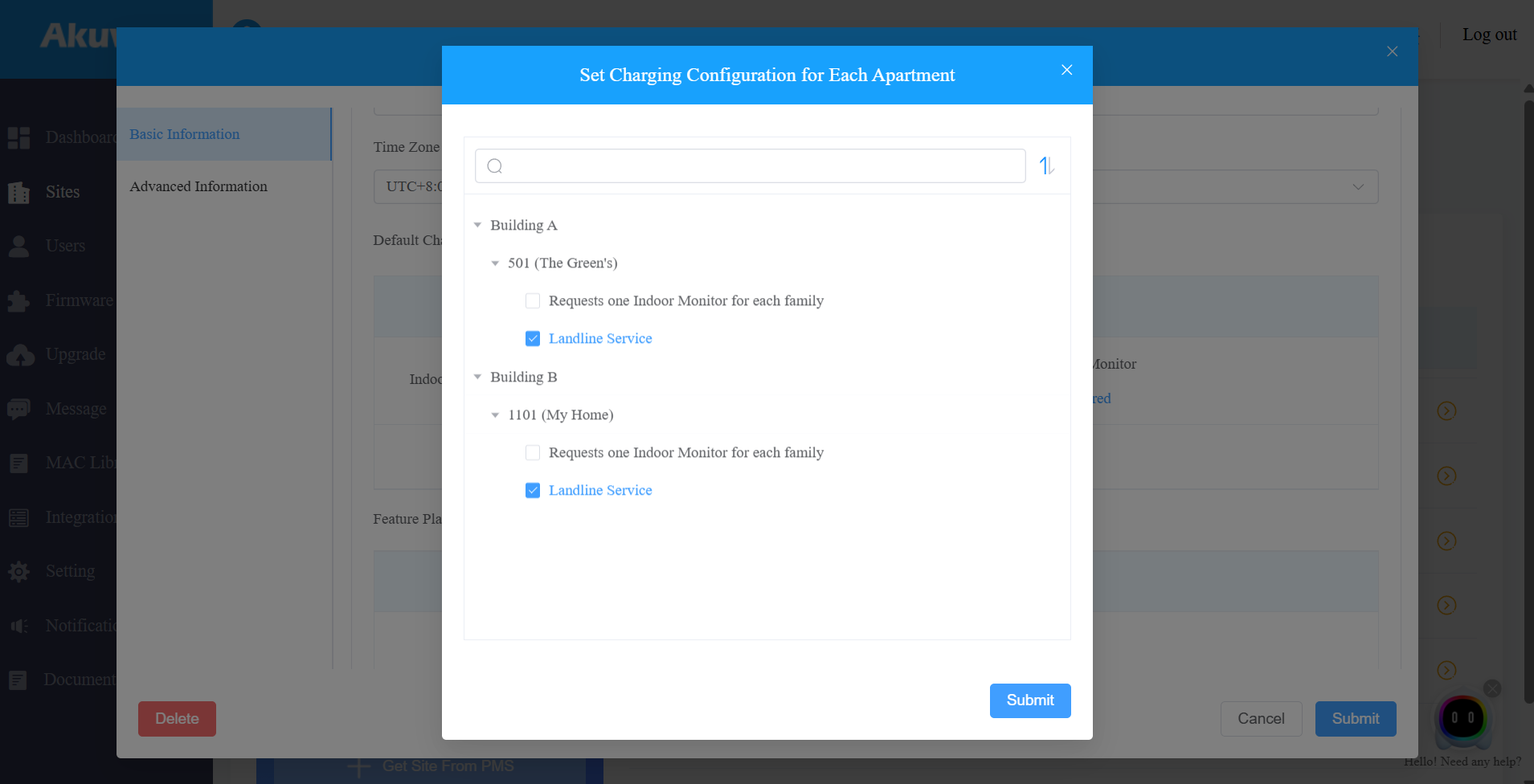
Configure Services for Individual Apartments
Only the following services can be configured per apartment:
With Indoor Monitor
Landline Service (For Residents)
Video Storage
Note
This feature should be enabled by Akuvox for your distributor. Otherwise, you cannot configure the above services for individual apartments.
Click
 to enter the community setup.
Select the building.
Click New to create an apartment; click
 >
>  to modify an existing one.
Enable or disable supported services.
With Require at Least One Indoor Monitor selected, you are required to select the Device Type: Indoor Monitor or Sensor(Akuvox MR01 Radar Sensor).
Then, enter the device MAC and name.
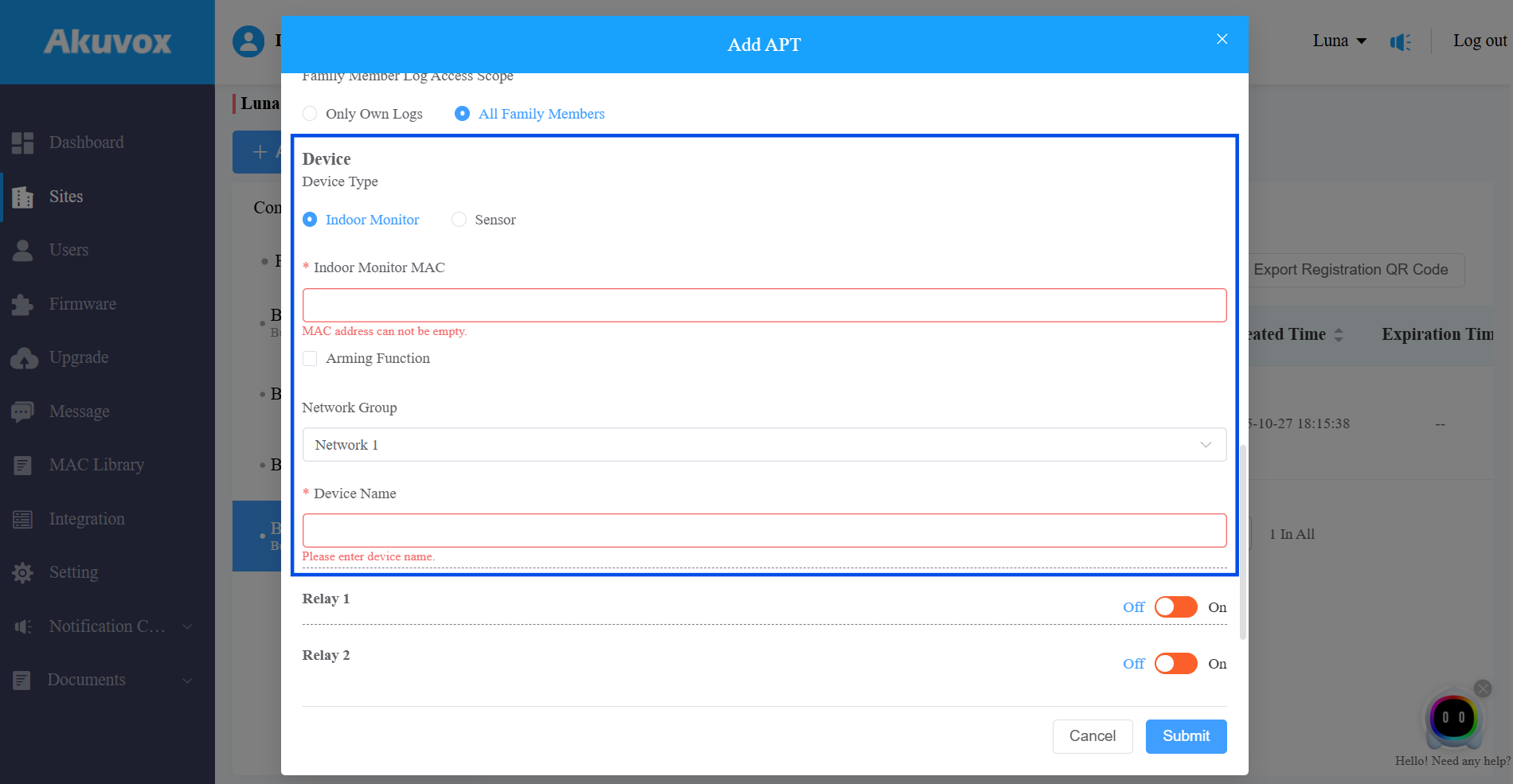
Submit the setting.