This guide explains different ways to allow visitor vehicles to enter the parking lot, including temporary access, intercom access, and free access modes.
Role Definition
PM (Property Manager): System configuration, device settings, cloud platform management, global access rules, approval, and monitoring.
Resident: Authorize visitors, remotely unlock gates, and manage personal visitor permissions.
Visitor: Operate on-site R29 door phone to gain access.
Prerequisites
R29 firmware version: 29.30.10.712.
The manual license plate entry function when LPR recognition fails is supported only on R29 devices running firmware version 29.30.10.734 or later. See Method 5 - Temporary U‑Turn / Short Park.
R49 firmware version:49.30.10.78.
R29 must be added to the community public area to enable parking lot functions.
LPR camera must be properly deployed.
Visitor Vehicle Access Methods
Method | Scenario | Required Device | User Operation |
|---|---|---|---|
Temporary vehicle access | Pre-registered visitors with fixed time validity | Cloud platform |
|
Self-service access | Visitor knows the exact building & apartment number | R29 | Visitor enters building number + apartment number |
Resident remote unlock | Visitor calls resident for one‑time unlock | R29 |
|
PM managed access | Special visitors, workers, or service vehicles | R29 + PM App OR R29 + R49 |
|
Temporary U‑Turn / Short Park | Quick entry and U‑turn without long‑term parking | R29 | Visitor operates on R29 to enter |
Free access period | Open hours | Cloud platform | Free entry |
Base Configuration (One-Time Setup by Installer/Authorized PM)
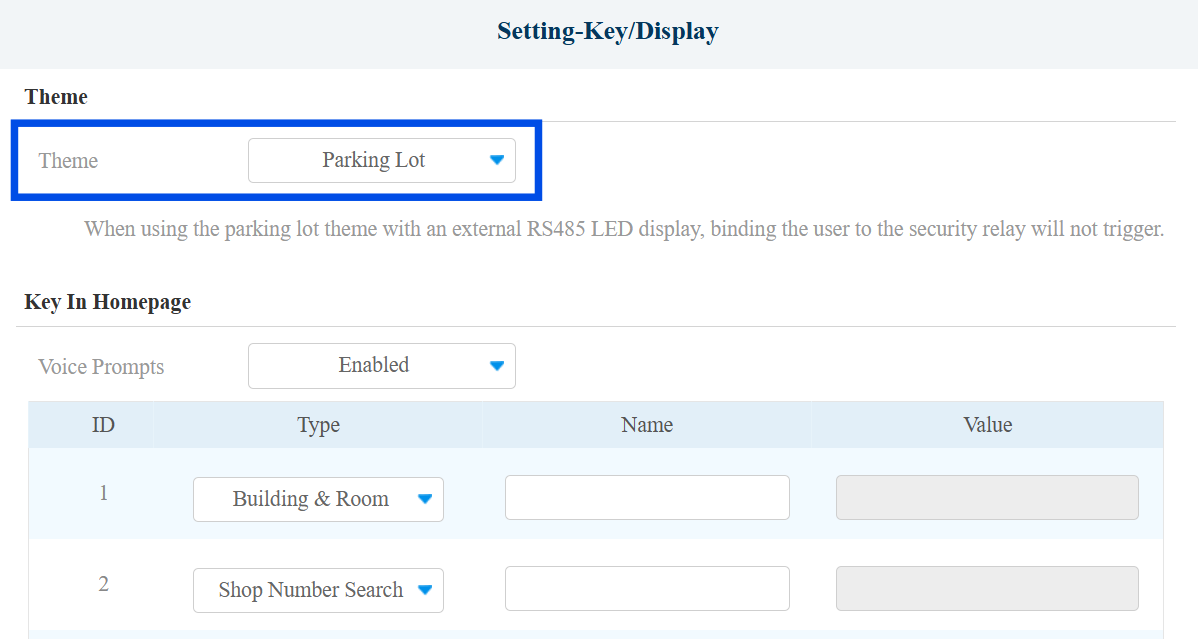
Set R29 Theme to Parking Lot.
Use the device IP to log in to its web interface. The default username and password are admin.
Go to Settings > Key/Display interface.
Set the Theme to Parking Lot.
Scroll down to the LPR Camera Setting section.
Enter the camera’s MAC address and select where it is installed.
Select the relay to be triggered.
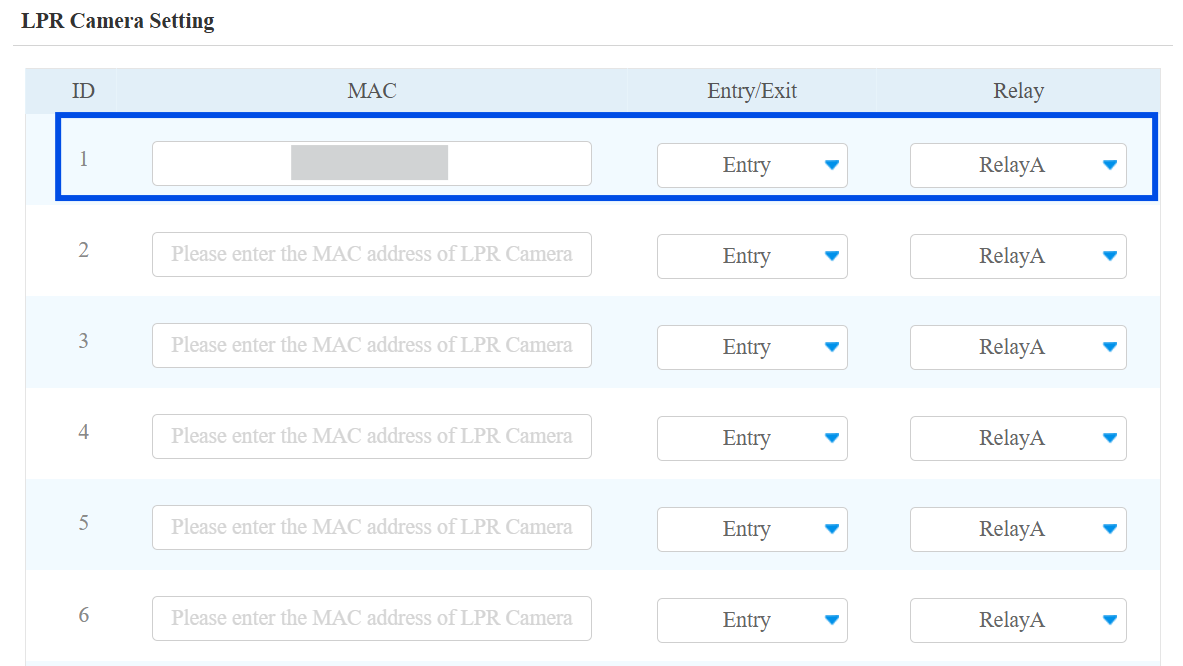
Submit the setting.
Method 1 - Temporary Vehicle Access
Used when residents want to grant temporary parking access to visitors.
Residents or PMs create time‑limited access for visitors by license plate or UHF card.
Prerequisite: When the deployed device is R29, make sure that the Base Configuration (R29 theme set to Parking Lot) is completed.
PM Operation
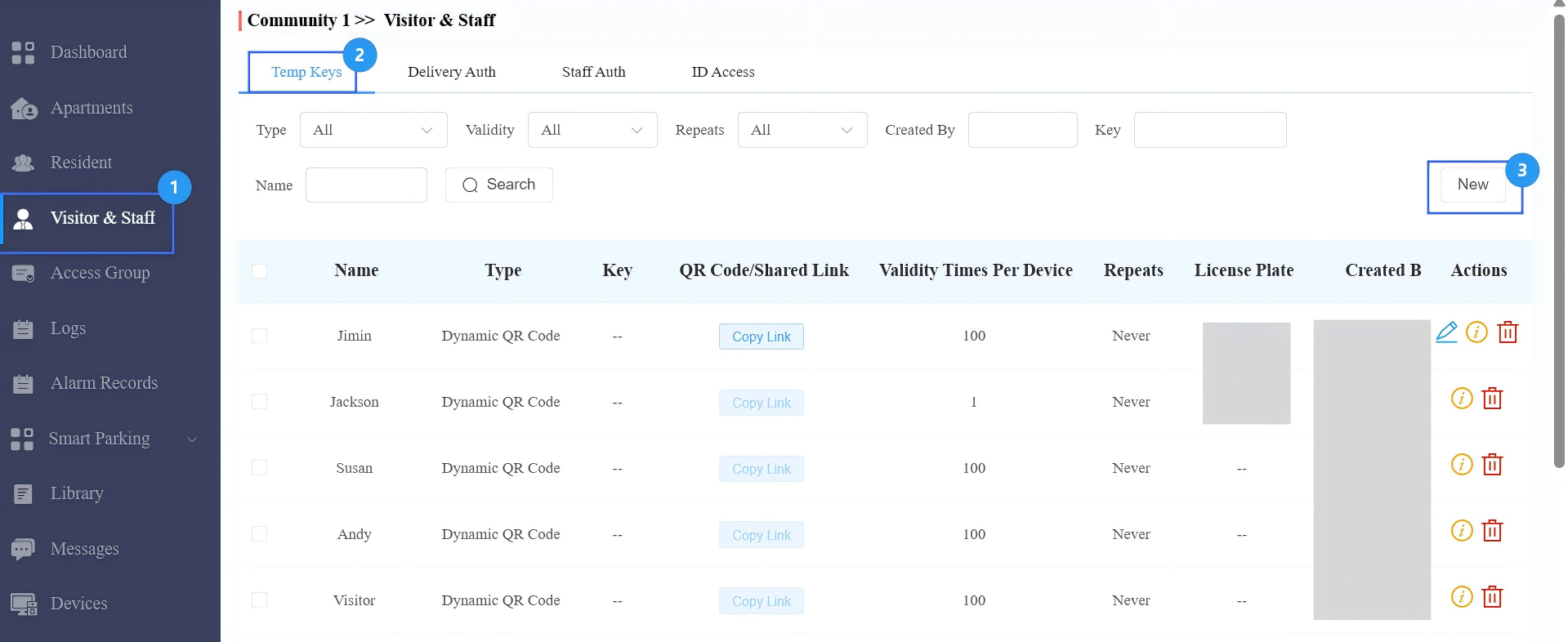
Log in to the cloud platform with your PM account.
Click Visitor&Staff > Temp Keys > New.
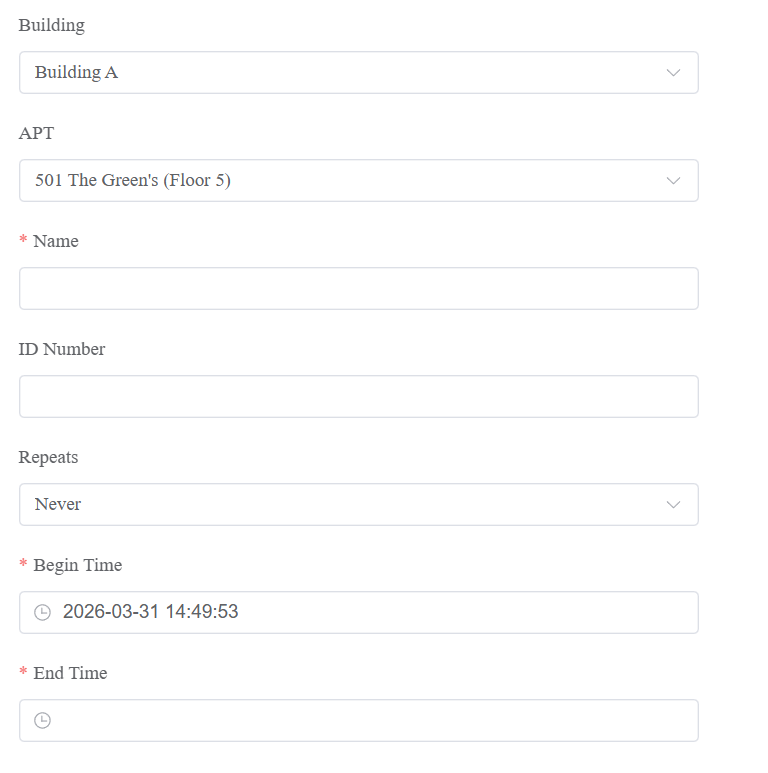
Select the building and apartment.
Enter the visitor’s name and ID number.
Select the Repeat Mode from Never, Daily, or Weekly, which determines how often the visitor can use the key.
If Never is selected, specify the Validity Times Per Device that determines how many times the visitor can open doors using the temp key on the selected device.
Configure the time range when the visitor can enter the parking lot.
Enter the visitor’s License Plate.
Enter the visitor’s UHF card code if applicable.
Select the parking lot entrance gate that the visitor can access.
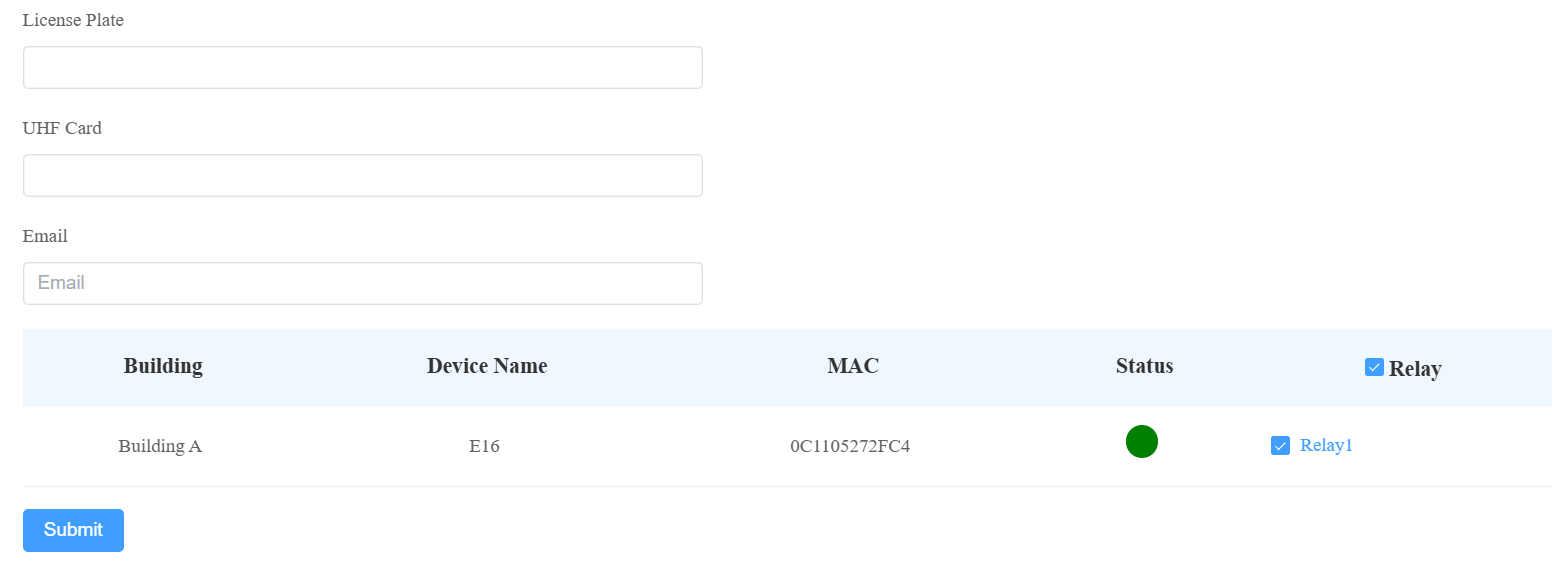
Submit the setting.
Resident Operation
Click here to view how residents create vehicle access temp keys for visitors.
Visitor Operation
Drive in directly. The LPR camera recognizes the registered license plate, and the Akuvox access device automatically grants access during the valid period.
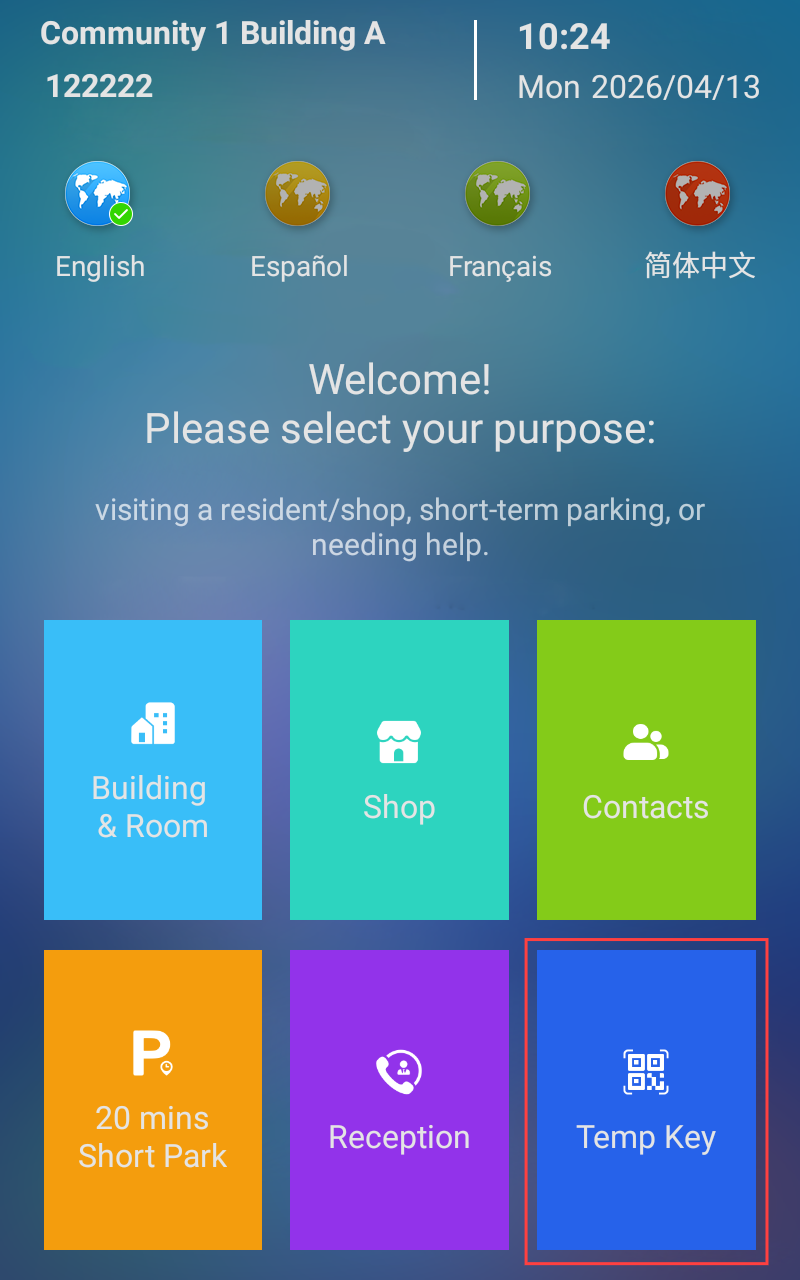
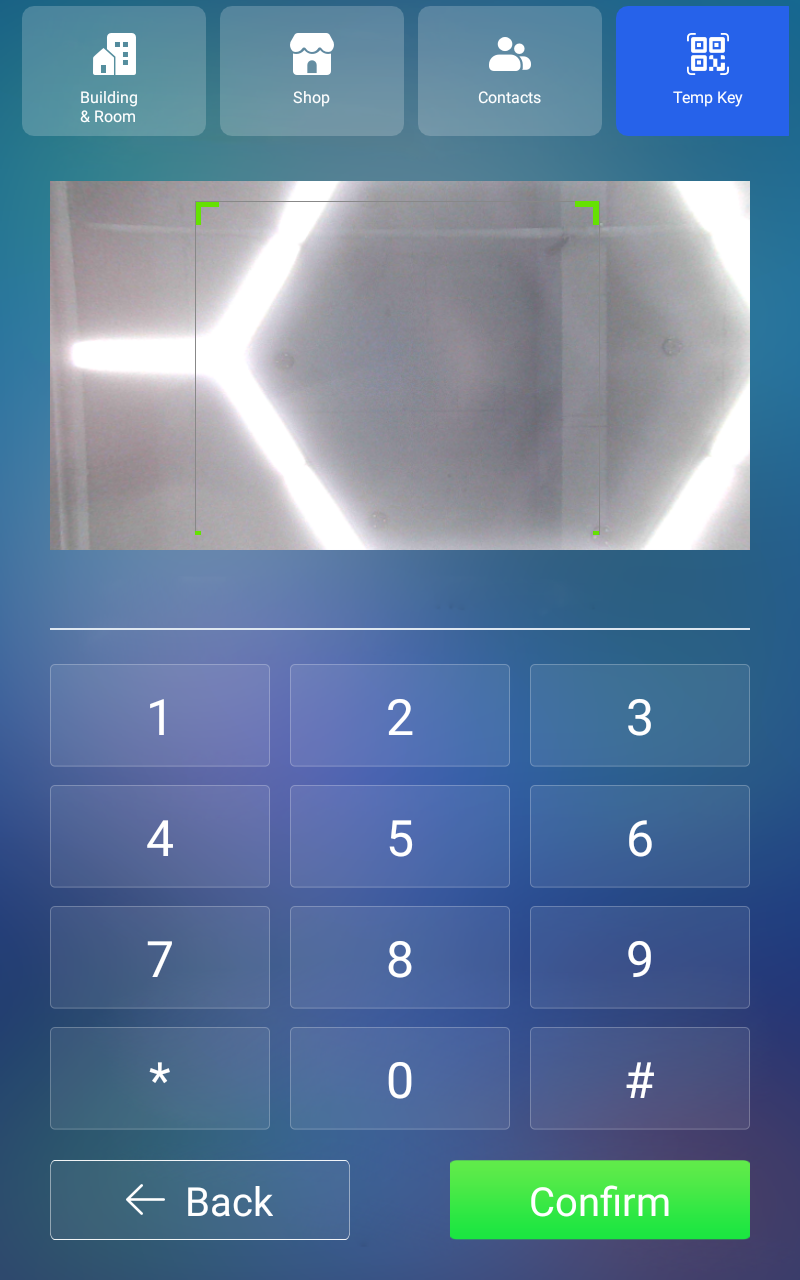
For R29: If the license plate is not recognized due to LPR recognition limitations, the visitor can scan a valid Temp Key QR code to open the gate.
Select Temp Key on the home screen when prompted “Unregistered vehicle. Please select the function button to enter the parking lot.”
Place the QR code within the scanning frame.
Then, the gate opens, and the visitor can drive into the parking lot.
Method 2 - Visitor Self-Service Access
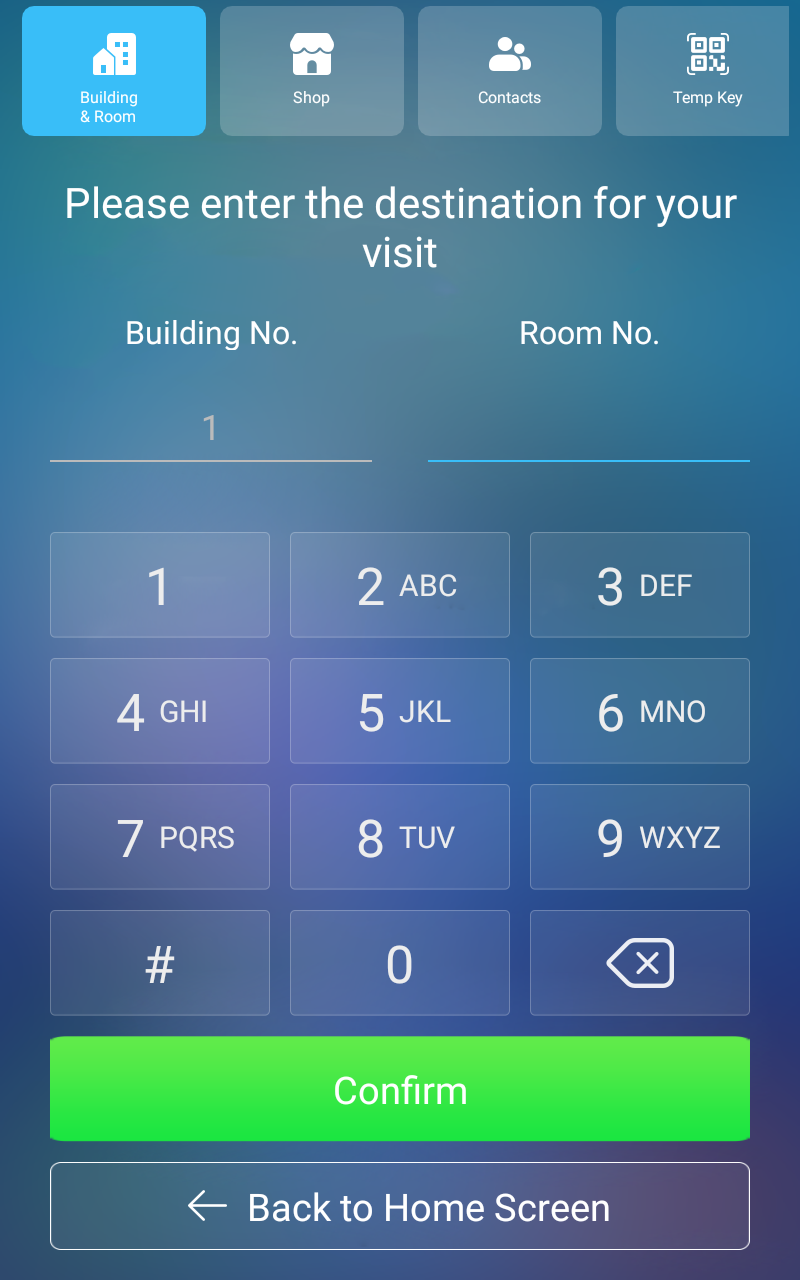
Visitor gains access by entering the building and apartment number on R29.
Prerequisite: Base Configuration (R29 theme set to Parking Lot) completed.
Visitor Operation
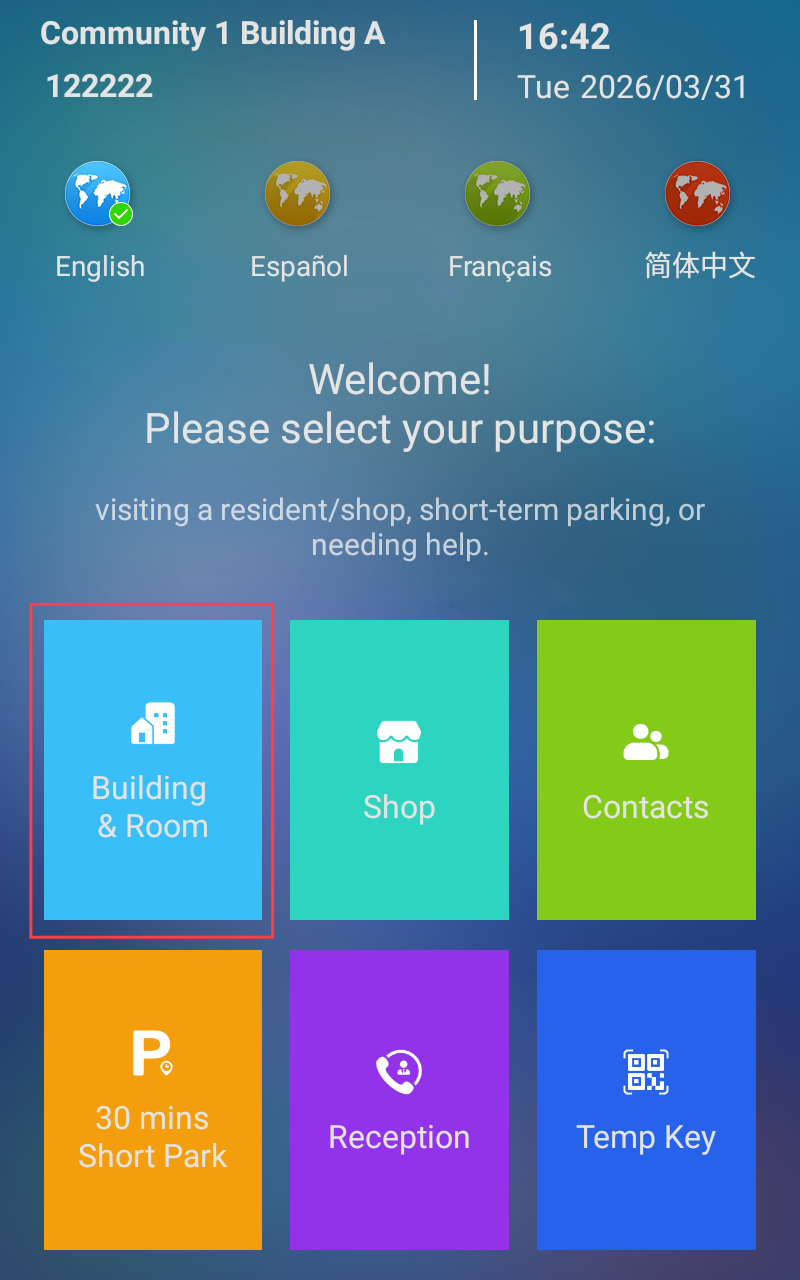
Select Building & Room on the home screen when prompted “Unregistered vehicle. Please select the function button to enter the parking lot.”
Enter the building number and room number.
Then, the gate opens, and the visitor can drive into the parking lot.
Tip
When the door phone is added to the Public Area of the community, enter the Building No. manually.
When the door phone is added to the public area of a building in the community, the Building No. cannot be changed. Simply enter the room number.
Method 3 – Resident Remote Unlock
Residents can open the parking lot entrance gate remotely for visitors during a call.
Prerequisite: Base Configuration (R29 theme set to Parking Lot) completed.
Visitor Operation
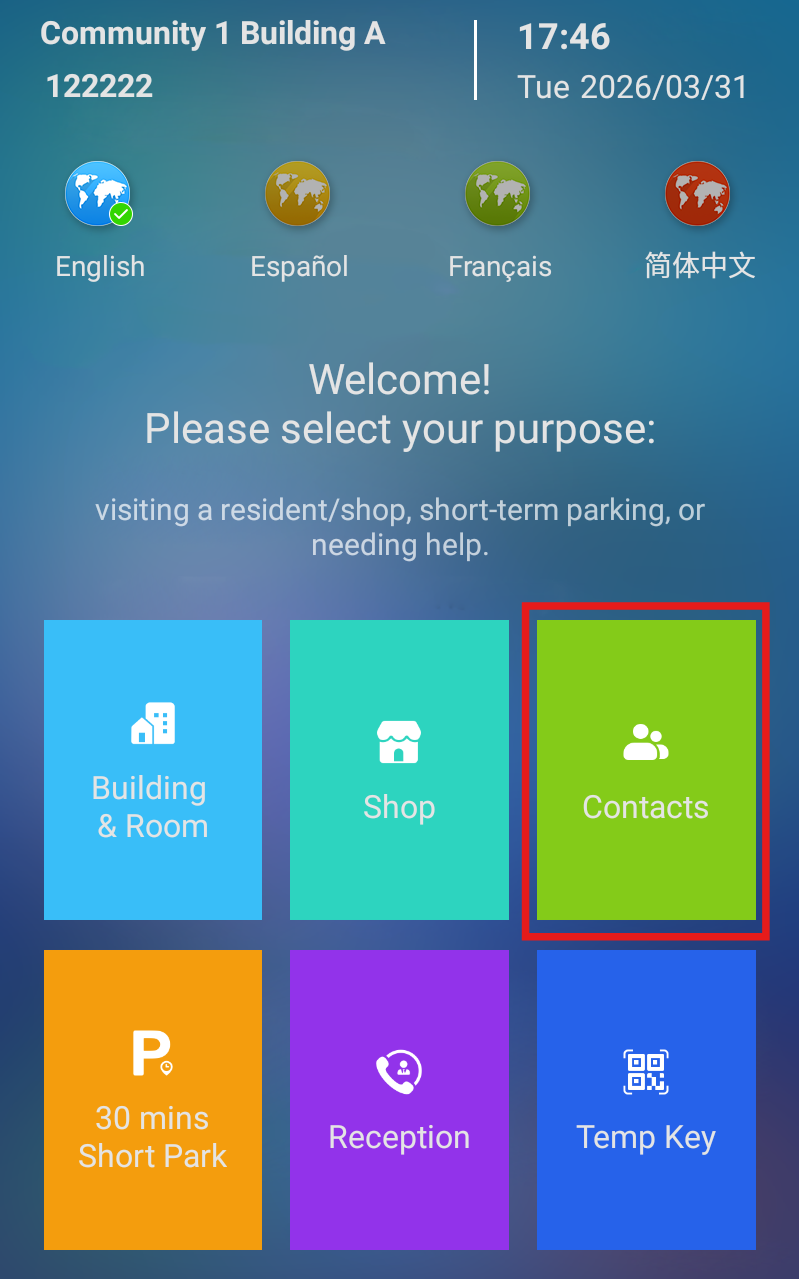
Select Contacts on the home screen when prompted “Unregistered vehicle. Please select the function button to enter the parking lot.”
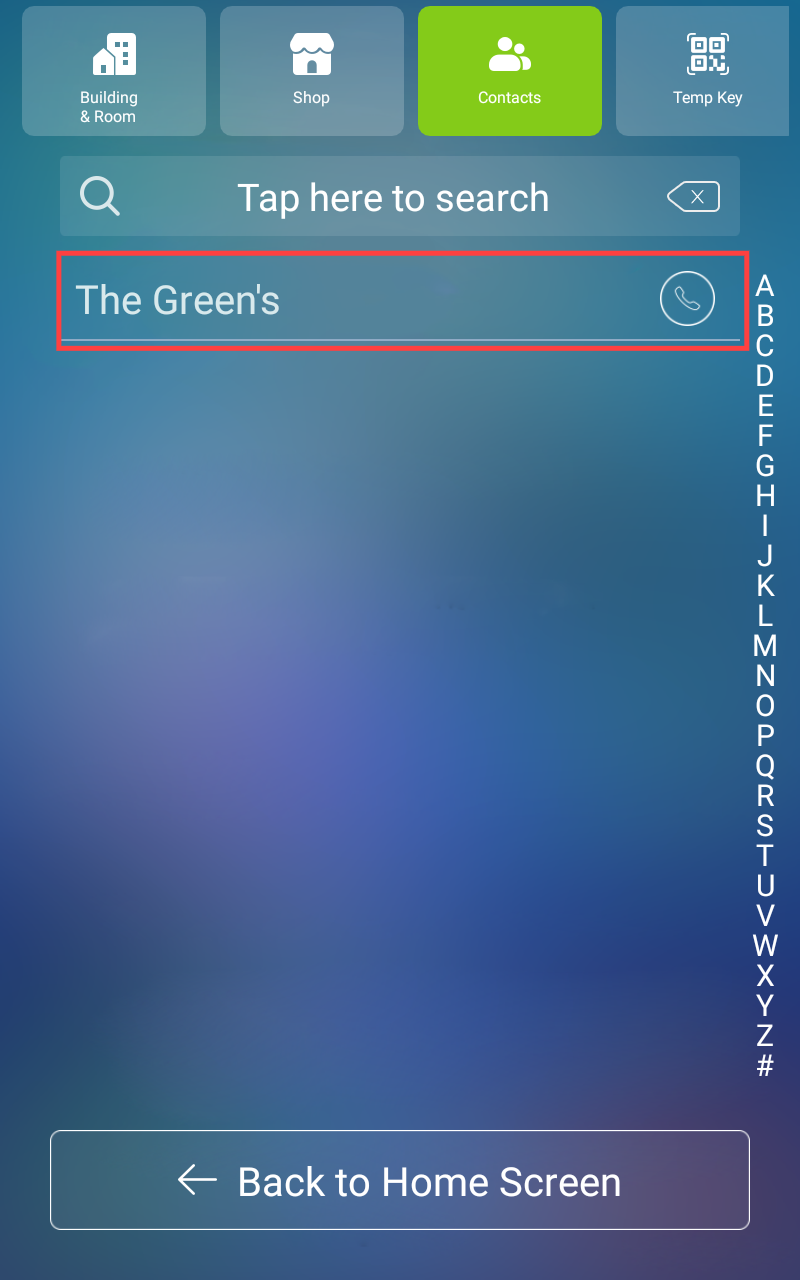
Select the resident to call.
Resident Operation
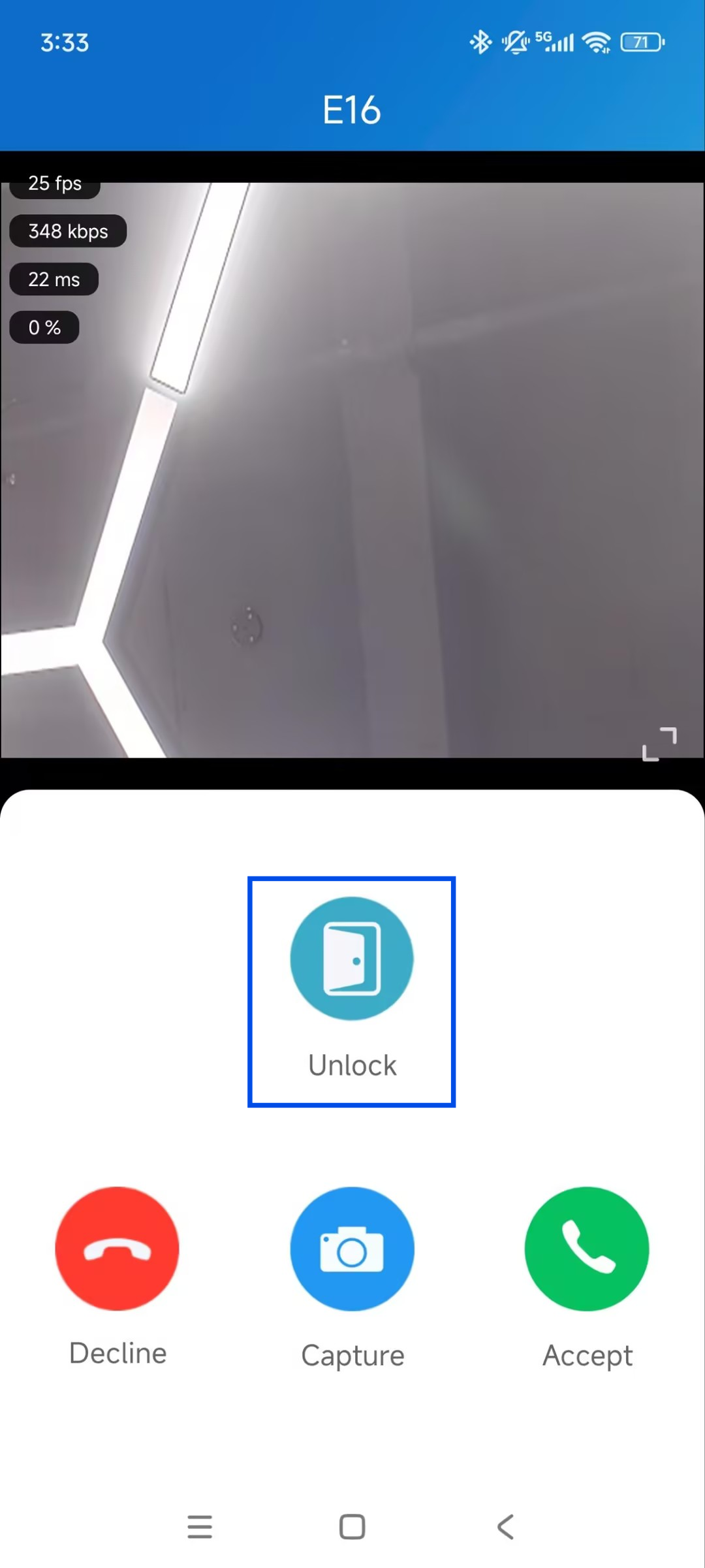
During the call, unlock the gate via SmartPlus App or indoor monitor.
Method 4 – PM Manage Access
The visitor calls the reception. Then, the PM or security guard enters the room number to open the entrance for the visitor.
If it is a service vehicle or worker, the PM can enter the virtual number and mark it as a public vehicle.
Prerequisite: Base Configuration (R29 theme set to Parking Lot) completed.
Visitor Operation
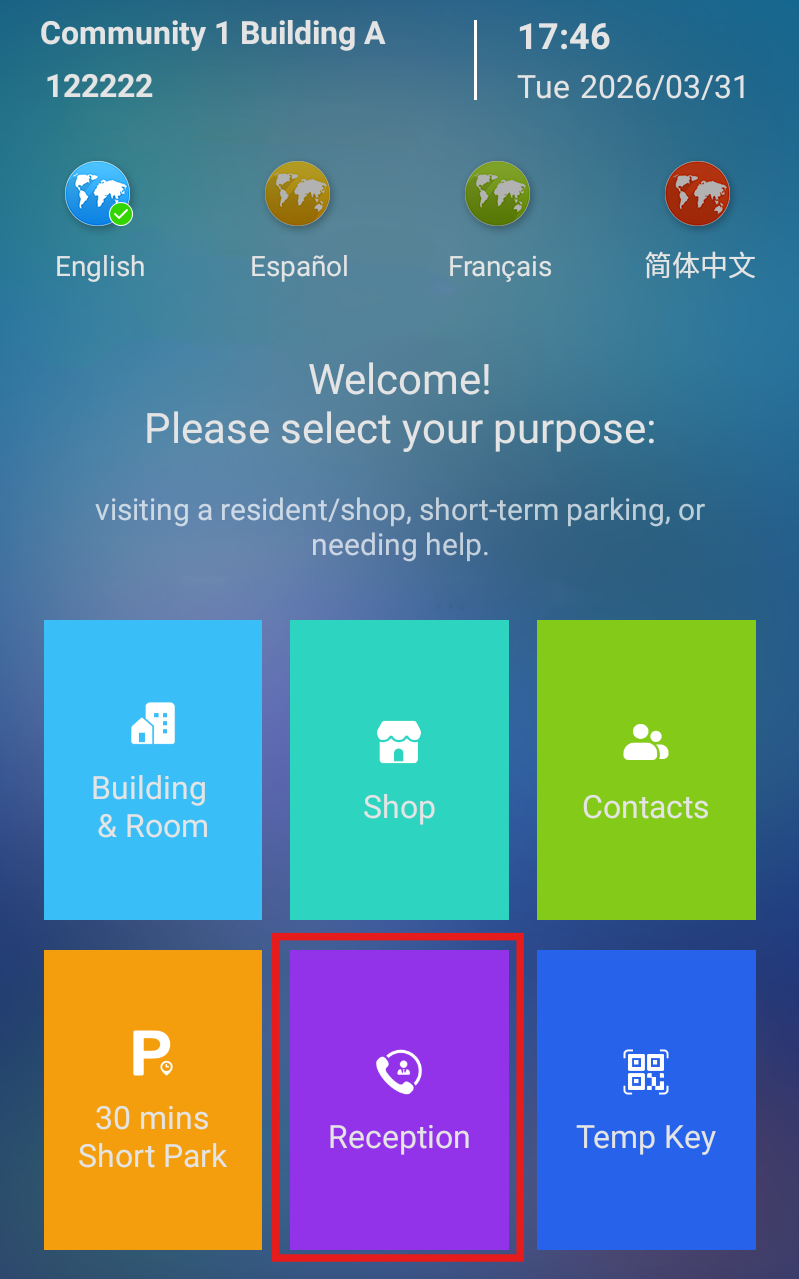
Select Reception on the home screen to call the PM when prompted “Unregistered vehicle. Please select the function button to enter the parking lot.”
PM Operation
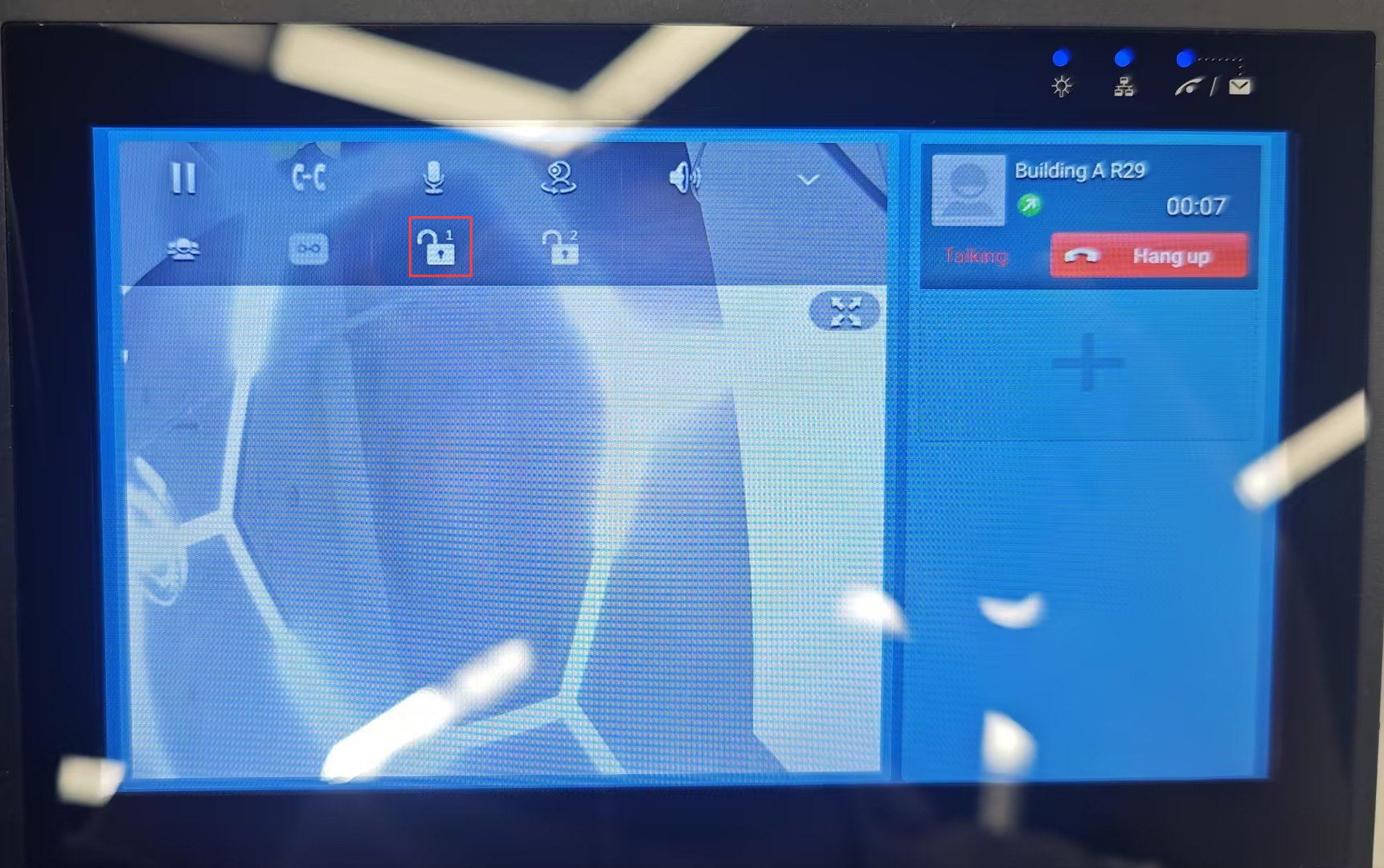
The PM receives and answers the call on the R49.
Tap the Unlock icon to open the gate.
Select the visited apartment or tap Special Vehicles for service vehicles.
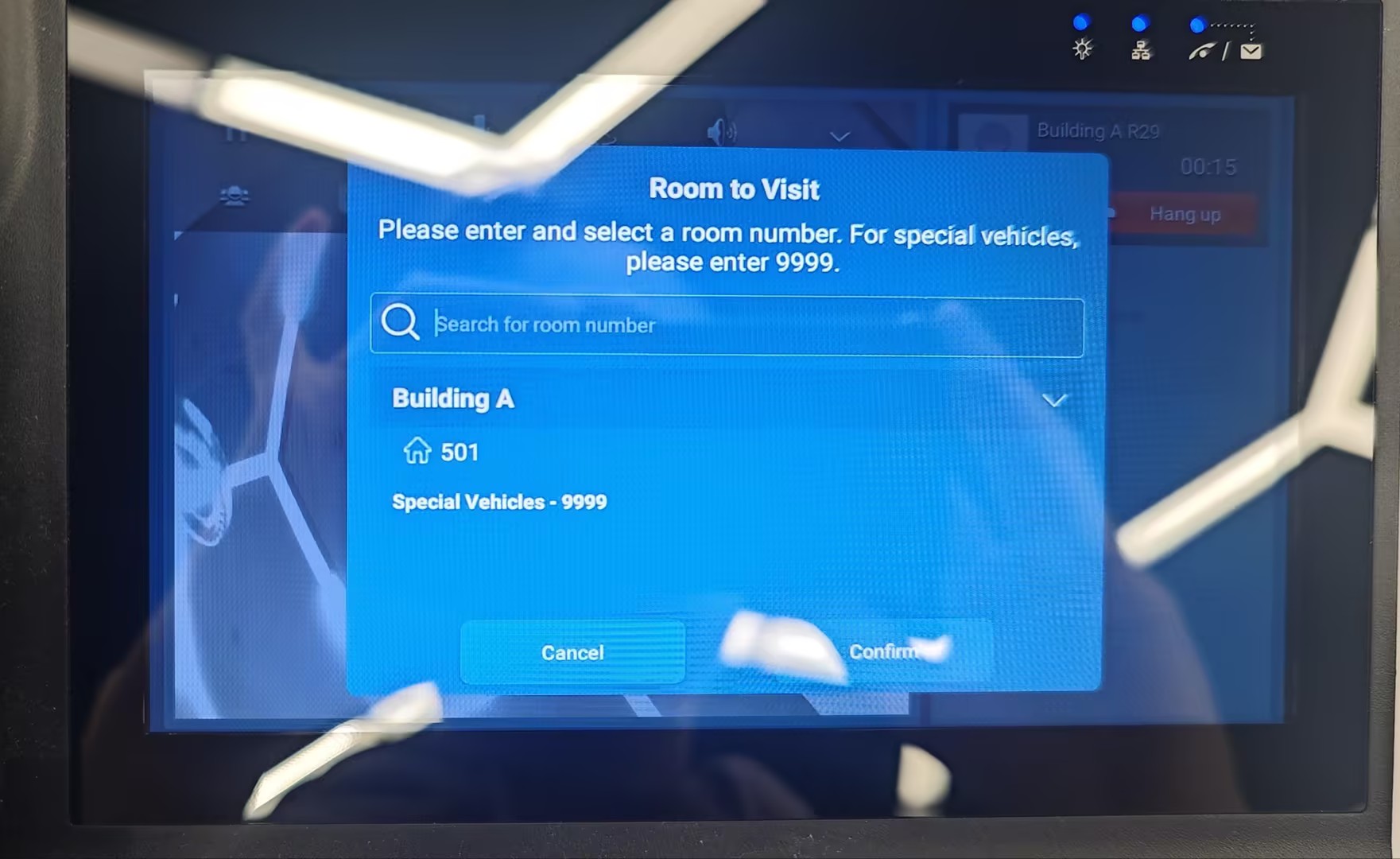
Tap Confirm to open the gate.
Method 5 - Temporary U‑Turn / Short Park
This method is used when visitors need to make a U-turn and enter temporarily.
Prerequisite: Base Configuration (R29 theme set to Parking Lot) completed.
PM Operation
Configure U-Turn Grace Period on the SmartPlus Cloud platform.
Click here to view the configuration steps.
Visitor Operation
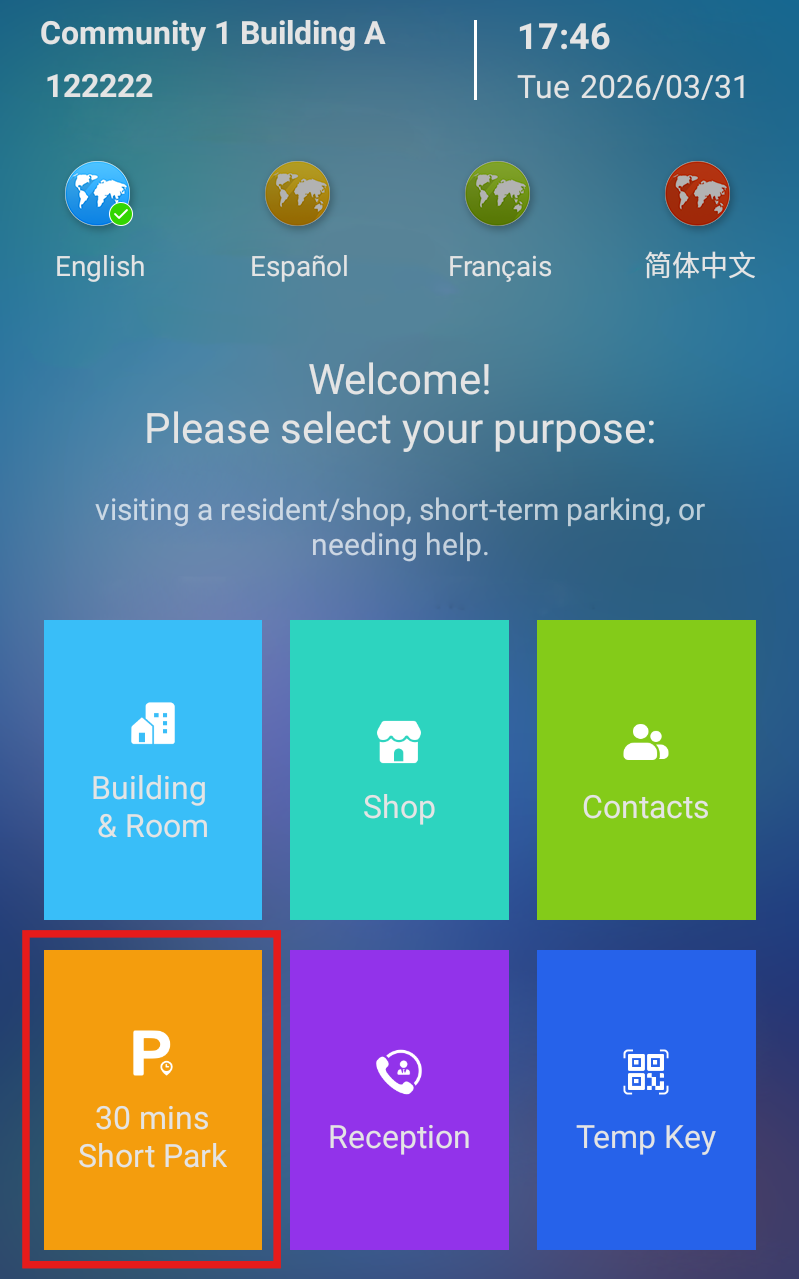
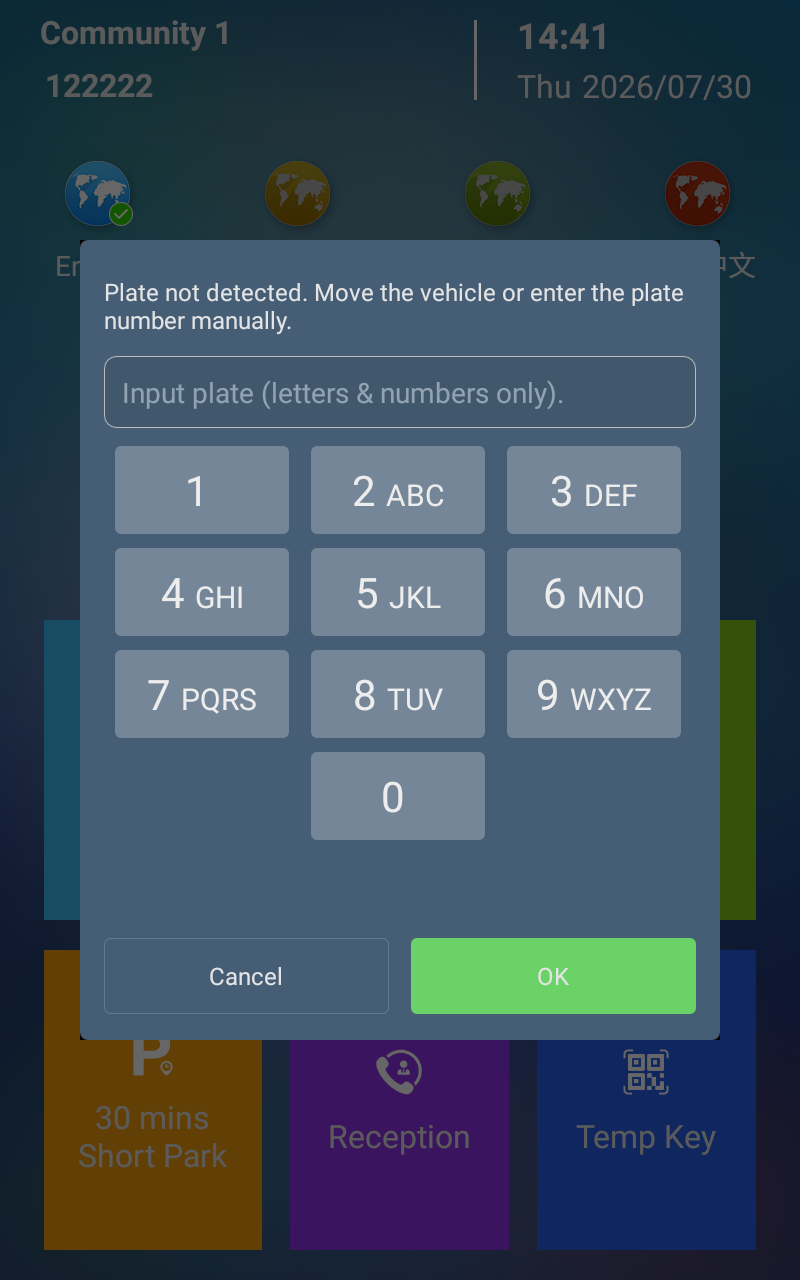
Select 30 mins Short Park on the home screen.
If the license plate is detected, the device proceeds with the normal verification process.
If the license plate is not detected, a prompt is displayed, allowing visitors to move the vehicle for re-recognition or manually enter the license plate number.
Note
The manual license plate entry option after LPR recognition failure is supported only on R29 devices running firmware version 29.30.10.734 or later.
PM Notice
When the door is opened, the PM’s R49 or PM App will receive the notification.
Note
Vehicles that exceed the grace period will be added to the blocklist.
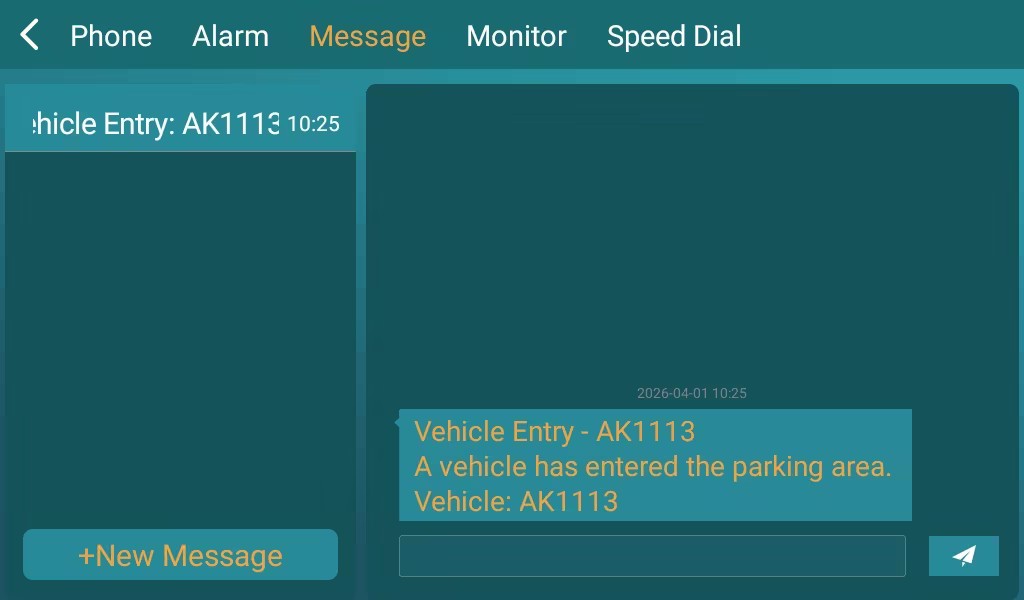
On R49
Tap Message on the home screen.
Tap the message to view the details.
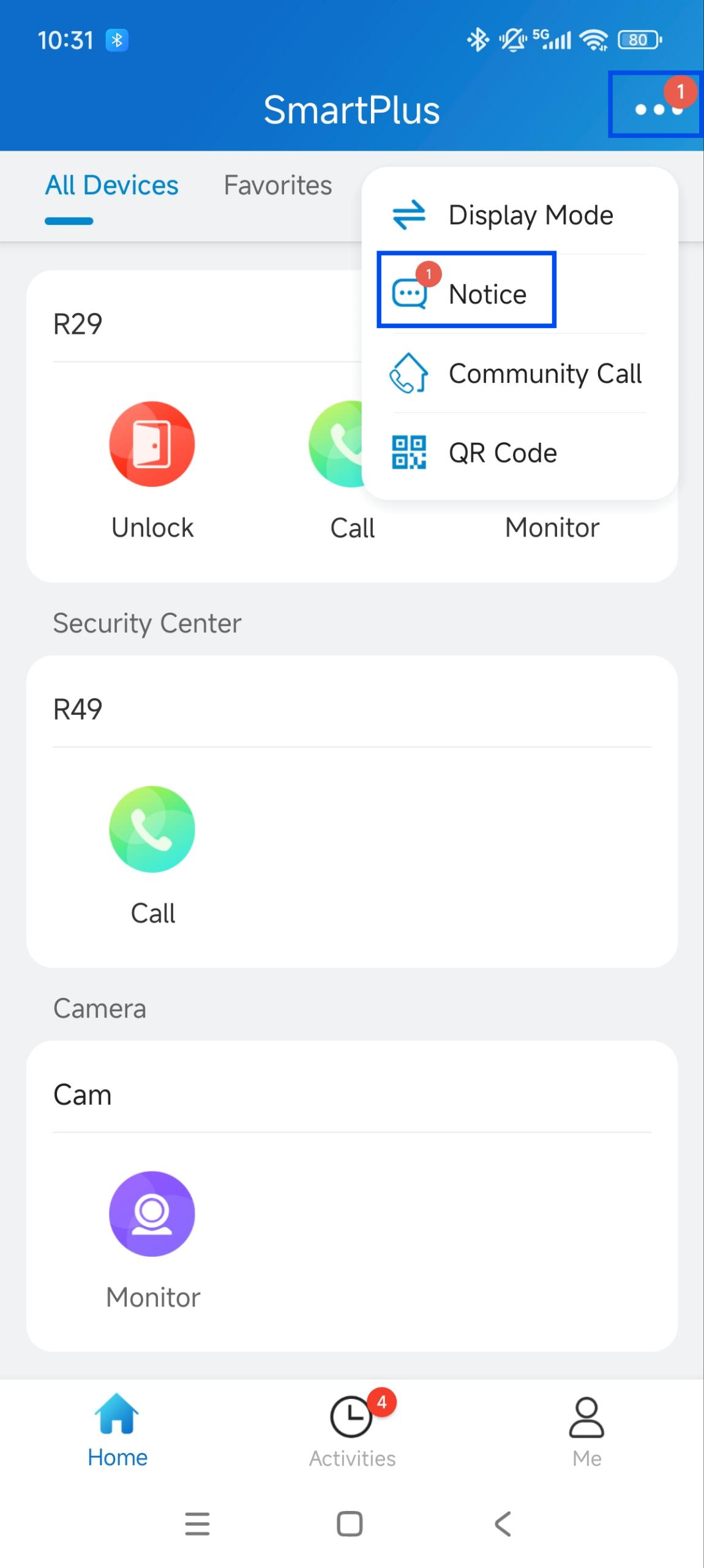
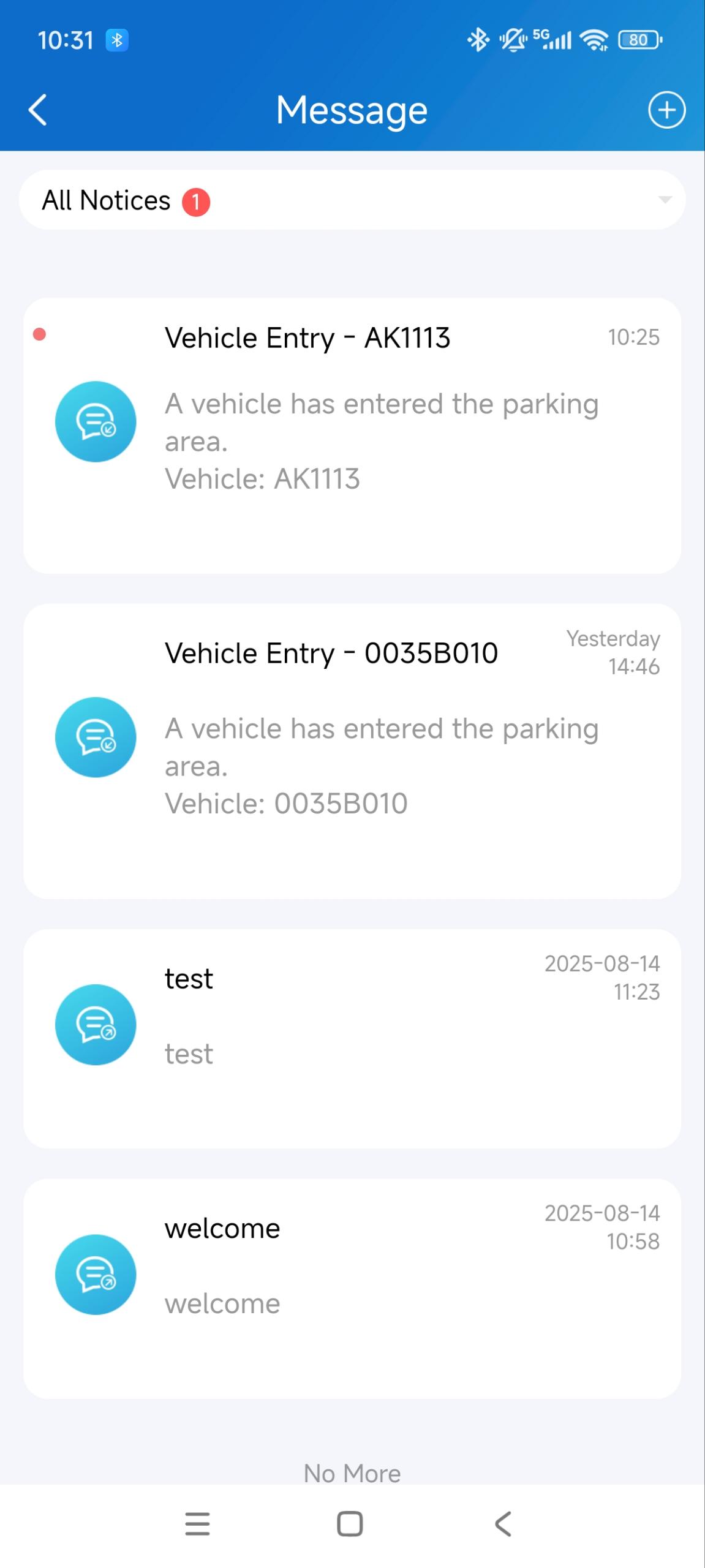
On the PM SmartPlus App
Tap the menu icon in the upper-right corner.
Select Notice.
Method 6 - Free Access Period
PMs set the Free Access Period on the SmartPlus Cloud platform. During the preconfigured period, visitors can drive in directly without any operation on the door phone.
Click here to view how to set up the Free Access Period. Please note that the parking lot must be properly configured before setting the rule.