About This Manual
This manual is intended for property managers who need to manage residents, devices, access control, or remote maintenance on the MySmart server.
Update Time: September 2026
System Overview
Property managers can conduct integrated management of community residents, devices, access control, remote maintenance, etc.
Property managers using this platform will be able to:
Assign residents to their corresponding buildings and apartments, and check device MAC addresses, online status, and their relation to residents.
Modify general device settings, including device name, relay settings, etc.
Set up various door access types using PIN code and RF card for different purposes and roles, and create corresponding door access control schedules.
Monitor logs and records for security, including door logs, call logs, call history, temperature logs, captured images, and motion detection images.
Send notifications to community residents.
Perform remote operations such as auto-provisioning, device rebooting, modifying transmission types, and remote maintenance.
Modify other settings such as community address, time & date, motion detection delay, etc.
Log in to MySmart
Account Application
You can apply for your property manager account through your installer, who will help set up your account. After that, Akuvox MySmart will email you the account information (username and password) for you to log in to MySmart.
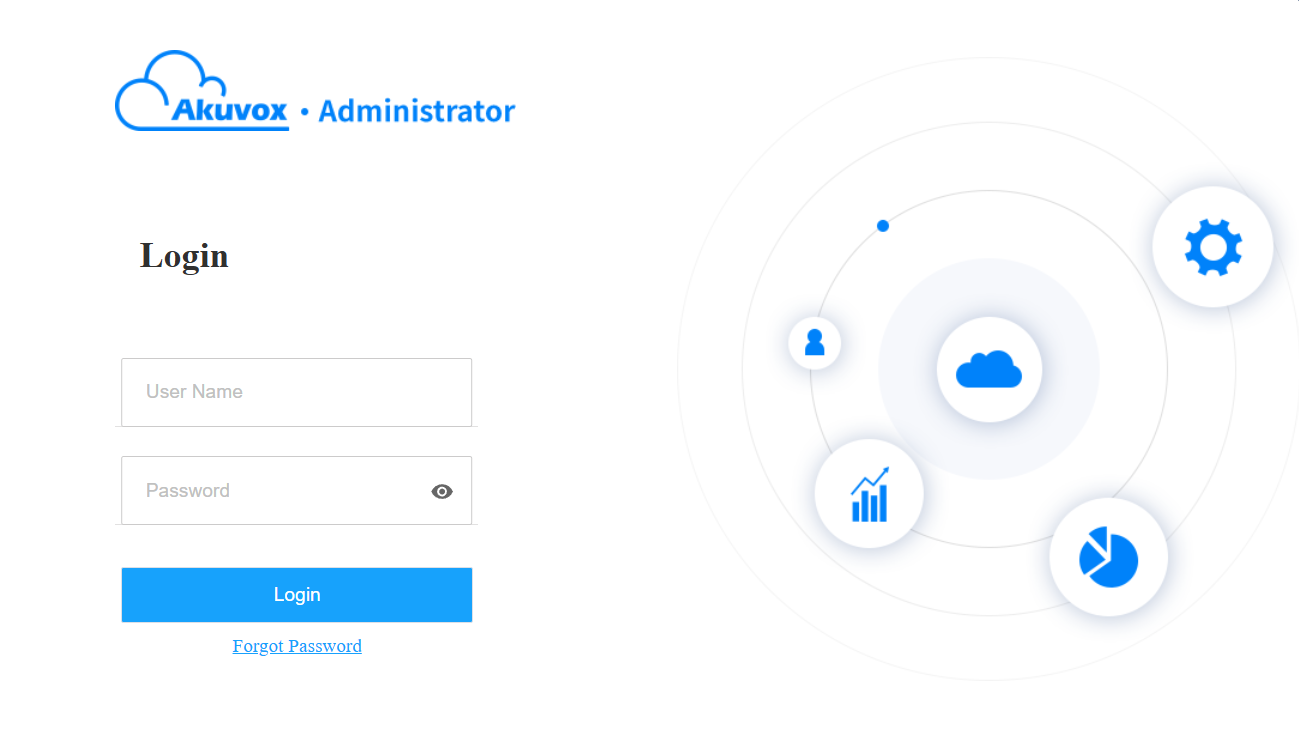
Log in to the MySmart platform using the property manager account information in the MySmart Welcome email.
Navigate to the server address in a browser.
Enter your username and password.
Click Login.
Note
Enter the verification code sent to your email address for login when your installers enable the Two-factor Authentication feature.
Property Management Interface
Akuvox MySmart property management interface allows you to manage residents, devices, the Akuvox MySmart App for community-based intercom communication, door access control, monitoring, etc.
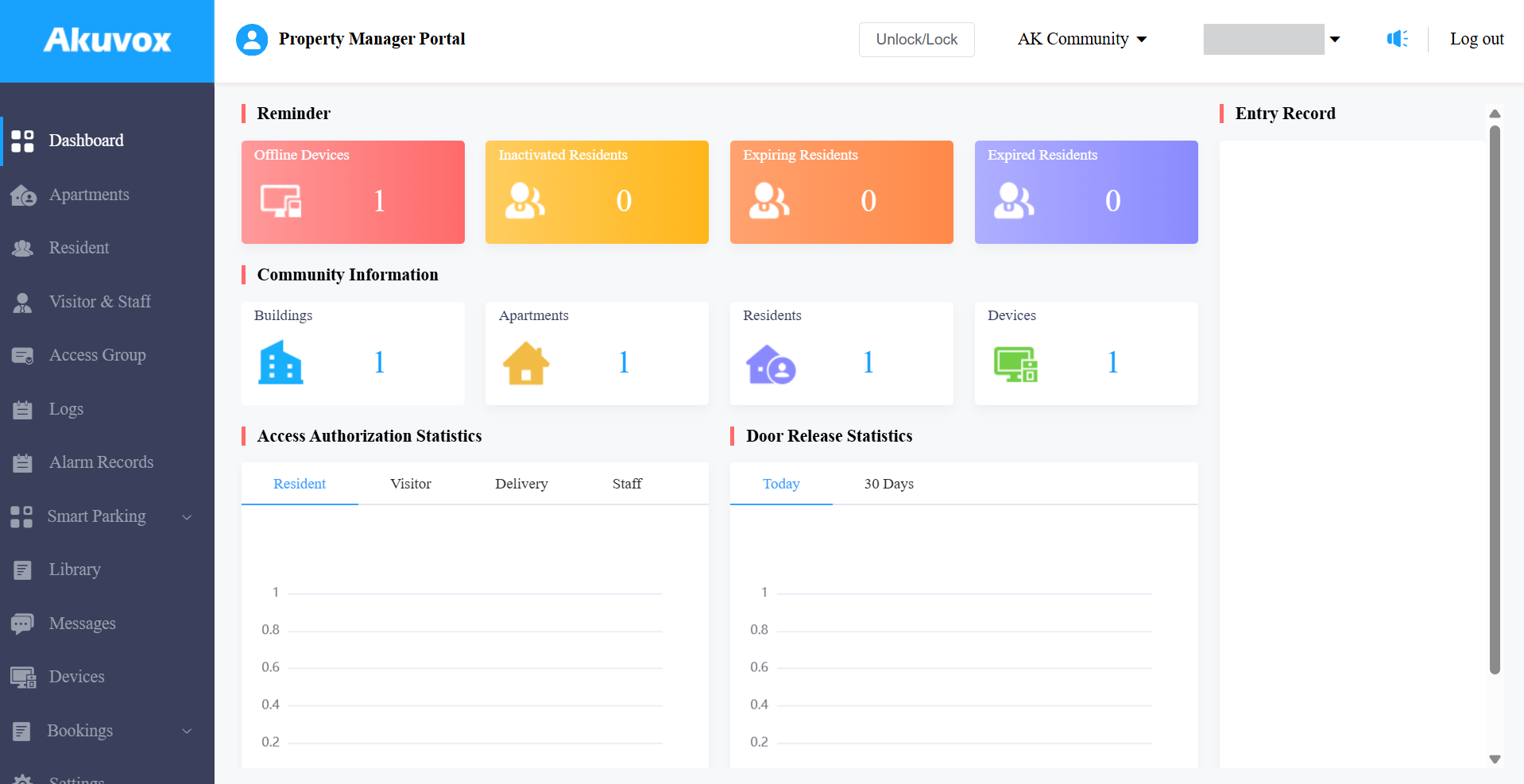
Module Description
Column Name | Description |
Dashboard | Displays information on the community, devices, residents, door access, general statistics, etc., and the number of apartments, residents, and devices. |
Apartment | Search for apartment information, indicating which building the apartment belongs to and the number of residents and devices in the apartment. |
Residents | Manage resident accounts: create and check account and access control information; import face data and RF cards via templates; edit access types and groups. |
Visitor & Staff | Allows you to set up temporary PIN codes for visitors, delivery PIN codes for delivery staff, and RF cards for the property management staff. |
Access Group | Allows you to create an inventory of access control schedule templates that can be applied to specific residents, buildings, and devices. |
Logs | Check and search for door logs, temperature logs, call histories, and captured images. You can also manage motion alerts and review changes made to apartments, users, RF cards, PIN codes, faces, and temporary PIN codes. |
Alarm Records | Enables you to check emergency alarms and arming alarms, as well as export logs. |
Smart Parking | Allows you to register license plates for residents and manage parking lots. |
Library | Displays all the PIN Codes and RF cards created by a property manager. |
Messages | Allows you to create and send messages to the users’ indoor monitors and MySmart Apps, etc. |
Devices | Allows you to check device information related to buildings and apartments, and edit settings related to relays, calls, unlock types, and device names. |
Bookings | Allows you to manage amenities and make reservations for residents. |
Settings | Displays property manager information, PIN code access type, email notification, time setting, motion setting, visitor setting, etc. |
Password Update Reminder
With Monthly Password Update Reminder enabled by your installer, a promp will pop up to remind you to change the login password every month, which ensures the security of the account.
Link
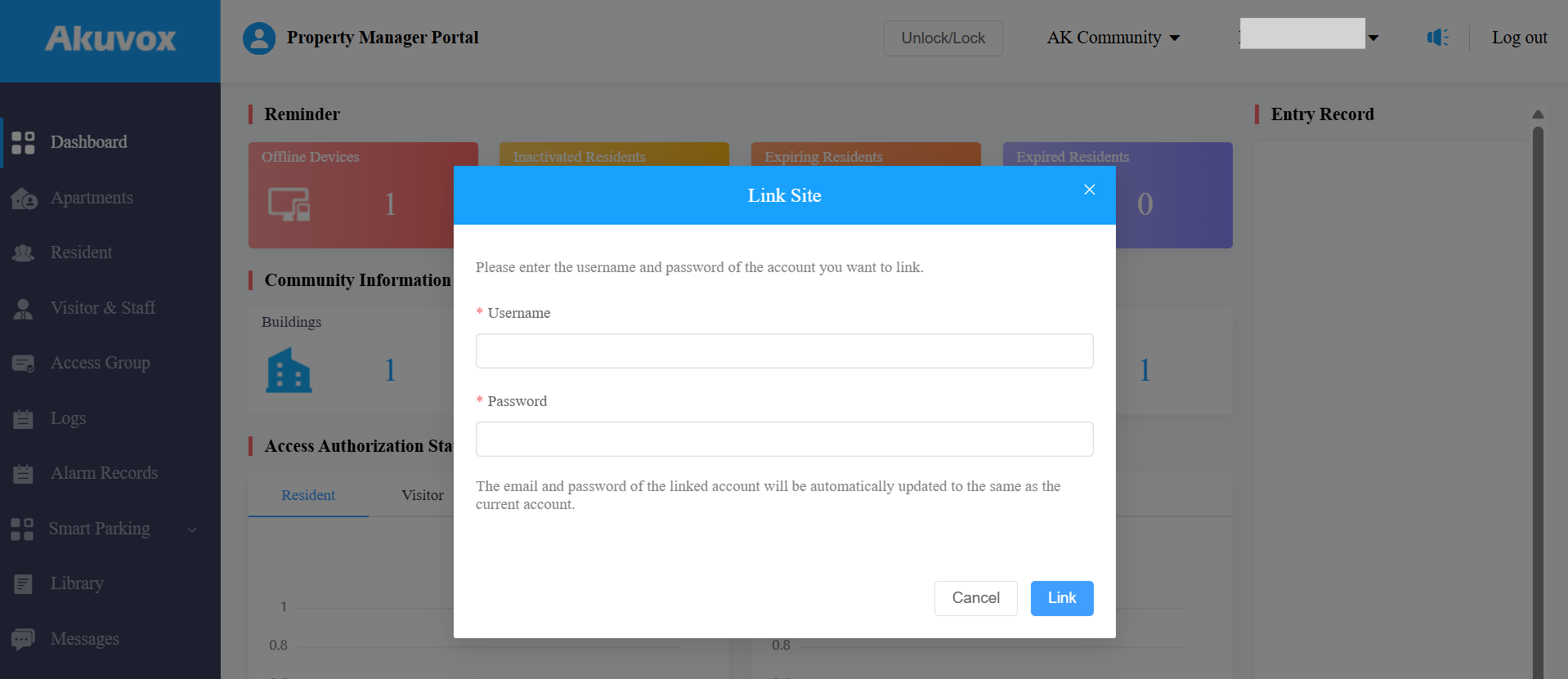
You can link property manager accounts created by different installer accounts.
Click Link Site in the upper-right corner.
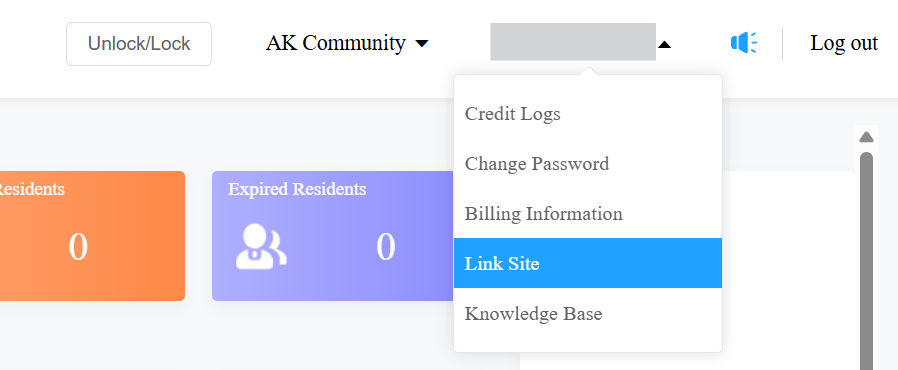
Enter the username and password of the account that you want to link.
Access Group
The Access Group module allows you to create an inventory of ready-made access control schedules(access groups), which can be readily pulled out and applied for the door access control, targeting specific residents, delivery personnel, staff, buildings, apartments, and relays.
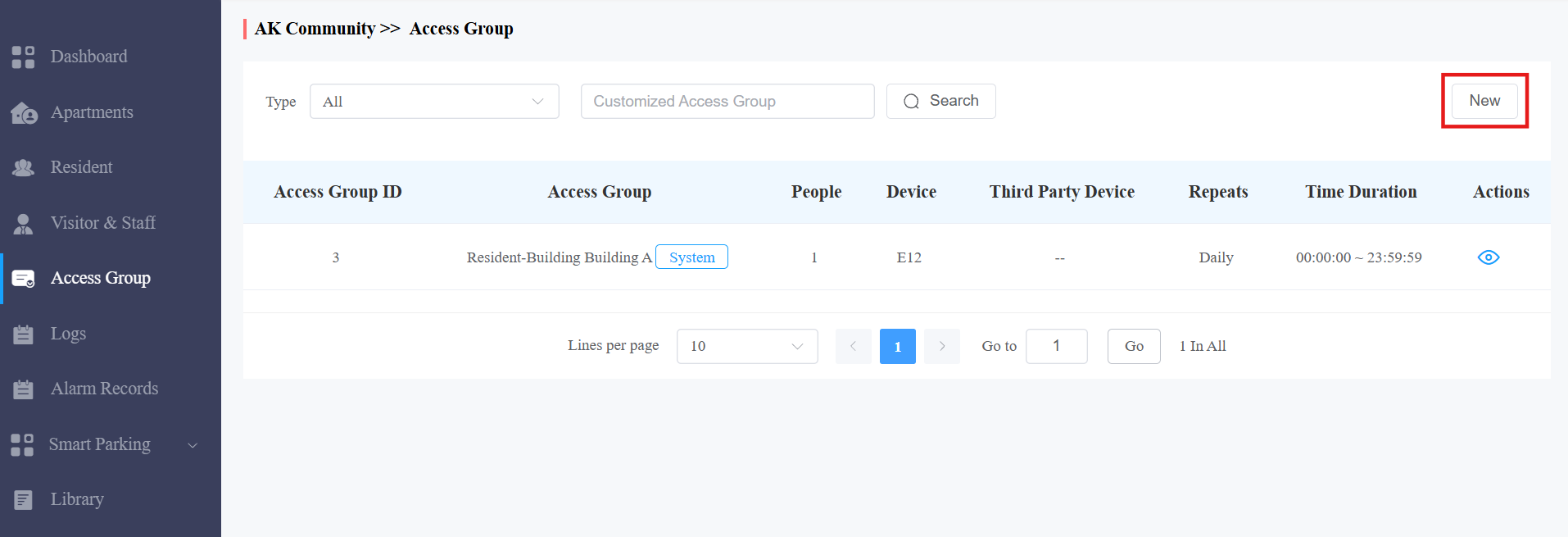
Create Access Group
Click Access Group on the left column and click New on the right.
Name the access group.
Select the access group repeat mode from Never, Daily, or Weekly.
Select the access group time.
Check the door phone's relay to be opened.
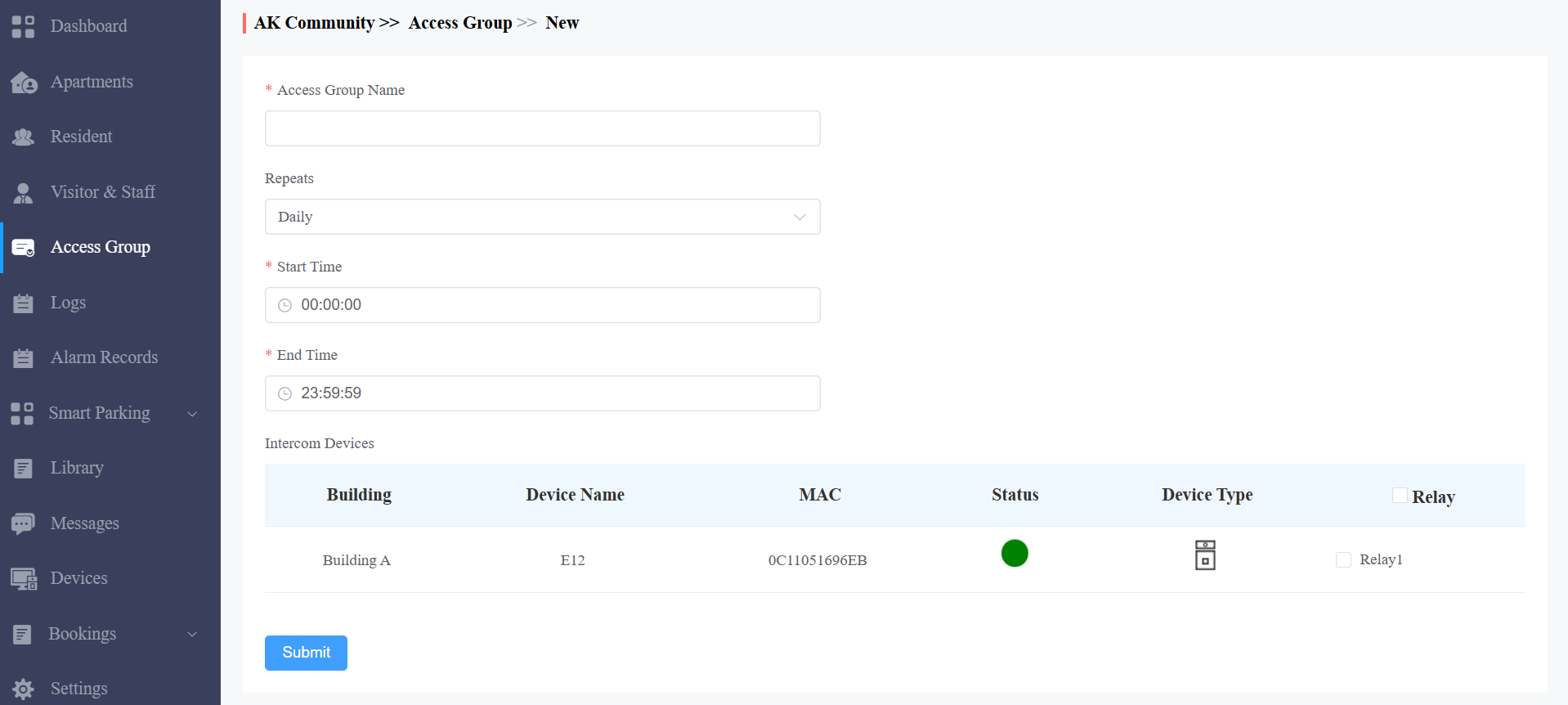
Click Submit to save the settings.
You can also set up the access control schedule on residents' private devices when adding or editing a resident's access settings.
Note
The Self Devices Authorization option will only appear after devices are added to the resident's room.
If your installer selects Only Public Area in Permission Of Access Control Management when creating or editing a new community, then
you are not able to set up access control permissions for the residents.
residents can only use access methods to open relays of public devices.
Click
 .
.Set up an access control schedule for the resident’s private device.
Select the device's relay(s).
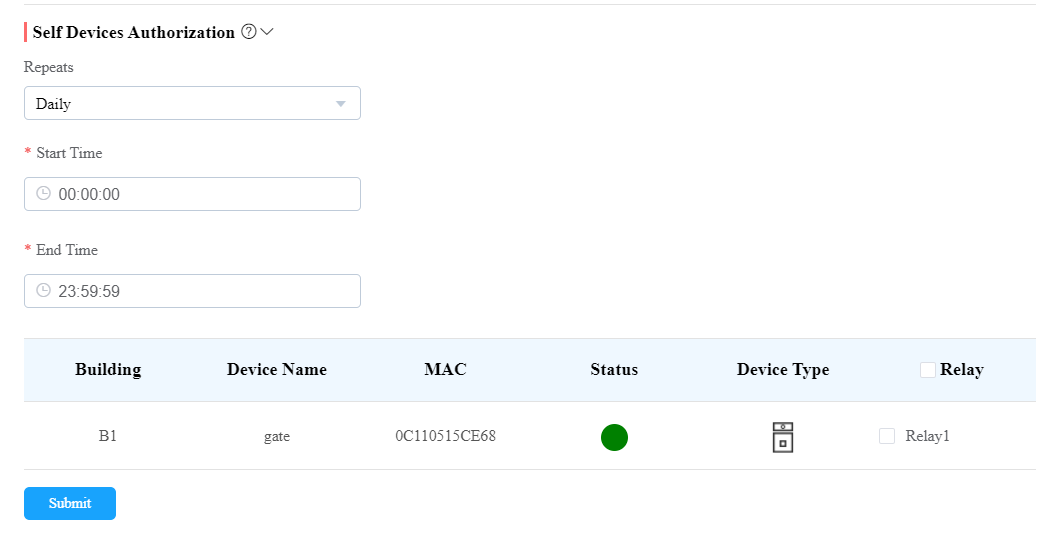
Click Submit to save the settings.
Search/Check/Edit Access Group
You can search, check, and edit the access group.
Search the access group by type and keywords. You cannot delete the default access group that is created automatically with the adding of each building in the community. It contains all the devices installed in the public area of the building.
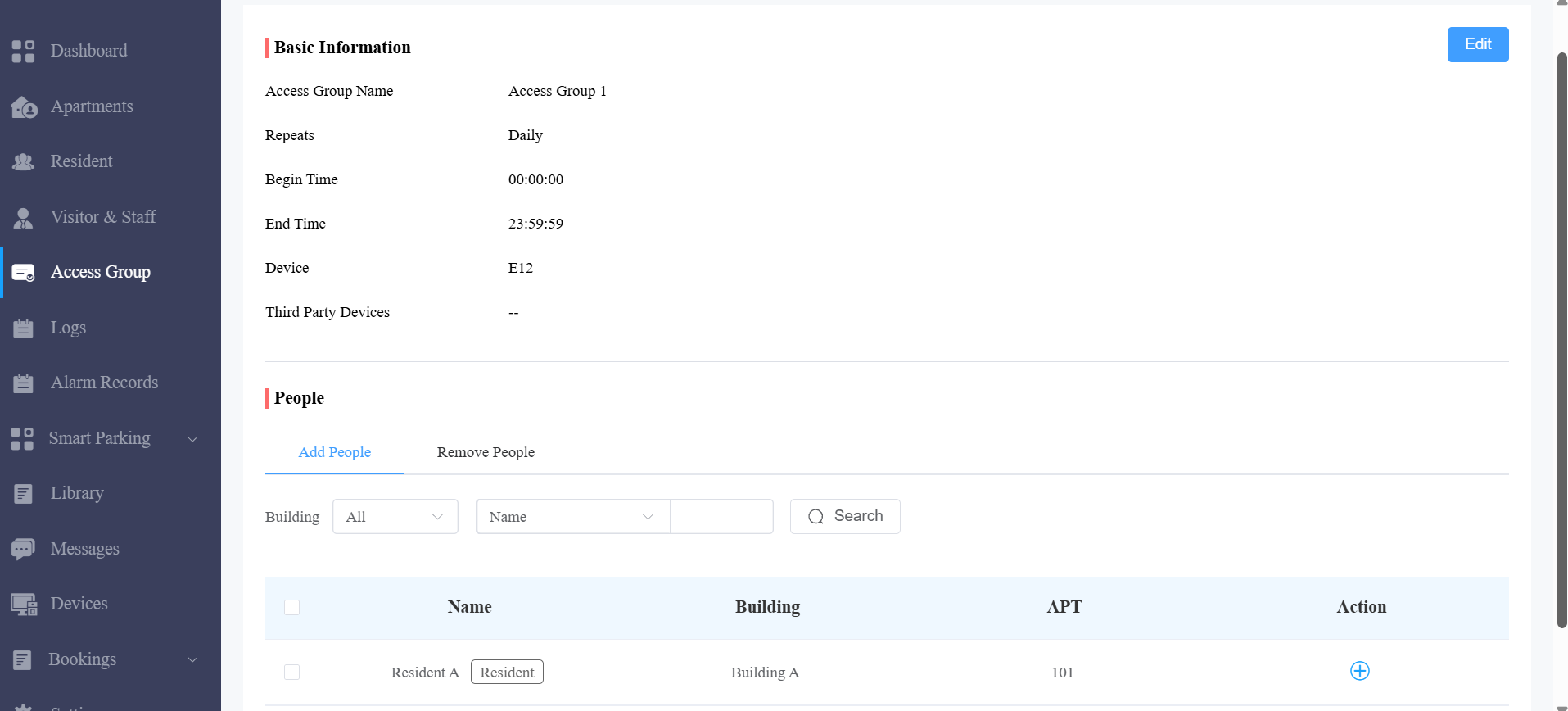
Click
 of the specific access group to check access group details.
Click Add People or Remove People to add or delete residents.
Click Edit in the upper-right corner to edit the access group.
Resident Management
The Residents module in the navigation column is used to add residents for whom you can create a MySmart end-user account (family master account) and a family member account.
You can set up access types and access control schedules for end users. Moreover, you can search, modify, check, and delete residents.
Add Residents
Adding residents deals with creating residents’ accounts(master/family member accounts) and setting up the door access types and access control schedules. You can add residents one by one or using a template.
Before adding residents, you are required to double-check the residents’ information and then add them to the corresponding apartments and building set up by the community manager (Installer).
To create a user account:
1. Click Resident > New.
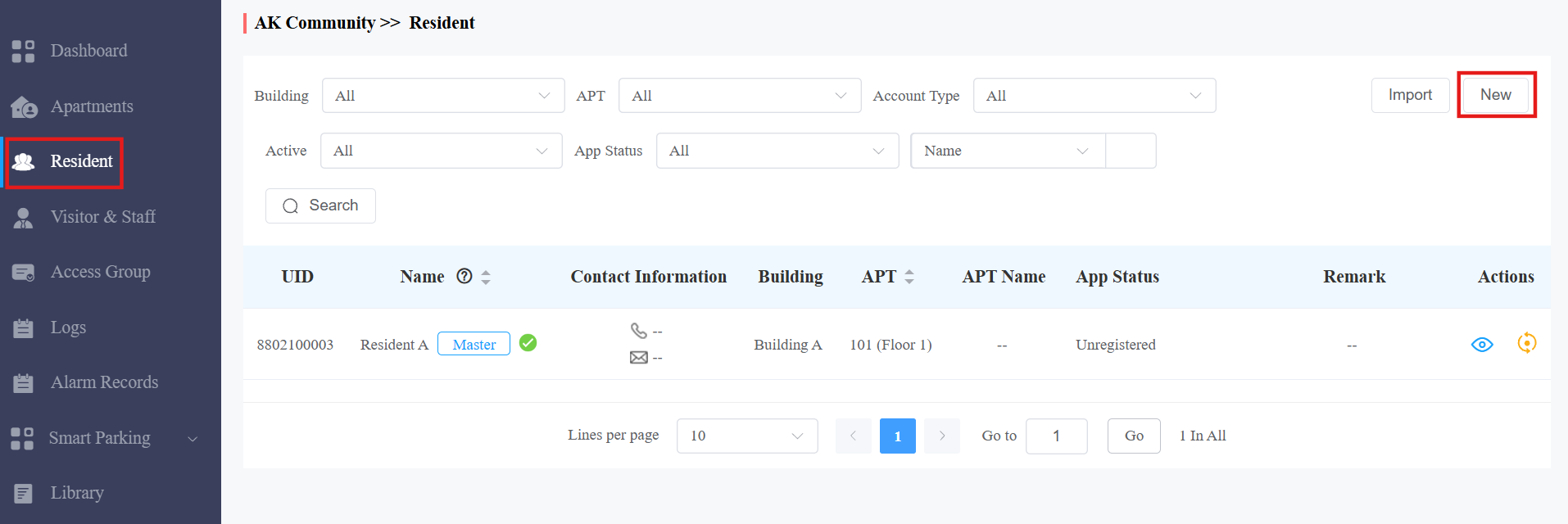
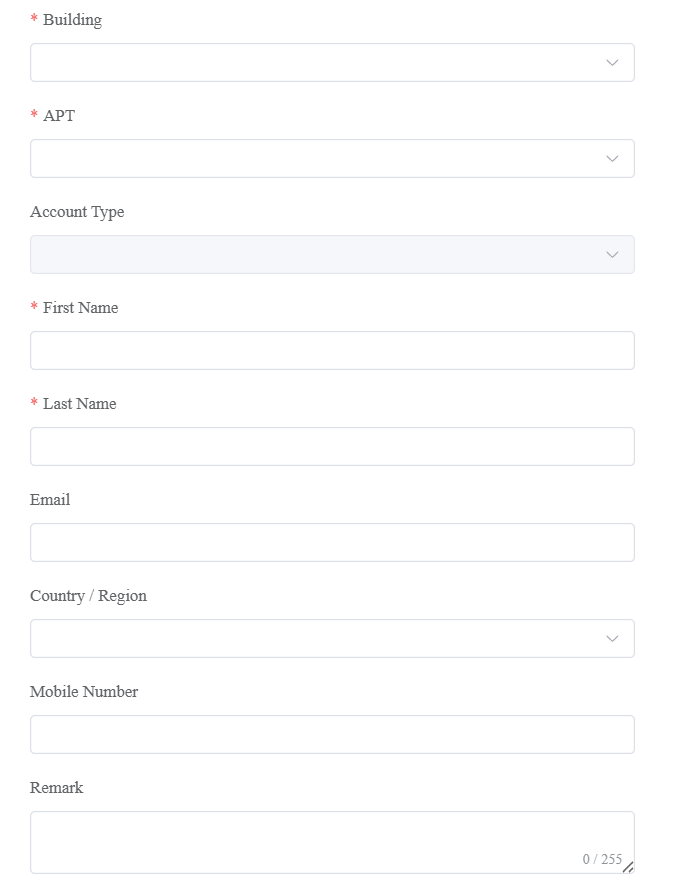
2. Set up resident information. You can add remarks for users in the Remark box to indicate their identity, such as "tenant" or "resident."
3. Click Save Information Only to complete creating an account. Or, click Submit and Next to set up access methods for the resident.
Note
The area code will display in the Mobile Number box after selecting Country/Region.
A resident’s master account should be created first before the family member's account can be created. The ways to create the master account and family member account are identical.
Family member accounts must be created under the same apartment, building, and community as those of the master account.
The MySmart App login method for family members varies depending on the information you entered when applying for a family member account. See below:
Description:
No. | If | Then |
1 | If you fill in a family member's email and mobile phone, | login information will be sent to the family member's email or mobile phone for login. |
2 | If you do not fill in the family member's email and mobile phone number, but fill in the master account’s email, | login information (MySmart SIP number + Password) will be sent to the master account email for login. |
3 | If you do not fill in the family member's email and mobile phone number but fill in the master account’s mobile phone number, | login information (MySmart SIP number + Password) will be sent to the master account’s mobile phone for login. |
4 | If you do not fill in the family member's email and mobile phone number, the master account’s email and mobile phone number, | login information will be sent to the master account’s email or mobile phone number as soon as you fill in the master account’s email or mobile phone number. |
Set up Access Control for Resident(s)
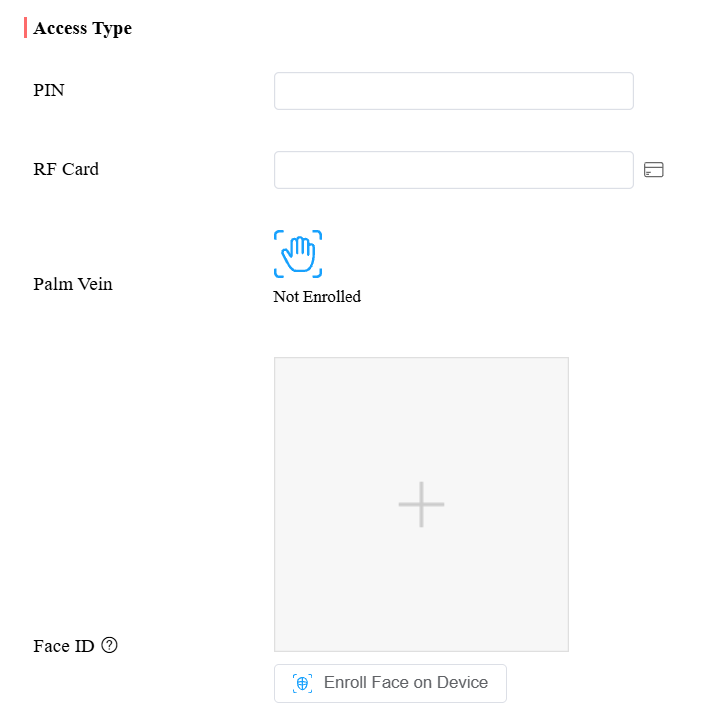
You can set up access types such as PIN code, RF card, facial recognition, palm vein, and license plate, as well as access control schedules for the residents.
Click Resident > New.
Fill in the account information and click Next.
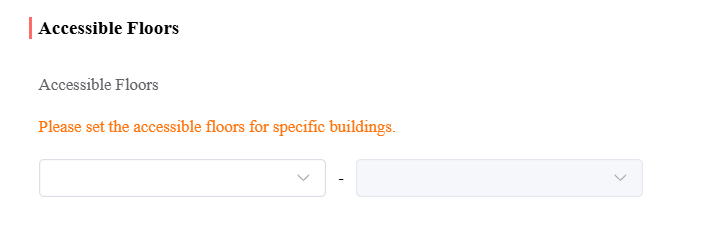
Select the accessible floors in specific buildings. This setting works with the Akuvox EC33 elevator control. Users can take the elevator to the permitted floor.
Select the elevator control device from the dropdown menu.
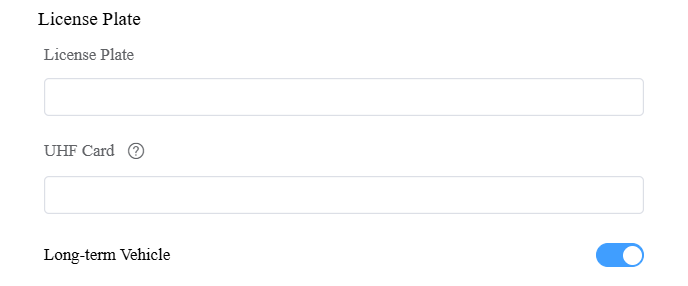
Configure the access methods.
Item Name | Description |
|---|---|
PIN | 2~8-digit PIN code without starting with "9". |
RF Card | Enter the RF card code or click the read card icon Select an online registration device from the dialog, then have the user swipe their card at that device. The card number is automatically populated in the form. |
Palm Vein | Click the palm vein icon to select a supported device and initiate enrollment. The device enters enrollment mode and prompts the user to complete the scan. Upon successful enrollment, the credential is uploaded to the cloud. |
Face ID | Upload a front-facing photo for facial recognition. To capture face data directly from a supported device, click Register on Device, select an online registration device from the dialog, then have the user complete enrollment at that device. |
License Plate | Enter the number that a third-party LPR camera can identify. |
UHF Card | Enter the card code that the Akuvox device ACR-CRP12 can identify. |
Long-term Vehicle | It is enabled by default. If disabled, set a period when the vehicle can enter and exit the area. |
 to register the card directly from a supported device.
Note
The license plate is used for Smart Parking.
If you have filled in both the License Plate and the UHF Card, the cloud will ONLY issue the UHF card code to the door phone.
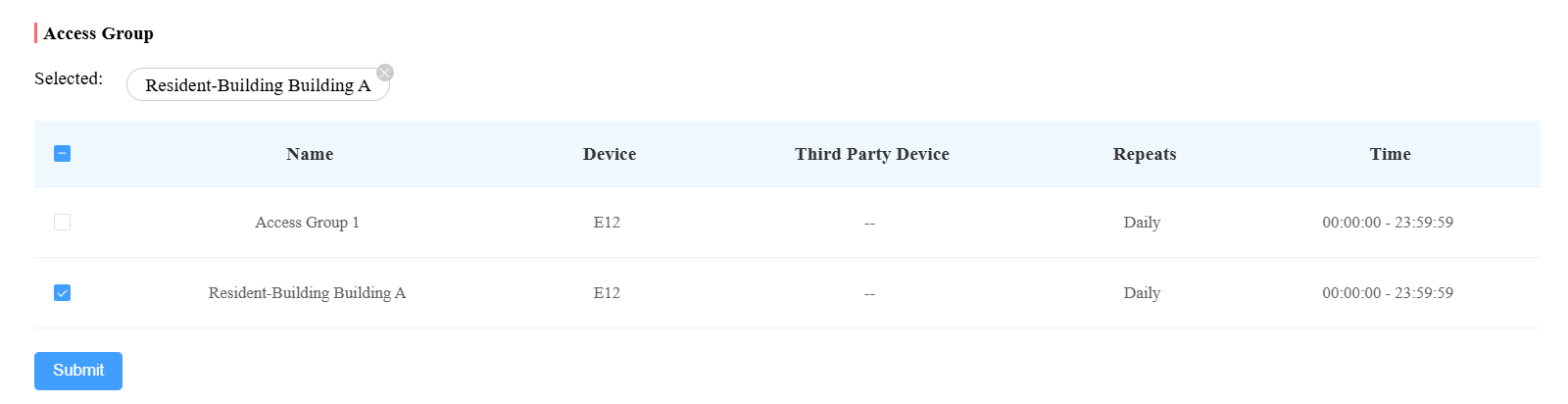
Select the access group and click Submit.
Search/Delete/Edit User Accounts
After the user account is created, you can search and edit the user account as well as reset the user account password. With Delete Account Permission enabled by your installer, you can delete user accounts.
Search/Delete User Accounts
Click Resident.
Search the specific user account by building, apartment, account type, account status, app status, or user account name. You can also click the Name, APT, or the icon
 next to them to reorder the residents and find your desired user quickly.
Click
 of the target resident.
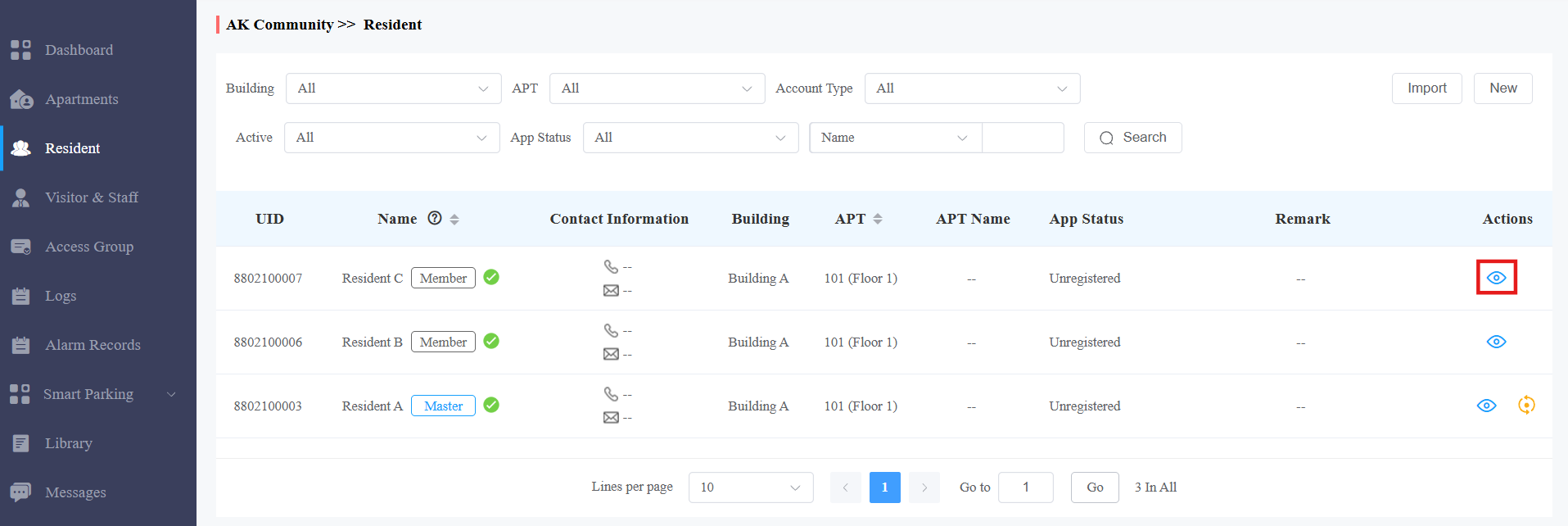
4. Click Delete in the upper-right corner to delete the account.
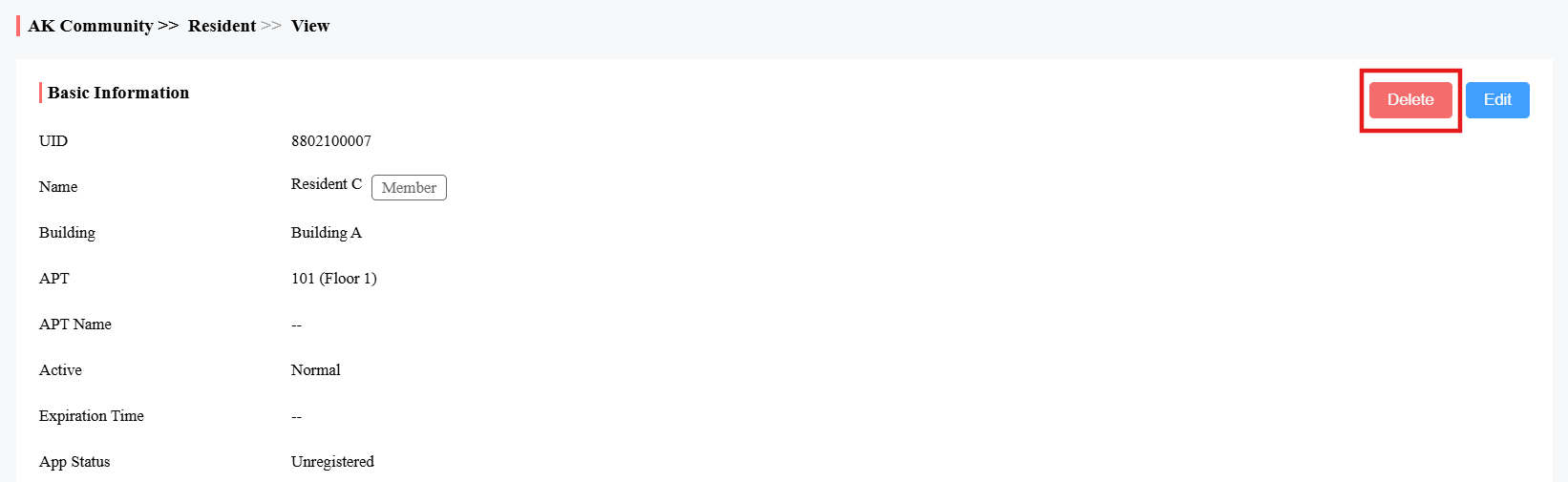
Note
When Delete Account Permission is not enabled by your installer, the Delete tab will not appear, and you cannot delete user accounts.
Edit User Accounts
You can reset the users’ MySmart App account passwords and edit users’ account information and their access control settings.
Click
 of the desired user accounts.
Click
 to reset the user’s MySmart account password.
Click Edit to change the account information.
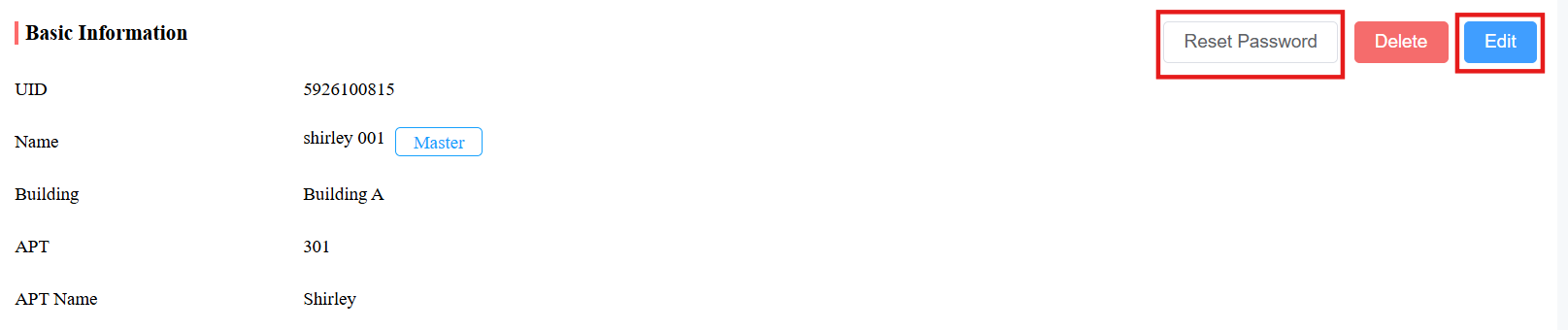
Note
You cannot edit the mobile phone number, email address, and area code of user accounts that have linked sites.
Scroll down to edit the access type or create new access types by clicking New.
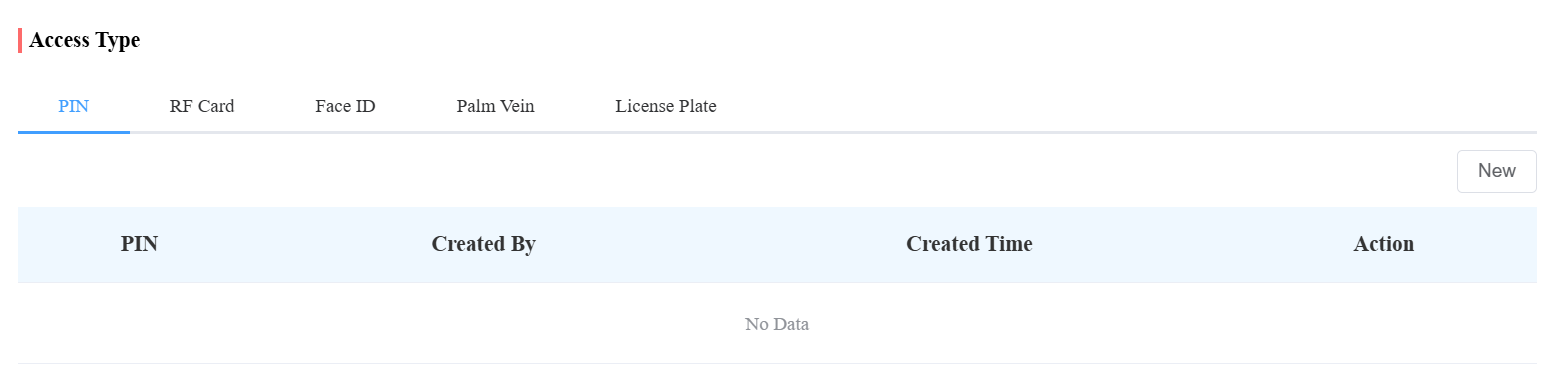
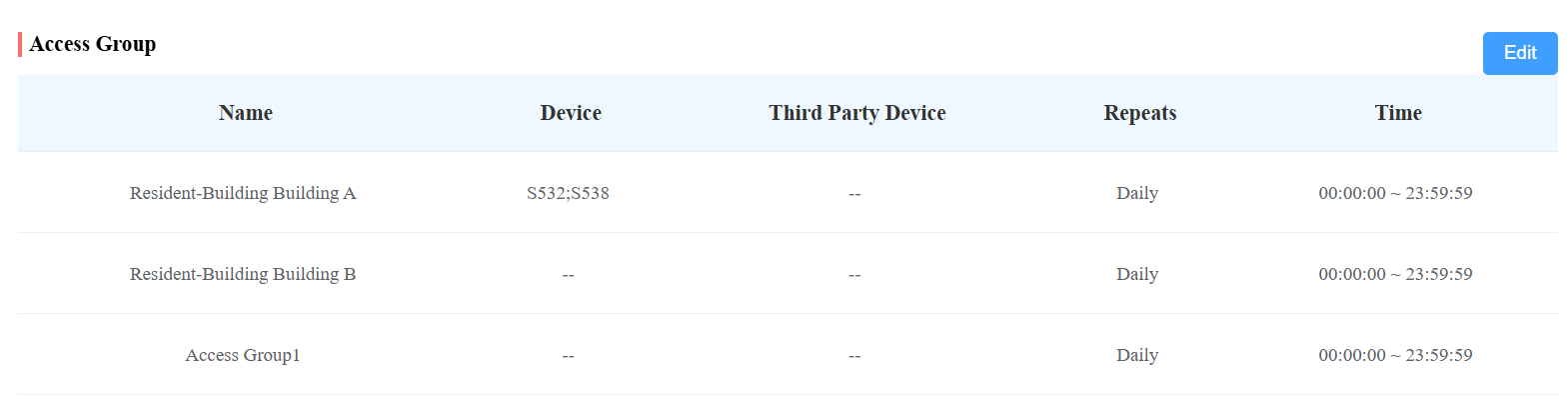
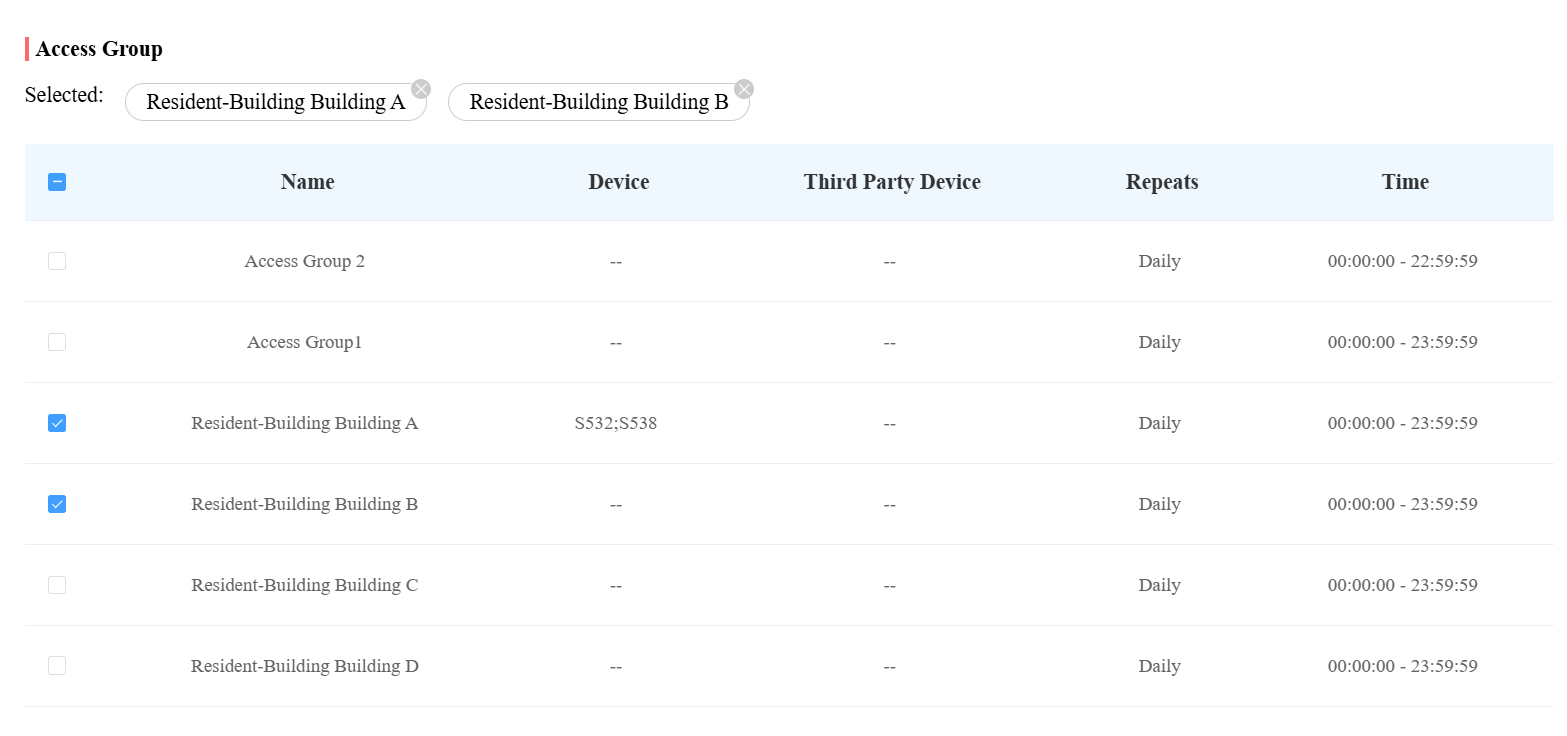
Click Edit to edit the access control setting, and edit the setting by re-selecting the access control schedule (Access Group) or by creating a new access group(s).
Add Community Residents to a Building Using a Template
The template can maximize your efficiency in creating a community, especially when it has many residents.
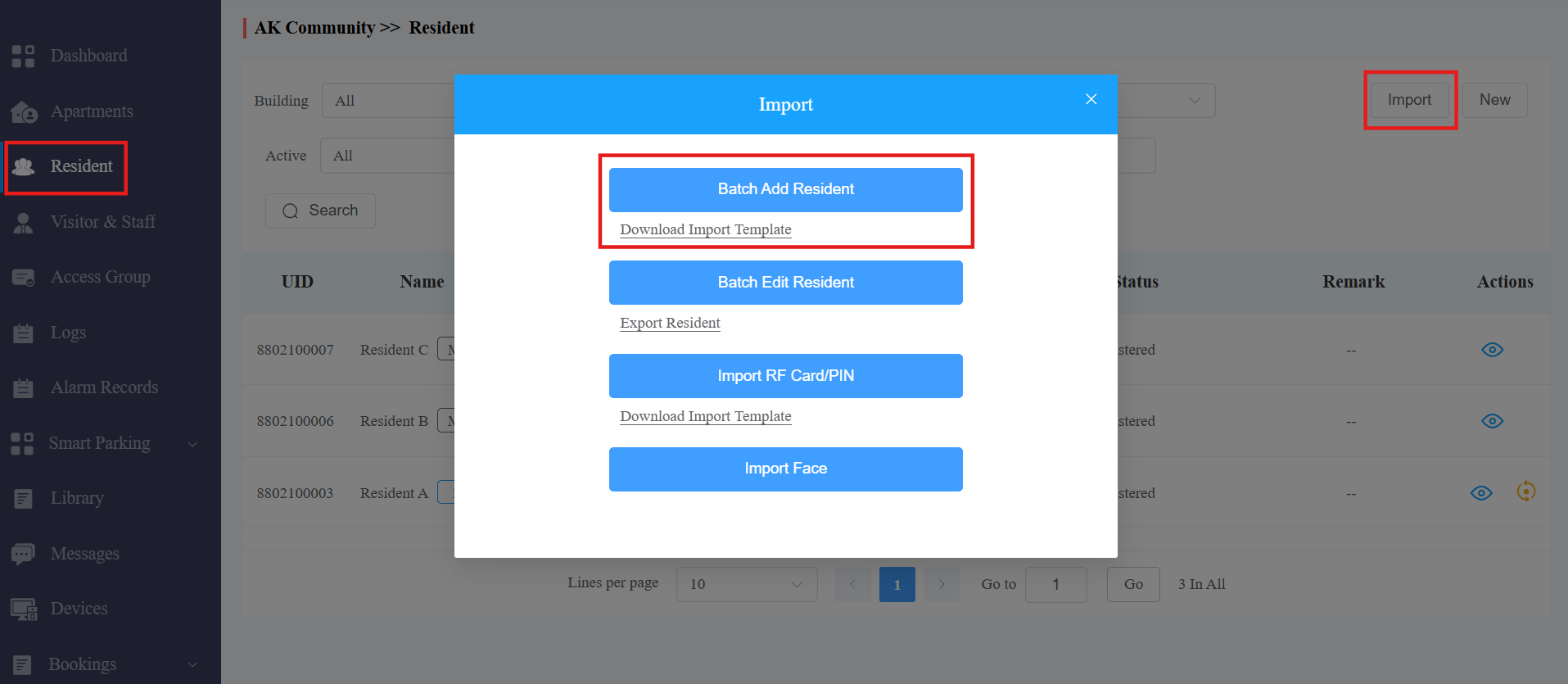
Click Resident > Import.
Click Download Import Template.
Fill in the information in the template.
Click Batch Add Resident to import the template to the community.


Template Description:
Settings | Description |
Building | Fill in the building number or name. Note: should not be more than 128 characters in length. |
Accessible Floors | This setting works with the Akuvox EC33 elevator control. Users can take the elevator to accessible floors in specific buildings. |
Apt | Fill in the resident’s apartment number. Support entering numbers, letters, and "#", e.g., 2#123A. Note:
|
Apt Name | Enter the apartment name. |
Account Type | Enter 0 for the family master account and 1 for the family member account. |
First Name | Fill in the resident’s first name. Note: should not be more than 64 characters in length. |
Last Name | Fill in the resident’s last name. Note: should not be more than 64 characters in length. |
Email (Optional) | Fill in the resident’s Email. |
Mobile Number(Optional) | Fill in the resident’s mobile phone number. |
Telephone Calling Code (Optional) | Fill in the resident’s country code. |
RF Card (Optional) | Fill in the RF card for the resident. |
PIN (Optional) | Fill in the PIN code for the building access for the resident. |
License Plate(Optional) | Fill in the license plate information, multiple plates separated by ";". You can add up to 5 codes. |
UHF Card(Optional) | Fill in the UHF card code, multiple codes separated by ";". You can add up to 5 codes. |
Access Group ID (Optional) | Fill in the access group for residents for the access control. |
Remark(Optional) | You can add remarks for users to indicate their identity, such as "tenant" or "resident." |
Edit Community Residents in Batch
You can export the resident information in .xlsx format, modify it, and re-import it to the community, which improves efficiency when you need to modify much account information.
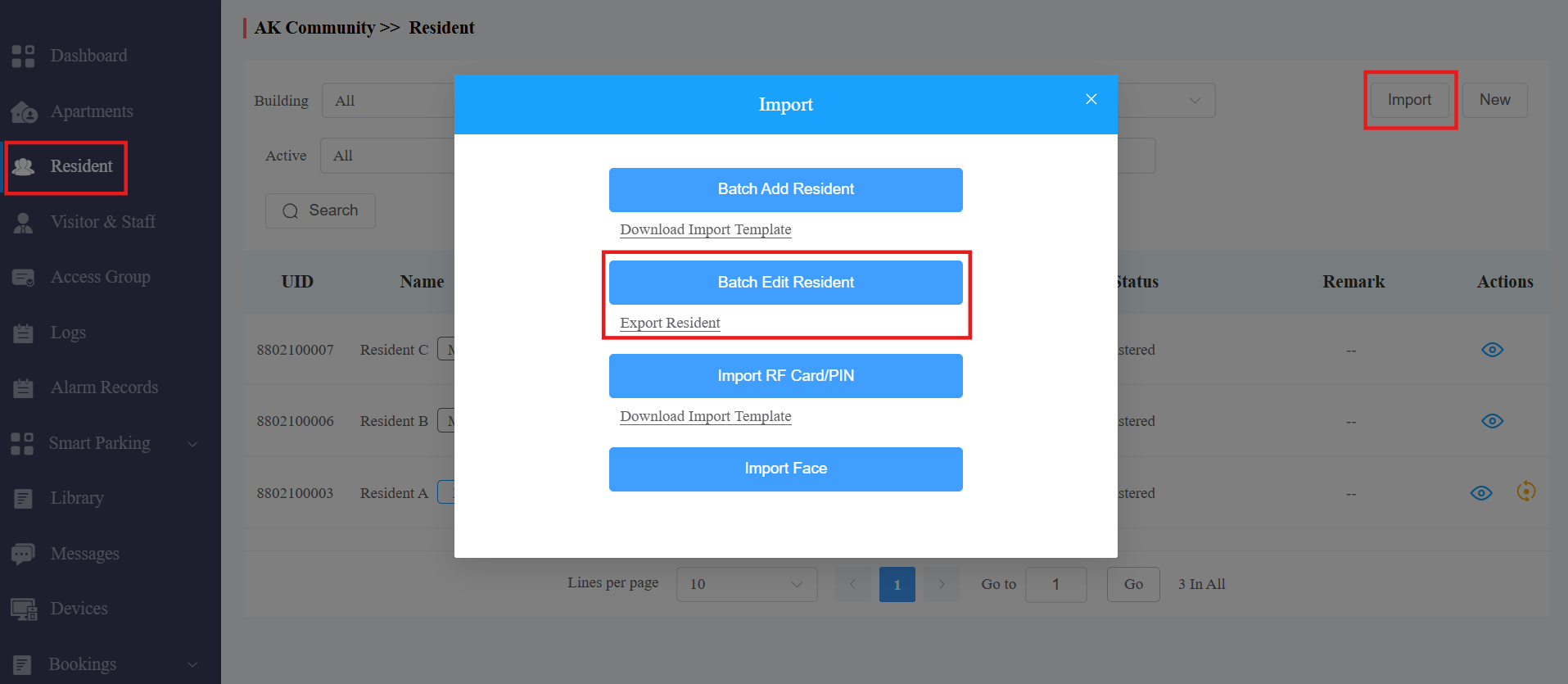
Click Resident > Import.
Click Export Resident.
Modify the information in the file.
Click Batch Edit Resident to import the file to the community.


Note
Keep the field blank if you do not want to change the original information.
After the user's email address is modified, the MySmart App login email containing a new password will be sent to the new email address.
The email addresses, mobile phone numbers, and area codes of the user accounts that have linked sites cannot be modified.
Import Face Data/RF Cards/PIN Codes
You can import the face data, RF card code, and PIN code in batch using the template for the users.
Import Face Data
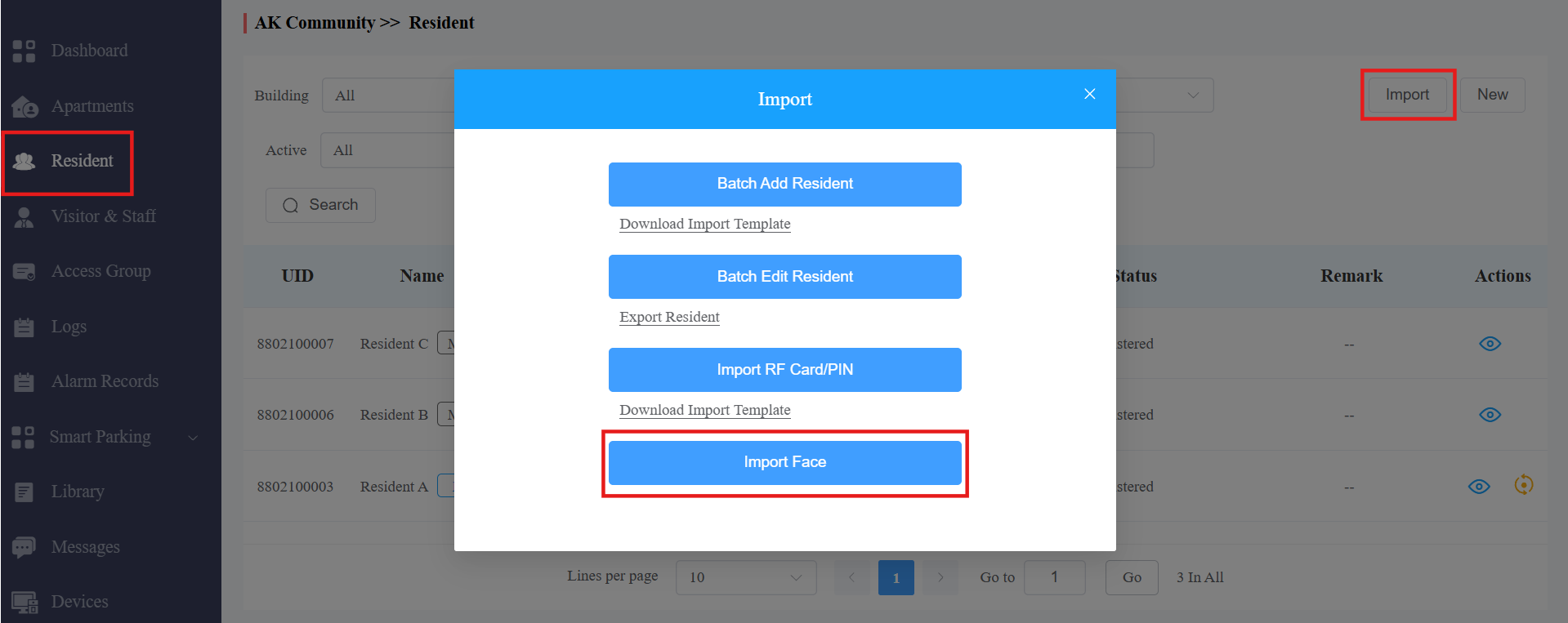
Go to the Residents module and click Import.
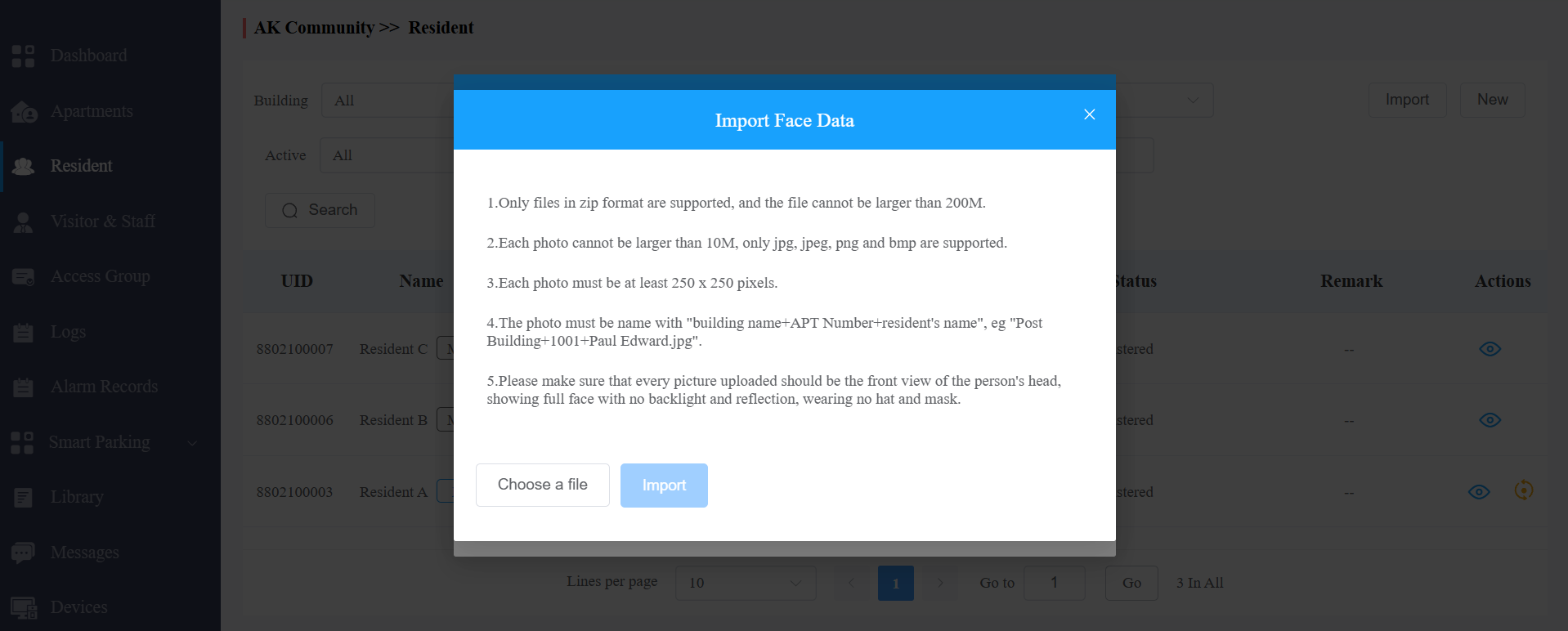
Choose the face data .zip file and click Import Face to import the file.
Note
Face data should be imported in .zip file format, and the photos need to be named by building name, room number, and user name. e.g "Building1+1001+Paul Edward.jpg".
Import RF Cards/PIN Codes
You can import RF card codes and PIN codes in batches for users.
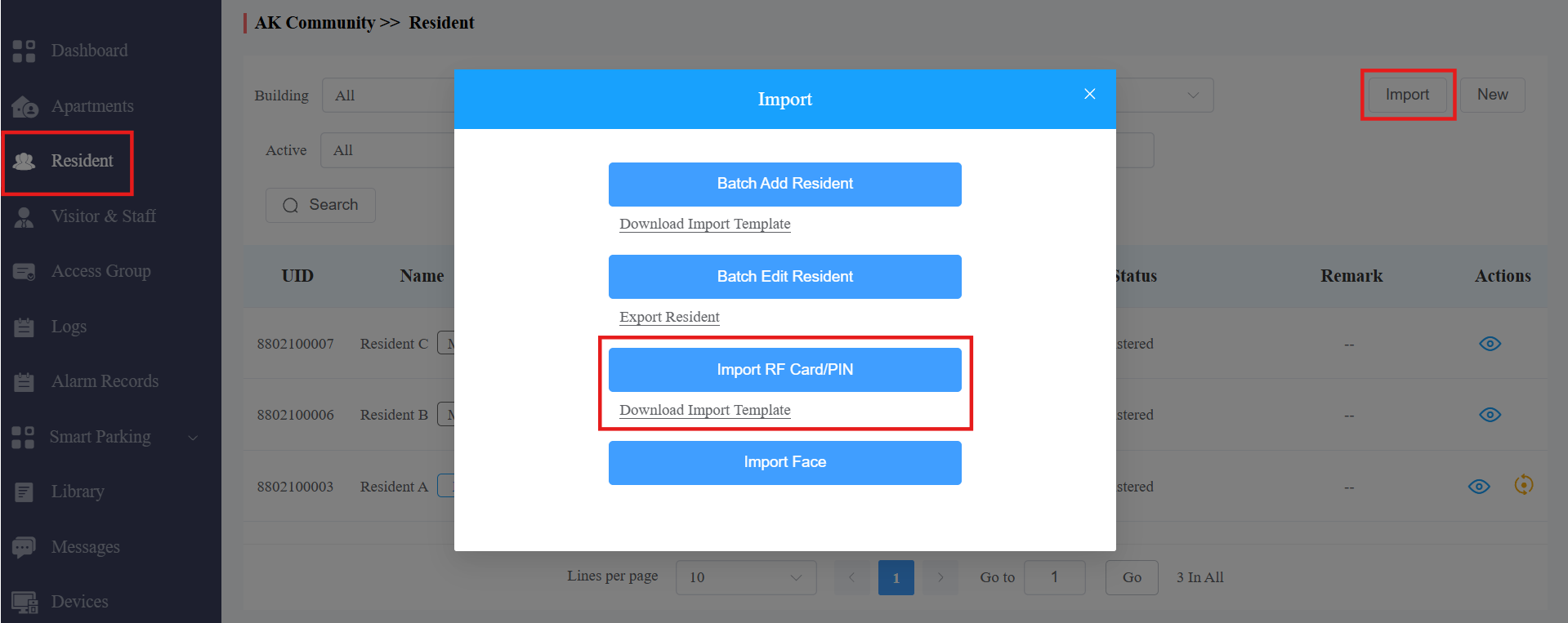
Go to the Resident module and click Import.
Click Download Import Template to download the RF card/PIN code template.
Fill in the RF card codes and PIN codes in the template and click Import RF Card/PIN to import the template.
RF card template:
.png)
Note
You can assign multiple cards to the family master, who can assign the card to family member accounts via the MySmart App.
Enter the RF card codes for one user, separated by ";".
Bookings for Residents
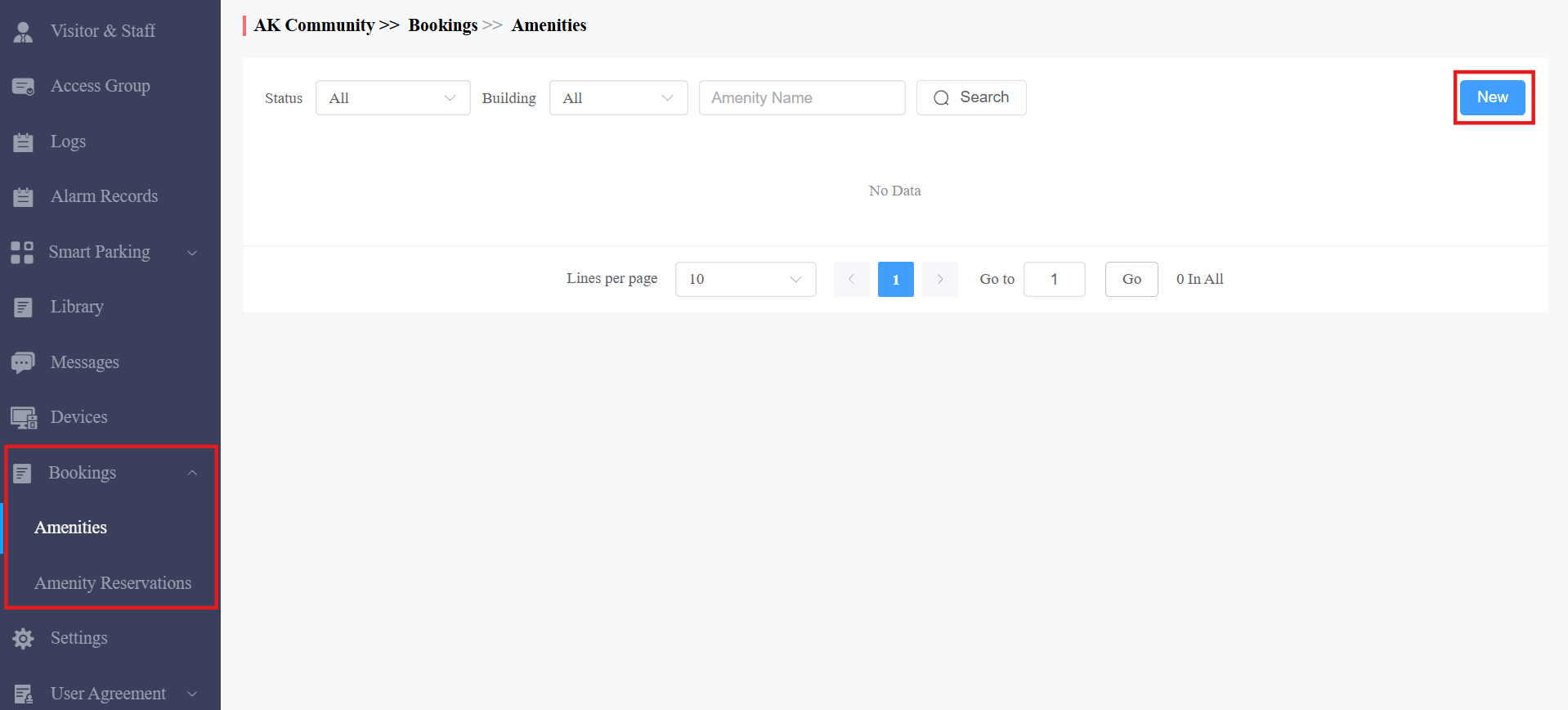
The Bookings module facilitates the management of amenities and reservations. You can conveniently add and modify amenities and make a reservation for residents.
Note
Click here to view the detailed steps of adding new amenities, making reservations for residents, and checking reservation information.
Visitor & Staff Management
The Visitor & Staff module allows you to create access credentials for the property management staff, delivery personnel, and visitors.
Manage Access Credentials for Visitors
You can set up temporary keys and ID access for visitors, and select the access schedule that applies to the access methods.
Create a Temporary Key
You can set up a temporary PIN/QR code along with the access schedule, which will then be sent to the visitor’s email for door access.
Click Temp Keys, then click New.
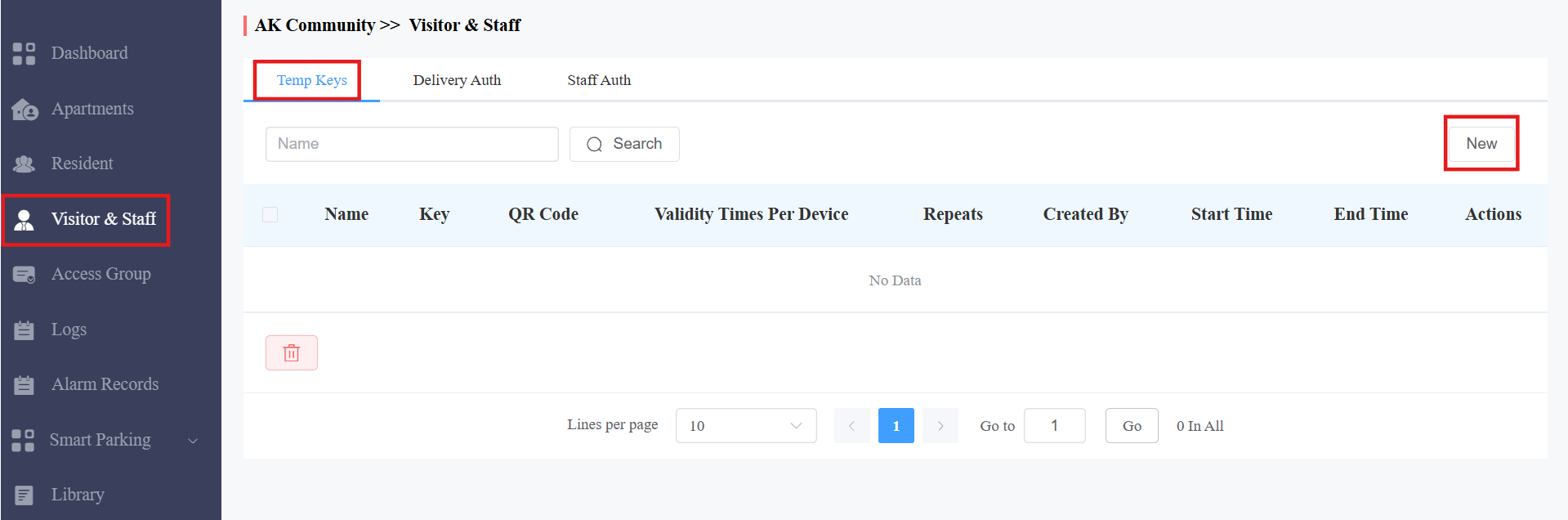
Create a temp key along with the access schedule.
Select the specific relay(s) to be triggered by the temporary key.
Click Submit to generate a temporary key.
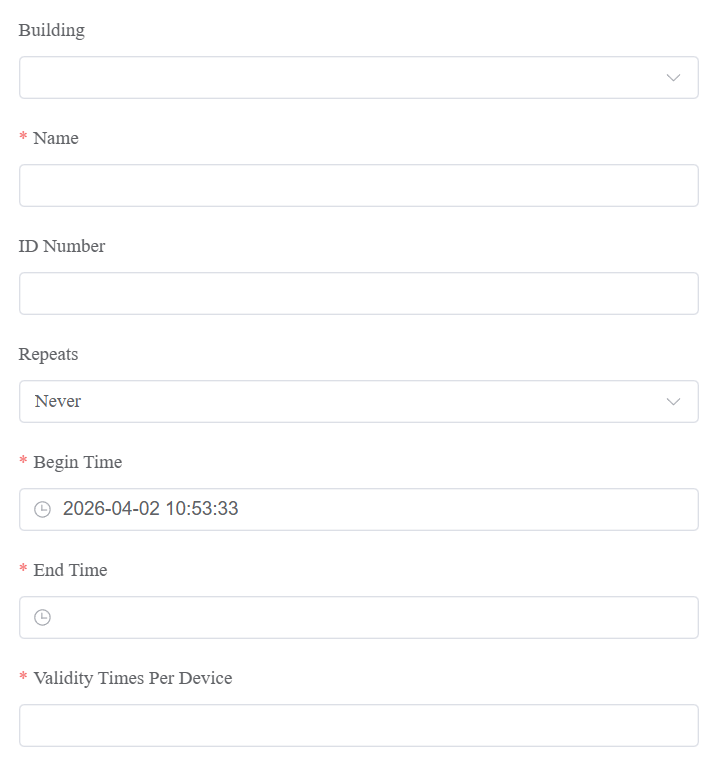
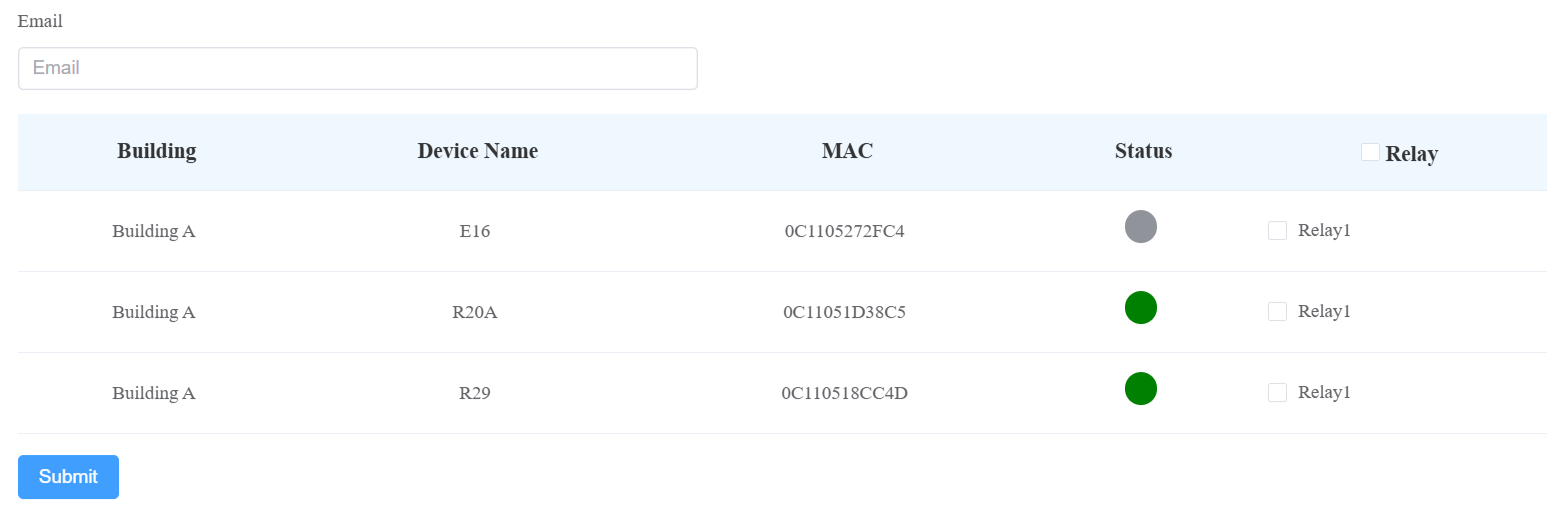
Item Description:
Item Name | Description |
Building | Select the building in which the resident to be visited lives. |
APT | Select the resident’s apartment. |
Name | Enter the visitor’s name. |
ID Number | Enter the visitor ID number. |
Repeats | Select Never, Daily, and Weekly for the temporary key access schedule.
|
Validity Times Per Device | You can put a number in the field based on the format: “each door count” * “the number of door phones selected” = “total number of PIN code validity”. For example, if you type in “1” and select 3 door phones, then the PIN code will be valid three times in total (1 x 3 door phones=3 times). You can use the PIN code on any one of the door phones selected. When the PIN code is used on any one of the door phones, it will no longer be valid on the rest of the door phones. Note: This is applicable when you select Never in the Repeats field. |
Start Time End Time | Set the Start Time and End Time for the PIN code validity period during a day on a daily or weekly basis. |
The temp key will be sent to the visitor’s email address you entered. |
Edit/Delete Temporary Key
You can search for the desired key by its validity, repeat mode, who created the key, key value, and visitor name.
Click
 to change the temp key's valid time when it does not expire.
Click
 to view the details of the temp key.
Click
 to delete a specific temp key.
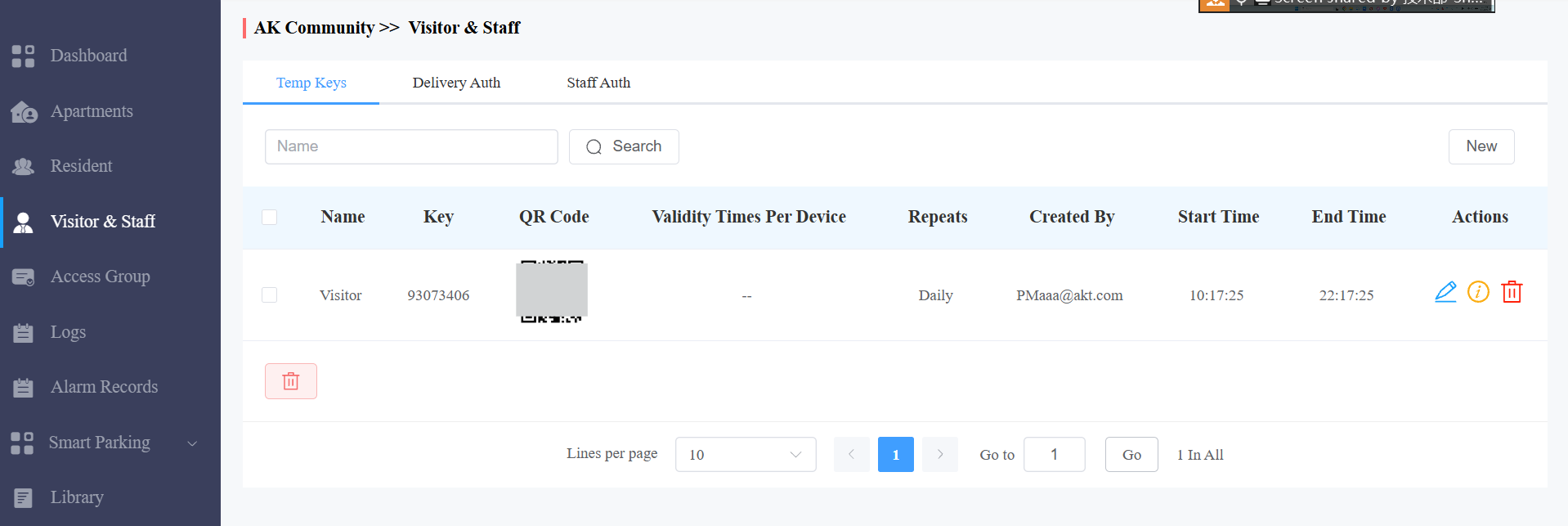
Note
After you click
to check the temporary key details, you can click View Door Logs to check the temporary key door logs shown as follows.
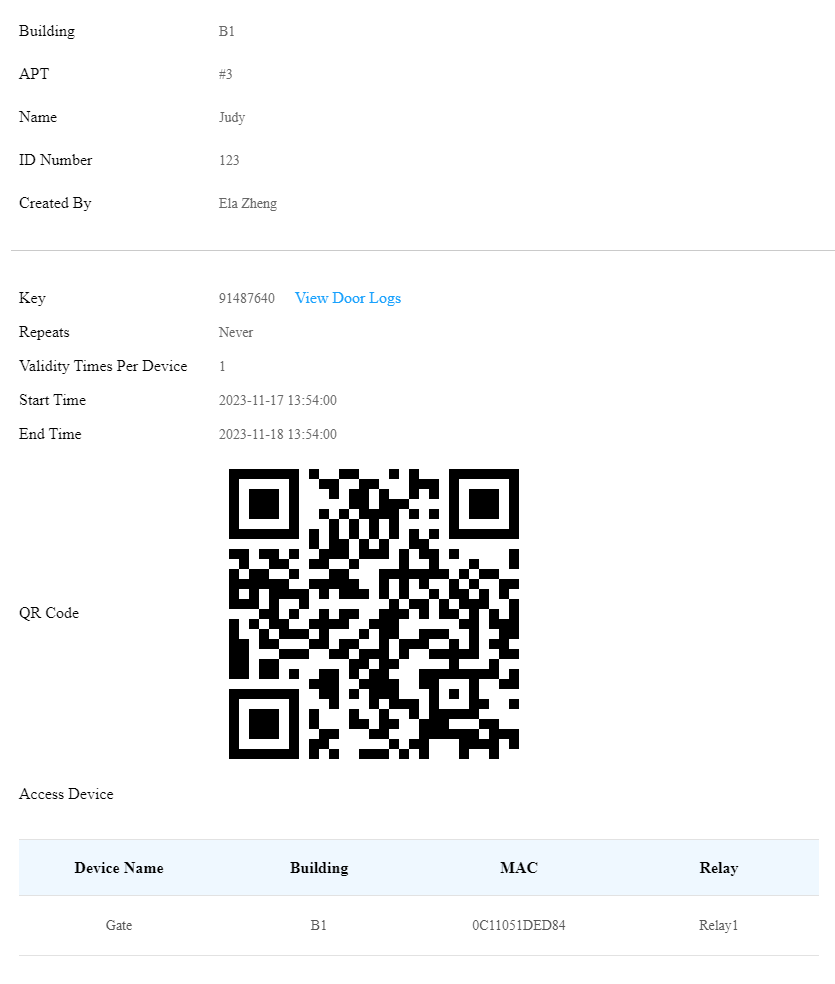
Manage Access Credentials for Delivery Personnel
You can create both a delivery PIN code and an RF card for the delivery staff, who can use the PIN to access the designated place, for example, a parcel room, to deliver the package to the residents.
Create Delivery PIN Codes/RF Cards
You can create a delivery PIN code and RF card along with an access control schedule (Access Group).
Click Visitor & Staff > Delivery Auth > New.
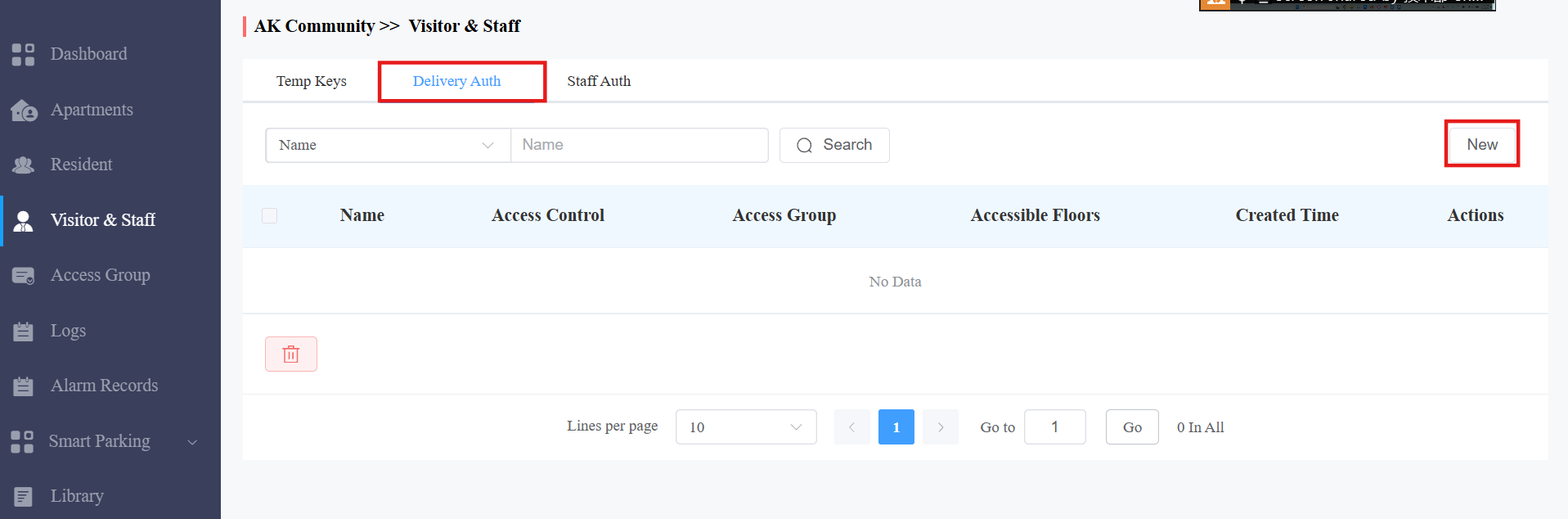
Enter the delivery person's name.
Enter the PIN code or RF card number. Please note that the PIN code should be 2-8 digits without starting with "9".
Select the accessible floors and elevator control device. This setting works with the Akuvox EC33 elevator control system. Users can take the elevator to the permitted floor.
Select the default or self-created access group.
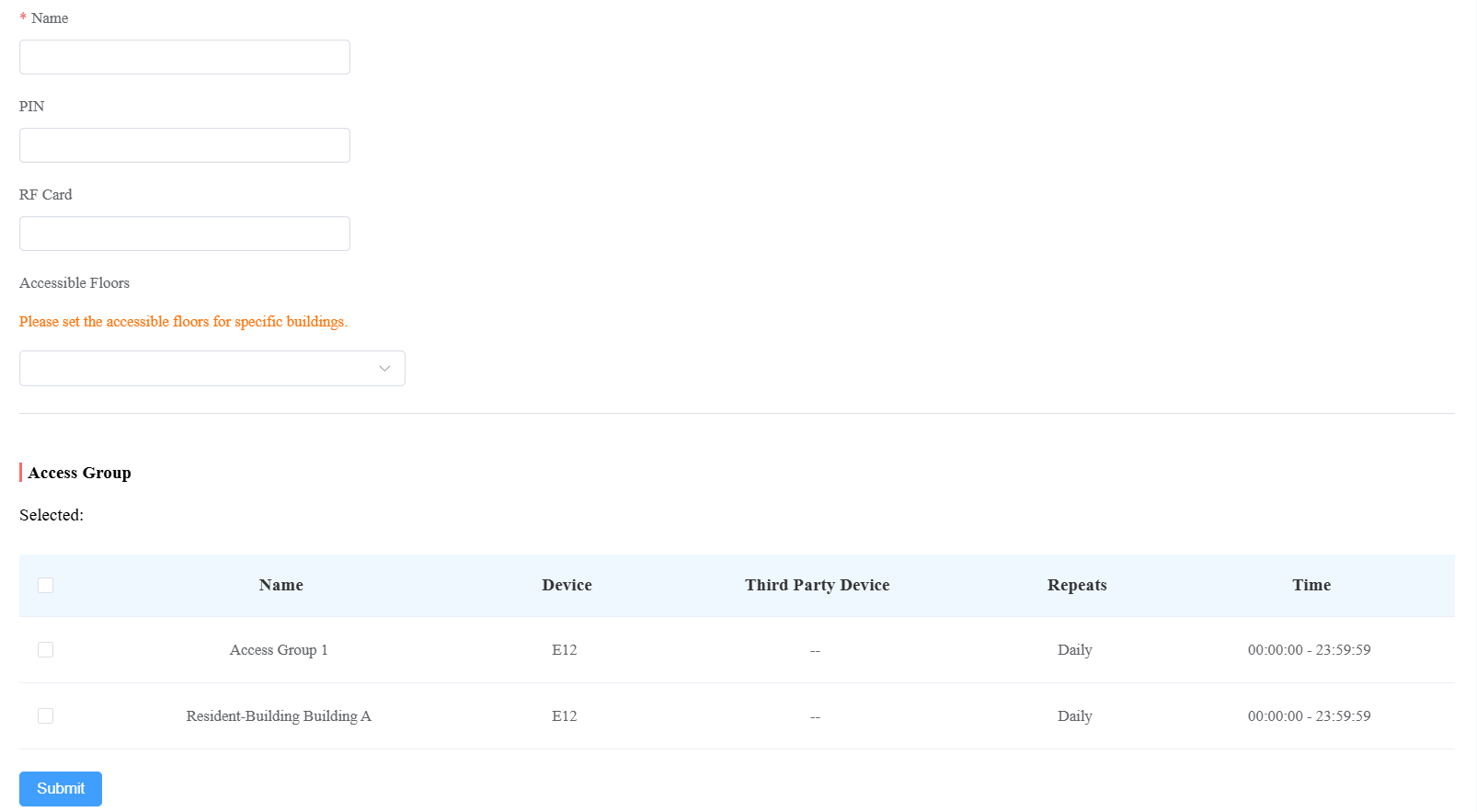
Modify and Delete Delivery PIN Codes
Click Visitor & Staff > Delivery Auth.
Search the PIN code by name or PIN code in the fuzzy search field and click Search.
Click
to modify the PIN code.Click
 to delete the PIN code.
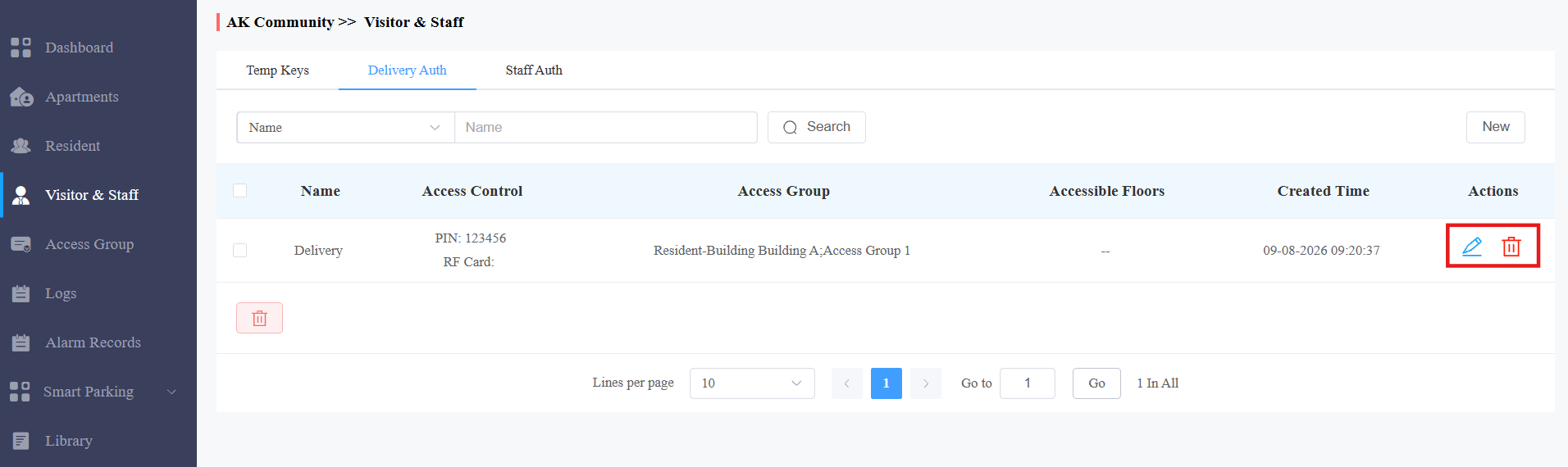
Manage Access Credentials for Property Management Staff
You can create, modify, and delete RF cards, PIN codes, and face data for the property management staff. You can either create RF card(s) separately or in batches using a template.
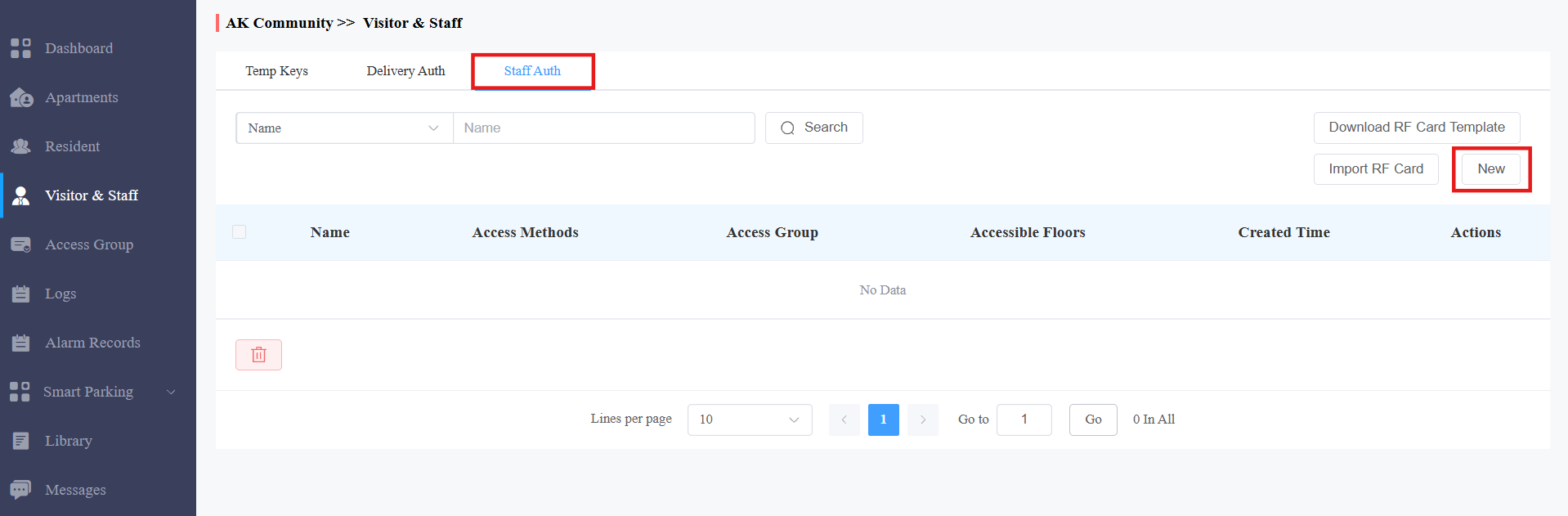
Click Visitor & Staff > Staff Auth > New.
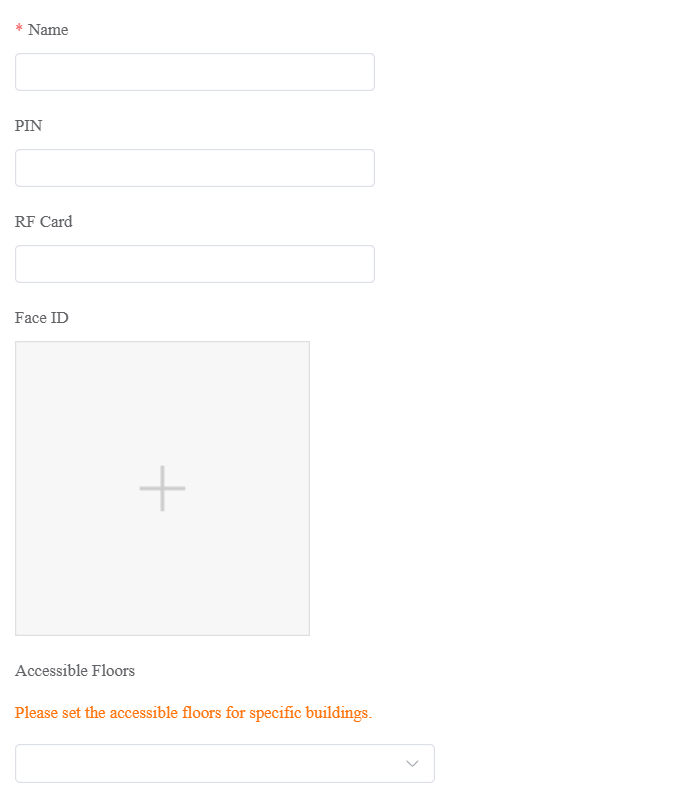
Set up the access methods.
PIN: The PIN code should be within 2-8 digits without starting with "9".
RF Card: Enter the RF card code.
Face ID: Upload the face picture. Once the staff’s Face ID is added, a
 will display in the Access Methods column.
Select the accessible floors in specific buildings and the elevator control device. This setting works with the Akuvox EC33 elevator control system. Users can take the elevator to the permitted floor.
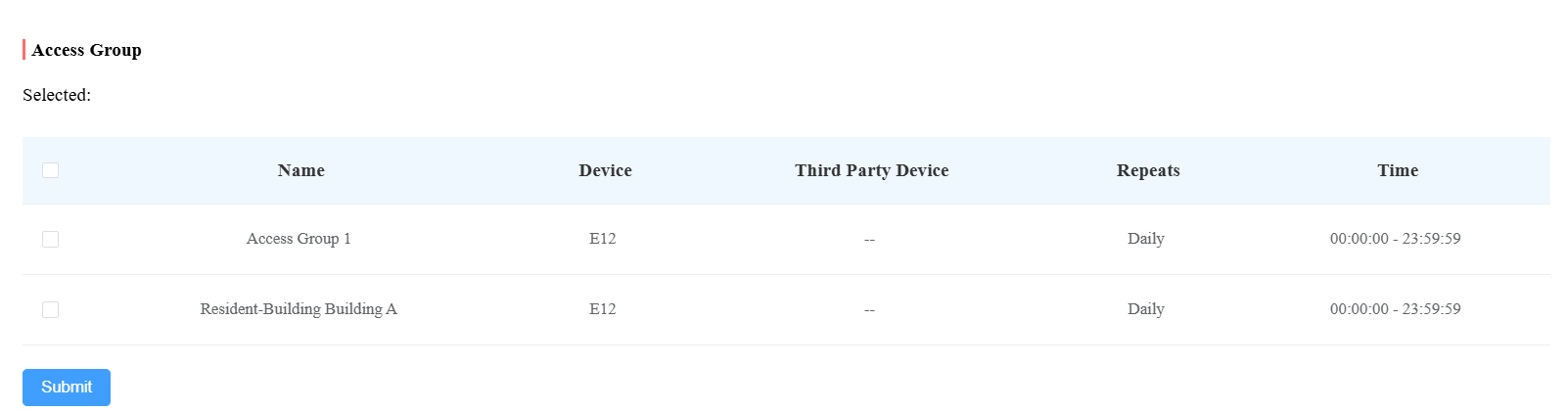
Scroll down to select the default access group or a self-created one.
Add RF Cards Using Template for Property Manager
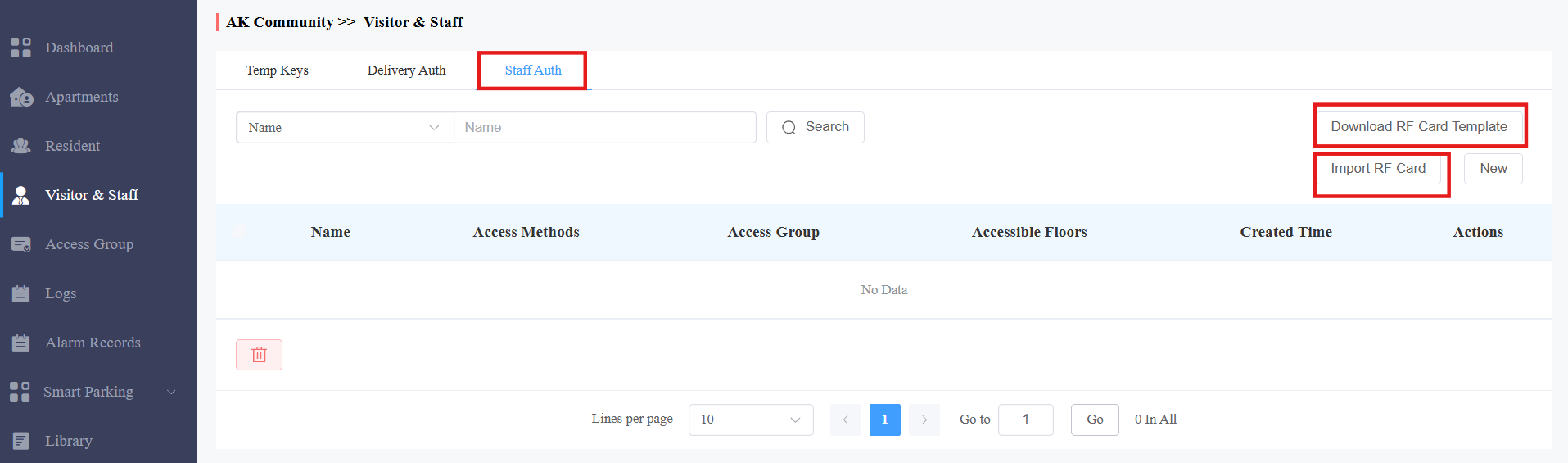
Click Visitor & Staff > Staff Auth.
Click
 .
.Populate the RF card template.
Click on
 to upload the template file.
Template Sample

Template Description:
No. | Field Name | Description |
1 | Staff Name | Enter the staff name. |
2 | RF Card | Enter the RF card. |
3 | Access Group ID | Enter the Access Group ID(s) you have already created in MySmart. Multiple Access Group IDs should be separated by “;”. |
Modify/Delete Property Manager RF Cards/PIN Codes
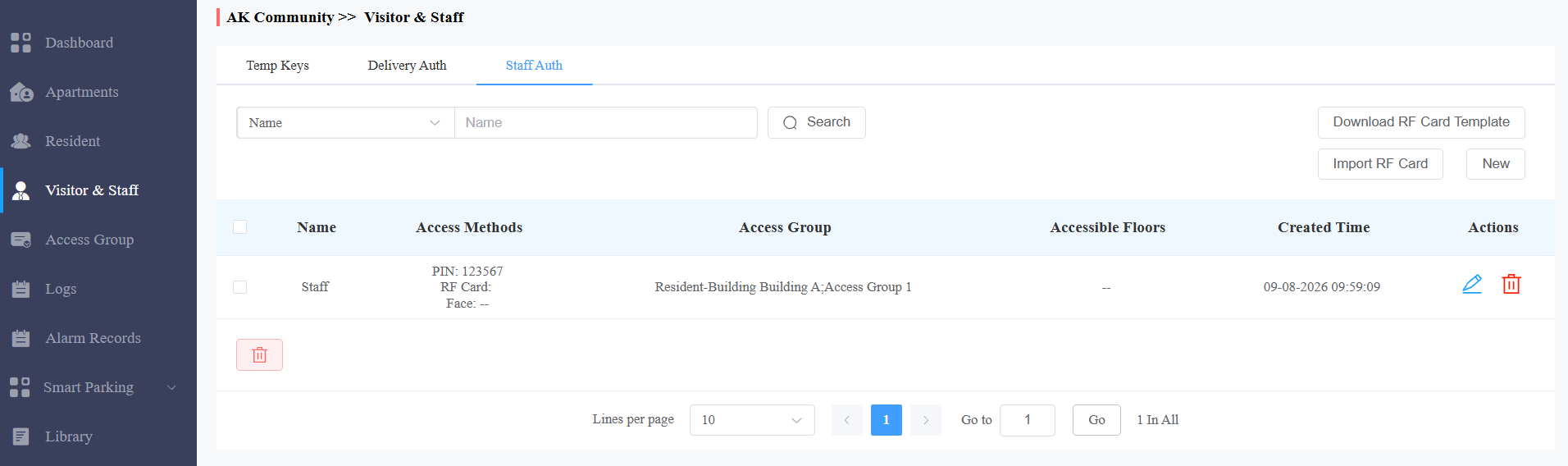
Click Visitor & Staff > Staff Auth.
Search the staff info by name, PIN code, or RF card number in the fuzzy search field and click Search if needed.
Click
 to modify and
 to delete the target user. Please note that in the staff info editing interface, the Face ID will be displayed using a default image instead of the enrolled one, though the staff has a Face ID enrolled already.
Apartment Management
The Apartment module allows you to search for apartments, modify call types and settings, and authorize residents to create credentials for door access.
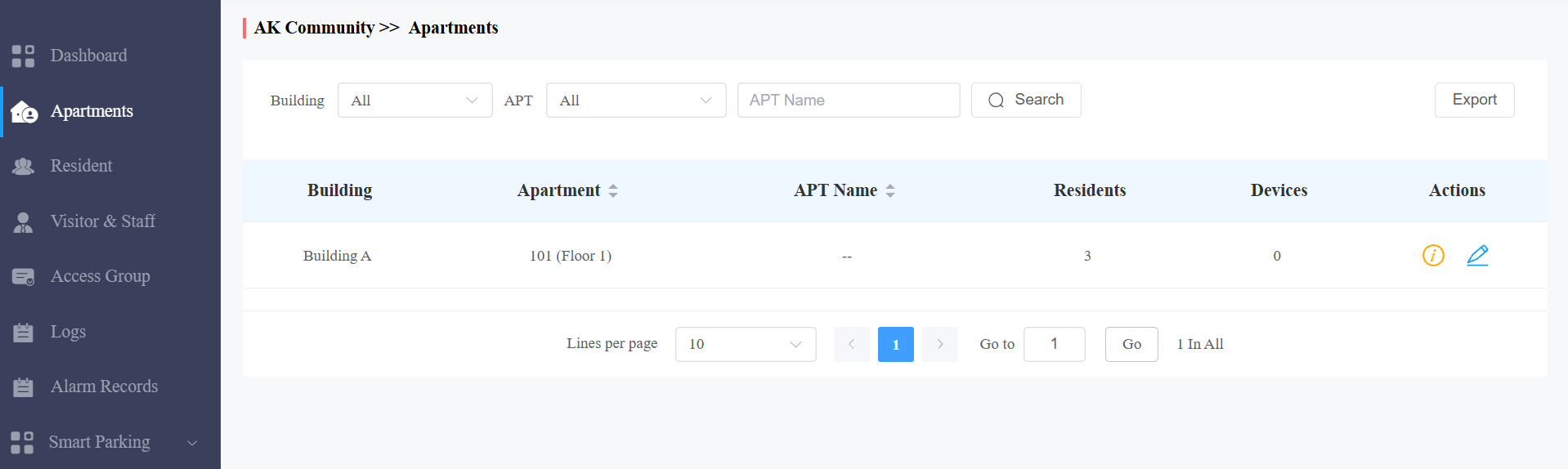
Search for/Check Apartment
Search for apartments by narrowing the range from the building to the specific apartment, or by entering the apartment name or a keyword.
Click
 to check the details of the apartment.
Edit and Reset Apartment
You can edit or reset the apartment configurations for the resident, including call type, call setting, apartment name, and more.
Edit Apartments
To go to the editing interface, do any of the following:
Click
 of the desired apartments.
Click
 of the desired apartment, and then
  on the top right.
Set up the apartment. See item descriptions in the chart below.
Manage permission control:
Allow User to Create QR Code: Enabled by default. Residents can create a QR code on their MySmart Apps for door access.
Allow User to Register Face ID: Enabled by default. Residents can enroll their faces on their MySmart Apps for door access.
Family Member Creation Limit by Family Master: Disabled by default. When enabled, you can set the number of family member accounts that users can create.
Allow User to Create RF Card: Enabled by default. Users can add RF cards with their MySmart Apps for door access.
Note
If you disable these permissions, then the user's credentials registered from the App will become invalid for access.
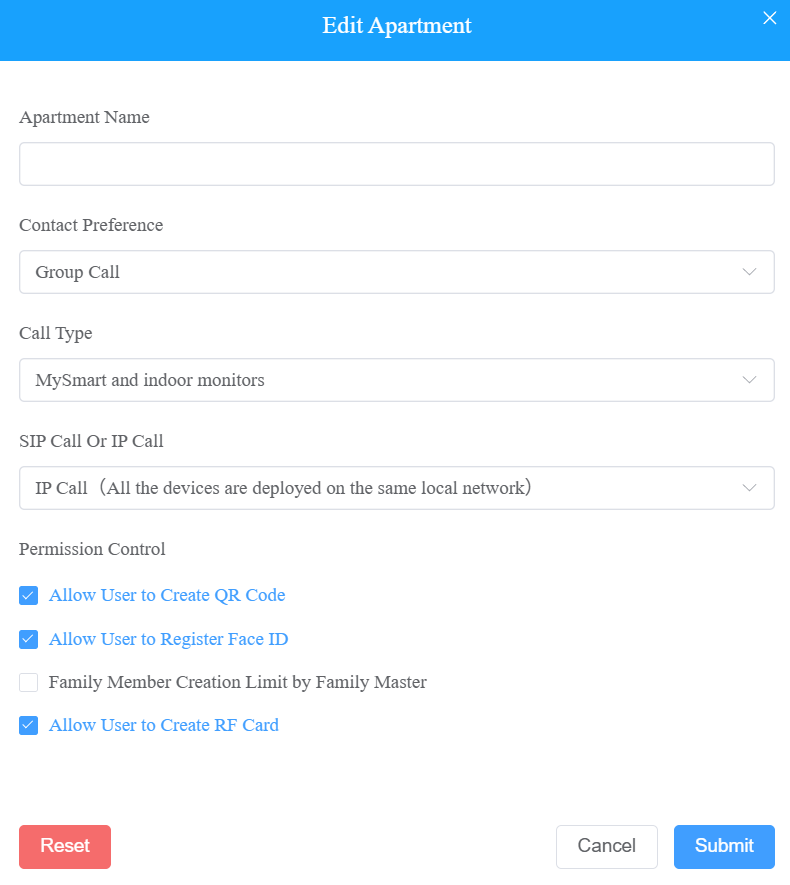
Item Name | Description |
Apartment Name | Fill in the apartment name. |
Contact Preference |
|
Call Type | Six call types. For example, if you select “MySmart and Indoor monitors”, residents can answer the call using MySmart and the indoor monitor. |
SIP Call Or IP Call | Select IP Call if devices are deployed on the same local network; if not, select SIP Call. |
Reset Apartments
To reset the apartment, do the following:
Go to the editing screen by any of the methods.
Click on
 of the desired apartments; Or
Click on
 of the desired apartment, and then
  on the top right.
On the pop-up window, click Reset at the bottom left.
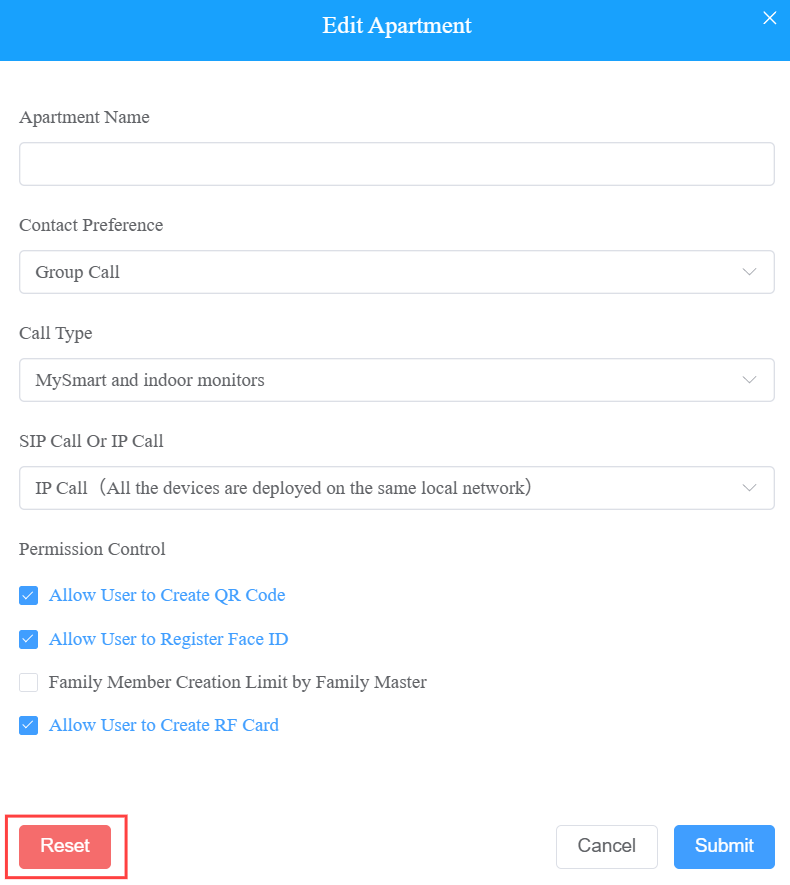
Click OK to confirm.
Once you agree to reset, some information or data in this apartment will be removed, while some will not:
Data to be removed, including
Family member accounts.
Emails, mobile numbers, and country/region.
Logs(audit logs excluded) and histories.
Messages and alarms, and
All access credentials.
Data to be kept includes
Family master account status.
Audit logs.
Settings include SIP Call or IP Call, time zone, language, premium plan, and the With Indoor Monitor feature.
Other changes including
The user’s app changes to unregistered and needs to be reinitialized.
The user’s login credentials are reset, and the user is not going to receive the reset email.
Export Apartment Settings
You can export apartment settings in an XLSX file by clicking Export on the Apartments module.
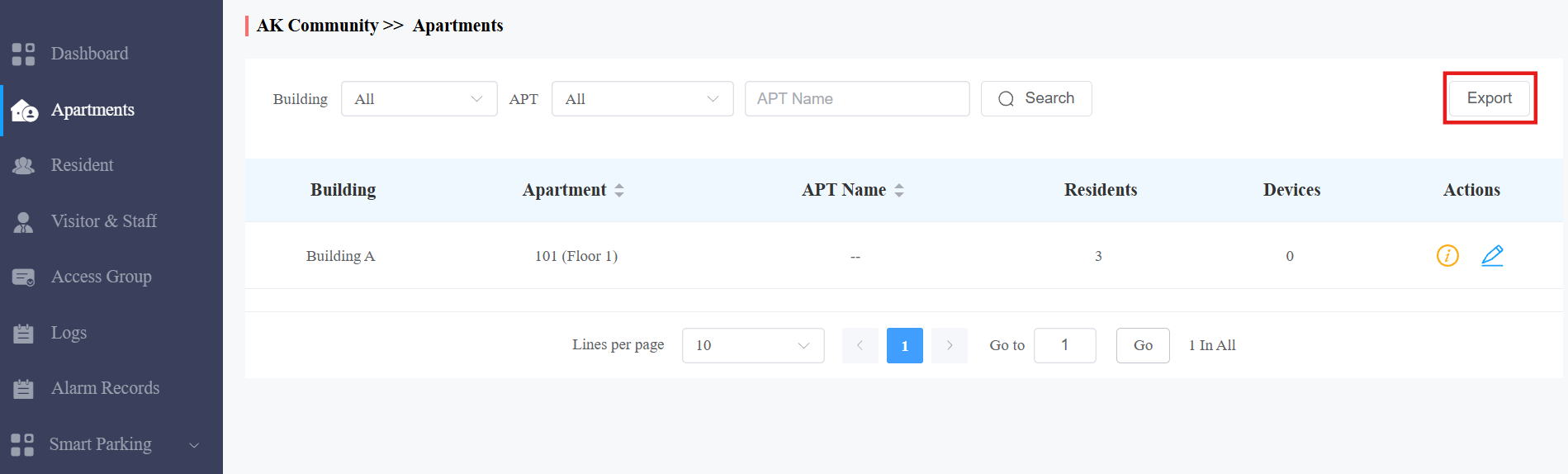
Export File Example:

Smart Parking
The smart parking module allows you to register license plates or UHF cards for users. Users can drive in/out with doors open automatically.
Furthermore, you can manage parking lots by viewing the number of parked vehicles and their parking duration on the cloud, conveniently tracking what happens.
Compatible models and versions(or higher):
Model | Version | Model | Version |
|---|---|---|---|
R29 | 29.30.10.404 | R28 V2 | 228.30.10.231 |
R25 | 25.30.10.117 | R20 | 320.30.11.30 |
X916 | 916.30.10.346 | X915 V2 | 2915.30.10.420 |
X912 | 912.30.11.107 | X910 | 2910.30.11.28 |
E18 | 18.30.10.247 | E16 V2 | 216.30.10.208 |
A08 | 108.30.11.8 | E16 V3 | 416.30.11.206 |
A03 | 103.30.10.204 | A01/A02 | 101.30.10.206 |
A095 | 95.30.10.110 | A094 | 92.30.10.205 |
S535 | 535.30.11.8 | S539 | 539.30.10.403 |
A05 | 205.30.11.114 | S538 | 538.30.10.705 |
E12V2 | 312.30.11.106 | S532 | 532.30.10.336 |
License Plate Management
The license plates are identified by third-party LPR cameras for door opening. Click here to view the detailed configuration.
The UHF cards are identified by the Akuvox long-range access card reader ACR-CRP12 for door opening. Click here to view the detailed configuration.
Click Smart Parking > License Plate > New.
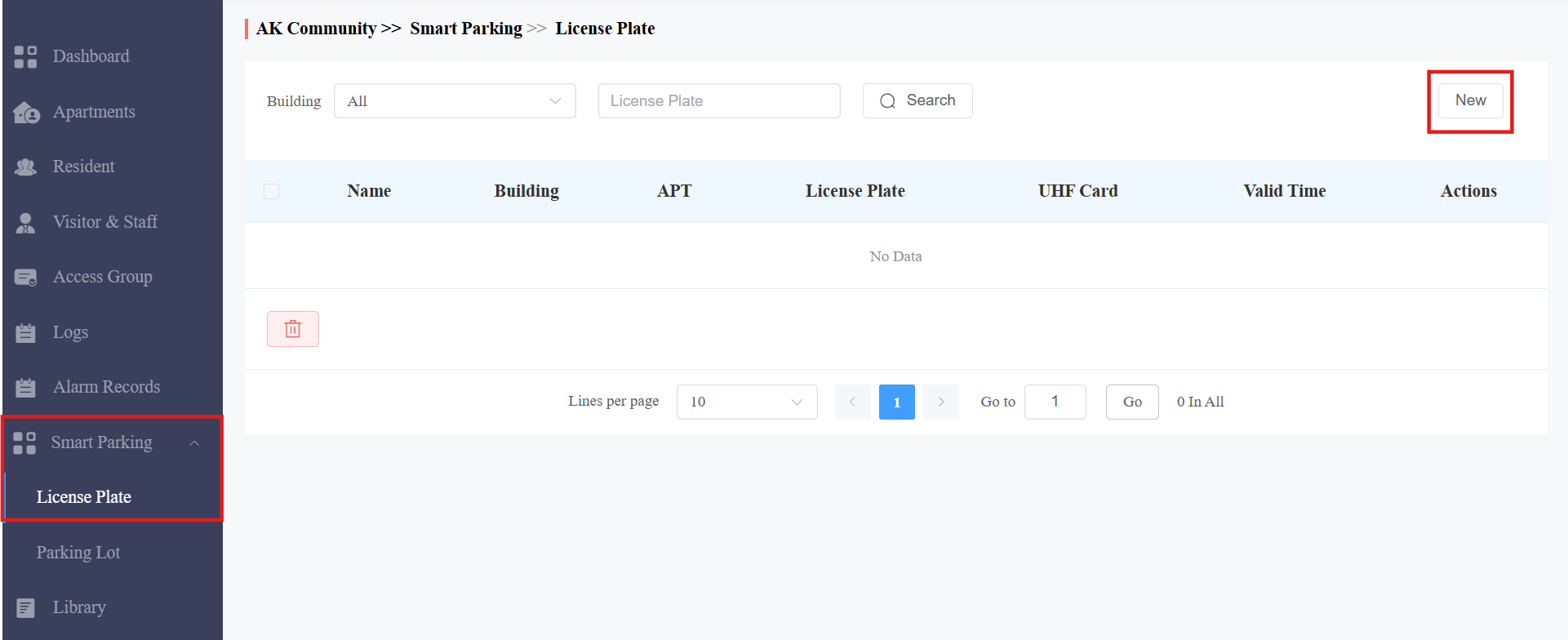
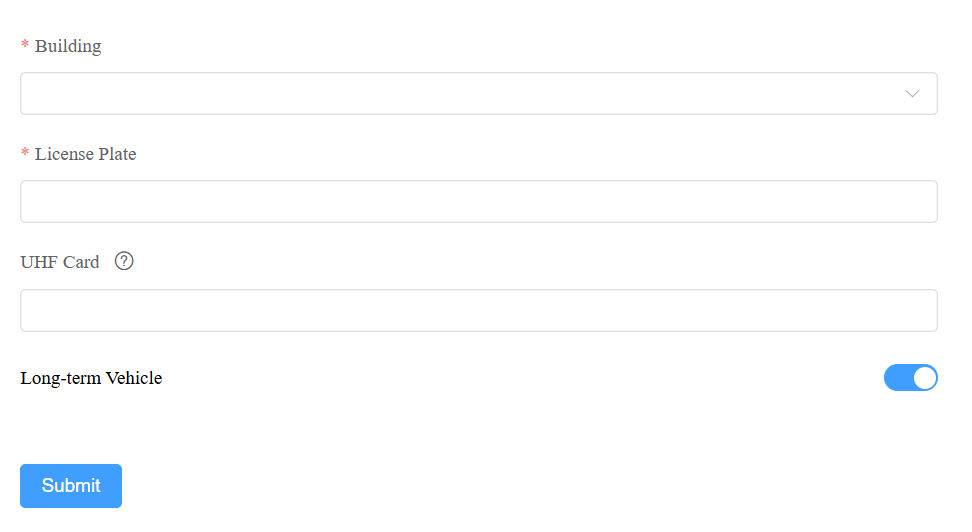
Select the building, apartment and resident.
Enter the license plate information.
Enter the UHF card code if it is used. If you have filled in both the license plate and the UHF card, the server will ONLY issue the latter to the door phone.
Enable/disable Set Valid Time. If enabled, specify when the vehicle can enter or exit the parking lot.
Note
You can also add license plate information when adding or editing the user.
Parking Lot Management
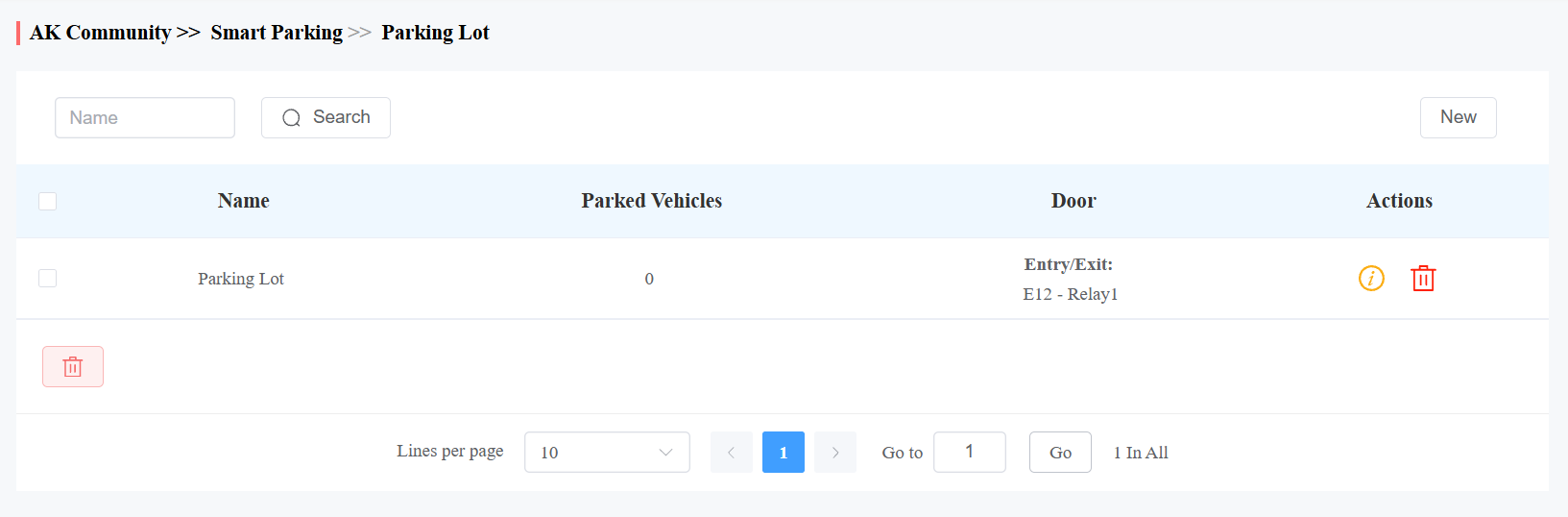
You can set up parking lots and conveniently track the number of parked vehicles and their parking durations.
Create a Parking Lot
Click Smart Parking > Parking Lot in the left column.
Click New on the right to create a new parking lot.
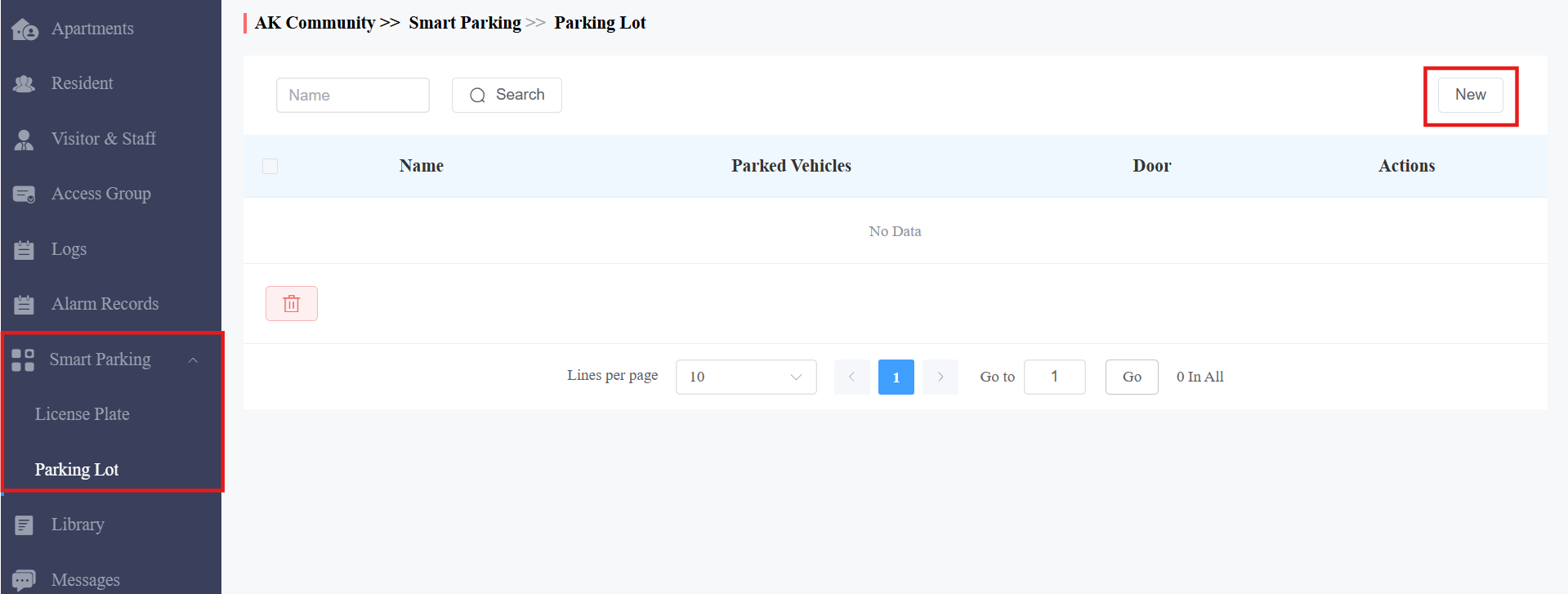
Name the parking lot.
Select the Door Mode:
Single Door: For example, the cloud will record the first recognition as “Entry” and the second as “Exit”.
Multiple Doors: Define which door is the entry and which is the exit.
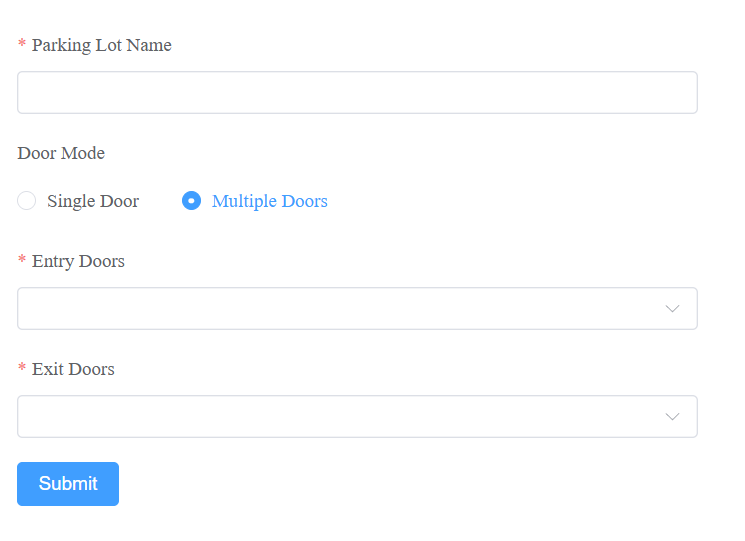
Click Submit.
After creating the parking lot, you can view the number of parked vehicles.
Click
 to delete it.
Click
 to view more details and modify the settings.
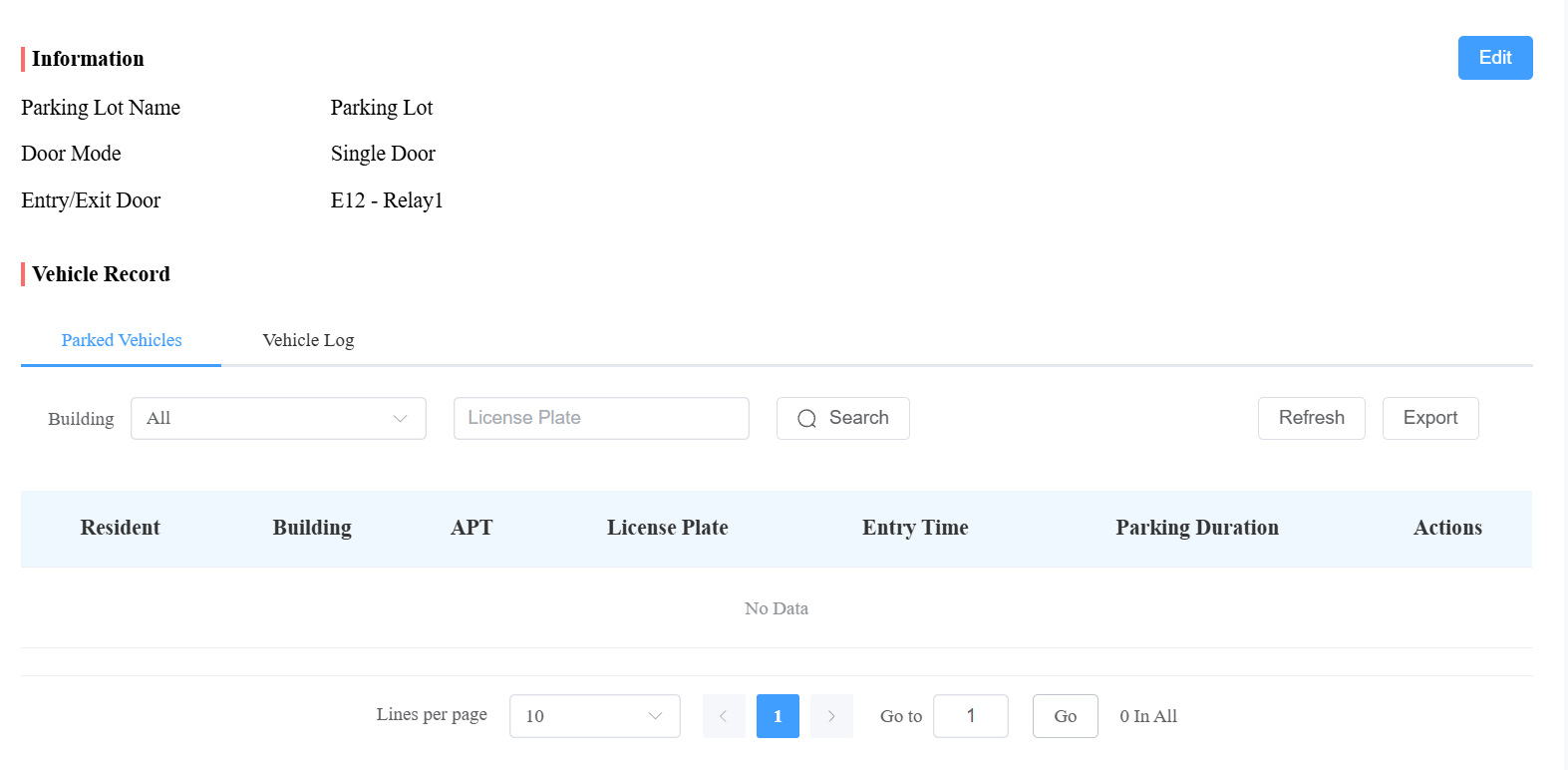
Mark Vehicles Exited Manually
Click Smart Parking > Parking Lot.
Click
of the target parking lot.Click
 in the Actions column to manually mark that the vehicle has left the parking lot.
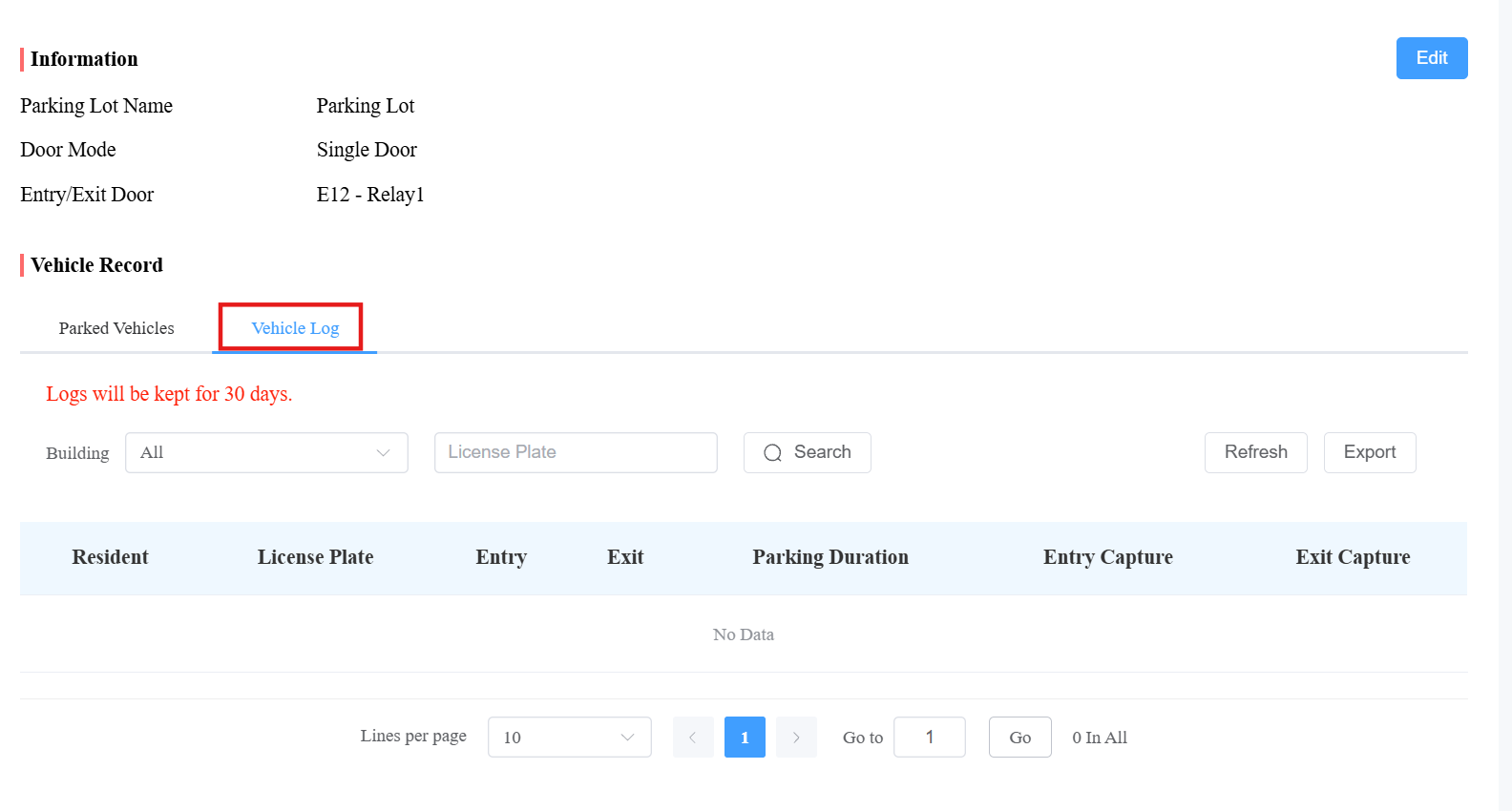
View Vehicle Logs
Click Smart Parking > Parking Lot.
Click
of the target parking lot.Click Vehicle Log, where you can:
Check the vehicle entry/exit time and parking duration.
Click the image in the Entry and Exit Capture columns to view the snapshots.
Click Export to download logs.
Logs
Log module contains six sub-modules used for checking the door logs, call history, image captured, temperature logs, motion alerts, and operation logs that can be stored for 30 days. With Log Access Control enabled by your installer, you can check door logs, call history, and captured images.
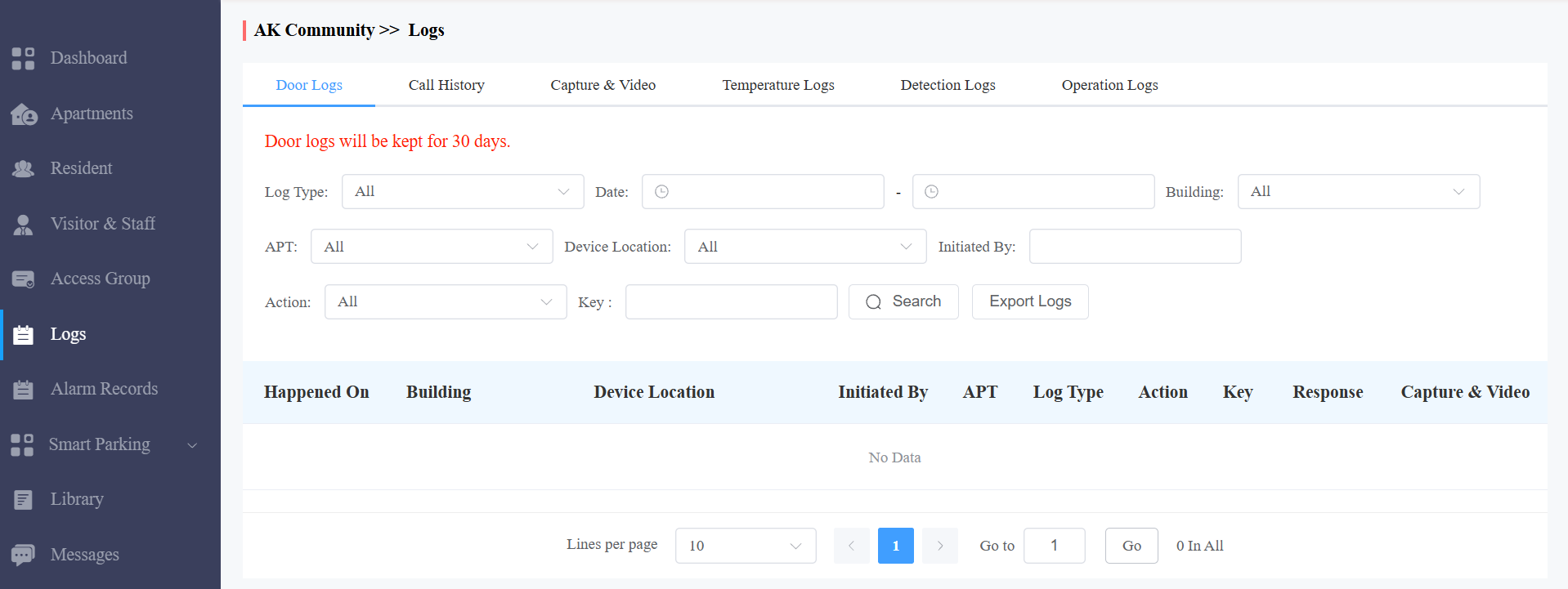
When Log Access Control is not enabled by your installer, you cannot check door logs, call history, or captured images. The three modules will be hidden.
Check/Export Door Logs
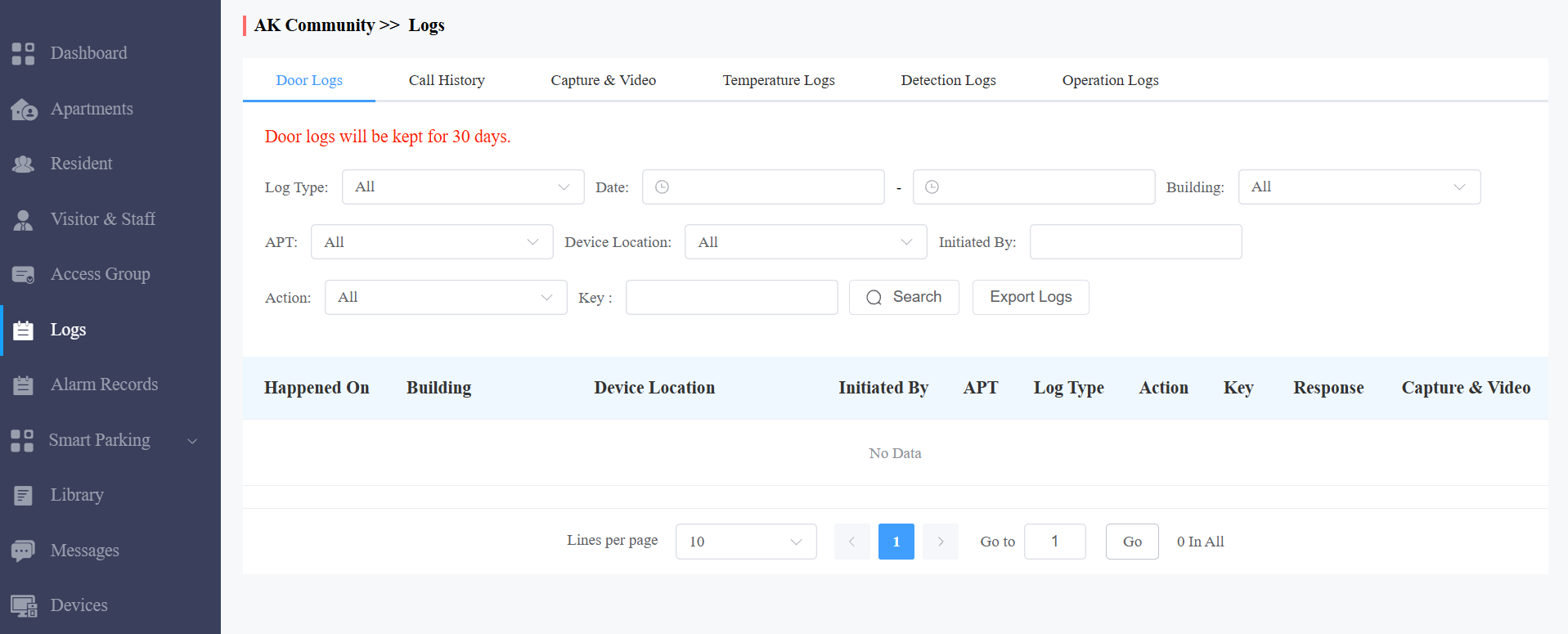
Door logs have 4 types: All, Call, Door Release, and Door Close. The Call type log shows the SIP/IP-based calls initiated on the door phone, indicating when, where, and to whom the calls are made, while the Door Release/Close logs tell you when, where, and by whom the door unlocks are made (be it failure or success). You can narrow down your log check by the specific time range with parameters: Device Location, Initiated by, Apartment, Action, and Response(Success, Failed, or Offline) for the targeted search.
Click Door Logs.
Select the log type.
Set up the time range for the door logs to be checked.
Select the building and further narrow down the search by Device Location, Initiated by, Apartment, and Action for the targeted search if needed.
Click on Export Logs to export logs.
Check/Export Call History
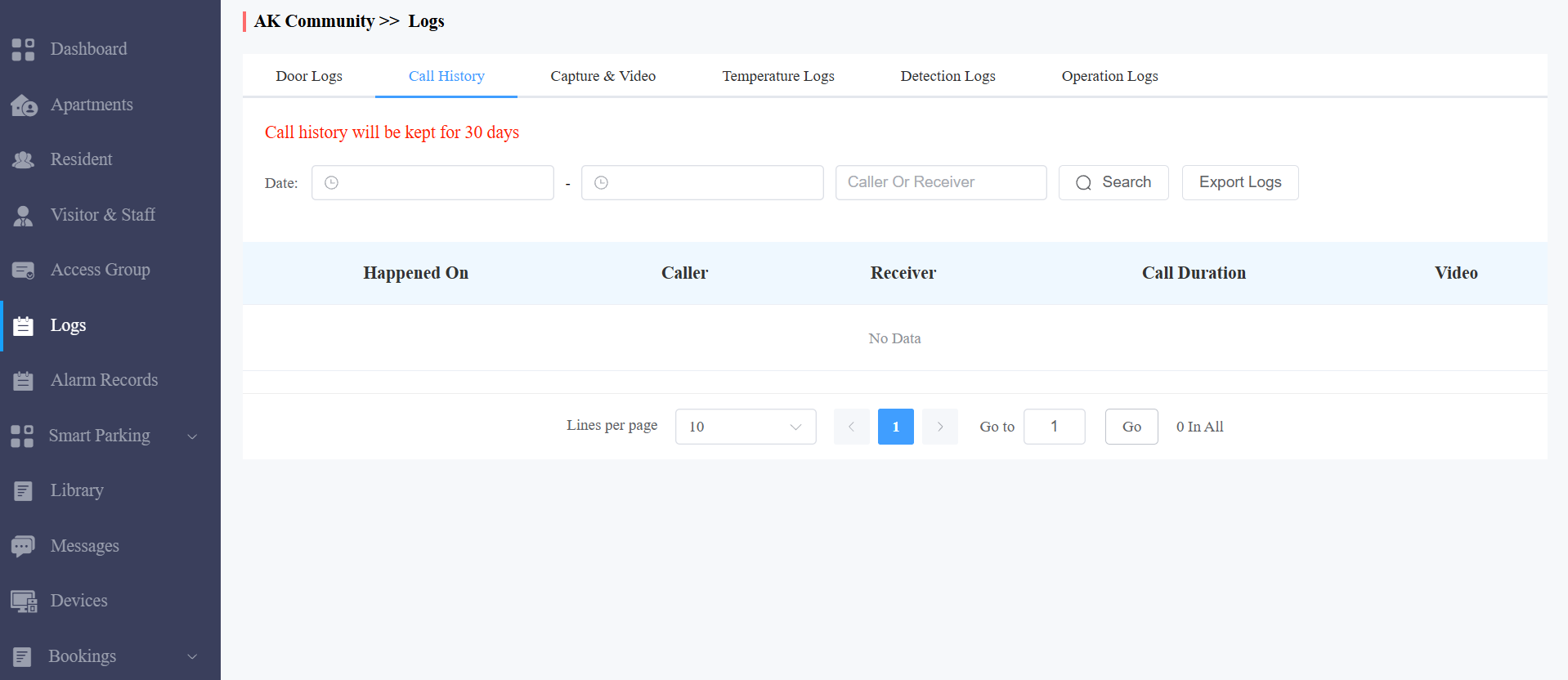
This sub-module allows you to check call history in terms of when and by whom the SIP-based intercom calls are made and received. Call history records all the calls made and received on the intercom devices as well as on the MySmart Apps for end users and property managers in the community. You can set the time range or enter the caller or receiver to check the targeted call information.
Click Call History.
Set the time range of the call history if needed.
Enter the caller's name or receiver's name if needed.
Click Search.
Click Export Logs to export logs.
Items Description:
Column Name | Description |
Happened On | Shows when the calls are made. |
Caller | Shows who has made the calls. Note: When a caller or a receiver is a property manager, then the property manager’s name will be displayed. |
Receiver | Shows who have answered the call. |
Call Duration | Shows how long the call lasted. |
Capture | Shows the captured images. This column is available when you are granted permission by your installers to view captures. |
Check/Export Captured Images
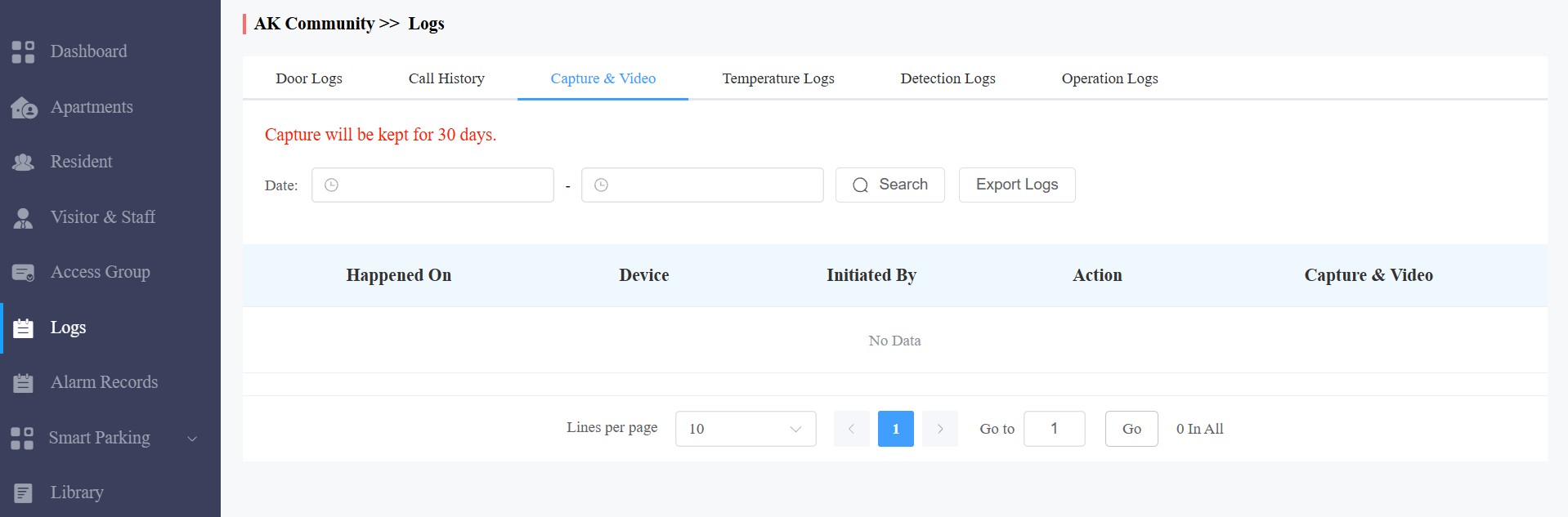
Images are either initiated manually by residents or by the property management staff. You can check when, where, how, and by whom the images are captured.
Click Capture.
Set the time range if needed.
Click Search.
Click Capture to see the enlarged image.
Click Export Logs to export logs.
Items Description:
Column Name | Description |
Happened On | Shows when the images are captured. |
Device | Show you the door phone from which the images are captured. |
Initiated By | Shows who has initiated the image capturing. |
Action | Shows how image capturing is initiated; the capturing can be initiated from MySmart, the indoor monitor, etc. |
Capture | You click on the image to see a larger picture. |
Check Temperature Logs
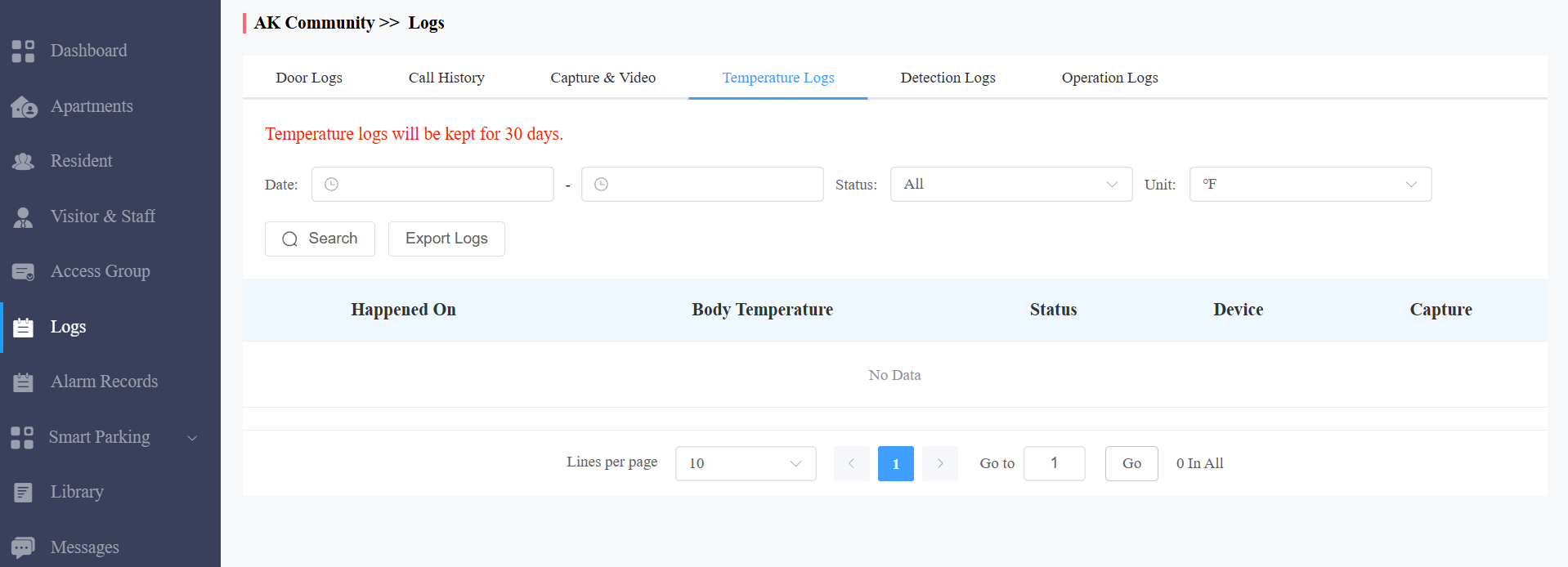
You can check the temperature log of any people who have been checked on their body temperature before being granted the door access etc, for security purposes.
Click on Temperature Logs.
Set the temperature log time range if needed.
Select the temperature measurement unit.
Click on Search.
Click Capture to see the enlarged image.
Click Export Logs to export temperature logs.
Check Detection Logs
You can check the logs of motion detection and package detection.
Motion Detection: Someone's movement is detected by the door phone.
Package Detection: Someone puts or takes the package in the detection area.
Click Detection Logs. You can search for logs of a specific time.
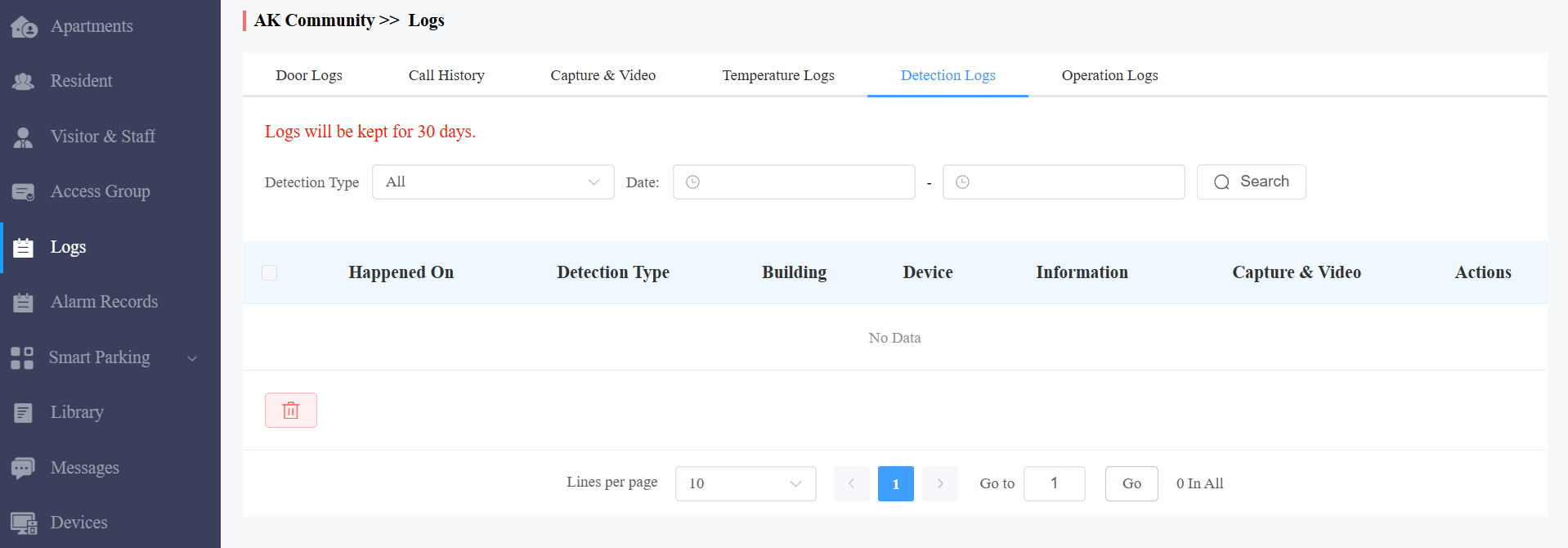
Items Description:
Column Name | Description |
Happened On | Indicate when the detection happens. |
Detection Type | Motion detection or package detection. |
Building | Indicate in which building the detection happens. |
Device | Indicate which device triggers the detection. |
Information | Package In or Package Out. |
Capture | The snapshot captured by the device. |
Actions | Click to delete the log. |
Check Operation Logs
The Operation Logs sub-module allows you to check the operation record in the MySmart platform. The records mainly involve the changes made to the apartment, end user, and various access types such as PIN, RF card, Face, temporary PIN code, time zone, and password.
Select the Operation Logs type.
Select the time range and click on Search.
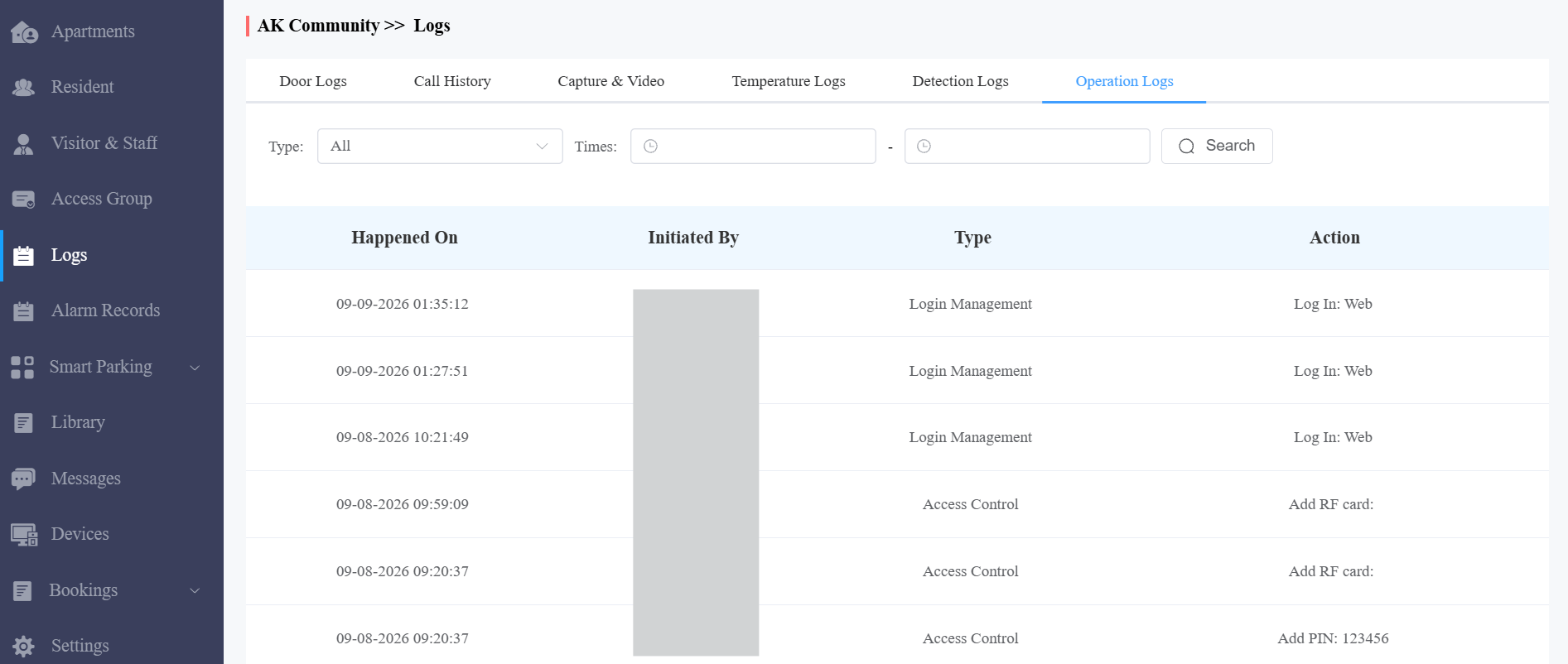
Column Name | Description |
Happened On | Shows when the operational changes are made. |
Initiated By | Shows who has initiated the operations by indicating the property manager account. |
Type | Shows the specific type of operation. |
Action | Shows the specific operations made. |
Library
The library serves as a module where you can check, modify, and delete all types of created PIN codes and RF Cards conveniently at one stop.
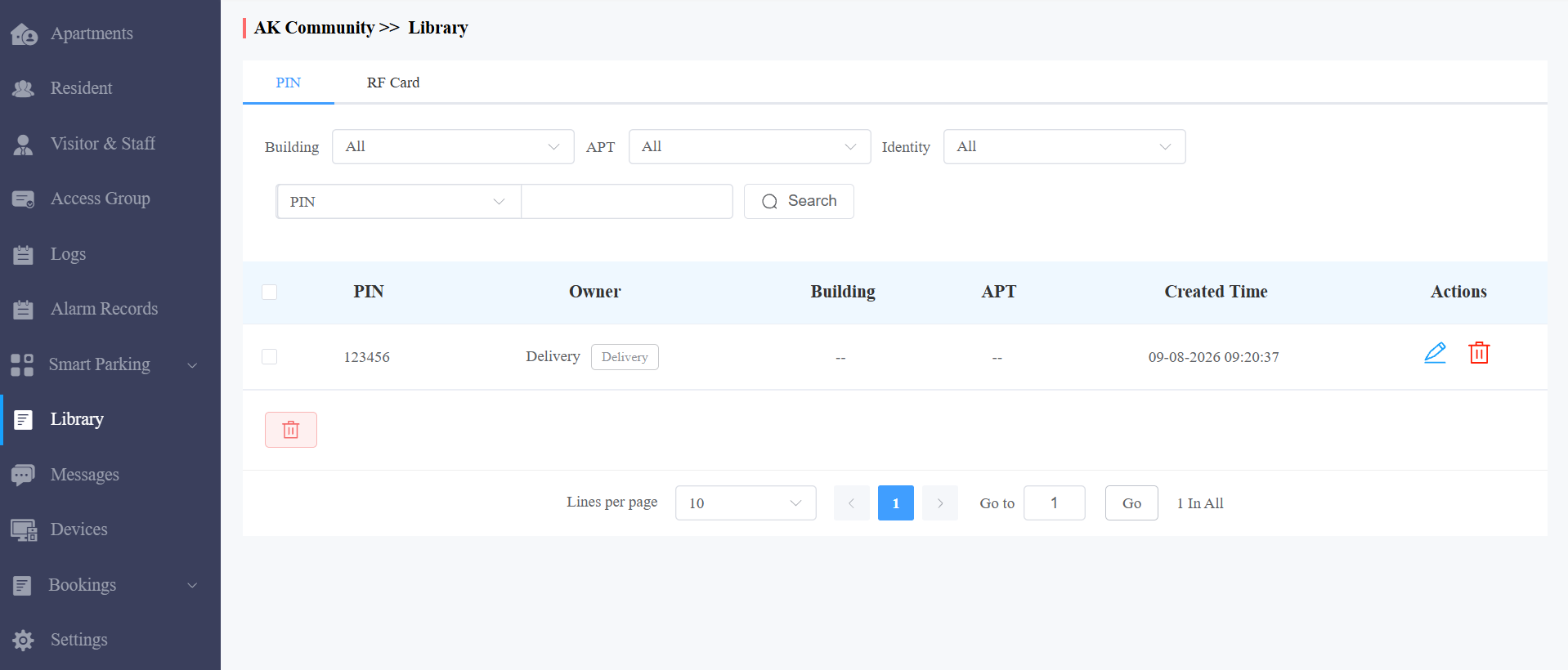
Check/Modify/Delete PIN Code(s)
Click PIN.
Search the PIN by building, apartment, identity, PIN code, and name.
Click
to edit the PIN code.Click
to delete it.
Check/Modify/Delete RF Card(s)
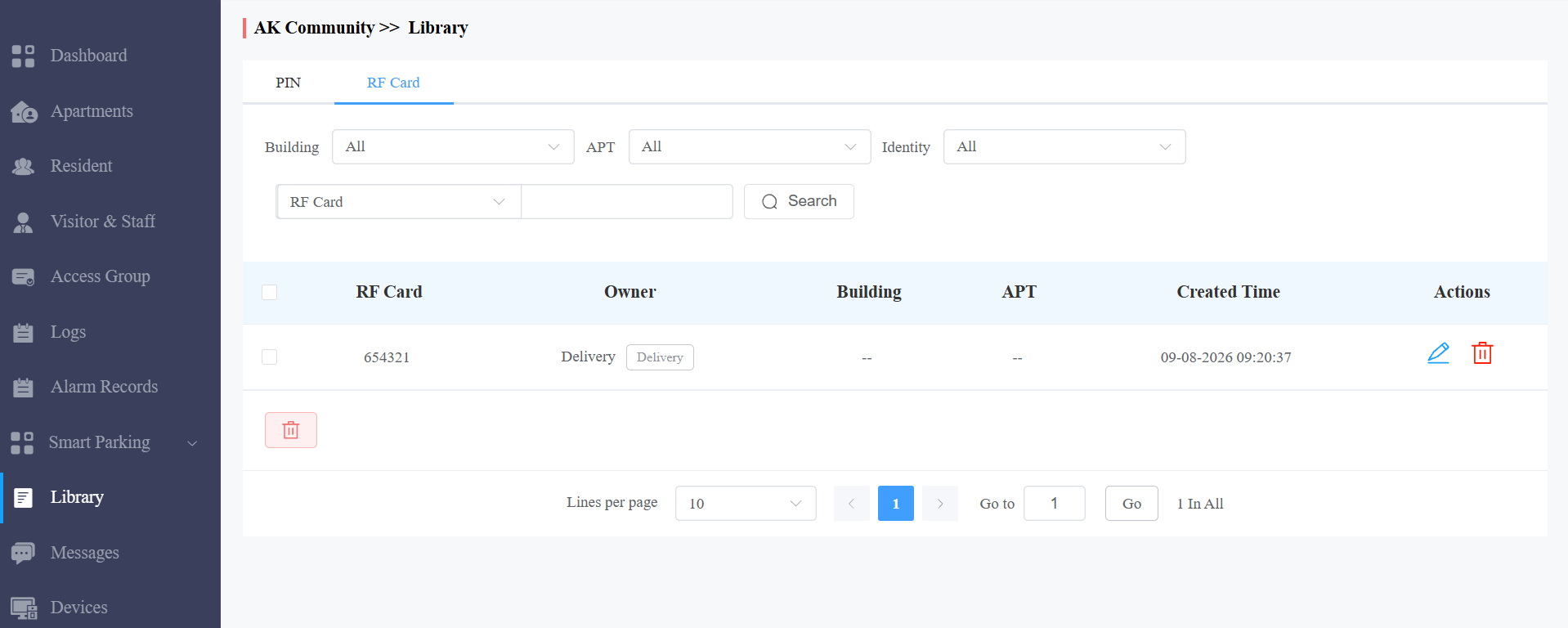
Click RF Card.
Search the RF card by building, apartment, identity, PIN code, and name.
Click
to edit the card.Click
to delete it.
Messages
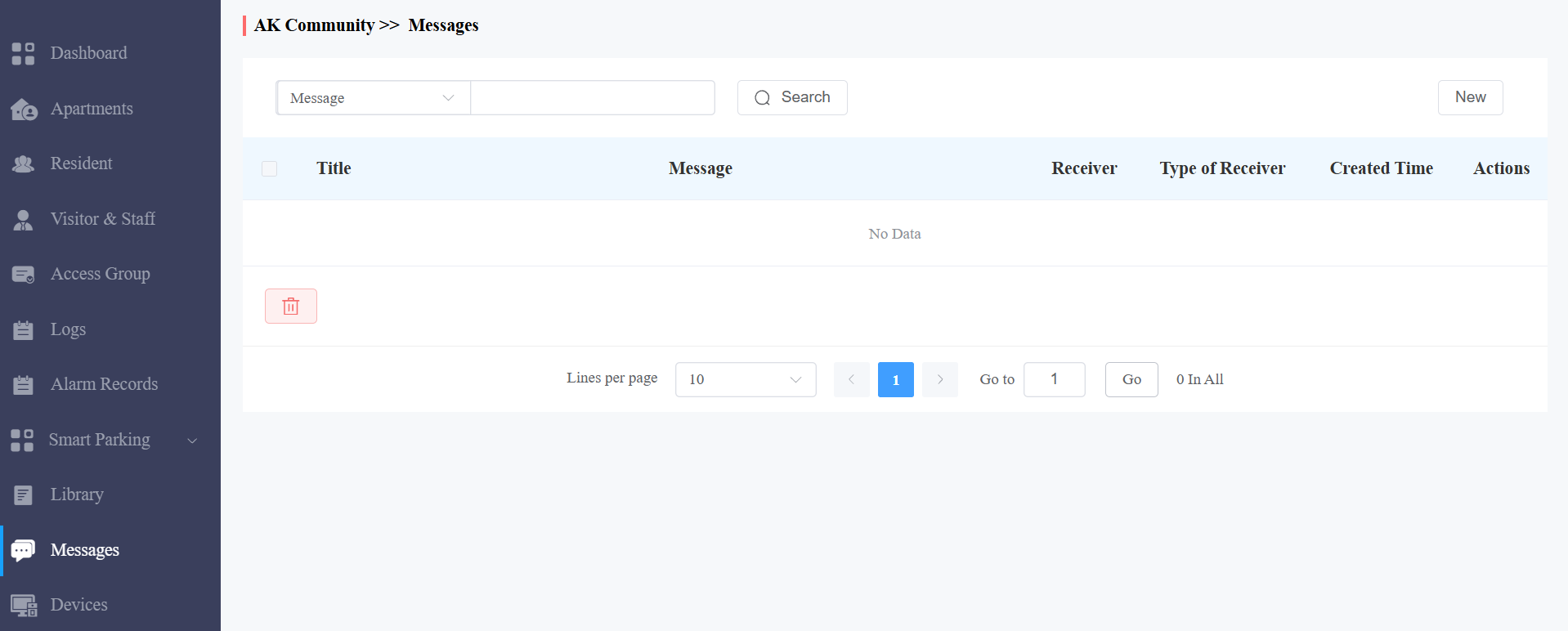
The messages module allows you to create and send messages to the residents living in the community. Moreover, you can check the messages that have been sent if needed.
Create/Edit Messages
You can create one-time messages or message templates for your convenience.
Click New.
Create the message title and content if you want to create a one-time message(s). Select the receiver type.
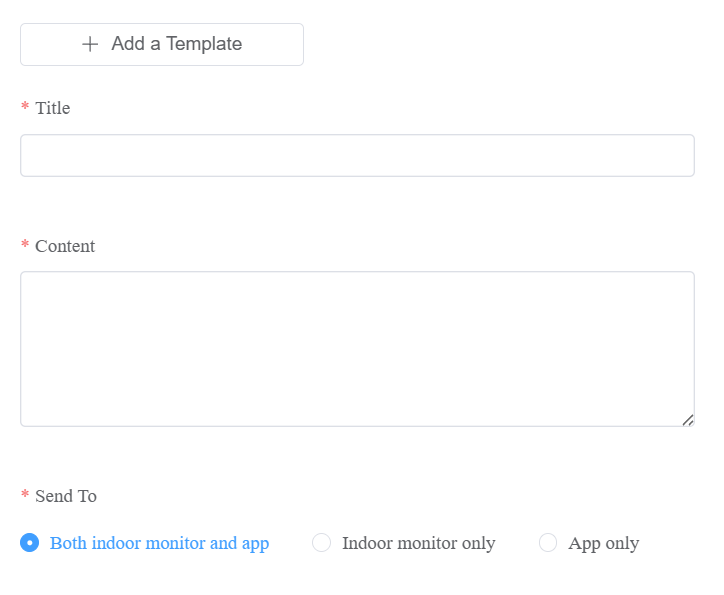
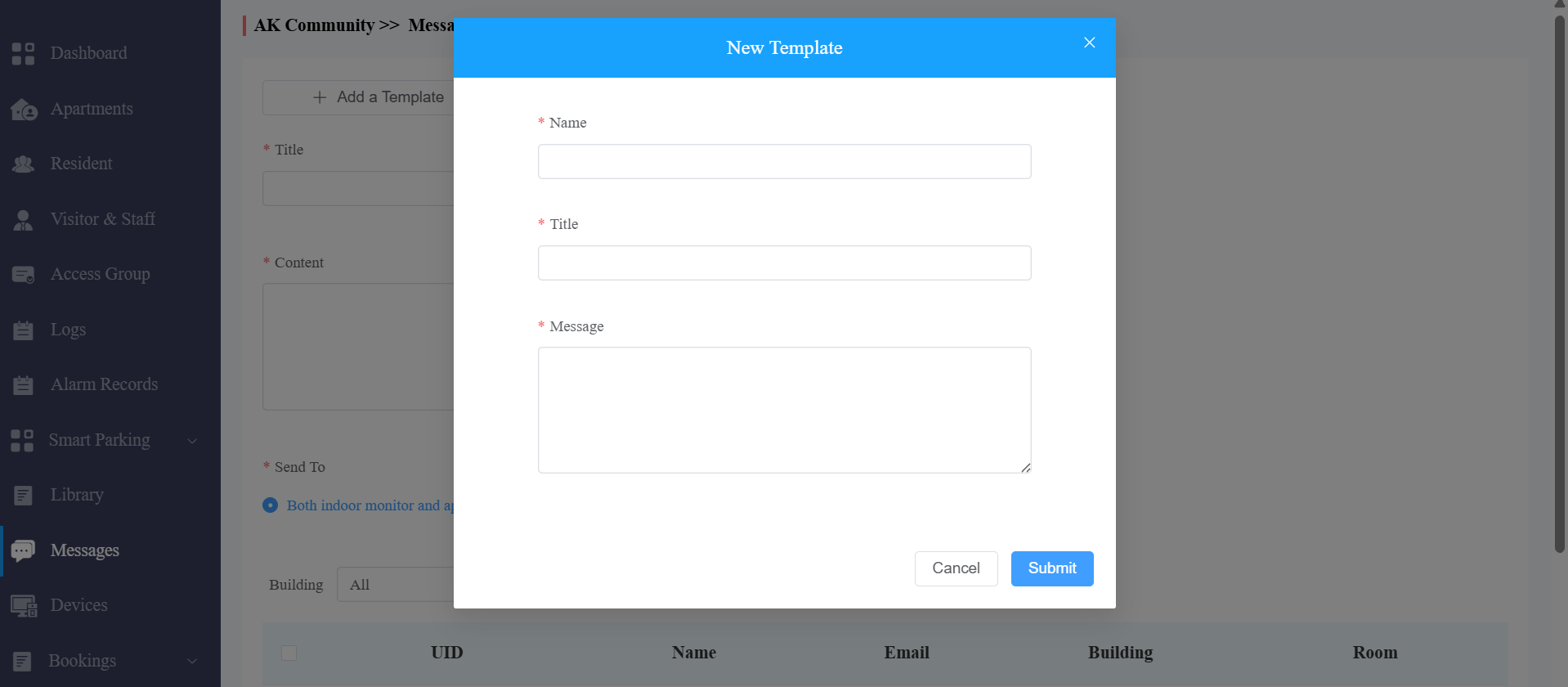
Click + Add a Template if you want to create reusable message templates. You can create up to 30 templates.
Enter the template name, the message title, and the contents.
You can edit and delete the message template if needed.
Move the arrow to the created message template.
Click
 if you want to delete the template directly.
Click
 to edit the message template you created.

Send Messages
After the message is created, you can send the message to the targeted resident(s) as needed.
Select the building(s) in the community.
Select and tick the checkbox of the targeted resident(s) by their UID (user identification), name, and Email, or select All to include all the residents, then click Search.
Click on Send to send the message to the targeted resident(s).

Search/Check/Delete Messages
You can search, check, and delete messages if needed.
Enter the part of the message ( or the complete message) for a fuzzy search.
Click Search to find the message you need.
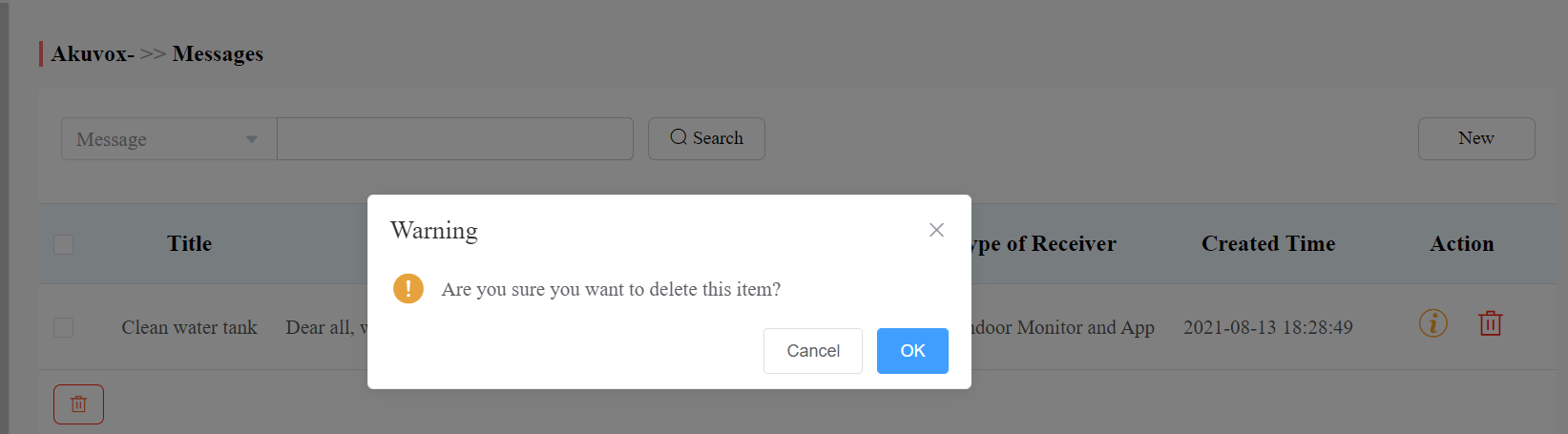
Click
 if you want to see the details of the message(s).
Click
 to delete.
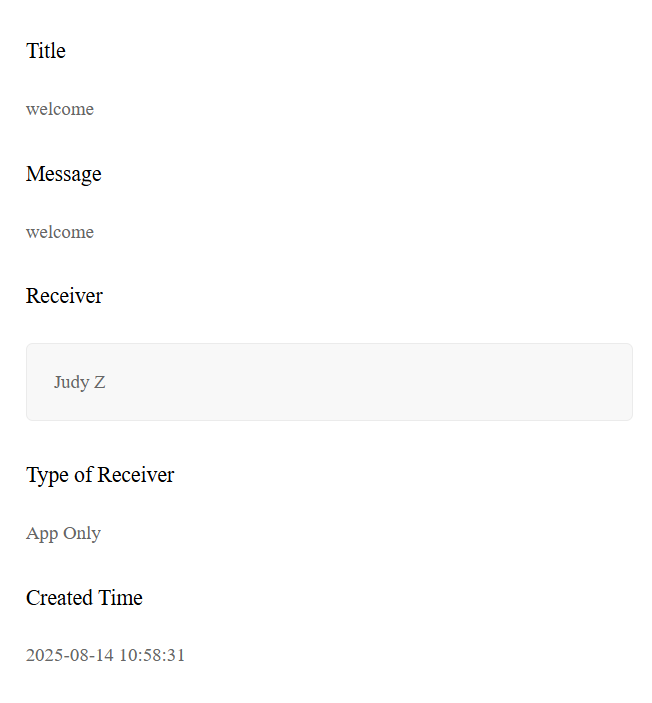
Parameter Set-up:
Column Name | Description |
Title | Shows the message title. |
Message | Shows the message contents. |
Receiver | shows who has received the messages. |
Type of Receiver | Shows the receiver types: Both indoor monitor and app, Indoor monitor only, App only. |
Created Time | shows when the messages were created. |
Actions | Click |
 to see the message details and to delete the messages respectively.
Message Details Sample
Device Management
Devices module allows you to manage all the devices added under your property management in terms of modifying device names, contact screen display, relays, and door unlock.
You can also conduct device settings via provisioning, reboot, reset, and remote control. And you can change the device name for the third-party camera.
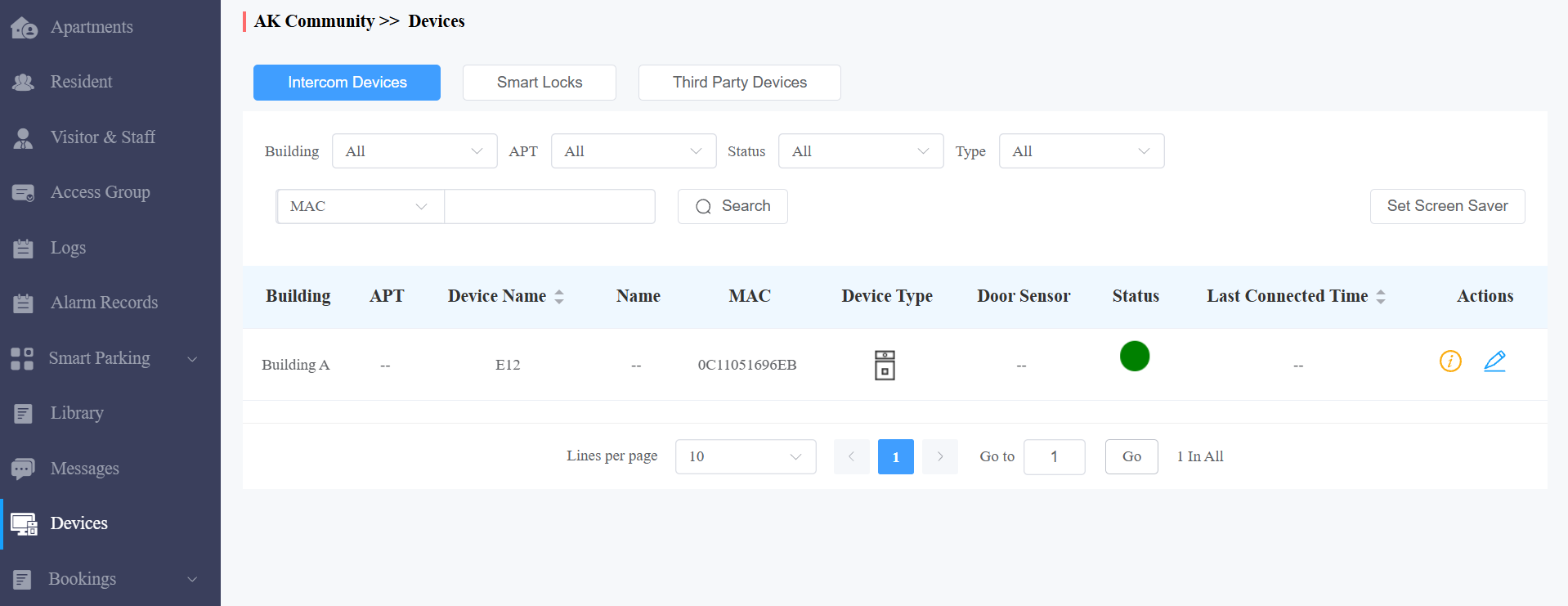
Modify Intercom Devices
You can modify the contact screen display, device name, relay name, DTMF code, and unlock type as previously set up by your community manager.
Click Devices > Intercom Devices.
Click Search to find the targeted device(s) for the modification.
Note
Door Sensor indicates whether the door is open or not.
: Close
: Open
To learn about supported door phones and the steps for displaying door status, please refer to Display and Check Door Status.
Click
 .
.
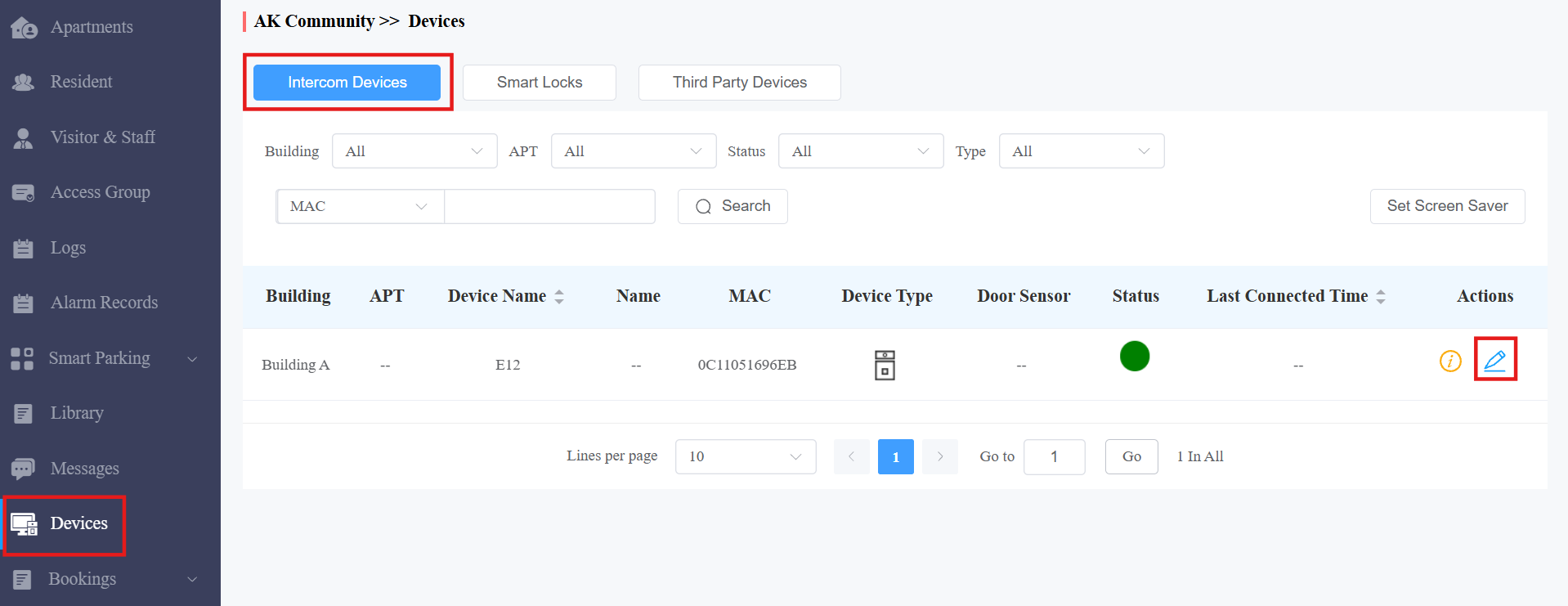
Modify the settings.
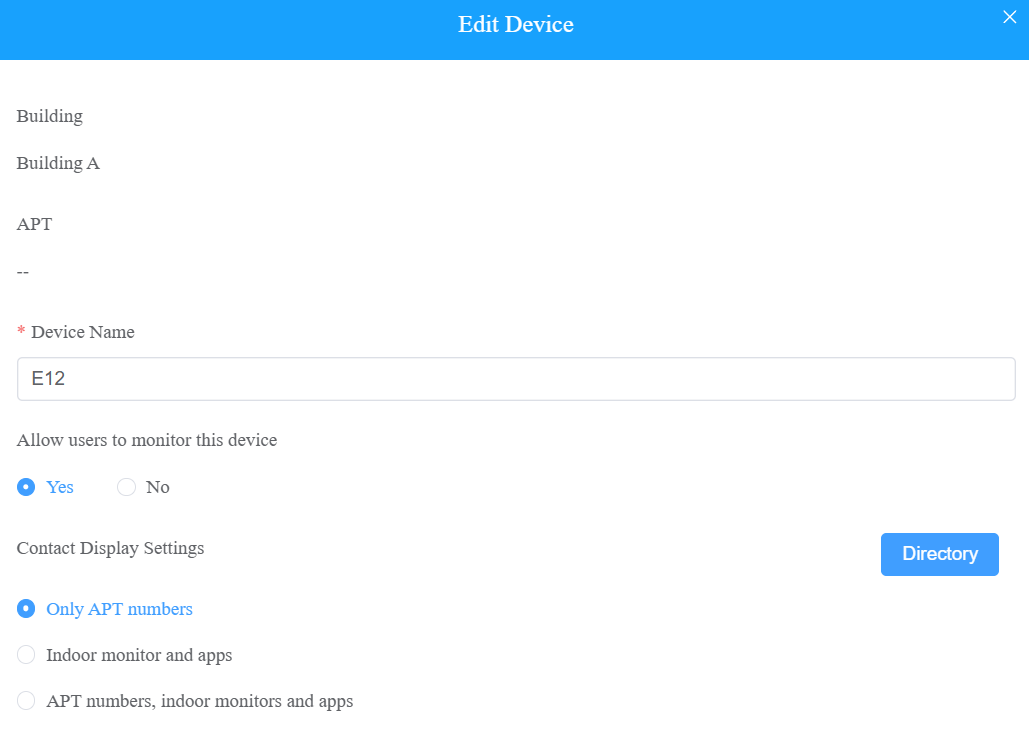
Regardless of the device type, you can check where the device is installed and modify the device name. | ||
No. | Field Name | Description |
1 | Building | Indicates which building the device is located in. |
2 | APT | Indicates which apartment the device is located in. |
3 | Device Name | Distinguish the device from others. |
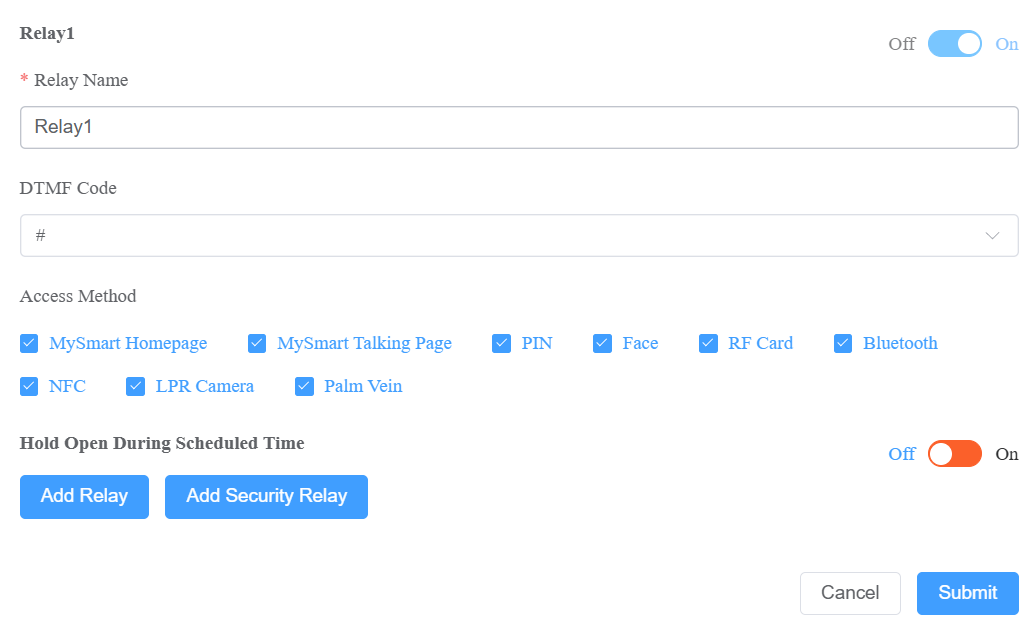
If it is a door phone or an access control, you can configure the following options. | ||
1 | Allow users to monitor this device? |
|
2 | Contact Display Settings | The option is available for devices installed in the public area of specific buildings, and the device type is Multi-tenants Doorphone. Choose what to be displayed on the device’s directory screen. Note: The following models with specific firmware versions or higher support the Directory selection feature:
|
3 | Relay Name | Name the relay to distinguish it from others. |
4 | DTMF code | Enter the DTMF code for the door access. |
5 | Access Method | Select specific unlock methods to trigger the desired relay. For example, if you select PIN in Unlock type for Relay1 and select RF Card for Relay2 when users enter PIN codes on the door phone, only Relay1 will be triggered, and vice versa. Note: If the MySmart Homepage or MySmart Talkingpage is not checked, the corresponding icons will not appear on the app home page. |
6 | Relay Schedule | Apply the access group to the desired relay. |
If it is an indoor monitor, you can configure the following options. | ||
1 | Relay | Turn on or off the device's built-in relay and name the relay. When the relay is enabled, specify its function from Door, Light, or Other. |
2 | External Device | When the device is connected to an external relay controller, enable this option. |
3 | External Device Type | Select the device type. Akuvox-MK485-G2R-8J8C V3.0 supports up to 8 relays, HF-8000 up to 4, and akubela RSAC-C1-R8 up to 16. |
4 | External Device Mode |
|
5 | IP Address | When Ethernet is selected as the external relay mode, enter the IP address. |
6 | Port | When Ethernet is selected as the external relay mode, enter the port. |
7 | Relay Name | Name the external relay to distinguish it from others. |
8 | Relay Function | Define the relay function according to the device connected to the relay. |
Modify akubela Smart Locks
You can check and edit the akubela smart locks(SL20, SL21, and SL50) added by your installers or residents.
Click Devices > Smart Locks.
Click to
 view the lock details; clickto change the lock name.
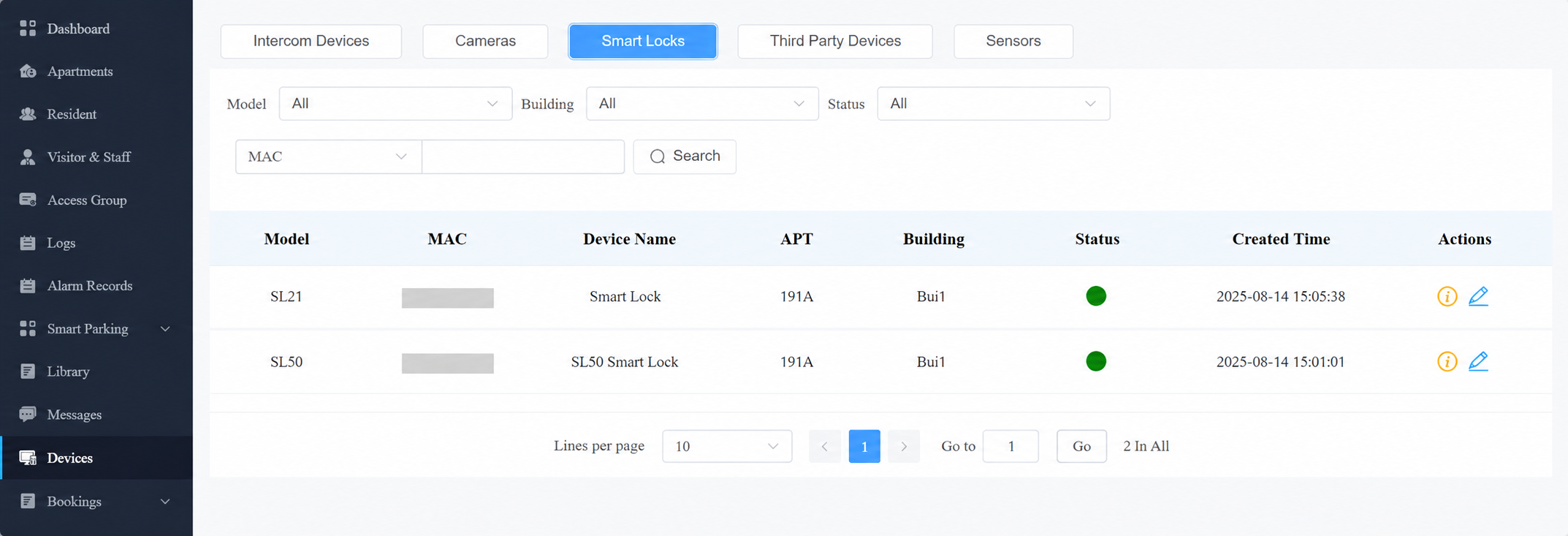
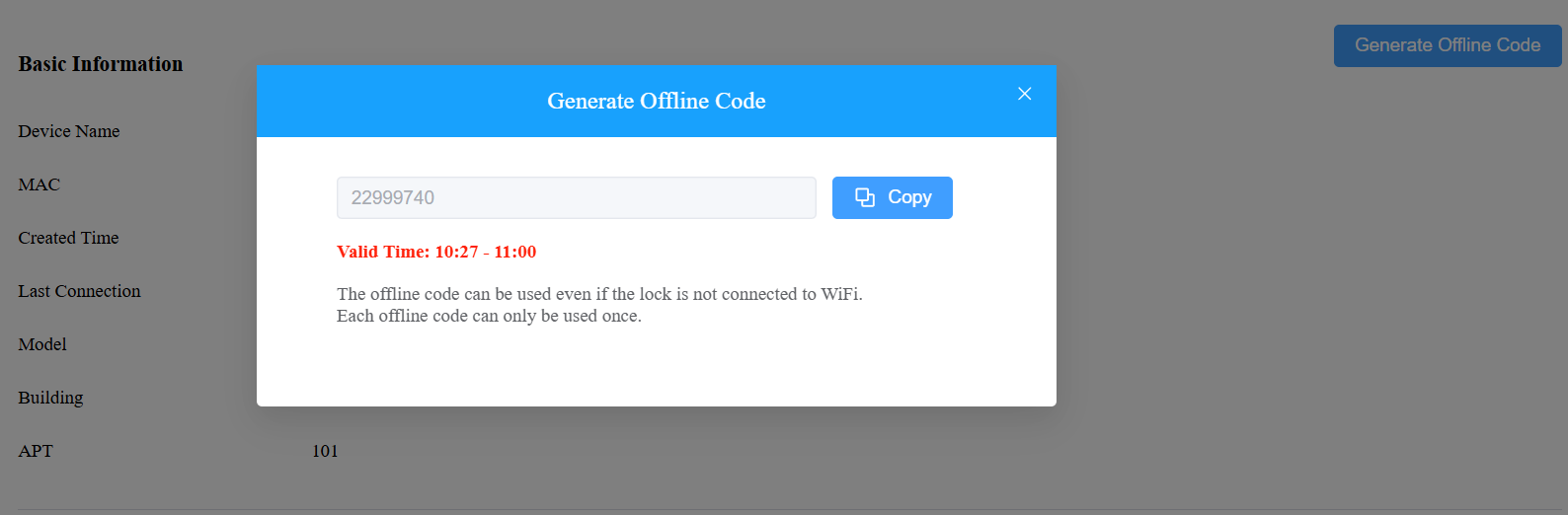
For SL21 locks, you can generate the one-time password for tenants.
Click
> Generate Offline Code.
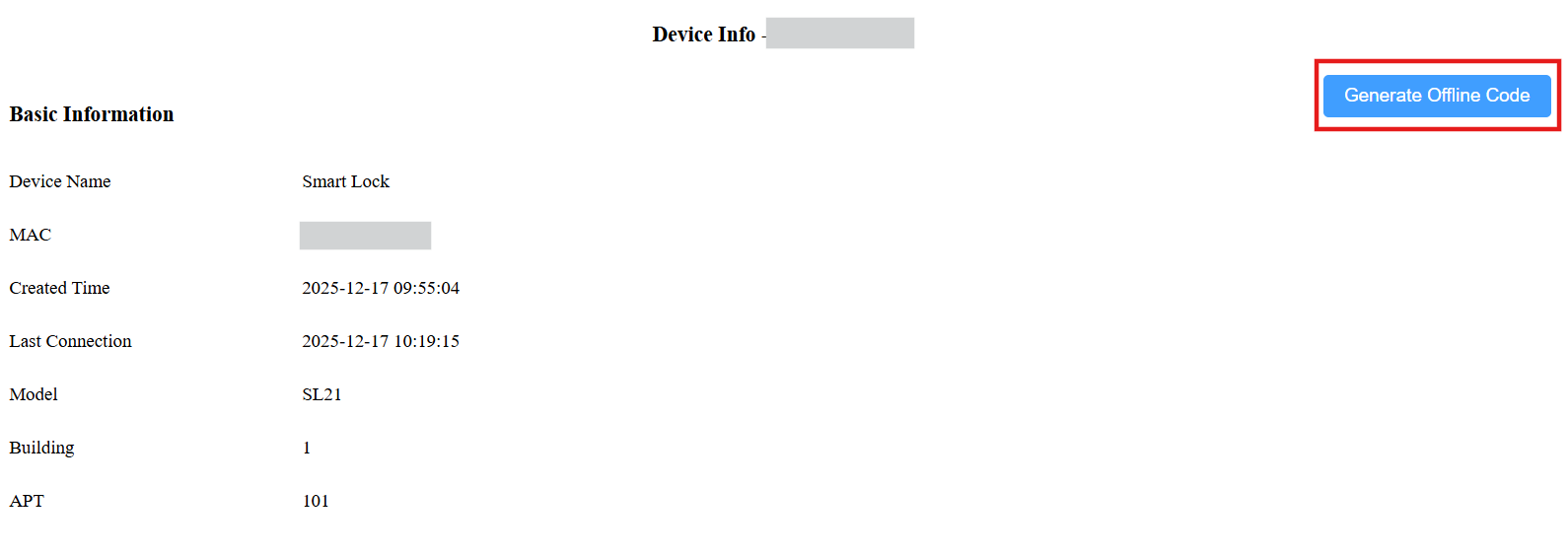
Copy and send the code to the tenant who must use the code during the valid time.
Modify Third-Party Cameras
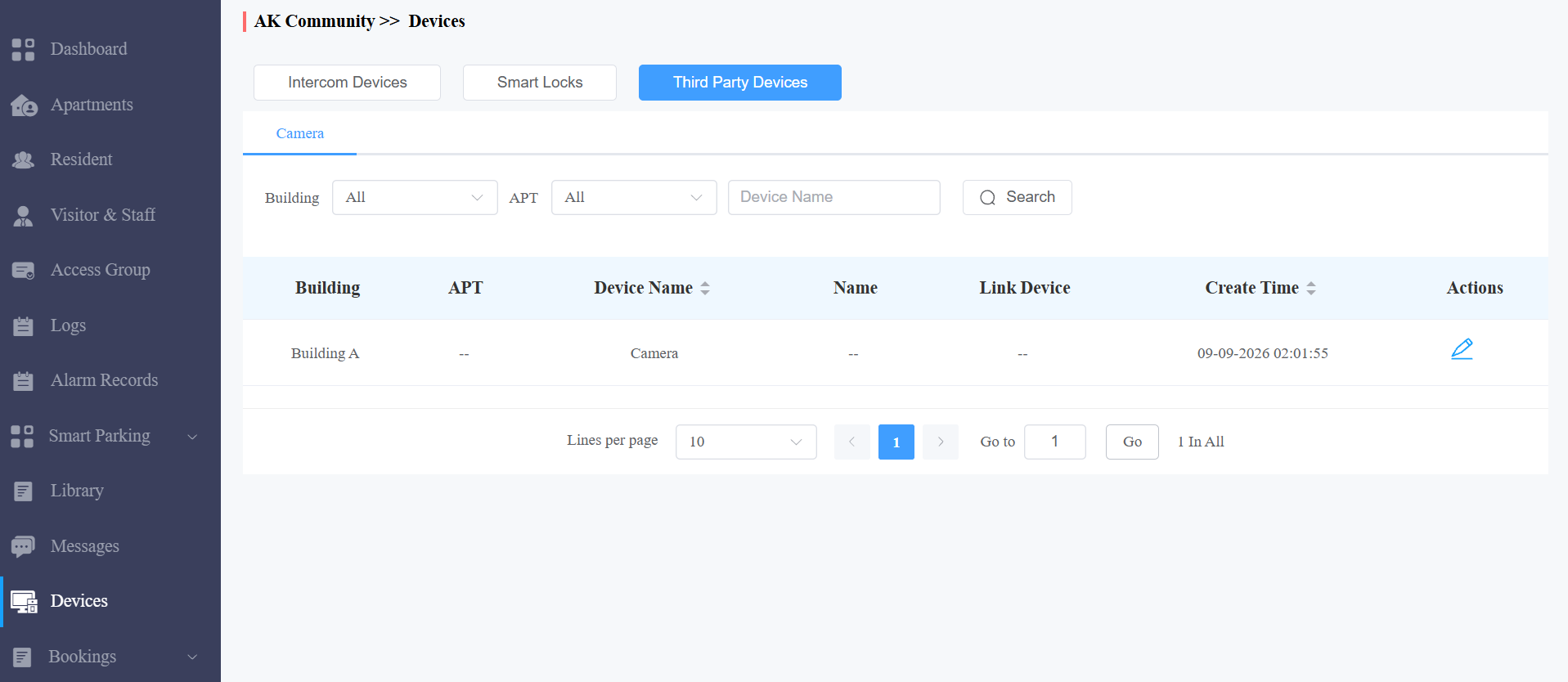
You can check and edit the third-party camera's information after installers add the devices to your projects.
Click Devices > Third Party Devices > Camera.
Click Search to find the targeted device(s) for the modification.
Click
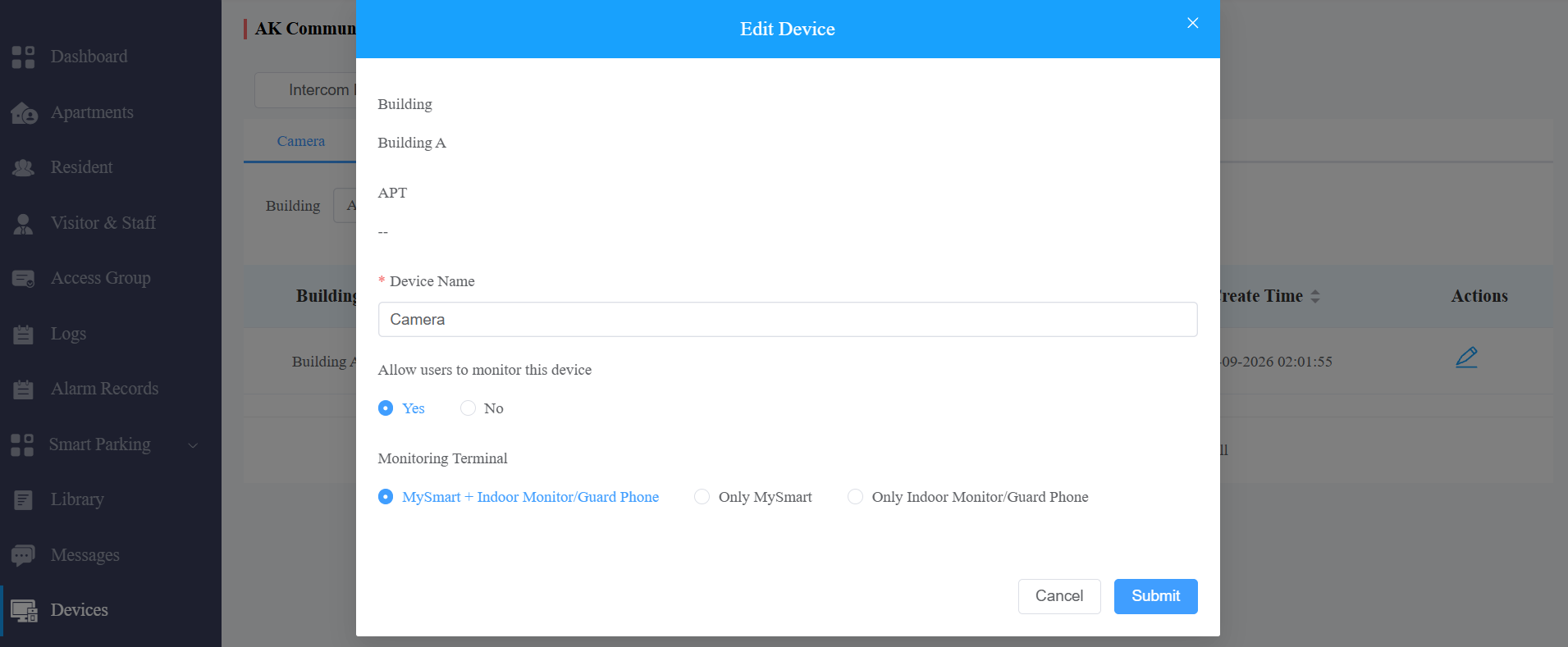
. You can:
change the device name;
set whether users can view the monitoring stream through their indoor monitors and MySmart Apps.
If Yes is selected, specify through which devices users can monitor.
Add Screensaver to Device
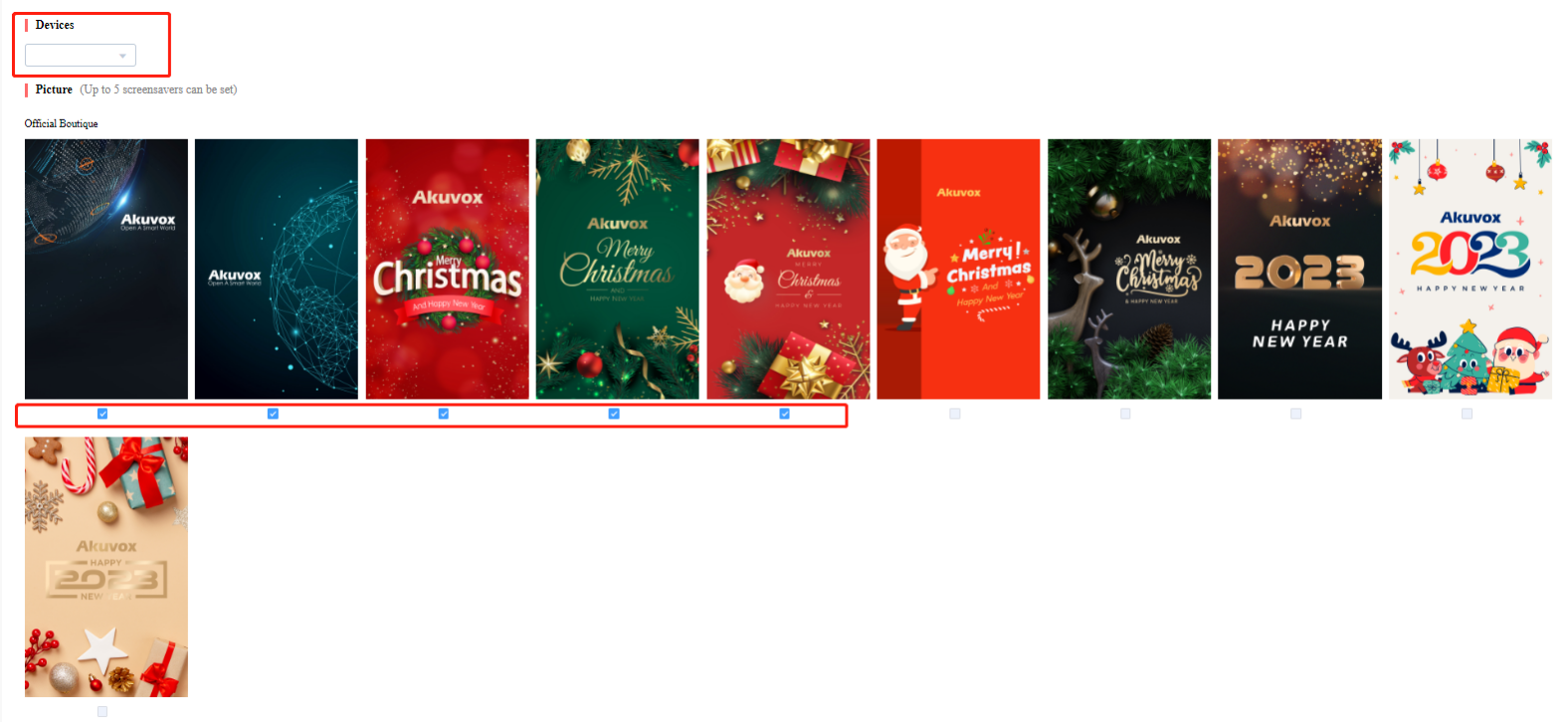
You can upload screensavers and synchronize them to the intercom devices. For example, you can select and synchronize welcome screensaver pictures to door phones for a special day, festival, holiday, or for some other commercial purposes.
Click Devices > Set Screen Saver.
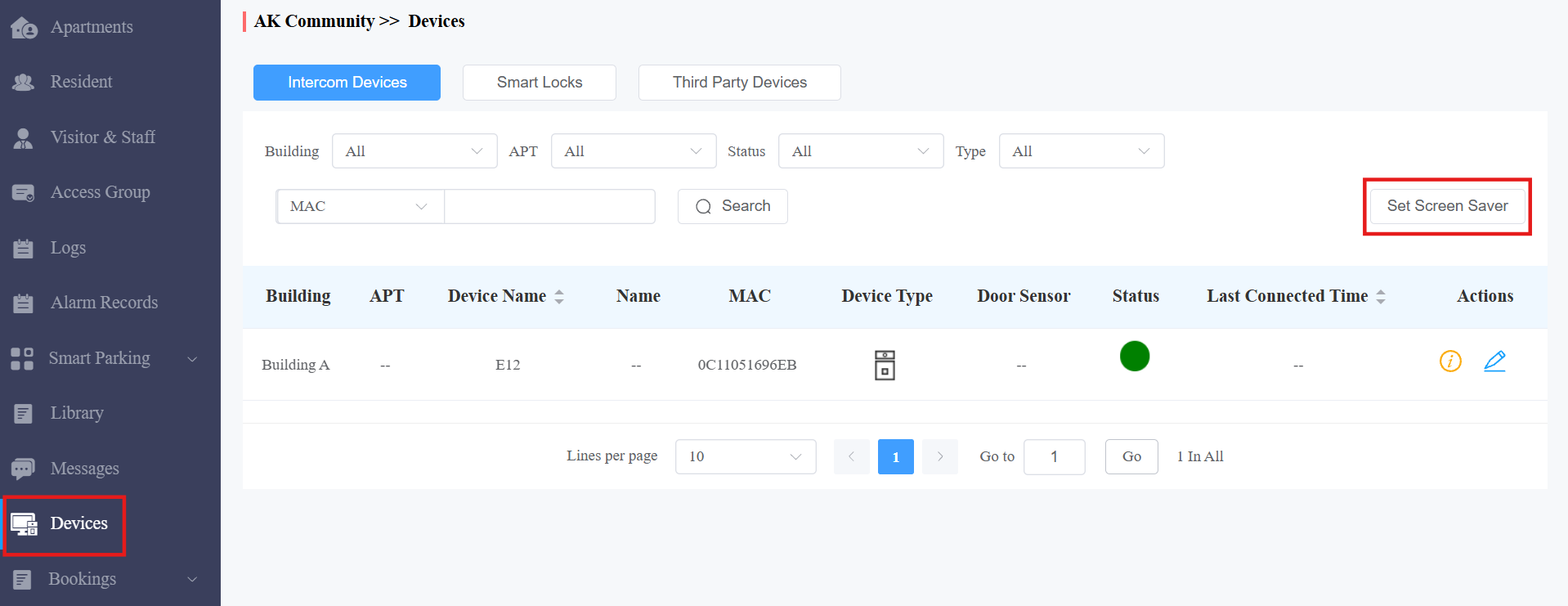
Click New.

3. Select the door phones to set up.
Compatible models and versions(or higher):
R29: 29.30.3.104
X915 V1.0: 915.30.1.408
X915 V2.0: 2915.30.10.8
X912: 912.30.10.225
S535: 535.30.10.233
S538: 538.30.10.705
4. Select from the default screensavers or upload custom screensavers you like. (2 pictures minimum and 5 pictures maximum).
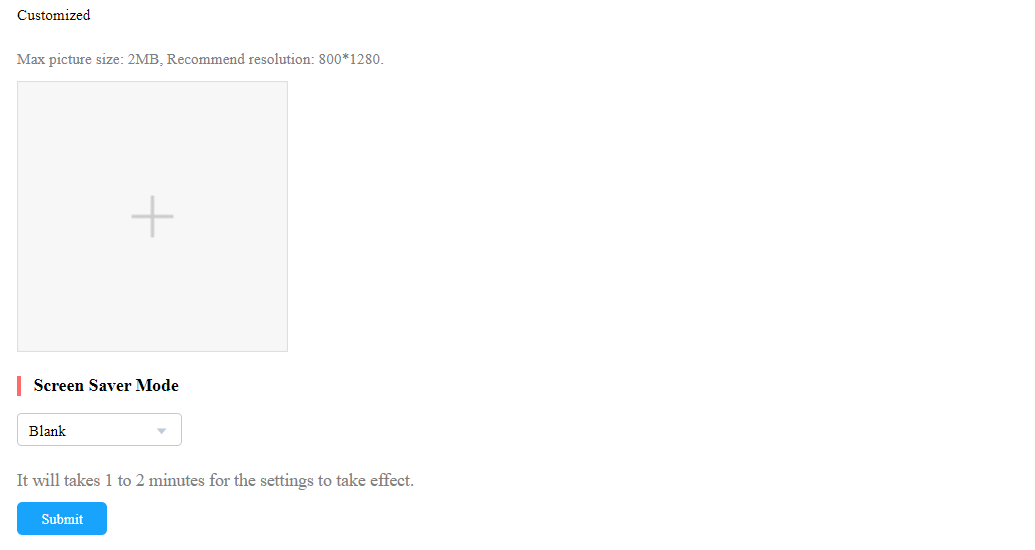
5. Select the screen saver display mode.
If you select the Image ( the fault mode), the door phone will display the screen-saver pictures you’ve added.
If you select None, the screensaver will be disabled.
If you select Black, the screensaver will be black.
Device Setting
The device module allows you to configure the device data transmission types, reboot and reset the device, remotely control the device’s web interface, and conduct provisioning for the devices.
Click
 of the specific devices.
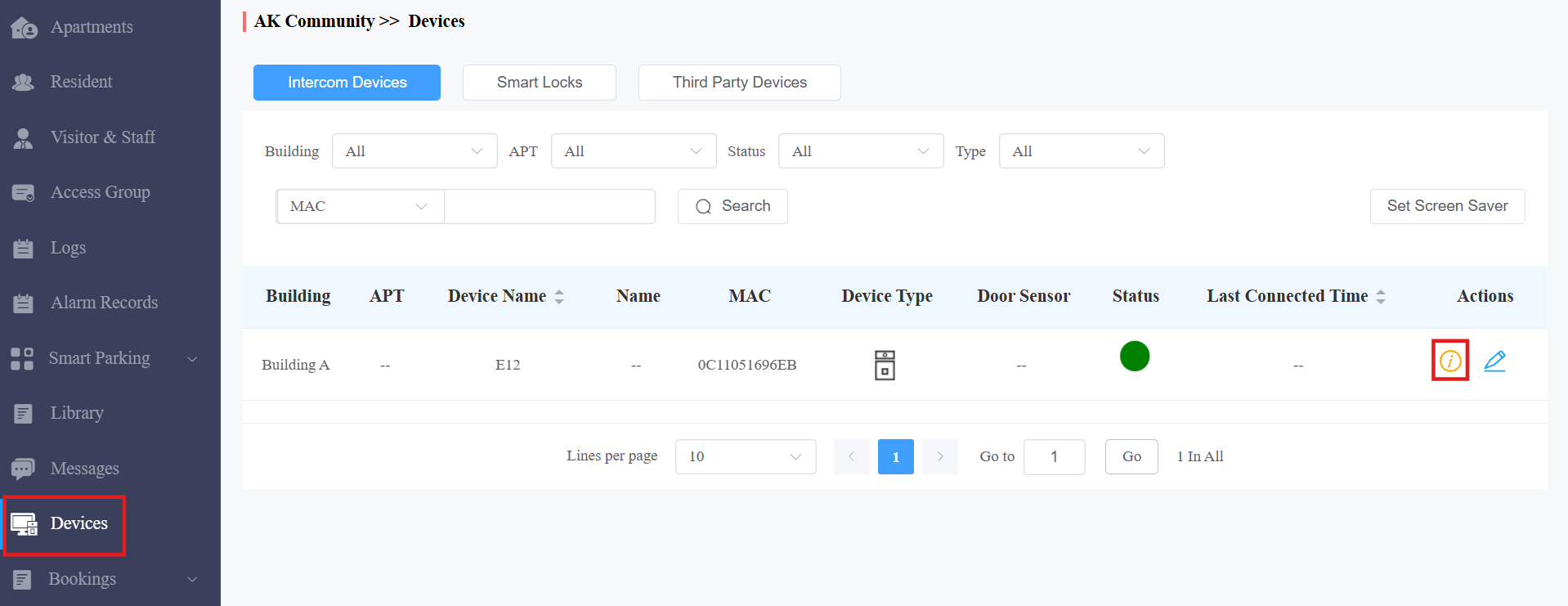
Click on Settings.
Note
If the device model is R20K or R20B and connected to an expansion module(MD06/MD12), a Push Button Setting option will be available for you to set up the expansion module.
Click here to view the details of setting up the expansion unit.

Configure the device data transmission type in the Connect Type field.
Reboot, reset, or log into the device web interface remotely via remote control.
Enter the commands for the Auto-provisioning, then click on Submit.
.png)
Click One Time AutoP if you only want the Autop command(s) to be implemented one time.
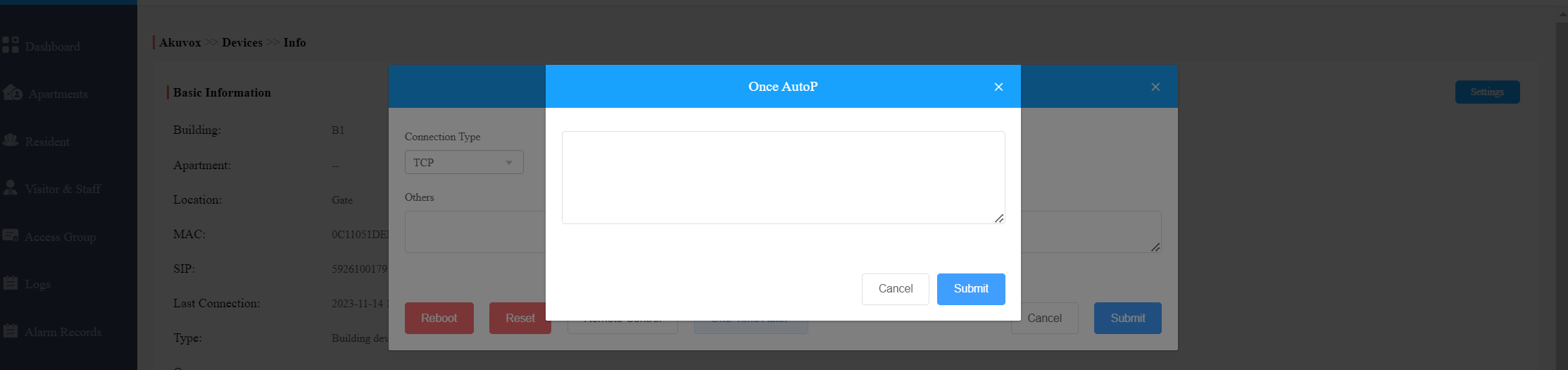
Note
Duplicate commands will not be retained.
One-Time Autop allows you to carry out the Autop command(s) only once with no repetition.
Settings
The Settings module allows you to configure and modify basic settings, time settings, motion detection, visitor access, and emergency settings.
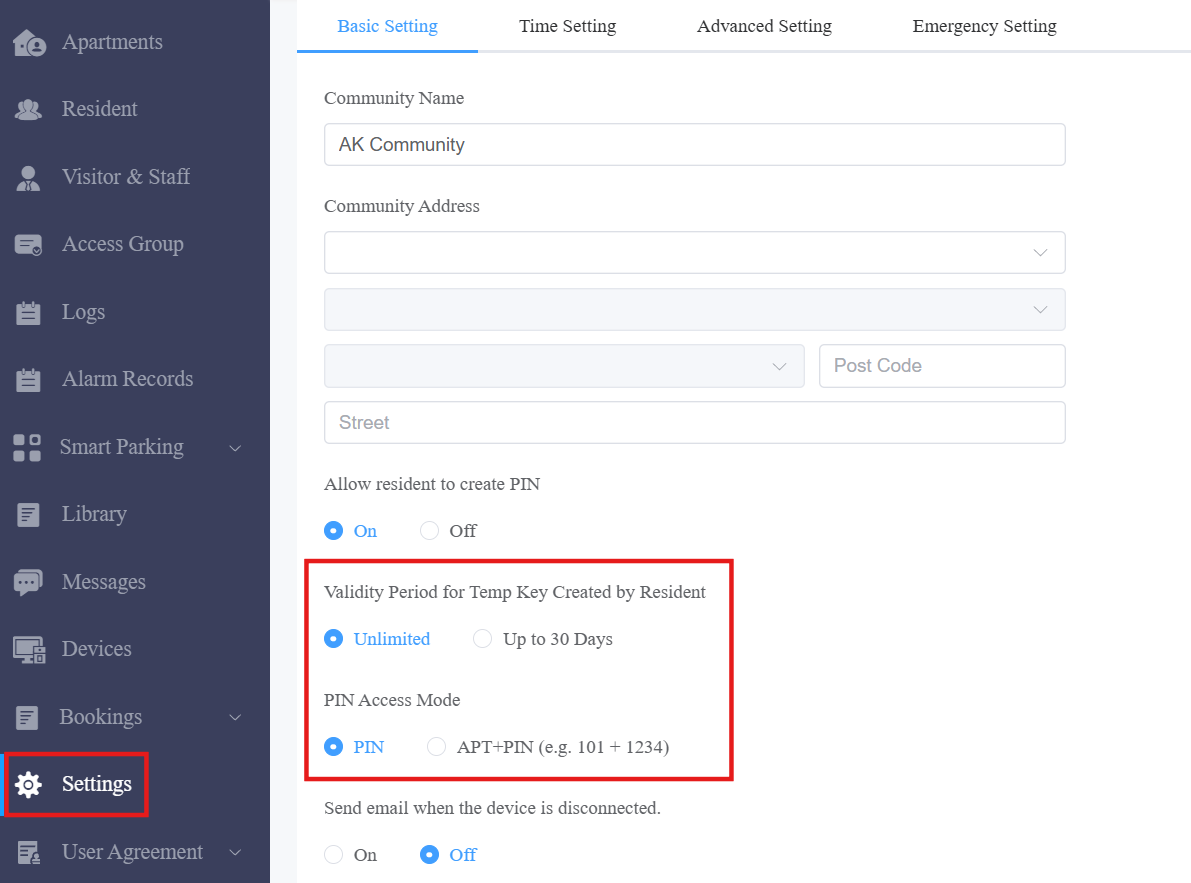
Basic Setting
You can configure and modify the community information, residents' permissions, and email notifications.
Validity Period for Temp Key Created by Resident:
Unlimited: The temp key's validity time follows the settings on the resident's MySmart App.
Up to 30 Days: The temp key is valid for 30 days at most.
PIN Access Mode:
PIN: Directly enter PIN for door access.
APT+PIN: Enter the apartment number and the PIN code for door access.
Time Setting
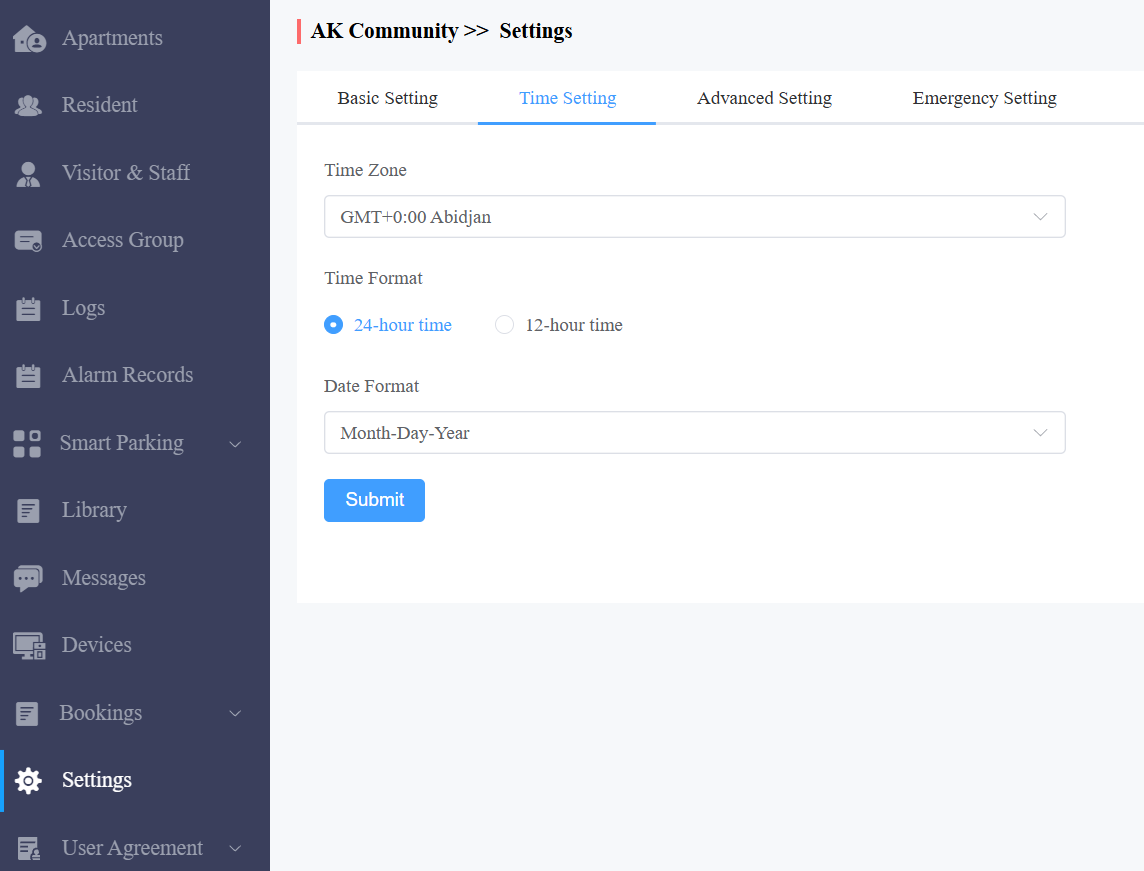
You configure and modify your time settings based on your geographical location and time zone.
Select Time Setting.
Select your time zone.
Select your time format (24-hour or 12-hour format).
Select your data format(Y/M/D; M/D/Y; D/M/Y).
Click Submit for validation.
Motion Detection
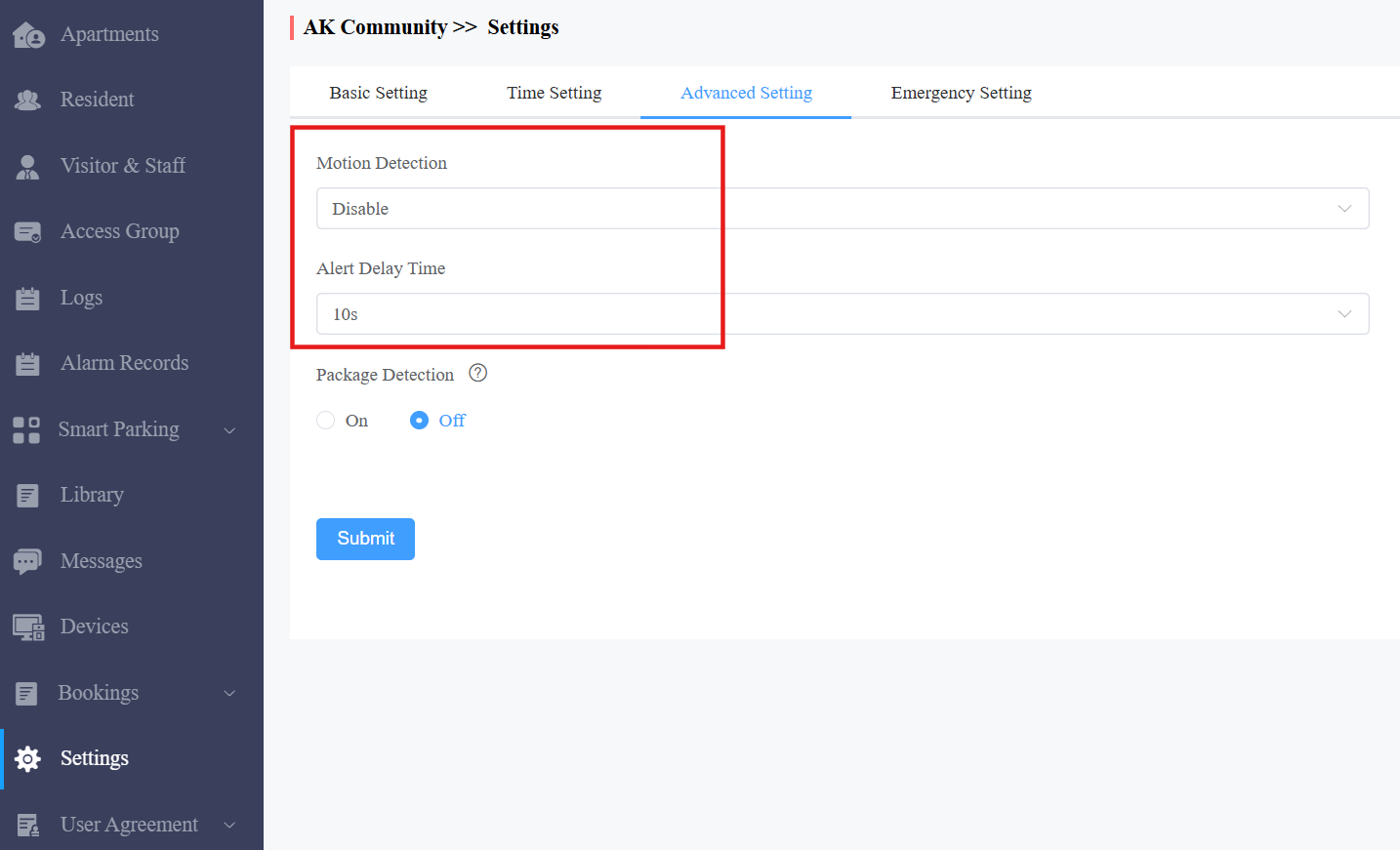
You can not only enable and disable motion detection on the door phone but also set up the device's motion detection type and alert trigger delay if needed.
Click on Advanced Setting.
Click Enable or Disable the motion detection.
Select motion detection type: IR detection (IR sensor) or video detection.
Set the alert trigger delay time when the sensor is triggered.
Package Detection
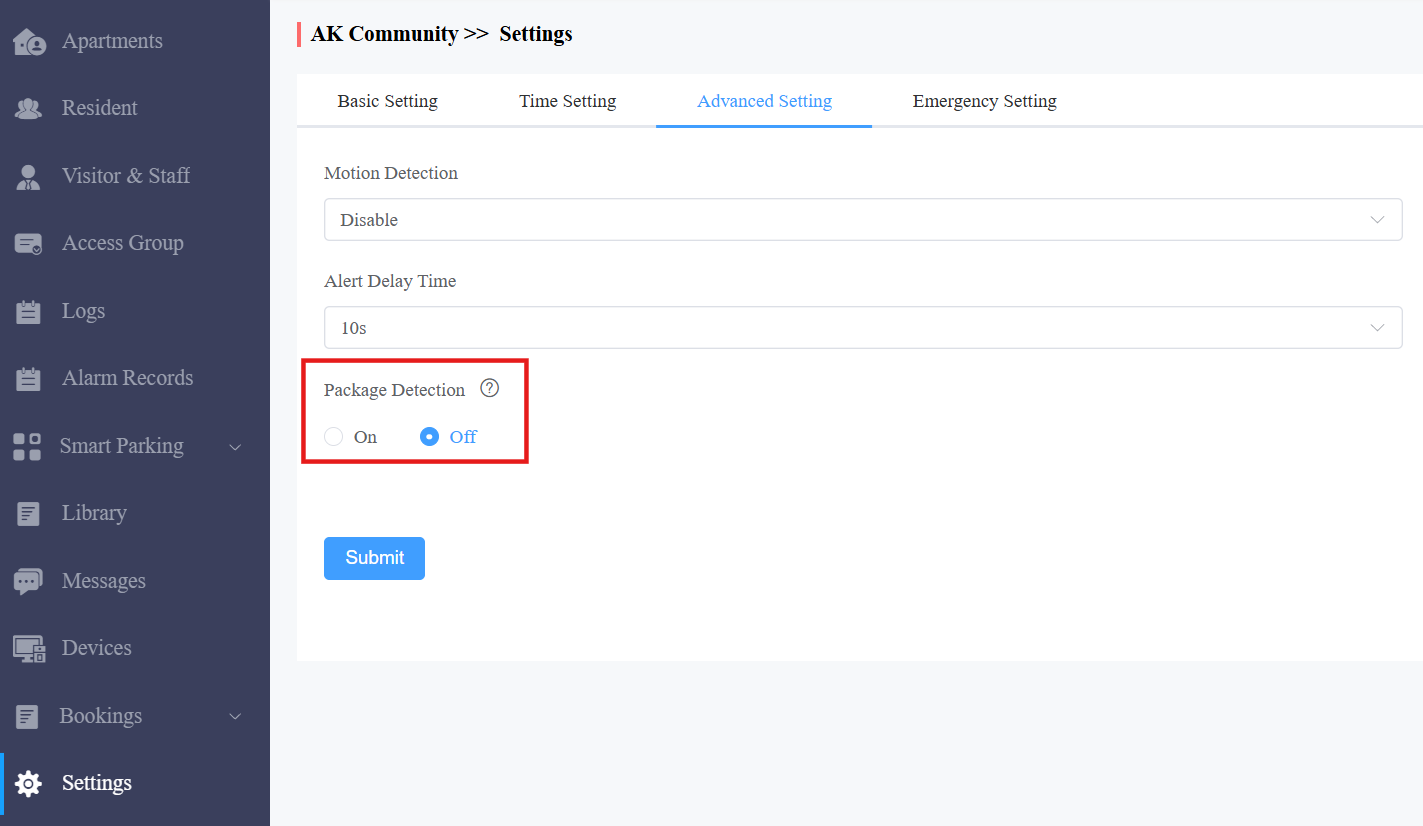
With this feature, the X910 door phone installed in public areas can send notifications to you and residents when packages are detected by the device's camera.
Click Advanced Setting and enable/disable the feature.
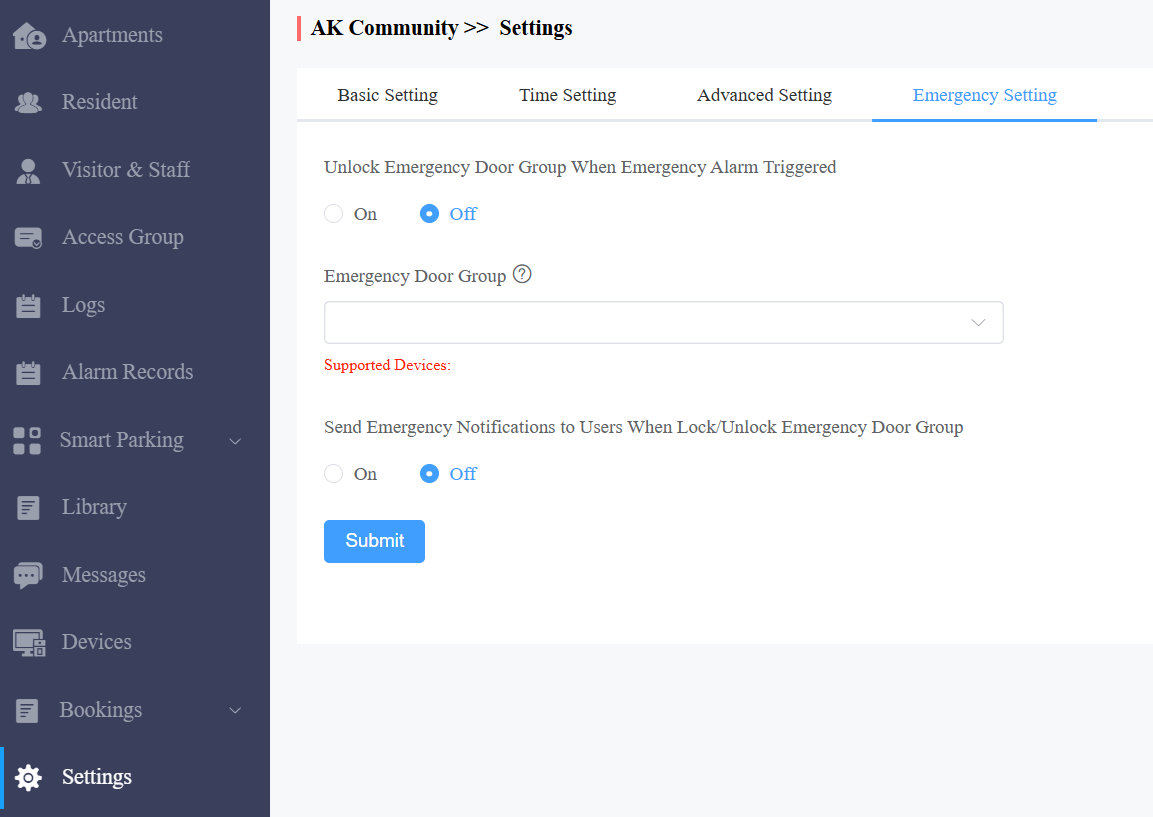
Emergency Action
You can make doors open or close automatically or manually during emergencies. For example, during a fire emergency, the doors can be opened automatically once an emergency alarm is triggered on any one of the door phones so that people can be quickly evacuated to a safer place. Also, you can open doors manually on the server in an emergency.
To configure it,
Go to Settings > Emergency Setting.
Select automatic door unlock or manual unlock.
Select On to open doors automatically when an emergency occurs
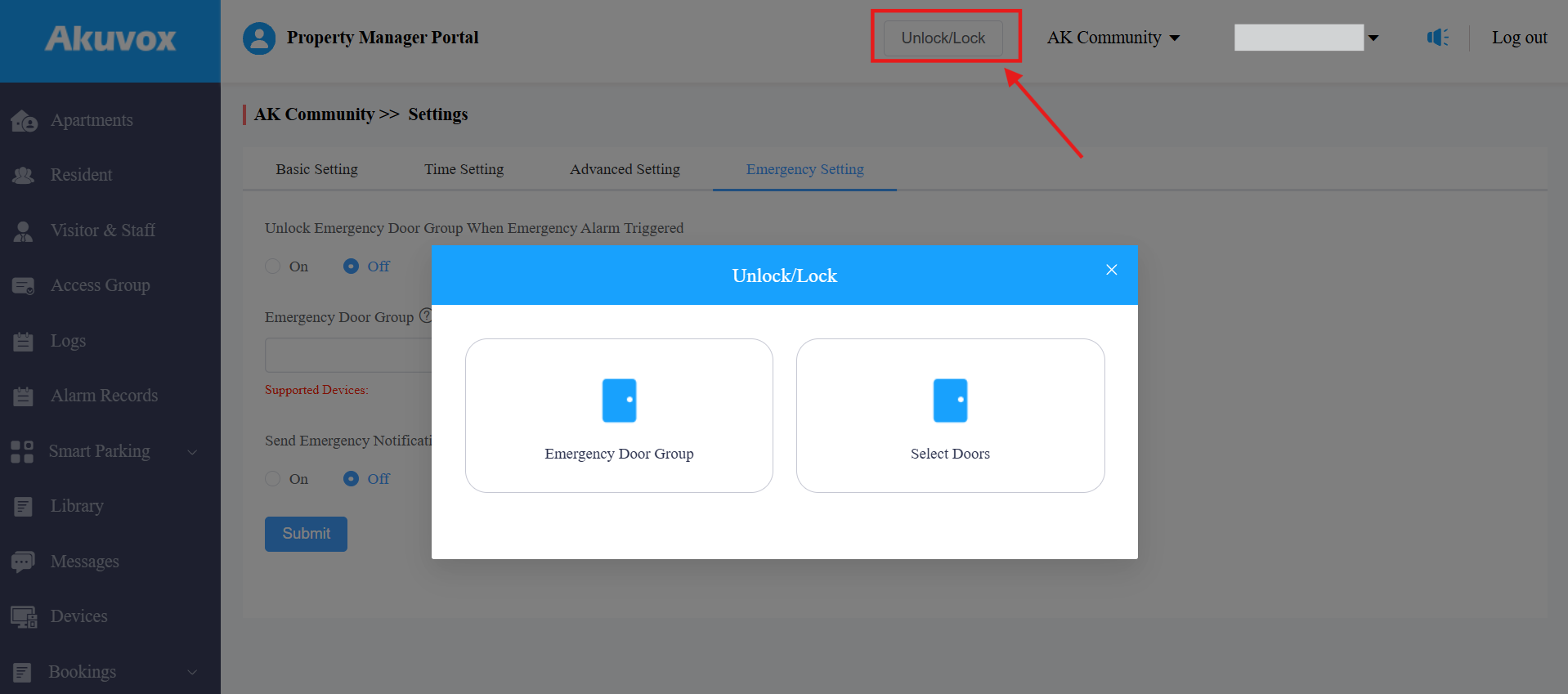
Select Off to open doors manually. You can click Unlock/Lock near the top of any interface to open or close the doors manually.
Set the Emergency Door Group. You can select All Doors or specific doors to open during an emergency.
Select whether to send notifications to users' MySmart Apps and indoor monitors. When enabled, both devices will push a notification when the emergency unlock happens.
Click Unlock/Lock to open or close doors manually.
Emergency Door Group: Open/close doors you select in the emergency door group.
Select Doors: Open/close specific doors.
Alarm Records
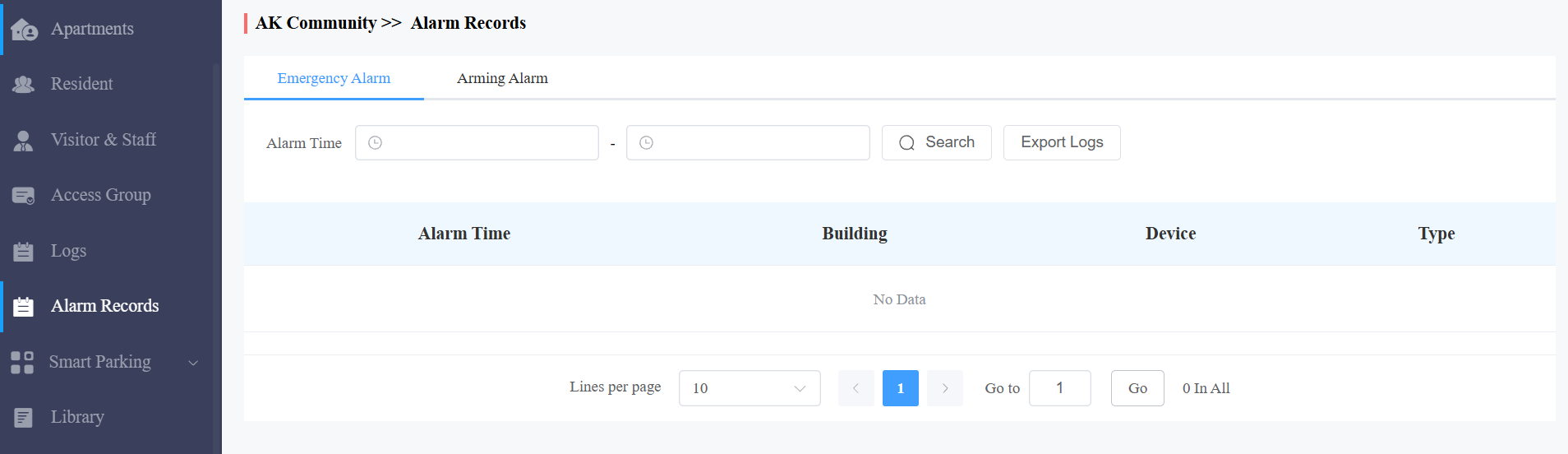
The server currently supports : Emergency Alarm and Arming Alarm.
Check alarm records by clicking Alarm Records in the left-side bar.
Emergency Alarm displays the alarms triggered by emergency action.
Arming Alarm displays the alarm records uploaded by the indoor monitor in the community.
Privacy Policy
You will see the Privacy Policy and Terms of Service window when you log into the platform for the first time.
The Privacy Policy tells you how the user data is collected, used, and protected.
The Terms of Service outline the rules and guidelines for using the MySmart service.
Only after you click Agree can you log in to the MySmart platform.
Contact Us
For more information about the product, please visit us at www.akuvox.com, or feel free to contact us by
Sales email: sales@akuvox.com
Technical support email: support@akuvox.com
Telephone: +86-592-2133061 ext.7694/8162
We highly appreciate your feedback about our products.