User-specific Access Methods
The private RF card and face setting should be assigned to a particular user for door opening.
When adding a user, you can also customize settings such as defining the door access schedule to determine when the code is valid and specifying which relay to open.
To add a user, go to Directory > User interface and Click +Add.
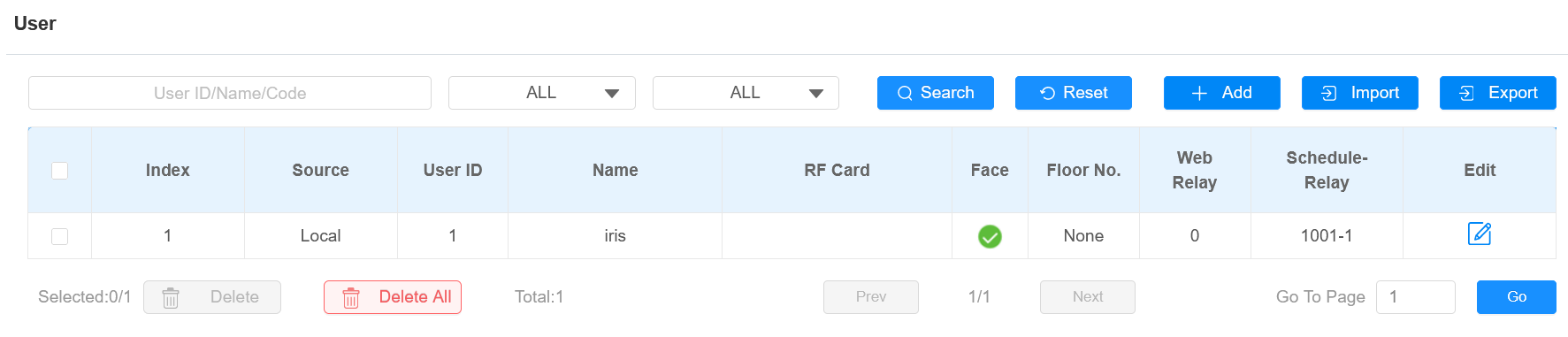

User ID: The unique identification number assigned to the user.
Name: The name of this user.
Unlock by Private PIN Code
When the device is connected to a Wiegand keypad, it can receive Wiegand data. Users can enter the PIN code on the keypad to open doors.
On the Directory > User > +Add interface, scroll to the PIN(For Wiegand Use) section.

Unlock by RF Card/Bkey
On the Directory > User > +Add interface, scroll to the RF Card section.
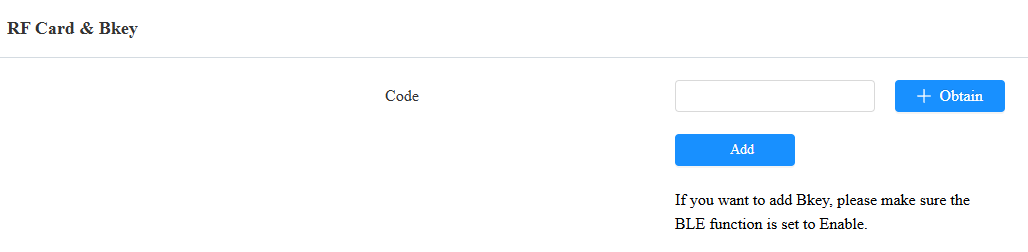
Code: The card number or Bkey code that the card reader reads.
Note:
Click here to view the detailed steps of configuring Bkey.
Each user can have a maximum of 5 cards added.
The device allows to add 20,000 users.
RF cards operating at 13.56 MHz frequencies are compatible with the device for access.
A05 only supports IC cards.
RF Card Code Format
To integrate the RF card door access with the third-party intercom system, you need to match the RF card code format with the one used by the third-party system.
To set it up, go to Access Control > Card Setting > RFID interface.

IC Card Display Mode: Set the card number format from the provided options. The default format in the device is 8HN.
Bkey Trigger Signal
The Bkey trigger signal determines the distance within which users can press the Bkey to open the door.
Set it up on the Access Control > BLE interface.
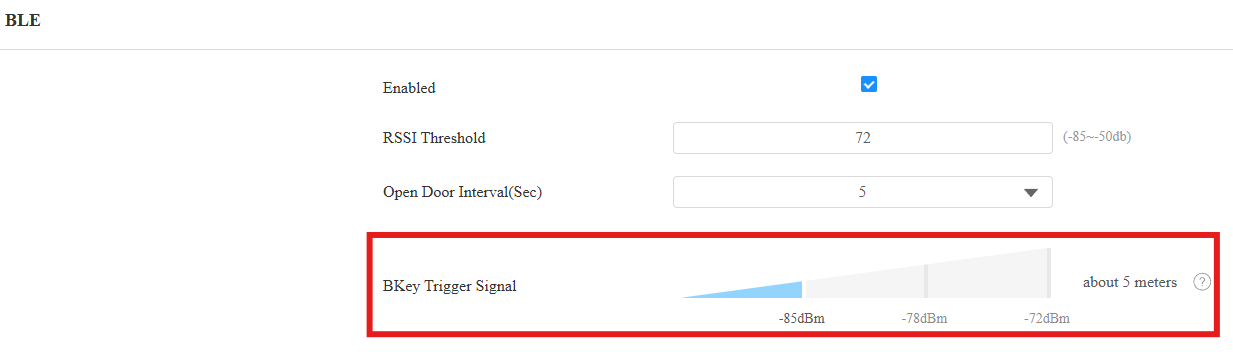
Bkey Trigger Signal: Three ranges are available, setting door opening distance to about 5 meters, 3 meters, and 1 meter.
Unlock by Facial Recognition
On the Directory > User > +Add interface, scroll to the Face section. Click Import to upload the file and click Reset to remove it.

Note
Support Format: jpg, png, bmp, and jpeg.
Face Settings
You can adjust facial recognition accuracy, recognition intervals, and more to enhance user experience.
To set it up, go to Access Control > Face Setting interface.
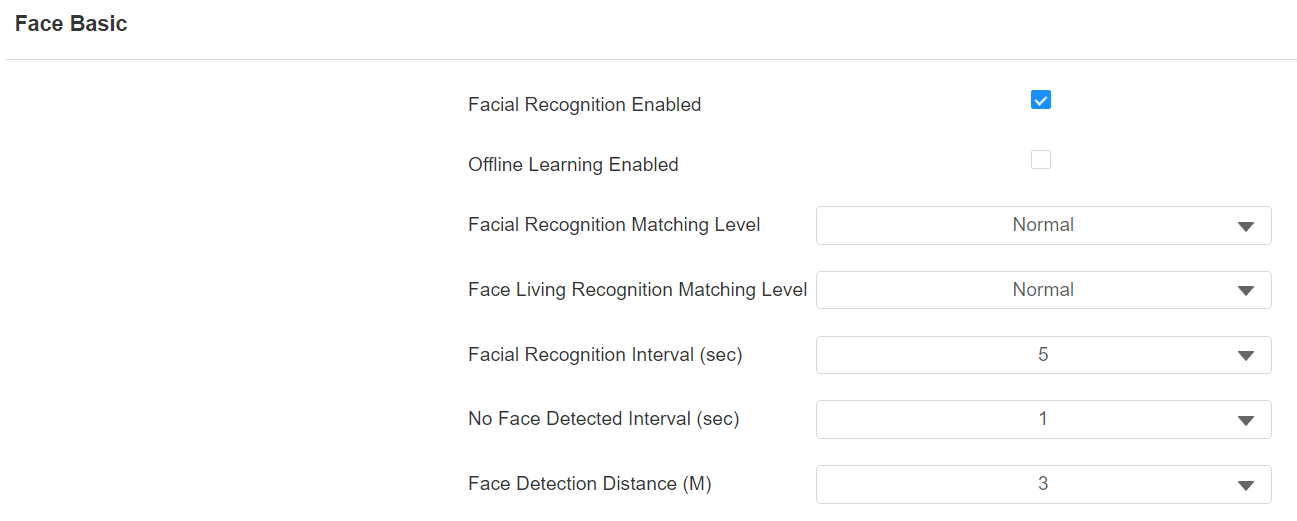
Facial Recognition Enabled: Enable/disable the facial recognition function.
Offline Learning Enabled: Facial recognition accuracy improves as the number of facial recognition increases.
Facial Recognition Matching Level: Determine how strict the facial recognition system is in comparing a person’s face with uploaded face data. Each level allows a different degree of difference or face covering (excluding the mouth area) to pass the recognition.
- Low: Allow slight differences from the uploaded face data, with little face coverage.
- Highest: Require the face to be identical to the uploaded one, with minimal or no covering.
- The other two levels are in between.
Face Living Recognition Matching Level: Set how strict the system is in preventing fake faces.
- Close: Disable the facial anti-spoofing function. Facial verification can be passed using non-living substitutes for an authorized person's face, such as a photo.
- Highest: The system cannot be fooled by any non-living substitutes for an authorized person's face.
- The other three levels are in between.
Facial Recognition Interval(sec): Adjust the time interval between each facial recognition attempt, ranging from 1 to 8 seconds.
No Face Detected Interval(sec): Adjust the time interval between each facial recognition attempt after temperature measurement.
Face Detection Distance(M): Decide the effective facial recognition distance.
Access Setting
You can customize access settings such as defining the door access schedule to determine when the code is valid and specifying which relay to open.
On the Directory > User > +Add interface, scroll to the Access Setting section.
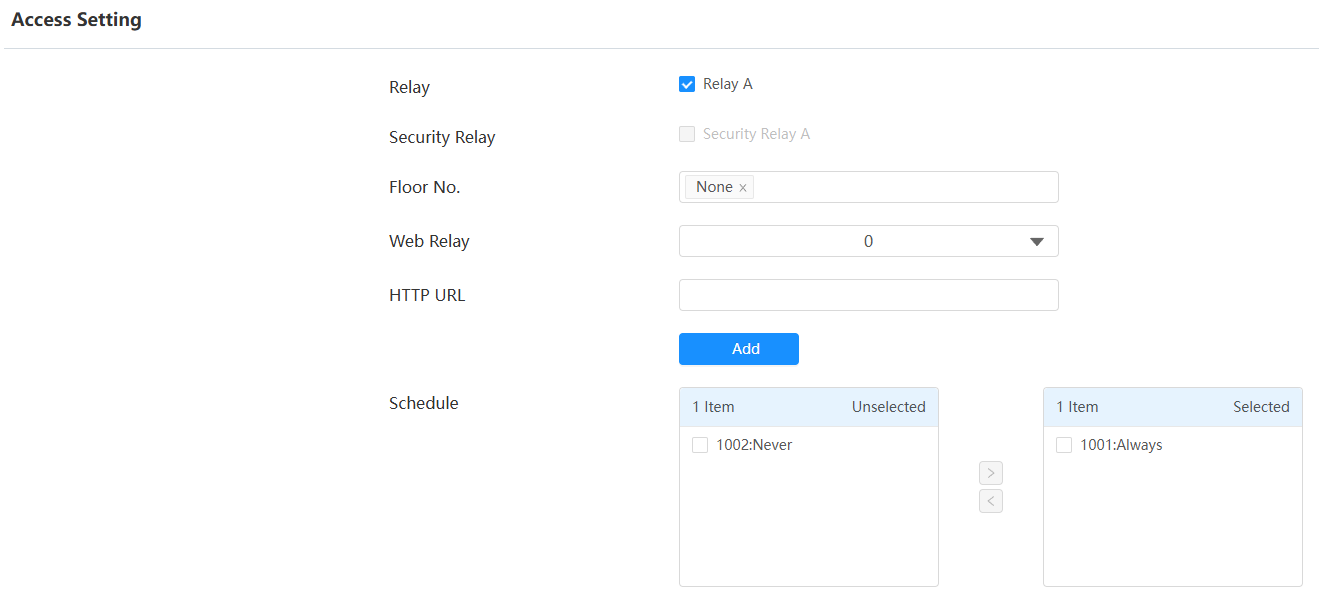
Relay: Specify the relay(s) to be unlocked using the door opening methods assigned to the user.
Security Relay: Check Security Relay A if you’ve configured it on the Security Relay interface.
Floor No.: Specify the accessible floor(s) to the user via the elevator.
Web Relay: Specify the ID of web relay action commands that you’ve configured on the Web Relay interface. A default value of 0 indicates that the web relay will not be triggered.
HTTP URL: Specify the HTTP URL sent to another Akuvox device for door opening.
Schedule: Grant the user access to open designated doors during preset periods by relocating the desired schedule(s) from the left box to the right one. Besides custom schedules, there are 2 default options:
Always: Allows door opening without limitations on door open counts during the valid period.
Never: Prohibits door opening.
Tip
Here is an HTTP command URL example:

Note
The HTTP format for relay triggering varies depending on whether the door phone's high secure mode is enabled. Please refer to this how-to guide Opening the Door via HTTP Command for more information.
Access Authentication Mode
The device allows dual authentication for door access, using a combination of facial recognition and RF card. When the mode is set up, users must unlock the door in the order of the chosen methods.
To set it up, go to Access Control > Relay > Access Authentication Mode interface.

Authentication Mode: Determine how to unlock the door using different methods. Please note that the order of the two-factor authentication matters.
Any Method: Allow all access methods.
Face + RF Card: Go through facial recognition first, then swipe the RF card.
Entry Restriction: Set the time interval between each door opening for the same user. For example, if it is set to 30 minutes, the user needs to wait for 30 minutes to open the door again.
Import/Export User Data
The door phone supports User Data of access control to be shared among Akuvox door phones through import and export while you can also export the facial data out of the door phone and then import it to a third-party device.
Click here to view how to import and export user data between Akuvox door phones.
To set it up, go to the Directory > User interface.
The import file should be in TGZ or CSV format. The export file is in XML or CSV format.

Contactless Smart Card
You can select an NFC card or Felica card for contactless access. For example, if you enable both NFC and Felica cards, you can gain contactless entry with the two types of cards.
To set it up, go to Access Control > Card Setting > Contactless Smart Card interface.

Felica Reading Format: When Felica is selected, set the card reading format between 8 Bytes and 16 Bytes. The default is 16 Bytes.
Mifare Card
The device can read encrypted Mifare cards for greater security. When this feature is enabled, it reads the data in the cards’ designated sectors and blocks, not the UID.
Click here to view the details of encrypting and reading Mifare cards.
To set it up, go to Access Control > Card Setting > Mifare Card Encryption interface.

Mifare:
Sector/Block: Specify the location where encrypted card data is stored. A Mifare card has 16 sectors (numbered 0 to 15), and each sector has 4 blocks (numbered 0 to 3).
Block Key: Set a password to access the data stored in the predefined sector/block.
Mifare DESFire:
App ID: A 6-digit hexadecimal number
File ID: The ID of the encrypted file of the app, which can be a number from 0 to 31.
Crypto: The encryption method, either AES or DES.
Key: The file key.
Key Index: The index number for the key, which can be a number from 0 to 11.
Plus: You can set up three choices. This means you can use three types of Mifare Plus cards. When swiping a card, as long as one of the choices matches its SL key, the card code in the block you specified will be output.
Block: Specify the block(s) to be read.
SL3: The key number within 32 bits.
Unlock By Bluetooth
The Bluetooth-enabled SmartPlus app enables users to enter the door hands-free. They can either open the door with the app in their pockets or wave their phones towards the device as they get closer to the door.
To set it up, go to Access Control > BLE interface.
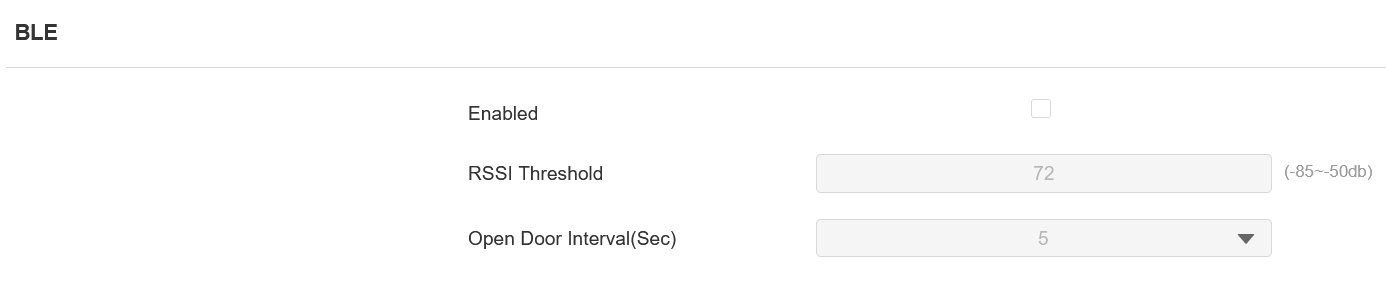
RSSI Threshold: Set the received signal strength. Higher values indicate stronger signal strength, making it easier to receive the Bluetooth signal.
Open Door Interval (Sec): Set the time interval between consecutive Bluetooth door access attempts.
Note
Click here to view how to open doors with Bluetooth-featured SmartPlus App.
Unlock by QR Code
You can use a QR code to open the door. This method requires the Akuvox SmartPlus cloud service. You have to activate this feature before using it.
Enable the feature on the Access Control > Relay > Open Relay via QR Code interface.

Note
The function should work with the Akuvox SmartPlus cloud. Please click here to view the configuration details.
Unlock by HTTP Command
You can unlock the door remotely without approaching the device physically for door entry by typing in the created HTTP command (URL) on the web browser to trigger the relay when you are not available by the door for door entry.
To set it up, go to Access Control > Relay > Open Relay Via HTTP interface.
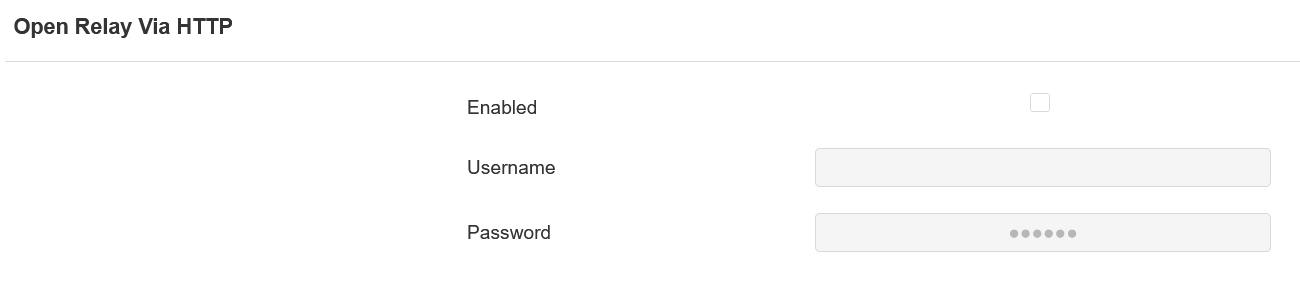
Username: Set a username for authentication in HTTP command URLs.
Password: Set a password for authentication in HTTP command URLs.
Tip:
Here is an HTTP command URL example for relay triggering.
.png "image-22HOI78M(1).png")
Unlock by Exit Button
When users need to open the door from inside by pressing the Exit button, you need to set up the Input terminal that matches the Exit button to activate the relay for the door access.
Click here to watch the instruction video.
To set it up, go to Access Control > Input interface.
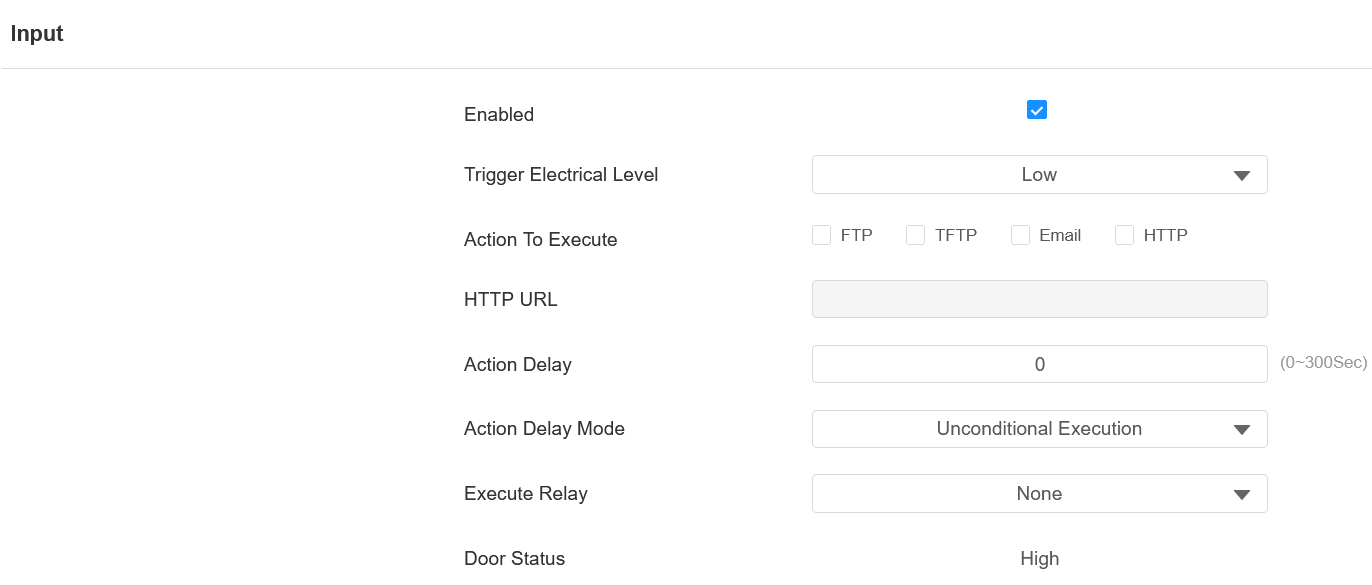
Trigger Electrical Level: Set the input interface to trigger at low or high electrical level.
Action To Execute: Set the desired actions that occur when the specific Input interface is triggered.
FTP: Send a screenshot to the preconfigured FTP server.
TFTP: Send a screenshot to the preconfigured TFTP server.
Email: Send a screenshot to the preconfigured Email address.
HTTP: When triggered, the HTTP message can be captured and displayed in the corresponding packets. To utilize this feature, enable the HTTP server and enter the message content in the designated box below.
HTTP URL: Enter the HTTP message if selecting HTTP as the action to execute. The format is http://HTTP server’s IP/Message content.
Action Delay: Specify how many seconds to delay executing the preconfigured actions.
Action Delay Mode:
Unconditional Execution: The action will be carried out when the input is triggered.
Execute If Input Still Triggered: The action will be carried out when the input stays triggered. For example, if the door stays open after triggering input, an action such as an email will be sent to notify the receiver.
Execute Relay: Specify the relay to be triggered by the actions.
Door Status: Display the status of the input signal.
Body Temperature Measurement for Door Access (Optional)
A05 series provides you with an optional body temperature measurement function designed to be applied in the situation where the measurement becomes necessary for the safety of the residents and visitors, etc. Residents and visitors are required to go through temperature measurements along with an optional mask detection check before they are allowed door access.
To set it up, go to Access Control > Body Temperature interface.
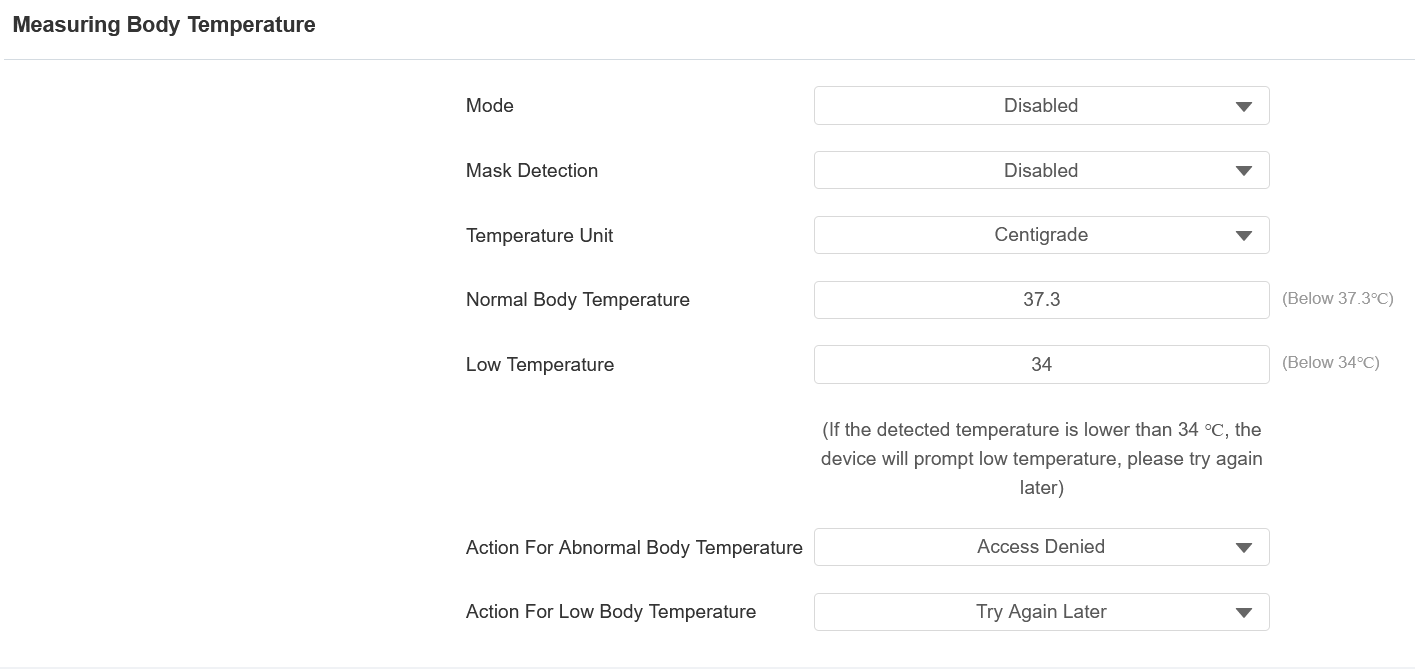
Mode: The device can be installed with a digital forehead temperature detector.
Disabled: Turn off the function.
Forehead: Test the body temperature from the forehead.
Wrist: Test the body temperature from the wrist.
Mask Detection:
Disabled: The device will not detect whether the user is wearing a mask.
Set mask-wearing as mandatory: Users are required to wear a mask for temperature measurement. The device will first detect whether the user is wearing a mask. If not, it will not proceed to the next step.
Display mask-wearing prompt: Wearing a mask is not mandatory. The device will first detect whether the user is wearing a mask. If not, the prompt "Please wear a mask" will pop up and the device will proceed to the next step.
Temperature Unit: Select the temperature unit.
Normal Body Temperature: Set the body temperature as the measuring basis in either Fahrenheit or Celsius. For example, if you set the temperature 37.3 degrees Celsius as the normal temperature, then any body temperature measured higher than 37.3 degrees Celsius will be deemed as an abnormal temperature.
Low Temperature: Set the body temperature as the measuring basis in either Fahrenheit or Celsius. For example, if you set the temperature 34 degrees Celsius as the threshold, then any body temperature measured lower than 34 degrees Celsius will be deemed as low body temperature.
Action for Abnormal Body Temperature:
Access Denied: When users are detected abnormal temperatures, the door will not be opened.
Just For Reminder: A prompt reminding abnormal temperature will pop up. The door will be opened.
Action for Low Body Temperature:
Try Again Later: Users will be prompted to measure their temperatures again when they detect low temperatures. The door will not be opened.
Just For Reminder: A prompt reminding low temperature will pop up. The door will be opened.