Door Configuration
A095 has 8 built-in relays, which can be connected to electrical door locks for access controls. 4 of them are named door 1-4, and the others are auxiliary outputs.
Set up doors on the Access Control > Door interface.
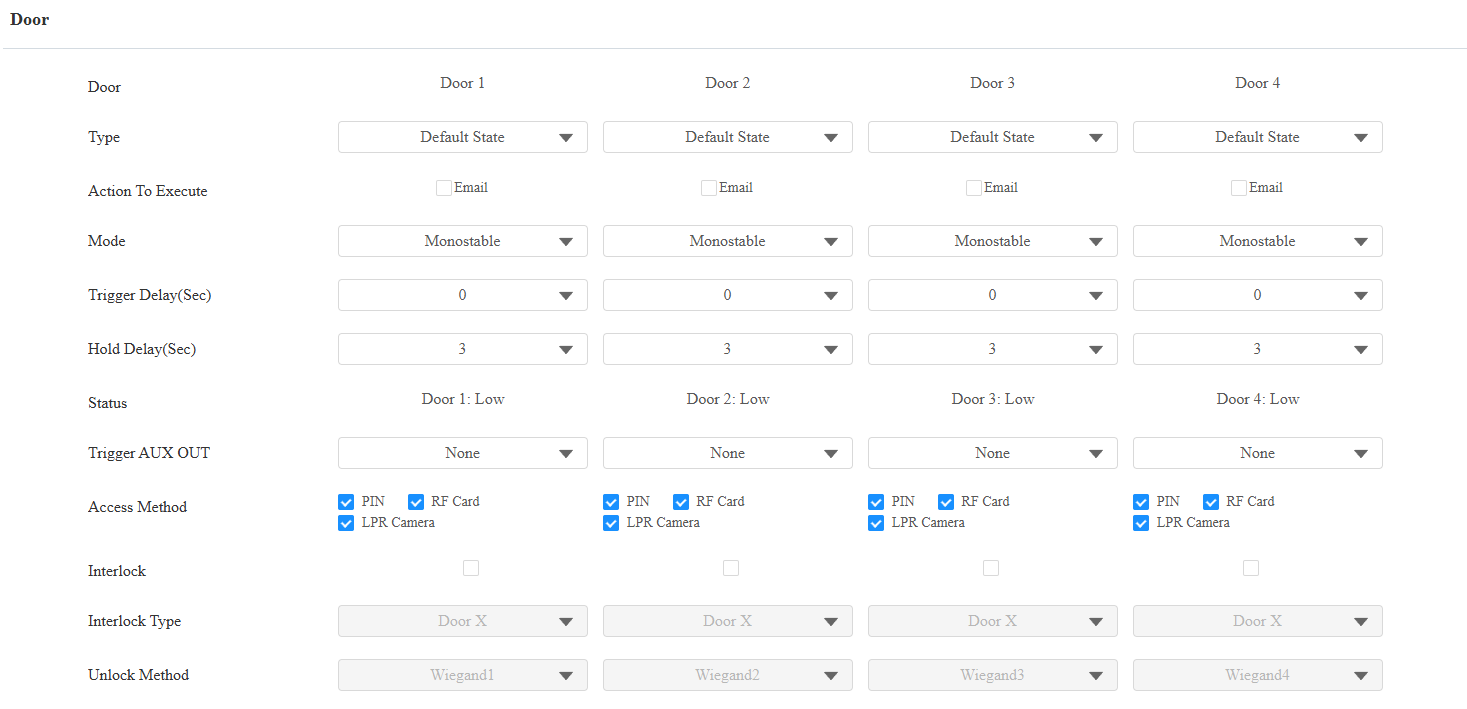
Type: Determine the interpretation of the door status:
Default State: A “Low” status in the Door Status field indicates that the door is closed, while “High” indicates that it is open.
Invert State: A “Low” status in the Door Status field indicates an open door, while “High” indicates a closed one.
Action to Execute: Send an email notification to the preconfigured email address.
Mode: Specify the conditions for automatically resetting the door status.
Monostable: The door status resets automatically within the trigger delay time after activation.
Bistable: The door status resets upon trigger again.
Trigger Delay(Sec): Set the delay time before the door opens. For example, if set to 5 seconds, the door will not open until 5 seconds later when users use their credentials.
Hold Delay(Sec): Determine the door-opening time. For example, if set to 5 seconds, the door stays open for 5 seconds.
Status: Indicate the state of the door, which is normally opened and closed. By default, it shows low for Normally Closed(NC) and high for Normally Open(NO).
Trigger AUX OUT: A095 has four auxiliary outputs that can be connected to devices such as a smoke sensor to carry out preset actions like setting off alarms or turning on the light. They can be triggered with specific doors.
Access Method: Check the method(s) to open the door.
Interlock: This feature limits the opening of other doors when one door is open. For example, enable Interlock for Doors 1, 2, and 4. When Door 1 is opened, Door 2 or 4 cannot be opened until Door 1 is closed. While Door 3 is not affected.
Interlock Type: Available when Interlock is enabled. Set how to determine the door is closed, by door reset or REX(Request to Exit) reset.
Unlock Method: Available when Interlock is enabled. Specify the method that opens the door. The settings of the corresponding Wiegand and DPS(Door Position Switch) will be overwritten.
Note
Click here to view the detailed explanation of the Interlock feature.
Auxiliary Output Configuration
The 4 auxiliary outputs(AUX OUT) can be connected to door locks.
Set them up on the Access Control > Auxiliary Output interface.
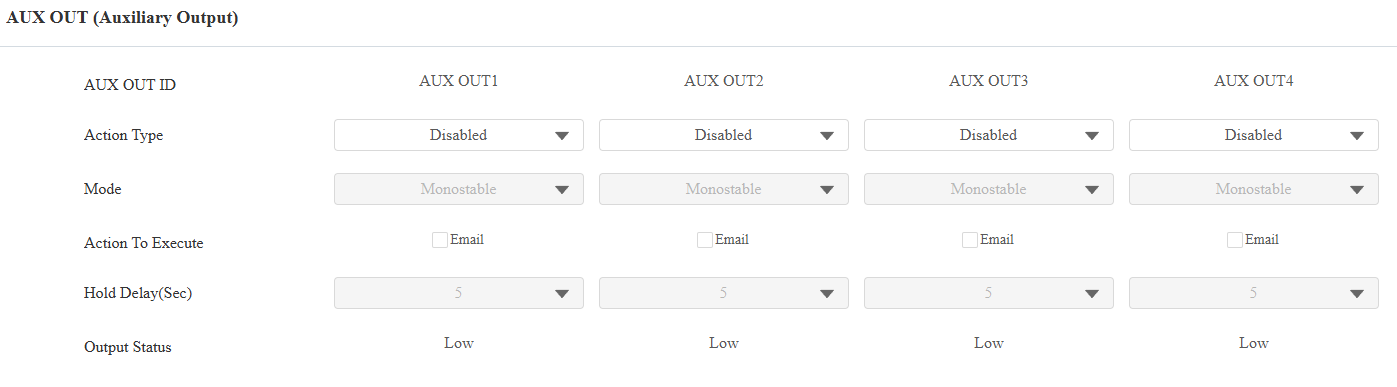
Action Type: Set whether to use the AUX OUT. When Open is selected, the Mode and Hold Delay options can be configured.
Mode: Specify the conditions for automatically resetting the output status.
Monostable: The status resets automatically within the trigger delay time after activation.
Bistable: The status resets upon trigger again.
Action to Execute: Send an email notification to the preconfigured email address.
Hold Delay (Sec): Determine how long the output stays activated. For example, if set to 5 seconds, the output remains activated for 5 seconds before closing.
Output Status: Indicate the states of the output, which are normally opened and closed. By default, it shows low for Normally Closed(NC) and high for Normally Open(NO).
Door Position Switch Configuration
The device has 8 extra inputs. 4 of them can be connected to door position switches for detecting the open or closed status of doors.
To set up DPS, go to the Access Control > Door > DPS(Door Position Switch) interface.
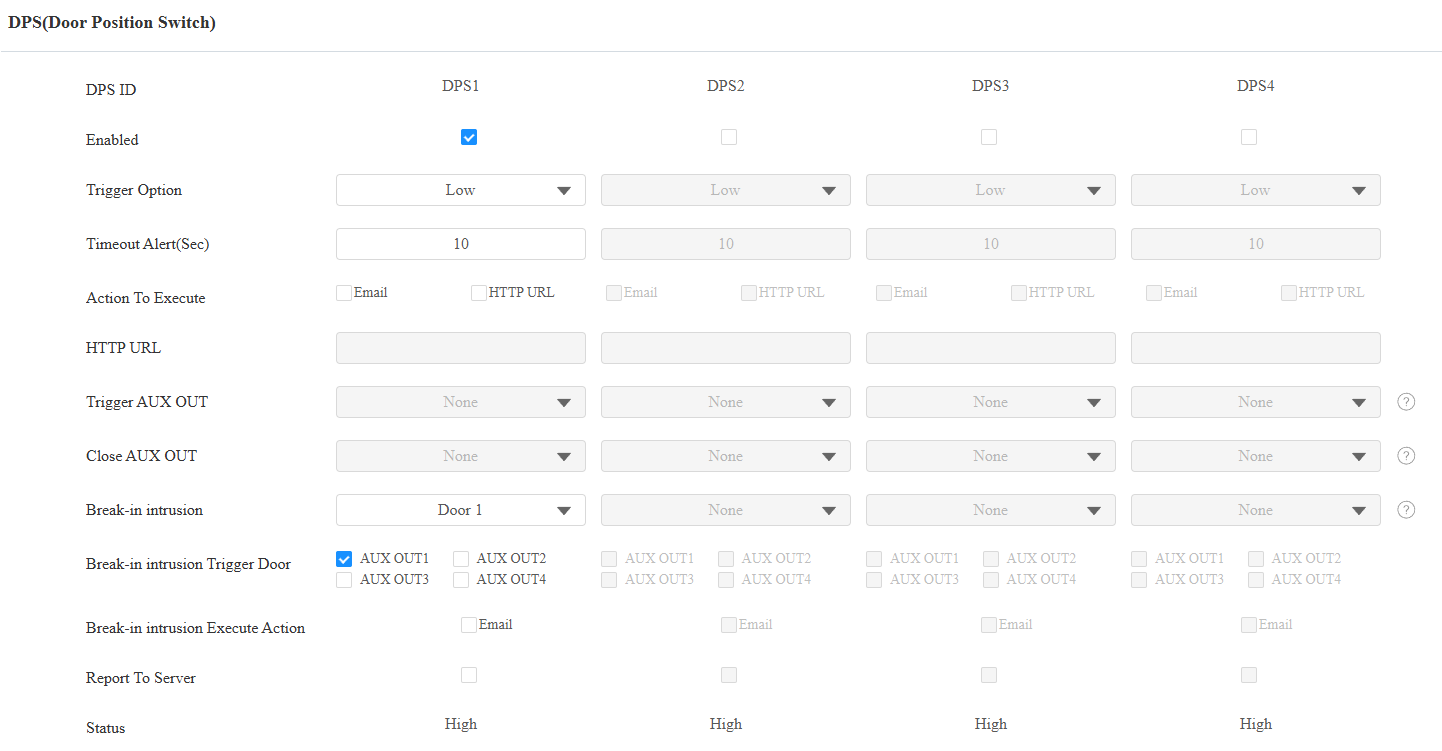
Enabled: Specify the input used.
Trigger Option: Set the input interface to trigger at a low or high electrical level.
Timeout Alert(Sec): When the input trigger time exceeds this limit, an alert will be triggered.
Action to Execute: Set the desired actions that occur when this input interface is triggered.
Email: Send a message to the preconfigured Email address.
HTTP URL: When triggered, the HTTP message can be captured and displayed in the corresponding packets. To utilize this feature, enable the HTTP server and enter the message content in the designated box below. The format is http://HTTP server’s IP/Message content.
Trigger AUX OUT: Specify an auxiliary output to be triggered along with the input.
Close AUX OUT: Specify an auxiliary output to be closed when the input is triggered. Please note that this feature does not work during the relay schedule time.
Break-in intrusion: Activate an alarm when the door is forcibly or illegally opened. Only by checking off this option can the alarm be turned off once triggered. This feature is not compatible with the Trigger AUX OUT and Close AUX OUT functions. Click here to learn more information about this feature.
Break-in intrusion Trigger Door: Specify the door to be opened.
Break-in intrusion Execute Action: Set whether to send a message to the preconfigured Email address when the break-in intrusion happens.
Report to Server: Set whether to report the alarm logs to ACMS or SmartPlus Cloud, where the device is deployed, when the timeout alert is triggered.
Status: Display the status of the input signal.
Web Relay
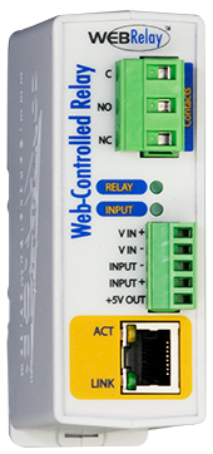
A web relay has a built-in web server and can be controlled via the Internet or a local network. The device can use a web relay to either control a local relay, or a remote relay somewhere else on the network.
Click here to view how to set up web relay.
To set it up, go to the Access Control > Web Relay interface.
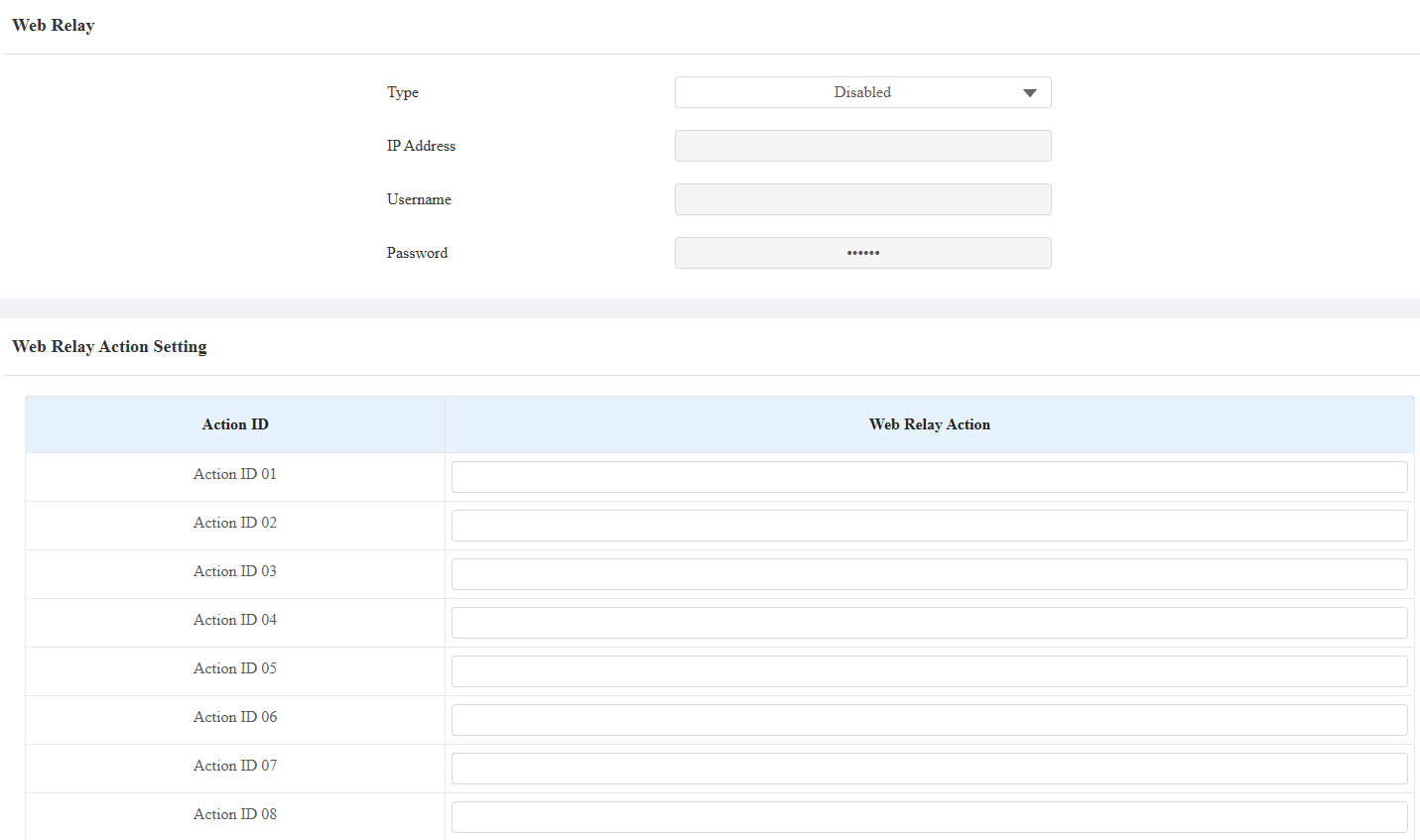
Type: Determine the type of relay activated when employing door access methods for entry.
Disabled: Only activate the local relay.
Web Relay: Only activate the web relay.
Both: Activate both the local relay and web relay. Typically, the local relay is triggered first, followed by the web relay.
IP Address: The web relay IP address provided by the web relay manufacturer.
Username: The user name provided by the web relay manufacturer.
Password: The manufacturer-provided authentication key for the web relay. Authentication occurs via HTTP. Leaving the Password field blank indicates non-use of HTTP authentication. You can define the password using HTTP GET in the Web Relay Action field.
Web Relay Action: Configure the actions to be performed by the web relay upon triggering. Enter the manufacturer-provided URLs for various actions, with up to 50 commands.
Note
If the URL includes full HTTP content (e.g., http://admin:admin@192.168.1.2/state.xml?relayState=2), it doesn't rely on the IP address that you entered above. However, if the URL is simpler (e.g., "state.xml?relayState=2"), the relay uses the entered IP address.