(2).jpg)
Update Time: August. 2026
About This Manual
This manual is intended for commercial administrators who need to manage personnel, visitors, access control, etc, of a specific company on the Akuvox SmartPlus platform (Version 7.5.0).
For more information, please visit http://www.akuvox.com/ or consult Akuvox technical support.
What’s New in version 7.5.0:
System Overview
Akuvox Smart Access is a cloud-based platform where the administrator can conduct integrated management of the company.
Administrators can:
Set up the company structure.
Manage groups and personnel.
Manage access credentials for visitors and couriers.
Set up access control rules.
Set up attendance.
Check various logs.
Send messages to personnel.
Login
Log in to the Smart Access cloud platform using the account obtained from your installer or project manager.
Open the web browser, enter the address (URL) of the cloud server location in your area, and click Enter.
Enter your username and password.
Click Login.
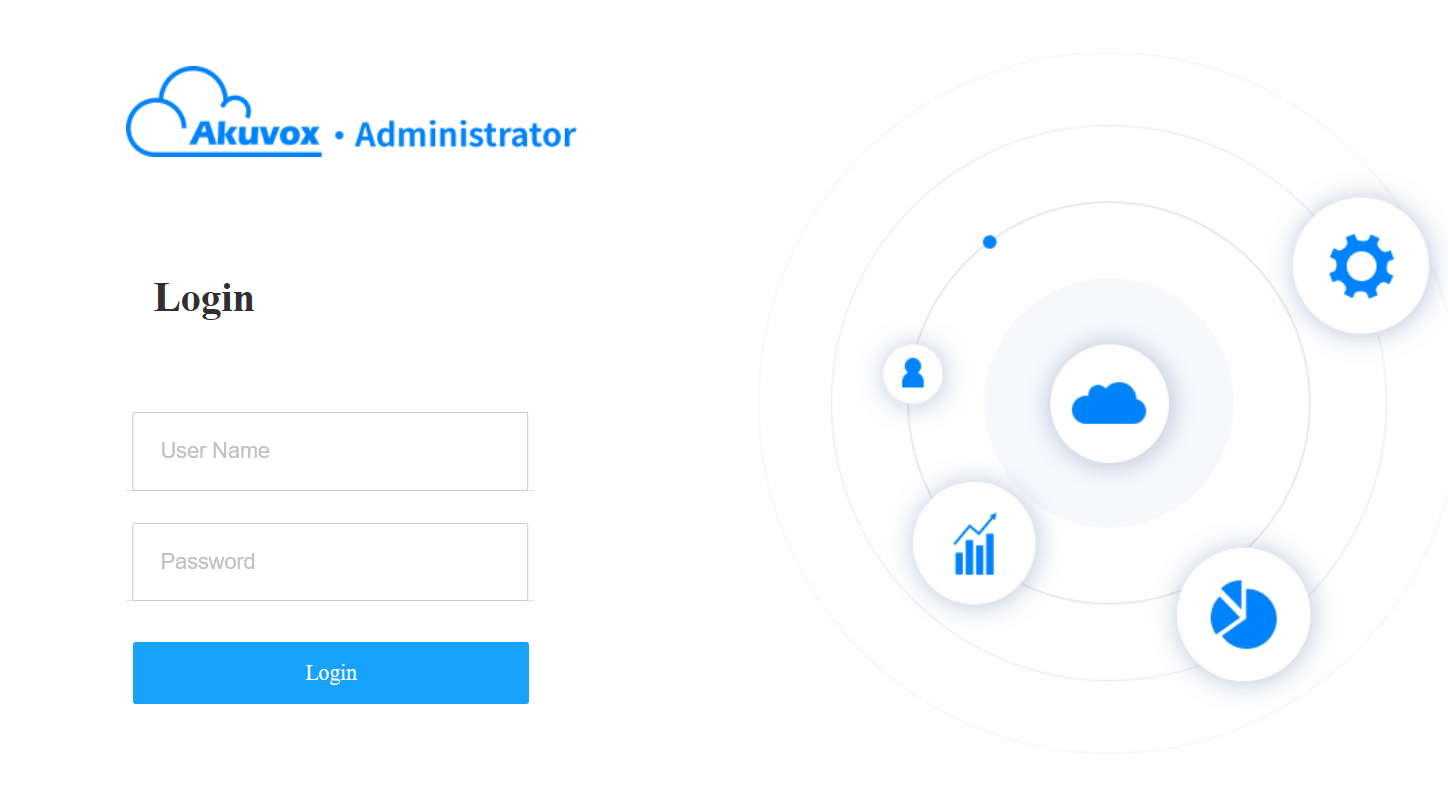
You can click Log Out in the upper right corner to exit the system.

Dashboard
The management dashboard gives you an overview of your company.
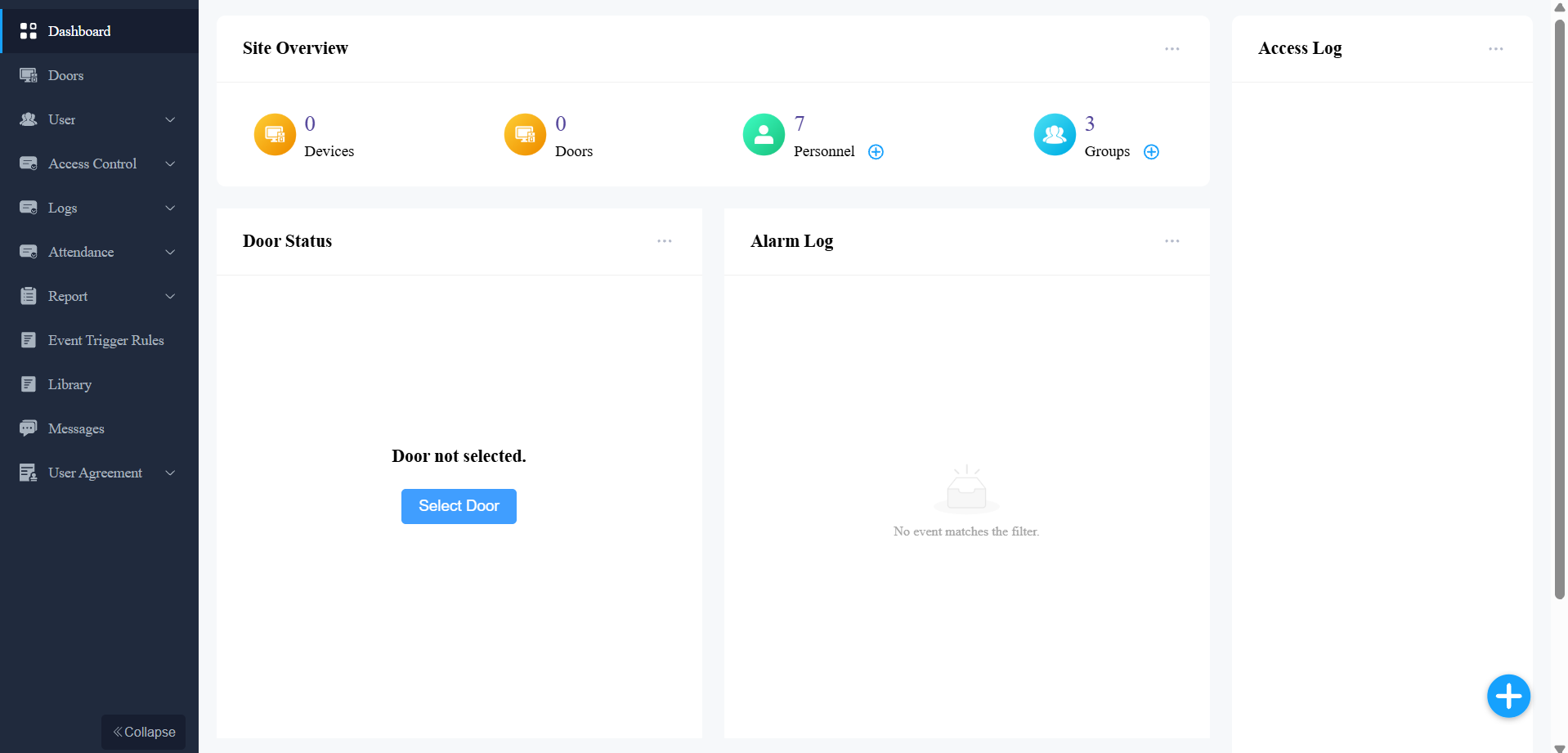
Module Description:
Modules | Description |
Dashboard | You can have a quick grasp of the company information. |
Users | You can manage groups and personnel, and create access credentials for visitors and couriers. |
Access Control | The module contains:
|
Logs | Check various logs, including door logs, call history, captured images, and alarm records. |
Attendance | Set up the attendance for the company. |
Report | Set up and manage muster reports and event reports. |
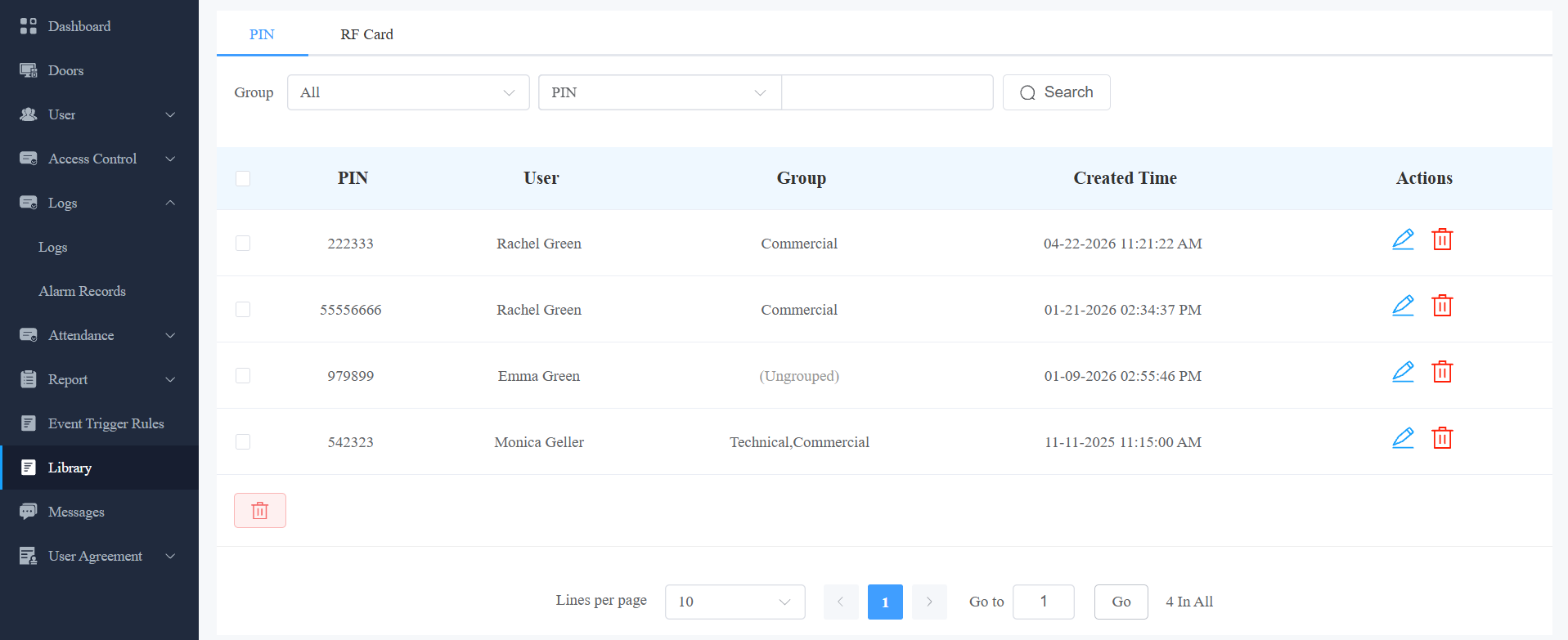
Library | The storage of PIN codes and RF cards for quick and integrated management. |
Messages | Create and send messages to specific personnel. |
Customize Dashboard
You can customize the dashboard by adding and editing components to match your preferences.
Edit and Remove Components
Click
 in the upper-right of a specific component.
Rename, delete, or configure it.
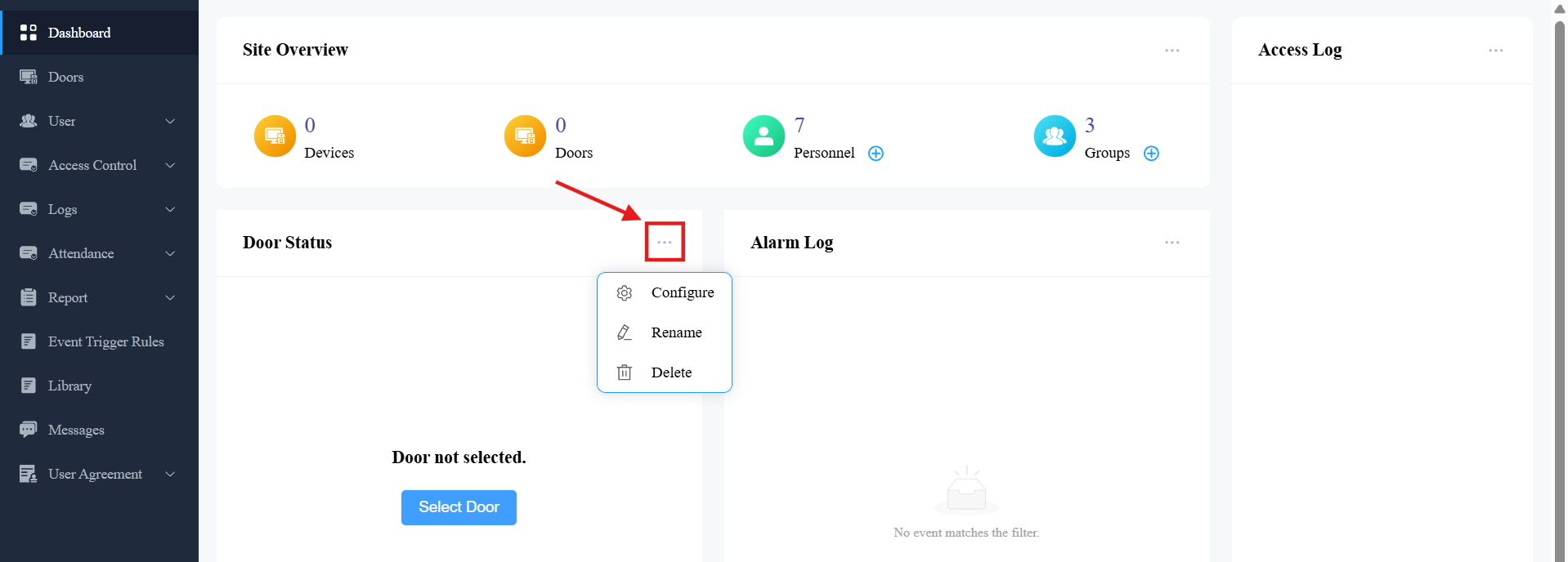
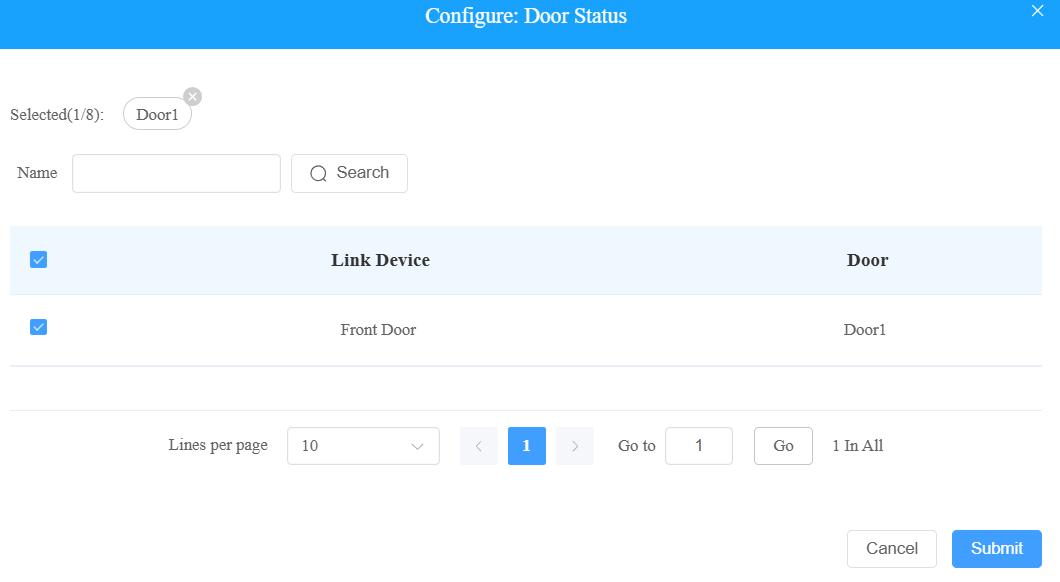
For the Door Status component, you can select up to 8 doors to display.
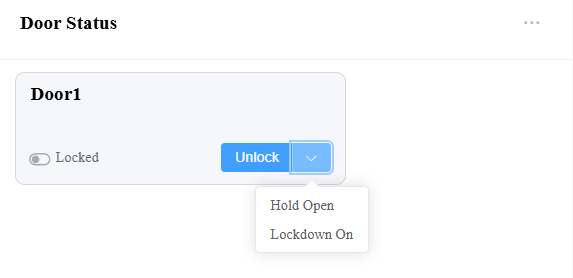
After displaying the door, you can unlock it, lock it down, and hold it open.
ONLY PMs can open/close the door; installers cannot.
Note
If the system fails to obtain the status of the door, check whether the real-time monitoring feature is enabled on the device side. Click here to view the configuration steps.
Specific models and versions support opening/closing doors. See the Door Management chapter.
For the Alarm Log component, you can select the log type to display and set the time of logs.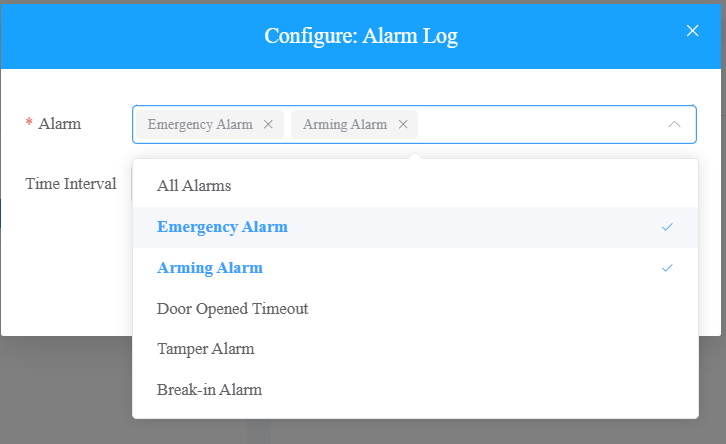
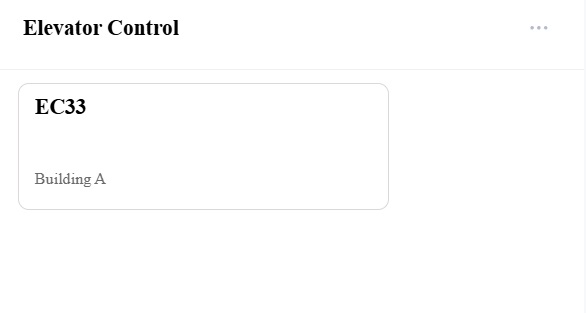
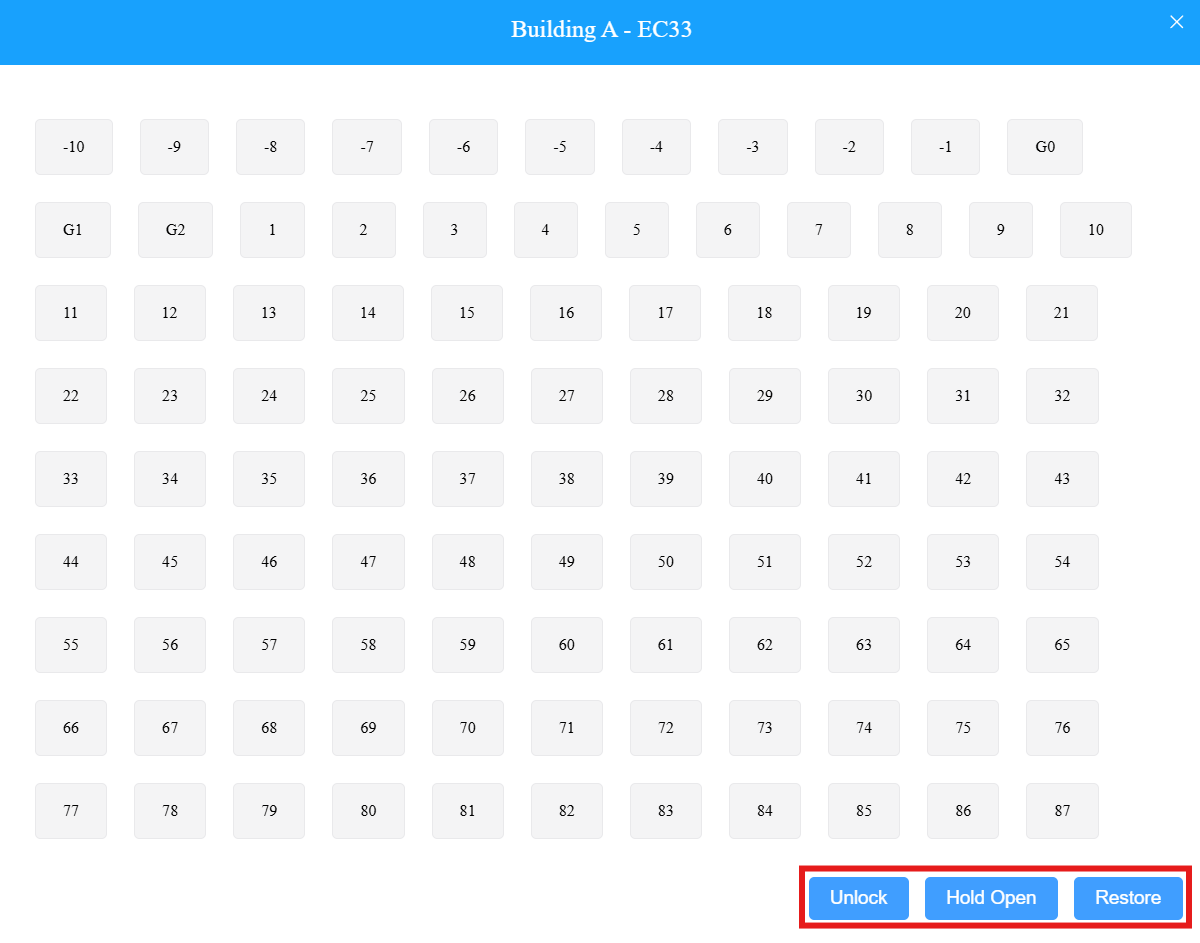
For Elevator Control component, click the elevator control device to unlock, hold open, and restore selected floors.
Add Components
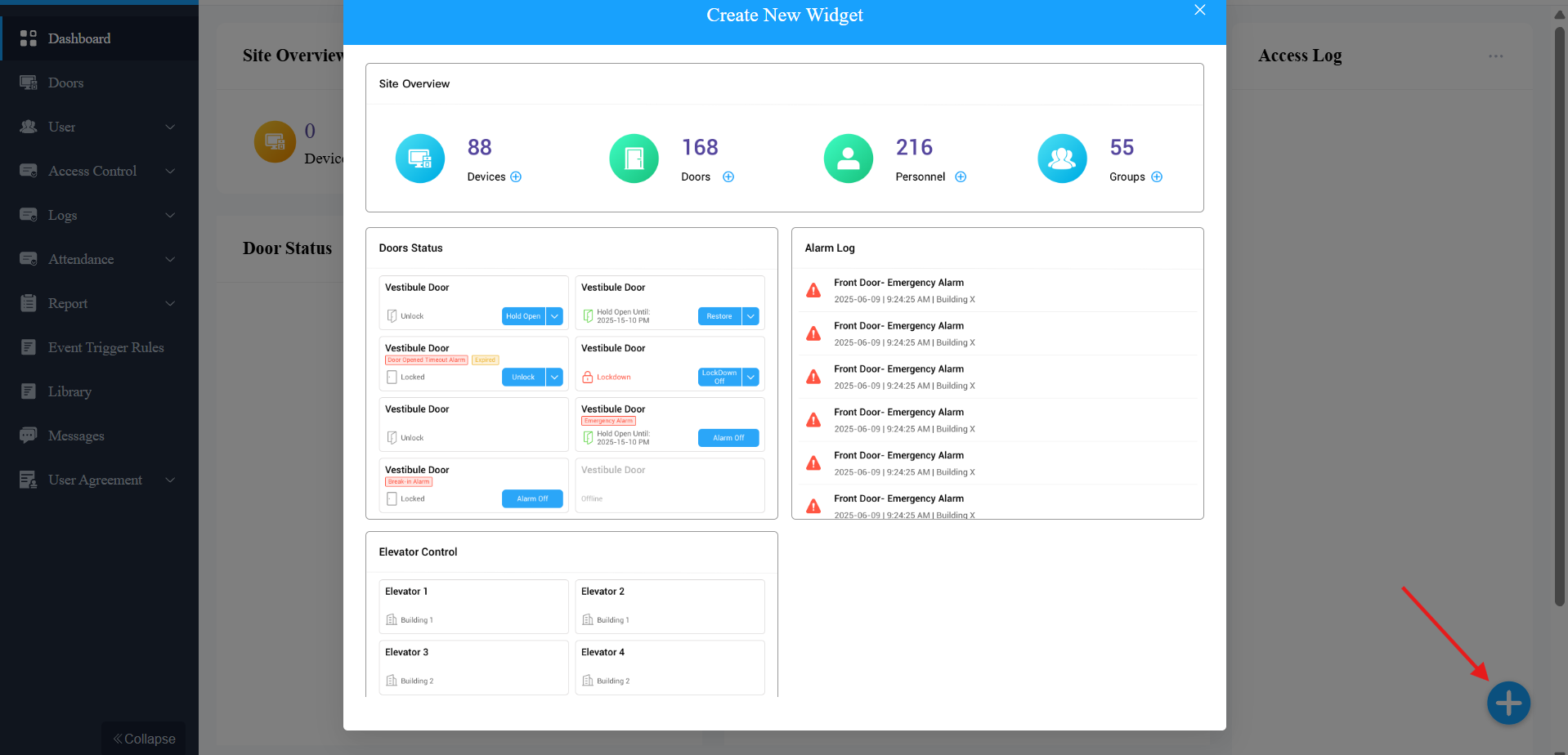
Click + in the lower-right corner.
Click the desired component to add it. The same components can be added repeatedly.
Wizard
Wizard guides you through adding groups, personnel, and setting up access control and attendance. It will pop up when you log in to the platform.
If you want to check the guidance after closing it, click  in the upper-right corner.
Groups Management
You can add, edit, and rename groups in companies.
Add a Group
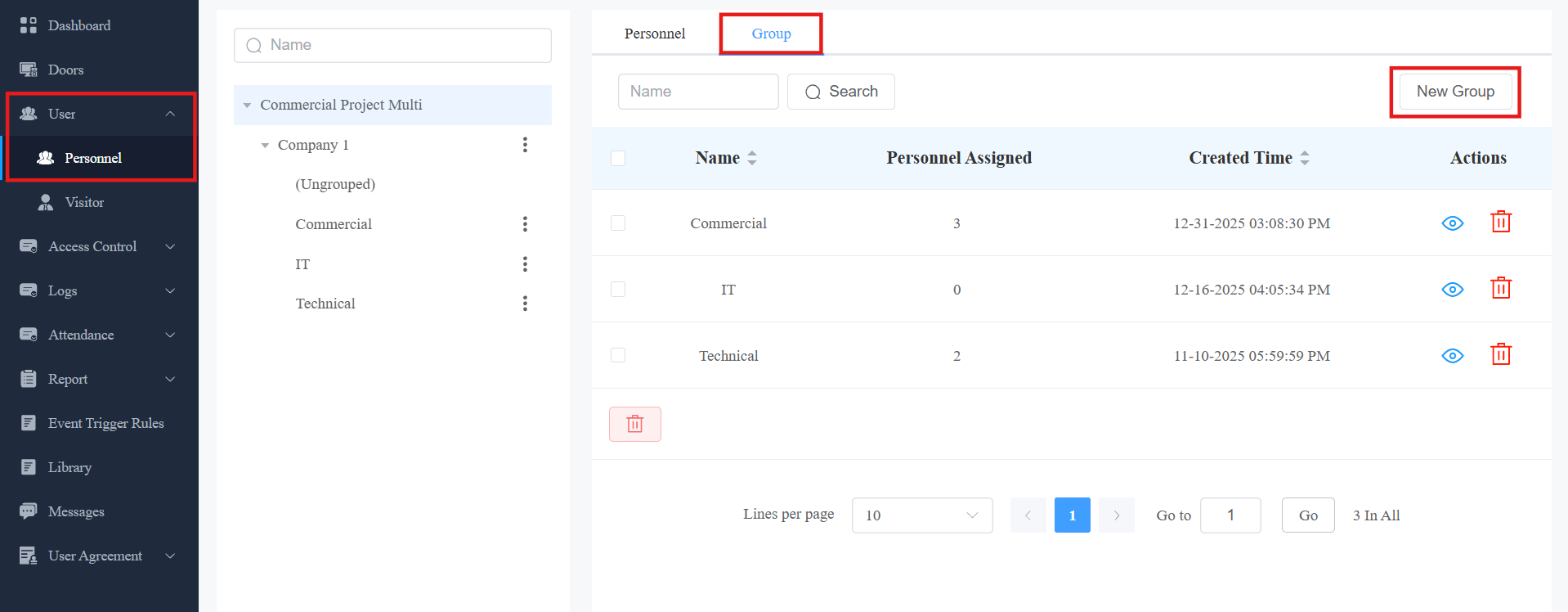
Click User > Personnel >
 next to the desired company > +New Group. Or, select Group in the target company category > New Group.
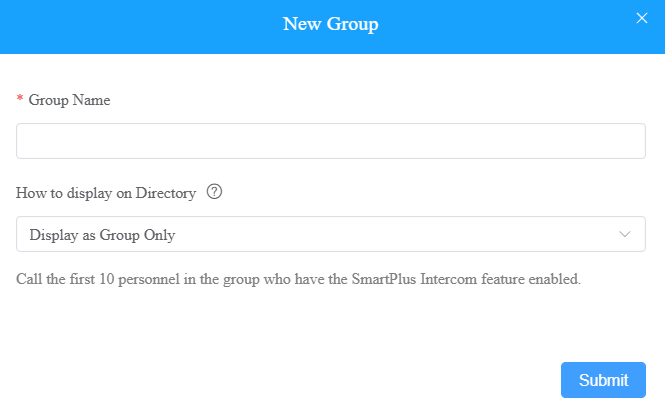
Enter the group name.
Set the directory display on the door phone’s directory screen. Specific models support this feature. See the chart below.
Do Not Display: Neither display the group nor the personnel in it.
Display as Group Only: The default option. Only display the group name. When selected, the first 10 personnel with the SmartPlus Intercom feature enabled will be called.
Display Personnel Only: Personnel will all be displayed, but not the group name.
4. Click Submit.
Compatible models and versions(or higher):
X912: 912.30.11.49
X915 V2: 2915.30.10.211
X916: 916.30.10.222
S539: 539.30.10.231
S535: 535.30.10.233
S532: 532.30.10.211
R29: 29.30.10.314
R28V2: 228.30.10.231
E16V2: 216.30.10.208
Edit/Delete a Group
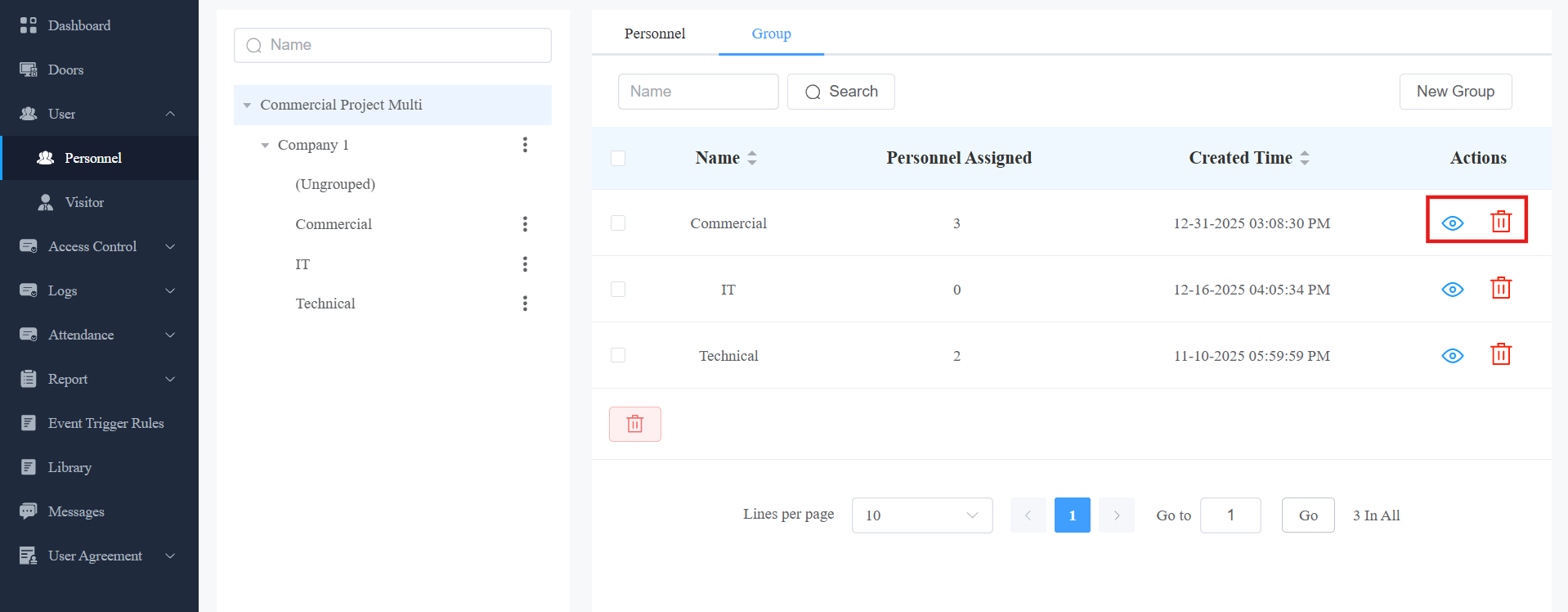
Click User > Personnel > Group.
Click
 to view the detailed information and modify the group; click
  to delete it.
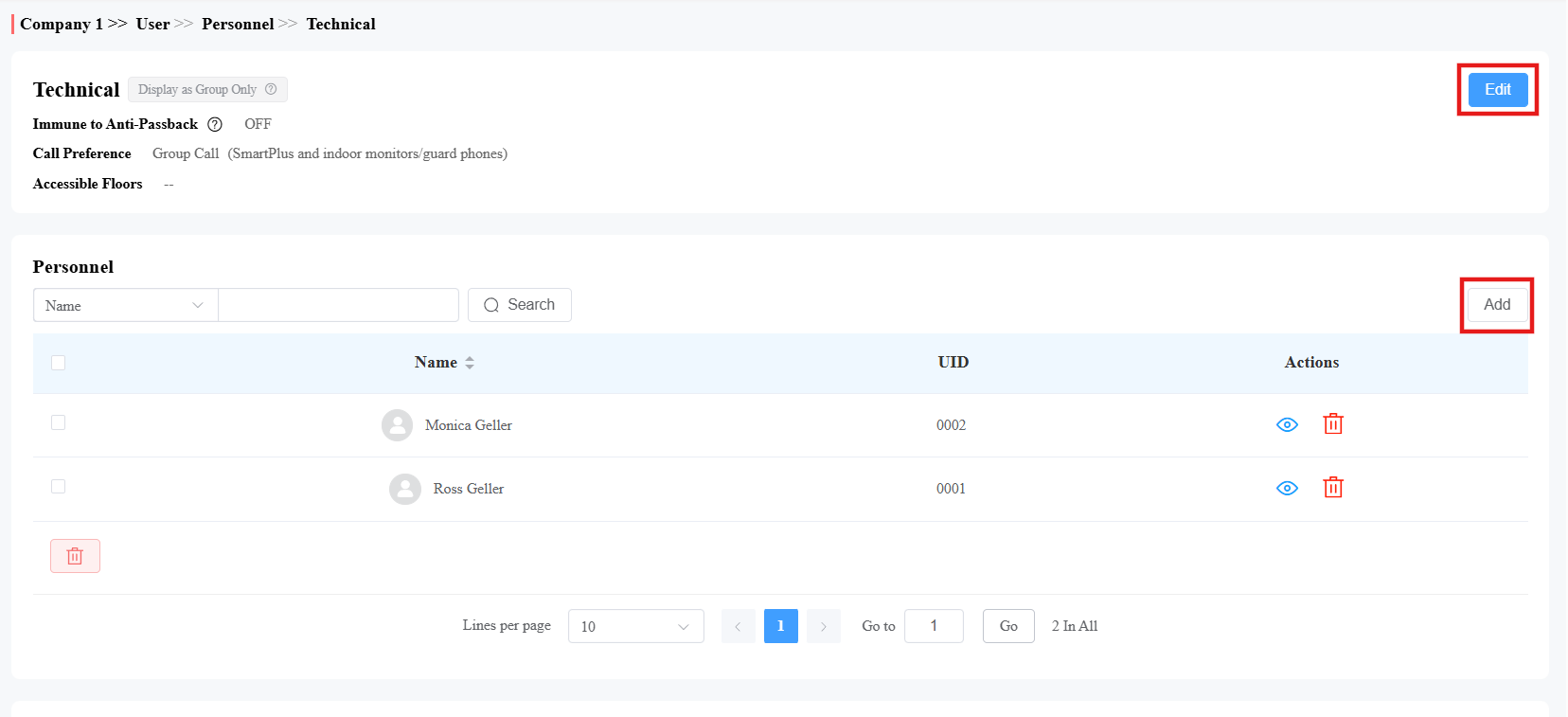
On the group info interface, you can:
Click +Add to add users to the group.
Click Edit to change the group settings.
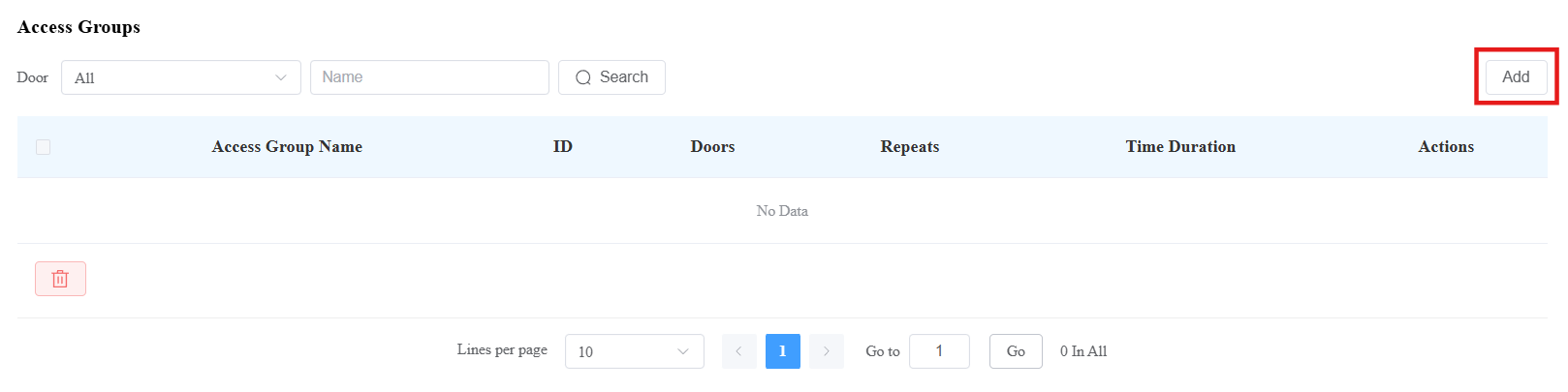
Check the access groups applied to the group.
Click +Add to add an access group.
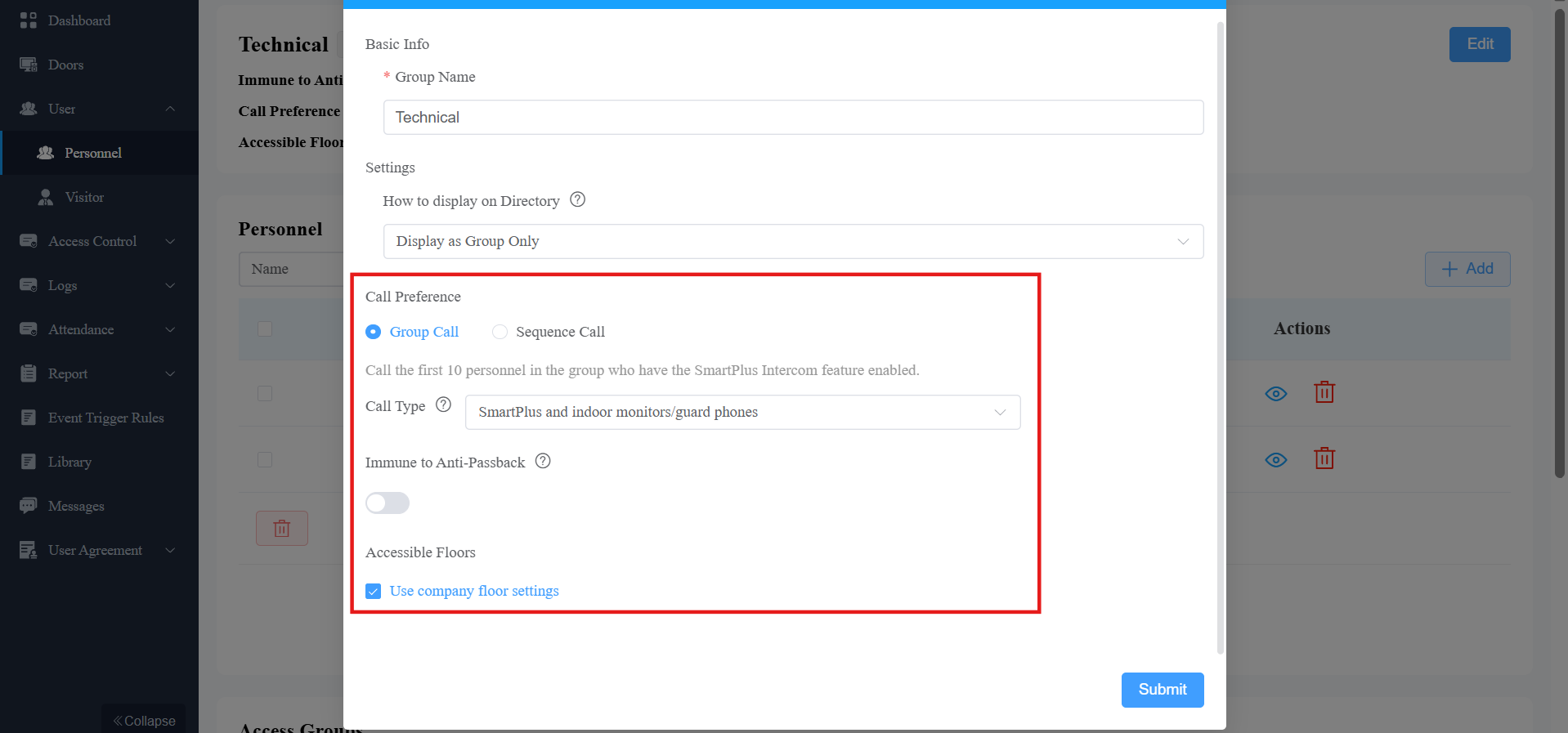
On the group editing interface, you can set up additional settings.
See item description in the chart below.
Settings | Description |
Group Name | Name the group. |
How to Display on Directory | Set the directory display.
Note: The following device models with specific firmware versions or higher support this feature:
|
Call Preference | Sequence Call: You can set three sequence call numbers. When tapping the group to call, the numbers will receive calls in order. Group Call: The first 10 personnel with the SmartPlus Intercom feature enabled will receive the call. |
Call Type | Set which devices receive calls from the door phone and in which order. For example, Indoor Monitors/Guard Phones with SmartPlus as Backup means that indoor monitors or guard phones receive the call first. When not answered, the call forwards to users’ SmartPlus Apps. |
Immune to Anti-passback | When enabled, the personnel in this group will not be limited to the anti-passback rules. |
Accessible Floors |
|
Personnel Management
You can add personnel one by one or in a batch to a company.
Add Personnel One by One
Click User > Personnel > New Personnel.
Enter the user information and set up permissions.
See descriptions of each item in the chart below.
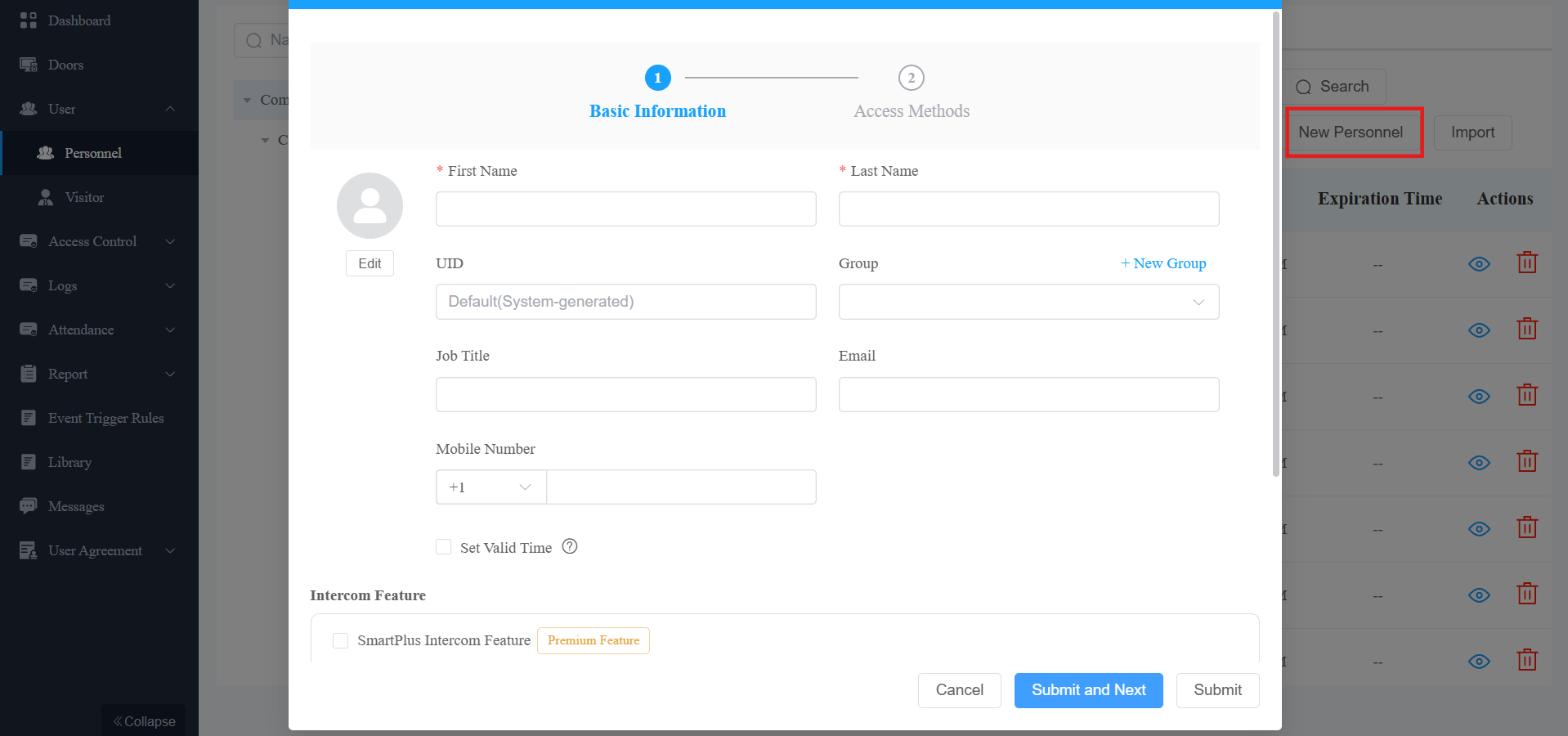
Item Name | Description | ||||||||||||||||||||||||||||||||||||||||||||||||||||
|---|---|---|---|---|---|---|---|---|---|---|---|---|---|---|---|---|---|---|---|---|---|---|---|---|---|---|---|---|---|---|---|---|---|---|---|---|---|---|---|---|---|---|---|---|---|---|---|---|---|---|---|---|---|
Profile Picture | Click Edit to upload the profile picture. Format: .jpg/.jpeg/.bmp/.png; Max picture size: 10MB; Recommended resolution: 300×300. You can also choose the system default profile. | ||||||||||||||||||||||||||||||||||||||||||||||||||||
First Name/Last Name[The mandatory option] | The username. | ||||||||||||||||||||||||||||||||||||||||||||||||||||
Company | The company of the user. | ||||||||||||||||||||||||||||||||||||||||||||||||||||
UID | The UID. If you leave it empty, the system will generate a UID. | ||||||||||||||||||||||||||||||||||||||||||||||||||||
Group | Assign the user to a group. Or, click +New Group to create a new one. | ||||||||||||||||||||||||||||||||||||||||||||||||||||
Job Title | The user’s job title. | ||||||||||||||||||||||||||||||||||||||||||||||||||||
The user’s email address. SmartPlus App login credentials will be sent to the address if the user can use the SmartPlus Intercom Feature. | |||||||||||||||||||||||||||||||||||||||||||||||||||||
Mobile Number | The user’s mobile phone number. Select the right area code before entering the number. | ||||||||||||||||||||||||||||||||||||||||||||||||||||
Language | All notifications sent to the user will display in the selected language. | ||||||||||||||||||||||||||||||||||||||||||||||||||||
Set Valid Time | Limit the user from opening doors and using the SmartPlus App beyond the specified time. This setting has the highest priority over other access permission settings. | ||||||||||||||||||||||||||||||||||||||||||||||||||||
SmartPlus Intercom Feature | Disabled by default. If enabled, the user is allowed to use the intercom feature of the SmartPlus App. This is a premium feature. Turning it on/off will affect the project’s billing. | ||||||||||||||||||||||||||||||||||||||||||||||||||||
Landline Service |
| ||||||||||||||||||||||||||||||||||||||||||||||||||||
Call Type | When the SmartPlus Intercom Feature is enabled, set the Call Type.
| ||||||||||||||||||||||||||||||||||||||||||||||||||||
Display in Directory | Enabled by default. Set whether to display the user on the door phone’s directory list. | ||||||||||||||||||||||||||||||||||||||||||||||||||||
Privileges |
NOTE: Specific models and versions(or higher) support Lockdown Bypass.
|
Click Next to set up the user’s credentials. See description of each item in the chart below.
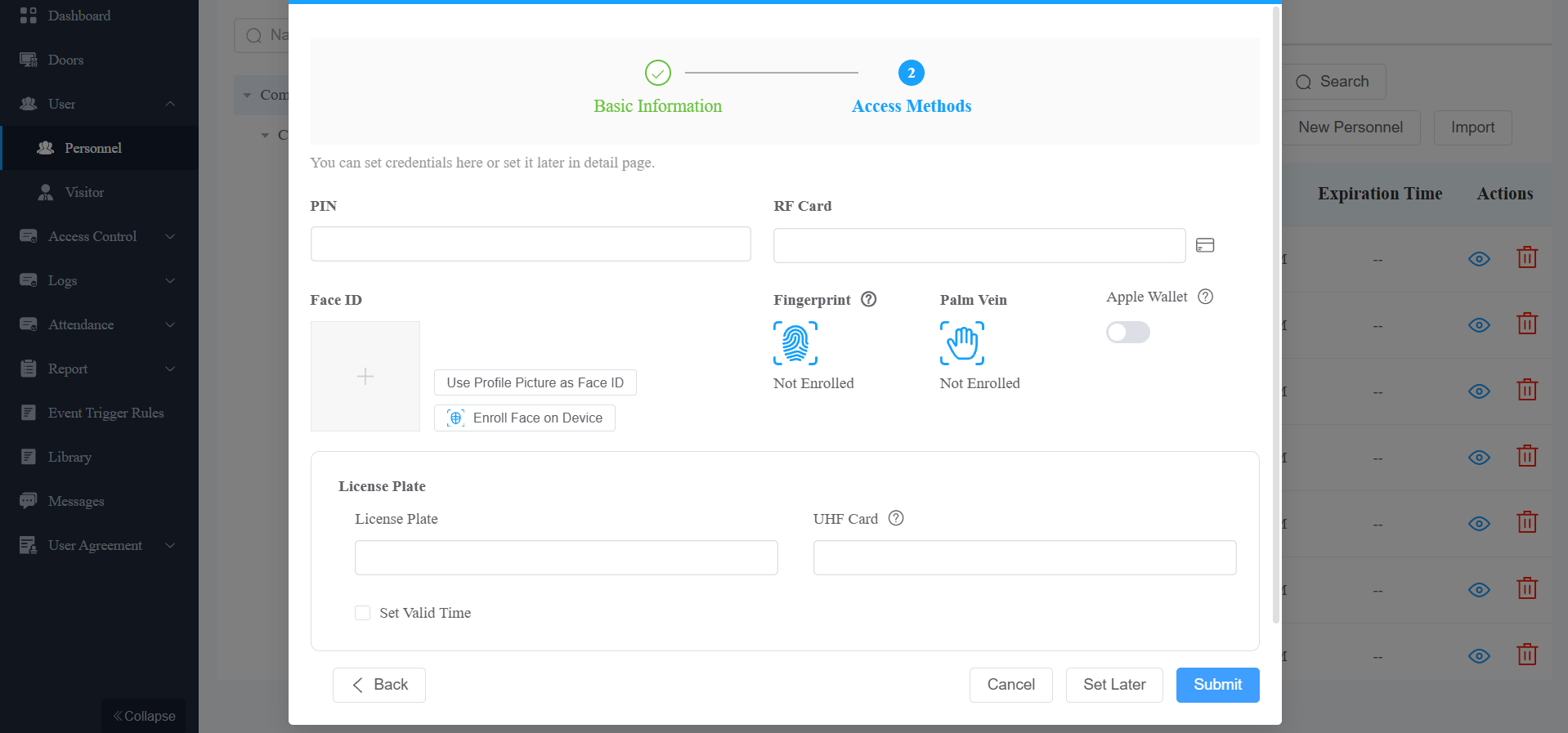
Item Name | Description |
|---|---|
PIN | 2~8-digit PIN code. |
RF Card | 1~16 characters that can contain 0~9 and A~F, or click the read card icon Select an online registration device from the dialog, then have the user swipe their card at that device. The card number is automatically populated in the form. |
Palm Vein | Click the palm vein icon to select a supported device and initiate enrollment. The device enters enrollment mode and prompts the user to complete the scan. Upon successful enrollment, the credential is uploaded to the cloud. |
Apple Wallet | This feature allows users to use their iPhone or Apple Watch as a contactless credential to unlock authorized doors. It is a paid feature. Activate the subscription before users can set it up. |
Face ID | Upload a front-facing photo for facial recognition. If a profile picture has already been uploaded, click Use Profile Picture as Face ID to use it instead. To capture face data directly from a supported device, click Register on Device, select an online registration device from the dialog, then have the user complete enrollment at that device. |
Fingerprint | Enroll the fingerprint with the Akuvox fingerprint reader ACR-CID13. |
License Plate | Enter the number that a third-party LPR camera can identify. |
UHF Card | Enter the card code that the Akuvox device ACR-CRP12 can identify. |
Set Valid Time | Set when the vehicle can enter and exit the parking lot. |
 to register the card directly from a supported device.
Note
The license plate is used for Smart Parking.
If you have filled in both the License Plate and the UHF Card, the cloud will ONLY issue the UHF card code to the door phone.
4. Click Submit.
Add Personnel in a Batch
You can import a batch of personnel data into a company for quick setup.
Click User > Personnel > New Personnel.
Click Download Import Template.
Click Import Personnel to upload the file after editing it, and click Import Face Data to upload the face photos. Please follow the upload instructions in the pop-up window.
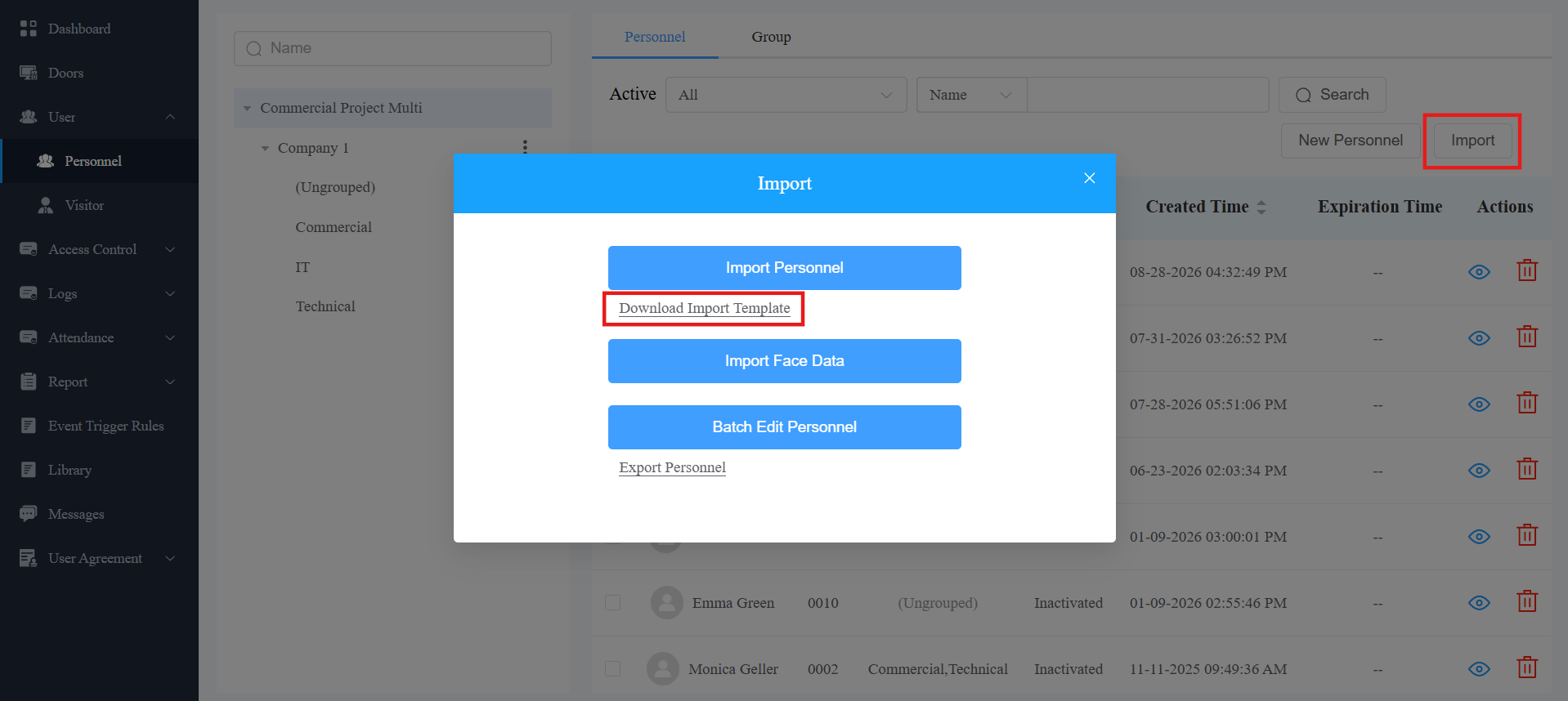
In the template, you can see the instructions by moving the mouse cursor to a specific column. You should add at least one user before importing the file.
See the description of each item in the chart below.


Column Name | Description |
|---|---|
Group | The group of personnel. Separate multiple groups by “;”. |
First Name[Required] | The first name of the personnel. |
Last Name[Required] | The last name of the personnel. |
UID | Assign a unique ID to the personnel. |
Job Title | The job title of the personnel. |
The email address of the personnel that is used to receive SmartPlus App-related emails. | |
Mobile Number | The mobile phone number of the personnel. |
Telephone Calling Code | The telephone code for phone calls. For example, the code is 1 for the United States. |
SmartPlus Intercom Feature | If enabled, the user is allowed to use the intercom feature of the SmartPlus App. 0: Disabled; 1: Enabled. |
Landline Service | Landline Service enables communication between telephones/mobile phones and intercom devices. 0:Off; 1:On. |
Landline Number | Enter the landline number if the landline service is activated. |
Call Type | Set which devices can receive a call. For example, if you select 0, the SmartPlus App will receive the call first, then the indoor monitor or the guard phone. 0: SmartPlus and indoor monitors/guard phones; 1: Phone and indoor monitors/guard phones; 2: SmartPlus and indoor monitors/guard phones, with phone as backup; 3: Indoor monitors/guard phones with SmartPlus as backup; 4: Indoor monitors/guard phones with phone as backup; 5: Indoor monitors/guard phones with SmartPlus as backup, and finally, the phone. |
RF Card | The RF card code is used to open doors. If one user has multiple cards, separate the codes by “;”. |
PIN | The PIN code is used to open doors. The length should be between 2 to 8 digits. |
License Plate | Fill in the license plate information, multiple plate codes separated by ";". You can add up to 5 codes. |
UHF Card | Fill in the UHF card code, multiple plate codes separated by ";". You can add up to 5 codes. |
Access Group ID | Assign the access group ID to the user. |
First Credential In | Enabled by default. Set whether the user can use their credentials to keep the door open. 0:Off; 1:On. |
Lockdown Bypass | Enabled by default. Set whether the user can open the door if it is locked down. 0:Off; 1:On. |
Edit/Delete Personnel
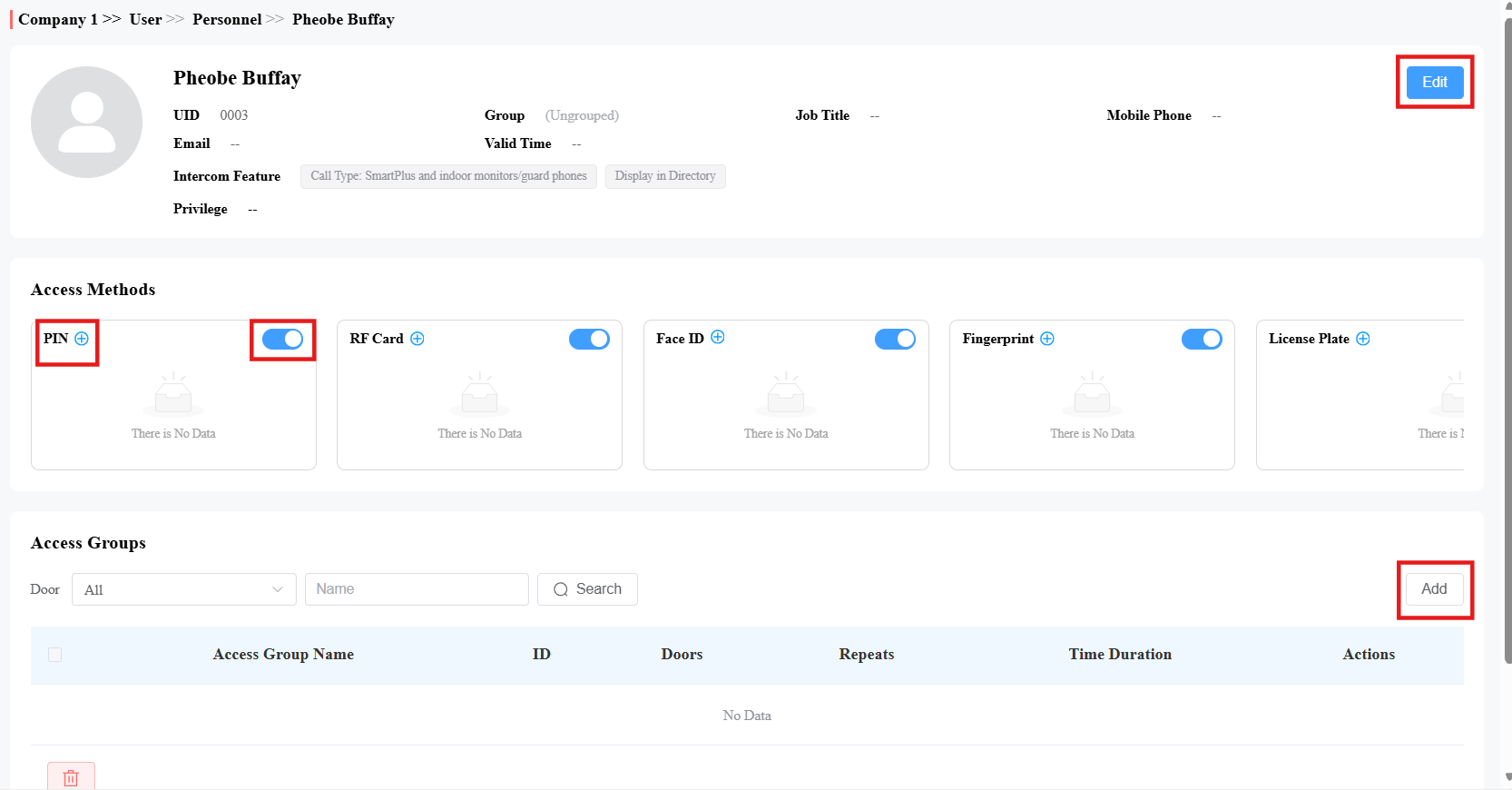
You can edit and delete personnel on the User > Personnel interface.
Click
 to delete the personnel.
Click
 to view and edit the personnel’s information.
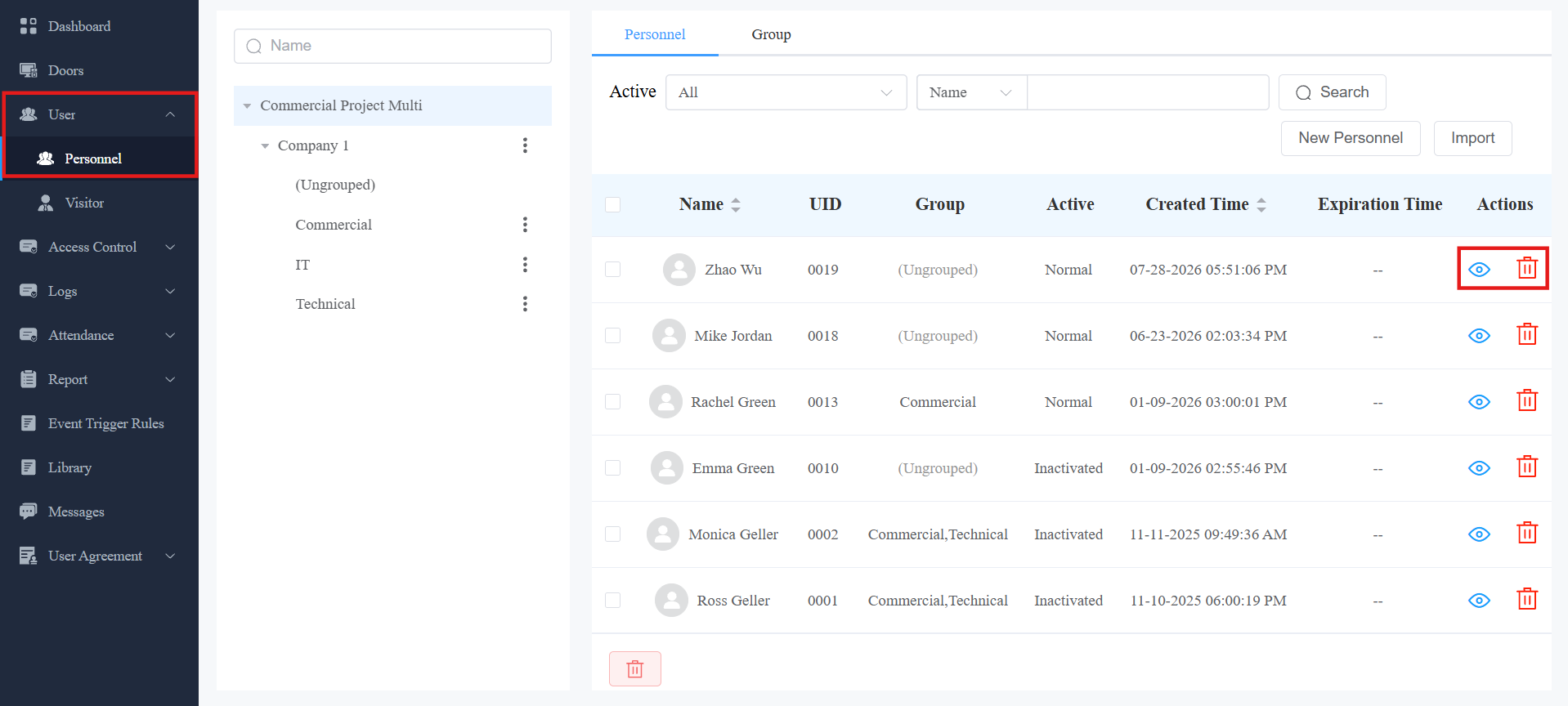
On the information interface, click Edit to modify the account settings.
Toggle access methods’ switch to turn them on/off.
Click
 to add specific access methods.
Click
 to check access groups applying to the user.
Click +Add to add an access group.
Edit Personnel in a Batch
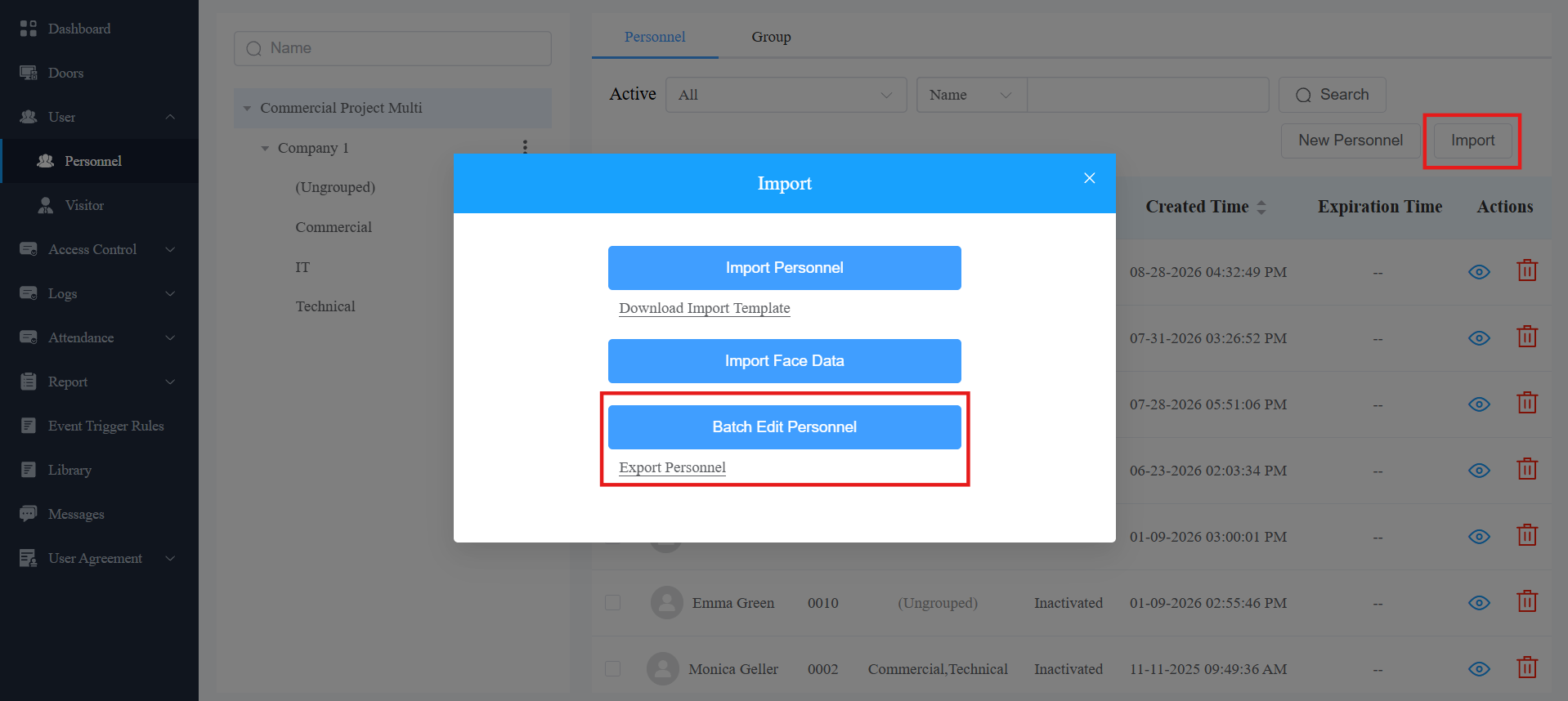
You can export the personnel file, edit it, and import it to make a bulk modification.
Click User > Personnel > Import.
Click Export Personnel.
Click Batch Edit Personnel to upload the file after editing it.


Note
Group name cannot be modified.
The email address of an account linked to multiple sites cannot be modified.
Adding or updating an email address will reset the SmartPlus App login password. The new login credentials will be sent to the new email address.
Access credentials can be added but not modified.
Door Management
You can manage doors through quick control and schedules.
Access Control Priority Levels:
Quick Control: Highest priority. Control doors even if they are in the state preconfigured by the Door Schedule. For example, if a door is set to hold open from 8 AM to 12 PM daily, you can close the door at any time via quick control.
One-Time Runs: The second-highest priority. Only one schedule can be active per day, and one-time runs take precedence over Routine Schedules and Holidays. For instance, if a door is set to hold open for one-time runs on a holiday, users can open it during the holiday.
Holiday and Routine Schedule: These have the lowest priority and will only be effective if there are no active One Time Runs or Quick Control adjustments.
Compatible Devices
Features
Models and Versions(or Higher)
X910: 2910.30.11.104
X912: 912.30.12.22
X915V2: 2915.30.10.619
X916: 916.30.10.508
R29: 29.30.10.507
R28V2: 228.30.11.6
R25: 25.30.10.206
R20: 320.30.11.206
E12V2: 312.30.11.106
E16V2: 216.30.11.107
E16V3: 416.30.11.206
E18: 18.30.11.136
S539: 539.30.10.507
S538: 538.30.10.705
S535: 535.30.11.8
S532: 532.30.10.336
A08: 108.30.11.110
A01/A02: 101.30.11.12
A03: 103.30.11.6
A05V2: 205.30.11.114
A095: 95.30.10.203
A094: 92.30.11.8
A15: 1115.30.10.407
WR01: 1401.30.11.221
Door Quick Control
On the Doors module, you can check the added doors, their status, location, expiration time, etc. The icon next to the door name indicates a different status.
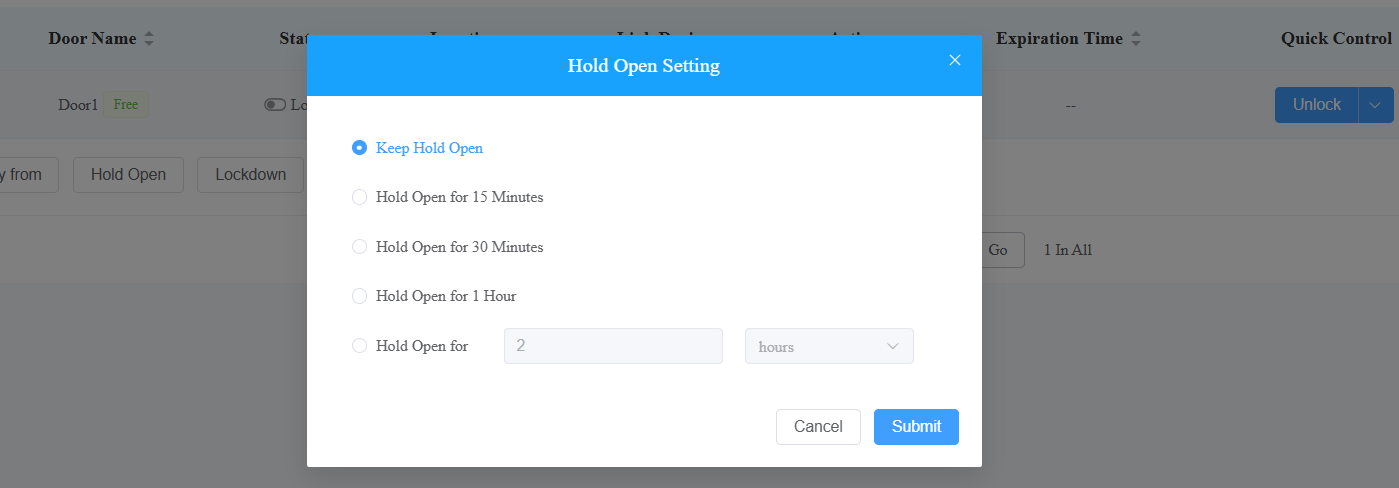
You can also perform door quick control(unlock, hold open, and lock down).
Free: The door is free to use.
 : The door expires, which limits the cloud services, including issuing credentials to open the door, remotely configuring and managing the door phone, and reporting door logs to the cloud.
Door Status: The door status is configured by your installer.
 /
/ : The door status is not configured.
 /
/ : The door status is indicated by the input status.
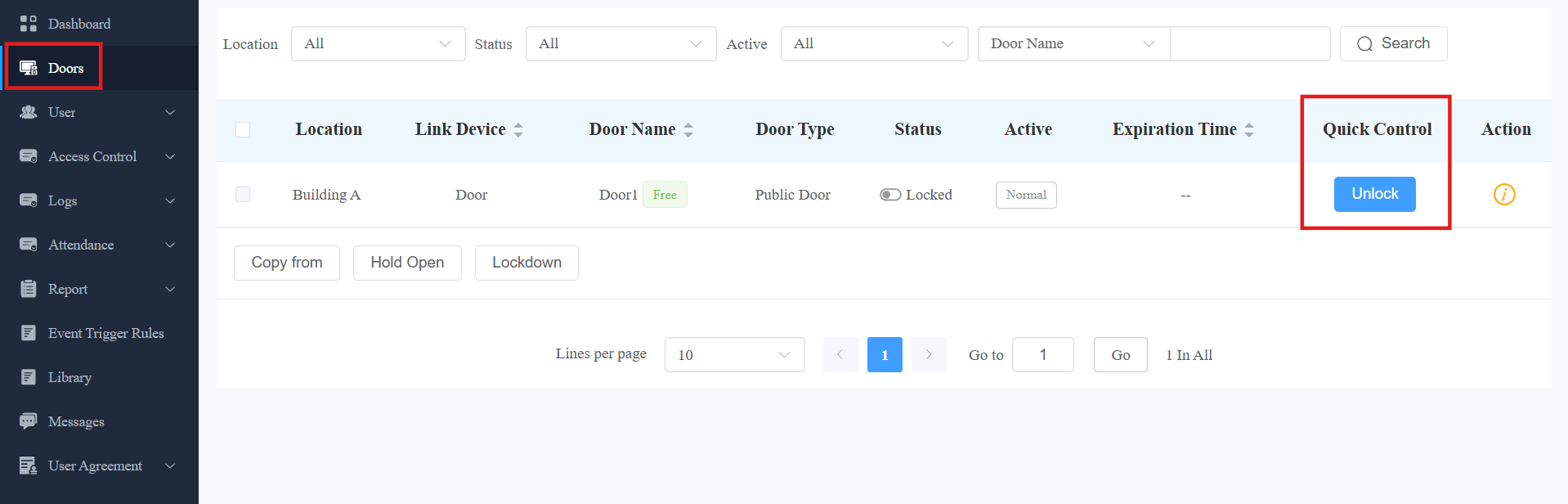
When setting the door to remain open, select the time. To close it while it is open, click Restore.
Lockdown
The lockdown feature keeps the door locked. It can be used to keep threats out in dangerous situations.
Doors under lockdown cannot be opened by common access methods, such as users’ credentials and the exit button.
Compatible models and versions(or higher):
Model
Version
Model
Version
R29
29.30.10.404
X910
2910.30.11.28
R28V2
228.30.10.231
X912
912.30.11.107
R25
25.30.10.117
X915V2
2915.30.10.420
R20
320.30.11.30
E16 V2
216.30.10.208
A08
108.30.11.8
E16 V3
416.30.11.206
A03
103.30.10.204
A01/A02
101.30.10.206
A095
95.30.10.110
A094
92.30.10.205
X916
916.30.10.508
S539
539.30.10.507
S538
538.30.10.705
S535
535.30.11.8
A05V2
205.30.11.114
E12V2
312.30.11.106
S532
532.30.10.336
E18
18.30.11.136
A15
1115.30.10.407
WR01
1401.30.11.221
Click Lockdown at the top of any interface. This button is only available for project manager accounts.
Click Lockdown On to lock all doors; click Lockdown Off to release all doors.
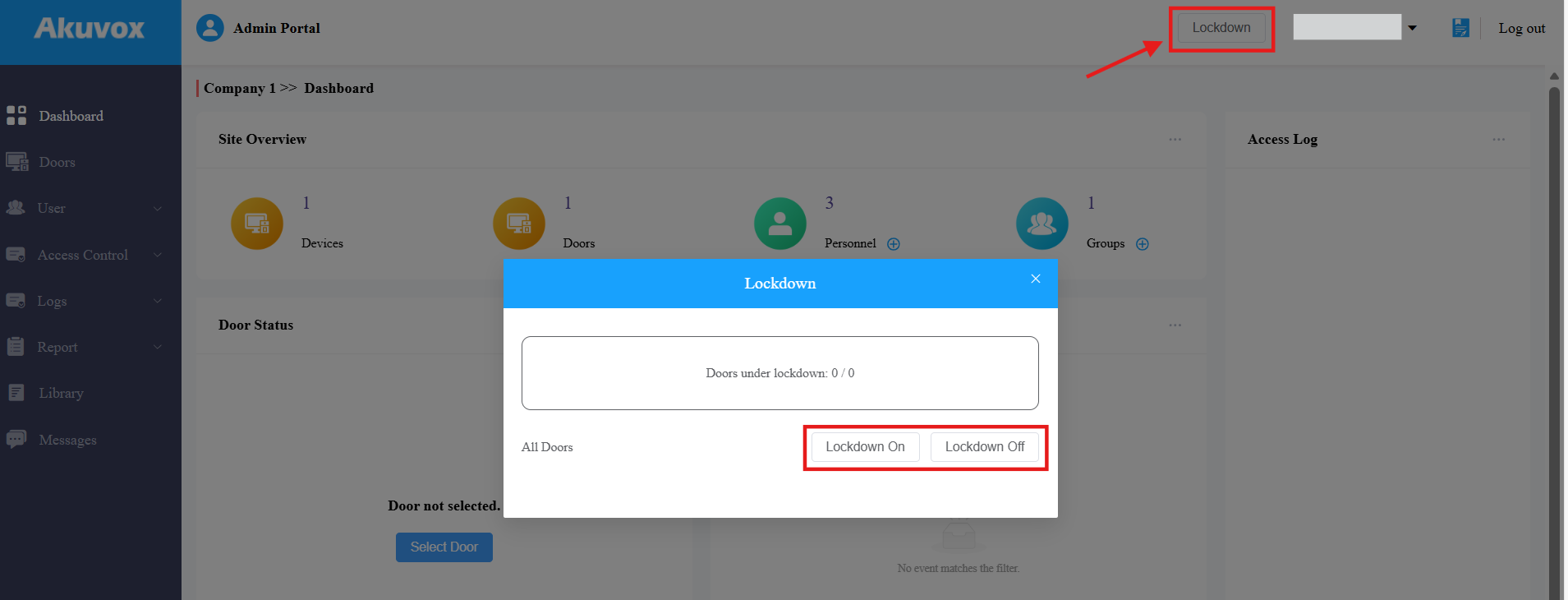
If users try to open doors when devices are in lockdown, devices with screens will display “Property Under Lock” and announce an alarm; devices without screens will shine a blue indicator light and announce an alarm.
Switch Lockdown for a Specific Door
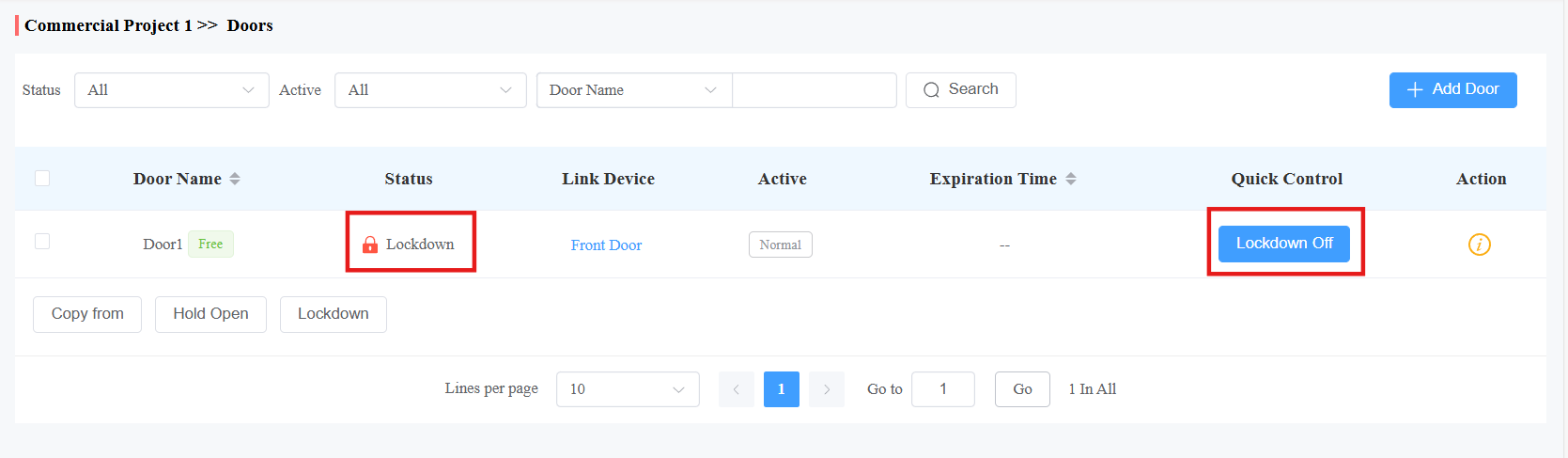
You can check the doors’ lockdown status and turn on/off lockdown for a specific door by clicking Lockdown On/Off in the Quick Control column.
Modify Door Settings
1. On the Doors module, click  of the desired door.
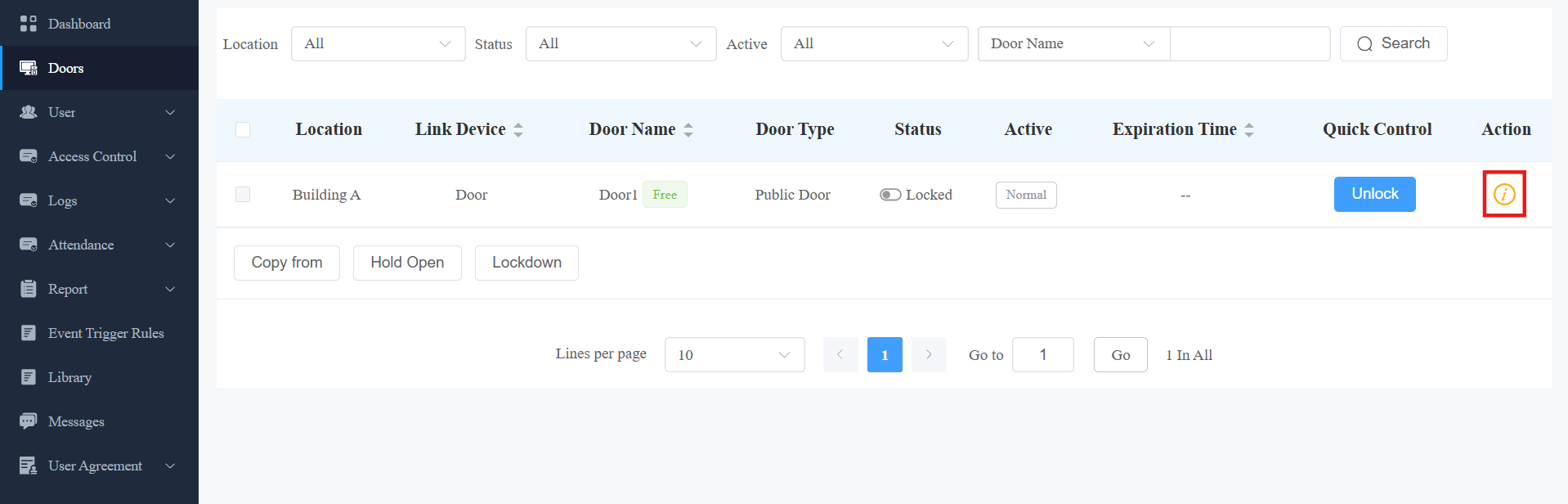
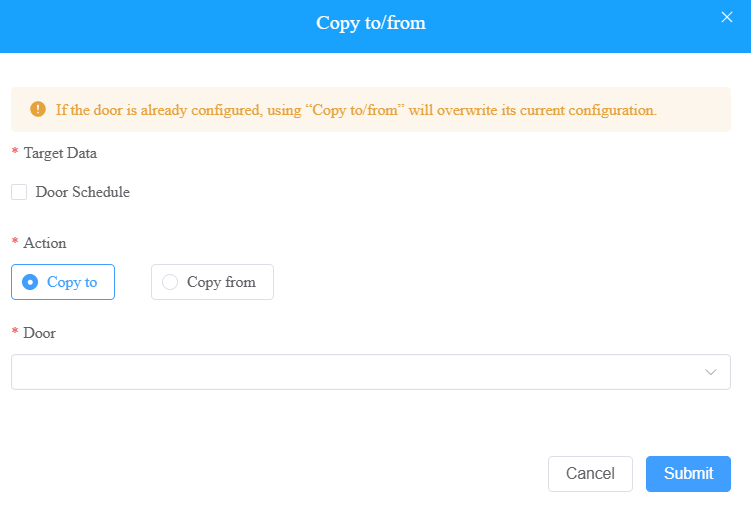
2. Click Copy to/from to copy the configuration data to/from another door.
3. Click next to the door name to modify its settings.

Door Schedule
The Door Schedule refers to a timetable for doors to change to a preset state at specific times.
It supports two repeat modes:
Routine Schedules: The schedule repeats every week.
One-Time Runs: Set the daily or weekly schedule that repeats during a defined period.
Routine Schedules
1. On the Doors module, click of the desired door.
2. To set up a routine schedule, click Edit on the Door Schedule section.
3. Select the door mode that will be highlighted.
Hold Open: The door remains open during the scheduled time.
First Credential In: The door remains open during the scheduled time after users use their credentials for the first time.
Lockdown: The door remains closed during the scheduled time.
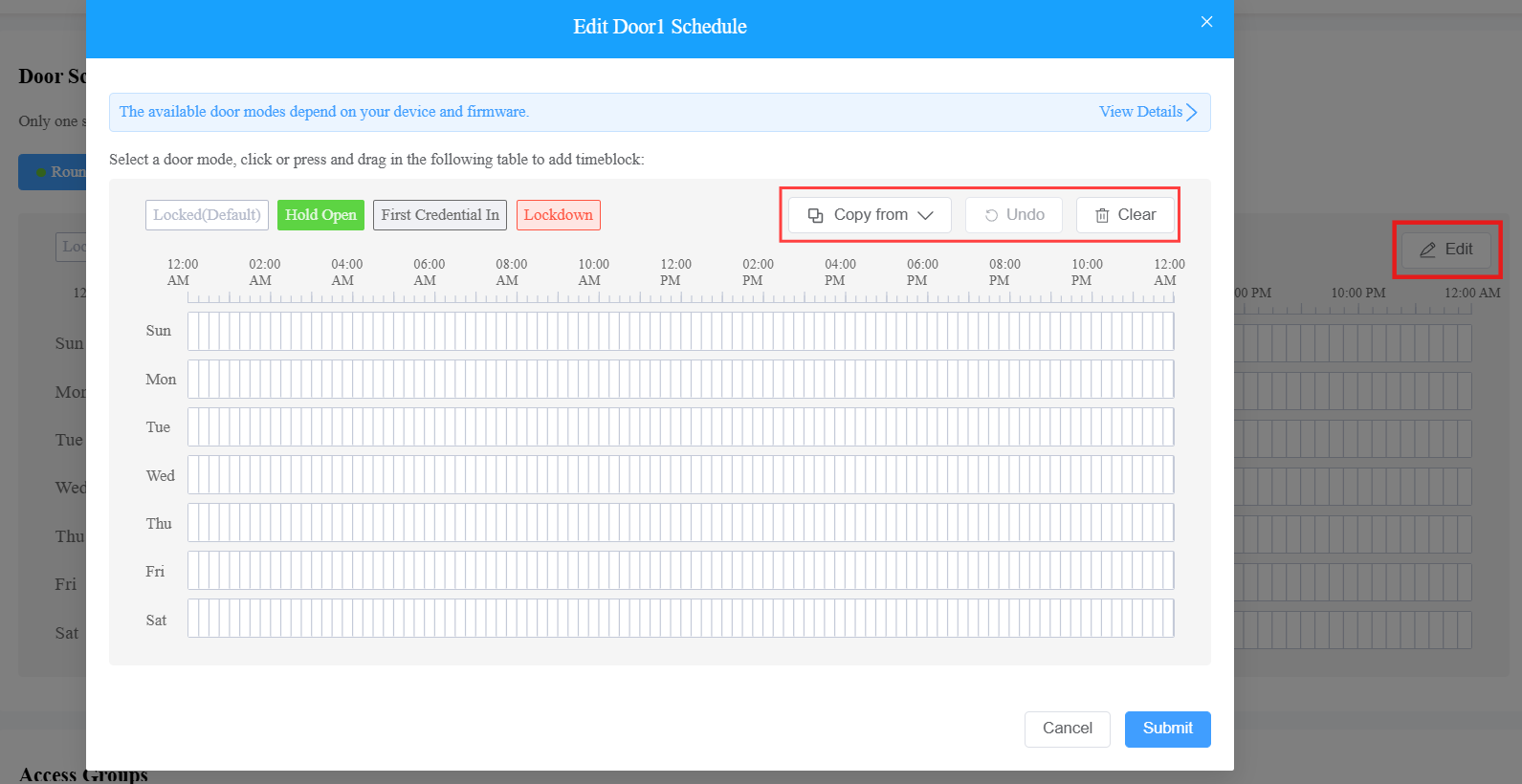
4. Hold and drag your mouse cursor to select a time block.
While setting up the schedule, you can:
Click Copy from to copy a schedule from a configured door.
Click Undo to withdraw the configuration.
Click Clear to remove the configuration.
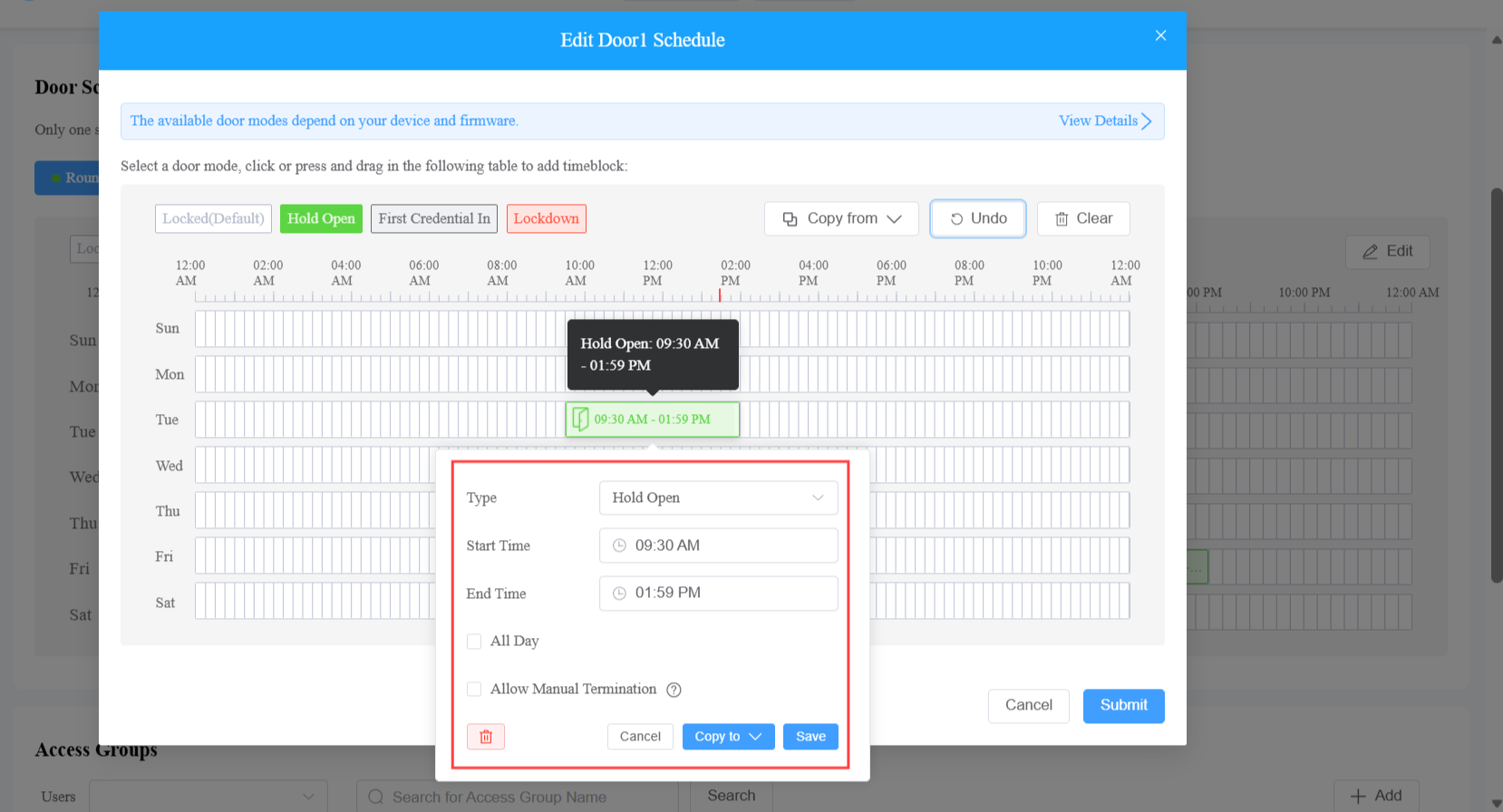
5. Set up the time block by clicking it. You can:
Change the type.
Select the start time and end time.
Check All Day.
Check Allow Manual Termination. If enabled, users with the first credential in permission can close the door when it is held open.
Copy the schedule to the whole week, weekend, or weekdays by clicking Copy to.
6. Save the setting and submit the schedule.
One-Time Schedules
1. On the Doors module, click of the desired door.
2. Select One-Time Runs on the Door Schedules section.
3. Click +Add One-Time Runs.
4. Name the schedule.
5. Specify the schedule's effective time.
6. Select the Repeats mode: Daily or Weekly.
7. Select the door mode that will be highlighted.
Hold Open: The door remains open during the scheduled time.
First Credential In: The door remains open during the scheduled time after users use their credentials for the first time.
Lockdown: The door remains closed during the scheduled time.
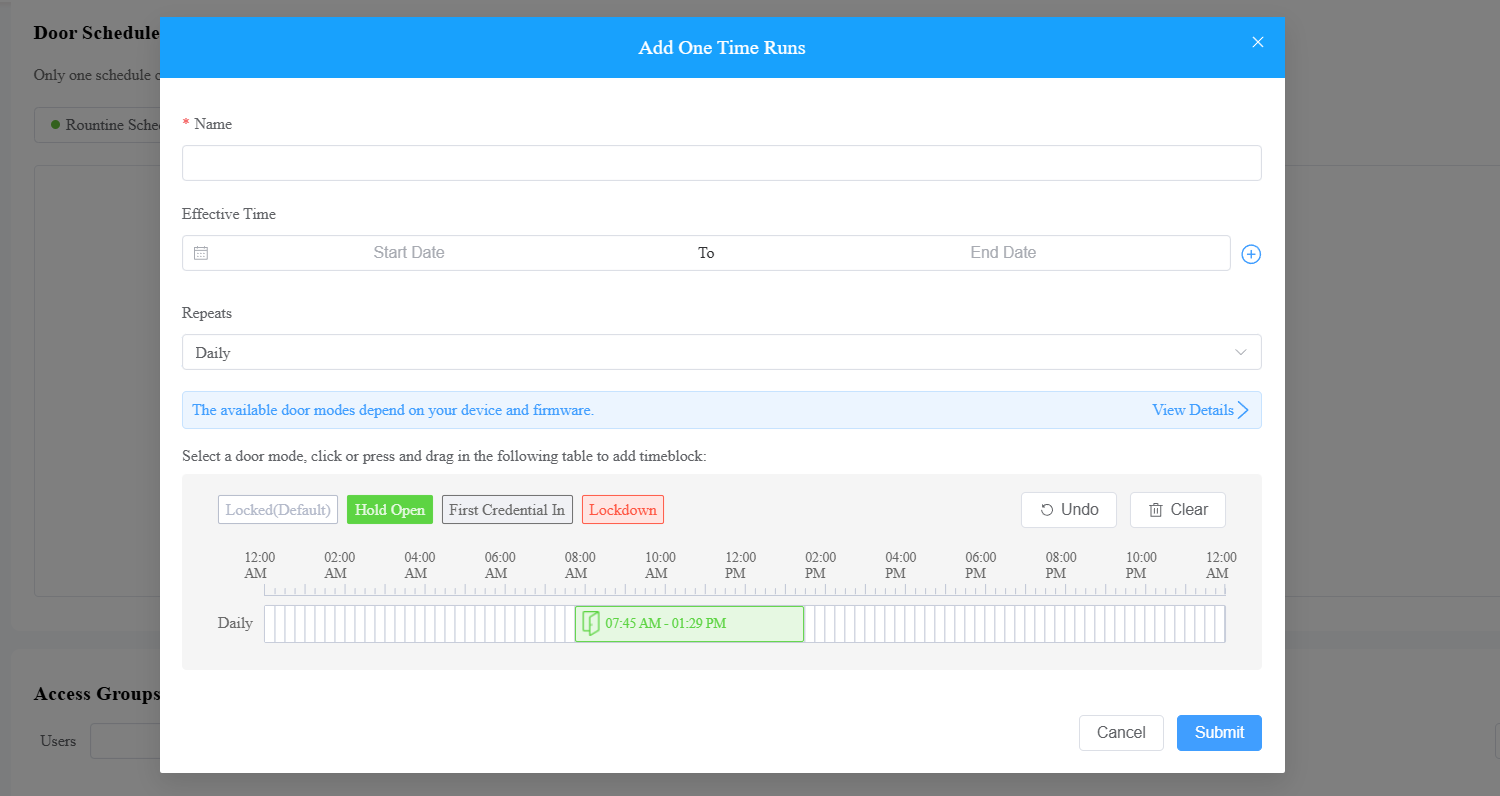
8. Set up the time block by clicking it.
You can:
Change the type.
Select the start time and end time.
Check All Day.
Check Allow Manual Termination. If enabled, users with the first credential in permission can close the door when it is held open.
Copy the schedule to the whole week, weekend, or weekdays by clicking Copy to.
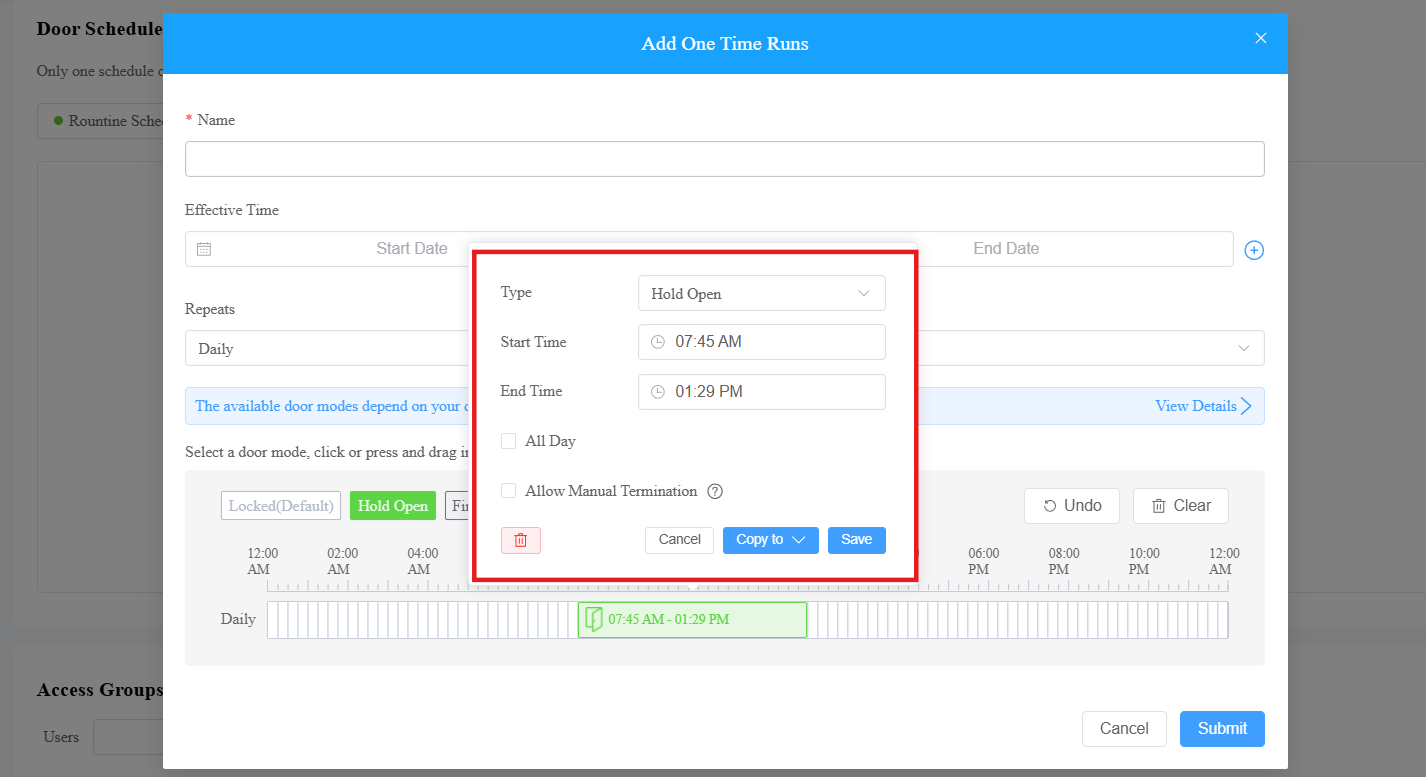
9. Save the setting and submit the schedule.
Access Group Management
The Access Group module allows you to create an inventory of ready-made access control schedules, which can be readily pulled out and applied for the door access control, targeting specific groups and personnel.
Create an Access Group
Click Access Control > Access Group > +New Access Group.
You can click
 to view the details of the default access group generated by the system.
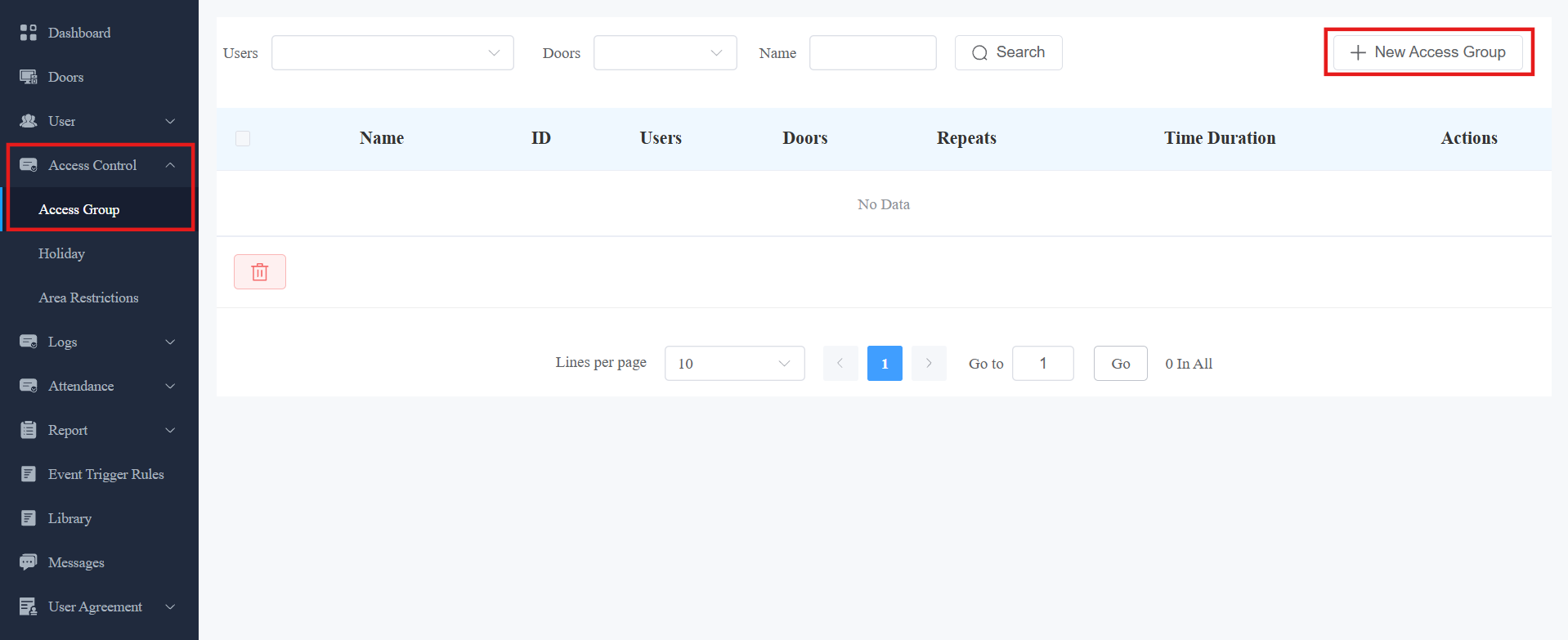
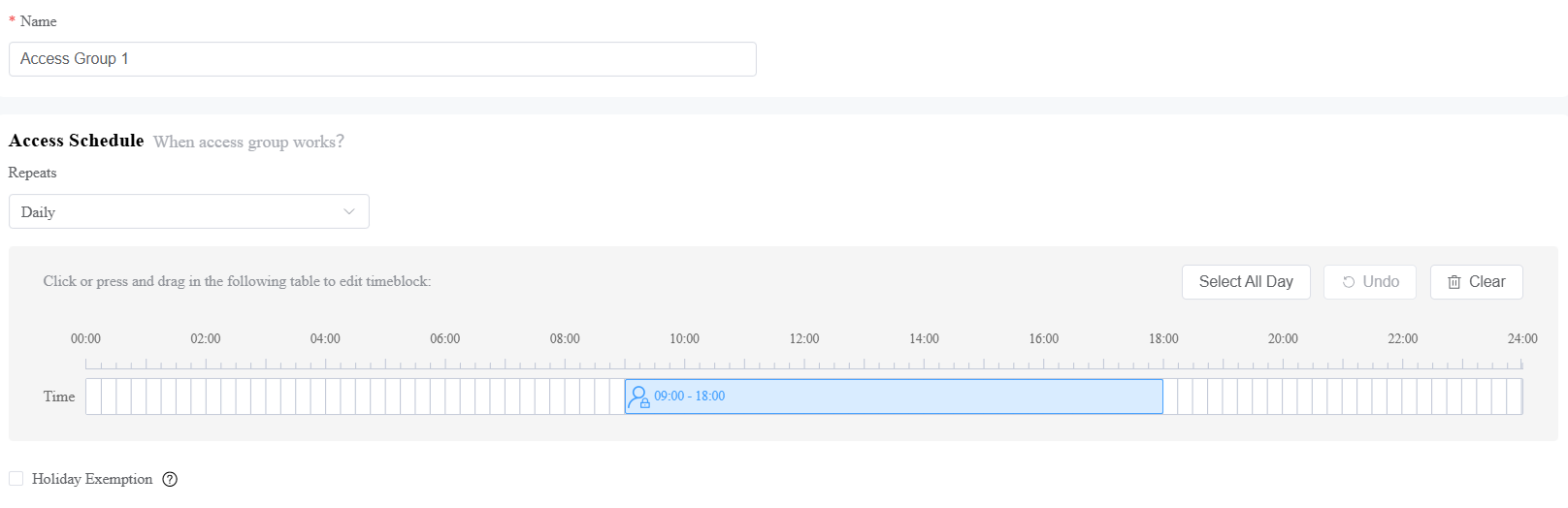
Name the access group and select the Repeats mode from Daily, Weekly, or Never. Daily and Weekly means the schedule will repeat every day and week.
Specify the time within which users can open doors with their credentials.
Enable/disable Holiday Exemption. This decides whether the users in the access group can open doors during holiday schedules.
Compatible Models and Firmware Versions (or Later)
Model
Minimum Version
Model
Minimum Version
X912
912.30.12.22
S539
539.30.10.507
X915V2
2915.30.10.619
S538
538.30.10.705
X916
916.30.10.508
S535
535.30.11.8
R29
29.30.10.507
A08
108.30.11.110
R28V2
228.30.11.17
A01/A02
101.30.11.12
R25
25.30.10.206
A03
103.30.11.6
R20
320.30.11.206
A095
95.30.10.203
E16V2
216.30.11.107
A094
92.30.11.8
E16V3
416.30.11.206
A05V2
205.30.11.114
X910
2910.30.11.104
E12V2
312.30.11.106
S532
532.30.10.336
E18
18.30.11.136
A15
1115.30.10.407
WR01
1401.30.11.221
Select the door(s) to be opened. If Custom is selected, choose the door from the dropdown menu.

Select users who are authorized to open the door.
If Custom is selected, click +Add in the Groups section to select a group. All users in the group will be granted permission to open the door.
Click +Add in the Personnel section to select a specific user.
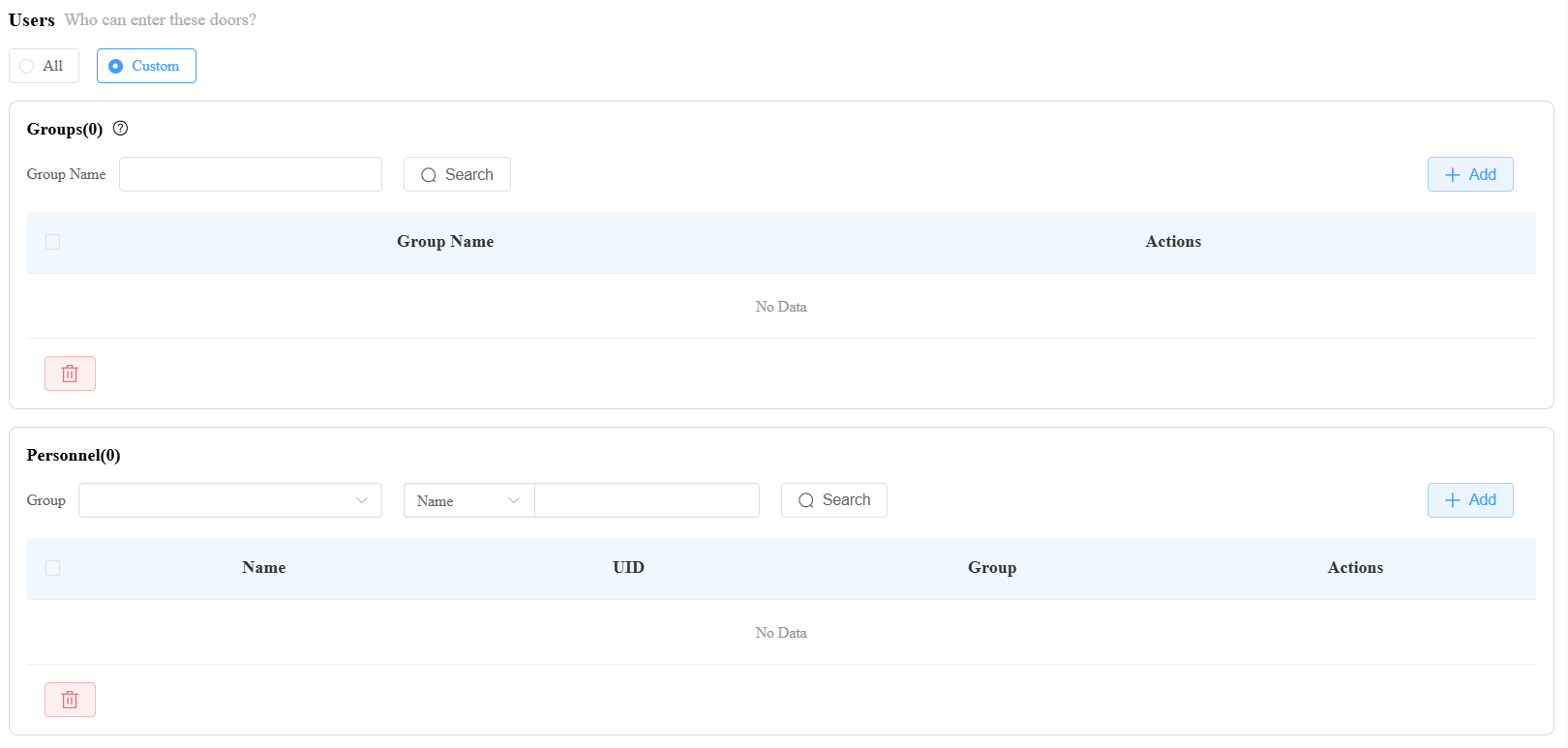
Submit the setting.
Edit/Delete Access Groups
The system-generated default group cannot be edited or deleted.
Click Access Control > Access Group.
Click
 to view the group's detailed information; click
  to modify its settings; click
  to delete it.
Holiday Access Control
You can define the holidays when personnel cannot open doors to enhance access control security.
Compatible models and versions(or higher):
Model
Version
Model
Version
X910
2910.30.11.28
R20V5.0
320.30.10.223
X912
912.30.11.49
R25
25.30.10.117
X915V2
2915.30.10.211
R29
29.30.10.314
X916
916.30.10.222
R28V2
228.30.10.218
S532
532.30.10.211
A08
108.30.10.108
S535
535.30.10.233
A01/A02
101.30.10.106
E18
18.30.10.236
A03
103.30.10.108
E16V2
216.30.10.208
E16V3
416.30.11.206
A094
92.30.10.112
A05V2
205.30.10.119
E12V2
312.30.11.18
A095
95.30.10.125
S538
538.30.10.705
S539
539.30.10.249
A15
1115.30.10.407
WR01
1401.30.11.221
E21
321.30.10.106
Click Access Control > Holiday > New.
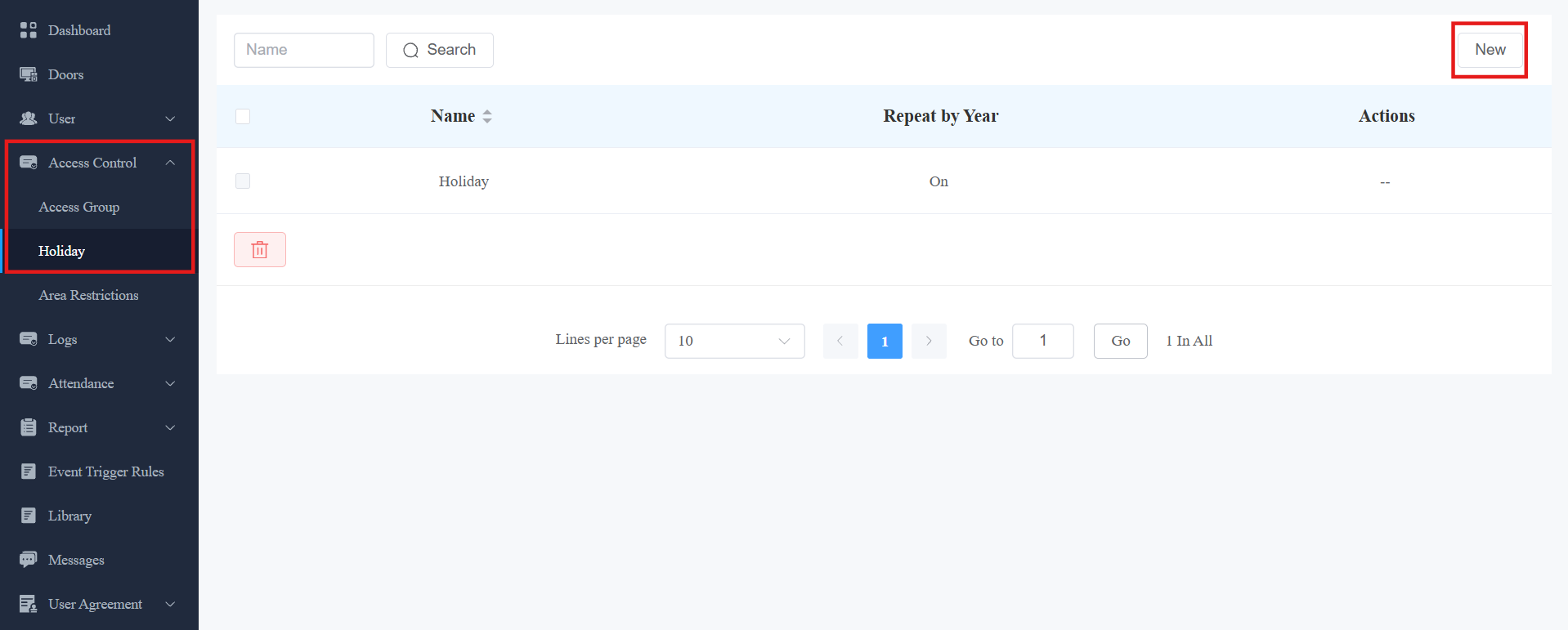
Enter the holiday name.
You can set the Working Hours to allow authorized personnel to open doors. When enabled, specify the time.
You can enable Repeat by Year to repeat the schedule every year.
Select the year and day(s) of the holiday schedule.
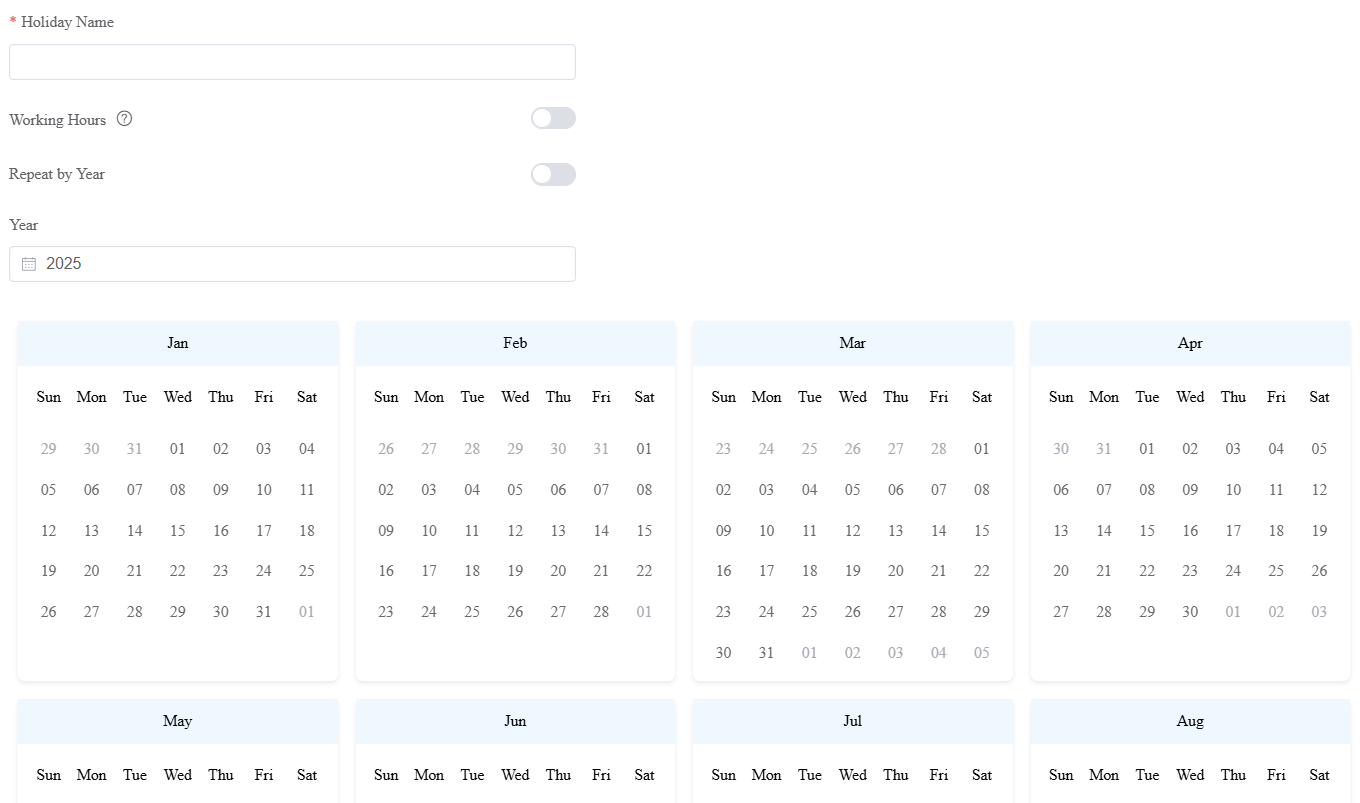
Click Submit.
Area Restrictions
This feature strictly controls the entry and exit of users. Users can only enter and exit the specific area through the designated doors.
Compatible models and versions(or higher):
Model
Version
Model
Version
A08
108.30.10.108
R29
29.30.10.314
A01/A02
101.30.10.106
R28V2
228.30.10.218
A03
103.30.10.108
R25
25.30.10.117
A05V2
205.30.10.119
S539
539.30.10.231
A094
92.30.10.112
S535
535.30.10.233
A095
95.30.10.125
S532
532.30.10.211
X910
2910.30.11.28
E18
18.30.10.236
X912
912.30.11.49
E16V2
216.30.10.208
X915V2
2915.30.10.211
E16V3
416.30.11.206
X916
916.30.10.222
E12V2
312.30.11.18
S538
538.30.10.705
R20V5
320.30.10.226
A15
1115.30.10.407
WR01
1401.30.11.221
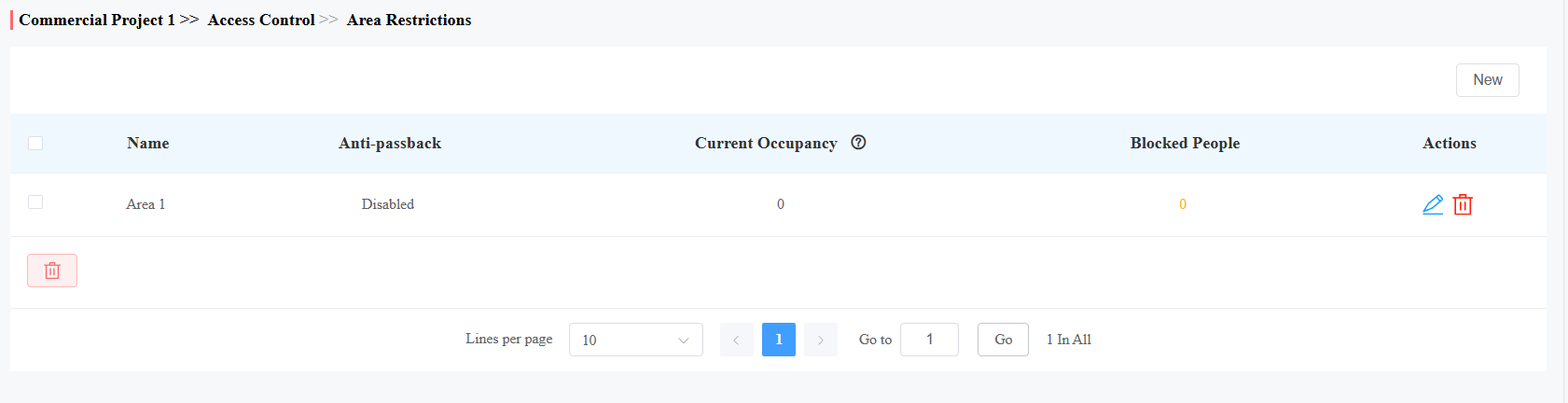
Click Access Control > Area Restrictions > New.
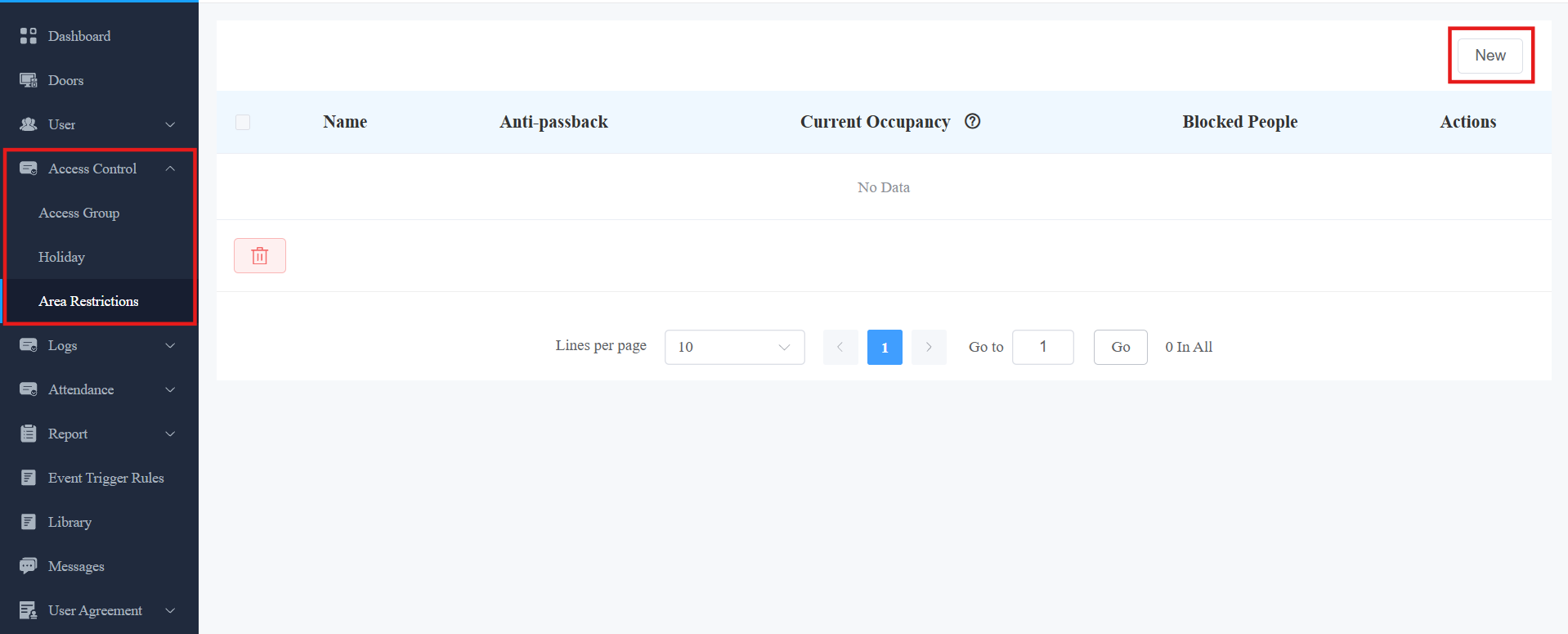
Enter the area name.
Select the entry and exit doors. With anti-passback disabled, there is no strict control over users exiting through the exit door. Users can exit through the entry door.
When the anti-passback feature is enabled, users must first enter, and then exit the area through designated doors.
Note
Anti-passback also prohibits users from entering the area by following others. Users can only use their credentials to open the entry and exit doors once respectively.
For example, if the user follows someone else through the door, the next time he/she cannot swipe his/her card to open the Entry/Exit door.
a. Set the time when the anti-passback feature is effective.
b. Select the action taken by the door phone when the user uses credentials to open the entry or exit door twice.
-Deny Access: The user cannot open the door.
-Log violations only: The door can be opened, and the door opening will be recorded in the door log.
Set the User Timeout within which users cannot open the same door twice. Only after the time limit can the user open the door again.
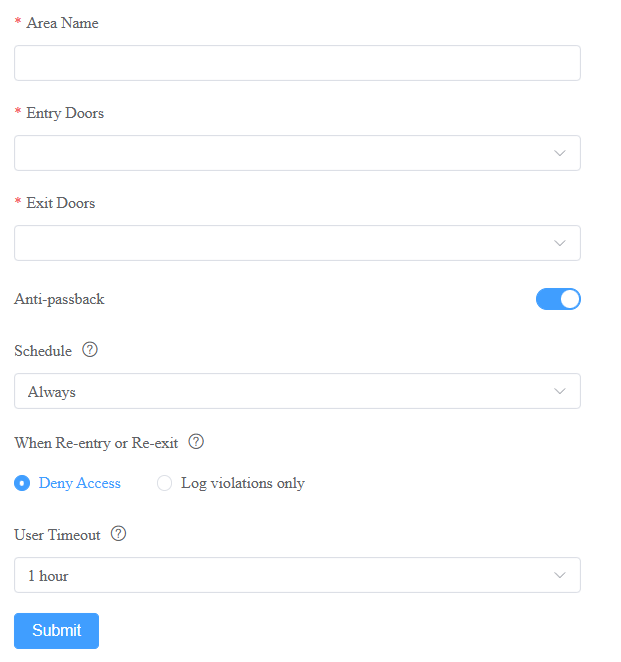
After creating the area restriction rule, you can check the current occupancy and blocked people.
Current Occupancy: Display the number of personnel entering the area, only effective when the anti-passback feature is enabled.
Blocked People: Display the number of personnel and couriers who are denied access in the area. It is only effective when the anti-passback feature is enabled and Deny Access is selected as the action for When Re-entry or Re-exit.
Event Trigger Rule
Event Trigger Rule allows you to automate actions based on access control events.
When a configured event occurs, the Smart Access Cloud automatically performs predefined actions, such as sending email notifications to administrators.
Note
Click here to view the feature configuration.
Attendance
The attendance feature allows you to:
set up independent attendance for each company;
designate specific device relays as the attendance points;
flexibly make timetables and schedule shifts;
record leaves and attendance easily.
Note
Click here to view the feature configuration.
Muster Report
The muster report is used during emergencies, such as evacuations, to account for personnel. It tracks who is present during an evacuation and identifies missing people.
ONLY project managers have permission to set this feature up.
Note
Click here to view the configuration details.
Visitor Management
You can set up access credentials for visitors and delivery personnel.
Access Credentials for Visitors
You can create temporary PIN codes along with QR codes for visitors, set the time when the credentials are valid, and select the door to be opened.
Click User > Visitor > New.
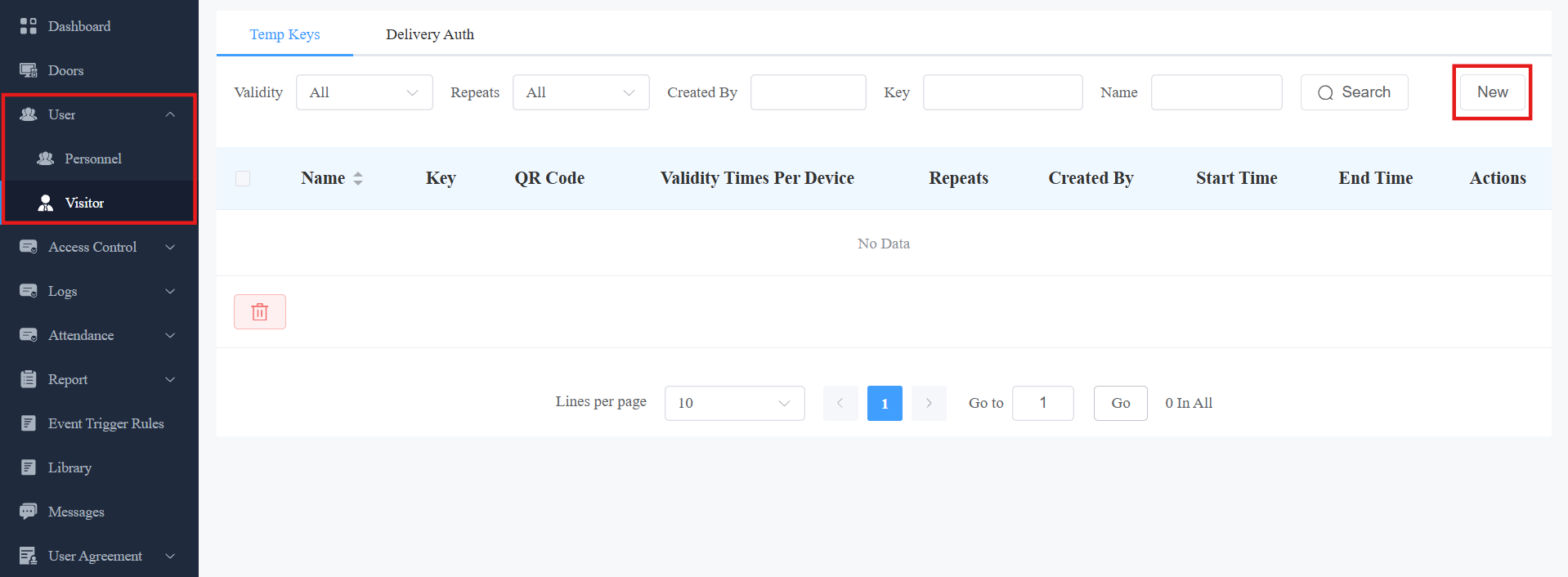
Enter the visitor’s name.
[Optional]Set a unique ID for the visitor.
Specify the time within which visitors can open doors by selecting the Repeats mode from Daily, Weekly, or Never.
Daily and Weekly mean the schedule will repeat every day and week.
Set the Validity Times Per Device when you select the Never Repeats mode.
For example, if you enter 1 and check three door phones, the visitor can use the credential to open doors three times.
In other words, the validity times of credentials = Validity Times Per Device x The number of door phones selected.
Enter the visitor’s email address in the Delivery Method to receive the temporary key.
Check the door(s) to be opened by the visitor.
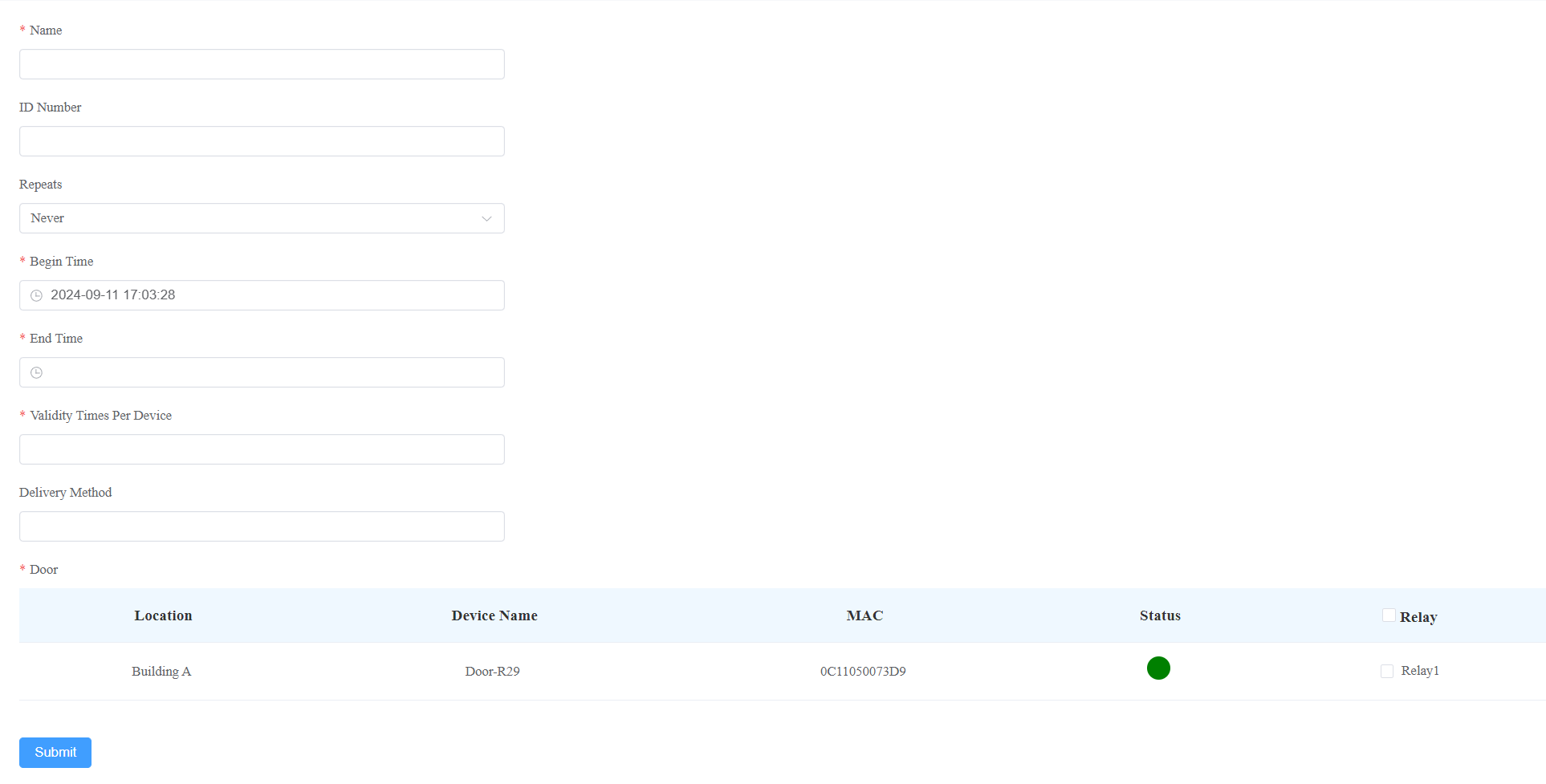
Click Submit.
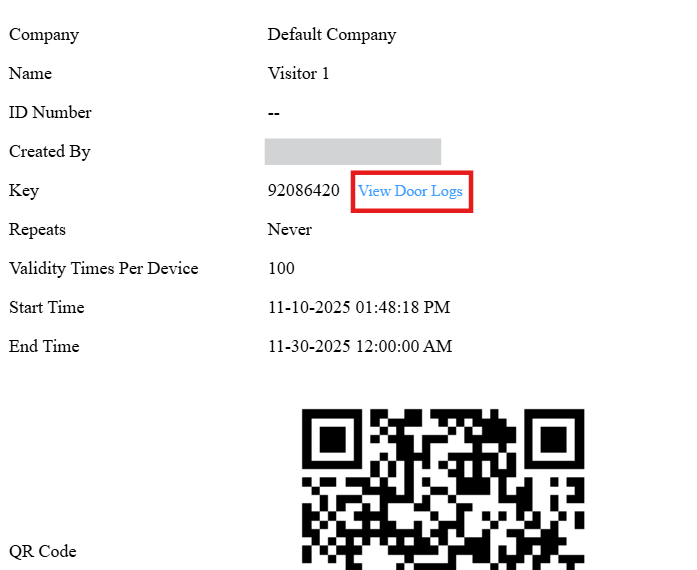
After creating the temp key, you can
check the details of the temp key by clicking
 and delete it by clicking
 .
.search for the desired key by its validity, repeat mode, who created the key, key value, and visitor name.
click View Door Logs to check the door-opening record on the temp key’s information interface.
Access Credentials for Delivery Personnel
You can create PIN codes and RF card credentials for delivery personnel, with which they can access the designated place, such as the package room.
Click User > Visitor > Delivery Auth > New.
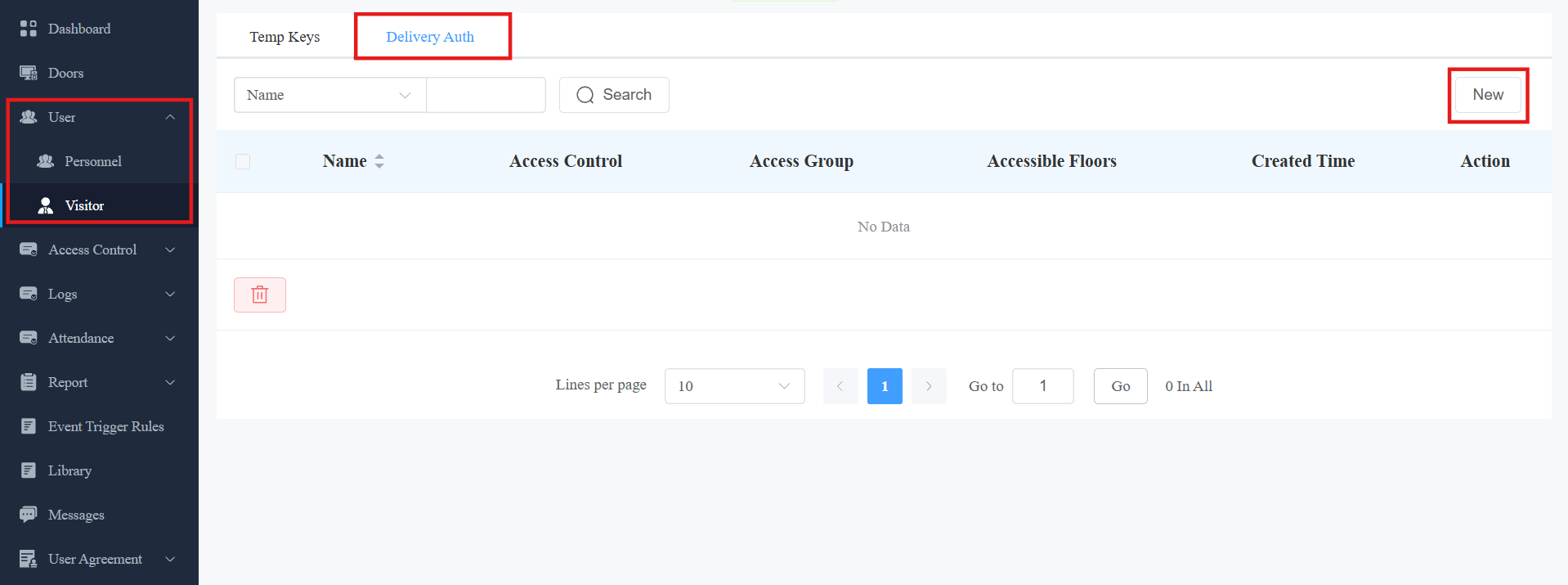
Enter the deliveryman’s name.
Enter the PIN code and/or the RF card code. The PIN code should be within 2 to 8 digits, not starting with “9”.
Set the accessible floors. The deliveryman can take lifts to the specified floors using access control credentials. You can select 10 floors in a building at a maximum.
Check the schedule for when the deliveryman can open the door. You can also click New to create a new schedule.
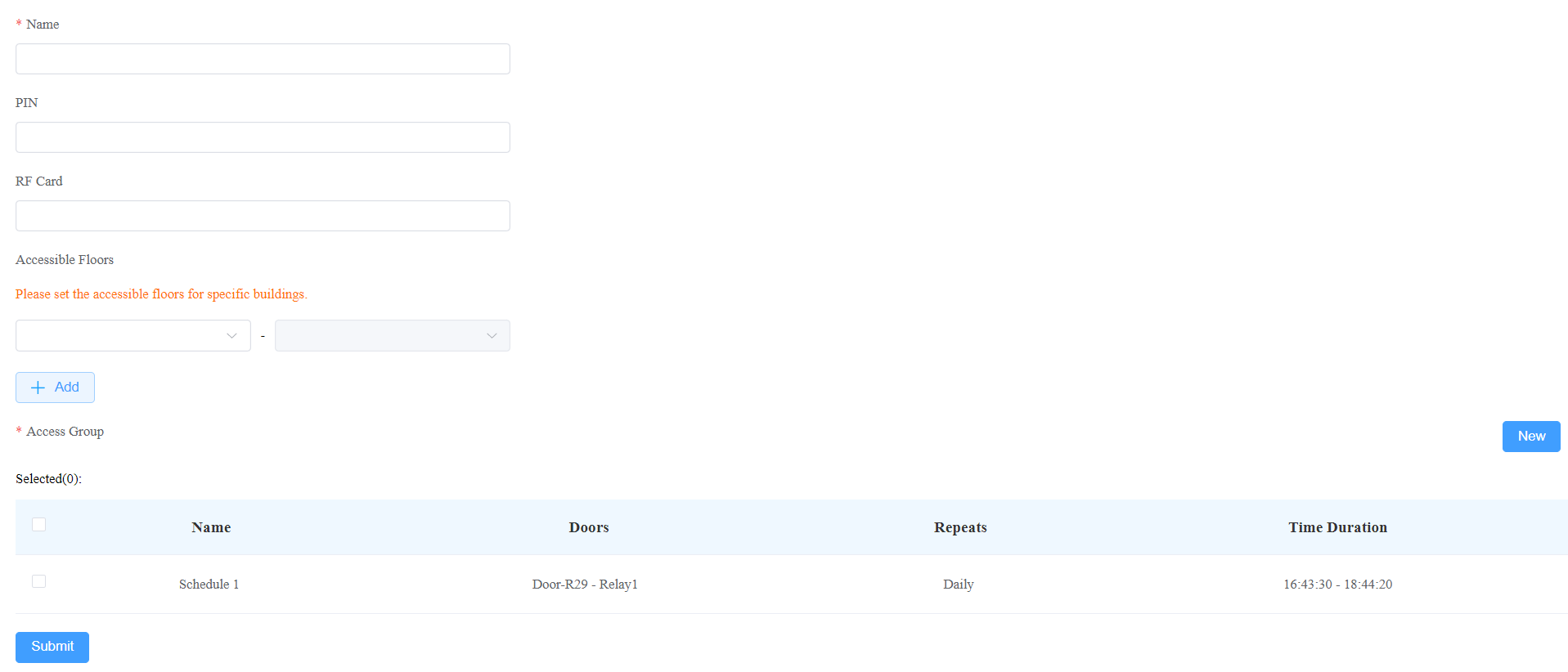
Click Submit.
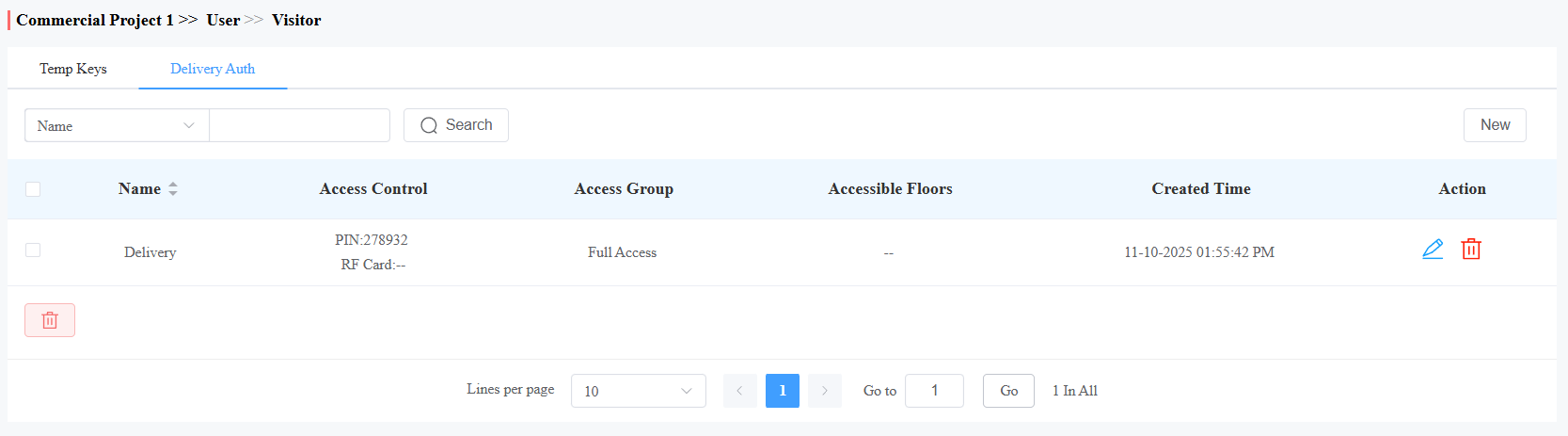
After creating the credential, you can modify it by clicking and delete it by clicking.
Logs
You can check and export door logs, call history, images captured, arming alarm, door opened timeout, tamper alarm, and break-in alarm logs in the Logs module.
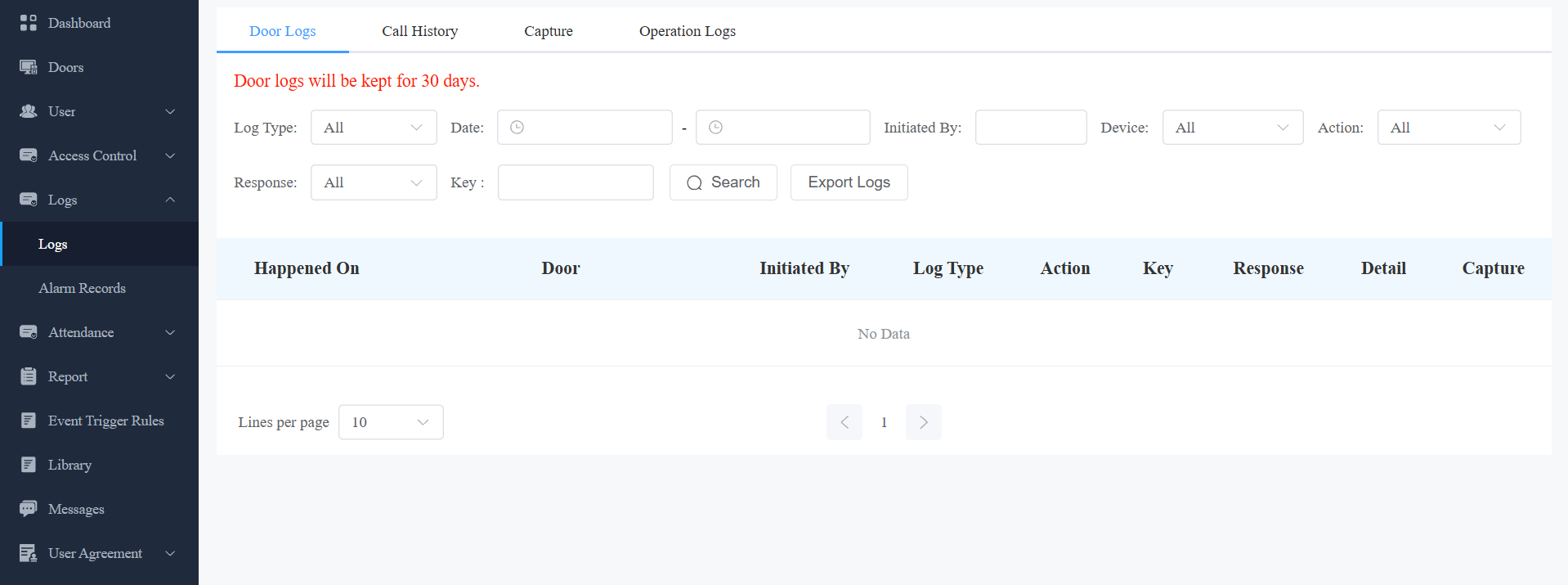
Door Logs
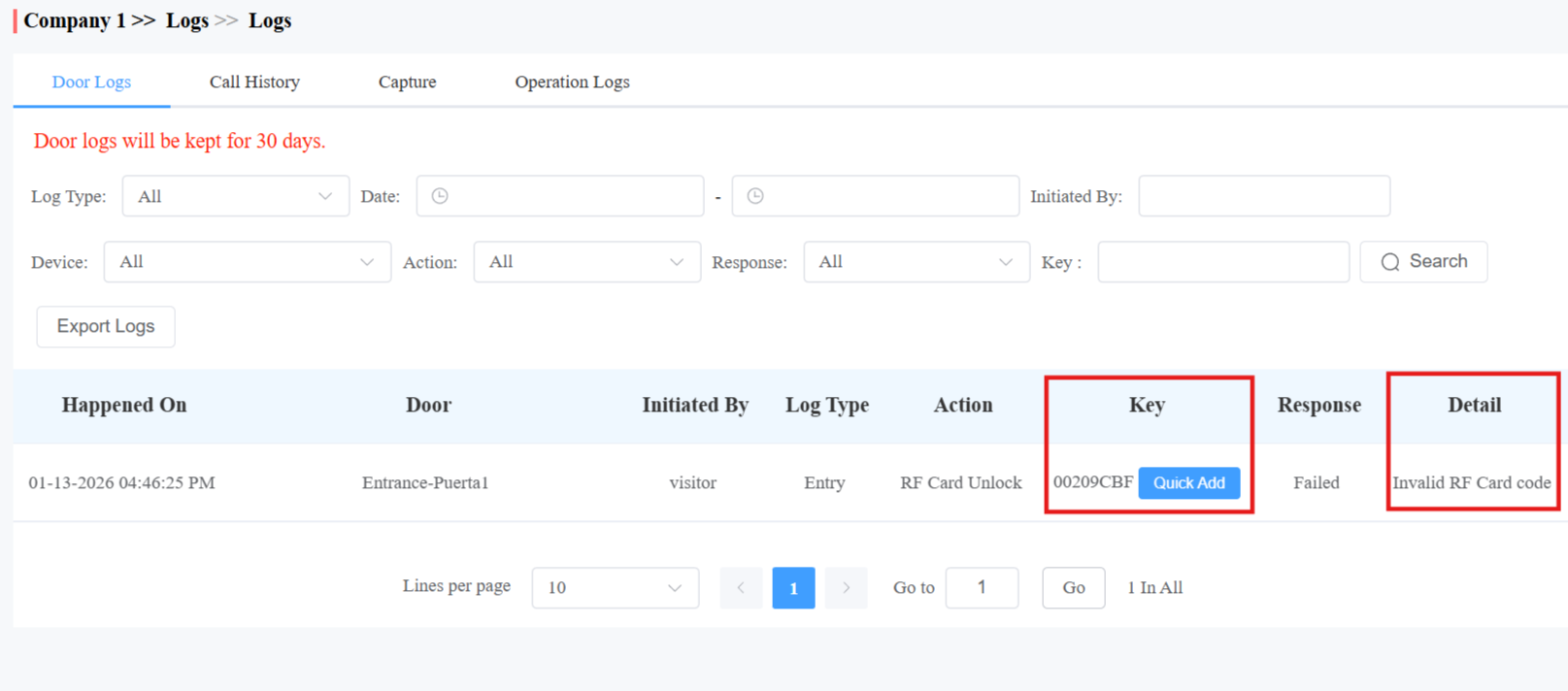
Door logs have 7 types. You can narrow your log check by the specific time range with parameters: Device Name, Initiated by, Action(Access Methods), Key, and Response(Success, Failed, or Offline) for the targeted search.
All: Display all door logs;
Call: Display the SIP/IP-based calls initiated on the door phone, indicating when, where, and to whom the calls are made.
Door Release: Display when, where, and by whom the door openings are made (be it failure or success).
Entry: Display the valid door-opening records of entering without disobeying the area restriction rules.
Exit: Display the valid door-opening records of exit without disobeying the area restriction rules.
Entry Violation: Display the door-opening records of entering that violate the area restriction rules.
Exit Violation: Display the door-opening records of exits that violate the area restriction rules.
Access Failure Reasons
The cloud provides clear failure reasons when an access attempt is denied under different scenarios.
Failure Scenario | Description | Display Message |
|---|---|---|
Invalid credentials | Credentials not registered | E.g., Invalid RF Card Code |
Holiday restriction | Access attempted during a holiday period | No access permission during holidays |
No permission / Door inactivated or expired | User has no permission, outside schedule, or door inactivated/expired | No access permission or door license is not available |
Vehicle validity expired | License plate is outside the valid period | Not within the valid period |
User validity expired | User validity period has expired(applies to PIN, RF card, license plate, face, Bluetooth, NFC, Amenity Reservation, and fingerprint authentication) | Outside of user's valid time period |
Door interlock | Access blocked due to door interlock | Door interlock activated |
Two-factor authentication failure | Second authentication method does not match configuration | Two-factor authentication failed |
Parking limit reached | Parking capacity allocation exceeded | Parking Limit Reached |
You can check the reason in the Detail column.
Note
Failure reasons may vary depending on device model and firmware version.
Call Logs
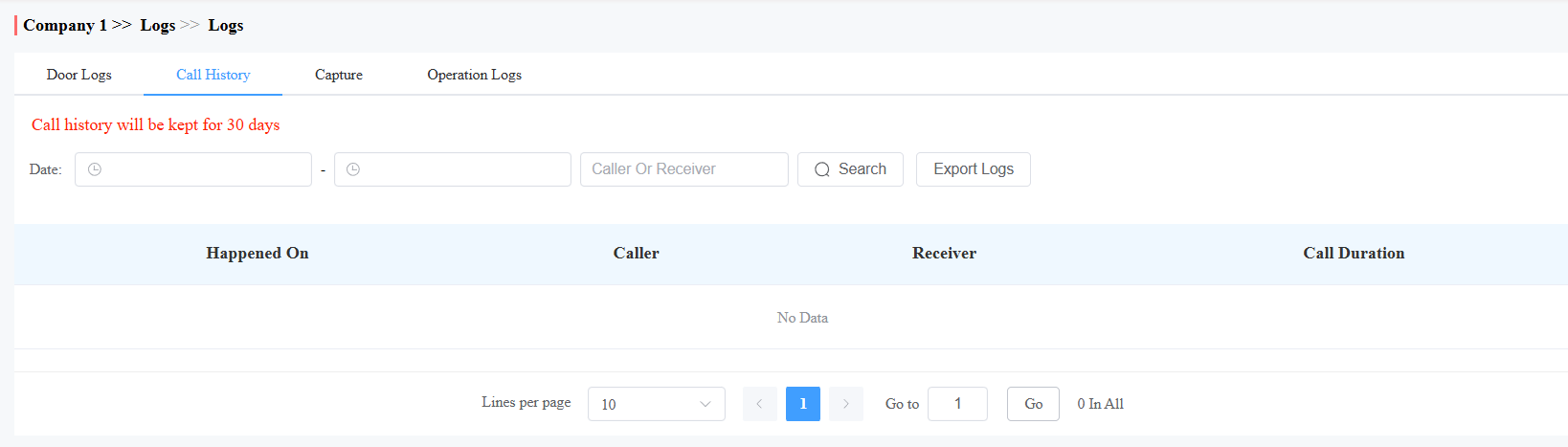
You can check when and by whom the SIP calls are made and received. Moreover, you can set the time range or enter the caller or receiver to check the targeted call information.
Captured Images
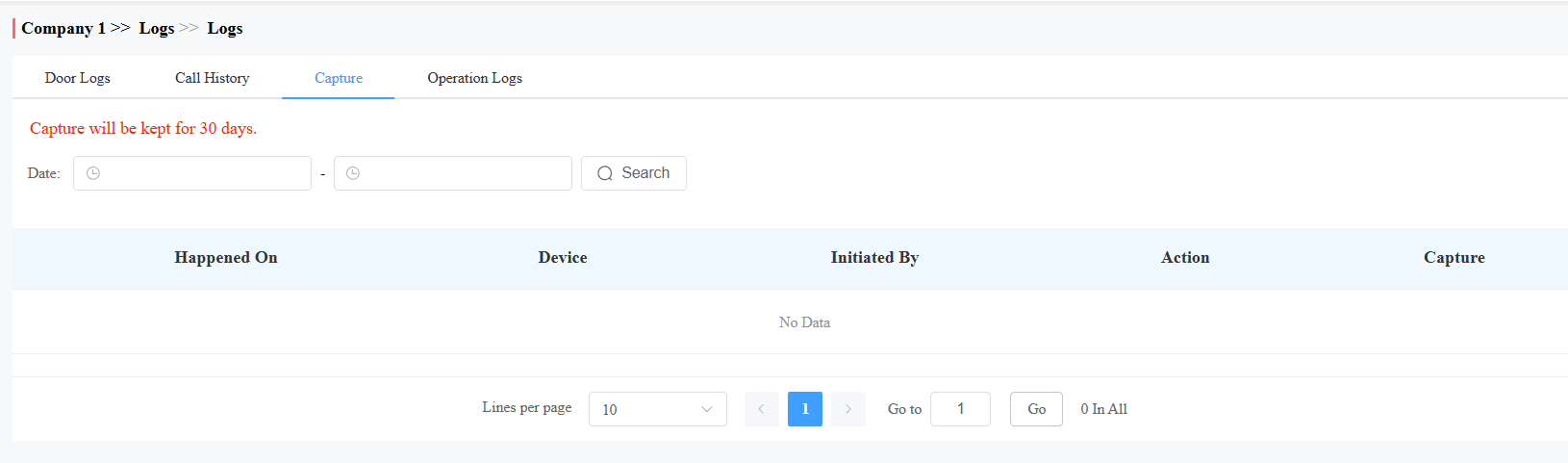
Image capturing is either initiated manually by users or by the property management staff. You can check when, where, how, and by whom the images are captured. You can click the image in the Capture column to see a larger picture.
Operation Logs
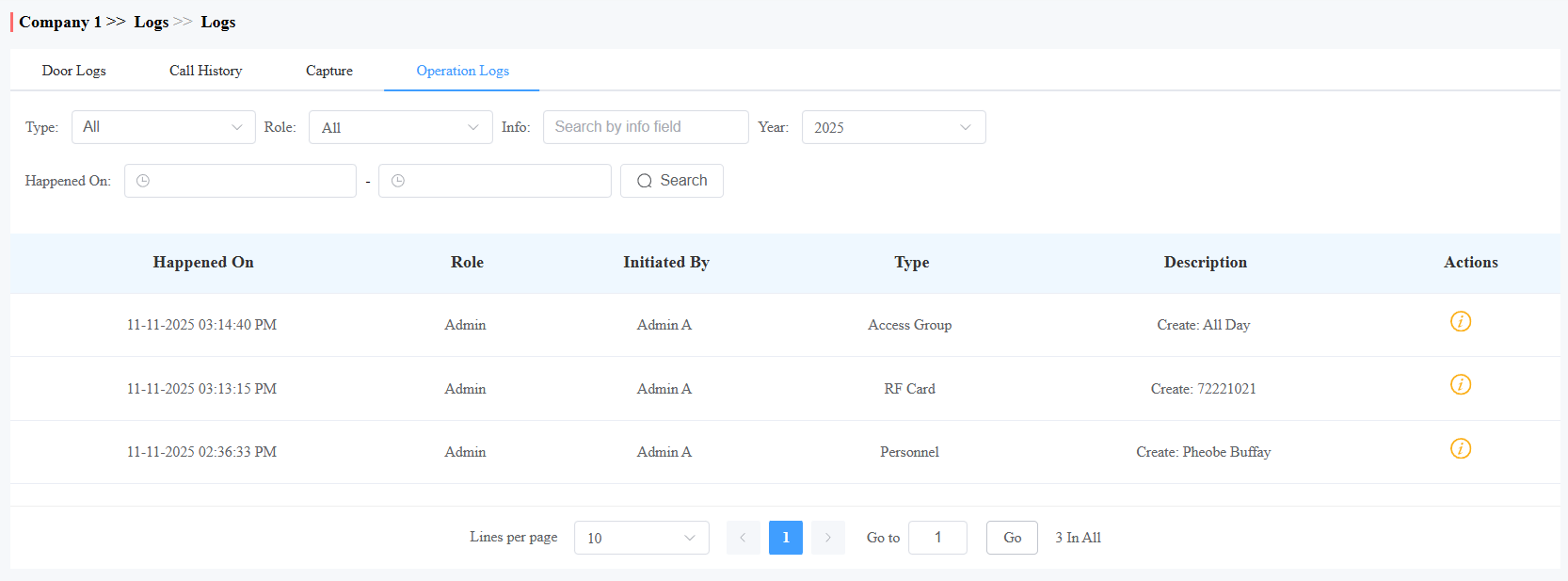
You can check who has made configurations in the project on the cloud.
Alarm Records
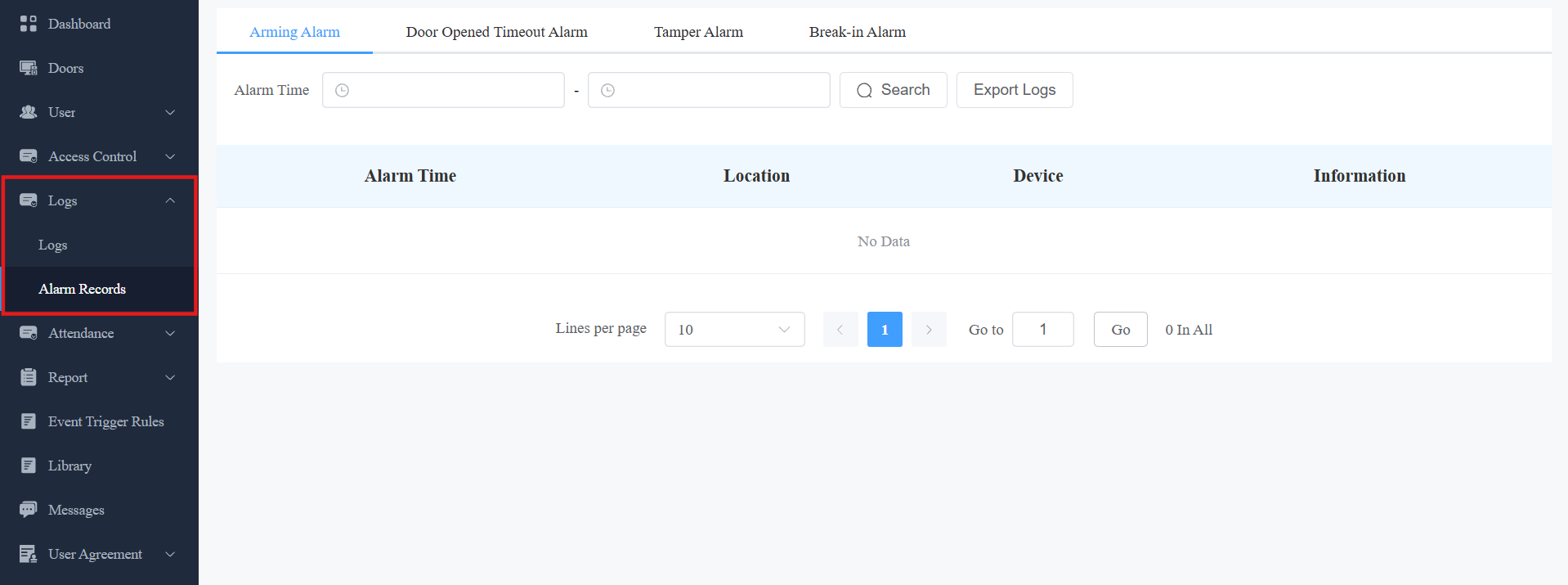
You can check various alarm records on the Logs > Alarm Records module.
Arming Alarms
The alarm is recorded when indoor monitors trigger the arming alarms. Narrow the search by entering a specific time.
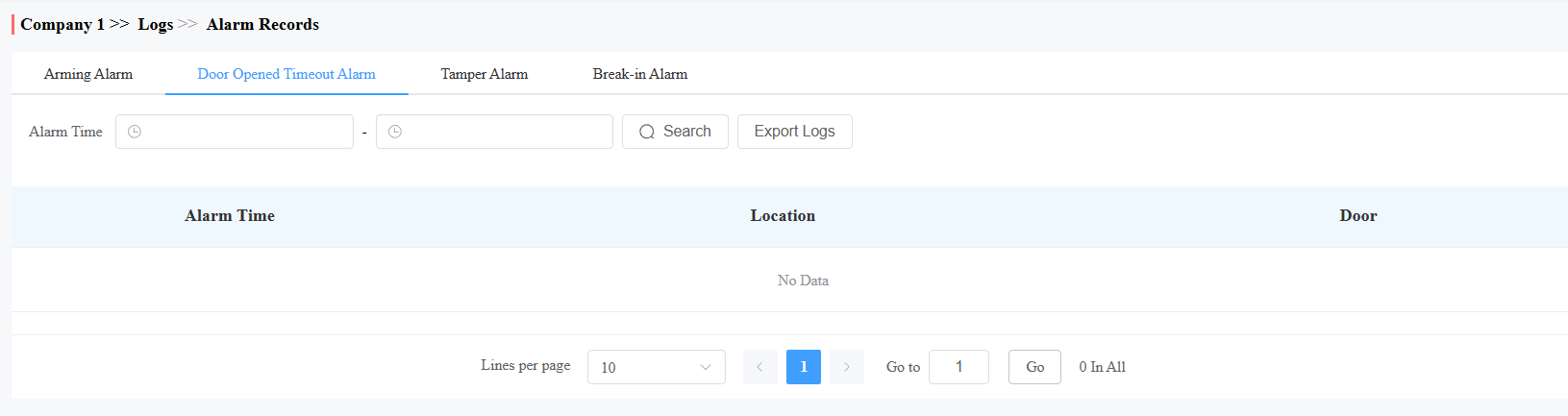
Door Opened Timeout Logs
When the door-opening time exceeds a certain limit, the alarm will be triggered and recorded.
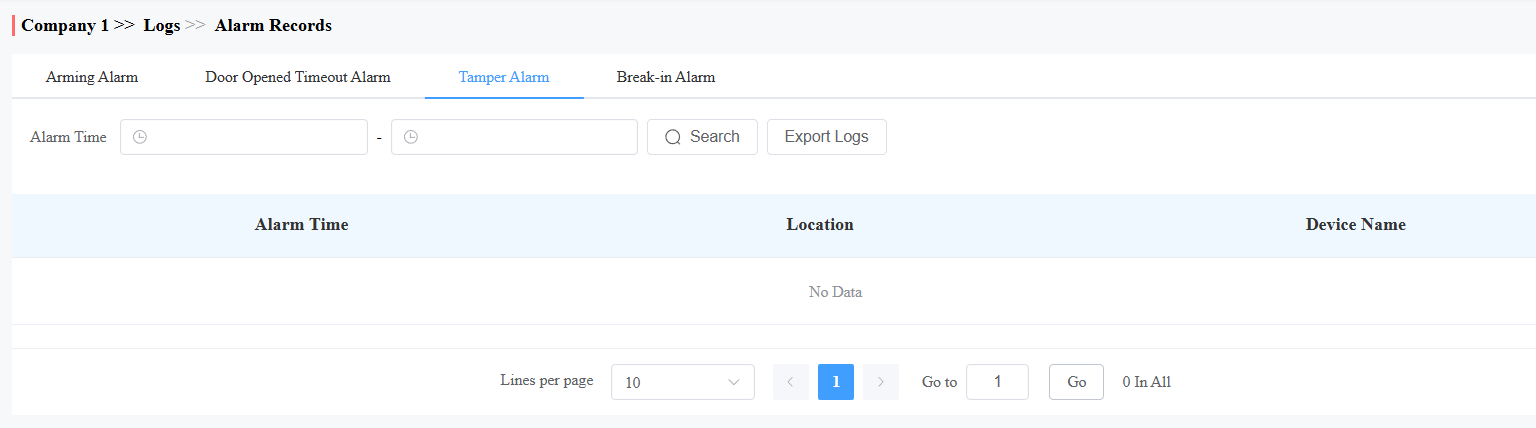
Tamper Alarm
When the device’s tamper alarm is triggered, the alarm will be recorded on the cloud.
Compatible models and versions(or higher):
Model
Version
Model
Version
R20
320.30.11.30
A08
108.30.11.8
R25
25.30.10.117
A01/A02
101.30.10.206
R28
228.30.10.213
A03
103.30.10.204
R29
29.30.10.404
A094
92.30.10.205
X915V2
2915.30.10.420
A095
95.30.10.110
X912
912.30.11.107
E16 V2
216.30.10.208
S539
539.30.10.507
E16 V3
416.30.11.206
S535
535.30.11.8
X916
916.30.10.508
S538
538.30.10.705
E12V2
312.30.11.18
A05V2
205.30.11.114
S532
532.30.10.336
E18
18.30.11.136
A15
1115.30.10.407
WR01
1401.30.11.221
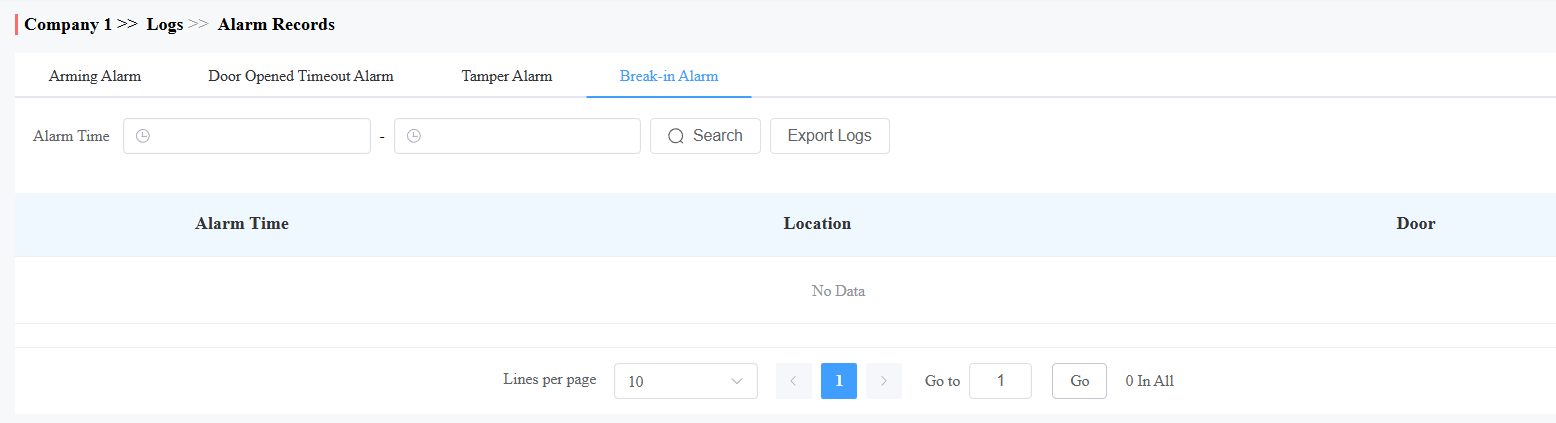
Break-in Alarm
When someone forcibly opens doors, the break-in alarm will be triggered and recorded on the cloud.
Event Report
The feature allows for quick data filtering to generate reports, such as personnel entries and exits during a specific time period or alarm events.
Compatible models and versions(or higher):
Model
Version
Model
Version
X910
2910.30.11.104
X912
912.30.12.207
X915V2
2915.30.10.707
X916
916.30.10.508
R29
29.30.10.712
R28V2
228.30.11.17
R25
25.30.10.206
R20
320.30.12.16
E16V2
216.30.12.7
E16V3
416.30.12.5
S539
539.30.10.605
S538
538.30.10.705
S535
535.30.11.8
A08
108.30.11.210
A01/A02
101.30.11.109
A03
103.30.11.105
A095
95.30.11.6
A094
92.30.11.106
A05V2
205.30.11.114
E12V2
312.30.11.106
S532
532.30.10.336
E18
18.30.11.136
A15
1115.30.10.407
WR01
1401.30.11.221
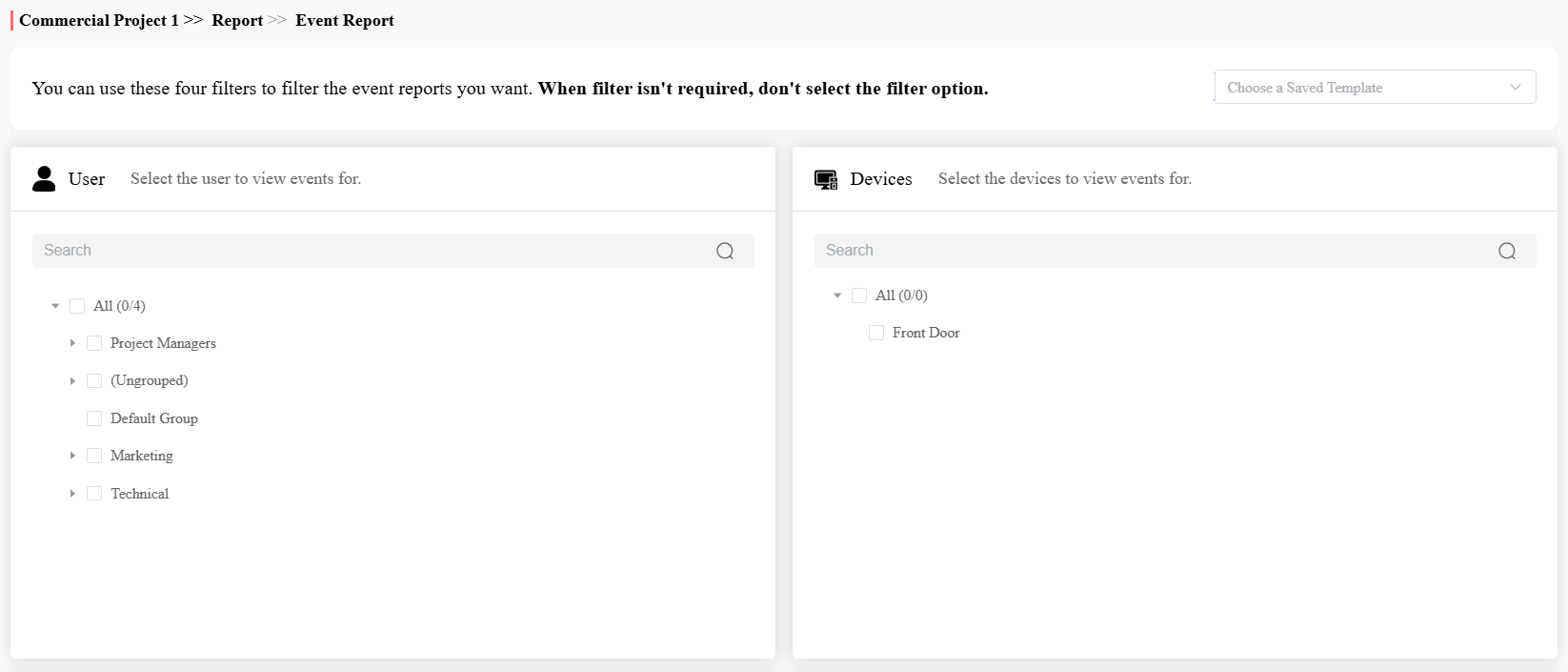
1. Click Report > Event Report.
2. [Optional]Check the desired user and devices.
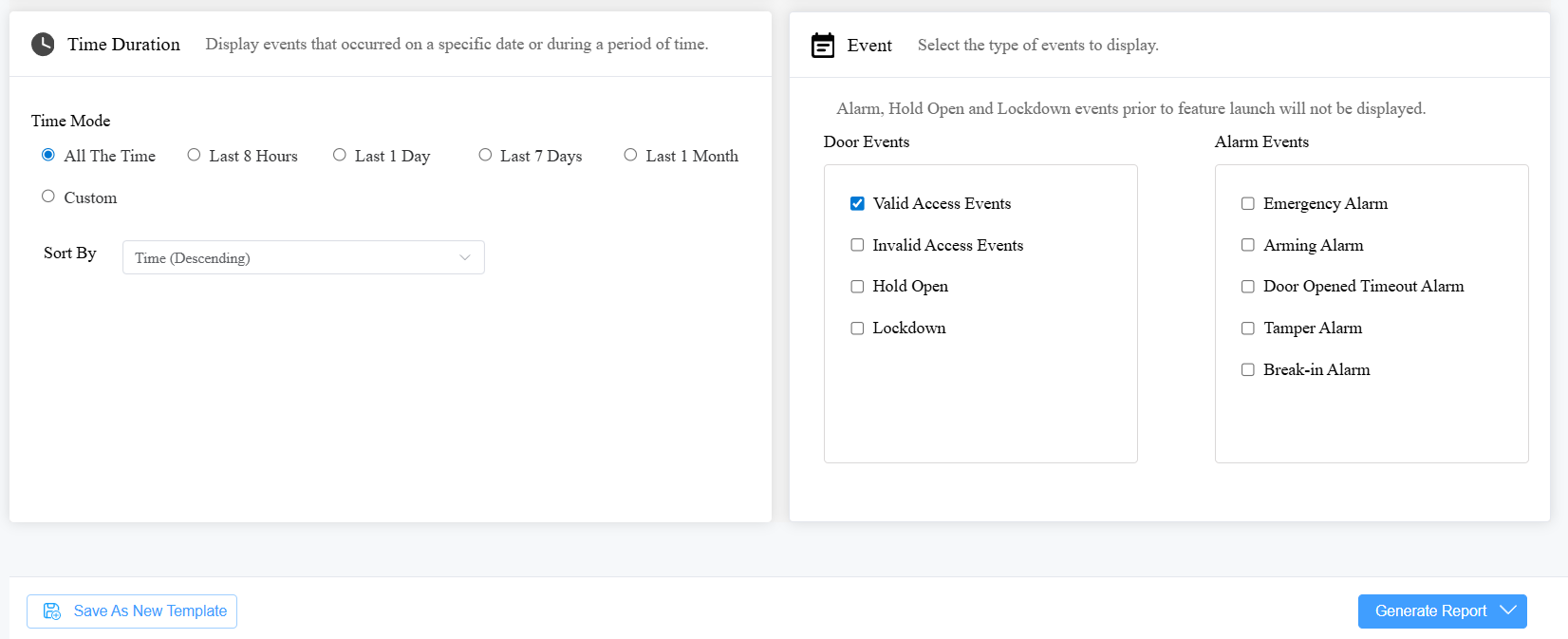
3. Specify the time and time order.
4. Check the desired events.
5. Click Generate Report in the PDF or XLSX format. Optionally, save the settings as a template for future use.
6. Check the field(s) to display in the report.
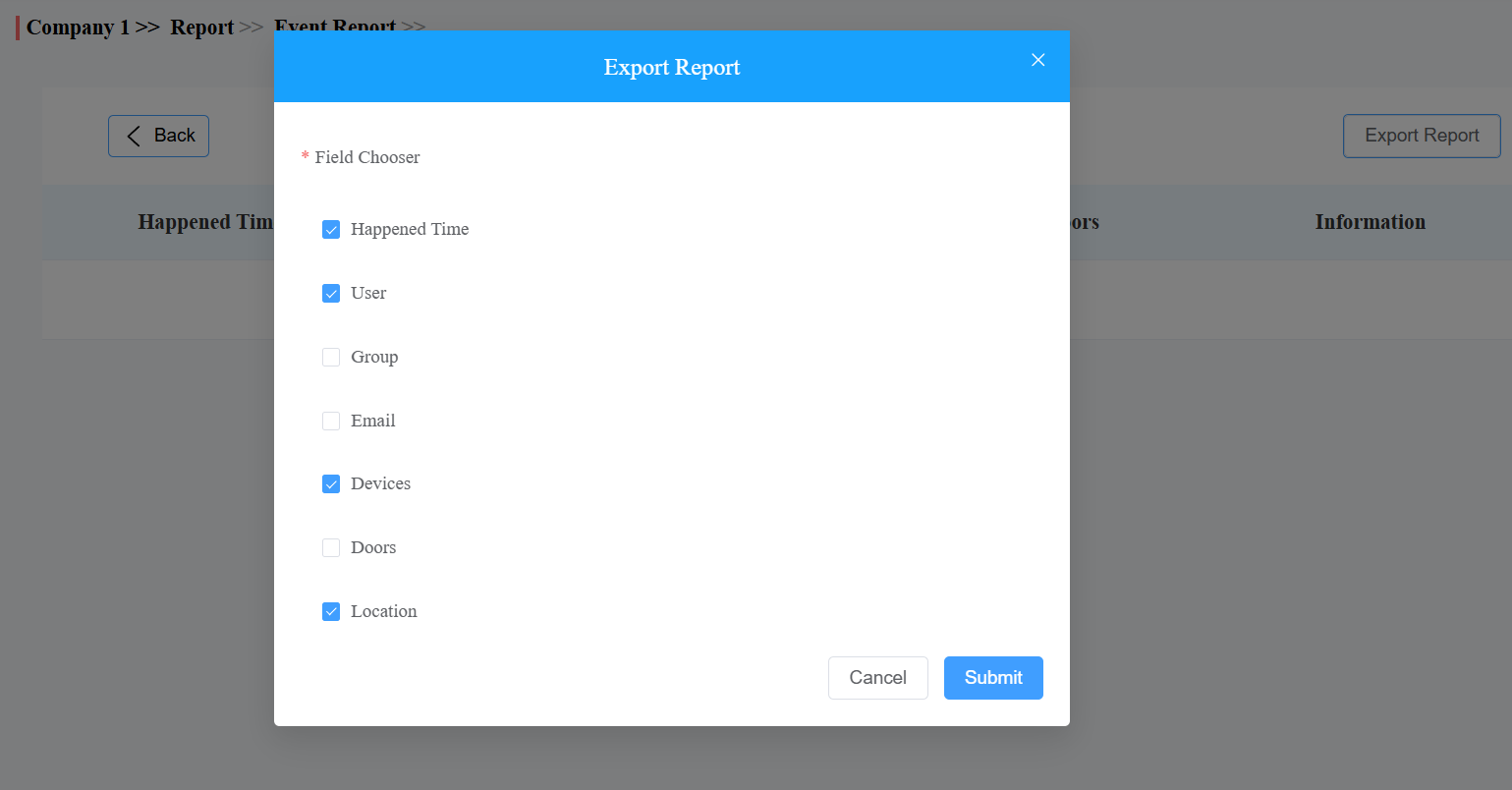
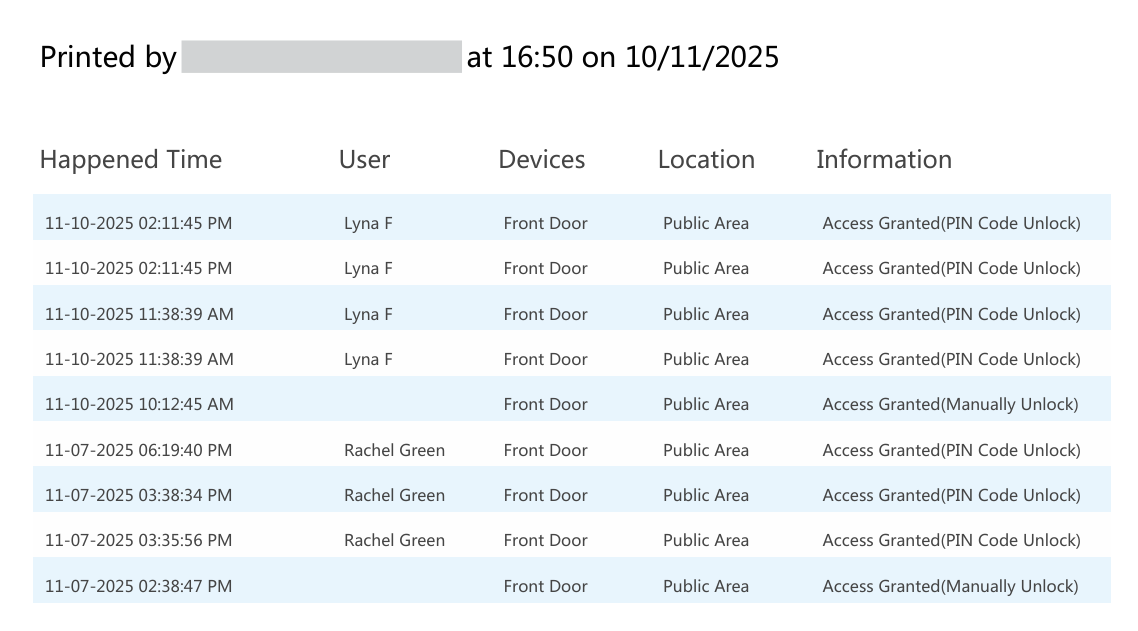
7. Submit to download the report.
Library
You can check, modify, and delete all types of created PIN codes and RF Cards conveniently at one stop.
On the Library module, clickto modify the PIN code or RF card code. Clickto remove the code.
Messages
You can create, send, and check messages.
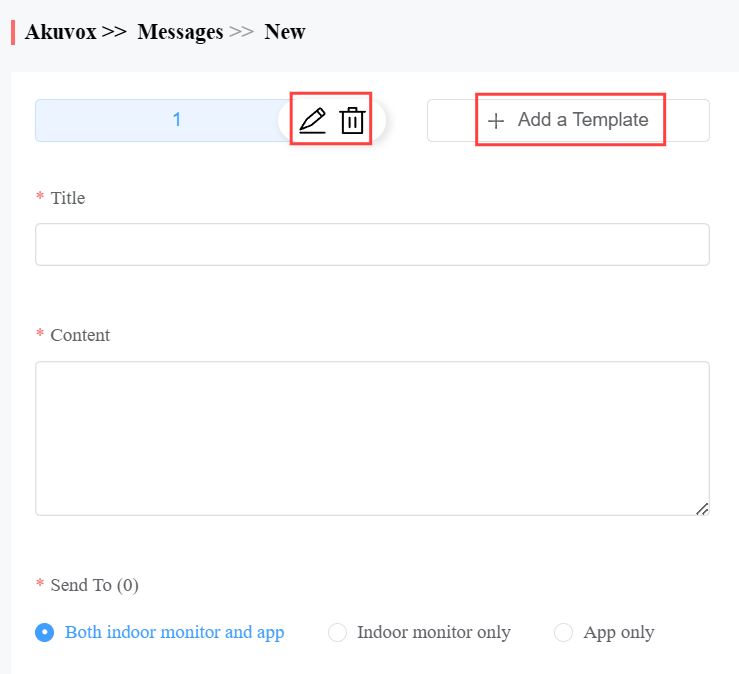
You can create one-time messages or reusable message templates for your convenience.
Click Messages > New.
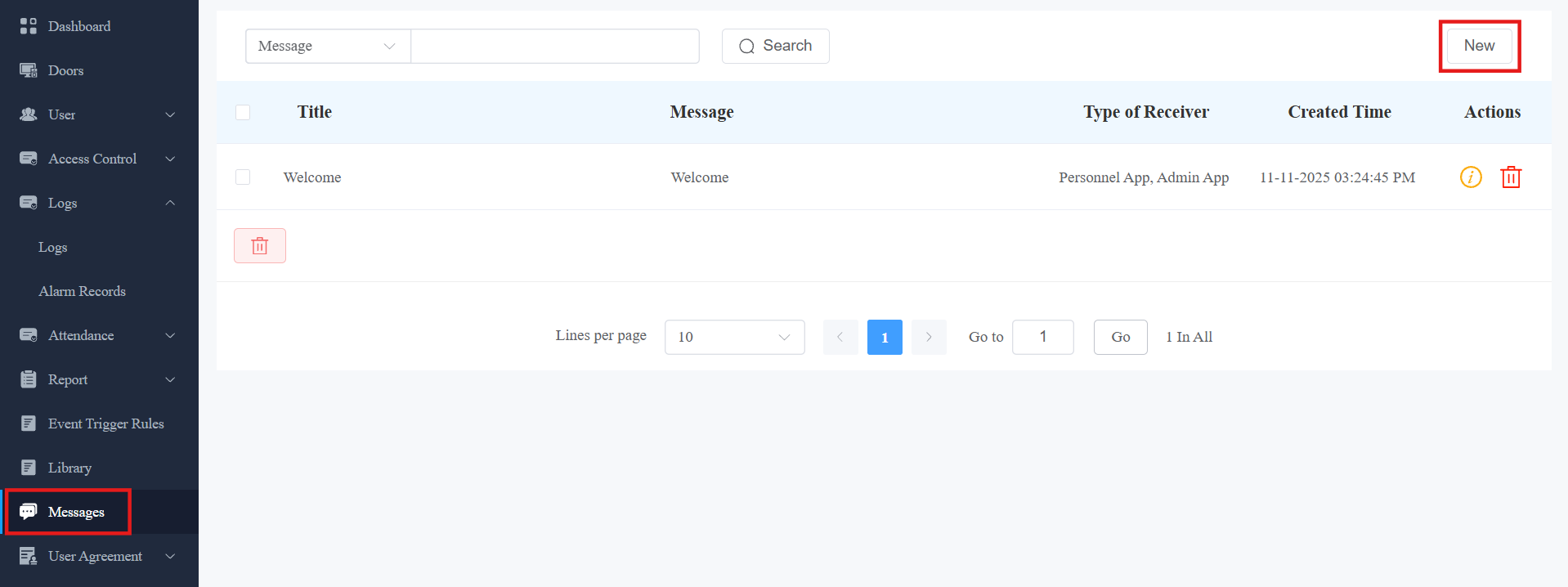
Enter the message title and content directly to create one-time messages. Select the receiver type.
To create reusable message template(s), you can click Add a Template and enter the template name, title, and content.
You can edit or delete the template after creating it.
Click Send.
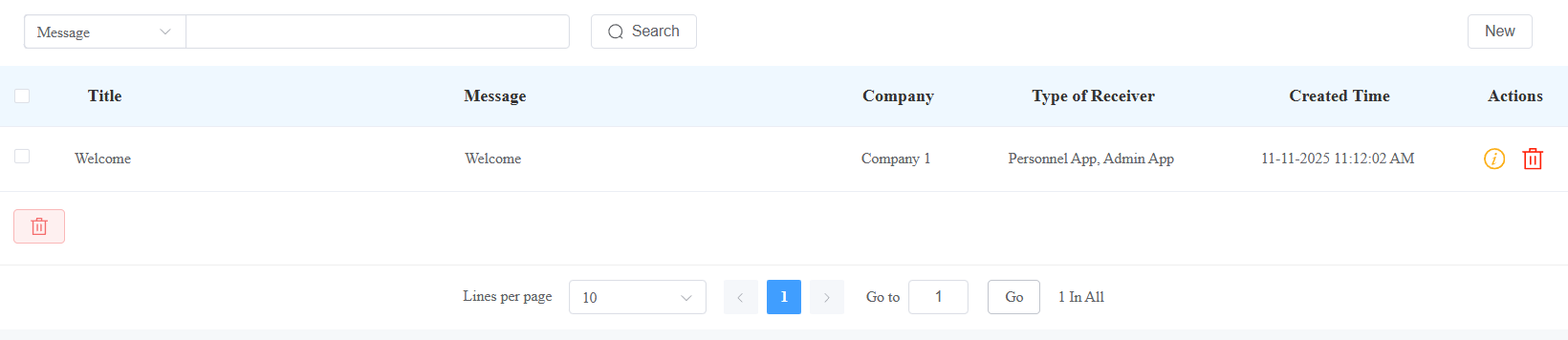
After the message is created, you can click  to check the message details and click to remove it.
Account Setting
You can change your account password by clicking your account name in the upper-right corner.

Contact Us
For more information about the product, please visit us at www.akuvox.com or feel free to contact us by
Sales email: sales@akuvox.com
Technical support email: support@akuvox.com
Telephone: +86-592-2133061 ext.7694/8162
We highly appreciate your feedback about our products.