Unlock by Public PIN
There are two types of PIN codes for door access: public and private. A private PIN is unique to each user, while the public one is shared by residents in the same building or complex. You can create and modify both the public and private PIN codes.
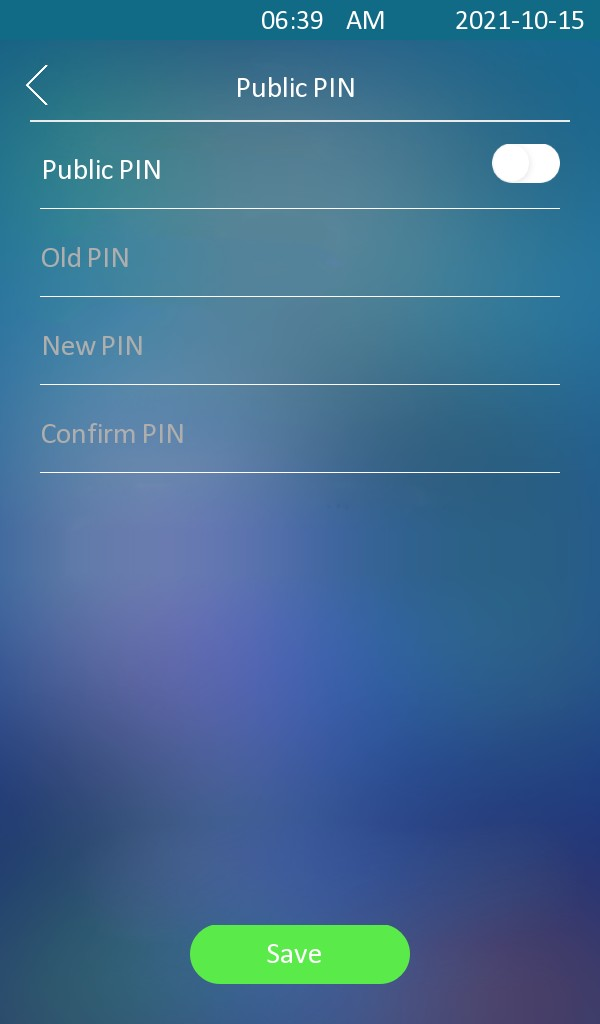
To set up the public PIN code, go to Access Control > PIN Setting > Public PIN interface.

PIN Code: Set a 4-8 digit PIN code accessible for universal use. The default is 33333333.
You can also set up the public PIN on the Setting > Security screen.
User-specific Access Methods
The private PIN code, RF card, and face data should be assigned to a particular user for door opening.
When adding a user, you can also customize settings such as defining the door access schedule to determine when the code is valid and specifying which relay to open.
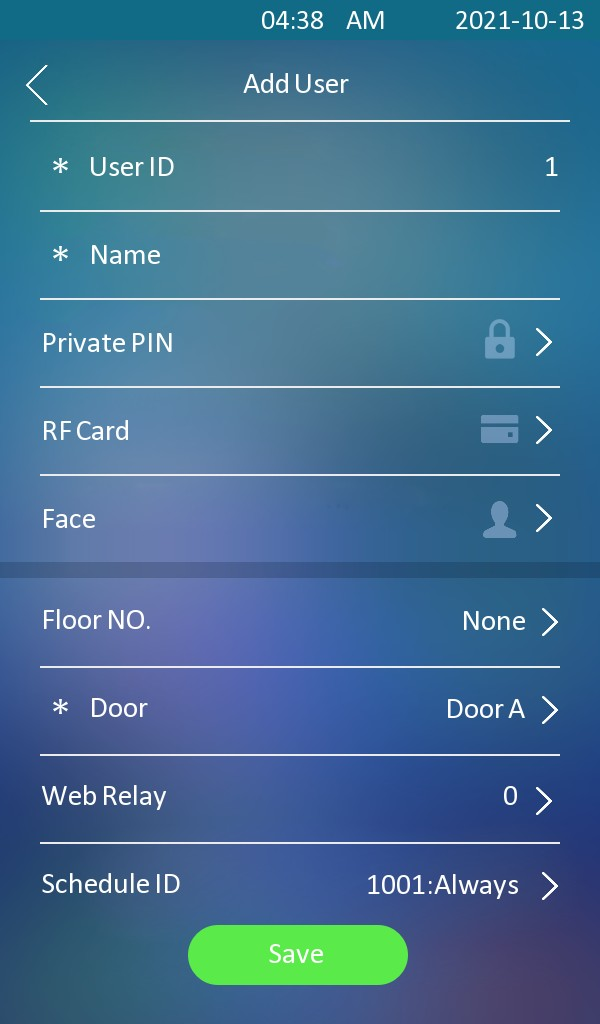
To add a user, go to Directory > User interface and click +Add.


User ID: The unique identification number assigned to the user.
Name: The name of this user.
Unlock by Private PIN Code
On the Directory > User > +Add interface, scroll to the PIN section.

Code: Set a 2-8 digit PIN code solely for the use of this user. Each user can only be assigned a single PIN code.
You can set up the private PIN mode on the Access Control > PIN Setting > Private PIN interface.

Authorization Mode:
PIN: Solely enter the PIN code for door access.
APT#+Key: Enter the Apartment Number first before entering the PIN code for the door access. Apartment Number can only be applicable when the device is connected to the Akuvox SmartPlus.
Unlock by QR Code
The device supports unlocking by QR codes generated on the web interface and on the SmartPlus Cloud when it is connected to the cloud.
Note
Click here to view how users and property managers create QR codes on SmartPlus.
The feature can be enabled on the Access Control > Relay > Open Relay via QR Code interface.

On the Directory > User > +Add interface, scroll to the PIN section. Click the QR code icon .
.

Click Generate to generate the QR code with an 8-digit PIN.
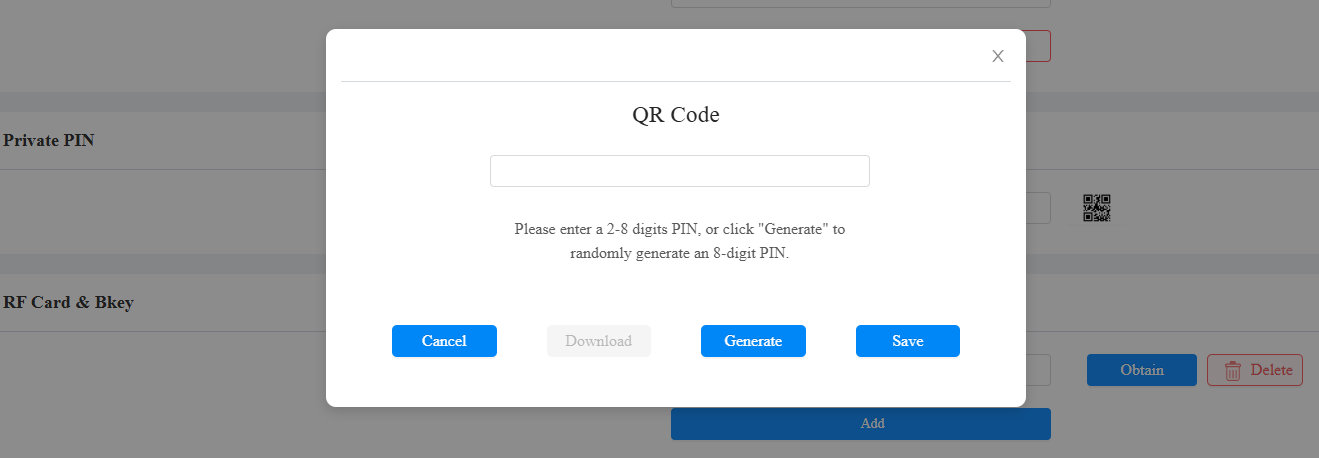
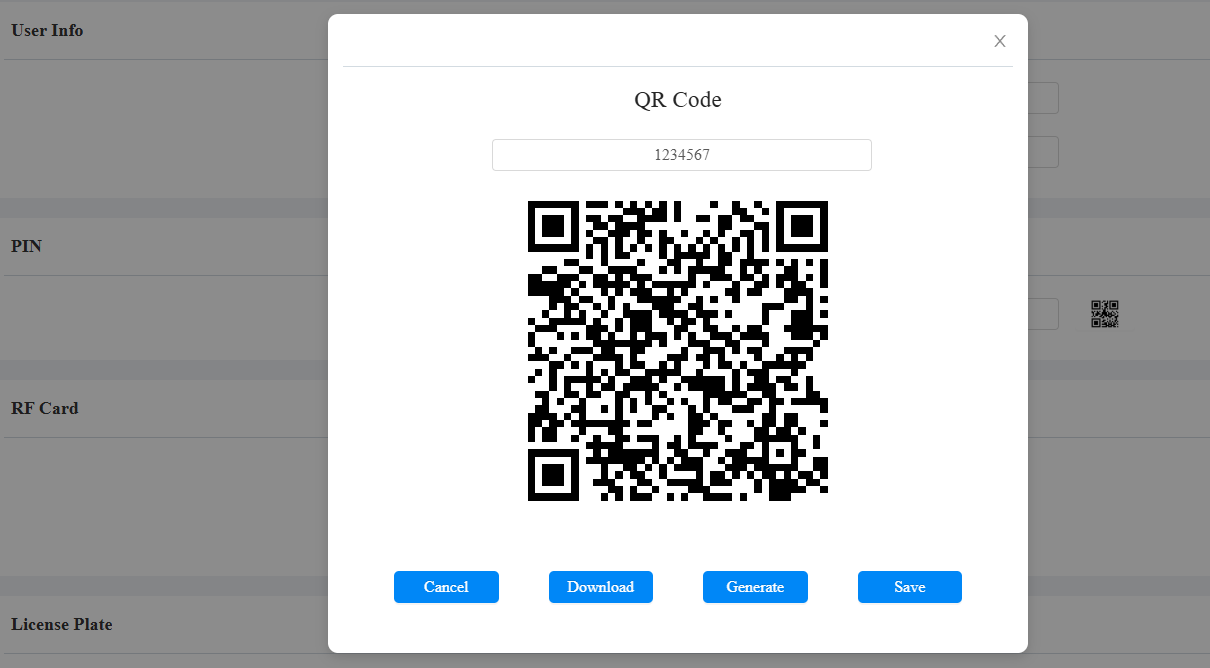
Cancel: Click to return to the user editing interface. The QR code and the PIN code will not be saved.
Download: Click to save the QR code to your PC.
Generate: Click to generate another QR code and PIN code.
Save: Click to return to the user editing interface and save the code.
Unlock by RF Card
On the Directory > User > +Add interface, scroll to the RF Card section.

Code: The card number that the card reader reads.
Note:
Each user can have a maximum of 5 cards added.
The device allows to add 20,000 users.
RF cards operating at 13.56 MHz and 125 KHz frequencies are compatible with the device for access.
You can enable and disable the use of RF cards on the Access Control > Card Setting interface.

RF Card Code Format
To integrate the RF card door access with the third-party intercom system, you need to match the RF card code format with the one used by the third-party system.
To set it up, go to Access Control > Card Setting > RFID interface.
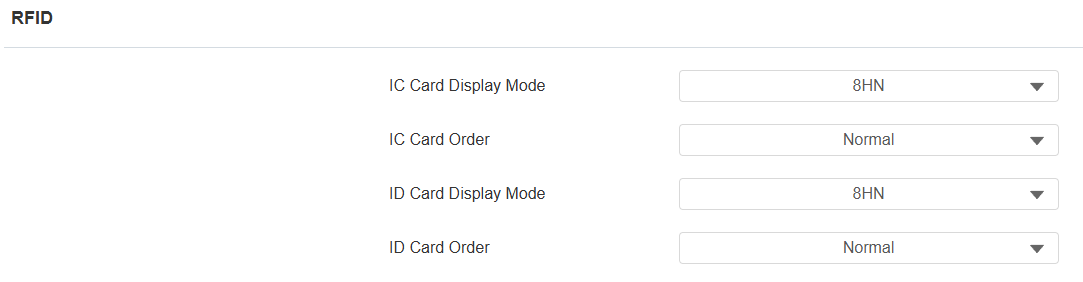
IC/ID Card Display Mode: Select the card number format from the provided options.
IC/ID Card Order: Set the card reading mode between Normal and Reversed.
Unlock by License Plate
Akuvox offers two main ways to identify vehicles and open gates.
Use a third-party LPR(License Plate Recognition) camera to recognize the license plate of the vehicle.
Use the Akuvox long-range card reader ACR-CPR12 to recognize the UHF card attached to the vehicle's windshield.
To assign the license plate to a user, find the License Plate part on the Directory > User > +Add interface.

Add: A user can have up to 5 license plates.
Duration: Enable/disable Long-term Vehicle. It is enabled by default. If disabled, specify when the vehicle can enter or exit the parking lot.
Unlock by Facial Recognition
On the Directory > User > +Add interface, scroll to the Face section. Click Import to upload the picture and Reset to remove it.

Note
Support Format: jpg, png, bmp, and jpeg; Max File Size: 2M.
Facial Recognition Settings
The device allows you to adjust facial recognition accuracy, recognition intervals, and more to enhance user experience.
To set it up, go to the Access Control > Face Setting interface.
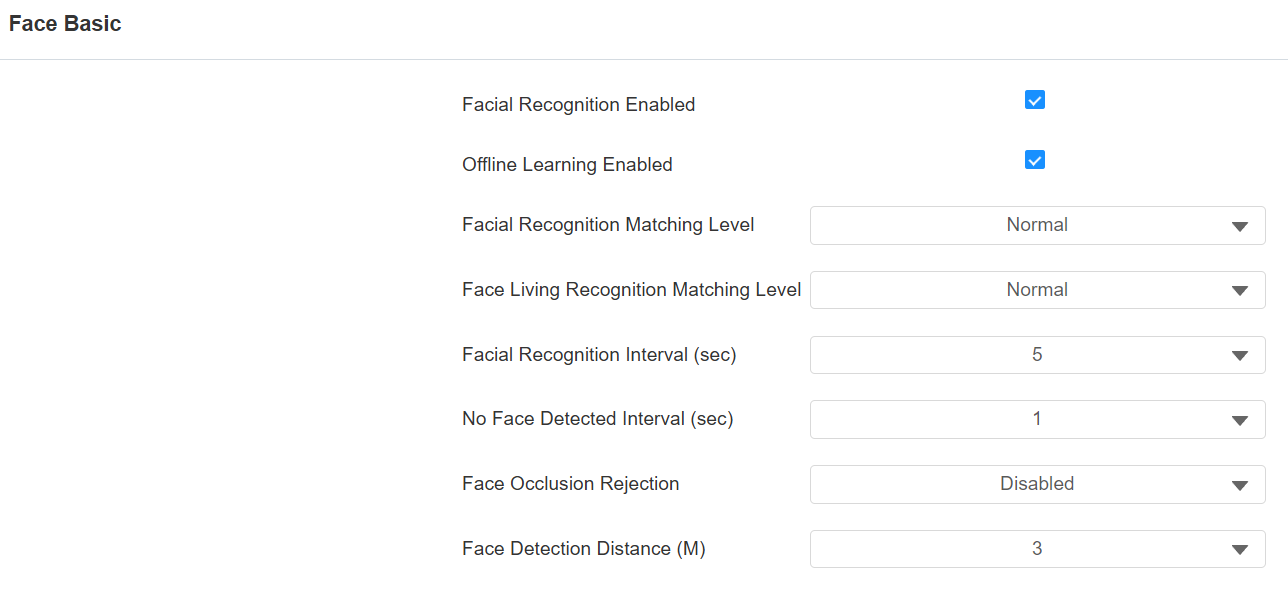
Facial Recognition Enabled: Enable/disable the facial recognition function.
Offline Learning Enabled: Facial recognition accuracy improves as the number of facial recognition increases.
Facial Recognition Matching Level: Determine how strict the facial recognition system is in comparing a person’s face with uploaded face data. Each level allows a different degree of difference or face covering (excluding the mouth area) to pass the recognition.
- Low: Allow slight differences from the uploaded face data, with little face coverage.
- Highest: Require the face to be identical to the uploaded one, with minimal or no covering.
- The other two levels are in between.
Face Living Recognition Matching Level: Set how strict the system is in preventing fake faces.
- Close: Disable the facial anti-spoofing function. Facial verification can be passed using non-living substitutes for an authorized person's face, such as a photo.
- Highest: The system cannot be fooled by any non-living substitutes for an authorized person's face.
- The other three levels are in between.
Facial Recognition Interval(Sec): Adjust the time interval between each facial recognition attempt, ranging from 1 to 8 seconds.
No Face Detected Interval(Sec): Adjust the time interval between each detection, ranging from 1 to 8 seconds.
Face Occlusion Rejection: When enabled, if the user is detected to be wearing a mask, he/she will not be able to pass the face recognition.
Face Detection Distance(M): Adjust the detection distance, ranging from 1 to 3 meters.
Access Setting
You can customize access settings, such as defining the door access schedule to determine when the code is valid and specifying which relay to open.
On the Directory > User > +Add interface, scroll to the Access Setting section.
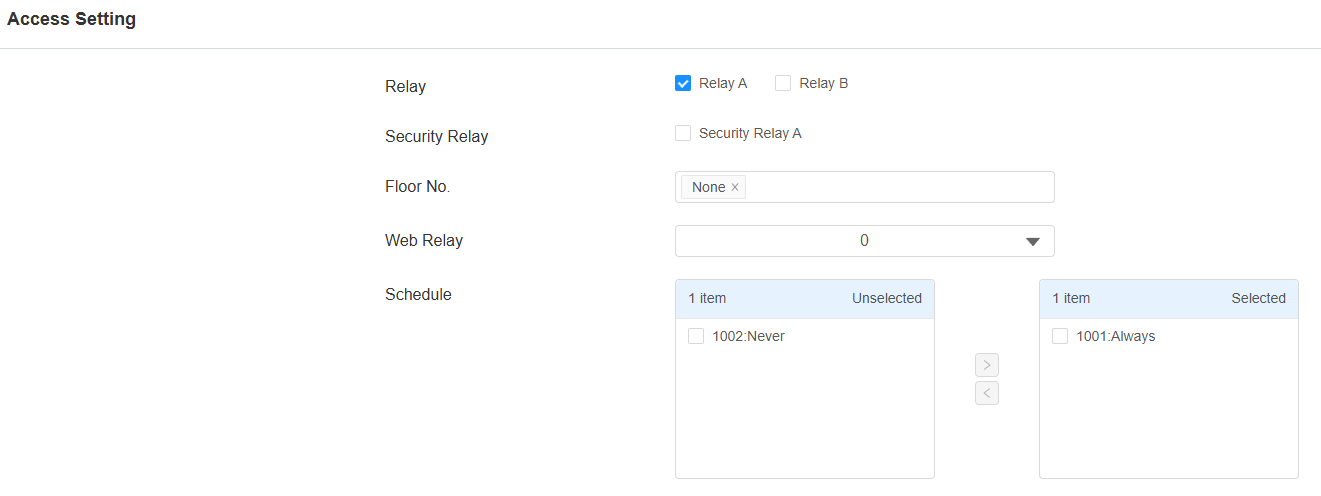
Relay: Specify the relay to be opened.
Security Relay: When the device is connected to a security relay. You can check the option to permit users to trigger the security relay.
Floor No. : Specify the accessible floor(s) to the user via the elevator.
Web Relay: Specify the ID of the web relay action commands that you’ve configured on the Web Relay interface. A default value of 0 indicates that the web relay will not be triggered.
Schedule: Grant the user access to open designated doors during preset periods by relocating the desired schedule(s) from the left box to the right one. Besides custom schedules, there are 2 default options:
Always: Allows door opening without limitations on door open counts during the valid period.
Never: Prohibits door opening.
Import/Export User Data
The device supports access control user data to be shared among Akuvox devices through import and export, while you can also export the facial data and then import it to a third-party device.
Click here to view how to import and export user data between Akuvox devices.
To set it up, go to the Directory > User interface.

Note
The imported/exported file is in TGZ format.
The device supports 20,000 users.
You can also manage users on the Setting > User screen.
Access Authentication Mode
The door phone allows dual authentication for door access, using a combination of any two methods: PIN, RF card, or facial recognition. When the mode is set up, users must open the door in the order of the chosen methods.
To set it up, go to Access Control > Relay > Access Authentication Mode interface.

Authentication Mode: Determine how to unlock the door using different methods. Please note that the order of the two-factor authentication matters.
Any Method: Allow all access methods.
Face + PIN: Scan the face first, then enter the PIN code.
Face + RF Card: Scan the face first, then swipe the RF card.
RF Card + PIN: Swipe the RF card first, then enter the PIN code.
Send Card Numbers to Third-Party Servers
The device supports sending card numbers to third-party servers when users swipe cards.
To set it up, go to the Access Control > Card Setting > Card Server interface.
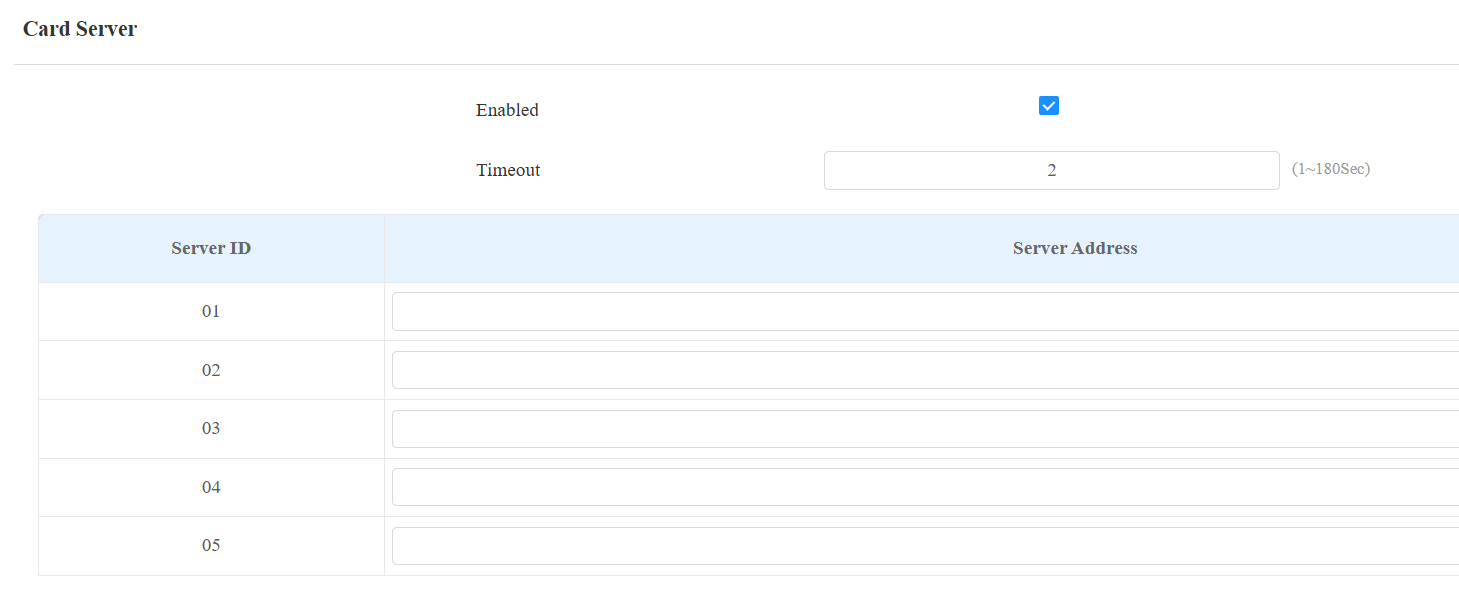
Enabled: The feature is disabled by default.
Timeout: Define the timeout of sending the card number(1~180 seconds).
For example, if it is set to 5 seconds, when the first server does not respond in 5 seconds, the device will try the next server.
This process continues through up to five servers until one of them responds.
If all five servers fail to respond, the device will repeat the cycle, with a maximum of three attempts in total.
Server Address: Support up to 5 addresses in HTTP/HTTPS format with a maximum of 256 characters and no restrictions on special characters.
Unlock by NFC
NFC (Near Field Communication) is a popular way for door access. It uses radio waves for data transmission interaction. The device can be unlocked by NFC. You can keep the mobile phone closer to the device for door access.
To set it up, go to the Access Control > Card Setting > Contactless Smart Card interface.

Note
Click here to view how to set up door opening by NFC.
Mifare Card
The device can read encrypted Mifare cards for greater security. When this feature is enabled, it reads the data in the cards’ designated sectors and blocks, not the UID.
Click here to view the details of encrypting and reading Mifare cards.
To set it up, go to Access Control > Card Setting > Contactless Smart Card interface.
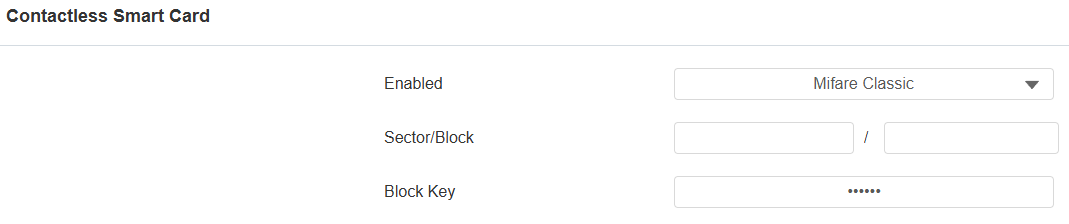
Mifare Classic:
Sector/Block: Specify the location where encrypted card data is stored. A Mifare card has 16 sectors (numbered 0 to 15), and each sector has 4 blocks (numbered 0 to 3).
Block Key: Set a password to access the data stored in the predefined sector/block.
Mifare DESFire:
App ID: A 6-digit hexadecimal number
File ID: The ID of the encrypted file of the app, which can be a number from 0 to 16.
Crypto: The encryption method, either AES or DES.
Key: The file key.
Key Index: The index number for the key, which can be a number from 0 to 11.
Unlock by Bluetooth
The Bluetooth-enabled SmartPlus App enables users to enter the door without tapping on the device. They can open the door with the app in their pockets or wave their phones toward the door phone as they get closer to the door.
This feature requires the device to be connected to the SmartPlus Cloud.
To set up the Bluetooth unlocking, go to the Access Control > BLE interface.

RSSI Threshold: Set the received signal strength. Higher values indicate stronger signal strength, making it easier to receive the Bluetooth signal.
Open Door Interval (Sec): Set the time interval between consecutive Bluetooth door access attempts.
Note
Click here to view how to set up door opening via Bluetooth.
Unlock by HTTP Command
The door phone supports remote door unlocking via an HTTP command. Simply enable this feature and input the HTTP command (URL) for the door phone. This will trigger the relay and open the door, even if the users are away from the device.
To set it up, go to Access Control > Relay > Open Relay Via HTTP interface.

Username: Set a username for authentication in HTTP command URLs.
Password: Set a password for authentication in HTTP command URLs.
Tip:
Here is an HTTP command URL example for relay triggering.
.png "image-22HOI78M(1).png")
Note
Click here to view how to set up door opening by HTTP commands.
Unlock by DTMF Code
Dual-tone multi-frequency signaling(DTMF) is a way of sending signals over phone lines by using different voice-frequency bands. Users can use the DTMF function to unlock the door for visitors during a call by either typing the DTMF code on the soft keypad, or tapping the unlock tab with the DTMF code on the screen.
To configure DTMF codes, go to Access Control > Relay interface.
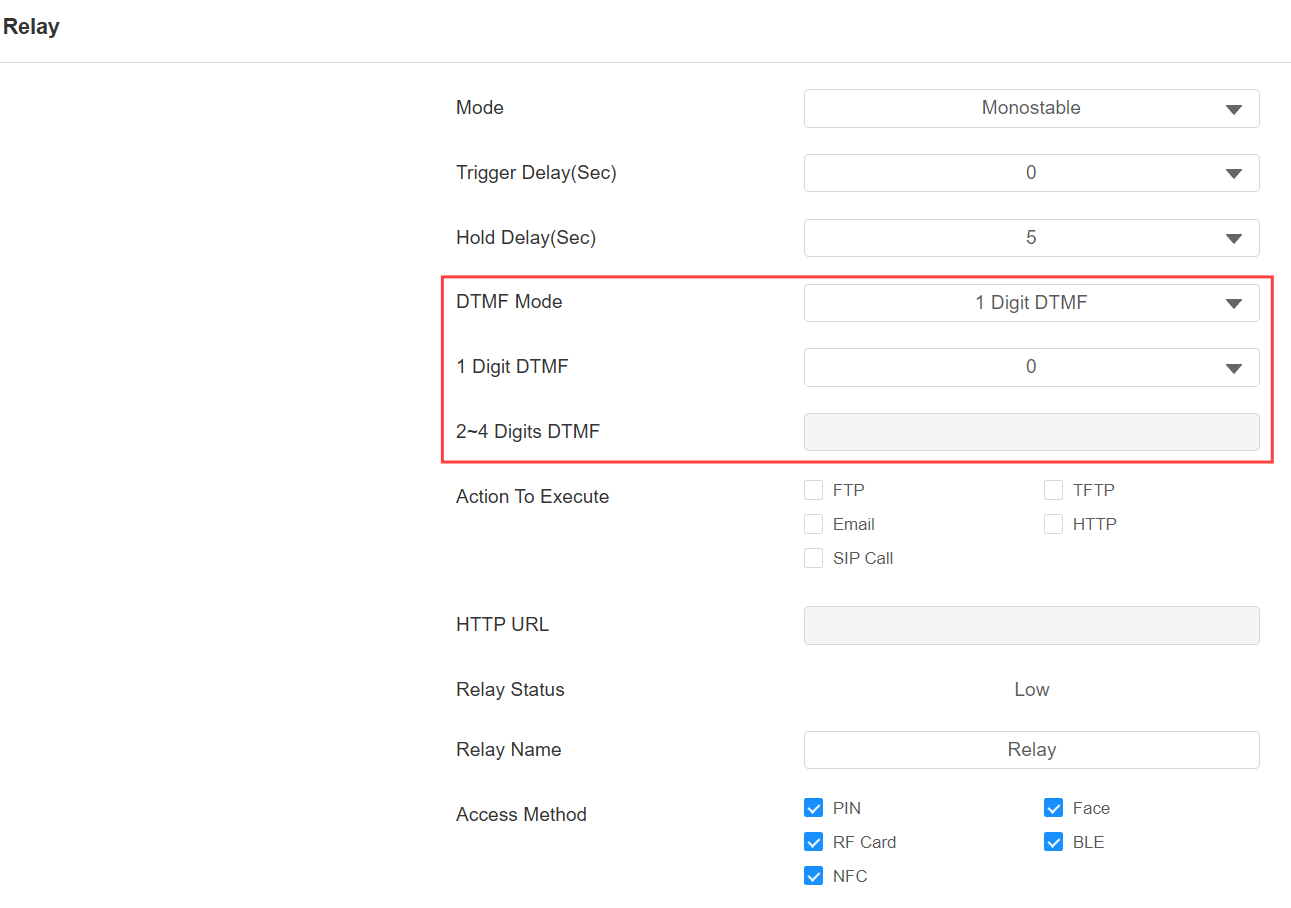
DTMF Mode: Set the number of digits for the DTMF code.
1 Digit DTMF: Define the 1-digit DTMF code within the range(0-9 and *,#) when the DTMF Mode is set to 1-digit.
2-4 Digits DTMF: Set the DTMF code based on the number of digits selected in the DTMF Mode.
Note
To open the door with DTMF, the intercom devices that send and receive the unlock command must use the same mode and code. Otherwise, the DTMF unlock may fail. See here for the detailed DTMF configuration steps.
DTMF White List
To secure door access via DTMF codes, you can set up the DTMF whitelist on the device web Access Control > Relay > Open Relay Via DTMF interface so that only the caller numbers you designated in the door phone can use the DTMF code to gain door access.

Assigned The Authority For: Specify the contacts authorized to open doors via DTMF:
None: No numbers can unlock doors using DTMF.
Only Tenants List: Doors can be opened by numbers added to the door phone's contact list.
All Numbers: Any numbers can unlock using DTMF.
DTMF Data Transmission
In order to achieve door access via DTMF code or some other applications, you are required to properly configure DTMF in order to establish a DTMF-based data transmission between the device and other intercom devices.
DTMF Type Differences:
Inband | DTMF signals are transmitted within the same audio channel as voice data. Simple implementation but signal distortion may occur with highly compressed codecs (e.g., G.729). |
RFC2833 | Transmits DTMF as special event packets over RTP (Real-Time Transport Protocol), known as out-of-band transmission. Reliable and unaffected by codecs. |
Info | Sends DTMF signals via SIP (Session Initiation Protocol) signaling channel. Separate from voice transmission, ensuring audio quality. |
Info+Inband | Combines Info and Inband methods. |
Info+RFC2833 | Combines both Info and RFC2833 methods. |
Info+Inband+RFC2833 | All three methods are used simultaneously. |
Set it up on the Account > Advanced > DTMF interface.

Type: Select from the available options based on the specific DTMF transmission type of the third-party device to be matched with as the party for receiving signal data.
How to Notify DTMF: Select Disabled, DTMF, DTMF-Relay, or Telephone-Event according to the specific type adopted by the third-party device. You are required to set it up only when the third-party device to be matched with adopts Info mode.
Payload: Set the payload according to the specific data transmission payload agreed on between the sender and receiver during the data transmission.
Unlock by Exit Button
When users need to open the door from inside by pressing the Exit button, you need to set up the Input terminal that matches the Exit button to activate the relay for the door access.
Click here to watch the instruction video.
To set it up, navigate to the Access Control > Input interface.
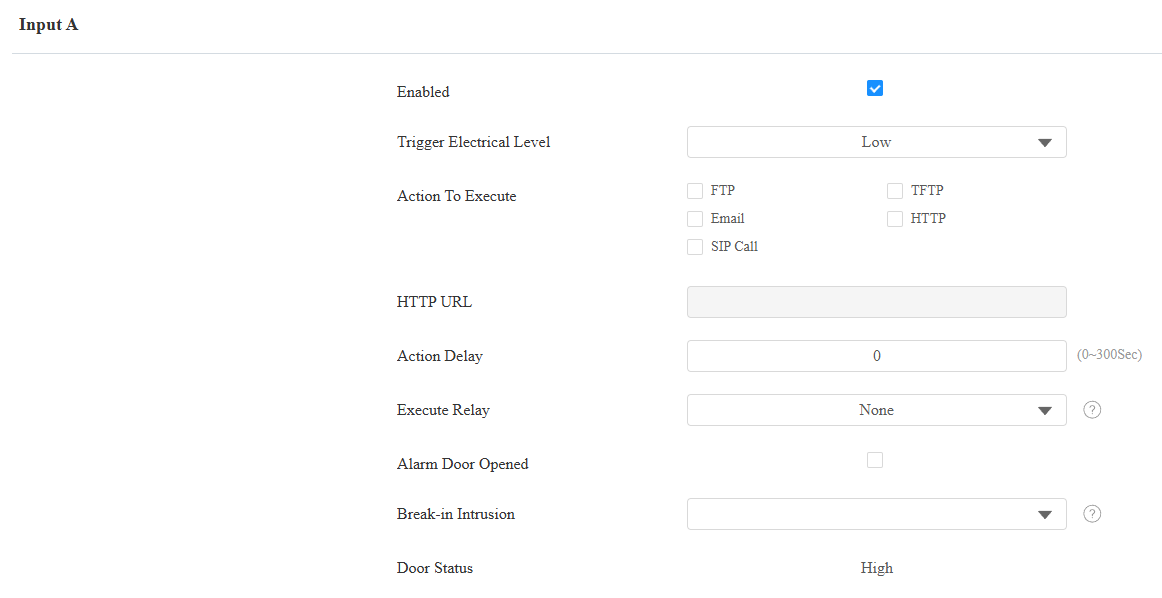
Enabled: To use a specific input interface.
Trigger Electrical Level: Set the input interface to trigger at a low or high electrical level.
Action To Execute: Set the desired actions that occur when the specific Input interface is triggered.
FTP: Send a screenshot to the preconfigured FTP server.
TFTP: Send a screenshot to the preconfigured TFTP server.
Email: Send a screenshot to the preconfigured Email address.
SIP Call: Call the preset number upon the trigger.
HTTP: When triggered, the HTTP message can be captured and displayed in the corresponding packets. To utilize this feature, enable the HTTP server and enter the message content in the designated box below.
HTTP URL: Enter the HTTP message if selecting HTTP as the action to execute. The format is http://HTTP server’s IP/Message content.
Action Delay: Specify how many seconds to delay executing the preconfigured actions.
Execute Relay: Specify the relay to be triggered by the actions.
Alarm Door Opened: If enabled, when the door-opening time exceeds a limit, an alarm will be triggered.
Door Opened Timeout: The door-opening time limit.
Break-in Intrusion: Activate an alarm when the door is forcibly or illegally opened. Only by checking off this option can the alarm be turned off once triggered. It is incompatible with the Execute Relay feature. Click here to learn more about this feature.
Door Status: Display the status of the input signal.
Choose Unlock Options
Users can select the door to be opened when the device is connected to more than one door lock.
Click here to view the feature details.
To display the unlock options, go to Access Control > Relay > Unlock Options interface.

Temperature Measurement for Door Access
You can configure the body temperature measurement function on the web Access Control > Body Temperature interface in terms of defining the normal temperature as well as making the schedule for the validity of the function, etc.
Note
ONLY E18C with the extra module installed supports temperature measurement.
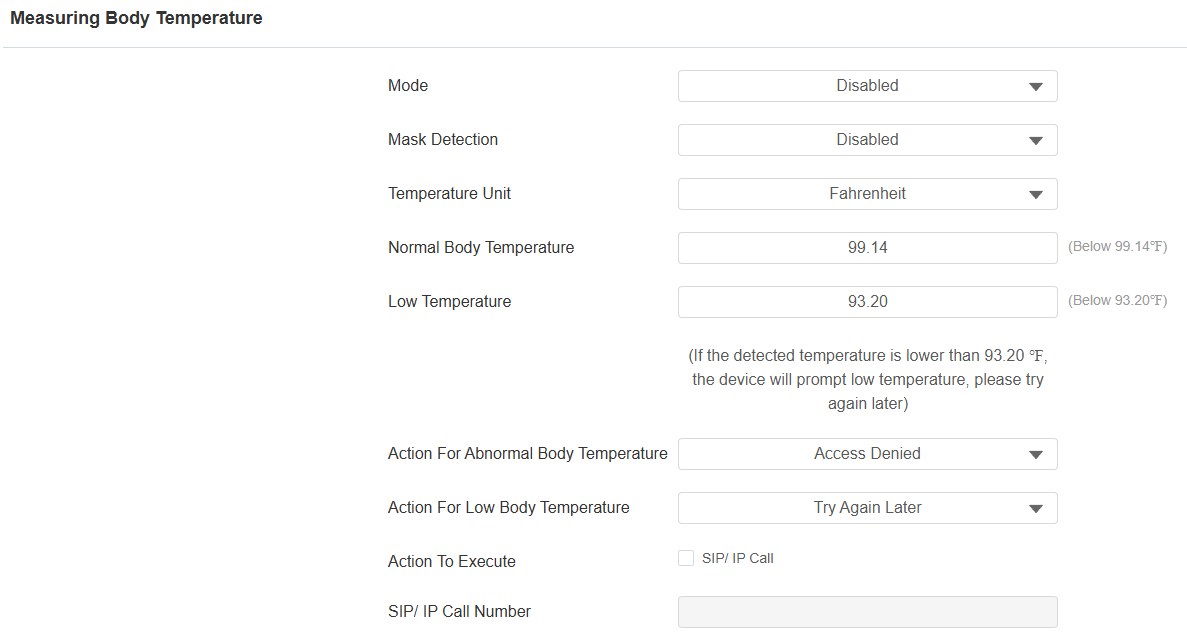
Mode: Enable forehead or wrist temperature measurement, or disable the function.
- Disabled: Turn off temperature measurement.
- Forehead: Measure forehead temperature with a built-in module.
- Wrist: Measure wrist temperature with the additional device.
Mask Detection: Detect whether visitors are wearing masks. When enabled, the device reminds those without masks to wear one with the prompt "Please wear a mask."
Temperature Unit: Select between Celsius and Fahrenheit to specify the measurement used to express temperature.
Normal Body Temperature: Define the fever cut-off temperature. For example, setting it at 37.3 degrees Celsius means any temperature higher than that is considered a fever, triggering the preset action(s) for abnormal body temperature.
Low Temperature: Set the lowest normal temperature. Any temperature below this value triggers the preset designated action(s).
Action for Abnormal Body Temperature: Set the actions that occur when a fever is detected.
- Access Denied: The user will not be allowed to open the door.
- Just for Reminder: The door can be opened, and a prompt of abnormal temperature will pop up on the device.
Action for Low Body Temperature: Set the actions that occur when a low temperature is detected.
- Try again later: The device prompts “Try again later”.
- Just for Reminder: The door can be opened, and a prompt of low temperature will pop up on the device.
Action to Execute: This field only appears when Access Denied is selected for the Action for Abnormal Body Temperature.
- SIP/IP Call: Call designated numbers, including local numbers, dial plans, SmartPlus numbers, and group ones.
Latching PIN
The door opens when the user enters the PIN and stays open until the PIN is entered again.
Set it up on the Access Control > PIN Setting interface.
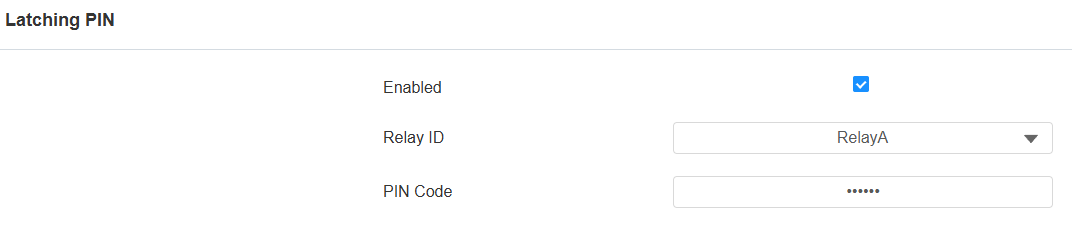
Enabled: The function is disabled by default.
Relay ID: Specify which relay can be controlled by the PIN.
PIN Code: The code should be within 4 to 8 digits. It cannot be the same as the public or private PIN. The PIN code must be set up. Otherwise, the function will not take effect.
Note
The relay schedule takes priority over the latching PIN feature, keeping the door open during scheduled times. Users cannot close the door with the latching PIN.
The latching PIN feature takes priority over user credentials. When the door is opened with the latching PIN, it cannot be closed using credentials like an RF card.