Version: 7.5.2 | Date: October 2026
About This Manual
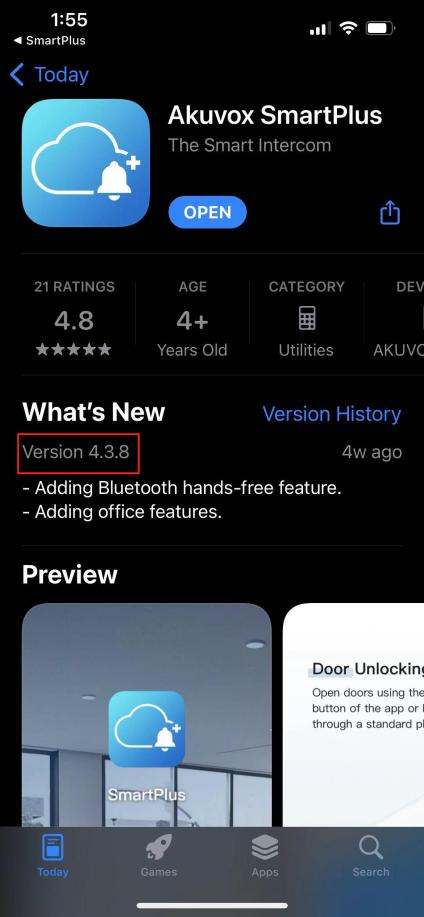
This guide applies to version 7.52.0004(Android)/7.52.4(iOS).
Akuvox SmartPlus is a mobile app that works with the SmartPlus Cloud service and smart intercom products. With the app, you can see and talk to visitors, open doors, monitor, and issue virtual keys from your smartphone, making door access management simpler and more convenient.
What’s New:
Get Started
Before You Use
To make login and setup as smooth as possible, have the following items available:
An internet connection through a Wi-Fi network or cellular data service through a carrier.
SmartPlus App. You can download and install this App on the Google Play Store or App Store.
Your SmartPlus account.
To obtain an account, you need to provide an Email address and/or a phone number (if you'd like to log in or reset your password via SMS) to your service provider. You will then receive an Email from Akuvox with your username, password, and a QR code for login. Or you can enter your phone number and log in with a verification code sent via SMS.
Login
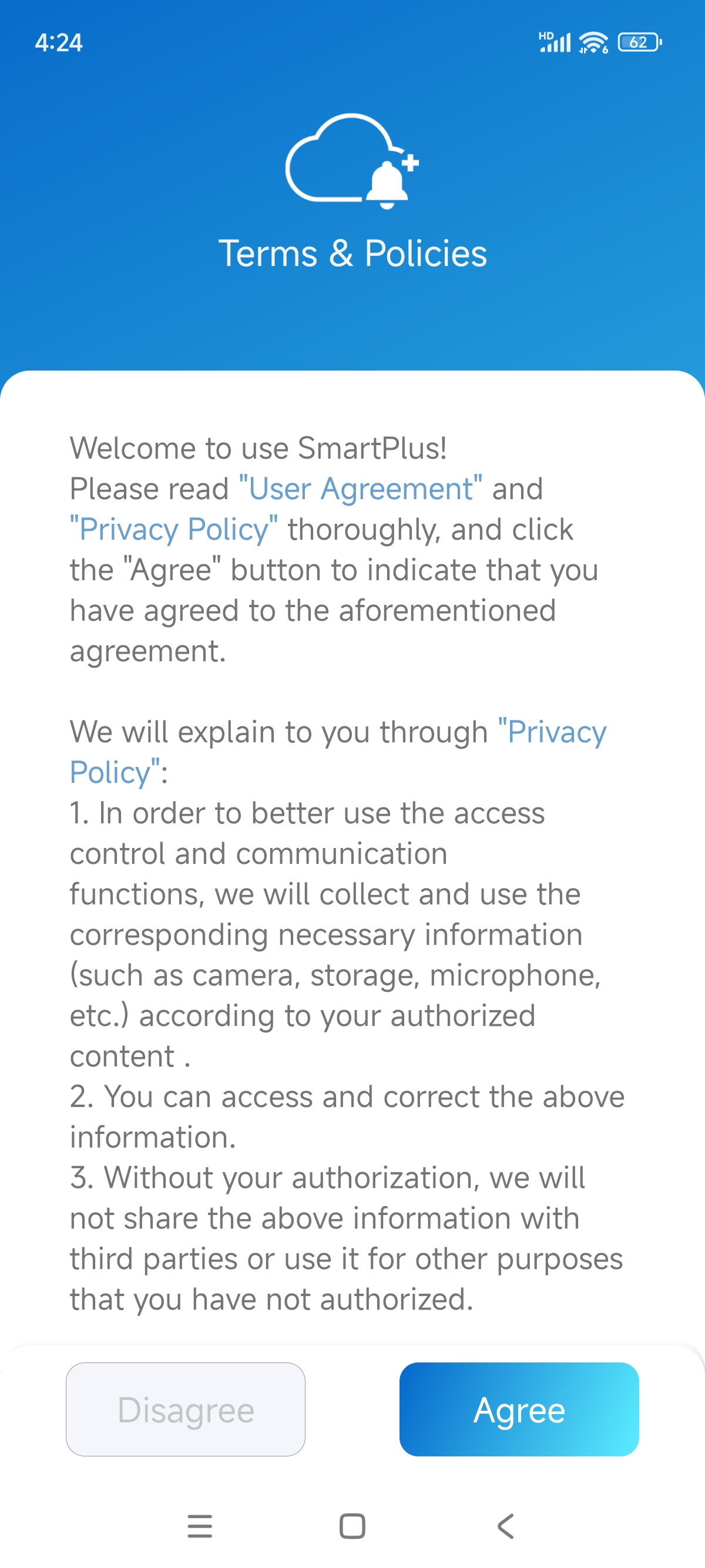
Agree to the Terms & Policies before logging in.
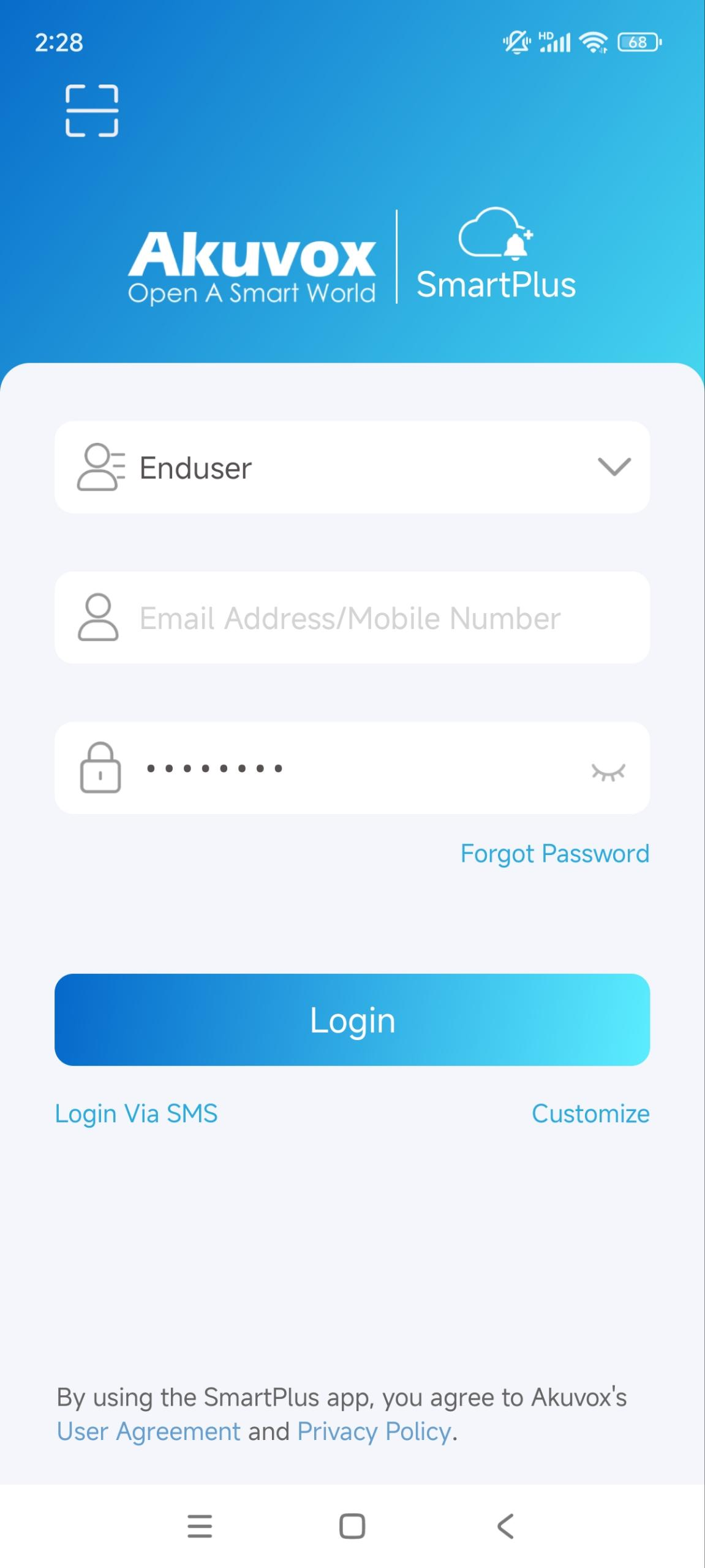
Enter your username and password. Ensure your role is Enduser.
Tap Login.
Note
Click here to view the detailed steps and other login methods.
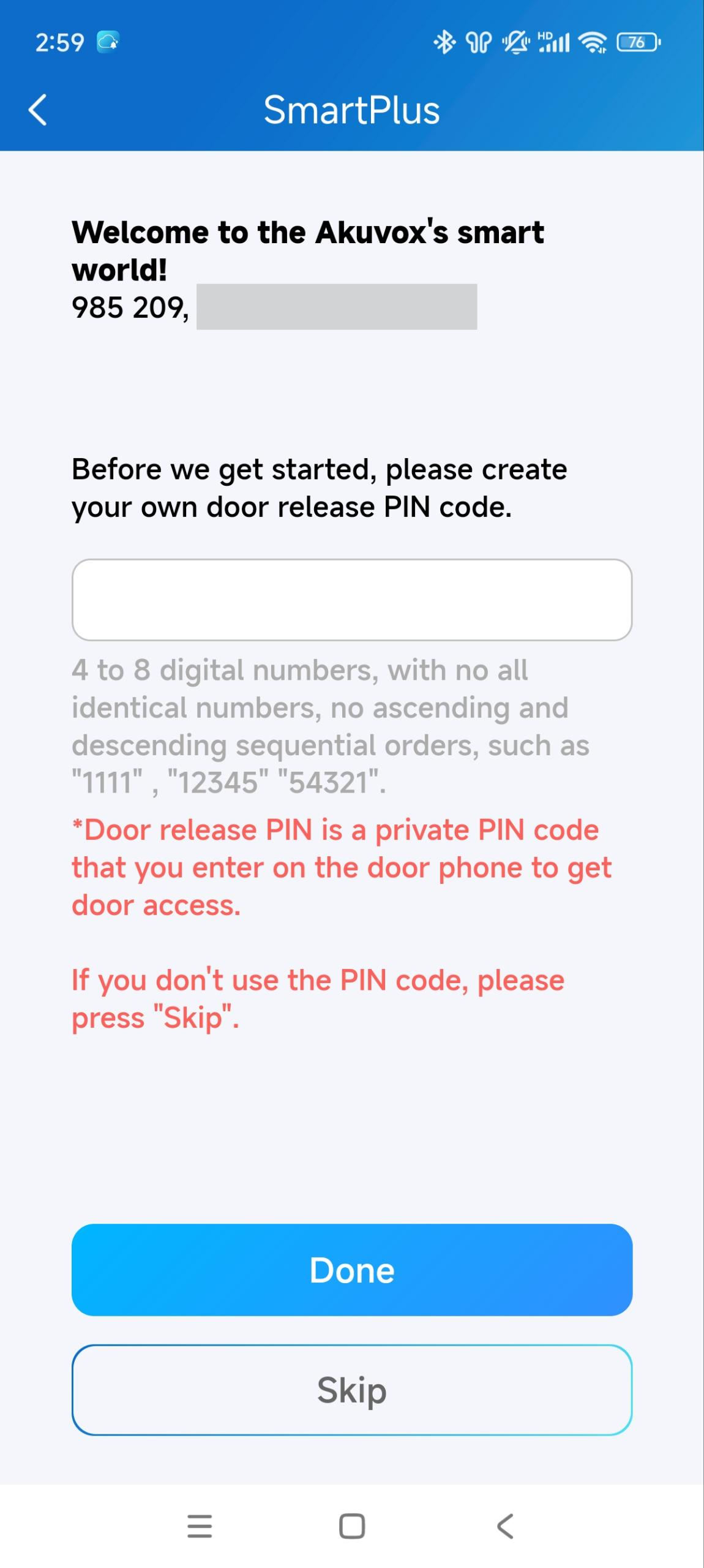
If you are a community resident, a PIN setting page will display after login. You can set the PIN for door access or set it later.
Link
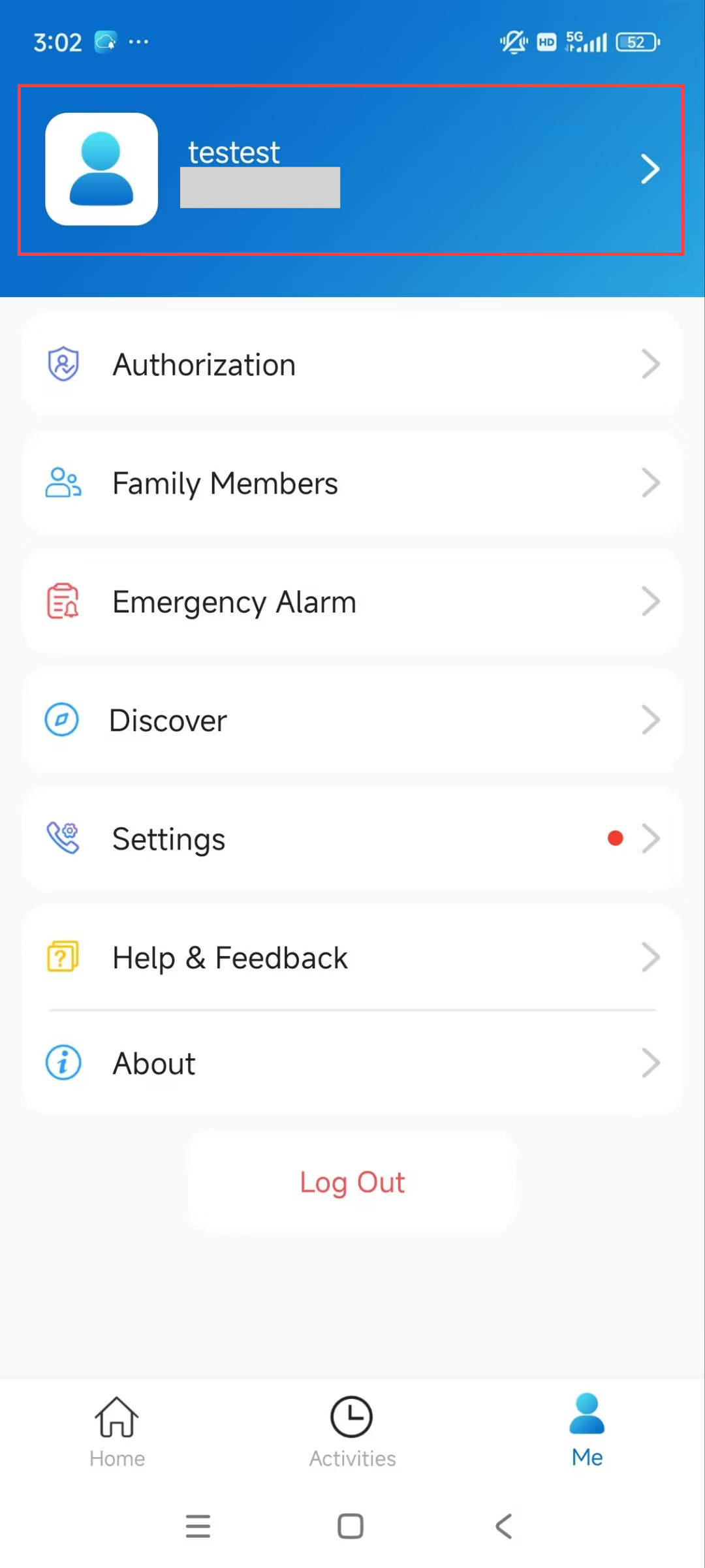
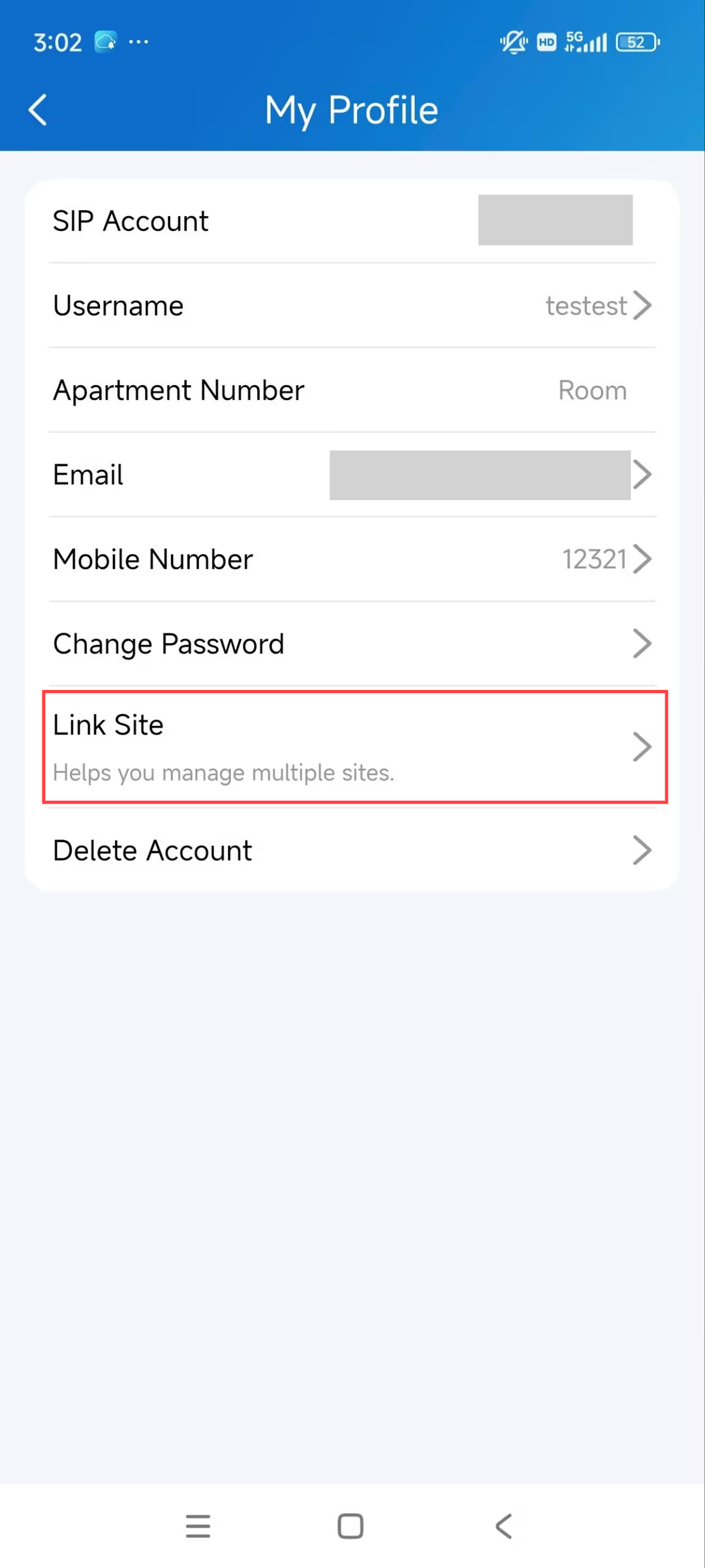
You can link other SmartPlus accounts to manage multiple sites through one account.
Tap Me > [account name] > Link Site.
Note
Click here to view the detailed steps.
Switch Display Mode
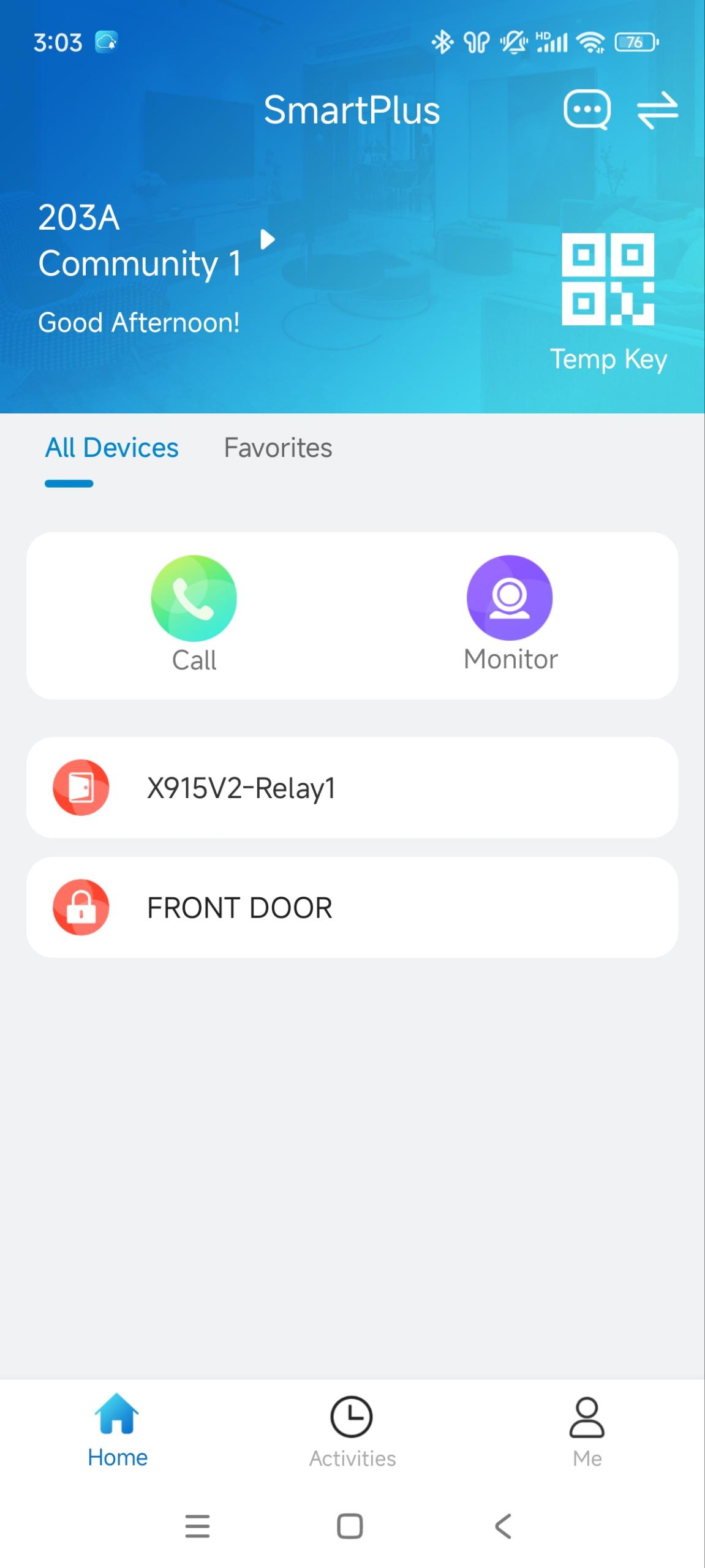
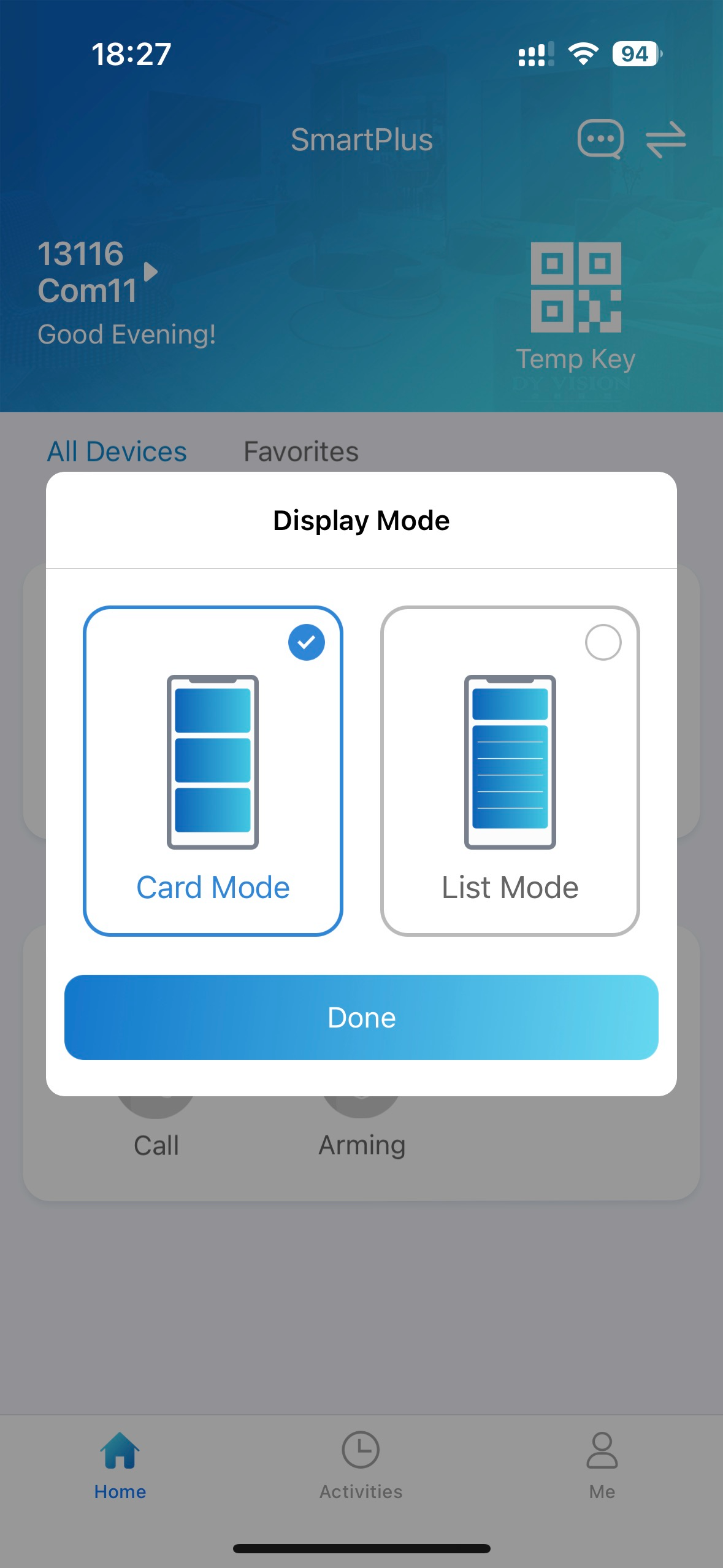
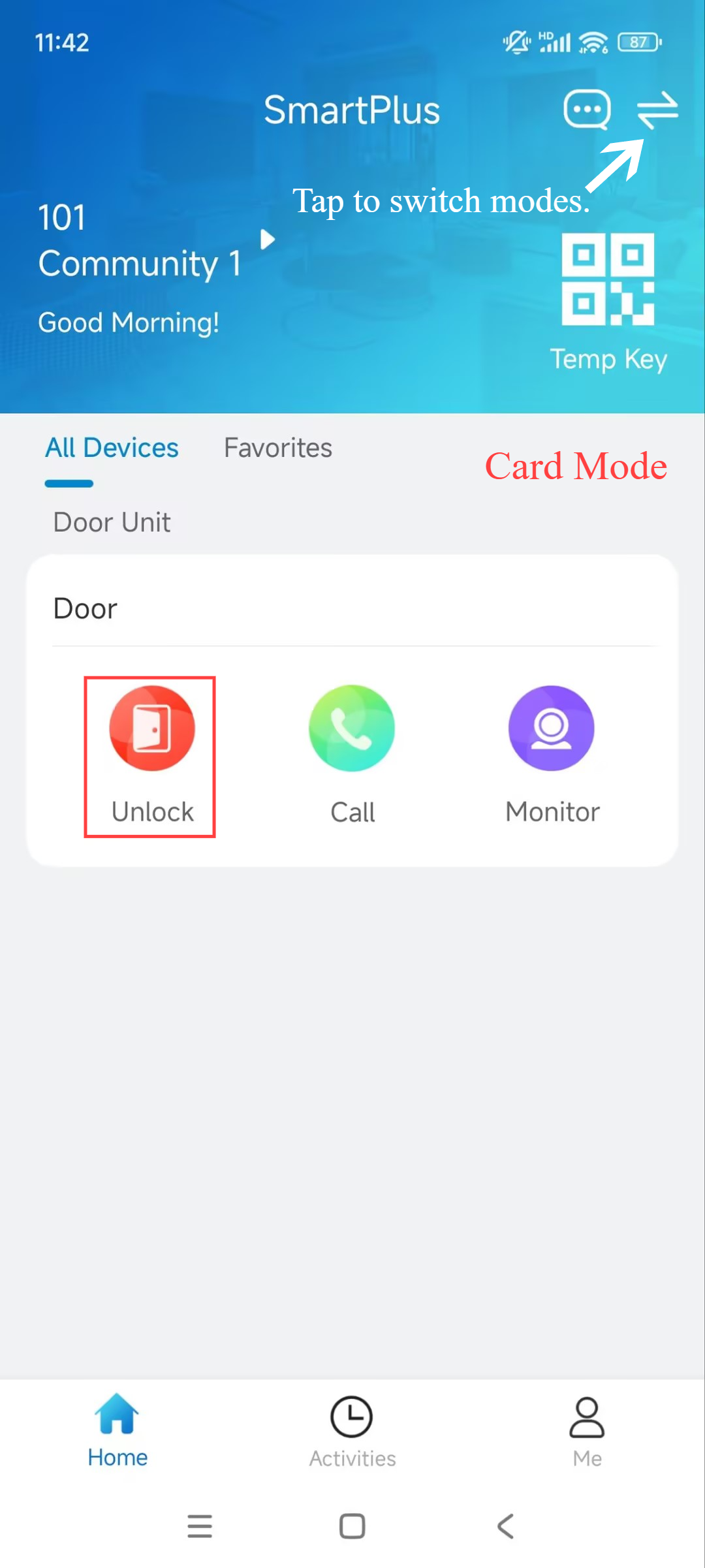
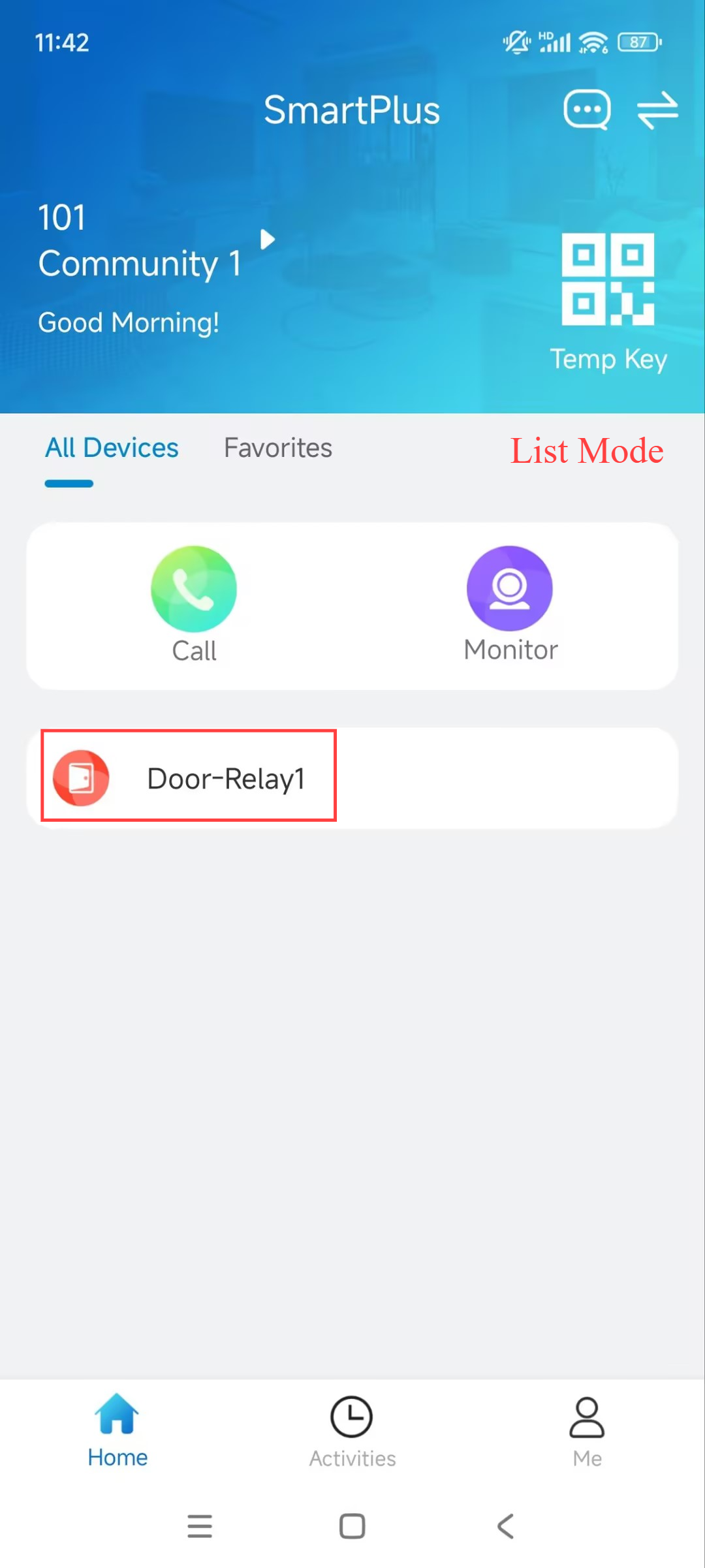
The SmartPlus App supports two homepage display modes: Card Mode and List Mode.
The main difference:
Card Mode is device-oriented. You can tap the functional icons on desired devices to make calls, open doors, or monitor. If a door phone has multiple relays enabled, you need to tap the Open Door icon and select the relay to be triggered.
List Mode is door-oriented. You can directly tap the desired door to open. To make a call or monitor, tap the Call or Monitor icon and select the desired device to carry out the action.
Card Mode | List Mode |
|---|---|
|
|
.jpg)
Tap  in the upper-right corner to switch between Card Mode and List Mode.
Door Access
There are various access control options such as NFC, Bluetooth, PIN code, temp keys, and facial recognition. You can choose any of them based on your habits and preferences.
Keep the Door Open
You can keep the door open at certain times for some events when your installers enable this feature for you.
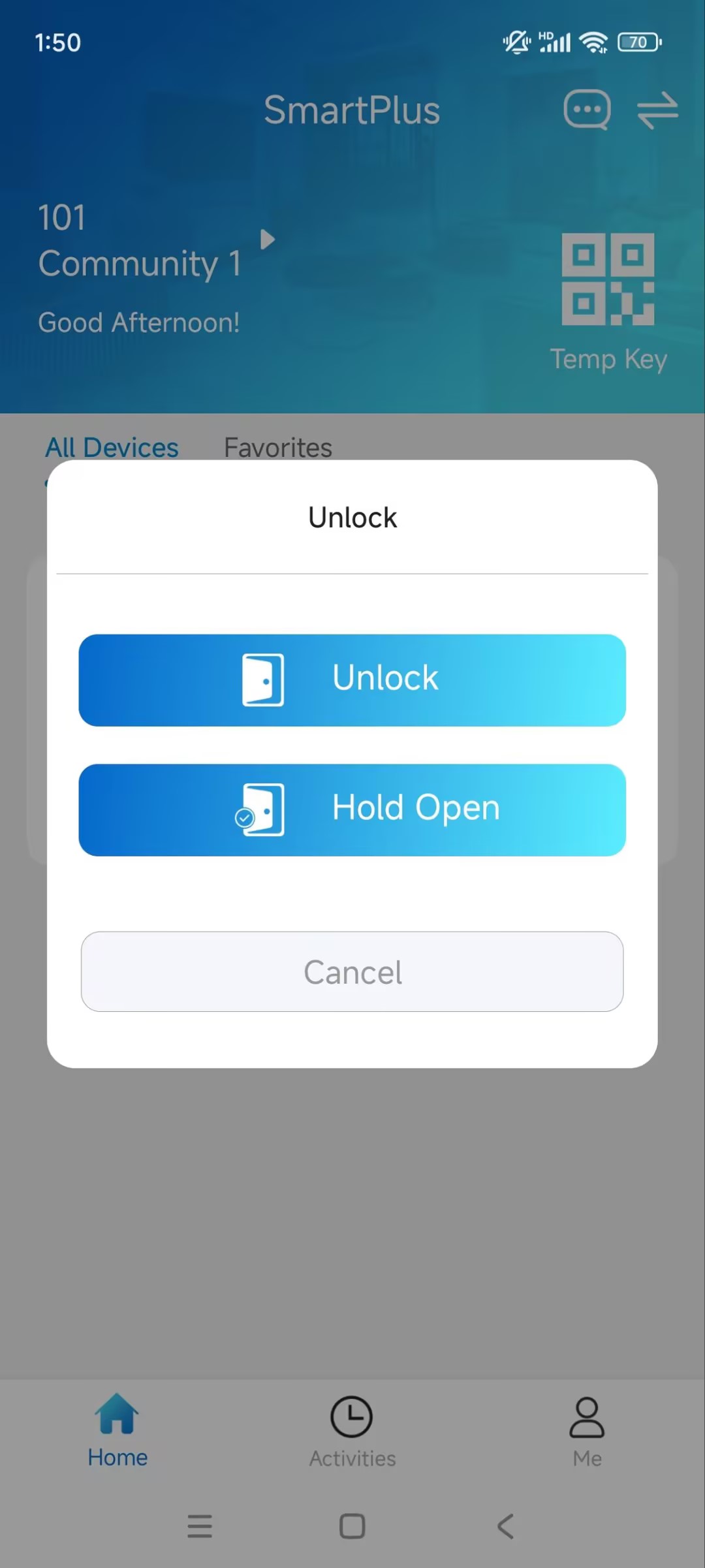
On the homepage, tap Unlock of the configured door phone in Card Mode; tap the target Relay in List Mode.
Note
Then, tap Hold Open to set up the schedule.
Check Door Status
You can check whether the door is closed or not on the homepage in case you forget to close the door.
Note
Click here to check compatible models and versions.
.png) : Open
: Open  : Close
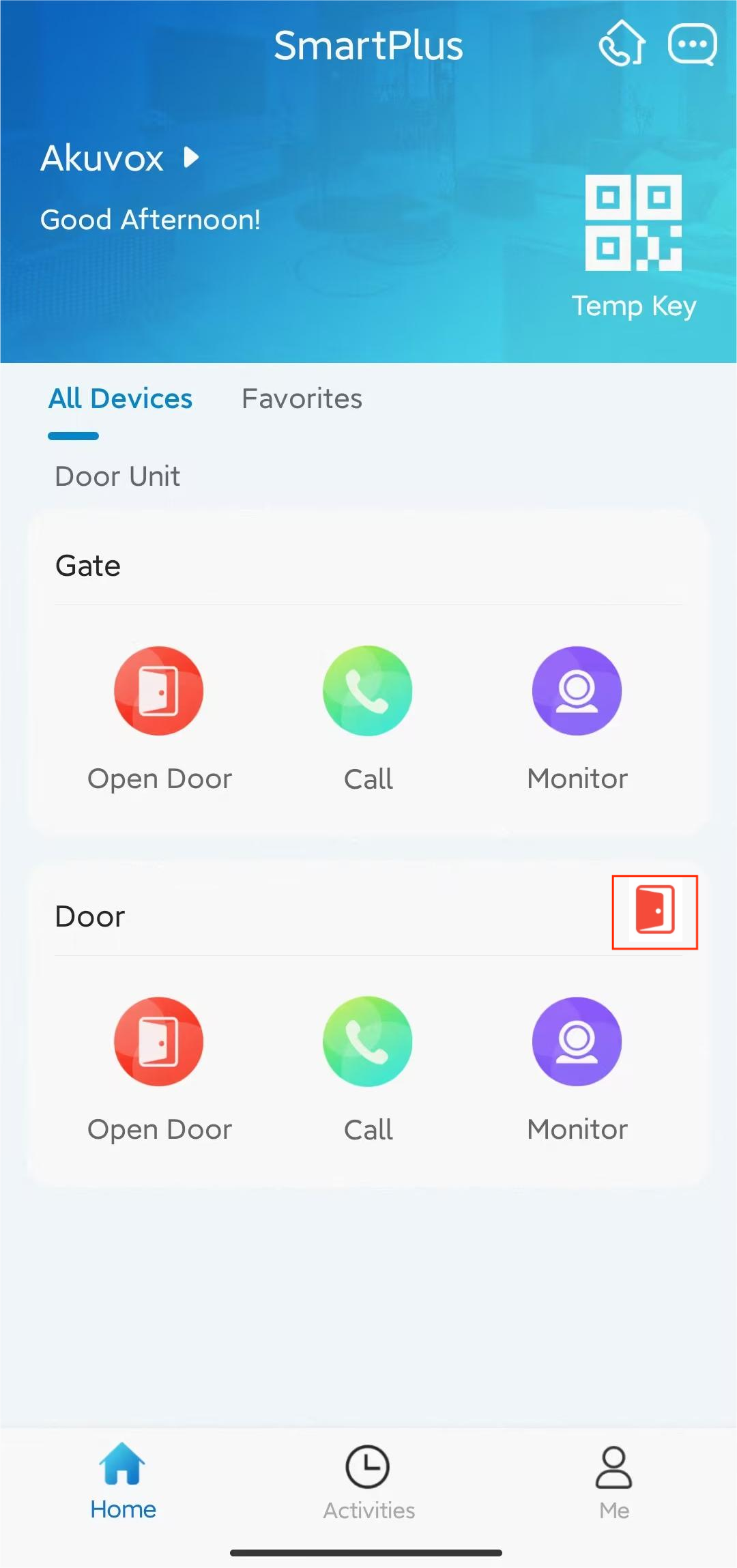
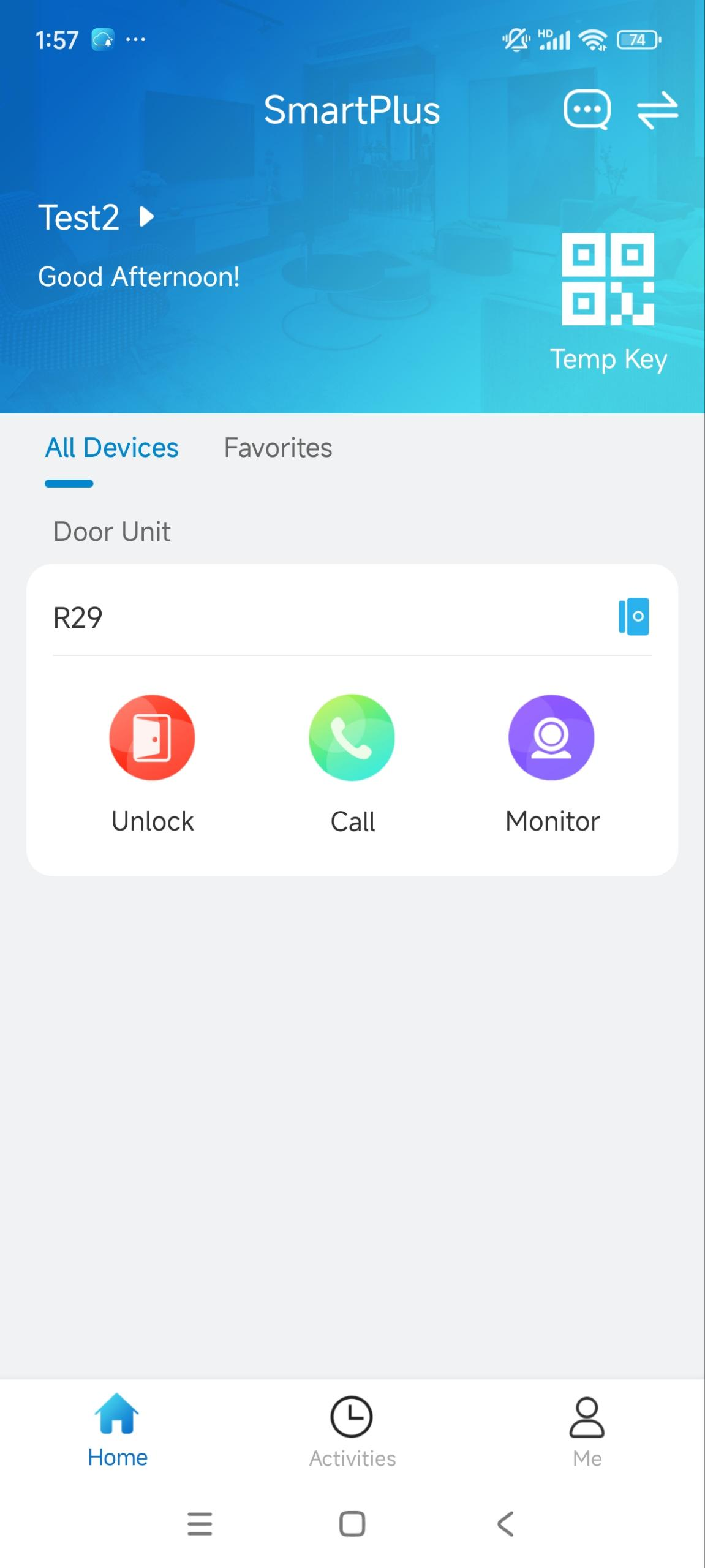
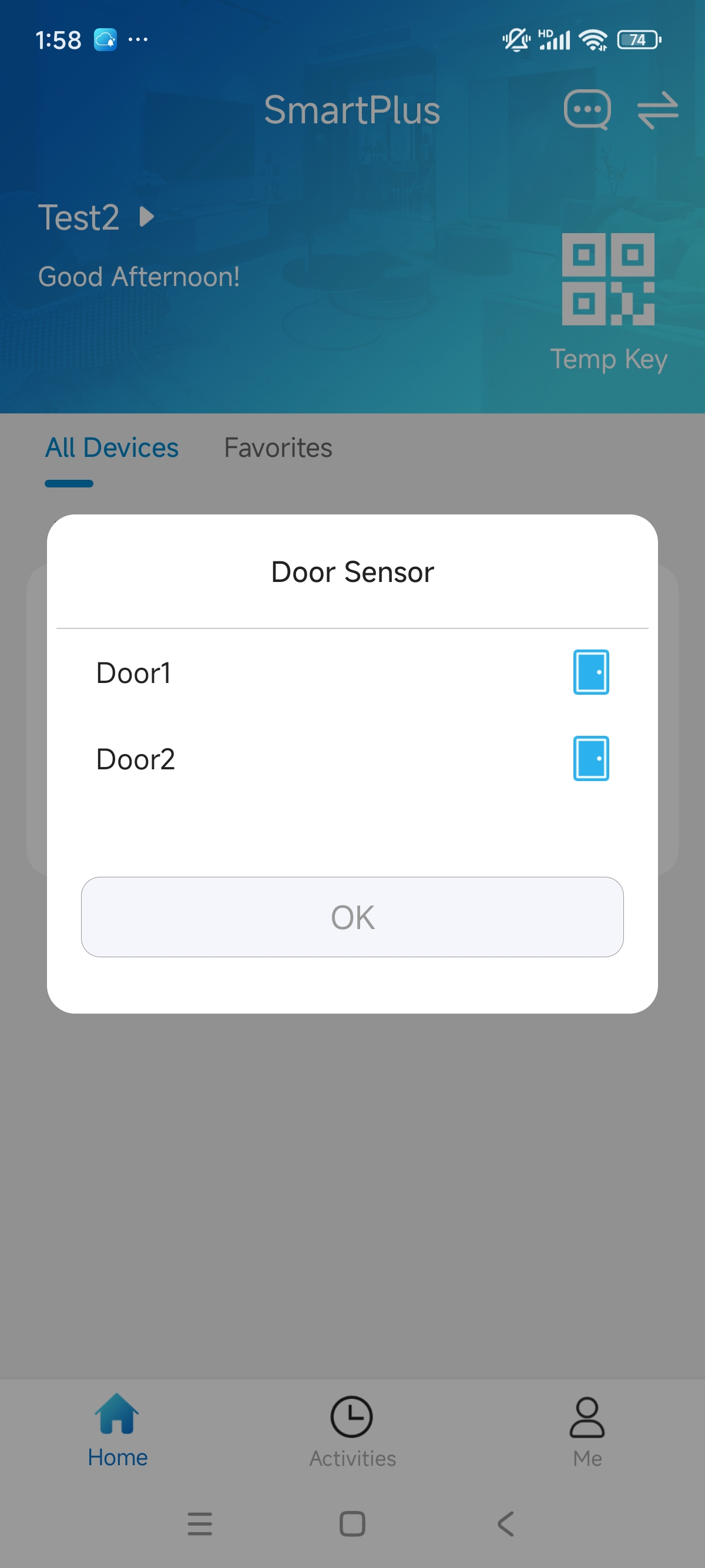
When there are multiple doors, you can check them by clicking  .
.
Remote Opening in Card Mode
You can open the door directly for your visitors just by tapping the specified button.
Tap Unlock on the homepage. If there are multiple doors, tap the desired one.
.jpg)
Opening the Door During a Call
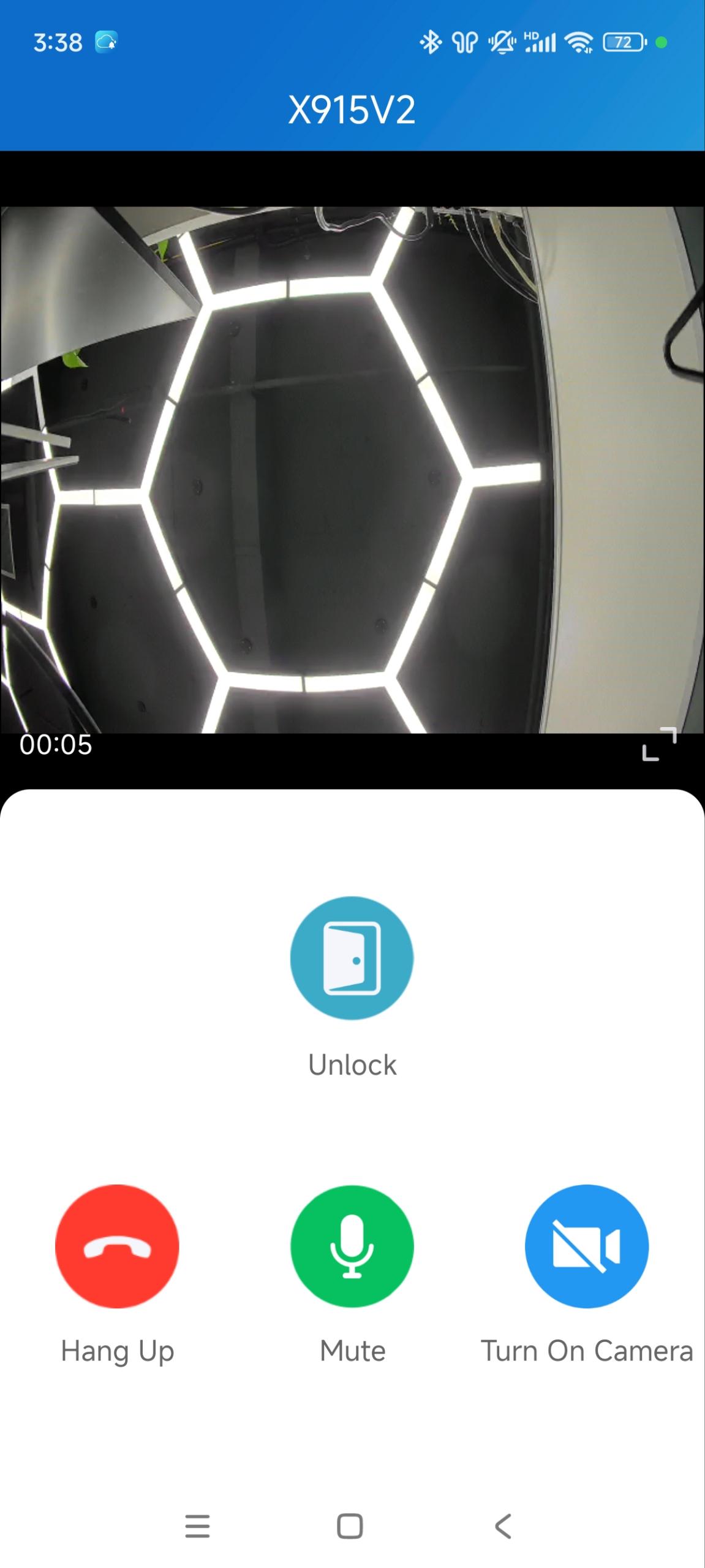
You can make or receive a call. During a call, you can open the door for visitors, mute the microphone, and hang up the call.
Tap Unlock to open the door.
Tap Mute to silence your microphone while on the call.
Tap Hang Up to end the call.
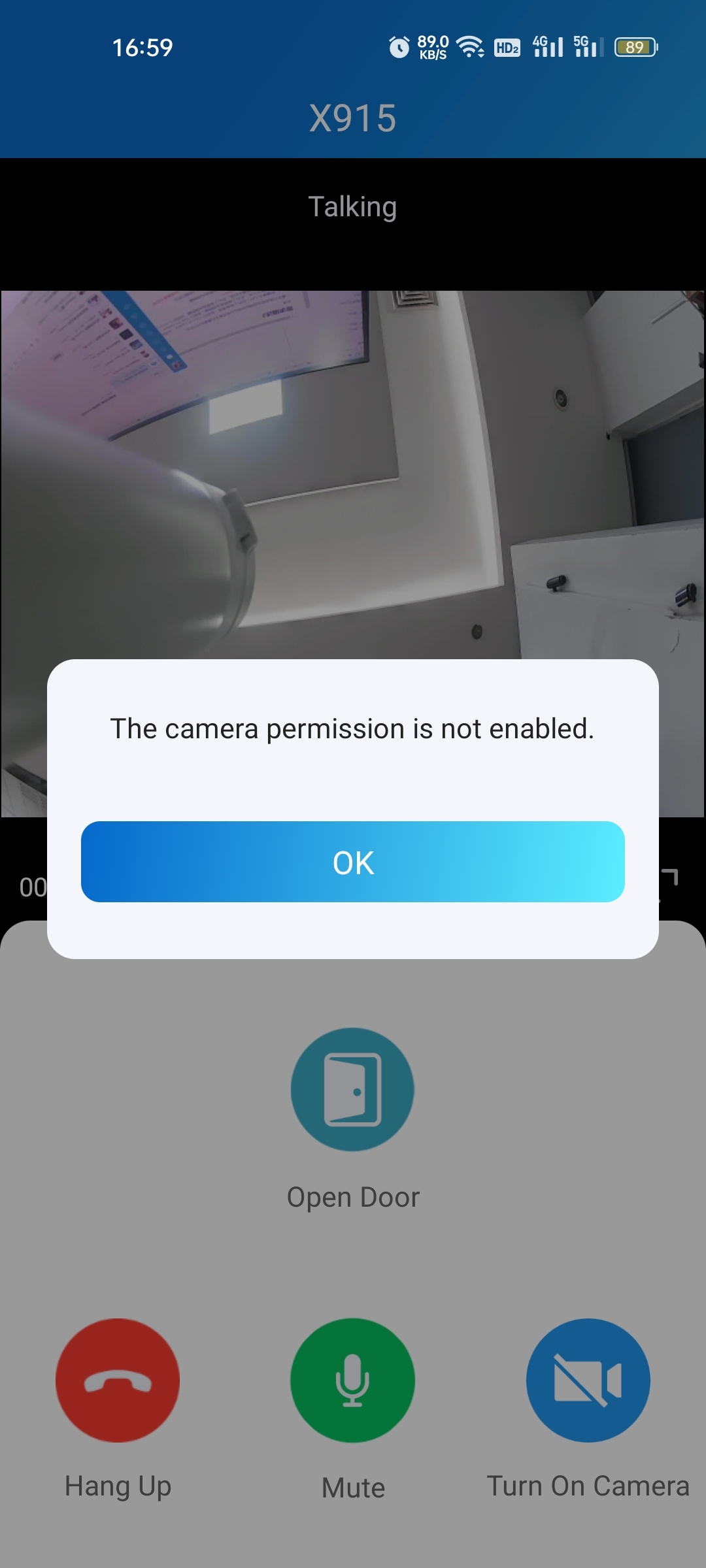
Tap Turn On Camera/Turn Off Camera to turn your phone’s camera on/off in video calls. Your choice to turn on/off will be applied to later video calls with the device.
Note
To use the Turn On Camera/Turn Off Camera feature, you must allow SmartPlus to turn on/off the cameras when using this app. Or you will see the below pop-up message.
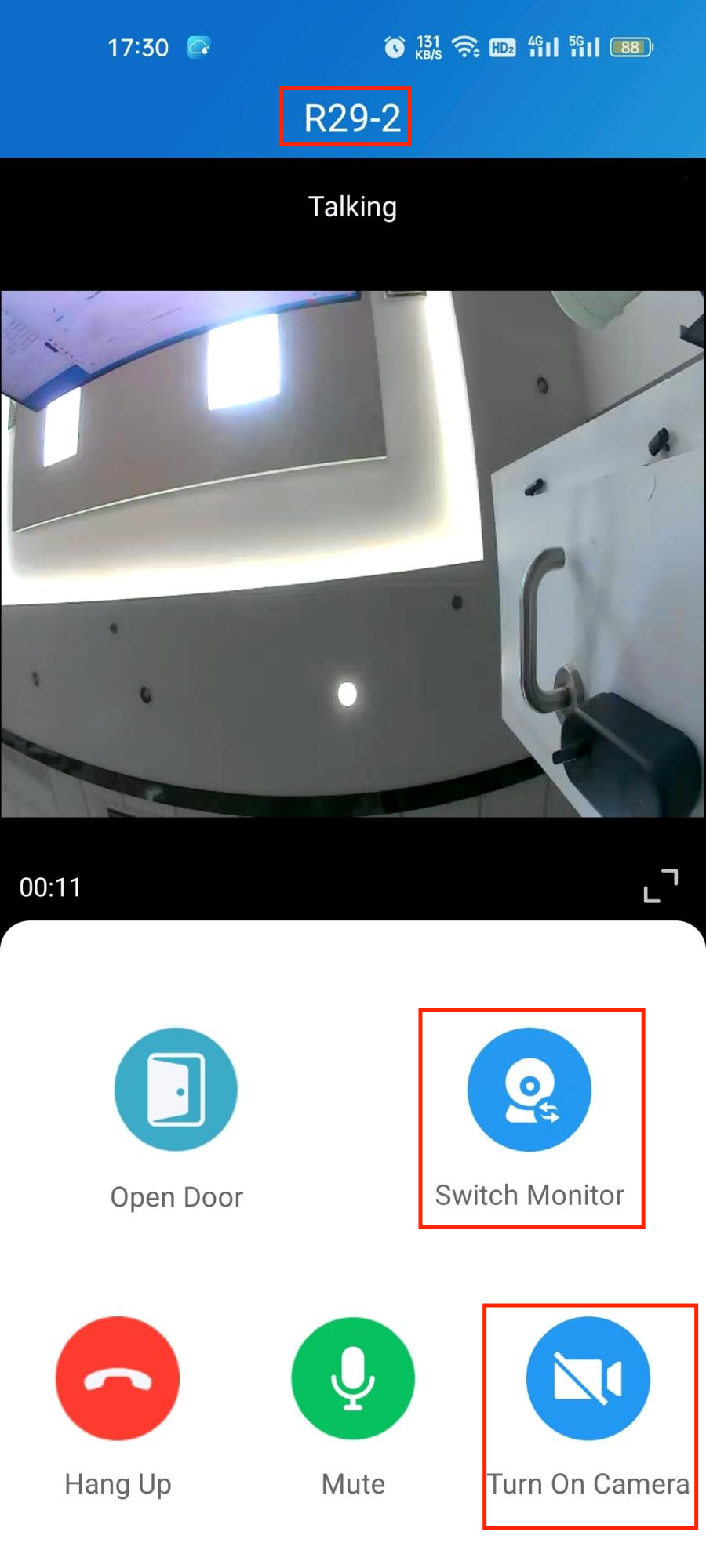
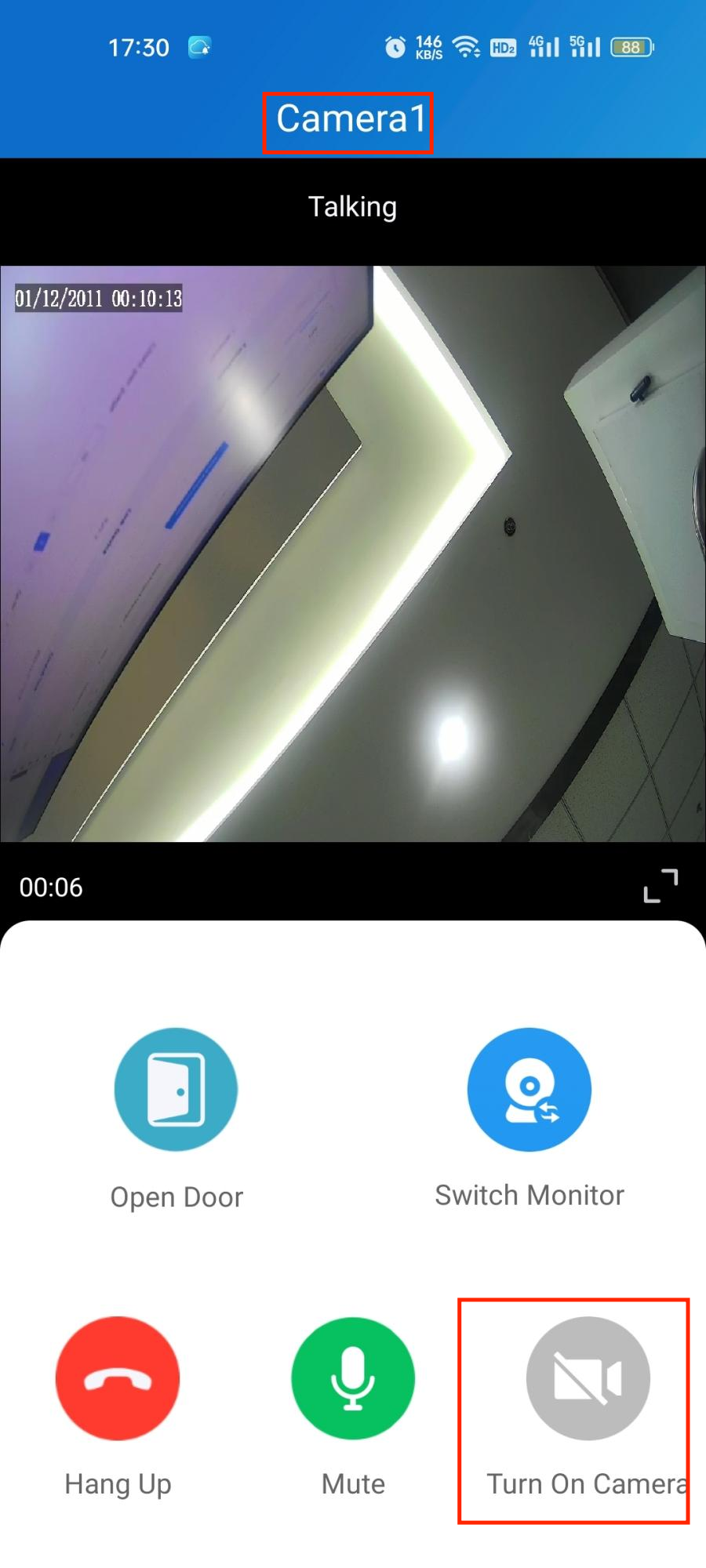
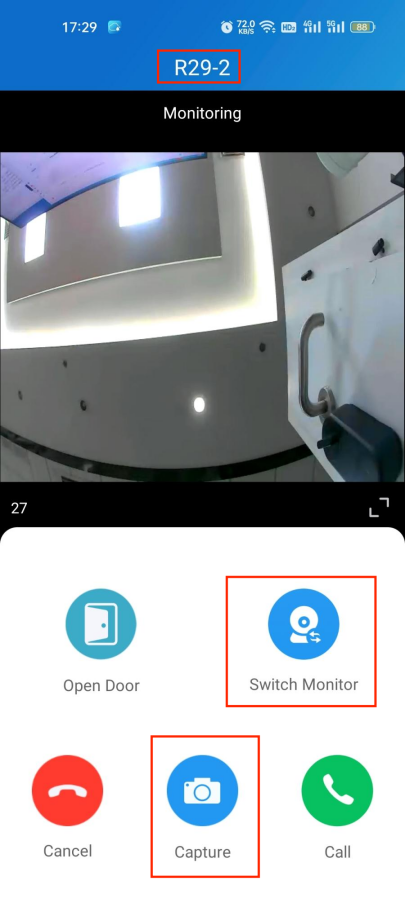
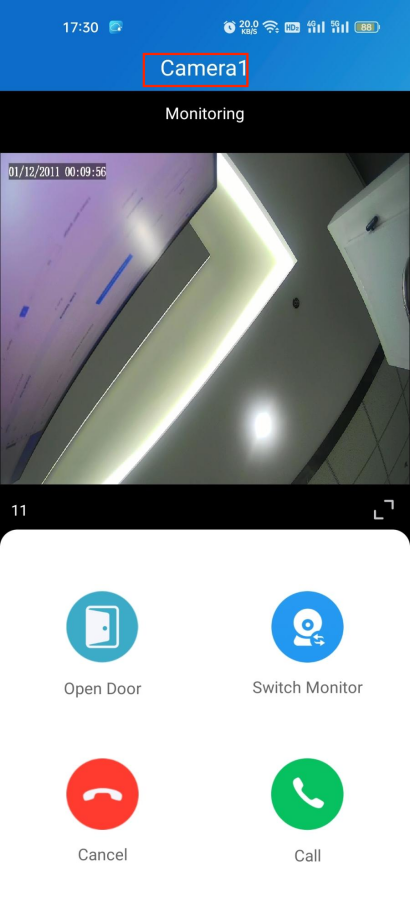
If the door phone is linked with a third-party camera, you can tap Switch Monitor to switch live streams between the door phone and the third-party camera.
The Turn On Camera feature is unavailable when you switch to the third-party camera.
Opening the Door while Monitoring
You can watch the live video to know who is standing in front of your door, and then decide whether to open the door or not.
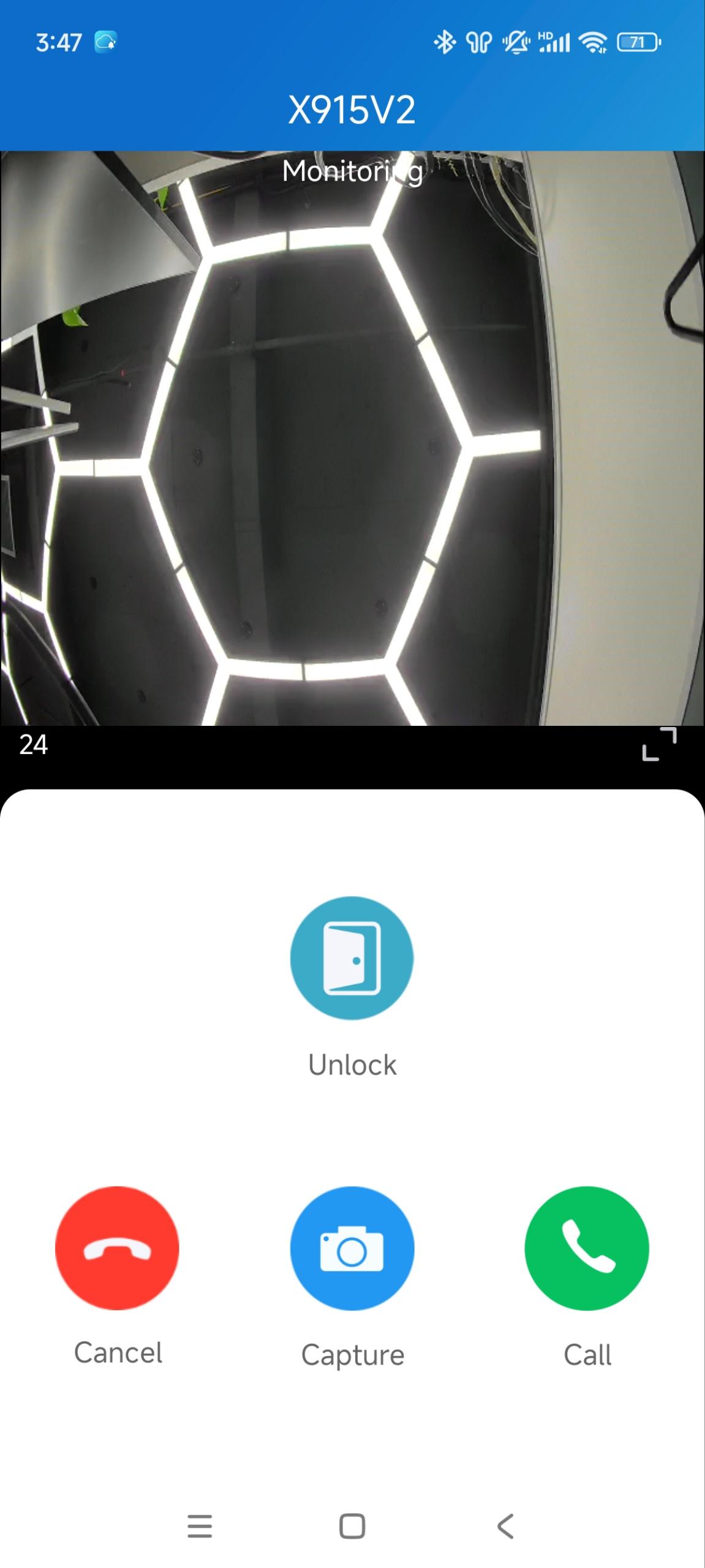
1. Tap  of the desired device on the homepage.
2. Tap Unlock on the monitoring page.
3. Besides, you can:
Tap Cancel to exit the current page.
Tap Capture to make a screenshot.
Tap Call to make a call with the visitor.
Note
Akuvox devices without cameras do not have a monitor button
If the door phone is linked with a third-party camera, you can tap Switch Monitor to switch live streams between the door phone and the third-party camera.
The Capture feature is unavailable when you switch to the third-party camera.
Opening the Door During a Call Preview
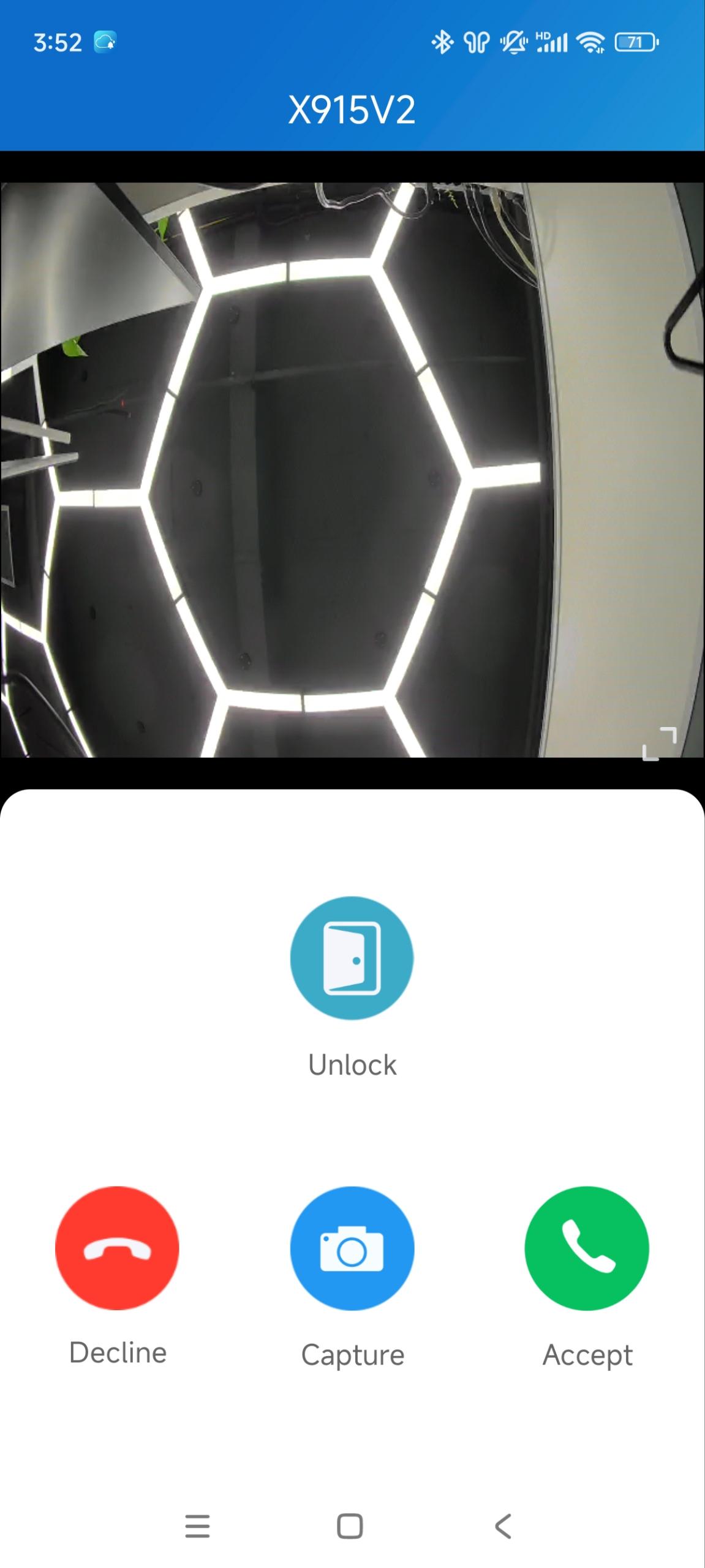
When someone calls, you can preview the monitoring streams to see who it is before answering the call.
On the call-receiving page, tap Unlock to open the door.
If the door phone is linked with a third-party camera, you can switch the live streams between the door phone and the camera. Note that the Capture feature is unavailable after switching to the third-party camera.
Open Doors with Temp Keys
A Temp Key can be a QR code or an 8-bit PIN. You can customize its validity period and the times for use, and the key will be valid immediately after you create it.
You can issue temp keys for your visitors, housekeepers, dog walkers, and so on.
Create Temp Key for Visitors
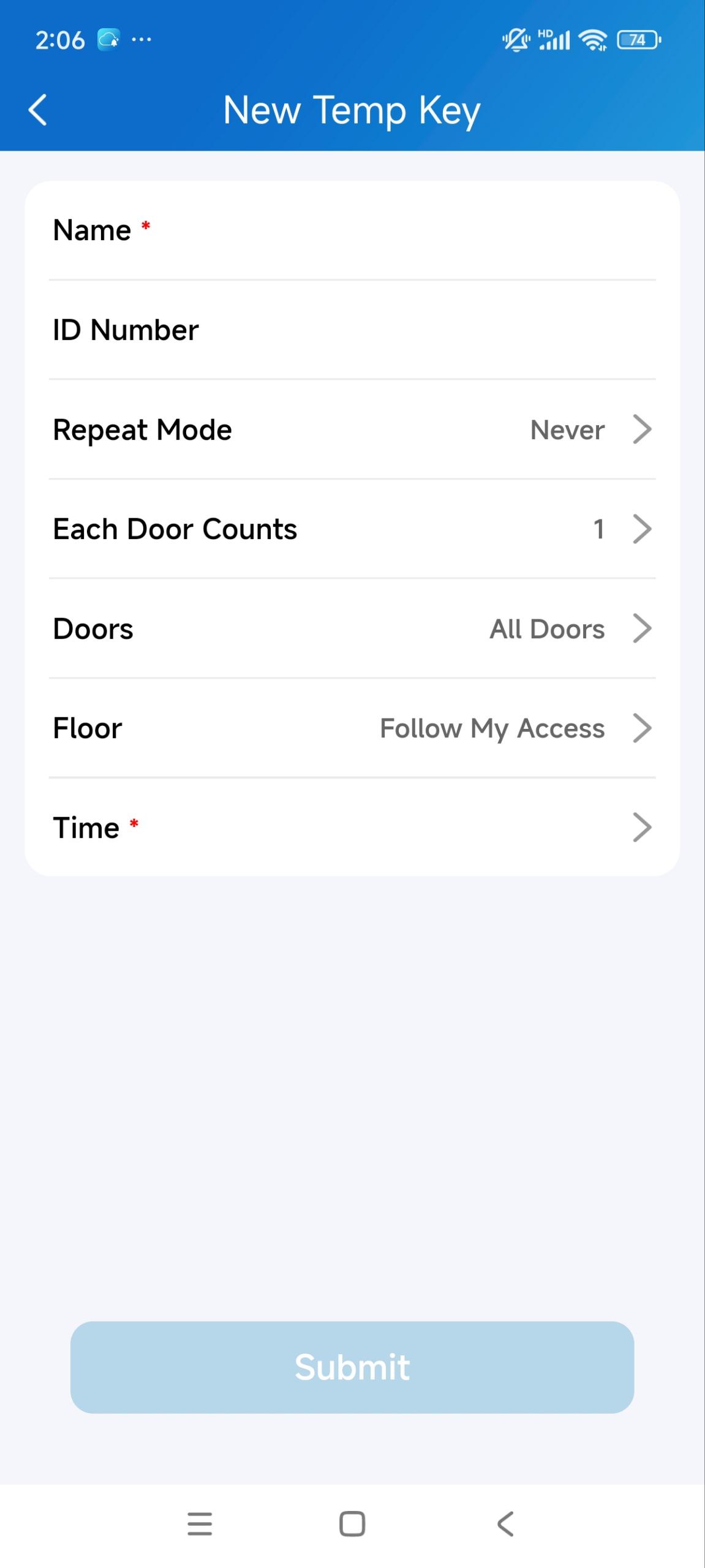
To issue a Temp Key, do the following:
1. Tap + Temp Key on the homepage or tap Me > Authorization > Temp Keys.
2. Tap +Temp Key.
3. Enter the username and set the ID number.
4. Set the Repeat Mode: Never, Daily, or Weekly.
If Never is selected, set the valid times of the key on each device.
5. Select the door to be opened.
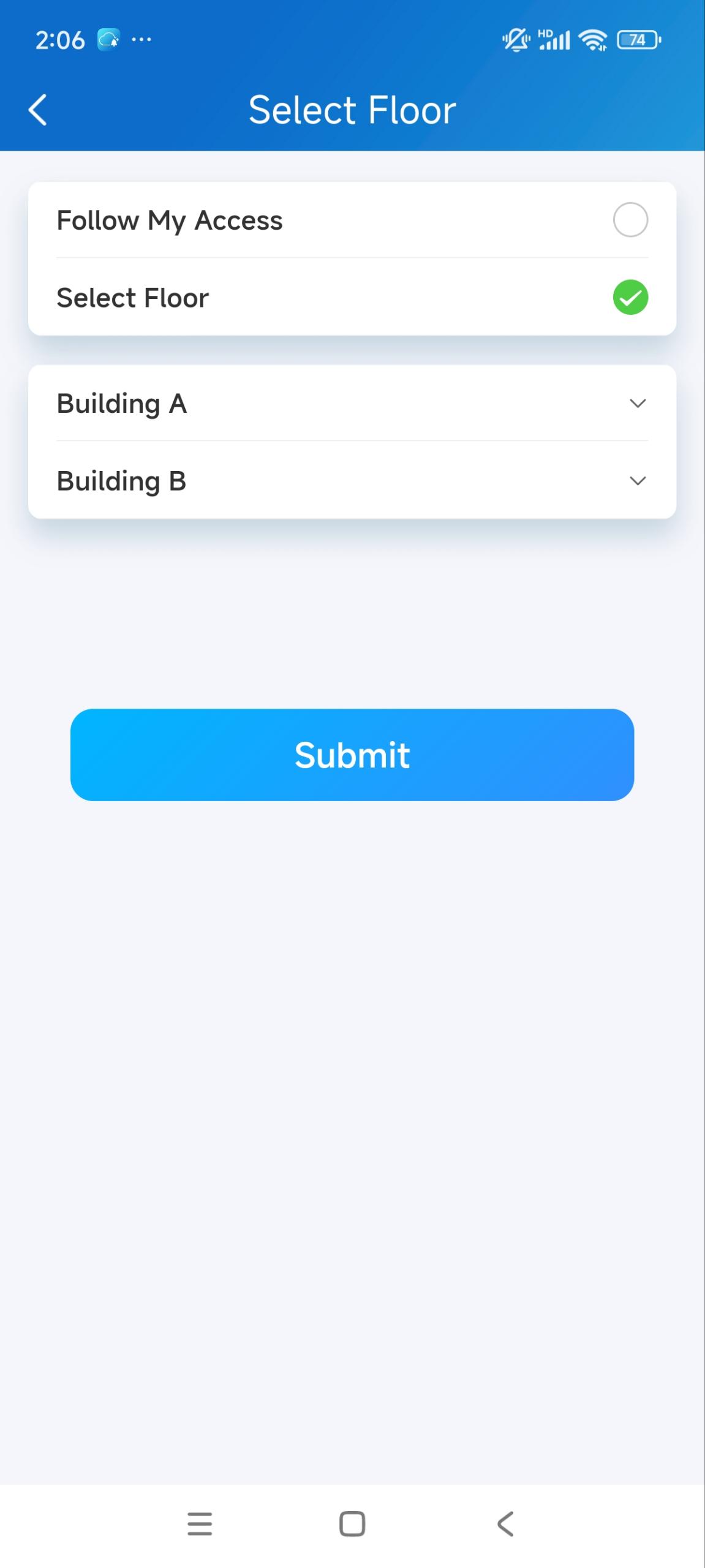
6. Choose the floor(s) accessible to the visitor. This option is only available for community users' accounts and works with the Akuvox lift control system.
Follow My Access: It means the visitor has the same accessible floor permission as you.
Choose Floor: Select specific floors and buildings from available choices.
7. Specify the time of using the temp key.
Note
When the repeat mode is Never, there is a limit to the total times for use. The total times are equal to Each Door Counts * the number of selected doors.
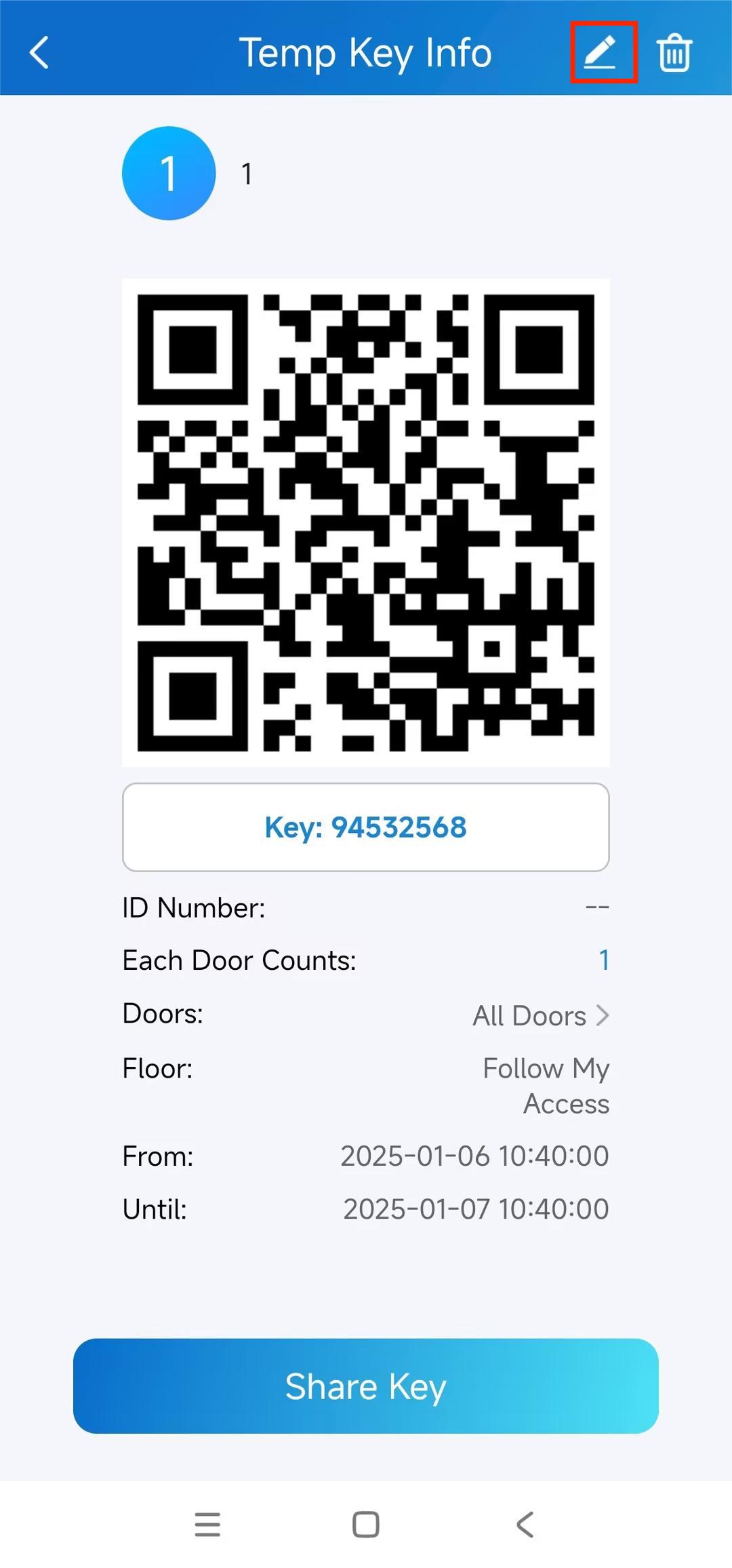
If you want to check the selected doors, you can tap the Doors on the Temp Key Info screen.
After the temp key is created and when it does not expire, you can change the valid time of using the key by clicking the Edit icon in the upper-right corner.
Share Temp Key with the Visitor
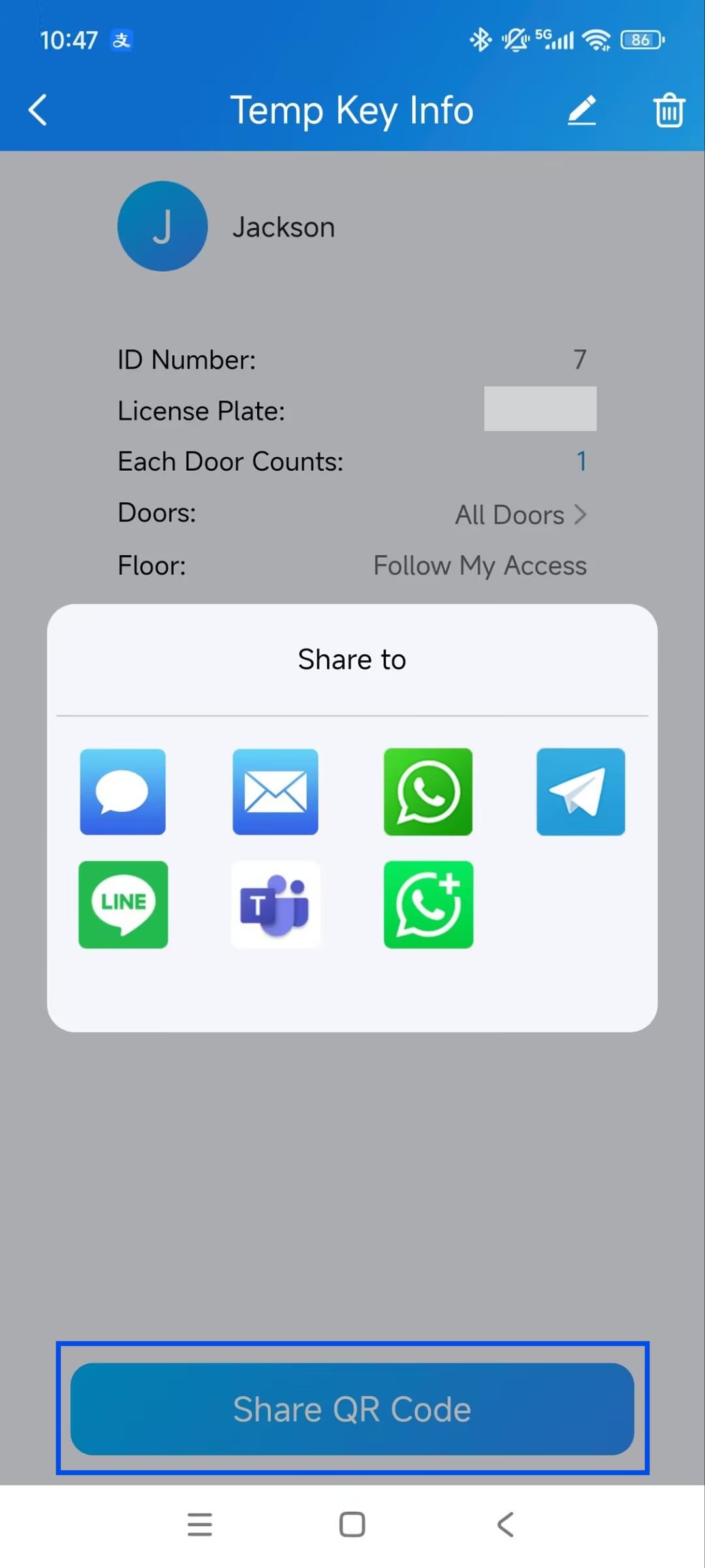
After creating a new key, you can share it with the designated user.
1. Tap +Temp Key on the homepage or go to Me > Authorization > Temp Keys.
2. Tap the key you created for the user, then tap Share Key.
3. Share the key through desired methods. Please note that the WhatsApp Business option is currently ONLY supported on Android phones.
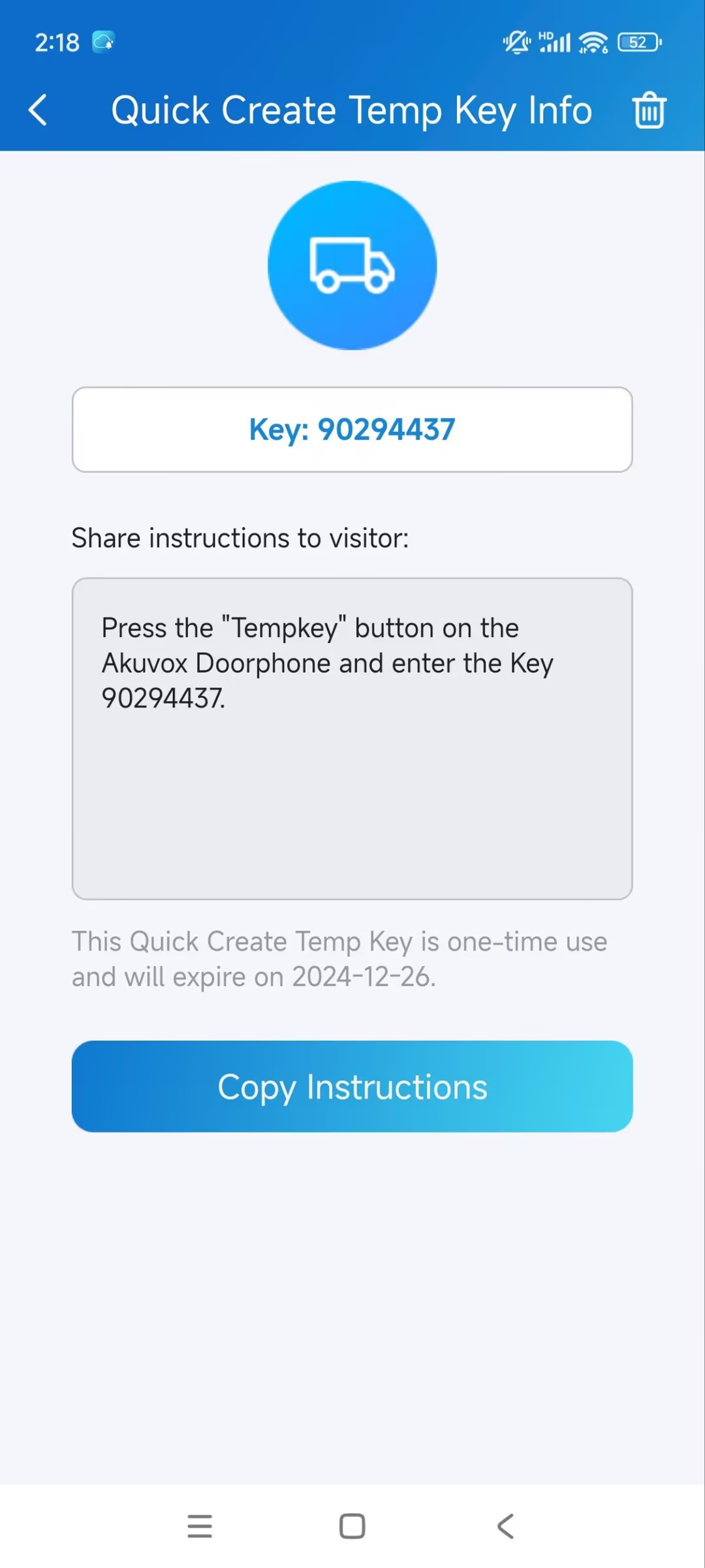
Create a Temp Key for a Delivery Person
The delivery temp key is one-time only. Its repeat mode is Never by default. A delivery person with this key is allowed to access all public doors that you can open.
1. Tap +Temp Key on the homepage or go to Me > Authorization > Temp Keys.
2. Tap + Quick Create Temp Key, and a key will be auto-created.
3. Tap  to copy the instructions in the box to tell the delivery person how to use the key.
Use the Temp Key
See the following to learn how to use the keys:
A QR code key. Tap Temp Key on the door phone's screen, and place the QR code in front of its camera. When the camera reads the code, the door will open automatically.
A PIN code key. Tap PIN on the door phone's screen, enter the code, and the door will open automatically.
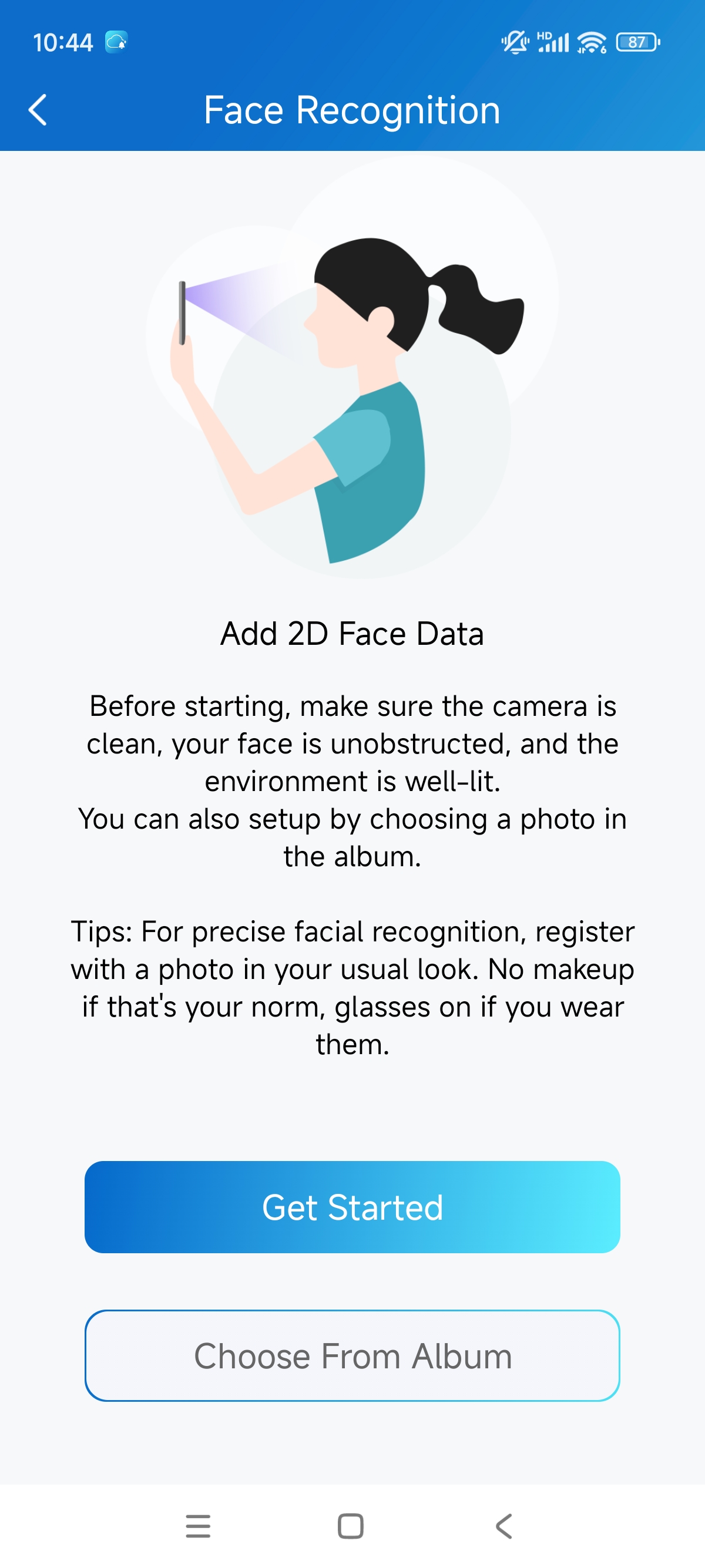
Open Doors with Face ID
Using the facial recognition feature helps you open the door fast and safely.
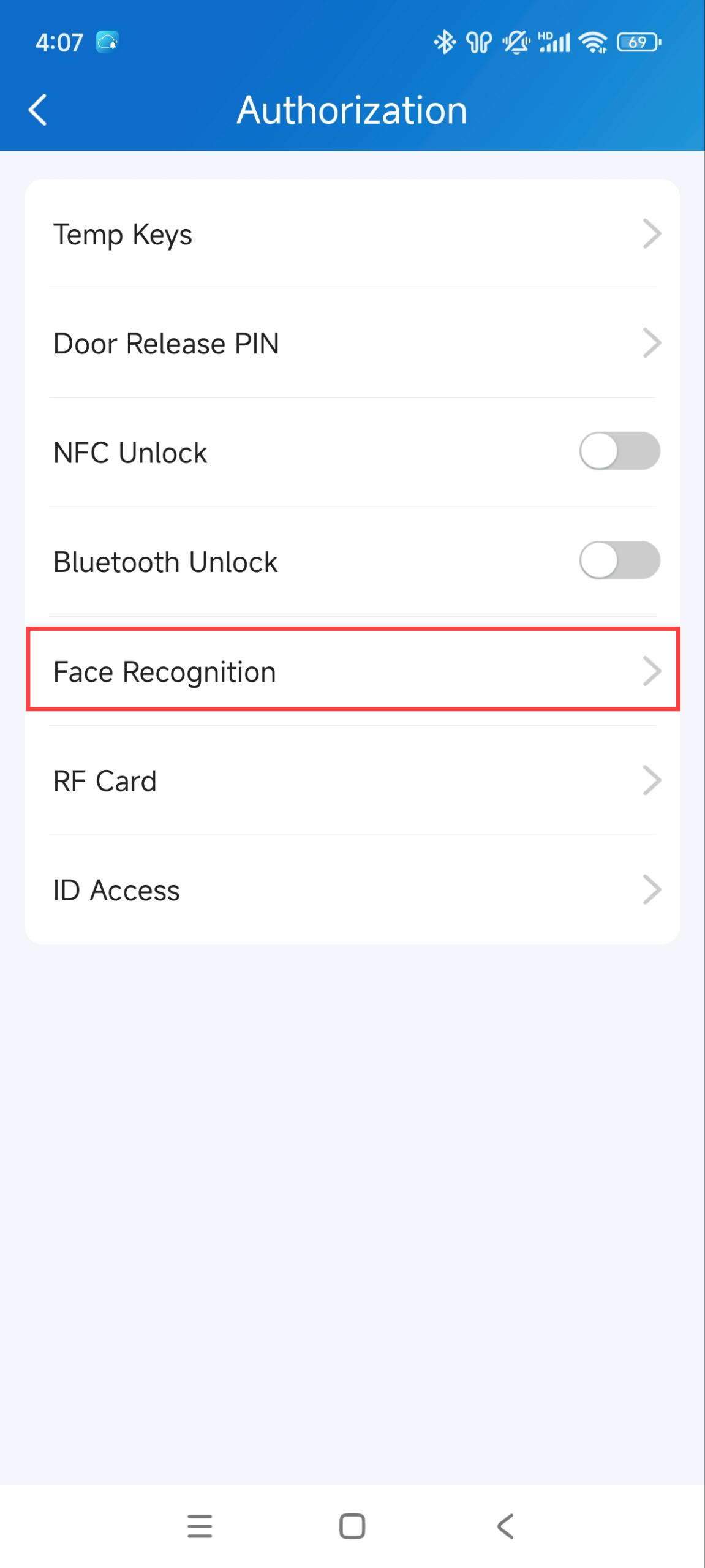
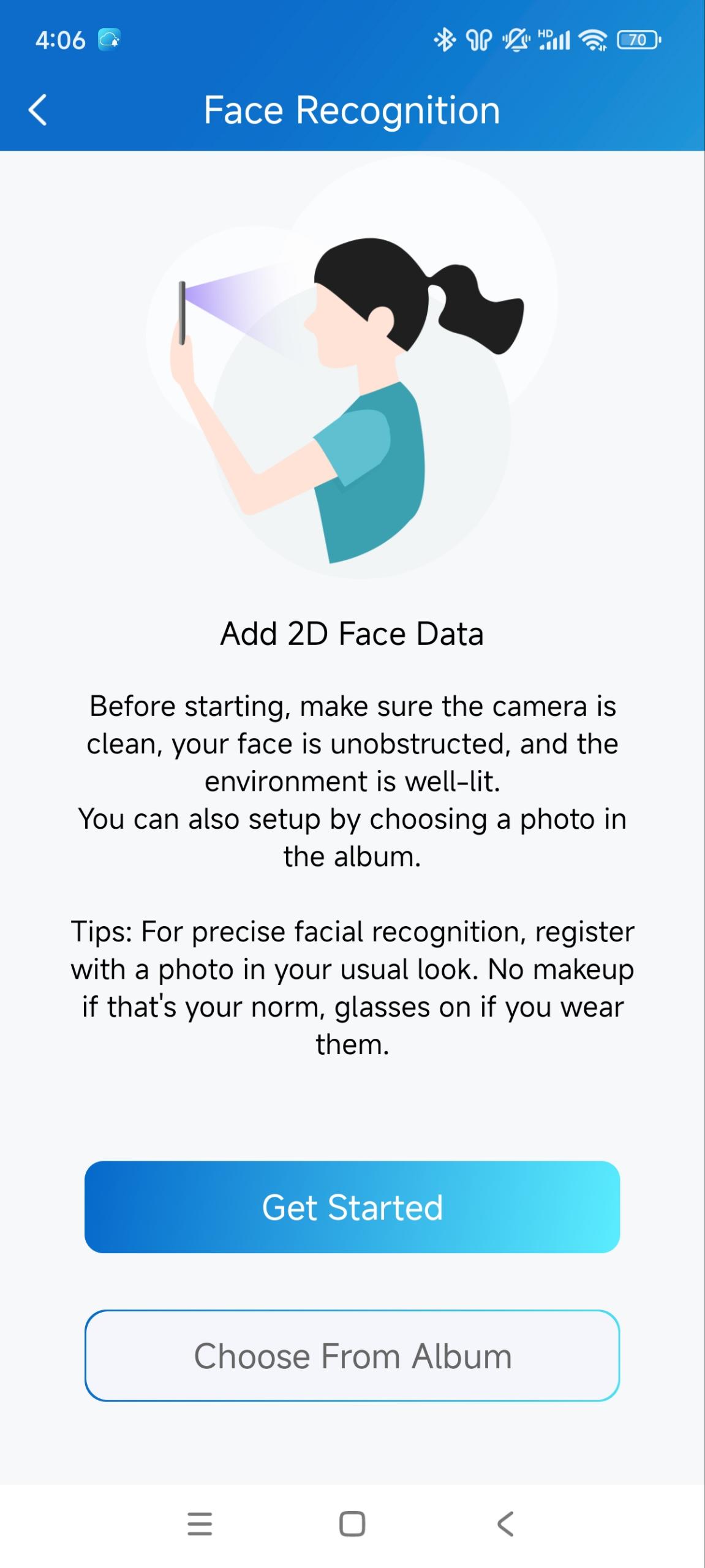
Set up Face ID
1. Go to Me > Authorization > Face Recognition.
2. Tap Get Started or choose a photo from the album, then follow the onscreen instructions.
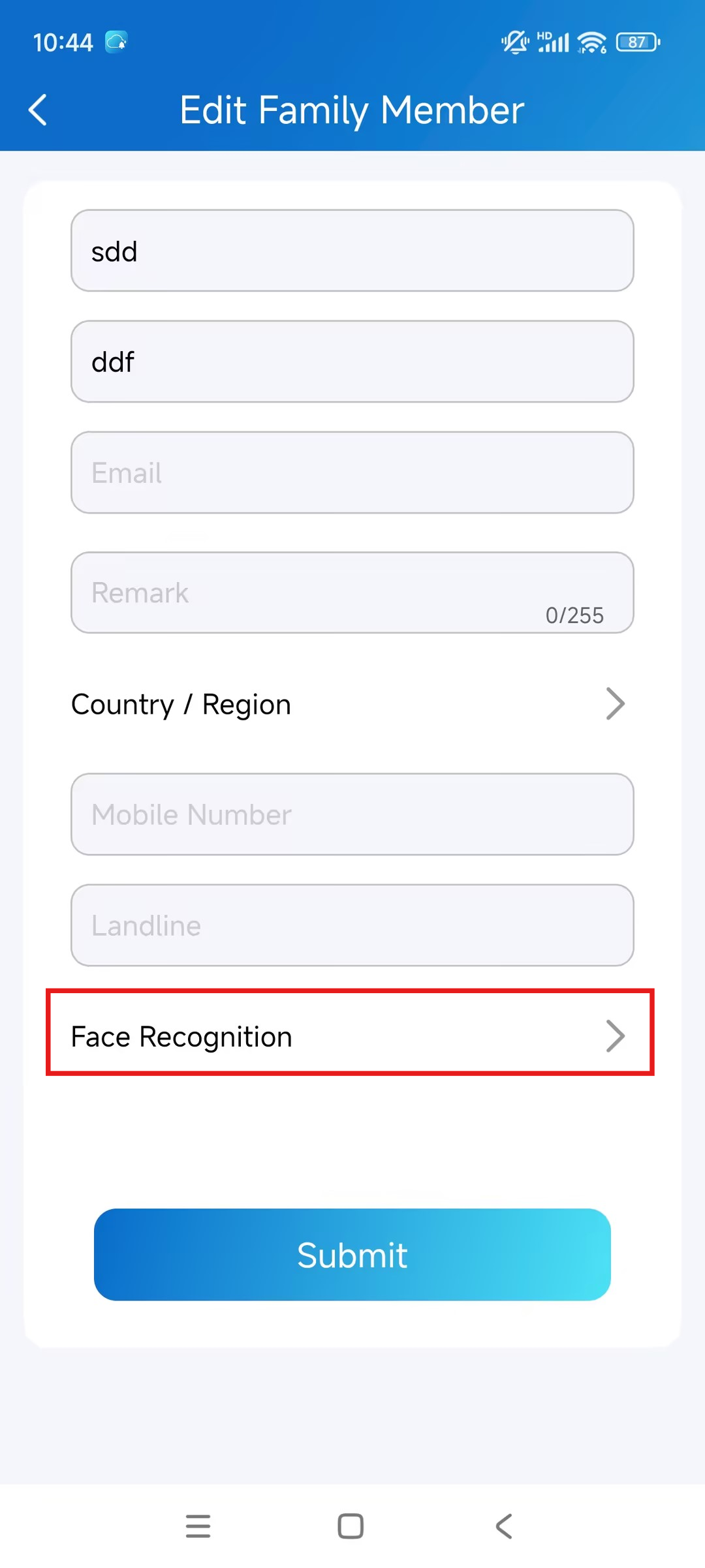
Set up Face ID for Family Members
1. Tap Me > Family Members and select the target family member.
2. Click the Edit icon in the upper-right corner.
3. Tap Face Recognition.
4. You can set the face ID by:
choosing a front-face photo from the album.
tapping Get Started and make sure the member's face stays fully in the frame until the registration finishes.
Open Doors with NFC
It is convenient when using a phone with an NFC feature to open the door. You just need to put your phone near the door phone's card reader, then the door will open.
Note
This method does NOT work on iPhones and Android phones without the NFC feature.
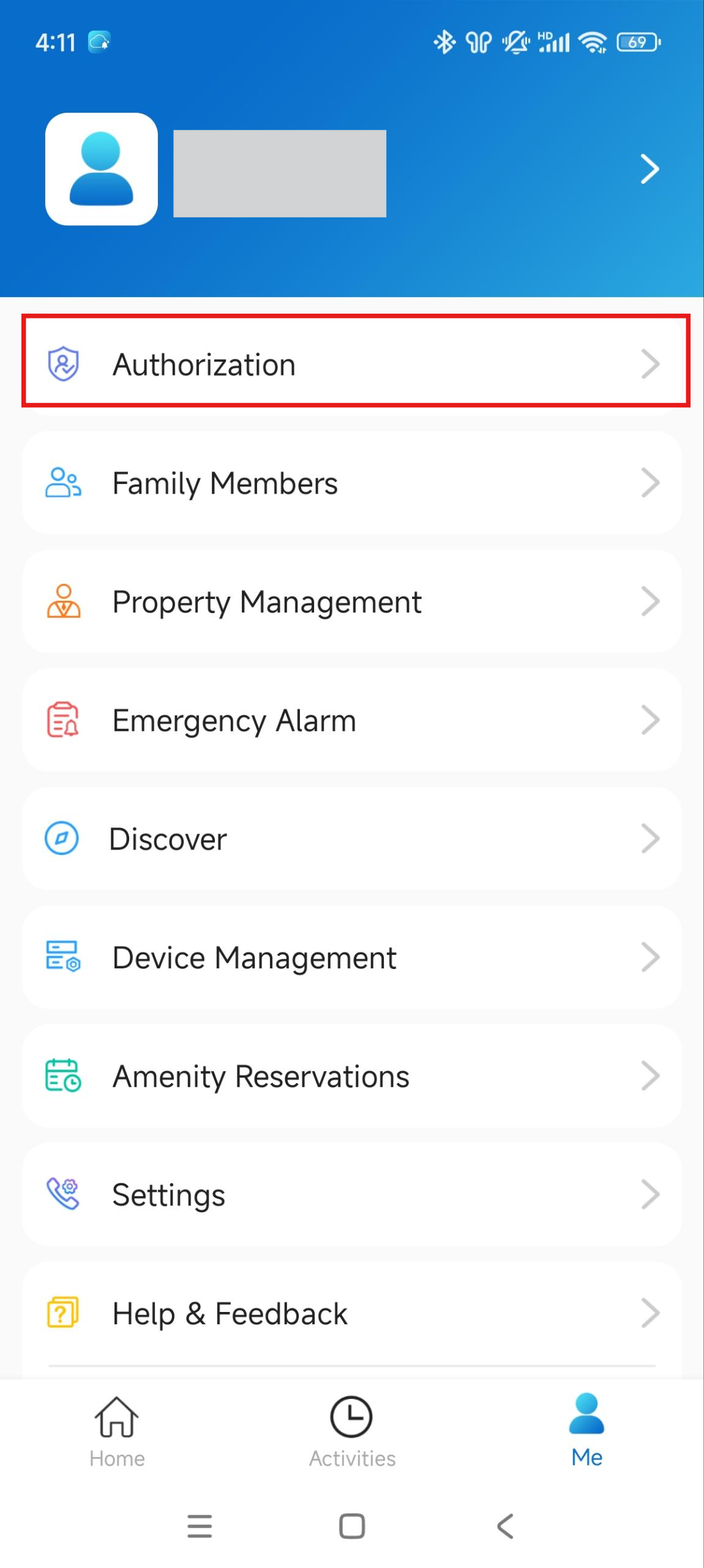
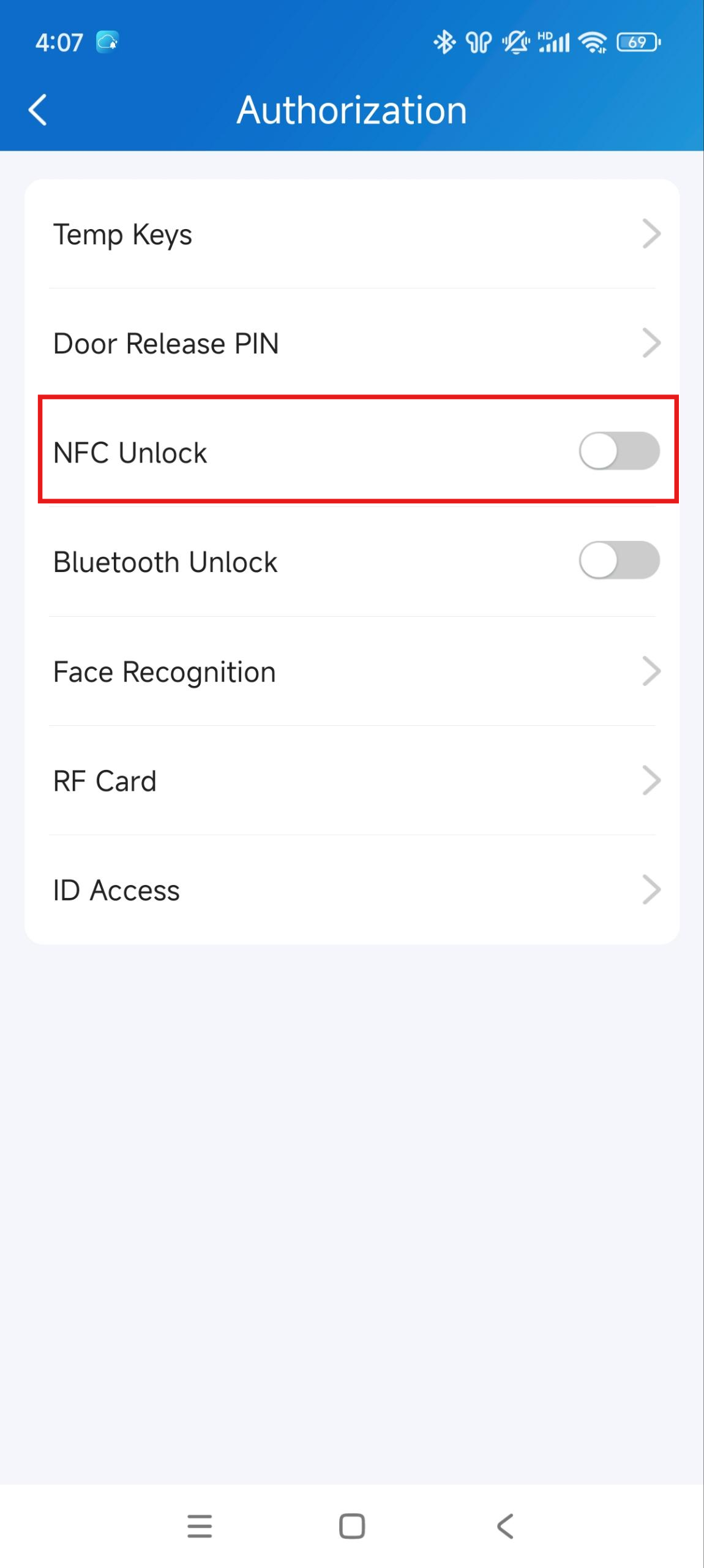
Enable NFC to Unlock
Go to Me > Authorization, and turn on NFC unlock.
Use NFC to Open Doors
Ensure NFC is turned on, both on your Android phone and SmartPlus App, before using this feature.
Wake up your phone.
Place the NFC detection areas of your phone on the door phone's card reader area for a few seconds. Then, the door will open automatically.
Open Doors with Bluetooth
Alternatively, you can use a Bluetooth connection to open the door without touching it.
Note
To learn about the supported door phones and detailed steps of Bluetooth door opening, please refer to Open the Door via Bluetooth.
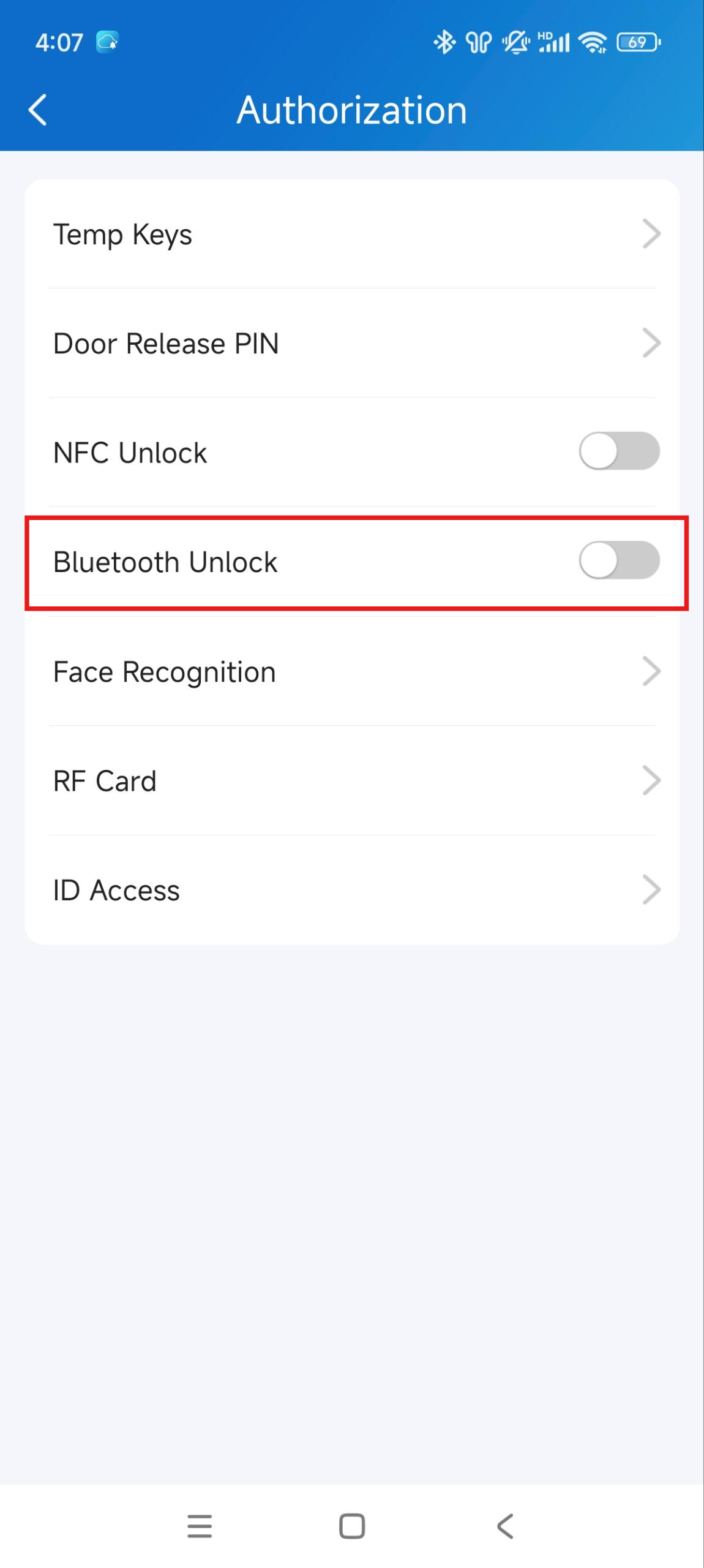
Enable Bluetooth Unlock
Ensure Bluetooth is enabled on your phone and SmartPlus App before using this feature.
1. Go to Me > Authorization, enable Bluetooth Unlock, and follow the onscreen instructions.
2. Select a Bluetooth Unlock Mode between Shake, Hands-free, and Tap as Card.
Shake: Place your phone near the door unit, shake your phone a few times, and the door will open automatically.
Hands-free: Your phone must be within about 3.3 feet (1 meter) of the door unit, and the door will open automatically.
Tap as Card: Open the door by placing the mobile phone near the door phone.
If you are an Android user and select Hands-free mode, follow the onscreen instructions to complete Permission Settings.
Open Doors with a PIN Code
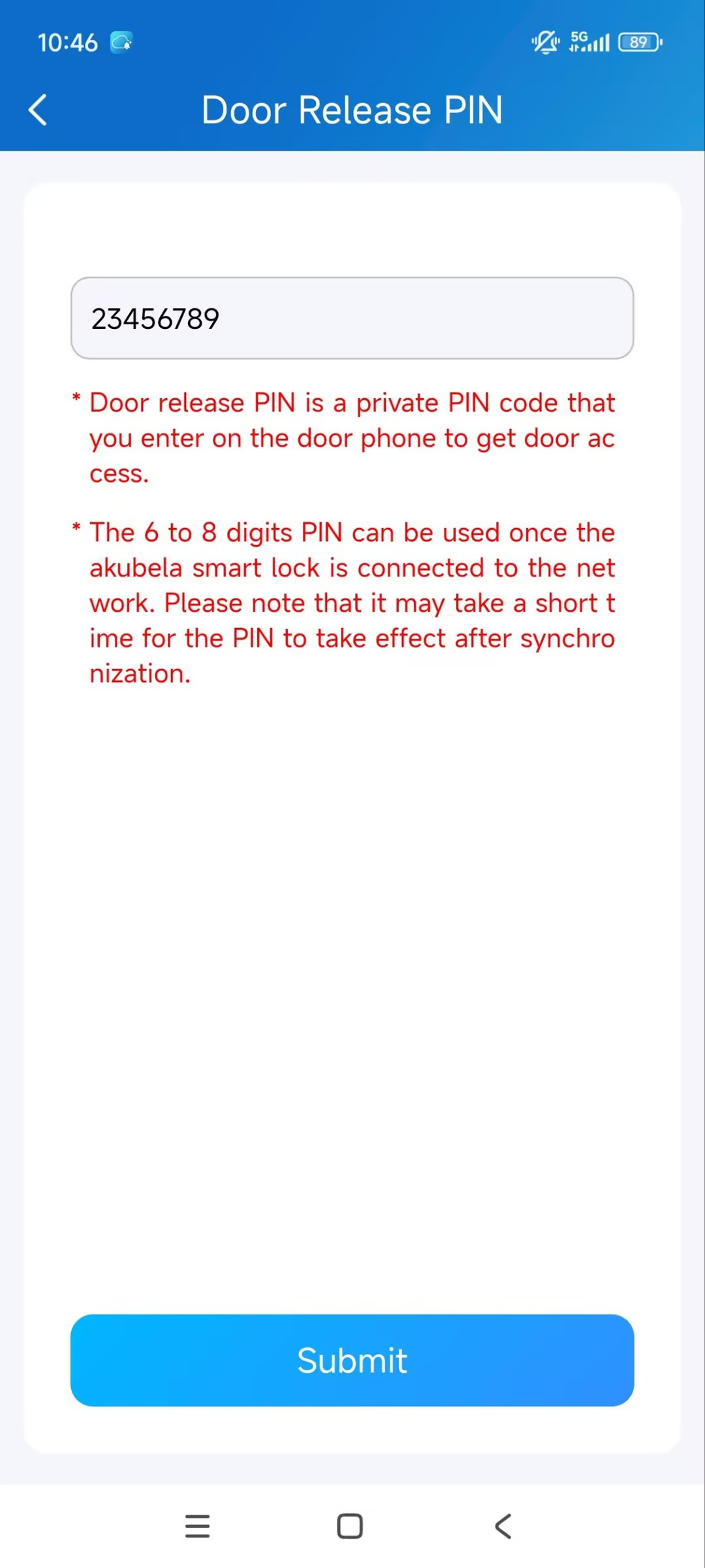
You can set a private PIN code for door entry.
On your first login, you are asked to set up a PIN code for your private use. You can skip this step to set it up later.
1. Tap Me > Authorization > Door Release PIN.
2. Enter the PIN code.
Open Doors with an RF Card
To manage RF cards, follow the steps below:
1. Go to Me > Authorization > RF Card.
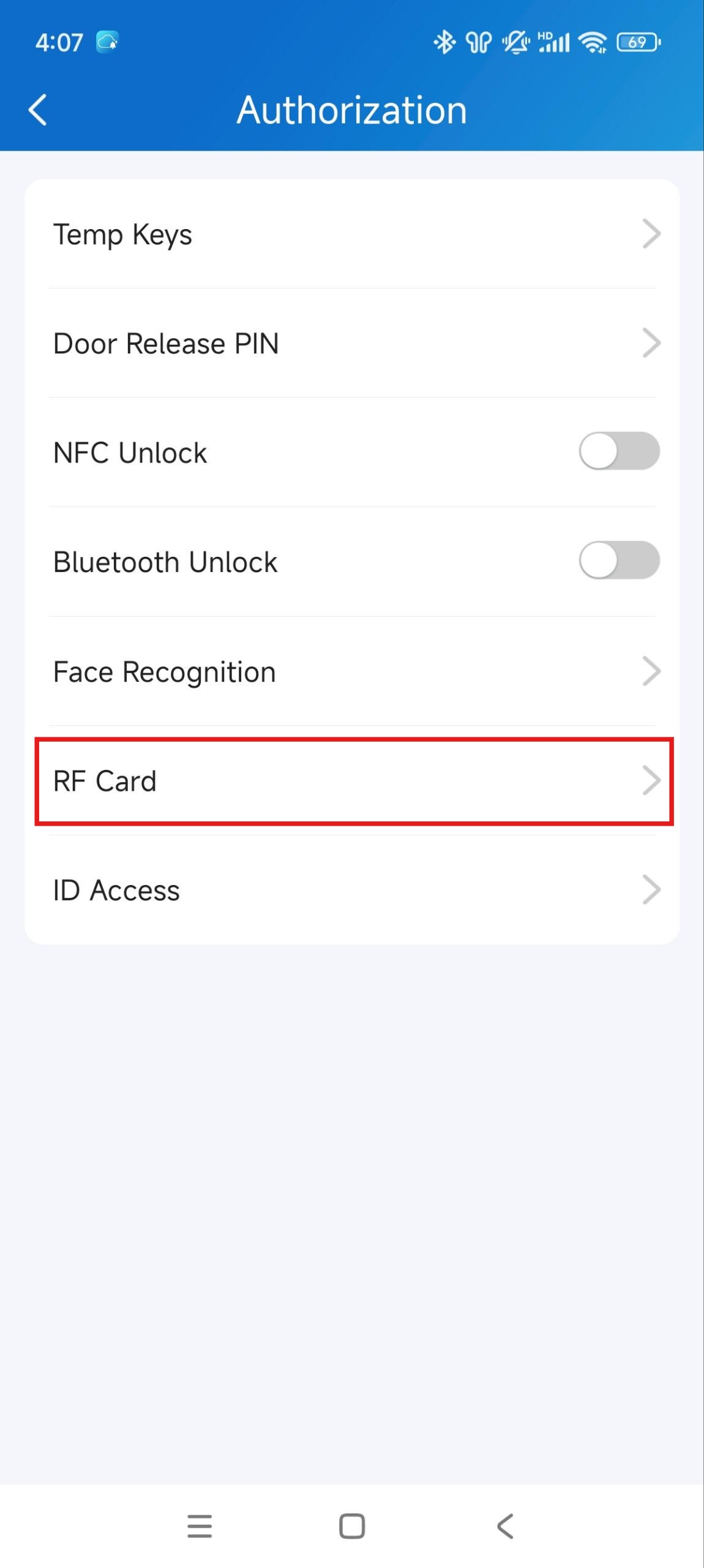
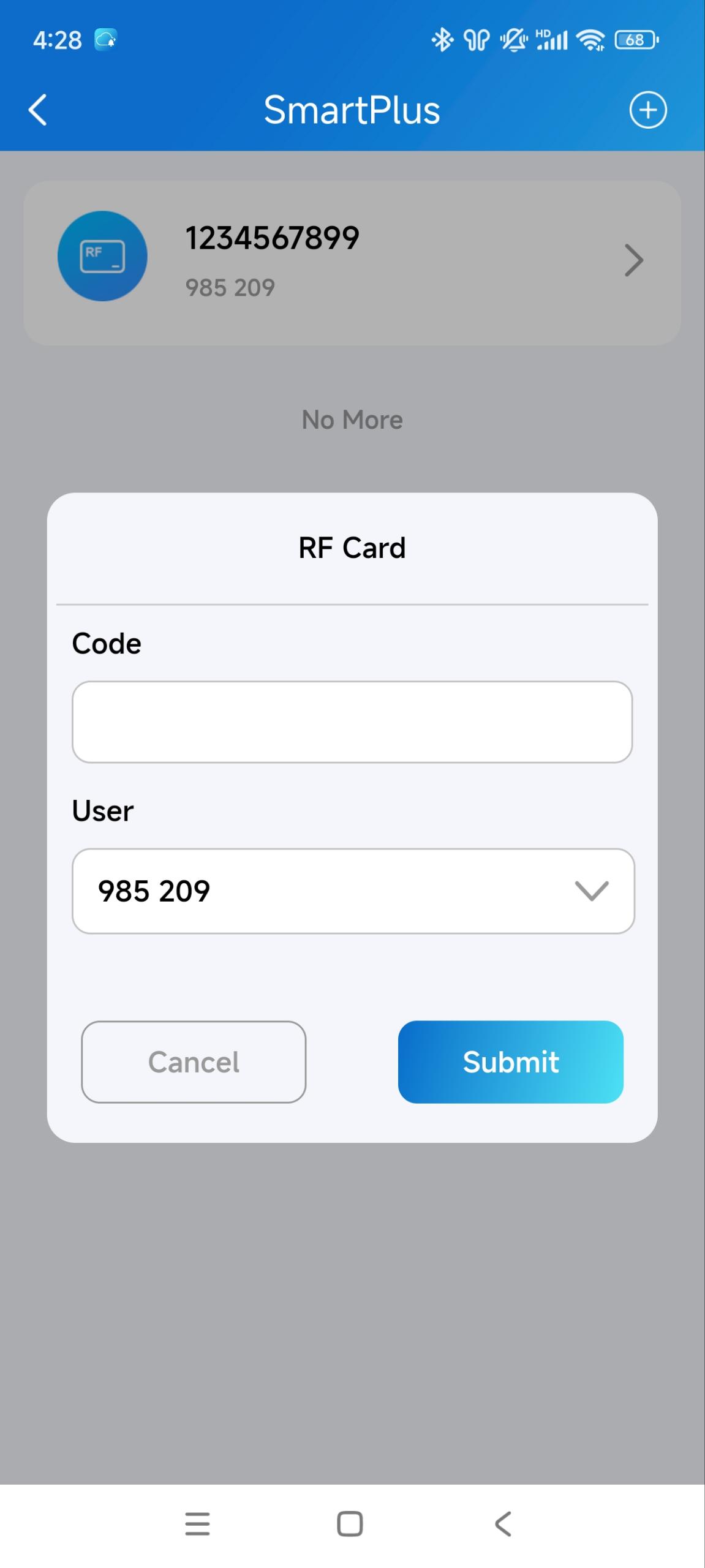
2. Tap + in the upper-right corner to add a card.
3. Enter the card code.
4. Assign the RF card to the desired user by tapping  .
.
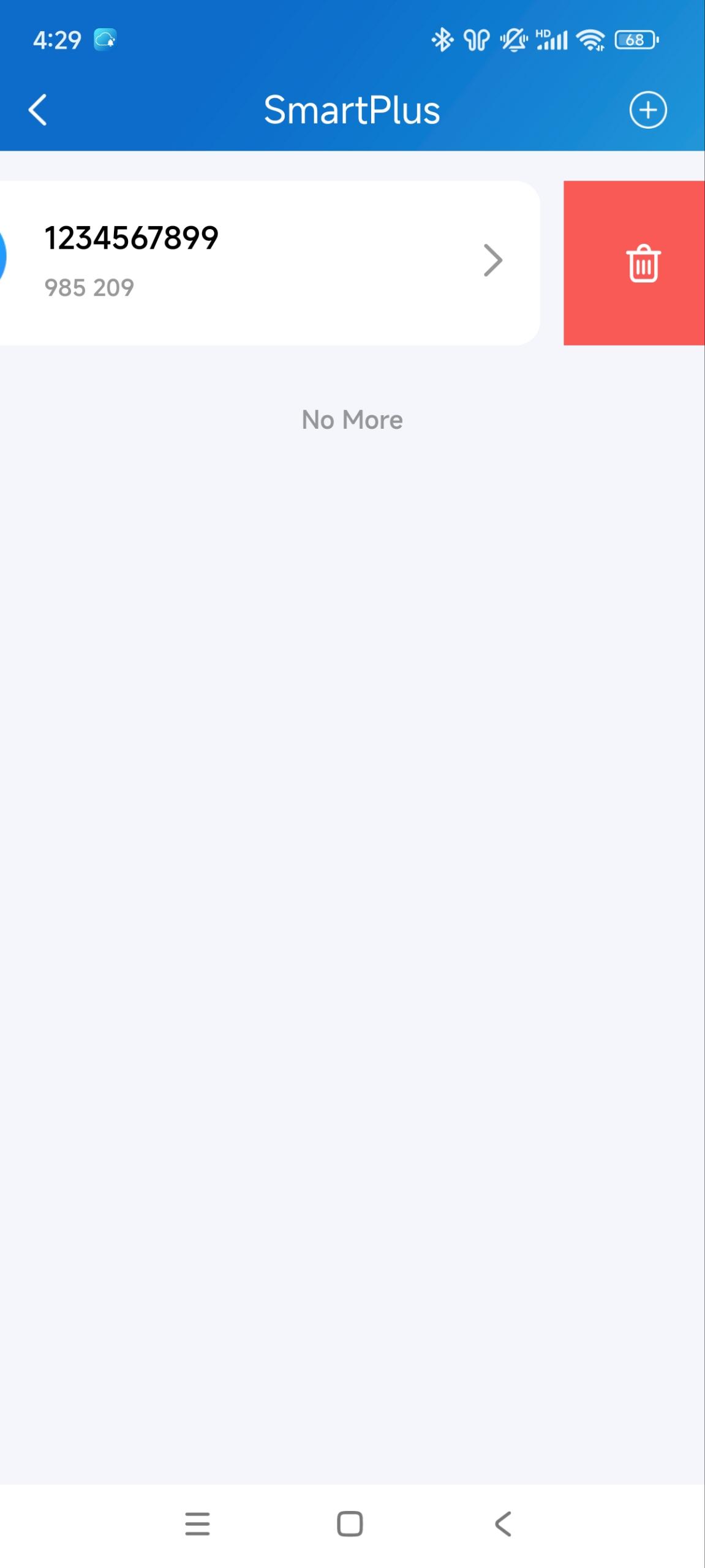
After adding the card, you can tap.png) to edit it; hold the card, and swipe to the left to delete.
to edit it; hold the card, and swipe to the left to delete.
Open Doors with Siri
Note
The system should be IOS 12 or above.
You can record no more than 10 voice commands.
Commands do not interoperate between different accounts.
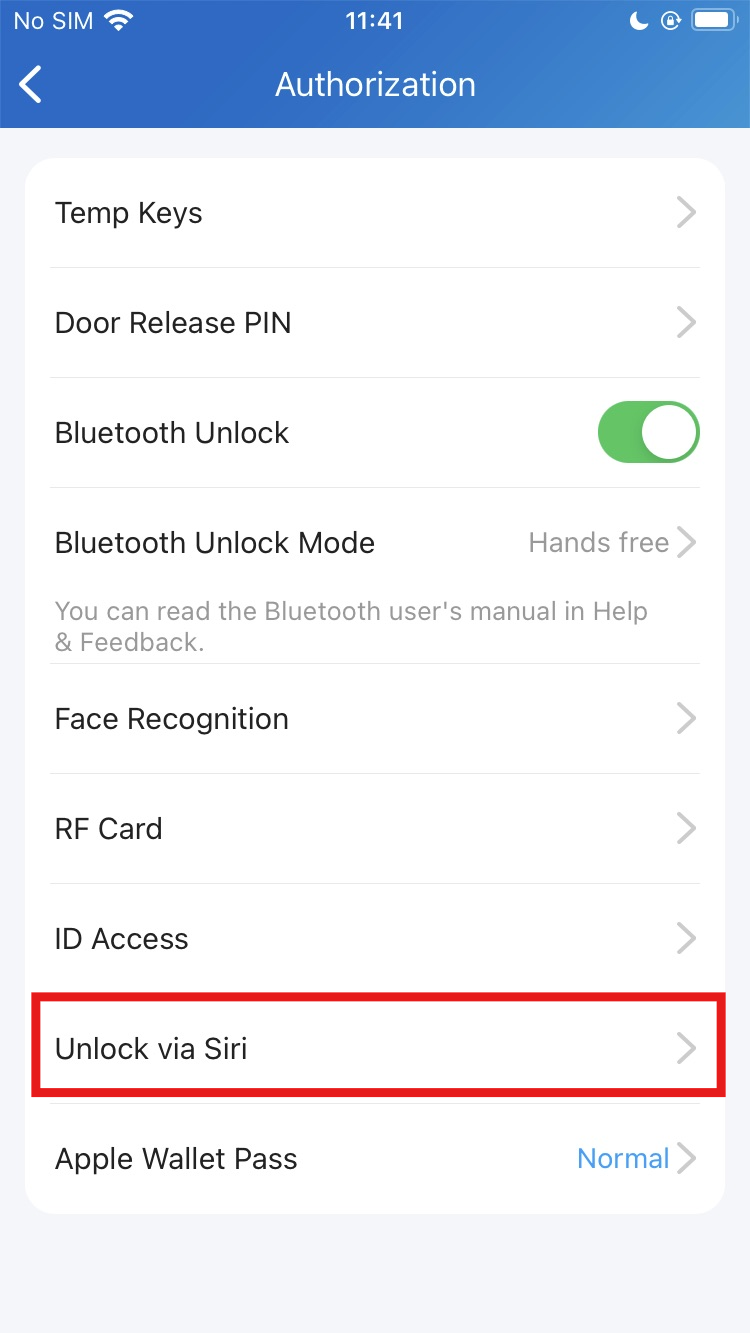
1. Go to Me > Authorization > Unlock via Siri.
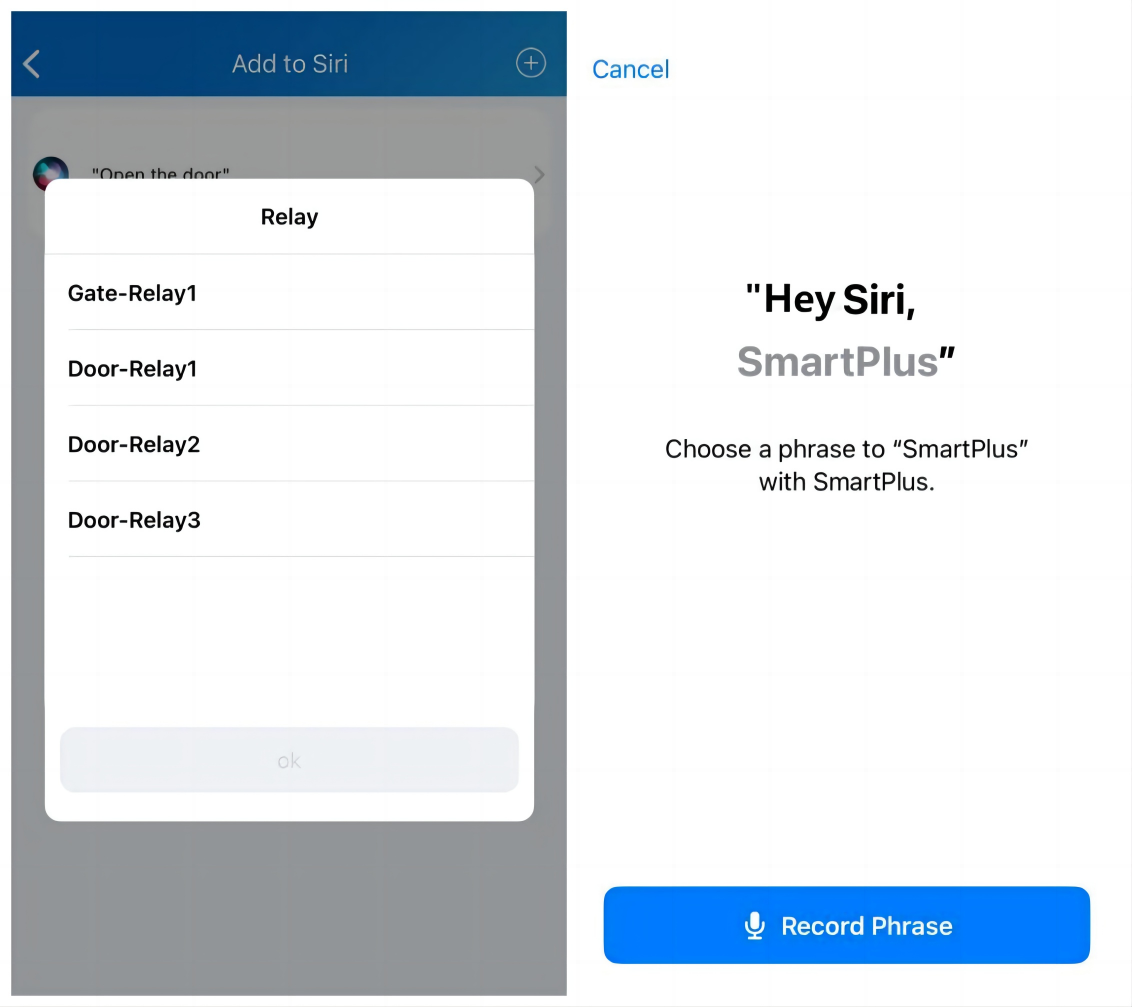
2. Tap + in the upper-right corner. Select the desired door and record the command.
When you say the command to Siri, the selected door will open.
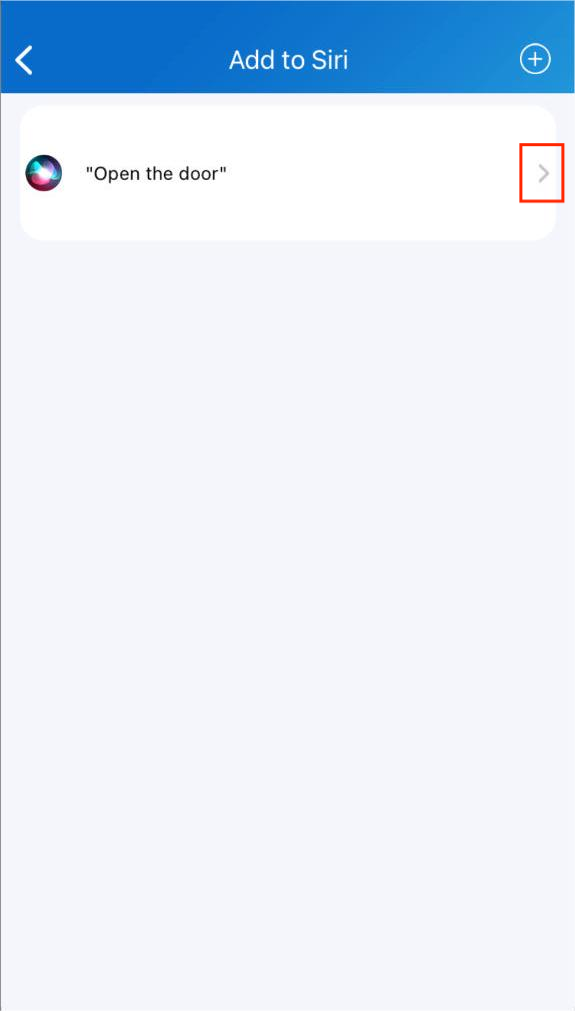
3. Tap to check and edit the command.
Open Doors with Alexa
Linking your account to the Alexa app, you can open the door by saying “Alexa, unlock [device location]” to the Alexa app.
Click here to view the configuration steps.
Open Doors with Apple Watch
You can open doors by tapping  on SmartPlus, which is installed in the Apple Watch.
1. Download and install the SmartPlus App on your Apple Watch.
2. Log in to your SmartPlus account on your iPhone that is linked to the Apple Watch.
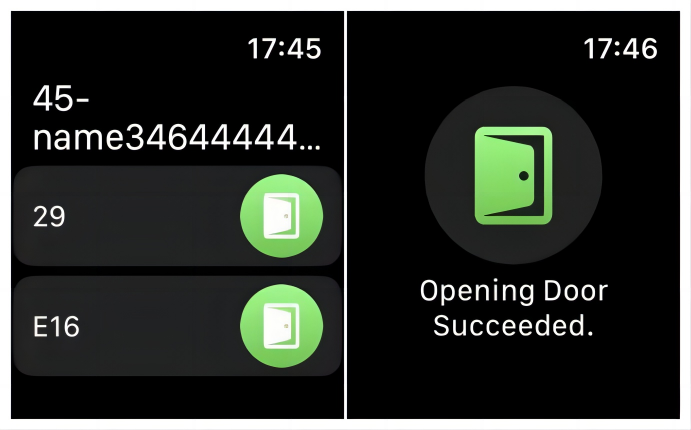 Devices with doors configured under your accounts will be synchronized to the Apple Watch.
Note
Apple Watch cannot acquire the latest device status in real time. Only after the data update on your iPhone do the data on your Apple Watch refresh.
Open Doors by ID Access
The ID Access feature is designed for users with South American ID cards.
You can enroll the RUN and Serial numbers on your ID cards into the Akuvox SmartPlus Cloud system. Then, you can open doors conveniently by using the QR code on the ID cards.
Note
The QR code on your ID cards may be too small for the door phone to scan.
It is strongly suggested to take a photo of and enlarge the QR code for door opening.
1. Tap Me > Authorization.
2. Tap ID Access and select the ID Access type, RUN Only or RUN+Serial.
3. Enter the number and tap Confirm.
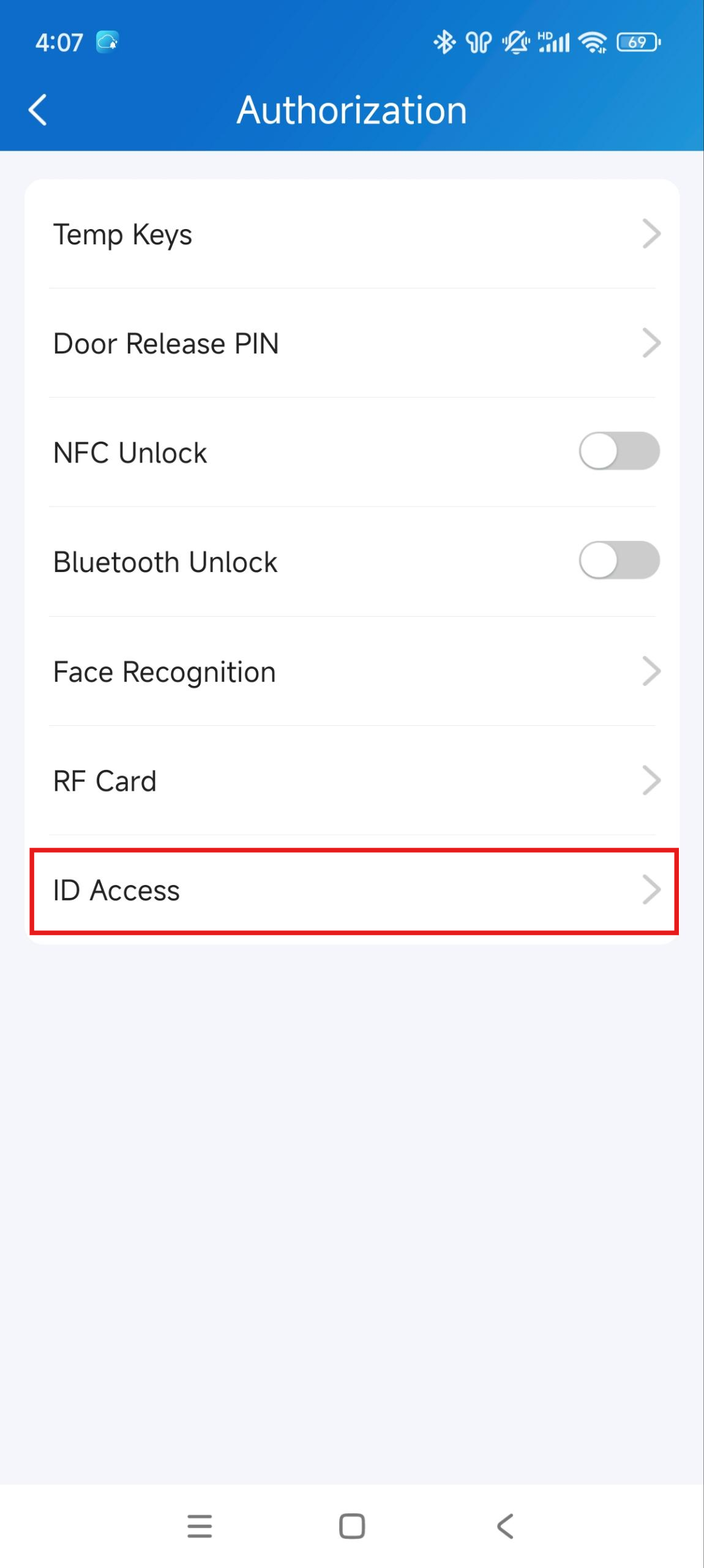
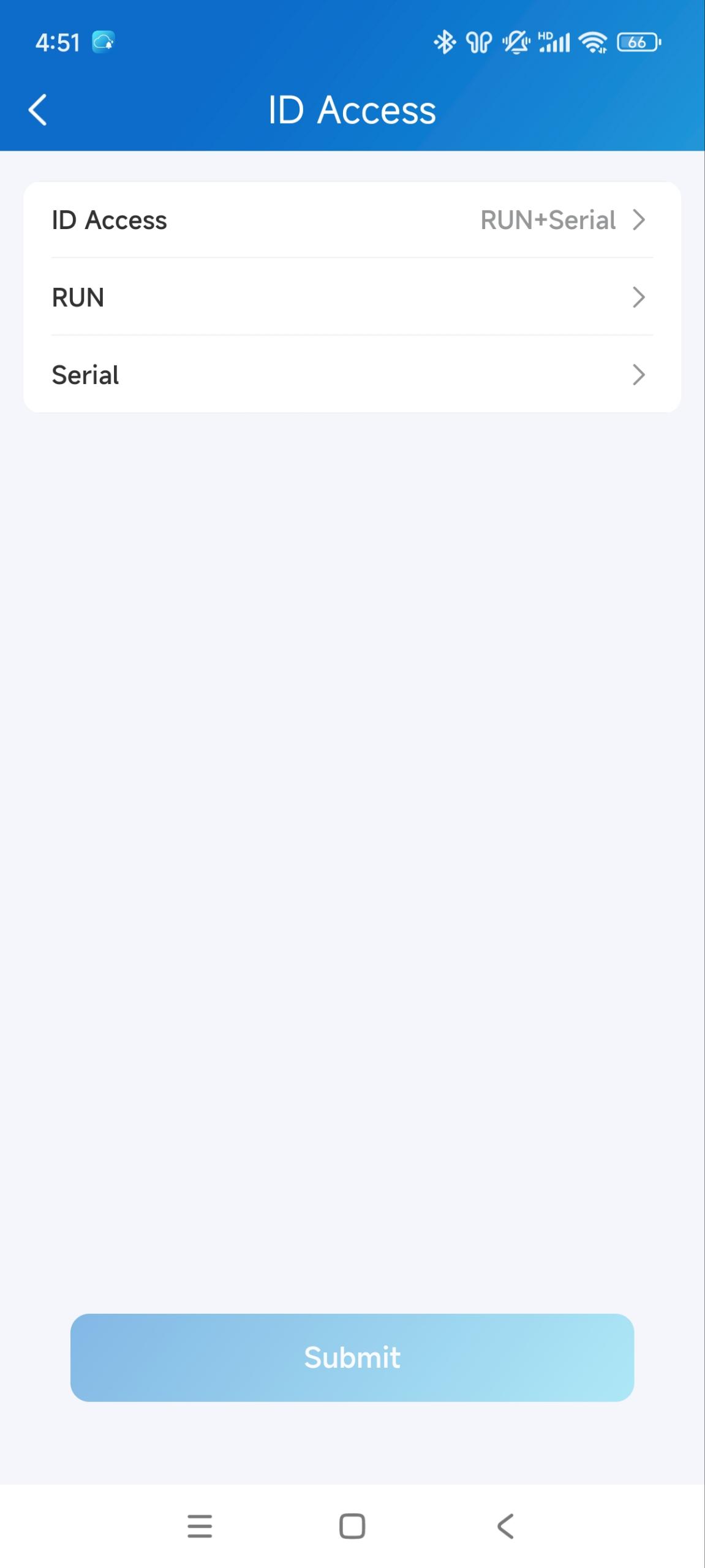
4. Click Submit to save the settings.
Open Doors with Apple Wallet
Apple Wallet Pass allows you to use your iPhone or Apple Watch as a contactless credential to unlock authorized doors.
You can use this feature after your installer activates it for you.
Click here to view the configuration guide.
Open the Garage Door
You can add your license plates or UHF cards. When you drive in/out, your garage door can be opened automatically.
Note
This feature is ONLY available for single-house project users.
The license plate is identified by a third-party LRP camera.
The UHF card is identified by the Akuvox long-range card reader ACR-CRP12.
Make sure devices are installed and configured properly by your installers before using the license plate or UHF cards to open doors.
1. Tap Me > Authorization > License Plate.
2. Tap + in the upper-right corner.
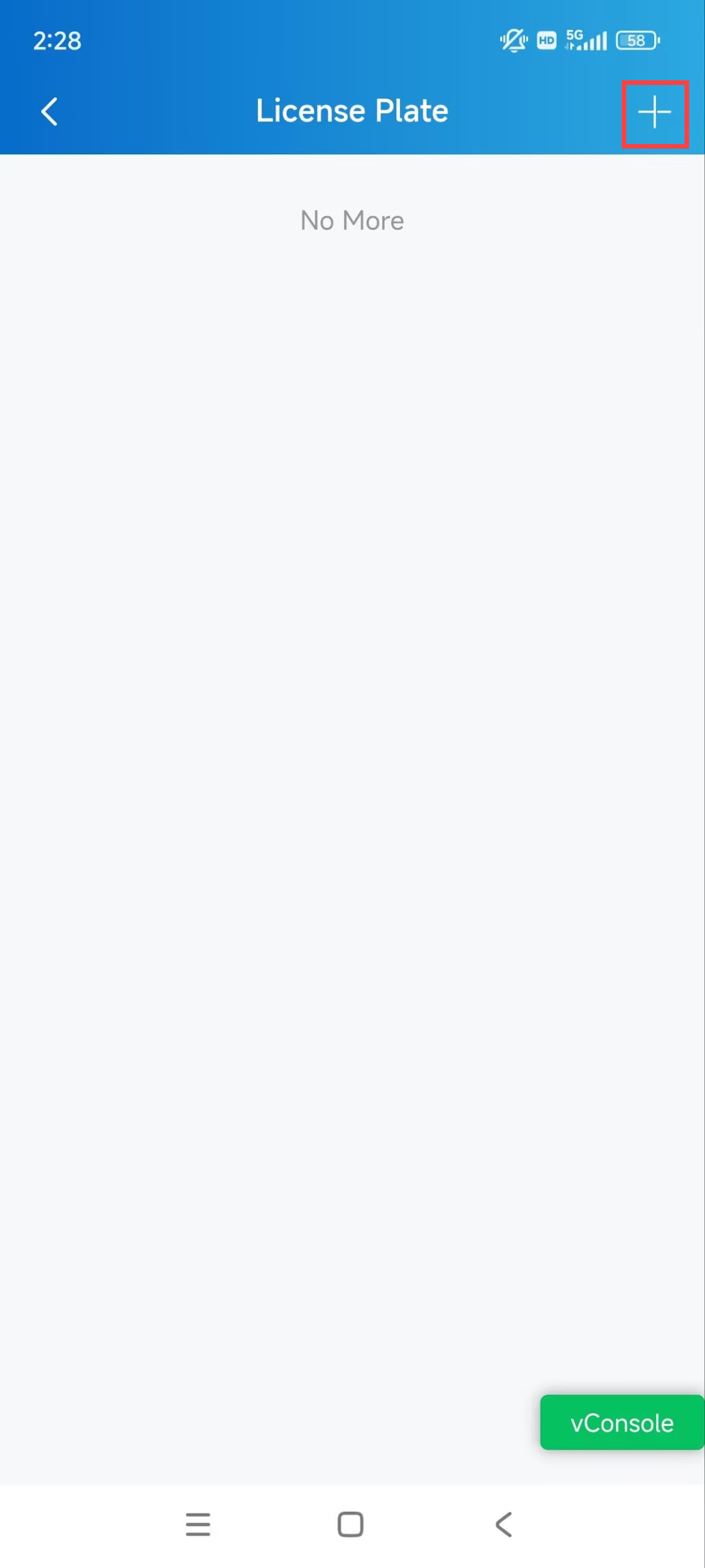
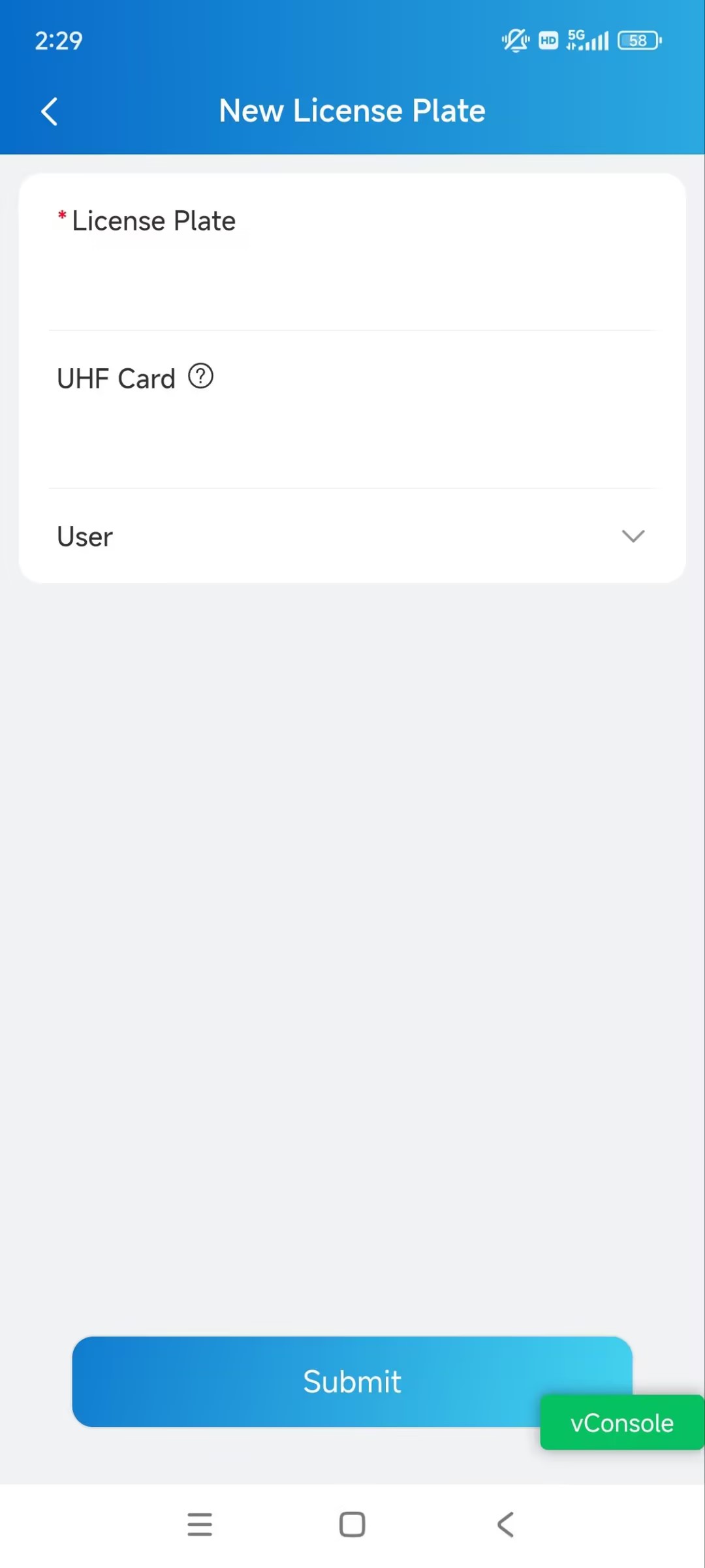
3. Enter the License Plate information.
4. Enter the UHF card code if it is used.
5. Select the user.
Calling
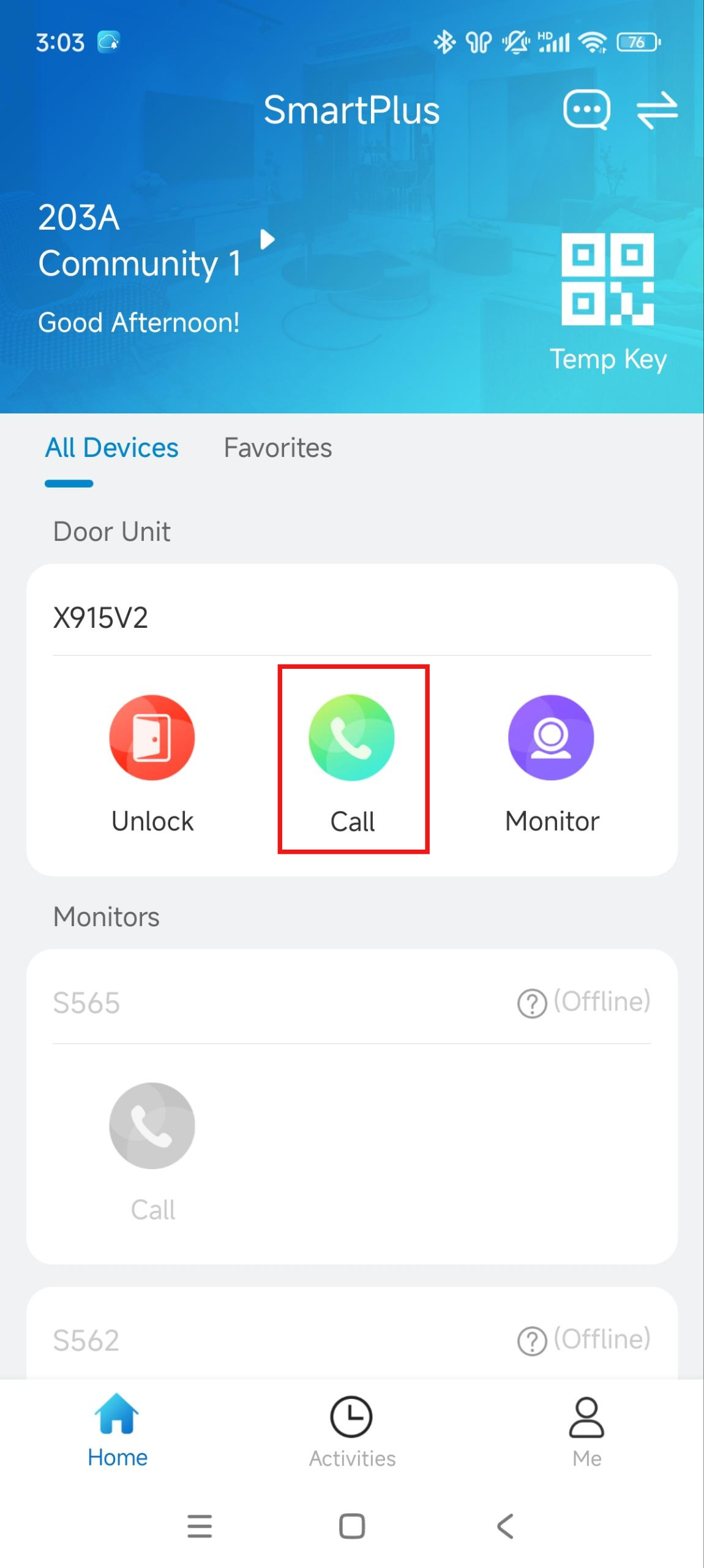
To start a call, tap Call on the homepage, on the monitoring page, or choose a family member.
Call a Device
Tap Call of the desired device on the homepage.
.jpg)
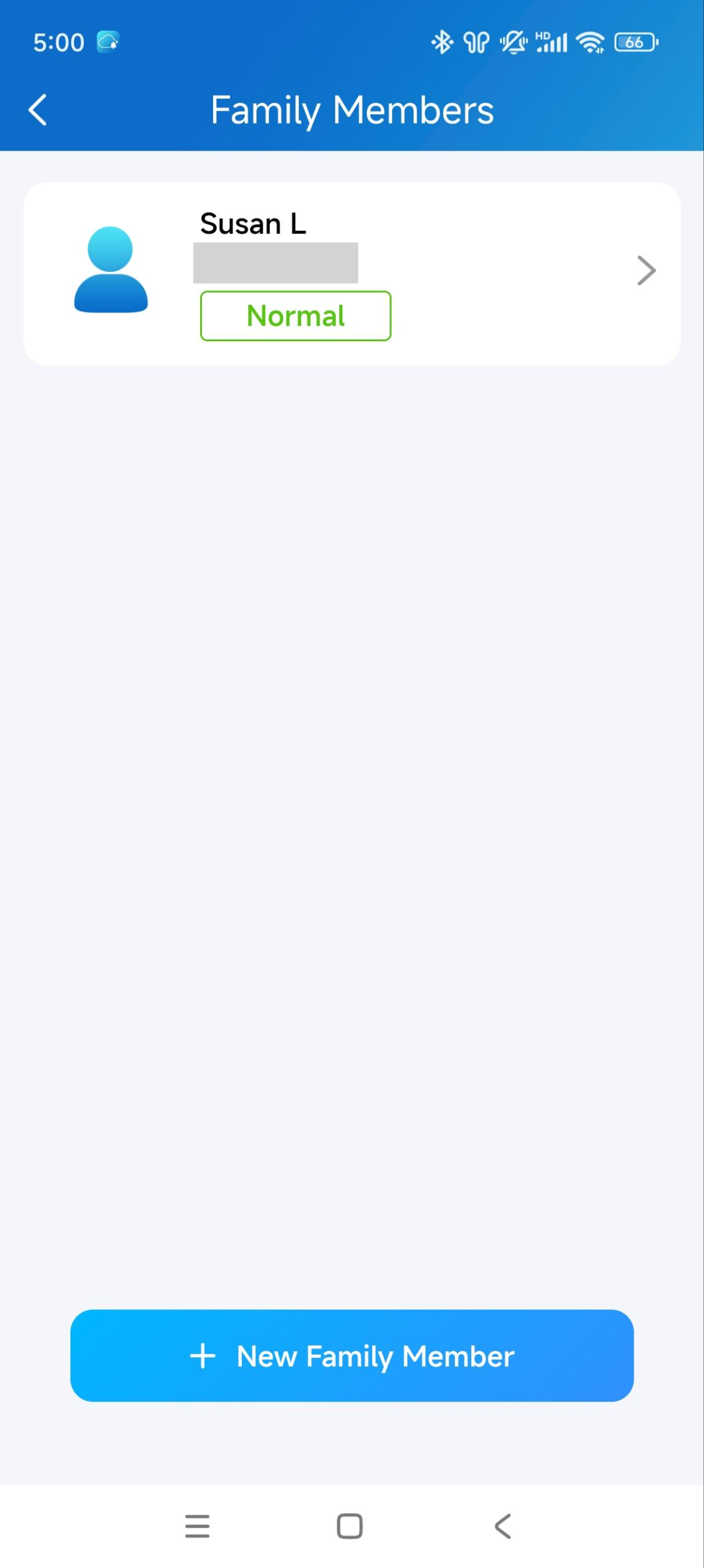
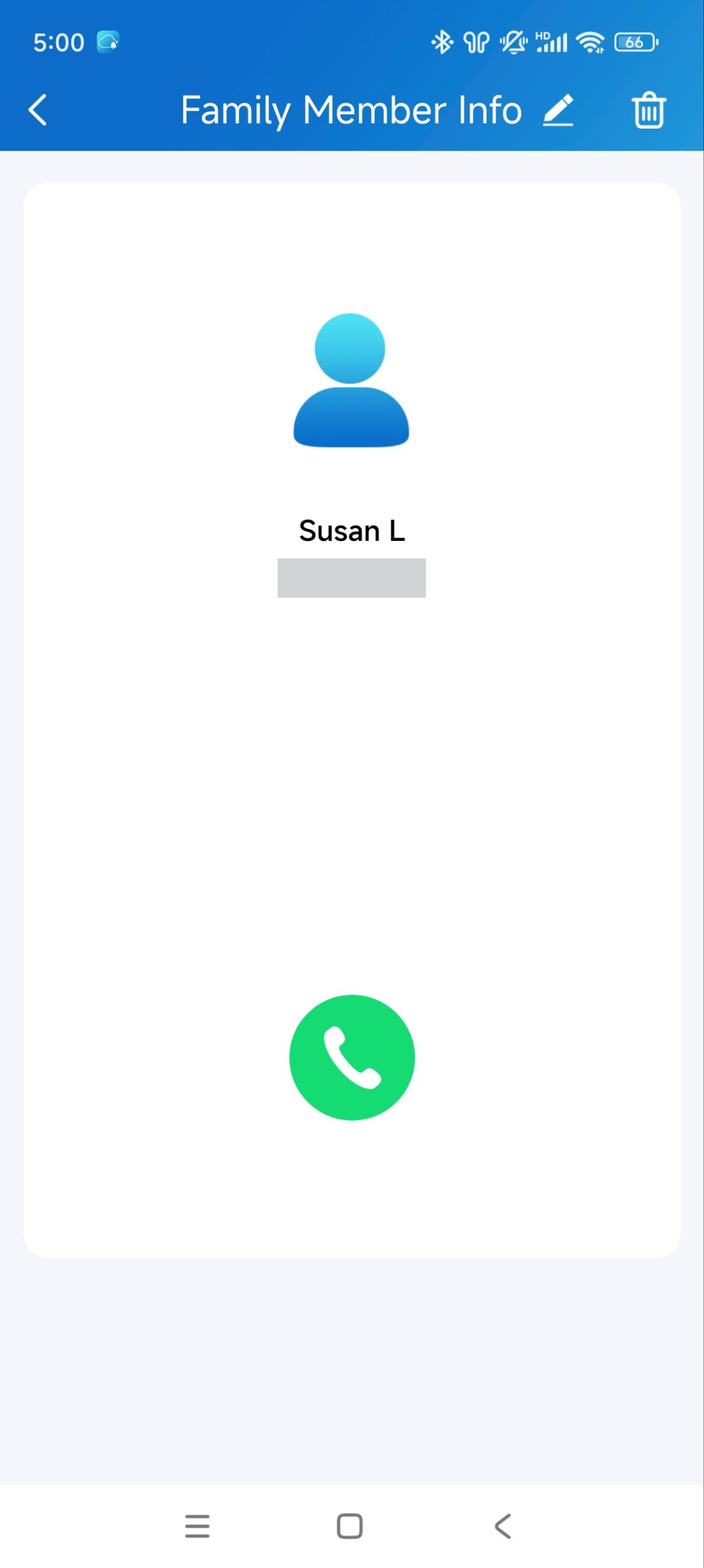
Call a Family Member
1. Tap Me in the lower-bottom tap bar.
2. Tap Family Members, and select the member you want to call.
Note
Only audio calls are allowed between app users.
Call Other Families within the Community
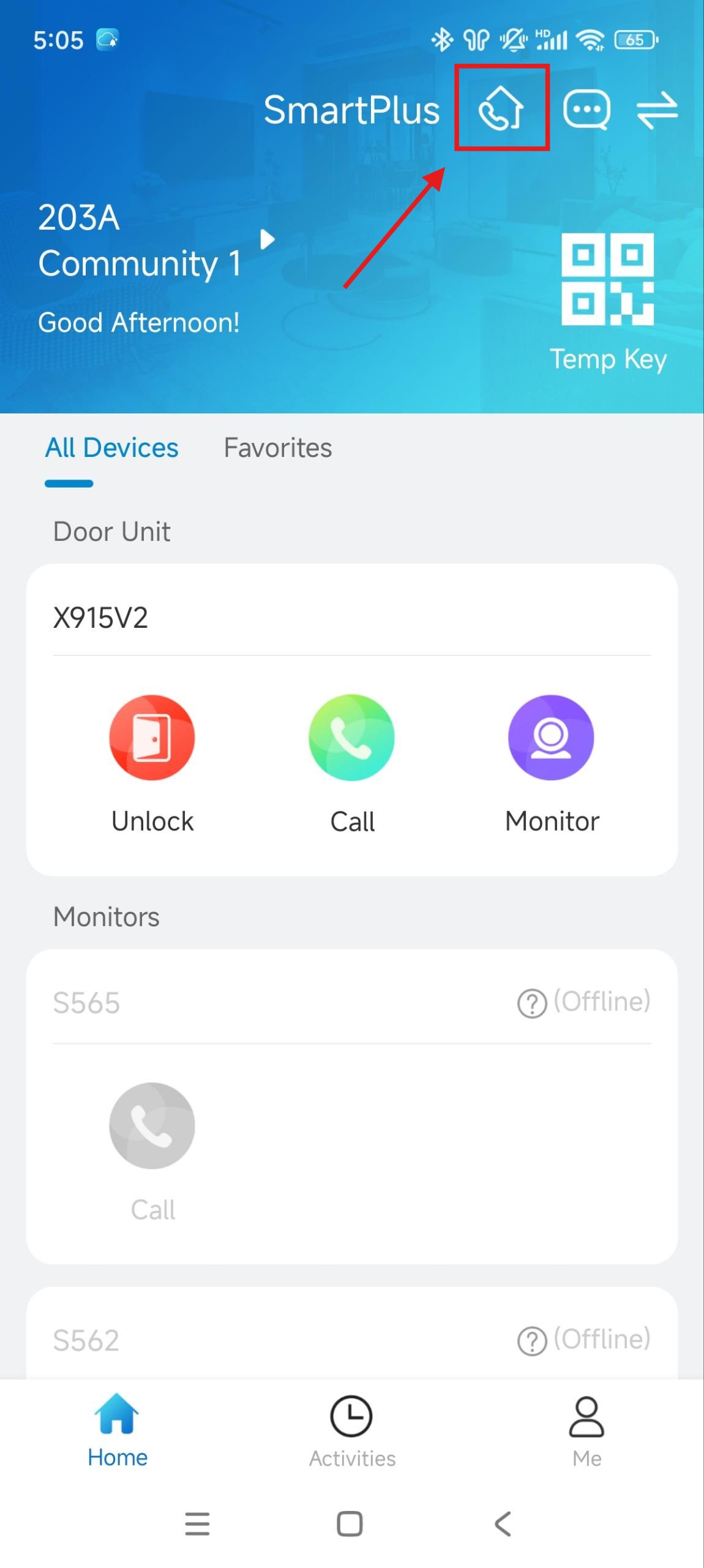
The Community Calls feature enables you to call other families living in the same community.
Note
This feature is only available when your service provide enable it.
1. Tap Home, and tap the Community Calls icon  on the top right.
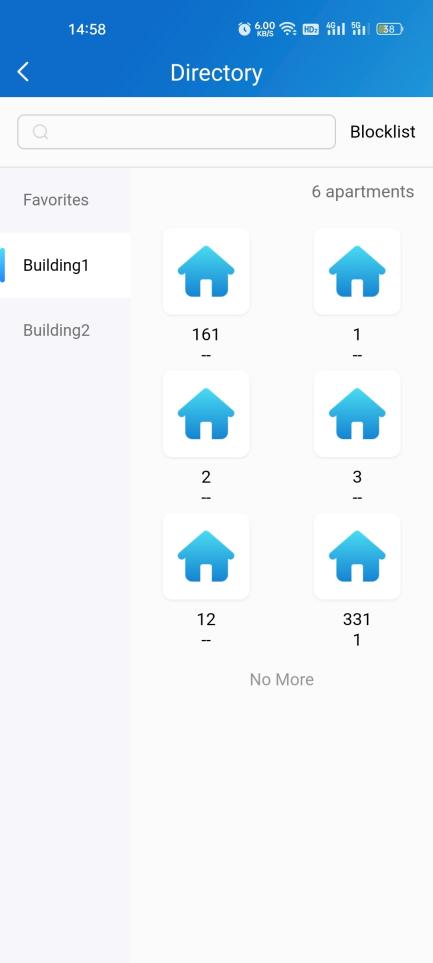
2. On the Directory page, do any of the following:
Tap Favorites on the left side menu to see the families you added to the Favorites.
Tap the building name to see all apartments in the specific building.
Tap Blocklist on the top right to see all families blocked by you. You can call them, but you will not receive their calls.
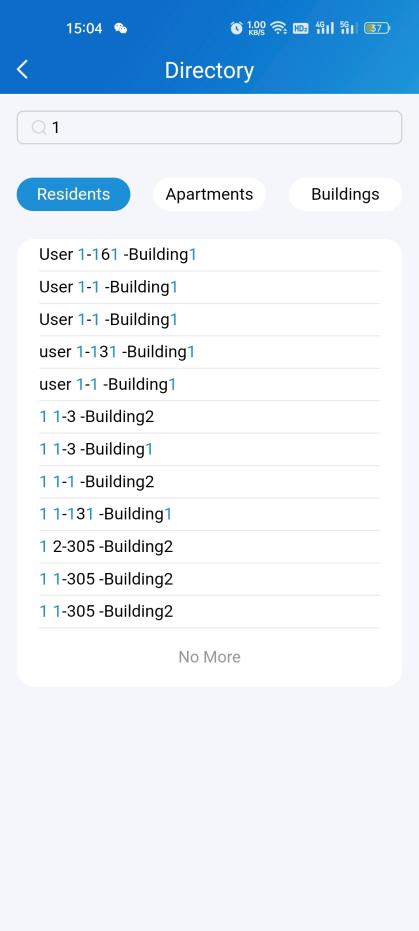
Tap the search box at the top to search for a family. The search results will be displayed in the order of Resident-Apartment-Building.
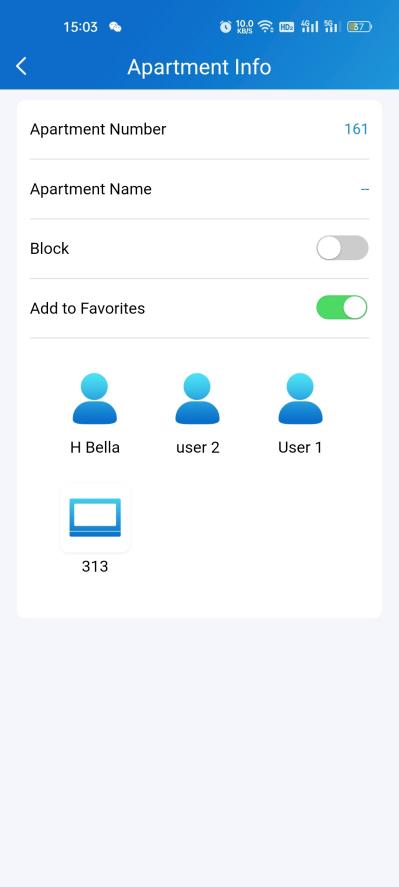
Tap any of the apartments listed on the right side to
See its information, including the door number, apartment name, and the members and indoor monitors in this family.
Blocklist this family. In this case, all its members and indoor monitors cannot call you, while you can call them.
Add this family to the Favorites.
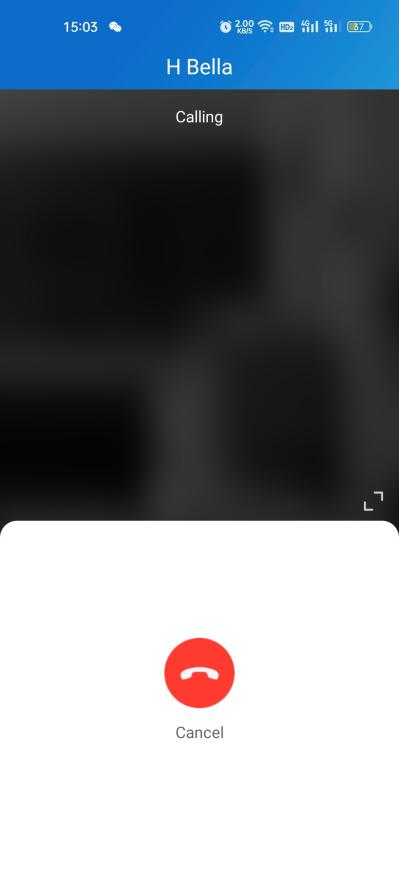
Tap and call a member or an indoor monitor.
Landline, Contact, and Call Preference
You can forward a call to landline number(s).
Call Forwarded to Phone
To set up call forwarding, do the following:
1. Tap Me > Settings > Call Settings.
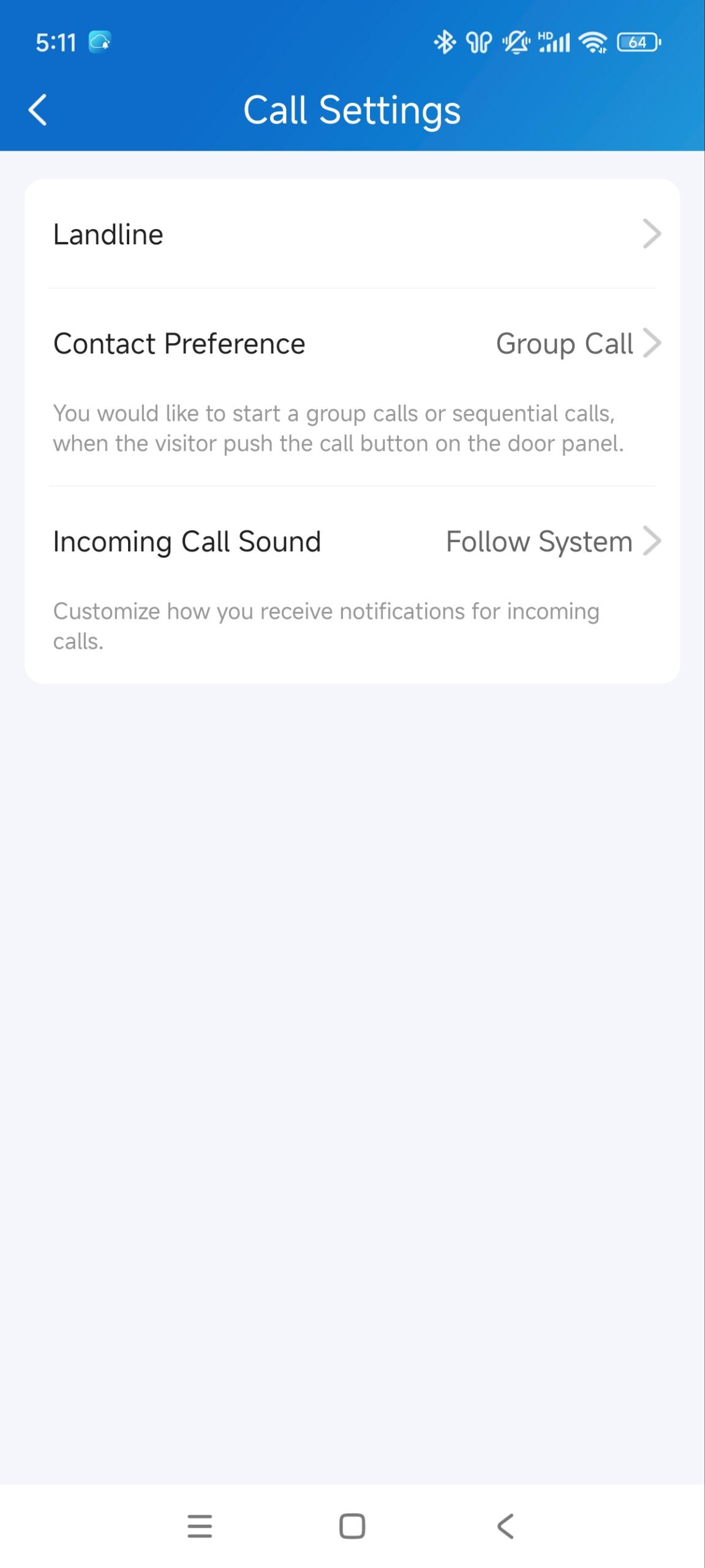
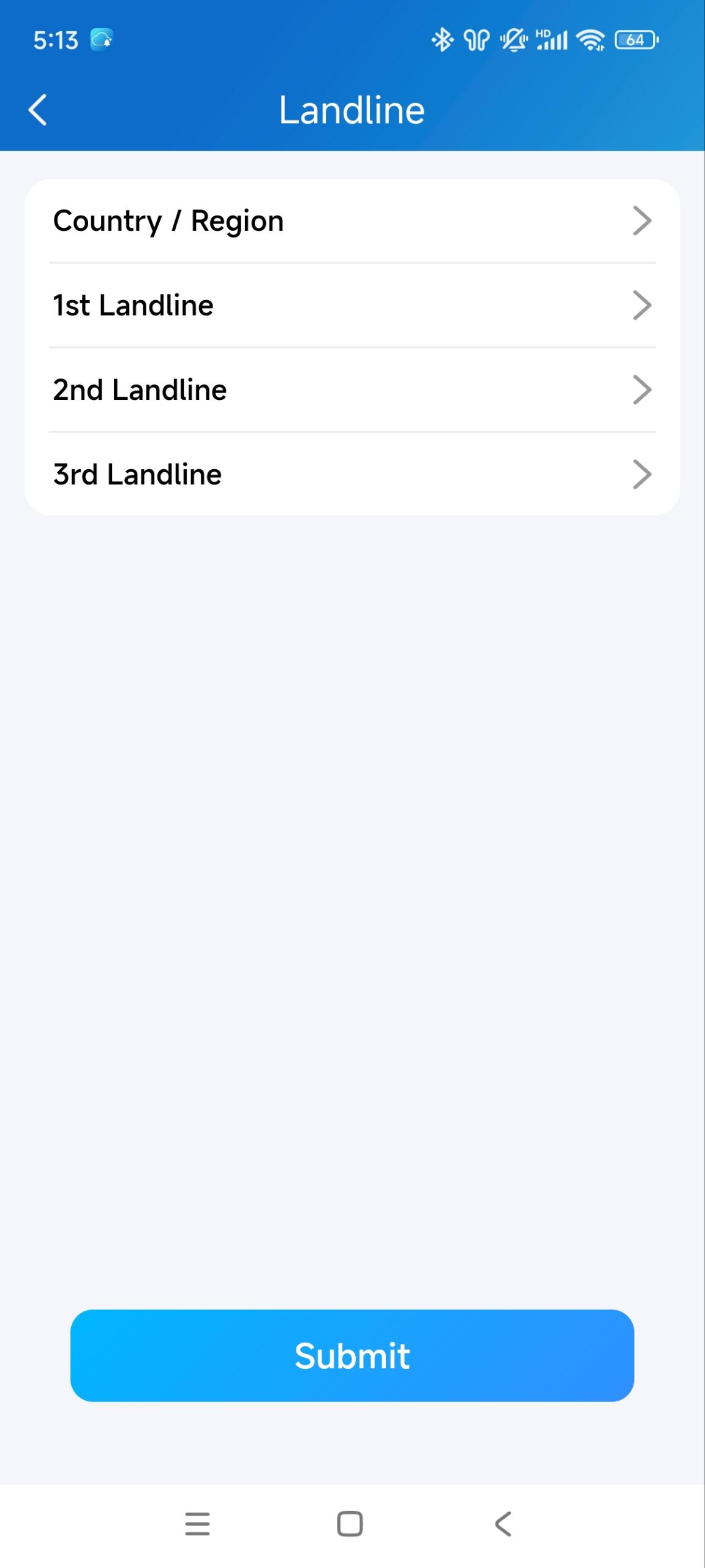
2. Tap Landline, and select the country/region the phone number(s) are forwarded.
3. Enter the number(s) in your preferred order.
Note
A home master can add 3 forwarded landline numbers while the added members only 1 number.
Set up Call-answered Order
Note
Only the home master who owns the main account can set up call preference. Calls will only be forwarded to the phone number(s) added by the main account.
1. Go to Me > Settings > Call Settings.
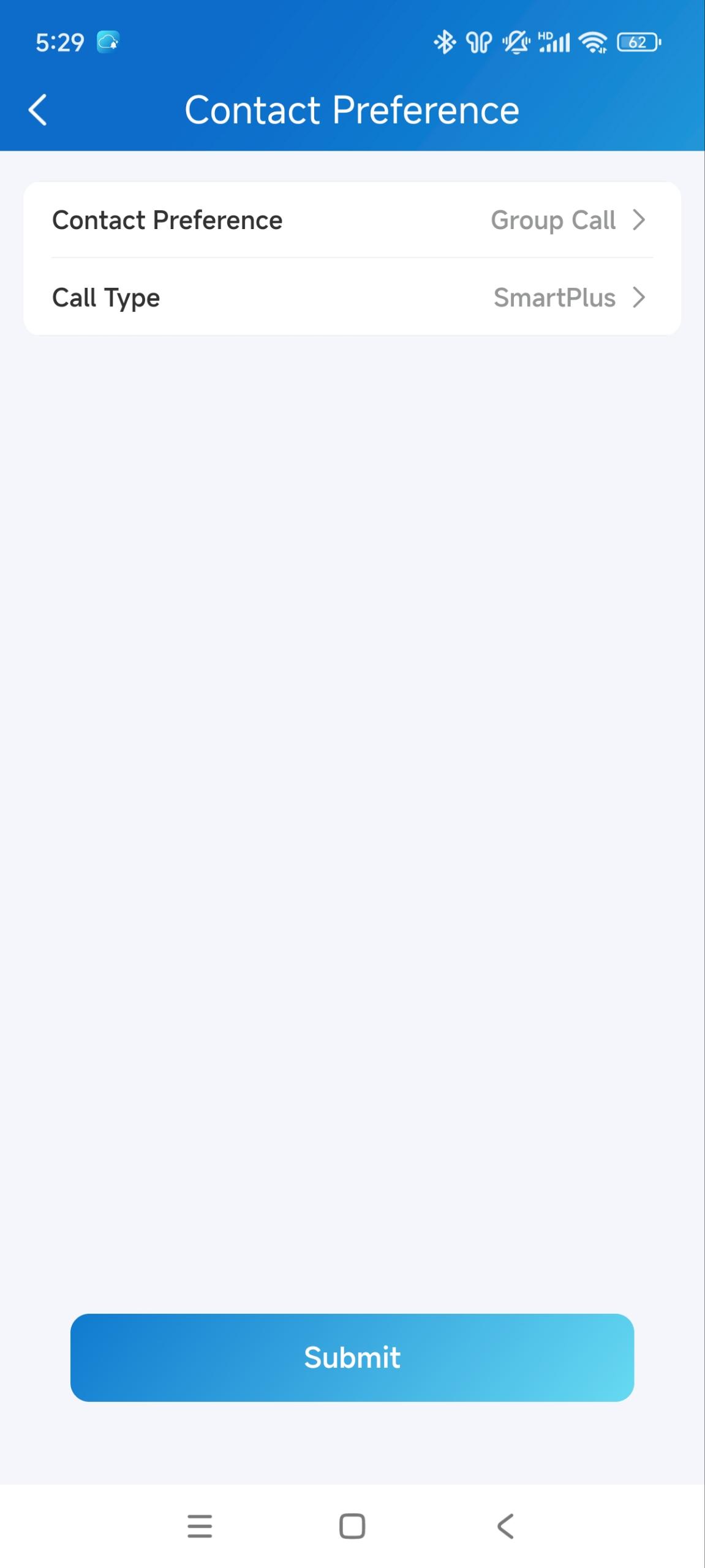
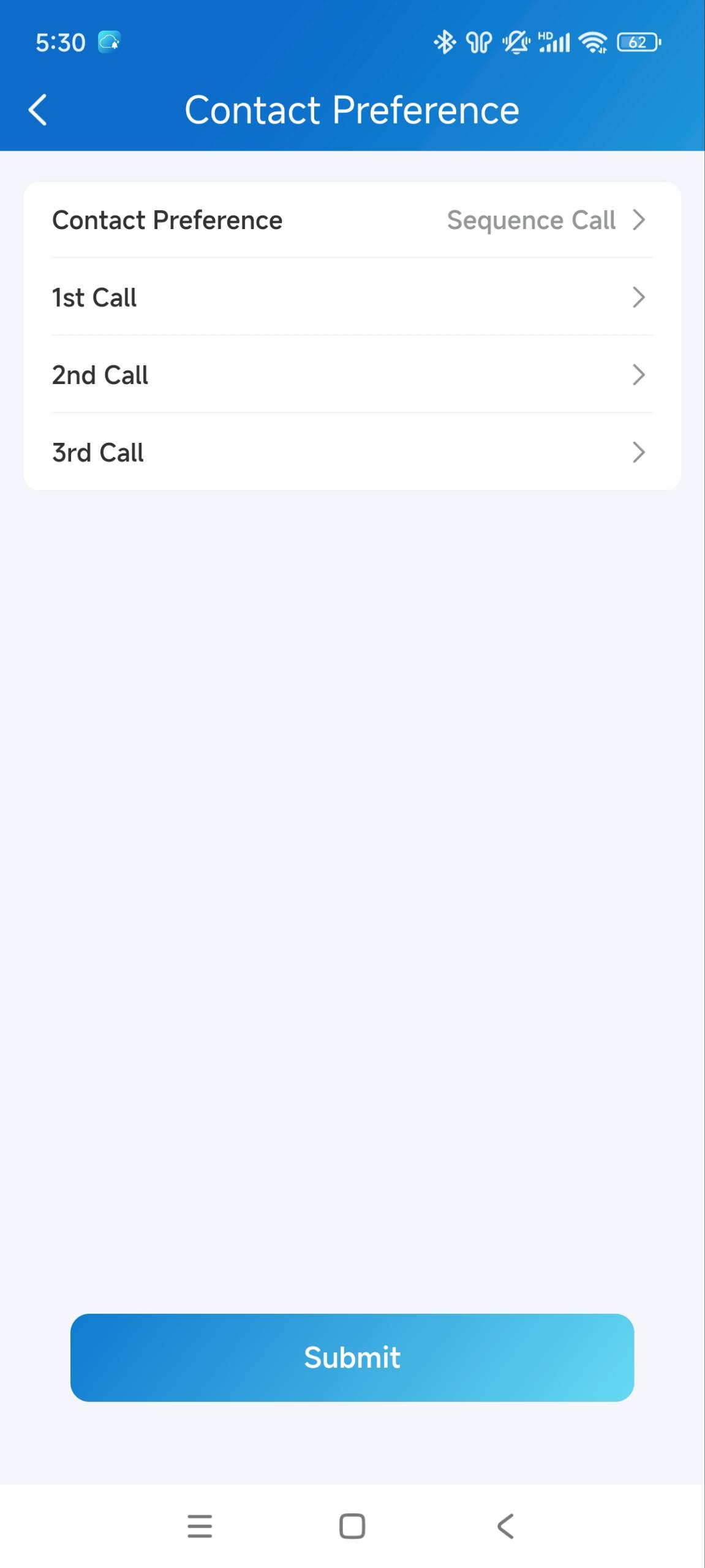
2. Tap Contact Preference.
3. Choose a call type and follow the onscreen instructions.
Group Call. All indoor monitors will receive the call. At the same time, family members will receive it in their apps. If you are a community resident, you can select the Call Type.
SmartPlus: SmartPlus and indoor monitor(s) will be called.
Phone: Phone and indoor monitor(s) will be called.
SmartPlus with Phone as backup: SmartPlus and indoor monitor(s) will be called first, then the forwarded phone number if the call is not answered.
Sequence Call. The devices, family members, and landline numbers in the same family will be called based on the preset order.
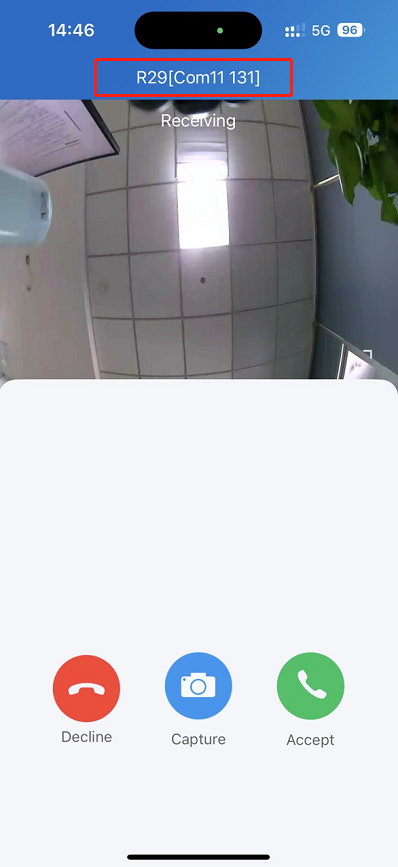
Receive Calls from a Different Site
This occurs when you have multiple sites under one account. For example, when you switch to Site1, you can still receive calls from the door phone at Site2.
The receiving page will display the information on site2.
The logs will only be displayed on site1.
Set up Call Kit
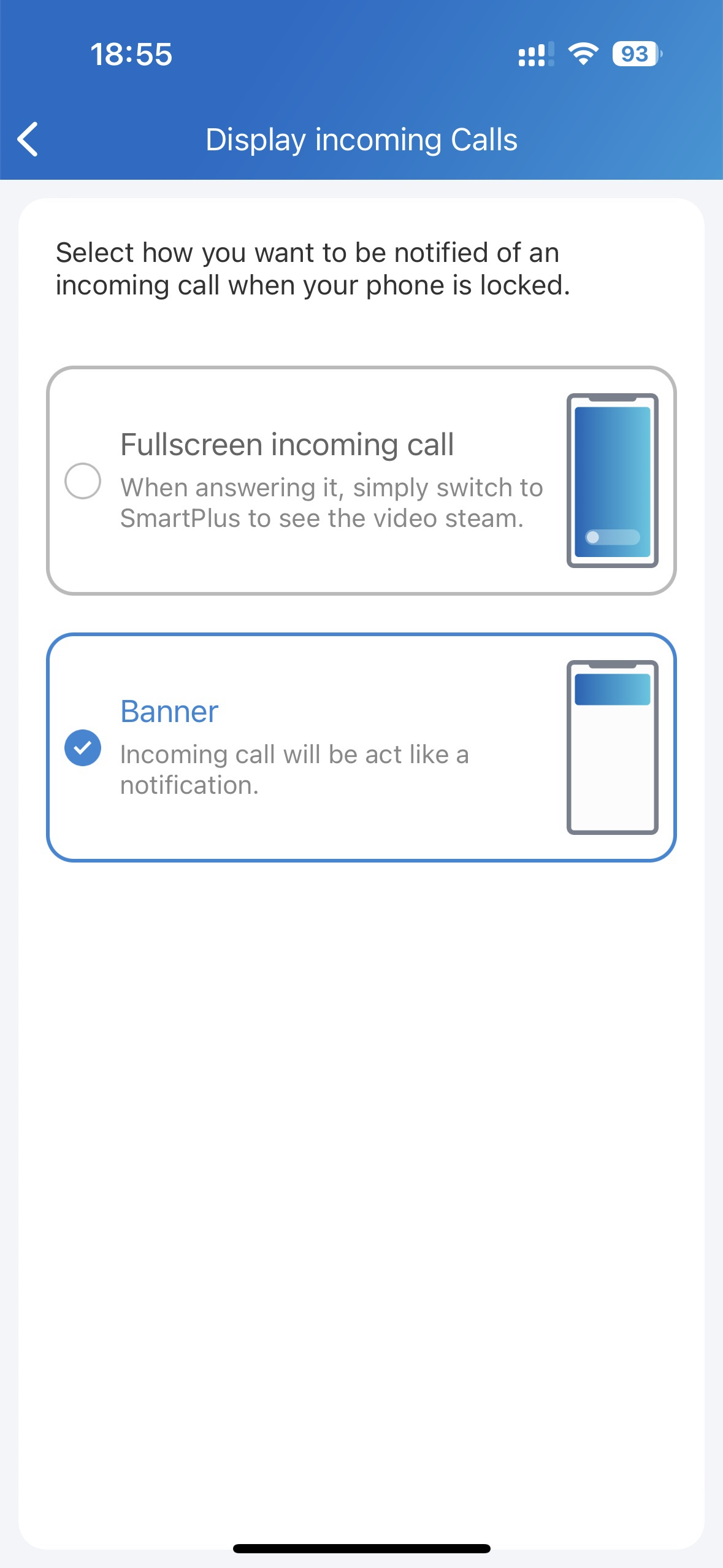
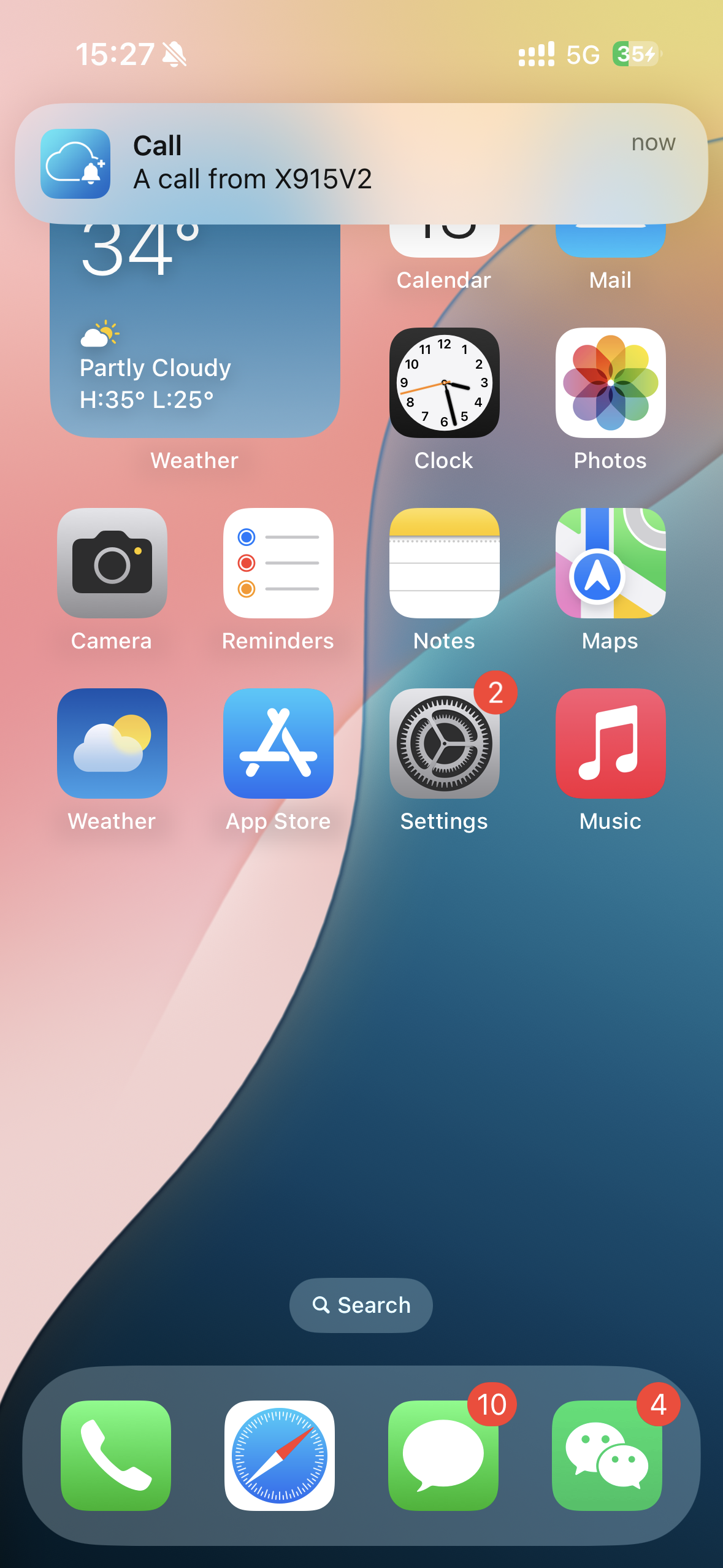
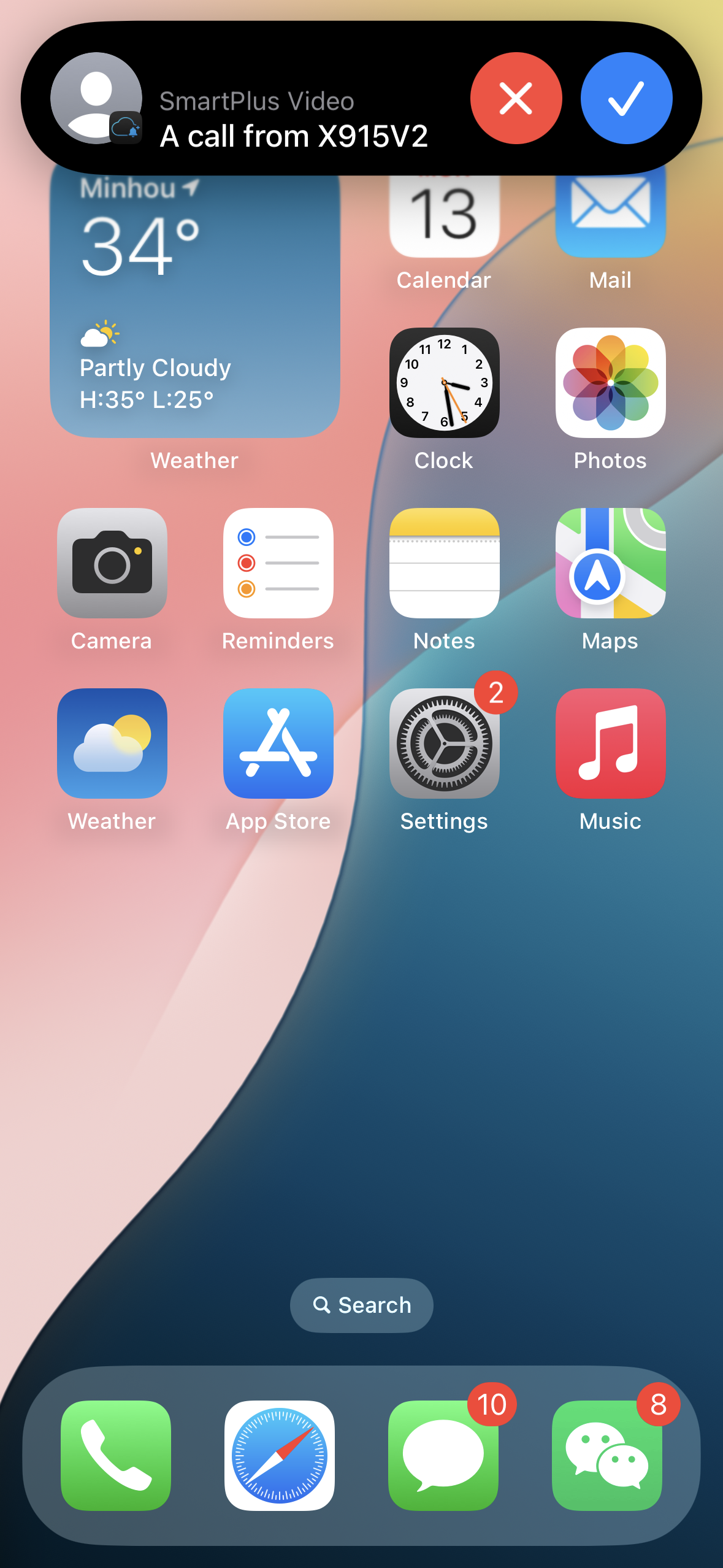
The call kit feature prevents you from missing incoming calls. The incoming call notification will be displayed on the full screen just as you receive a phone call.
Note
ONLY the iOS system supports this feature.
1. Tap Me > Settings > Call Settings > Display Incoming Calls.
2. Select the incoming call display mode.
Banner Mode | Full Screen Display |
|---|---|
|
|
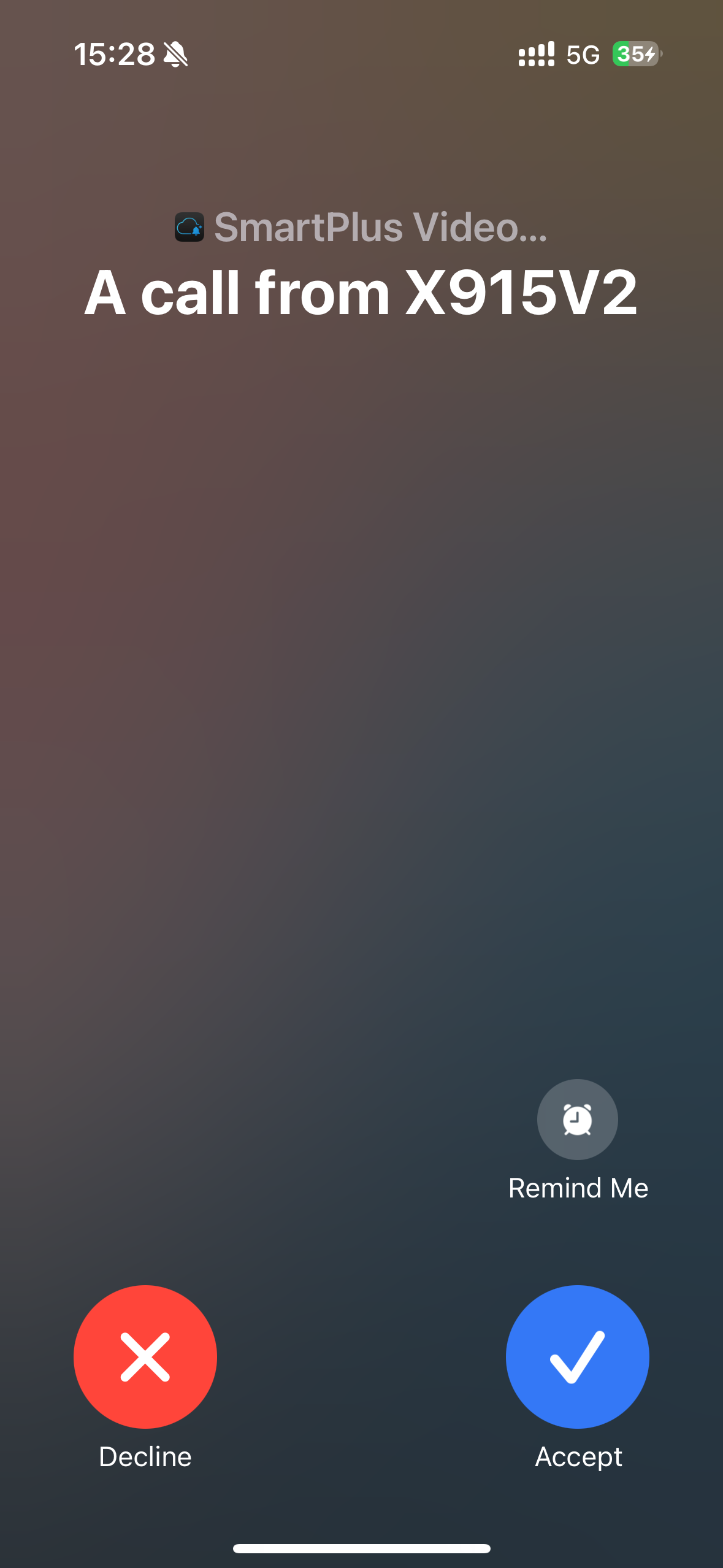
Note
On Android phones, incoming call notifications can only appear as banners. To receive these notifications, you must enable permissions. Click here to see the steps.
Incoming Call Sound
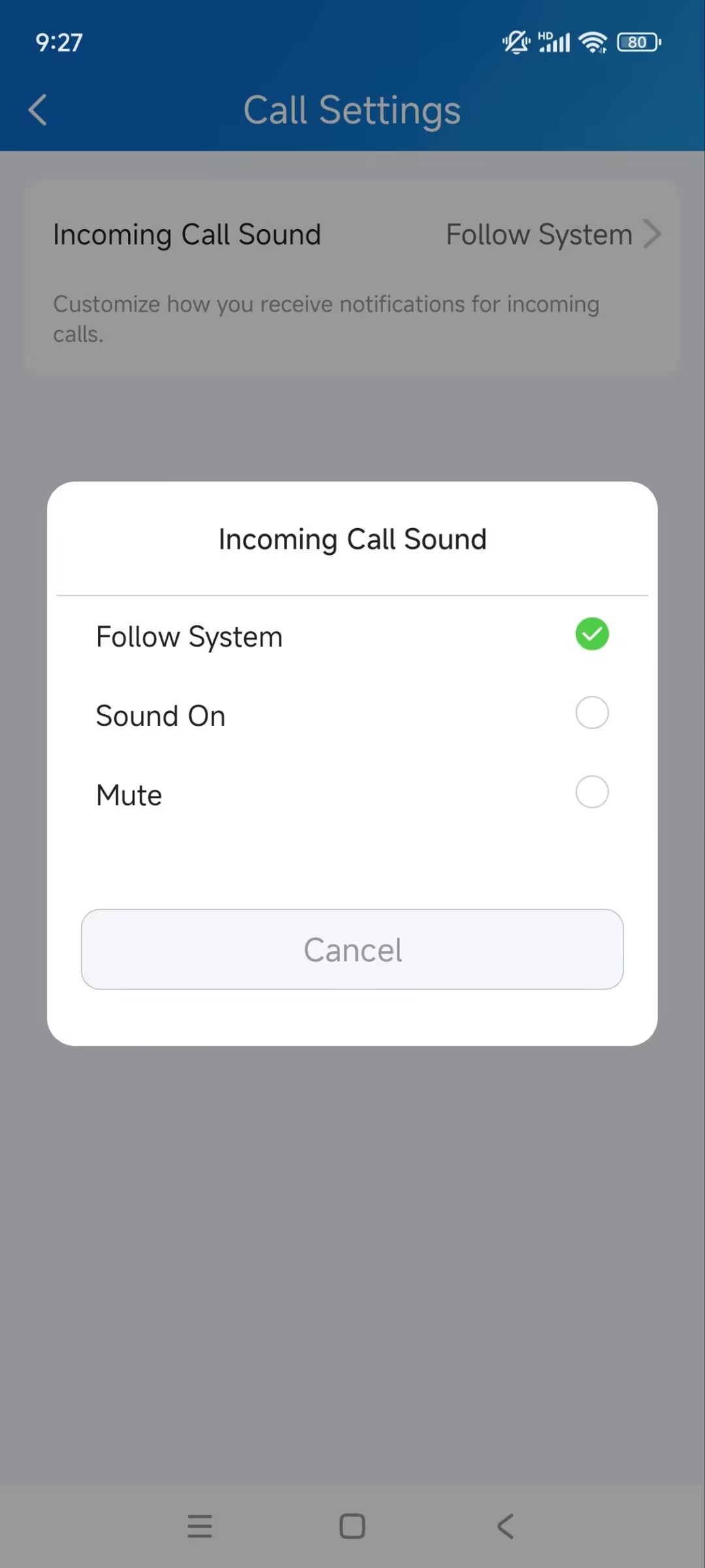
You can select the notification sound when receiving an incoming call.
1. Tap Me > Settings > Call Settings > Incoming Call Sound.
2. Select the desired option.
Follow System: Use your mobile phone's default sound.
Sound On: Use the SmartPlus default sound.
Mute: Mute the incoming call sound.
Elevator Control
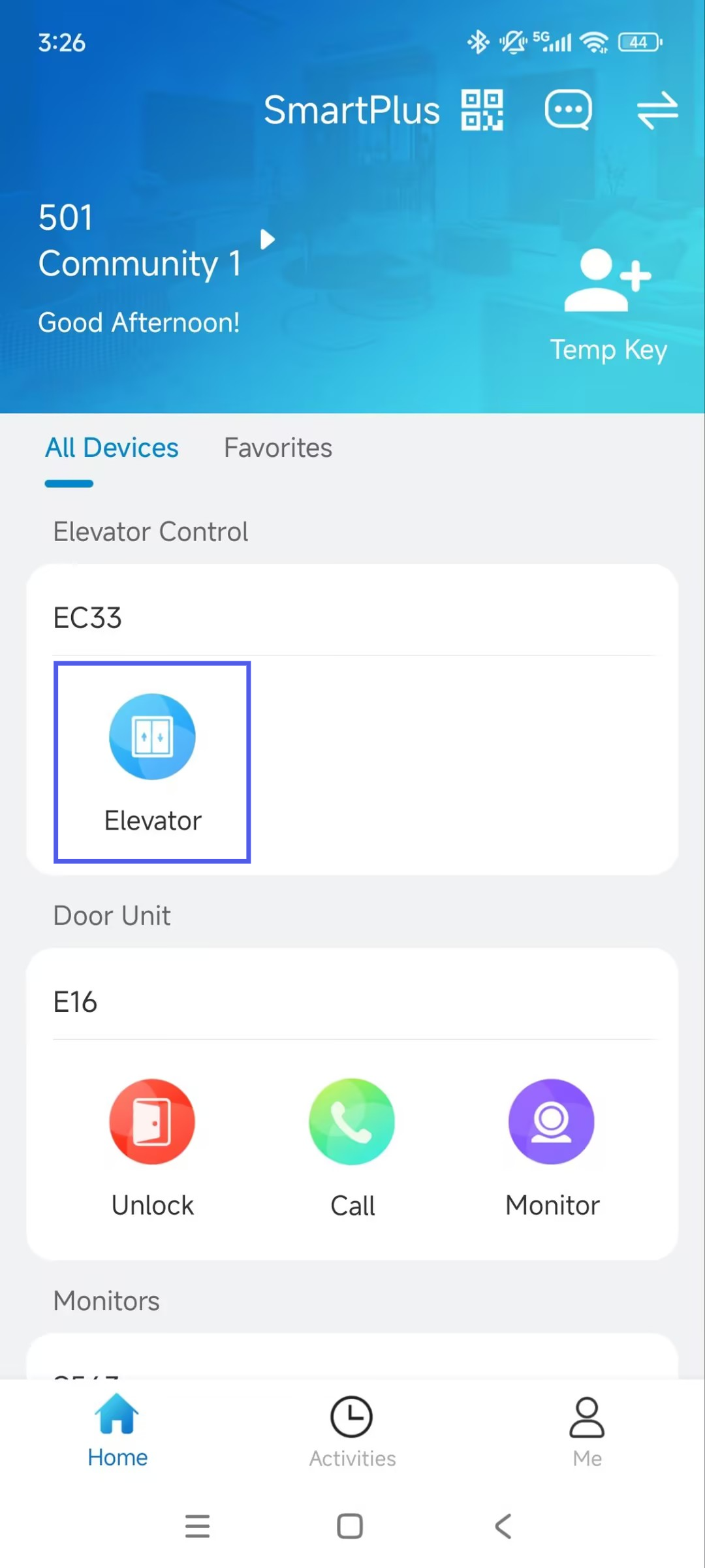
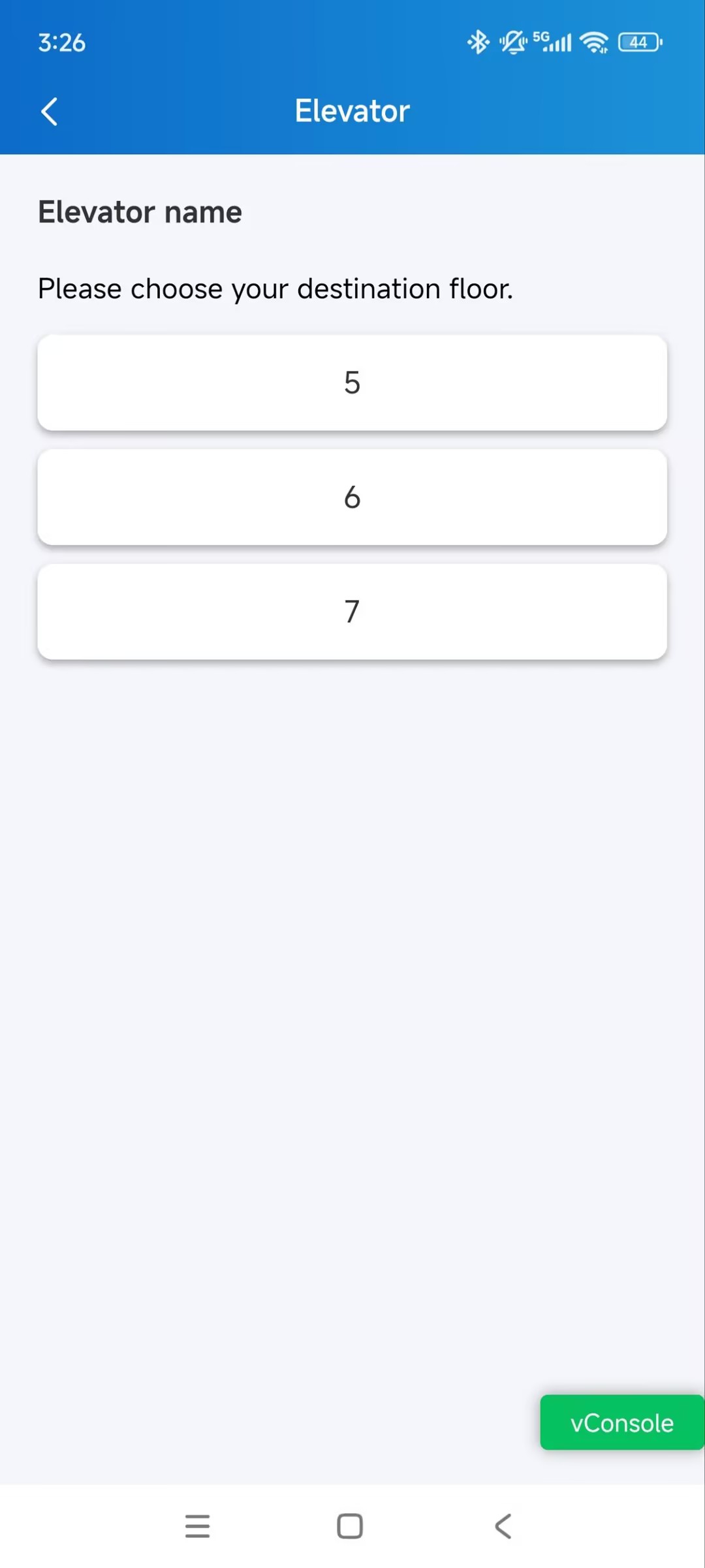
When the Elevator Control feature is properly configured by your administrator, tap the Elevator Control Device on the homepage to access the destination floor.
Security
Monitor
You can check the monitoring streams from either Akuvox intercom devices or third-party cameras to see who the visitor is or what's happening at your front door.
See Door Phone Stream
1. Tap  of the desired device on the homepage. The live stream will be shown for 30 seconds.
Note
Door phones without cameras do not have a monitor button
.
2. Besides, you can:
Tap Cancel to exit the current page.
Tap Capture to make a screenshot.
Tap Call to make a call with the visitor.
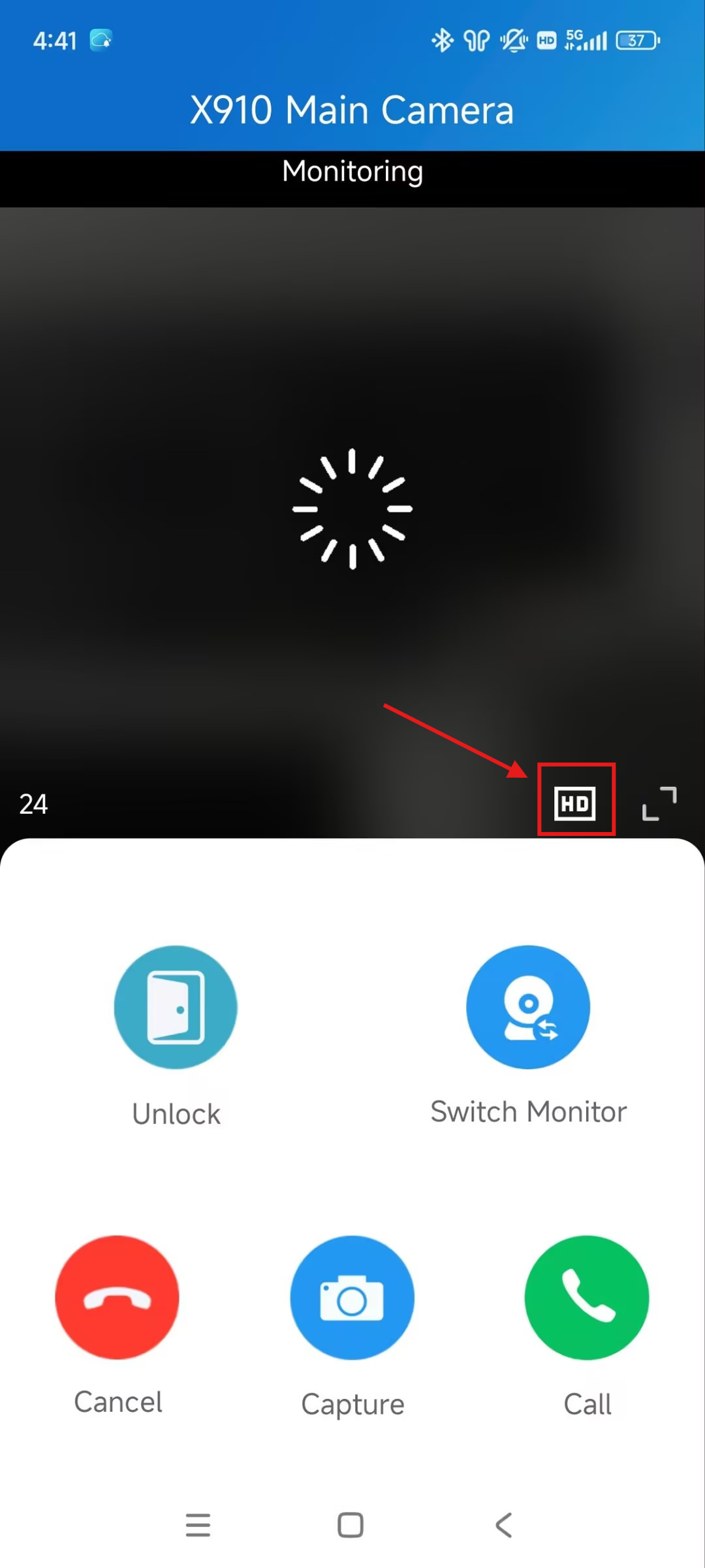
When viewing the live stream of the door phone X910, you can switch the video format between High Definition(HD) and Standard Definition(SD).
HD has a higher resolution and presents a clearer image.
See Third-party Camera Stream
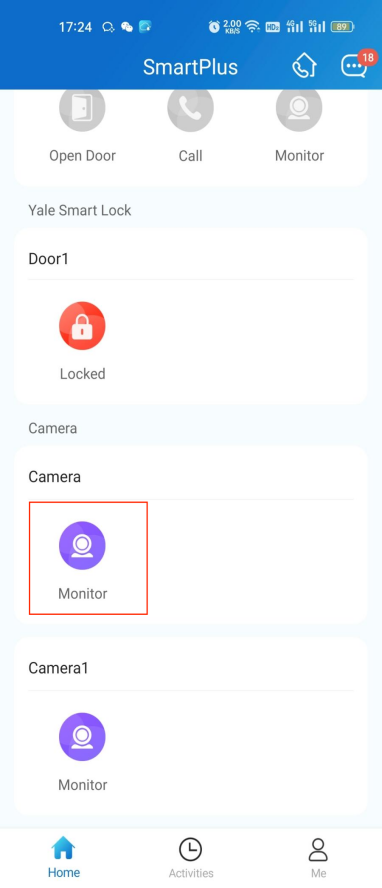
If your house or your community has third-party cameras installed, you can see their streams directly on the app. Besides, these cameras can be linked with Akuvox door phones.
When cameras are not linked with door phones
Tap Monitor of the camera. The live stream will be shown for 30 seconds.
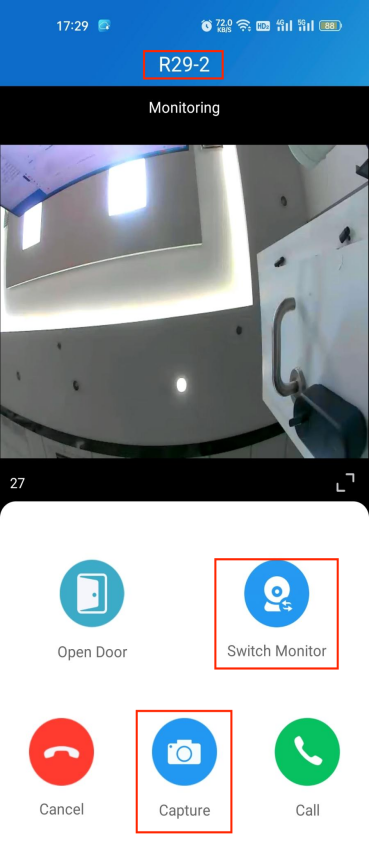
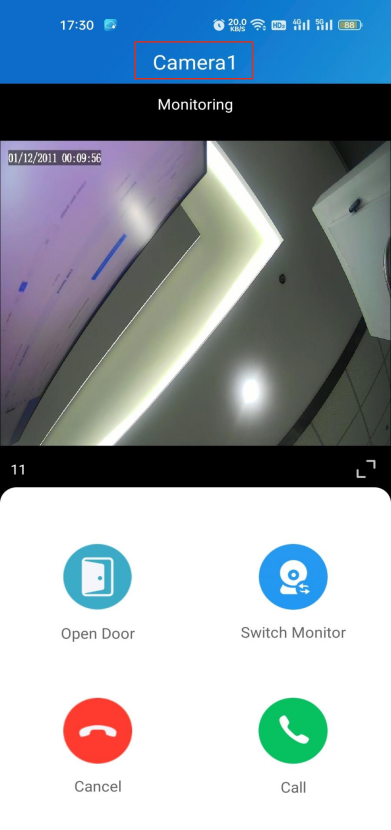
If the camera is linked with a door phone, then you can switch monitoring streams between the door phone and the camera.
Tap Monitor of the door phone on the homepage.
The default shown stream is from the door phone. To switch the stream, tap
 . Note that the Capture feature is not available on the third-party camera’s live stream page.
Alarm and SOS Warnings
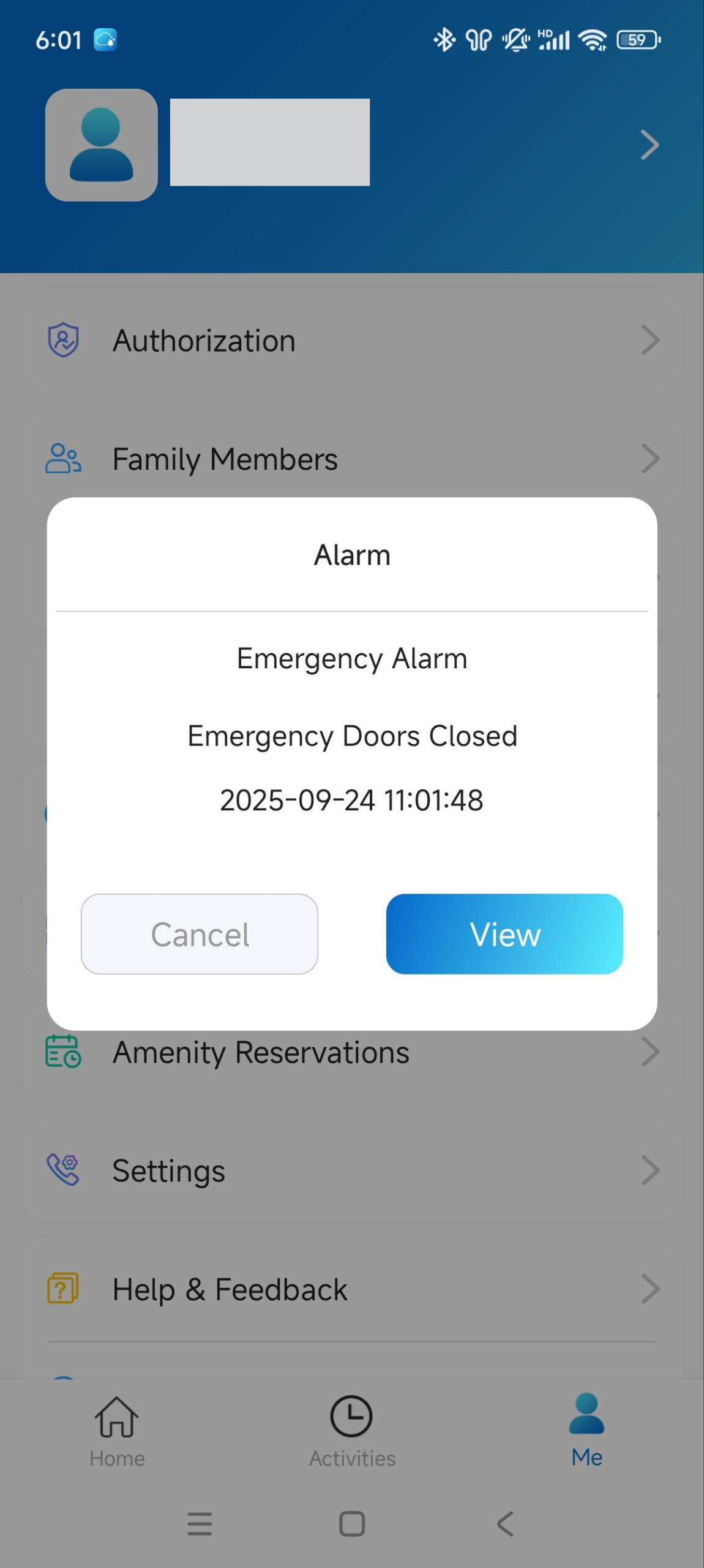
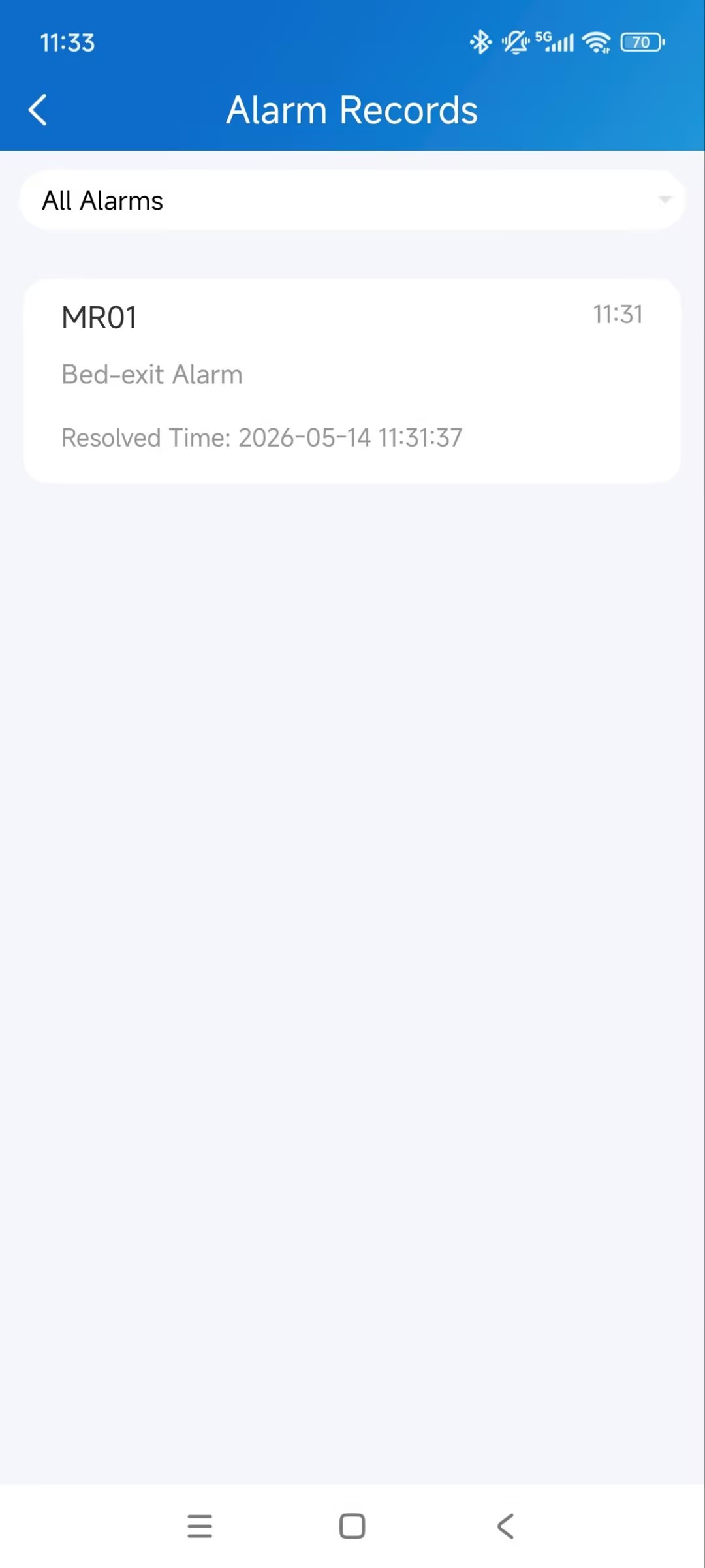
You can receive alarm notifications, such as when all doors are open, and a smoke alarm is triggered on indoor monitors.
Tap Me > Alarm Records to see and deal with warnings.
Motion Detection
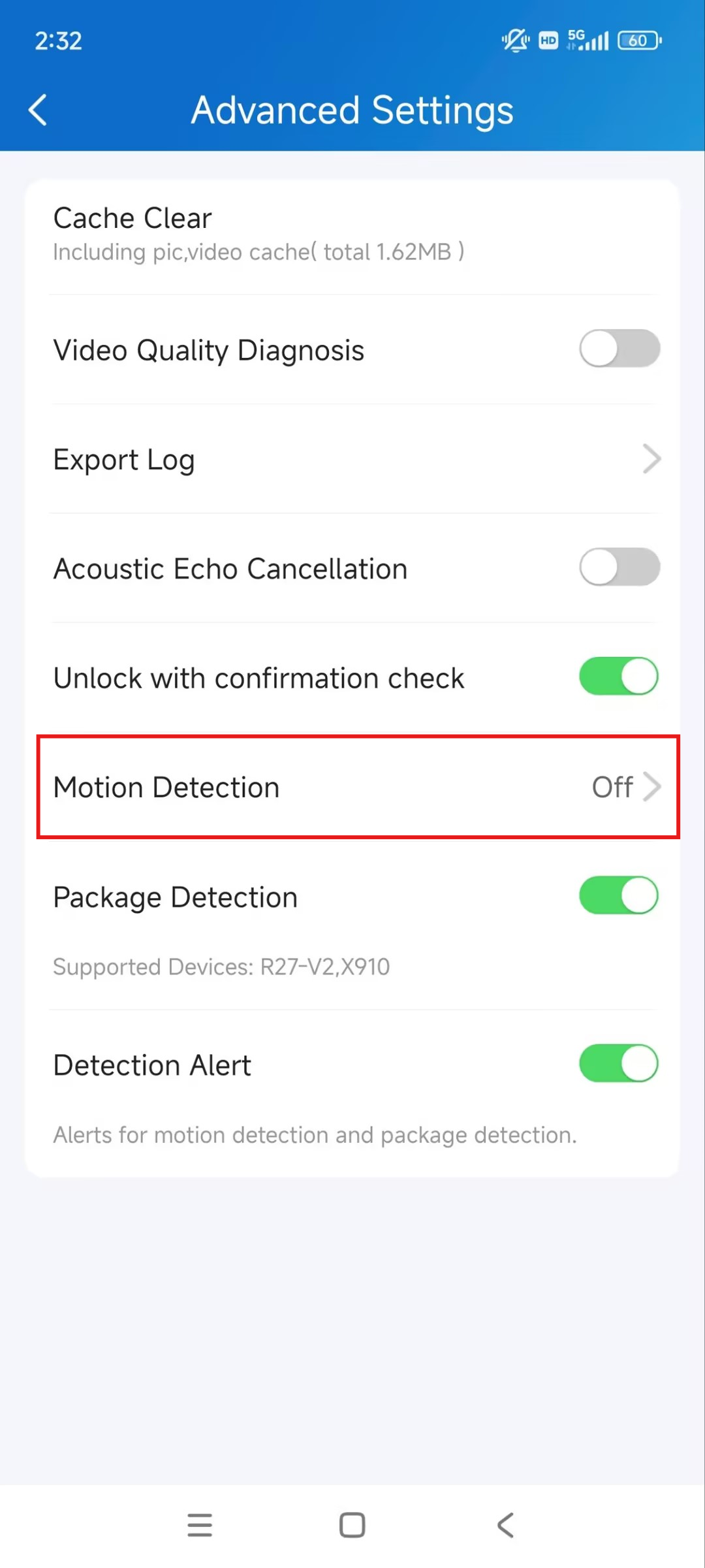
With the SmartPlus master account, you can turn on the motion detection function and choose its detection type.
1. Tap Me > Settings > Advanced Settings > Motion Detection.
2. Select between IR and Video Detection.
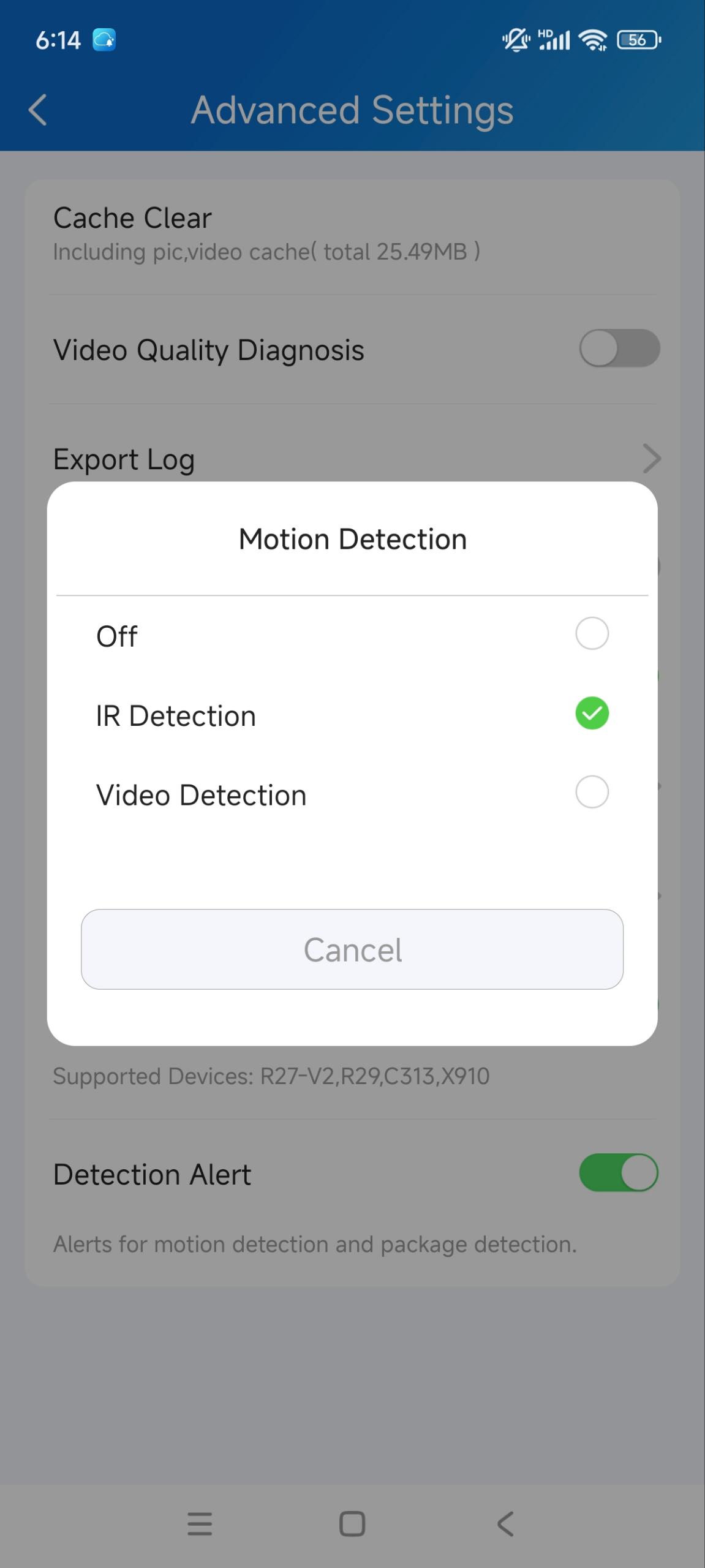
3. Then, you can set up the Alert Delay Time(10 seconds by default) and Detection Alert.
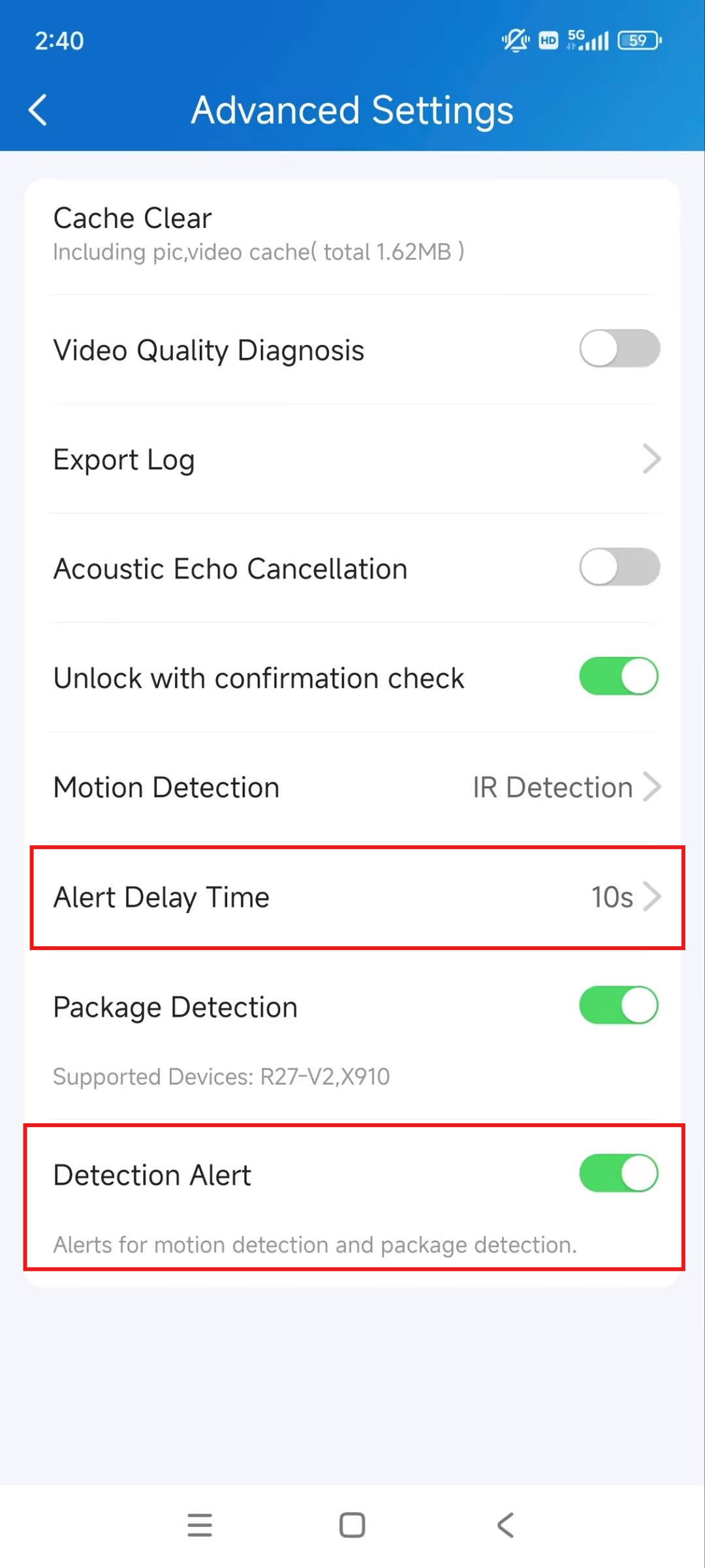
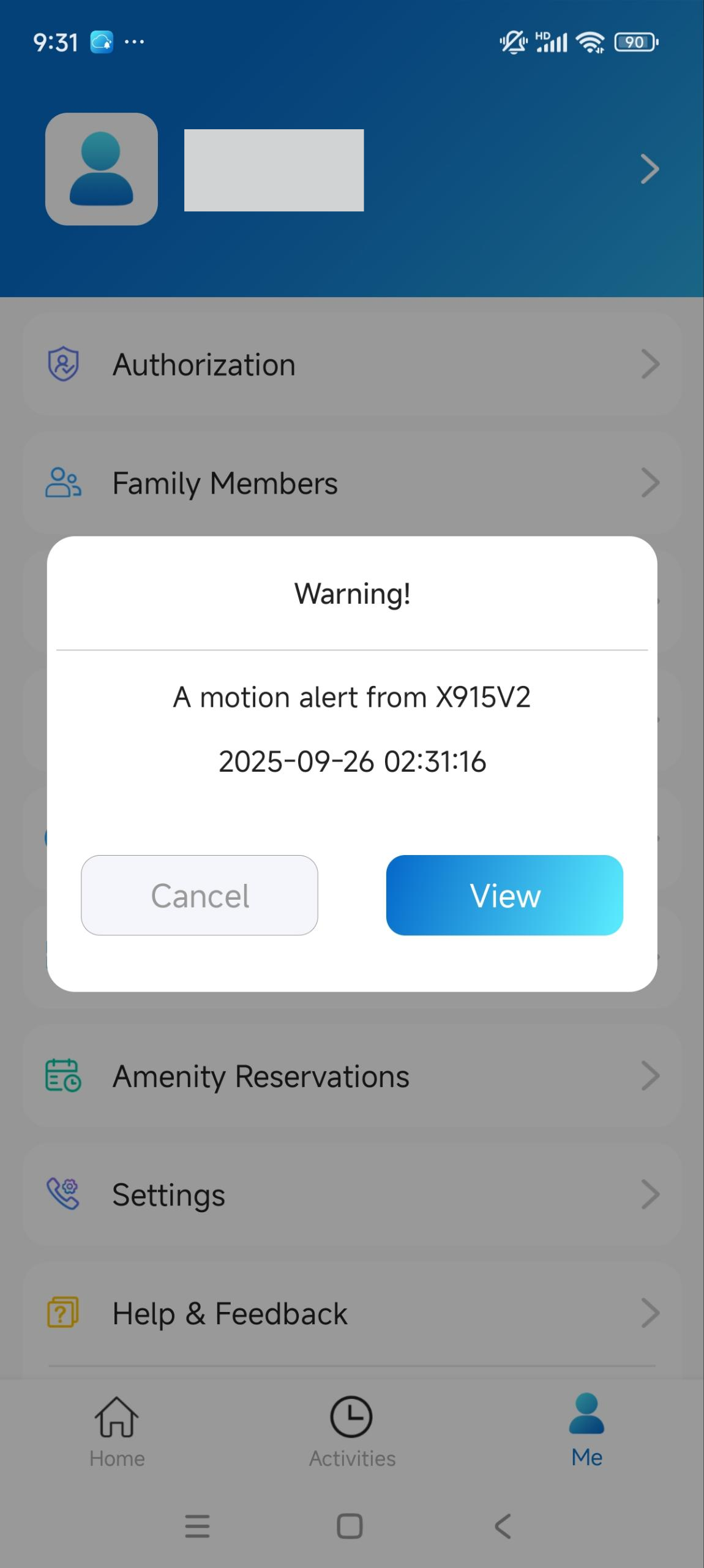
When detection alert is enabled, a notification will be sent to you whenever an alert is triggered by a suspicious motion.
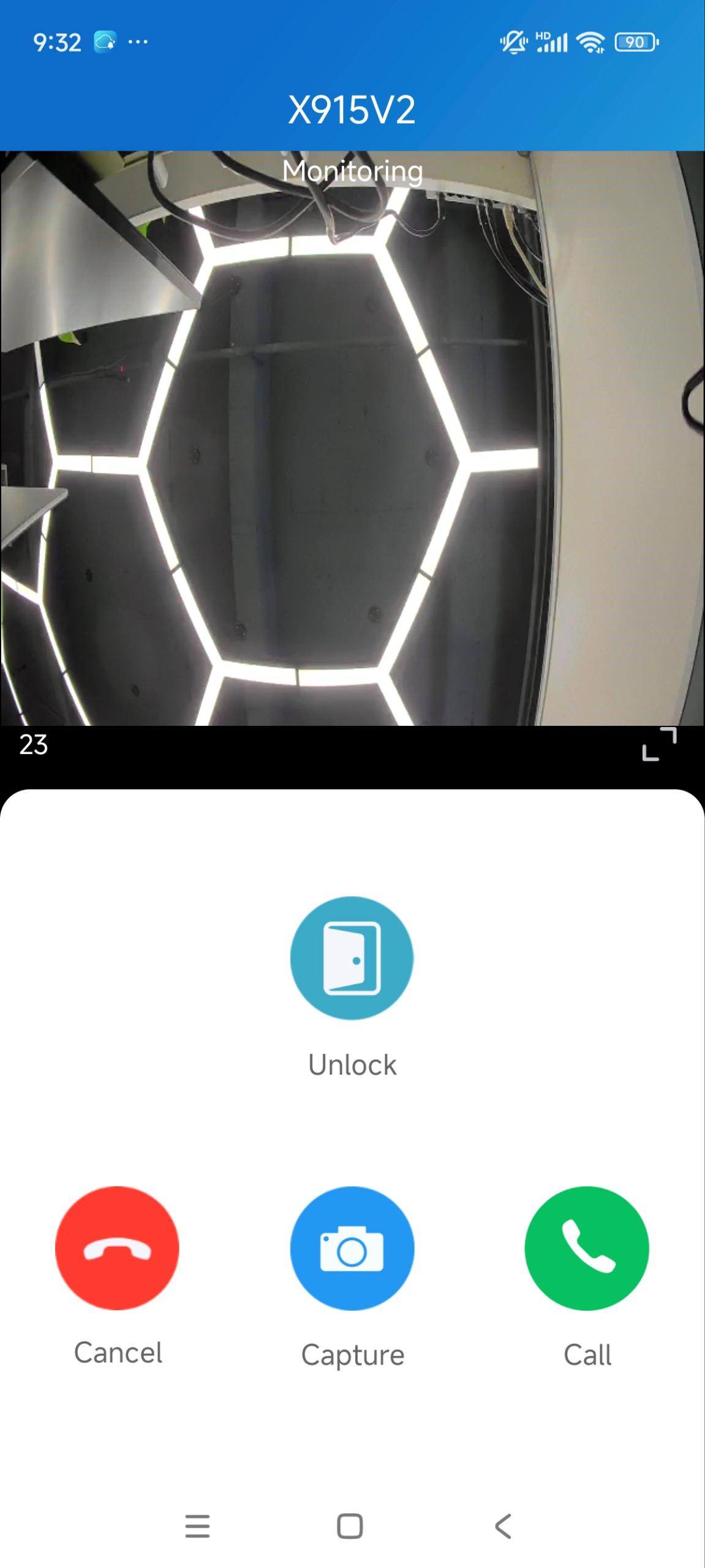
Tap View to redirect to the device monitoring page.
Arm and Disarm Indoor Monitors
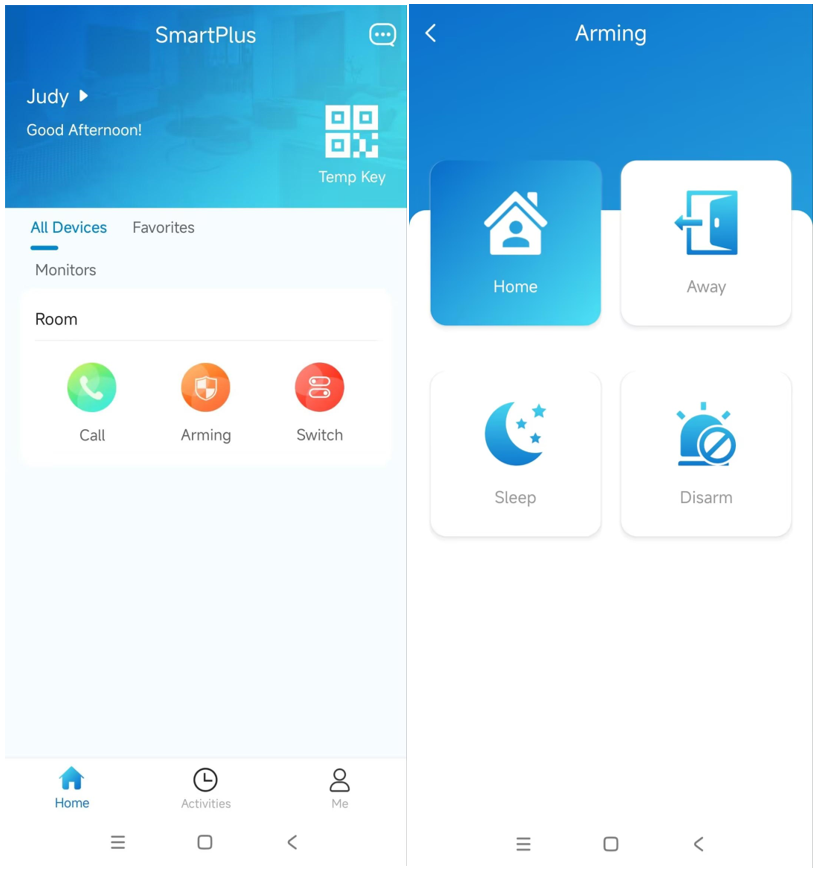
You can arm or disarm indoor monitors on the homepage of the SmartPlus App when your installers or property managers enable the Arming Function of the indoor monitor for you.
Tap Arming to select the arming mode or disarm.
Arm and Disarm Indoor Monitors with Alexa
Linking your account to the Alexa app, you can arm or disarm the indoor monitor by giving specific commands to Alexa.
Click here to view the configuration steps.
Record and Check Videos
You can enable Video Storage feature, record videos, and check video logs.
Click here to view the configuration steps.
Smart Home Devices Control
Smart home devices can be controlled on the SmartPlus App after they are properly connected to Akuvox indoor monitors or akubela Hypanel Ultra and configured by your installers or property managers.
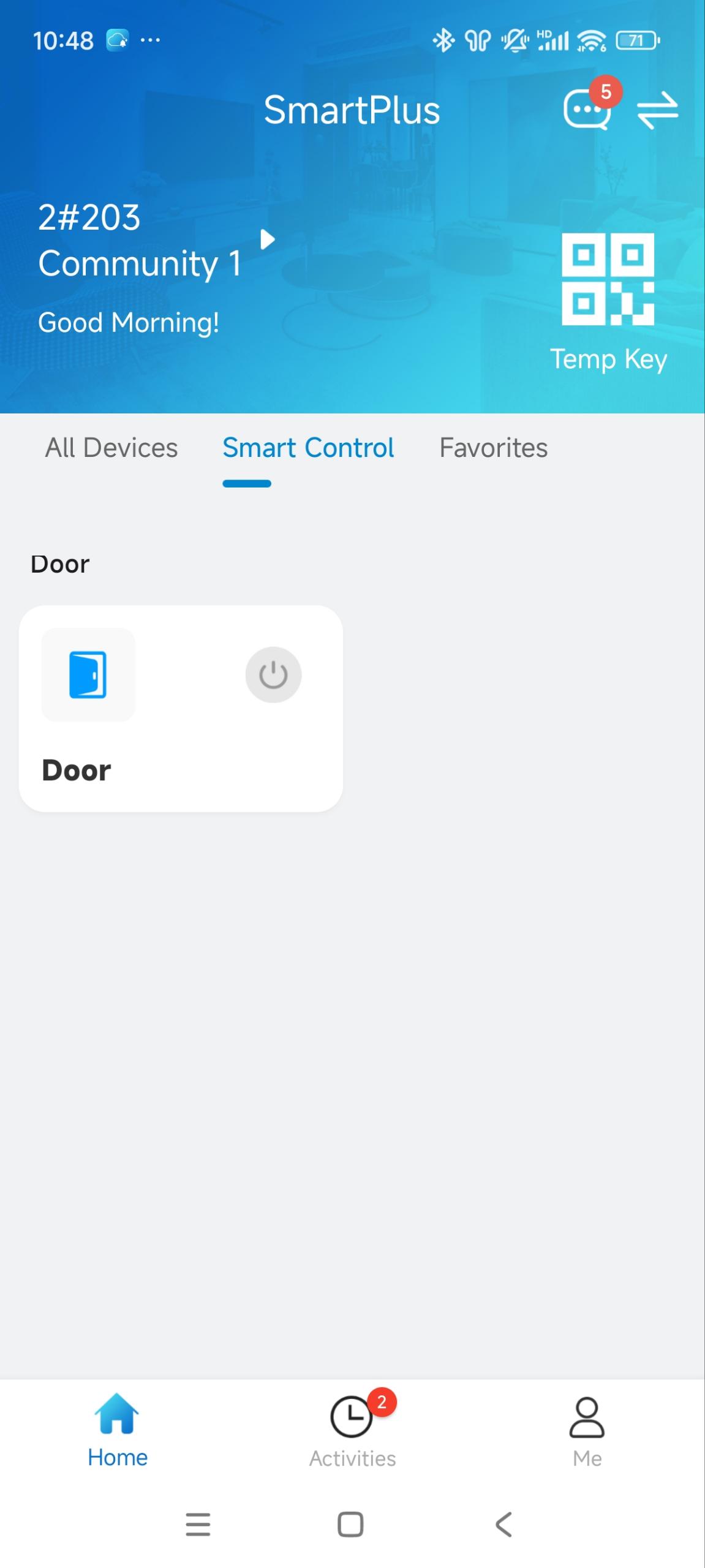
Control Devices Connected Directly to Indoor Monitors
Akuvox indoor monitors feature built-in relays that allow direct connections to various devices, such as door locks and lights. You can control these devices on your app.
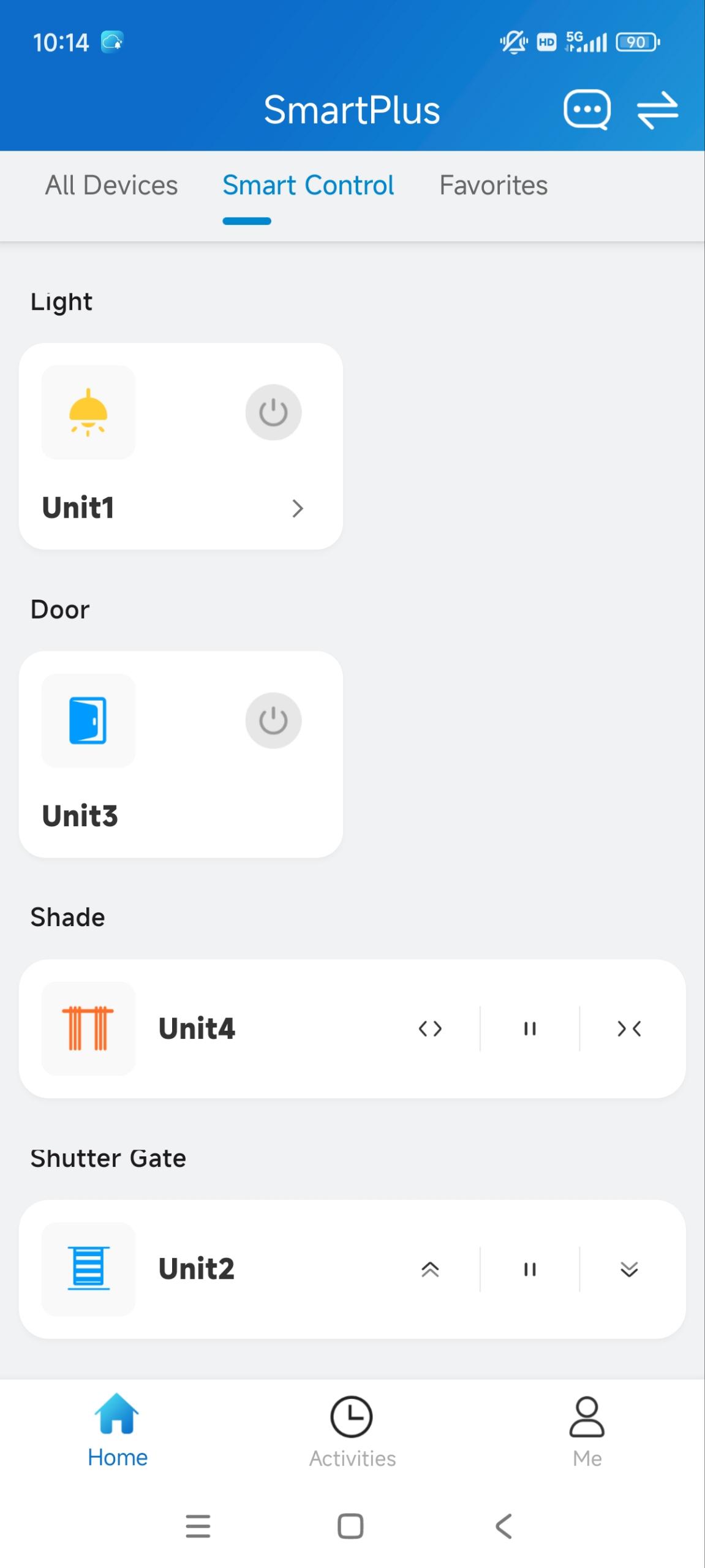
Control Devices Connected to the akubela RCU
Akuvox indoor monitor supports connecting to smart home devices via Akuvox MK485 or akubela RCU. You can control these devices on your app.
Tip
Click here to learn the models of indoor monitors supporting this feature.
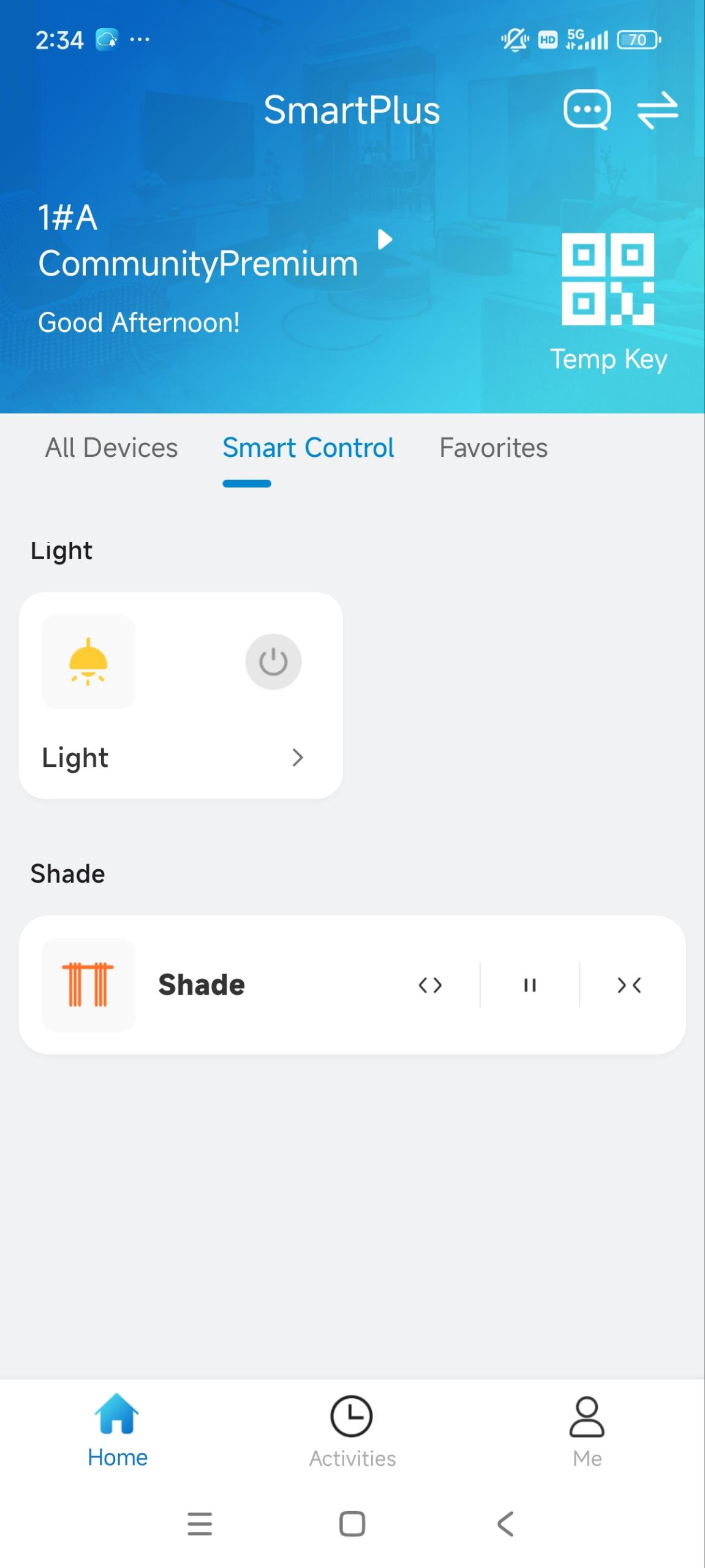
Control Devices Added to Hypanel Ultra
Smart home devices can be added to the akubela Hypanel Ultra via specific Zigbee switch modules. You can control these devices when the hypanel is connected to the SmartPlus Cloud.
Tip
Click here to learn more about controlling smart home devices on the SmartPlus App.
Bookings
Receive Bookings Notification
You can receive booking notifications after property managers make reservations for you. You can also conveniently make reservations to use amenities on your SmartPlus App.
Note
ONLY community residents can use this feature.
1. Tap  in the upper-right corner of the homepage.
2. Tap the Amenity Reservation notification.
3. Tap Check and the amenity name.
The reservation information will be seen.
.png "Booking notice(1).png")
Make a Reservation
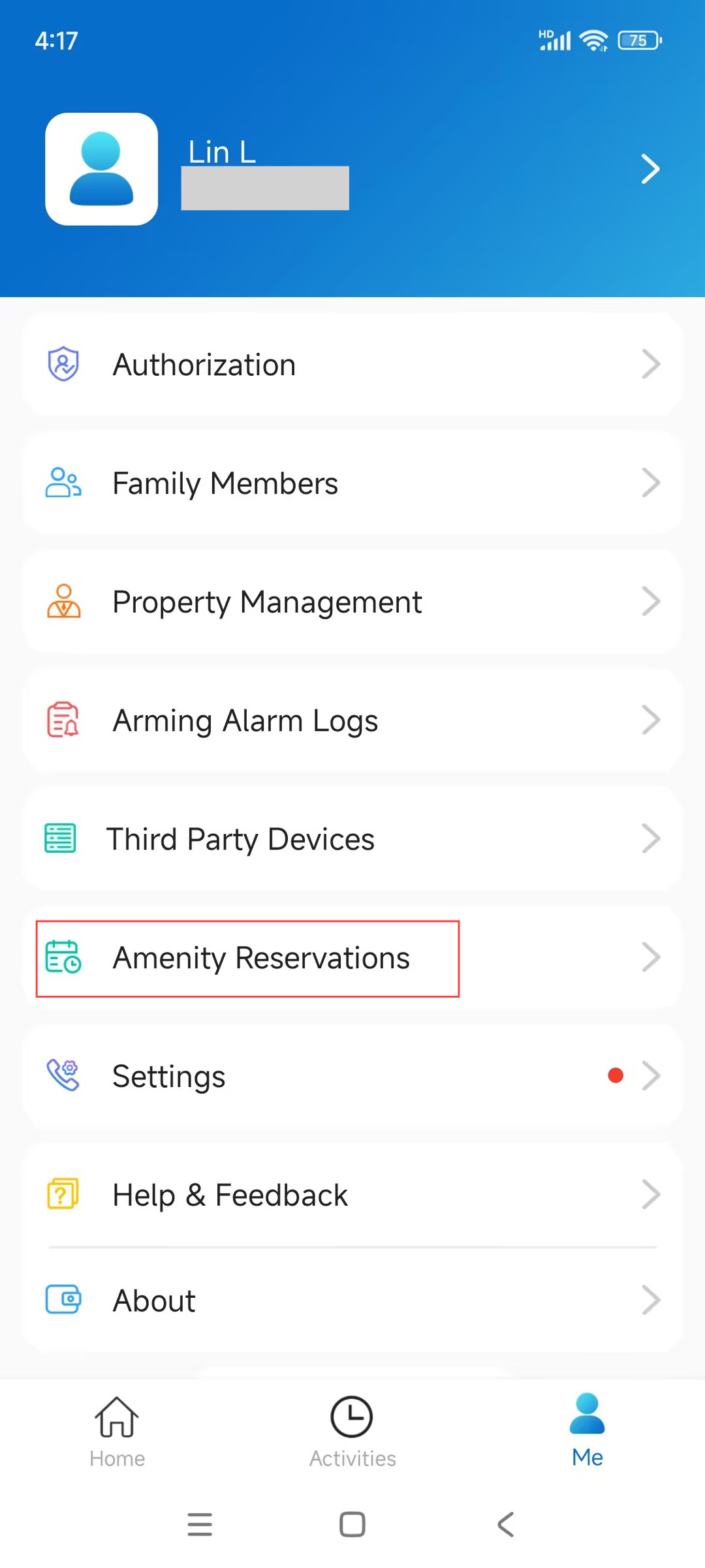
1. Tap Me > Amenity Reservations.
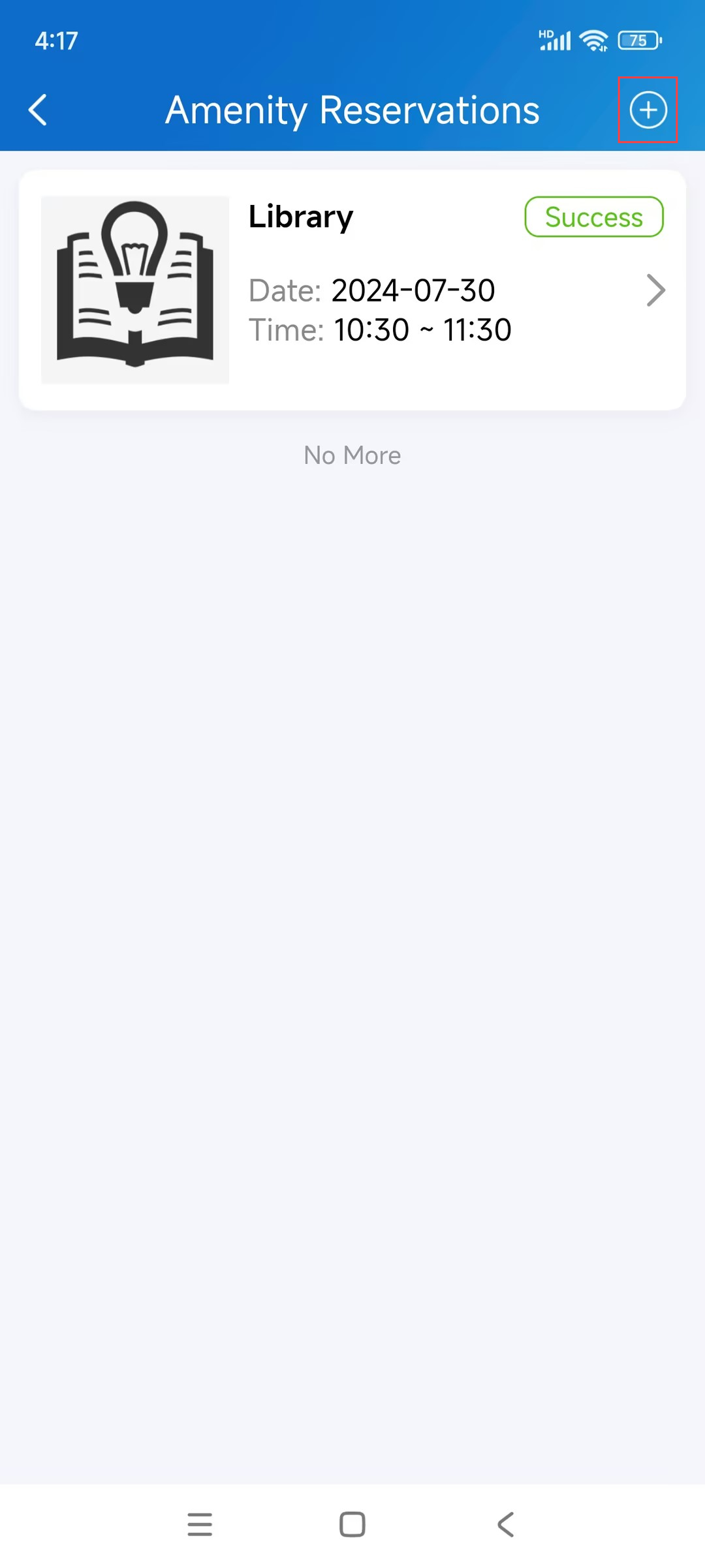
2. Tap + in the upper-right corner.
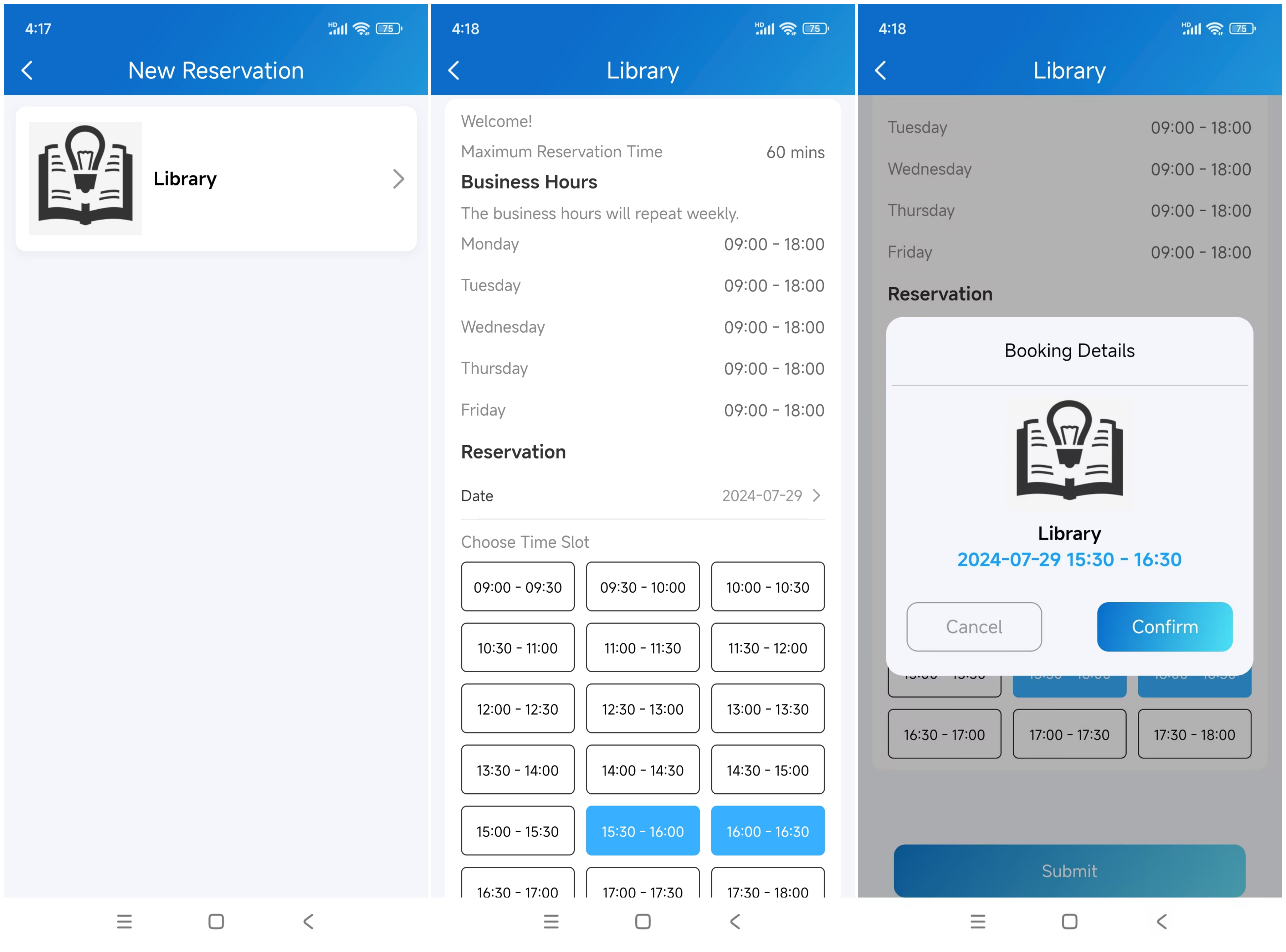
3. Select the desired amenity.
4. Select the date and time.
5. Click Submit and then Confirm.
The new reservation will be displayed on the Amenity Reservation page. Tap to check the details, including the temporary key.
Smart Parking
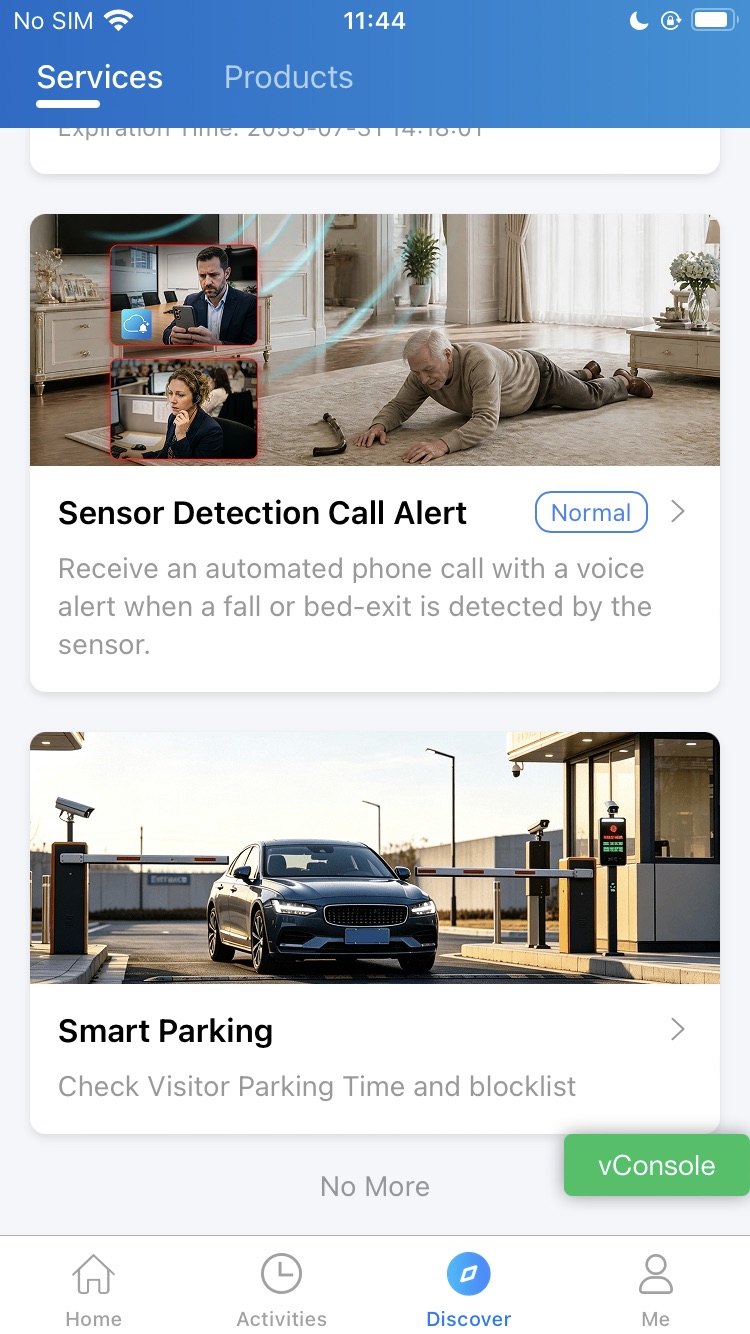
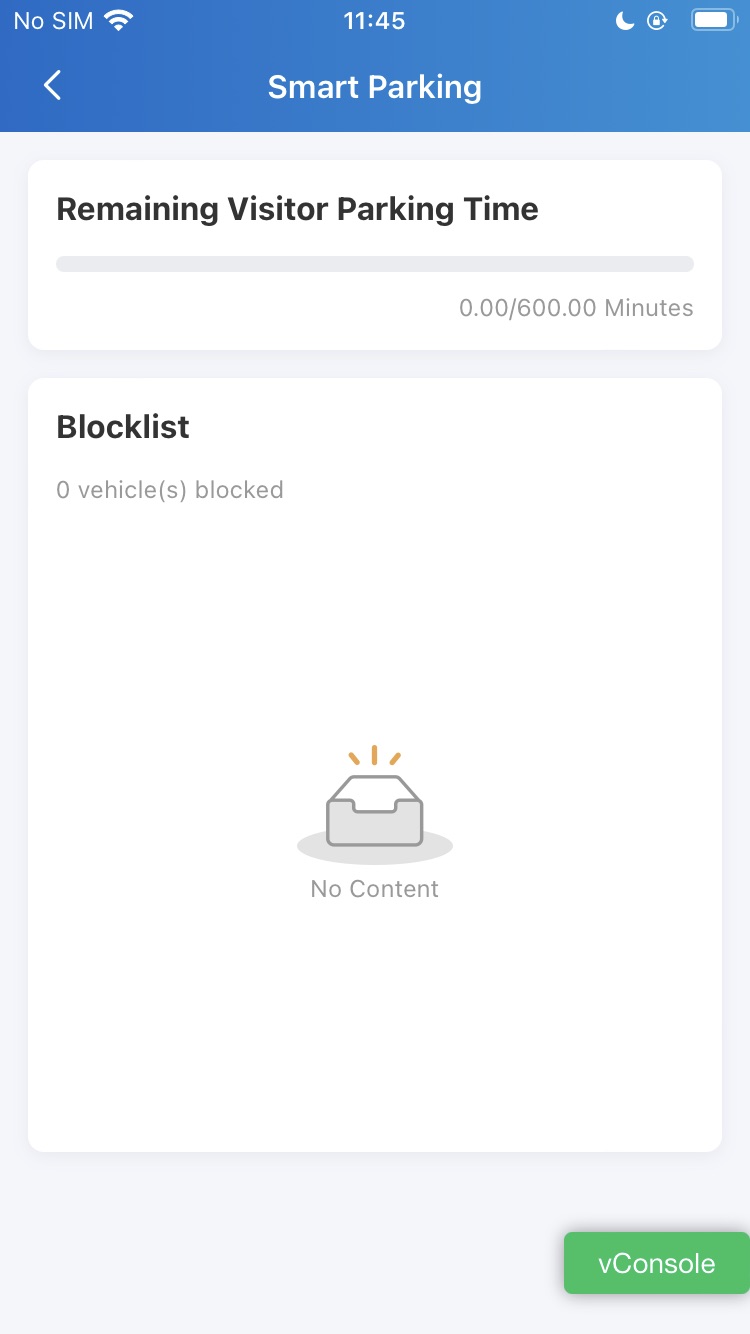
When the Smart Parking feature is properly configured by your administrator, you can check the Remaining Visitor Parking Time and the vehicle blocklist.
Go to Discover > Smart Parking.
Devices
Smart Locks
You can add the akubela smart locks and open them with the app or various access methods.
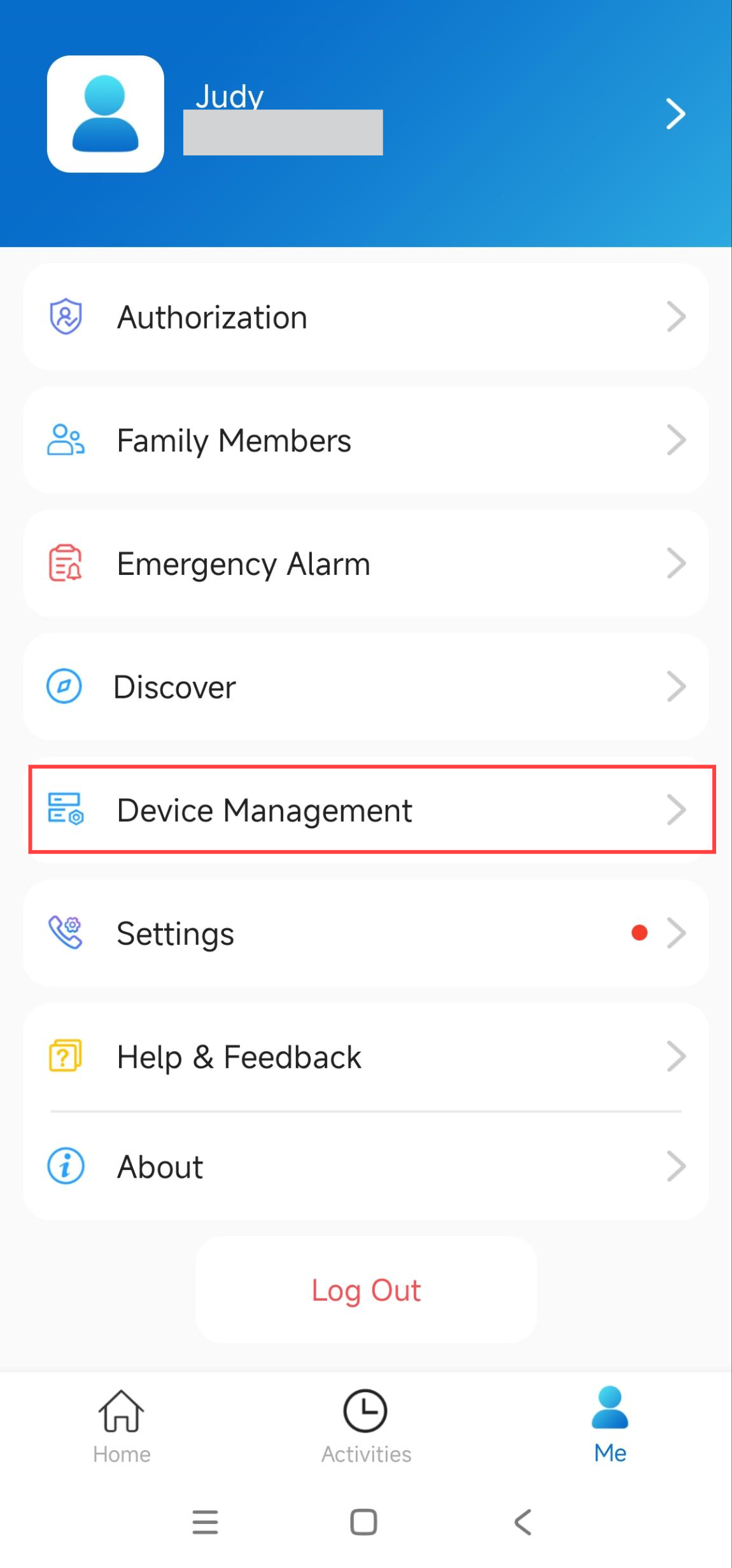
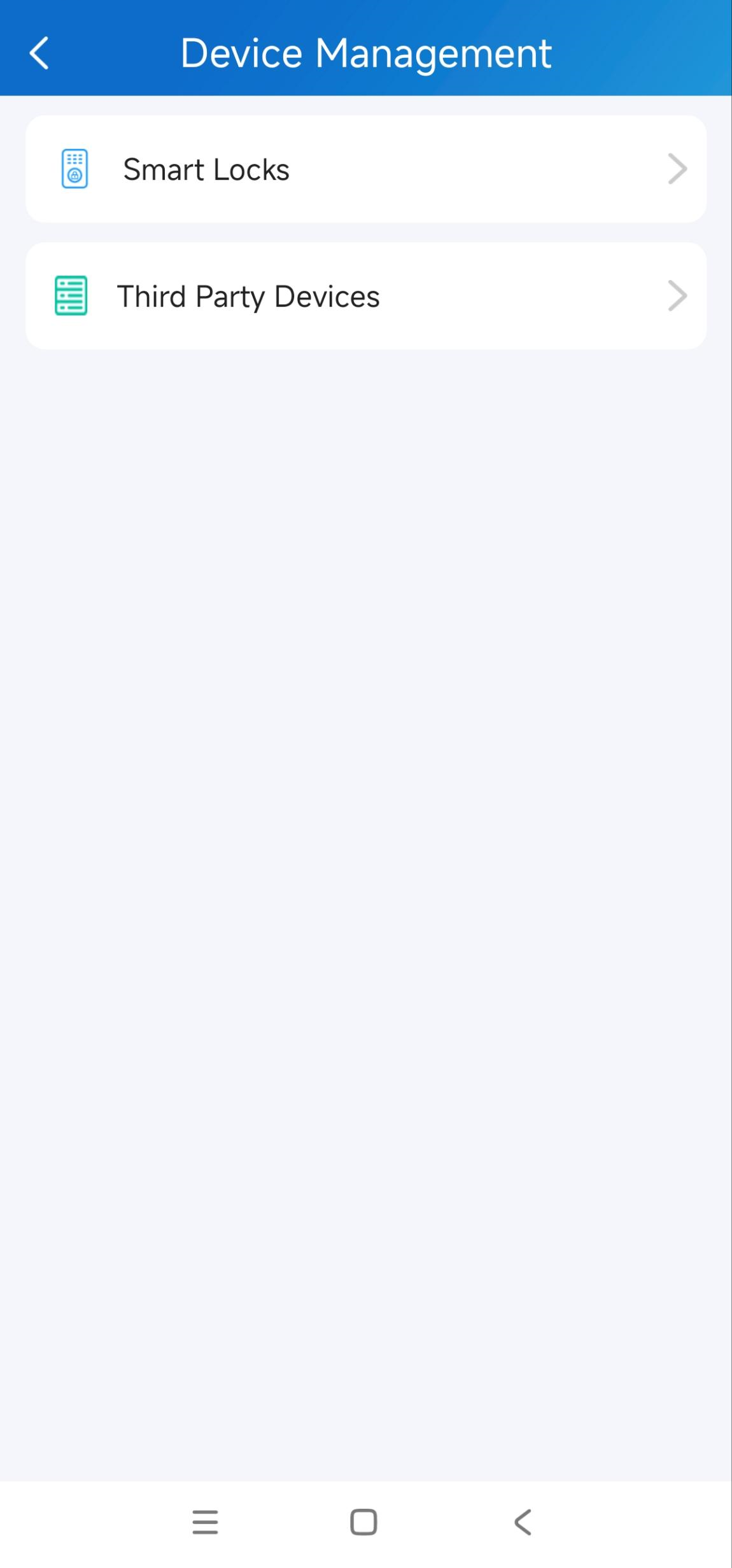
Add the lock on the Me > Device Management > Smart Locks page.
Note
Click the desired lock model to view the detailed guide.
Third-party Locks
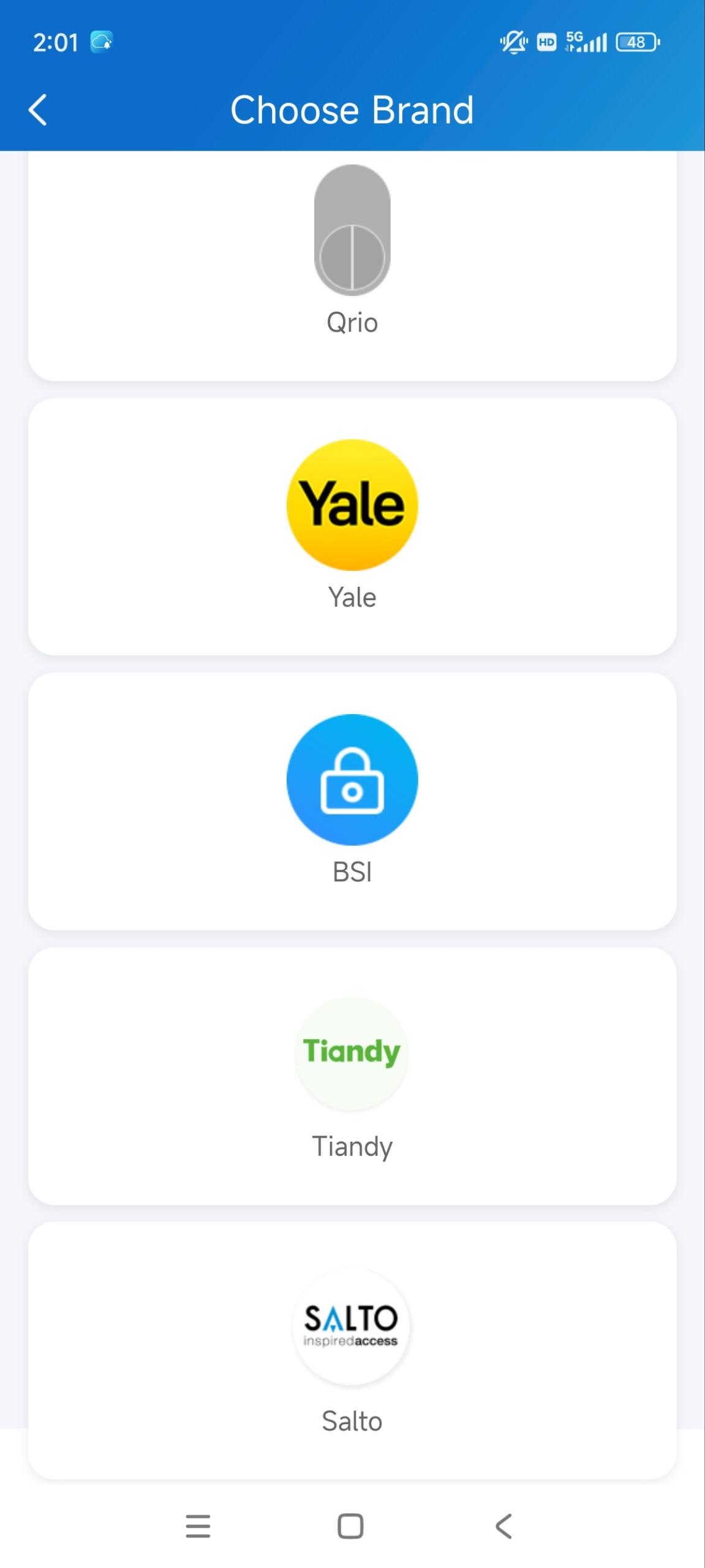
SmartPlus app allows you to add and control third-party locks from Qrio, Yale, BSI, Dormakaba, Salto, iTec, and TTLock, making the intercom process more integrated and convenient.
Note
This function is available for single-tenant and new community users.
Only family master accounts are enabled to add third-party locks.
Please click the following links to view how to add and unlock third-party locks in detail.
1. Tap Me > Device Management > Third Party Devices.
2. Tap the Add icon in the upper-right corner.
3. Select the target lock brand and follow the on-screen instructions to finish adding.
Third-party NVR Devices
SmartPlus App allows the master account users to add third-party NVR devices from Tiandy, Akuview, Milesight, and Hikvision. You can conveniently record video footage and view playback, which enhances security.
This section takes adding a Tiandy NVR as an example.
Note
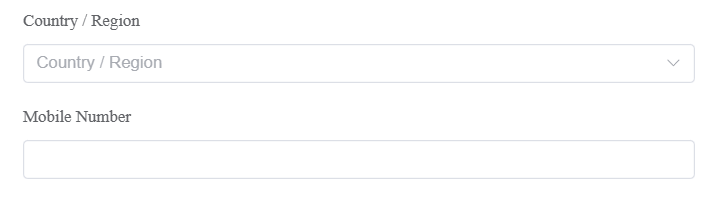
Make sure your installers have selected the right Country/Region when creating an account for you, or you may not add Tiandy devices.
Add NVR Devices
1. Tap Me > Device Management > Third Party Devices. You can see the added third-party devices here.
2. Tap + in the upper-right corner.
3. Select Tiandy, Akuview, Milesight, or Hikvision. Take adding the Tiandy NVR as an example.
4. Tap Add Tiandy NVR.
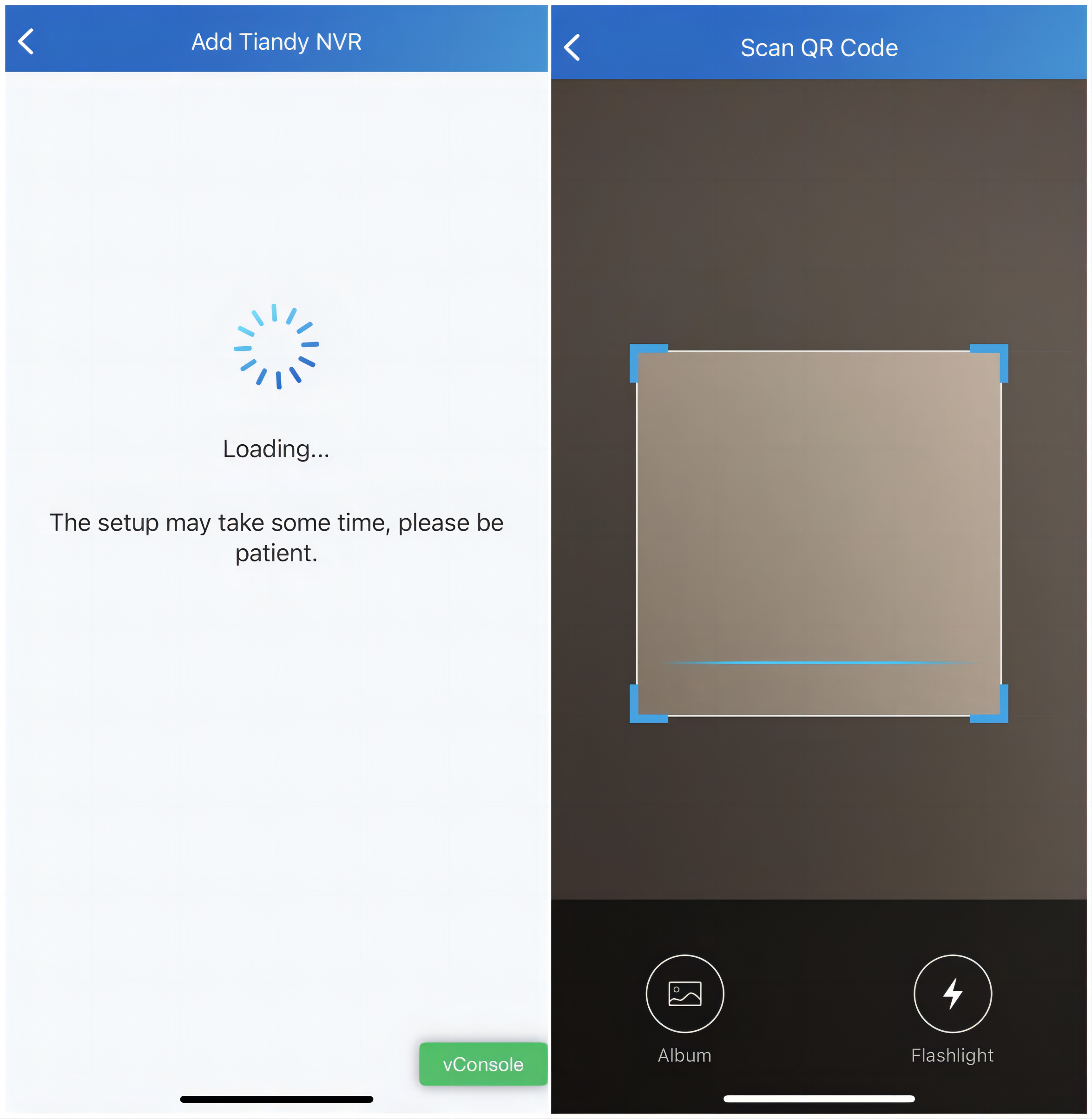
If it is your first time adding a Tiandy device, you need to register the Tiandy Cloud account. The registration will be carried out automatically and will take some time.
If you have added the Tiandy NVR before, scan the QR code on the device or upload the code photo from the local album. You may be required to enter the device password for verification.
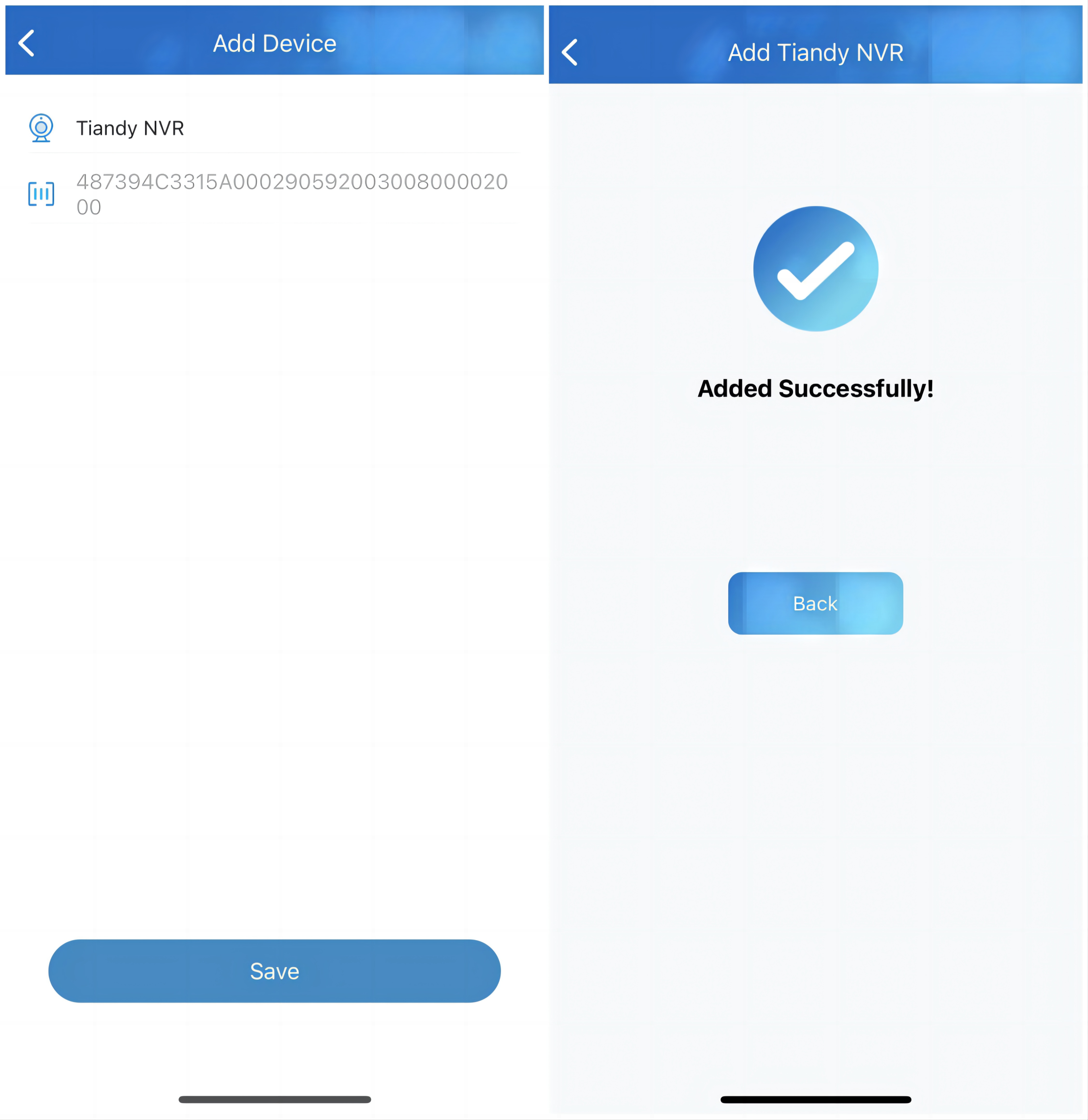
5. Name the device(max 32 characters) and tap Save.
Edit and Delete NVR Devices
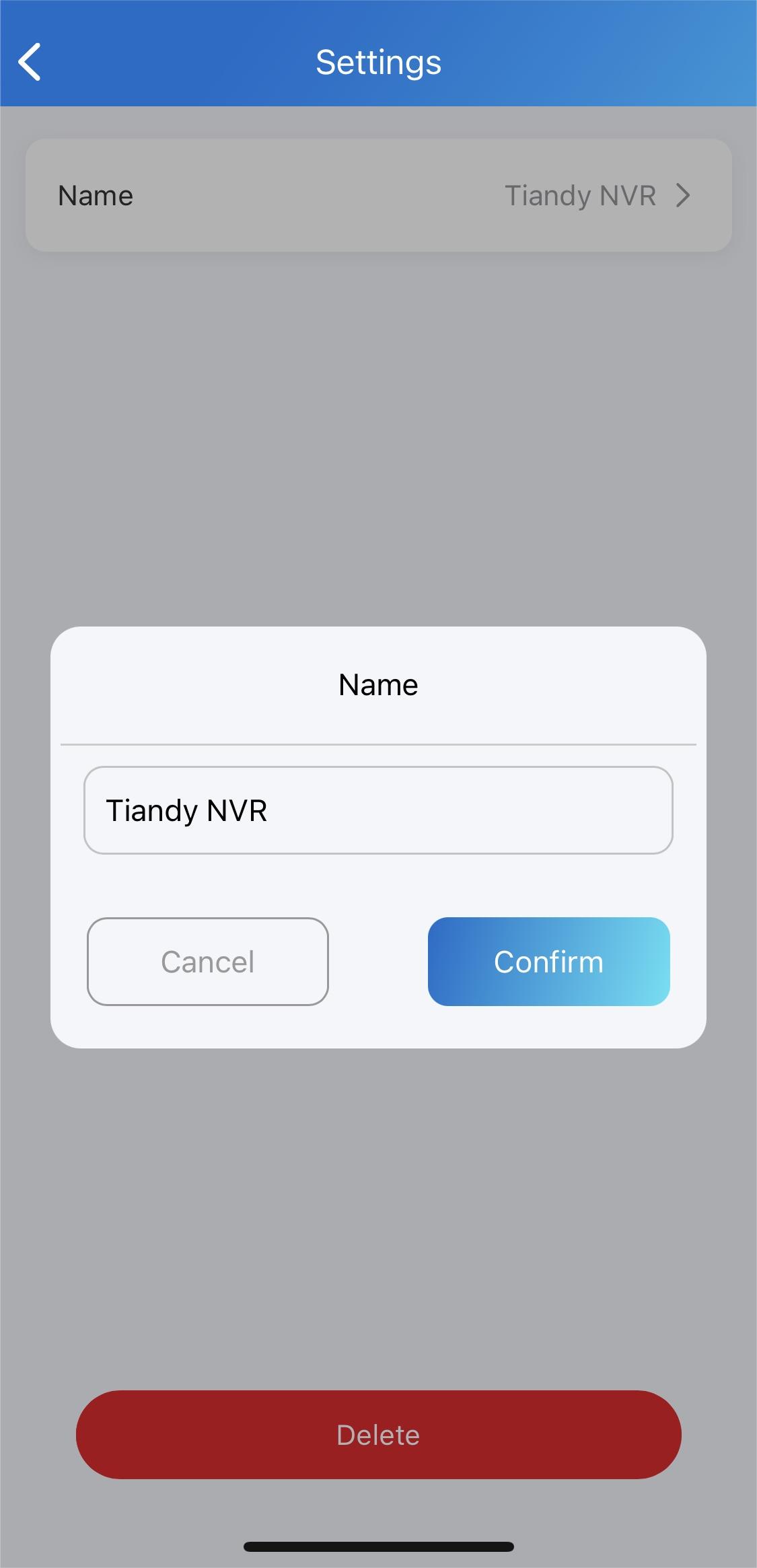
After adding the device, you can edit its name and delete it.
1. Tap Me > Device Management > Third Party Devices > Tiandy NVR and tap the desired device.
2. On the Settings page, you can edit the device name and delete it.
Monitor and View Playback via NVR
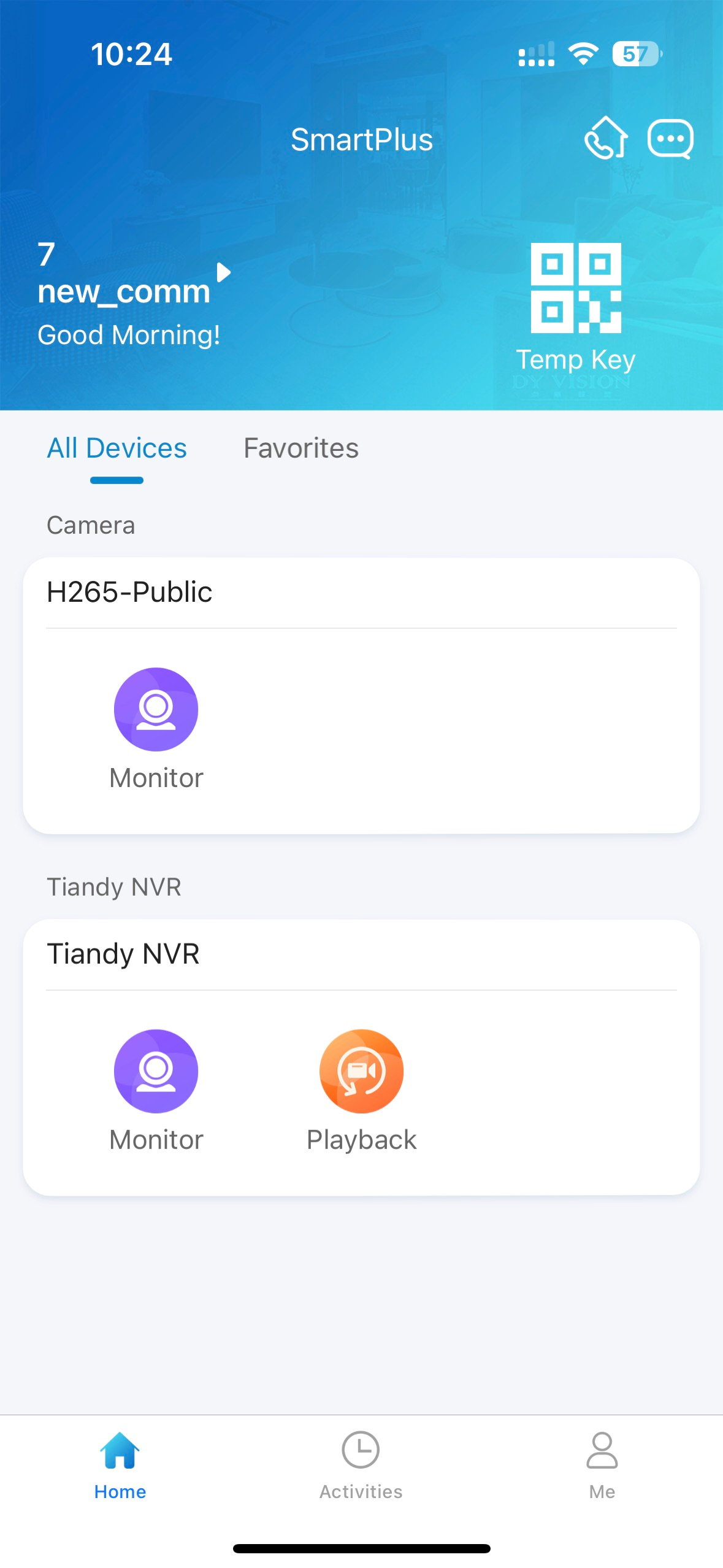
The NVR device will display on the Home page.
Monitor
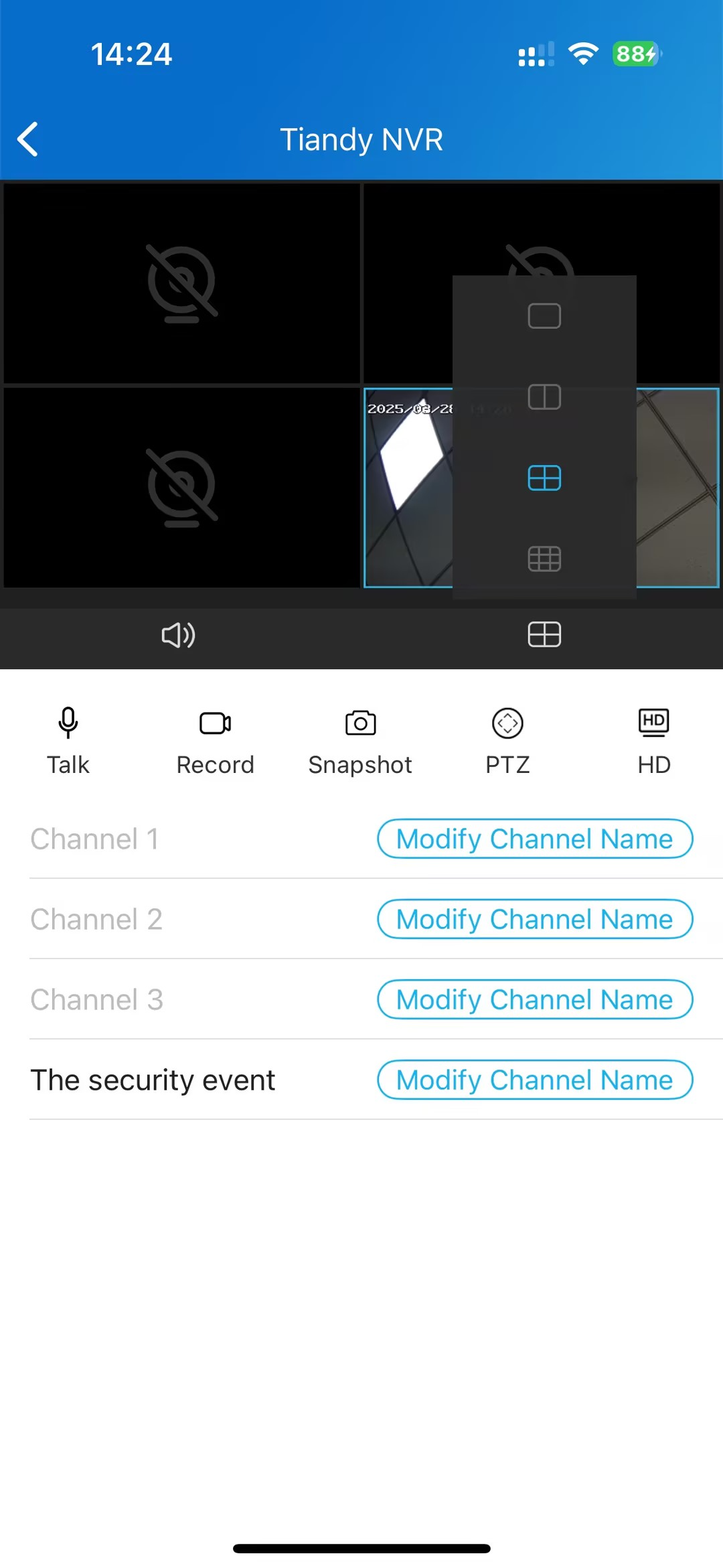
Tap Monitor to enter the real-time monitoring page, where you can:
Switch between 1, 2, 4, and 9 channels.
Switch to view different cameras.
Talk with the person on site.
Record the video.
Capture the image.
Zoom in or out on the lens.
Switch clarity.
Tap on the video to stop playing, and
Modify the channel name(max 32 characters).
Playback
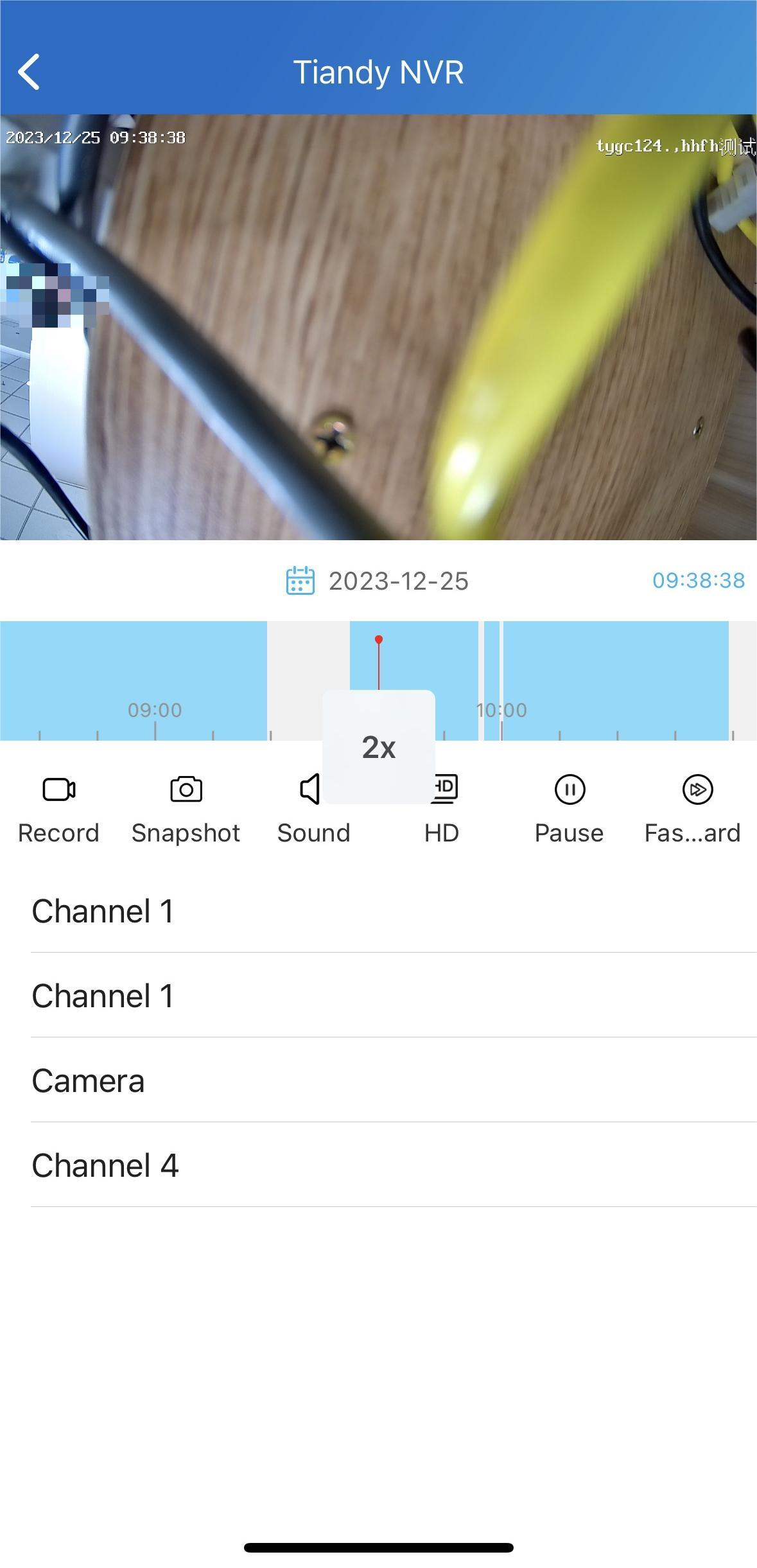
Tap Playback to enter the playback viewing page, where you can:
Switch to view different cameras.
Record the video.
Capture the image.
Mute the sound.
Switch clarity, and
Pause and fast-forward the video (the video is muted when fast-forwarding).
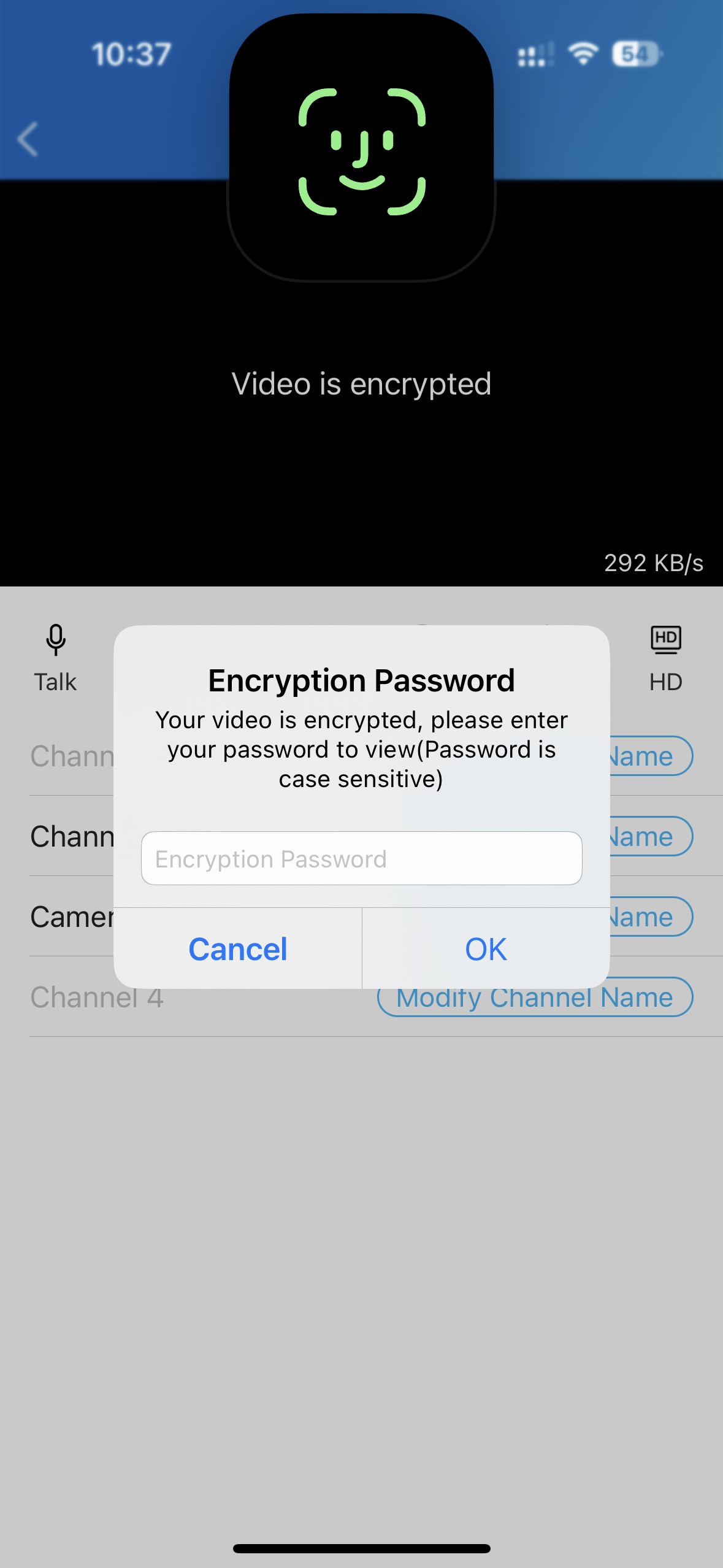
If the video is encrypted, you need to enter the password that you customized on the NVR device.
Favorite Your Devices
Note
Only community residenst can use this feature.
The Favorite Device feature enables you to easily add or remove the devices you use most.
Favorite Devices in Card Mode
1. Tap Home > Favorites.
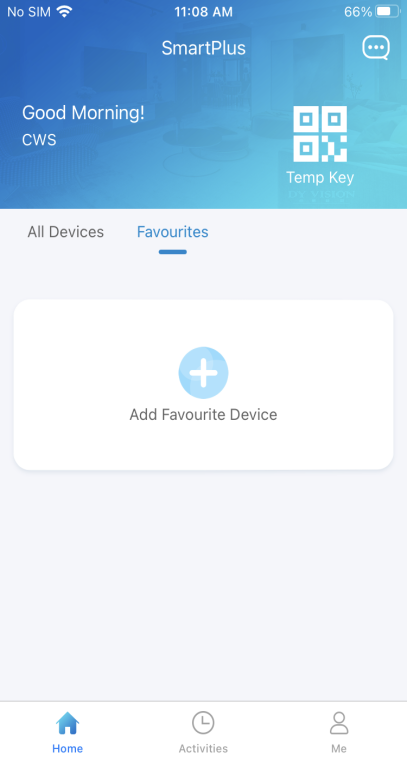
2. Tap Add to Favorites, and tick on the desired devices.
3. Tap  at the upper left corner. The favorite devices will automatically display on the Favorites list.
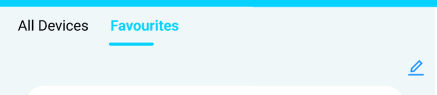
To reorder your favorite devices, tap  at the upper right.
Favorite Doors in List Mode
You can favorite frequently used doors in List Mode for quick access. Please note that if you favor a specific device in Card Mode, its doors will all be favored in List Mode.
1. Tap Favorites > Add Favorite Device on the home page.
2. Select the desired door and return to the last page. The door will be seen in the Favorites list.
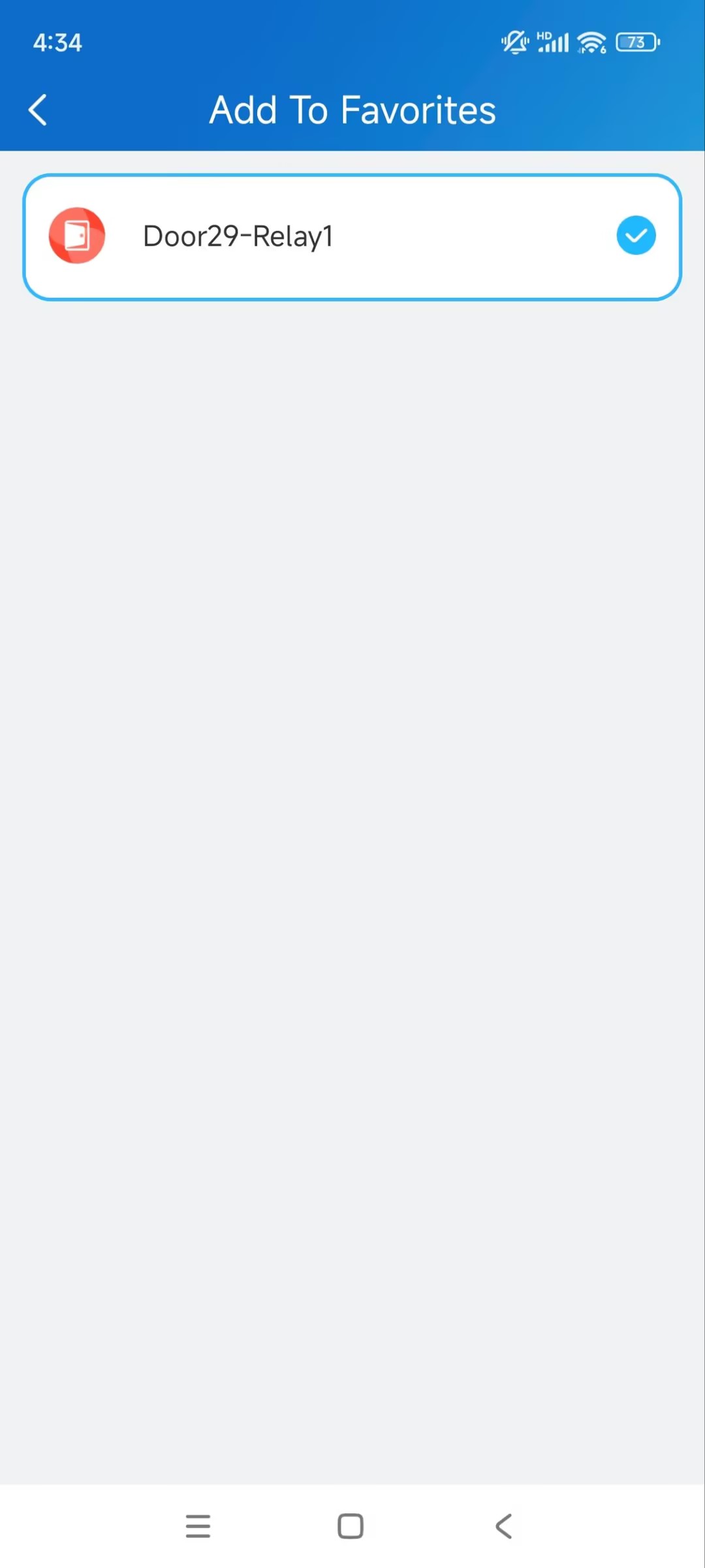
To reorder the favorite devices, tap at the upper right.
Note
Once you switch the SmartPlus account, the previous account’s Favorites will be cleared.
Messages and Notifications
Go to the Notification Center
You can receive messages from the Akuvox Cloud, the security center, all sites, and more.
Messages include package delivered, temp key used, voice messages, etc.
Note
Package message feature is ONLY available for communities subscribing to premium feature plans.
Only the R29 door phone supports pushing package room messages.
Voice messages are stored for 1 month.
S539 and X915V2 door phones support leaving voice messages for residents.
Only family master accounts can delete messages.
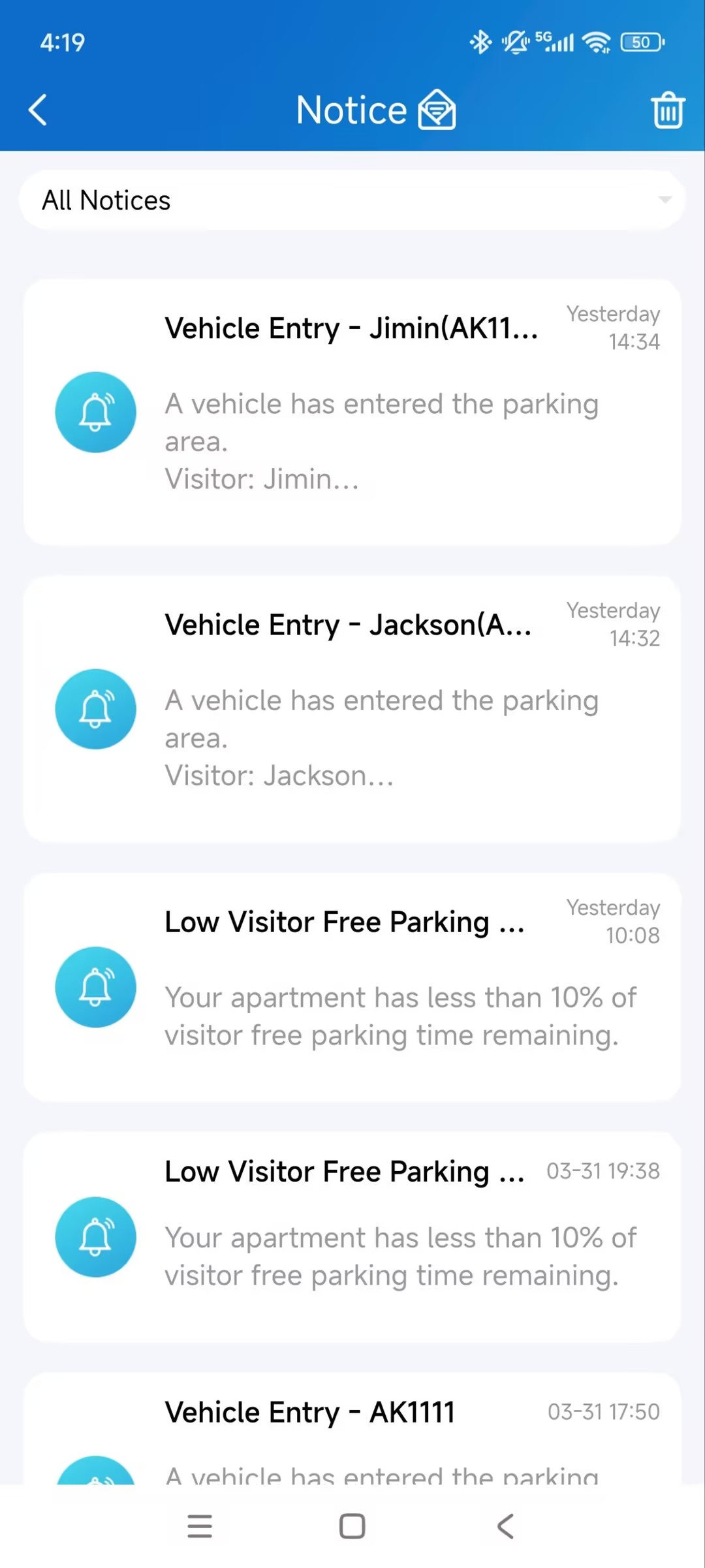
Tap the message icon in the upper-right corner of the homepage.
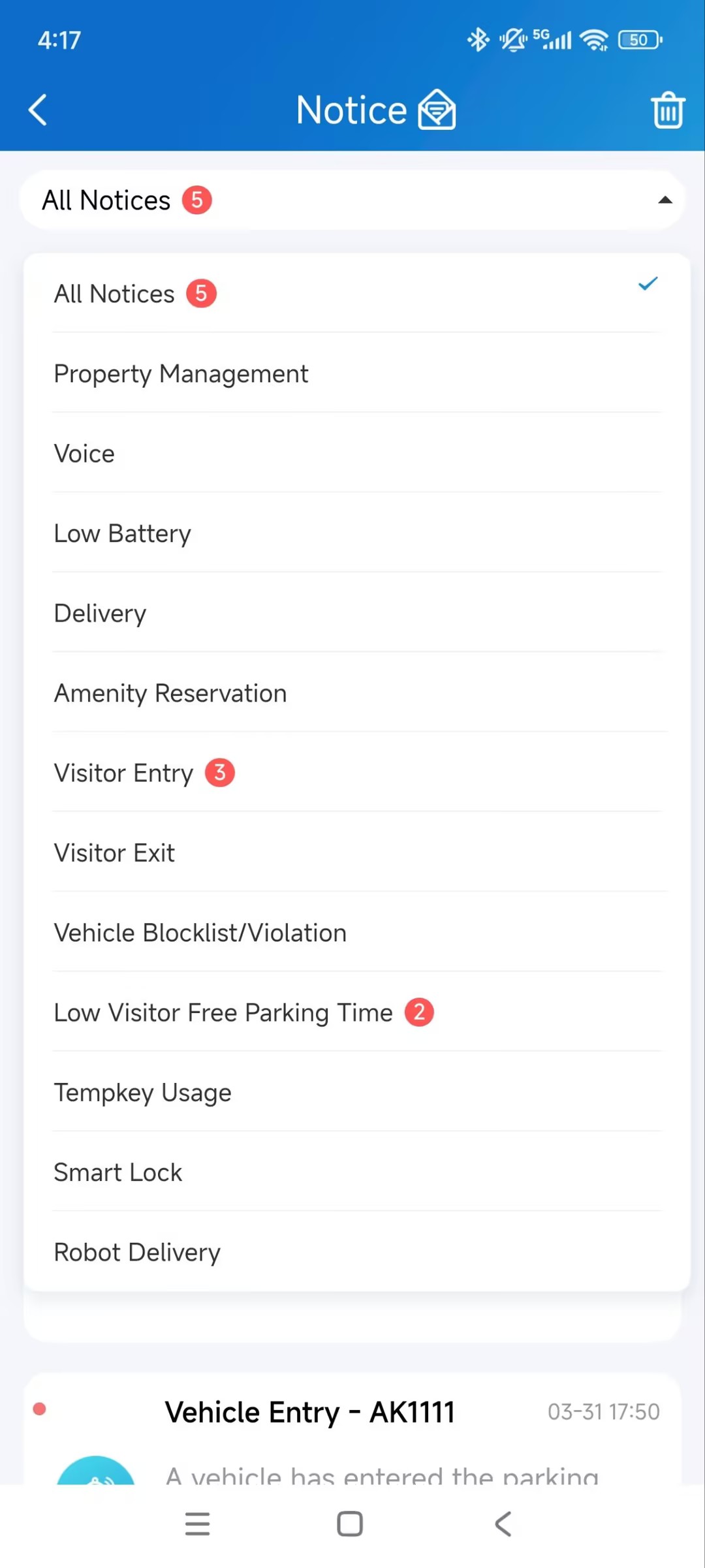
If there is a red dot appearing, it means that you have new or unread messages.
You can check messages by their types.
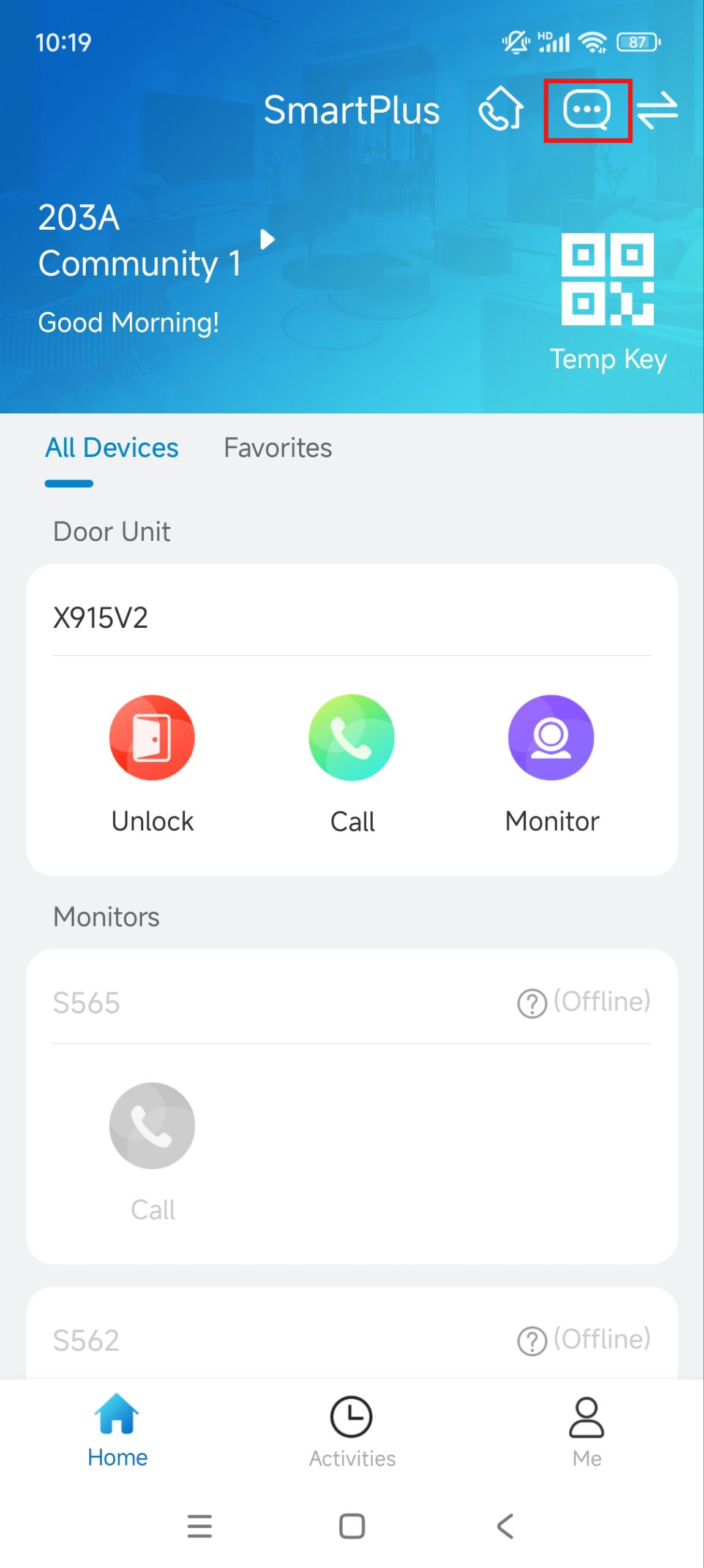
To remove all red dots with one tap, tap
 and all the messages will be read automatically.
Tap the desired message to see the details and copy the content if needed.
Receive Offline Push Notifications
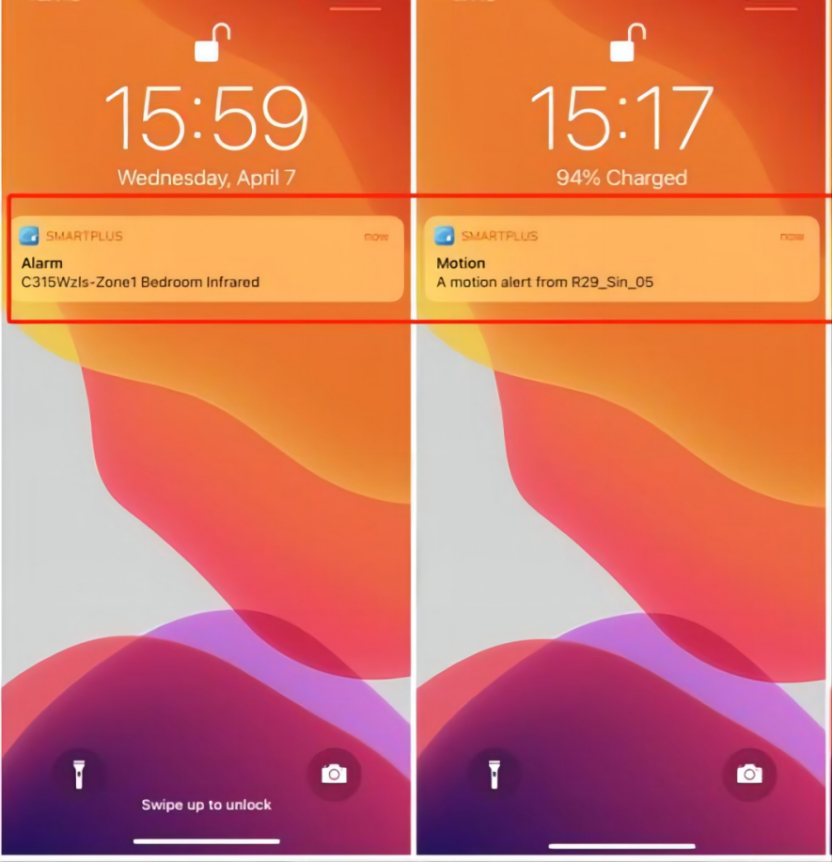
When the app is running backstage, it will push the following types of pop-up messages:
Messages sent from the Cloud and property managers
Temp key used messages
Package room messages
Voice messages
Yale lock’s low battery status messages
Motion alerts
Alarms
SOS
Emergency Alarm: All Public Doors are Open/Closed. Please note that only when property managers enable the notification will you receive this notice.
Package detection alerts
Strong Arming Alarm Reminder
If this feature is enabled, the alarm ringtone will ring continuously for 30 seconds when the alarm is triggered.
1. Go to Me > Settings > Notification Settings.
2. Enable or disable Strong Arming Alarm Reminder.
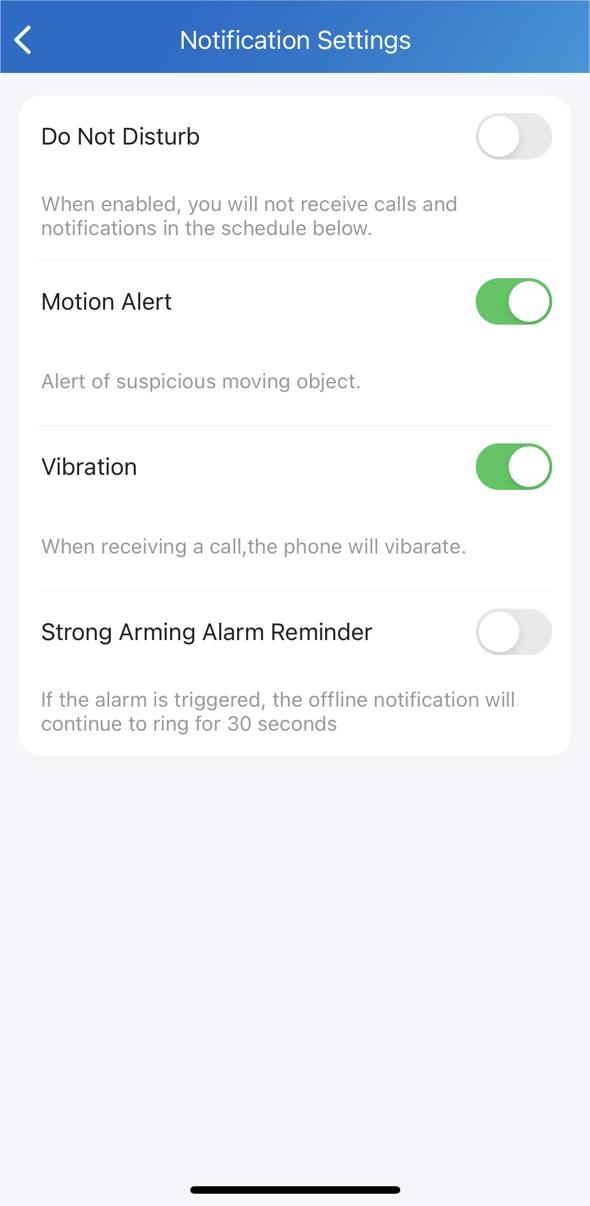
Please note that for Android mobile phones, ringing will stop when the device is disarmed.
For IOS mobile phones, ringing will continue for 30 seconds.
Not to Receive Calls and Notifications
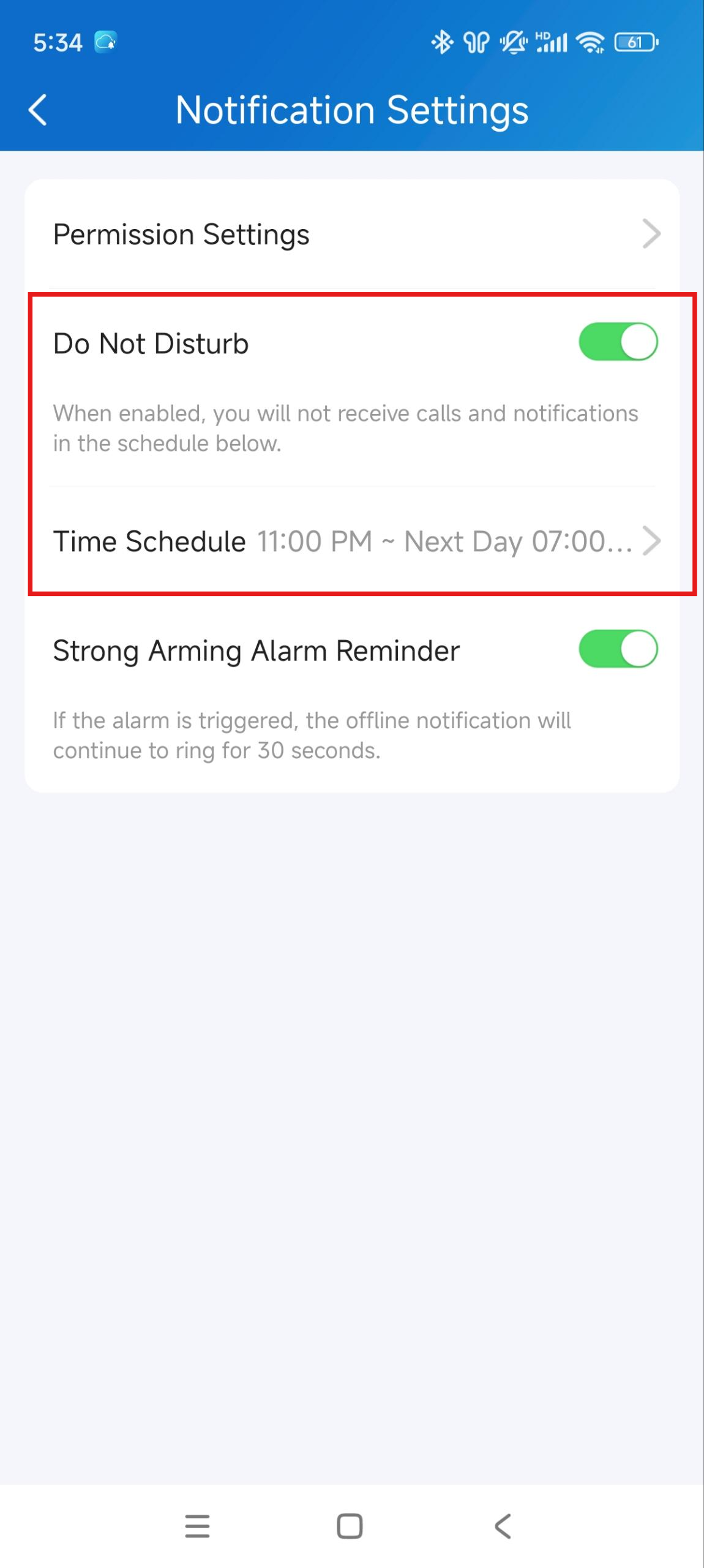
The app can silence all calls and notifications (except Alarm warnings) when you do not want to be disturbed.
1. Go to Me > Settings > Notification Settings.
2. Turn on Do Not Disturb.
3. Set up a Time Schedule.
Call histories will still be recorded while Do Not Disturb is enabled, and you can view messages and notifications received during this time by tapping the message icon on the homepage.
Logs and Histories
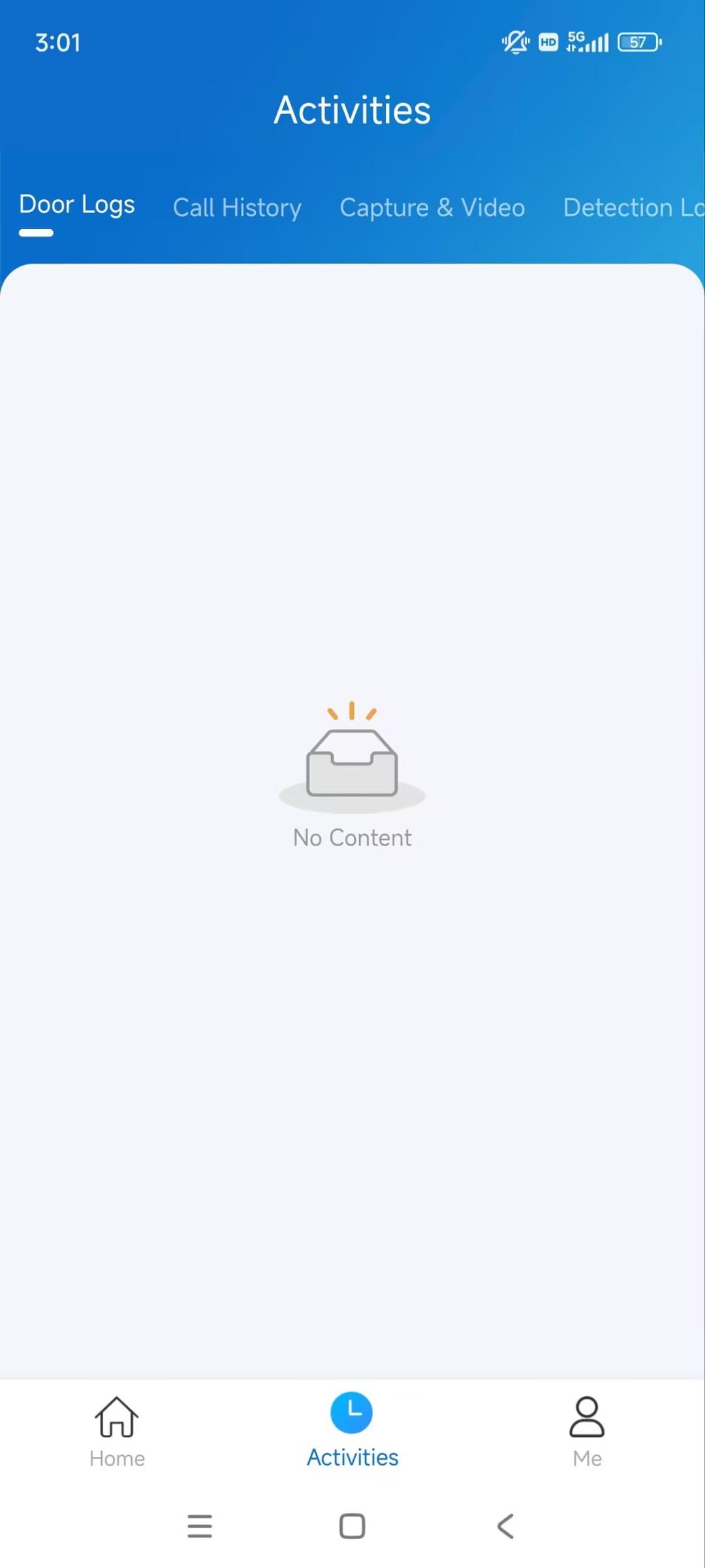
You can check the following types of logs by tapping Activities on the bottom menu.
Door Logs: All the calling and door-opening histories.
Call History: All the outgoing/incoming/missed calls.
Capture Logs: All snapshots you made of live videos or videos recorded.
Detection Logs:
Motion Detection: Suspicious movement is detected by the door phone.
Package Detection: Someone puts or takes the package within the camera detection area of the door phone.
Set up, Export, and Upload Logs
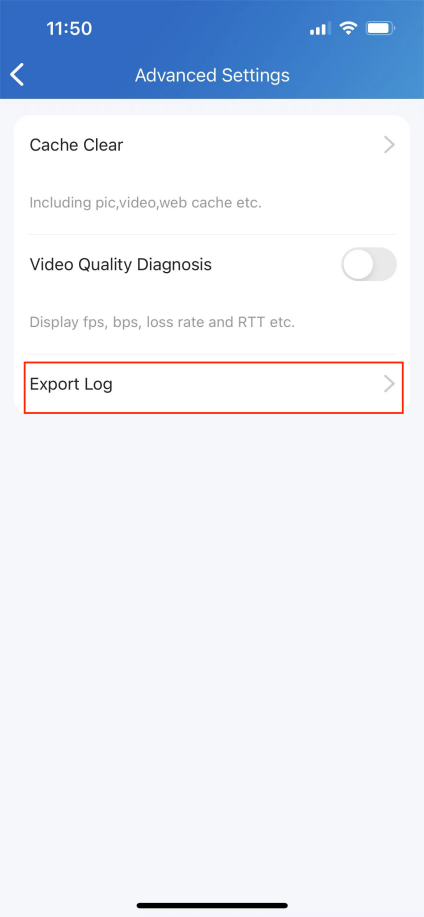
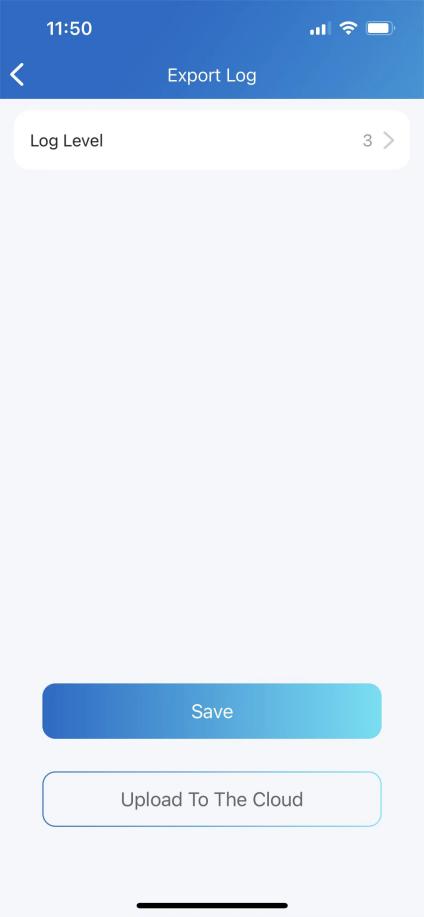
The log has 7 levels. The level is 3 by default. The higher the level is, the more detailed the log content is. You can export and send detailed logs to Akuvox technical engineers to analyze problems if the device malfunctions.
Go to Me > Settings > Advanced Settings > Export Log.
Select a level and Tap Save. You can ask our technical engineer for detailed information on each level.
If you want to upload the current log to the cloud, tap Upload.
Advanced Settings
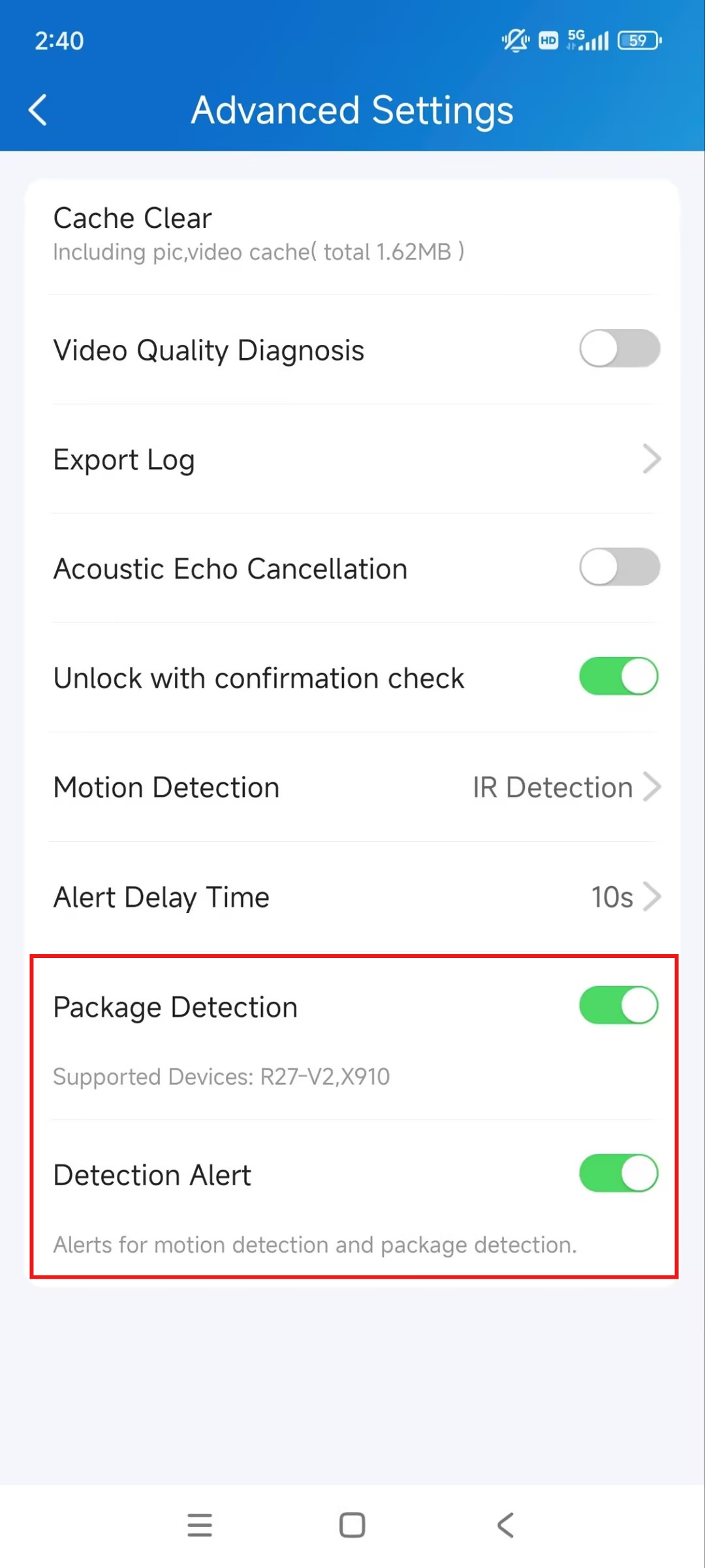
Package Detection
Akuvox door phone X910 supports the package detection feature, sending notifications to your SmartPlus App when it detects a package in or out of its camera detection area.
The setting is ONLY available for SmartPlus master accounts.
1. Tap Me > Settings > Advanced Settings.
2. Enable/disable Package Detection.
3. Enable/disable Detection Alert. This decides whether to send notifications to you when package detection happens.
MR01/MR03 Sensor Alert Settings
When the Akuvox radar sensor MR01/MR03 is installed in your home, you can:
Receive notifications when the sensor detects an event that triggers an alert.
Configure Sensor Detection Call Alert to automatically call emergency contacts when an alarm is triggered.
Configure Care Alarm Emergency Access to send a temporary access key to healthcare personnel when an alarm is triggered.
Click here to view the feature configuration guide.
Monitor Your Health and Sleep with MR03
When the Akuvox radar sensor MR03 is installed in your home, you can:
Monitor your heart rate and respiratory rate.
View sleep reports.
View the posture detected by MR03.
View event records detected by MR03.
Control whether property managers (PMs) can view your MR03 posture data through the PM cloud portal. This feature is available only to community residents.
Click here to learn how to use these features.
Check Video Communication Qualities
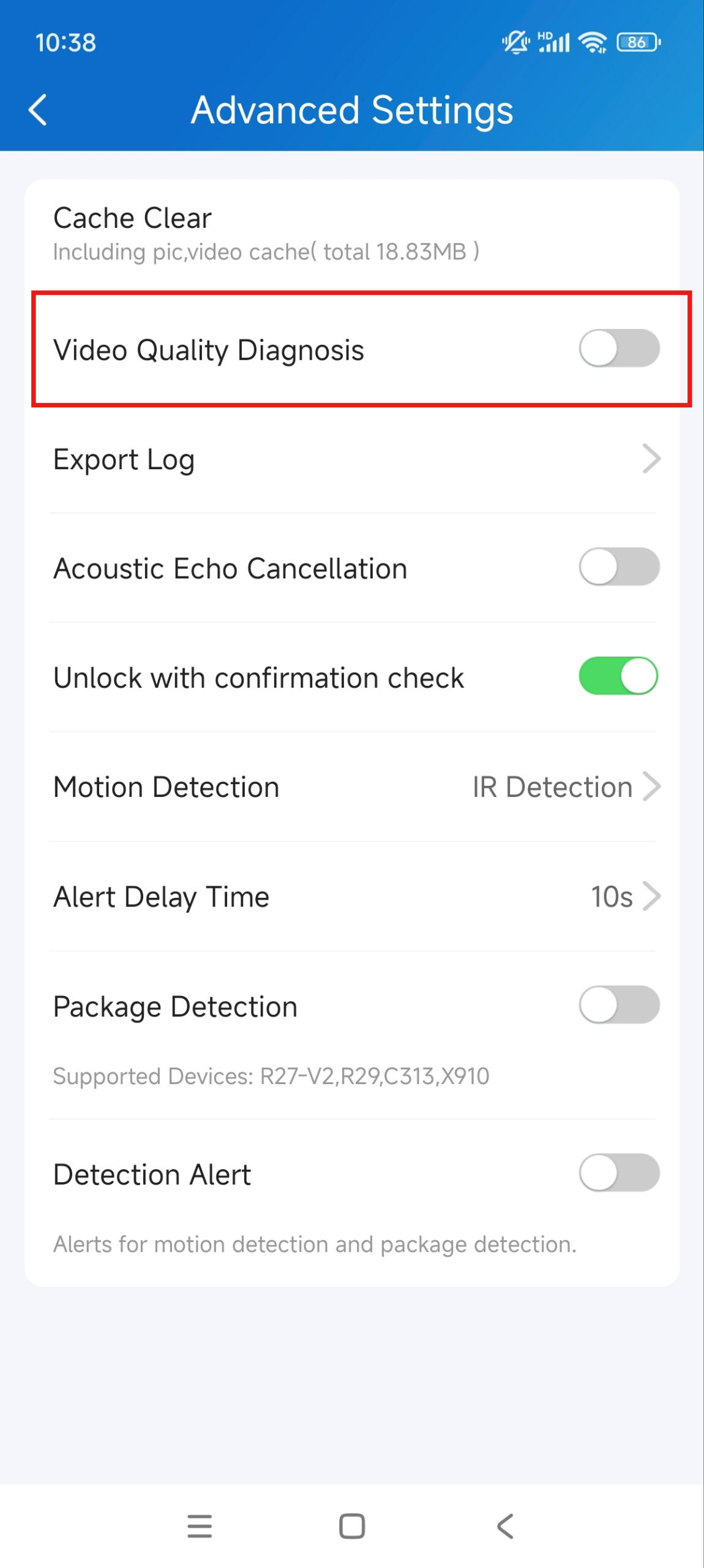
You can use Video Quality Diagnosis to check real-time video quality. It can be applied to video calls, live monitoring videos, and preview pages.
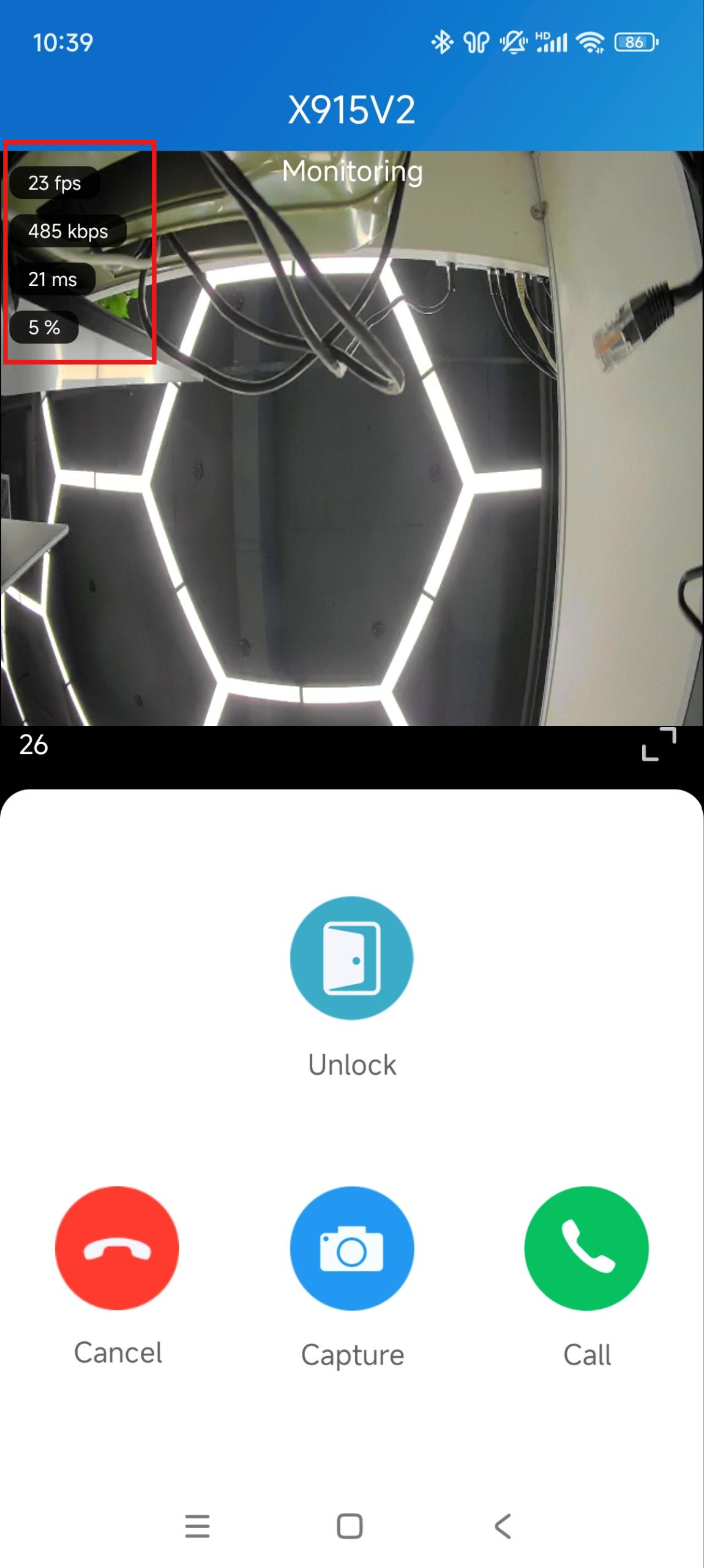
Go to Me > Settings > Advanced Settings, and turn on Video Quality Diagnosis, then you can see information below shown in the upper left corner of the screen:
fps: frames per second. If the value is low, it'll give a slow-motion or motion-blur effect to your video.
bps: bits per second. The higher the bps rate is, the faster the download or upload time will be.
packet loss rate: The lower the rate is, the better the network will be.
rtt: round-trip time. It’s the total time taken by a data packet as it travels from its source to the destination and back.
Enable Confirmation Prompts when Opening Doors
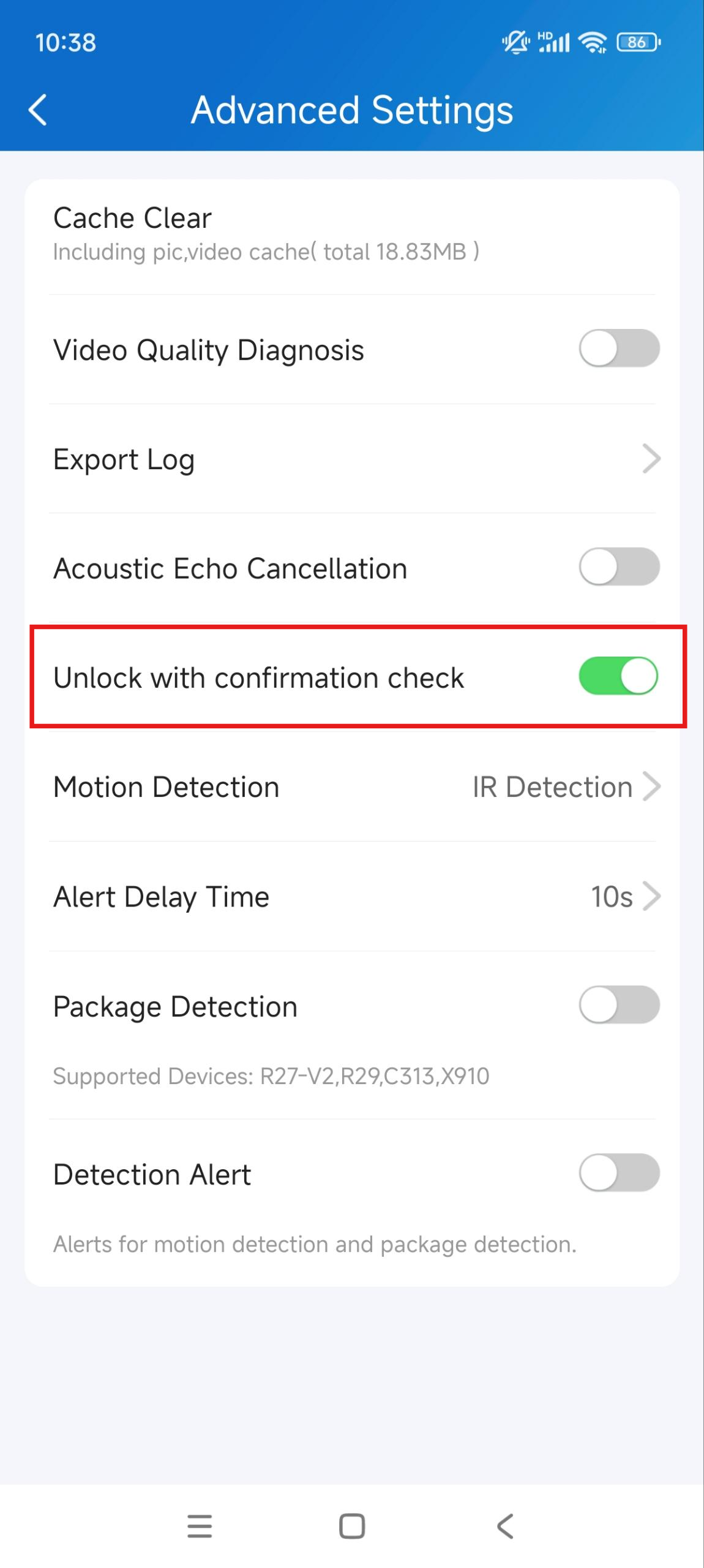
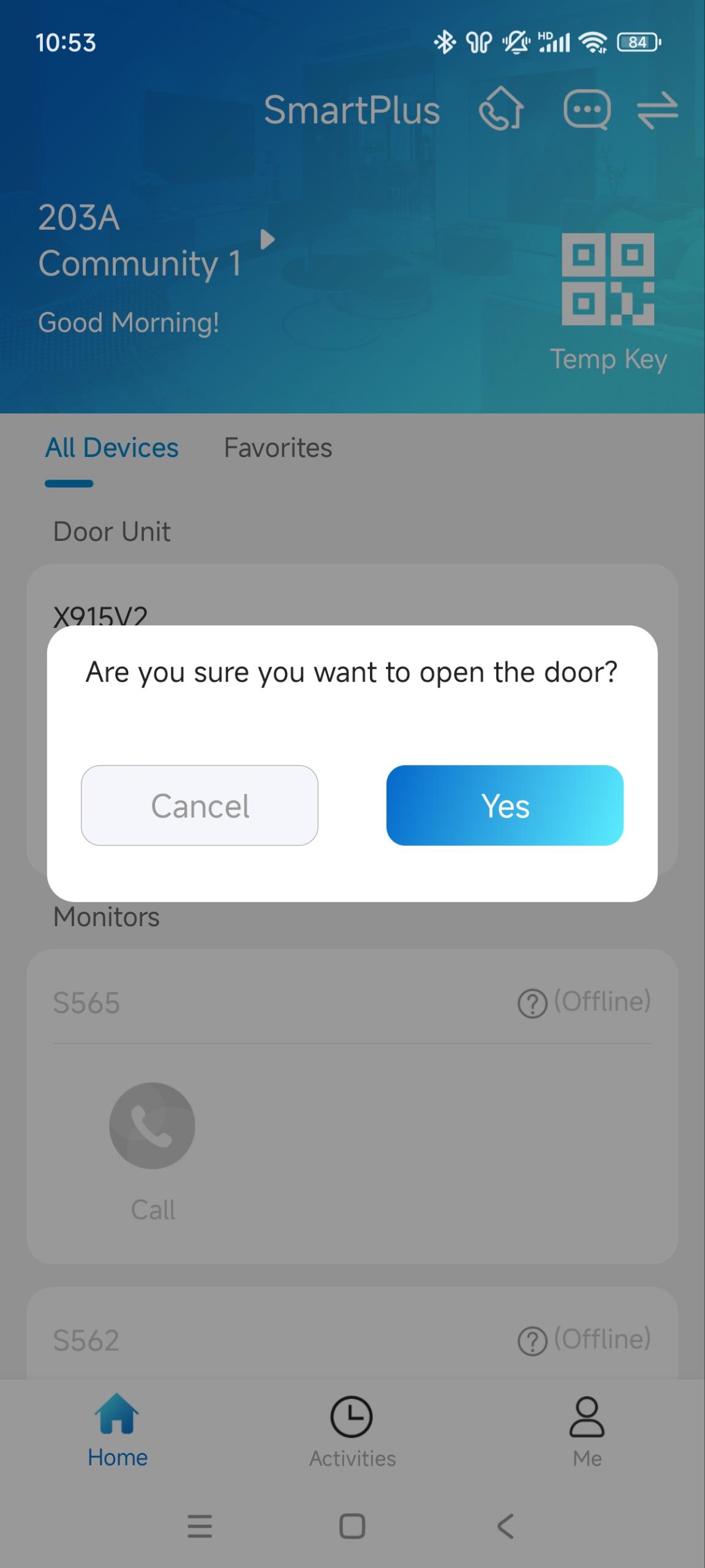
The unlock with confirmation feature prompts you to confirm your door opening command when you tap the unlock button. This helps prevent accidental unlocking and allows you to double-check before opening the door.
To enable this feature, go to Me > Settings > Advanced Settings, and toggle on Unlock with confirmation check.
Clear Cache to Improve App Performance
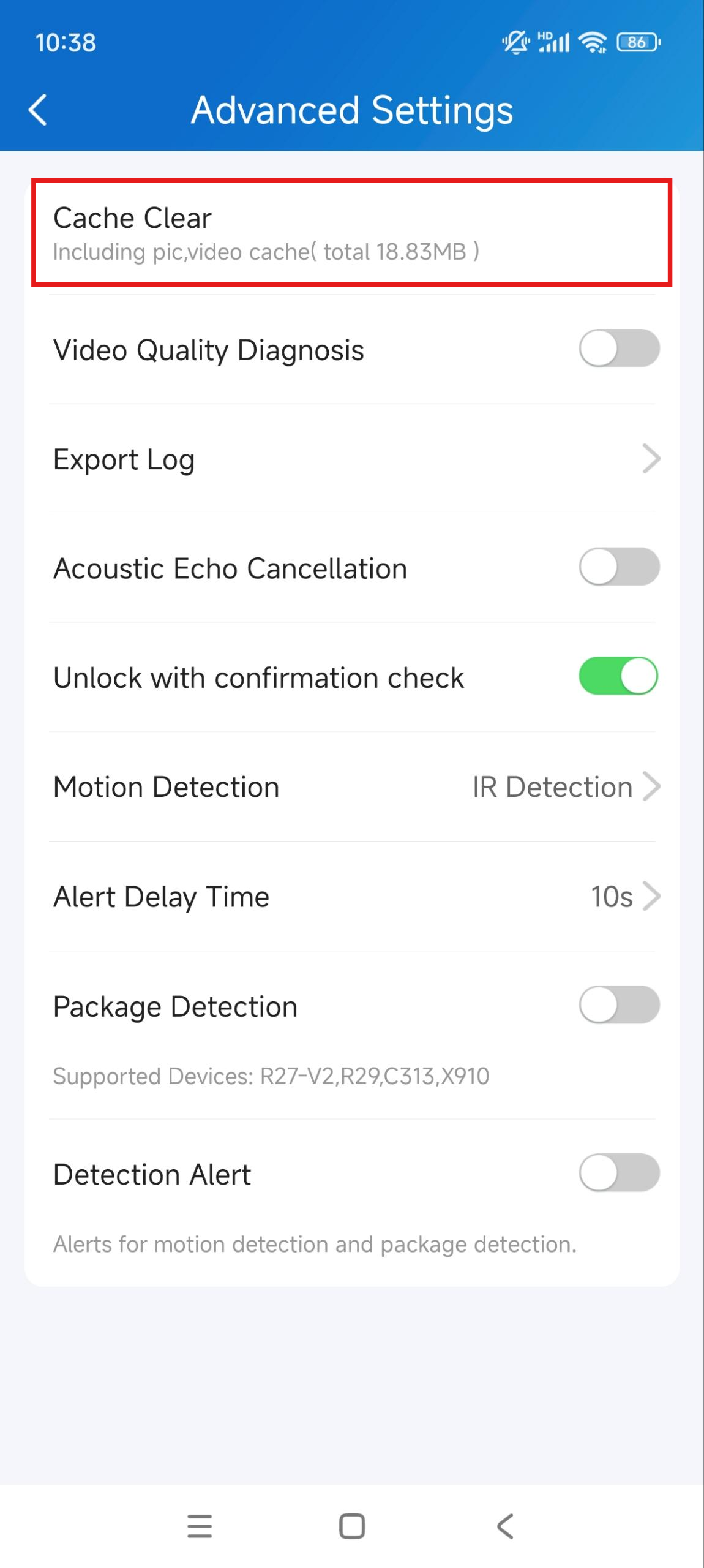
After using the app for a long time, you can clear the cache to run the app better and free up storage space. Go to Me > Settings > Advanced Settings, and tap Cache Clear.
Premium Plan Settings
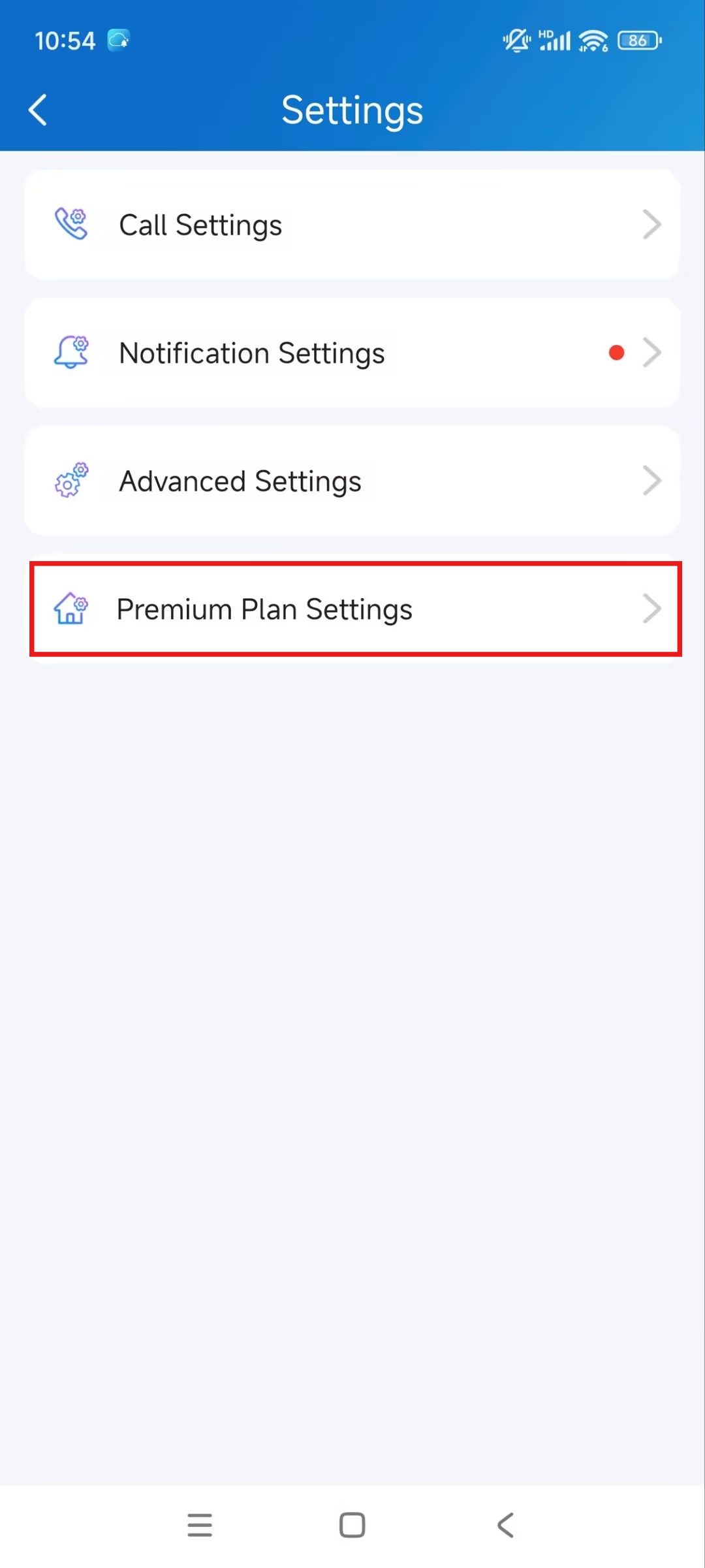
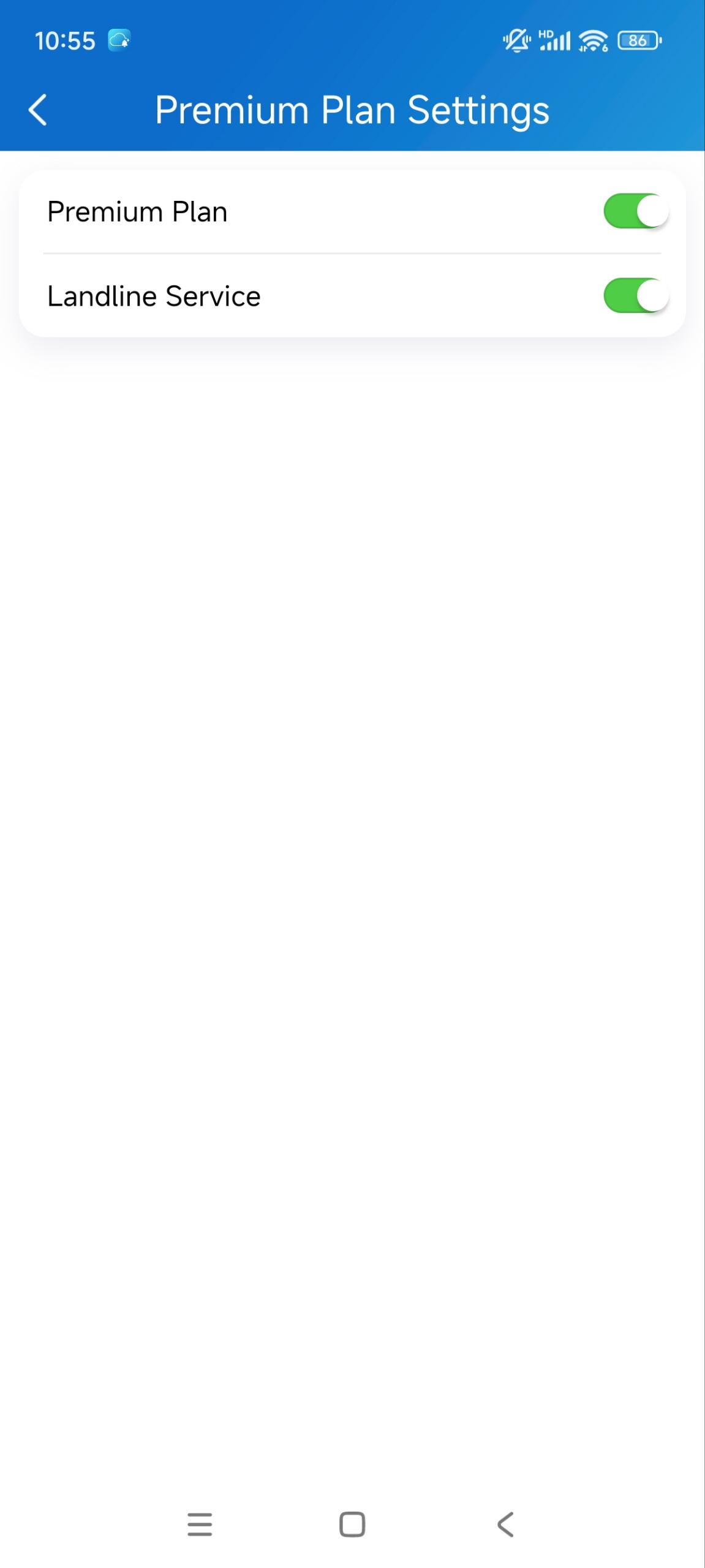
If you are a single-family project user, you can turn on/off the premium plan and landline services with the SmartPlus App.
1. Tap Me > Settings > Premium Plan Settings.
2. Enable/disable Premium Plan and Landline Service. The premium plan contains the landline service and third-party camera integration function.
Please note that changing the feature plan will affect your account's billing.
Account Settings
View and Change Account Information
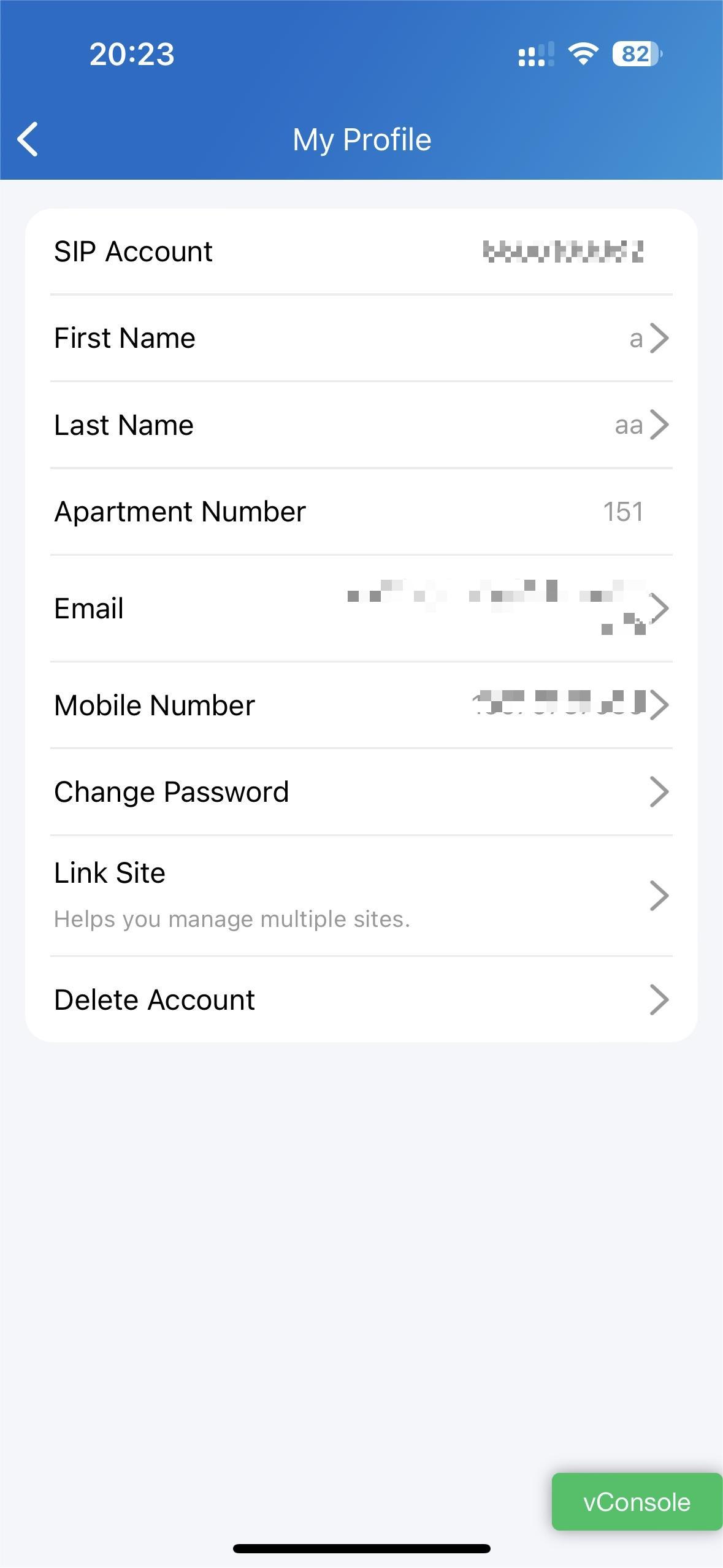
You can check your account information, including your SIP account, username, apartment number, Email, and mobile number. For better security, you can make a change to the username and login password.
Check your account information
Tap Me on the bottom Tap bar.
Tap [your name], and you can see the details.
.png)
Change your username
Go to Me > [your name].
Tap First Name and Last Name, and type in new names in the boxes.
Tap Confirm to validate the change.
(1).png)
.png)
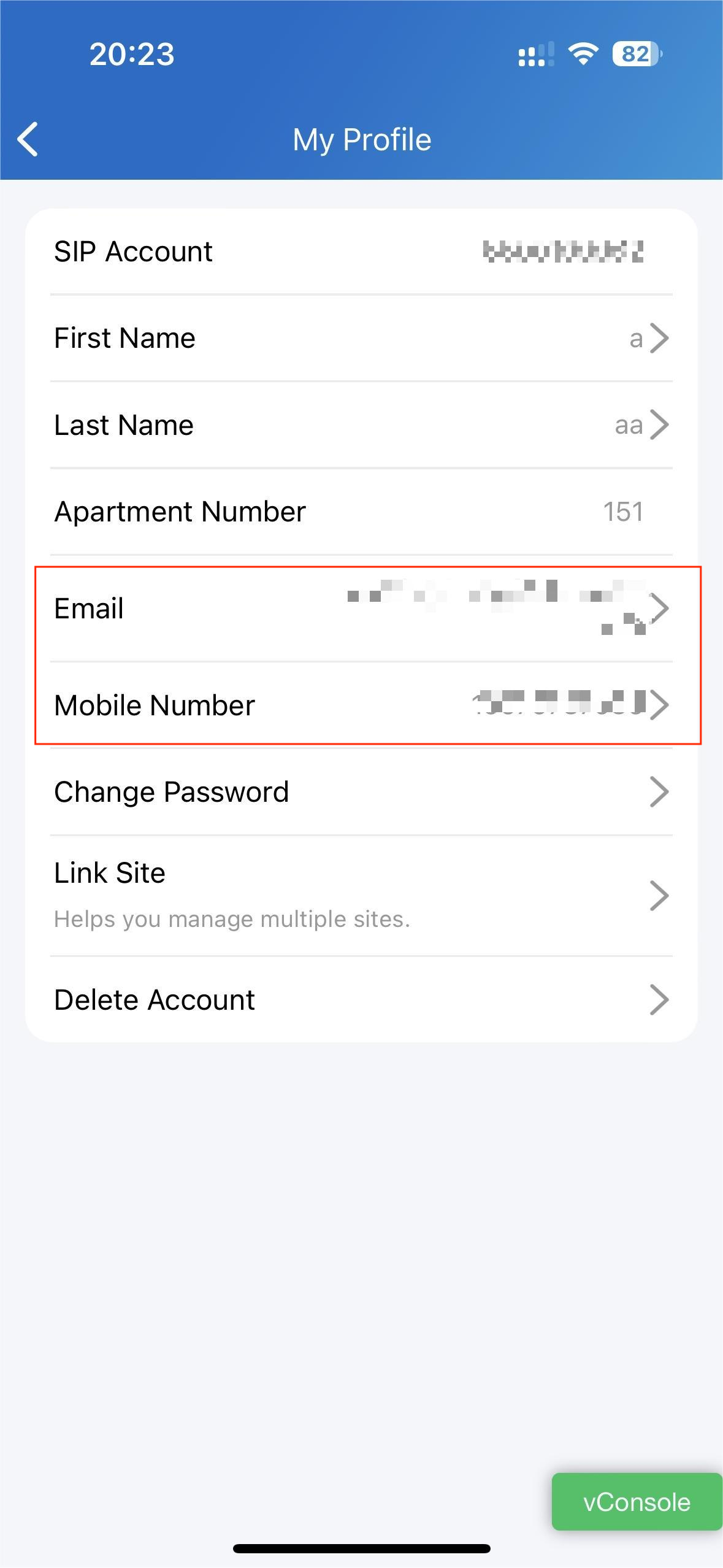
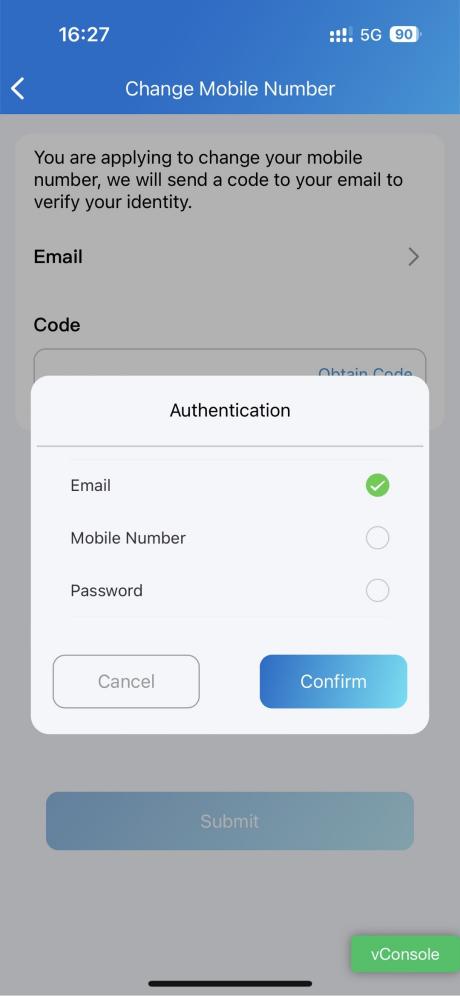
Change your mobile phone and email number
Go to Me > [your name].
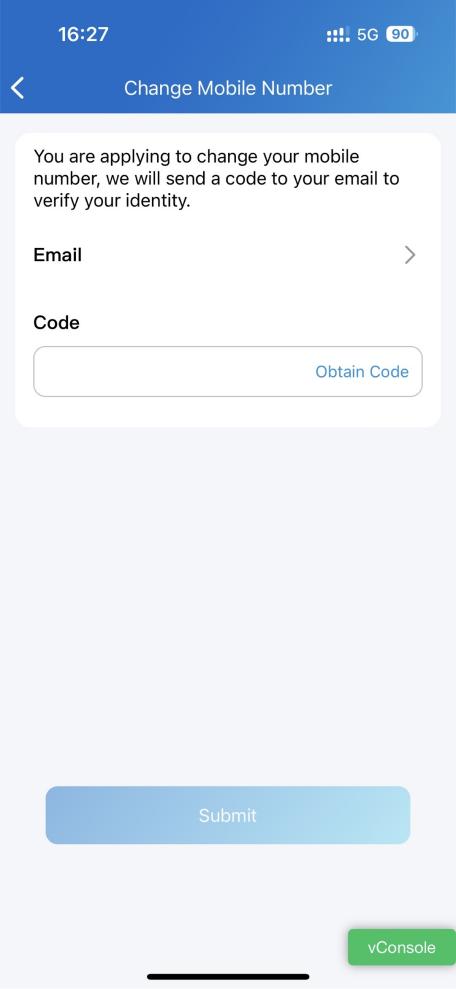
Tap Email or Mobile Number.
Choose the authentication mode. Enter the password or verification code you received from your mobile phone or email.
Tap Confirm to validate the change.
You need to log in again after the change.
Change a weak or compromised password
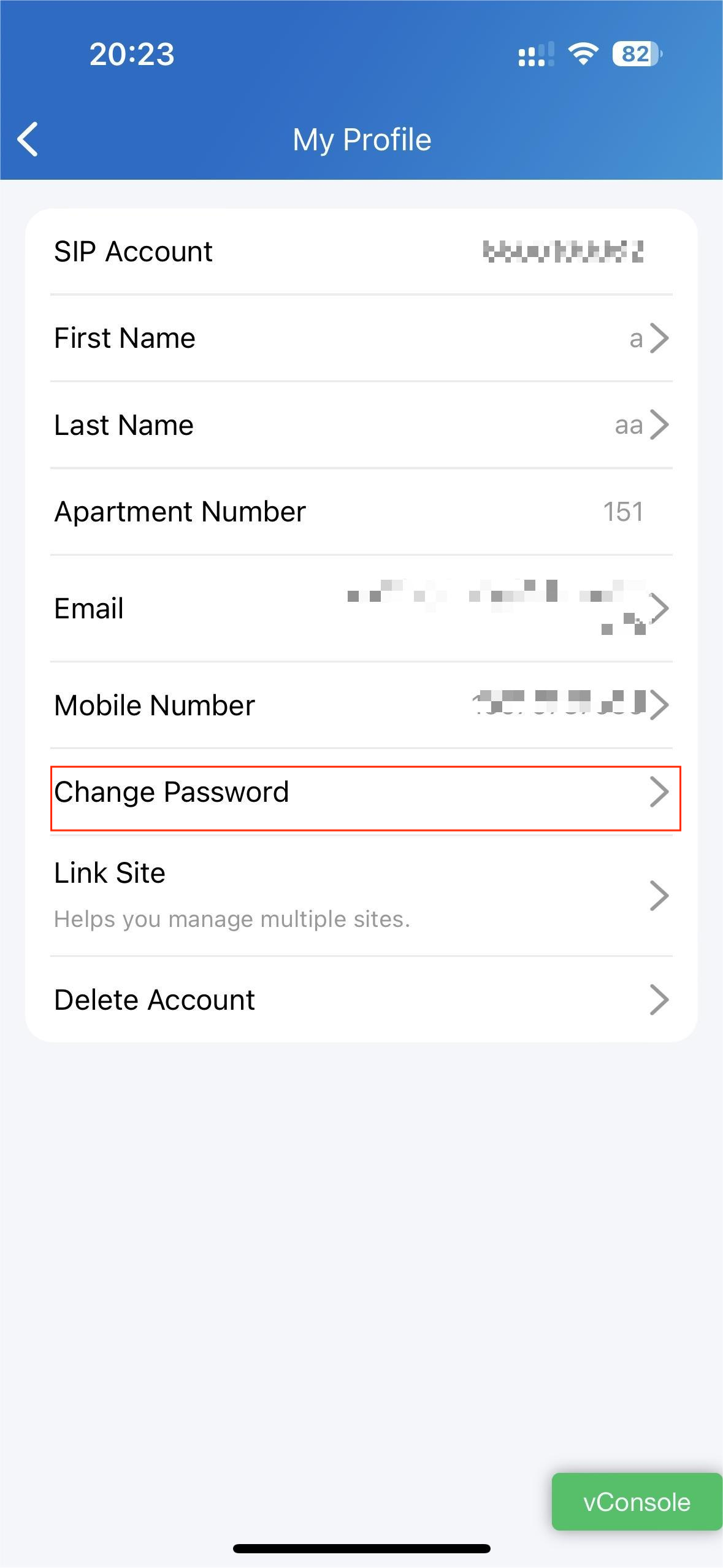
You can change a compromised or weak (for example, it is easily guessed or has been used for a long time) login password, do the following:
Go to Me > [your name].
Tap Password.
Create a new password. When doing so, you are asked to enter your old password.
Tap Submit to validate the change.
(2).png)
Forgot password
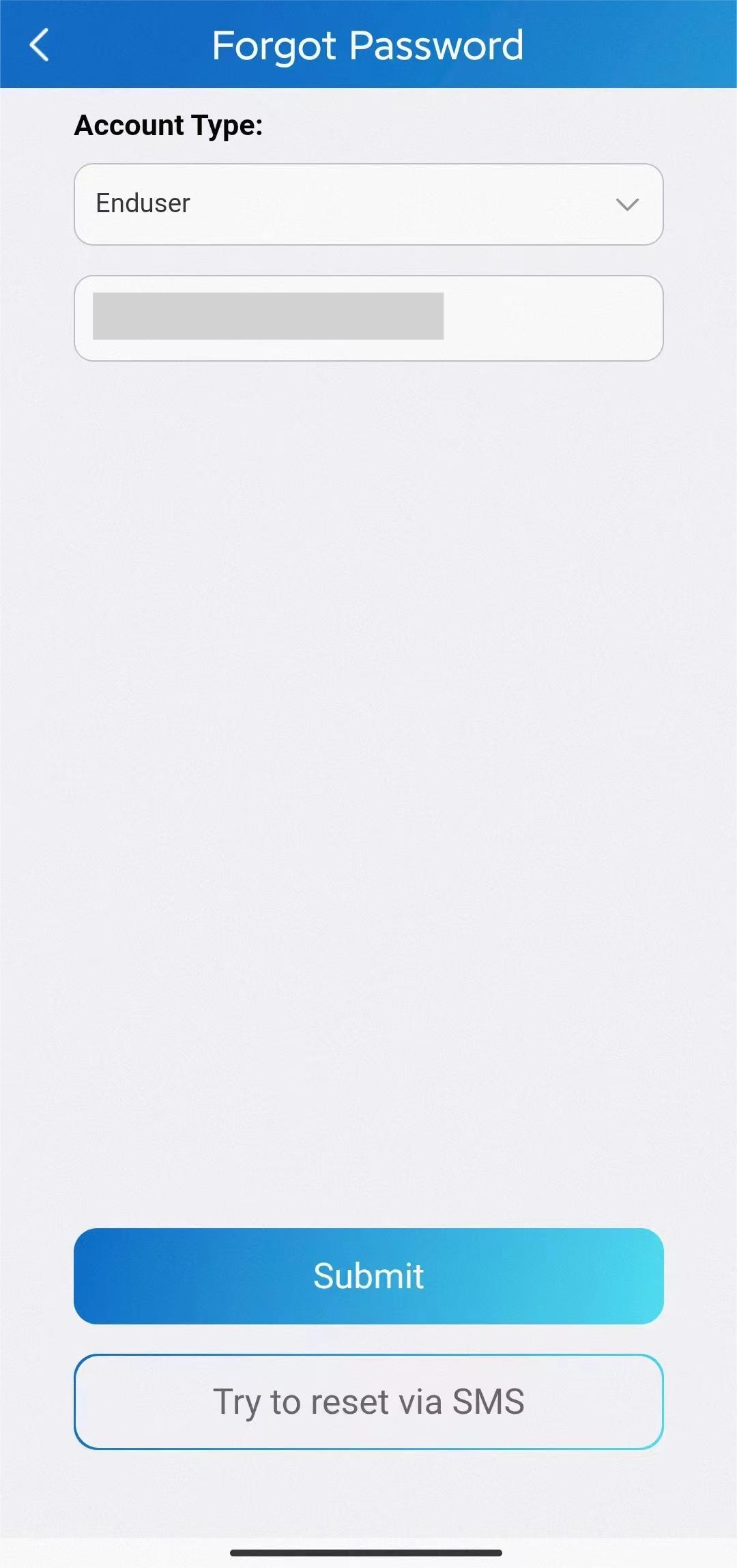
If you forget your login password, tap Forgot Password on the login page. You can reset your password using Email or message:
Email. Select your account type and enter your email address. Then, you will receive an email containing a link that will redirect you to the reset page.
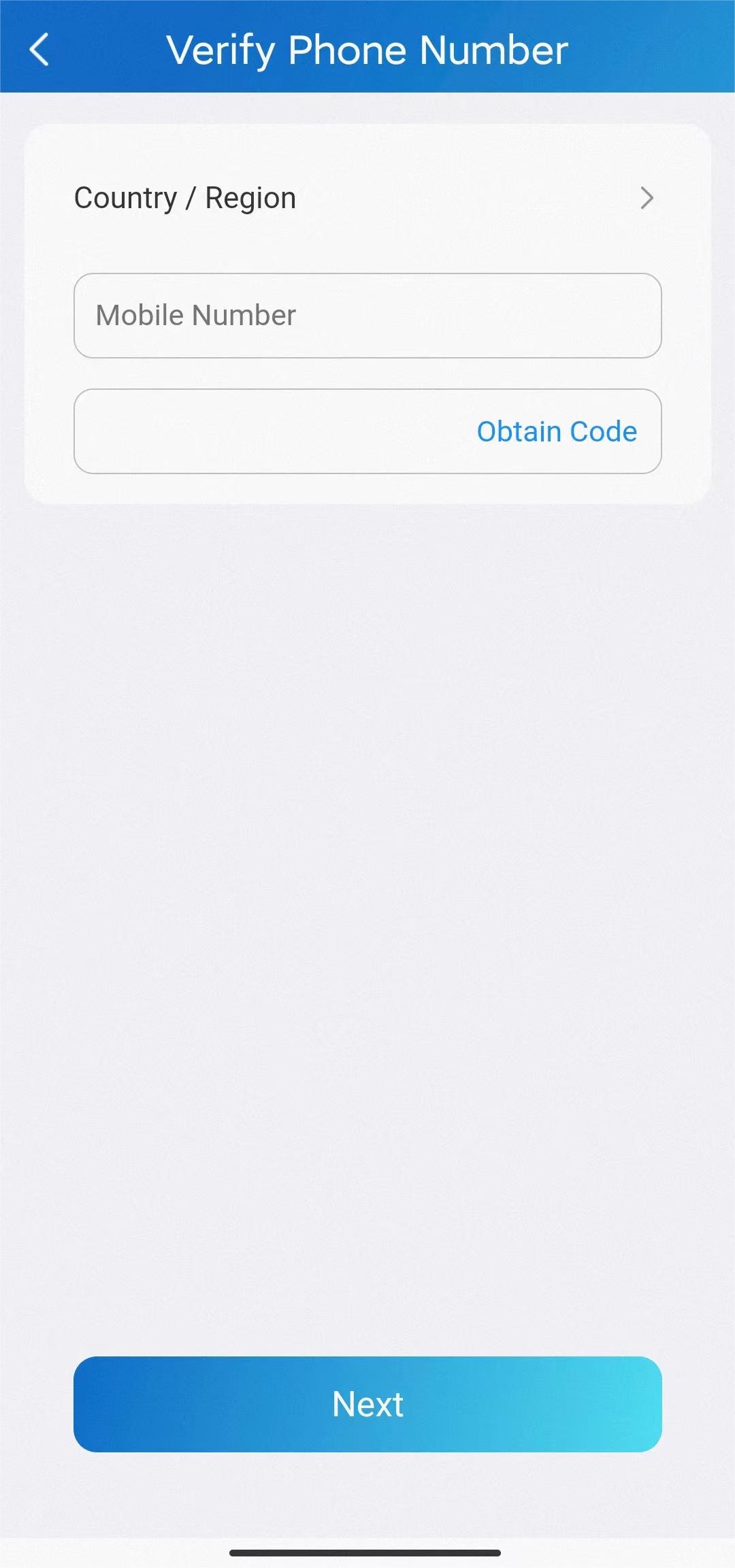
SMS.
Tap Try to reset via SMS.
Select Country/Region code.
Enter your mobile number and tap Obtain Code.
Enter the verification code you received. Tap Next and follow the onscreen instructions.
Family Member Account Management
If you are the family’s master, you can add family members and create accounts for them, so they can log in to the SmartPlus App and use Akuvox Cloud services.
Add Family Member Accounts
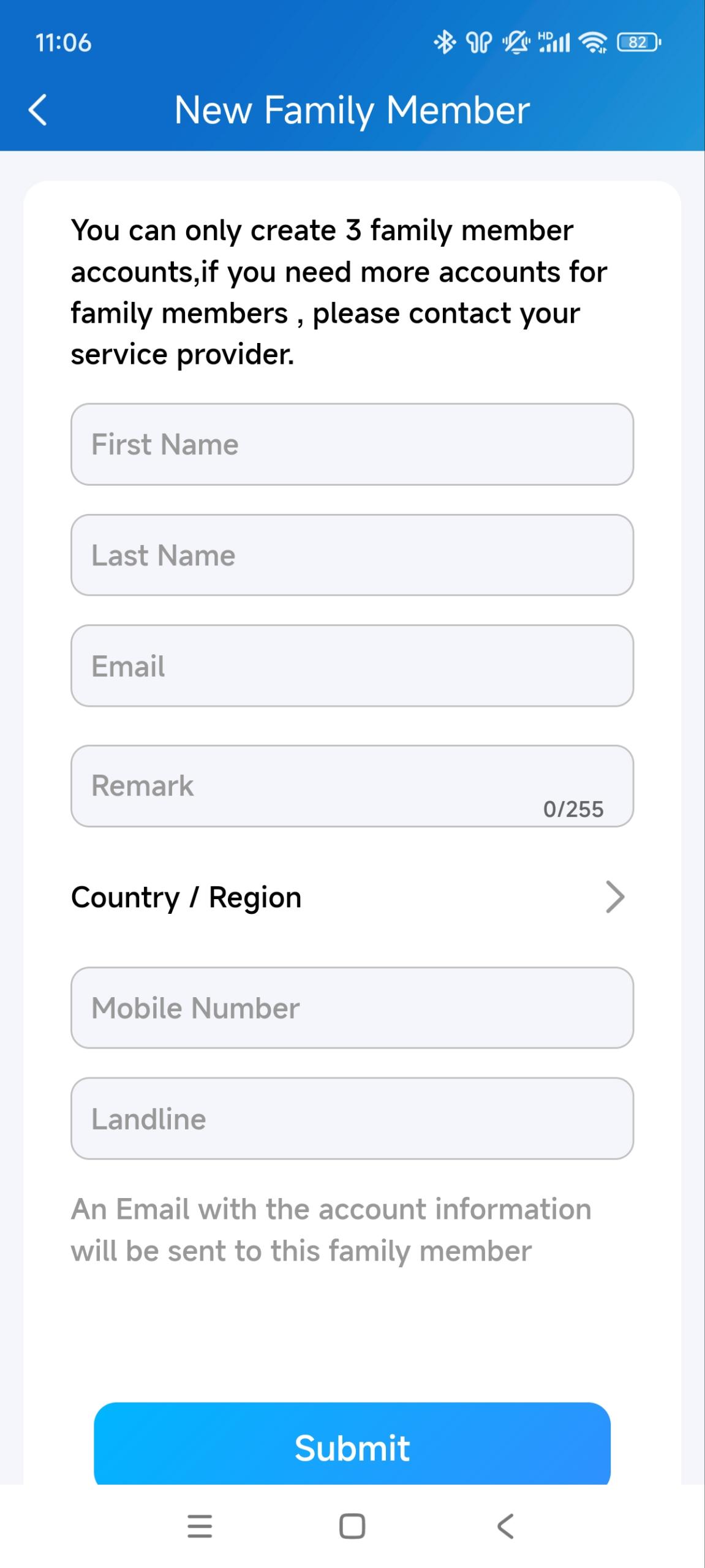
You can create multiple family member accounts, three of which are free to use. Using more accounts requires activation and an extra payment. Please contact your service provider for usage.
1. Go to Me > Family Members.
2. Tap + New Family Member.
3. Enter username and email address. Mobile numbers and landlines are optional.
4. You can add remarks for the family members to indicate their identities.
Note
If you entered the member’s email address:
The login credentials and password reset email will be sent to the member’s email address.
If you only entered the member’s phone number:
Both the login credentials and password reset email will be sent to your (the family master’s) email.
If you did not enter the member’s email address or phone number:
The member uses the SIP number and password to log in, and the password reset email will be sent to your (the family master’s) email.
5. Tap Submit.
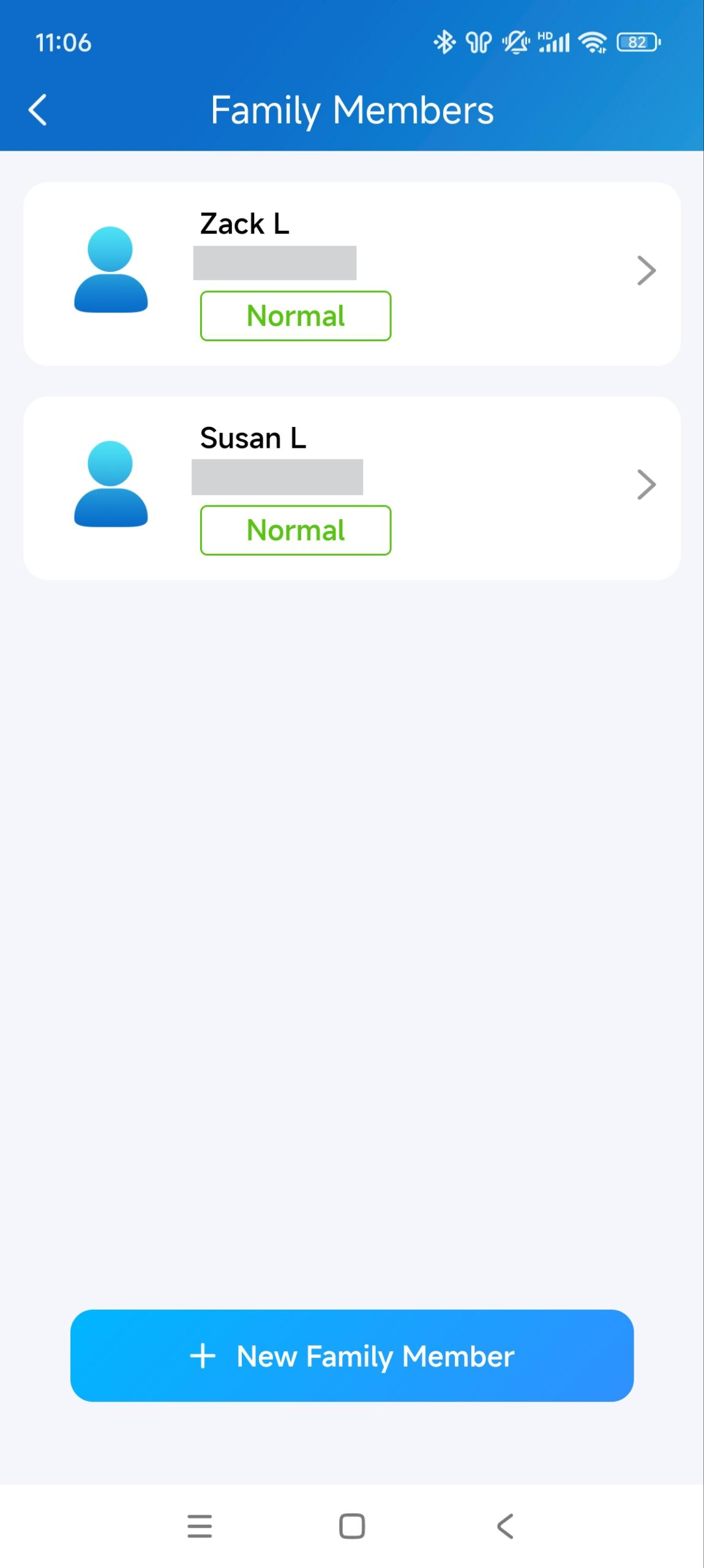
Once a family member is created, you can call him/her by selecting him/her from the list.
You can see, edit, and remove the members on the Family Members page at any time.
Edit/Delete Family Member Accounts
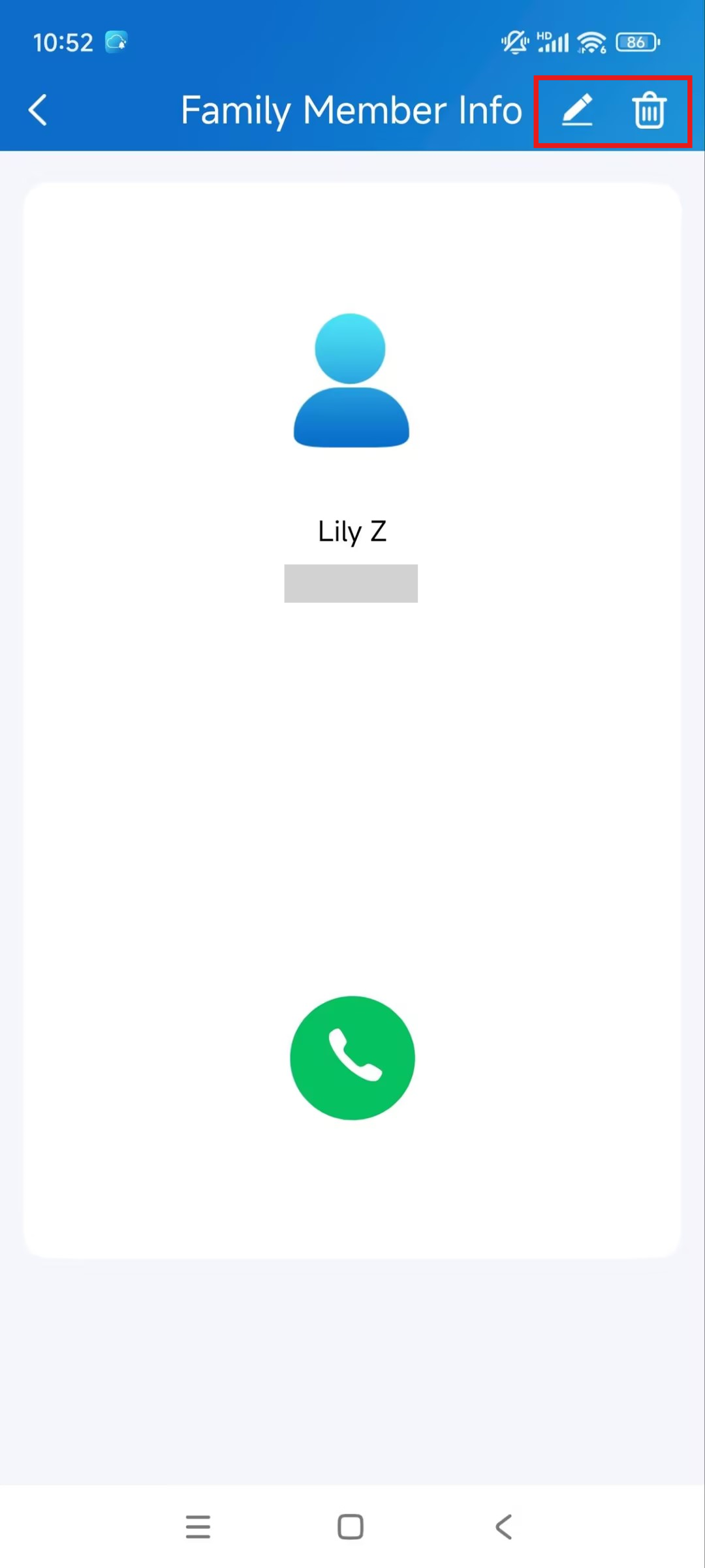
You can modify the information of the family member accounts after creating them.
Tap Me > Family Members and select the target family member.
Modify the account by clicking the Edit icon in the upper-right corner.
Delete the account by clicking the Delete icon.
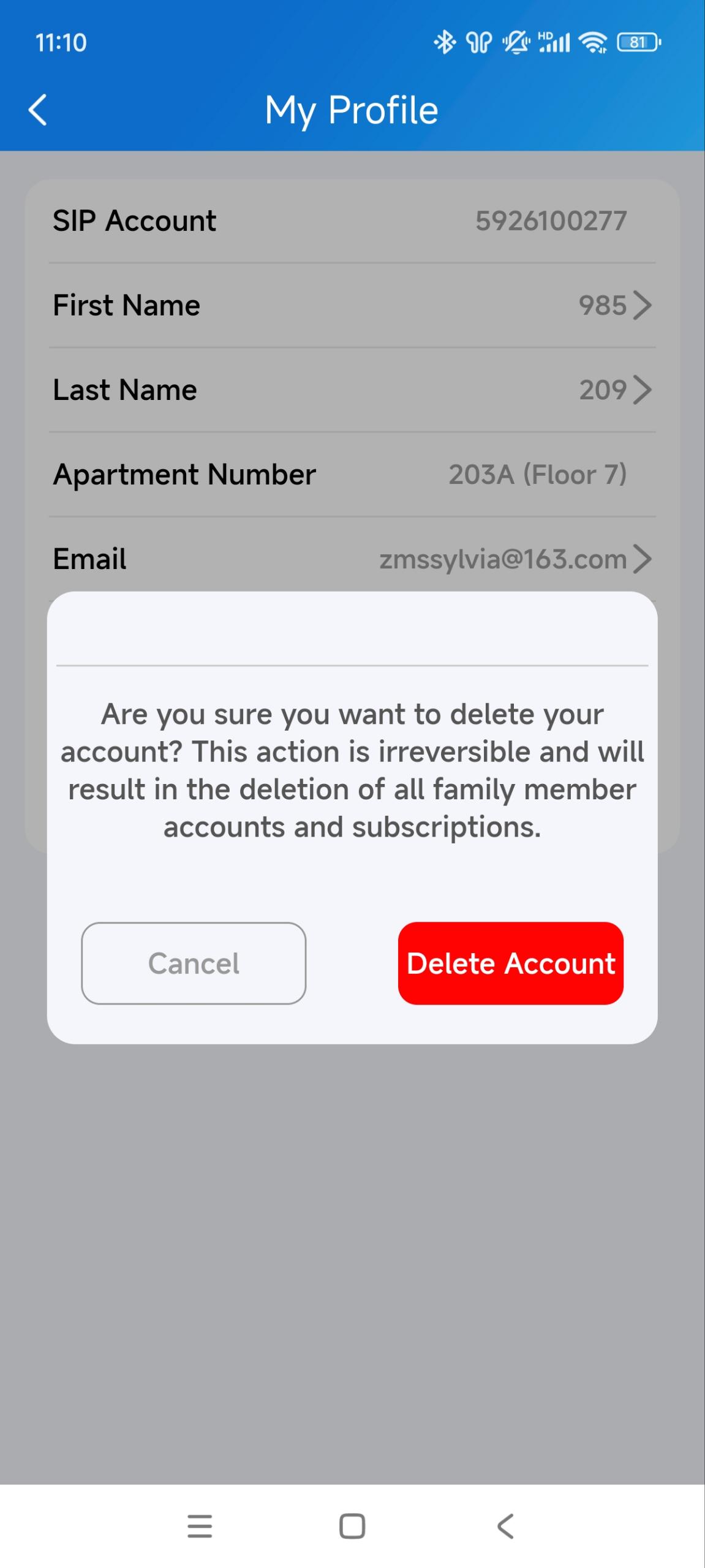
Delete Your Account
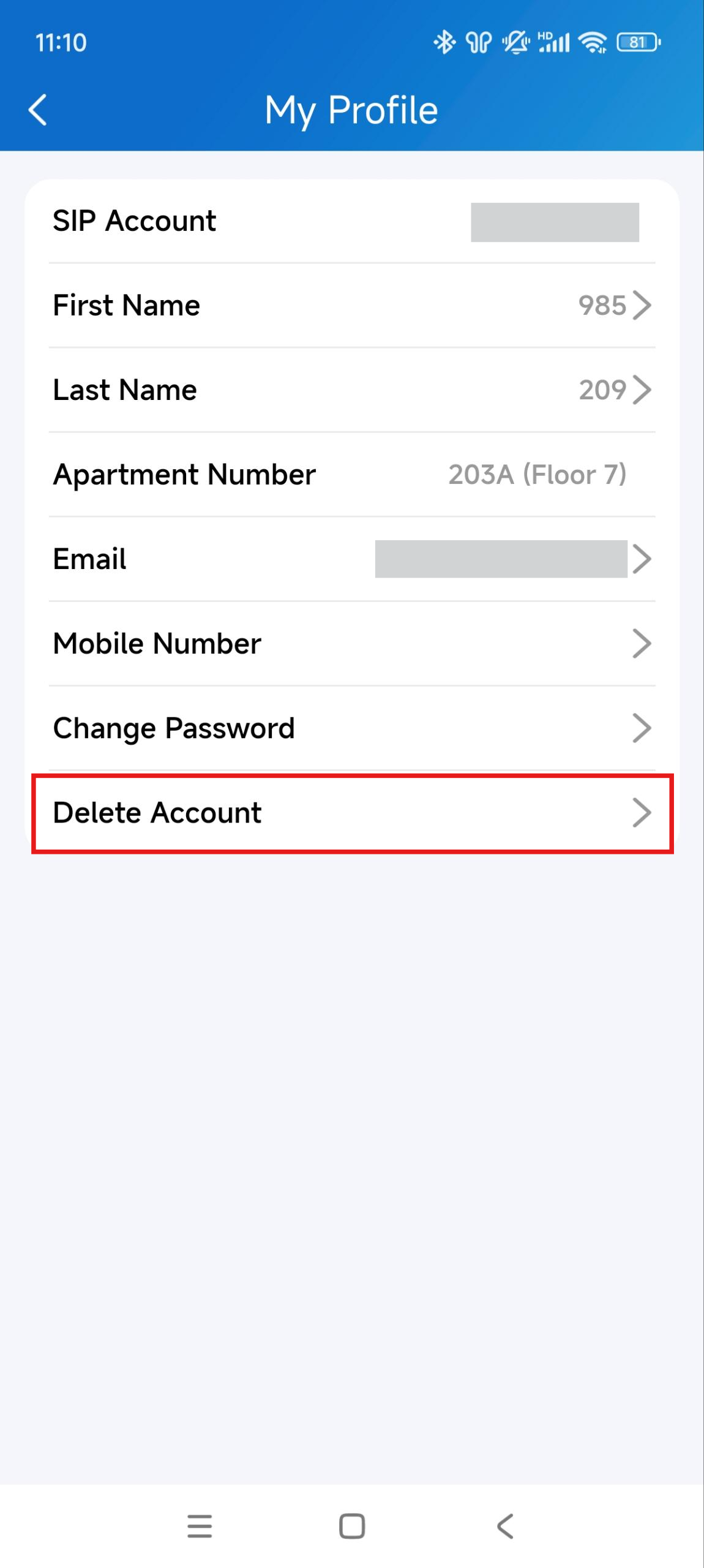
You can cancel your account at any time.
Once your account is deleted, you will not be able to sign in to SmartPlus anymore. And it charges if you apply for a new account and use it.
To delete the account, do the following.
1. Go to Me > [your name] > Delete Account.
2. Tap Confirm when you're asked.
3. Enter the correct verification code.
The code will be sent to:
Your email or phone number, if you use either of them to apply for the account, or
The family master's email or phone, if you did not provide any of your information when applying.
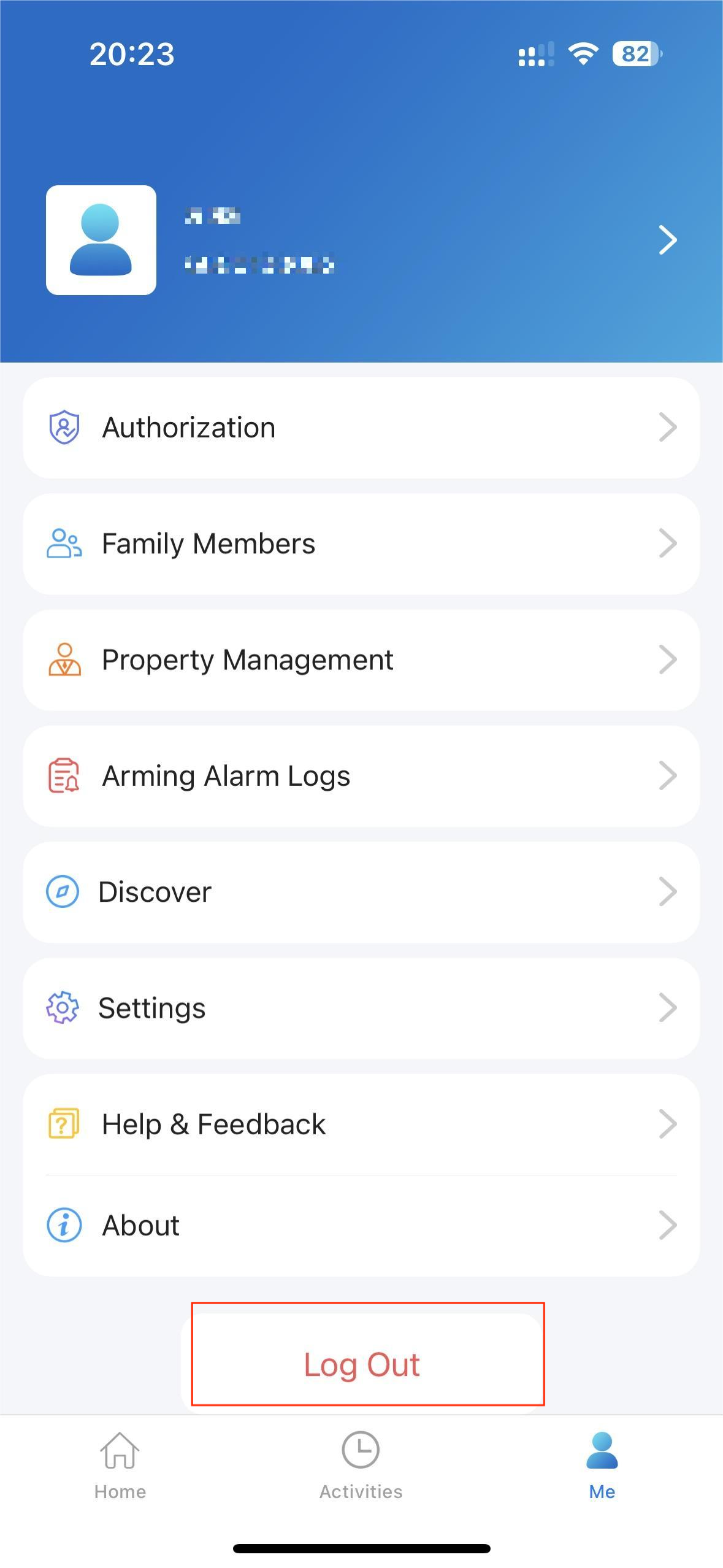
Log Out
To sign out of SmartPlus, tap Me >Log Out.
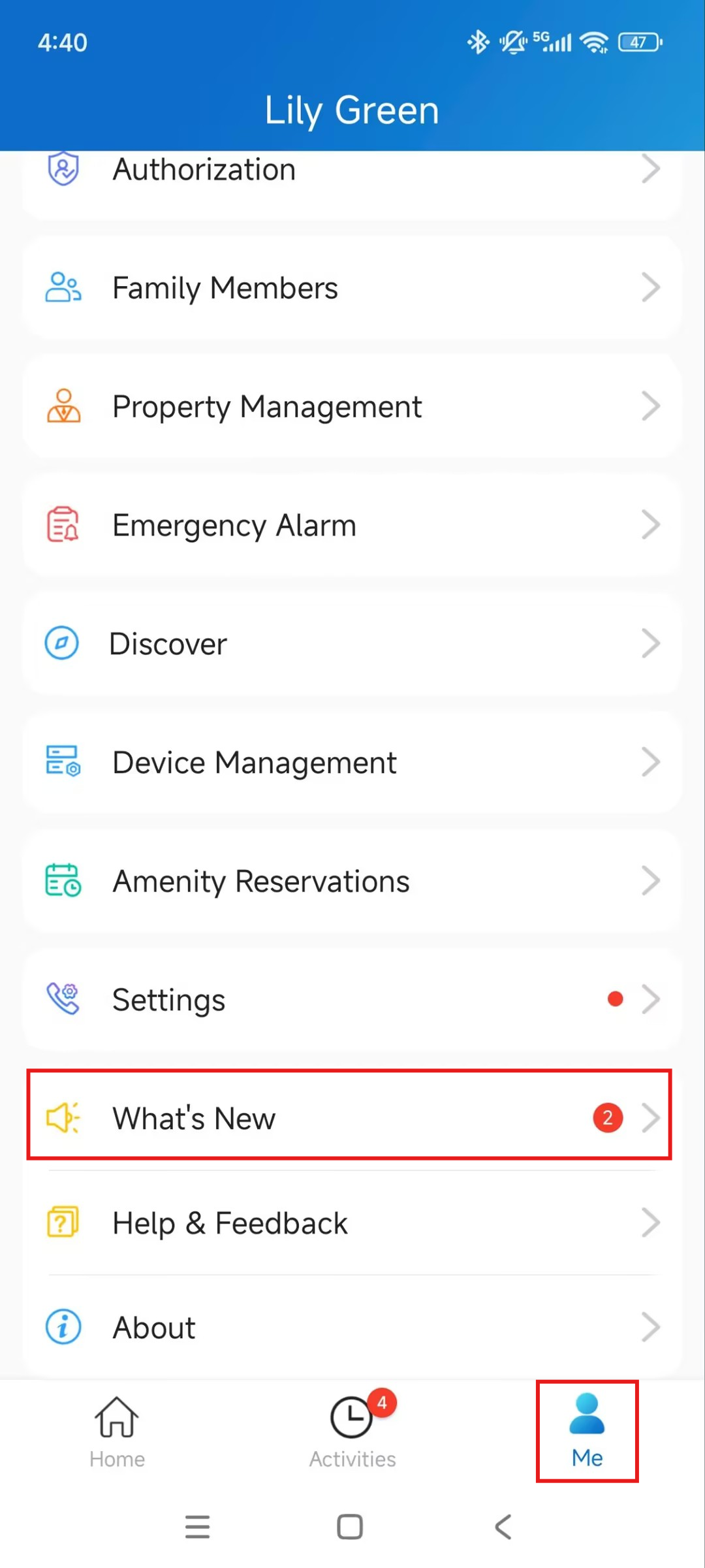
App New Features
Check the SmartPlus App’s new features on the Me > What’s New page.
Support
Update
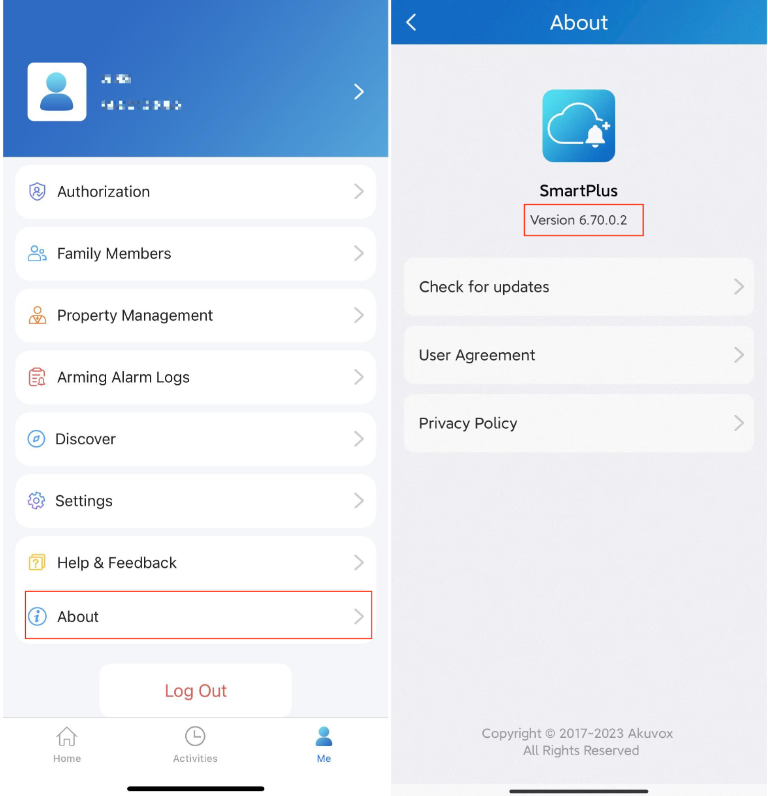
You can go to Me > About to see the current software version. Tap Check for Updates, it will turn to App Store or Google Play automatically, then you can check whether it is the latest one.
Your settings and data will remain unchanged when you update the app to the latest version.
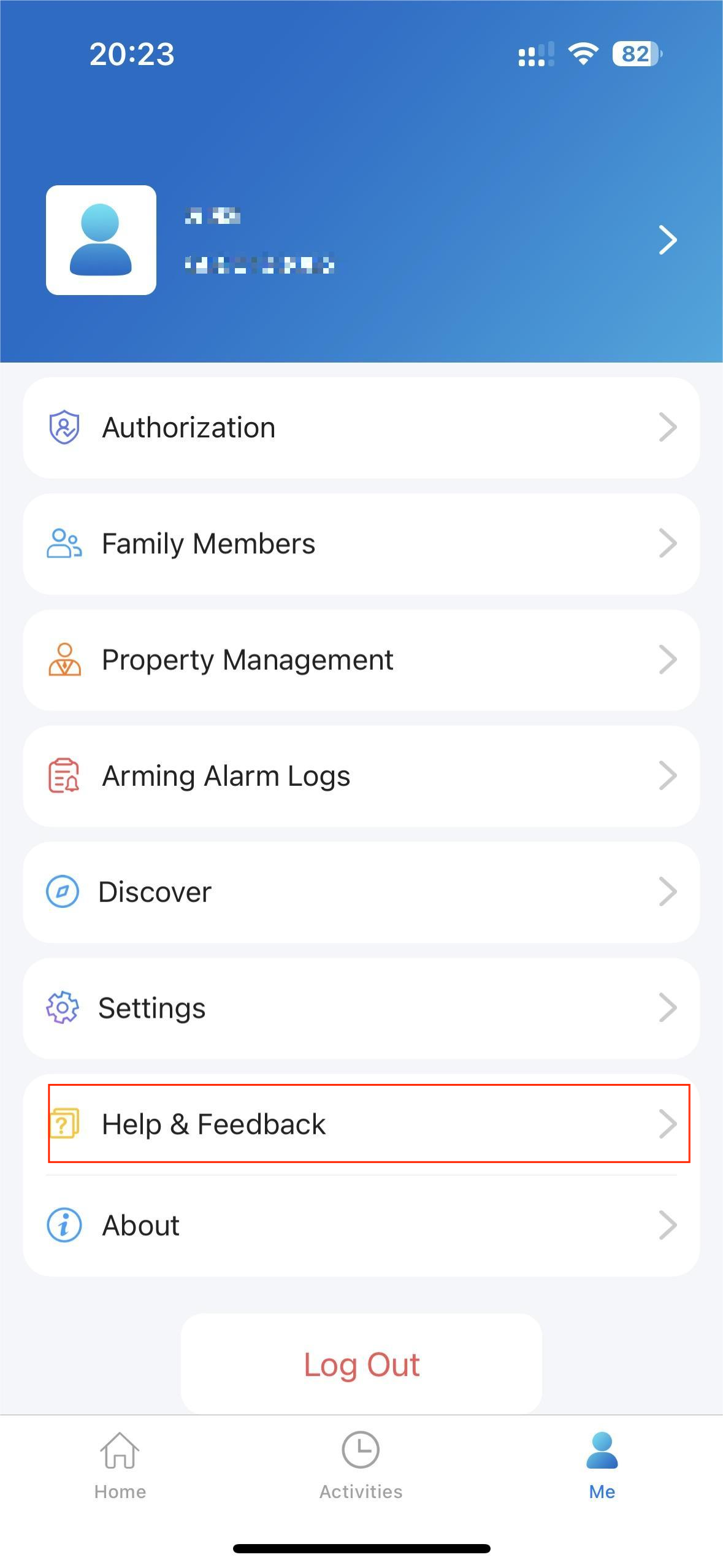
Get Help
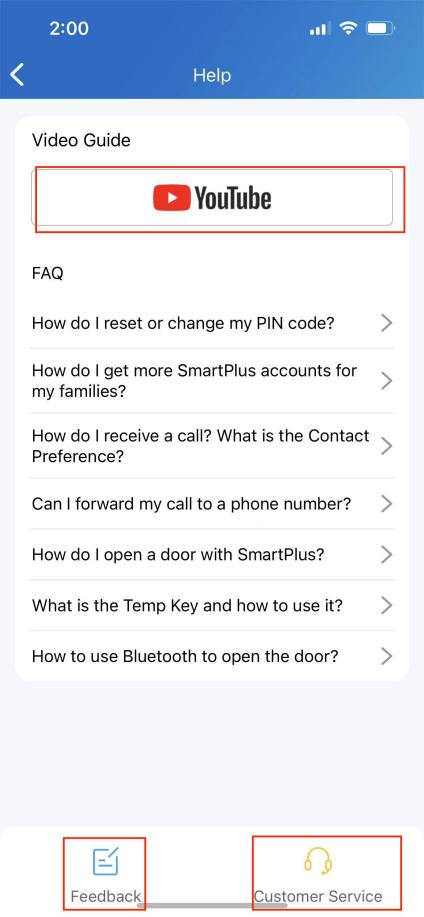
If you need help, go to Me > Help & Feedback. You can do any of the following:
Watch video tutorials
Get answers to some frequently asked questions.
Tap Customer Service to contact us for technical support.
Tap Feedback to describe and submit your problems.
FAQ
(1) Can't call out on the App?
Check that your network is working.
Update the App to the latest version.
Check that your account is activated and make sure you've paid the renewal fee. If not, please contact your service provider.
If the above doesn't work, please go to Me > Settings > Advanced Settings >Export Log, and send the log to Akuvox technical engineers.
(2) Can't see pictures when calling or monitoring?
Only audio calls are supported between Apps.
Update the App to the latest version.
Check that your account is activated and make sure you've paid the renewal fee. If not, please contact your service provider.
Check that door unit cameras are working.
If the above doesn't work, please go to Me >Advanced>Export Log, and send the log to Akuvox technical engineers.
(3) Can't log in due to forgotten password?
Go to the login page > Forgot Password. You can reset your password using Email or message:
Email. Enter your email address, and you will receive an email with a new password.
SMS. Tap Try to reset via SMS
Enter your mobile number and tap Obtain Code.
Enter the verification code you received. Tap Next and follow the onscreen instructions.
(4) How to obtain an account?
Provide your Email address and/or a phone number (if you'd like to log in or reset your password via SMS) to your service provider. You will then receive an Email from Akuvox with your username, password, and a QR code for login. Or you can enter your phone number and log in with a verification code sent via SMS.
If you want to create sub-accounts for your family members, go to Me > Family Members.
Contact Us
For more information about the product, please visit us at www.akuvox.com, or feel free to contact us by
Sales email: sales@akuvox.com
Technical support email: support@akuvox.com
Telephone: +86-592-2133061 ext.7694/8162
We highly appreciate your feedback about our products.